

Power Your Software Testing with AI Agents and Cloud
The Native AI-Agentic Cloud Platform to Supercharge Quality Engineering. Test Intelligently and Ship Faster.


- TestMu AI (Formerly LambdaTest)
- /
- Blog
- /
- 19 Desktop Automation Tools With Features [2026]
Top 19 Desktop Automation Tools For 2026
Learn about desktop automation tools to automate repetitive tasks and boost productivity by streamlining the workflows of desktop applications.
Last Updated on:
Desktop applications require installation, configuration, and execution on a desktop operating system, such as Windows, macOS, or Linux. This means end-users must have access to a PC or laptop with sufficient hardware resources to run desktop applications.
Desktop application testing plays a pivotal role in ensuring the quality and reliability of desktop applications, which can be done through manual or automated approaches. Desktop automation testing uses desktop automation tools to verify the functionality of these applications much more quickly and efficiently.
In this blog, we will learn about automating desktop applications, its benefits, the process, and various desktop automation tools.
Overview
Desktop automation tools drive native Windows, macOS, and Linux applications the way a user would, clicking controls and reading state that browser tools cannot reach. The right one depends on whether your app exposes accessibility APIs, and on whether testers or developers own the suite.
- Best for Windows-native apps - WinAppDriver drives Windows applications through the WebDriver protocol, so existing Selenium knowledge carries across to the desktop.
- Best when no accessibility API exists - SikuliX matches on screen images instead of element locators, which reaches legacy and custom-rendered interfaces nothing else can address.
- Best for keyword-driven suites - Robot Framework keeps tests readable for mixed technical and non-technical teams while still supporting Python extension.
- Best for codeless Windows workflows - Power Automate records desktop steps without scripting, which fits business users automating routine operations rather than QA suites.
- Best for the web surfaces around a desktop app - TestMu AI covers the browser and real-device side, since most desktop products ship a web console or companion app alongside.
Which Platforms Do Desktop Automation Tools Need to Cover?
Desktop automation tools need to cover Windows, macOS, and Linux, but Windows holds roughly two-thirds of desktop usage, so platform support is the first filter when shortlisting any tool.
Platform spread is the real constraint here. StatCounter desktop operating system market share put Windows at 62.67% in August 2026, macOS at 15.31%, and Linux at 8.88%.
A Windows-only tool therefore reaches about two-thirds of desktops, which is why the comparison table below carries a platform column for every tool.
A desktop application runs locally from the hard drive rather than in a browser, so a tool has to attach to a native process and read its control tree instead of a DOM.
When a desktop application exposes no API, teams often read data straight from its interface using screen scraping, the practice of extracting data from a rendered screen rather than a backend.
Why Should You Automate Desktop Applications?
Automate desktop applications to ensure consistency, expand test coverage, increase testing speed, reduce human errors, improve task management, and achieve long-term cost savings.
Automating tests for desktop applications provides several benefits that can significantly enhance the software development process.
It helps automate repetitive tasks, ensure consistent testing, and reduce the chances of human error, thereby making desktop application testing more efficient and reliable.
Some of the reasons why automating desktop applications is important:
- Consistency and repeatability in test execution - Desktop automation testing allows you to execute tests consistently and with repeatability. Tests can be run whenever needed, and since the scripts follow a predefined algorithm, each result is reliable and free from human error, ensuring consistent outcomes every time.
- Expanded test case coverage - By implementing automation testing, you can execute the tests at any moment and in parallel. This capability allows for the reuse of scripts, simultaneously enabling comprehensive coverage of a wide range of test cases.
- Increases testing speed and efficiency - Unlike manual testing, which requires a QA engineer to perform various actions and downloads, an automated test script can complete these tasks in milliseconds. This rapid execution provides quicker feedback to your team, reduces the testing phase of the application, and accelerates your time-to-market.
- Reduction of human errors - It reduces errors and biases by eliminating manual intervention. QA specialists can minimize the risk of overlooking critical defects or inaccurately assessing software quality. Automated test scripts perform only the tasks they're programmed to do, eliminating concerns about test interpretability. They are objective and focus solely on delivering the expected result.
- Improves task management - It improves task management by creating a specific workflow for your team. QA engineers can prioritize their efforts on more critical tasks since some tests are covered by automated testing. Integration with task management tools allows you to track the progress of test execution, identify bottlenecks, and adhere to a schedule.
With desktop automation testing tools, you can assign test cases to specific team members, track their status, and provide updates. QA experts can focus on higher-value activities by automating repetitive and time-consuming tasks.
Task management tools can capture feedback, document lessons learned, and accumulate improvement initiatives.
- Long-term cost-effectiveness - Opting for automation testing for desktop applications can result in long-term cost savings. It enables early detection and resolution of issues, allowing your team to concentrate on more valuable tasks and focus on product refinement.
- This proactive approach helps avoid expensive rework and potential revenue loss from software failures. By empowering your QA engineers and developers to lead the project with their expertise, you can prioritize quality improvement and steer clear of potential development challenges.
- Faster feedback on software quality - It ensures continuous validation of changes. Scripts can be run cleanly, and the team is promptly notified of any issues. This allows for almost instant identification and resolution of problems.
- Additionally, systematic desktop automation testing provides a broader view. You can quickly pinpoint problematic areas and make necessary adjustments by noting recurring errors during tests.
To learn more about automating desktop applications, follow this guide on desktop automation and get detailed insights.

Note: Discover the power of desktop automation and run tests to simplify your tasks and enhance productivity. Try TestMu AI Now!
What Are the Top 19 Desktop Automation Tools?
Top desktop automation tools include Selenium, Appium, Ranorex, TestComplete, WinAppDriver, Tosca, UFT One, and others designed to automate desktop workflows.
Desktop automation tools are software solutions designed to automate tasks and workflows for desktop applications. They help increase efficiency, reduce errors, and save time for critical tasks.
The 19 tools below do two different jobs. Testing tools verify that a desktop application behaves correctly before it ships.
Robotic desktop automation tools run that application to get routine work done. Compare the full list first, then read the entries that match your job.
| Tool | Type | Platforms | Licence | Best for |
|---|---|---|---|---|
| Appium Desktop | Testing | Windows, macOS, Linux | Open source | Inspecting elements and running an Appium server locally |
| Robot Framework | Testing | Windows, macOS, Linux | Open source | Keyword-driven suites a mixed-skill team can maintain |
| TestComplete | Testing | Windows | Commercial | Windows, .NET, WPF and Delphi apps in one suite |
| TestArchitect | Testing | Windows | Commercial | Action-based keyword testing without scripting |
| WinAppDriver | Testing | Windows | Open source | WebDriver-style tests against Win32 and UWP apps |
| Winium | Testing | Windows | Open source | Selenium users extending existing skills to Windows |
| Ranorex | Testing | Windows | Commercial | WPF and WinForms apps with record and replay |
| Airtest | Testing | Windows, macOS, Linux | Open source | Image-based checks on custom-rendered interfaces |
| Pywinauto | Testing | Windows | Open source | Python teams scripting Win32 and UI Automation controls |
| FlaUI | Testing | Windows | Open source | .NET teams testing Win32, WinForms, WPF and Store apps |
| OpenText UFT One | Testing | Windows | Commercial | Large enterprise estates with legacy technology stacks |
| Tricentis Tosca | Testing | Windows | Commercial | Model-based testing across SAP and legacy desktop estates |
| Karate Labs | Testing | Windows, macOS, Linux | Open source | Pairing API tests with desktop UI checks in one script |
| SikuliX | RPA and workflow | Windows, macOS, Linux | Open source | Screens with no accessible element tree |
| Power Automate | RPA and workflow | Windows | Commercial | Codeless Windows workflows recorded by business users |
| AutoIT | RPA and workflow | Windows | Freeware | Windows GUI scripting and routine system tasks |
| ZapTest | RPA and workflow | Windows, macOS, Linux | Commercial | One tool spanning desktop, web and mobile processes |
| AskUI | RPA and workflow | Windows, macOS, Linux | Commercial | Vision-driven automation that ignores the element tree |
| nut.js | RPA and workflow | Windows, macOS, Linux | Open source | Node.js scripts driving mouse, keyboard and clipboard |
Desktop Application Testing Tools
These 13 tools drive a desktop application the way a tester would, asserting on window state, control values, and error dialogs.
Reach for this group when the output you need is a pass or fail result inside a CI pipeline.
Appium Desktop
Appium for desktop is a reliable open-source GUI application combining two essential Appium toolset components: the Appium Server and the Appium Inspector.
The Appium Server enables the automation of application testing, while the Appium Inspector inspects and gathers specifications about an app's UI elements. This desktop automation tool simplifies the creation of test scripts, sets up a quick test server, and configures the Appium environment.
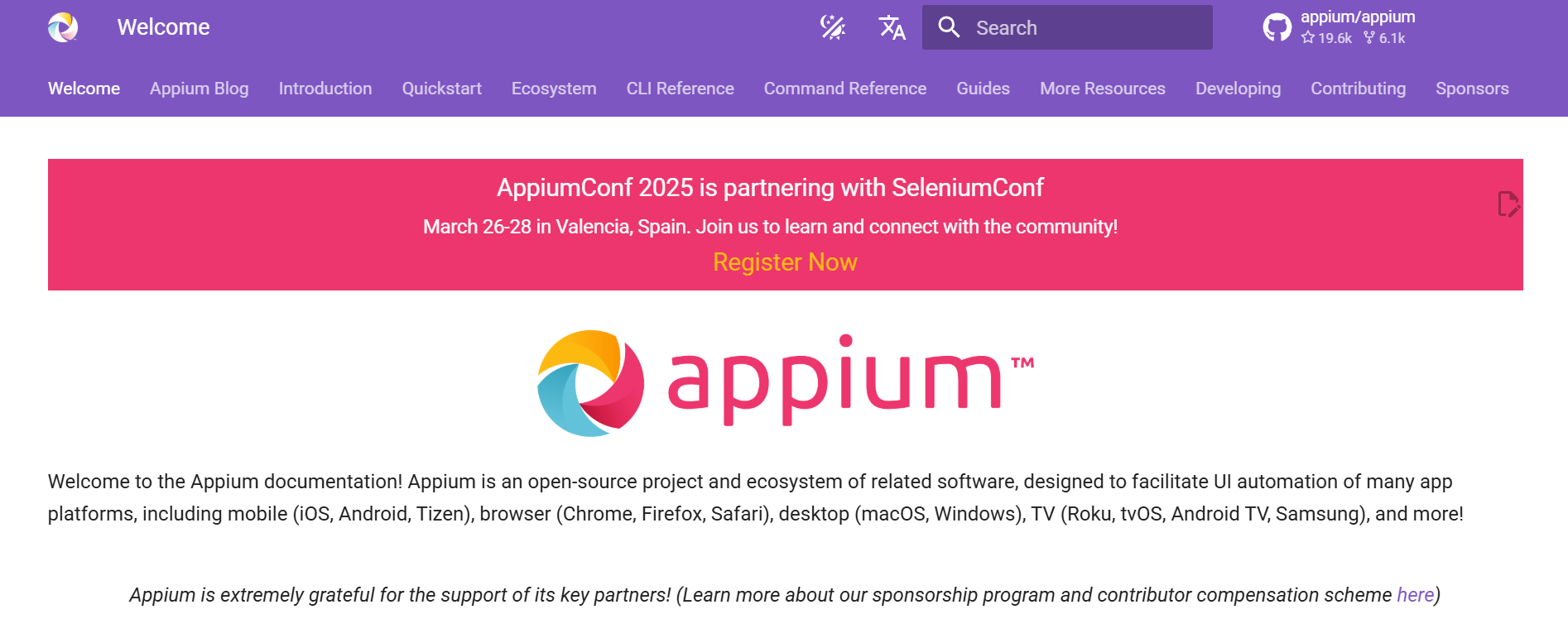
Key features of the Appium desktop automation tool include -
- It helps you identify elements that you want to interact with by allowing you to inspect and locate them.
- It helps you easily start and stop the Appium server, which is important for running your tests.
- It helps display logs generated by the Appium server for your test scripts, which makes it easy for testers to debug the issues and understand what's happening during test execution.
- It also helps provide a console/CLI where you can interact with the Appium server using commands.
- It allows you to manage the apps installed on your devices or emulators, including installing, uninstalling, and launching them.

Robot Framework
It is an open-source framework designed for desktop automation. It is widely used across various applications and offers smooth integration with various tools for flexible and capable automation solutions.
It is recognized for its association with free mobile and desktop application testing tools.
Key features of the Robot Framework desktop automation tool include -
- It supports a wide range of programming languages, including Python, Jython (Java), PyPy, and IronPython (.NET), offering flexibility in test development.
- It is compatible with Windows, macOS, Unix, and Linux operating systems, ensuring flexibility in test environment setup.
- It uses a keyword-driven testing approach, simplifying the testing process and making it easier to understand and maintain.
- It features autocomplete functionality and syntax highlighting, improving code development efficiency and reducing errors.
- It directly integrates with popular automation tools such as Appium and Selenium, providing comprehensive testing solutions and extending functionality.

TestComplete
It is a versatile and strong desktop application testing tool for various applications, including Windows, .NET, WPF, Visual C++, Visual Basic, Delphi, C++Builder, Java, web and mobile platforms.
One of the standout features is its support for constructing test cases using Keywords, which mimic user interactions with the Application Under Test.
Whether teams prefer Record-and-Playback functionality or executing test cases across different environments, it offers flexibility and ease of use. It is particularly beneficial for teams focusing on functional and unit testing because of its comprehensive feature set and adaptability to diverse application types.
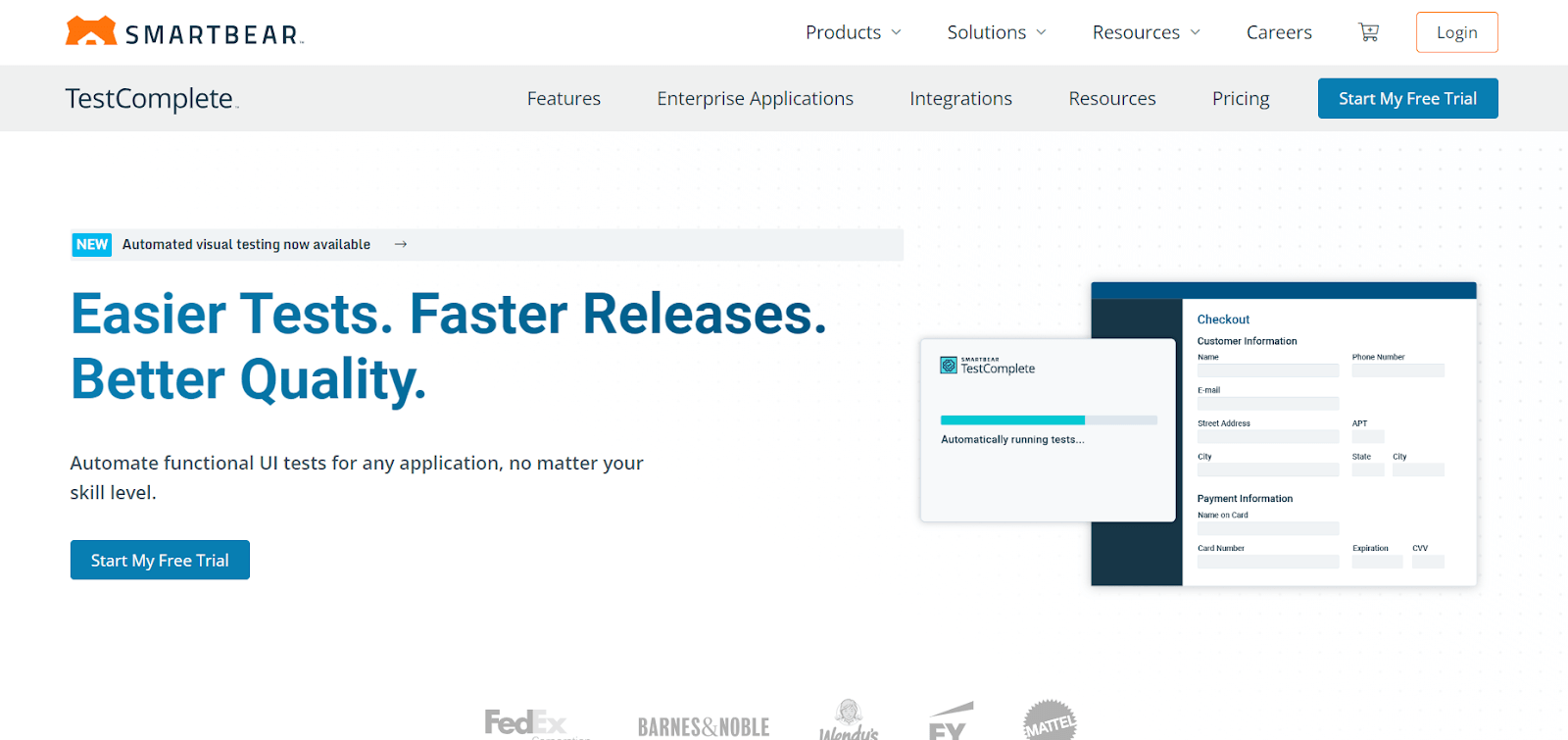
Key features of the TestComplete desktop automation tool include -
- It offers a wide range of keywords (referred to as Operations) that can be customized with parameters for specific actions.
- It allows users to schedule test runs for automation, ensuring tests are executed at specified times.
- It facilitates running a group of tests together as a batch, so a whole suite finishes in one pass.
- It enables running multiple tests simultaneously, reducing the overall test execution time.
TestArchitect
It is driven by keywords, which helps testers easily adapt programming skills and learn quickly. It provides an extensive keyword library and features Action-based testing, a modern method driven by keywords.
Its strong support, high usability, and extensive feature set make it a capable choice for desktop automation tools compared to open-source solutions.
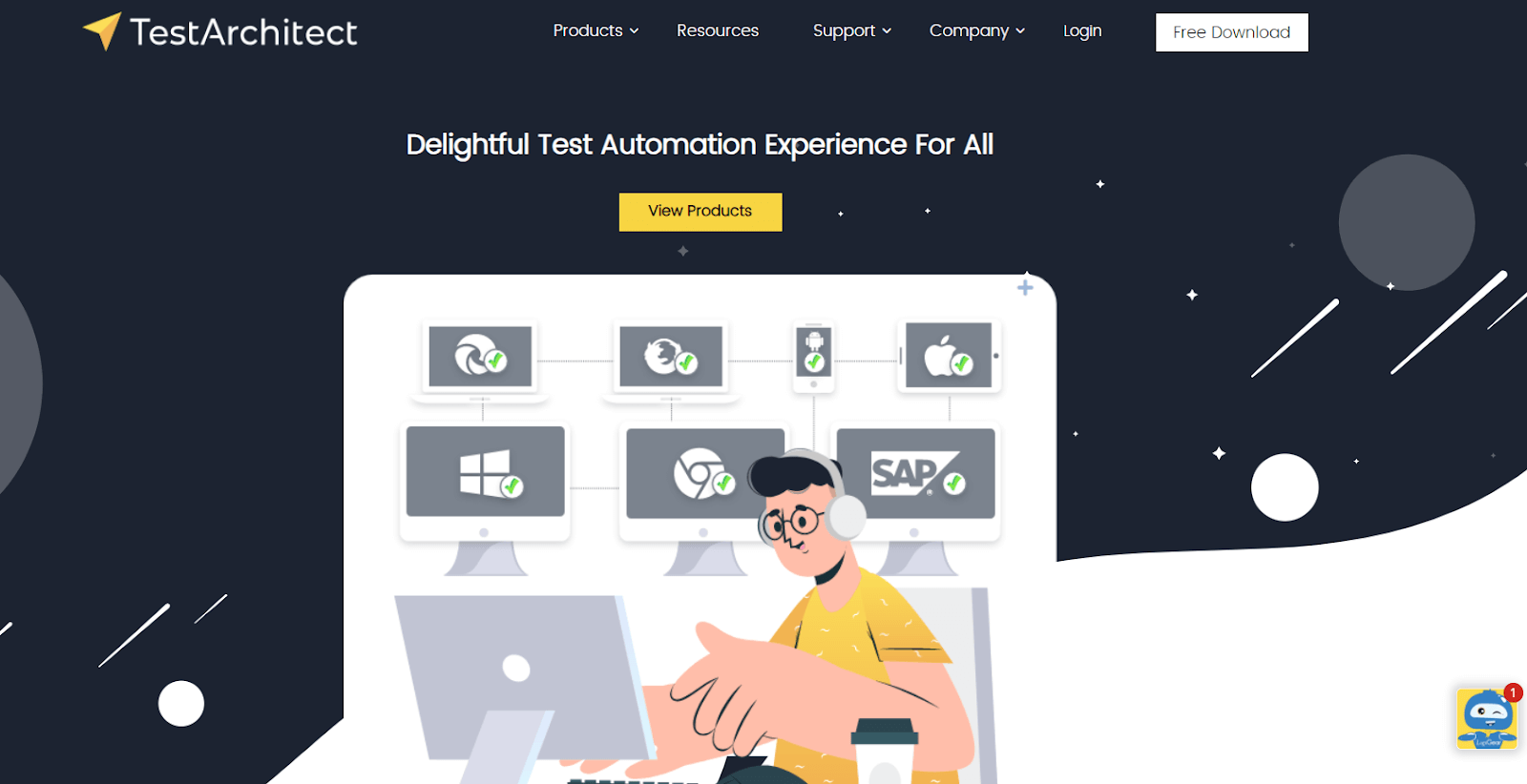
Key features of the TestArchitect desktop automation tool include -
- It allows testers to use the keyword to create test cases, making it easy to maintain.
- Its approachable interface and ease of use make it accessible to testers with varying technical expertise.
- It offers a wide range of features for desktop automation, allowing testers to create comprehensive tests that cover various aspects of their applications.
- It is well-known for its reliability, ensuring that tests run smoothly and produce accurate results.
WinAppDriver
WinAppDriver is one of the leading desktop automation tools that enables users to automate testing scenarios and interact with Windows applications through a standardized set of protocols.
This makes it an ideal choice for direct integration of automation UI tests into the Software Development Life Cycle (SDLC).
With its stable features and comprehensive support for various programming languages and testing frameworks, it empowers users to achieve efficient and reliable automation of Windows desktop applications.
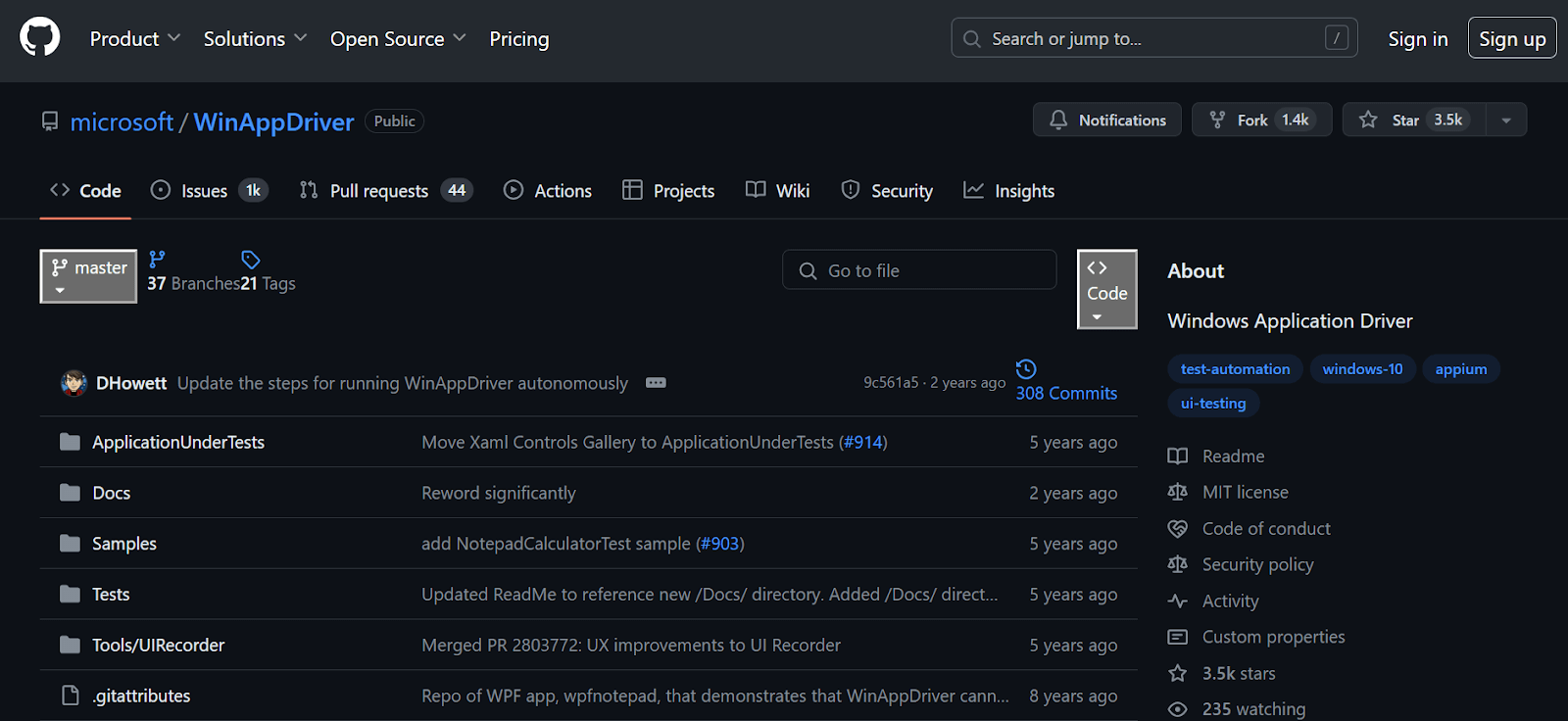
Key features of the WinAppDriver desktop automation tool include -
- It automates testing Windows applications and Universal Windows Platform (UWP) apps using a WebDriver-compatible API.
- It offers production-grade debugging capabilities, enabling effective troubleshooting and issue diagnosis in automated tests.
- It cleanly integrates with DevOps pipelines and CI/CD workflows, allowing automated testing to be part of the software development process.
- It supports various programming languages and automation testing frameworks, ensuring compatibility with different development environments and toolchains.
While desktop application testing on a local machine may work well, it's not a scalable approach. For instance, you may perform the desktop application test on Windows 10, but testing the same application on Windows 11 would require another machine.
Additionally, the challenge of installing WinAppDriver, along with the limitations associated with local grids (e.g., Selenium, Appium, Cypress), also applies when testing desktop applications.
To overcome the challenge, you can use cloud testing that offers scalability and convenience, which are beneficial for desktop application testing. One such platform is TestMu AI.
WinAppDriver supports Selenium-like automated UI testing on Windows applications at scale on cloud automation platforms like TestMu AI.
It is an AI-native test execution and orchestration platform that allows you to perform manual and automation testing at scale over 3,000+ browser and OS combinations.
Moreover, HyperExecute by TestMu AI, which is scalable, reliable, secure, and designed for enterprise-grade testing, makes your test 70% faster than other test execution grids.
It optimizes the execution of your tests, allowing you to focus on creating high-quality test cases. It offers dedicated test runners for every major operating system.
It supports all major programming languages and frameworks, including Java, Node.js, Python, PHP, Go, C#, and more.
One of the key benefits of HyperExecute is its intelligent test orchestration. This feature automatically groups and distributes your tests across different testing environments, considering past executions.
It reorders the tests to prioritize those more likely to fail, helping you identify and fix issues faster.
This allows you to run your desktop application tests directly across different operating systems without requiring multiple machines or manual installations of any desktop application tools.

Austin Siewert
Co-Founder, Steadfast Systems
Discovered @TestMu AI yesterday. Best browser testing tool I've found for my use case. Great pricing model for the limited testing I do 👏
2M+ Devs and QAs rely on TestMu AI
Deliver immersive digital experiences with Next-Generation Mobile Apps and Cross Browser Testing Cloud

To learn how to use WinAppDriver, follow this guide on automating desktop apps using WinAppDriver. This step-by-step guide covers everything from installation to successfully running the tests, including applying cloud-based platform features like HyperExecute.

You can Subscribe to the TestMu AI YouTube Channel and get access to all the video tutorials on various automation testing processes.
Topics include mobile app testing, Appium testing, Selenium testing, Cypress testing, cross-browser compatibility, and more.
Winium
Winium is a desktop automation tool that builds on the Windows UI Automation framework, enabling testers to automate and test Windows desktop applications using code.
Developed by Codeplex, it extends the functionality of web automation tools to the desktop environment.
It empowers developers and quality assurance professionals to write automated tests that can launch applications, interact with UI elements, verify application state, and more.
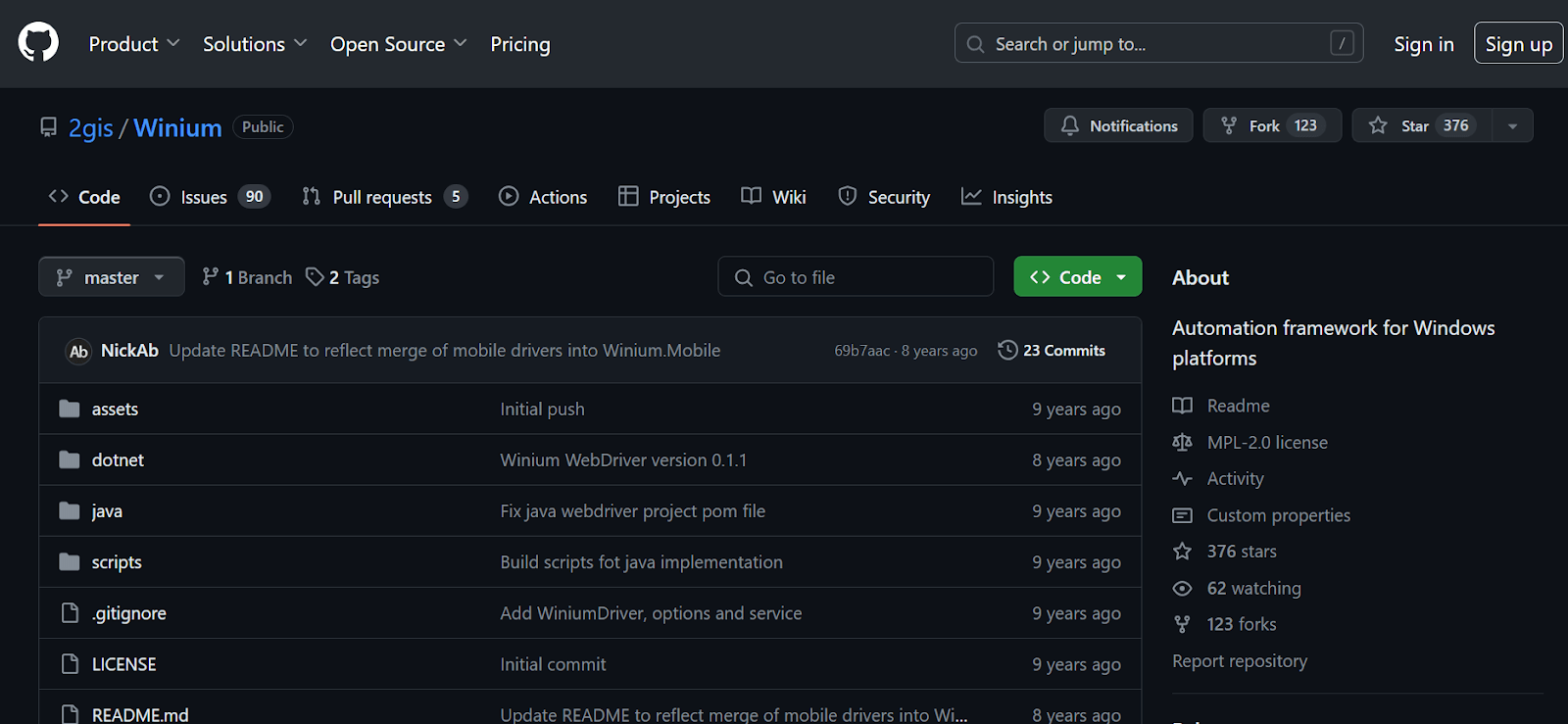
Key features of the Winium desktop automation tool include -
- It offers a Selenium-like syntax, making it easy for testers familiar with Selenium WebDriver to transition to desktop automation cleanly.
- It speaks the WebDriver protocol, so existing WebDriver knowledge and automation testing frameworks like JUnit, NUnit, and more for test execution.
- It provides various object identification methods, including Accessibility IDs, control types, and XPath, ensuring flexibility in interacting with different UI elements within the application.
- It supports multiple programming languages, including C#, Python, Java, and Ruby, through language bindings.
- This flexibility allows development teams to apply their existing web development skill sets and integrate them into their preferred testing frameworks.
- It provides a JSON wire protocol that facilitates remote communication between test scripts and the Winium driver.
- This feature allows for distributed testing, enabling teams to execute tests on multiple machines or environments simultaneously.
Ranorex
Ranorex is one of the leading desktop automation tools developed by Ranorex GmbH, designed to automate testing processes for desktop, web, and mobile applications.
Using an approachable interface and strong automation capabilities, Ranorex empowers testers and developers to create automated tests, perform GUI testing, and easily execute regression tests.
It offers exceptional capabilities in this domain, particularly for applications built with frameworks like Windows Presentation Foundation (WPF) and Windows Forms (WinForms).
Key features of the Ranorex desktop automation tool include -
- It is a centralized object repository that stores GUI elements and properties, facilitating easy maintenance and reuse of test assets across multiple test cases.
- It enables data-driven testing by allowing users to parameterize test cases and feed input data from external sources, enhancing test coverage and scalability.
- It includes a capable recorder tool for capturing user interactions and generating automation scripts.
- It offers various functionalities for creating, organizing, and executing automated tests.
- It supports multiple programming languages, such as C#, VB.NET, and JavaScript, allowing developers and testers to use their existing skills and integrate with other tools and frameworks directly.
- It supports the automation of desktop applications across various platforms, including Windows, macOS, and Linux, ensuring consistent testing experiences across different operating systems.
Airtest
It is an open-source, cross-platform UI automation testing tool that offers a unique approach to testing desktop applications. One of its key features is the ability to create tests without requiring source code, simplifying the testing process for users.
This framework is particularly useful for automating repetitive tasks and ensuring the quality of desktop applications across different operating systems.
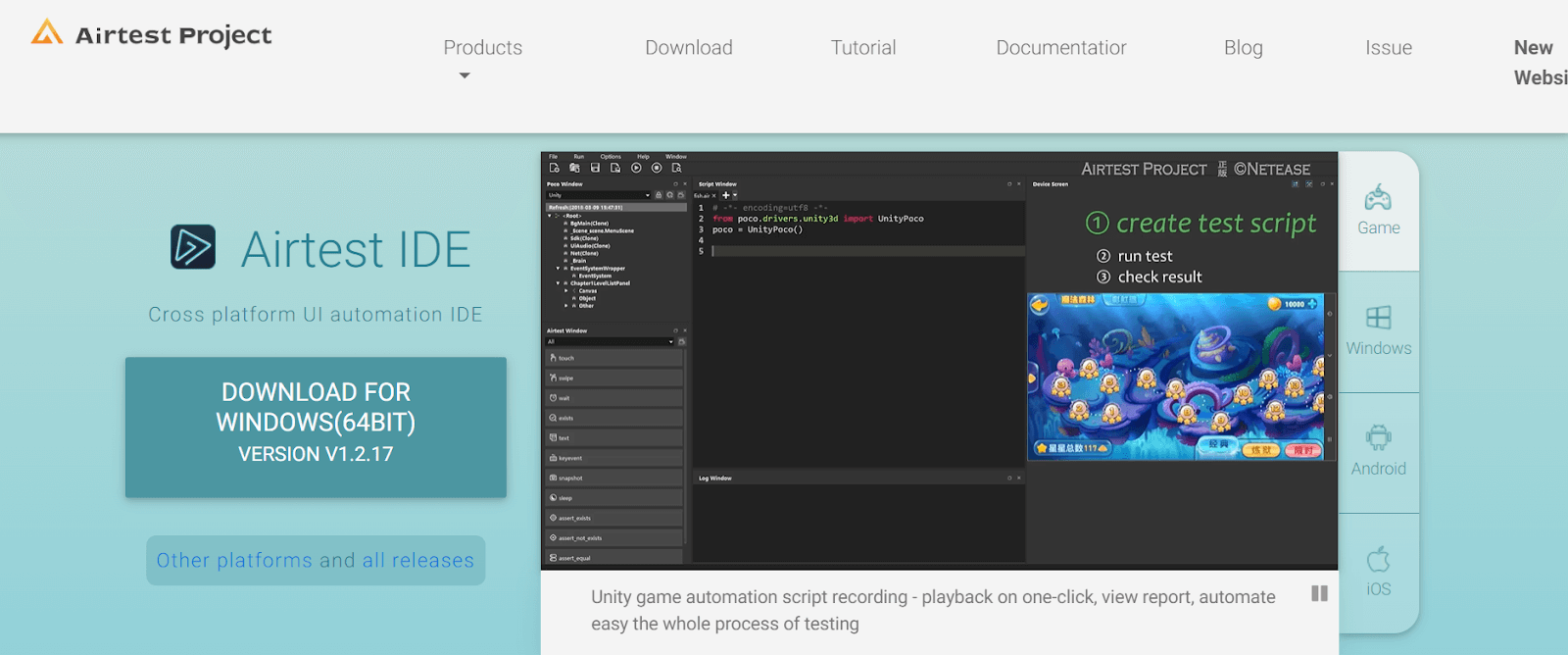
Key features of the Airtest desktop automation tool include -
- It supports multiple platforms, including Android, iOS, Windows, and web applications, ensuring comprehensive cross-platform testing for diverse applications.
- It allows you to write tests in Python, harnessing the power and simplicity of Python scripting for efficient test case development and execution.
- It offers many image recognition tools, facilitating easy and efficient test creation without intricate coding requirements.
- It integrates cleanly with popular testing frameworks such as pytest and unittest, enabling users to use their preferred testing tools for enhanced test automation.
Pywinauto
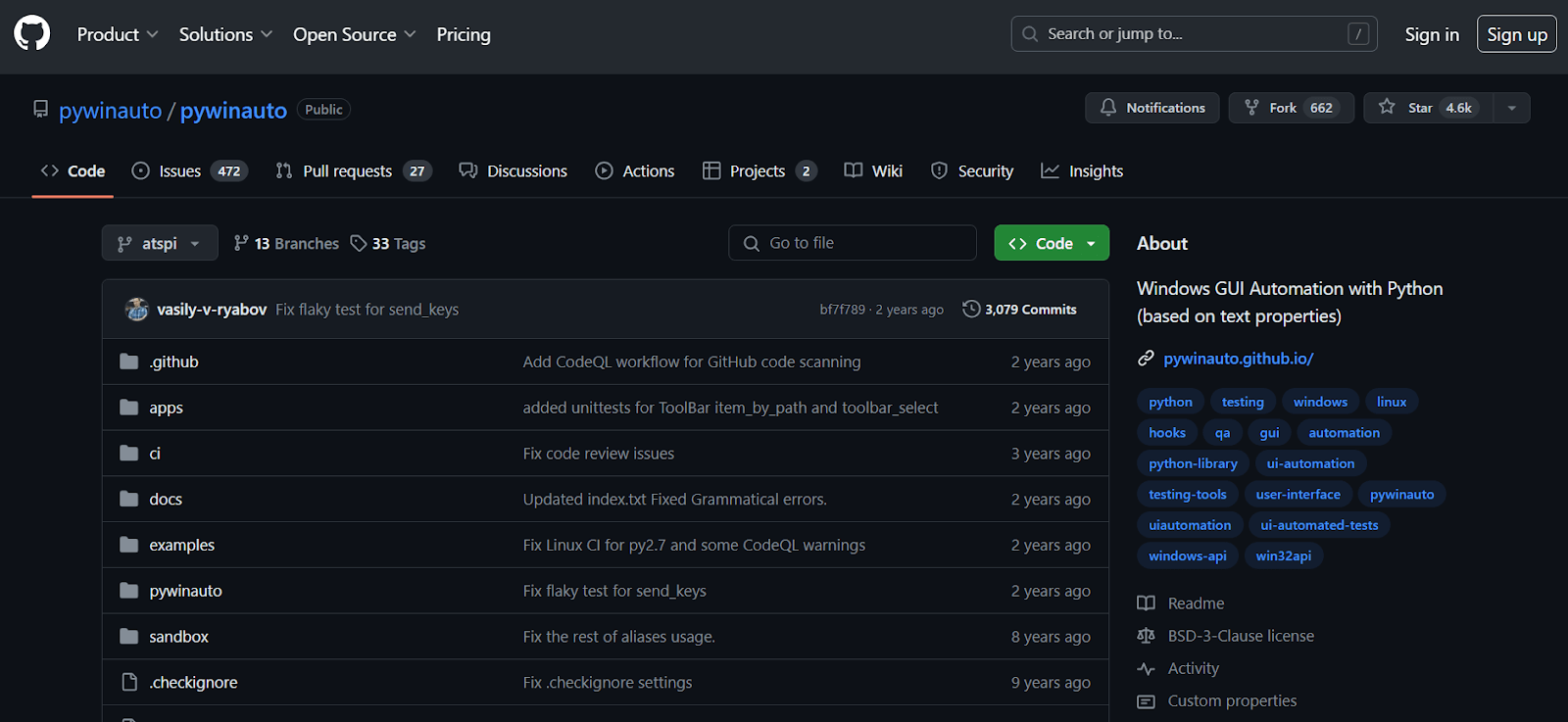
Pywinauto is a widely used, free, and open-source automation library that specializes in automating Windows GUI applications. Its straightforward scripting capabilities make it a popular choice among testers and developers seeking efficient desktop automation solutions.
Key features of the Pywinauto desktop automation tool include -
- It is compatible with multiple programming languages, including Python, IronPython, and Jython, ensuring flexibility and adaptability across different development environments.
- It supports standard and custom controls, catering to diverse application scenarios and ensuring compatibility with various UI elements.
- It provides an easy-to-use API, enabling users to interact with GUI elements effortlessly and create automation scripts efficiently.
- It offers a rich set of built-in functions and libraries, empowering testers and developers with comprehensive tools for desktop application automation.
FlaUI
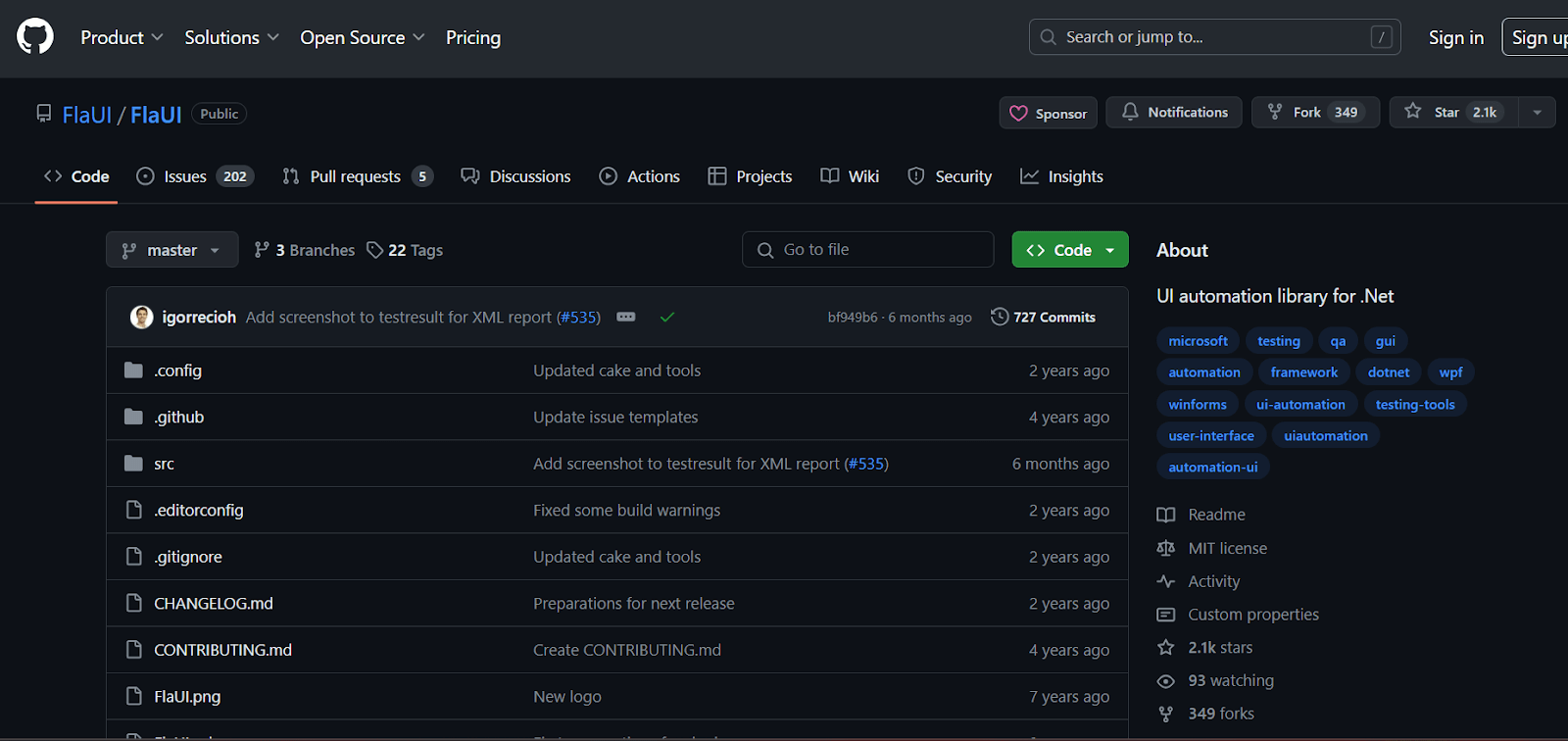
FlaUI is a .NET library designed for automated UI testing of Windows applications, including Win32, WinForms, WPF, and Store Apps. It acts as a wrapper around Microsoft's native UI Automation libraries.
It provides a clean and efficient way to interact with the application's UI elements. It covers almost all aspects of the UI Automation libraries and offers access to native objects for specialized needs not addressed by FlaUI directly.
Key features of the FlaUI desktop automation tool include -
- It provides an object-oriented API for UI automation, allowing for precise interaction with Windows Forms, WPF, and Win32 applications.
- It is compatible with any programming language that supports .NET, ensuring adaptability across various development environments and languages.
- It supports the automation of multiple applications simultaneously, improving testing efficiency by enabling concurrent execution of test cases.
- It includes a comprehensive set of verification and assertion methods for UI testing, ensuring accuracy and reliability in test automation.
OpenText UFT One
Unified Functional Testing (UFT) One is a comprehensive desktop automation tool used mainly for functional and regression testing. It is versatile, supporting various technologies such as web, mobile, and desktop applications.
Key features of the OpenText UFT One desktop automation tool include -
- It enables communication and information sharing between teams to break down silos.
- It allows you to use a DevOps-enabled toolchain to improve efficiency and remove bottlenecks.
Tricentis Tosca
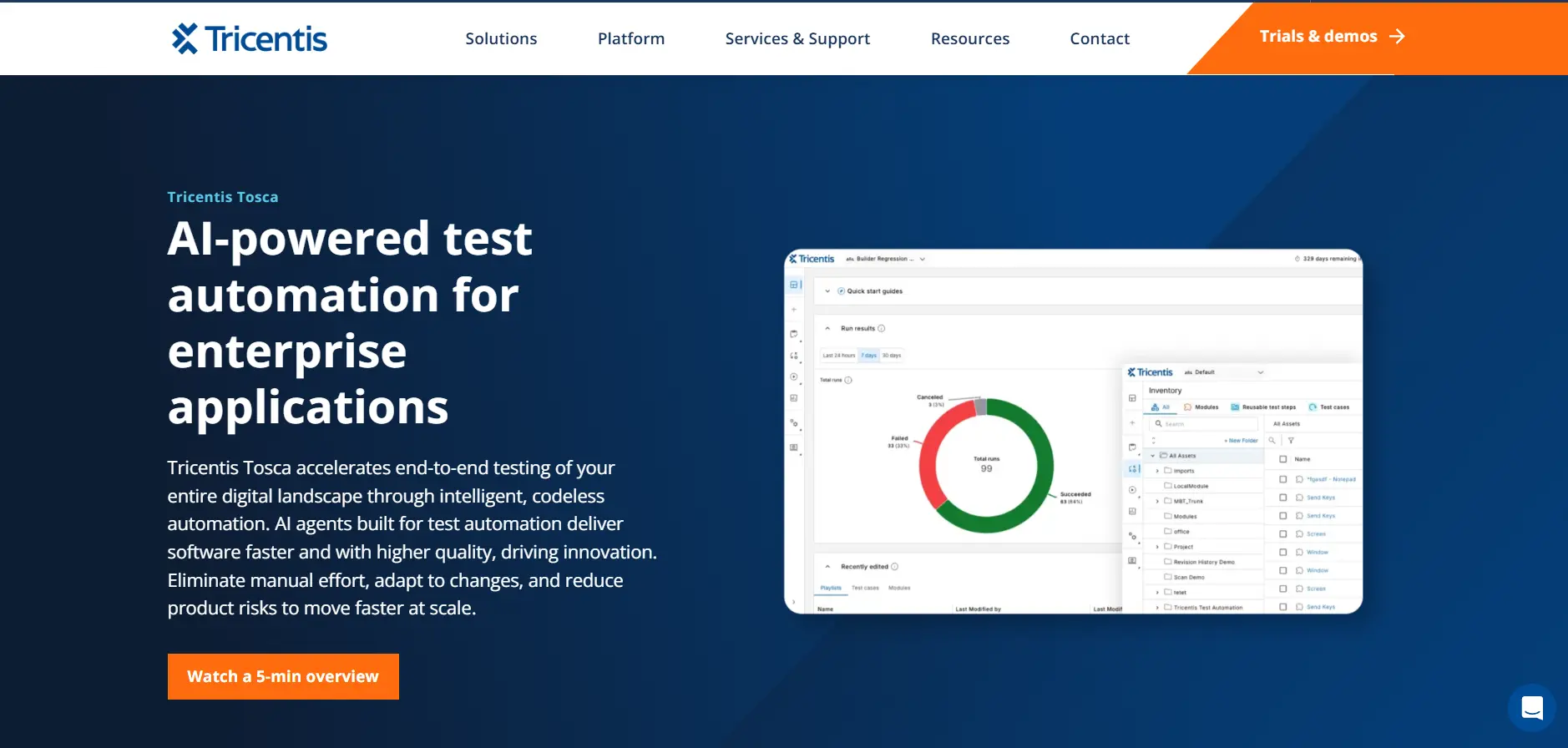
Tosca takes a model-based approach to desktop automation. Instead of recording clicks against one screen, it builds a reusable model of the application under test.
Tests are assembled from those modules, so a control that moves or gets renamed is corrected once in the model rather than in every test that touches it.
Key features of the Tricentis Tosca desktop automation tool include -
- Its model-based design separates test logic from the interface, so one repair fixes every test that uses that control.
- It reaches enterprise technologies that pure Windows tools miss, including SAP, terminal emulators, and packaged business applications.
- It builds test cases without scripting, which suits analysts who know the business process but not a programming language.
- It ties desktop, web, API, and mobile coverage into one suite, so a single estate is not split across several tools.
Karate Labs
This tool was developed by Peter Thomas and offers a unique framework that combines API test automation, mock servers, performance testing, and UI automation into a single system.
Its language-neutral syntax eliminates the need for compiling code, allowing users to write tests in a simple, readable syntax suitable for HTTP, JSON, GraphQL, and XML.
It allows for a smooth mixture of API and UI test automation within the same script and offers a Java API for those who prefer programmatic integration.
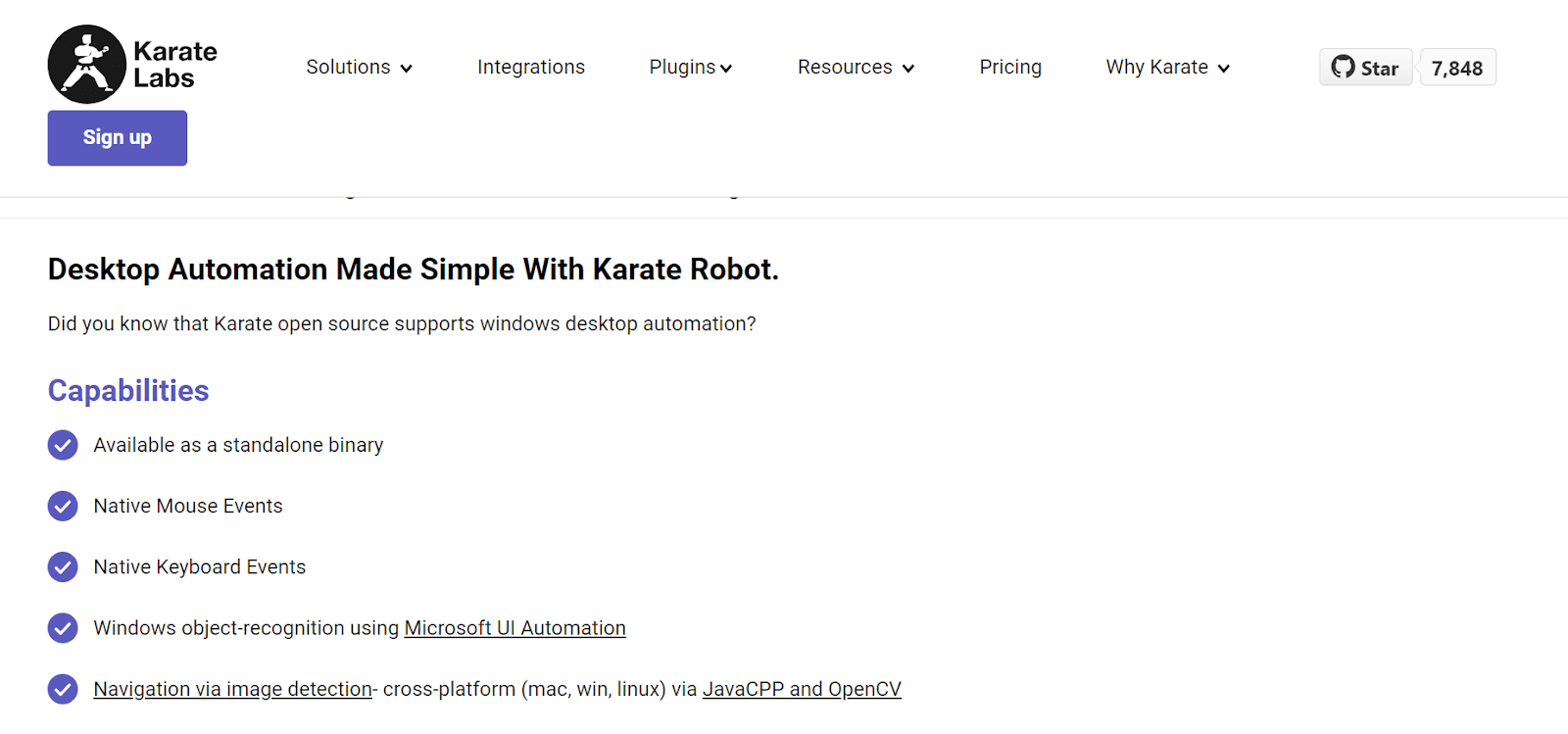
Key features of the Karate Labs desktop automation tool include -
- It is ideal for quick development and execution, allowing you to write code without compiling it.
- It provides strong assertion capabilities and generates detailed HTML reports for easy validation and troubleshooting.
- It offers a stand-alone executable for multiple platforms, suitable for teams with varying programming expertise.
- It includes a Java API for programmatic access, enabling integration into custom test suites.

Robotic Desktop Automation and Workflow Tools
These 6 tools automate the work itself rather than test it, replaying mouse and keyboard steps across applications that expose no API.
Reach for this group when the output you need is a finished task, not a test report.
SikuliX
It is one of the leading desktop automation tools with its distinct approach. Unlike its commercially licensed counterparts, it provides a free and open-source solution, using image recognition to automate tasks across Windows, macOS, and Linux systems.
By enabling users to automate actions visually rather than through coding, it simplifies automation and facilitates smooth interaction with desktop applications.
With its intuitive interface and adaptable features, it meets a broad spectrum of automation requirements, proving indispensable for organizations aiming to enhance efficiency and productivity.
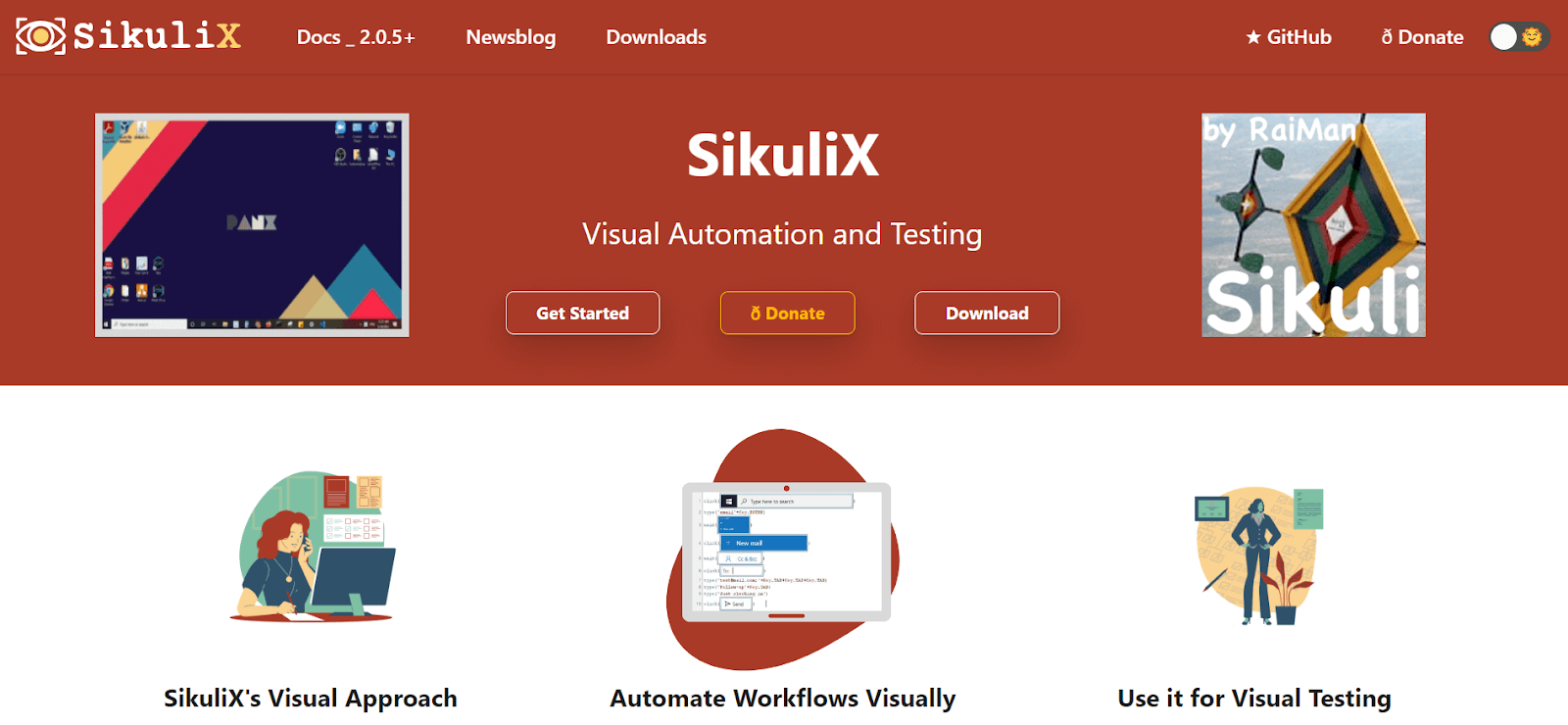
Key features of the SikuliX desktop automation tool include -
- It is distinguished by its advanced image recognition technology, enabling users to automate tasks through the identification and interaction with GUI elements using screenshots.
- It enables users to apply languages like Python and Jython (a Python implementation designed for the Java platform).
- This functionality allows users to apply their programming skills to develop customized automation scripts to meet specific requirements.
- It is platform-independent, which allows it to function across multiple operating systems, including Windows, macOS, and Linux.
- It offers a visual scripting interface that simplifies the automation process for users without programming expertise.
- Through the intuitive interface, users can create automation scripts by visually defining workflows, capturing screenshots, and specifying interaction patterns, eliminating the need for complex coding.
Power Automate
It offers UI automation actions for interacting with Windows applications and components through mouse clicks, keyboard strokes, and data extraction.
The actions of the Windows subcategory directly manipulate entire application windows. Desktop automation can be done by adding actions manually or using the recorder.
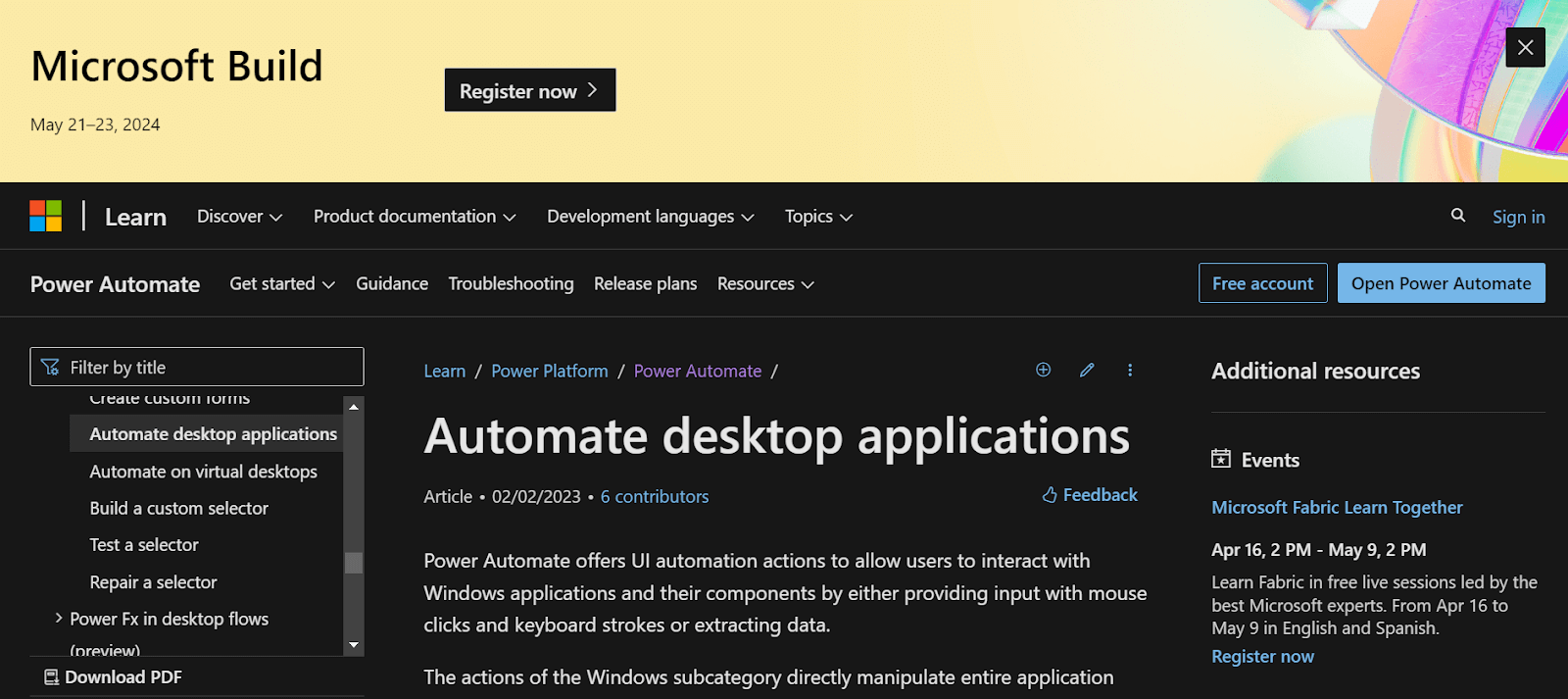
Key features of the Power Automation desktop automation tool include -
- It allows users to interact with Windows applications and components through mouse clicks, keyboard strokes, data extraction, and more.
- It enables the manipulation of entire application windows and interaction with specific components like text fields and buttons.
- It provides capabilities for image-based testing using screenshot comparisons, facilitating automation testing of complex UIs.
AutoIT
AutoIT emerges as a reliable scripting language designed for automating Windows GUI and general scripting tasks. It is one of the leading desktop automation tools, characterized by its approachable syntax and comprehensive library of functions.
It handles repetitive tasks, engage with desktop applications, manage files, and execute diverse system operations effortlessly.
Its adaptability and versatility render it a favored option for automating intricate processes and elevating workflow efficiency across a spectrum of industries.
Key features of the AutoIT desktop automation tool include -
- It offers image recognition capabilities for automating tasks based on visual cues, including capturing and analyzing screenshots.
- It provides a comprehensive library of functions for interacting with Windows, controls, files, and registry settings.
- It allows users to record and playback to automate repetitive sequences of actions, simplifying the automation process for non-programmers.
ZapTest
ZapTest emerges as one of the leading desktop automation tools, automating processes on desktops and a wider digital stage. It automates tasks on desktops (Windows, macOS, Linux), and its true power lies in its ability to orchestrate automation across various platforms:
- Web Application Testing: Automate repetitive actions within web browsers.
- Mobile App Development - automate workflows on iOS and Android devices.
- APIs: Integrate with APIs to automate data exchange between applications.
- Load Testing: Perform stress tests to analyze application performance under heavy load.

Key features of the ZapTest desktop automation tool include -
- It enables users to automate testing processes for desktop applications, saving time and effort compared to manual testing methods.
- Users can create and execute automated tests, perform regression testing, and generate detailed reports to ensure the quality and reliability of their desktop applications.
- It supports the testing of desktop applications across different platforms, including Windows, macOS, and Linux.
- This cross-platform compatibility ensures that users can test their applications on various operating systems, enhancing the reliability and compatibility of their desktop applications.
- It directly integrates with various testing tools, so testing workflows slot into the testing environments a team already runs.
- It offers integration with popular automation testing tools such as Selenium, Cypress, Playwright, Appium, and Jenkins, allowing users to extend functionality and integrate it into existing testing processes.
- It provides detailed reports on test execution results, including pass/fail status, error messages, and Key Performance Indicators (KPIs).
- These test reports enable software development teams to identify issues quickly, prioritize bug fixes, and ensure the quality and reliability of their desktop applications.
AskUI
This desktop automation tool is designed to simplify the process of automating tasks within desktop applications. It offers a wide range of automation capabilities, allowing users to create automated workflows to perform Windows application testing.
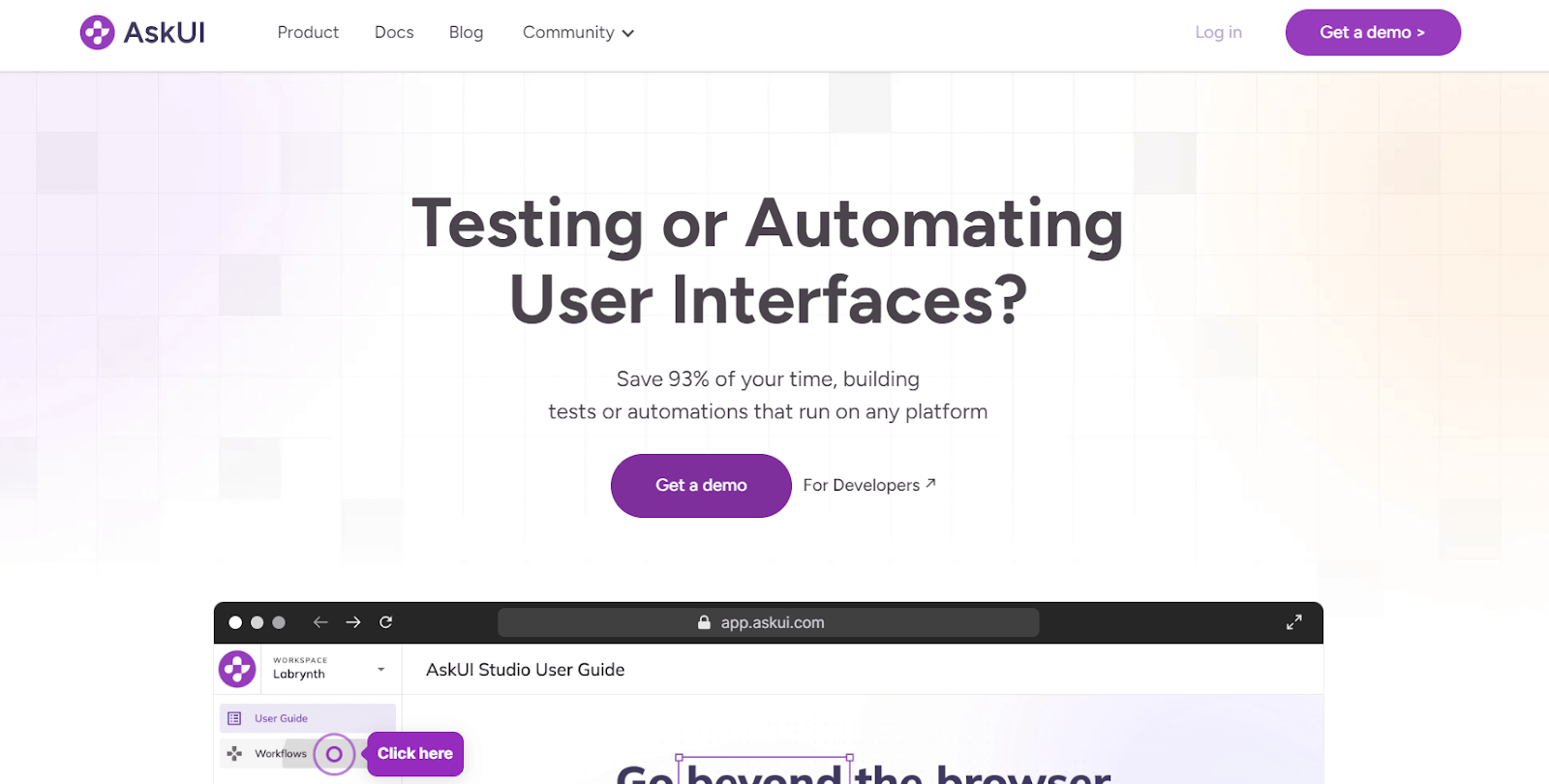
Key features of the askUI desktop automation tool include -
- It supports Java, C#, and Python, offering flexibility in test automation.
- It identifies objects through XPath, ID, and CSS selectors, ensuring accurate test execution.
- It integrates with CI/CD tools like Jenkins and Bamboo, so tests run on every build.
nut.js
It is a cross-platform desktop automation tool for Node.js. It enables automation of keyboard and mouse interactions, image-based testing using screenshot comparisons, and Optical Character Recognition (OCR) for validating text on the screen.
This versatility makes it an ideal tool for automating tests of desktop applications on Windows, Mac, and Linux.
It enables JavaScript/TypeScript-based control over mouse, keyboard, and clipboard operations. It features a plugin system for on-screen image and text searches, with an additional add-on for low-effort OCR on your screen.
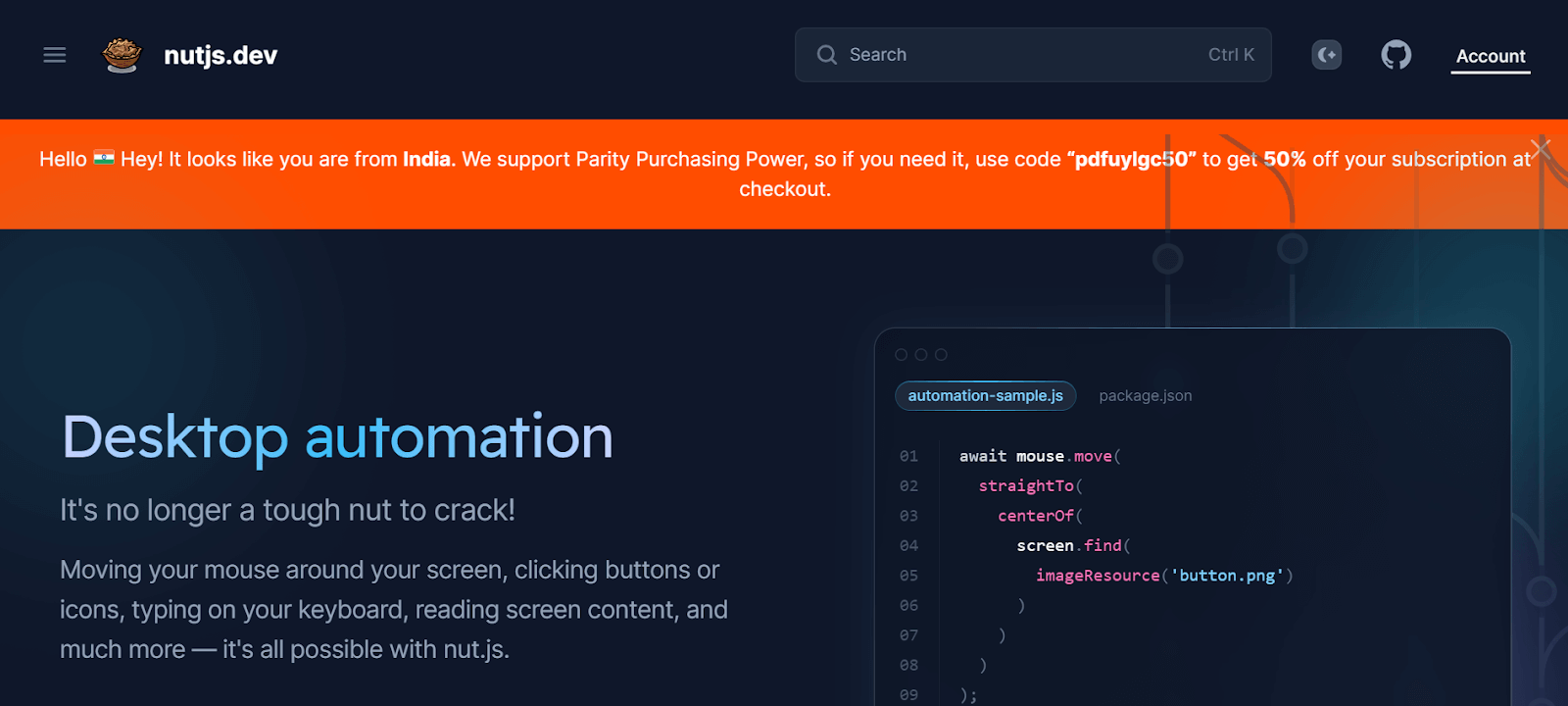
Key features of the nut.js desktop automation tool include -
- It works cleanly on Windows, macOS, and Linux, ensuring consistent desktop automation across different operating systems.
- It provides on-screen image and text recognition for complex automation scenarios like GUI testing.
- It supports a variety of plugins for enhanced functionalities and allows for the development and distribution of custom plugins.
Most of these tools are Windows-first, so the next section maps them to the Windows UI frameworks they can actually reach.
Which Tools Automate Windows Desktop Applications?
WinAppDriver, FlaUI, Pywinauto, Winium, AutoIT, TestComplete, and Ranorex all automate Windows desktop applications, and the right one depends on which UI framework the application was built with.
Windows publishes its interface through UI Automation, an accessibility API that exposes each control as a node carrying a name, a type, and the patterns it supports.
Most Windows tools read that same tree. What separates them is the language they bind to and how much of the tree their framework support actually reaches.
So the framework an application was built with matters more than its age. A twenty-year-old Win32 dialog is often easier to drive than a modern app that draws its own controls.
| Windows UI stack | What it is | Tools that reach it |
|---|---|---|
| Win32 | The classic C API behind older native apps and system dialogs | Pywinauto, AutoIT, WinAppDriver, FlaUI |
| WinForms | The original .NET desktop UI, still common in internal line-of-business apps | FlaUI, Ranorex, TestComplete, WinAppDriver |
| WPF | The XAML .NET UI, which exposes a detailed UI Automation tree | FlaUI, Ranorex, TestComplete, WinAppDriver |
| UWP and WinUI | Modern packaged Windows apps distributed through the Store | WinAppDriver, FlaUI |
| Electron and custom-rendered | Chromium or bespoke drawing, with no native control tree to read | SikuliX, AskUI, Airtest, nut.js |
When nothing in the table reaches a control, image matching is the fallback. SikuliX, AskUI, and nut.js work from pixels, which is slower and more brittle but does not depend on the framework.
Platform support narrows the list quickly. The criteria in the next section decide between the tools that survive that cut.
How To Choose The Right Tool for Desktop Automation?
Choose the right desktop automation tool by identifying requirements, researching options, evaluating compatibility, checking integration, assessing support, and considering cost.
Selecting the right desktop automation tools involves considering several criteria to ensure they align with your specific needs and objectives.
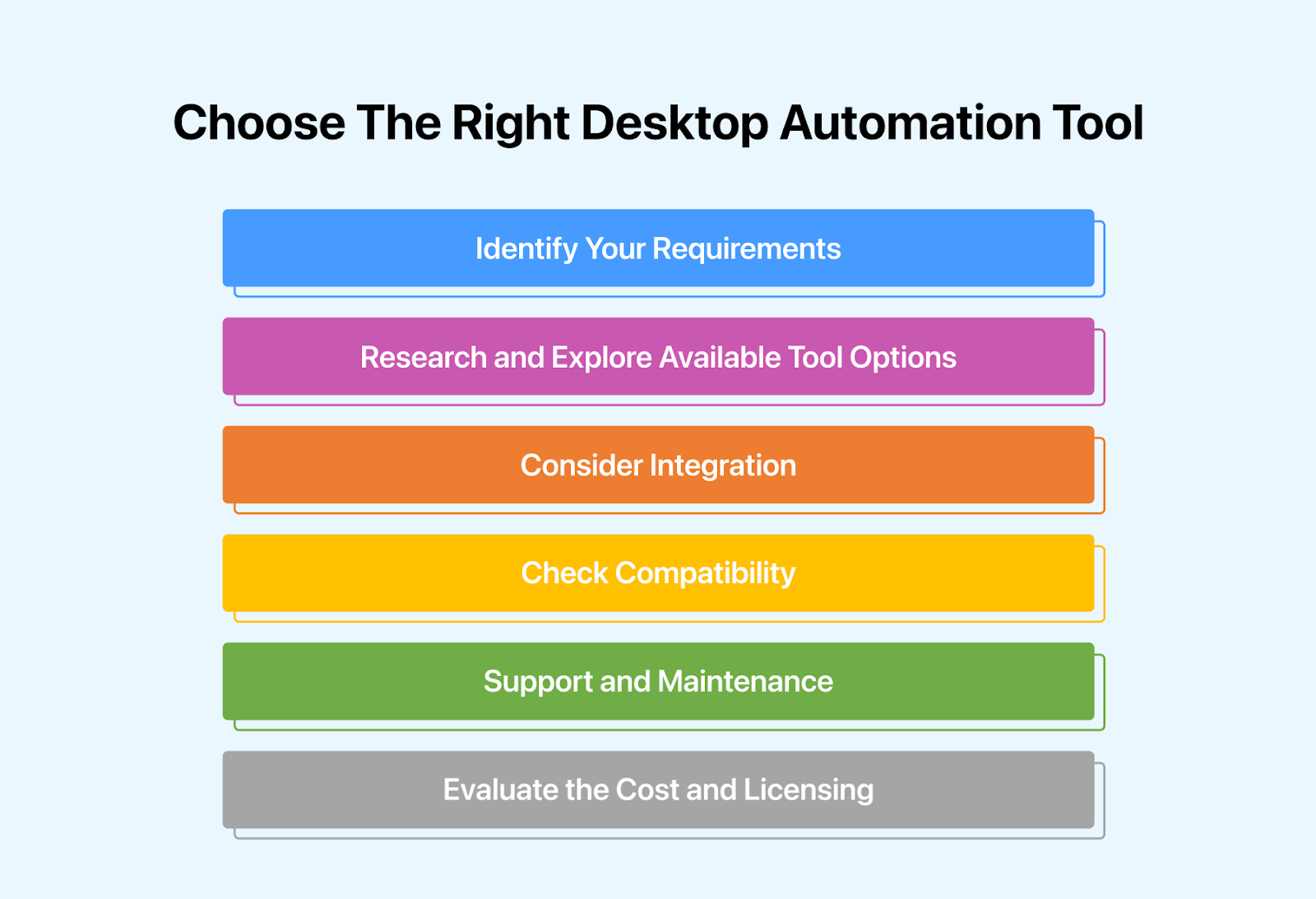
Here are some key criteria to consider:
- Identify Your Requirements - Begin the selection process by conducting a careful analysis of your existing workflows. Identify recurring, time-intensive tasks or error-prone processes within your desktop applications that could benefit from automation.
- Understand the specific functionalities you expect from automation tools, whether it involves data entry, form completion, GUI interactions, or report generation.
- Research and Explore Available Tool Options - Explore the market for desktop automation tools specifically created for your desktop platform, whether Windows, macOS, or Linux.
- Ensure direct compatibility and optimal performance. Consider a diverse range of automation tools, including both commercial and open-source alternatives.
- Consider Integration - Evaluate how well the automation tools integrate with your existing desktop applications and systems. Check for compatibility with different versions of operating systems, web browsers, and other relevant software.
- Look for tools with APIs or SDKs for smooth integration into your development environment that support popular programming languages and frameworks.
- Check Compatibility - Ensure the automation tools are compatible with the desktop applications and environments you plan to automate. Verify compatibility with different versions of operating systems, web browsers, and other relevant software.
- Assess the reliability and stability of the automation tools by reviewing user feedback, testimonials, and case studies.
Look for tools with a track record of consistent performance and minimal downtime. Consider features such as production-grade error handling, exception management, and logging capabilities to ensure the smooth execution of automated tasks and effective troubleshooting.
- Support and Maintenance - Assess the level of maintenance and support offered by the suppliers of automation tools. Seek tools that provide prompt customer service, regular upgrades, and continual maintenance to address issues, bugs, and security vulnerabilities.
- Consider variables such as response times, Service-Level Agreements (SLAs), and the availability of technical support channels for prompt issue resolution and unrestricted service.
- Evaluate the Cost and Licensing - Finally, consider the licensing and price structures of the automation tools. Find the most economical alternative that meets your budget limits by analyzing prices, licensing options, and pricing tiers.
- Consider variables like up-front costs, recurring subscription fees, additional expenses for upgrades or maintenance, and the scalability of licensing options as your automation needs grow.
Conclusion
the array of desktop automation tools covers a wide range of needs, from cutting manual steps to running the same checks on every build.
Exploring the top 20 desktop automation tools has highlighted the innovation and creativity inherent in each solution. From simplifying repetitive tasks to optimizing software testing procedures, these tools have redefined how individuals and organizations function in the digital era.
Whether you're an experienced developer, a business executive, or an individual striving for personal productivity, there's a desktop automation tool tailored to your specific requirements.
By harnessing the capabilities of these tools, users can unlock unprecedented levels of efficiency, minimize manual labor, and concentrate on tasks of utmost importance.
As we navigate the ever-evolving realm of technology and automation, the significance of desktop automation tools continues to expand.
Embracing these tools and applying their potential enables users to remain at the forefront of innovation, adapt to evolving demands, and attain heightened levels of productivity and success.
Author

Srinivasan Sekar
Blogs: 18


Srinivasan Sekar is Director of Engineering at TestMu AI (formerly LambdaTest), where he leads engineering and open-source initiatives behind the Selenium and Appium automation grid and owns TestMu AI's MCP Server. A committer to Appium and a contributor to Selenium, WebdriverIO, Taiko, and AppiumTestDistribution, he brings over 15 years of experience in quality engineering and open-source technologies. He is the author of the Apress book 'The MCP Standard: A Developer's Guide to Building Universal AI Tools with the Model Context Protocol,' a Certified Kubernetes and Cloud Native Associate, and an international conference speaker. Before TestMu AI he spent over eight years at Thoughtworks as a Principal Consultant and Quality Architect. Srinivasan holds a B.Tech in Information Technology from Anna University.
Reviewer

Salman Khan
Reviewer
Salman is a Test Automation Evangelist and Community Contributor at TestMu AI, with over 6 years of hands-on experience in software testing and automation. He has completed his Master of Technology in Computer Science and Engineering, demonstrating strong technical expertise in software development, testing, AI agents and LLMs. He is certified in KaneAI, Automation Testing, Selenium, Cypress, Playwright, and Appium, with deep experience in CI/CD pipelines, cross-browser testing, AI in testing, and mobile automation. Salman works closely with engineering teams to convert complex testing concepts into actionable, developer-first content. Salman has authored 120+ technical tutorials, guides, and documentation on test automation, web development, and related domains, making him a strong voice in the QA and testing community.


Desktop Automation Tools FAQs
Did you find this page helpful?
More Related Blogs
TestMu AI forEnterprise
Get access to solutions built on Enterprise
grade security, privacy, & compliance
- Advanced access controls
- Advanced data retention rules
- Advanced Local Testing
- Premium Support options
- Early access to beta features
- Private Slack Channel
- Unlimited Manual Accessibility DevTools Tests