
Automate Android and iOS App Tests in the Cloud
Run Your Appium, Espresso, XCUITest, and Maestro Suites as They Are, in Parallel on 50,000+ Real Devices.

Appium Flaky Tests: Causes and Fixes for Android and iOS
Fix Appium flaky tests on Android and iOS: rerun with retries off, match each error to its layer, then fix the waits, locators, timers, ports or device state.
Published on:
A checkout test passes on the emulator on your laptop, then fails one CI run in five with a StaleElementReferenceException on the same commit. A rerun turns the job green, and the failure is gone before anyone reads the Appium server log.
Appium flaky tests like this one pass and fail on the same build with no code change. In a March 2026 interview on the Bitrise blog, Bitrise VP of Engineering Arpad Kun said that "flaky tests in mobile are more than three times more likely than in web testing", and listed network conditions, device state and OS-level timing among the environmental variables behind it.
This guide follows that kind of test from the first red run to a proven fix, one layer of the Appium stack at a time. The capabilities, settings and defaults below are checked against Appium 3.9.0, the UiAutomator2 driver 8.7.3, the XCUITest driver 12.22.8 and the Appium Python client 6.1.5, the newest releases that work with Appium 3 on November 11, 2026.
For causes and policies that hold in any framework, start with the flaky tests guide. The web versions of this article cover Playwright flaky tests and Cypress flaky tests. Rails system tests have a guide of their own in Capybara flaky tests.
TL;DR
Appium flaky tests pass and fail on the same build because timing, the app's UI, the Appium session or the device changes between runs. Fix them by rerunning the test with retries off, matching each error to the layer it names, and changing that layer, then prove the fix with enough clean reruns.
How do I fix Appium flaky tests?
- NoSuchElementException on late elements: Replace time.sleep() calls and implicit waits in Appium tests with a WebDriverWait on the condition the next step needs, such as an element becoming clickable. The Selenium documentation warns that mixing the two wait types can cause unpredictable wait times. Android: yes. iOS: yes.
- TimeoutException on animated Android screens: The UiAutomator2 driver waits up to 10,000 ms for the UI to go idle before each element search, so lower its waitForIdleTimeout setting around screens that keep animating. Android: yes. iOS: no.
- Slow steps on busy iOS screens: The XCUITest driver waits up to 10 seconds for an iOS app's main thread to idle and up to 2 seconds for animations to end after an action. Setting waitForIdleTimeout to 0 disables the idle check, which the driver docs do not recommend. Android: no. iOS: yes.
- InvalidSessionIdException after a pause: By default, Appium deletes a session after 60 seconds without a command, so raise appium:newCommandTimeout for tests that pause on purpose and keep it above 0. Android: yes. iOS: yes.
- Proving an Appium flaky test fix: A fix is proven by clean runs in a row: 14 for a test that failed 1 run in 5 and 59 for one that failed 1 run in 20, at 95% confidence.
- Device-state flakes on real devices: TestMu AI runs Appium suites on real Android and iOS devices when isRealMobile is true and wipes each shared device after the session. It records video by default, and device logs and network logs when you turn them on.
The Layers Between an Appium Test and the Device
An Appium command passes through several programs before it reaches the app, and any of them can behave differently from one run to the next. The device at the end can be an emulator on the CI runner, a phone on a USB cable or a phone in TestMu AI's Real Device Cloud.
- Test code - the waits, locators and test data in your suite, sent through an Appium client library such as the Python client.
- Appium session - the server-side session that holds your capabilities and timers such as newCommandTimeout and the implicit wait.
- Driver server - the UiAutomator2 server on Android or WebDriverAgent on iOS, which runs on the device and carries out each command.
- App state - whether the app's UI is idle or still animating when the driver searches for an element.
- Device and network - the emulator, simulator or phone, the data and dialogs left from earlier runs, and the network between the app and its backend.
The error a flaky run throws usually points at one of these layers, so read it before you change the test. The Appium architecture guide explains how the client, the server and the drivers connect.
How to Reproduce and Classify an Appium Flaky Test
Reproduce the flake with retries switched off, so every failing attempt shows up in the report instead of turning into a pass. The goal is a list of which tests flake, how often, and with which error.
Rerun the Suspect Appium Test With Retries Off
Run the test file ten times on the same build and keep a JUnit XML report from each run. pytest writes one with --junitxml, and most Java and JavaScript test runners can write the same format.
mkdir -p reports
for i in $(seq 1 10); do
  pytest tests/test_checkout.py --junitxml="reports/run-$i.xml" || true
done
python flaky_report.py reports/run-*.xml
The script below reads those reports, marks each test stable, flaky or broken, and labels every failure with the layer its error message points to. It needs only the Python standard library.
import re
import sys
from collections import Counter, defaultdict
from xml.etree import ElementTree as ET

# First match wins, so the specific patterns come first.
KINDS = [
    ("stale element", r"StaleElementReference"),
    ("session expired", r"InvalidSessionId"),
    ("driver start",
     r"instrumentation process|WebDriverAgent|xcodebuild"),
    ("wait timed out", r"TimeoutException"),
    ("element not found", r"NoSuchElement"),
]


def kind_of(text):
    for kind, pattern in KINDS:
        if re.search(pattern, text):
            return kind
    return "other"


results = defaultdict(list)
for path in sys.argv[1:]:
    for case in ET.parse(path).iter("testcase"):
        if case.find("skipped") is not None:
            continue
        bad = case.find("failure")
        if bad is None:
            bad = case.find("error")
        outcome = None
        if bad is not None:
            outcome = kind_of(bad.get("message", ""))
        key = (case.get("name"), case.get("classname"))
        results[key].append(outcome)

rows = []
for (name, cls), runs in results.items():
    fails = [r for r in runs if r is not None]
    passed = len(runs) - len(fails)
    if not fails:
        verdict = "stable"
    elif passed:
        verdict = "flaky"
    else:
        verdict = "broken"
    order = {"flaky": 0, "broken": 1, "stable": 2}[verdict]
    rows.append((order, -len(fails), name, cls, passed,
                 len(runs), verdict, Counter(fails)))

for _, _, name, _, passed, total, verdict, kinds in sorted(rows):
    detail = ", ".join(f"{k} x{n}" for k, n in kinds.items())
    print(f"{name:<21}{passed}/{total}  {verdict:<7}{detail}".rstrip())
Run against five sample JUnit reports that carry error messages from Appium 3.9.0 and the UiAutomator2 driver, the script prints:
test_deep_link       3/5  flaky  session expired x2
test_search_results  3/5  flaky  stale element x2
test_checkout_total  4/5  flaky  wait timed out x1
test_profile_photo   4/5  flaky  driver start x1
test_onboarding_skip 0/5  broken element not found x5
test_login_valid     5/5  stable
Treat the flaky rows as flakiness to debug. test_onboarding_skip failed all five runs with the same error, which makes it a broken test or a real bug to fix or report rather than a flake to rerun.
Match the Appium Error to the Layer It Points To
Start the Appium server with --log-timestamp so each failure in the report lines up with the server log. Then use the exception class and the message, as Appium 3.9.0 and its drivers send them, to pick the layer:
| Error in the test output | Where it usually starts | First fix |
|---|---|---|
| NoSuchElementException: "An element could not be located on the page using the given search parameters." | Test code or app state: the locator matched nothing before the wait ended | Wait for the condition the step needs and check the locator in Appium Inspector |
| StaleElementReferenceException | Test code: the element was redrawn after the test found it | Find the element again just before the action |
| TimeoutException from WebDriverWait | App state or test code: the explicit wait expired, sometimes while the driver waited for an idle UI | Lower waitForIdleTimeout on animated screens, or wait on a different condition |
| InvalidSessionIdException: "A session is either terminated or not started" | Appium session: the server deleted the session, for example through newCommandTimeout | Search the server log for "Shutting down because we waited" and raise appium:newCommandTimeout |
| "The instrumentation process cannot be initialized within 30000ms timeout" at session start | Driver server on Android: the UiAutomator2 server did not start | Read logcat, give each parallel session its own systemPort, then raise uiautomator2ServerLaunchTimeout |
| Errors that mention WebDriverAgent or xcodebuild at session start | Driver server on iOS: WebDriverAgent did not build or launch | Use a prebuilt WebDriverAgent and give each session its own wdaLocalPort and derivedDataPath |

Waits and Locators Behind Appium Flaky Tests
When a run ends in NoSuchElementException or StaleElementReferenceException, start with the test: the signal it waits for and the locator it trusts.
Explicit Waits Instead of Sleeps in Appium Tests
A time.sleep() call guesses how long the app needs, and an implicit wait applies one timeout to every element lookup. The Selenium documentation on waits says: "Do not mix implicit and explicit waits. Doing so can cause unpredictable wait times."
Leave the implicit wait at Selenium's default of 0 and wait explicitly for the state the next step needs. The Appium Python client uses Selenium's WebDriverWait for this:
import time

from appium.webdriver.common.appiumby import AppiumBy
from selenium.webdriver.support import expected_conditions as EC
from selenium.webdriver.support.ui import WebDriverWait

# Flaky: a fixed sleep plus an implicit wait on every lookup
driver.implicitly_wait(10)
time.sleep(3)
driver.find_element(AppiumBy.ACCESSIBILITY_ID, "checkout").click()

# Stable: no implicit wait, and an explicit wait for this step
driver.implicitly_wait(0)
wait = WebDriverWait(driver, 15)
wait.until(EC.element_to_be_clickable(
    (AppiumBy.ACCESSIBILITY_ID, "checkout"))).click()
Stale Element Errors in Appium After the Screen Redraws
Appium raises StaleElementReferenceException when an element the test found earlier is no longer in the current UI, for example after a list reloads. Find the element again right before each action instead of keeping the reference:
from appium.webdriver.common.appiumby import AppiumBy
from selenium.common.exceptions import StaleElementReferenceException
from selenium.webdriver.support.ui import WebDriverWait


def tap(driver, locator, timeout=15):
    def attempt(d):
        # Look the element up again on every try
        d.find_element(*locator).click()
        return True

    WebDriverWait(
        driver, timeout,
        ignored_exceptions=[StaleElementReferenceException],
    ).until(attempt)


tap(driver, (AppiumBy.ACCESSIBILITY_ID, "add-to-cart"))
WebDriverWait already ignores NoSuchElementException by default, so the helper retries a missing element and a redrawn one until the timeout.
Appium Locators That Survive New Builds and Languages
Both drivers publish speed rankings for their locator strategies. The UiAutomator2 driver 8.7.3 README rates id, accessibility id and class name at five stars, -android uiautomator at four and XPath at three, and the XCUITest locator reference rates XPath at two stars and says it can be up to 10 times slower than other strategies.
- Android ids - prefer id, which matches the resource-id, or accessibility id, which matches the content description. The README also warns that Google plans to remove UiSelector support from UiAutomator, which would make every -android uiautomator locator invalid.
- iOS names - accessibility id and id both match the element's name attribute, which comes from its identifier or its label, whichever is available first. Labels change with the app's language, so the XCUITest docs recommend accessibilityIdentifier for automation.
- React Native - accessibility id reads the accessibilityLabel prop on Android, while the iOS name attribute comes from testID, so one locator value can match on one platform and miss on the other.
- Jetpack Compose - Compose exposes a testTag as resource-id only when the app turns on testTagsAsResourceId. Since UiAutomator2 driver 8.4.0, the mapTestTagToResourceId setting maps testTag to resource-id from the test side.
from appium.webdriver.common.appiumby import AppiumBy

# Android: resource-id, rated five stars for speed
driver.find_element(AppiumBy.ID, "com.example.shop:id/checkout")

# Android, Jetpack Compose: map testTag to resource-id first
driver.update_settings({"mapTestTagToResourceId": True})
driver.find_element(AppiumBy.ID, "checkout")

# iOS: a predicate string instead of an XPath
driver.find_element(
    AppiumBy.IOS_PREDICATE,
    "type == 'XCUIElementTypeButton' AND name == 'checkout'",
)
Check the real attribute values in Appium Inspector before you write a locator, and see locators in Appium for every strategy with examples.
Appium Idle Waits and Animations on Android and iOS
Both drivers wait for the app to settle before they act. The UiAutomator2 README documents a waitForIdleTimeout setting of 10,000 ms by default: core UiAutomator objects wait for the UI to go idle before they search for an element, and the README suggests lowering it when interactions show long delays.
On a screen with a looping spinner or a video, a single search can spend most of a 15-second WebDriverWait inside that 10,000 ms idle wait, so a slow run can time out after one or two polls. Lower the setting only around that screen:
from appium.options.android import UiAutomator2Options

options = UiAutomator2Options().load_capabilities({
    # Turn window animations off while the instrumentation runs
    "disableWindowAnimation": True,
})

# Lower the idle wait only around a screen that never goes idle
driver.update_settings({"waitForIdleTimeout": 1000})
open_live_tracking_screen(driver)  # your own test steps
driver.update_settings({"waitForIdleTimeout": 10000})
On iOS, XCTest needs the app's main thread to be idle before WebDriverAgent can act on it. The XCUITest driver 12.22.8 settings reference sets waitForIdleTimeout to 10 seconds and animationCoolOffTimeout to 2 seconds, and says an idle timeout of 0 disables idling checks completely, which it does not recommend.
- Android window animations - appium:disableWindowAnimation turns window animations off when the instrumentation starts. The UiAutomator2 README says the animation scale is restored automatically on API level 26 and higher, but can stay off on API level 25 and lower if the session ends unexpectedly.
- iOS Reduce Motion - the XCUITest capability reference describes appium:reduceMotion as an option that "helps to reduce flakiness during tests", on simulators only.
- Unresponsive iOS apps - an app that keeps its main thread busy can make WebDriverAgent hang on an element lookup. The accessibilityDeadline setting, off by default, fails those requests after the deadline instead, and the XCUITest docs advise turning it on only around the steps that need it.
- Whole-device animations - on TestMu AI, the disableAnimation capability turns off animations on the whole device, including every app, on real and virtual devices, as listed in the Appium desired capabilities reference.
Session Timers and Driver Server Start in Appium
Some flakes never reach your test code: the session expires between two commands, or the driver server on the device starts too slowly on one run.
Expired Appium Sessions and newCommandTimeout
Appium deletes a session that receives no command for appium:newCommandTimeout seconds, which the UiAutomator2 README lists as 60 by default. The server then logs "Shutting down because we waited 60 seconds for a command", and the test's next call fails with InvalidSessionIdException.
Tests reach that limit when a step pauses the client, such as a slow API call to seed data, a long sleep or a breakpoint. Raise the capability for suites that pause on purpose, and keep it above 0: the README says 0 disables the timer, so a session whose client has died is never cleaned up.
UiAutomator2 Server and WebDriverAgent Startup Failures
Before the first command on Android, the UiAutomator2 driver installs its server on the device if needed and waits for it to listen. When the server does not come up in time, the UiAutomator2 driver reports "The instrumentation process cannot be initialized within 30000ms timeout. Make sure the application under test does not crash and investigate the logcat output." Read logcat before you raise the timeout, because an app that crashes on launch fails the same way as a slow emulator.
On iOS, the XCUITest driver builds WebDriverAgent with xcodebuild unless told otherwise, and its capability reference points to a prebuilt or preinstalled WebDriverAgent to reduce session startup time. Build it once, then start sessions with appium:usePrebuiltWDA and appium:derivedDataPath pointing at the build, or let appium:prebuildWDA build it before the launch.
On real devices, keep appium:useNewWDA at its default of false: the XCUITest capability reference says real devices need WebDriverAgent "to run for as long as possible without reinstall/restart". The same reference sets appium:wdaStartupRetries, the number of tries to build and launch WebDriverAgent, to 2 on simulators and 1 on real devices.
Default Timers in Appium 3.9.0 and Its Drivers
The table lists each timer between the test and the device with its default, from the UiAutomator2 8.7.3 README, the XCUITest 12.22.8 reference and the Selenium documentation. Capabilities take the appium: prefix, and settings change during a session through update_settings or at session start through the appium:settings capability.
| Timer | Default | What it limits |
|---|---|---|
| newCommandTimeout (capability, every driver) | 60 s | Time without a command before Appium deletes the session |
| Implicit wait (session timeout) | 0 | How long each element lookup keeps retrying on the server |
| waitForIdleTimeout (UiAutomator2 setting) | 10,000 ms | Wait for an idle UI before each element search |
| uiautomator2ServerInstallTimeout | 20,000 ms | Installing the UiAutomator2 server on the device |
| uiautomator2ServerLaunchTimeout | 30,000 ms | Waiting for the UiAutomator2 server to listen |
| adbExecTimeout | 20,000 ms | Each single ADB command |
| appWaitDuration | 20,000 ms | Waiting for the app under test to start |
| avdLaunchTimeout, avdReadyTimeout | 60,000 ms each | Starting the emulator, then waiting for it to boot fully |
| waitForIdleTimeout (XCUITest setting or capability) | 10 s | Wait for the app's main thread to idle |
| animationCoolOffTimeout (XCUITest setting) | 2 s | Wait for animations to end after an action |
| wdaLaunchTimeout | 60,000 ms | Waiting for WebDriverAgent to answer a ping |
| wdaConnectionTimeout | 240,000 ms | Waiting for a response from WebDriverAgent |
| simulatorStartupTimeout | 120,000 ms | Booting the iOS simulator |
| webviewConnectTimeout | 5,000 ms | Finding webviews in Safari or a hybrid app |
Unique Ports for Parallel Appium Sessions
Sessions on one machine that share a port collide, and which one fails depends on timing. The UiAutomator2 README asks for a unique udid, systemPort, chromedriverPort (for webviews) and mjpegServerPort (for video) per parallel session, and the XCUITest parallel tests guide asks for a unique udid, wdaLocalPort (8100 by default), derivedDataPath and mjpegServerPort (9100 by default).
With pytest-xdist, the worker_id fixture returns gw0, gw1 and so on, or master when xdist is off, which gives each worker its own port offset:
import pytest


@pytest.fixture
def ports(worker_id):
    n = 0 if worker_id == "master" else int(worker_id[2:])
    android = {
        "systemPort": 8200 + n,
        "chromedriverPort": 9515 + n,
        "mjpegServerPort": 9200 + n,
    }
    ios = {
        "wdaLocalPort": 8100 + n,
        "mjpegServerPort": 9100 + n,
        "derivedDataPath": f"/tmp/wda-{worker_id}",
    }
    return {"android": android, "ios": ios}
For serial runs, both drivers' docs suggest starting the server with --session-override, which closes pending sessions before a new one opens. The guide to Appium parallel testing covers the rest of a parallel setup.
Device, Network and Version Differences Between Appium Runs
The same test on the same build can still meet a different environment: a slower emulator, leftover data, a dialog, a slower network or a newer driver.
Android Emulators and iOS Simulators on Busy CI Runners
In a 2023 study of computational resources and flaky tests, Silva and colleagues assessed 52 Java, JavaScript and Python projects under 27 resource configurations and found that 46.5% of the flaky tests in their dataset were resource-affected flaky tests. Its abstract singles out continuous integration environments, where tests compete for CPUs and memory, the same resources an emulator on a shared CI runner needs.
- Android emulators - appium:avdLaunchTimeout and appium:avdReadyTimeout default to 60,000 ms each in the UiAutomator2 README. Raise them on slow runners instead of retrying a session that timed out while the emulator booted.
- iOS simulators - appium:simulatorStartupTimeout defaults to 120,000 ms, and the XCUITest capability reference notes that boot can take longer on weak hardware or when other processes use a lot of system resources.
- Hybrid apps - appium:webviewConnectTimeout defaults to 5,000 ms, and the same reference suggests a higher value when tests run on a simulator on a slow host, such as a CI runner.
Leftover App Data and System Dialogs on Test Devices
- App data - appium:noReset keeps the app's data between sessions and appium:fullReset uninstalls the app first, so a test that passes only after another test logged in depends on test order. On real iOS devices, the XCUITest troubleshooting guide says data from an offloaded, cached or failed install can survive fullReset, and only mobile: removeApp clears it.
- Permission prompts - on Android, appium:autoGrantPermissions grants the permissions the app requests at startup when its targetSdkVersion is 23 or higher on Android 6 or later. On iOS, the XCUITest driver leaves appium:autoAcceptAlerts and appium:autoDismissAlerts off by default, while TestMu AI's capability reference lists autoAcceptAlerts as true by default, so set the value explicitly in every environment. The troubleshooting guide also notes that iOS 18 and later can keep a permission choice after the app is reinstalled.
- Toasts - the UiAutomator2 README says toast text stays in the page source for no longer than 3,500 ms after the toast expires, so assert on it right after the action that shows it.
- On-screen keyboard - an open keyboard can cover the next field. In the Python client, driver.is_keyboard_shown() checks for it and driver.hide_keyboard() closes it before the next tap.
- Stuck real iOS devices - the XCUITest troubleshooting guide says a real device that stops responding most often needs a restart, and that a crash of the testmanagerd process can add about 60 seconds to a command.
Network Speed and Third-Party Content in Appium Runs
A test that asserts right after a tap races the network call behind it. Wait for the UI change the response produces, such as an order number appearing, and point tests that are not about the backend at a stub server or seeded test data. For seeded data in CI, Testcontainers can start the database in a throwaway container, and the Testcontainers CI guide lists what each CI runner needs.
To turn a network flake into a failure you can reproduce, pin a slow network. TestMu AI's network throttling for Appium tests sets a profile with the network and networkProfile capabilities, and its 3g-umts-poor profile runs at 200 Kbps down, 64 Kbps up and 400 ms of latency.
# Switch profiles mid-test; networkProfile must be set at session start
driver.execute_script("updateNetworkProfile=4g-lte-good")
On TestMu AI real devices, the blockDomains capability blocks the domains you list, which keeps a third-party domain such as an ad server out of the run.

Note: Reproduce network-timing flakes on real Android and iOS devices with TestMu AI network profiles. Try TestMu AI free
Appium Version Drift Between CI Agents
Two CI agents that installed drivers on different days can run different driver code against the same commit. Appium's extension CLI reference says appium driver update changes only minor and patch versions unless you add --unsafe, so an agent that runs it picks up new patch releases while an agent that does not keeps the old ones.
There is also a major-version trap right now: the newest UiAutomator2 and XCUITest drivers declare a peer dependency on the Appium 4 beta. The npm registry showed this on November 11, 2026:
$ npm view appium version
3.9.0
$ npm view appium-uiautomator2-driver@8.7.3 peerDependencies
{ appium: '^3.0.0-rc.2' }
$ npm view appium-uiautomator2-driver@9.0.2 peerDependencies
{ appium: '^4.0.0-beta.6' }
$ npm view appium-xcuitest-driver@12.22.8 peerDependencies
{ appium: '^3.0.0-rc.2' }
$ npm view appium-xcuitest-driver@13.0.8 peerDependencies
{ appium: '^4.0.0-beta.6' }
Pin the server, the drivers and the client in the CI image, and move them together on purpose. Appium 3.9.0's npm engines field accepts Node.js 20.19 and later 20.x releases, 22.12 and later 22.x releases, or 24 and newer, and the Python client 6.1.5 needs Python 3.10 or newer with Selenium 4.51 or later:
npm install -g appium@3.9.0
appium driver install uiautomator2@8.7.3
appium driver install xcuitest@12.22.8
pip install "Appium-Python-Client==6.1.5"
When you plan the move to the beta, the Appium 4 changes and upgrade checklist lists what changes for test authors.
Running Appium Tests on Real Devices With TestMu AI
Once the waits, locators and timers are fixed, what is left is the machine the test runs on: an emulator starved of CPU, a device holding data from an earlier run, or a lab phone on a different OS version.
TestMu AI's App Automation runs existing Appium suites on real Android and iOS devices when isRealMobile is true; without it, sessions run on emulators and simulators. On the shared real device cloud, each device is wiped at the end of the session, so no app, data or stored credentials carry into the next run.
import os

from appium import webdriver
from appium.options.android import UiAutomator2Options
from appium.webdriver.client_config import AppiumClientConfig

options = UiAutomator2Options().load_capabilities({
    "lt:options": {
        "w3c": True,
        "isRealMobile": True,
        "deviceName": "Galaxy S25",
        "platformVersion": "16",
        "app": os.environ["LT_APP_URL"],  # the lt:// URL from your upload
        "build": "checkout-flake-hunt",
        "name": "checkout total",
        "devicelog": True,
        "network": True,
        "networkProfile": "3g-umts-poor",
        "disableAnimation": True,
    },
})
config = AppiumClientConfig(
    remote_server_addr="https://mobile-hub.lambdatest.com/wd/hub",
    username=os.environ["LT_USERNAME"],
    password=os.environ["LT_ACCESS_KEY"],
)
driver = webdriver.Remote(options=options, client_config=config)- Evidence from every run - video is on by default, and devicelog and network add the device log and the network log, so a run that flakes keeps the screen recording and the requests behind it.
- Smart Heal - with smartHeal set to true, a lookup that fails after a UI change retries with the closest matching element, and the dashboard logs both the original and the healed locator. Smart Heal needs one passed run as a baseline, is part of the Real Device Plus Automation Cloud plan and works best on static components such as buttons, so it targets locator drift and leaves timing flakes to the fixes above.
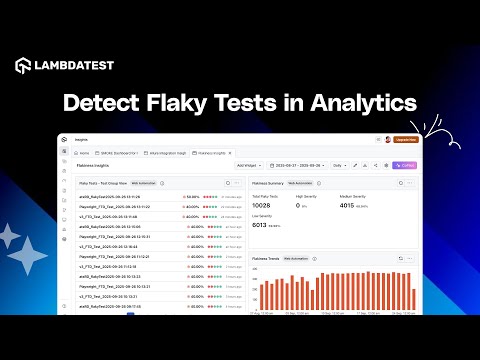
- Flaky test detection - Test Intelligence checks each test's last 10 runs and marks it flaky when its flake rate goes above 20%, according to the flaky test analytics documentation.
This two-minute walkthrough shows flaky test analytics in the TestMu AI dashboard:
Retries and the Rerun Count That Proves an Appium Fix
A retry is safe only where the test never ran, such as a session that failed because the UiAutomator2 server or WebDriverAgent did not start. pytest-rerunfailures 16.7 matches --only-rerun patterns against the exception name and message, so this command reruns a failure once only when its error mentions the UiAutomator2 instrumentation process, WebDriverAgent or xcodebuild:
pytest tests/ --reruns 1 --only-rerun "instrumentation process|WebDriverAgent|xcodebuild"Report a test that passed only on a rerun as flaky, not as passed. A fix is proven when the test passes so many runs in a row that the old failure would have appeared at least once with 95% probability: the count is ln(0.05) / ln(1-p), rounded up, where p is the failure rate before the fix.
- 1 failure in 5 runs: 14 clean runs in a row
- 1 failure in 10 runs: 29 clean runs in a row
- 1 failure in 20 runs: 59 clean runs in a row
- 1 failure in 50 runs: 149 clean runs in a row
The checkout test from the opening failed 1 run in 5, so if the fix had not worked, 20 straight passes would happen only about 1.2% of the time (0.8 to the power of 20). The same 20 passes say much less about a test that failed 1 run in 20, which would pass all 20 about 36% of the time (0.95 to the power of 20).
Conclusion
To fix Appium flaky tests in your own suite, start with the test that fails most often: run its file ten times with retries off and run flaky_report.py on the reports. Fix the layer its errors name, pin Appium 3.9.0 and its drivers on every CI agent, and count clean reruns before you call the flake fixed.
To move the stable suite onto real devices with TestMu AI App Automation, follow the Appium getting started guide, and use the Appium tutorial for the framework basics.
Author

Himanshu Sheth
Blogs: 153


Himanshu Sheth is the Director of Marketing (Technical Content) at TestMu AI, with over 8 years of hands-on experience in Selenium, Cypress, and other test automation frameworks. He has authored more than 130 technical blogs for TestMu AI, covering software testing, automation strategy, and CI/CD. At TestMu AI, he leads the technical content efforts across blogs, YouTube, and social media, while closely collaborating with contributors to enhance content quality and product feedback loops. He has done his graduation with a B.E. in Computer Engineering from Mumbai University. Before TestMu AI, Himanshu led engineering teams in embedded software domains at companies like Samsung Research, Motorola, and NXP Semiconductors. He is a core member of DZone and has been a speaker at several unconferences focused on technical writing and software quality.
Reviewer

Srinivasan Sekar
Reviewer
Srinivasan Sekar is Director of Engineering at TestMu AI, where he leads engineering and open-source initiatives behind the Selenium and Appium automation grid and owns TestMu AI's MCP Server. A committer to Appium and a contributor to Selenium, WebdriverIO, Taiko, and AppiumTestDistribution, he brings over 15 years of experience in quality engineering and open-source technologies. He is the author of the Apress book 'The MCP Standard: A Developer's Guide to Building Universal AI Tools with the Model Context Protocol,' a Certified Kubernetes and Cloud Native Associate, and an international conference speaker. Before TestMu AI he spent over eight years at Thoughtworks as a Principal Consultant and Quality Architect. Srinivasan holds a B.Tech in Information Technology from Anna University.
Appium Flaky Tests FAQs
Did you find this page helpful?
More Related Blogs

TestMu AI forEnterprise
Get access to solutions built on Enterprise
grade security, privacy, & compliance
- Advanced access controls
- Advanced data retention rules
- Advanced Local Testing
- Premium Support options
- Early access to beta features
- Private Slack Channel
- Unlimited Manual Accessibility DevTools Tests