

Power Your Software Testing with AI Agents and Cloud
The Native AI-Agentic Cloud Platform to Supercharge Quality Engineering. Test Intelligently and Ship Faster.


- TestMu AI (Formerly LambdaTest)
- /
- Blog
- /
- How to Debug Local Mobile Pages on Android With Chrome DevTools
Debugging Local Mobile Pages on Android Phone Using Chrome Developer Tools
Learn how to debug a locally hosted mobile page on an Android phone using Chrome DevTools, USB debugging, and your workstation IP address or hostname.
Last Updated on:
Debugging a local mobile page on an Android phone means serving the page from your desktop and opening it in Chrome on the device, with USB debugging enabled so Chrome DevTools can attach. The phone runs the real Chrome rendering engine, so layout and touch bugs that never appear in a mobile emulator show up immediately. This guide covers what you need, enabling USB debugging, setting up localhost, connecting both devices, finding your workstation details, and viewing the site on Android.
Key Takeaways
- Chrome DevTools remote debugging inspects a page rendered by Chrome on a physical Android handset, using the same Elements, Console and Network panels as a desktop session.
- USB debugging is switched on by opening Settings, tapping Build Number seven times under About Phone, then enabling the USB debugging checkbox in Developer Options.
- A locally hosted site needs a server on the desktop: a JavaScript framework starts one on a localhost port, while a plain HTML or PHP site needs a stack such as WampServer.
- An Android phone reaches a locally hosted site through the desktop IP address or hostname once both machines share one Wi-Fi network or a USB tethering connection.
- A hostname is more reliable than an IP address for local mobile testing because the workstation IP address changes every time the machine joins a different network.
- Real Android hardware exposes touch target, font rendering and viewport problems that a desktop emulator does not reproduce.

What Will You Need
The requirements are very simple and the system can be configured easily without purchasing any extra software or hardware. For your PC you will need
- Chrome version 32 or above installed and properly working.
- If you are using Windows, USB drivers are required.
- A USB cable to connect your Android device with the desktop or laptop.
For the Android device, the following things are required.
- Latest version of Google Chrome.
- Android version 4 or above.
- USB debugging enabled in the developer options for Android.
The last requirement is a bit tricky. We will cover it in the following section.
How to Enable USB Debugging in Android
Android hides the Developer Options menu until you unlock it, so USB debugging takes two stages. Unlock the menu first, then check the box inside it.
- Navigate to settings and go to About Phone option
- A new window will open. Scroll to the bottom and you will be able to see the Build Number.
- Tap it 7 times. In the lower section of the page you will get a pop-up that you are now a developer.
- After going back, you will be able to access the Developer Options menu.
- The rest is same, check USB debugging, and you are done.
Setup Localhost on your Desktop
If your website is in Angular or any other framework, hosting it locally will not a problem. Recent versions of Angular use NPM for code building and once executed, it automatically configures a proxy server and hosts the application on your local machine which can be browsed via http://localhost:8080.
If you are developing a normal website without any advanced JS framework, you will need to create a proxy server on your workstation. This can be done by using WAMPServer, which comes with the latest versions of PHP, Apache and MySQL. Once installed, WampServer will create a directory under which, project folders can be created. The sites can be directly previewed at localhost once development is completed.
Connect Both Devices
Make sure that the Android device, as well as your workstation, are connected to the same Wi-Fi network. Even if you don’t have a Wi-Fi network, you can use USB tethering to connect both the devices.
Find Your Workstation Details
You can view your locally hosted website on your Android using either your computer’s IP address or hostname. To find your IP address
- Go to the control panel
- Search for “adapter” and click on it
- Go to “view network connections”
- Select Active Network and navigate to “view status”
- Click on “details” and you will be able to view the IP Address next to IPv4 address.
There is also an easier alternative
- Click the “Start” button and go to run
- Type “cmd” and press enter
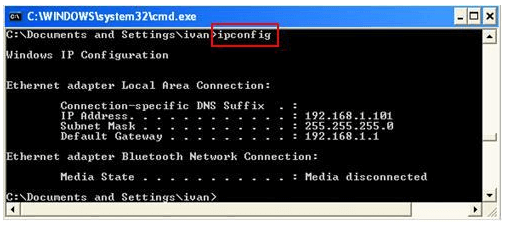
- The command prompt screen will appear. Type ipconfig and press enter
- You will get your IP address prompted on the black screen along with default gateway and subnet mask.
There is however, one drawback of using IP address. Every time you change the network, it gets changed and you have to search for it again. A better alternative is to use the Hostname. It can be found easily by
- Clicking on “Start“ button
- Right click on “My Computer” and go to properties
- In the Computer Name tab, you will find the Hostname for your workstation.
Viewing Locally Hosted Websites in Android
The final step is easy. Open Google Chrome on your mobile and type the IP Address or the hostname on the address bar of the browser. You will be able to view the content of the localhost on your mobile browser. Navigate to the site which you hosted on your workstation and you will be able to view the contents and test it on a mobile device.
How Do AI Agents Debug Mobile Web Pages Now?
AI coding agents now read Chrome DevTools data directly. A Model Context Protocol (MCP) server exposes the Chrome DevTools Protocol, so an agent can open a page, read console errors and inspect network requests.
- chrome-devtools-mcp: the Chrome DevTools team publishes an MCP server that lets a coding agent control and inspect a live Chrome browser over the Chrome DevTools Protocol.
- Node.js v20.19 baseline: the server runs through npx and needs Node.js v20.19 or newer plus a current Chrome stable build.
- Console and network reads: an agent can navigate to a URL, read console messages with source-mapped stack traces, and inspect HTTP requests instead of working from a written bug description.
- Desktop Chrome target: the MCP server drives a Chrome instance on the workstation, so USB debugging and a real handset are still what put a device-rendered page in front of DevTools.
- Human check on hardware: an agent only reports what the DevTools Protocol returns, so a touch target or font rendering fault visible on the phone screen still needs a look on the device.
The split for a locally hosted page is straightforward. Give the agent the console errors, failed requests and slow resources against desktop Chrome. Keep the Android phone for anything that depends on the device viewport, real touch input or the phone's own Chrome build.
Testing Locally Hosted Pages on TestMu AI
While doing the above process is not very difficult, it is still a little cumbersome and is prone to errors. A easier way is to test on TestMu AI cross browser compatibility testing platform. At TestMu AI you get instant on-demand access to android mobile browsers where you can run and debug your pages. In addition these browsers comes with integrated chrome developer tools that can be launched by a click of a button. You can connect you system with TestMu AI cloud platform via simple SSH protocol based tunnel application and test your locally or privately hosted webpages on TestMu AI app.
TestMu AI is free to signup and use. So do tryout TestMu AI first before you try above method :P.
Viewing a locally hosted website in Android device is very beneficial in the current age of digital transformation. People are using mobile devices for browsing and surfing webpages. Often developers and testers test mobile view of website using browser emulators. The results of which are often inaccurate. Real time issues on Android devices are not observed often on emulators. For perfect User Experience testing, it is always helpful to test your application on an Android device before it is deployed into production.

Note: Try LT Debug Chrome Extension for debugging websites!
100+ Free Online Tools From TestMu AI!
TestMu AI has come up with an index of 100+ free online tools for developers and testers. From HTML, XML, and JSON formatters to robust data generators, and hash calculators. TestMu AI’s free online tools are built to help engineering teams accelerate and be more productive with their daily activities.
Code Tidy
- JSON Prettify
- JSON Minify
- HTML Prettify
- HTML Minify
- JavaScript Minify
- CSS Minify
- CSS Prettify
- XML Minify
- XML Prettify
Data Format
- IDN Encode
- IDN Decode
- XML to JSON Converter
- JSON to XML Converter
- BCD to Decimal
- HEX to Decimal
- Decimal to BCD
- UTF8 Decode
- UTF8 Encode
- HEX to RGB Converter
- RGB to HEX Converter
- HTML to Markdown Converter
- Markdown to HTML Converter
- Decimal to Gray Code Converter
- Gray Code to Decimal
- URL Decode
- URL Encode
- Base64 Encode
- Base64 Decode
- Text to HTML Entities Converter
- HTML Entities to Text Converter
Random Data
- Random JSON Generator
- Random XML Generator
- Random CSV Generator
- Random YAML Generator
- Placeholder Image Generator
- Random Binary Generator
- Random Character Generator
- Random Color Generator
- Random Date Generator
- Random Decimal Fraction Generator
- Random Decimal Generator
- Random GUID Generator
- Random HEX Generator
- Random Octal Generator
- Random IP Generator
- Random MAC Generator
- Random Number Generator
- Random Paragraph Generator
- Random Password Generator
- Random Time Generator
- Random UUID Generator
- Random Sentence Generator
- Random String Generator
- Random Word Generator
- Random Data from RegEXP
- Test Data Generator
- Lorem Ipsum Generator
- Credit Card Number Generator
- QR Code Generator
- Random Byte Generator
Security Tools
- Hash Calculator
- HMAC Generator
- CRC32 Hash Calculator
- CRC32B Hash Calculator
- Ripe MD 128 Hash Calculator
- Ripe MD 160 Hash Calculator
- Ripe MD 256 Hash Calculator
- Ripe MD 320 Hash Calculator
- MD2 Hash Calculator
- MD4 Hash Calculator
- Adler32 Hash Calculator
- Gost Hash Calculator
- Whirlpool Hash Calculator
- MD5 Hash Calculator
- SHA1 Hash Calculator
- SHA256 Hash Calculator
- SHA384 Hash Calculator
- SHA512 Hash Calculator
Utils
- Find and Replace String
- HTML Escape
- HTML Unescape
- Difference Checker
- Shuffle Letters
- Shuffle Text Lines
- Sorting List
- Split Your String
- Text Lowercase
- Text Uppercase
- Text Repeater
- Text Rotator
- Character Count
- Word Count
- Lines Count
- Sentence Count
- URL Parse
- JSON Escape
- JSON Unescape
- Extract Text from HTML
- Extract Text from JSON
- Extract Text from XML
- Strip HTML
- JSON Validator
Author

Arnab Roy Chowdhury
Blogs: 69


Arnab Roy Chowdhury is a community contributor with 10+ years of experience working across software development, web UI engineering, and technical content writing. Currently a Senior Consultant at Capgemini, he has hands-on experience in building and maintaining cross-browser compatible web interfaces using HTML5 and modern frontend practices. Arnab has also contributed as a freelance web developer and writer, combining practical development expertise with clear technical documentation. He holds a Bachelor’s degree in Computer Engineering.


Android Chrome Debugging FAQs
Did you find this page helpful?
More Related Blogs
TestMu AI forEnterprise
Get access to solutions built on Enterprise
grade security, privacy, & compliance
- Advanced access controls
- Advanced data retention rules
- Advanced Local Testing
- Premium Support options
- Early access to beta features
- Private Slack Channel
- Unlimited Manual Accessibility DevTools Tests