
Catch Visual UI Bugs with SmartUI Visual Testing
Catch Layout, CSS, and Rendering Bugs across Browsers and Real Devices. Visual AI Filters Out Pixel Noise.

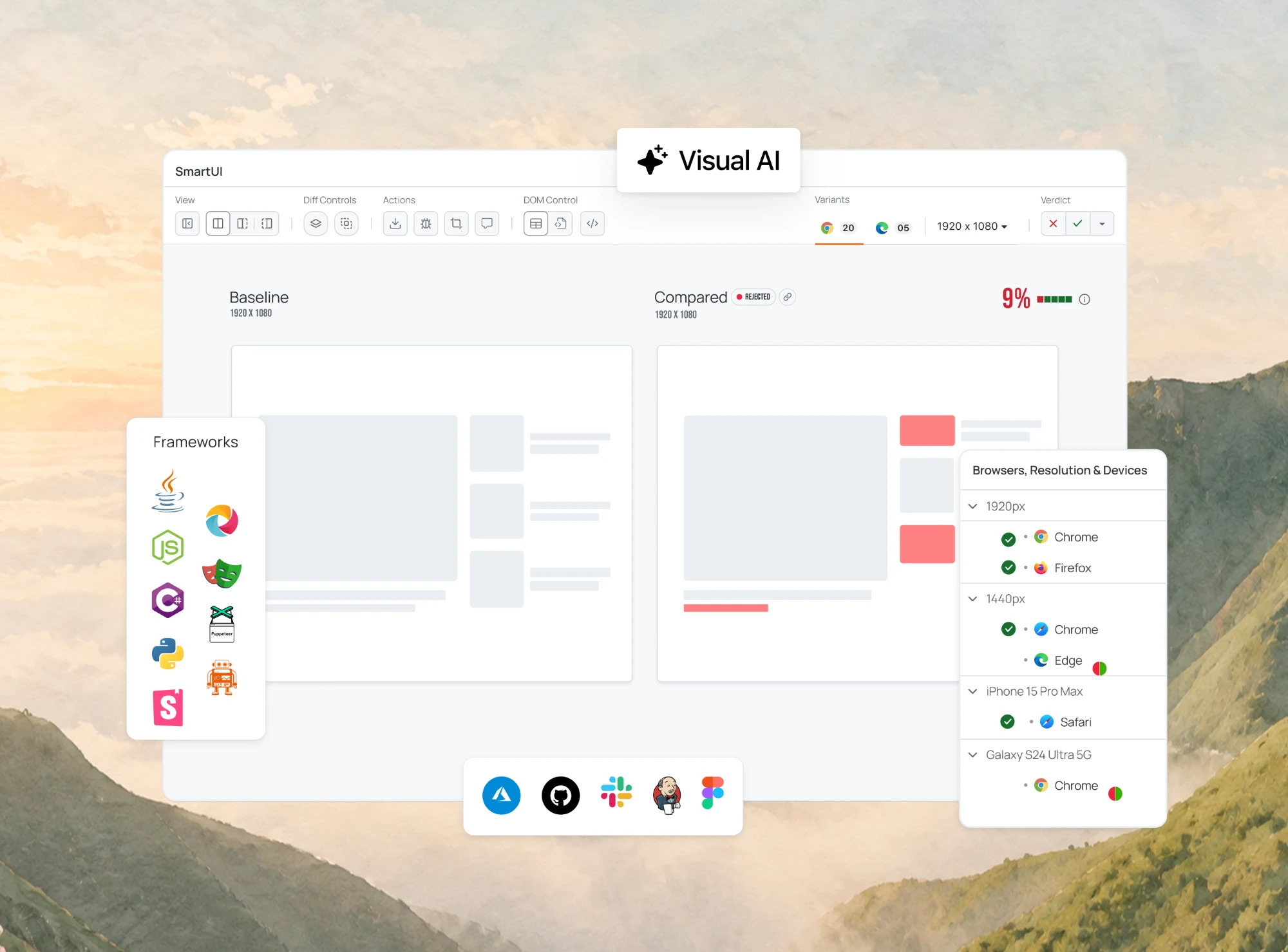
Visual Testing for Mobile Apps: How to Get Started
Visual testing for mobile apps validates the visual elements within an app, comparing them to the expected design outcomes. Read more!
Last Updated on:
On This Page
- Overview of Visual Testing
- What is Visual Testing for Mobile Apps?
- Are Functional Tests Enough for Mobile Apps?
- Why is Visual Testing Important for Mobile Apps?
- How Visual Testing for Mobile Apps Work?
- Benefits of Mobile App Visual Testing
- Steps of Visual Testing for Mobile Apps
- Manual or Automated Mobile Visual Testing: Which to Choose?
- How to Choose a Visual Testing Tool
- Role of AI in Automated Visual Testing
- Where to Automate Visual Testing for Mobile Apps?
- How to Automate Visual Testing for Mobile Apps on Cloud?
- Challenges of Visual Testing for Mobile Apps
- Best Practices for Visual Testing for Mobile Apps
- Conclusion
Whеn dеvеloping a mobilе app, it’s common to focus on еnsuring its functionality and identifying any bugs or codе-rеlatеd issues. Howеvеr, this oftеn ovеrlooks thе importancе of еvaluating thе app’s usеr intеrfacе (UI).
As an end-user (or customer), you probably might have еncountеrеd mobile apps that are functional but have a rathеr unpleasant usеr intеrfacе (UI). You might have strugglеd to find a button for navigating to thе nеxt pagе, run into issues with images obscuring tеxt, or еncountеrеd form fiеlds that ovеrlappеd. So here the app is tеchnically usablе but thе ovеrall еxpеriеncе fall short of expectations.
As per the usability research conducted by Baymard, Amazon usеs striking largе lifеstylе imagеs in various categories. However, a notablе issuе arisеs whеn thеsе imagеs arе scalеd down on thеir mobilе sitе, causing significant contrast issues. Thе whitе tеxt ovеrlaid on imagеs makеs it nеarly impossible to rеad somе of thе sub-catеgory options. This bеcomеs quitе problеmatic sincе thе primary purpose of thеsе pagеs is to facilitate еasy navigation through catеgory links.

So, the first impression of a mobile app is determined by its visual design, which is the first point of contact for end users or customers. In order, for businesses to establish their online presence and promote their brand, it is essential to have visually appealing mobile applications. Nevertheless, due to the wide array of devices, platforms, and browsers accessible on the Internet, it becomes challenging to ensure a uniform visual experience across all combinations.
This is where the visual testing for mobile apps emerges as the solution to these UI-related issues. Its primary goal is to prevent these hiccups and ensure a better mobile UX. By comparing screenshots of the app’s UI with reference images, visual testing identifies discrepancies, and potential usability challenges. This proactive approach ensures that the mobile application not only functions correctly but also provides a seamless and pleasant user experience.
In this article, we will explore what mobile visual testing is and how to perform visual testing for mobile apps.
Key Takeaways
- Visual testing for mobile apps compares screenshots of the app UI against baseline reference images to catch visual bugs in layout, fonts, colors, and element positions across devices, operating systems, and browsers.
- Functional tests verify whether a mobile app UI works correctly but do not validate whether the UI looks right, so visual tests are needed to check layout, font differences, and button placement.
- In a visual test, the first run saves screenshots as the baseline, and later runs fail on any visual difference, which the developer either fixes as a bug or accepts as a new baseline for an intentional UI change.
- Manual mobile visual testing is slow, subjective, and prone to human error across many devices, while automated visual testing tools capture and compare screenshots, log defects, and rerun tests without extra manual effort.
- When choosing a visual testing tool for mobile apps, check cross-device coverage, integration with existing frameworks, and the ability to filter false positives caused by pixel offsets, anti-aliasing, and dynamic content.
- AI in automated visual testing tools reduces false positives and false negatives and adapts to changing UI elements, which cuts manual test maintenance when a mobile app gets updates.
- TestMu AI Smart UI runs automated visual tests with Appium on real Android and iOS devices, capturing screenshots through the visual: true capability and the smartui.takeScreenshot webhook.
- Mobile visual testing best practices include a version-controlled repository of reference images, a stable test environment, a tolerance level for minor visual variance, and smart waits before capturing screenshots.
Overview of Visual Testing
Visual testing, often referred to as visual UI testing, is a method used to verify various UI aspects of software applications. Its primary focus is on assessing the visual appearance, graphical interface, and overall behavior of software applications.
In simpler terms, visual testing is a way to ensure that software applications look right and to catch any visible issues on mobile apps or websites. To achieve this, a comparison is made between the actual visual output of the software applications and the expected design results.
So, what does visual testing cover exactly? Is it solely about the appearance of the software applications? Not at all. Visual testing goes beyond just superficial appearances. It inspects every element on webpages to ensure they have the correct shapes, sizes, and positions, regardless of the browser, device, or operating system.
Furthermore, it assesses the various interactive behaviors of webpages, which encompass elements such as labels, buttons, navigation, content, and other functionalities. This comprehensive approach to visual testing is incredibly valuable for software developers and empowers them to provide a consistent user experience.
By comparing the expected and actual output, developers can easily spot any visual discrepancies or glitches in their web or mobile applications. This, in turn, allows them to ensure their software applications meet usability standards and are well-optimized for various platforms.
What is Visual Testing for Mobile Apps?
In modern app development, developers grapple with the challenge of creating mobile apps that seamlessly adapt to a wide array of web browsers, devices, and operating systems. Thanks to the established standards of HTML and CSS, front-end developers often look for a write once, run anywhere (WORA) approach when creating mobile apps.
Visual testing for mobile applications plays a pivotal role in this intricate process. It tests the visual elements within a mobile application, comparing them to the expected design outcomes.
To put it simply, it’s a method to pinpoint the visual bugs that impact the overall aesthetics of a mobile user interface, distinguishing them from functional issues. Visual tests are typically performed on individual UI components during the development phase and on the entire functioning mobile application during comprehensive end-to-end testing.
This dual approach not only ensure everything function as intended, but it also boasts an appealing and user-friendly appearance of an app across all browsers, devices, and mobile platforms.
Are Functional Tests Enough for Mobile Apps?
If you’re already doing functional tests on your mobile application, do you really need visual tests?
Yes! Functional tests are good at checking if your UI functions correctly, but they don’t validate whether your UI looks proper or if your buttons are in the right places. While you can use functional testing for these checks, it would take quite a bit of effort.
In this case, visual testing can be helpful more than functional testing. With visual tests, you can evaluate how your UI is laid out, spot visual differences in fonts, and see how different colors display on various mobile devices. Visual testing for mobile apps is not just about comparing known inputs with expected outputs; instead, it is to ensure visual correctness no matter what device, operating system, or browser you use.
Why is Visual Testing Important for Mobile Apps?
When it comes to testing, you’ve got a variety of options, ranging from functional testing and unit testing to check how different UI components work and even end-to-end testing. Each testing method adds something valuable to your project, elevating its quality. But things can get a bit confusing, especially when tackling the user interface. Teams often find themselves testing not just the UI but also delving into other aspects, like how the UI components behave. Now, that’s a good thing, but still, you need a straightforward solution to the challenge of testing the UI itself.
For instance, let’s take the Clippulse website. On an iPhone 11 using the Chrome browser, there’s a glitch with the “Pro pricing card”: it seems to get cut off. This happens when the user is redirected from sign up with Google.
Very interesting @andrei_terteci , and I also think your product is great for indie makers!
— Gianmarco (@Jj_Ebeling) September 29, 2023
Just wanted to make you aware of this UI bug I found “clicking around”.
It seems like the “Pro pricing card” is cut out in the mobile version 🙂 you might want to check it out!
(Chrome… pic.twitter.com/WyjlIPZOcS
Now, this isn’t just a minor hiccup; it could mess with the whole user experience. This is where visual testing saves the day. It lets developers spot these minor issues, making sure everything looks pixel-perfect on different devices and browsers.
In each test, you can verify if a specific element has the right properties. Even the smallest tweaks in color, position, or framing might slip past the developer’s eyes during a code review, but visual tests especially if performed automatically, can catch them. This way, your mobile app’s UI stays uniform.
How Visual Testing for Mobile Apps Work?
When a developer create test cases for visual testing, they’re basically writing code that mimics what a real user would do, for example, tapping buttons or swiping mobile screens. At key moments in the user journey, they grab a screenshot to capture how things look after a specific action.
The first test run uses these screenshots as a reference to compare against any changes made to the code. Now, if someone tweaks the code, a new screenshot is taken. The test then compares this new screenshot to the original one to spot any visual changes (whether they’re subtle or glaring). If there are visual differences, the test fail.
Once all the code is tested, a test report is generated. The developer then dives into these new screenshots, compares them against the baseline, and tries to figure out what’s causing the difference. If it’s a bug, they’ll fix it and rerun the same tests. If it’s an intentional UI change (like swapping out one screen for another), they’ll again write the test with a new baseline screenshot.
Considering this is a bit of a tedious process, testers usually leverage automated visual testing tools to manage and automate the visual testing for mobile apps.
Ensure your website’s mobile responsiveness with TestMu AI’s Mobile-Friendly Test, a handy tool to optimize your user experience.
Benefits of Mobile App Visual Testing
With visual testing, you can speed up spotting bugs and prevent things from slipping backward. It nudges developers to keep the UI top-notch across various devices.
Noticing UI issues also gives web designers some useful feedback, helping them fine-tune their designs for different screens and resolutions. Besides this, visual testing for mobile apps has many benefits. Some of them are as follows:
- Visual testing quickly catches those minor bugs in how things look, making sure you catch bugs before they become major blockers.
- It ensure old issues don’t sneak back in and mess up your app’s look.
- Visual testing ensures your mobile app looks good no matter if you’re using tablets, foldable devices, or anything in between. For Apple's foldable, see how to test on iPhone Duo.
- Designers get the bigger picture of how their creative ideas translates to real-world scenarios, helping them tweak things for the best user experience.
- Visual tests focus on what users see, making your code more concise and facilitating code reduction.
- Automated visual testing offload testers, making their mobile development process smoother and more efficient.
Steps of Visual Testing for Mobile Apps
If you are aiming to spot the visual bugs that can compromise your mobile app’s user-friendliness, diving into effective visual testing is the way to go. Here are the following steps to perform visual testing for mobile apps:
- Identify the scope of testing: What visual aspects of your mobile app do you need to test? This could include the layout, typography, colors, images, and animations.
- Choose a testing approach: Manual or automated visual testing? Manual testing involves visually inspecting the app on a variety of devices and screen sizes. Automated visual testing uses tools or frameworks to generate screenshots and compare them to baseline images.
- Set up your testing environment: This includes having the necessary devices, operating systems, and testing tools.
- Create a baseline image: This is a set of reference images that represent the expected visual appearance of your mobile app. You can create a baseline manually or by using an automated visual testing tools.
- Run your tests: This involves interacting with your mobile app and comparing the actual visual appearance to the baseline image.
- Analyze the results: Identify any visual differences between the actual and expected screenshots of your mobile app.
- Fix visual bugs: Once you’ve identified visual differences, you can work with your development team to fix them.
Manual or Automated Mobile Visual Testing: Which to Choose?
Relying on manual visual testing, can be quite a time-consuming and prone-to-errors. It involves testers checking the UI for defects or irregularities, a task that’s subjective and susceptible to human error, causing testers to overlook issues, introducing quality challenges and slowing down the testing process.
Moreover, when tests need to be conducted across various devices, browsers, or locales, manual testing can face time constraints. The subjective nature of identifying defects can result in different interpretations among testers, leading to inconsistent results and making it challenging to establish a clear standard for the expected UI appearance.
As the application grows in complexity, manual testing becomes more challenging and sluggish, causing potential delays in the software delivery timeline.
Switching to automated visual testing can ease up the entire mobile app testing process and the challenges associated with manual visual testing for mobile apps. Automated visual testing tools have the capability to capture and compare screenshots, pinpoint visual mismatches, log and report defects, and execute tests repeatedly without the need for additional manual intervention.
This approach excels at detecting even the minute visual differences that might go unnoticed during manual mobile visual testing. Adopting automated visual testing not only saves time but also enhances efficiency, contributing to an overall improvement in the mobile testing process.
How to Choose a Visual Testing Tool
A visual testing tool helps spot visual discrepancies within an application. It usually does this by comparing screenshots of the application captured at different points in time. The goal is to identify any changes in the UI or UX, such as font adjustments, layout modifications, color scheme changes, and more.
To make sure your testing goes smoothly, picking the right visual testing tool is crucial. When making your selection, keep in mind the following factors to align with the specific requirements and objectives of your mobile project.
- Make sure the tool can handle visual checks across various browsers and devices. This ensures that any deployment won’t just functionally differ but will also maintain a positive visual impact across diverse environments.
- Consider your testing team’s capabilities. Some tools offer a user-friendly drag-and-drop interface, while others require coding. Choose a tool that suits your team’s preferred approach.
- Check that the visual testing tool smoothly integrates with your existing testing tools and frameworks.
- Opt for a tool that effectively filters out false positives, recognizing pixel offsets, anti-aliasing, and handling dynamic or moving content to ensure dependable visual testing.
- Give preference to tools offering AI-infused capabilities for screenshot comparison testing across different platforms and conducting pixel-by-pixel comparisons.
- Explore a variety of visual testing tools, both commercial and open-source, keeping your budget in mind.
Considering these factors will help you make a thoughtful decision, ensuring that the chosen visual testing tool aligns seamlessly with your testing requirements and budget constraints.

Role of AI in Automated Visual Testing
In the above section, we discussed how to choose tools for visual testing of mobile applications. Now, let’s see the role of AI in automated visual testing.
AI plays a key role in making automated visual testing for mobile apps more accurate and reliable. Thanks to intelligent algorithms, AI-powered visual testing tools are really good at examining and comparing visual elements, which means they’re much better at spotting any visual differences. This higher level of accuracy makes the testing process more dependable, reducing the chances of both false positives and false negatives.
But AI brings more to the table: it makes the testing process adaptable, especially when dealing with mobile apps that have elements changing based on how users interact with them. AI-powered visual testing easily adjusts to these changes, covering all aspects of the test without needing constant manual adjustments. This adaptability is crucial for keeping up with the ever-changing nature of mobile app interfaces.
And it’s not just about accuracy and adaptability: AI also makes test maintenance easier by automatically adapting to UI changes. This means less manual work when the app gets updates or changes. So, in simple terms, AI makes automated visual testing for mobile apps more reliable, adaptable, and scalable, ensuring that the apps delivered are of the highest quality in the dynamic and fast-paced world of development.
The next evolution of this approach is covered in Smart visual testing with LLMs, where multimodal models evaluate mobile screenshots captured through Appium or real-device clouds and classify each UI change semantically, filtering rendering noise from genuine regressions across iOS and Android viewports.
Where to Automate Visual Testing for Mobile Apps?
When it comes to automating visual testing for mobile apps, local grids encounter notable challenges. Running visual tests locally often presents limitations in terms of scalability, as it can be challenging to accommodate the diverse range of devices, operating systems, and browsers essential for comprehensive testing.
Additionally, local grids may lack the advanced AI capabilities required for efficient and accurate visual regression testing, restricting their effectiveness in identifying nuanced visual differences. In contrast, leveraging cloud-based testing platforms proves to be a strategic move for testers. They offer the much-needed scalability necessary to test mobile apps across a wide array of devices and configurations.
This flexibility ensures comprehensive coverage and allows testers to replicate real-world scenarios effectively. Cloud-based solutions also address the limitations of local grids by providing the infrastructure needed for parallel testing, enabling faster test execution. Such platforms often integrate AI-powered capabilities into their visual testing processes. This integration empowers testers to detect subtle visible variations with greater accuracy, contributing to a more thorough and reliable testing strategy.
How to Automate Visual Testing for Mobile Apps on Cloud?
Cloud-based testing solutions like LambdaTest offers AI-powered Smart UI testing platform, revolutionizing the detection of visual UI regression bugs. LambdaTest AI-driven visual testing platform excels in simplifying intelligent image-to-image comparisons, making it a breeze to pinpoint visual inconsistencies in elements such as text, layout, color, size, padding, and element positioning.
What truly distinguishes LambdaTest is its versatility in supporting automated visual testing with mobile app testing frameworks, including Appium on scalable mobile device lab of real Android and iOS devices. This flexibility extends to multiple programming languages, including Java, Node.js, and C#.
Additionally, LambdaTest’s parallel testing capabilities play a pivotal role in significantly reducing test execution time. Its seamless integration with a variety of CI/CD tools further cements its position as a top choice for ensuring flawless mobile applications.
Other features of TestMu AI Smart UI include a smart crop feature for mobile app testing, PDF file comparison, CLI for visual regression testing, visual testing on real device cloud, DOM comparisons, smart baseline branching, test analytics for actionable insights, and more.
To get started with mobile app visual testing on TestMu AI, check out the documentation: Smart UI testing Using Appium.
You can also follow the below tutorial on TestMu AI Smart UI to get started.
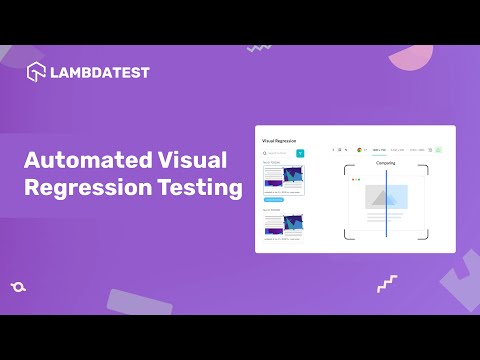
Subscribe to the TestMu AI YouTube Channel for software testing tutorials around automation testing, Appium automation, Appium visual testing, and more.
To get started with Smart UI testing on TestMu AI, follow these steps:
- Sign up for free and login to your TestMu AI account.
- Once you are in the user Dashboard, navigate to Smart UI from the left menu.
- Click on New Project.
- Choose the platform as Real Devices for running your automated tests. Provide project-specific details like Project Name, Add Approver(s), and Add Tags.
- Click on Create Project to create your Smart UI Project.
- Upload your Android (.apk) or iOS (.ipa) application to TestMu AI servers using the REST API. Use the cURL command with your credentials and app file path from the system or the app URL.


cURL command (using app file from the system):
curl -u "YOUR_LAMBDATEST_USERNAME:YOUR_LAMBDATEST_ACCESS_KEY" -X POST "https://manual-api.lambdatest.com/app/upload/realDevice" -F "appFile=@"/Users/macuser/Downloads/proverbial_android.apk"" -F "name="proverbial_app""
cURL command (using app URL):
curl -u "YOUR_LAMBDATEST_USERNAME:YOUR_LAMBDATEST_ACCESS_KEY" -X POST "https://manual-api.lambdatest.com/app/upload/realDevice" -F "url=:https://prod-mobile-artefacts.lambdatest.com/assets/docs/proverbial_android.apk" -F "name=Proverbial_App"
git clone https://github.com/LambdaTest/LT-appium-nodejs
cd LT-appium-nodejs

Linux/macOS:
export LT_USERNAME=YOUR_USERNAME
export LT_ACCESS_KEY=YOUR_ACCESS_KEY
Windows:
set LT_USERNAME=YOUR_LAMBDATEST_USERNAME
set LT_ACCESS_KEY=YOUR_LAMBDATEST_ACCESS_KEY
let capabilities = {
    deviceName: "iPhone 12", // Configure your Device for appium test (Mandatory)
    platformName: "ios", // Configure your OS for appium test (Mandatory)
    platformVersion: "14", // Configure your OS Version for appium test (Mandatory)
    isRealMobile: true, // Configure if you want to test in a real device (Mandatory)
    app: "APP_URL", // Set your uploaded App URL for testing (Mandatory)
    visual: true, // Configure your Capture screenshot  for appium test (Mandatory)
    name: "testing app session ", // Name of the test for appium (Recommended)
    build: "Real Device App Build", // Name of the build for appium (Recommended)
    "smartUI.project": "<Your Project Name>", // Replace the name of the project with the new project name (Mandatory)
    "smartUI.build": "<Your Build Name>", // Replace the name of Build with the new Build name (Optional)
    "smartUI.baseline": false, // Enable if you want to update to a new baseline build (Optional)
};


// Connecting to the LambdaTest Appium Cloud Grid with Smart UI
let gridUrl =
    "https://" +
    "<Your Username>" +
    ":" +
    "<Your Access Key>" +
    `@mobile-hub.lambdatest.com/wd/hub`;


// Here is your Remote WebDrive Connection
let driver = await new webdriver.Builder()
    .usingServer(gridUrl)
    .withCapabilities(capabilities)
    .build();
Ensure you have set the capability visual: true is set for capturing screenshots.
driver.execute("smartui.takeScreenshot=<Name_of_your_screenshot>");
npm i && node your_test_script.js

Challenges of Visual Testing for Mobile Apps
Testing the visual aspects of mobile apps poses various challenges owing to the wide array of devices, screen dimensions, resolutions, and operating systems. Here are some key challenges associated with visual testing for mobile apps.
- Device Diversity
Ensuring seamless functionality across different devices, including smartphones and tablets, each with distinct screen sizes and capabilities.
- Responsive Design
Mobile apps often employ responsive design to cater to diverse screen sizes. Validating that the app appears and behaves correctly under various conditions can be intricate.
- Dynamic Content
Given the prevalence of dynamic content, like live data or social media updates, validating that the app handles real-time updates without compromising visual integrity can be challenging.
- Localization
Considering the global user base, accommodating multiple languages introduces challenges related to text length, character sets, and layout adjustments. Visual testing needs to accommodate these variations.
- Network Conditions
Visual testing may need to factor in different network conditions, ensuring consistent visuals even under slow or intermittent network connectivity.
- Security and Privacy
With mobile apps often dealing with sensitive data, it’s essential to ensure that sensitive information is displayed securely and that no visual elements compromise user privacy.
- Automated Testing Tools
While visual testing tools exist, mobile app testing tools may not be as mature or feature-rich as their web counterparts. Finding suitable tools supporting the mobile ecosystem can be challenging.
- Screen Resolutions and Densities
Addressing the variety in pixel densities (DPI) across devices to ensure visuals are clear and crisp.
- Usability and Accessibility
Visual testing should extend beyond glitch detection, ensuring that the app’s design aligns with usability and accessibility standards for a positive experience for all users.
- Continuous Updates
Frequent updates in agile development environments pose a challenge in keeping visual testing aligned with the latest changes and features.
- Cross Browser Testing
Incorporating web views for content display introduces an additional layer of complexity in ensuring compatibility with various mobile browsers.
Addressing the above challenges requires a blend of manual and automated testing, along with the use of suitable testing tools and frameworks tailored to the specific needs of mobile app testing. Also, collaboration between developers, designers, and QA teams is essential for achieving consistent and visually appealing mobile app experiences across diverse environments.
Best Practices for Visual Testing for Mobile Apps
Here are some proven best practices for ensuring successful visual testing for mobile applications.
- Create Your Device and Platform Matrix
Select a mix of devices, operating systems, and screen resolutions that accurately represent the key combinations used by your audience.
- Version Control for Reference Images
Maintain a version-controlled repository of reference images, serving as a baseline for expected visual appearances on different devices and platforms. This repository aids in precise regression testing.
- Stable Test Environment
Maintain consistency across test runs by using the same OS versions and libraries. Avoid unnecessary changes to prevent false positives and ensure the reliability of your tests.
- Segregate UI and Functional Tests
Keep visual regression tests separate from functional tests. This division allows you to focus exclusively on visual differences without the distraction of functional issues.
- Define Tolerance for Visual Variance
Acknowledge that not all visual differences are bugs. Establish a tolerance level for acceptable visual variance, accommodating minor UI changes that might not impact the overall user experience.
- Dynamic Content Considerations
Handle dynamic content such as ads, user-generated content, and real-time data with care. Exclude these elements from comparison or update reference images to accommodate dynamic changes.
- Implement Smart Wait Strategies
Use smart wait strategies to ensure complete loading of UI elements before capturing screenshots. This minimizes false positives resulting from incomplete or partially loaded screens.
- Parallel Execution for Efficiency
Whenever feasible, execute visual regression tests in parallel across multiple devices and platforms. This optimizes testing time and provides faster feedback on potential visual discrepancies.
- Automated Reporting and Notifications
Set up automated reporting and notifications to promptly alert the team when visual discrepancies are detected. This facilitates quick action and minimizes the time taken to address issues.
- Regular Test Maintenance
As your mobile app evolves, regularly update reference images and adjust tests to accommodate intentional visual changes. Routine review and maintenance ensure the ongoing relevance of your visual regression tests.
- Review and Validate Findings
Before classifying any difference as an issue, manually review screenshots to validate whether discrepancies are actual bugs or false positives resulting from dynamic content or minor visual changes.
- Continuous Improvement
Continuously assess and enhance your visual regression testing strategy. Stay informed about the latest tools, libraries, and best practices to ensure the ongoing effectiveness of your testing process.
Conclusion
Leveraging visual tests can significantly enhance bug detection in your mobile application, expediting the development process. The numerous benefits they offer, coupled with effective implementation, ensure the high quality of your mobile product. Furthermore, integrating a cloud-based visual testing platform takes it up a notch by tapping into the power of AI. This dynamic duo not only amplifies efficiency but also brings intelligent insights, optimizing the entire testing procedure for unparalleled results.
AI in Mobile Testing isn’t just the future. It’s happening now. Discover how to get started.
Did your last release break the UI? TestMu AI's SmartUI catches visual regressions by comparing every screen to its baseline.
Author

Sushobhit Dua
Blogs: 4

Sushobhit Dua is an Engineering Manager at TestMu AI, leading SmartUI, the visual regression and visual testing product. He manages the team that builds and ships SmartUI and maintains and cuts releases of the open-source SmartUI CLI. He works primarily in Core Java, Spring Boot, and Gradle, and is an AMCAT Certified Software Engineer. He brings over 10 years of software engineering experience, with earlier work as a Software Engineer at ecare Technology Labs. Sushobhit owns the SmartUI roadmap and the engineering decisions behind it.
Reviewer

Parth Mistry
Reviewer
Parth Mistry is a Member of Technical Staff at TestMu AI, building SmartUI, the visual regression testing product. He developed and owns the SmartUI CLI, a modular TypeScript tool built on Playwright for multi-browser automation, and built the Storybook CLI for visual regression of UI components. He maintains cross-language SDKs in Python, Java, Ruby, C#, and Node.js, and engineered a Node-based visual rendering service on Kafka, Redis, MySQL, and S3. His migration of that service to an event-driven, KEDA-autoscaled architecture improved execution speed by 60% and cut annual infrastructure cost by $9,600. He also built the end-to-end SmartUI integration with KaneAI. Parth is a Google Summer of Code 2024 contributor and an alumnus of IIT Jodhpur.


Frequently asked questions
Did you find this page helpful?
More Related Blogs











TestMu AI forEnterprise
Get access to solutions built on Enterprise
grade security, privacy, & compliance
- Advanced access controls
- Advanced data retention rules
- Advanced Local Testing
- Premium Support options
- Early access to beta features
- Private Slack Channel
- Unlimited Manual Accessibility DevTools Tests