

Power Your Software Testing with AI Agents and Cloud
The Native AI-Agentic Cloud Platform to Supercharge Quality Engineering. Test Intelligently and Ship Faster.


- TestMu AI (Formerly LambdaTest)
- /
- Blog
- /
- Real Device Testing: How to Test on Real Devices in 2026
Real Device Testing: How to Test on Real Devices in 2026
Real device testing explained: the 12 bugs emulators miss, how to pick devices, Appium code for real devices, and how to start free on real phones.
Published on:
On This Page
Real device testing is running your mobile app or website on physical phones and tablets, not emulators or simulators, so you see what users see: real chipsets, OEM Android skins, carrier networks, cameras, biometrics, battery and heat. Use emulators for fast checks while you build. Use real devices before every release and for any bug a customer reports on a specific phone.
This guide covers the 12 bug types that only show up on real devices, the three ways teams get access to real devices, a simple formula for choosing which devices to test, and working Appium code to run your first automated test on a real device today.
TL;DR
- Emulators and simulators are software. They share your laptop's CPU, network and GPU, so hardware, firmware and network bugs slip through.
- You do not need hundreds of devices. A short list picked from your own analytics, plus a few known troublemakers, catches most device-specific bugs.
- A real device cloud gives you physical devices over the browser or an API, with no lab to buy or maintain. TestMu AI (formerly LambdaTest) has 10,000+ real iOS and Android devices and a free plan.
What Is Real Device Testing?
Real device testing means installing and running your app on an actual iPhone, iPad or Android phone and checking its function, UI, performance and hardware features there. The device can sit on your desk, in an in-house lab, or in a data centre you reach through a real device cloud.
It matters because an emulator or simulator is software on your computer: it borrows your laptop's CPU, GPU and network, runs stock OS images, and has no real camera, SIM or secure hardware. A real device has all of those, plus the manufacturer's firmware.
Even Google's own docs say the Android Emulator is the best option in most cases while you develop. That is true. The trouble starts at the edges, which is where users leave one-star reviews. For the full side-by-side, read Emulator vs Simulator vs Real Device.
12 Bugs You Only Catch on Real Devices
These are the failures that pass on an emulator and break in a customer's hand. Use this table as a checklist before each release; every row is a test you can only trust on physical hardware.
| # | Bug type | Why emulators miss it | What it looks like in production | How to test it on a real device |
|---|---|---|---|---|
| 1 | OEM skin behaviour | Emulators run stock Android | Samsung or Xiaomi battery savers kill background sync; push arrives hours late | Run the flow on Galaxy, Xiaomi, OnePlus and Pixel side by side |
| 2 | Aggressive memory limits | Host RAM is generous | App restarts and loses form state when the user switches to the camera | Open a heavy app, return, check state restore on a 4-6 GB RAM phone |
| 3 | Thermal throttling | No real heat or battery | Video or game stutters after 10 minutes; frame rate halves | Long session with app profiling (CPU, FPS, temperature) |
| 4 | Real network handoff | Network is shaped in software | Checkout hangs when the phone moves from Wi-Fi to 4G | Throttle 3G/4G/5G/offline mid-flow on a real radio |
| 5 | SMS OTP and calls | No SIM or carrier | OTP never auto-fills; a call interrupt crashes the app | SIM-enabled device: receive the SMS, take a call mid-flow |
| 6 | Biometrics | Simulated pass/fail only | Face ID fallback to passcode loops; fingerprint prompt never shows on some OEMs | Pass and fail Face ID / fingerprint, then test passcode fallback |
| 7 | Camera, QR and barcode | Virtual scene or webcam, none on iOS Simulator | QR scan fails in low light; document capture crops wrong | Camera image injection with real lens and autofocus path |
| 8 | Payments | No secure element | Apple Pay or Google Pay sheet fails on device | Apple Pay flow on real iOS devices |
| 9 | Notch, punch-hole, foldable | Generic screen profiles | Buttons hidden under the cut-out; layout breaks when a fold opens | Test flagship cut-outs and a foldable in both states |
| 10 | Touch and gestures | Mouse clicks, not fingers | Swipe-to-delete fires twice; pinch zoom jitters | Real multi-touch, swipe and long-press on hardware |
| 11 | Accessibility settings | Partial support | Large text truncates the CTA; VoiceOver reads buttons in the wrong order | Dynamic type, TalkBack and VoiceOver on device |
| 12 | GPS and locale | Mocked coordinates on a stable host | Wrong currency or store shown abroad; geofence never fires | GPS and IP geolocation across countries, plus locale switch |
If your app has login, payments, a camera, maps or push notifications, at least five of these rows apply to you.
How to Get Real Devices for Testing: Lab, Cloud or Crowd
Most teams combine three sources of real devices. The right mix depends on how many devices you need, how often you release, and whether your data can leave your network.
| Option | What it is | Good for | Watch out for |
|---|---|---|---|
| In-house device lab | Phones you buy and keep in the office | A few flagship devices for daily dev checks | Devices go stale every year; cables, OS updates, theft, remote teams can't reach them |
| Public real device cloud | Shared physical devices in a data centre, reached from the browser or an API | Wide coverage on demand, parallel automation in CI | Queue times on popular models if your plan has few parallel sessions |
| Dedicated or private device cloud | Devices reserved only for your team, hosted by the vendor or behind your firewall | Banking, healthcare, regulated data, pre-installed MDM apps | Higher cost; plan device refreshes with the vendor |
| Crowd testers | Freelancers testing on their own phones | Exploratory and localisation testing in specific markets | Hard to automate, results vary by tester |
A practical setup for a mid-size team: a handful of devices on desks for quick checks, a real device cloud for release regression and CI, and a dedicated pool if compliance requires it.
TestMu AI offers all three cloud models (public, dedicated and on-premise) on the real device cloud, with SOC 2, GDPR and HIPAA-ready infrastructure.
Which Real Devices Should You Test On?
Pick devices in three tiers, sized from your own traffic data rather than global market share. Global charts like StatCounter are a sanity check; your analytics (Firebase, GA4, Mixpanel, App Store and Play Console) are the source of truth.
- Tier 1- your top devices. Export sessions by device model and OS version for the last 90 days. Sort descending and keep adding models until you reach your coverage target (80% is a common starting point). These run on every release.
- Tier 2- your OS floor. Add the oldest iOS and Android versions you still support, on the cheapest phone that runs them. Old OS plus low RAM is where crashes hide.
- Tier 3- known troublemakers. Add one of each: a low-RAM Android, a phone with a heavy OEM skin (Samsung, Xiaomi), a foldable, a tablet, and the newest flagship released this quarter. These run weekly and before major releases.
The coverage target is simple to check: divide the sessions on devices in your matrix by your total sessions, then multiply by 100.
An example matrix for a consumer fintech app (replace with your own analytics):
| Tier | Example devices | Runs |
|---|---|---|
| 1 | Latest two iPhone Pro models, latest base iPhone, Galaxy S-series flagship, Galaxy A-series mid-range, Pixel flagship | Every PR merge and release |
| 2 | Oldest supported iPhone on the oldest supported iOS; a 4 GB RAM Android on the oldest supported Android version | Every release |
| 3 | Xiaomi or Redmi mid-range, Galaxy Z Fold or Flip, an iPad, a OnePlus | Weekly and before major releases |
Refresh the matrix every quarter and the week a new flagship ships. TestMu AI adds new launches such as iPhone 18 and Samsung Galaxy S26 to its device cloud; the full list is on the real devices list.
How to Do Real Device Testing, Step by Step
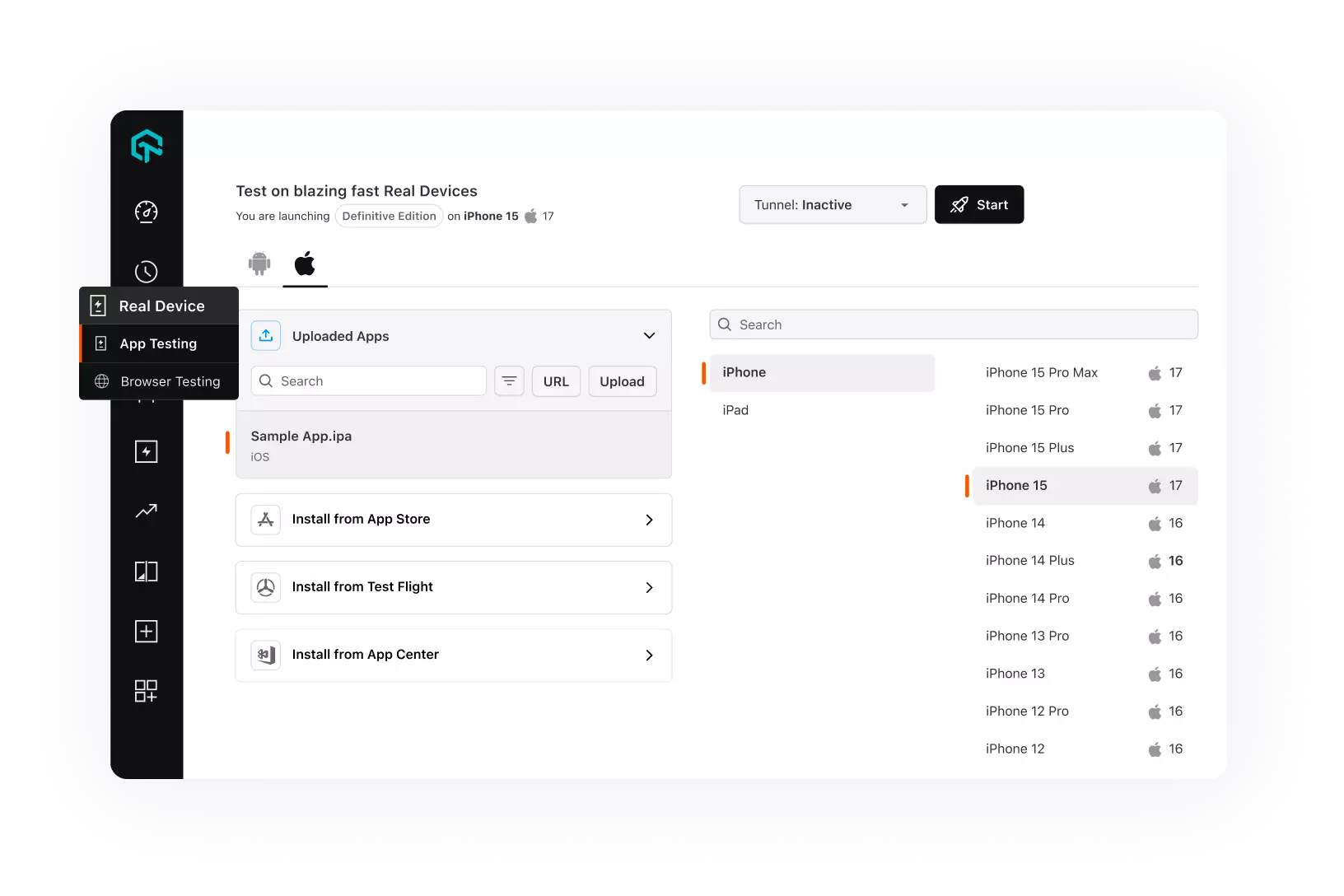
You can start with manual testing on a real device in under five minutes, then automate the same flow with Appium. Both paths below use the TestMu AI real device cloud; the Appium script works with any Appium-compatible cloud by changing the hub URL.
Manual Testing on a Real Device
- Sign in and open Real Device > App Testing.
- Pick Android or iOS, then upload your .apk, .aab or .ipa, or install from Play Store, App Store or TestFlight.
- Choose a region (North America, Europe or Asia), then brand, device and OS version.
- Turn on the tunnel if your build talks to a staging server behind your firewall.
- Click Start. You now control a physical phone in your browser: rotate, set GPS, throttle the network, inject a camera image, and read device and network logs as you go.
- Mark bugs mid-session; screenshots, device details and logs attach automatically.
Automated Testing on Real Devices With Appium (Python)
Step 1: Upload your app. The response returns an app URL like lt://APP123.
curl -u "$LT_USERNAME:$LT_ACCESS_KEY" -X POST "https://manual-api.lambdatest.com/app/upload/realDevice" -F "appFile=@./app-release.apk" -F "name=my-app"Step 2: Point your Appium test at real devices.
import os
from appium import webdriver
from appium.options.common import AppiumOptions
from appium.webdriver.common.appiumby import AppiumBy

options = AppiumOptions()
options.load_capabilities({
    "platformName": "Android",
    "lt:options": {
        "w3c": True,
        "isRealMobile": True,          # False runs on a virtual device
        "deviceName": "Galaxy S24",
        "platformVersion": "14",
        "app": "lt://APP_ID_FROM_STEP_1",
        "build": "real-device-smoke",
        "name": "login on a real Galaxy",
        "network": True,               # capture network logs
        "video": True,
        "devicelog": True,
    },
})

hub = (f"https://{os.environ['LT_USERNAME']}:{os.environ['LT_ACCESS_KEY']}"
       "@mobile-hub.lambdatest.com/wd/hub")
driver = webdriver.Remote(hub, options=options)

try:
    driver.find_element(AppiumBy.ACCESSIBILITY_ID, "email").send_keys("qa@example.com")
    driver.find_element(AppiumBy.ACCESSIBILITY_ID, "password").send_keys("not-a-real-pass")
    driver.find_element(AppiumBy.ACCESSIBILITY_ID, "login").click()
    assert driver.find_element(AppiumBy.ACCESSIBILITY_ID, "home").is_displayed()
    driver.execute_script("lambda-status=passed")
except Exception:
    driver.execute_script("lambda-status=failed")
    raise
finally:
    driver.quit()
Step 3: Run it across your device matrix. Loop the same script over your Tier 1 devices, or run them in parallel. Each session records video, device logs and network logs on the dashboard.
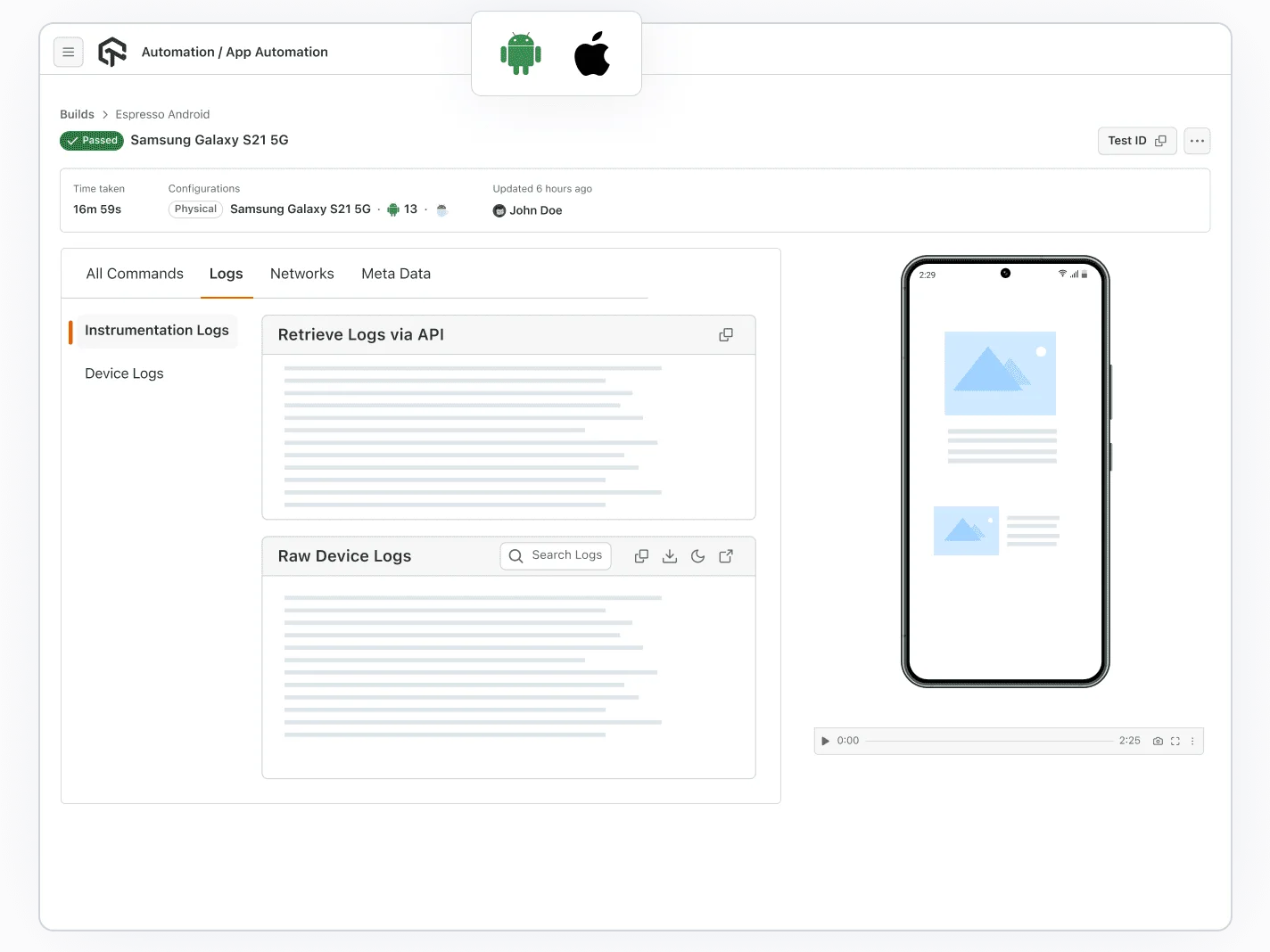
The same capabilities support real-world conditions: geoLocation and location for country and GPS, locale and timezone, enableImageInjection for camera flows, and tunnel for staging builds. Use the capabilities generator to get exact values for your device, and see the full Appium with Python docs. Espresso, XCUITest, Flutter, Detox and Maestro suites also run on the same devices.
Real Device Testing in CI and With AI Agents
The teams that ship fastest split the work: emulators and simulators on every commit, real devices on every merge to main and every release candidate. That keeps feedback under ten minutes for developers while every build that reaches users has passed on physical hardware.
- Run real devices in parallel- Ten devices in parallel finish a suite in roughly the time one device takes. HyperExecute orchestrates Appium, Espresso and XCUITest runs and reorders tests so failures surface first.
- Write tests in plain English- KaneAI turns a sentence like "log in, add a card, check the balance" into a runnable test while you watch it execute on a real device, and heals locators when the UI changes.
- Test from the terminal- Kane CLI runs natural-language tests on emulators and simulators from your terminal or from coding agents like Claude Code, Cursor and Codex - the fast lane before real-device sign-off.
Real Device Testing Best Practices
- Keep a written device matrix with an owner, refreshed quarterly and on flagship launch week.
- Reset app state between runs; never let one test's login leak into the next.
- Test on the worst network your users have, not your office Wi-Fi: 3G, high latency and offline.
- Run long sessions (15+ minutes) for video, maps and games to catch thermal throttling.
- Reproduce every customer-reported crash on the exact model and OS version before fixing it.
- Capture video, device logs and network logs on every run so failures are debuggable without a rerun.
- Keep a dedicated or private pool for regulated data; mask passwords in logs.
- Track flaky tests separately - on real devices, retries should be the exception, not the fix.

Getting Started Without a Device Lab
You don't need to buy phones to start. TestMu AI's free plan includes live testing on real iPhone, Samsung Galaxy and Google Pixel devices, with 5 sessions a month of up to 2 minutes each, plus device logs, network logs and the UI inspector (as of October 2026; see pricing). That is enough to reproduce a customer bug on the exact phone; see how to test on mobile devices for the free path. For a quick look at layouts without installing anything, the free Android emulator online and iOS simulator online are a step before real devices.

Note: Test on a real device free. Try TestMu AI free!
Author

Srinivasan Sekar
Blogs: 20


Srinivasan Sekar is Director of Engineering at TestMu AI (formerly LambdaTest), where he leads engineering and open-source initiatives behind the Selenium and Appium automation grid and owns TestMu AI's MCP Server. A committer to Appium and a contributor to Selenium, WebdriverIO, Taiko, and AppiumTestDistribution, he brings over 15 years of experience in quality engineering and open-source technologies. He is the author of the Apress book 'The MCP Standard: A Developer's Guide to Building Universal AI Tools with the Model Context Protocol,' a Certified Kubernetes and Cloud Native Associate, and an international conference speaker. Before TestMu AI he spent over eight years at Thoughtworks as a Principal Consultant and Quality Architect. Srinivasan holds a B.Tech in Information Technology from Anna University.
Reviewer
Shantanu Wali
Reviewer
Shantanu Wali is Vice President of Product Management at TestMu AI (formerly LambdaTest), where he owns several product lines across the testing platform, including the Real Device Cloud and the Digital Experience Testing Cloud. He has also contributed significantly to the development and scaling of KaneAI, TestMu AI's flagship GenAI-native testing agent that uses natural language to make software testing faster and more reliable in this AI era. He brings 7+ years of experience across software development and product management, starting as a backend developer at Infosys building solutions for Fortune 500 clients. Shantanu holds an MBA from IIM Calcutta and a B.Tech in Mechanical Engineering.


FAQ
Did you find this page helpful?
More Related Blogs
TestMu AI forEnterprise
Get access to solutions built on Enterprise
grade security, privacy, & compliance
- Advanced access controls
- Advanced data retention rules
- Advanced Local Testing
- Premium Support options
- Early access to beta features
- Private Slack Channel
- Unlimited Manual Accessibility DevTools Tests