
Power Your Software Testing with AI Agents and Cloud
The Native AI-Agentic Cloud Platform to Supercharge Quality Engineering. Test Intelligently and Ship Faster.


- TestMu AI (Formerly LambdaTest)
- /
- Blog
- /
- Test on iPhone Duo: Apple's First Foldable Is Now Live on TestMu AI Real Devices
Test on iPhone Duo: Apple's First Foldable Is Now Live on TestMu AI Real Devices
Test on iPhone Duo with TestMu AI: live sessions on a real phone on iOS 27, plus an iOS 27.1 simulator. See the Safari viewport I measured on its outer screen.
Published on:
Apple says the 7.6-inch inner display on the iPhone Duo is 50 percent larger than the iPhone 18 Pro Max, while the 5.4-inch outer display gives you 90 percent of the screen area of an iPhone 18 Pro, according to its iPhone Duo announcement. So one app now has to look right on two very different screens, and keep working while someone opens or closes the phone.
You can now test on iPhone Duo in TestMu AI without buying one. I checked what was available on October 26, 2026, ran Safari on the iPhone Duo simulator, and wrote down what each option can do today.
Key Takeaways
- You can test on iPhone Duo in TestMu AI today: the real device runs live sessions on iOS 27, and an iPhone Duo simulator on iOS 27.1 runs in Real Time Testing and Appium automation.
- On October 26, 2026, the real iPhone Duo was offered for manual testing only, and my automated request on it timed out in the queue, so run automated suites on the simulator for now.
- Safari on the iPhone Duo simulator opened on the outer display and gave pages a 382 x 580 viewport inside a 466 x 678 screen, because Safari's controls sit in a column on the right.
- Touch ID in the side button, the cameras, and sustained performance need the real iPhone Duo, while open, close, and fold poses are quickest to check in Xcode's Device Hub.
- Apple asks you to lay out with size classes: the outer display reports a compact width in portrait, and the inner display reports regular width and height.
Is iPhone Duo Available on TestMu AI?
Yes, the iPhone Duo is on TestMu AI in two forms, a real device and a simulator, and each suits a different kind of test. Apple ships the phone with iOS 27.1, which is why the simulator runs iOS 27.1 while the real device list labels the OS by its major version, iOS 27.
| How you test | Device and iOS | What it is good for | Status on October 26, 2026 |
|---|---|---|---|
| Real device, live session | iPhone Duo, iOS 27 | Testing websites and apps by hand on the actual hardware, including Touch ID and the cameras | Available |
| Real device, automation | iPhone Duo, iOS 27 | Appium or XCUITest suites on the hardware | Not offered yet; my request timed out in the queue |
| Simulator, Real Time Testing | iPhone Duo, iOS 27.1 | Quick manual layout checks in Safari without booking hardware | Available |
| Simulator, Appium automation | iPhone Duo, iOS 27.1, Appium 3.7.0 | Automated Safari runs in your regression suite | Available, and I ran it for this post |
The list of real devices showed the iPhone Duo on iOS 27 with live testing switched on and automation switched off when I checked it. For quick checks without hardware, Real Time Testing runs the simulator: select Virtual Mobile under Web Browser Testing, choose iOS and the iPhone Duo, enter a URL, and click Start.
How Do I Test on iPhone Duo in a Live Session?
A live session streams the real iPhone Duo to your browser, and your taps, swipes, and typing go straight to the phone. The TestMu AI real device cloud gives you 50,000+ real Android and iOS devices, and it keeps the typical round trip under 150 ms on a standard connection, so the phone feels close to the one in your hand.
- Log in, open Real Device in the left sidebar, and pick Browser Testing for a website or App Testing for an app.
- Choose iOS, then search for the iPhone Duo in the device list.
- For App Testing, upload your app or install it from the App Store, TestFlight, or App Center. For Browser Testing on iOS, you type the URL once the session has started.
- Click Start, and use the Tunnel option in the top-right corner first if your build or site only runs on your local network.
The setup guides for browser testing on real devices and app testing on real devices walk through each screen. During the session you get Safari Web Inspector, device logs, and a network monitor, and every session gets its own freshly wiped device, so nothing carries over from the last tester.
What Does a Web Page See on the iPhone Duo Outer Display?
On October 26, 2026, I ran Safari on the iPhone Duo simulator (iOS 27.1, Appium 3.7.0) under the build name iPhone Duo Launch Viewport Check. I loaded the Selenium Playground, read the values below with JavaScript, and set viewport-fit=cover before reading the safe-area insets. The session opened with the phone closed, on the outer display.
| Reading | Value I got | What it means for your page |
|---|---|---|
| Viewport (innerWidth x innerHeight) | 382 x 580 | This is your CSS layout width, so a min-width: 390px rule never applies here |
| screen.width x screen.height | 466 x 678 | At 3x this is 1398 x 2034 pixels, the outer display size in Apple's tech specs |
| devicePixelRatio | 3 | Serve 3x images and icons |
| Safe-area insets | 0 px on all four sides | Safari's side column sits outside your page, so env() padding adds nothing in this view |
| (color-gamut: p3) | Matches | Display P3 colors and wide-color images are used |
| (dynamic-range: high) | Does not match | HDR styling never shows on the simulator, so check it on the real phone |
| (hover: hover) and (pointer: coarse) | No hover, coarse pointer | Write touch-first styles, and give any menu that opens on hover a tap fallback |
| Rotate to landscape (WebDriver) | Unable To Rotate Device | I could not read a landscape value from automation, so check landscape by hand in a live session |
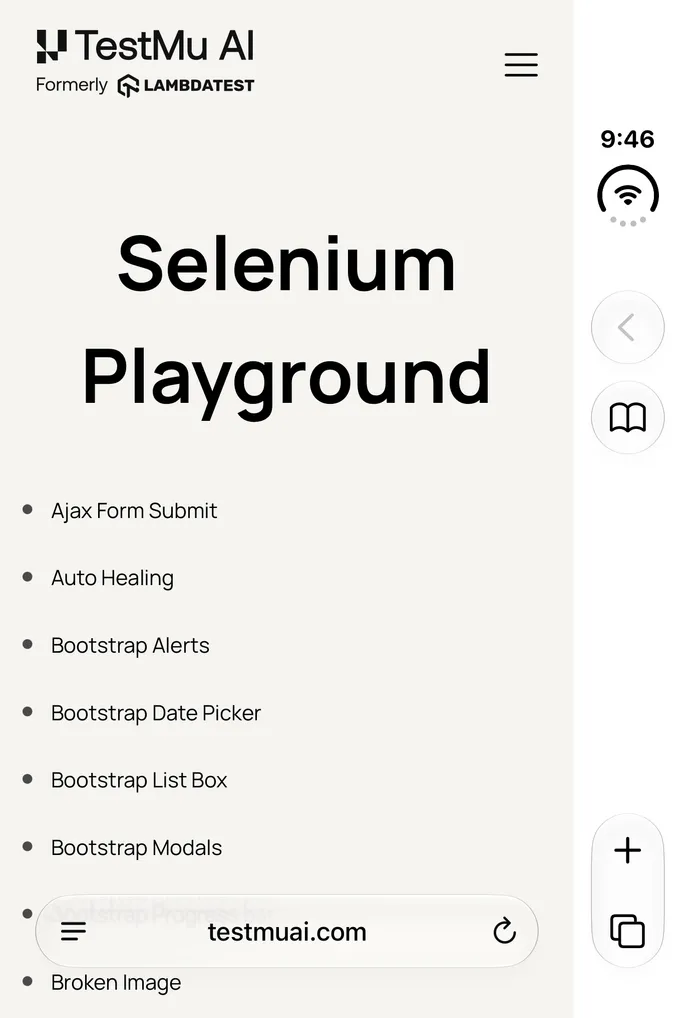
The screenshot shows where the missing width went. The clock, Wi-Fi status, back button, Reader, and tab controls sit in a column on the right, which matches Apple's note that app navigation and controls now appear on the side, and that column takes 84 points of the 466-point screen. The iPhone Duo tech specs list the outer display at 1398 x 2034 pixels and 460 ppi, which is exactly what the screen values work out to.
The user agent read iPhone OS 18_7 with Version/27.0, so nothing in it tells you the page is on an iPhone Duo. The iPhone 18 Pro launch tests found the same frozen OS token on iOS 27, so lay out with media queries and never with user-agent checks.
What Should I Test First on iPhone Duo?
Start with the things that are new on this phone. Apple's iPhone Duo developer update says that because both displays share the same aspect ratio, apps transition smoothly from the outer display to the inner display. That smooth handoff is exactly what your users will expect from your app too.
- Open and close - Start a form or a checkout on the outer display, open the phone, and check that the text you typed, the scroll position, and any open dialog are still there.
- Size classes - In Apple's Prepare your app for iPhone Duo talk, the outer display reports a compact horizontal size class in portrait and the inner display reports regular width and height. A sidebar or second column should appear only when the phone is open.
- Split View - Apple says iPhone Duo lets people open two apps side by side on iPhone for the first time, so check your layout at a narrow width with another app next to it.
- Side controls and safe areas - The same talk warns that safe areas are often asymmetric and that vertical buttons can appear on the left side in landscape and Split View. Make sure no button or price sits under them on either side.
- Touch ID - Apple builds Touch ID into the side button, so re-run any sign-in or payment flow you only ever tested with Face ID prompts. For uploaded apps on iOS 13 and later that call LAContext, biometric authentication on real devices lets you pass or fail the prompt during a live session.
- Camera preview - Apple added camera APIs for taking selfies with the rear cameras, so if your app opens the camera, check the preview and capture on both displays.
Android foldables raise the same questions, and the guide to testing foldable phones covers the general pattern of screen states and continuity.

Note: Book a real iPhone Duo on iOS 27 for the Touch ID, camera, and open-and-close checks above. Try TestMu AI free on a real iPhone Duo
Which iPhone Duo Checks Need the Real Device?
Apple's talk tests every pose in the Xcode 27.1 Device Hub, with buttons to open, close, rotate, or fold the simulated phone, and it never mentions physical hardware. That makes the simulator great for layout, and it leaves the hardware checks for the real iPhone Duo. Here is how I split the work:
| Check | Where I run it | Why |
|---|---|---|
| Open, close, fold, and Split View poses | Xcode Device Hub | Apple's simulator has on-screen controls for every pose, and you drag the app to either side for Split View |
| Outer display web layout | TestMu AI simulator, then the real phone | The simulator gives the 382 x 580 viewport in about a minute, with no Mac needed |
| Touch ID in the side button | Real iPhone Duo | Sign-in and payment flows need the real sensor and the real system prompt |
| HDR images and video | Real iPhone Duo | The simulator did not match (dynamic-range: high) in my run |
| Speed and heat | Real iPhone Duo | The A20 Pro chip only shows its real frame times and throttling on hardware |
| Automated regression | TestMu AI simulator | Real-device automation for the iPhone Duo was not offered when I checked |
The speed row matters because Apple's developer update promises up to 35 percent better sustained performance than the iPhone 17 Pro, so frame-time baselines from older iPhones no longer describe this phone. For early layout checks on other iPhones, the iOS simulator online needs no Xcode setup at all.
Can I Automate Tests on iPhone Duo?
Yes, you can automate tests on the iPhone Duo simulator today. The TestMu AI capabilities generator lists the iPhone Duo simulator on iOS 27.1 with Appium 3.7.0 as its only Appium version, and that is the setup I used for every reading in this post.
Install the driver with npm install selenium-webdriver, then export LT_USERNAME and LT_ACCESS_KEY with the username and access key from your TestMu AI account:
const { Builder } = require("selenium-webdriver");

const capabilities = {
  browserName: "Safari",
  "LT:Options": {
    username: process.env.LT_USERNAME,
    accessKey: process.env.LT_ACCESS_KEY,
    platformName: "ios",
    deviceName: "iPhone Duo",
    platformVersion: "27.1",
    isRealMobile: false,
    appiumVersion: "3.7.0",
    build: "iPhone Duo Launch Viewport Check",
    name: "iPhone Duo simulator",
    w3c: true
  }
};

(async () => {
  const driver = await new Builder()
    .usingServer("https://mobile-hub.lambdatest.com/wd/hub")
    .withCapabilities(capabilities)
    .build();
  try {
    await driver.get("https://www.testmuai.com/selenium-playground/");
    const reading = await driver.executeScript(
      "return [innerWidth, innerHeight, screen.width, screen.height, devicePixelRatio];"
    );
    console.log(reading);
  } finally {
    await driver.quit();
  }
})();
When I ran it, the script printed [ 382, 580, 466, 678, 3 ], the same outer display values as the table above. If your suite already runs on Appium, the post on what's new in Appium 4 covers the multi-display commands the XCUITest driver added for the iPhone Duo.

Summing Up
Open a live session on the real iPhone Duo, load your busiest page, and compare its width with the 382 px I measured on the outer display. Then run the open-and-close and Touch ID checks from this post while the phone is still in front of you.
For the rest of this release cycle, see what changed in the iOS 27 release and the Galaxy Z Fold8 launch on Android 17, which covers the same open-and-close checks on Samsung hardware.
Author

Shubham Soni
Blogs: 11

Shubham Soni is a Senior Member of Technical Staff at TestMu AI, building the Real Device Cloud and real-time testing infrastructure. He optimized the WebRTC services that power live testing to sub-100ms latency with adaptive bitrate streaming, led a frontend migration from Angular to React that cut page load time from 5-6 seconds to 1-1.5 seconds, and contributes to the official Device SDK. He led a team of four to build an accessibility testing product covering manual and automated testing and mentored a team of six on a real-time testing product. He brings over eight years of experience and earlier scaled a cloud code platform to 200K+ monthly users. Shubham holds a B.Tech in Computer Science.
Reviewer

Srinivasan Sekar
Reviewer
Srinivasan Sekar is Director of Engineering at TestMu AI, where he leads engineering and open-source initiatives behind the Selenium and Appium automation grid and owns TestMu AI's MCP Server. A committer to Appium and a contributor to Selenium, WebdriverIO, Taiko, and AppiumTestDistribution, he brings over 15 years of experience in quality engineering and open-source technologies. He is the author of the Apress book 'The MCP Standard: A Developer's Guide to Building Universal AI Tools with the Model Context Protocol,' a Certified Kubernetes and Cloud Native Associate, and an international conference speaker. Before TestMu AI he spent over eight years at Thoughtworks as a Principal Consultant and Quality Architect. Srinivasan holds a B.Tech in Information Technology from Anna University.


iPhone Duo Testing FAQs
Did you find this page helpful?
More Related Blogs

TestMu AI forEnterprise
Get access to solutions built on Enterprise
grade security, privacy, & compliance
- Advanced access controls
- Advanced data retention rules
- Advanced Local Testing
- Premium Support options
- Early access to beta features
- Private Slack Channel
- Unlimited Manual Accessibility DevTools Tests