

Power Your Software Testing with AI Agents and Cloud
The Native AI-Agentic Cloud Platform to Supercharge Quality Engineering. Test Intelligently and Ship Faster.


- TestMu AI (Formerly LambdaTest)
- /
- Learning Hub
- /
- Cypress run Command: A Step-by-Step Guide
Cypress run Command: A Step-by-Step Guide
Step-by-step guide to Cypress run command, flags, browser selection, test file execution, custom reports, and parallel testing.
Last Updated on:
Cypress is a widely adopted JavaScript-based end-to-end testing framework that provides intuitive APIs and powerful CLI commands, such as cypress run, to perform automated tests in a headless environment directly from the terminal. This functionality significantly enhances testing efficiency and streamlines the overall workflow.
Overview
To execute automated Cypress tests from the command line in headless or headed mode, use the cypress run command. For running these tests in parallel across multiple browsers to accelerate test cycles, integrate your workflow with the cloud-based testing platform TestMu AI.
What Are Commonly Used Cypress run Flags?
- --browser (or -b): Runs Cypress tests in a specified browser or custom file system path to target specific environments.
- --config (or -c): Overrides default configuration settings for a specific Cypress test run to customize execution parameters.
- --config-file (or -C): Specifies a custom configuration file to easily switch between different Cypress project setups.
- --env (or -e): Defines environment variables for a specific Cypress test execution without permanently modifying project source code.
- --headed: Displays the browser GUI during Cypress test execution instead of running headlessly to observe test steps.
- --headless: Runs Cypress tests without opening the browser interface to increase execution speed in automated workflows.
- --help (or -h): Outputs usage instructions and displays all available Cypress command-line options directly in the terminal.
How to Perform Cypress Testing in a Specific Browser?
- npx cypress open: Launches the interactive Cypress Test Runner to verify and view all detected browsers on your local machine.
- npx cypress run --browser: Executes automated Cypress tests in a specified browser by appending the browser name to the command.
- Headless execution: Combines browser selection with headless mode to run Cypress tests faster and catch timing issues in automated pipelines.
- Cross-browser validation: Executes critical Cypress workflows across multiple browsers to identify rendering and JavaScript execution differences.
- Browser version management: Uses specific browser versions in CI environments to prevent minor updates from impacting Cypress test stability.
- Headed debugging: Runs Cypress tests in headed mode to interactively inspect and debug failures unique to specific browsers.
How to Run Cypress Tests in Parallel?
- TestMu AI: A cloud-based testing platform that allows you to execute Cypress tests across multiple browsers in parallel to accelerate test cycles.
What Is Cypress run Command?
The Cypress run command is a CLI utility used to execute all Cypress tests in a headless environment via the terminal. By default, it sequentially runs all test files located in the cypress/e2e/*.cy.js directory and displays a summary of the results, indicating which tests passed or failed.
To use the Cypress run command, ensure Cypress is installed locally in your project. Then, prefix the command with npx as shown below:
npx cypress runThis will execute all test cases found in the cypress/e2e/*.cy.js directory. The output will display a detailed report of the test execution, including individual test results and an overall summary.
New to Cypress? Check out this step-by-step Cypress tutorial.
Which Basic Flags Work With the Cypress run Command?
Common cypress run flags include --browser to pick a browser, --spec to choose test files, --reporter to set the report format, and --headed to show the browser window.
The Cypress run command comes with several CLI flags, such as --browser, --spec, --reporter, just to name a few, that allow you to customize how test cases are executed headlessly on the terminal when added with the cypress run command.
These flags enable you to extend the functionality of the Cypress run command by adding additional commands as flags to the end of the run command to perform more advanced operations via the terminal.
| Option | Description |
|---|---|
| --browser, -b | Run Cypress in the browser with the given name. If a file system path is supplied, Cypress will attempt to use the browser at that path. |
| --config, -c | Specify configuration. |
| --config-file, -C | Specify the configuration file. |
| --env, -e | Specify environment variables. |
| --headed | Displays the browser instead of running headlessly. |
| --headless | Hide the browser instead of running headed (default during cypress run). |
| --help, -h | Output usage information. |
| --key, -k | Specify your secret record key. |
| --no-exit | Keep Cypress open after tests in a spec file run. |
| --no-runner-ui | Hides the Cypress Runner UI. |
| --project, -P | Path to a specific project. |
| --quiet, -q | Reduce output to stdout. |
| --record | Whether to record the test run. |
| --reporter, -r | Specify a Mocha reporter. |
| --reporter-options, -o | Specify Mocha reporter options. |
| --runner-ui | Displays the Cypress Runner UI. Useful when Test Replay is enabled and you want the UI displayed for screenshots and video. |
| --spec, -s | Specify the spec files to run. |
| --tag, -t | Identify a run with a tag or tags. |

Note: Run tests across Windows, and macOS on latest Cypress versions. Try TestMu AI Now!
How Do You Run Cypress Tests in a Specific Browser?
You can clone the GitHub repository created for Cypress run command. It includes all code samples and configurations demonstrated throughout the guide.
By default, Cypress executes tests using the Electron browser when the cypress run command is invoked. However, you can specify a different browser using the --browser flag. Cypress will then run the tests in headless mode with the specified browser.
To use a specific browser, append the --browser flag followed by the browser name (e.g., Chrome, Firefox, Edge, etc.) to the command:
npx cypress run --browser chrome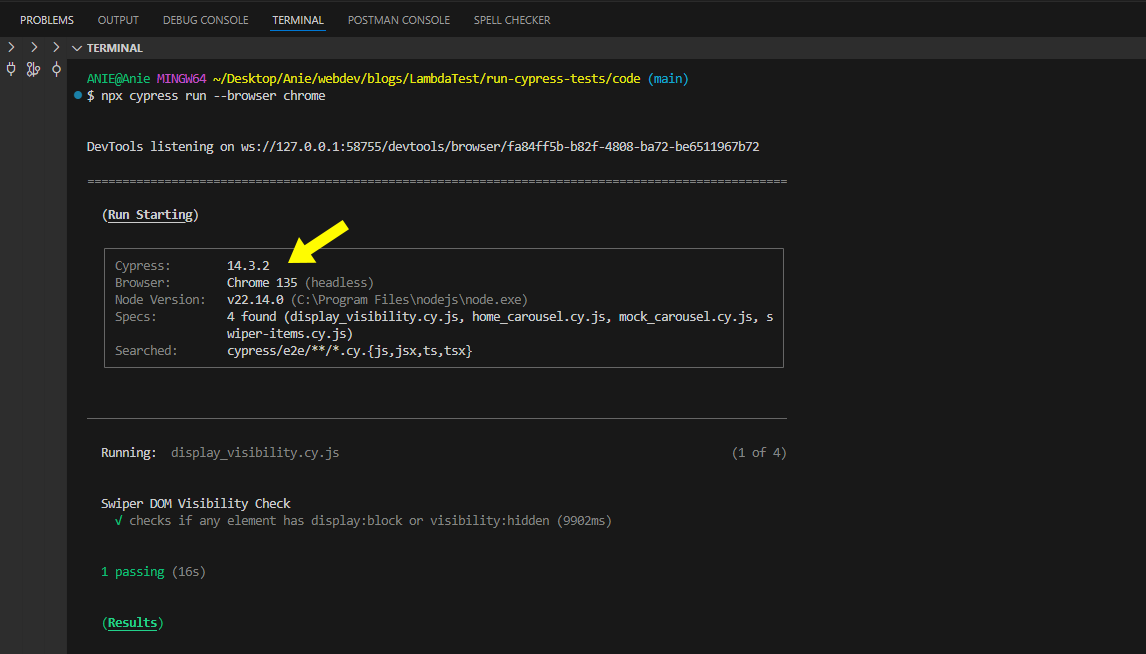
Here, the above command will execute the test in headless mode using Chrome as shown below.
You can run the above command in headed mode using the --headed command or npx cypress open.
npx cypress run --headed --browser firefox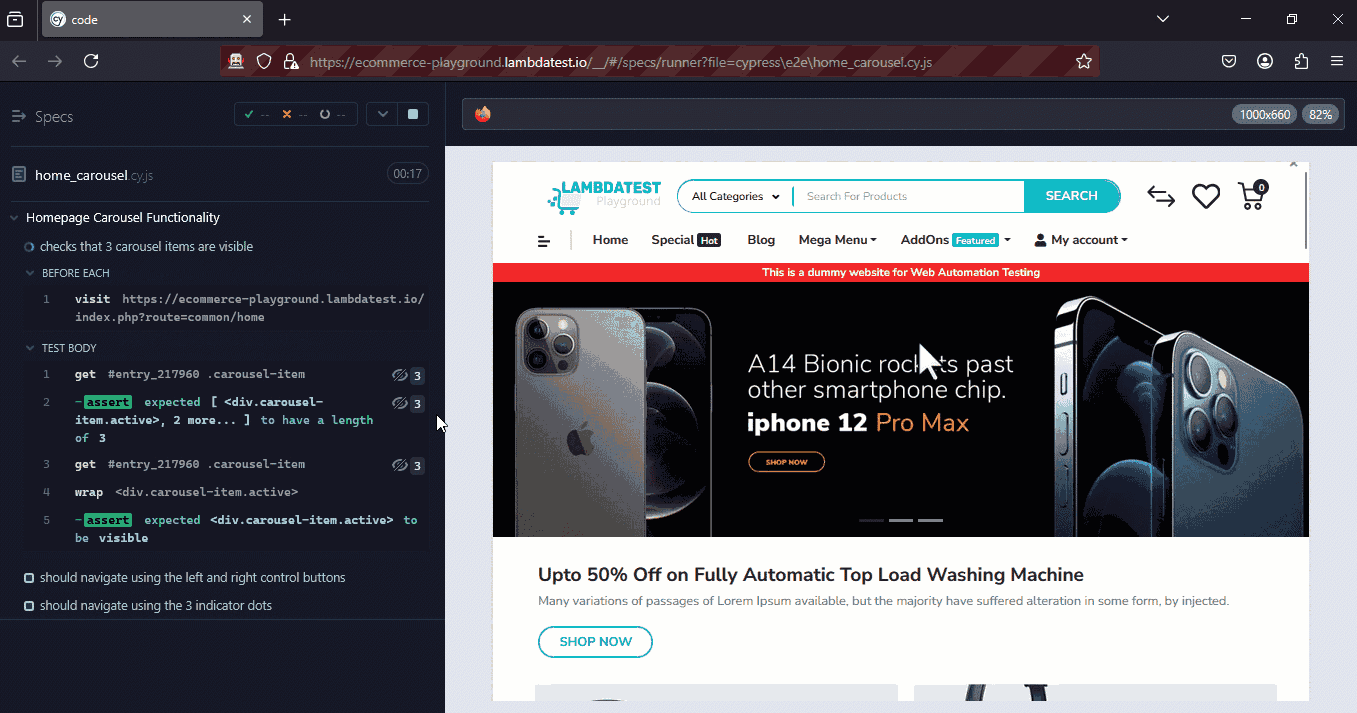
Make sure the chosen browser is installed on your local machine. You can verify the list of available browsers with the command below.
npx cypress infoHow Do You Run a Specific or Multiple Cypress Test Files?
Run specific Cypress test files with cypress run --spec followed by a file path, a comma-separated list of paths, or a glob pattern such as cypress/e2e/login/*.cy.js.
By default, when the cypress run command is executed, Cypress runs all test files located in the cypress/e2e/*.cy.js directory sequentially, regardless of whether you're only interested in running a single file. This approach can be inefficient and time-consuming in cases where targeted testing is needed.
To address this, Cypress provides the --spec flag, which allows you to specify the exact test file (including its path) that you want to execute. When used, Cypress will run only the specified file and skip the rest.
For example, let’s run a test file located at cypress/e2e/swiper-items.cy.js. First, ensure the file exists and contains your test code: cypress/e2e/*.cy.js directory.
npx cypress run --spec cypress/e2e/swiper-items.cy.js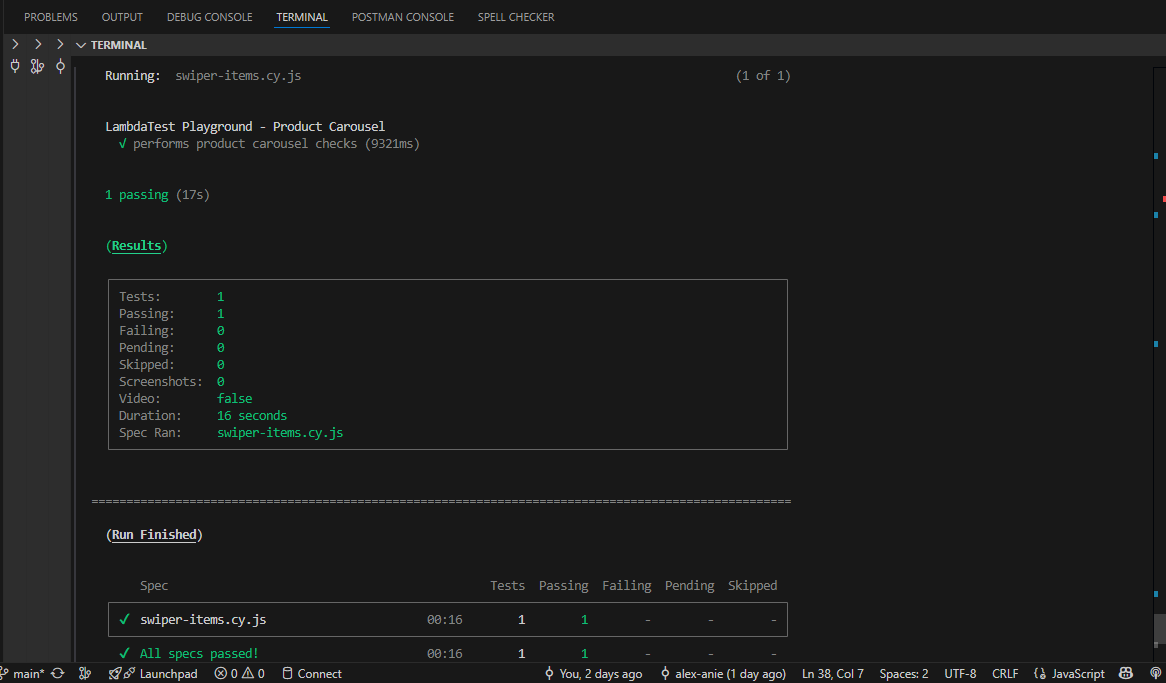
Then, run the test using the following command:
describe('TestMu AI Playground - Product Carousel', () => {
        beforeEach(() => {
          cy.visit('https://ecommerce-playground.lambdatest.io/')
        })

        it('performs product carousel checks', () => {
          cy.get('.swiper-slide').then($items => {
            cy.log(`Number of swiper items: ${$items.length}`)
          })

          cy.get('.price-new').should('exist').each($price => {
            const text = $price.text()
            expect(text.trim()).to.not.be.empty
            expect(text).to.include('$')
          })

          cy.get('.swiper-slide img').should('be.visible').and($img => {
            const src = $img.attr('src')
            expect(src, 'Image src should exist').to.match(/^https?:///)
          })

          cy.get('h4.title .text-ellipsis-2').each($el => {
            const text = $el.text().trim()
            expect(text).to.not.be.empty
          })
        })
      })
This command will execute only the swiper-items.cy.js test file, reducing the time spent on executing all tests.
While this approach helps to target a specific test file, you can also target multiple files using a comma-separated list inside a double quote.
npx cypress run --spec "cypress/e2e/swiper-items.cy.js,cypress/e2e/home_carousel.cy.js"Here we are running swiper-items.cy.js and home_carousel.cy.js test files. Cypress will execute both files and ignore others.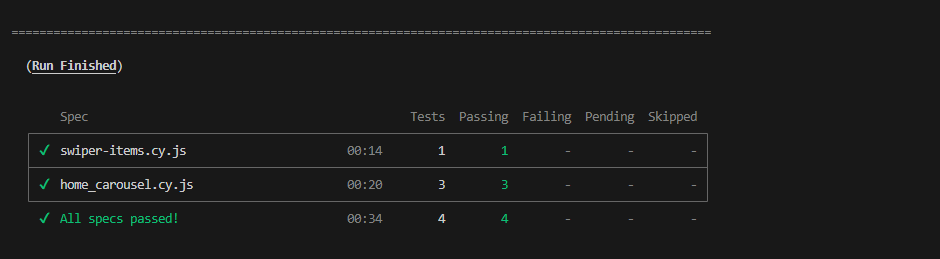
How Do You Generate Reports Using a Cypress Custom Reporter?
Generate Cypress reports by installing a reporter package, configuring it in cypress.config.js, running cypress run with the reporter, and opening the generated report files.
When tests are executed via the terminal, for instance, using the cypress run command, the configured reporter captures the test results and formats them into reports, typically in HTML or JSON format.
Depending on the reporter you’re using, you might need to specify it with the --reporter flag, like so:
npx cypress run --reporter mocha-junit-reporterLet’s use the cypress-mochawesome-reporter package. This reporter does not require the --reporter flag explicitly when it's set up via your Cypress configuration. It automatically generates the report on completion of test execution.
Step 1: To install cypress-mochawesome-reporter, run:
npm install --save-dev cypress-mochawesome-reporterStep 2: Next, open your cypress.config.js file and configure the reporter as follows:
const { defineConfig } = require("cypress");

module.exports = defineConfig({
  reporter: 'cypress-mochawesome-reporter',
  reporterOptions: {
    charts: true,
    reportPageTitle: 'custom-title',
    embeddedScreenshots: true,
    inlineAssets: true,
  },
  e2e: {
    setupNodeEvents(on, config) {
      // implement node event listeners here
      require('cypress-mochawesome-reporter/plugin')(on);
    },
  },
});
Step 3: Next, navigate to cypress/support/e2e.js directory and import cypress-mochawesome-reporter plugin.
import 'cypress-mochawesome-reporter/register';Step 4: Now, run the command below to automatically generate a Mochawesome report in the specified directory.
npx cypress runCypress will run all tests in the test directory, and as soon as all test execution is complete, Cypress will begin generating test reports using cypress-mochawesome-reporter.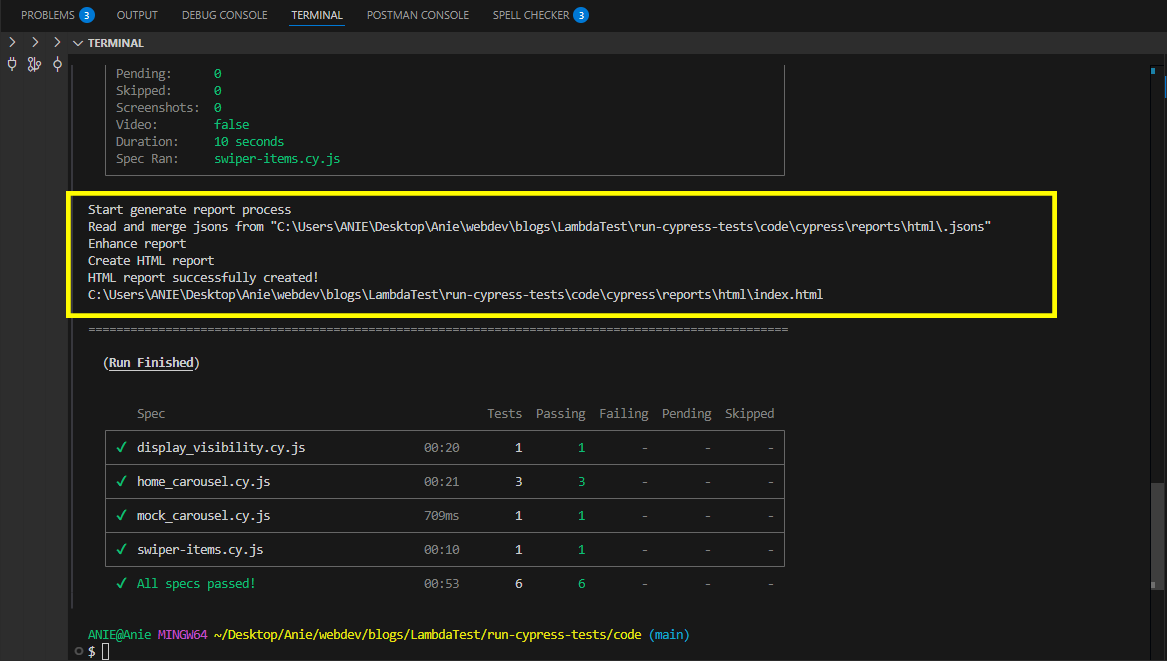
Next, locate the generated report file at cypress/report/html/index.html, click on the file, and open it in your default browser. Your reports should look as shown below.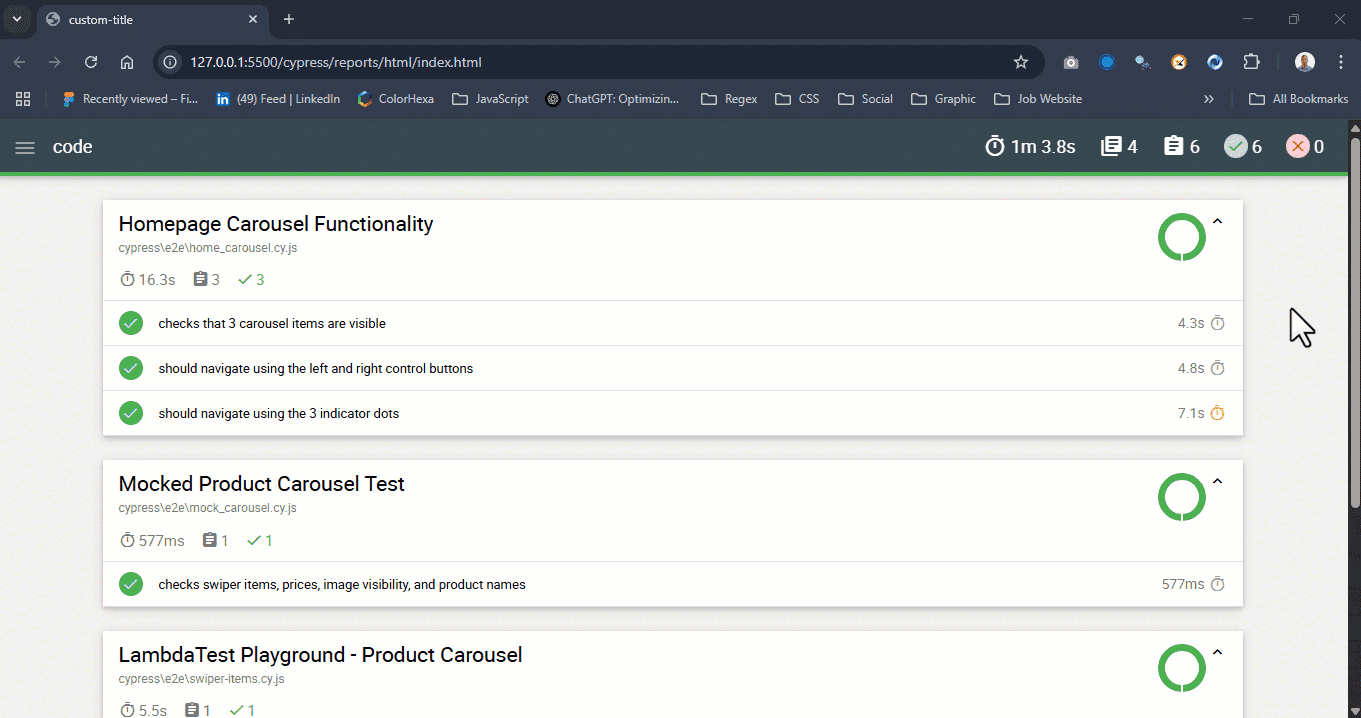
How Do You Run Cypress Tests in Parallel With TestMu AI?
Cloud-based testing platform like TestMu AI offers a scalable cloud that allows you to execute tests across multiple browsers in parallel. This approach significantly improves efficiency by enabling Cypress parallel testing, eliminating the need to run tests manually on each browser one at a time.
To begin, run the following command:
npm install -g lambdatest-cypress-cliThis installs the TestMu AI Cypress CLI globally. Once installed, initialize your project with:
lambdatest-cypress init --cv=14.3.2This will create the necessary TestMu AI configuration files and folders, including the lambdatest-config.json file. Open this file and enter your TestMu AI credentials (username and password).
You can find more details in this documentation on Cypress testing with TestMu AI.

To run Cypress tests on multiple browsers, you can define a browsers array in the lambdatest-config.json file, specifying the desired browser name, operating system, and version for execution on the TestMu AI cloud environment.
{
    "lambdatest_auth": {
      "username": "username",
      "access_key": "accesskey"
   },
   "browsers": [
      {
         "browser": "Chrome",
         "platform": "Windows 10",
         "versions": [
            "latest"
         ]
      },
      {
         "browser": "Firefox",
         "platform": "Windows 10",
         "versions": [
            "latest"
         ]
      }
To run the tests, pass these parameters directly via the terminal using the --browser flag, as shown below:
lambdatest-cypress run --browsers "Windows 10:Chrome:latest,Windows 10:Firefox:latest"Here are the Cypress test results that you can notice on the TestMu AI Web Automation dashboard.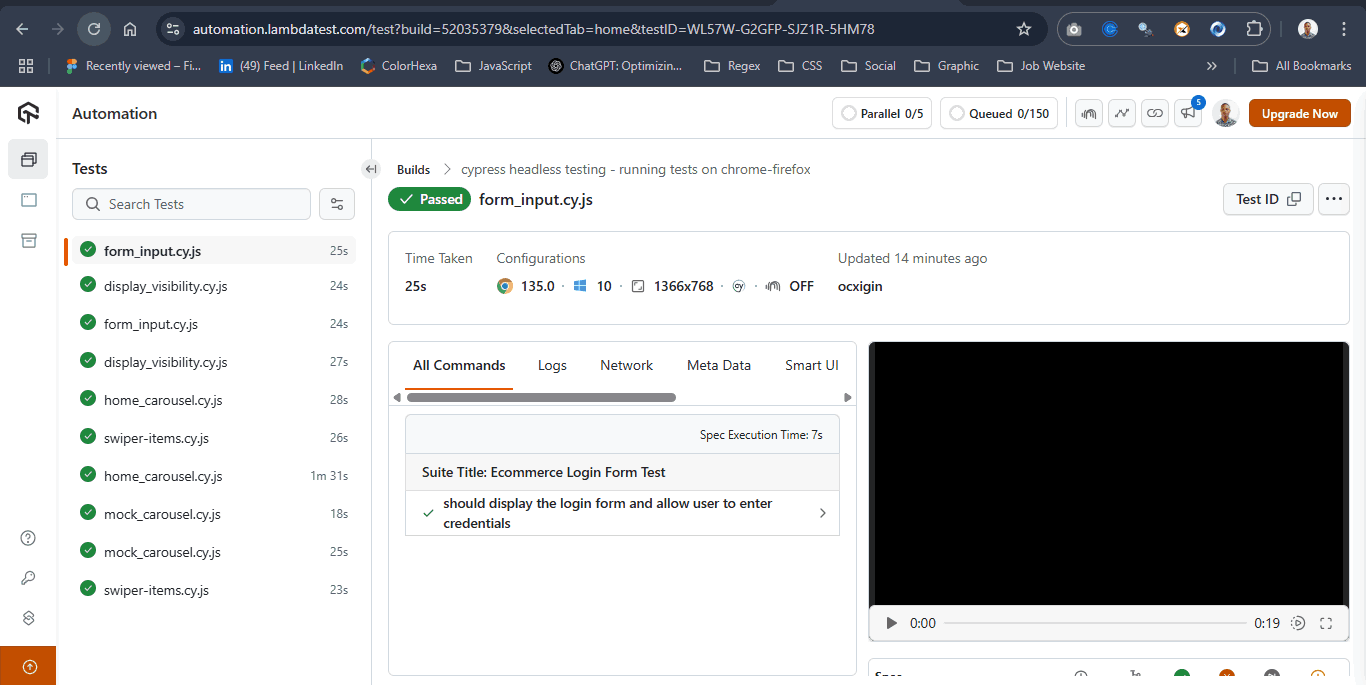
How Is AI Changing How Teams Run Cypress Tests?
AI is changing how teams run Cypress tests by picking specs for each code change, splitting suites across machines by run time, and grouping failures by cause.
Coding assistants also write Cypress tests and the cypress run commands and CI configuration around them. They are good at boilerplate but often add fixed cy.wait calls, which cause slow, flaky runs.
Review generated specs for fixed waits and brittle selectors before adding them to your cypress run pipeline. Our guide to ai in test automation covers how to fit these tools in.
How Should You Use the Cypress run Command Day to Day?
Use cypress run in CI and for full headless runs, with --spec to target changed areas and a reporter to share results, and keep cypress open for local debugging.
Bringing all these aspects together, mastering the Cypress run command is essential for creating a robust and efficient test automation workflow. Understanding the basic flags ensures you can tailor test runs to your project’s needs, while controlling the browser environment allows for accurate cross browser testing. Selecting specific test files or suites enhances efficiency by targeting only the relevant scenarios, reducing unnecessary execution time.
Integrating custom reporters provides clear, actionable insights from each run, helping teams quickly identify issues and track progress. Finally, leveraging parallel execution with platforms like TestMu AI dramatically accelerates test cycles, making large-scale automation practical and scalable. By combining these techniques, you gain full command over your Cypress tests, ensuring they are fast, reliable, and fully aligned with real-world project requirements.
What Sources Does This Cypress run Guide Cite?
This Cypress run guide cites the official Cypress command line documentation, linked below.
- Cypress Command Line: https://docs.cypress.io/app/references/command-line
Author

Alex Anie
Blogs: 17


Alex Anie is a Community Contributor and Frontend Developer with 4 years of experience in crafting high-quality technical content. He specializes in frontend technologies like HTML, CSS, JavaScript, React.js, Vue.js, and Next.js, along with skills in TailwindCSS, Git/GitHub, and web testing. At TestMu AI, he has authored 20+ articles covering CSS, automation testing, cross-browser testing, Cypress, and software testing. Alex also publishes technical blogs on platforms like Hashnode, Dev.to, and Medium.
Reviewer

Parth Mistry
Reviewer
Parth Mistry is a Member of Technical Staff at TestMu AI (formerly LambdaTest), building SmartUI, the visual regression testing product. He developed and owns the SmartUI CLI, a modular TypeScript tool built on Playwright for multi-browser automation, and built the Storybook CLI for visual regression of UI components. He maintains cross-language SDKs in Python, Java, Ruby, C#, and Node.js, and engineered a Node-based visual rendering service on Kafka, Redis, MySQL, and S3. His migration of that service to an event-driven, KEDA-autoscaled architecture improved execution speed by 60% and cut annual infrastructure cost by $9,600. He also built the end-to-end SmartUI integration with KaneAI. Parth is a Google Summer of Code 2024 contributor and an alumnus of IIT Jodhpur.
On This Page
- What Is Cypress run Command?
- Which Basic Flags Work With the Cypress run Command?
- How Do You Run Cypress Tests in a Specific Browser?
- How Do You Run a Specific or Multiple Cypress Test Files?
- How Do You Generate Reports Using a Cypress Custom Reporter?
- How Do You Run Cypress Tests in Parallel With TestMu AI?
- How Is AI Changing How Teams Run Cypress Tests?
- How Should You Use the Cypress run Command Day to Day?
- What Sources Does This Cypress run Guide Cite?
Cypress run FAQs
Did you find this page helpful?
More Related Learning Hubs
TestMu AI forEnterprise
Get access to solutions built on Enterprise
grade security, privacy, & compliance
- Advanced access controls
- Advanced data retention rules
- Advanced Local Testing
- Premium Support options
- Early access to beta features
- Private Slack Channel
- Unlimited Manual Accessibility DevTools Tests