

Power Your Software Testing with AI Agents and Cloud
The Native AI-Agentic Cloud Platform to Supercharge Quality Engineering. Test Intelligently and Ship Faster.


- TestMu AI (Formerly LambdaTest)
- /
- Blog
- /
- Cypress Viewport: Test Responsive Design with cy.viewport()
Cypress Viewport: Test Responsive Design with cy.viewport()
Learn how to use cy.viewport() in Cypress to test responsive designs across screen sizes, device presets, orientations, and the TestMu AI real device cloud.
Last Updated on:
Responsive web applications break in production when teams test only at the resolution their developers had open.
Cypress solves this with the cy.viewport() command, which lets you validate layout, visibility, and media-query behavior at any screen size from a single test suite.
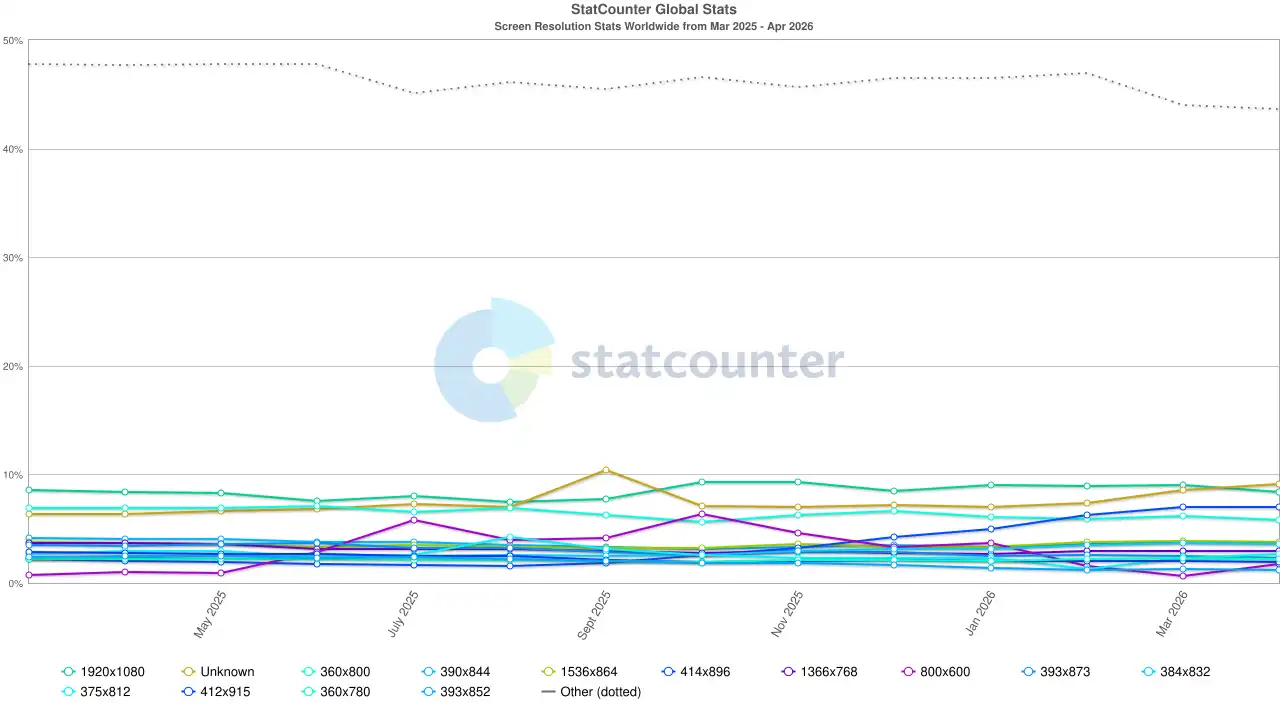
According to Statcounter Global Stats (March 2026), the five most popular screen resolutions worldwide are 1920x1080 (9.01%), 414x896 (6.98%), 360x800 (6.15%), 1536x864 (3.91%), and 390x844 (3.81%). Only one of those is a desktop resolution, and mobile devices now account for more than 60% of global web traffic. A Cypress test matrix running at the default 1000x660 will miss the viewport almost every real user loads the site at -- making viewport configuration one of the highest-leverage changes you can make to your test suite.
Overview
To test responsive designs in Cypress, use the cy.viewport() command to dynamically emulate different screen sizes and orientations, or configure global dimensions in cypress.config.js. For cloud-based cross-browser testing across thousands of real devices, run your Cypress tests on TestMu AI.
What is a viewport in Cypress?
- Cypress Viewport: The viewport is the visible area of a web page displayed within the browser window during test execution, representing the portion viewable without scrolling.
How do you use cy.viewport() in Cypress to test different device resolutions?
- Custom Dimensions: Use cy.viewport(width, height) with explicit pixel values to emulate exact screen sizes, such as 360x800 for mobile.
- Device Presets: Apply predefined string settings like 'iphone-xr', 'ipad-2', or 'macbook-15' to quickly test common device resolutions without manually specifying width and height.
- Orientation Control: Pass an optional orientation argument to cy.viewport() to switch between portrait and landscape modes for preset devices.
How can you configure or override viewport settings in Cypress?
- Global Settings: Define viewportWidth and viewportHeight inside the e2e or component block of cypress.config.js to establish default dimensions across all tests.
- Per-Test Overrides: Call cy.viewport() inside individual test cases to override global configurations and apply specific resolutions dynamically during test execution.
- Runtime Configuration: Adjust viewport settings dynamically during continuous integration runs using CLI flags or environment variables to modify sizes without changing code.
How do you perform viewport testing in Cypress using TestMu AI?
- TestMu AI Configuration: Define browser, operating system, and viewport parameters in the lambdatest-config.json file to prepare cloud tests.
- TestMu AI Execution: Run tests using the lambdatest-cypress run command to execute Cypress tests across 10,000+ real devices and desktop browsers.
- TestMu AI Validation: Analyze detailed test reports, recorded videos, and logs to verify consistent responsive behavior across all platforms in the cloud.
What are Viewports?
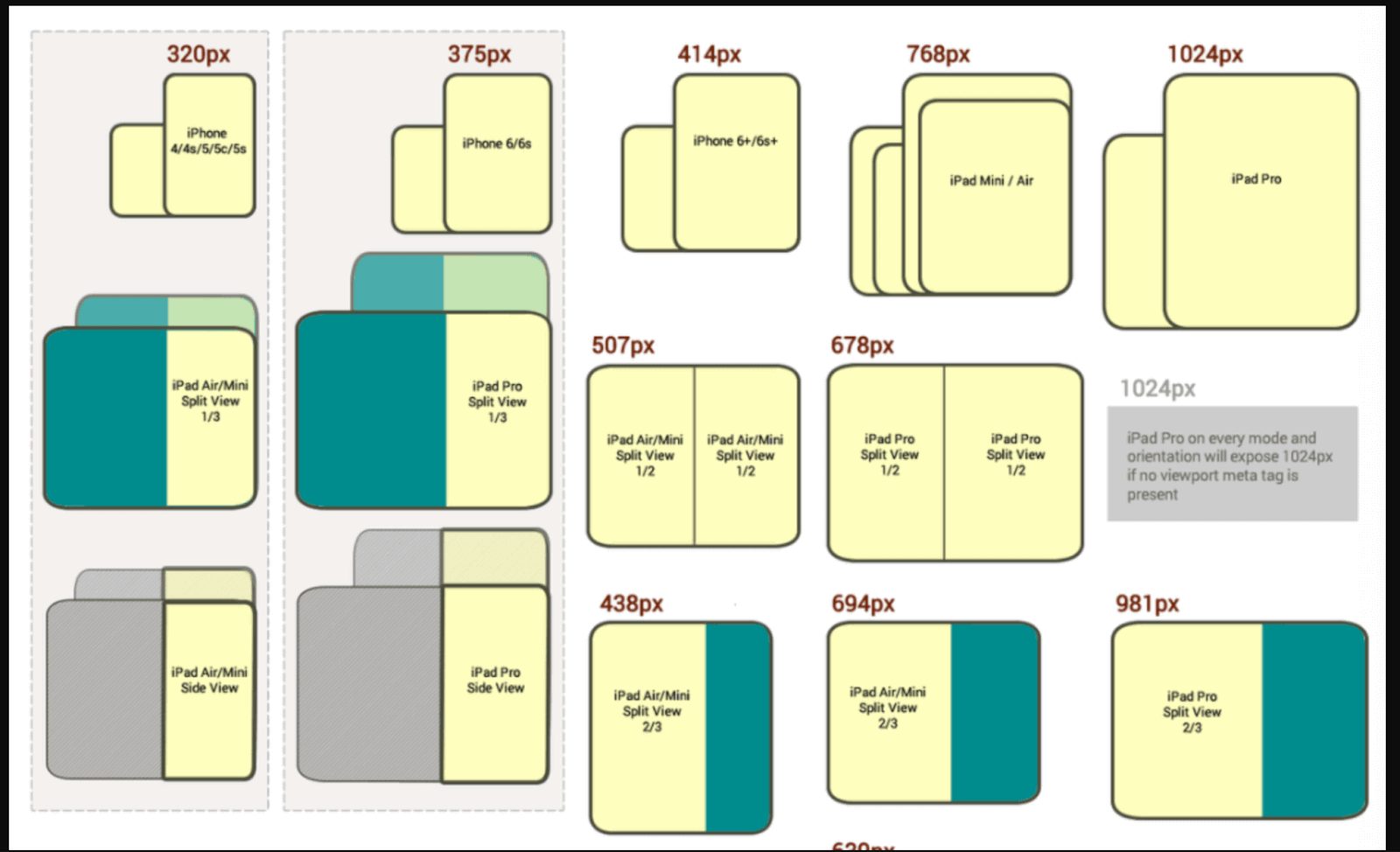
Modern sites use CSS media queries keyed to viewport width to rearrange layout, hide menus, resize fonts, and switch between one-column and multi-column grids.
Three practical reasons to drive viewport in tests:
- Catch layout regressions: A nav that collapses into a hamburger at 768px should not leak at 769px. Only a test at both widths will catch it.
- Validate element visibility: A "Buy now" button hidden behind a sticky footer on 360x800 mobile loses revenue. Cypress assertions only fire against the simulated viewport, so the test has to match the user's screen.
- Prove accessibility at real sizes: Text reflow, touch targets, and WCAG 2.2 reflow requirements depend on viewport width. Testing only at 1000x660 hides every one of them.
Here is an example of different viewports:
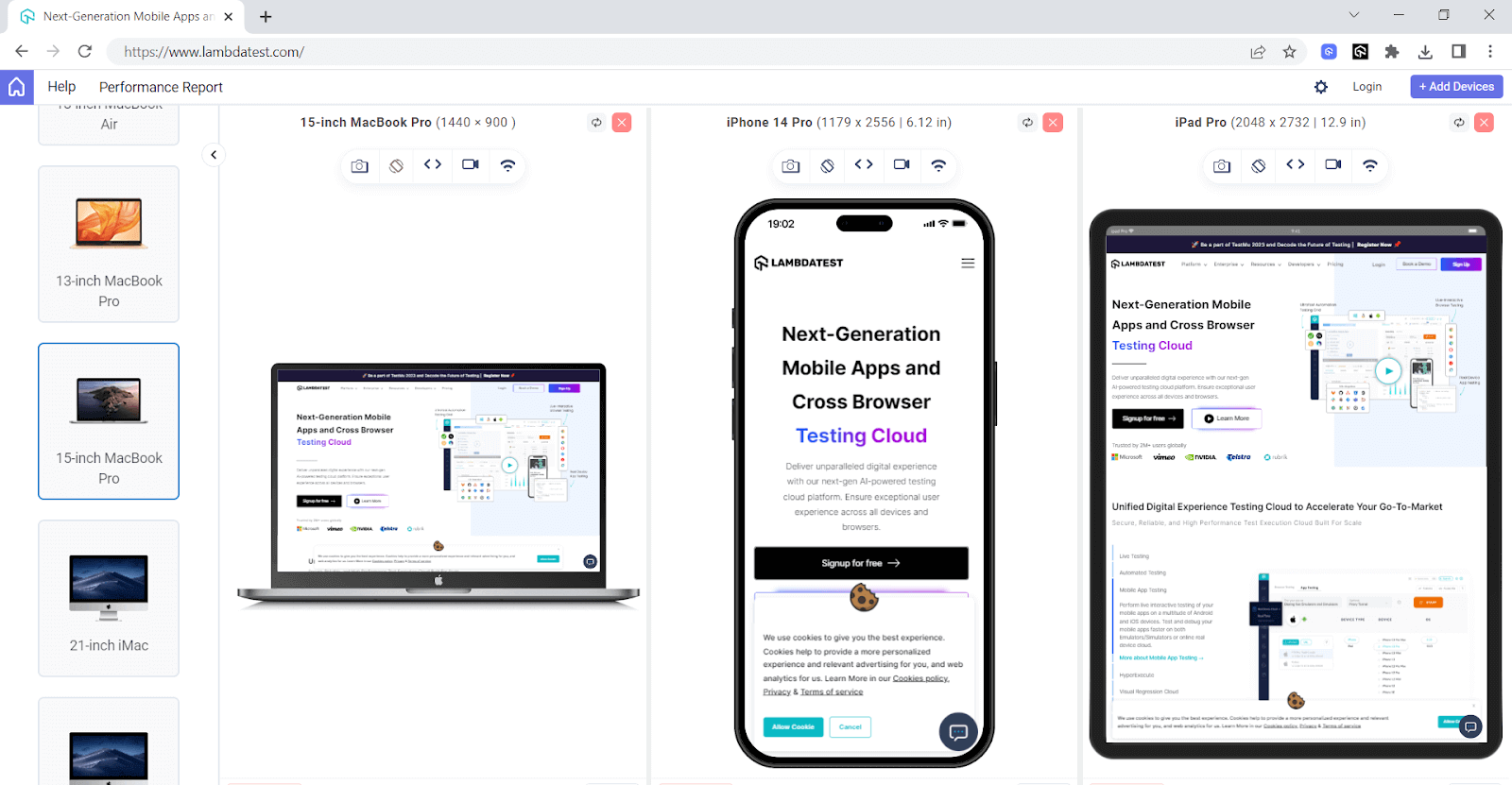
The below screenshot shows how the same website looks on different viewports.
In Cypress, it is very easy to test on different viewports and verify how your website behaves across different screen sizes by specifying the desired dimensions.
Learn about Cypress viewport in this easy-to-follow video guide -- perfect for beginners!
By default, Cypress sets the width to 1000 and height to 660 pixels, but you can change the viewports in Cypress (width and height) by passing parameters in the command cy.viewport() in your test case.
This command lets you dynamically adjust the web application's viewport in Cypress based on your specific requirements, controlling its orientation and size.
To set the width and height of the browser viewport in Cypress, use the below syntax:
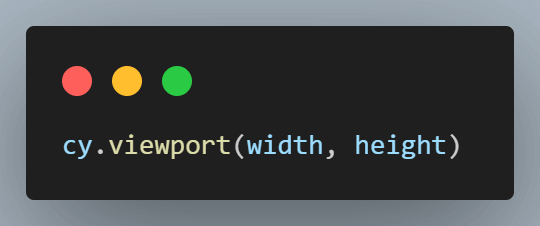
In Cypress, you can either pass the customized width and height in your test case or choose from various presets. The defined presets are the string values assigned for specific width and height.
Example:
For width 768 and Height 1024, the preset ipad-2 is already defined in Cypress. So, if you want to test for 768x1024 resolution, you can directly pass the preset ipad-2 instead of passing both width and height.
Below are some of the available presets in Cypress. For the whole list, you can refer to the Cypress official documentation.
| Preset | Width | Height |
|---|---|---|
| ipad-2 | 768 | 1024 |
| ipad-mini | 768 | 1024 |
| iphone-3 | 320 | 480 |
| iphone-4 | 320 | 480 |
| iphone-5 | 320 | 568 |
| iphone-6 | 375 | 667 |
| iphone-6+ | 414 | 736 |
| iphone-7 | 375 | 667 |
| iphone-8 | 375 | 667 |
| iphone-x | 375 | 812 |
| iphone-xr | 414 | 896 |
| iphone-se2 | 375 | 667 |
| macbook-11 | 1366 | 768 |
| macbook-13 | 1280 | 800 |
| macbook-15 | 1440 | 900 |
| macbook-16 | 1536 | 960 |
| samsung-note9 | 414 | 846 |
| samsung-s10 | 360 | 760 |
Use a preset like this:
cy.viewport('ipad-2')                    // 768x1024 portrait
cy.viewport('iphone-xr', 'landscape')   // 896x414
cy.viewport(360, 800)                    // custom dimensions
cy.viewport(1280, 720, { log: false })   // hide from command log
The { log: false } option keeps the command from cluttering the Cypress Command Log, which is useful inside custom commands and beforeEach hooks.

Note: Run Cypress tests across 10,000+ real browsers, devices, and OS combinations in parallel with TestMu AI. Try TestMu AI for free!
Using cy.viewport() with Width and Height
Passing width and height is the most direct way to drive viewport. Both values must be non-negative finite numbers (pixels). Put the cy.viewport() call before cy.visit() when you want media queries and resize-dependent components to render correctly on first paint; put it after when you want to validate a runtime resize.
Example: log in on a 360x800 mobile viewport (the most common real-world mobile resolution per Statcounter).
describe("Viewport Testing with Custom Width and Height", () => {
  it("renders login at mobile width 360x800", () => {
    cy.viewport(360, 800);
    cy.visit("https://ecommerce-playground.lambdatest.io/index.php?route=account/login");
    cy.get('#input-email').type("demo@testmuai.com");
    cy.get('#input-password').type("Test@1234");
    cy.get('input[type="submit"]').click();
  });
});
Code Walkthrough
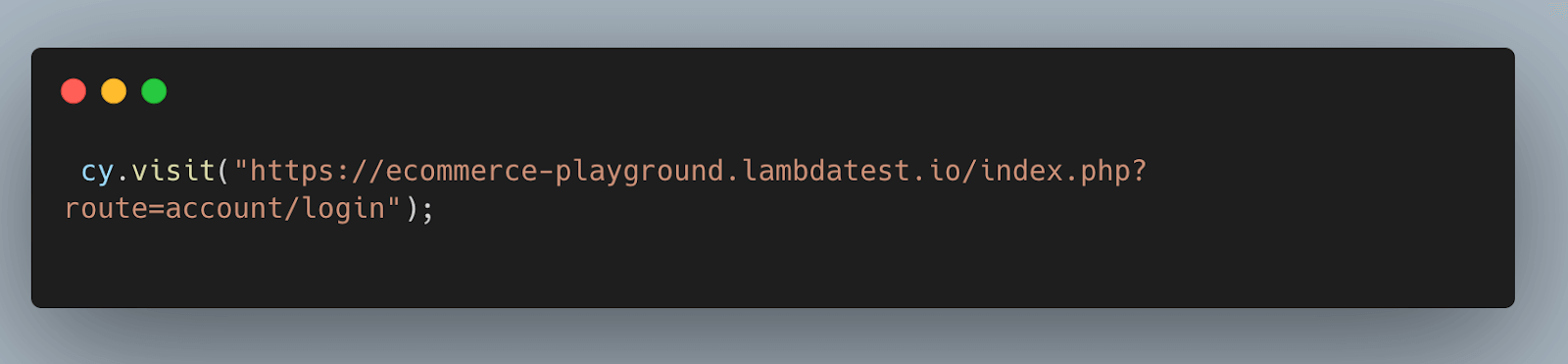
Step 1: Open the website using the cy.visit() command.
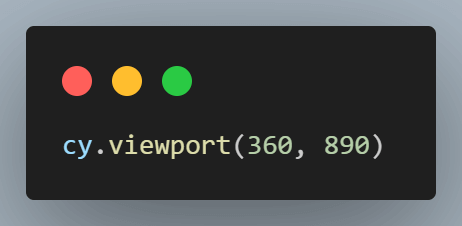
Step 2: Set the viewport in Cypress by passing width as 360 and height as 800.
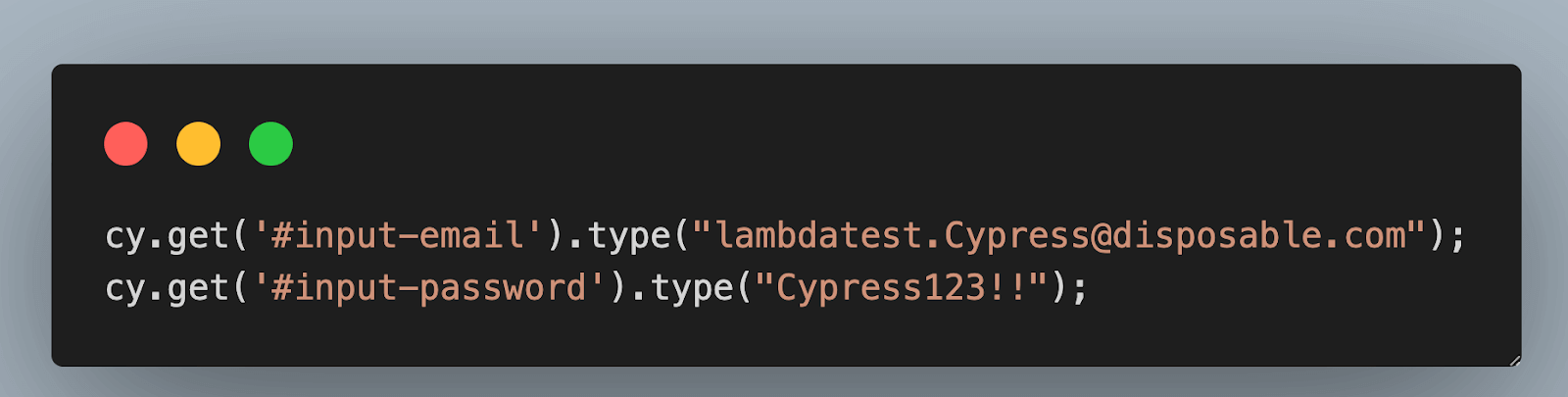
Step 3: Entering username and password.
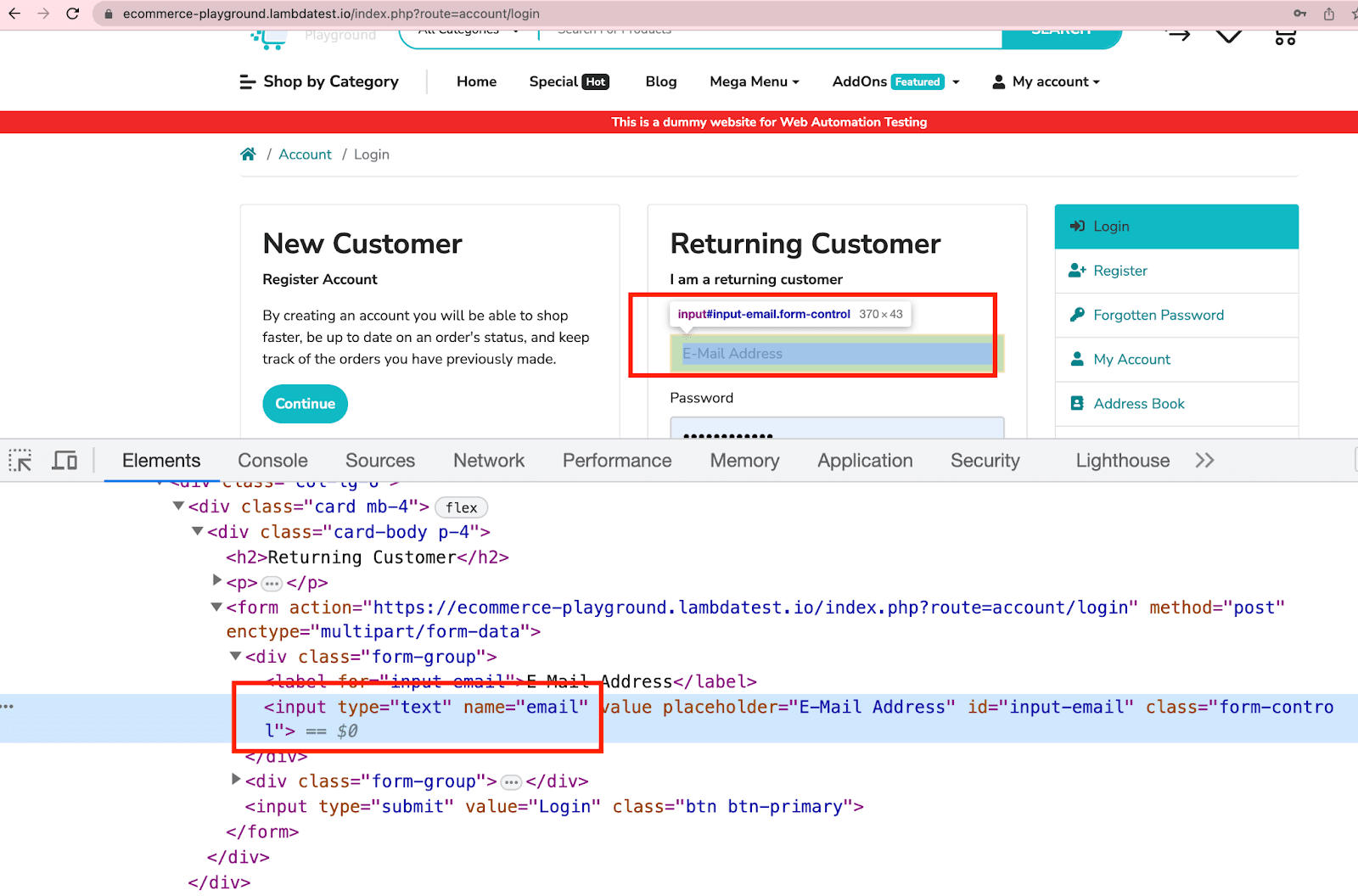
The below code locates the email input field with the ID "input-email" and the password input field with the ID "input-password". It then types the credentials into each field using the cy.get().type() command.
As shown below, you can locate elements using attribute names and utilize them in a Cypress test case using the cy.get() command.
Step 4: Click the Submit button.
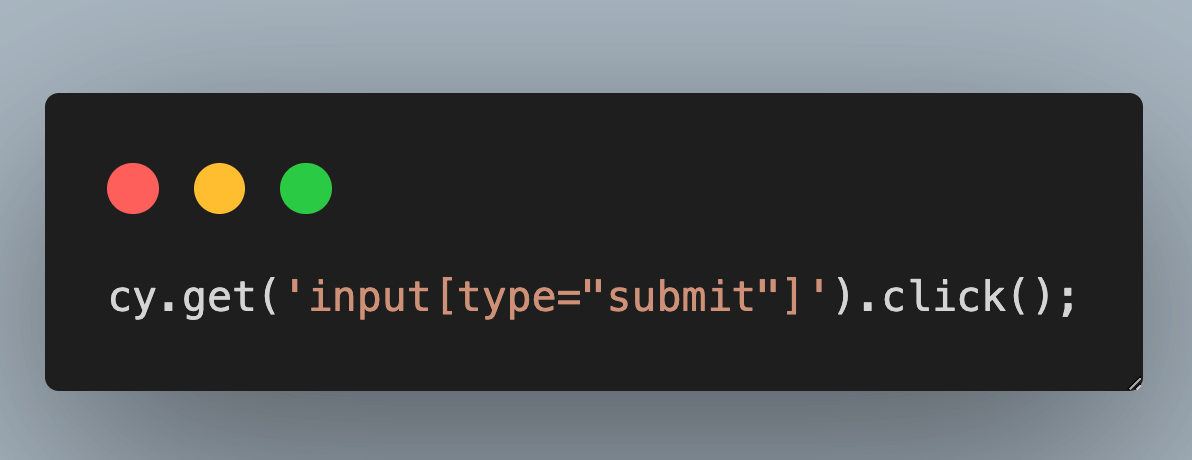
The below code locates the Submit button using an attribute selector (input[type="submit"]) and clicks on it using the cy.get().click() command. This action simulates submitting the login form.
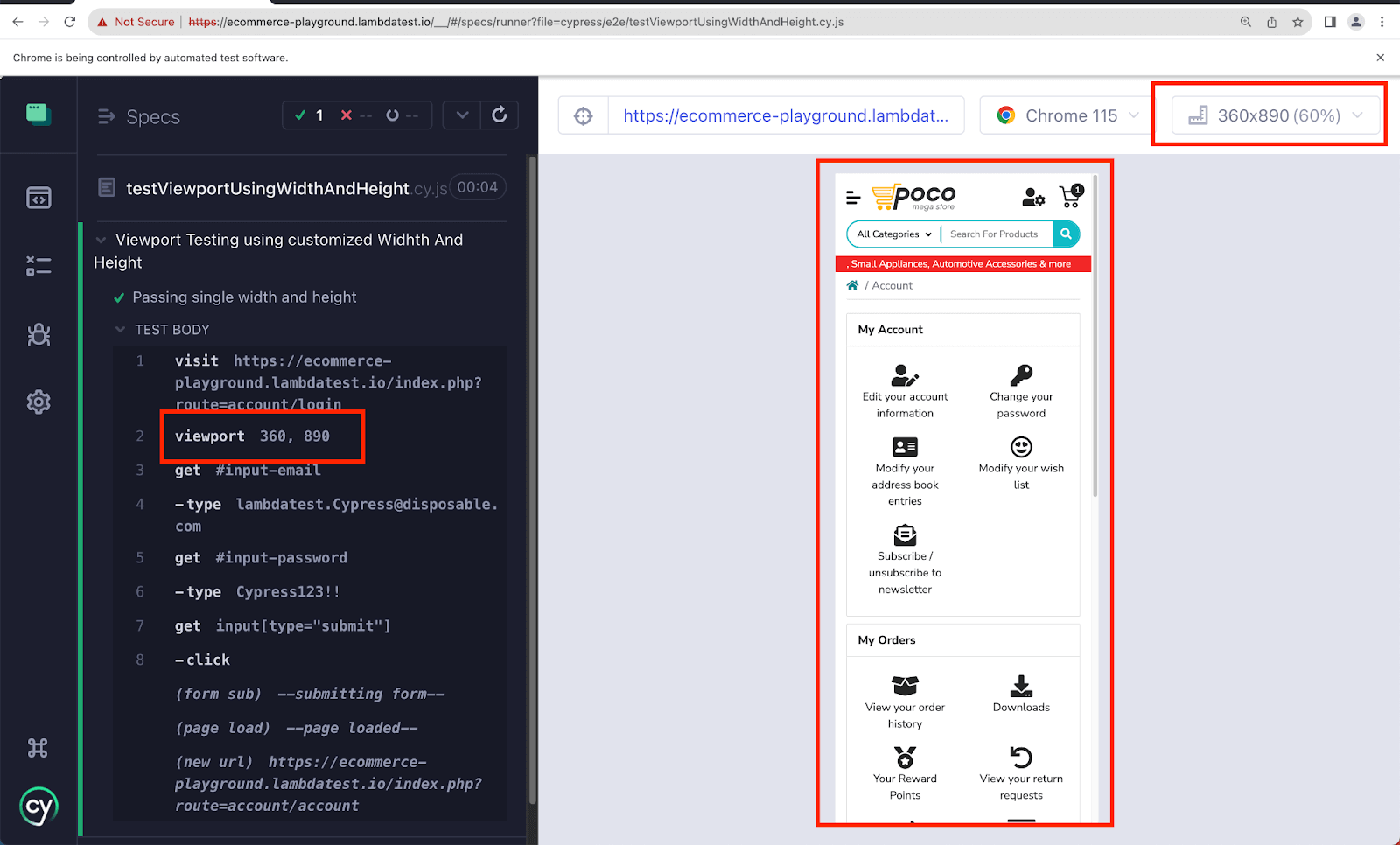
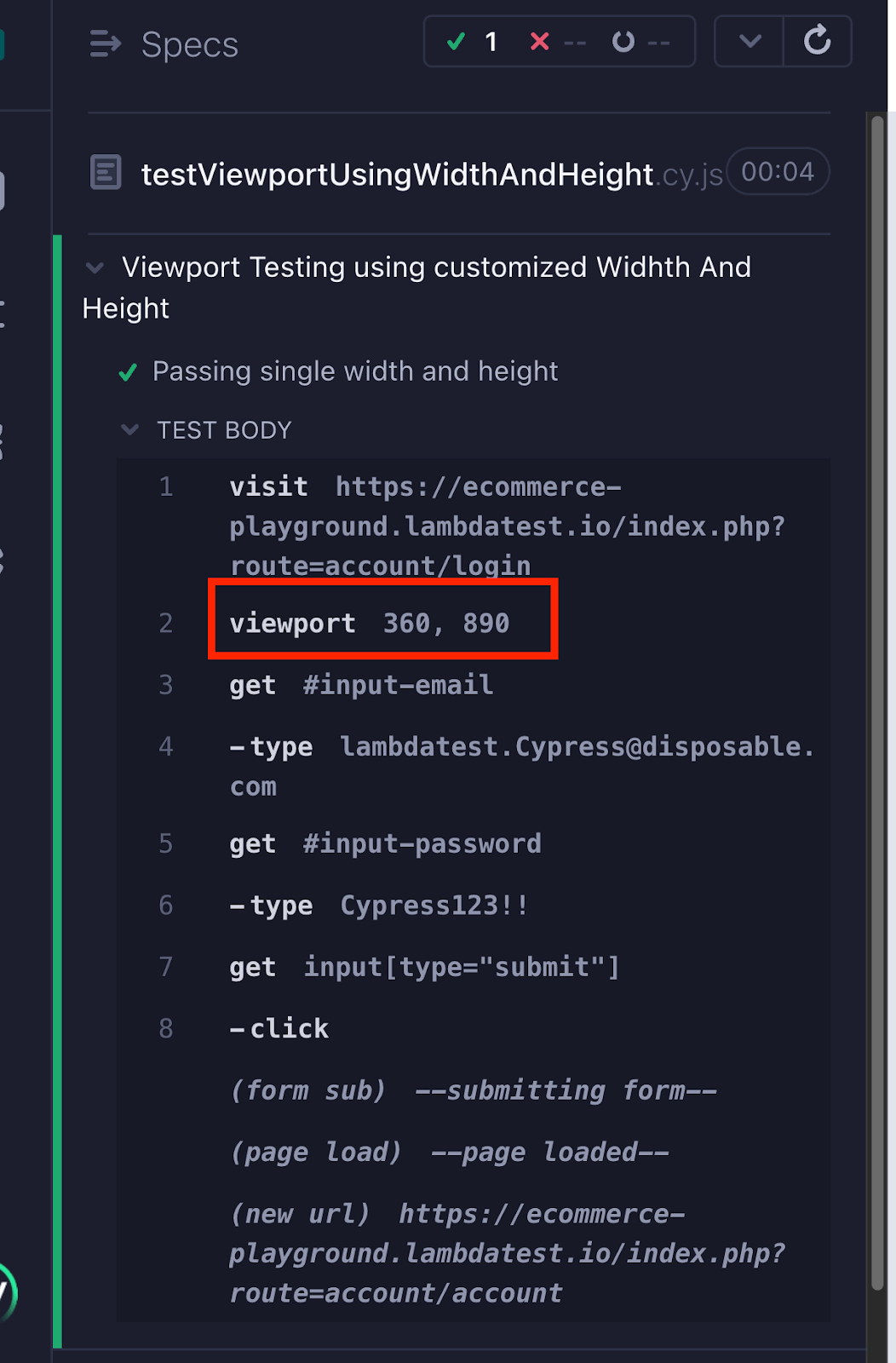
Execution
Test Case 2
With the rapid increase in the number of devices, it is essential to go beyond testing on a single viewport. To ensure optimal user experience, verifying that your web application adapts to various screen sizes is important, as end users can access it through different devices.
In Cypress testing, achieving this is possible by providing a list of different viewports in your test case. You can pass different widths and heights in a single test case.
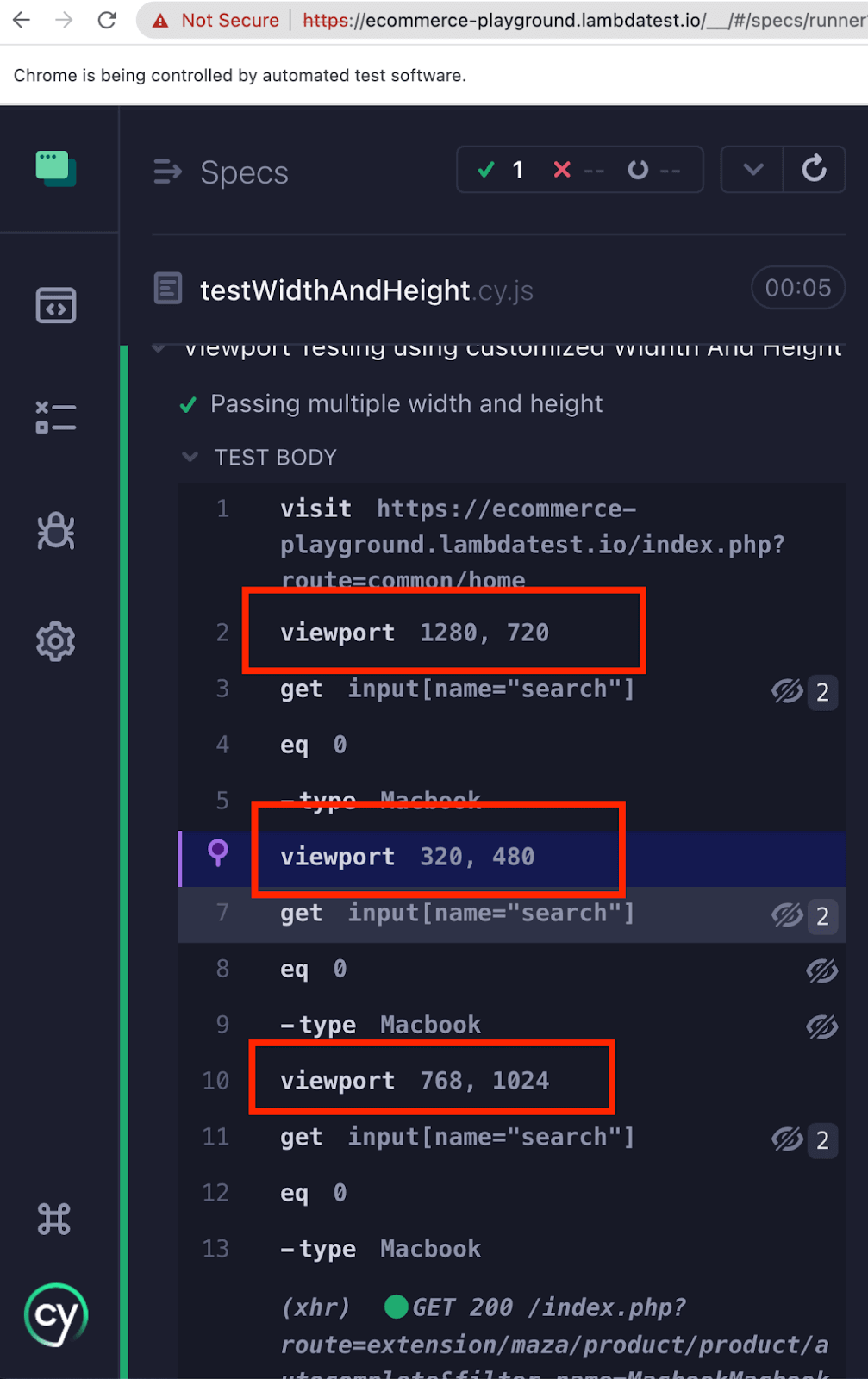
Let's try to understand the below test scenario.
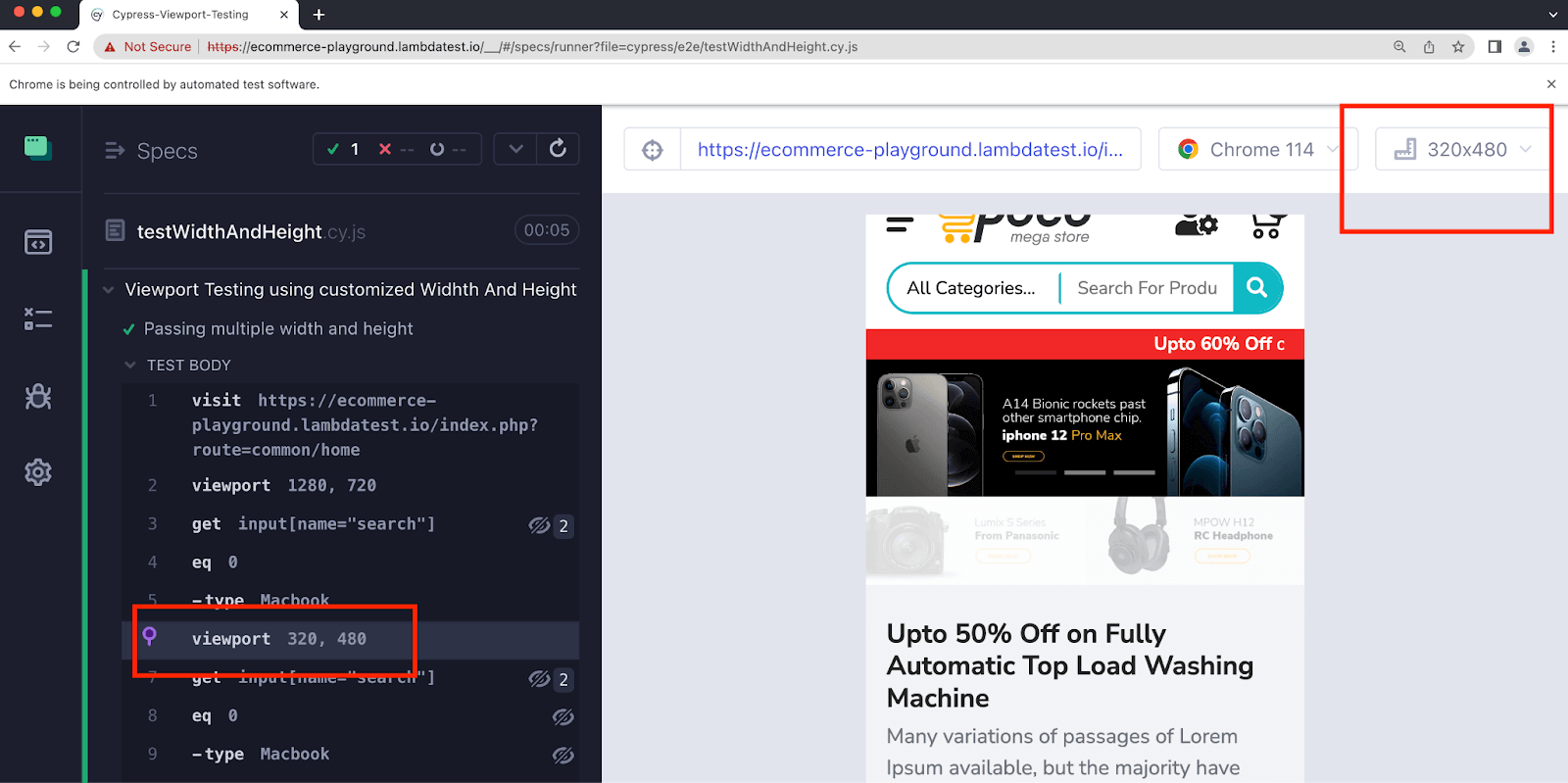
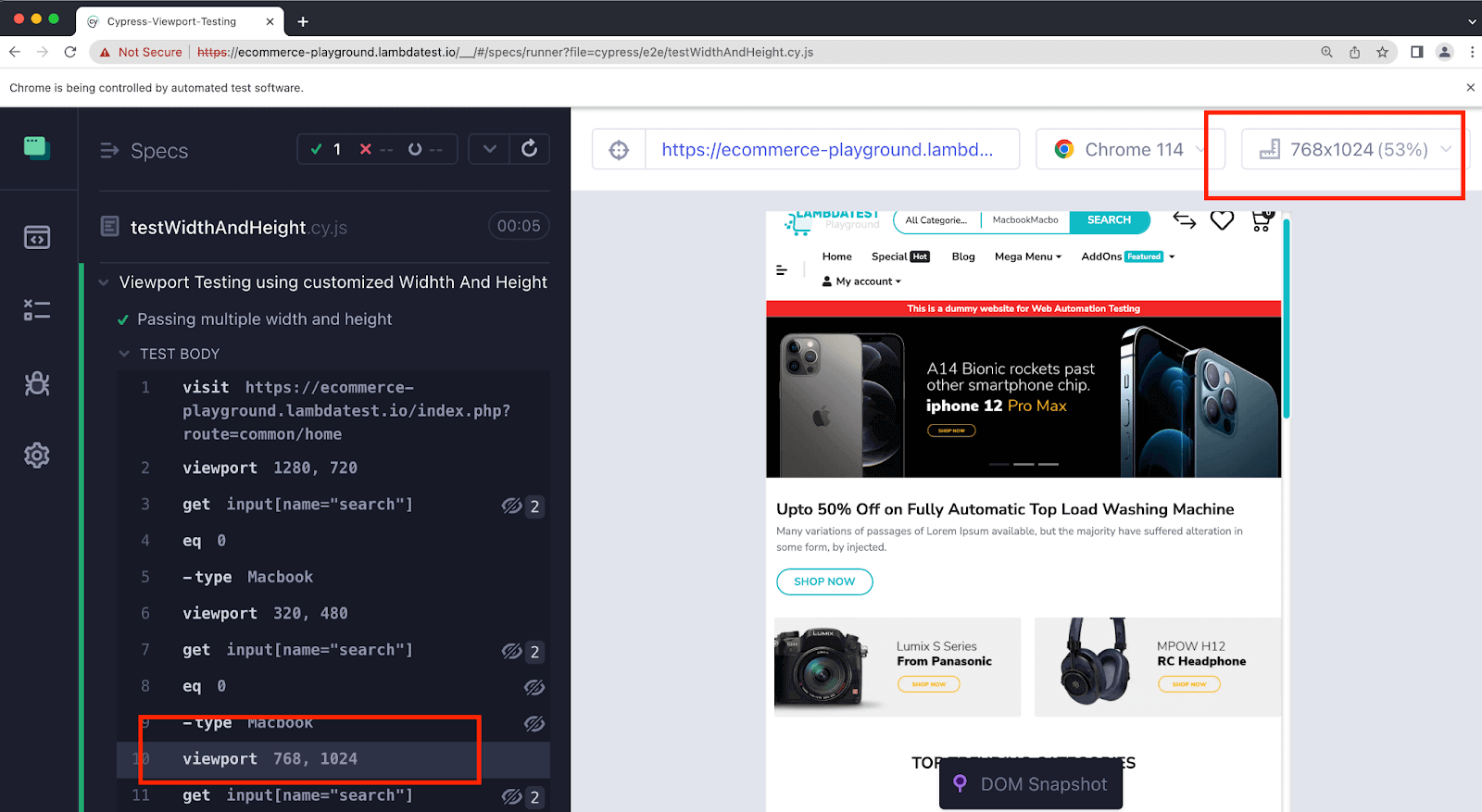
- Open URL TestMu AI eCommerce Playground-home for a set of viewports:
- Search for the product Macbook.
Implementation
describe("Viewport Testing using customized Width And Height", () => {
  const viewports = [
    { width: 1280, height: 720 },  // Desktop
    { width: 320,  height: 480 },  // Mobile portrait
    { width: 768,  height: 1024 }, // Tablet
  ];

  it(`Passing multiple width and height`, () => {
    cy.visit("https://ecommerce-playground.lambdatest.io/index.php?route=common/home");
    viewports.forEach((viewport) => {
      cy.viewport(viewport.width, viewport.height);
      cy.get('input[name="search"]').eq(0).type("Macbook");
    });
  });
});
Code Walkthrough
Step 1: The viewports constant is an array that stores different viewport configurations. Each configuration object within the array specifies the width and height values for a specific viewport in Cypress.
In this example, the viewports array contains three configurations:
- Desktop viewport with a width of 1280 and height of 720.
- Mobile portrait viewport with a width of 320 and height of 480.
- Tablet viewport with a width of 768 and height of 1024.
const viewports = [
  { width: 1280, height: 720 },  // Desktop
  { width: 320,  height: 480 },  // Mobile portrait
  { width: 768,  height: 1024 }, // Tablet
];
Step 2: Open the website using the cy.visit() command.
cy.visit("https://ecommerce-playground.lambdatest.io/index.php?route=common/home");Step 3: Search for the product Macbook using the .type() command.
cy.get ('input[name="search"]').eq(0).type('Macbook');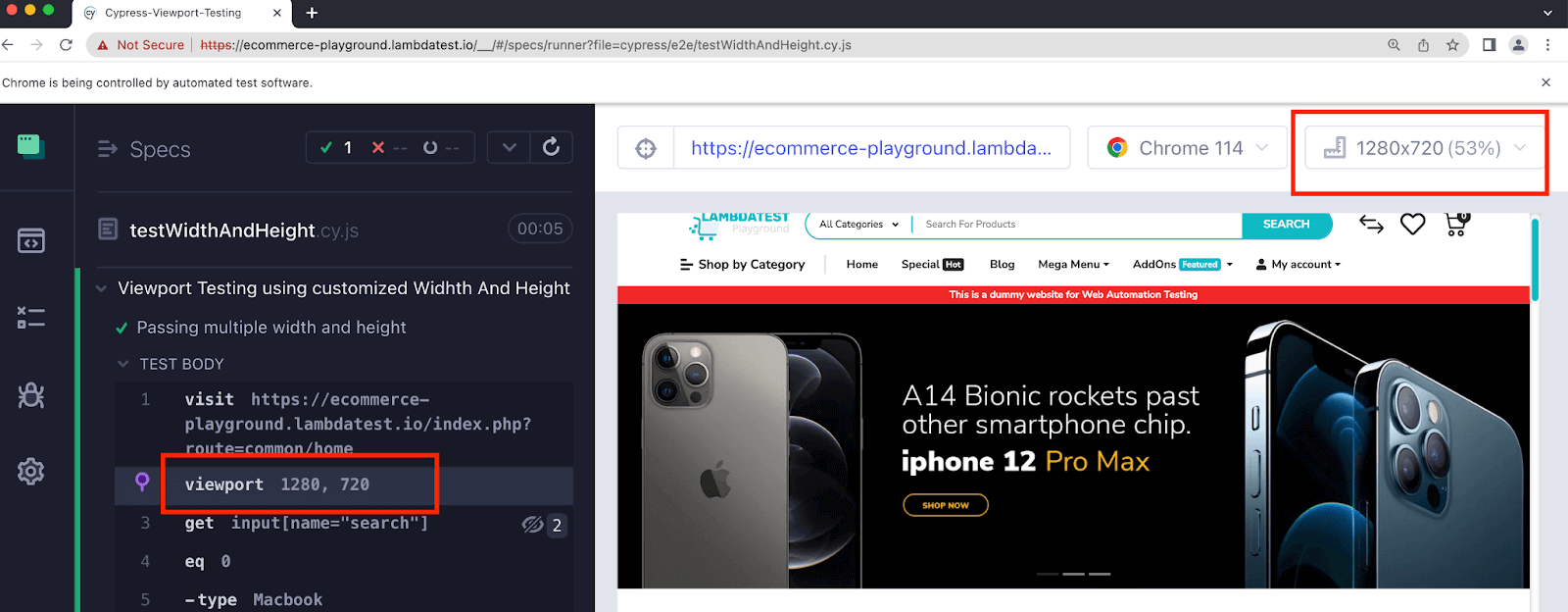

Using cy.viewport() with Presets
To make Cypress test automation even more efficient, Cypress provides preset options for popular devices, including iPhones, iPads, and more. Using these presets, you can quickly test the responsiveness of your website on specific devices without manually specifying width and height values.
You can pass the preset as a parameter (string) in the cy.viewport() command. Instead of providing width and height, you provide the defined preset name in your test case.
Let's understand with a few examples.
Test Scenario 1
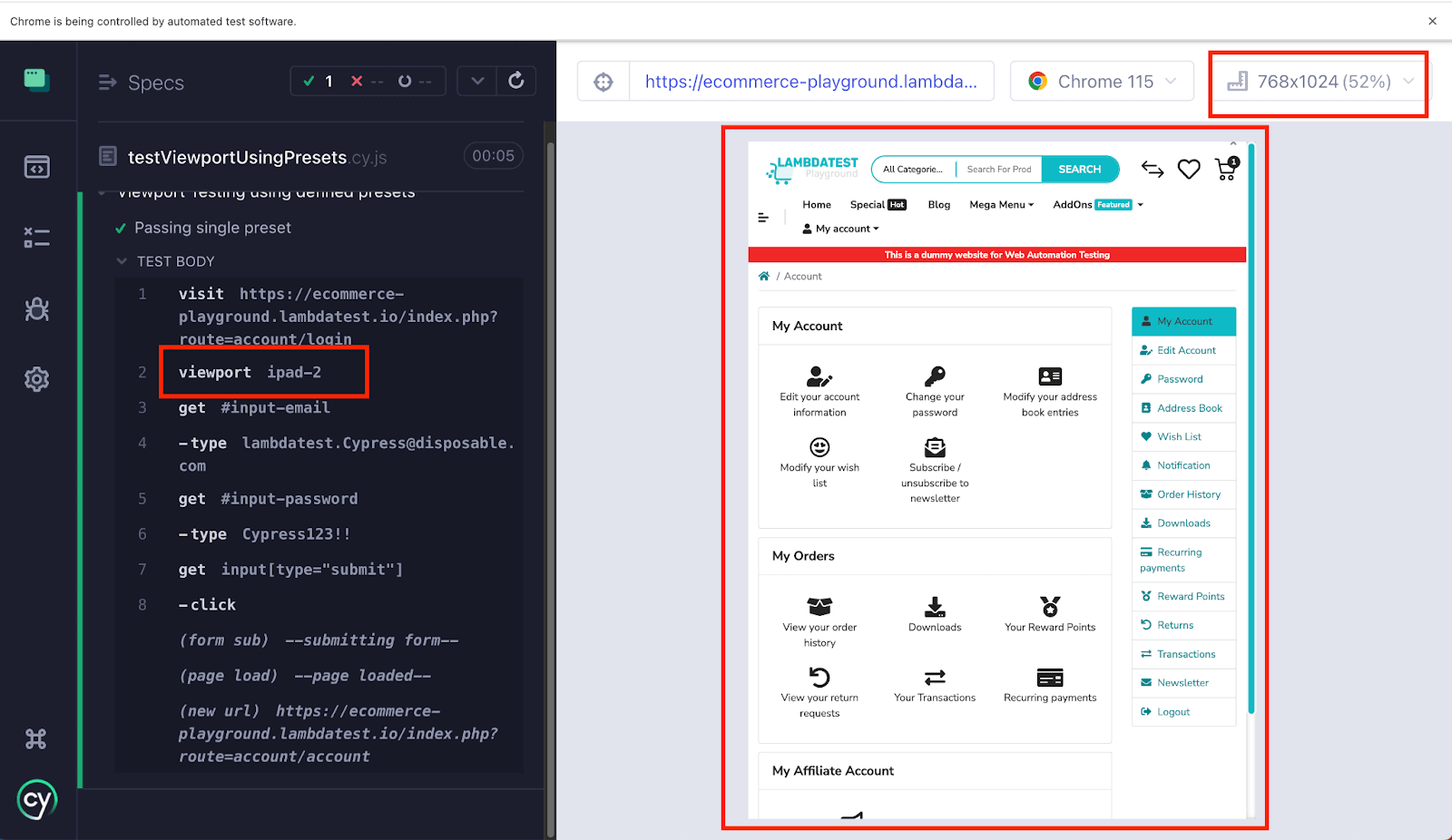
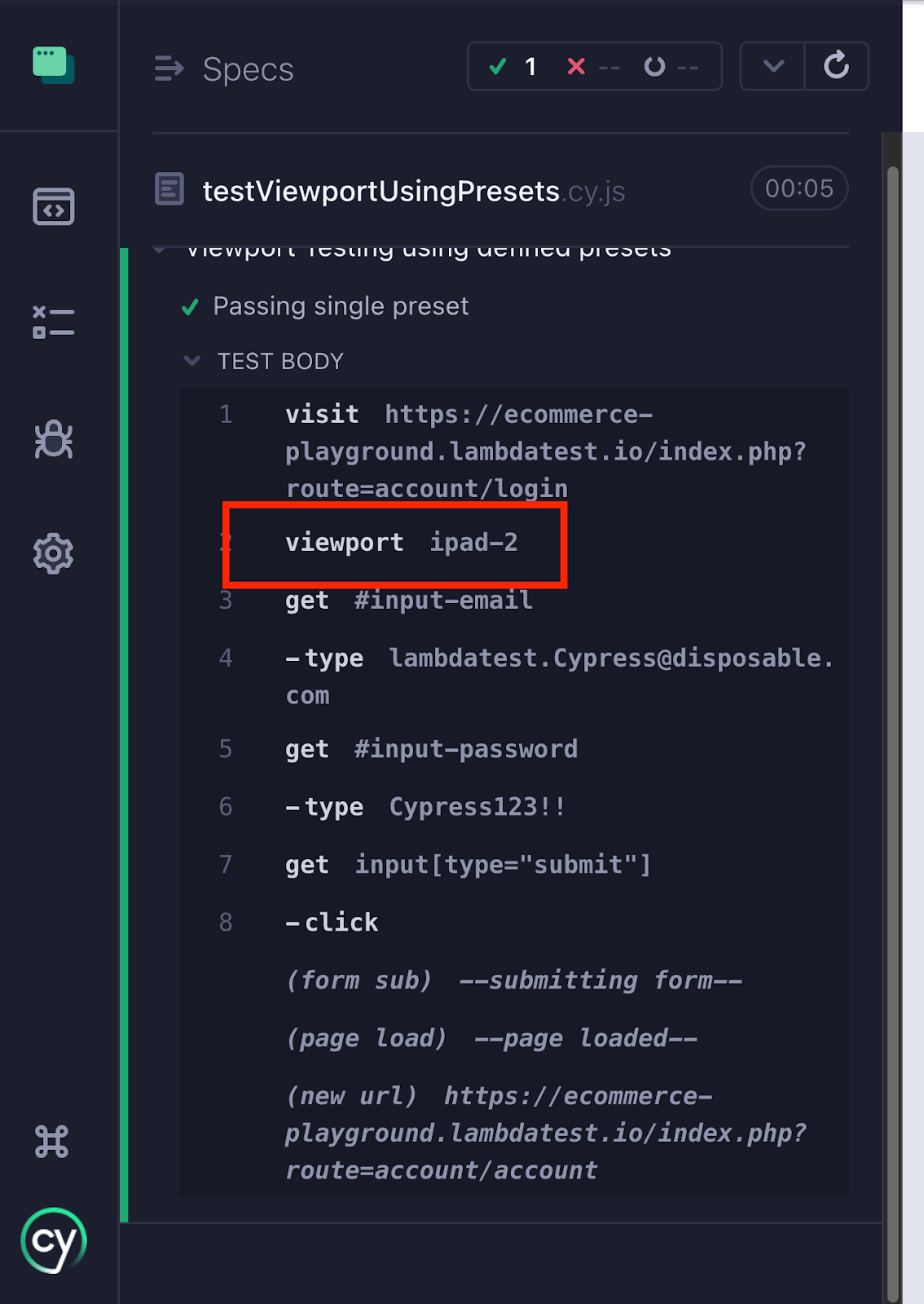
- Open URL TestMu AI eCommerce Playground - Account Login in resolution 768x1024 (iPad-2).
- Enter the username and password in the designated input fields.
- Click on the Submit button to initiate the login process.
Implementation
describe("Viewport Testing using defined presets", () => {
  it("Passing single preset", () => {
    cy.visit("https://ecommerce-playground.lambdatest.io/index.php?route=account/login");
    cy.viewport('ipad-2');
    cy.get('#input-email').type("lambdatest.Cypress@disposable.com");
    cy.get('#input-password').type("Cypress123!!");
    cy.get('input[type="submit"]').click();
  });
});
Code Walkthrough
Step 1: Open the website using the cy.visit() command.
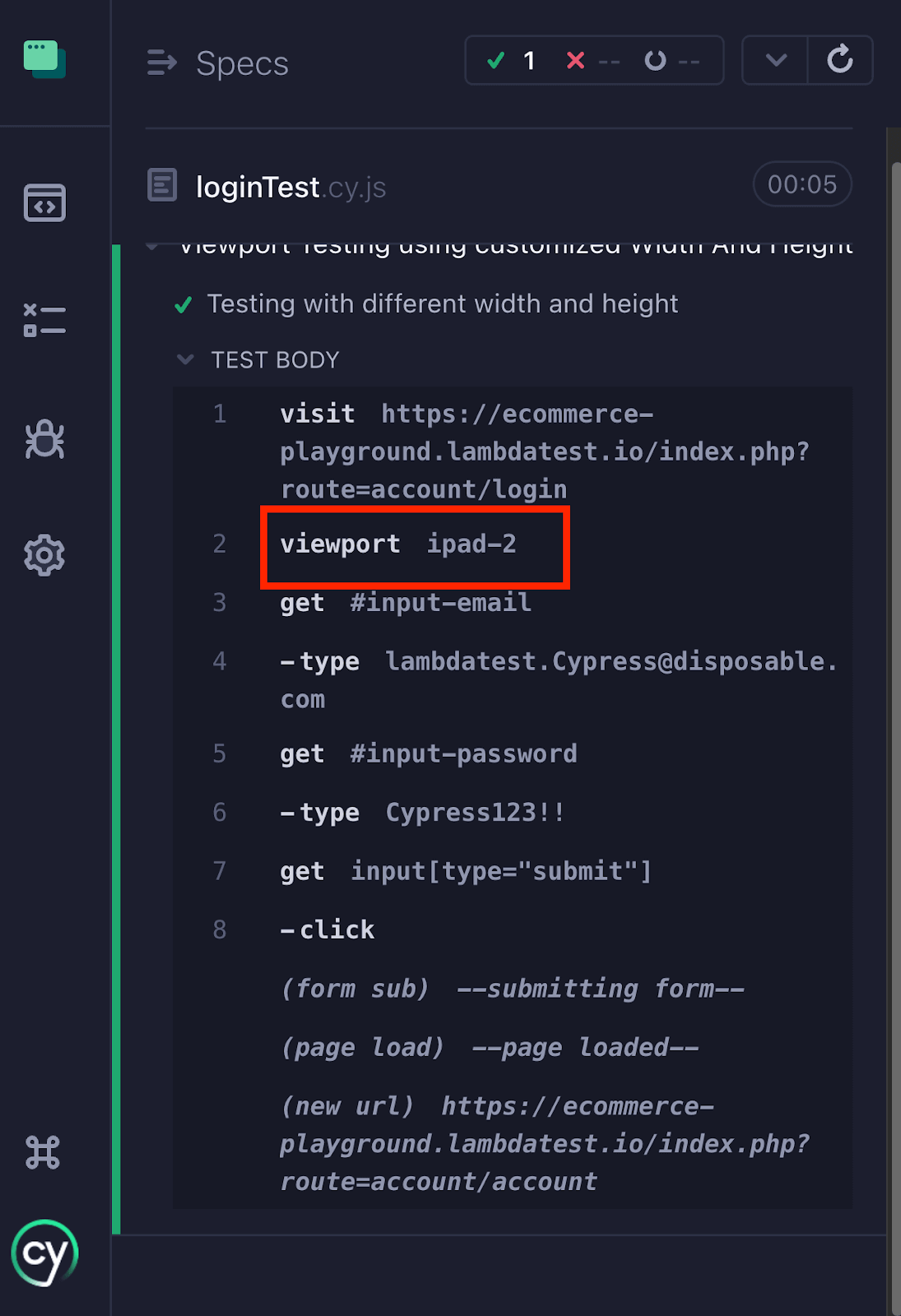
cy.visit("https://ecommerce-playground.lambdatest.io/index.php?route=account/login");Step 2: Configure the viewport in Cypress to the preset value of ipad-2, corresponding to a viewport size of 768x1024. Your test case will execute within this specific viewport, letting you verify how your website behaves on a device with these dimensions.
cy.viewport('ipad-2');Step 3: Enter the username and password using the cy.get().type() command targeting the input-email and input-password field IDs.
cy.get('#input-email').type("lambdatest.Cypress@disposable.com");
cy.get('#input-password').type("Cypress123!!");
Step 4: Click the Submit button using the attribute selector input[type="submit"] and the cy.get().click() command to simulate submitting the login form.
cy.get('input[type="submit"]').click();Execution
Using cy.viewport() with Orientation
Orientation refers to how a device's screen is positioned on a vertical or horizontal axis. It determines whether the device is in portrait mode (vertical orientation) or landscape mode (horizontal orientation).
By conducting tests in various orientations, you can validate the web application's accurate rendering, functionality, and behavior, irrespective of how users orient or tilt their devices. For instance, landscape mode is commonly chosen for video viewing, while portrait mode is favored for browsing shopping apps due to its taller screen format.
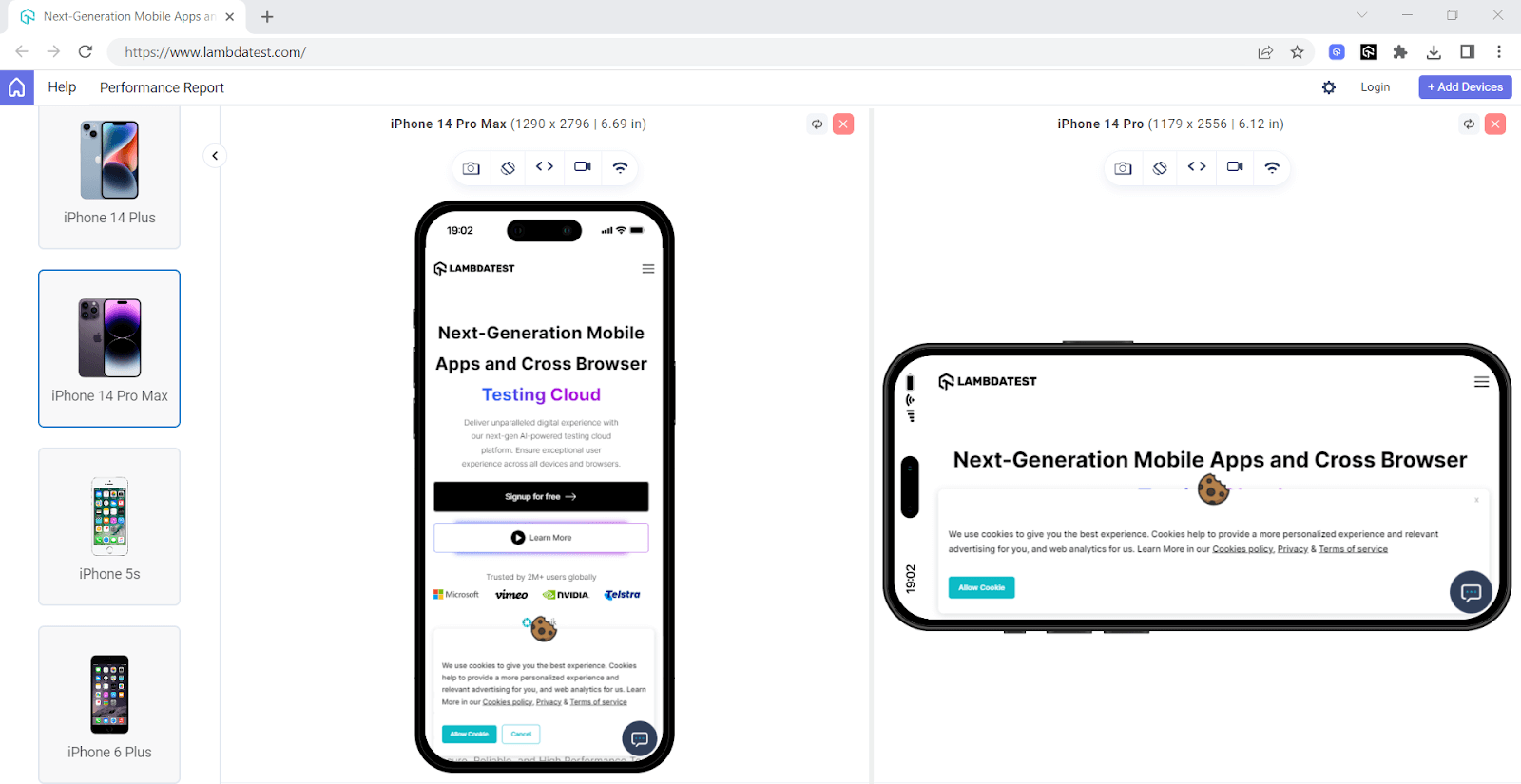
To simplify responsive validation during development, tools like LT Browser by TestMu AI allow you to interactively test layouts across multiple screen sizes and orientations in real time. This complements Cypress testing by helping you visually verify responsive behavior before automating it in your test suite.
LambdaTest Website Now TestMu AI — visit the new home of intelligent cross-browser and app testing.
Therefore, it is essential to thoroughly test your web application in both orientations to ensure a seamless user experience.
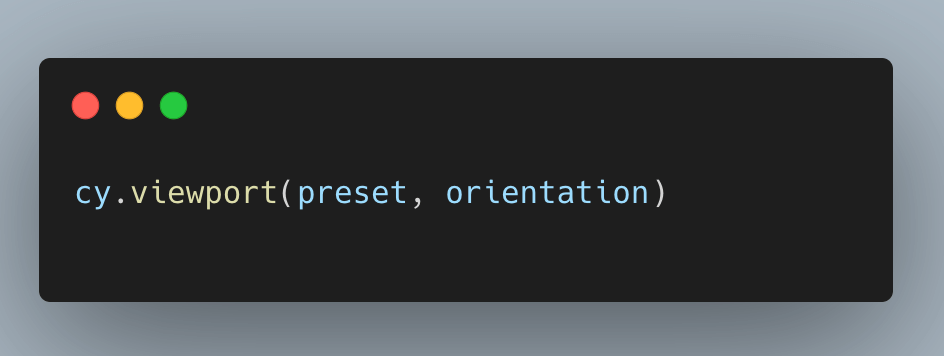
While performing Cypress UI testing, you can easily switch between portrait and landscape modes. By default, Cypress runs in portrait mode, but you can pass the landscape parameter to the cy.viewport() command to switch orientation.
Important: The orientation argument is preset-only. Passing a third orientation string alongside custom width and height values will throw a type error. For landscape at custom dimensions, swap the numbers manually instead.
Here is the implementation of how the Cypress test runs in portrait mode.
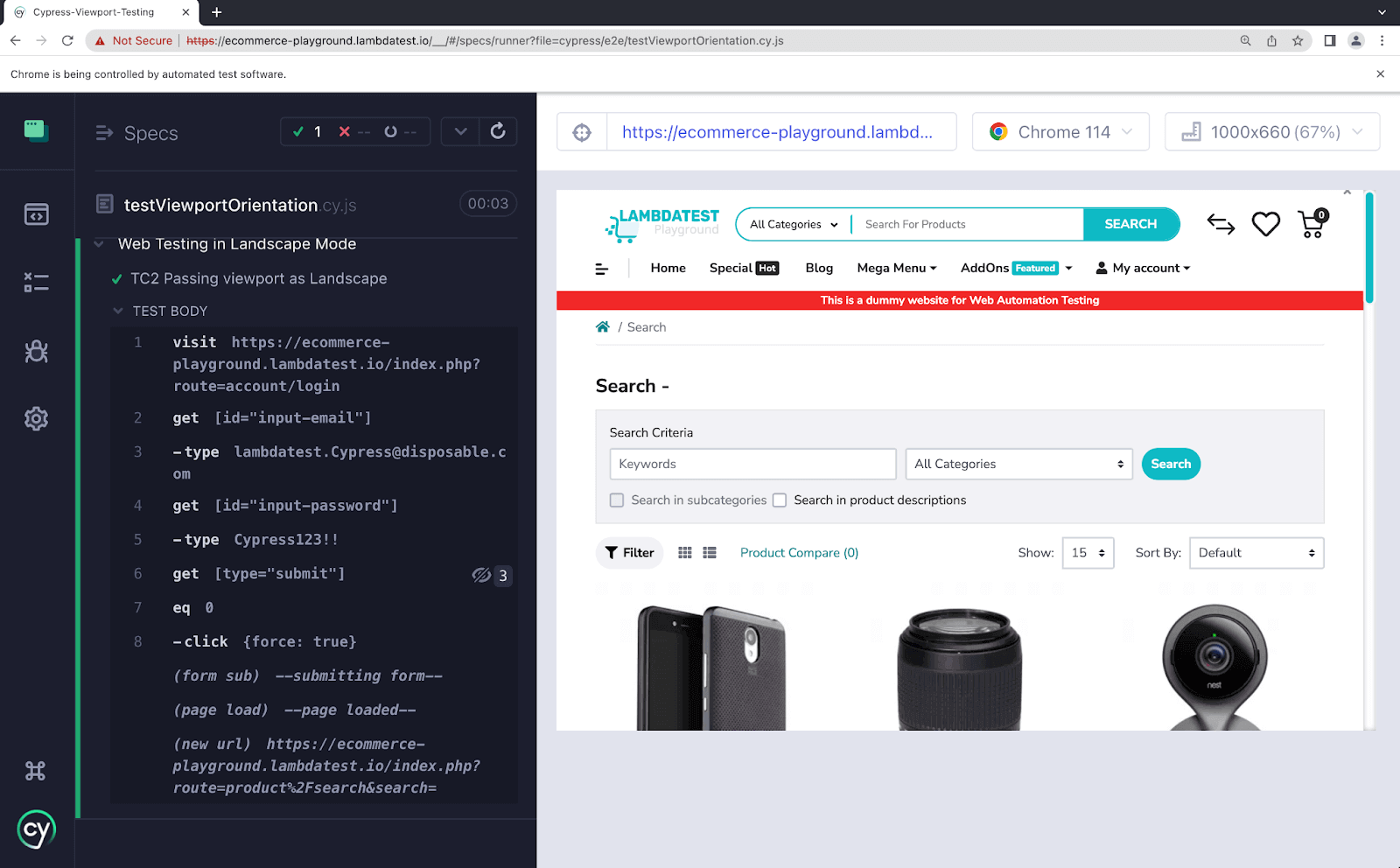
To conduct Cypress UI automation in landscape mode, modify the orientation value to "landscape" in conjunction with the preset. The orientation is specified as a string value.
Test Case
- Open URL TestMu AI eCommerce Playground - Account Login in landscape mode.
- Enter the username and password in the designated input fields.
- Click on the Submit button to initiate the login process.
Implementation
describe("Web Testing in Landscape Mode", () => {
  it("Passing viewport as Landscape", () => {
    cy.visit("https://ecommerce-playground.lambdatest.io/index.php?route=account/login");
    cy.viewport('iphone-xr', 'landscape');
    cy.get('#input-email').type("lambdatest.Cypress@disposable.com");
    cy.get('#input-password').type("Cypress123!!");
    cy.get('input[type="submit"]').click();
  });
});
Code Walkthrough
Step 1: Open the website using the cy.visit() command.
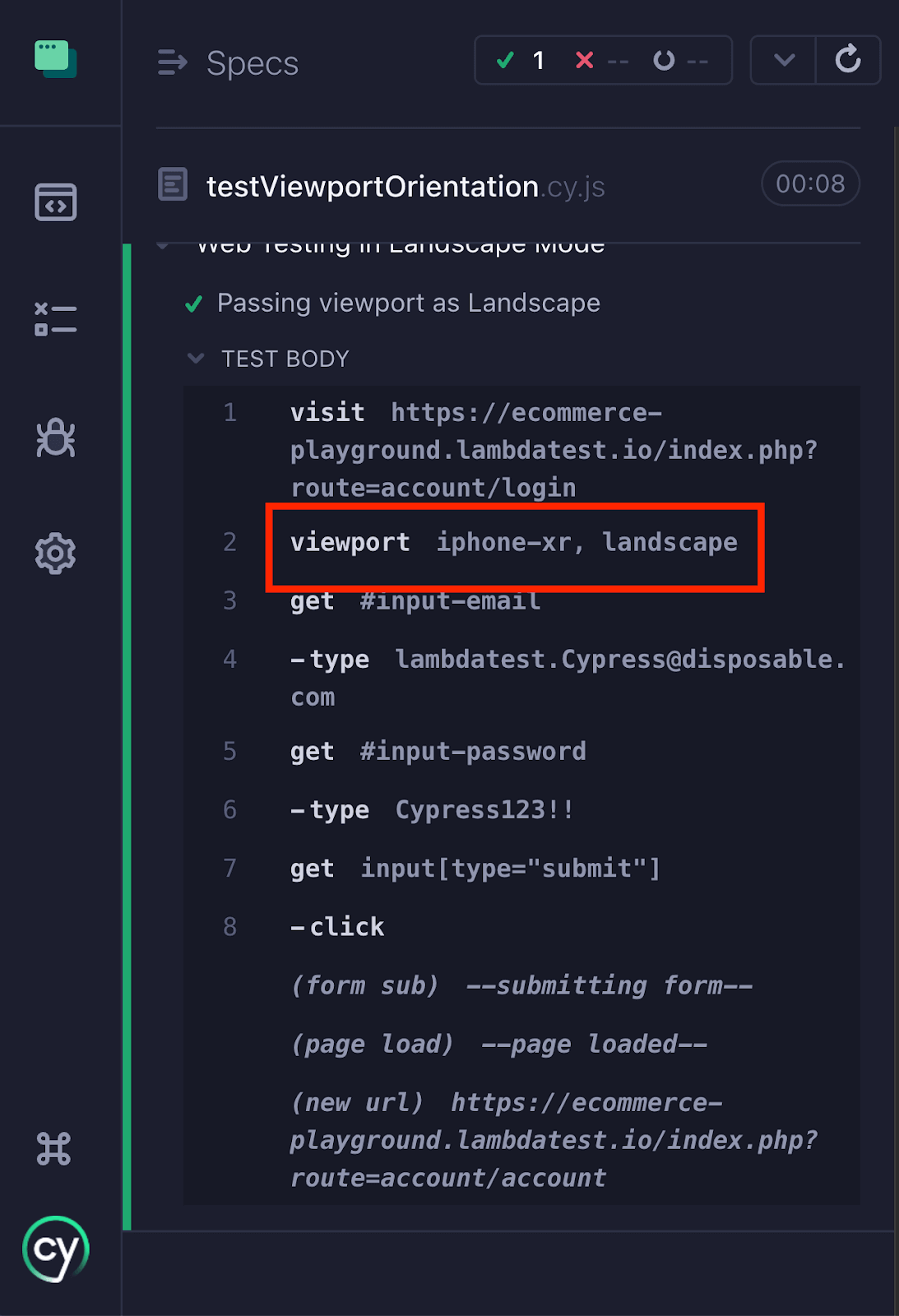
cy.visit("https://ecommerce-playground.lambdatest.io/index.php?route=account/login");Step 2: Set the viewport to iphone-xr and orientation as landscape. This simulates the user holding the iPhone XR in landscape mode.
cy.viewport('iphone-xr', 'landscape');
Step 3: Enter the username and password using the cy.get().type() command targeting the input-email and input-password field IDs.
cy.get('#input-email').type("lambdatest.Cypress@disposable.com");cy.get('#input-password').type("Cypress123!!");Step 4: Click the Submit button using the cy.get().click() command to simulate submitting the login form.
cy.get('input[type="submit"]').click();Execution
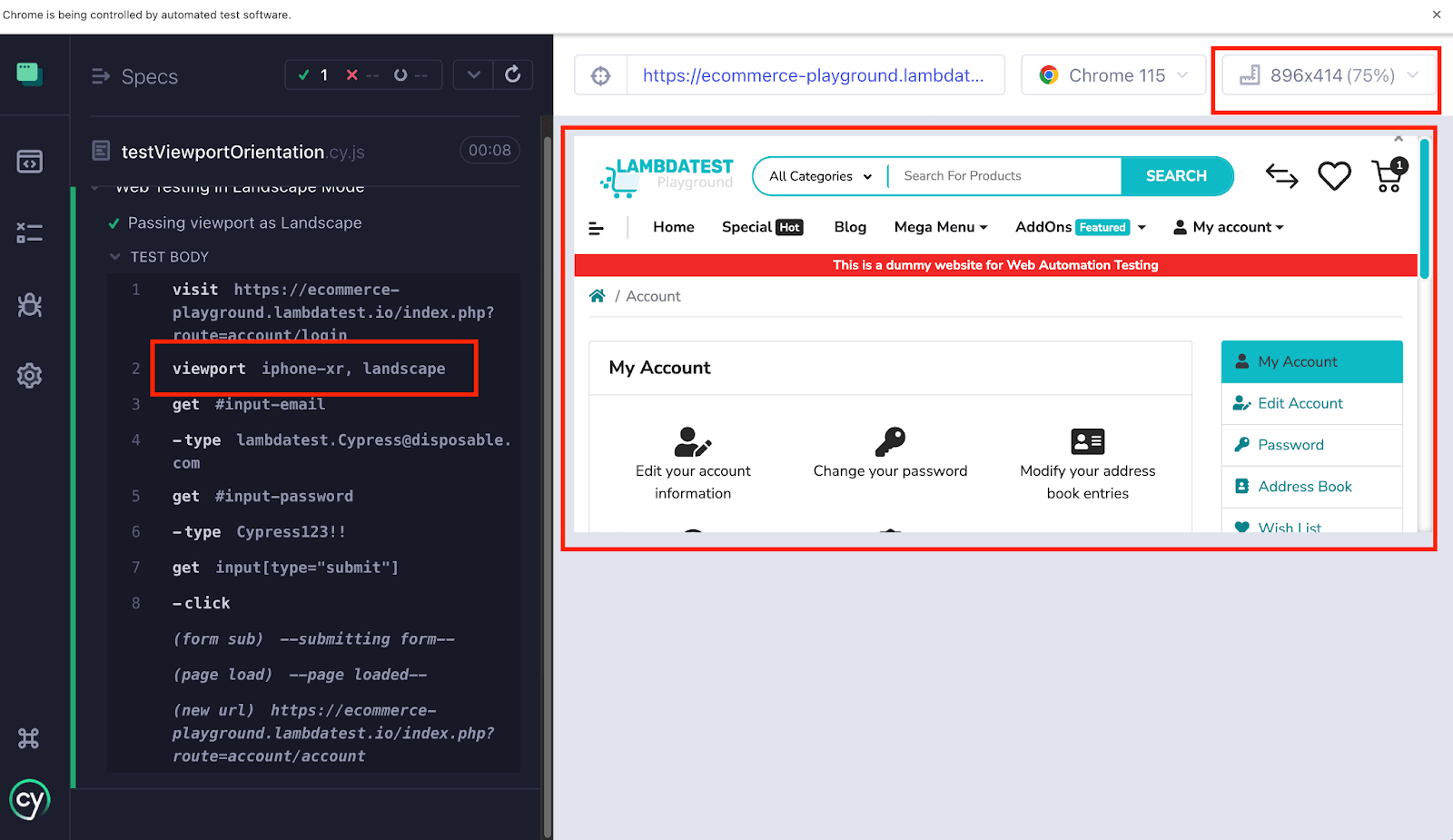
Configuring Viewport at the Project Level
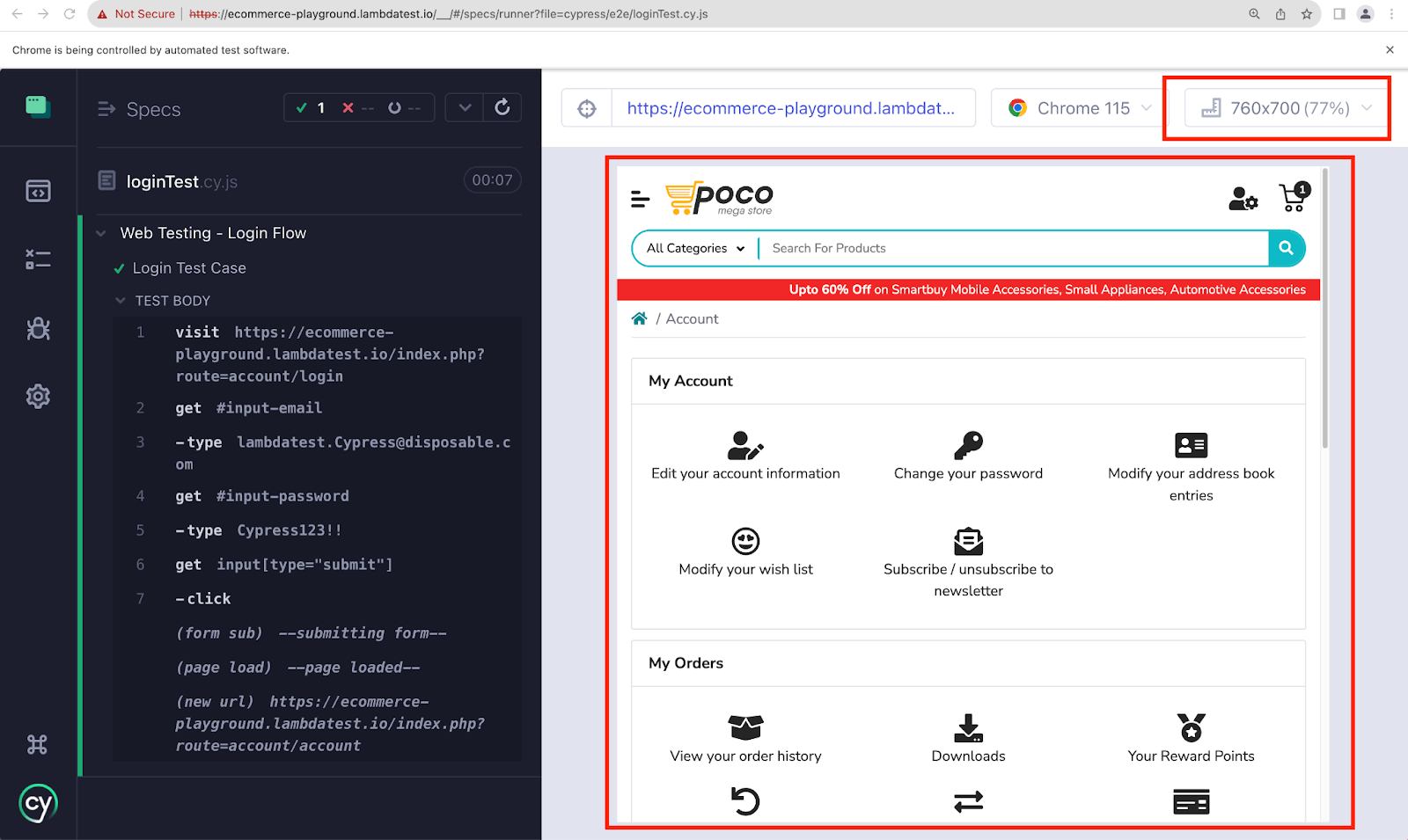
If a project has one primary breakpoint it ships at (say, desktop 1280x720 for an internal dashboard), it is wasteful to call cy.viewport() at the top of every spec. Set it once in cypress.config.js and Cypress applies it to every test until a specific cy.viewport() call overrides it.
Add viewportWidth and viewportHeight inside the e2e block (or component block for component tests). The keys are case-sensitive.
// cypress.config.js
const { defineConfig } = require("cypress");
module.exports = defineConfig({
    viewportWidth: 760,
    viewportHeight: 700,
});
Any spec that runs without its own cy.viewport() call now inherits 760x700. Tests that need something different still work, because the per-test cy.viewport() call wins over the config.
describe("Login Flow", () => {
  it("runs at project-level 760x700 viewport", () => {
    cy.visit("https://ecommerce-playground.lambdatest.io/index.php?route=account/login");
    cy.get('#input-email').type("demo@testmuai.com");
    cy.get('#input-password').type("Test@1024");
    cy.get('input[type="submit"]').click();
  });
});
One gotcha: the viewportWidth/viewportHeight keys live on the e2e (or component) block, not at the top level of the config. Placing them at the root silently does nothing and Cypress falls back to the 1000x660 default.
Overriding the Viewport Configuration
Configuring the viewport globally in cypress.config.js provides a convenient way to set default dimensions for all test cases. However, there may be scenarios where you must override the global viewport configuration for specific tests or test suites.
You can override the global configuration to suit your Cypress automation needs by simply calling cy.viewport() inside the specific test. When your page loads on the Cypress Test Runner screen, it displays the global configuration. As soon as execution starts, the viewport switches to the one passed in the test case.
Let's understand it with the below example.
Implementation
Set the viewport width to 760px and viewport height to 700px as the global configuration in the cypress.config.js file, as shown below.
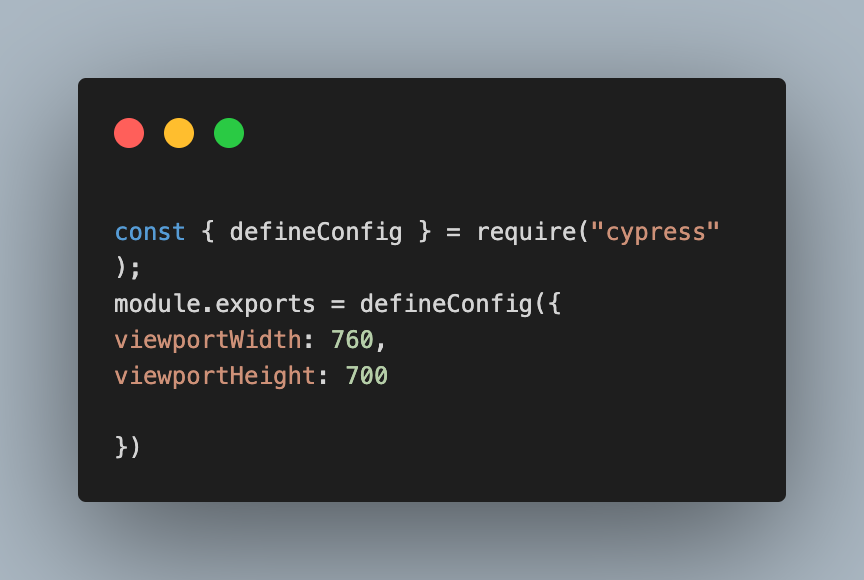
// cypress.config.js
const { defineConfig } = require("cypress");
module.exports = defineConfig({
    viewportWidth: 760,
    viewportHeight: 700,
});
Now add a custom viewport width and height within a specific test case to override the global value.
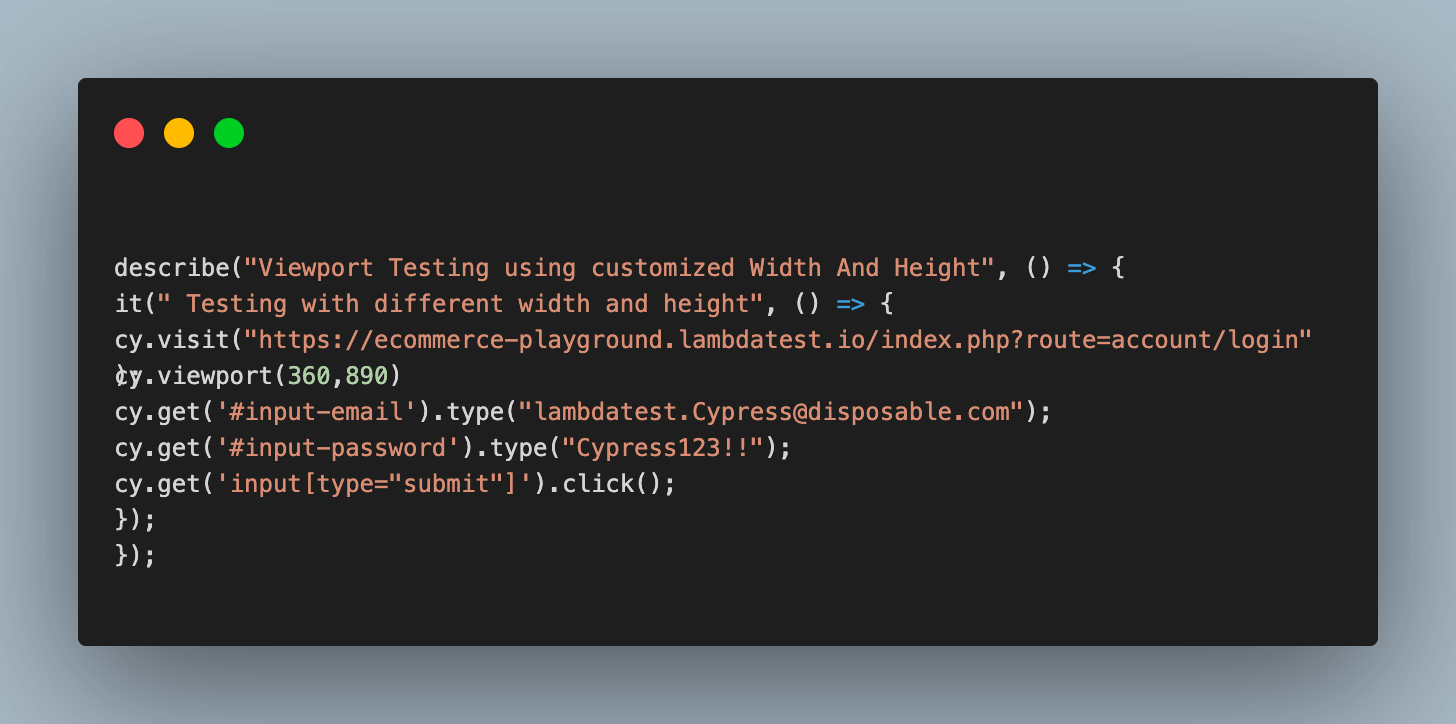
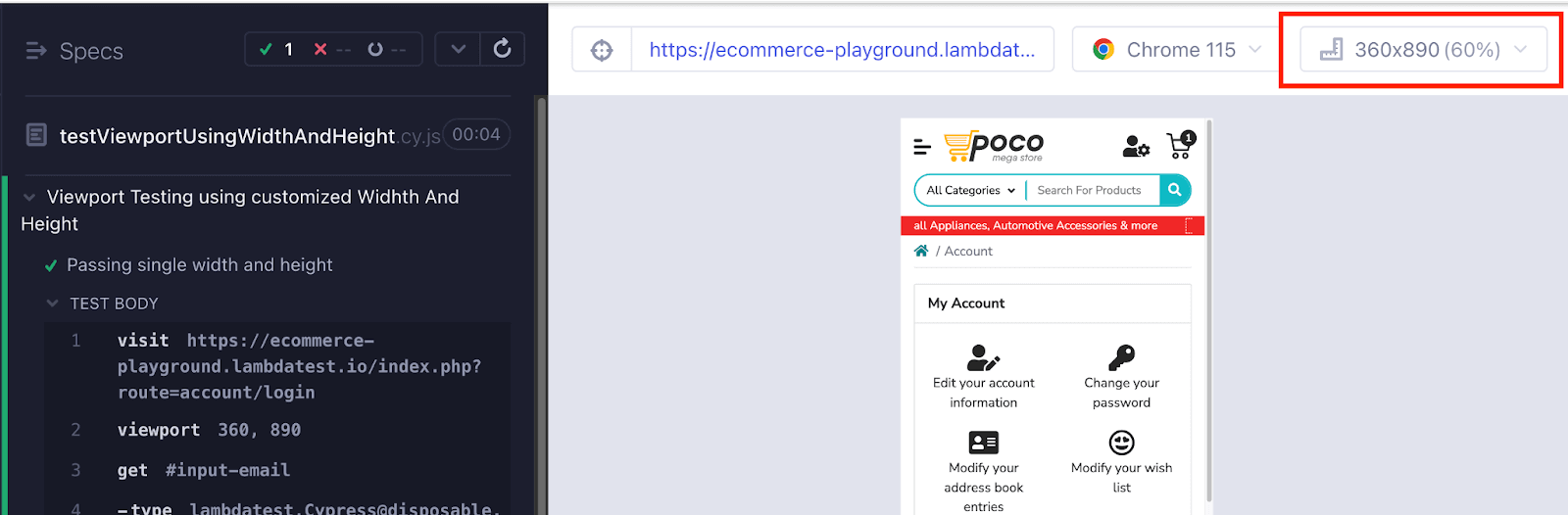
Execution
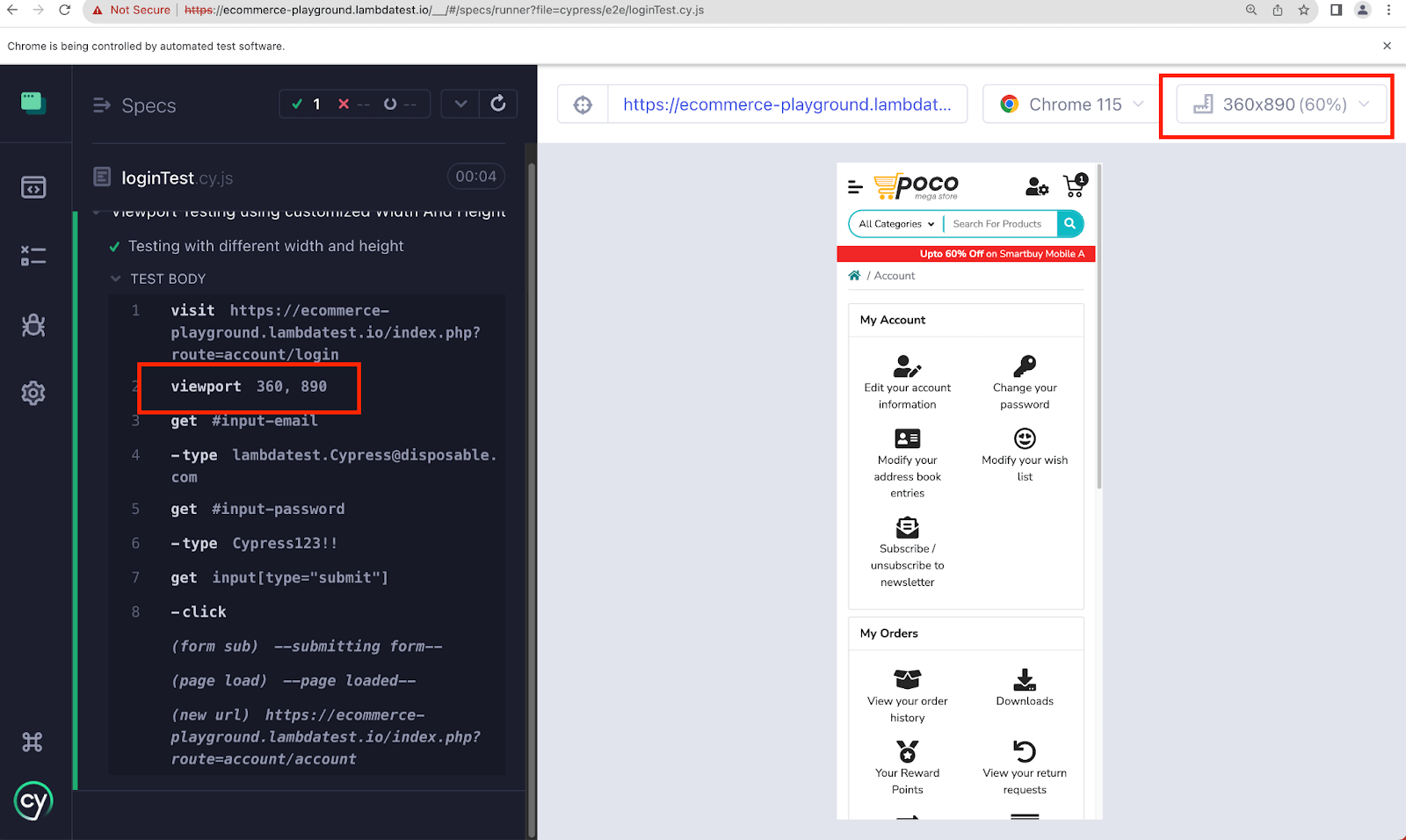
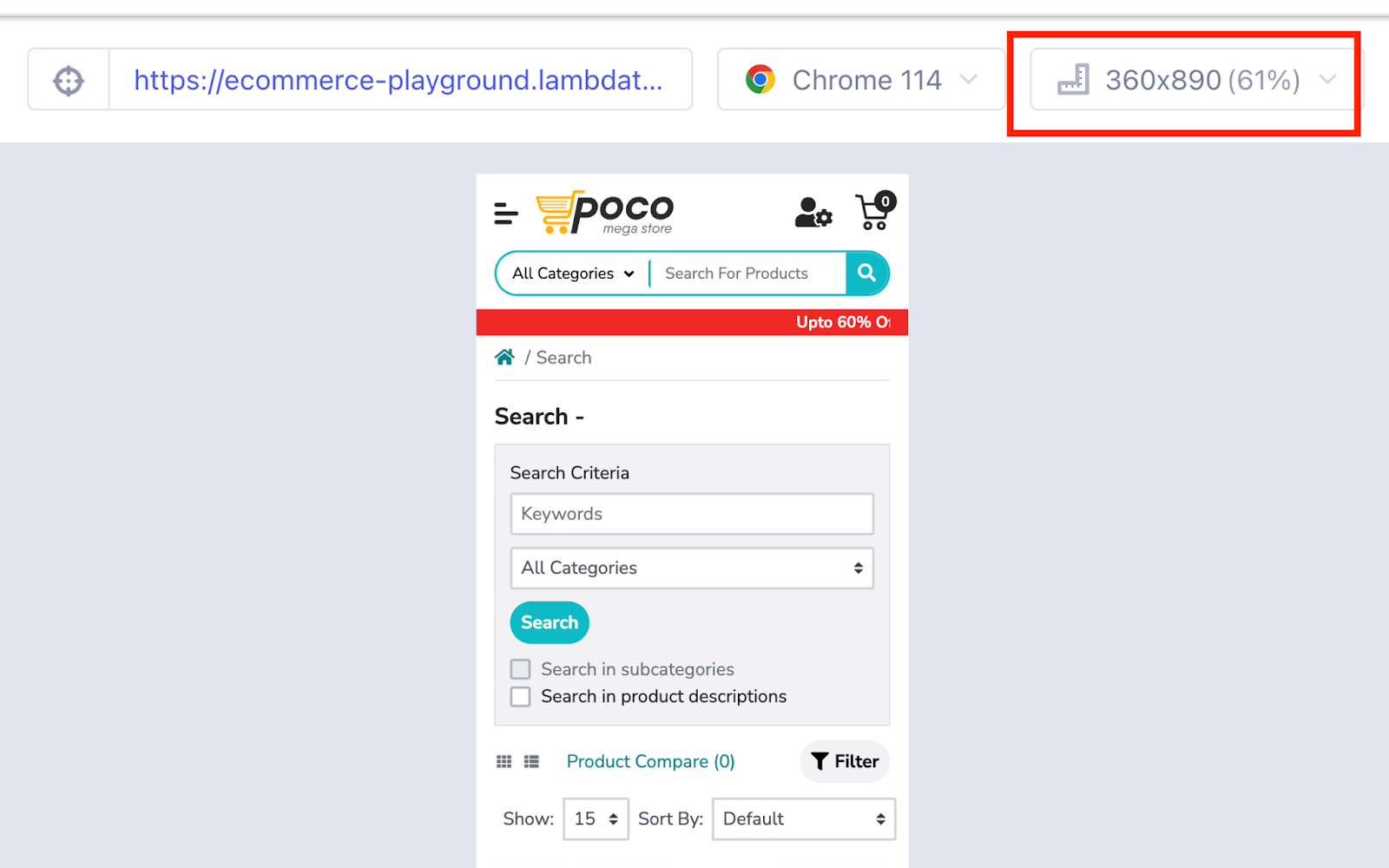
The test runs in a viewport with a width of 360px and a height of 890px. Before the page loads, it briefly shows the global configuration of 760px x 700px.
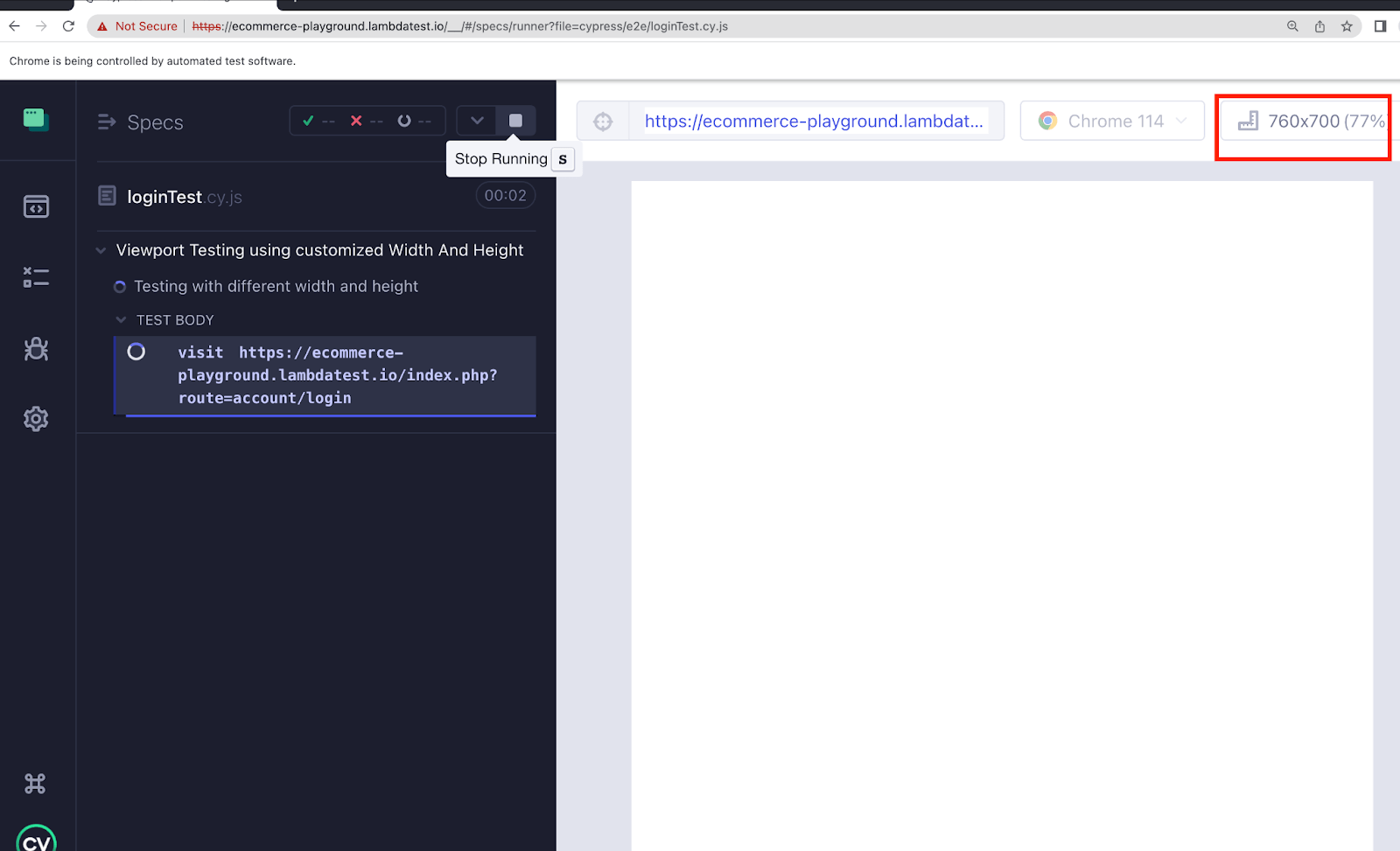
Once the test case starts executing, the viewport changes to the one passed in the test case.
Overriding Viewport Options at Runtime in the Cypress CLI
CI pipelines rarely want the same viewport as local development. Instead of maintaining parallel config files, you can use the Cypress CLI with the --config flag during cypress run to override viewportWidth and viewportHeight per build.
This ensures your test runner executes tests in different resolutions without modifying any test code, allowing each environment to define its own resolution matrix directly from the pipeline YAML.
npx cypress run --browser chrome --config viewportWidth=1280,viewportHeight=720This command runs the entire spec suite in Chrome at 1280×720, regardless of what’s defined in cypress.config.js. The CLI config takes precedence over project config, but any explicit cy.viewport() call inside a test will still override it, which aligns with the expected behavior of the Cypress test runner.
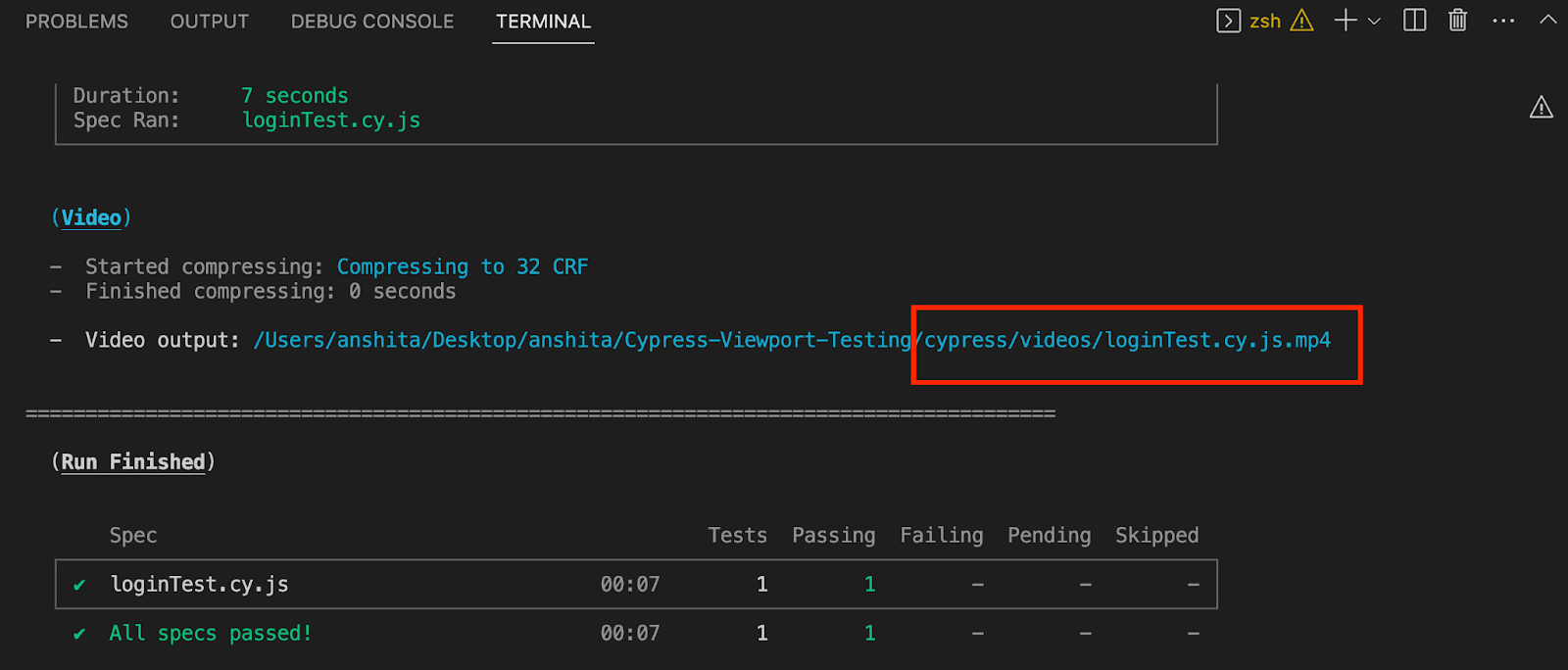
A common use case: your nightly CI job runs the same specs at 1920×1080, 1366×768, and 360×800 by invoking the Cypress CLI multiple times with different --config values. One spec file, three breakpoints, zero test-code changes, all handled seamlessly by the test runner.
Testing Viewport using Environment Variables
Use CYPRESS_viewportWidth and CYPRESS_viewportHeight environment variables to override viewport dimensions at runtime without editing cypress.config.js or any test code.
Environment variables help you easily override configuration options, providing unparalleled flexibility in testing workflows. Whether you are working with Continuous Integration or local testing, environment variables are instrumental.
By setting specific environment variables in the command line, you can seamlessly override viewportWidth and viewportHeight without touching a single line of code or build script. This approach separates configuration concerns from test logic, making your Cypress tests more resilient across environments and easier to maintain as a robust test suite.
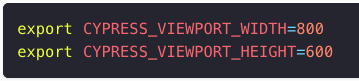
For example, if you've already set the viewport width and height in your configuration file and want to override it without changing the file, use the environment variables shown below:
Implementation
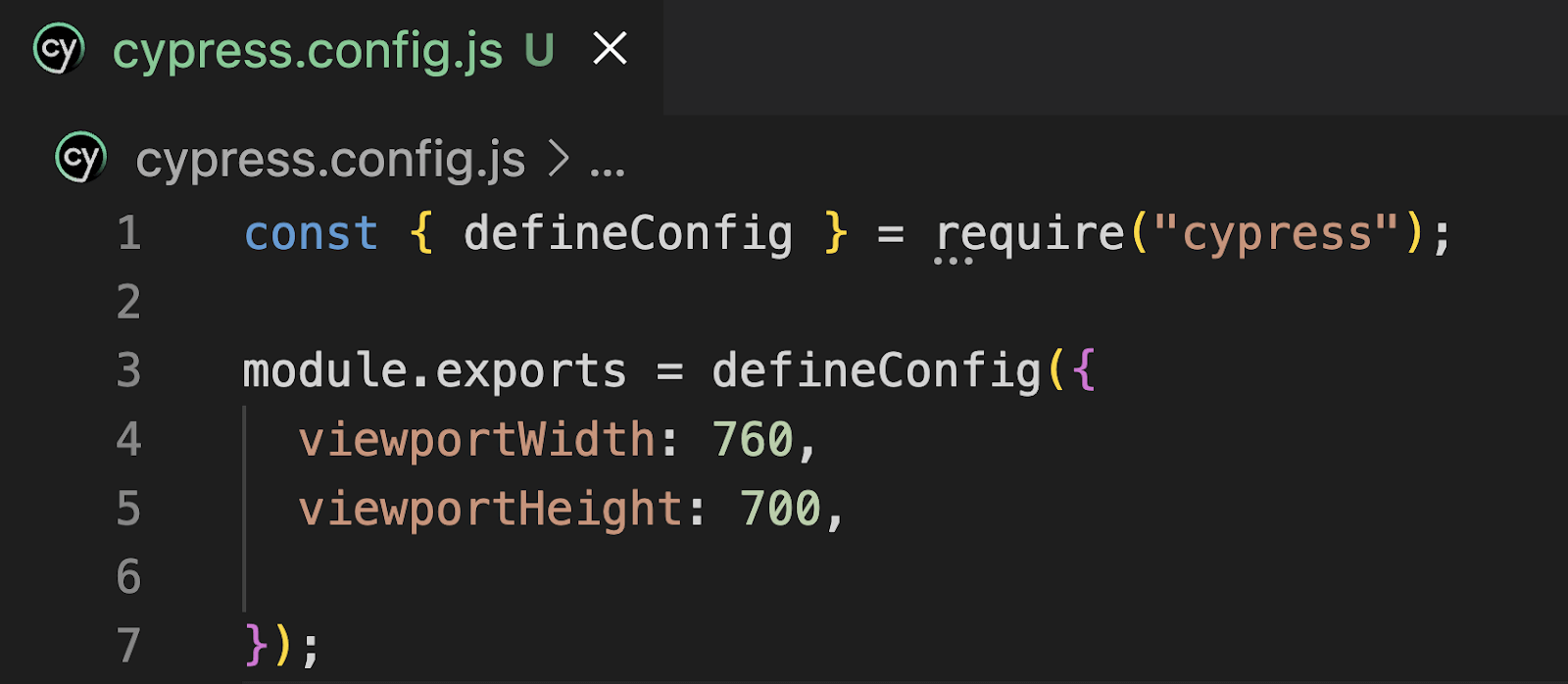
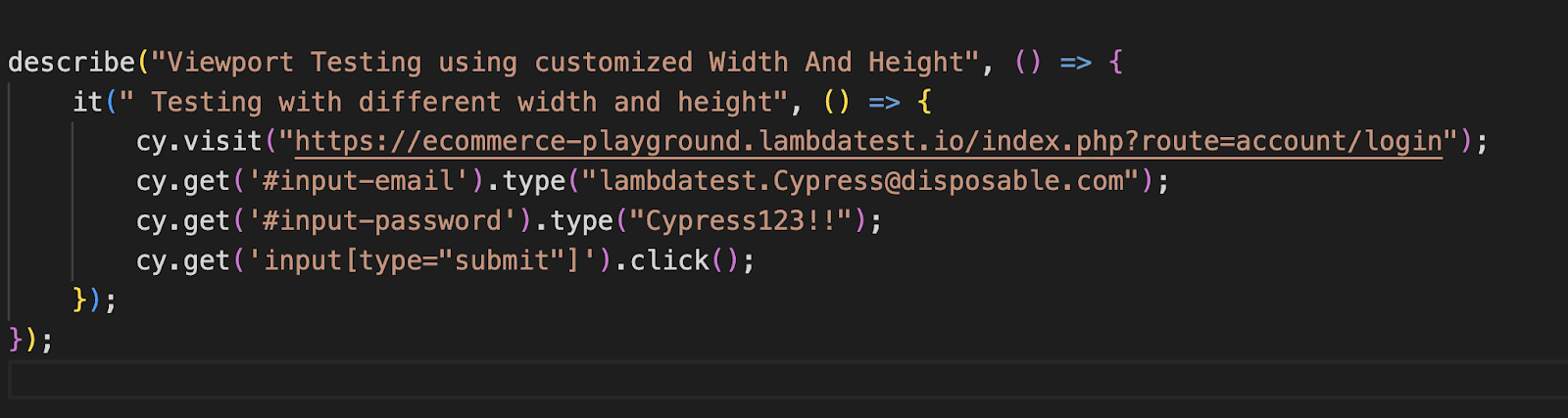
For example if you have already set the viewport width to 760px and viewport height to 700px in cypress.config.js, as shown below:
Taking the example of the same test case mentioned in the previous section:
Execution
The test will run at 760px x 700px (as defined in cypress.config.js) by default, but you can override it using the environment variables shown below:
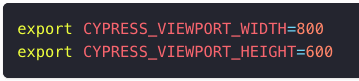

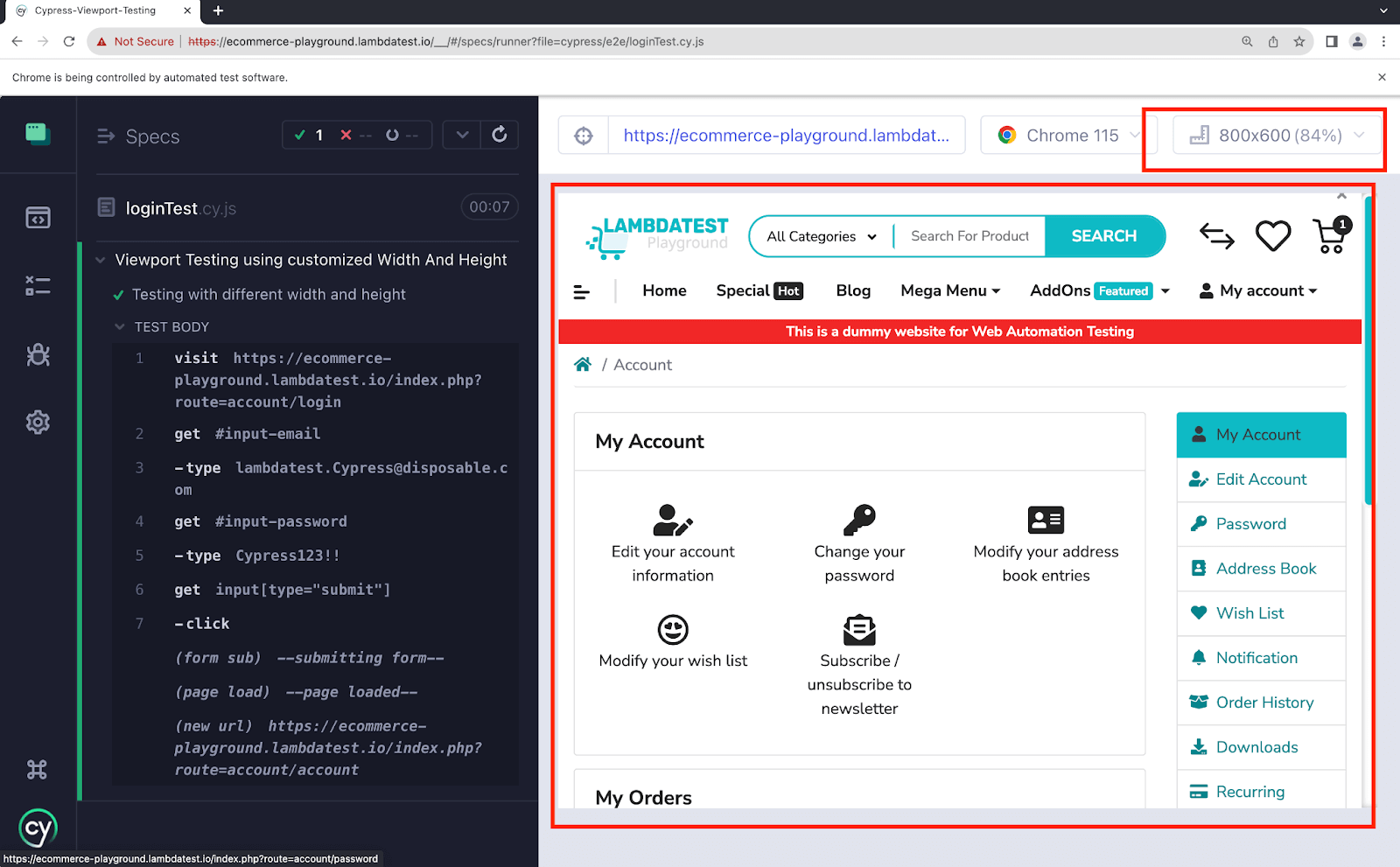
After setting the above configuration, you would observe the viewport width is set to 800 and viewport height to 600, exactly matching what is passed in the environment variable.
Testing Viewport in Cypress using TestMu AI
Running Cypress tests on a local machine limits you to the browser version installed there. If you want to validate across multiple resolutions, browser versions, and operating systems simultaneously, use the TestMu AI(formerly LambdaTest) platform.
TestMu AI is a full-stack, agentic AI quality engineering platform that enhances Cypress testing workflows by enabling teams to plan, author, execute, and analyze tests more intelligently. When integrated with Cypress, it allows you to run your test cases across real browsers, real devices, and diverse viewport resolutions without being constrained by your local environment.
By executing Cypress tests on TestMu AI, you can validate responsive behavior across a wide range of screen resolutions while also ensuring compatibility across different browser versions and operating systems. This is especially useful for teams aiming to scale their Cypress test runner in CI pipelines or perform cross-environment validation efficiently.
Since the platform is AI-native, it can further assist in optimizing test execution, identifying flaky tests, and improving overall test coverage making your Cypress testing faster, more reliable, and production-ready.
To get started, check out the documentation: Screen Resolution Testing with Cypress.
Below is the Cypress e2e testing code for the TestMu AI cloud platform.
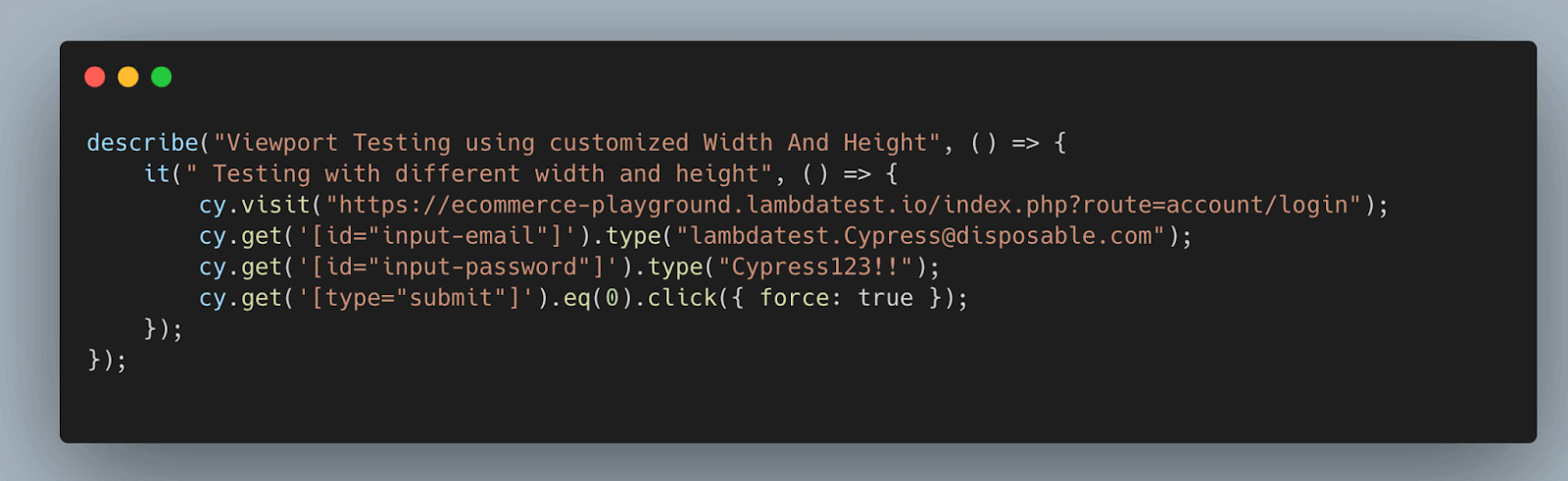
To run the Cypress UI tests on the TestMu AI platform, complete the configuration using three steps.
Step 1: Install TestMu AI CLI using npm:
npm install lambdatest-cypress-cli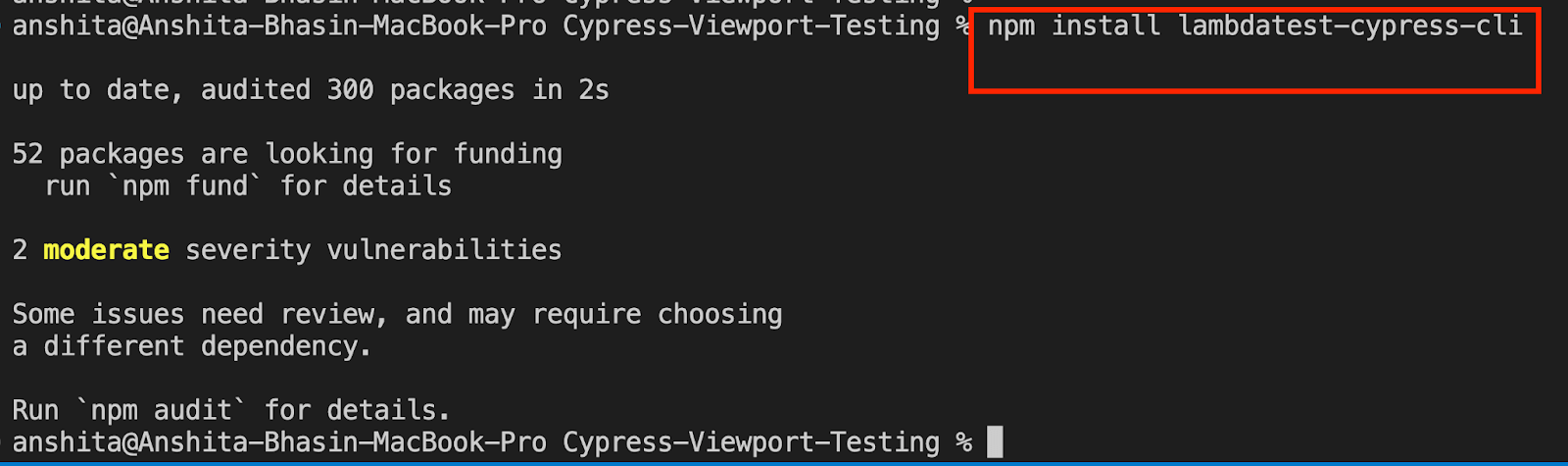
Step 2: Set up the config. Once the TestMu AI CLI is installed, set up the configuration using the below command:
lambdatest-cypress init
After running the command, a file named lambdatest-config.json will be created in your project. Set up the configuration to run your test case on different browsers on TestMu AI.
auth: You must set up the TestMu AI credentials, which will be used in lambdatest-config.json to run the test case on the cloud platform.
To get the username and access key from TestMu AI, sign in to the TestMu AI Automation Dashboard and copy the details from the Password & Security tab :
- browsers: Specify the browser and OS version on which your test case should run.
- run_settings: Set up the config name (which differs based on Cypress version) and the spec file path.
- cypress_settings: Use this key to test on different viewports on cloud platforms. For Cypress version 10 and above, follow the config below:
{
  "lambdatest_auth": {
    "username": "<LT_USERNAME>",
    "access_key": "<LT_ACCESS_KEY>"
  },
  "browsers": [
    { "browser": "Chrome",  "platform": "Windows 11", "versions": ["latest-1"] },
    { "browser": "Firefox", "platform": "Windows 11", "versions": ["latest-1"] }
  ],
  "run_settings": {
    "config_file": "cypress.config.js",
    "build_name": "Cypress Viewport Testing",
    "parallels": 5,
    "specs": "./cypress/e2e/loginTest.cy.js",
    "headless": true,
    "npm_dependencies": {
      "cypress": "15.14.0"
    },
    "cypress_settings": "--config viewportWidth=1920,viewportHeight=1080"
  }
}
The cypress_settings section can be customized according to your specific requirements, allowing you to validate your application on various viewports across different browsers using cloud platforms.
Step 3: Once the config is done, execute the Cypress test case on TestMu AI by triggering the lambdatest-cypress run command on the terminal.
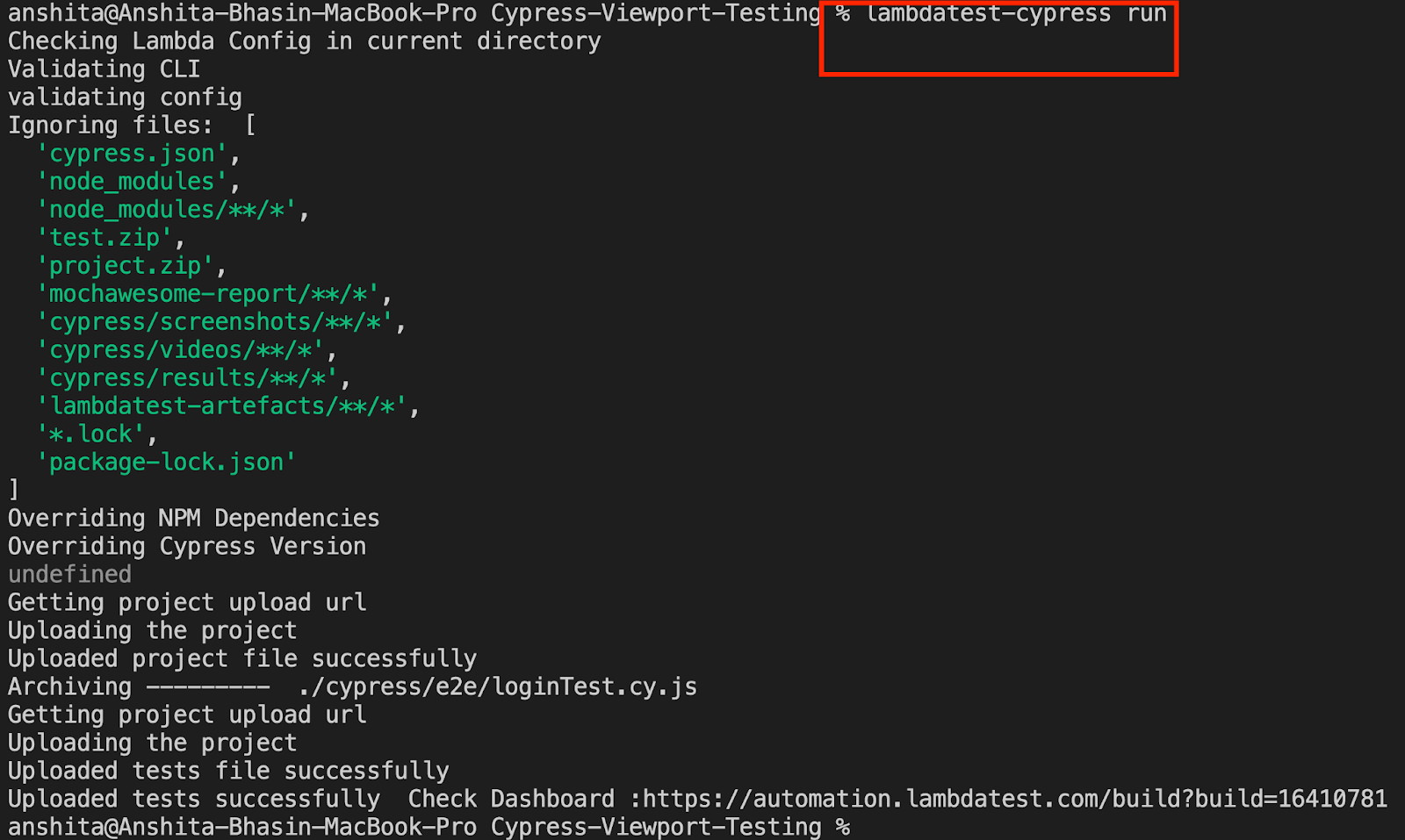
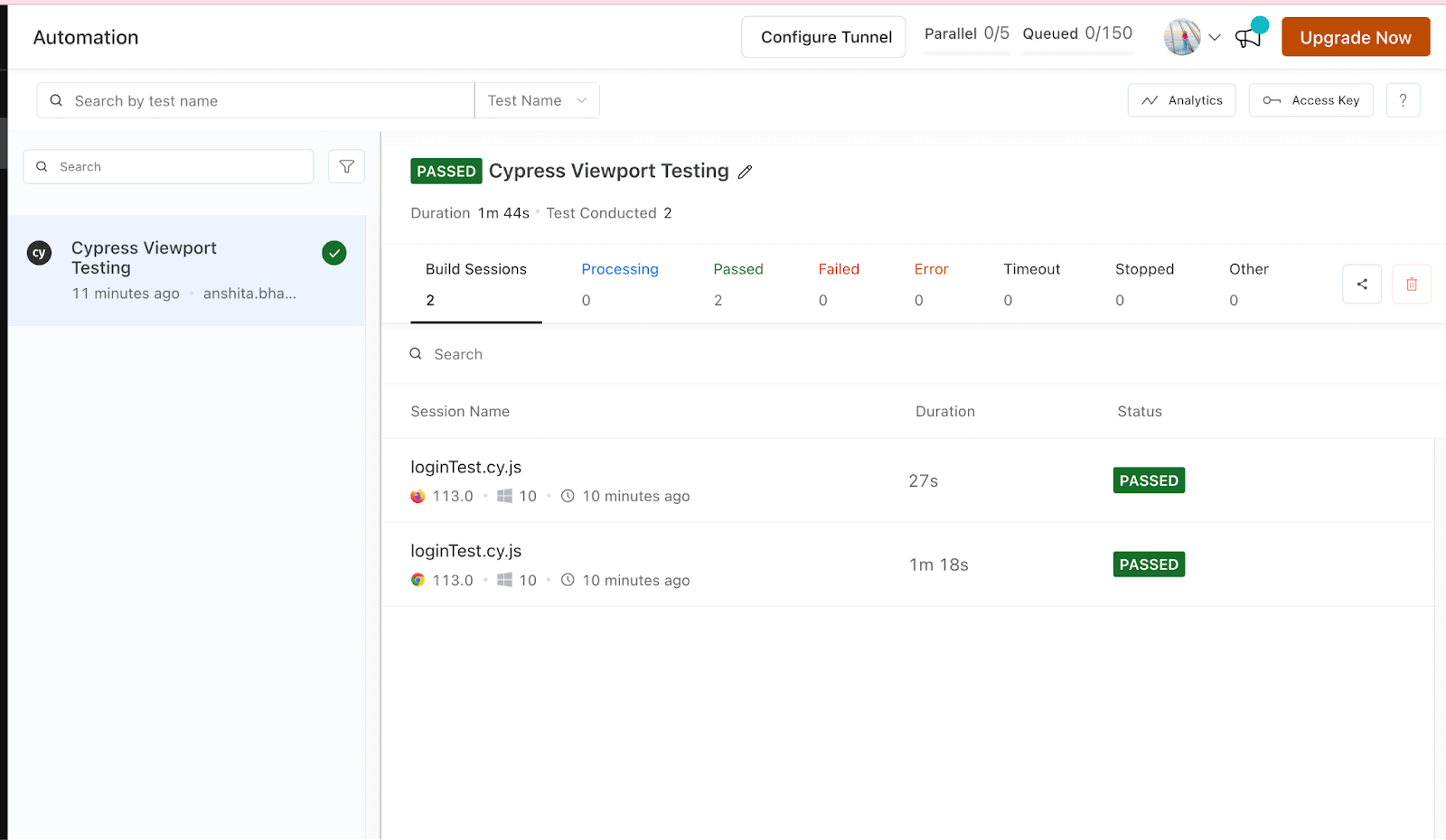
Shown below is the execution snapshot:
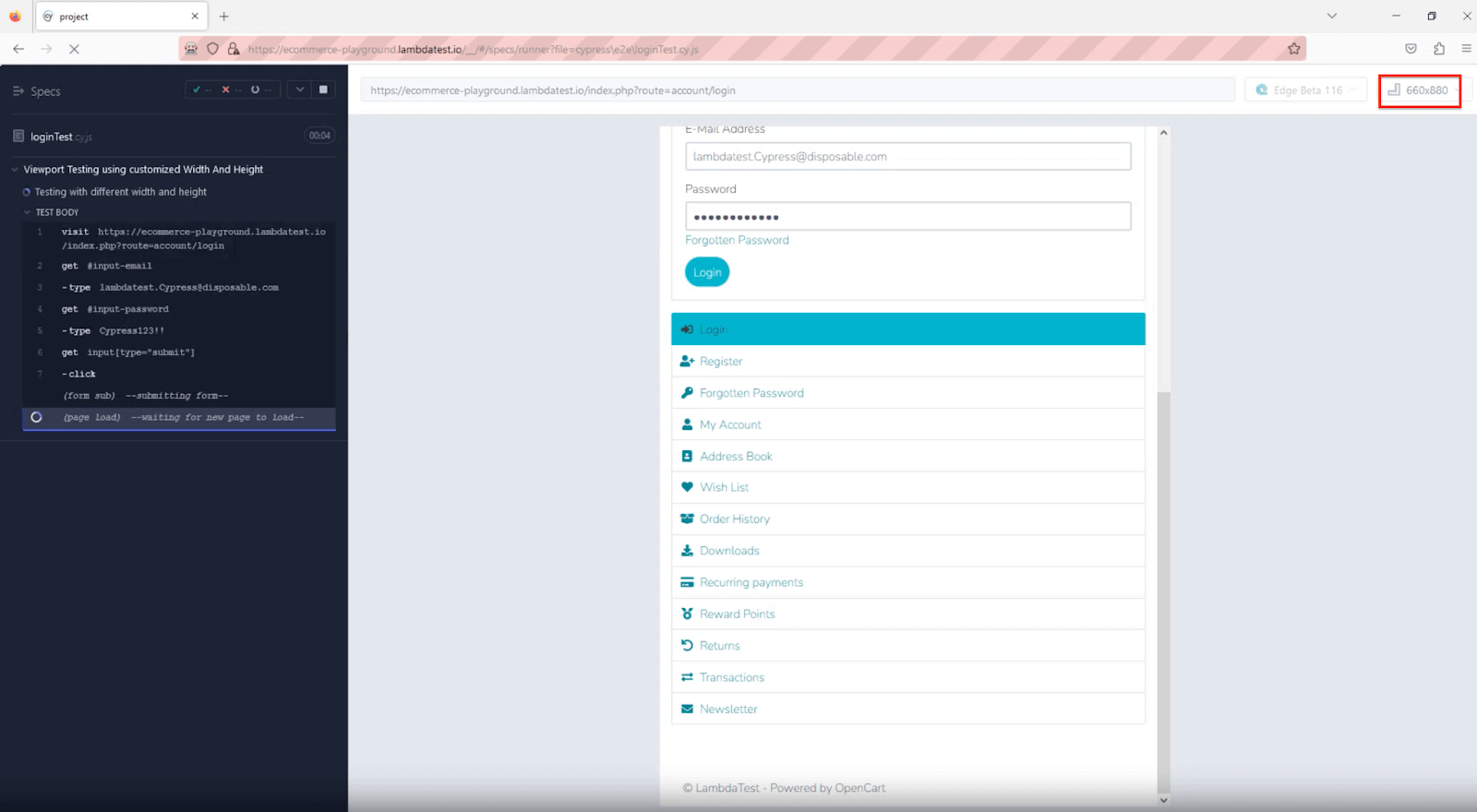
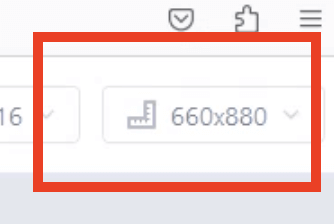
As seen below, the test is executed on the viewport size 660 x 880, matching what is specified in lambdatest-config.json.
By following the steps outlined above, you can test various viewports in Cypress using TestMu AI.
You can perform the same viewport testing on the cloud using the standard Cypress setup and TestMu AI configuration described above. However, to simplify and accelerate this process, you can also leverage Cypress AI through Cypress Skills.
The Cypress Skill is part of TestMu AI agent-skills, enabling teams to automatically generate production-ready Cypress tests while following best practices like proper command chaining and network interception.
With cypress-skill, you can seamlessly run tests across both local environments and the TestMu AI cloud. This approach reduces manual effort while ensuring consistent, scalable, and intelligent test coverage across multiple viewports, browsers, and devices.
To get started, refer the support documentation on running your Cypress Testing using Agent Skills..
Testing on Full-Screen
Responsive web design is essential for a smooth device user experience. However, testing in full-screen mode is often overlooked. It allows you to see how users interact with your site without distractions. With Cypress, you can easily test your web app in full-screen mode by interacting with the browser's viewport in Cypress for seamless functionality.
To conduct full-screen mode testing for your web applications in Cypress v10 and above, use the below code to modify the browser options.
Implementation
on('before:browser:launch', (browser = {}, launchOptions) => {
  if (browser.family === 'chromium' && browser.name !== 'electron') {
    launchOptions.args.push('--start-fullscreen')
    return launchOptions
  }
  if (browser.name === 'electron') {
    launchOptions.preferences.fullscreen = true
    return launchOptions
  }
})
Go to cypress.config.js and paste the below code:
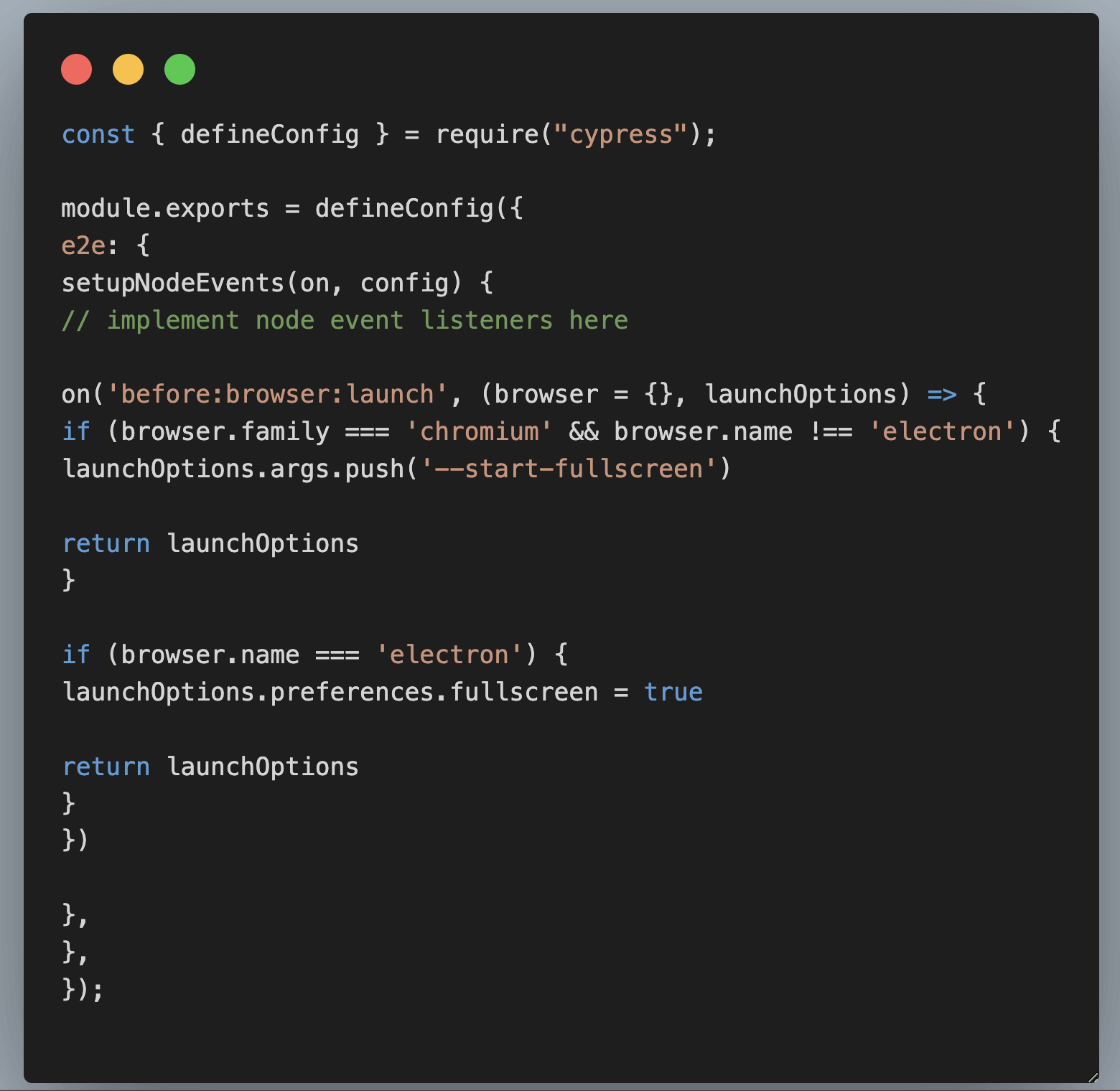
Full-screen mode lets you validate behavior when users maximise the browser or launch the app from a presentation surface -- scenarios where navigation, sticky headers, and off-canvas drawers often behave differently from the default viewport.
Common Pitfalls (and How to Avoid Them)
Most viewport test failures trace back to a small set of misunderstandings. Knowing these in advance saves significant debugging time:
- Calling cy.viewport() after cy.visit(): The page already painted at the default 1000x660. Media queries fire once on load, server-side rendering resolves once, and hydration locks layout. Move the call above
cy.visit()unless you are explicitly testing a resize event. - Expecting device pixel ratio (DPR) to change:
cy.viewport()only changes CSS pixel dimensions. It does not changewindow.devicePixelRatio, so retina asset logic, high-DPI canvas sizing, or DPR-aware image sources will not behave like they do on real devices. - Headed-mode minimum window width: Cypress headed mode enforces a minimum Electron window width of around 400px. Passing a sub-400px viewport in
cypress openproduces a warning and the viewport scales. Use headless (cypress run) for anything below that minimum, or validate on real devices. - Orientation on custom dimensions: The orientation argument is preset-only. Passing a custom width, height, and orientation string together throws a type error. Either use a preset or swap the numbers manually to achieve landscape dimensions.
- Resize-only event handlers: If a component only updates on a
resizeevent and the event never fires during initial paint, callingcy.viewport()beforecy.visit()is the only reliable fix. The page loads at the correct size and there is nothing to resize. - forEach masking failures: Iterating viewports inside a single
it()block hides failures after the first breakpoint breaks. Move each viewport into its ownit()block so the runner reports each device outcome independently.
Conclusion
cy.viewport() is one of the most practical tools in the Cypress testing toolkit, but using it well means going beyond simply passing width and height. Calling it before cy.visit(), building a per-preset it() loop for independent device reporting, setting global defaults in cypress.config.js, and driving breakpoints from CLI flags in CI -- these habits together produce a responsive test strategy that actually covers the screens your users open. Where emulation reaches its limits, particularly around device pixel ratio and touch behaviour, pairing your Cypress viewport tests with real-device cloud runs closes the gap.
Map your breakpoints to real audience data rather than arbitrary defaults. The five resolutions that account for the largest share of global traffic today are predominantly mobile, and a test suite that runs only at 1000x660 is untested for the majority of real users. Build the matrix once, drive it through configuration rather than test-code changes, and you have coverage that holds across browsers, CI pipelines, and device generations.
To keep building on this foundation, the Cypress 101 certification is a structured next step, and the Cypress interview questions guide will help you speak to this kind of responsive test design in any technical interview.
Happy Testing!
Author

Anshita Bhasin
Blogs: 6


Anshita Bhasin is a Senior QA Automation Engineer with over 9 years of experience in the software industry. Throughout her career, She has gained expertise in a variety of tools and technologies, including Rest Assured, Selenium, and Cypress. Currently, She is working at a PropTech company in Dubai. In addition to her technical expertise, she is also passionate about sharing her insights and experiences with others in the form of tutorials and workshops to help guide those just starting out in their careers or seeking advice on their professional paths. You can also follow her on Twitter.
Reviewer

Sri Harsha
Reviewer
Sri Harsha is Engineering Manager of the Open Source Program Office at TestMu AI (formerly LambdaTest), where he leads open-source engineering behind the Selenium and Appium automation grid and builds agentic AI systems for quality engineering. He is a member of the Selenium Technical Leadership Committee and a committer to WebdriverIO and Appium, and was recognized with the LambdaTest Delta Award 2023 for Best Contributor in open-source testing. He brings over 10 years of experience in software testing and automation, with earlier roles at EPAM Systems and ZenQ. Sri Harsha holds a B.Tech in Computer Science from Jawaharlal Nehru Technological University.
On This Page
- What are Viewports?
- Using cy.viewport() with Width and Height
- Using cy.viewport() with Presets
- Using cy.viewport() with Orientation
- Configuring Viewport at the Project Level
- Overriding the Viewport Configuration
- Overriding Viewport Options at the Run Time
- Testing Viewport using Environment Variables
- Testing on TestMu AI Cloud
- Testing on Full-Screen
- Common Pitfalls
Cypress Viewport FAQs
Did you find this page helpful?
More Related Blogs
TestMu AI forEnterprise
Get access to solutions built on Enterprise
grade security, privacy, & compliance
- Advanced access controls
- Advanced data retention rules
- Advanced Local Testing
- Premium Support options
- Early access to beta features
- Private Slack Channel
- Unlimited Manual Accessibility DevTools Tests