
Run Web Automation Tests at Scale with Agentic AI
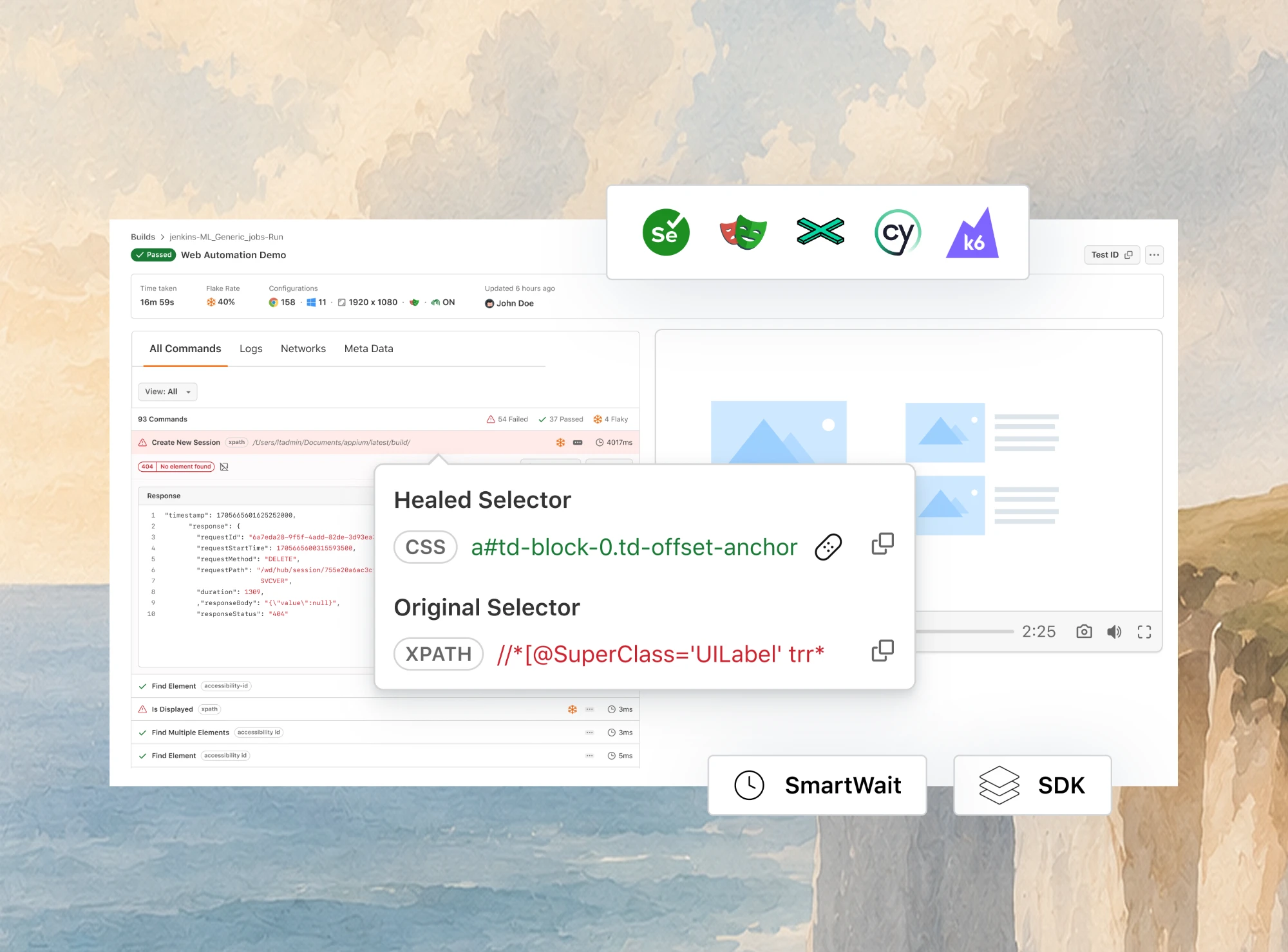
Generate tests with AI agents or automate test suites with Selenium, Playwright and other frameworks. Run tests in parallel on TestMu AI scalable cloud grid.

- TestMu AI (Formerly LambdaTest)
- /
- Learning Hub
- /
- What Is Browser Automation? Tools, Code, and AI Agents
What Is Browser Automation? Tools, Code, and AI Agents
Learn what browser automation is, how it works, and how to run it with Selenium, Playwright, Kane CLI, and Browser Cloud, with code tested on a cloud grid.
Last Updated on:
Browser automation is the practice of driving a real web browser with code instead of a person, so that navigation, clicks, form fills, and data extraction happen programmatically.
What changed recently is who does the driving. For two decades the driver was a test script written by a QA engineer. Today it is increasingly an AI agent that decides its own next step, which is why browser automation now sits underneath both software testing and the agent browser tooling built on top of large language models.
Overview
Browser automation is the practice of controlling a real web browser with code or an AI agent instead of a person. The browser loads pages, runs JavaScript, and renders the DOM as it would for a user, while a script or an agent issues the clicks, form entries, and page reads.
Which Tools Drive Browser Automation?
- Selenium: An open-source framework built on the W3C WebDriver protocol. Selenium drives Chrome, Firefox, Safari, and Edge from Java, Python, C#, Ruby, and JavaScript, which makes it the usual pick for large cross-browser regression suites.
- Playwright: A Microsoft framework with one API across Chromium, Firefox, and WebKit. Playwright adds auto-waiting, network interception, and an official MCP server that exposes browser actions to AI agents as tools.
- Puppeteer: A Google JavaScript library with a high-level API over Chrome and Firefox, driven through the DevTools Protocol or WebDriver BiDi and often used for scraping, screenshots, and PDF generation.
- Kane CLI: A TestMu AI browser agent that runs a natural-language objective in real Chrome from the terminal and returns a pass or fail with exit codes CI can gate on. It needs no selectors and runs free on local Chrome.
- Browser Cloud: TestMu AI's browser infrastructure for AI agents. Browser Cloud starts isolated Chrome sessions on demand, with a built-in tunnel to localhost and staging, persistent logins, and a video and log record of every session.
What Do You Need to Run Browser Automation at Scale?
Running browser automation at scale takes real browsers in parallel that nobody has to maintain. Framework suites get that from TestMu AI's test automation cloud, with 3,000+ browser and OS combinations. AI agents get it from Browser Cloud sessions started on demand.
What Is Browser Automation?
In practice, a tool or agent issues the instructions, and a real browser carries them out: loading a URL, waiting for elements to render, clicking, typing, submitting, and reading values back off the page.
The distinction that matters is between a browser and an HTTP client. A plain request fetches raw markup. A browser executes JavaScript, hydrates the page, and produces the DOM a user actually sees. On a modern single-page application, those two results are not remotely the same, which is why browser automation remains necessary rather than a heavyweight alternative to fetching a URL.
Web browser automation covers these common jobs:
- Testing - Regression and cross-browser checks in web testing, run on every commit instead of by hand.
- Data extraction - Reading prices, listings, or tables from JavaScript-rendered pages that a plain HTTP request returns as an almost-empty shell.
- Form filling and back-office work - Entering data into portals and internal tools that have a web interface but no API.
- Monitoring - Running login or checkout flows on a schedule to catch a broken journey before customers do.
- Agent tasks - Letting an AI agent complete a multi-step task on a live site, deciding each step as it goes.
How Browser Automation Works
Most automation tools do not click the screen the way a person does. They send commands to the browser over a control protocol, and the browser executes them and reports back. The protocol a tool speaks decides which browsers it can drive and how much it can observe:
- WebDriver - The W3C WebDriver specification defines it as "a platform- and language-neutral wire protocol" for out-of-process programs that instruct the behavior of web browsers. Selenium is built on it, and a browser-specific driver such as chromedriver or geckodriver translates its commands, which is why one Selenium script runs in Chrome, Firefox, Safari, and Edge.
- Chrome DevTools Protocol (CDP) - The CDP documentation describes a protocol that lets tools instrument, inspect, debug, and profile Chromium, Chrome, and other Blink-based browsers, organized into domains such as DOM, Network, and Runtime. That gives a tool direct access to network traffic and console output. Puppeteer drives Chrome over CDP, and so does Kane CLI.
- WebDriver BiDi - A cross-browser protocol still under development at the W3C that adds two-way communication, so a script can react to events such as console messages instead of only polling. Puppeteer's documentation describes it as combining the best of WebDriver "Classic" and CDP, and Puppeteer uses it by default when it launches Firefox, while Chrome still runs over CDP.
Each protocol can drive a headed browser, with a visible window, or a headless browser with no UI at all. Headless runs need no display, which suits CI servers, and Puppeteer starts headless by default. Headed runs let you watch what happened, which is why local debugging usually starts there.
Why Use Browser Automation?
Browser automation makes test execution a function of software rather than hardware. Scripts are reusable, run unattended, and execute in parallel, so coverage scales with the suite instead of with the size of your device lab. The practical gains:
- Repeatable regression checks - A script runs the same steps identically on every commit, so a regression shows up in the build that introduced it instead of in a manual pass days later.
- Parallel execution - Independent tests run side by side through parallel testing, so wall-clock time falls as you add sessions and the whole test process speeds up.
- Broader coverage - One script runs on every browser and OS you point it at, so the same test cases reach combinations nobody would check by hand, raising test coverage without adding testers.
- Work beyond testing - The same techniques fill forms, extract data from JavaScript-rendered pages, and watch production flows such as login and checkout.
Browsers differ in rendering engines and JavaScript behavior, so cross browser testing means running the same checks in every browser you support, and the usual cross browser testing challenges grow once you try to host every combination yourself.
The blocker is usually economic. Covering meaningful permutations of browsers, devices, and operating systems means buying and maintaining every one of them. A local grid is feasible at small scale and stops being feasible the moment coverage grows, because each new combination is another machine to patch, upgrade, and keep online.
Approaches to Browser Automation
The approaches differ mainly in how much control you trade for how much setup:
- Scripting languages - Java, JavaScript, and Python all have mature libraries for driving browsers, and Selenium WebDriver exposes that control across languages for form submission, content extraction, and navigation.
- Test frameworks - Selenium, Puppeteer, and Playwright wrap the browser protocols in an API with waits, assertions, and reporting, which makes them the standard choice for a suite a team maintains.
- Record and playback - These tools capture your actions in the browser and replay them. They lower the barrier to a first test and tend to produce suites that are brittle under refactoring, so they suit smoke checks better than a core regression suite.
- Agent-driven automation - You hand an objective to an AI agent, which decides the steps itself, perceiving the page and verifying each action instead of replaying fixed instructions. It copes with UI change far better than a hardcoded script, though its path can differ between runs, so testing tools built on this approach, such as Kane CLI, tie the pass or fail to evidence from the page.
Steps to Perform Browser Automation
The sequence below applies whether you are writing a first Selenium test or wiring a browser into an agent:
- Choose a framework based on the languages your team already writes, the browsers you must support, and whether a human or an agent will drive it. For the two closest rivals, see this Puppeteer vs Playwright comparison. Selenium, Puppeteer, and Playwright are the common starting points, weighed against cross browser compatibility needs.
- Set up the test environment with the framework, the language runtime, and any driver binaries. Running against a cloud grid removes most of this step, since the browsers and drivers are already provisioned.
- Configure the driver for the browser you intend to automate. Modern Selenium manages driver binaries automatically, so this is mostly a matter of pointing at a local browser or a remote hub URL.
- Identify the pages you want to automate and the specific elements you need to interact with. Prefer stable hooks such as test ids or accessibility roles over positional selectors that break on the next redesign.
- Write the scripts that navigate, fill, click, extract, and assert. Keep waits explicit and condition-based rather than fixed sleeps, which are a common source of flaky tests.
- Execute and observe. Run against the target browsers and watch what the automation actually does rather than trusting a green result on first run.
- Handle exceptions so a run recovers or fails loudly with enough context to diagnose, instead of dying on the first unexpected modal.
- Iterate against edge cases and refine. Tests that start failing for unrelated reasons get ignored, so fix or delete them before the suite loses the team's trust.
Implementation details vary by framework and language. For a comparison of the leading frameworks and platforms, see our guide to web automation tools.
Browser Automation Tools
Tools now split into two families: test frameworks, where an engineer writes every step in advance, and agent tools, where a model decides the steps from an objective. Choosing well starts with knowing which family a job needs. The second family also includes visual builders for people who do not write code, covered in our guide to no-code browser automation.
| Factor | Test frameworks | AI-agent and no-code tools |
|---|---|---|
| Examples | Selenium, Playwright, Cypress, Puppeteer, WebdriverIO, TestCafe. | Kane CLI, Browser Use, Firecrawl, Axiom.ai, Bardeen, Browserflow, and MCP-based browser servers. |
| How steps are decided | Written in advance by an engineer and replayed identically on every run. | Decided at runtime from an objective, or configured visually with no code. |
| Response to UI change | A changed selector breaks the test until someone updates it. | Often adapts, because the agent re-reads the page rather than trusting a stored selector. |
| Repeatability | Deterministic, which is what makes a result trustworthy as a release gate. | The path can differ between runs, so testing tools check the outcome against evidence instead. |
| Best suited to | Regression suites, cross-browser coverage, CI gates. | Natural-language checks, open-ended tasks, LLM-ready data extraction, and flows whose steps are not known upfront. |
Test Automation Frameworks
The established frameworks remain the right default for scripted testing:
- Selenium - drives the widest range of browsers (Chrome, Firefox, Safari, Edge) from the widest range of languages (Java, Python, C#, Ruby, JavaScript), which is why it stays the default for large, polyglot suites. For the Python bindings, see this guide to handling web elements in Selenium Python.
- Playwright - from Microsoft, offers one API across Chromium, Firefox, and WebKit plus network interception and mobile emulation. It also ships an MCP server, which makes it one of the few frameworks that spans both families in the table.
- Cypress - runs inside the browser and optimizes for developer experience and debuggability, which suits front-end teams doing end-to-end testing on their own application.
- Puppeteer - from Google, gives a high-level JavaScript API over Chrome and Firefox and is a common choice for screenshots, PDF generation, and scraping in Node.js.
- WebdriverIO - drives browsers over WebDriver and WebDriver BiDi, like Selenium, but wraps them in a Node.js API with its own test runner.
- TestCafe - runs JavaScript or TypeScript tests in the browsers you already have, without depending on Selenium or other testing software.
Kane CLI for Natural-Language Browser Automation
Kane CLI is TestMu AI's browser agent for the terminal. You describe a flow in natural language, and Kane CLI drives real Chrome to carry it out, with no selectors and no script to maintain. Every run ends in a pass or fail backed by a replayable evidence pack, so the result can be opened and checked rather than taken on trust.
It sits between the two families in the table. An agent chooses the clicks, and autoheal re-resolves an element when the UI shifts, but the verdict is proven against what the browser actually shows rather than against the agent's own claim. Where teams use it:
- Local checks before a pull request - Kane CLI runs headed on local Chrome, so you can watch it work through a login or checkout flow while you build it.
- CI gates - In a pipeline it runs headless and returns typed exit codes (0 pass, 1 fail, 2 setup error, 3 timeout), so GitHub Actions, GitLab CI, or Jenkins can stop a build on a real failure without mistaking a broken environment for a failed test.
- AI coding agents - It installs into coding agents as a one-command skill, so an agent can check its own UI change in a real browser before it reports the task done, as this Claude Code and Kane CLI walkthrough shows. To require that check in Claude Code, Cursor, Copilot or Codex, see how to add testing to AI coding tools.
- Script export - Any run can be exported to Python Playwright, so a flow that should become a conventional test moves into a framework suite without being rewritten by hand.
Kane CLI runs free on local Chrome and can connect to a remote browser endpoint when a CI runner has no browser of its own. Install it with npm install -g @testmuai/kane-cli, then read Introducing Kane CLI for its run modes and setup. If you are weighing it against Browser Use's open-source Browser Harness, the Browser Harness alternative comparison covers what each one leaves to you, and the Kane CLI browser automation tool page compares it with hosted agent tools.
Browser Cloud for AI Agent Browser Automation
Browser Cloud is TestMu AI's cloud browser for AI agents. Each session is an isolated, real Chrome instance in the cloud, with no machine to spin up, no headless binary to install, and no warm pool to manage. Agents and scripts start sessions through an SDK, so JavaScript runs and single-page apps hydrate before anything reads the page.
It does a different job from Kane CLI and from the test automation cloud. In TestMu AI's own framing, a browser agent such as Kane CLI does the driving and Browser Cloud is the browser layer, while the test automation cloud runs framework suites. Where teams use it:
- AI agents on the live web - Claude, Cursor, Gemini, OpenAI Computer Use, and custom agents drive sessions through the SDK, an agent skill, or an MCP server. The case for real Chrome over a headless build is made in why Browser Cloud uses real Chrome, not headless Chromium.
- Private and staging apps - The built-in TestMu AI Tunnel lets cloud sessions reach localhost, internal apps, and VPN-gated services, with no third-party tunneling tool to install.
- Authenticated workflows - With session persistence on, cookies, local storage, and login state carry over between sessions, so an agent resumes where it left off instead of logging in again.
- Debugging agent runs - Each session records a video and a step-by-step command log, plus a network log when you add network: true to its LT:Options, so a failed run can be traced instead of re-run blind. The story behind that capture is in how Browser Cloud built session recording into every agent session.
- Scale without a browser fleet - Sessions scale from one to hundreds in parallel, provisioned on demand, with concurrency set by your plan.
Existing Playwright, Puppeteer, or Selenium scripts connect to a session, in most cases with minimal change. This script runs the same Simple Form flow as the Selenium examples further down, on a Browser Cloud session with Playwright. Save it as an .mjs file, since it uses top-level await:
import { Browser } from '@testmuai/browser-cloud';

const text = 'Hello from Browser Cloud';
const client = new Browser();
const session = await client.sessions.create({
  adapter: 'playwright',
  lambdatestOptions: { build: 'Browser Automation Tutorial' },
});
const { browser, page } = await client.playwright.connect(session);
await page.goto('https://www.testmuai.com/selenium-playground/simple-form-demo/');
await page.waitForFunction(() => document.readyState === 'complete');
await page.fill('#user-message', text);
await page.click('#showInput');
await page.locator('#message', { hasText: text }).waitFor();
console.log('Displayed message:', await page.textContent('#message'));
await browser.close();
await client.sessions.release(session.id);
With LT_USERNAME and LT_ACCESS_KEY set and SDK version 1.0.1, the script printed Displayed message: Hello from Browser Cloud, and the session's video appeared on the TestMu AI dashboard. No credentials appear in the code, because the SDK reads them from the environment.
Install the SDK with npm install @testmuai/browser-cloud, then follow the Browser Cloud quickstart for a first session; Browser Cloud has a free plan to start on. To move an existing local setup, see running Playwright in the cloud, from local to Browser Cloud.
Other Agent-Oriented Tools
Beyond Kane CLI, agent-oriented tools differ in what they hand the model: a browser to drive, clean page data, or browser actions exposed as tools. Open-source examples:
- Browser Use - A Python-first library whose maintainers describe it as "agents that use the browser": an LLM drives a real browser to complete a task.
- Stagehand - An SDK with Playwright-style APIs that adds natural-language act, extract, and observe steps plus autonomous agents, in TypeScript, Python, and Go.
- Firecrawl - Turns web pages into clean markdown, structured JSON, screenshots, or HTML that language models can use directly.
- Playwright MCP - Microsoft's MCP server for Playwright, which lets an MCP client drive a browser from structured accessibility snapshots instead of screenshots. Our Kane CLI vs Playwright MCP page compares those snapshot tools with the Kane CLI approach described above.
These products change faster than any article can track, so check a specific capability on the vendor's own documentation before committing.
Local vs. Cloud-Based Browser Automation
Both run the same scripts. They differ in who owns the machines, and that ownership question is what decides how far the suite can scale.
| Local-Based Browser Automation | Cloud-Based Browser Automation | |
|---|---|---|
| Overview | Set up and configure the automation environment on the local machine. | Use remote infrastructure provided by a cloud testing platform. |
| Scaling | Challenging to scale, especially with a large number of browser instances or parallel execution. | Scales up or down with demand, so parallel sessions are limited by your plan rather than your hardware. |
| Maintenance | You maintain and update the browsers, drivers, and operating systems. | The provider maintains and updates the browsers, drivers, and operating systems. |
| Resource Management | Consumes the local machine's CPU, memory, and disk space. | Offloads resource-intensive runs to remote servers. |
| Accessibility | Accessible only from the machine where the automation environment is set up. | Accessible from anywhere with an internet connection, so the whole team sees the same runs. |
| Debugging a failure | You wire up your own logging, screenshots, and recording before you can see what went wrong. | Video and command logs are recorded for every run, and console and network logs once you switch them on in the capabilities. |
How to Run Browser Automation on the Cloud
Running on a cloud grid removes the part of the job that is pure overhead: provisioning browsers, matching driver versions, and keeping test infrastructure online. TestMu AI runs Selenium, Cypress, Playwright, and Puppeteer suites across 3,000+ browser and OS combinations, and its real device cloud adds 50,000+ real devices for tests that need actual hardware. The platform has run more than 1.5 billion tests for 18,000+ enterprises.
Subscribe to the TestMu AI YouTube Channel and stay updated with the latest tutorials around Selenium automation, Cypress testing, and more.
To run web automation on the TestMu AI cloud:
- Create a free TestMu AI account and copy your username and access key from the dashboard.
- Export them as LT_USERNAME and LT_ACCESS_KEY so they never appear in your code or repository.
- Replace the local driver with a remote one that points at the TestMu AI hub, as Example 2 below shows.
- Run the script, then open its build in the TestMu AI dashboard to watch the video and read the logs.
For framework-specific setup, see the guide to getting started with Selenium testing on TestMu AI.
Code-Based Examples of Browser Automation
Both examples use Selenium WebDriver with Python and run against the Selenium Playground, so you can execute them as written rather than substituting your own URLs. They locate elements with find_element(By.ID, ...) and rely on explicit waits, the same pattern the Selenium skill teaches AI coding assistants.
Example 1: Fill a Form on Local Chrome
The script opens the Simple Form Demo, types a message, submits it, and reads the result back. The Playground loads its JavaScript through Cloudflare Rocket Loader, so the form can render before its click handler is attached. The readyState wait closes that gap, and the final wait looks for the submitted text itself, because the result element is already on the page, empty, before you submit.
from selenium import webdriver
from selenium.webdriver.common.by import By
from selenium.webdriver.support import expected_conditions as EC
from selenium.webdriver.support.ui import WebDriverWait

URL = "https://www.testmuai.com/selenium-playground/simple-form-demo/"
MESSAGE = "Hello from browser automation"

driver = webdriver.Chrome()
wait = WebDriverWait(driver, 15)
driver.get(URL)
# Wait until the page's own scripts have run, or the click can be lost
wait.until(lambda d: d.execute_script("return document.readyState") == "complete")
wait.until(EC.element_to_be_clickable((By.ID, "user-message"))).send_keys(MESSAGE)
driver.find_element(By.ID, "showInput").click()
wait.until(EC.text_to_be_present_in_element((By.ID, "message"), MESSAGE))
print("Displayed message:", driver.find_element(By.ID, "message").text)
driver.quit()
With Selenium 4.49 and Chrome 154, the script printed Displayed message: Hello from browser automation. Selenium's built-in driver management downloaded the matching chromedriver on the first run, so there was no driver to install by hand.
Example 2: Run the Same Script on the Cloud Grid
Moving to the cloud changes one line. Replace driver = webdriver.Chrome() in Example 1 with the block below and leave every other line as it is. Selenium 4 passes cloud capabilities through an options object, since the older desired_capabilities argument is gone from webdriver.Remote.
import os

options = webdriver.ChromeOptions()
options.browser_version = "latest"
options.set_capability("LT:Options", {
    "username": os.environ["LT_USERNAME"],
    "accessKey": os.environ["LT_ACCESS_KEY"],
    "platformName": "Windows 11",
    "build": "Browser Automation Tutorial",
    "name": "Simple Form Demo on the cloud grid",
    "console": True,
    "network": True,
})
driver = webdriver.Remote("https://hub.lambdatest.com/wd/hub", options=options)
Credentials come from environment variables, so they never land in your repository. The console and network flags matter: in a first run without them, the session recorded video and command logs but no console or network logs. With them, the combined script printed this on Chrome 154 and Windows 11:
Displayed message: Hello from browser automationThat run is test DA-WIN-17458-1791462550986007059CRL in build 107789849 on the TestMu AI dashboard, with its video, command log, a 69-request network log, and four console warnings raised by the page's own chat widget script. A run with no status shows as completed, and adding driver.execute_script("lambda-status=passed") before driver.quit() marks it passed.
Skip the setup and install the Selenium Skill for Claude Code, Copilot & Cursor with one command.

How AI Agents Use Browser Automation
AI agents use browser automation as their hands on the web: instead of replaying a script, an agent reads the page, decides its next action, acts, and checks the result. A Selenium script asked to buy a pair of headphones needs every click written out, while an agent works the steps out itself, and that changes what the browser underneath it has to provide.
How an Agent Reads and Acts on a Page
A test script is handed the exact address of what it should click, usually something like id=checkout-btn. An agent gets no such hint. It has to look at the page, work out which control means "checkout", click it, and then check whether anything actually happened.
So it repeats a perceive-act-verify loop until the job is done:
- Open the page and let it finish rendering.
- Snapshot it, so the model can read what a person would see on screen.
- Act on one element, such as filling a field or clicking a button.
- Snapshot again to see what changed, then choose the next move.
Agents usually read the accessibility tree, the same structure a screen reader uses, instead of CSS selectors. It labels the page by meaning ("Search button") rather than by position in the markup, so it keeps working after a developer renames a class that a CSS selector depended on.
The catch is that a snapshot only describes the page as it looks right now. Navigate somewhere new and every reference from the last one is stale, which is why the re-snapshot step is not optional.
Agent Workloads vs. QA Grids
Test grids were built around a human rhythm: someone starts a session, watches it, and shuts it down. Agents open and close sessions on their own schedule, run many side by side, and nobody watches any of them.
Failures get harder to read as well. A script fails on a line number you can go and read. An agent fails because it looked at the page and made the wrong call, and no stack trace shows what it thought it saw, so debugging it takes a recording of the session.
Agent workloads therefore need browser infrastructure built for that rhythm, such as the Browser Cloud sessions described in the tools section.

Note: Give your AI agents real Chrome sessions with a built-in tunnel, persistent login state, and full session replay. Try TestMu AI for free!
The Role of Model Context Protocol (MCP) in Browser Automation
Model Context Protocol (MCP) is, in the words of its official documentation, "an open-source standard for connecting AI applications to external systems" such as data sources, tools, and workflows. The documentation compares it to a USB-C port for AI applications: one standardized connector instead of a bespoke integration per pairing.
Applied to browsers, MCP changes who writes the automation. Without it, an agent that needs to visit a page has to generate automation code, run it, and interpret the output. With an MCP server in front of a browser, navigation, interaction, and extraction are exposed as structured tools the agent calls directly at runtime, alongside everything else it can call.
The protocol is supported across a broad ecosystem rather than one vendor. Its documentation names AI assistants including Claude and ChatGPT and development tools including Visual Studio Code and Cursor among the clients that support it, which is why it can promise that you build once and integrate everywhere.
Browser-side MCP servers are now common. Playwright ships one, and agents can drive TestMu AI Browser Cloud sessions through an MCP server as well as through the SDK or the Browser Cloud agent skill. Which path to pick comes down to when the code runs and what the agent needs back:
| Integration path | What it does | When it fits |
|---|---|---|
| Agent skill | Teaches a coding assistant the SDK so the assistant writes the browser integration into your project itself. | You are building an application or pipeline and want durable, reviewable code committed to your repository. |
| MCP server | Exposes browser actions as live tools that an MCP-compatible agent calls directly, with no code generation step. | You want the agent to act on the web right now, as part of its own task loop. |
| CLI in agent mode | The agent runs a CLI such as Kane CLI as a shell command and reads its machine-readable output: a pass or fail, a summary, and any values the run extracted. | A coding agent needs to verify its own UI change and act on a clear verdict, or a pipeline needs the same check without an MCP client. |
A useful rule of thumb: reach for the skill when you are writing code that will run later, for MCP when the agent needs to act on the web as it works, and for a CLI in agent mode when the agent needs a verdict it can act on. The paths compose, and the trade-offs between the last two are covered in MCP vs CLI for AI agents.
Challenges Involved in Browser Automation
These are the problems that consume real maintenance time:
- Dynamic web elements - Elements change attributes, position, or visibility in response to interaction or data updates, so a selector that worked yesterday resolves to nothing today. Explicit waits, stable identifiers, and well-scoped XPath or CSS Selectors are the standard defenses.
- Cross-browser inconsistency - Each browser has its own rendering engine and JavaScript behavior, so a script that passes in Chrome can fail in Safari on element visibility or layout alone. Running the suite across browsers is the only reliable way to find these.
- Asynchronous operations - AJAX calls, timers, and deferred scripts mean the page is not ready when the script thinks it is. Condition-based waits fix this; fixed sleeps hide it until the day CI is slow.
- Captchas and bot defenses - These exist specifically to block automated access. Some are handled with Captcha handling techniques, but treat any evasion capability as best-effort rather than guaranteed, and confirm you are permitted to automate the target.
- File uploads - Browsers restrict access to the file system for security reasons, so automating file upload needs the framework's dedicated input handling rather than simulated clicks on the OS dialog.
- Long-run stability - Performance and stability degrade over long runs through memory leaks and resource consumption, which is why suites that pass individually fail when run end to end.
Most of these reward the same discipline: explicit waits, stable selectors, honest error handling, and enough run artifacts to diagnose a failure without reproducing it. Our guide to test automation best practices covers the wider set.
Best Practices for Browser Automation
These practices keep a suite trustworthy as it grows:
- Run across browsers - Run across multiple browsers and versions, because a suite that only ever runs in one browser has never actually tested compatibility.
- Wait on conditions - Wait for element readiness with explicit wait strategies rather than fixed sleeps. It is one of the most effective fixes for a flaky suite, and it makes runs faster as a side effect.
- Handle errors deliberately - Capture and log each failure with enough context that the next engineer can act on it without re-running the suite locally.
- Drive tests from data - Feed external data into one script so it covers many input combinations, which keeps the suite small while data-driven testing grows the coverage.
- Match production - Keep the test environment close to production in browser versions, OS, and network conditions, since a mismatch turns every real bug into an argument about the environment.
- Gate on evidence - When an agent drives the browser, judge the run by what the page shows, not by the agent's own report of success. Testing tools such as Kane CLI tie the verdict to evidence from the run for this reason. Checking an agent's reported actions against evidence outside the agent is one part of AI agent verification.
Conclusion
Start with Example 2: export your TestMu AI credentials, swap the one driver line in Example 1, and run the Simple Form Demo on TestMu AI's automated browser testing cloud. The Selenium with Python documentation then takes you from that script to your own suite.
If an agent will drive the browser instead, run the same flow as a Kane CLI objective or on Browser Cloud, and read browser infrastructure for AI agents before you scale it. For a model that returns one typed decision per step and cannot fetch a page itself, see how Jev acts on the web.
Testing web or mobile apps without writing code? KaneAI by TestMu AI turns plain-English instructions into tests.
Author

Anubhav Singhmaar
Blogs: 49

Anubhav Singhmaar is an AI Product Manager at TestMu AI driving Kane CLI, the command-line tool that brings browser automation to the terminal, turning natural-language flows into runs in a real Chrome browser that return pass or fail with shareable proof. He owns the roadmap and prioritization and works with engineering to ship developer-facing features. Before TestMu AI, he spent over four years at Sprinklr owning enterprise voice AI across APAC and EMEA. A mechanical engineer turned product manager, he grounds guidance in real QA workflows.
Reviewer

Harish Rajora
Reviewer
Harish Rajora is a software developer at TestMu AI with over 6 years of hands-on experience in Python and cross-platform application development across Windows, macOS, and Linux. He has authored 800+ technical articles and worked on large-scale projects, including GenAI applications and core engineering features used by millions. Harish has led DevOps initiatives building CI/CD pipelines with Jenkins, AWS, GitLab, and GitHub, and holds an M.Tech in Software Engineering from IIIT Allahabad.


Browser Automation FAQs
Did you find this page helpful?
More Related Learning Hubs

TestMu AI forEnterprise
Get access to solutions built on Enterprise
grade security, privacy, & compliance
- Advanced access controls
- Advanced data retention rules
- Advanced Local Testing
- Premium Support options
- Early access to beta features
- Private Slack Channel
- Unlimited Manual Accessibility DevTools Tests