

Power Your Software Testing with AI Agents and Cloud
The Native AI-Agentic Cloud Platform to Supercharge Quality Engineering. Test Intelligently and Ship Faster.


- TestMu AI (Formerly LambdaTest)
- /
- Blog
- /
- No-Code Browser Automation: Recorders, Bots, and AI Agents
No-Code Browser Automation: Recorders, Bots, and AI Agents
No-code browser automation runs a browser from recorded, visual, or natural language steps. I replayed one Selenium IDE test on Chrome, Edge, Firefox, and Safari to see where it holds up and how to fix it when it does not.
Published on:
On This Page
To see how far no-code browser automation holds up, I built a 16-step Selenium IDE test for the contact form on the Selenium Playground: ten text fields, a country dropdown, a Submit button, and a final check for the thank-you message. I wrote its rows in the .side format that Selenium IDE's recorder saves, so the file holds no code, only command, target, and value entries.
Replayed unchanged on the TestMu AI cloud, it passed on Chrome, Edge, and Firefox in every run. On Safari 18.0 (macOS Sequoia) it failed every time, even though every command in those session logs returned 200 OK.
Building that flow took no code at all. Finding out where Safari dropped the click, and which two step changes worked around it, changed how I would choose a no-code tool.
Overview
No-code browser automation is software that controls a web browser from steps you record, assemble visually, or describe in natural language, so you never write a script. A recorder such as Selenium IDE replays saved steps, while an AI agent such as KaneAI works out each action from your intent.
What Are the Main Types of No-Code Browser Automation?
- Record and playback: Selenium IDE, an open-source recorder available as a Firefox add-on and a desktop app, saves each click and keystroke as a command, target, and value row; its command-line runner, selenium-side-runner, replays the same file on Chrome, Edge, Firefox, and Safari.
- Visual workflow bots: Axiom.ai builds browser automations inside a Chrome extension, by hand or from a plain description its AI turns into steps, and can run them on a schedule in its own cloud.
- Natural language agents: KaneAI turns natural language test steps into executable tests, finds each element by intent instead of a stored selector, and exports the result to Selenium, Playwright, Cypress, WebdriverIO, or Appium code; it has no free plan.
Does a No-Code Automation Work on Every Browser?
- Cross-browser playback: Not guaranteed. A Selenium IDE test replayed on the TestMu AI cloud passed on Chrome 154, Edge 154, and Firefox 156 but failed on Safari 18.0 until its Submit click became an Enter keypress and its dropdown step became a three-line script.
- Outcome check: A reliable no-code automation ends with an assertion on the result, such as the confirmation text, because Safari 18.0 reported a Submit click step as successful while the form never submitted.
What Is No-Code Browser Automation?
No-code browser automation, also called no-code web automation or browser automation without code, drives a real browser from steps you record, drag into place, or write in natural language. Under the visual editor, each tool still drives the browser through automation commands, and for Selenium-based tools that layer is WebDriver.
The W3C WebDriver specification defines WebDriver as "a remote control interface that enables introspection and control of user agents."
In my Safari runs, each Selenium IDE type step became three WebDriver requests: find the element, clear it, and send the keys. Whatever the tool, a no-code automation is built from the same parts:
- Steps - actions such as open, type, select, and click, recorded or picked from a menu.
- Targets - the element each step acts on, saved as a locator such as id=name or a CSS selector.
- Checks - assertions such as "this text is visible," which turn a replay into a test that can fail.
- A runner - the program that replays the steps in a browser on your machine, in a vendor cloud, or in a CI pipeline.
Recorders vs Workflow Bots vs AI Agents
No-code tools differ less in what they can click than in how you build the steps and what happens when the page changes.
| Approach | How you build it | Where it runs | What breaks first |
|---|---|---|---|
| Recorder: Selenium IDE, Chrome DevTools Recorder, UI.Vision RPA | Click through the flow once; each action becomes an editable step | A browser extension, desktop app, or DevTools panel; Selenium IDE files also replay through a command-line runner | Recorded locators, when a release renames or moves an element |
| Workflow bot: Axiom.ai, Bardeen, Browse AI | Arrange prebuilt steps visually, or describe the task and let the tool's AI draft the steps | Your Chrome profile, or the vendor's cloud on a schedule | Logins, CAPTCHAs, and page layouts the bot was not built for |
| AI agent: KaneAI, Kane CLI, Claude in Chrome | Write the goal or the steps in natural language; the agent picks elements by intent | A cloud grid of real browsers, or your own local Chrome | Vague instructions, and the cost and review time of each run |
If you use Chrome, you already have a recorder in the Recorder panel of Chrome DevTools.
The Chrome DevTools Recorder exports a recording as a JSON file, a @puppeteer/replay script, or a Puppeteer script, and when no custom selector attribute is set, it records an ARIA selector first if the page offers one.
Jecelyn Yeen's Testμ session on how to automate user flows with Chrome DevTools Recorder walks through recording, replaying, and exporting a flow.
KaneAI is TestMu AI's natural language testing agent. You write steps such as "Search for wireless headphones, add the first result to the cart, and verify the cart count shows 1," and KaneAI resolves each element by intent instead of a stored selector, then proposes the assertions.
It can also record a flow you click through once and turn the actions into editable natural language steps, and it expresses If/Else branches and While loops the same way instead of in code.
No-Code Browser Automation Tools by Job
The main no-code browser automation tools fall into three groups: recorders (Selenium IDE, the Chrome DevTools Recorder), workflow bots (Axiom.ai, Browse AI), and AI agents (KaneAI, Kane CLI). RPA suites such as Microsoft Power Automate for desktop apply the same approach to desktop apps as well as the browser. Choose by the job first, because no-code web automation covers a scraper, a form filler, and a cross-browser test, and each needs different things from the browser. I checked each tool's claims below on its own site in October 2026, and the table leaves out prices because they change often.
| Job | What it needs | Tools to look at | Watch for |
|---|---|---|---|
| Fill forms and enter data | Typing into fields, picking dropdown options, a check that the submit worked | UI.Vision RPA, an open-source extension for Chrome, Edge, and Firefox that fills forms from CSV data | Dropdowns and submit buttons that behave differently in each browser |
| Extract and monitor web data | Reading tables and lists, pagination, schedules, change alerts | Browse AI, which runs cloud robots on hourly to monthly schedules, and Bardeen, a Chrome extension for scraping and CRM updates | Sites that block bots, and terms of service that forbid scraping |
| Automate desktop and browser work together | Recording desktop apps and web pages in one flow | Microsoft Power Automate for desktop | Cloud scheduling, sharing, and unattended runs need a premium account |
| Check a web app across browsers | Assertions, real browsers, CI runs, session logs | Selenium IDE with selenium-side-runner, or KaneAI | Recordings that only ever ran in one browser |
| Hand a one-off task to an AI | A natural language goal and a way to step in for one-time codes | Kane CLI for pass or fail checks, Claude in Chrome for general browsing tasks, or the AI builder in Axiom.ai | Output that still needs a human review before you act on it |
Microsoft's sign-in account comparison shows that a free Microsoft account includes the Power Automate for desktop recorder for desktop and web apps and its drag-and-drop designer, while triggering flows from the cloud, sharing, and unattended RPA need an Organization premium account.
For tools built only for testing, this roundup of codeless testing tools compares ten commercial options in more depth. For the wider field, including code-first frameworks, see these web automation tools.
Natural Language Browser Automation With Kane CLI
Kane CLI is TestMu AI's browser agent for the terminal. You describe a flow in natural language, and it drives a real Chrome browser through the steps and returns a pass or a fail.
For the contact form in this guide, the 16 Selenium IDE rows become one objective, such as "Fill in the Input Form Demo with test data, submit it, and verify the thank-you message appears." Kane CLI picks each field by intent, so the objective does not depend on a recorded id.
These are the options that matter for no-code browser automation, checked against the help output of Kane CLI 0.8.21:
| Need | Kane CLI option | What you get |
|---|---|---|
| Install it | npm install -g @testmuai/kane-cli | The kane-cli command; version 0.8.21 was the latest on npm when I checked |
| Run without a screen | kane-cli run "your objective" --headless | Chrome runs headless, so the objective works in scripts and on CI runners |
| Gate a pipeline | Exit codes | 0 for a pass, 1 for a failed assertion, 2 for an error such as an auth failure or a Chrome crash, 3 for a timeout or cancellation |
| Feed an AI coding agent | --agent | Plain NDJSON output that Claude Code, Cursor, Codex, or Gemini CLI can parse |
| Run where Chrome is not installed | --ws-endpoint or --cdp-endpoint | Connects to a remote browser, such as a TestMu AI cloud wss:// endpoint, with the same objective |
| Cap a long flow | --max-steps | Stops after 50 agent steps by default; split longer journeys into several objectives |
| Keep the flow | kane-cli testmd, --code-export | testmd runs and manages natural language _test.md files you can commit, and --code-export turns a run into Python or JavaScript code |
Kane CLI drives Chrome when it runs locally, so on its own it would not have caught the Safari failures in the next section; replay cross-browser flows on a grid as well. The Kane CLI page says local runs are free and that cloud runs on the TestMu AI grid bill against your TestMu AI plan.
Replaying a Selenium IDE Test on Chrome, Edge, Firefox, and Safari
On the TestMu AI grid, the unchanged Selenium IDE file passed 2 of 2 runs on Chrome 154, Edge 154, and Firefox 156 and 0 of 2 on Safari 18.0 (macOS Sequoia). Submitting with the Enter key and setting the country dropdown with one script step made Safari pass 4 of 4.
The Selenium IDE Test
The test fills in the Input Form Demo on the Selenium Playground with test data and checks for its thank-you message. Selenium IDE stores it as rows of command, target, and value:
| Step | Command | Target | Value |
|---|---|---|---|
| 1 | open | /selenium-playground/input-form-demo/ | (none) |
| 2 | setWindowSize | 1366x768 | (none) |
| 3 to 7 | type | id=name, id=inputEmail4, id=inputPassword4, id=company, id=websitename | Ada Tester, an example.com email address, a password, Example Labs, https://example.com |
| 8 | select | name=country | label=United States |
| 9 to 13 | type | id=inputCity, id=inputAddress1, id=inputAddress2, id=inputState, id=inputZip | Austin, 100 Congress Ave, Suite 200, Texas, 78701 |
| 14 | click | css=#seleniumform button[type=submit] | (none) |
| 15 | waitForElementVisible | css=.success-msg | 10000 |
| 16 | assertText | css=.success-msg | Thanks for contacting us, we will get back to you shortly. |
Steps 15 and 16 make it a test instead of a replay. Without them, a run that never submitted the form would still finish green.
Running It on the TestMu AI Grid
The selenium-side-runner CLI replays a .side file against any WebDriver server, so pointing it at the TestMu AI grid takes one command. I used selenium-side-runner 4.0.13 on Node.js 24, with my username and access key exported as LT_USERNAME and LT_ACCESS_KEY, and ran this once per browser:
npm install -g selenium-side-runner
HUB="https://$LT_USERNAME:$LT_ACCESS_KEY@hub.lambdatest.com/wd/hub"
selenium-side-runner contact-form.side --server "$HUB" \
  -c "browserName=Safari LT:Options.platformName='macOS Sequoia'" \
  --jest-timeout 180000
For the Windows runs I swapped in browserName=Chrome, MicrosoftEdge, or Firefox with LT:Options.platformName='Windows 11'. The longer jest timeout leaves room for a cloud browser to start, and the TestMu AI guide to running Selenium IDE tests covers parallel workers and the other runner flags.
Across five builds on 9 October 2026, the results split cleanly by browser:
| Version of the test | Chrome 154 | Edge 154 | Firefox 156 | Safari 18.0 |
|---|---|---|---|---|
| Original steps, mouse click to submit | 2 of 2 passed | 2 of 2 passed | 2 of 2 passed | 0 of 2 passed |
| Enter key submits the form | 1 of 1 passed | 1 of 1 passed | 1 of 1 passed | 1 of 2 passed |
| Country typed, Enter submits | 1 of 1 passed | 1 of 1 passed | 1 of 1 passed | 0 of 4 passed |
| Country set by script, Enter submits | 1 of 1 passed | 1 of 1 passed | 1 of 1 passed | 4 of 4 passed |
Chrome, Edge, and Firefox ran on Windows 11 and Safari on macOS Sequoia, in builds 107937027, 107937337, 107937685, 107937911, and 107938005; diagnostic copies of the test are not counted, and passing runs took about 15 to 40 seconds each. A from-scratch re-run in build 107947371 reproduced the table's first and last rows: the original failed only on Safari, and the script-set version passed everywhere. The selenium-side-runner command shown above, run exactly as printed from a clean install, also failed on Safari and passed on Chrome.
Diagnosing the Safari Failure
Safari's command log showed every step succeeding: each field typed, United States selected, and the Submit click answered with 200 OK. The thank-you message never appeared, so I added steps that counted click and submit events on the form and printed the page state after the click. These lines are from that run's output:
info: echo: after click: clicks=0 submits=0 focus=false active=inputZip
      × Running test Submit with click probe (26608 ms)
    TimeoutError: Waiting for element to be visible
    Wait timed out after 10273ms during waitForElementVisible:css=.success-msg:10000
The click never reached the page: zero click events, zero submit events, and focus still in the Zip Code field. Focus was not the cause: document.hasFocus() read false in the first diagnostic runs, but a later re-run reported focus as true and still logged zero clicks, and a copy of the test that first waited for focus could not submit either.
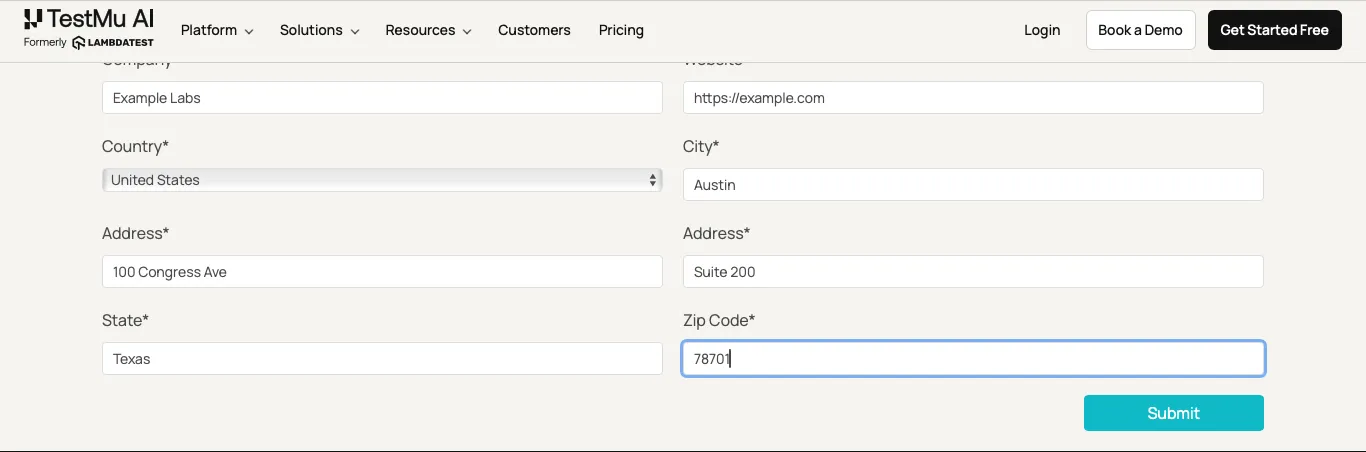
The screenshot is selenium-side-runner's own failure capture from the cloud session, cropped to the form.
The Safari Fix
Pressing Enter in a text field submits its form without a mouse click, and Selenium IDE sends that key with no code: replace the click with a sendKeys step on id=inputZip whose value is ${KEY_ENTER}. That change passed on Chrome, Edge, and Firefox, and on Safari whenever the dropdown step worked.
The dropdown was Safari's second problem. In 5 of the 12 Safari sessions that used the original select step, diagnostic runs included, Safari answered every click on the United States option with a click intercepted error until the step timed out. Typing the country into the dropdown instead selected nothing in 4 of 4 runs, and an assertSelectedLabel check caught it.
Setting the dropdown with an executeScript step passed in all 6 Safari runs, 4 in the table and 2 in re-run build 107947371, and on every other browser. The step's target holds the three statements below, exactly as printed, and this one step is where the test stops being no-code:
var s = document.querySelector("select[name=country]");
s.value = "US";
s.dispatchEvent(new Event("change", { bubbles: true }));
Note: Replay your Selenium IDE recordings on Chrome, Edge, Firefox, and Safari in parallel on the TestMu AI cloud, with a video and a command log for every session. Start testing for free
No-Code Automation Failure Modes and Fixes
Each failure below showed up in my runs or in the tools' own documentation, and each has a fix that keeps the result honest:
| Failure | What you see | Fix |
|---|---|---|
| The browser drops a click | The step reports success and the page does not change | Use a keyboard action such as Enter, and assert the result |
| A dropdown option refuses clicks | A click intercepted error until the step times out | Set the value with one script step, then assert the selected label |
| A field is renamed | The step times out while looking for the old locator | Re-record against a stable attribute, or turn on healing and review each heal |
| A login asks for a one-time code | The flow stops at the code screen | Use a staging account without MFA, or a tool that generates TOTP codes |
| A CAPTCHA or bot check appears | A challenge page instead of the form | On your own app, use test keys or allowlist test traffic; on other sites, stop |
| Content loads late | A step acts before the element is ready | Wait for the element you need, as step 15 does, instead of a fixed pause |
Renamed Fields and Recorded Alternates
Selenium IDE saves several locators for each recorded step, such as an id, a name, and a CSS selector, and Selenium IDE's site promises that "If one locator fails during playback, the others will be tried until one is successful."
The command-line runner, selenium-side-runner 4.0.13, does not do that. In the side-runtime source, the element lookup uses only the primary locator, and the fallback loop is commented out with the note "Fallback selectors are not visible or editable enough for now."
I tested it by pointing the first locator at id=full-name, an id the page does not have, while name=name and css=#name stayed in the list of alternates. The step still failed after 15 seconds:
  console.error
    Waiting for element to be located
    Wait timed out after 15040ms
TestMu AI's Auto Healing rescued a rename that happened mid-run, which I staged with a script step that changed the field's id after the first lookup. With LT:Options.autoHeal=true added to the capabilities, the next lookup for id=name came back healed as input#full-name after 1.9 seconds in the run shown below, and the test passed in 3 of 3 runs, while the same test without healing failed in 3 of 3.
These fields come from the healed lookup's entry in the session's command log; the API returns requestBody and healedLocator as JSON strings, decoded here for reading:
{
  "requestBody": {"using": "css selector", "value": "*[id=\"name\"]"},
  "duration": 1935,
  "autoHeal": true,
  "healedLocator": {"using": "css selector", "value": "input#full-name"}
}
The Auto Healing docs warn that healing "may also mask real issues," so open each healed step in the command log before you trust a green run.
Logins and One-Time Codes
A recorder cannot read a code from your phone, so a flow behind two-factor authentication stops at the code screen. KaneAI generates TOTP codes from a secret key inside the test, and Kane CLI's Ask tool pauses a run so you can type an OTP or solve a CAPTCHA yourself.
CAPTCHAs and Bot Checks
On a site you own, the fix is configuration: use your CAPTCHA provider's test keys in staging or allowlist your test traffic, as covered in how to handle CAPTCHA in Selenium. On someone else's site, treat a CAPTCHA as a signal to stop and ask for API access instead.
OWASP's automated threat entry OAT-011 Scraping gives scraping one defining characteristic, "Collect application content and/or other data for use elsewhere," and lists screen scraping and web crawlers among its other names.
CAPTCHAs and bot checks are how site owners act on that threat model, so a no-code bot that meets one has reached a barrier someone built on purpose.
No-Code vs Code for Browser Automation
Stay no-code while a flow is short, stable, and owned by the people who run it. Move to code when the automation needs software habits such as reuse, review, and real error handling.
| Need | No-code handles it with | Move to code when |
|---|---|---|
| Branches and loops | Selenium IDE's if, while, and times commands, or KaneAI's natural language If/Else and While steps | The logic needs functions, shared helpers, or data structures |
| Large data sets | CSV-driven form filling, as in UI.Vision RPA | You need fixtures, data generators, or parallel data runs |
| Review and version control | A .side project is a JSON file, so changes show up in a Git diff | The team reviews every change as code, with tests of its own |
| Browser quirks | Keyboard steps and short script steps, as in the Safari fix | Workarounds need retries, conditions, and logging |
| CI runs | selenium-side-runner exits with code 1 when a test fails | You need custom reports or test sharding |
Moving to code does not have to mean starting over. KaneAI code generation turns a natural language test into Selenium, Playwright, Cypress, WebdriverIO, or Appium code in Python, Java, C#, or JavaScript, with the languages on offer depending on the framework and the KaneAI version you use.
For the testing-only version of this decision, see the guide to no-code test automation, the comparison of code-based vs codeless test automation, and the explainer on scriptless test automation.
How to Choose a No-Code Browser Automation Tool
Work through these in order, and drop any tool that fails one:
- Name the job - data entry, scraping, cross-app workflows, testing, or one-off tasks; the tools-by-job table maps each one to a shortlist.
- List your users' browsers - an extension bot works in the browsers its extension supports, which is Chrome for Axiom.ai and Bardeen, while WebDriver-based playback also reaches Edge, Firefox, and Safari.
- Require an outcome check - the flow should end by asserting a message, a value, or a URL, because a replay without one cannot tell you that a click went nowhere.
- Break a copy on purpose - rename one field in a test page or a staging build and see whether the tool fails loudly, heals with a log entry, or passes without telling you.
- Decide where it runs - a scheduled job needs the vendor's cloud, and a CI job needs a command-line runner with exit codes, such as selenium-side-runner or Kane CLI.
- Check the way out - prefer a tool that exports code or stores steps in an open format such as a .side file, so the work survives a change of tool.
How to Automate a Browser Without Code
To automate a browser without code, pick one task you repeat every week, build it in the no-code browser automation tool that fits the job, and end it with a check on the result. Before you trust it, replay it on every browser your users have; the TestMu AI Automation Cloud runs that playback across 3,000+ browser and OS combinations.
If you would rather describe the flow than record it, follow the KaneAI getting started guide and write your first test in natural language.
Author

Harshit Paul
Blogs: 94


Harshit Paul is Director of Product Marketing at TestMu AI (formerly LambdaTest), with over 8 years of experience in product and growth marketing for developer and QA tools, leading the Agentic AI in Quality Engineering space. He has authored 80+ technical articles for TestMu AI on software testing and automation, and hosted webinars on Selenium, automation testing, browser compatibility, DevOps, and continuous testing. He has led go-to-market and technical marketing initiatives across software testing products, contributing to SEO, content strategy, and developer marketing. He began his career as a certified Salesforce developer at Wipro Technologies, where he worked for 2 years before moving into marketing. Harshit holds a degree in computer programming from Vivekananda Institute of Professional Studies.
Reviewer

Srinivasan Sekar
Reviewer
Srinivasan Sekar is Director of Engineering at TestMu AI (formerly LambdaTest), where he leads engineering and open-source initiatives behind the Selenium and Appium automation grid and owns TestMu AI's MCP Server. A committer to Appium and a contributor to Selenium, WebdriverIO, Taiko, and AppiumTestDistribution, he brings over 15 years of experience in quality engineering and open-source technologies. He is the author of the Apress book 'The MCP Standard: A Developer's Guide to Building Universal AI Tools with the Model Context Protocol,' a Certified Kubernetes and Cloud Native Associate, and an international conference speaker. Before TestMu AI he spent over eight years at Thoughtworks as a Principal Consultant and Quality Architect. Srinivasan holds a B.Tech in Information Technology from Anna University.


No-Code Browser Automation FAQs
Did you find this page helpful?
More Related Blogs
TestMu AI forEnterprise
Get access to solutions built on Enterprise
grade security, privacy, & compliance
- Advanced access controls
- Advanced data retention rules
- Advanced Local Testing
- Premium Support options
- Early access to beta features
- Private Slack Channel
- Unlimited Manual Accessibility DevTools Tests