

Power Your Software Testing with AI Agents and Cloud
The Native AI-Agentic Cloud Platform to Supercharge Quality Engineering. Test Intelligently and Ship Faster.


- TestMu AI (Formerly LambdaTest)
- /
- Blog
- /
- TestNG Reports: Default HTML, Emailable, and Jenkins
TestNG Reports: Default HTML, Emailable, and Jenkins
Generate TestNG reports in Jenkins with the TestNG Results Plugin, read the trend graph and failed tests, then share the report with your team by email.
Last Updated on:
Generating TestNG reports in Jenkins needs the TestNG Results Plugin, which turns TestNG’s XML output into a trend graph after every build. Teams that already run Selenium tests in TestNG get the same report for their Selenium test automation suite, since the plugin reads the XML that org.testng.reporters.XMLReporter writes and lists every failed test next to the passed ones. This guide covers why TestNG matters, the Results Plugin, generating and installing the report in Jenkins, sharing it by email, and how AI agents now handle report triage.
Overview
To generate TestNG reports in Jenkins, install the TestNG Results Plugin through the Jenkins plugin manager, add the 'Publish TestNG Results' post-build action to your job configuration, and specify the XML report pattern path to display graphical test trends and track failed test cases.
TestNG Default Reports
- index.html - The full report TestNG writes after every run: one page per suite with pass, fail, and skip counts, every method with its duration, and the stack trace of each failure.
- emailable-report.html - The same results in one self-contained file with inline styles, made to be attached to an email or a build notification.
- testng-results.xml - The machine-readable version that Jenkins, dashboards, and reporting libraries read; it lives in test-output or in target/surefire-reports under Maven.
How to Generate TestNG Reports in Jenkins
- TestNG Results Plugin - This Jenkins plugin integrates with your build jobs to publish XML test results, display graphical trend reports, and highlight failed test configurations.
- Publish TestNG Results - The post-build action that points the plugin at the report pattern, usually **/testng-results.xml, so every build page shows the results and the trend graph.
- Email notification - The Email Extension plugin attaches emailable-report.html to the build email, which is how the report reaches people who never open Jenkins.
TestNG Results Plugin
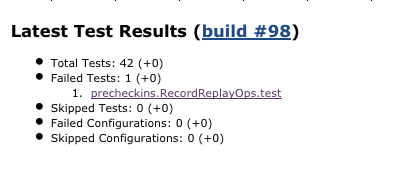
TestNG Results plugin enables you to publish the results of TestNG created using org.testng.reporters.XMLReporter.TestNG The resulting XML file contains more details than the XML file of the JUnit framework. In graph and table reports, this plugin reveals such additional information. The plugin also makes it possible to import the XML TestNG reports in Jenkins from each build.
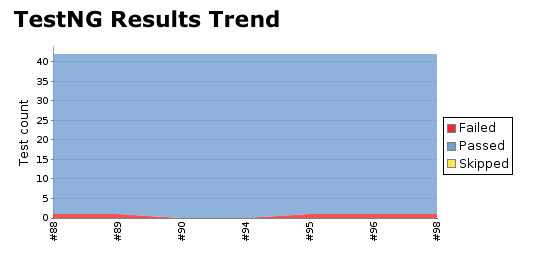
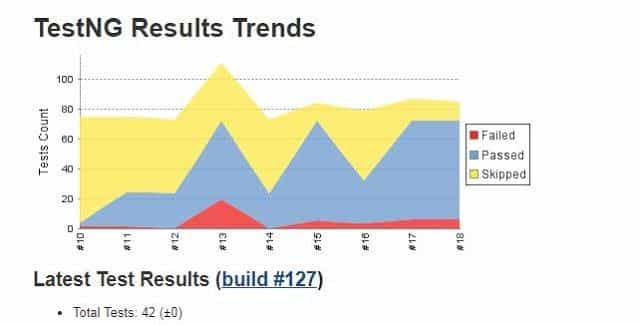
Now getting to the ‘how’ part of ‘how to generate TestNG report in Jenkins’- data is parsed using the output that org.testng.reporters.XMLReporter generates. The results are shown with a trend graph, and all the specifics of the failed tests are also presented. And that’s how TestNG reports in Jenkins look like!
Let’s find out more about a Jenkins Selenium report.
Features of TestNG Results Plugin
A Jenkins Selenium report generated using TestNG Results plugin offers the following features-
- The page layouts are intentionally designed so that they look very similar to Jenkins’s JUnit plugin. Also known for the fact JUnit inspires them.
- You will see a summary of passed/fail checks and passed/fail configuration methods on the project/build tab. To see the test failure, it also enlists the failed test cases with a direct connection.
- The test methods in the class result summary page are separated from the configuration method.
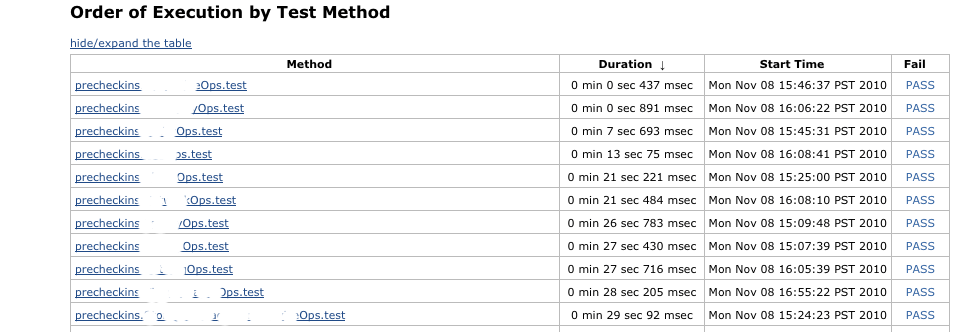
- In the Package result summary, we can see the order in which test methods were run during the regression run.
- The pass/failed pattern of previous job results will be seen in different graphs.
- Able to hide or expand tables that display package and class results.
Watch this video to learn how TestNG has become one of the most robust test automation frameworks and all you need to know to get started with TestNG in Selenium.
Utilities of TestNG Results Plugin
Using this plugin is very straightforward once you have configured your build to run TestNG-based test cases and figured out how to generate TestNG report in Jenkins. Simply trigger Publish TestNG Results in Post-Build Behavior.
This option enables the following properties to be configured:
- TestNG XML report pattern- This is a pattern for the file name that can be used to find the TestNG XML report files (for example, */target/testng-results.xml*). The path is either an Ant-style pattern (e.g., fileset) or a list of files and folders separated by the characters’;:,’. It is also vital that TestNG be configured to generate an XML Jenkins Selenium report using _org.testng.reporters. This is to ensure XMLReporter for this plugin functions properly.
- The Escape Test Description string- If checked, while displaying test method results, the plugin escapes the description string that is associated with the test method. Unchecking allows us to use HTML tags to format the description, which is enabled by default.
- The Escape exception messages- If checked, the plugin escapes the test method’s exception messages. Unchecking allows you to use HTML tags to format the exception message, e.g., embed links in the text. This is enabled by default.
- Show Failed Builds- If selected, the plugin includes results from the failed builds in the trend graph. This is disabled by default.
- In case this is a maven build, it is always better to configure the build step with -Dmaven.test.failure.ignore=true option. This results in the build with test failures being marked as Unstable, thus distinguishing it from the build that failed because of issues not related to the tests.
- Also, even when this option is selected, failed builds with no results and aborted builds will not be displayed in graphs.
- Marking the build as a failure on a failed configuration- This marks the build as failed if there are any configuration method failures.
- Configuring thresholds for marking the build as Unstable/Failed- A Threshold Mode can be configured by the user as a number of tests or a percentage of tests and then configured separately for these values. Even if there are several test failures or label the build as failed, even if there is a single test method failure, this allows for situations where we want the builds to be marked successful.
9 Of The Best Reporting Tools For Selenium

TestNG Default Reports: index.html and emailable-report.html
Before Jenkins enters the picture, TestNG already writes three reports after every run, into test-output when you run from the IDE or the TestNG command line, and into target/surefire-reports when Maven Surefire runs the suite:
- index.html is the full report: one page per suite with the pass, fail, and skip counts, every test method with its duration and stack trace on failure, the Reporter.log output, and the testng.xml that ran.
- emailable-report.html is the same data in a single self-contained file with inline styles, made to be attached to an email or posted in a chat channel.
- testng-results.xml is the machine-readable version. CI servers, dashboards, and the Jenkins plugin below read this file, not the HTML.
These are enough for a developer reading results on their own machine. Jenkins adds what they lack: history across builds, trend graphs, and a link on every build page, which is what the rest of this chapter sets up.
Custom TestNG Reports With ExtentReports and Allure
The default reports answer what passed, not what happened. When a failure needs a screenshot, a step-by-step log, or a trend across runs, teams plug a reporting library into the TestNG listener API. Two libraries cover almost every team.
ExtentReports builds a single HTML dashboard with per-test logs, categories, and attached screenshots. Add the dependency, then write a listener that opens a test entry when a method starts and records the outcome when it ends. The TestNG listeners chapter explains the ITestListener interface the class below implements:
<dependency>
    <groupId>com.aventstack</groupId>
    <artifactId>extentreports</artifactId>
    <version>5.1.2</version>
</dependency>
import com.aventstack.extentreports.ExtentReports;
import com.aventstack.extentreports.ExtentTest;
import com.aventstack.extentreports.reporter.ExtentSparkReporter;
import org.testng.ITestContext;
import org.testng.ITestListener;
import org.testng.ITestResult;

public class ExtentListener implements ITestListener {
    private static final ExtentReports extent = new ExtentReports();
    private static final ThreadLocal<ExtentTest> test = new ThreadLocal<>();

    @Override
    public void onStart(ITestContext context) {
        extent.attachReporter(new ExtentSparkReporter("test-output/extent-report.html"));
    }

    @Override
    public void onTestStart(ITestResult result) {
        test.set(extent.createTest(result.getMethod().getMethodName()));
    }

    @Override
    public void onTestSuccess(ITestResult result) {
        test.get().pass("Passed");
    }

    @Override
    public void onTestFailure(ITestResult result) {
        test.get().fail(result.getThrowable());
    }

    @Override
    public void onTestSkipped(ITestResult result) {
        test.get().skip(result.getThrowable());
    }

    @Override
    public void onFinish(ITestContext context) {
        extent.flush();
    }
}
Register the listener once, either with @Listeners(ExtentListener.class) on a test class or with a listeners block in testng.xml, and every run writes test-output/extent-report.html next to the default reports.
Allure takes the other approach: a small adapter records results as JSON while the suite runs, and a separate command turns them into an interactive site with history, retries, and per-step timing. Add the allure-testng dependency, run the suite, then generate the report:
# pom.xml: io.qameta.allure:allure-testng:3.0.0 (test scope)
mvn test
allure serve target/allure-results
Both libraries have Jenkins plugins that archive and display the report per build, so the Jenkins steps in the rest of this chapter apply to them as well as to the TestNG Results plugin.
How to Generate TestNG Reports in Jenkins?
Now let us see how to generate TestNG Report in Jenkins. To be able to do this, you need to have all the required tools in your system.
Prerequisites-
- TestNG Project
- Jenkins – You can check Jenkins installation here.
- TestNG Results Plugin in Jenkins
Once you have all this installed, we can get started with a TestNG Project.
The Jenkins job needs a TestNG project that writes testng-results.xml on every run. The Create TestNG Project chapter sets one up in Eclipse, and the TestNG Maven dependency chapter adds the Surefire plugin that Jenkins invokes with mvn test.
Installing TestNG Reports Plugin In Jenkins
The next and the most crucial step to know how to generate TestNG report in Jenkins is to install the TestNG Reports plugin. To install the plugin in Jenkins, follow these steps-
- Open Jenkins (localhost:8080).
- Click on ‘Manage Jenkins‘ → Click on ‘Manage Plugins‘
- Click on ‘Available‘ tab
- Select ‘TestNG Results Plugin‘
- Click on ‘Install Without Restart‘
- Open the ‘TestNGProject’ Job created earlier.
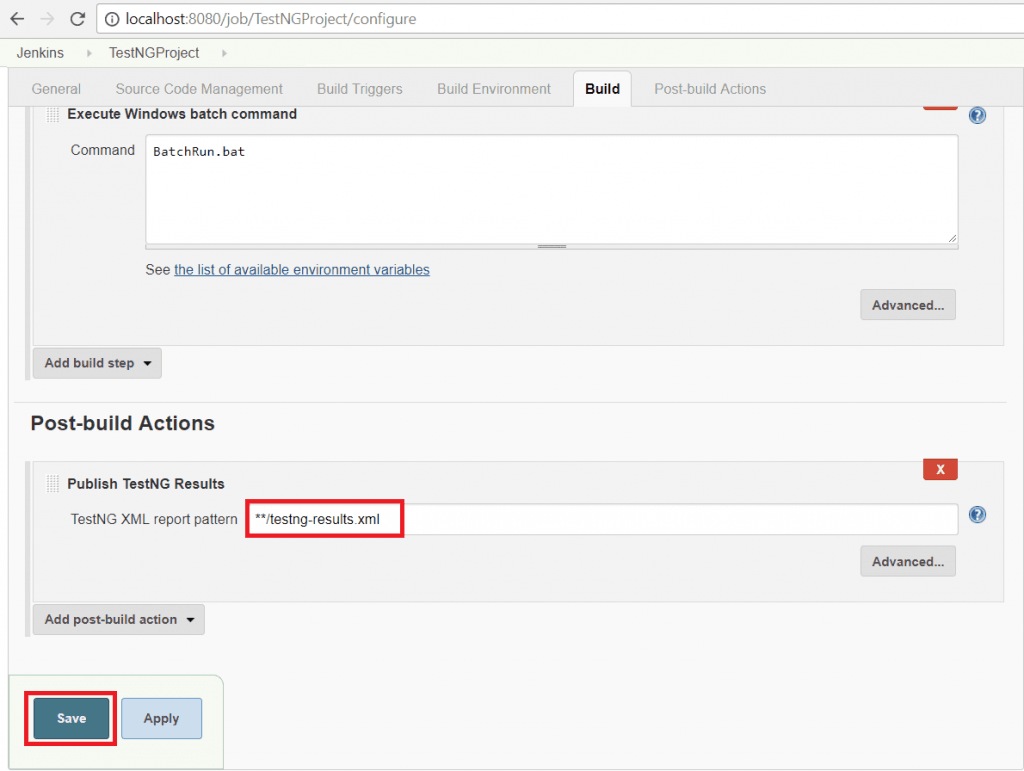
- Click on ‘Configure’ and scroll down to select ‘Post Build Actions’
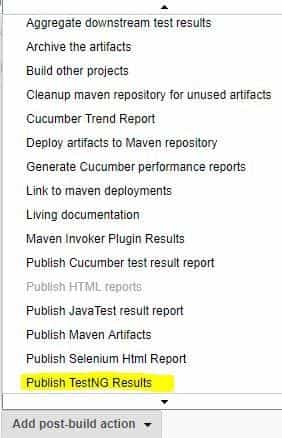
- Click on ‘Add Post Build Actions’ dropdown list.
- And select ‘Publish TestNG Results‘.
- In the TestNG XML Report Pattern edit box enter ‘**/testng-results.xml‘ and click ‘Save‘
- We have already created a new project ‘TestNGProject ‘to run TestNG Tests and generate TestNG Reports after execution using Jenkins.
- Click on the ‘Build Now‘ button to execute it. This will invoke testng.xml from the batch file.
- Right-click on Build Number and click on Console Output to see the result.
- Once the execution is completed, there will be a link to view ‘TestNG Results’
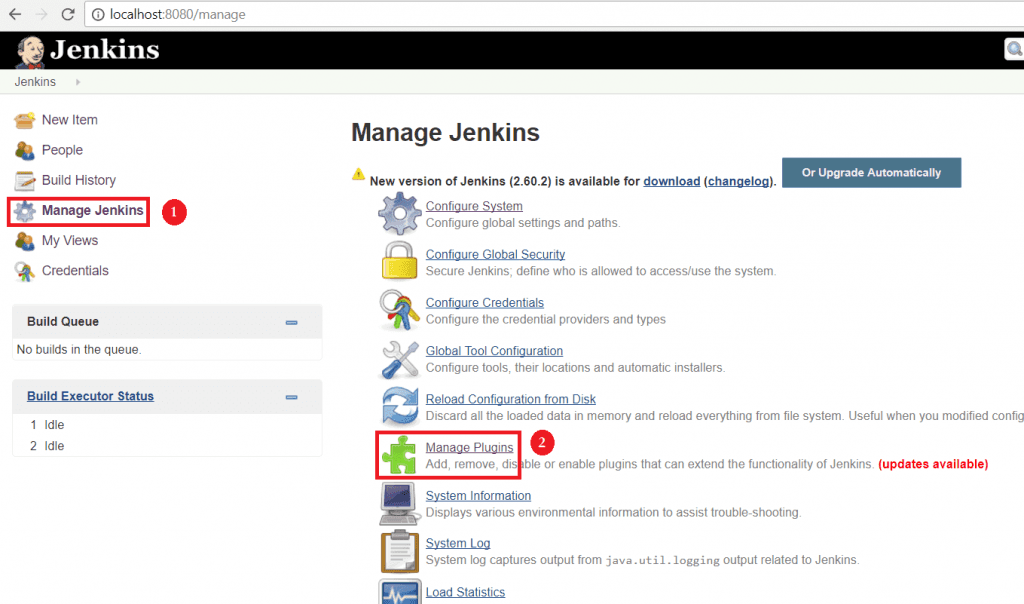
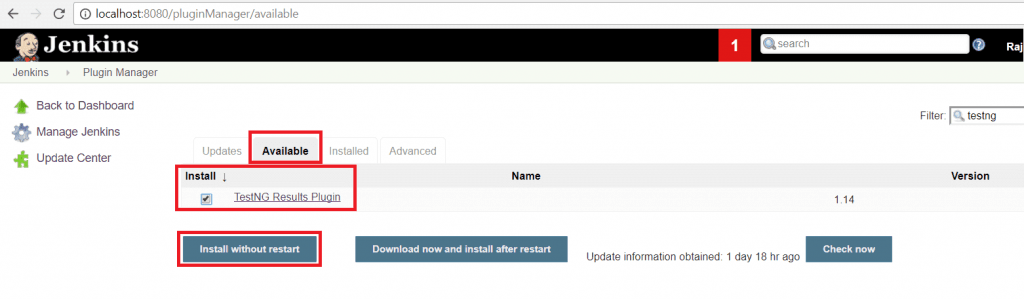
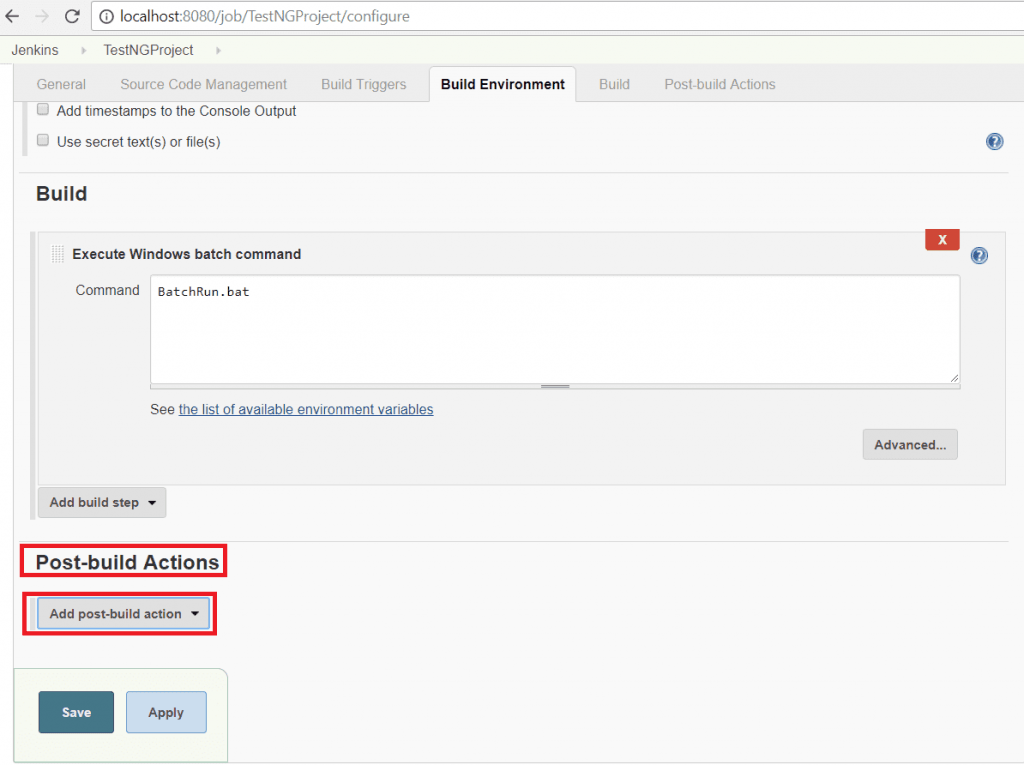
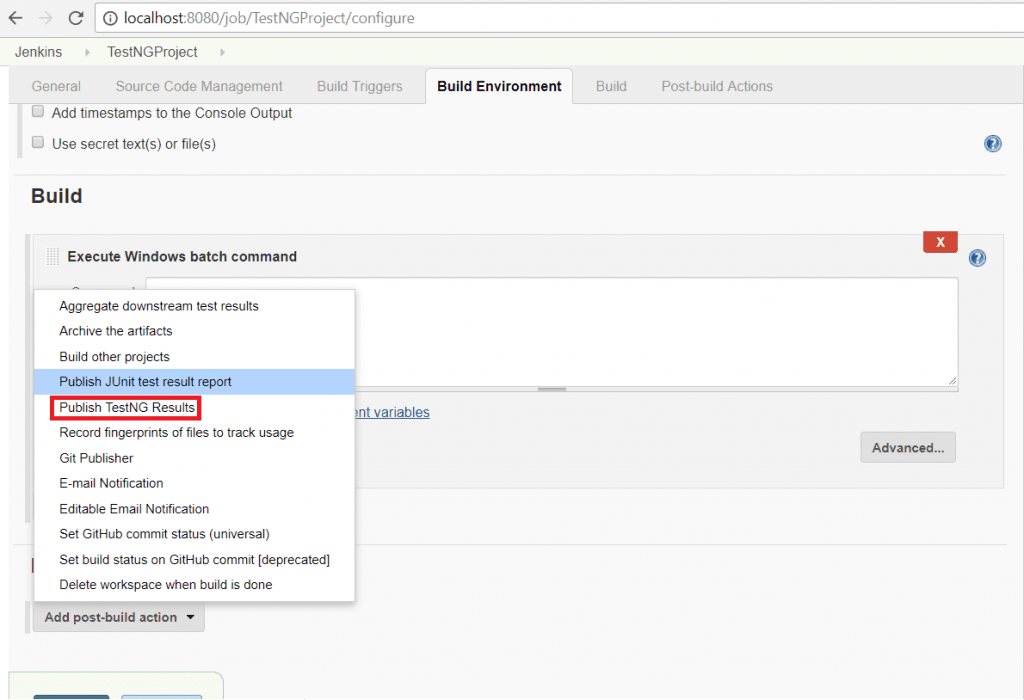
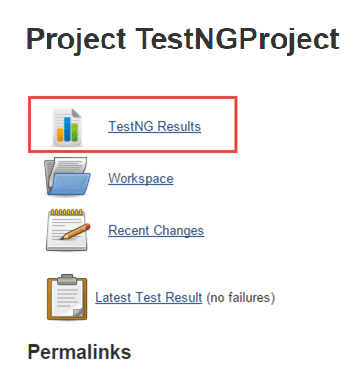
There you go- that’s how to generate TestNG Report in Jenkins!
Alternative Method To Generate TestNG Reports in Jenkins
There’s another way to set up the TestNG reports in Jenkins Dashboard.
- Login into Jenkins.
- Manage Jenkins and Install TestNG Result Plugin.
- Please make sure that you restart Jenkins after the plugin installation.
- Next, go to Jenkins Home Page → Create New Jenkins Job and in Post-Build Action select → Publish TestNg Result.
- Now either give the complete path of your testng-result.xml or type **/testng-results.xml in TestNG XML report pattern to search inside your project workspace.
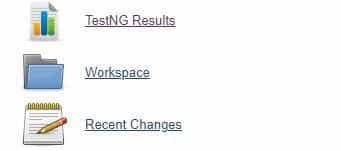
- Execute your Jenkins Job, and Now your Jenkins Selenium report or ‘TestNG Results’ would be visible in Your Jenkins Dashboard.


How to Share TestNG Reports in Jenkins?
In the sections above, we saw how to generate TestNG report in Jenkins or Jenkins Selenium report, as some like to call them. Once you have generated those TestNG reports in Jenkins, what would you like to do with them? The ultimate goal of generating a Jenkins Selenium report is to share them!
There is a possibility to send those email notifications directly from Jenkins along with the generated TestNG reports. In this section, we will learn how to email the generated Jenkins Selenium report to team members, leads or even managers.
Let’s see how we can accomplish this-
- Start ‘jenkins.war’ file to get started with Jenkins ( Assuming it is already installed ).
- Open Jenkins (
http://localhost:8080). - We would need a required set of Plugins before we start:
- Email Extension
- Email Extension Template Plugin
- TestNG Results
- Selenium HTML Report
- Configuration for Sending Email
- Go to Jenkins –> Manage Jenkins –> Configure System –> Email Notification
- Enter the email id in the “SMTP Server” edit field. For e.g. “smtp.gmail.com”
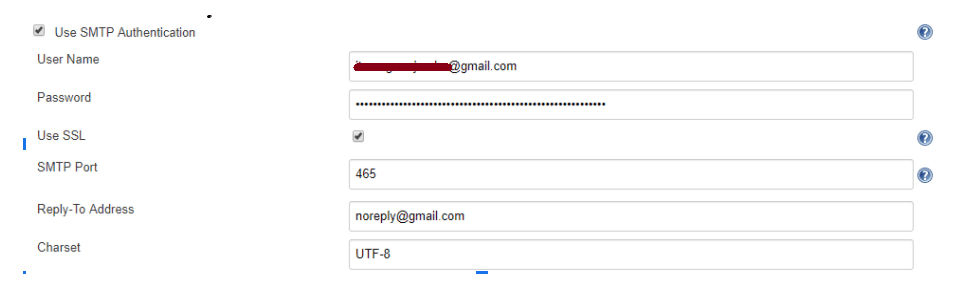
- Click on “Advanced” and configure as shown in the below image.
- Username and password need to be provided for the account from where we want to send the email notification( You can either use your corporate Email or personal based on situations).
- It is always better for testing purposes to check the “Test configuration by sending test email” checkbox to validate whether Email was sent successfully or not.
- Enter the recipient’s email address and click on “Test Configuration” button.
- If we can see the “Email was successfully sent” message, then it can be confirmed that the configuration is correct.
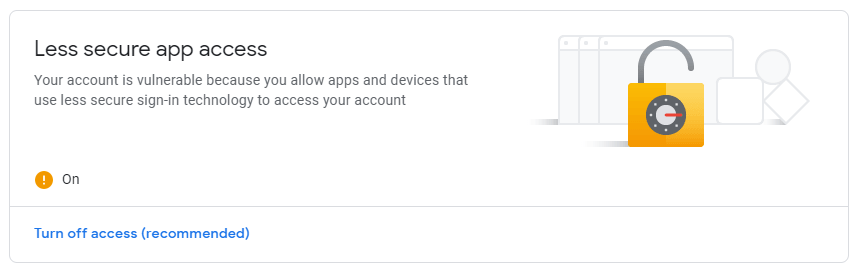
- If we see any error message, it could be either because the configuration is incorrect or security access issues. Follow the below steps to enable “Less secure app access.”
- Navigate to https://myaccount.google.com/
- Click on “Security“
- Go to the “Less secure app access” section and switch it on.


Yay! You are all set to send the email notification for TestNG reports in Jenkins!!
Now it’s time to test this.
- Go to Jenkins Dashboard
- Create a new Job.
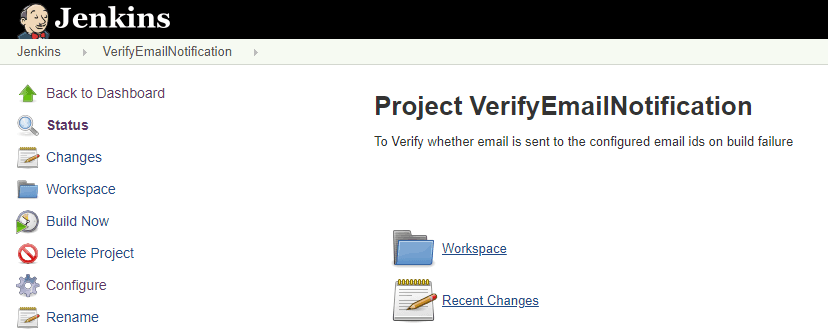
- Let us create a new project named “VerifyEmailNotification”.
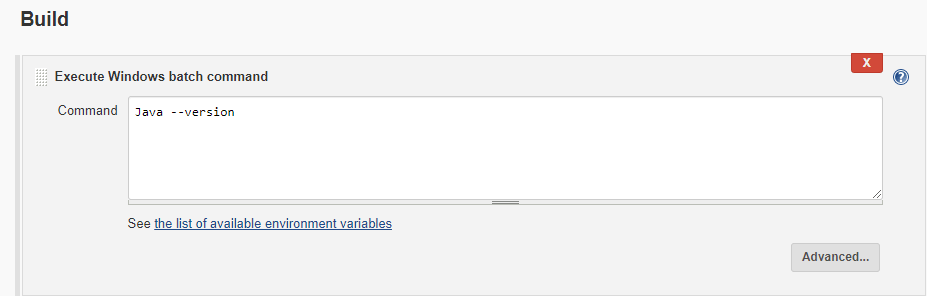
Give the Project Description and select ‘Execute Batch Command’ from the Build drop-down and enter any invalid commands as shown in the image below, as each unstable build will receive an email. (Then only email alerts will be sent if the build fails).
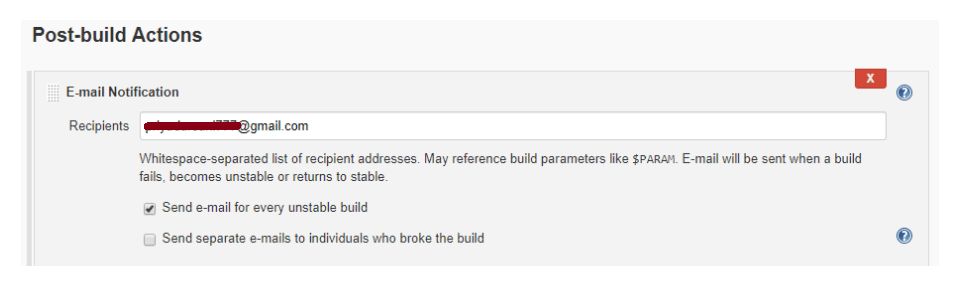
- Select “Email Notification” from “Post-build Actions” and add the email address of the recipient and check “Send email for every unstable build” as shown in the image below.
- Click on “Save.”
- Now click on “Build Now” to start the execution.
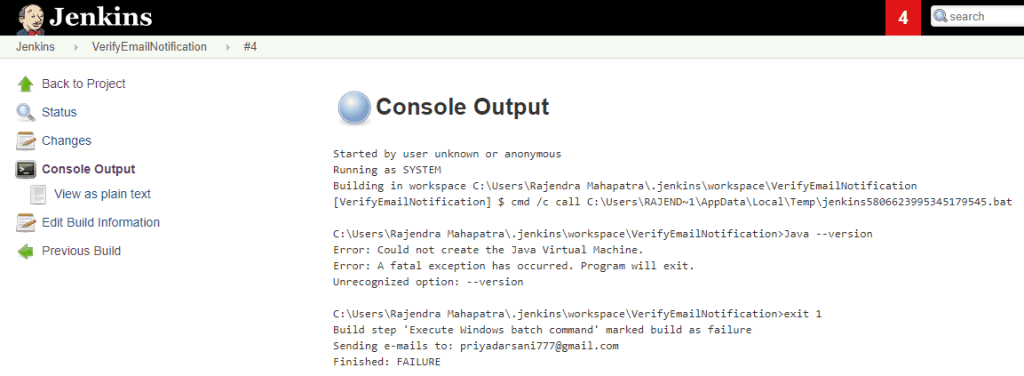
- Go to “Console Output” to verify the result.
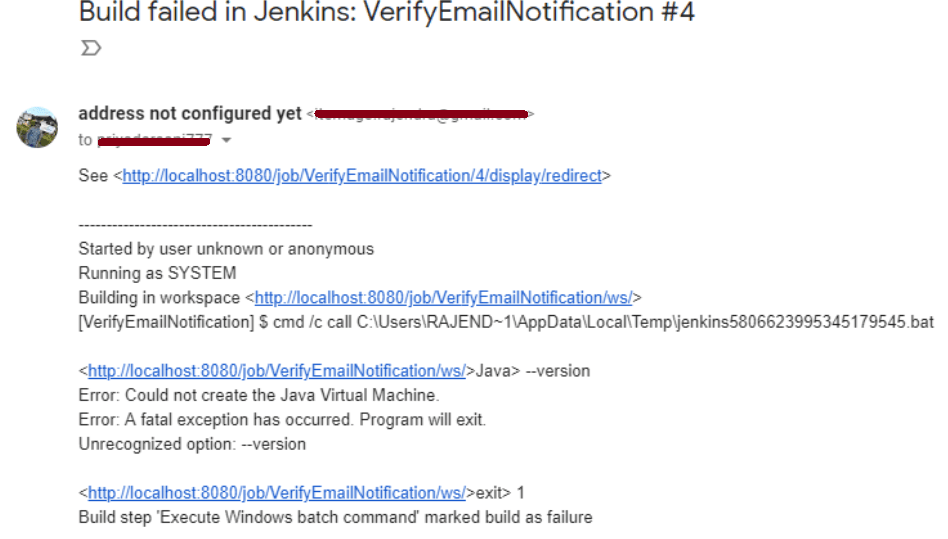
- Validate the recipient’s mail to confirm if the email was sent from Jenkins.
Now that we are confident our email notifications are working, let us configure Jenkins to attach a TestNG Report in the Email.
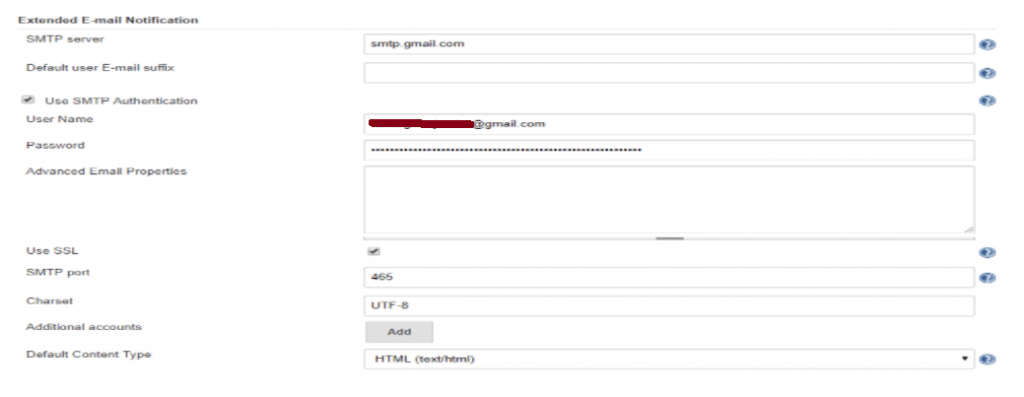
- Go to Jenkins –> Manage Jenkins –> Configure System –> Extended Email Notification
- Enter “smtp.gmail.com” in the “SMTP Server” edit field NOTE: Here, Gmail is taken just as an example.
- Next, click on “Advanced” and fill in the details as shown below.
- Click on “Save.”
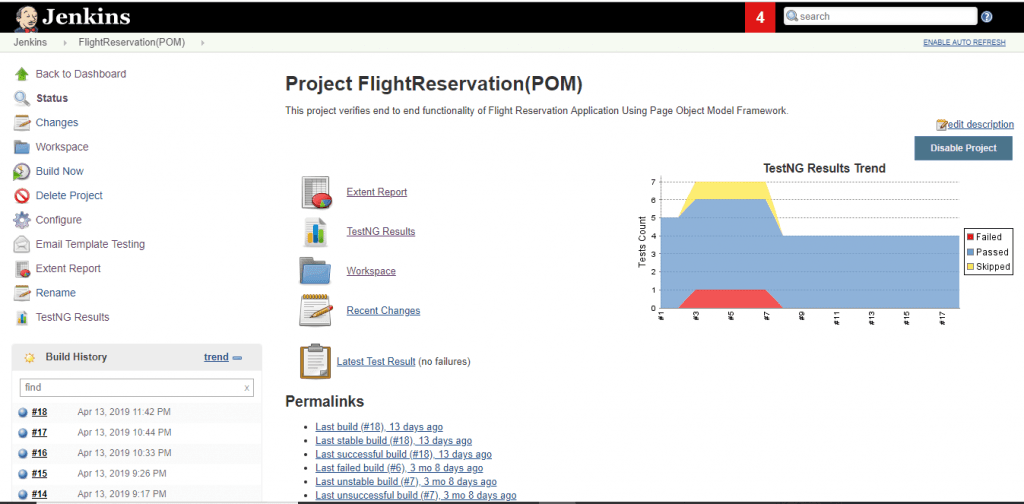
- Go to Jenkins dashboard and create either a new project, or you can choose an existing project. Here we have an existing project [Flight Reservation (POM)]
- Click on Configure on the left-hand side.
- Select “Editable Email Notification” from “Post-build Actions”
- Click on “Advanced Settings”
- Select “Always” from the “Add Trigger” dropdown.
- Click on “Advanced” and fill in the details as shown below.
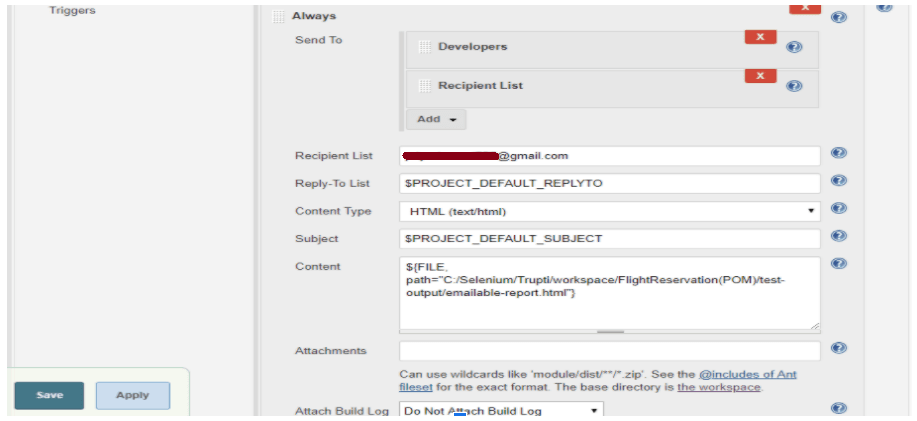
- Mention the path of emailable-report.html of TestNG in the Content edit field.
- Click on “Save.”
- Next, click on “Build Now” to start the execution of the job.
- Navigate to “Console Output” to check the result.
- Validate your recipient mail to see the Test Execution report.
- Mention the path of emailable-report.html of TestNG in the Content edit field.
- Click on “Save.”
- Next, click on “Build Now” to start the execution of the job.
- Navigate to “Console Output” to check the result.
- Validate your recipient mail to see the Test Execution report.
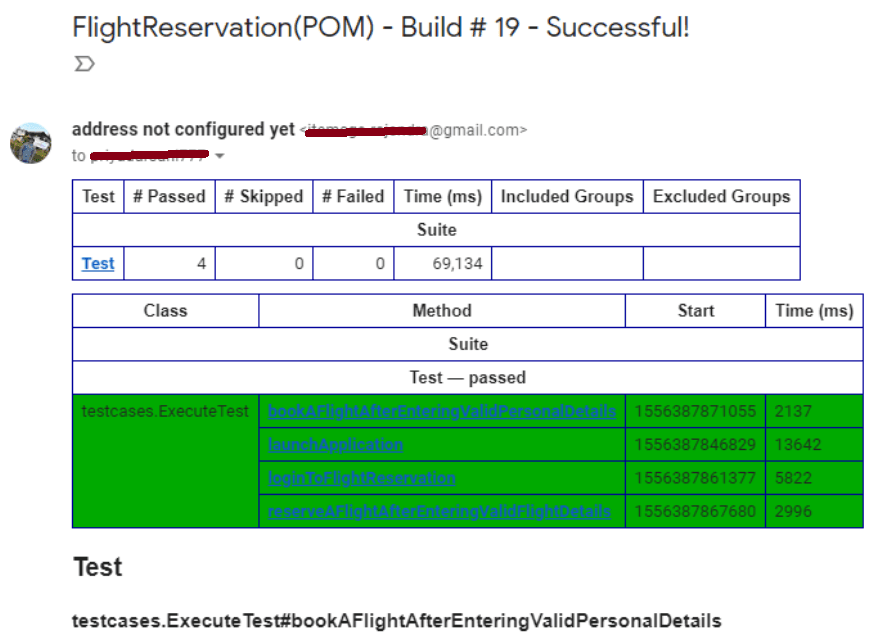
And here you go. Now you are ready to generate TestNG reports in Jenkins & share those Jenkins Selenium reports!

How Do AI Agents Change TestNG Report Analysis in Jenkins?
AI agents can now read a Jenkins build's TestNG XML report directly, summarize failures in plain language, and flag flaky tests before a human opens the trend graph.
- MCP-connected report reading: a Model Context Protocol server lets a coding agent such as Claude Code query the testng-results.xml file this plugin publishes and summarize which tests failed and why, without a tester opening the Jenkins dashboard.
- Automatic failure triage: an LLM-based agent can read the stack trace behind each failed test in the TestNG Results plugin's report and group failures by root cause instead of a tester scanning every row of the trend graph by hand.
- Flaky-test detection from trend history: agents that read the pass/fail history the Results Plugin graphs across builds can flag a test that fails intermittently as flaky rather than broken, before it blocks a release.
- Agent-drafted email summaries: instead of a raw HTML report, an agent can turn the emailable-report.html this pipeline generates into a short plain-language summary for the email notification configured earlier in this section.
Wrapping Up
I hope this blog has helped you take report generation and sharing one step ahead. Now you not only know how to generate TestNG report in Jenkins, but you have also learned how to share those TestNG reports in Jenkins via Email. It’s time to elevate Jenkins & TestNG’s functioning by sending out the email notification with your very next Jenkins Selenium report. If you’re looking to enhance your TestNG skills further, check out our comprehensive TestNG interview questions answers guide here. Let me know how it goes in the comments section below.
Happy testing!

Author

Piyusha Podutwar
Blogs: 4


Piyusha Podutwar is a Senior Software Engineer at DPS with over 12 years of experience in mainframe application and system programming. She has authored 20+ technical tutorials for TestMu AI on API testing, Agile, DevOps automation, software testing, automation testing, and digital transformation. She is skilled in Assembler, COBOL, DB2, and JCL, and has led large-scale modernization and migration projects across banking, finance, retail, and insurance domains. A Certified Scrum Master, Piyusha previously worked with IBM, TCS, BMC Software, and T-Systems.
TestNG Reports in Jenkins FAQs
Did you find this page helpful?
More Related Blogs
TestMu AI forEnterprise
Get access to solutions built on Enterprise
grade security, privacy, & compliance
- Advanced access controls
- Advanced data retention rules
- Advanced Local Testing
- Premium Support options
- Early access to beta features
- Private Slack Channel
- Unlimited Manual Accessibility DevTools Tests