

Power Your Software Testing with AI Agents and Cloud
The Native AI-Agentic Cloud Platform to Supercharge Quality Engineering. Test Intelligently and Ship Faster.


- TestMu AI (Formerly LambdaTest)
- /
- Blog
- /
- How to group test cases in TestNG [with Examples]
How To Group Test Cases In TestNG [with Examples]
Learn how groups in TestNG let you run smoke, regression, or specific tests on demand, with examples for @BeforeGroups, dependsOnGroups, and the command line.
Last Updated on:
TestNG is an open-source automation testing framework inspired by JUnit and NUnit. The framework supports data-driven testing, parallel test execution, testing integrated classes, provides access to HTML reports, amongst others.
TestNG can be seamlessly integrated with Jenkins, Eclipse, IntelliJ IDEA, Maven, etc.
TestNG Annotations are useful for controlling the test methods’ execution flow and running multiple tests in Parallel. Parameterized TestNG tests with Selenium WebDriver are handy for running test(s) against different browser and platform combinations.
As a part of our TestNG tutorial series, we look at how to group test cases in TestNG. The usage of groups in TestNG is demonstrated with relevant TestNG group examples. If you are preparing for an interview you can learn more through TestNG interview questions.
Overview
To group test cases, annotate test methods using TestNG to define logical suites like smoke or regression tests. You can then run these grouped tests in parallel across 3,000+ browser and OS combinations using the TestMu AI cloud-based Selenium Grid.
- TestNG groups: The framework lets you label test methods with the groups attribute to run related tests like smoke or regression together without code changes.
- testng.xml configuration: This file lets you include or exclude specific groups using run tags, allowing you to temporarily skip broken tests or target specific suites during execution.
- Parallel cloud execution: TestMu AI executes your grouped TestNG tests in parallel across 3,000+ browser and OS combinations, accelerating test cycles on its test automation cloud.
What Are TestNG Groups?
In TestNG, groups allow for the logical grouping of test methods. This feature enables selective test execution and better organization, especially in large test suites.
By defining groups in the test code, users can easily include or exclude specific groups during the test run, facilitating targeted testing and efficient management of test cases.
Consider a scenario where the test suite comprises different test types, e.g., unit test, integration test, smoke test, etc. Instead of adding all the test scenarios in a single test suite (or multiple test suites), you can perform ‘grouping’ test methods.
This helps in segregating the test scenarios into different test categories - test type (e.g., smoke, functional, etc.), functionality being tested (login, checkout, etc.), and test combinations (e.g., browser set to Chrome, Firefox on Windows 11, etc.).
The sophisticated groupings of test methods through TestNG groups are used for:
- Declaring methods that belong to groups.
- Specifying groups that contain other groups.
- Running tests within the same group or multiple groups.
- Including (or excluding) tests in a group.
- Including a certain set of groups (or regular expressions) while excluding another group
- Running tests that depend on the other tests and avoiding unnecessary test execution if the dependent test has failed.
Advantages of TestNG Groups
Here are some of the major advantages of groups in TestNG:
- Flexibility to partition tests, thereby reducing the efforts involved in the maintenance of the tests.
- Avoids the need to recompile the code if two different sets of tests are run back to back.
TestNG groups can also be used for running tests in Parallel at the ‘Test’ level or ‘Method’ level. In further sections of this ‘How to group test cases in TestNG’ tutorial, we would demonstrate parallel testing in TestNG and Selenium using Test Groups.

Austin Siewert
Co-Founder, Steadfast Systems
Discovered @TestMu AI yesterday. Best browser testing tool I've found for my use case. Great pricing model for the limited testing I do 👏
2M+ Devs and QAs rely on TestMu AI
Deliver immersive digital experiences with Next-Generation Mobile Apps and Cross Browser Testing Cloud

With TestNG certification, you can challenge your skills in performing automated testing with TestNG and take your career to the next level.
Here’s a short glimpse of the TestNG certification from TestMu AI:

How to group test cases in TestNG?
Groups in TestNG are specified in testng.xml under the <suite> or <test> tag. Groups under the <suite> tag apply to all the tests included under the <test> tag in that particular <suite>.
To group tests in the source code, you have to use the groups attribute of the @Test annotation.
TestNG provides the option to structure the test such that the entire test class belongs to a particular TestNG group or a couple of methods belong to the TestNG group. Also, test methods can belong to one or more TestNG groups.
Let’s take a simple example where the test code has three test methods (test_method1, test_method2, and test_method3). We create two TestNG groups - group1 and group2.
Here is how to group test cases in TestNG. As shown below, test_method1() is part of both the groups and test_method2() & test_method3() are a part of the group2 & group1 respectively.
public class Test1
{
  @Test(groups = { "group1", "group2" })
  public void test_method1()
  {
    //Test implementation
  }

  @Test(groups = {"group2"} )
  public void test_method2()
  {
    //Test implementation
  }

  @Test(groups = {"group1"})
  public void test_method3()
  {
    //Test implementation
  }
}
The TestNG groups are invoked in testng.xml:
<?xml version="1.0" encoding="UTF-8"?>
<!DOCTYPE suite SYSTEM "http://testng.org/testng-1.0.dtd">
<suite name="TestNG Group Test">
    <test verbose="2" preserve-order="true">
        <groups>
            <run>
              <include name = "group1"></include>
              <include name = "group2"></include>
            </run>
        </groups>
        <classes>
            <class name="example1.Test1"></class>
        </classes>
    </test>
</suite>
As seen in testng.xml, the groups are included under the <group> tag. As we want to run the tests included under both the groups (group1 and group2), we include the required group names under the <run> tag.
<groups>
   <run>
	<include name = "group1"></include>
	<include name = "group2"></include>
   </run>
</groups>
Demonstration: How to use TestNG Groups
To demonstrate running Selenium tests in TestNG within the same groups, within multiple groups, including (and excluding) test methods, etc., we use the cross browser testing scenarios that will be executed on the cloud-based Selenium Grid by TestMu AI.
- Test Group - 1 (GroupName - Search)
Test Scenario - 1 [OS - Windows 11, Browser - Chrome, Version - Latest]
- Go to Google.
- Enter the search string as ‘TestMu AI.’
- Assert if the page title does not match the expected title.
Test Scenario - 2 [OS - macOS Sequoia, Browser - Safari, Version - 18.0]
- Go to Bing.
- Enter the search string as ‘TestMu AI Blog.’
- Assert if the page title does not match the expected title.
- Test Group - 2 (GroupName - ToDo)
Test Scenario - 1 [OS - Windows 11, Browser - Firefox, Version - latest]
- Go to the sample ToDo app.
- Mark the First Item (li1) as Done.
- Mark the Second Item (li2) as Done.
Test Scenario - 2 [OS - macOS Sequoia, Browser - Safari, Version - 18.0]
- Go to the sample ToDo app.
- Mark the First Item (li1) as Done.
- Mark the Second Item (li2) as Done.
- Mark the Third Item (li3) as Done.
Here is the overall project structure which we created in IntelliJ IDEA IDE:
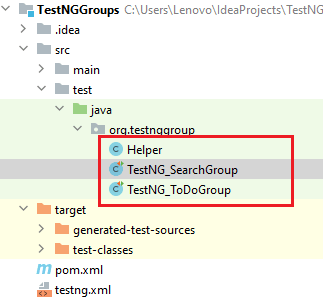
In the TestNGGroups project, we create a package named org.testnggroup, where we create the following class files (that contain the implementation of the relevant test scenarios):
(Implementation of Test Scenarios in ‘Test Group 1’)
package org.testnggroup;
import org.openqa.selenium.*;
import org.testng.Assert;
import org.testng.IExecutionListener;
import org.testng.annotations.Test;
import java.net.MalformedURLException;

public class TestNG_SearchGroup extends Helper implements IExecutionListener
{
    public static String status = "passed";

    @Override
    public void onExecutionStart()
    {
        System.out.println("onExecutionStart");
    }

   @Test (priority = 1, groups = { "Search" })
    public void test_GoogleSearch() throws InterruptedException, MalformedURLException
    {
        String search_string =" LambdaTest";
        String exp_title = "Most Powerful Cross Browser Testing Tool Online | LambdaTest";

        setupThread("test_GoogleSearch", "test_GoogleSearch",
                "Windows 11", "Chrome", "latest");
        WebDriver webdriver = getDriver();
        webdriver.navigate().to("https://www.google.com");
        webdriver.manage().window().maximize();
        System.out.println("Started session");

        try {
            /* Enter the search term in the Google Search Box */
            WebElement search_box = webdriver.findElement(By.xpath("//input[@name='q']"));
            search_box.sendKeys(search_string);

            search_box.submit();
            Thread.sleep(3000);

            /* Click on the first result which will open up the LambdaTest homepage */
            WebElement lt_link = webdriver.findElement(By.xpath("//span[.='LambdaTest: Most Powerful Cross Browser Testing Tool Online']"));
            lt_link.click();
            Thread.sleep(5000);

            String curr_window_title = webdriver.getTitle();
            Assert.assertEquals(curr_window_title, exp_title);
            status = "passed";
        } catch (Exception e) {
            System.out.println(e.getMessage());
        }
        if (webdriver != null)
        {
            ((JavascriptExecutor) webdriver).executeScript("lambda-status="+status+"");
            webdriver.quit();
        }
    }

    @Test (priority = 2, groups = { "Search" })
    public void test_BingSearch() throws InterruptedException, MalformedURLException {
        String search_string ="LambdaTest Blog";
        String exp_title = "LambdaTest | A Cross Browser Testing Blog";

        setupThread("test_BingSearch", "test_BingSearch", "macOS Sequoia",
                "Safari", "18.0");
        WebDriver webdriver = getDriver();
        webdriver.navigate().to("https://www.bing.com");
        webdriver.manage().window().maximize();
        System.out.println("Started session");

        try {
            /* Enter the search term in the Google Search Box */
            WebElement search_box = webdriver.findElement(By.xpath("//input[@id='sb_form_q']"));
            search_box.sendKeys(search_string + Keys.ENTER);
            Thread.sleep(3000);

            /* Click on the first result which will open up the LambdaTest homepage */
            WebElement lt_link = webdriver.findElement(By.xpath("//a[.='LambdaTest | A Cross Browser Testing Blog']"));
            lt_link.click();
            Thread.sleep(5000);

            String curr_window_title = webdriver.getTitle();
            Assert.assertEquals(curr_window_title, exp_title);
            status = "passed";
        } catch (Exception e) {
            System.out.println(e.getMessage());
        }
        if (webdriver != null)
        {
            ((JavascriptExecutor) webdriver).executeScript("lambda-status="+status+"");
            webdriver.quit();
        }
    }

    @Override
    public void onExecutionFinish()
    {
        System.out.println("onExecutionFinish");
    }
}
(Implementation of Test Scenarios in ‘Test Group 2’)
package org.testnggroup;
import org.openqa.selenium.*;
import org.testng.IExecutionListener;
import org.testng.annotations.Test;
import java.net.MalformedURLException;

public class TestNG_ToDoGroup extends Helper implements IExecutionListener {
    /* WebDriver driver; */
    /* private ThreadLocal<RemoteWebDriver> driver = new ThreadLocal<>(); */
    public static String status = "passed";

    @Override
    public void onExecutionStart()
    {
        System.out.println("onExecutionStart");
    }

    @Test (priority = 1, groups = { "ToDo" })
    public void test_Selenium4_ToDoApp_Test1() throws InterruptedException, MalformedURLException
    {
        setupThread("test_Selenium4_ToDoApp_Test1", "test_Selenium4_ToDoApp_Test1",
                "Windows 11", "Firefox", "latest");
        WebDriver webdriver = getDriver();
        webdriver.navigate().to("https://lambdatest.github.io/sample-todo-app/");
        webdriver.manage().window().maximize();
        System.out.println("Started session");
        Thread.sleep(5000);

        try
        {
            /* Let's mark done first two items in the list. */
            webdriver.findElement(By.name("li1")).click();
            webdriver.findElement(By.name("li2")).click();

            /* Let's add an item in the list. */
            webdriver.findElement(By.id("sampletodotext")).sendKeys("Happy Testing at LambdaTest");
            webdriver.findElement(By.id("addbutton")).click();

            /* Let's check that the item we added is added in the list. */
            String enteredText = webdriver.findElement(By.xpath("/html/body/div/div/div/ul/li[6]/span")).getText();
            if (enteredText.equals("Happy Testing at LambdaTest")) {
                System.out.println("Demonstration is complete");
                status = "passed";
            }
        }
        catch (Exception e)
        {
            System.out.println(e.getMessage());
        }
        if (webdriver != null)
        {
            ((JavascriptExecutor) webdriver).executeScript("lambda-status="+status+"");
            webdriver.quit();
        }
    }

    @Test (priority = 2, groups = { "ToDo" })
    public void test_Selenium4_ToDoApp_Test2() throws InterruptedException, MalformedURLException {
        setupThread("test_Selenium4_ToDoApp_Test2", "test_Selenium4_ToDoApp_Test2",
                "macOS Sequoia", "MicrosoftEdge", "latest");
        WebDriver webdriver = getDriver();
        webdriver.navigate().to("https://lambdatest.github.io/sample-todo-app/");
        webdriver.manage().window().maximize();
        System.out.println("Started session");
        Thread.sleep(5000);

        try
        {
            /* Let's mark done first three items in the list. */
            webdriver.findElement(By.name("li1")).click();
            webdriver.findElement(By.name("li2")).click();
            webdriver.findElement(By.name("li3")).click();
        }
        catch (Exception e)
        {
            System.out.println(e.getMessage());
        }
        status = "passed";
        if (webdriver != null)
        {
            ((JavascriptExecutor) webdriver).executeScript("lambda-status="+status+"");
            webdriver.quit();
        }
    }

    @Override
    public void onExecutionFinish()
    {
        System.out.println("onExecutionFinish");
    }
}
(Implementation of Helper Functions for creating an instance of RemoteWebDriver)
package org.testnggroup;

import java.net.MalformedURLException;
import java.net.URL;
import org.openqa.selenium.WebDriver;
import org.openqa.selenium.remote.DesiredCapabilities;
import org.openqa.selenium.remote.RemoteWebDriver;

public class Helper {
    protected static ThreadLocal<RemoteWebDriver> driver = new ThreadLocal<>();
    public static String username = "user-name";
    public static String access_key = "access-key";

    public void setupThread (String build, String name, String platformName,
                       String browserName, String browserVersion) throws MalformedURLException
    {
        DesiredCapabilities capabilities = new DesiredCapabilities();

        capabilities.setCapability("build", build);
        capabilities.setCapability("name", name);
        capabilities.setCapability("platformName", platformName);
        capabilities.setCapability("browserName", browserName);
        capabilities.setCapability("browserVersion",browserVersion);
        capabilities.setCapability("tunnel",false);
        capabilities.setCapability("network",true);
        capabilities.setCapability("console",true);
        capabilities.setCapability("visual",true);

        driver.set(new RemoteWebDriver(new URL("http://" + username + ":" + access_key + "@hub.lambdatest.com/wd/hub"), capabilities));
    }

    public WebDriver getDriver()
    {
         return driver.get();
    }

    public void tearDownThread()
    {
        getDriver().quit();
    }
}
Here are the three methods implemented in Helper.java:
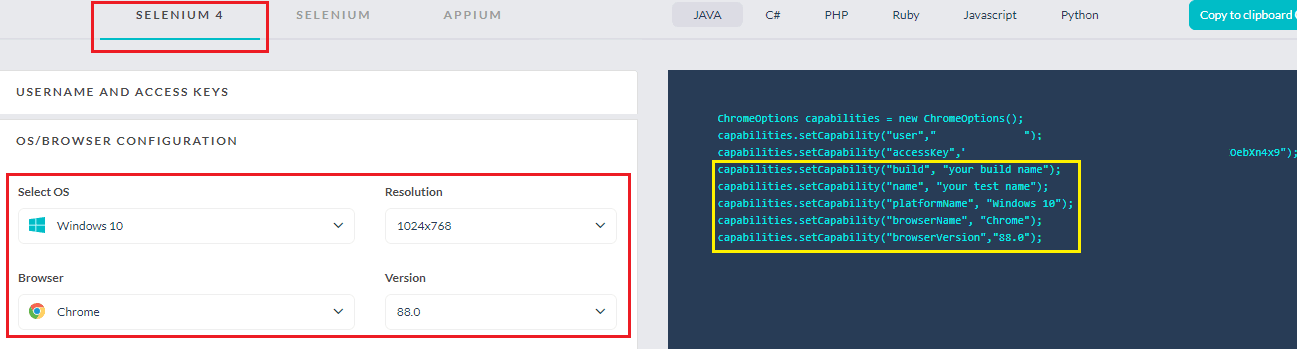
- setupThread: This method takes five arguments (Build, Name, platformName, browserName, and browserVersion), which are inline with the requirements of the TestMu AI capabilities generator. The cross browser tests would be executed on Selenium 4 Grid. It instantiates a new ThreadLocal for each test class since the tests (in the two-class files) are executed in Parallel at the ‘Method’ level.
- getDriver: This method returns the WebDriver object as a ThreadLocal for the parallel tests.
- tearDownThread: This method releases the resources held by the current WebDriver object.
<?xml version="1.0" encoding="UTF-8"?>
<project xmlns="http://maven.apache.org/POM/4.0.0"
         xmlns:xsi="http://www.w3.org/2001/XMLSchema-instance"
         xsi:schemaLocation="http://maven.apache.org/POM/4.0.0 http://maven.apache.org/xsd/maven-4.0.0.xsd">
    <modelVersion>4.0.0</modelVersion>

    <groupId>org.testnggroup</groupId>
    <artifactId>TestNGGroups</artifactId>
    <version>1.0-SNAPSHOT</version>
    <properties>
        <project.build.sourceEncoding>UTF-8</project.build.sourceEncoding>
    </properties>

    <dependencies>
        <!-- https://mvnrepository.com/artifact/com.github.lambdatest/lambdatest-tunnel-binary -->
        <dependency>
            <groupId>org.testng</groupId>
            <artifactId>testng</artifactId>
            <version>7.11.0</version>
            <scope>test</scope>
        </dependency>
        <!-- https://mvnrepository.com/artifact/org.seleniumhq.selenium/selenium-java -->
        <dependency>
            <groupId>org.seleniumhq.selenium</groupId>
            <artifactId>selenium-java</artifactId>
            <version>4.33.0</version>
        </dependency>
        <!-- https://mvnrepository.com/artifact/org.seleniumhq.selenium/selenium-chrome-driver -->
        <dependency>
            <groupId>org.seleniumhq.selenium</groupId>
            <artifactId>selenium-chrome-driver</artifactId>
            <version>4.33.0</version>
        </dependency>
        <!-- https://mvnrepository.com/artifact/org.seleniumhq.selenium/selenium-remote-driver -->
        <dependency>
            <groupId>org.seleniumhq.selenium</groupId>
            <artifactId>selenium-remote-driver</artifactId>
            <version>4.33.0</version>
        </dependency>
        <dependency>
            <groupId>io.github.bonigarcia</groupId>
            <artifactId>webdrivermanager</artifactId>
            <version>4.1.0</version>
        </dependency>
        <!-- https://mvnrepository.com/artifact/org.slf4j/slf4j-nop -->
        <dependency>
            <groupId>org.slf4j</groupId>
            <artifactId>slf4j-nop</artifactId>
            <version>1.7.28</version>
            <scope>test</scope>
        </dependency>
        <!-- https://mvnrepository.com/artifact/junit/junit -->
        <dependency>
            <groupId>junit</groupId>
            <artifactId>junit</artifactId>
            <version>4.13</version>
            <scope>test</scope>
        </dependency>
        <dependency>
            <groupId>com.github.lambdatest</groupId>
            <artifactId>lambdatest-tunnel-binary</artifactId>
            <version>1.0.4</version>
        </dependency>
        <!-- https://mvnrepository.com/artifact/com.typesafe.play/play-mailer -->
        <dependency>
            <groupId>com.typesafe.play</groupId>
            <artifactId>play-mailer_2.13</artifactId>
            <version>8.0.1</version>
        </dependency>
        <!-- https://mvnrepository.com/artifact/jakarta.mail/jakarta.mail-api -->
        <dependency>
            <groupId>jakarta.mail</groupId>
            <artifactId>jakarta.mail-api</artifactId>
            <version>2.0.0</version>
        </dependency>
        <dependency>
            <groupId>com.sun.activation</groupId>
            <artifactId>javax.activation</artifactId>
            <version>1.2.0</version>
            <scope>test</scope>
        </dependency>
    </dependencies>

    <build>
        <defaultGoal>install</defaultGoal>
        <plugins>
            <plugin>
                <artifactId>maven-compiler-plugin</artifactId>
                <version>3.0</version>
                <configuration>
                    <source>1.8</source>
                    <target>1.8</target>
                </configuration>
            </plugin>
            <plugin>
                <groupId>org.apache.maven.plugins</groupId>
                <artifactId>maven-surefire-plugin</artifactId>
                <version>2.12.4</version>
                <configuration>
                    <suiteXmlFiles>
                        <!-- TestNG suite XML files -->
                        <suiteXmlFile>testng.xml</suiteXmlFile>
                    </suiteXmlFiles>
                </configuration>
            </plugin>
            <plugin>
                <groupId>org.apache.maven.plugins</groupId>
                <artifactId>maven-surefire-report-plugin</artifactId>
                <version>3.0.0-M5</version>
            </plugin>
        </plugins>
    </build>
</project>
How To Run Test Cases Within The Same Group?
As part of TestNG group examples, we explore the most basic use of groups in TestNG. In a project, you could have multiple Groups, but you might be interested in running tests that belong to a particular TestNG Group.
In such cases, you can group the tests to selectively run ‘all the tests’ within a specific group.
In our example, we have two TestNG groups - Search and ToDo. Let’s look at how to run test cases within the same group (e.g., Search) in Parallel.
Parallel testing in Selenium is preferred so that tests can be executed faster, and you can also make the most of the capabilities offered by the cloud-based Selenium Grid.
In testng.xml, we set the thread-count attribute to 2 and the parallel attribute to “methods.” Since we want to run the test cases implemented under the ‘Search’ group, the group is included in the <run> tag under <groups> .

<?xml version="1.0" encoding="UTF-8"?>
<!DOCTYPE suite SYSTEM "http://testng.org/testng-1.0.dtd">
<!-- Demo 1: Test Groups (How To Create Groups?) -->
<suite name="TestNG Group Test" thread-count="4" parallel="methods">
    <test verbose="2" preserve-order="true" name="C:/Users/Lenovo/IdeaProjects/TestNGGroups">
        <groups>
            <run>
                <include name = "Search">
                </include>
            </run>
        </groups>
        <classes>
            <class name="org.testnggroup.TestNG_SearchGroup">
            </class>
        </classes>
    </test>
</suite>
There are two test methods under the TestNG Group “Search”:
- test_GoogleSearch - Priority is set to ‘1.’
- test_BingSearch - Priority is set to ‘2.’
The specified group tests will run in Parallel as per the priority specified in the @Test annotation.
[..]
   @Test (priority = 1, groups = { "Search" })
   public void test_GoogleSearch() throws InterruptedException, MalformedURLException
   {
       String search_string =" LambdaTest";
       String exp_title = "Most Powerful Cross Browser Testing Tool Online | LambdaTest";

       setupThread("test_GoogleSearch", "test_GoogleSearch",
               "Windows 11", "Chrome", "latest");
       ..............................
       ..............................
       ..............................
   }

   @Test (priority = 2, groups = { "Search" })
   public void test_BingSearch() throws InterruptedException, MalformedURLException
   {
       String search_string ="LambdaTest Blog";
       String exp_title = "LambdaTest | A Cross Browser Testing Blog";

       setupThread("test_BingSearch", "test_BingSearch", "macOS Sequoia",
               "Safari", "18.0");
       ..............................
       ..............................
       ..............................
   }
   [..]
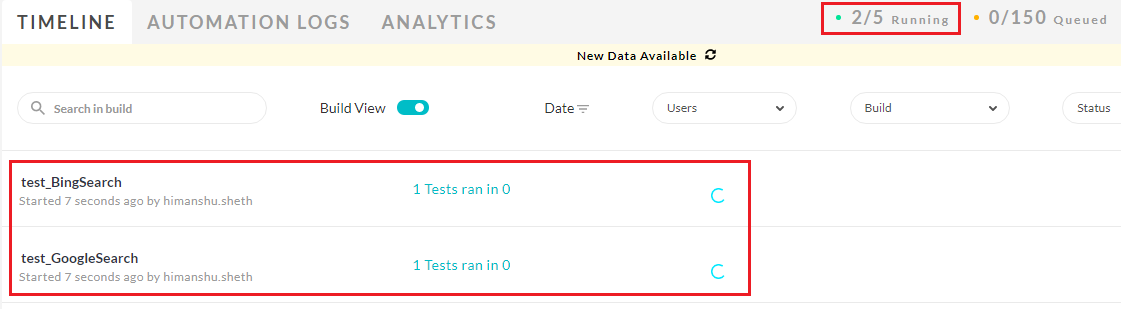
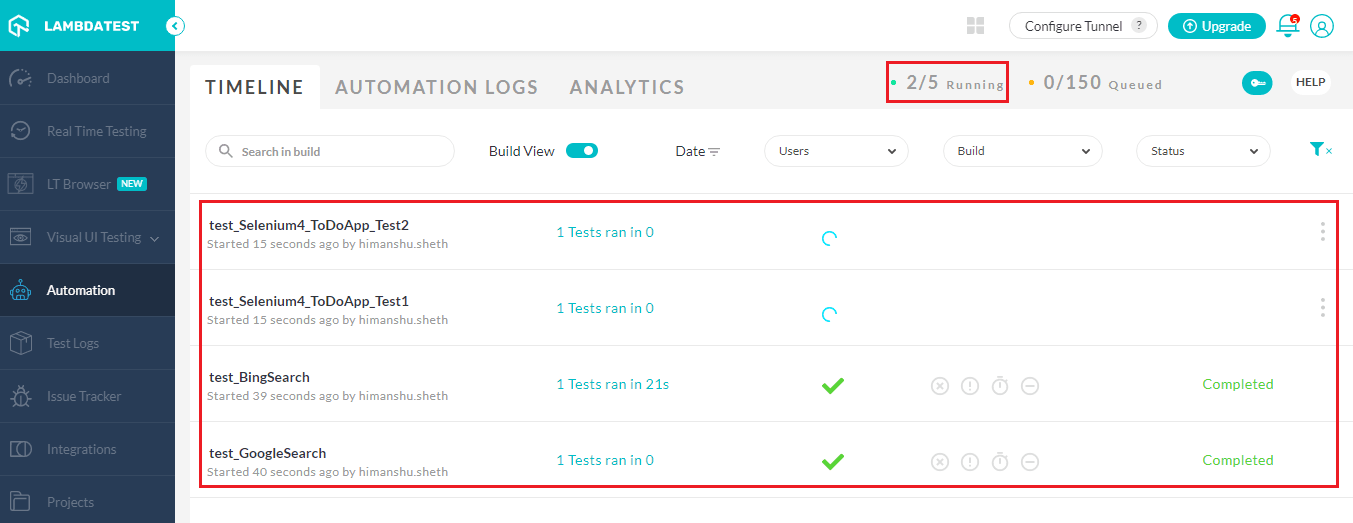
As seen in the execution snapshot, two test methods under the TestNG tag - “Search” are running in Parallel:
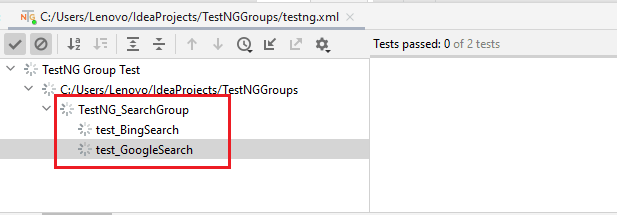
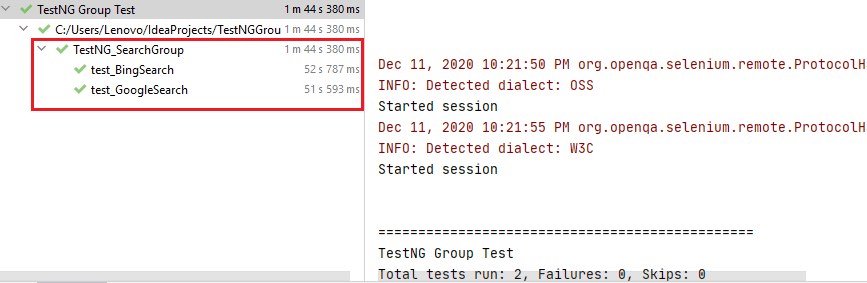
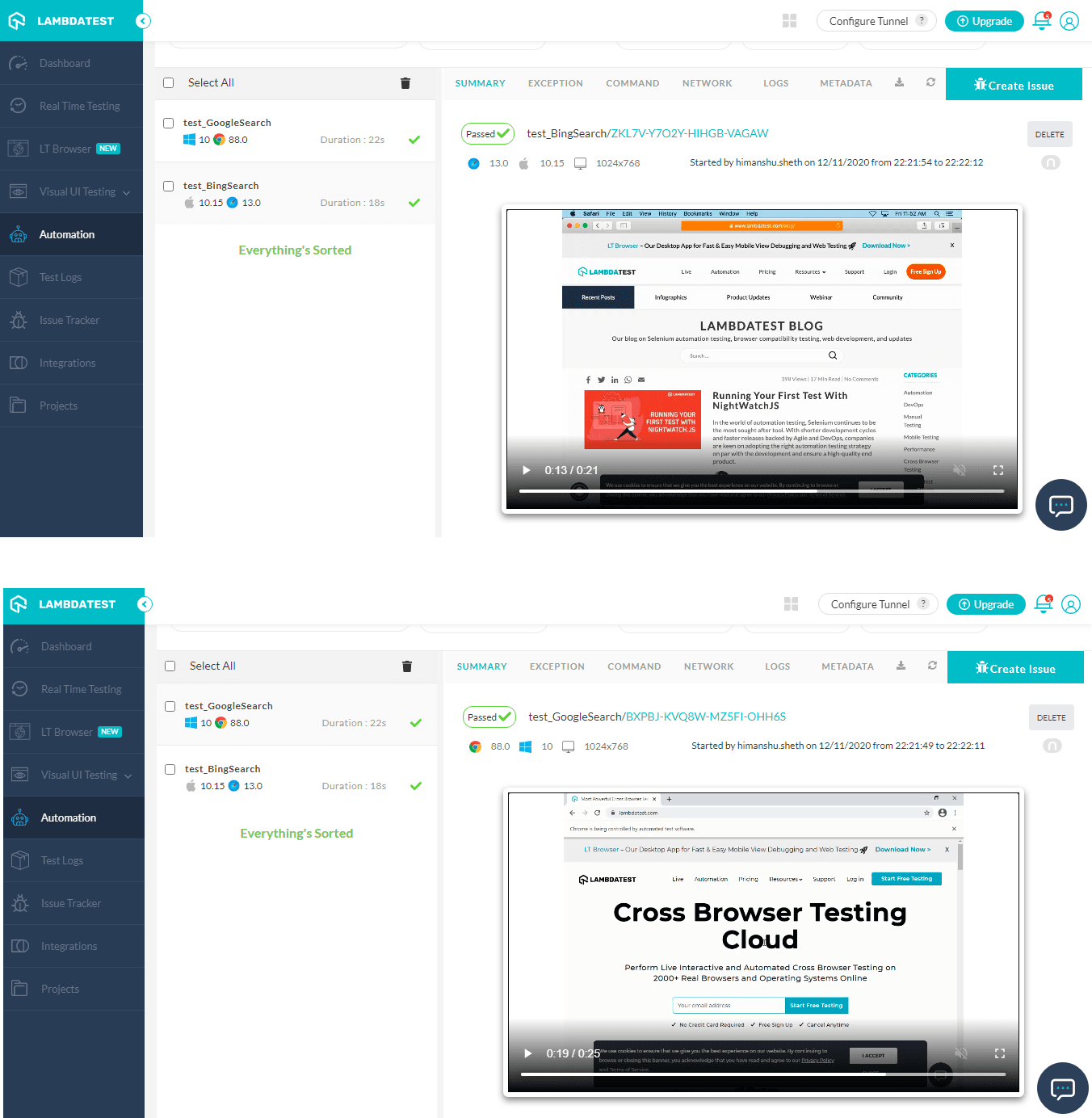
Shown below are the execution snapshots from the IDE and the Automation Dashboard from TestMu AI; they indicate that the tests were executed successfully:
How To Run Test Cases Within Multiple Groups?
TestNG lets you run test methods that belong to multiple groups. The group names are provided as an array in the groups attribute of the @Test annotation.
In our case, we have four test methods that are grouped under two TestNG groups. Since the test methods are a part of two different classes, the two Groups are included under two separate <test> tags.
The test methods of two different classes are run under different threads. Since we have set the parallel attribute to ‘methods,’ the methods (as per the set priority) in the respective classes are executed in parallel.
<?xml version="1.0" encoding="UTF-8"?>
<!DOCTYPE suite SYSTEM "http://testng.org/testng-1.0.dtd">
<!-- Demo 2: How to run test cases within multiple Groups -->
<suite name="TestNG Group Test" thread-count="4" parallel="methods">
    <test verbose="2" preserve-order="true" name="C:/Users/Lenovo/IdeaProjects/TestNGGroups">
        <groups>
            <run>
                <include name = "Search">
                </include>
            </run>
        </groups>
        <classes>
            <class name="org.testnggroup.TestNG_SearchGroup">
            </class>
        </classes>
    </test>

    <test name="ToDoApp">
        <groups>
            <run>
                <include name = "ToDo">
                </include>
            </run>
        </groups>
        <classes>
            <class name="org.testnggroup.TestNG_ToDoGroup">
            </class>
        </classes>
    </test>
</suite>
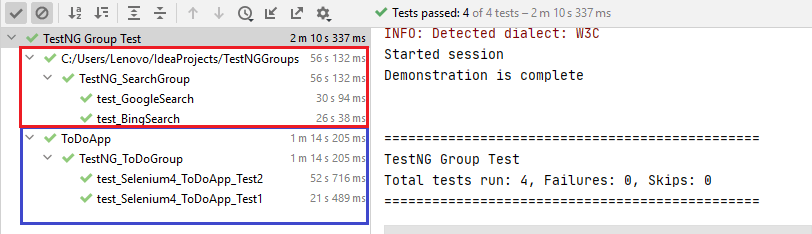
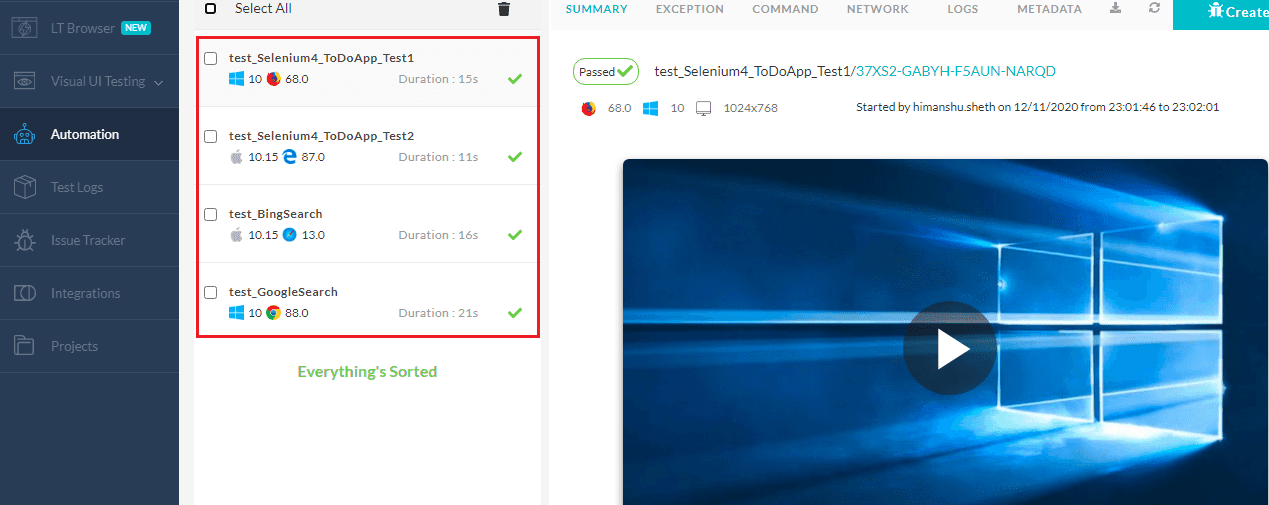
At first, the test methods under the group “Search” are executed in parallel. Post the successful execution of those methods, the test methods under the TestNG group “ToDo” are run in parallel.
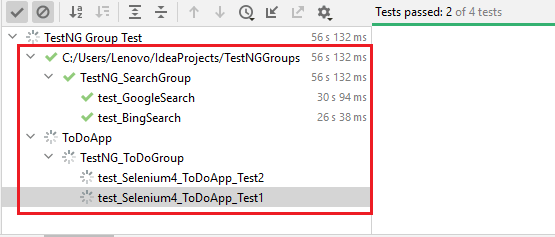
Here are the execution screenshots that indicate that all four test methods under the groups “Search” and “ToDo” were executed successfully:
Groups Within Groups In TestNG
In this section of the TestNG tutorial, we look at how to use ‘MetaGroups’ in TestNG. Groups can include other groups, and the combined group is called ‘MetaGroup.’
Groups within groups in TestNG can be helpful in cases where a ‘collection’ of test scenarios from different groups have to be run as a part of the test case.
For demonstrating how to group test cases in TestNG when Groups are within Groups, we create four test groups. Search1 and Search2 include the test methods that demonstrate the search functionality.
ToDo1 and ToDo2 include the test methods that demonstrate the ToDo App functionality.
Shown below are the code modifications for creating four TestNg groups:
public class TestNG_SearchGroup extends Helper implements IExecutionListener
{
    [..]
   @Test (priority = 1, groups = {"Search1"})
    public void test_GoogleSearch() throws InterruptedException, MalformedURLException
    {
        String search_string =" LambdaTest";
        String exp_title = "Most Powerful Cross Browser Testing Tool Online | LambdaTest";

        setupThread("test_GoogleSearch", "test_GoogleSearch",
                "Windows 11", "Chrome", "latest");
        ...................................................
        ...................................................
        ...................................................
    }

   @Test (priority = 2, groups = {"Search2"})
    public void test_BingSearch() throws InterruptedException, MalformedURLException {
        String search_string ="LambdaTest Blog";
        String exp_title = "LambdaTest | A Cross Browser Testing Blog";

        setupThread("test_BingSearch", "test_BingSearch", "macOS Sequoia",
                "Safari", "18.0");
        ...................................................
        ...................................................
        ...................................................
    }
    [..]
}
public class TestNG_ToDoGroup extends Helper implements IExecutionListener
{
    [..]
   @Test (priority = 1, groups = {"ToDo1"})
    public void test_Selenium4_ToDoApp_Test1() throws InterruptedException, MalformedURLException
    {
        setupThread("test_Selenium4_ToDoApp_Test1", "test_Selenium4_ToDoApp_Test1",      "Windows 11", "Firefox", "latest");
        ...................................
        ...................................
        ...................................
    }

    @Test (priority = 2, groups = {"ToDo2"})
    public void test_Selenium4_ToDoApp_Test2() throws InterruptedException, MalformedURLException
    {
        setupThread("test_Selenium4_ToDoApp_Test2", "test_Selenium4_ToDoApp_Test2",     "macOS Sequoia", "MicrosoftEdge", "latest");
        ...................................
        ...................................
        ...................................
    }
    [..]

}
A new group named “Group1” includes the test methods implemented under the “Search1” and “Search2” groups. Another group, “Group2,” includes the test methods implemented under the “ToDo1” and “ToDo2” groups. The groups Group1 and Group2 are included as a part of a new group named ‘SuperGroup.’
The four tests which are a part of ‘SuperGroup’ are run by including the SuperGroup under the < run > tag.
<?xml version="1.0" encoding="UTF-8"?>
<!DOCTYPE suite SYSTEM "http://testng.org/testng-1.0.dtd">
<!-- Demo 3: Groups within Groups in TestNG -->
<suite name="TestNG Group Test" thread-count="4" parallel="methods">
    <test verbose="2" preserve-order="true" name="C:/Users/Lenovo/IdeaProjects/TestNGGroups">
        <groups>
            <define name = "Group1">
                <include name="Search1"/>
                <include name="Search2"/>
          </define>
            <define name = "Group2">
                <include name="ToDo1"/>
                <include name="ToDo2"/>
          </define>

            <define name = "SuperGroup">
                <include name="Group1"/>
                <include name="Group2"/>
          </define>

          <run>
             <include name = "SuperGroup"/>
          </run>
        </groups>
        <classes>
            <class name="org.testnggroup.TestNG_SearchGroup"/>
            <class name="org.testnggroup.TestNG_ToDoGroup"/>
        </classes>
    </test>
</suite>
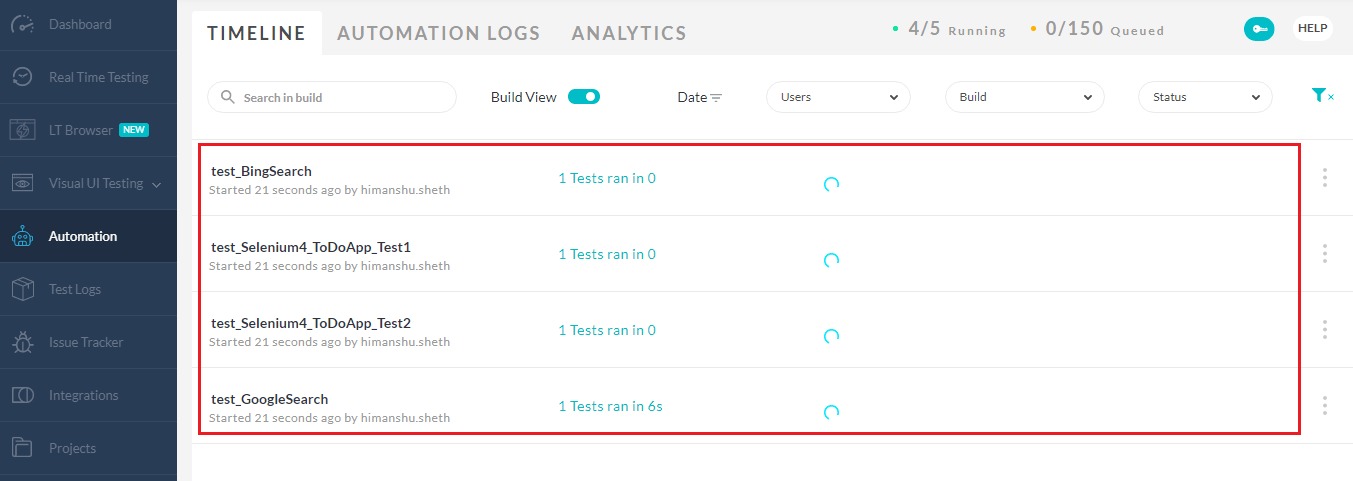
The four test methods that are a part of the nested group named SuperGroup are executed in parallel:
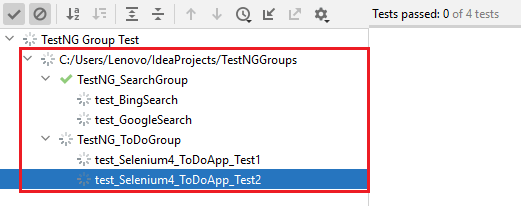
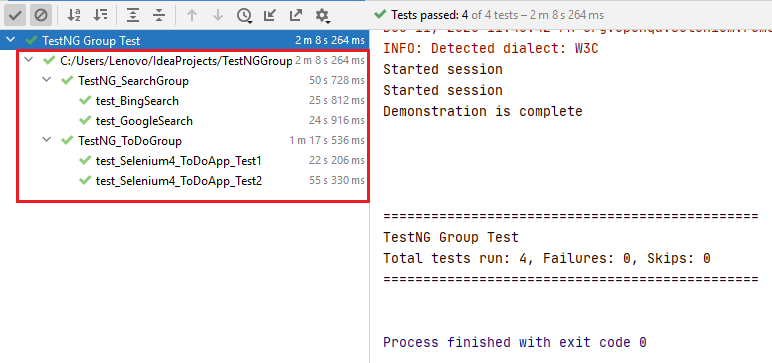
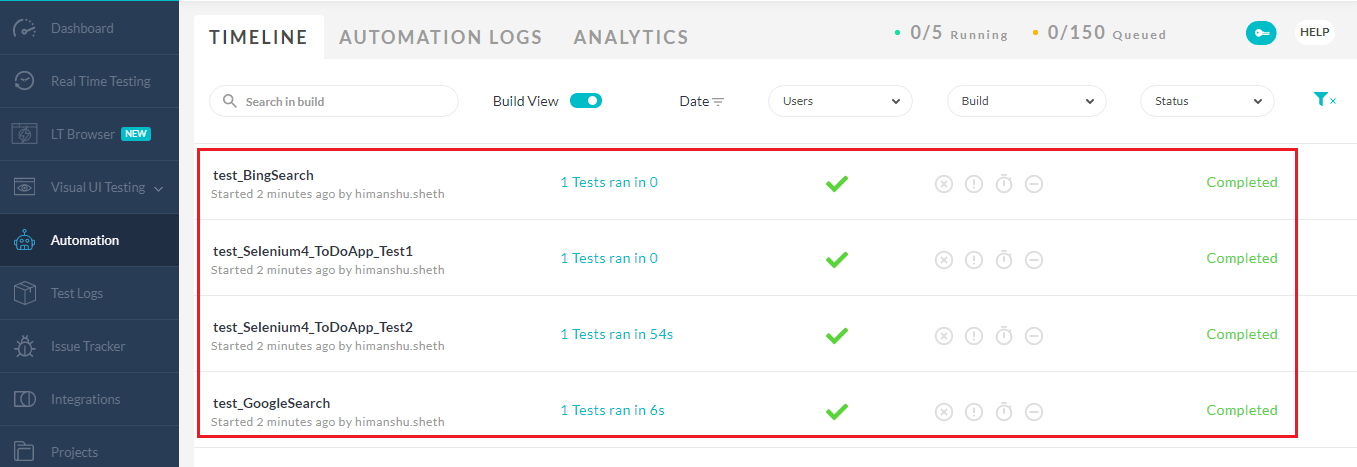
All four test scenarios under ‘SuperGroup’ are executed successfully:
How To Exclude/Include Test Cases With Groups?
TestNG Groups also provides provision to ignore test scenario(s)/test methods using the <exclude> tag in the <methods> section. On similar lines, the <include> tag in the <methods> section of testng.xml is used for including the test methods as a part of the test execution process.
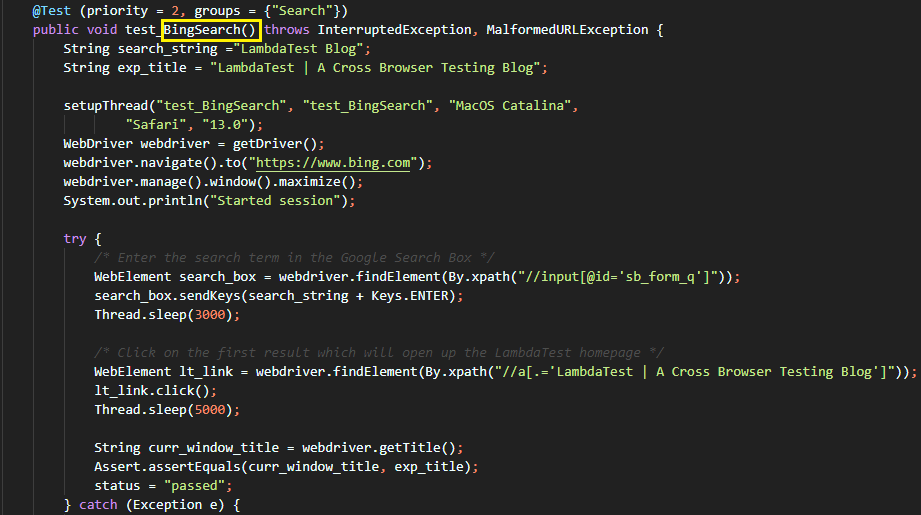
- TestNG_SearchGroup class: To run test methods whose name includes “.*Bing.*” and exclude test method(s) whose name contains “.*Google.*”, we use method groups in the following manner:
<class name="org.testnggroup.TestNG_SearchGroup">
    <methods>
        <include name=".*Bing.*"/>
       <exclude name=".*Google.*"/>
   </methods>
</class>
The matching method in the class is test_BingSearch().
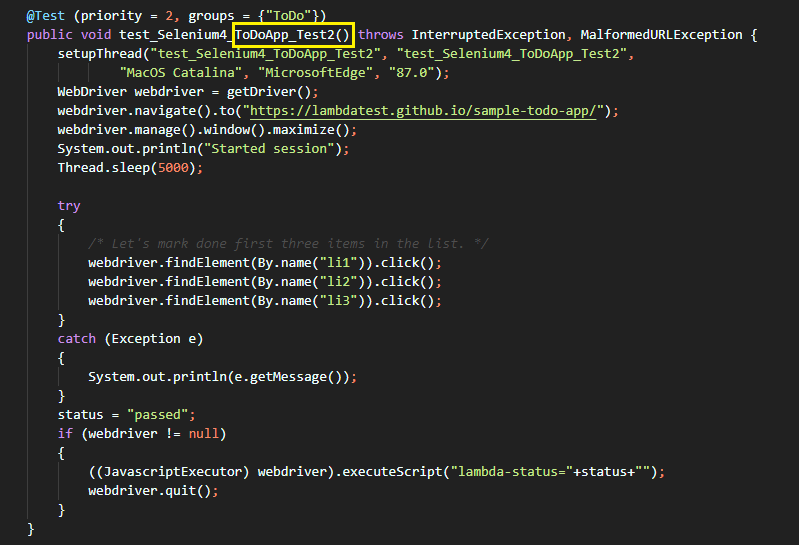
- TestNG_ToDoGroup class: To run test methods whose name includes “.*ToDoApp.*” and exclude test method(s) whose name contains “.*Test1.*”, we use method groups in the following manner:
<class name="org.testnggroup.TestNG_ToDoGroup">
    <methods>
        <include name=".*ToDoApp.*"/>
        <exclude name=".*Test1.*"/>
    </methods>
</class>
The matching method in the class is test_Selenium4_ToDoApp_Test2().
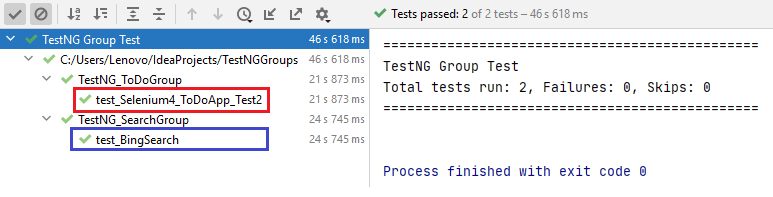
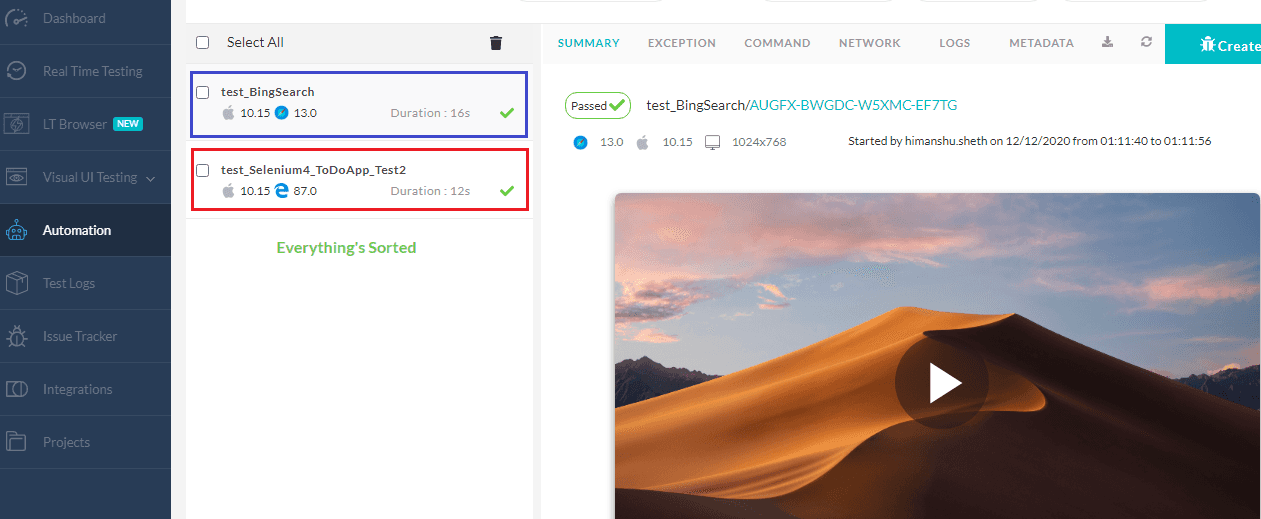
Here is the execution snapshot, which indicates that the two matching test methods are run successfully on the cloud-based Selenium Grid:
How to Exclude a TestNG Group?
The TestNG framework also lets you include as well as exclude them. Exclusion of Groups in TestNG is useful in cases where there is a temporary breakage in the tests (due to some recent changes), and you do not have the time to fix them.
The tests in those groups can be temporarily deactivated to be later reactivated once the issues have been fixed. Groups can also be excluded using Regular expressions.
For demonstrating exclusion of TestNG groups, we use the <include> tag in <groups> to include TestNG groups that match the regular expression “.*ToDo.*”. The <exclude> tag in <groups> is used for excluding the TestNG group with the name “Search”.
<?xml version="1.0" encoding="UTF-8"?>
<!DOCTYPE suite SYSTEM "http://testng.org/testng-1.0.dtd">
<!-- Demo 5: Exclusion of groups (Regular Expressions) -->
<suite name="TestNG Group Test" thread-count="4" parallel="methods">
<test verbose="2" preserve-order="true" name="C:/Users/Lenovo/IdeaProjects/TestNGGroups">
    <groups>
        <run>
		<include name=".*ToDo.*"/>
		<exclude name="Search"/>
        </run>
    </groups>
    <classes>
      <class name="org.testnggroup.TestNG_SearchGroup"/>
      <class name="org.testnggroup.TestNG_ToDoGroup"/>
    </classes>
</test>
</suite>
The TestNG Group named “ToDo” matches the criteria set (i.e. “.*ToDo.*”) in the <include> tag. On the other hand, the test methods implemented in TestNG_SearchGroup are excluded as they meet the <exclude> tag requirements.
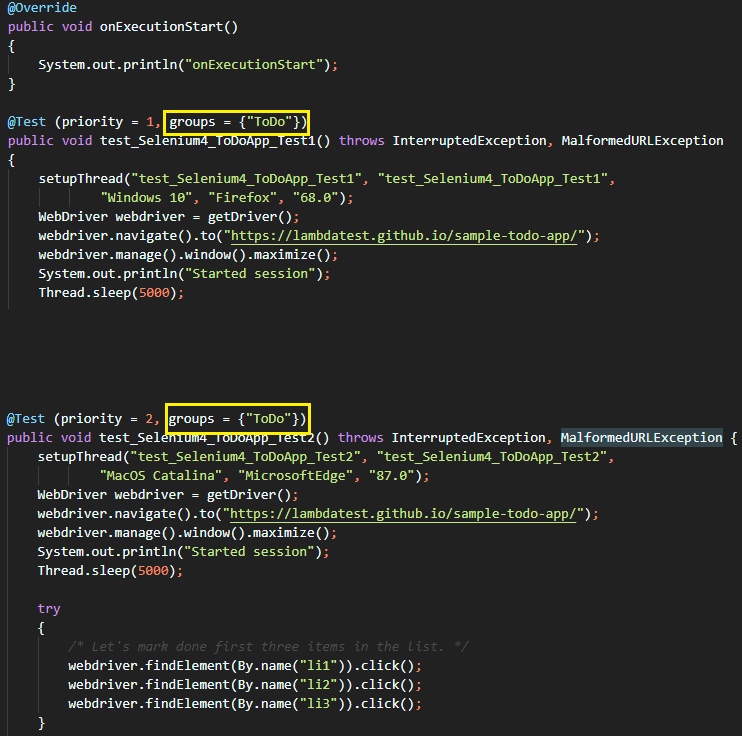
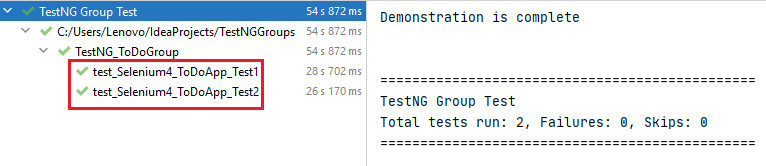
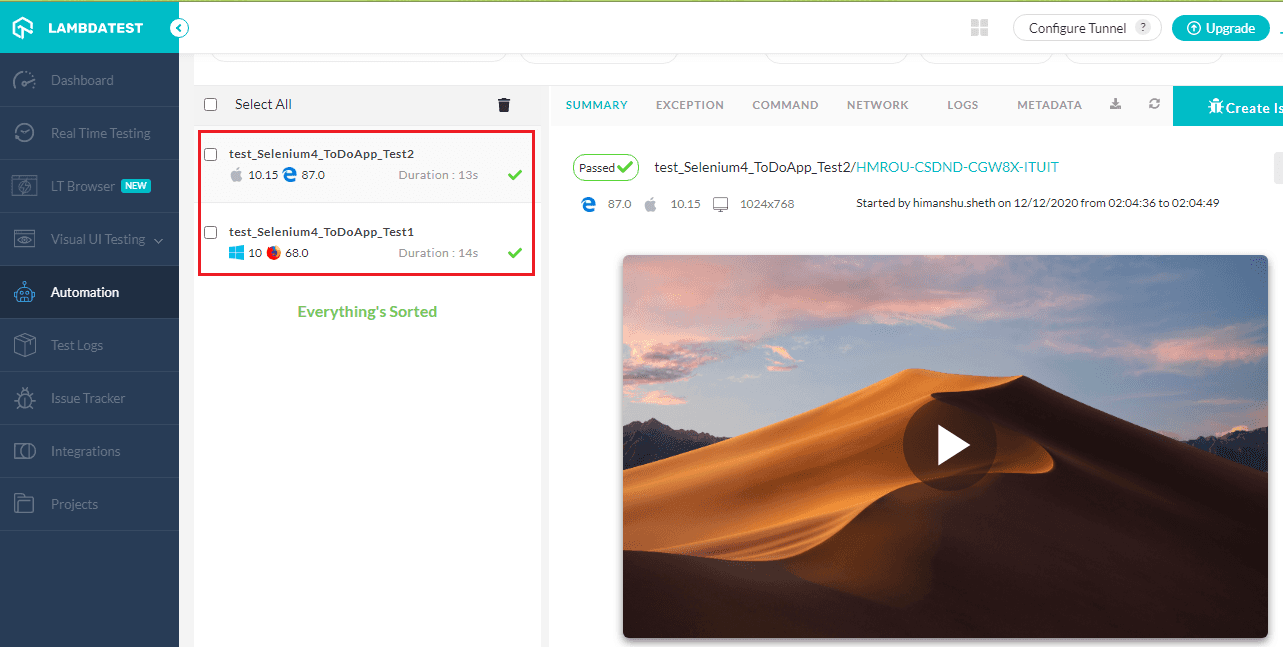
As seen below, the test methods from the matching TestNG Groups were executed successfully on the TestMu AI Selenium Grid:
Regular Expressions and TestNG Groups
TestNG uses Regular Expressions (i.e., anything that matches “.*” - Dot Star) and not WildMats (i.e., “*”) for running test methods that match the specified pattern. For demonstrating the usage of regular expressions with TestNG groups, we run test methods that include the term “Search”.
testng.xml to run test cases by matching Group Names using Regular Expressions
<!-- Demo 6: Regular Expressions and TestNG Groups -->
<suite name="TestNG Group Test" thread-count="4" parallel="methods">
<test verbose="2" preserve-order="true" name="C:/Users/Lenovo/IdeaProjects/TestNGGroups">
    <groups>
        <run>
            <include name = ".*Search.*"/>
        </run>
    </groups>
    <classes>
        <class name="org.testnggroup.TestNG_SearchGroup"/>
        <class name="org.testnggroup.TestNG_ToDoGroup"/>
    </classes>
</test>
</suite>
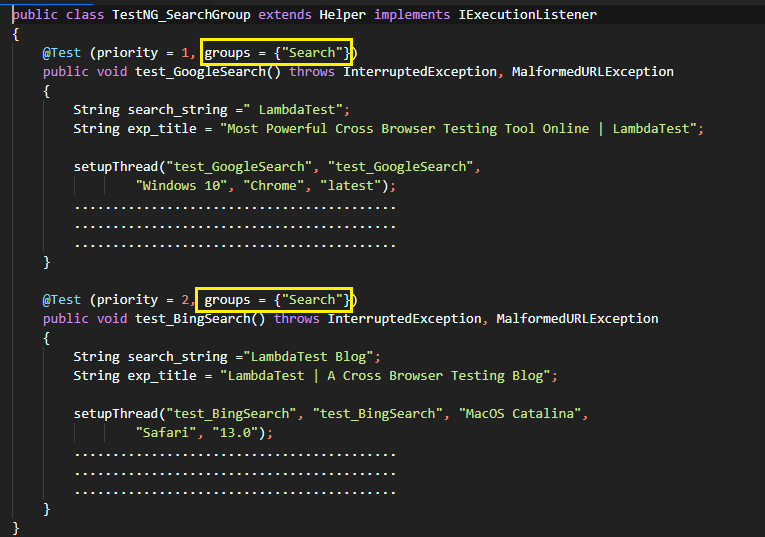
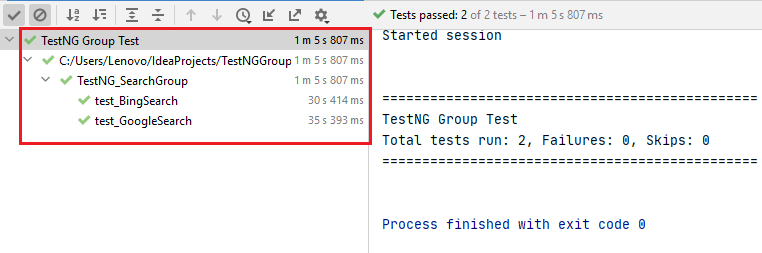
As seen in the testng.xml, tests under the groups - “Search” will be executed. Hence, the test methods test_GoogleSearch() and test_BingSearch() are run as per the assigned priority.
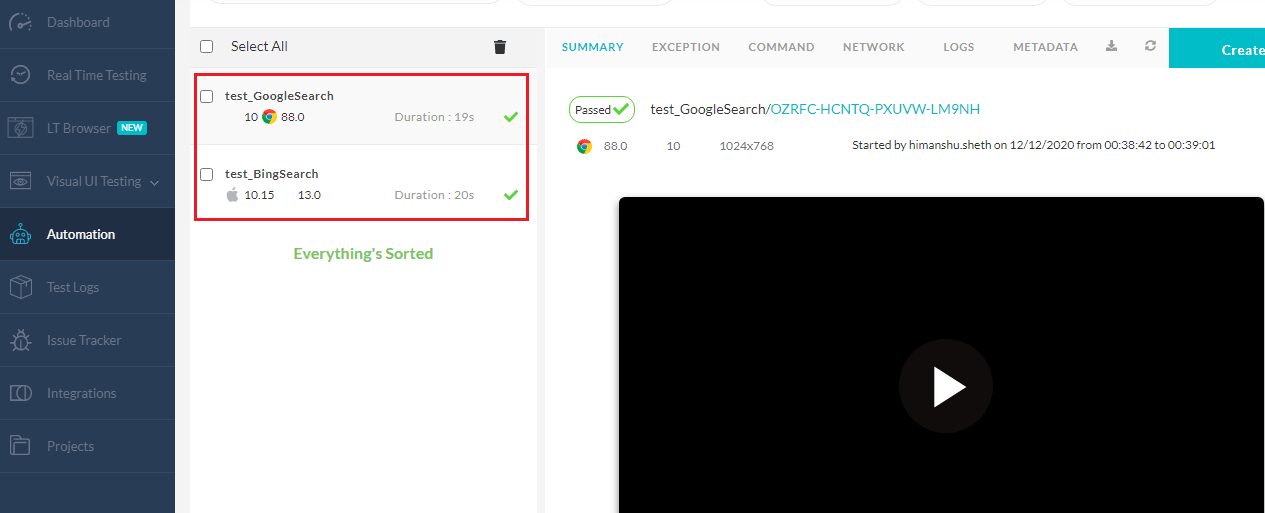
As shown below, the test methods matching the corresponding TestNG Group name are run successfully:
Setup and Teardown With @BeforeGroups and @AfterGroups
When several tests in a group share the same precondition, such as launching a driver or signing in once, repeating that work in every method is wasteful. TestNG solves this with two group-level annotations: @BeforeGroups and @AfterGroups.
A method marked @BeforeGroups(groups = "Search") runs once before the first test method of the Search group executes, and @AfterGroups(groups = "Search") runs once after the last method in that group finishes.
This is different from @BeforeMethod or @BeforeClass, which fire per method or per class. The group annotations fire at the group boundary, so they are the right place for expensive, shared setup.
public class TestNG_SearchGroup extends Helper implements IExecutionListener
{
    @BeforeGroups(groups = "Search")
    public void setUpSearchGroup()
    {
        /* Runs once before the first test in the "Search" group */
        System.out.println("One-time setup for the Search group");
    }

    @Test (priority = 1, groups = { "Search" })
    public void test_GoogleSearch() throws InterruptedException, MalformedURLException
    {
        /* Test implementation */
    }

    @AfterGroups(groups = "Search")
    public void tearDownSearchGroup()
    {
        /* Runs once after the last test in the "Search" group */
        System.out.println("One-time cleanup for the Search group");
    }
}
Use @BeforeGroups to open a single browser session or seed shared test data for a group, then release it in @AfterGroups. For a refresher on annotation execution order, see the guide on TestNG annotations.

Note: Run grouped TestNG suites in parallel across 3,000+ browser and OS combinations on TestMu AI's test automation cloud. Start testing free.
Running Dependent Groups With dependsOnGroups
Some tests only make sense once another set has passed. A checkout group, for example, should run only after a login group succeeds. TestNG handles this ordering and conditional execution with the dependsOnGroups attribute of the @Test annotation.
A test marked dependsOnGroups runs only after every method in the named group passes. If any method in the depended-on group fails, the dependent test is skipped, not failed, which keeps cascading false failures out of your report.
Add alwaysRun = true when a test must run regardless of the dependency result.
@Test (priority = 1, groups = { "Search" })
public void test_GoogleSearch() throws InterruptedException, MalformedURLException
{
    /* Validates the search flow first */
}

@Test (groups = { "ToDo" }, dependsOnGroups = { "Search" })
public void test_ToDoApp() throws InterruptedException, MalformedURLException
{
    /* Runs only after every method in the "Search" group passes */
}

/* Force execution even if the dependency fails */
@Test (groups = { "ToDo" }, dependsOnGroups = { "Search" }, alwaysRun = true)
public void test_ToDoApp_Critical() throws InterruptedException, MalformedURLException
{
    /* Always runs, regardless of the Search group result */
}
Do not confuse dependsOnGroups with priority. Priority only orders methods within a run; it creates no pass/fail relationship. Use priority to sequence tests inside a group and dependsOnGroups when one set of tests genuinely must not run if a prerequisite fails.

Best Practices for Grouping Tests in TestNG
Groups stay maintainable when the naming and selection follow a few simple rules:
- Name groups by intent, not by feature: labels like smoke, sanity, regression, and crossbrowser are easier to select in a pipeline than per-page names.
- Keep membership in code, selection in XML: tag methods once with @Test(groups=...), then decide what runs through <include> and <exclude> in testng.xml, so you never recompile to change a run.
- Reuse combinations with MetaGroups: use the <define> tag to bundle related groups (as the SuperGroup example above does) instead of repeating include lists across suites.
- Reserve dependsOnGroups for true dependencies: for plain ordering inside a group, prefer priority; use dependsOnGroups only when a test must not run if a prerequisite fails.
- Split the pipeline by group: run the smoke group on every commit and the full regression group nightly to keep feedback fast without losing coverage.
- Tag cloud runs for filtering: pair TestNG groups with TestMu AI custom tags so you can filter builds on the dashboard by platform or browser.
- Avoid over-grouping: a method that belongs to five groups is hard to reason about, so keep membership minimal and purposeful.
For the framework setup behind these examples, follow the Selenium with TestNG documentation, or brush up on the broader framework in the TestNG tutorial.
How to Run a TestNG Group From the Command Line
You do not need an IDE to run a single group. With the Maven Surefire plugin you can either pin the group in pom.xml or pass it at run time, which is how most CI pipelines decide what to execute on each commit.
The quickest way is to pass the group as a system property. Surefire reads the groups property and runs only the matching methods, so you can switch from a smoke run to a full run without touching code:
# Run only the "Search" group
mvn test -Dgroups="Search"

# Run multiple groups
mvn test -Dgroups="Search,ToDo"

# Run everything except the "ToDo" group
mvn test -DexcludedGroups="ToDo"
To make a group the default for a project, set it in the Surefire plugin configuration in pom.xml instead. Use <groups> to include and <excludedGroups> to exclude, with comma-separated names:
<plugin>
    <groupId>org.apache.maven.plugins</groupId>
    <artifactId>maven-surefire-plugin</artifactId>
    <configuration>
        <groups>Search</groups>
        <excludedGroups>ToDo</excludedGroups>
    </configuration>
</plugin>
Both the groups property and the <groups> tag accept regular expressions, so a value like ".*Search.*" works the same way it does inside testng.xml.
Why Your TestNG Group Isn't Running (Troubleshooting)
If a TestNG group runs no tests, the cause is almost always a mismatch between the group name in @Test and the name in testng.xml, or an include/exclude rule that filters everything out. Work through these common causes in order:
- Group name typo or case mismatch: group names are case-sensitive, so "Search" and "search" are two different groups. Match the annotation and the XML exactly.
- Ungrouped tests are skipped once you include a group: as soon as you add an <include> under <run>, TestNG runs only methods in included groups; methods with no group are skipped. Add them to a group, or run them from a separate <test> tag with no <groups> filter.
- Exclude beats include: if a method's group is both included and excluded, the exclude wins and the method is skipped. Remove the conflicting <exclude> entry.
- A dependent test shows as skipped, not failed: when a group named in dependsOnGroups has a failing method, TestNG skips the dependent test. Fix the dependency, not the dependent test.
- Plain names are literal, not patterns: <include name="Search"/> matches the exact group "Search". To match by pattern, use a regular expression such as ".*Search.*".
When tests still behave unexpectedly, the network logs, console logs, and command-by-command replay captured for every run on the TestMu AI automation cloud make it easy to confirm which methods actually executed.
How To Group Your Tests On TestMu AI?
TestMu AI lets you group the automation tests using custom tags. The advantage of using custom tags is that it makes it easy to search for your test cases on the TestMu AI automation dashboard.
To group tests on TestMu AI using custom tags, create a String array containing the names of the custom tags, separated by a comma.
/* In case of just 1 tag, add 1 element in the array */
String[] customTags = {"Custom Tag"};

/* In case of multiple tags, add them in the array separated by comma */
String[] customTags = {"Tag 1", "Tag 2", "Tag 3", ...};
Now add this custom tag in the Desired Capabilities instance, as shown below:
DesiredCapabilities capabilities = new DesiredCapabilities();
[..]
// To create custom tags
capabilities.setCapability("tags", customTags);
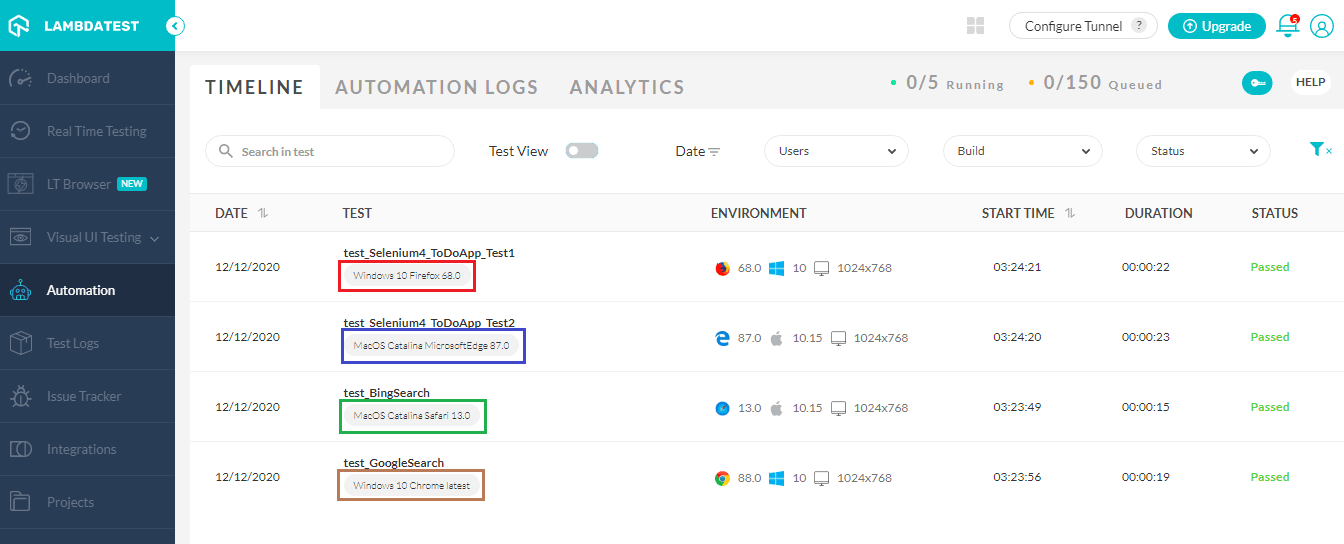
In our case, we set the capabilities in the setupThread() method, defined in the Helper class. We create a Custom Tag that consists of the combination of Platform Name and Browser Name & Browser Version used in the cross browser testing.
public void setupThread (String build, String name, String platformName,
                       String browserName, String browserVersion) throws MalformedURLException
{
    [..]
    DesiredCapabilities capabilities = new DesiredCapabilities();

    capabilities.setCapability("build", build);
    capabilities.setCapability("name", name);
    capabilities.setCapability("platformName", platformName);
    capabilities.setCapability("browserName", browserName);
    capabilities.setCapability("browserVersion",browserVersion);
    capabilities.setCapability("tunnel",false);
    capabilities.setCapability("network",true);
    capabilities.setCapability("console",true);
    capabilities.setCapability("visual",true);
    String[] customTags = {""};
    customTags[0] = platformName + " " + browserName + " " + browserVersion;
    /* Setting Custom Tags */
    capabilities.setCapability("tags", customTags);
    /* End - Setting Custom Tags */
    [..]
}
For viewing the custom tags on the automation logs, navigate to the Automation logs on the automation dashboard, and check the applied custom tags below the test names in the left panel.
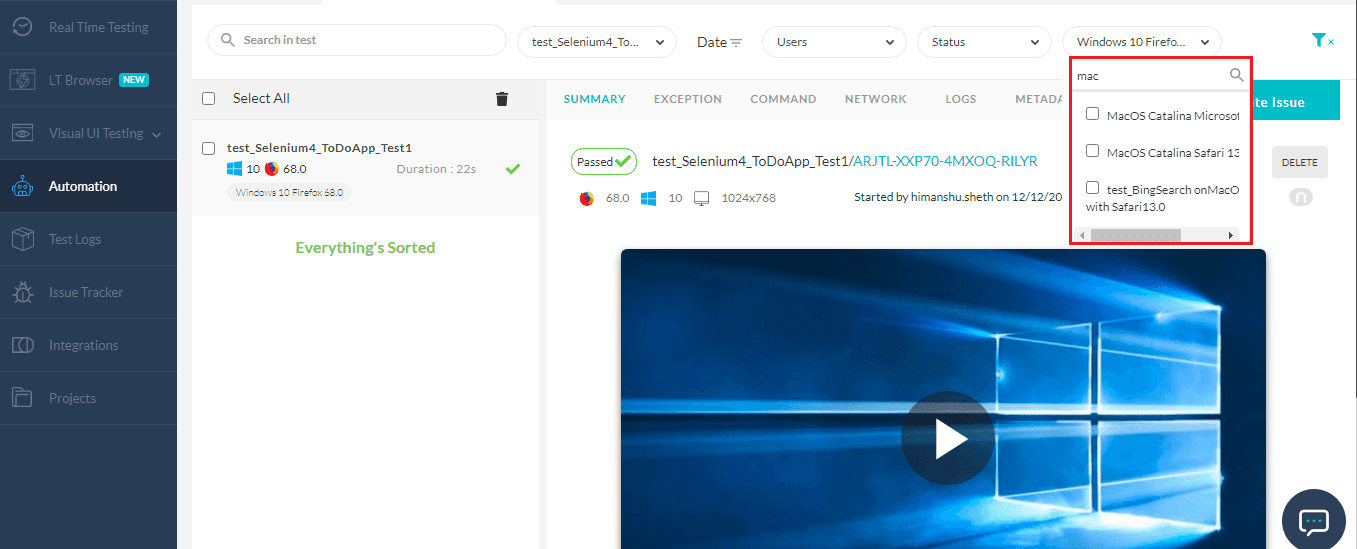
You also have the flexibility to filter the tests by selecting multiple tags at once from the filter toolbar.
Here we filter the tags matching ‘MacOS’ to locate the tests run on the macOS platform:
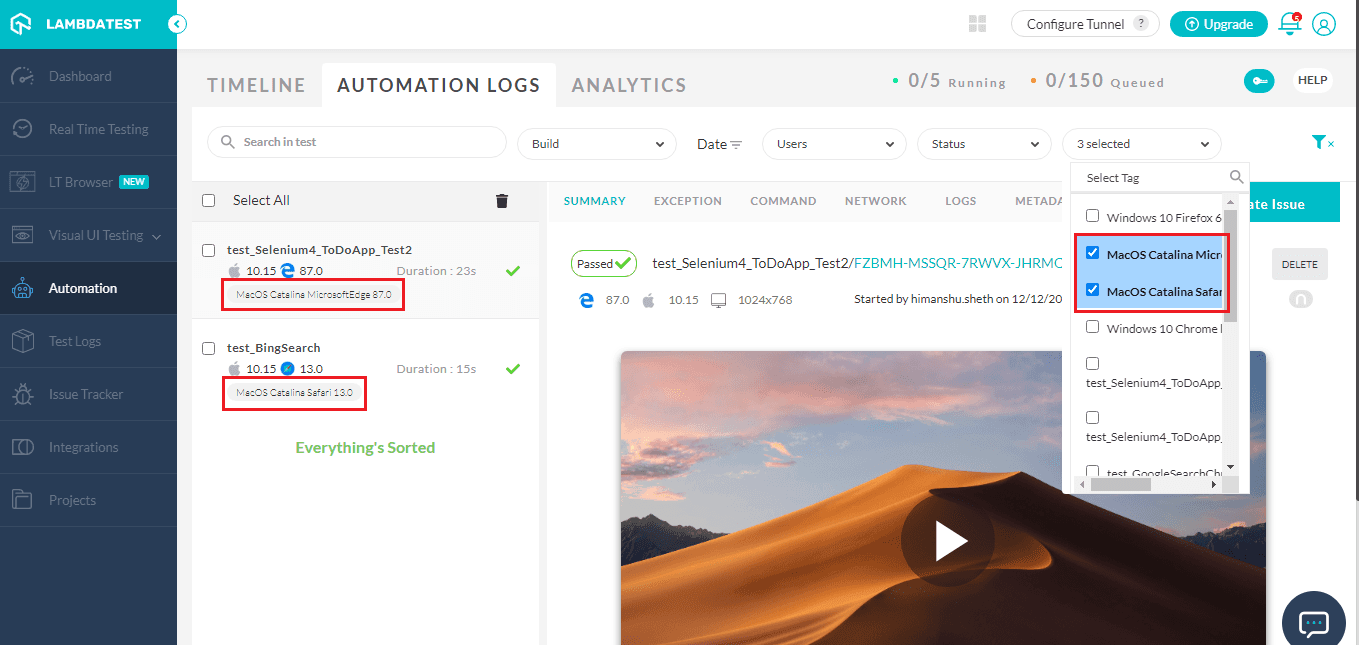
Custom Tags should be used for grouping test cases on TestMu AI so that it becomes easy to filter the required tests from the many tests executed on the Grid. To get your environment ready, follow the getting started with TestMu AI automation documentation.
Check a complete guide for your first TestNG automation script.
Wrapping Up
Start small: add @Test(groups = {"smoke"}) to your fastest, highest-value checks, then point a testng.xml <run> block at just that group to get a focused smoke run instead of executing the whole suite. From there, layer in regression and crossbrowser groups as your coverage grows.
This tutorial covered how to group test cases in TestNG end to end: running tests within the same group, across multiple groups, and inside nested MetaGroups.
It also covered including and excluding methods and groups, matching group names with regular expressions, running group-level setup with @BeforeGroups and @AfterGroups, and ordering dependent groups with dependsOnGroups.
To run those groups at scale, execute them in parallel across 3,000+ browser and OS combinations on TestMu AI's test automation cloud, follow the Selenium with TestNG documentation to wire up the grid, and create a free account to run your first grouped suite.
Author

Himanshu Sheth
Blogs: 138


Himanshu Sheth is the Director of Marketing (Technical Content) at TestMu AI, with over 8 years of hands-on experience in Selenium, Cypress, and other test automation frameworks. He has authored more than 130 technical blogs for TestMu AI, covering software testing, automation strategy, and CI/CD. At TestMu AI, he leads the technical content efforts across blogs, YouTube, and social media, while closely collaborating with contributors to enhance content quality and product feedback loops. He has done his graduation with a B.E. in Computer Engineering from Mumbai University. Before TestMu AI, Himanshu led engineering teams in embedded software domains at companies like Samsung Research, Motorola, and NXP Semiconductors. He is a core member of DZone and has been a speaker at several unconferences focused on technical writing and software quality.
Reviewer

Srinivasan Sekar
Reviewer
Srinivasan Sekar is Director of Engineering at TestMu AI (formerly LambdaTest), where he leads engineering and open-source initiatives behind the Selenium and Appium automation grid and owns TestMu AI's MCP Server. A committer to Appium and a contributor to Selenium, WebdriverIO, Taiko, and AppiumTestDistribution, he brings over 15 years of experience in quality engineering and open-source technologies. He is the author of the Apress book 'The MCP Standard: A Developer's Guide to Building Universal AI Tools with the Model Context Protocol,' a Certified Kubernetes and Cloud Native Associate, and an international conference speaker. Before TestMu AI he spent over eight years at Thoughtworks as a Principal Consultant and Quality Architect. Srinivasan holds a B.Tech in Information Technology from Anna University.


Grouping Test Cases in TestNG FAQs
Did you find this page helpful?
More Related Blogs
TestMu AI forEnterprise
Get access to solutions built on Enterprise
grade security, privacy, & compliance
- Advanced access controls
- Advanced data retention rules
- Advanced Local Testing
- Premium Support options
- Early access to beta features
- Private Slack Channel
- Unlimited Manual Accessibility DevTools Tests