
Power Your Software Testing with AI Agents and Cloud
The Native AI-Agentic Cloud Platform to Supercharge Quality Engineering. Test Intelligently and Ship Faster.


- TestMu AI (Formerly LambdaTest)
- /
- Blog
- /
- 21 Best Accessibility Testing Tools in 2026
21 Best Accessibility Testing Tools in 2026
Compare the 21 best accessibility testing tools for WCAG and ADA compliance, from browser extensions and CLI scanners to screen readers and cloud tools.
Last Updated on:
On This Page
- What Are the 21 Best Accessibility Testing Tools?
- What Can Automated Accessibility Tools Detect, and What Do They Miss?
- Cross-Browser Accessibility
- How Is AI Changing Accessibility Testing Tools?
- How to Choose the Right Accessibility Testing Tool?
- Accessibility Workflow
- Where Should You Start With Accessibility Testing Tools?
Accessibility testing tools find and help fix the barriers that stop people with disabilities from using your website or app, and they check your pages against standards like WCAG, ADA, and Section 508. The problem they address is close to universal: the WebAIM Million 2026 report, which scans the home pages of the top one million websites, found that 95.9% had detectable WCAG failures, averaging 56.1 errors per page. Just six issue types account for 96% of those errors: low-contrast text (on 83.9% of pages), missing image alt text (53.1%), missing form input labels (51%), empty links, empty buttons, and missing document language.
Those six are exactly what an automated scanner, such as the TestMu AI accessibility testing tool, catches in seconds. The rest needs a human. This guide covers the top web accessibility testing tools in every category, 21 in all, spanning browser extensions, CLI scanners, screen readers, and enterprise monitoring platforms, and is explicit about where automation stops and manual testing has to begin. If you specifically need CI/CD pipeline automation, see our narrower guide to automated accessibility testing tools instead.
TL;DR
To achieve WCAG and ADA compliance, use TestMu AI for automated and manual testing across real devices, or axe DevTools for developer-focused in-browser checks. These tools identify accessibility barriers like low-contrast text and missing image alt text to ensure digital content is usable by people with disabilities.
- Best for all-in-one cloud testing: TestMu AI - An all-in-one cloud suite pairing automated scans with manual testing on 50,000+ real devices to validate WCAG, ADA, and Section 508 standards.
- Best for developer-focused browser checks: axe DevTools - A browser extension built on the axe-core engine that automates WCAG checks and provides real-time remediation tips directly in the browser.
- Best for visual in-context feedback: WAVE - A WebAIM tool that identifies WCAG violations directly on web pages, providing visual, on-page feedback for errors like missing alt text and contrast failures.
- Best for guided manual assessments: Accessibility Insights - A Microsoft tool combining automated FastPass tests with guided manual assessments to identify keyboard traps, poor focus order, and screen reader barriers.
- Best for command-line automation: Pa11y - An open-source command-line tool that automates WCAG audits in CI/CD pipelines and generates reports for automated workflows.
- Best for manual assistive-tech validation: Screen readers (NVDA, JAWS, VoiceOver) - Assistive technologies used to verify the real user experience by checking keyboard navigation and screen reader announcements.
- Automated accessibility testing tools alone cannot ensure compliance, as human testing is required to evaluate keyboard traps, focus order, and screen reader announcements.
What Are the 21 Best Accessibility Testing Tools?
The best accessibility testing tools are TestMu AI, axe DevTools, WAVE, Accessibility Insights, Pa11y, Lighthouse, and screen readers such as NVDA, JAWS, and VoiceOver. They scan web pages and mobile apps for WCAG, ADA, and Section 508 violations.
How these tools were chosen and ordered - Each tool was checked against six criteria:
- Standards coverage - Which WCAG version it tests, and whether it also maps to Section 508 or EN 301 549.
- Automated or manual - Whether it scans for rule violations, supports human assistive-technology testing, or both.
- Where it runs - Browser extension, desktop app, command line, CI pipeline, or cloud platform.
- Platform coverage - Web only, or native Android and iOS apps as well.
- Reporting - Whether each issue carries a WCAG reference, severity, element location, and fix guidance.
- Cost and licensing - Free, open source, or commercial.
TestMu AI is our own product and is listed first because it covers the most of these criteria in one place. The rest of the list is grouped by tool type, from browser extensions and command-line scanners to screen readers and enterprise platforms, and the order within it is not a quality ranking. TestMu AI also has limits: it needs an account, so for a quick check of a single page a free extension such as WAVE or axe DevTools gets you an answer faster.
The table below compares 12 widely used tools by type, best use case, standards coverage, and pricing model. Detailed entries for all 21 follow.
| Tool | Type | Best For | Standards | Pricing |
|---|---|---|---|---|
| TestMu AI | Cloud platform | Automated and manual testing across browsers, real devices, and CI/CD | WCAG 2.0/2.1/2.2, ADA, Section 508, EN 301 549 | Free plan and paid |
| axe DevTools | Browser extension | Developer in-browser WCAG checks | WCAG | Free and paid |
| WAVE | Browser extension | Visual, on-page issue marking | WCAG | Free |
| Accessibility Insights | Browser and Windows desktop | Guided manual plus automated FastPass | WCAG | Free (open source) |
| Pa11y | Command line | Automated audits in CI/CD | WCAG 2 A, AA, AAA | Free (open source) |
| Lighthouse | Browser DevTools and CLI | Quick page audits with a weighted score | WCAG (axe-core rules) | Free (open source) |
| IBM Equal Access | Browser and IDE | Live checks while coding | WCAG | Free (open source) |
| AChecker | Online tool | Guideline-configurable audits | WCAG, Section 508, BITV, Stanca | Free tools and paid services |
| NVDA | Screen reader | Manual assistive-tech validation on Windows | Manual (ARIA, WCAG) | Free (open source) |
| JAWS | Screen reader | Enterprise assistive-tech validation on Windows | Manual (ARIA, WCAG) | Commercial |
| VoiceOver | Screen reader | Apple assistive-tech validation on macOS and iOS | Manual (ARIA, WCAG) | Free (built in) |
| Siteimprove | Cloud platform | Enterprise monitoring and reporting | WCAG | Commercial |
1. TestMu AI
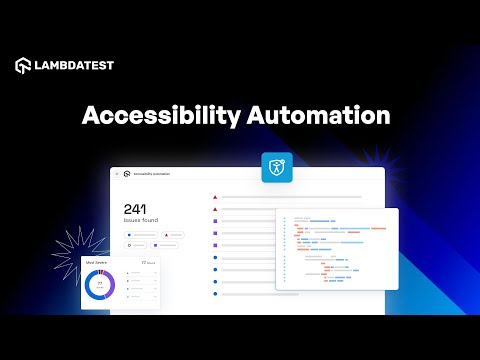
TestMu AI's accessibility testing tool provides a wide range of browsers, real devices, and operating systems. It is powered by the axe-core rules engine and covers 39 WCAG-aligned automated checkpoints on web, plus 15 rules on iOS and 18 on Android, validating WCAG 2.0, 2.1, and 2.2 (Levels A, AA, and AAA), ADA, Section 508, AODA, and the European Accessibility Act from one workspace.
It spans six testing surfaces: browser DevTools scanning, framework-driven CI/CD automation, scheduled recurring monitoring, manual real-device mobile testing, Appium-based native app automation, and KaneAI no-code mobile authoring. Every violation carries a WCAG reference, severity, element location, and specific fix guidance.
Features:
- Accessibility DevTools - Chrome extension with axe-core powered full-page, partial-page, workflow, and keyboard scans, and element-level issue reporting.
- Accessibility Automation - Adds accessibility checks to CI/CD pipelines using Selenium, Playwright, and Cypress.
- Accessibility Test Scheduling - Recurring or one-time scans via sitemap, CSV, or crawler discovery to maintain ongoing compliance.
- App Scanner and Appium automation - Scans native Android and iOS apps screen by screen on real devices, or adds accessibility scans to existing Appium suites.
- Screen readers - Manual testing with NVDA, JAWS, VoiceOver, and TalkBack for the checks automation cannot cover.
- Accessibility MCP Server - Exposes accessibility analysis inside AI coding tools, so you can request a report or scan a local build in natural language.
In pipelines, the scans run from GitHub Actions, GitLab CI, Jenkins, or Azure DevOps with the same test command you use locally, and violations can be sent to Jira or GitHub so fixes are tracked where the team already works. The accessibility testing dashboard collects every scan in one view, and hiding and restoring issues lets you park a confirmed false positive without deleting it.
To start with manual accessibility testing, see the Accessibility DevTools documentation. For automated testing, refer to the Accessibility Automation documentation.
Why Choose TestMu AI Over Other Tools?
Most entries in this list cover one surface: an extension, a scanner, or a screen reader. TestMu AI covers six, so the DevTools scan, the CI/CD check, the scheduled crawl, the native Android and iOS app scan and the manual screen reader pass report into one history rather than four disconnected ones. That matters most for the checks automation cannot make, because the manual evidence sits against the same pages as the automated results.
2. WAVE (Web Accessibility Evaluation Tool)
WAVE is WebAIM's accessibility evaluator. Its browser extension marks errors, alerts, and structural elements directly on the rendered page, which makes it the quickest way to see where a violation sits rather than reading a list of selectors. The WAVE accessibility tool guide walks through a full report.
Key facts:
- Runs on - Extensions for Chrome, Firefox, and Edge. WebAIM states that the extension runs entirely in the browser and sends no page data to the WAVE server, so it works on intranet and logged-in pages.
- Beyond the extension - WebAIM also offers a subscription API and a stand-alone testing engine for checking pages at scale, plus the AIM report.
- Stands out for - In-page visual overlays: icons sit next to the element that fails, so non-developers can review results without DevTools.
3. Accessibility Insights (by Microsoft)
Accessibility Insights is Microsoft's open-source accessibility tool family, available as a browser extension for Chrome and Edge and as a desktop tool for Windows applications. It pairs a fast automated pass with a guided manual assessment.
Key facts:
- FastPass - Microsoft describes it as catching the most common accessibility issues in under 5 minutes, combining automated checks with a visual tab-stops test.
- Assessment - A guided, step-by-step manual review that the project positions for WCAG 2.1 AA coverage, with instructions for each check.
- License - Open source on GitHub, free to use.
4. Axe DevTools (Deque Systems)
Axe DevTools is Deque's browser extension built on the open-source axe-core engine. It runs the same rules developers can later automate in CI, so findings from a manual check and a pipeline run line up.
Key facts:
- Intelligent Guided Tests - Deque describes its IGTs as AI-driven guided tests inside the extension that find more issues than automation alone.
- False positives - Deque states a commitment to zero false positives, so reported issues are meant to be acted on, not triaged.
- Free and paid tiers - A free extension plus paid tiers that add guided tests, a linter for static code, and CI/CD integrations for Cypress, Selenium, and Jest.
5. Lighthouse
Lighthouse is Google's open-source auditing tool, built into Chrome DevTools and also available as a command-line tool, a Node module, and through PageSpeed Insights. Its accessibility category runs axe-core rules, and the Lighthouse accessibility scoring documentation explains that the score is a weighted average of audits that each pass or fail, weighted by axe user-impact ratings.
Key facts:
- Built-in DevTools Audit - Runs from the Lighthouse panel in Chrome DevTools with nothing extra to install.
- Pass-or-Fail Audits - A page gets no partial credit on an audit, so one unlabeled button fails that audit outright.
- axe-core Rules - Uses the same rules engine as axe DevTools, so findings line up with axe-based checks in CI.
- Command Line and Node Module - Scriptable runs for pipelines, with Lighthouse CI adding pull-request checks on top.
- Manual Checks Listed Separately - Items that need a human to verify are listed but do not count toward the score.

Note: Run automated and manual accessibility scans across 3,000+ browser and OS combinations and 50,000+ real mobile devices with TestMu AI. Start Now
6. Pa11y
Pa11y is an open-source command-line tool and Node.js library that loads pages in a headless browser and reports accessibility issues. It suits scripted audits and regression checks, and Pa11y CI wraps it for pipelines.
Key facts:
- Engines - Per the Pa11y README, HTML_CodeSniffer is the default runner and axe is also supported; both can run in one pass.
- Actions before testing - Scripted actions such as clicking an element, setting a field, or waiting for a selector let it test states that only exist after interaction.
- License and runtime - LGPL-3.0; runs on Node.js and drives Chromium through Puppeteer, with cli, csv, json, html, and tsv reporters.
7. AChecker (Accessibility Checker)
AChecker is a long-running free web accessibility checker that tests a page against a selected guideline. The original achecker.ca site no longer hosts it; per a 2021 notice on the W3C evaluation-tools list, its maintainers moved it, and it is now offered as AChecker Legacy on ACHECKS (achecks.org), run by Cantan Group.
Key facts:
- Guidelines - The ACHECKS guideline selector still offers older and regional sets, including WCAG 2.0, Section 508, BITV, and the Italian Stanca Act.
- Newer option - ACHECKS also runs AChecker+, which adds Lighthouse-based web checks and the Tingtun checker for PDFs.
- Cost - Free tools, with paid services for scheduled compliance reporting.
8. IBM Equal Access Accessibility Checker
IBM's Equal Access toolkit is open source and runs the same rules in the browser and in automated tests, so a developer can reproduce a CI failure locally with the extension.
Key facts:
- Runs on - Extensions for Chrome, Firefox, and Edge, plus the accessibility-checker npm package and Cypress and Karma wrappers for Selenium, Puppeteer, and Playwright suites.
- Standards - Its ACE rules engine checks WCAG 2.0, 2.1, and 2.2.
- Stands out for - Baselines: known issues are recorded in a baseline file so a pipeline fails only on new violations. Licensed Apache 2.0.
9. SortSite
SortSite, from PowerMapper, crawls an entire site and checks accessibility alongside other quality problems in one report, which suits teams that want a single desktop audit of a large site.
Key facts:
- Runs on - Desktop app for Windows 10+ and macOS 12+, plus a web-based OnDemand edition.
- Checks - WCAG and Section 508 accessibility, plus broken links, browser compatibility, SEO, HTML and CSS standards, and usability guidelines.
- License - Commercial, in Standard, Professional, and Developer editions, with a free trial and a 10-page online demo.
10. Accessibility Scanner (Android)
Accessibility Scanner is Google's free Android app for checking native apps on a real phone or tablet. It replaces aDesigner in this list: aDesigner's Eclipse download page no longer resolves, and its Eclipse ACTF framework last shipped a release in December 2018.
Key facts:
- Checks - According to Google's help page, it suggests fixes for content labels, touch target size, clickable items, and text and image contrast.
- How it runs - A floating button captures a single screen snapshot or records a workflow as you move through the app.
- Requirements and limits - Android 9.0 or later (an older version supports Android 6.0 to 8.0). Google notes it is not a replacement for manual testing.
11. Firefox Accessibility Inspector
The Accessibility Inspector is built into Firefox Developer Tools and shows the accessibility tree that assistive technology reads, with roles, names, and states for each node.
Key facts:
- Check for issues - Mozilla's documentation lists checks for contrast, keyboard navigation, and missing text labels.
- Simulation - A simulator shows the page as users with color vision deficiencies or contrast sensitivity loss would see it.
- Tab order - Show Tabbing Order overlays the tab sequence on the page; it is a snapshot taken when the checkbox is selected, not a live view.
12. Chrome DevTools Accessibility Panel
Chrome DevTools exposes accessibility data next to the DOM, which makes it the fastest place to debug why a screen reader announces an element the way it does.
Key facts:
- Accessibility tab - Shows the accessibility tree, ARIA attributes, and computed accessibility properties for the selected node, and can replace the DOM tree with a full-page accessibility tree.
- Vision and contrast - The Rendering tab emulates several vision deficiencies, and DevTools can find low-contrast text and suggest better colors.
- Source order - The Source Order Viewer numbers elements in source order, which helps catch reading-order and focus problems.
13. Dyno Mapper
Dyno Mapper is a cloud platform that tests and monitors whole sites, including pages behind a login, and tracks an accessibility score over time.
Key facts:
- Standards - WCAG 1.0 through 2.2 at Levels A, AA, and AAA, plus Section 508, BITV 1.0, and the Stanca Act.
- Issue types - Findings are split into known problems, likely problems that need human review, and potential problems that need human verification.
- Monitoring - Scheduled testing with email alerts on new issues, CSV and PDF exports, and integrations such as Jira, Asana, Figma, and WordPress.
14. NVDA (NonVisual Desktop Access)
NVDA is a free, open-source screen reader for Windows from NV Access, used by blind and low-vision people and by testers checking how pages are actually announced.
Key facts:
- Runs on - Per NV Access, 64-bit Windows 10, Windows 11, and Windows Server from 2016, including ARM64 on Windows 11.
- Speech and braille - A built-in synthesizer supports over 55 languages, and it drives many refreshable braille displays, including braille keyboard input.
- License - Free and open source, extended through community add-ons written in Python.
15. JAWS (Job Access With Speech)
JAWS is Freedom Scientific's commercial screen reader for Windows, common in enterprise and government settings, and worth including in a test matrix alongside NVDA because the two announce some patterns differently.
Key facts:
- Speech and braille - Speech output plus braille input and output across a wide range of braille displays.
- AI assistance - Freedom Scientific describes AI-assisted exploration of complex pages and task guidance through Vispero Companion.
- License - Commercial: professional, home, and annual home subscriptions, with legacy perpetual options and a free trial.
16. VoiceOver (macOS/iOS)
VoiceOver is the screen reader built into every Mac, iPhone, and iPad, so it is the default way to test how Safari and native Apple apps are announced, at no extra cost.
Key facts:
- Rotor - The VoiceOver rotor lets users jump between headings, links, landmarks, and form controls, which is how many users scan a page.
- Braille - Supports Bluetooth braille displays, router keys, and braille keyboard input.
- Configuration - VoiceOver Utility changes the voice, verbosity, and navigation options, so testers can match common user settings.
17. ChromeVox (Chrome OS)
ChromeVox is the screen reader built into ChromeOS, relevant when a product targets schools and organizations that standardize on Chromebooks.
Key facts:
- Turning it on - Ctrl + Alt + Z toggles it on standard keyboards; on tablets, hold Volume down and Volume up for 5 seconds.
- Navigation - Keyboard shortcuts jump by headings, links, form fields, and tables, and the ChromeVox menu (Search + Period) lists navigation options.
- Braille and learning - Supports braille displays over USB or Bluetooth, and includes a built-in tutorial and Learn Mode.
18. Functional Accessibility Evaluator (FAE)
FAE is an open-source web application from the University of Illinois that spiders a website and reports rule results per page and across the site.
Key facts:
- Rules - It uses the OpenA11y Evaluation Library of over 120 rules, each referencing a WCAG 2.0 Level A or AA success criterion.
- Companion tool - AInspector, a Firefox extension, runs the same library on a single page, including logged-in pages and dynamic content.
- Stands out for - Site-wide rule summaries, which show whether a failure is one page or a template-level pattern.
19. Silktide
Silktide is a website quality platform that monitors accessibility across a site and tracks progress with scores over time.
Key facts:
- Standards - Positions its checks for WCAG 2.2 and ADA obligations.
- Monitoring - Continuous monitoring with an Inspector view that visualizes each issue on the page, plus scoring that tracks improvement.
- Free option - A free accessibility checker browser tool alongside the paid platform.
20. UserWay Accessibility Scanner
UserWay's accessibility checker is a free URL scan for WCAG and ADA issues, and the entry point to the company's accessibility widget, monitoring, and audit services.
Key facts:
- Free scan - Enter a URL to get an instant report of WCAG and ADA issues on desktop and mobile layouts.
- Prioritization - Issues are classified by urgency and importance.
- Keep in mind - The scan is automated, so it shares the limits covered in the next section; pair it with manual screen reader and keyboard testing.
21. Siteimprove Accessibility Checker
Siteimprove is an enterprise platform that monitors accessibility across an organization's whole web estate, and its free Accessibility Checker browser extension brings the same checks to a single page.
Key facts:
- Coverage - Monitoring across public and authenticated pages, documents, and PDFs, positioned for WCAG 2.2 AA, ADA Title II, Section 508, and the EAA.
- Developer workflow - Siteimprove describes accessibility agents and an MCP server that work inside VS Code, Claude Code, Figma, and CI/CD.
- Free tools - The Accessibility Checker extension and an accessibility statement generator.
What Can Automated Accessibility Tools Detect, and What Do They Miss?
Automated tools are accessibility rule checking software: they test the rendered page against a fixed set of WCAG rules, so they reliably catch machine-detectable violations such as low contrast, missing alt text, and missing form labels. They cannot judge whether a screen reader announcement makes sense, whether focus order is logical, or whether alt text is meaningful. Those require manual testing.
This is not a vendor opinion. The W3C Web Accessibility Initiative states plainly that "Web accessibility evaluation tools can not determine accessibility, they can only assist in doing so." It adds that "Tools cannot check all accessibility aspects automatically. Human judgement is required," and warns that "Sometimes evaluation tools can produce false or misleading results."
The split is easy to reason about once you see it in the data. The six error types that the WebAIM Million analysis found account for 96% of all detected errors are every one of them machine-detectable, which is why a scanner is genuinely valuable as a first pass. What it cannot do is tell you whether the alt text it found actually describes the image.
What automation catches:
- Insufficient color contrast ratios
- Missing or empty image alt attributes
- Unlabeled form inputs and buttons
- Broken heading hierarchy and missing landmarks
- Invalid or missing ARIA roles and properties
- Missing page language attribute
What still needs a human:
- Alt text quality - Automation confirms alt text exists. Only a person can tell that "image1.jpg" is useless.
- Keyboard traps and focus order - Whether a modal returns focus correctly, and whether the tab order is logical.
- Screen reader announcements - Whether what gets read aloud makes sense in context.
- Cognitive accessibility - Reading level, content clarity, and understandable instructions.
- Color as the only cue - A red border marking an error with no text equivalent passes a contrast check.
The practical workflow: run an automated scan on every build to stop regressions, then layer manual screen reader and keyboard passes over critical flows before release. Automated accessibility testing tools handle the first half and screen readers cover the second.
Real-device testing sits between those two layers, and each layer leaves a gap the next one fills:
| Approach | Strengths | Gaps |
|---|---|---|
| CI automation (axe-core, Pa11y, Lighthouse) | Fast and repeatable on every build, so regressions are caught before merge | Cannot judge meaning, context, or complex assistive technology interactions |
| Real-device testing | Real OS accessibility APIs, screen readers, and touch or keyboard input | Needs device access and a defined browser and device matrix |
| Manual assistive technology testing | Confirms real user journeys and nuanced interactions work end to end | Slow, and needs trained testers and several device types |
For a quick automated pass on a single URL before you set up a pipeline, run it through a WCAG accessibility checker.
Cross-Browser Accessibility Testing
Cross-browser accessibility testing checks the same pages in the browser, operating system, and assistive technology pairings your users run, because a scan in one headless browser only proves the page works there. The W3C ARIA Authoring Practices Guide calls assistive technology interoperability testing essential and advises testing "with each browser and assistive technology combination."
- Screen reader and browser pairings - NVDA with Firefox or Chrome, JAWS with Chrome or Edge, and VoiceOver with Safari each read the browser's accessibility tree, so a menu or live region announced correctly in one pairing can stay silent or trap focus in another.
- Real devices and mobile - Touch target size, swipe gestures, TalkBack and VoiceOver on phones, and responsive layout changes only show up on mobile hardware, so desktop-only testing misses them.
- OS-level settings - Reduced motion, font scaling, zoom, and forced colors change how a page renders. MDN's forced-colors reference notes that Windows High Contrast mode replaces author colors with system colors and forces box-shadow to none, so a focus ring drawn with box-shadow disappears. This guide to Windows High Contrast Mode covers how to test it.
Run the automated scan across every pairing in your support matrix, then do the manual screen reader pass on at least one desktop and one mobile pairing before release.

How Is AI Changing Accessibility Testing Tools?
AI is adding judgment to accessibility testing tools: models draft alt text, suggest ARIA and code fixes, and flag issues rule engines miss, but they still cannot certify WCAG conformance.
Treat promises of instant compliance with caution. In April 2025 the FTC approved a final order requiring accessiBe to pay $1 million over claims that its AI tool could make any website WCAG-compliant, and barred similar claims without evidence.
Use AI suggestions as a first draft: accept a generated alt text or fix only after a tester confirms it with a screen reader and keyboard. To see how fix guidance differs between tools on the same broken page, read this hands-on test of accessibility remediation tools. For the standards behind these checks, see this guide to web accessibility.
How to Choose the Right Accessibility Testing Tool?
Choose WCAG compliance tools based on the standards you must meet, whether you need automated and manual coverage, CI/CD integration, mobile support, reporting depth, and cost. Match the tool to the decision you are actually making.
The top accessibility testing tools differ less in what they detect than in where they run and who is meant to read the output. When picking a tool to perform accessibility testing, map your situation to the factors below.
- Standards you must meet - Confirm coverage of the WCAG version you target, plus ADA and Section 508 compliance if you serve US federal or public-sector users. If you are unsure which level applies, start with the WCAG conformance levels. For tools tested against the WCAG 2.1 AA standard that ADA Title II requires, see these ADA compliance tools.
- Automated and manual coverage - A scanner alone cannot make you compliant. Prefer tools or accessibility extensions that also support keyboard and screen reader workflows, plus switch input, reduced motion, and high-contrast settings.
- CI/CD integration - If accessibility must not regress, choose a tool that plugs into your Selenium, Playwright, or Cypress suite so scans run on every build.
- Mobile support - If you ship native apps, the tool must test Android and iOS on real devices, not just web pages. See mobile accessibility testing for the differences, and a dedicated native app accessibility scanner runs these checks directly on real devices.
- Reporting and remediation - Look for WCAG-referenced issues with severity, element location, and fix guidance, plus exportable reports for audits.
- Scalability and cost - Start with free scanners for small sites; invest in a platform when you need site-wide monitoring, team workflows, and compliance tracking. For enterprise rollouts, also confirm SSO/SAML login, audit trails, and role-based access control.
Accessibility Testing Workflow
An accessibility testing workflow layers the tools above so each stage catches what the earlier one cannot, starting in the editor and ending in production monitoring.
- Lint and unit-test components - eslint-plugin-jsx-a11y statically checks JSX for accessibility issues, and jest-axe adds an axe-based accessibility assertion to Jest unit tests.
- Scan every pull request - Run Pa11y CI, the axe-core CLI, or Lighthouse CI on each build, across the browser pairings in your support matrix rather than a single headless browser.
- Scan inside end-to-end flows - Add accessibility scans to existing Playwright, Cypress, or Selenium tests after the functional assertions, so logged-in and checkout states get checked, not just landing pages.
- Gate merges by severity - Block on critical issues and warn on minor ones, as in the example policy below.
- Validate manually - Use NVDA, JAWS, VoiceOver, keyboard-only navigation, and magnification on new flows, ARIA-heavy components, and revenue-critical paths.
- Monitor production - Nightly or weekly crawls of staging and production catch regressions from CMS edits, third-party scripts, and A/B tests.
The thresholds below are an example policy for a team paying down an existing backlog. Tune them to your own codebase, and tighten them as the backlog shrinks.
| Severity | Examples | Gate Type | Example Threshold |
|---|---|---|---|
| Critical | Non-focusable controls, keyboard traps, missing form labels | Hard fail | 0 |
| Major | Low body text contrast, invalid ARIA roles | Hard on main, soft on pull requests | 1 or fewer on main, 3 or fewer per pull request |
| Minor | Redundant alt text, heading order nuances | Soft (warn) | 10 or fewer |
For pipeline configuration examples, see this guide to accessibility testing in CI/CD pipelines.
Where Should You Start With Accessibility Testing Tools?
Start by running an automated scan on your highest-traffic pages to clear the six error types behind 96% of WCAG failures, then layer manual screen reader and keyboard checks over your critical user flows. Wire the automated scan into CI/CD so accessibility does not regress between releases, and prioritize fixes by severity using the WCAG reference attached to each violation.
Most of the top accessibility testing tools here overlap heavily on what they detect, so pick the one that matches the job: a browser extension for spot checks while you build, a command-line scanner for the pipeline, a real screen reader for what automation cannot judge, and a platform when you need all three plus reporting. To run automated and manual tests across browsers and real devices in one place, start with TestMu AI and follow the Accessibility Testing documentation to add scans to your existing suite. For ADA and WCAG testing, that combination catches missing alt tags, low-contrast text, and poorly structured HTML before they reach users.
As the field evolves, exploring how AI and accessibility intersect can further scale inclusive design and reduce the manual effort of staying compliant.
Running one of these tools against a large product catalog needs a different setup than a five-page site. See our guide on accessibility testing for e-commerce platforms at enterprise scale for how to scan a full catalog and checkout flow, not just a homepage. If you are comparing platforms for an organization-wide program, the roundup of enterprise accessibility testing platforms scores nine of them on monitoring, CI/CD, mobile, manual testing and expert services.
Note: Rahul Mishra, Lead Member of Technical Staff at TestMu AI with expertise in Accessibility Testing and WCAG Compliance, reviewed, fact-checked, and approved this article, which was researched and drafted with AI assistance. It was technically reviewed for accessibility accuracy by Shubham Soni, Senior Member of Technical Staff at TestMu AI, who led the team that built TestMu AI's accessibility testing product. Sources for standards and legal claims are the W3C and the US Federal Trade Commission. Our editorial process and AI use policy describes how every claim is verified before publication.
Author
Rahul Mishra
Blogs: 17

Rahul Mishra is a Lead Member of Technical Staff at TestMu AI, leading frontend engineering and accessibility testing across the quality engineering platform. He mentors frontend engineers, runs code reviews and sprint planning, optimizes React.js rendering performance, and makes product features accessible to users with disabilities through WCAG and ADA-compliant accessibility audits. He brings 10+ years of experience across React.js, VueJS, TypeScript, Swift, Objective-C, and AWS, with earlier work as a Technical Lead at VectoScalar Technologies. Rahul holds a B.E. in Information Technology.
Reviewer

Shubham Soni
Reviewer
Shubham Soni is a Senior Member of Technical Staff at TestMu AI, building the Real Device Cloud and real-time testing infrastructure. He optimized the WebRTC services that power live testing to sub-100ms latency with adaptive bitrate streaming, led a frontend migration from Angular to React that cut page load time from 5-6 seconds to 1-1.5 seconds, and contributes to the official Device SDK. He led a team of four to build an accessibility testing product covering manual and automated testing and mentored a team of six on a real-time testing product. He brings over eight years of experience and earlier scaled a cloud code platform to 200K+ monthly users. Shubham holds a B.Tech in Computer Science.


Accessibility Testing Tools FAQs
Did you find this page helpful?
More Related Blogs

TestMu AI forEnterprise
Get access to solutions built on Enterprise
grade security, privacy, & compliance
- Advanced access controls
- Advanced data retention rules
- Advanced Local Testing
- Premium Support options
- Early access to beta features
- Private Slack Channel
- Unlimited Manual Accessibility DevTools Tests