
Scan Your Website for WCAG Accessibility Issues
TestMu AI Accessibility Testing Agent Runs Automated WCAG Checks on Real Devices, and Screen Readers, Then Ties Each Fix to the Rule It Fails.

WAVE Accessibility Tool: How to Use It (+ Free Alternative)
Learn how to use the WAVE accessibility tool from WebAIM: run a check, read errors, alerts, and contrast results, and see what WAVE misses compared with axe.
Published on:
A designer sends you a link before launch with one question: "Is this page accessible?" WAVE is usually the first tool people reach for, because you paste a URL and see icons on the page within seconds. The harder part is reading what those icons mean and knowing what WAVE never checks.
I ran WAVE and axe-core on the same practice form, the TestMu AI Selenium Playground input form, on October 22, 2026. This guide walks through that run: how to start a check, how to read each part of the report, and why the two tools disagreed on 10 form fields.
Overview
The WAVE accessibility tool is WebAIM's web accessibility evaluator. You run it at wave.webaim.org or through its Chrome, Firefox, or Edge extension, and it marks errors, contrast errors, alerts, and structure directly on the page. It checks one page at a time and cannot confirm a page is accessible on its own.
- Online report: Paste a public URL at wave.webaim.org; no account or payment is needed for a single-page report.
- Browser extension: Runs inside the browser, so it can check logged-in, intranet, and local pages without sending content to WebAIM.
- Errors vs alerts: Red error icons need fixing; yellow alerts need a person to judge whether there is a problem.
What Is the WAVE Accessibility Tool?
WAVE (web accessibility evaluation tool) is built by WebAIM, a non-profit service center at Utah State University. It does not produce a text report first; it injects icons into a copy of the page next to each element it flags, so you see the problem in context.
- Online tool - enter a URL at wave.webaim.org and WAVE fetches and evaluates the public page.
- Browser extensions - per the WAVE extension page, Chrome, Firefox, and Edge versions run "entirely within your web browser" and send no information to the WAVE server.
- API - a credit-based service for evaluating pages programmatically.
WAVE appears in most lists of accessibility extension tools because it is quick to start and visual, which makes it useful for designers and content editors as well as developers.
Is WAVE Free?
The online report and the extensions are the free entry points; the API is where cost appears:
- Online report - I ran the report for this guide without an account, a login, or a payment.
- Extensions - installed from the Chrome Web Store, Firefox Add-ons, or Edge Add-ons.
- WAVE API - the WAVE API page says a basic analysis of one page costs 1 credit, advanced features cost 2 or 3 credits per request, and all new accounts get 100 free credits.
How to Run a WAVE Check
Use the online tool for public pages and the extension for anything behind a login or on your own machine.
Online report:
- Open wave.webaim.org and paste the page URL into the address field.
- Press Enter. WAVE loads the page with icons on top and a Summary panel on the left.
- Open the Details tab to see every item grouped by type, and click an item to jump to it on the page.
- Switch Styles off to see the page without CSS, which is closer to the order a screen reader reads it.
Browser extension:
- Install WAVE from your browser's extension store and pin it to the toolbar.
- Sign in to the app or open the local page you want to check.
- Click the WAVE icon. The same sidebar and icons appear, evaluated on the page as your browser renders it, including content added by JavaScript.
- For pages opened from your file system, enable the extension's file access setting first, as WebAIM describes.
How to Read a WAVE Report
This is the Summary panel from my run on the Selenium Playground input form:
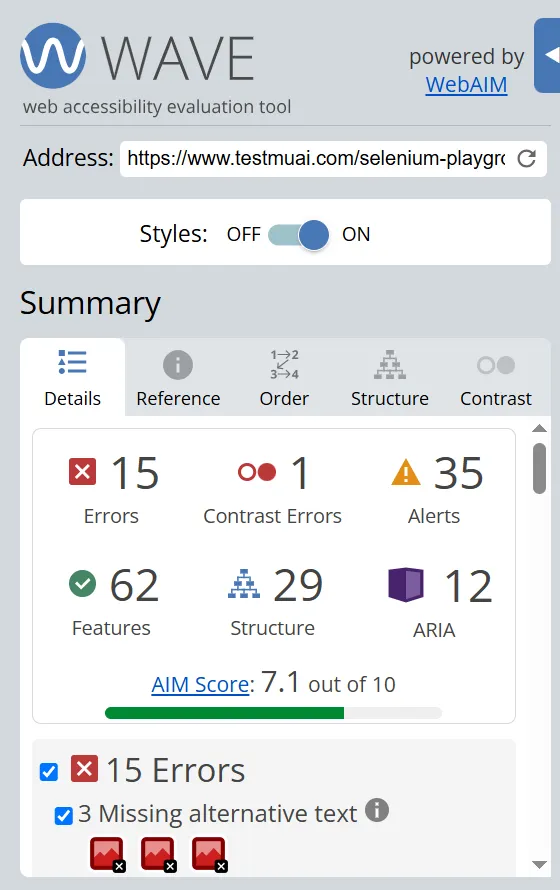
| Category | What it means | My run | What to do |
|---|---|---|---|
| Errors (red) | Failures that need fixing | 15: 11 missing form labels, 3 missing alternative text, 1 multiple form labels | Fix every one |
| Contrast Errors | Text below the WCAG contrast ratio | 1: very low contrast | Change the colors and recheck the ratio |
| Alerts (yellow) | Possible problems that need a person to judge | 35, including 8 orphaned form labels, 1 select missing label, 18 redundant title text | Review each one; many are real issues |
| Features (green) | Accessibility features found, such as alt text and form labels | 62 | Check they are correct, not just present |
| Structure | Headings, lists, and landmarks | 29 | Confirm the heading order makes sense |
| ARIA | ARIA attributes on the page | 12 | Check each one with a screen reader |
The AIM Score under the counts (7.1 out of 10 here) is, in WebAIM's words on its AIM score page, "a measure of end user impact compared to web pages generally". On the automated scale, 5 means errors are about average and 10 means the page is among the best. Treat it as a comparison, not a pass mark.
For the contrast error, check the exact ratio of the colors in a color contrast checker before you pick replacements.
WAVE vs axe on the Same Page
On the same form, axe-core 4.10.2, limited to WCAG 2.0 to 2.2 Level A and AA rules, reported 27 passing rules, 2 items to review, and 2 violations. WAVE reported 15 errors. The gap comes from how each tool decides a field has a name:
| Issue on the page | WAVE | axe-core |
|---|---|---|
| Visible labels whose for attribute does not match the input id (for example, a label for "username" on an input with id "name") | Error: missing form label, plus alert: orphaned form label | Pass, because each input has a placeholder that axe accepts as its accessible name |
| Country dropdown with no label, no aria-label, and no placeholder | Flagged | Violation: select-name (WCAG 4.1.2) |
| Submit button with white text on #0ebac5 | Contrast error: very low contrast | Violation: color-contrast, measured at 2.37:1 against the required 4.5:1 (WCAG 1.4.3) |
Both readings are defensible, but a placeholder disappears once the user types, so the WAVE result is the one I would fix first: point each label's for attribute at the right input id. The broader lesson is to run more than one engine and confirm with a screen reader test before you close an issue. For how the two extensions differ beyond this one form, including pricing, sign-in and CI support, see WAVE vs axe DevTools.

Limitations of the WAVE Accessibility Tool
WebAIM is direct about the limit on its WAVE help page: "WAVE cannot tell you if your web content is accessible. Only a human can determine true accessibility." In practice that means:
- Alt text quality - WAVE shows the alternative text it finds, but a person decides whether it describes the image.
- One page at a time - the online tool and extension evaluate the page in front of you, not a whole site or a multi-step flow.
- No build gate - running WAVE is a manual step, so a regression can ship between checks unless you script the API.
- Keyboard and screen reader behavior - focus order, keyboard traps, and how announcements sound are outside what an evaluator can read from the page.
The accessibility testing guide covers the manual passes that fill these gaps.
What Is a Free Alternative to WAVE?
The TestMu AI Accessibility DevTools Chrome extension is a free alternative that covers the same single-page inspection and adds scans across a whole flow. To check a URL without installing anything, use the WCAG accessibility checker. When you need the same checks on every build and every page, move them into your pipeline:
- In the browser - the Accessibility DevTools extension runs Full Page, Partial Page, Multi-Page, Workflow, and Keyboard scans, so you can check a whole flow instead of one page.
- In CI - TestMu AI Accessibility Testing runs axe-core scans inside Selenium, Playwright, and Cypress suites, so a new violation fails the build that introduced it.
- On a schedule - recurring scans discover pages by sitemap, CSV import, or crawler and catch regressions between releases.
For a side-by-side view of the other options, see the roundup of accessibility testing tools.
Run WAVE on Your Highest-Traffic Form
Start with the form your users fill most, such as sign-up or checkout: run WAVE, fix the red errors, and judge each alert. Then add the same checks to your test suite using the Accessibility DevTools documentation, so the fixes stay fixed.
Author

Mythili Raju
Blogs: 55


Mythili is a Community Contributor at TestMu AI with 3+ years of experience in software testing and marketing. She holds certifications in Automation Testing, KaneAI, Selenium, Appium, Playwright, and Cypress. At TestMu AI, she leads go-to-market (GTM) strategies, collaborates on feature launches, and creates SEO optimized content that bridges technical depth with business relevance. A graduate of St. Joseph’s University, Bangalore, Mythili has authored 35+ blogs and learning hubs on AI-driven test automation and quality engineering. Her work focuses on making complex QA topics accessible while aligning content strategy with product and business goals.
Reviewer

Shubham Soni
Reviewer
Shubham Soni is a Senior Member of Technical Staff at TestMu AI, building the Real Device Cloud and real-time testing infrastructure. He optimized the WebRTC services that power live testing to sub-100ms latency with adaptive bitrate streaming, led a frontend migration from Angular to React that cut page load time from 5-6 seconds to 1-1.5 seconds, and contributes to the official Device SDK. He led a team of four to build an accessibility testing product covering manual and automated testing and mentored a team of six on a real-time testing product. He brings over eight years of experience and earlier scaled a cloud code platform to 200K+ monthly users. Shubham holds a B.Tech in Computer Science.


WAVE Accessibility Tool FAQs
Did you find this page helpful?
More Related Blogs

TestMu AI forEnterprise
Get access to solutions built on Enterprise
grade security, privacy, & compliance
- Advanced access controls
- Advanced data retention rules
- Advanced Local Testing
- Premium Support options
- Early access to beta features
- Private Slack Channel
- Unlimited Manual Accessibility DevTools Tests