Hide and Restore Issues
Use Hide and Restore Issues to manage known, accepted, or intentionally excluded findings without deleting them from the report hierarchy. The feature lets you hide and later restore issues at multiple hierarchy levels, capture a reason during the action, and, for supported scheduled web scan flows, apply the same preference to future scans as well.
The sections that follow describe how hide and restore work for supported web scans: supported hierarchy levels (URL through element), capture of hide reasons, optional Hide for future scans, the Hidden Issues tab, how restore follows stored preferences, and why Save is required. You will also see how issue counts, charts, graphs, and exports reflect active issues after you hide or restore findings.
This feature is currently supported only for web scans. It is not supported for app scans.
Supported hierarchy levels
You can hide and restore issues at all supported levels in the report hierarchy:
- URL
- Rule
- Element group
- Element
Each hierarchy level has its own action entry point and confirmation modal so users can review the exact scope of the hide or restore action before applying it.
Understand the report hierarchy
The report can be explored from top to bottom across the issue hierarchy. This is the same structure used by the hide and restore feature.
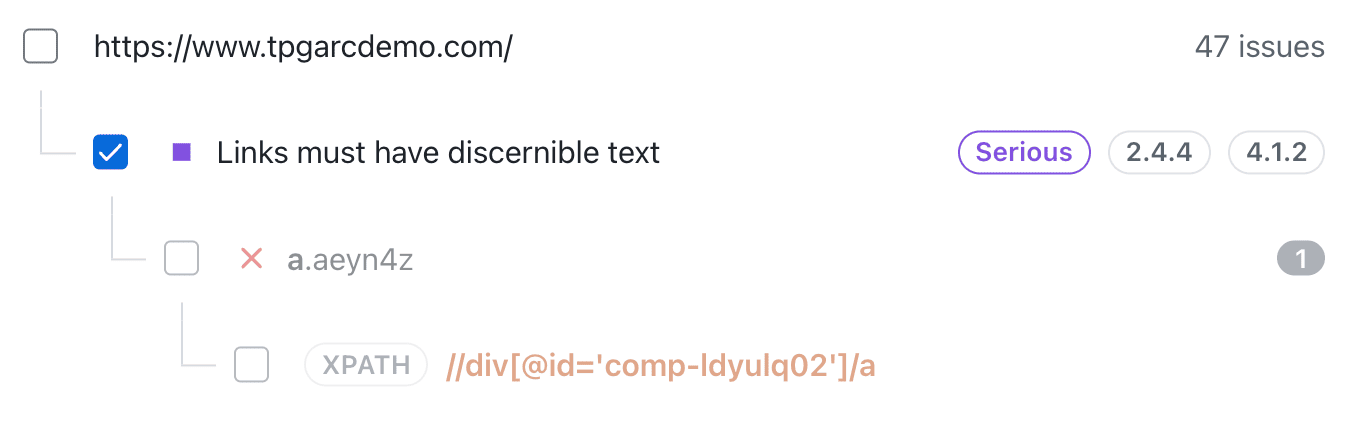
When you apply a hide or restore action, the effect depends on the level you selected in this hierarchy.
How hiding works
Step 1: Open the issue hierarchy and locate the target
Open the report and navigate to the issue location you want to manage. You can start from a URL, then drill down into its rules, element groups, and individual elements.
Step 2: Click the hide action
Use the hide icon from the relevant level in the hierarchy.

Step 3: Choose the level you want to hide
You can hide from any supported level depending on how broad or narrow the action should be.
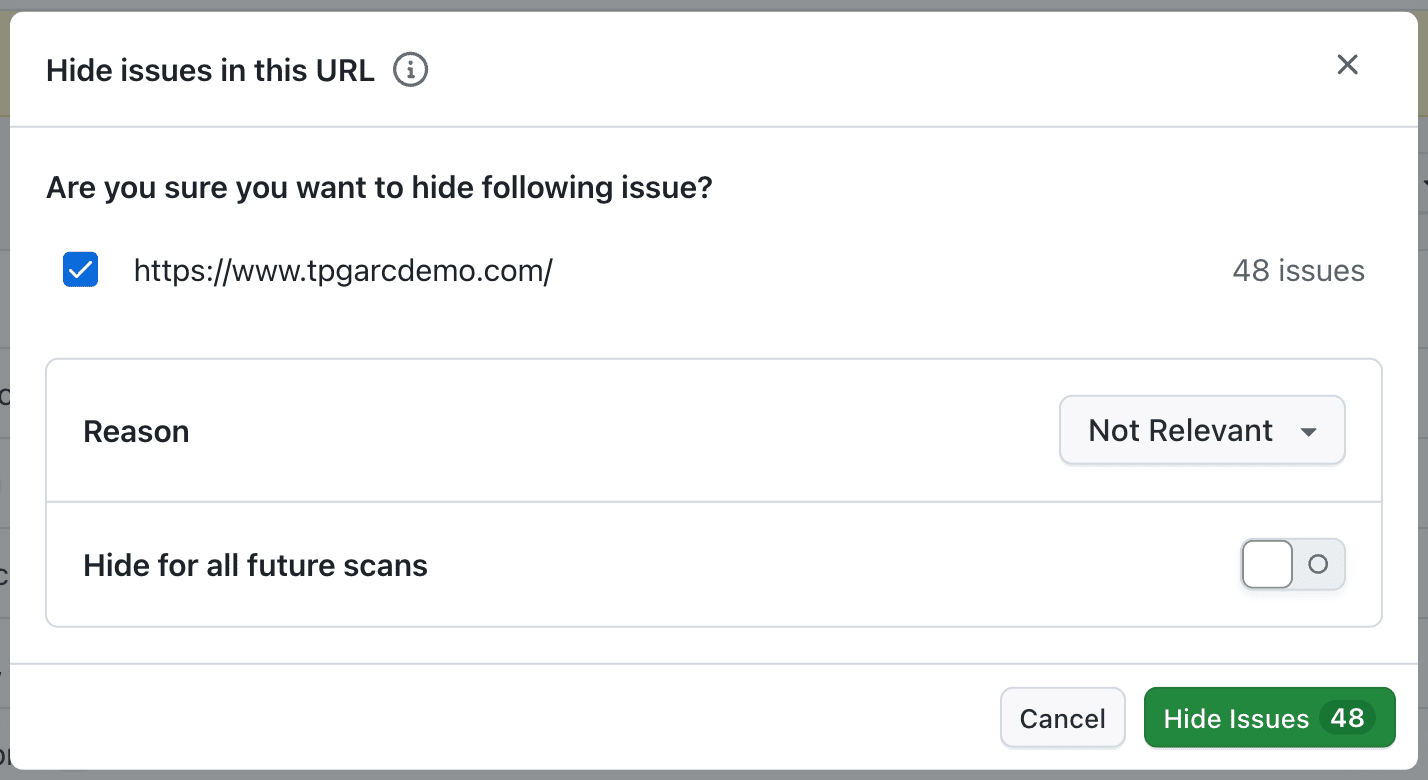
Hide at URL level
Use this when all findings under a specific URL should be hidden together.

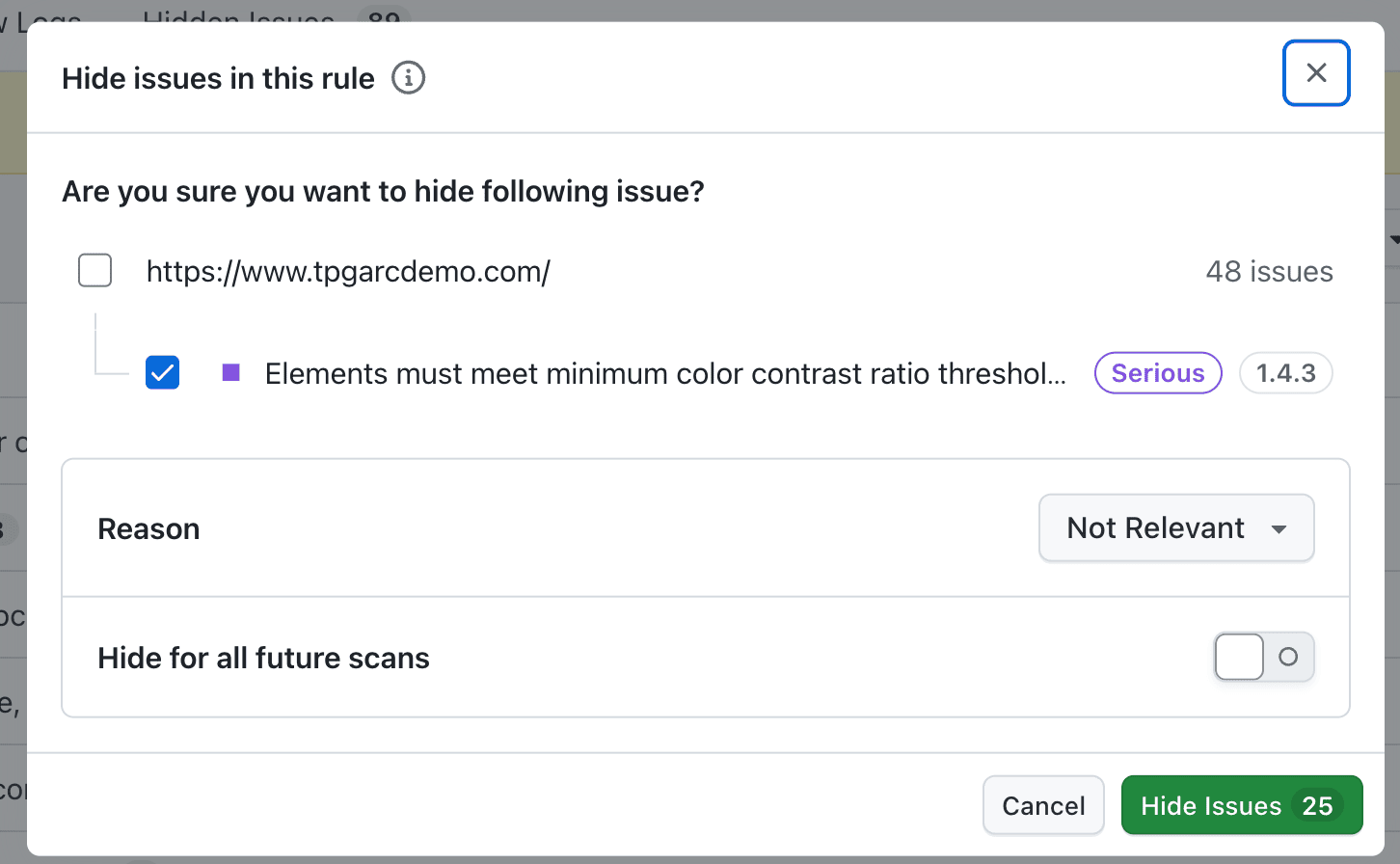
Hide at rule level
Use this when the hide action should apply to one rule and the issues grouped under that rule.

Hide at element group level
Use this when the issue set should be hidden only for a specific group of similar elements.

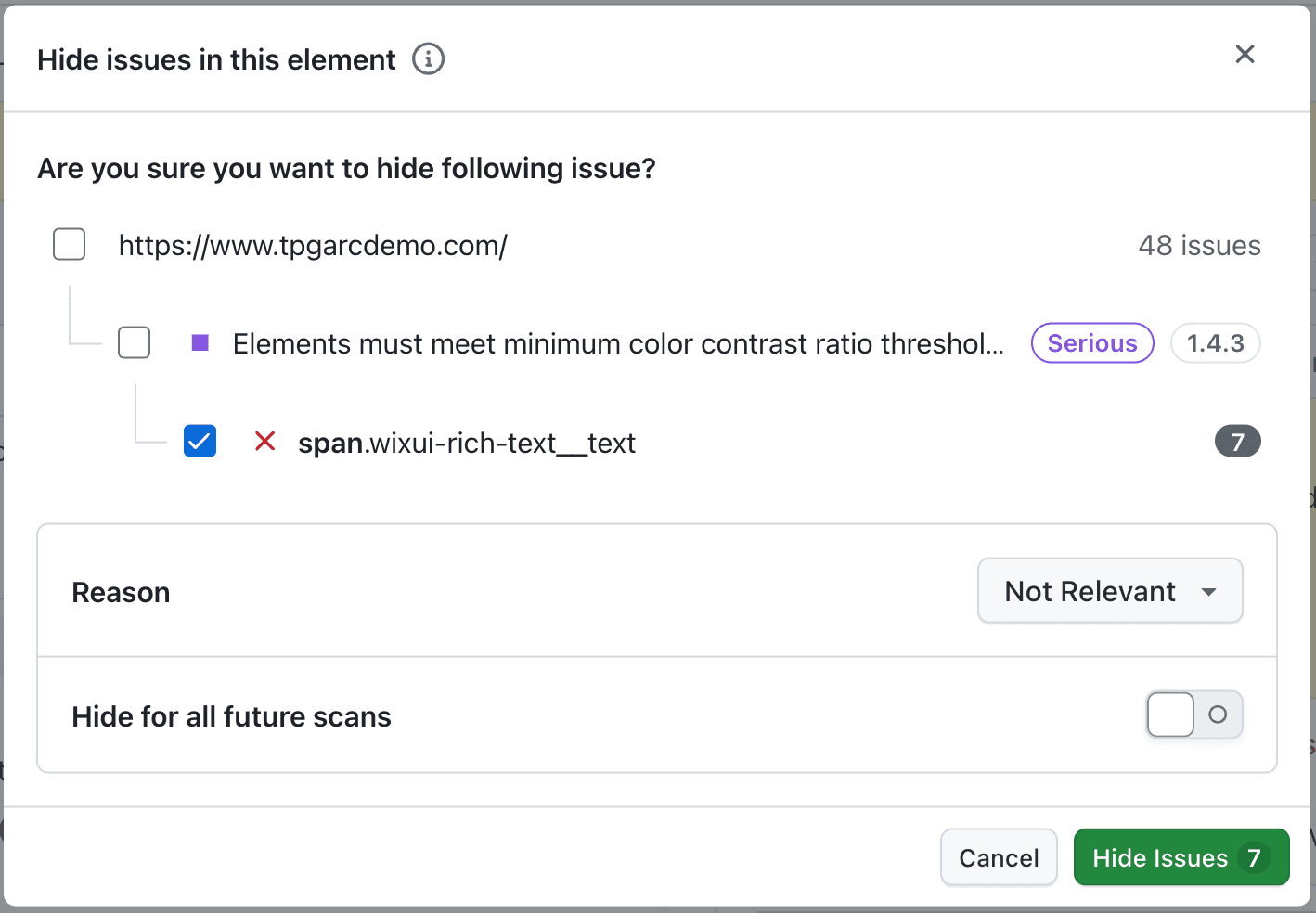
Hide at element level
Use this when only a single element-level issue should be hidden.
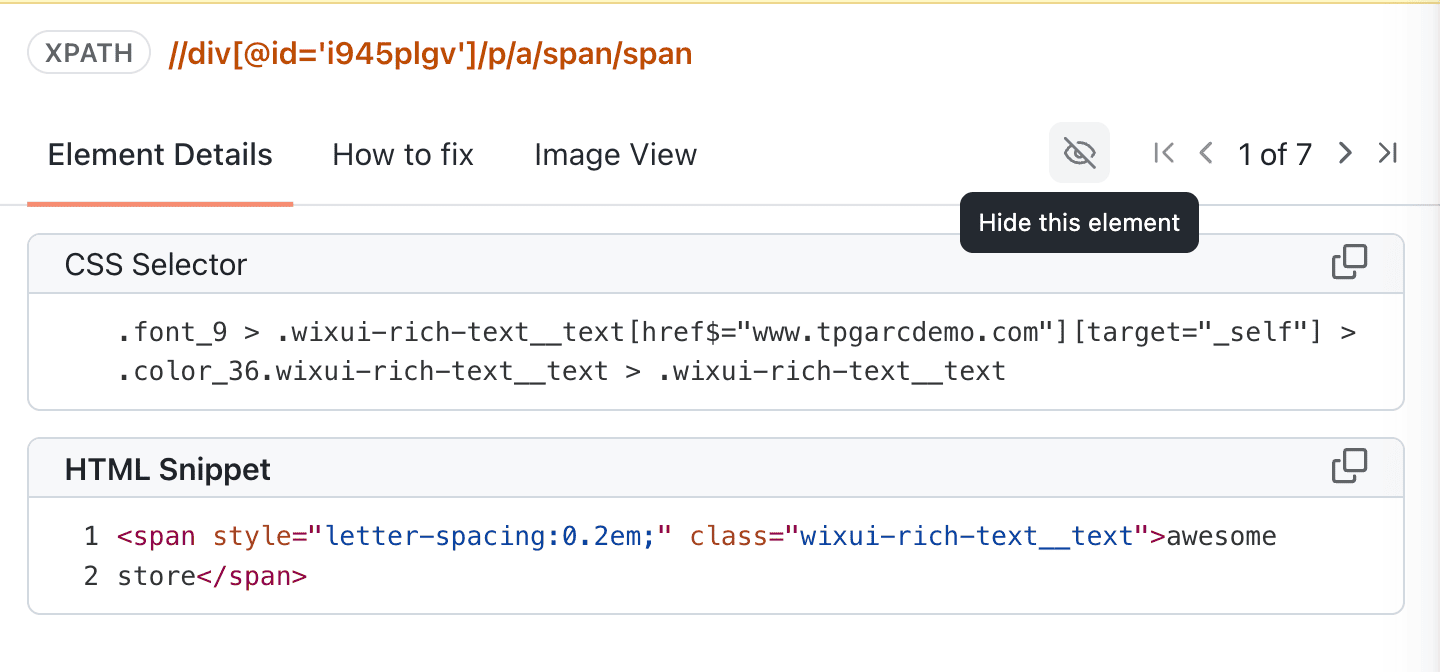
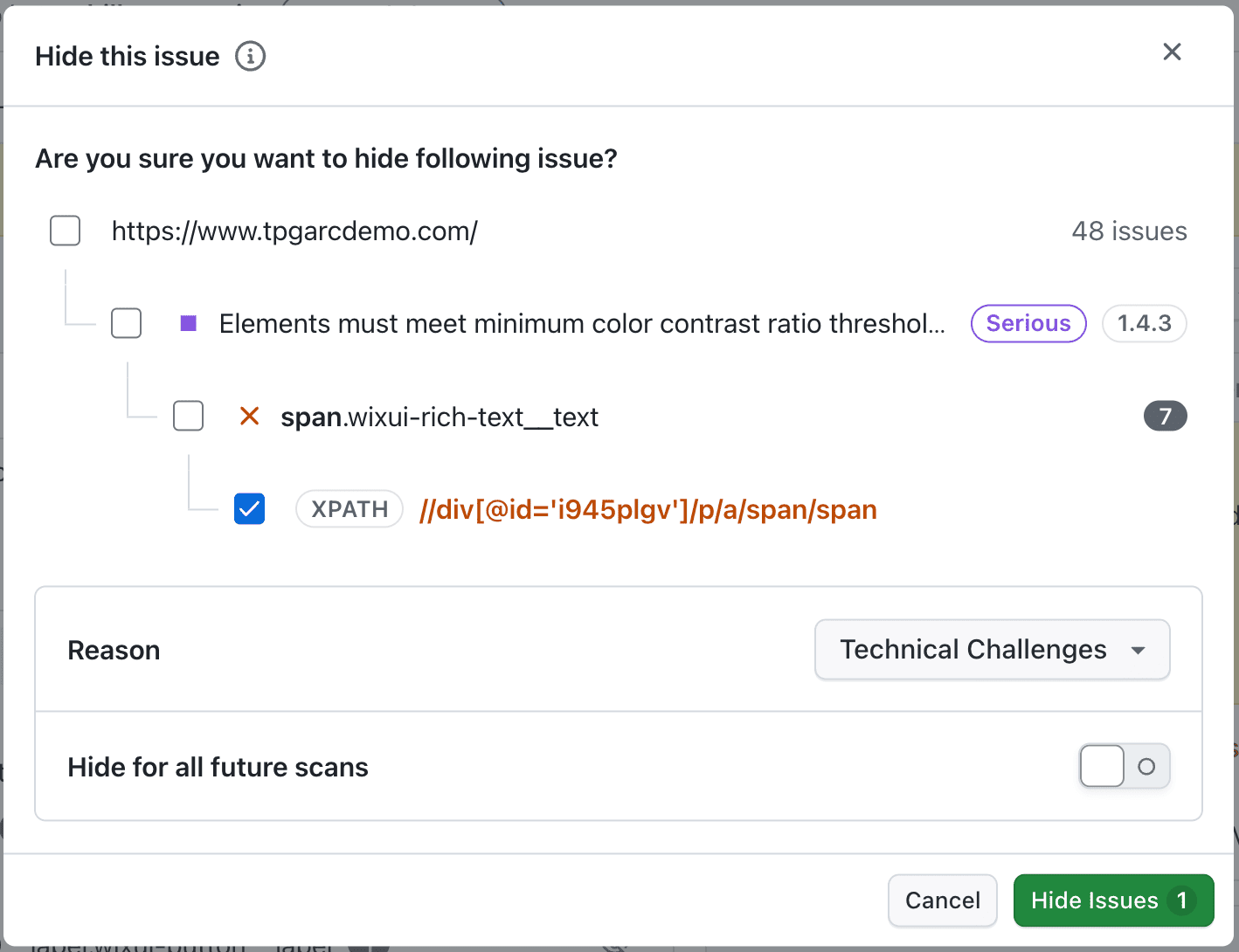
Step 4: Select a reason in the hide modal
When you hide an issue or issue set, the modal lets you choose a reason for hiding it.
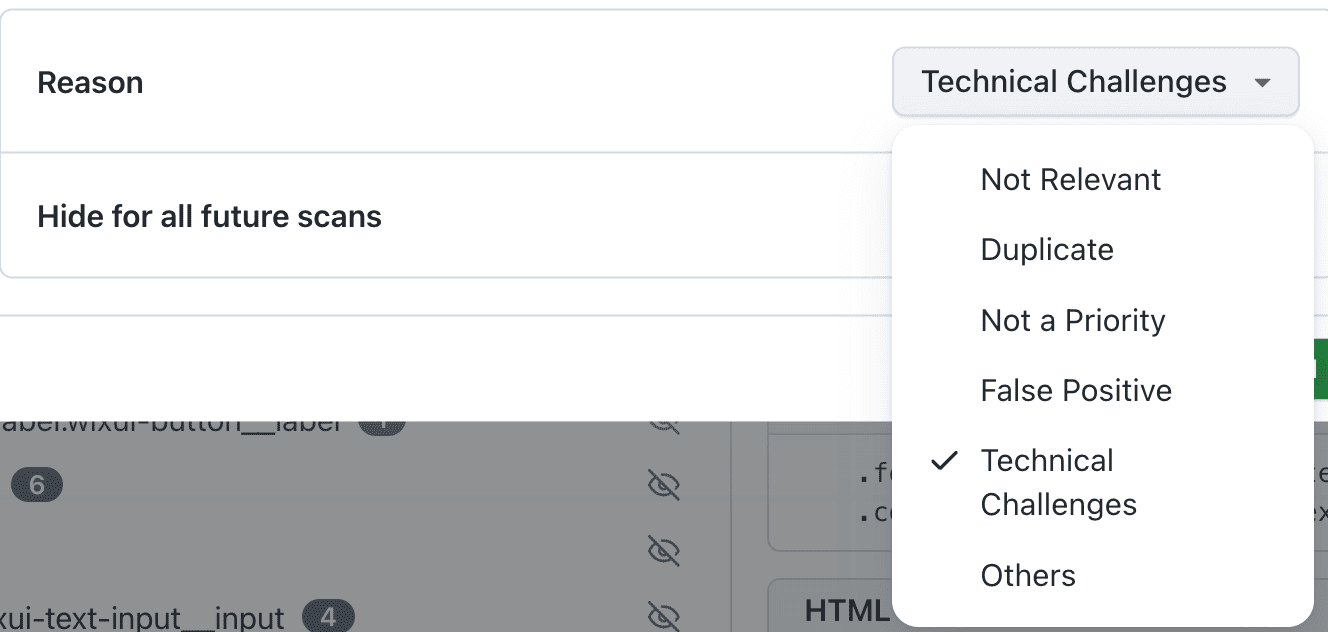
The selected reason is shown later inside the issue as a reason tag.

If a reason is chosen at a higher hierarchy level, that reason is mapped to all associated issues under that hierarchy.
Step 5: Choose whether it should apply to future scans
For Web Scanner Accessibility scans and Accessibility scheduled scans, the hide modal also lets you choose whether the issue should be hidden for future scans.

Use this option when:
- the issue is already known and accepted across scheduled runs
- the same hide preference should continue in future executions
- the team wants scheduled reports to stay aligned with an approved hide decision
The Hide for future scans option is available only for supported Web Scanner Accessibility scans and Accessibility scheduled scans. It is not available for app scans.
Step 6: Confirm the hide action
After you confirm the modal, the selected issue set is removed from the active report state and is moved into the Hidden Issues flow for that report.
Hidden Issues tab
After issues are hidden, you can access them from the Hidden Issues tab.

Use this tab to:
- review which issues are currently hidden
- inspect the stored reason tag
- understand whether the issue is hidden only for the current scan or also for future scans
- restore issues from the same hierarchy levels used during hiding
How restore works
Step 1: Open the restore action
Inside the Hidden Issues tab, use the restore icon for the hierarchy you want to restore.

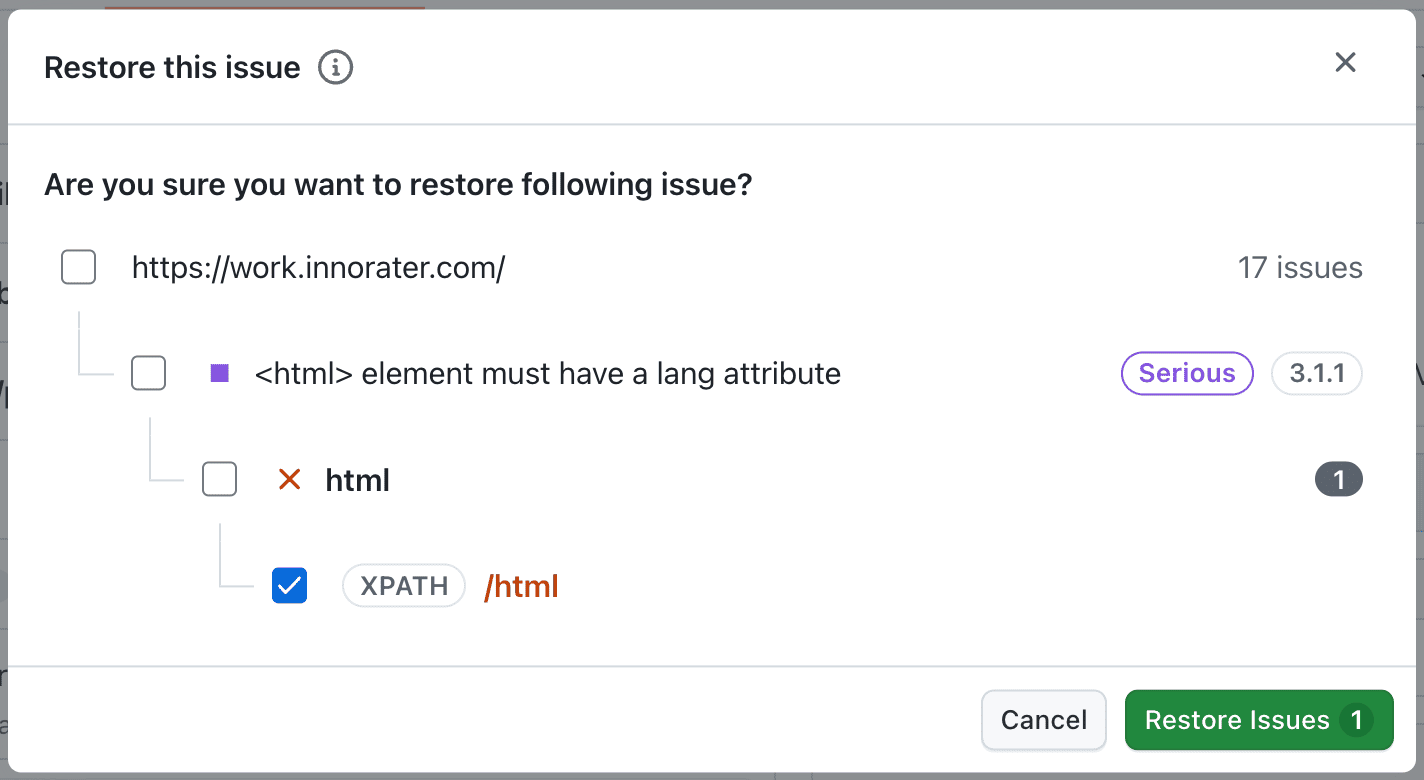
Step 2: Review the restore modal
The restore modal reflects the stored hide preference and keeps restore behavior consistent with the original hide action.
Restore for current scan only
If none of the issues in the selected set were hidden for future scans, the restore action applies to the current scan only.
Restore for future scans too
If the selected hierarchy, or any child inside that hierarchy, was hidden for future scans, the restore modal preserves that future-scoped behavior.
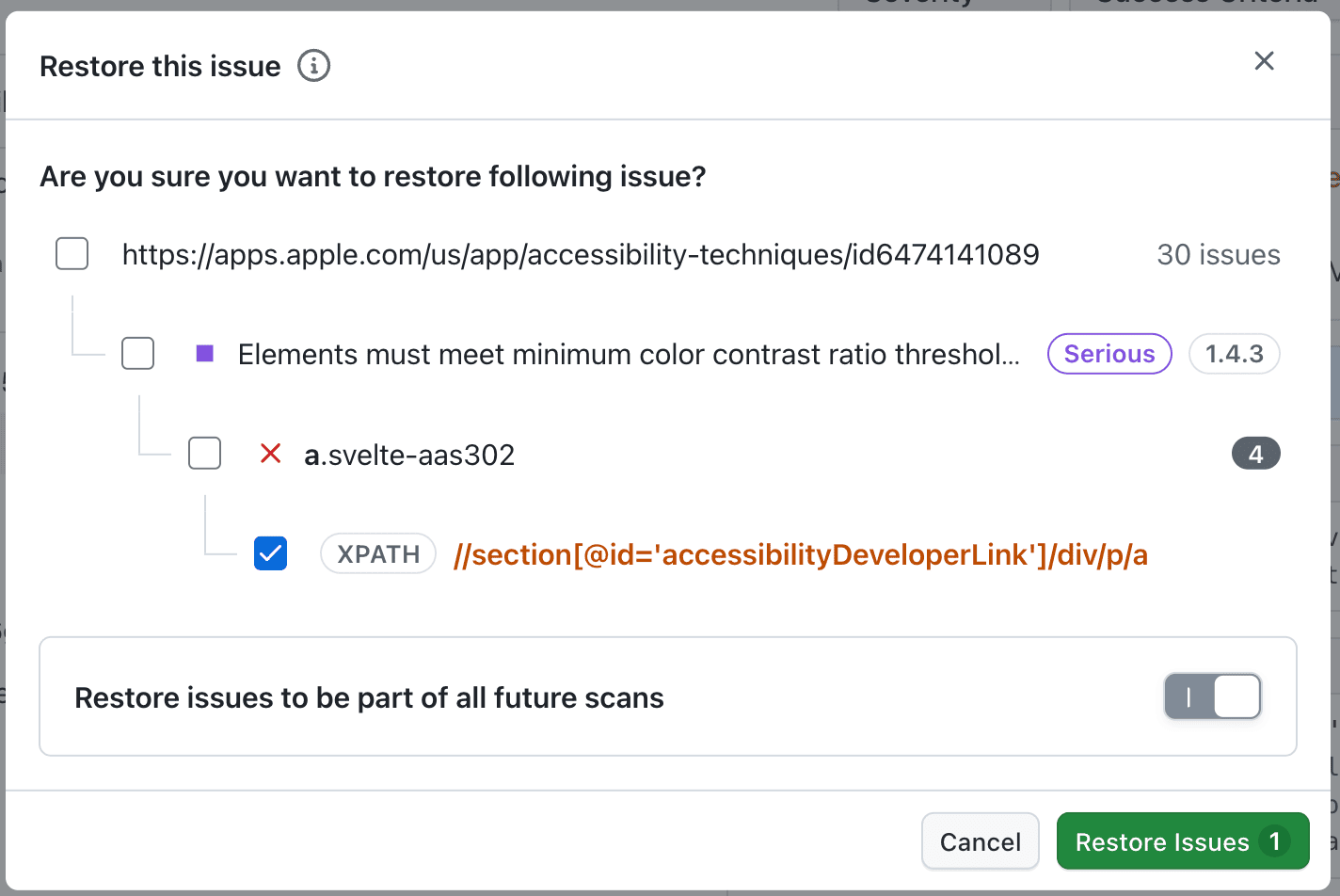
Restore behavior across hierarchy levels
Restore works at the same supported levels used for hiding:
- URL
- Rule
- Element group
- Element
The restore action uses the stored hide preference to stay consistent with the way the issue was hidden.
That means:
- if the selected hierarchy was hidden for future scans, the restore action also restores it with that same future-scoped behavior
- if any child item inside the selected hierarchy is also marked for future scans, restoring the higher hierarchy respects that future preference as well
- if no issue in that set is marked for future scans, the restore action applies only to the current scan
This keeps hide and restore behavior aligned across URL, rule, element group, and element levels and gives clearer feedback when future-scoped preferences exist anywhere inside the selected hierarchy.
Save your changes
Hide and restore actions change the active report state immediately in the current session, but you still need to click Save to persist the preference.
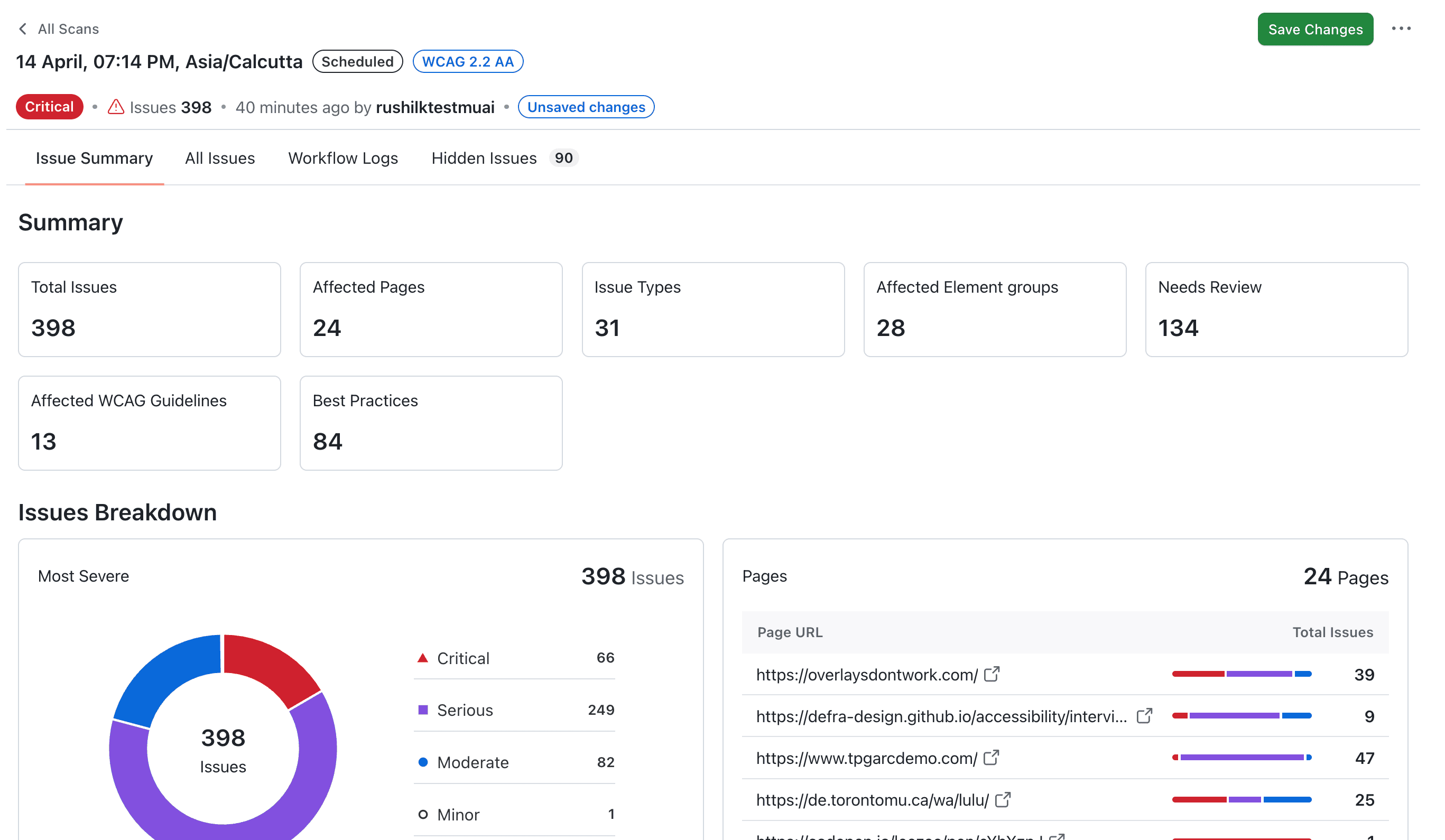
When the save request is processing, the interface shows the in-progress state.

Before you click Save
Before saving:
- the report can still reflect the temporary hide or restore state for the current session
- exports can still use that temporary session state
After you click Save
After saving:
- the hide or restore preference is committed
- the report state remains aligned with the saved hide settings
- future-scan behavior, where supported, follows the saved preference
How stats, graphs, and exports are updated
After issues are hidden or restored, the report updates based on active issues only across:
- visible issue counts
- stats in the report
- charts and graphs
- export data
This helps teams focus on the currently active issue set rather than the full unfiltered list.
Exception for aggregated scheduled reports
For aggregated reports in scheduled tests, updates are reflected only from the consequent runs. This keeps historical scheduled reporting audit-consistent while still applying the hide or restore preference going forward.
Best practices
- Hide issues only when the team has a clear and documented reason.
- Use the reason field consistently so reviewers understand why the issue is hidden.
- Hide at the smallest useful hierarchy level unless a broader action is genuinely intended.
- Use Hide for future scans only when the same treatment should continue across scheduled web scans.
- Always click Save after review so other users see the intended state.
Troubleshooting
I do not see the future-scan option
The Hide for future scans option is available only for supported Web Scanner Accessibility scans and Accessibility scheduled scans.
My report changed even before I clicked Save
The report can still reflect the temporary state in the current session before the preference is saved.
The reason appears on more issues than I selected
If you hide from a higher hierarchy such as URL, rule, or element group, the selected reason is mapped to the associated issues under that hierarchy.
Restore is affecting future scans too
Restore follows the stored hide preference. If the selected hierarchy, or any child item inside it, was hidden for future scans, the restore flow keeps that future-scoped behavior consistent.
Why do my aggregated scheduled reports not fully change right away
Aggregated scheduled reporting preserves historical audit consistency. Updates are reflected from consequent runs rather than rewriting older aggregated history.
Related docs
- Navigating the Dashboard
- Rule and Category Exclusion for Web Accessibility Automation (skip a rule before the scan instead of hiding it afterwards)
- All Issues
- Exporting & Sharing Reports
- Starting an Accessibility Scan with Web Scanner
- Test Scheduling - Sitemap (Overview)


 Chat with Us