

Power Your Software Testing with AI Agents and Cloud
The Native AI-Agentic Cloud Platform to Supercharge Quality Engineering. Test Intelligently and Ship Faster.


- TestMu AI (Formerly LambdaTest)
- /
- Blog
- /
- Guide To Find Index Of Element In List with Python Selenium
Guide To Find Index Of Element In List with Python Selenium
This tutorial will help you find index of element in list with Python Selenium
Last Updated on:
To find the index of an element in a list with Python Selenium, collect the matching elements with Selenium WebDriver and select one by its position.
XPath counts positions from 1, so option[104] picks the 104th option in a drop-down, while a Python list from find_elements() counts from 0.
This guide covers what an index is, setting up a pytest test environment, finding the index with XPath, searching a Python list of web elements, and running the test on a cloud Selenium Grid.
Key Takeaways
- XPath positions start at 1, so the locator //select[@name='country']/option[104] selects the 104th option in a drop-down.
- A Python list returned by the Selenium find_elements() method starts at index 0, one less than the matching XPath position.
- The Python list.index() method returns the position of the first matching value and raises a ValueError when the value is missing.
- The Python enumerate() function returns every position in a list that matches a condition, such as all country names that start with A.
- The Selenium Select class picks a drop-down option by its 0-based index through the select_by_index() method.
- Selenium 4.6 and later include Selenium Manager, which downloads the matching browser driver when none is available.
What is an index?
In Selenium, an index is a numerical position of an element within a list of elements. For example, if you have a list of elements representing links on a webpage and want to select the third link, you could use an index to specify that you want to select the element at the third position in the list.
An index is defined based on specific nodes in the node set for indexing using Selenium WebDriver. You can use the indexes to get a specific item in the list of identified locators. You can learn more about it from this blog on different locators in Selenium.
Let’s assume that if you write an XPath //input[@id=’lambda’], which gives you five matching nodes, then you would have to use the indexing concept.
For this, if the object is identified at index 1, then the XPath would be [//input[@id=’lambda’]][1].
Else, if it is identified at index 2, then it would be (//input[@id=’lambda’])[2].
Note: XPath indexes start from 1, while Python list indexes start from 0.
Let’s take an example to illustrate better.
Example 1: TestMu AI Sign up page.
On the TestMu AI registration page, we have a country selection field, which is a select. When we use the XPath //*[@id=”country_code”] to find the element, it returns multiple nodes.
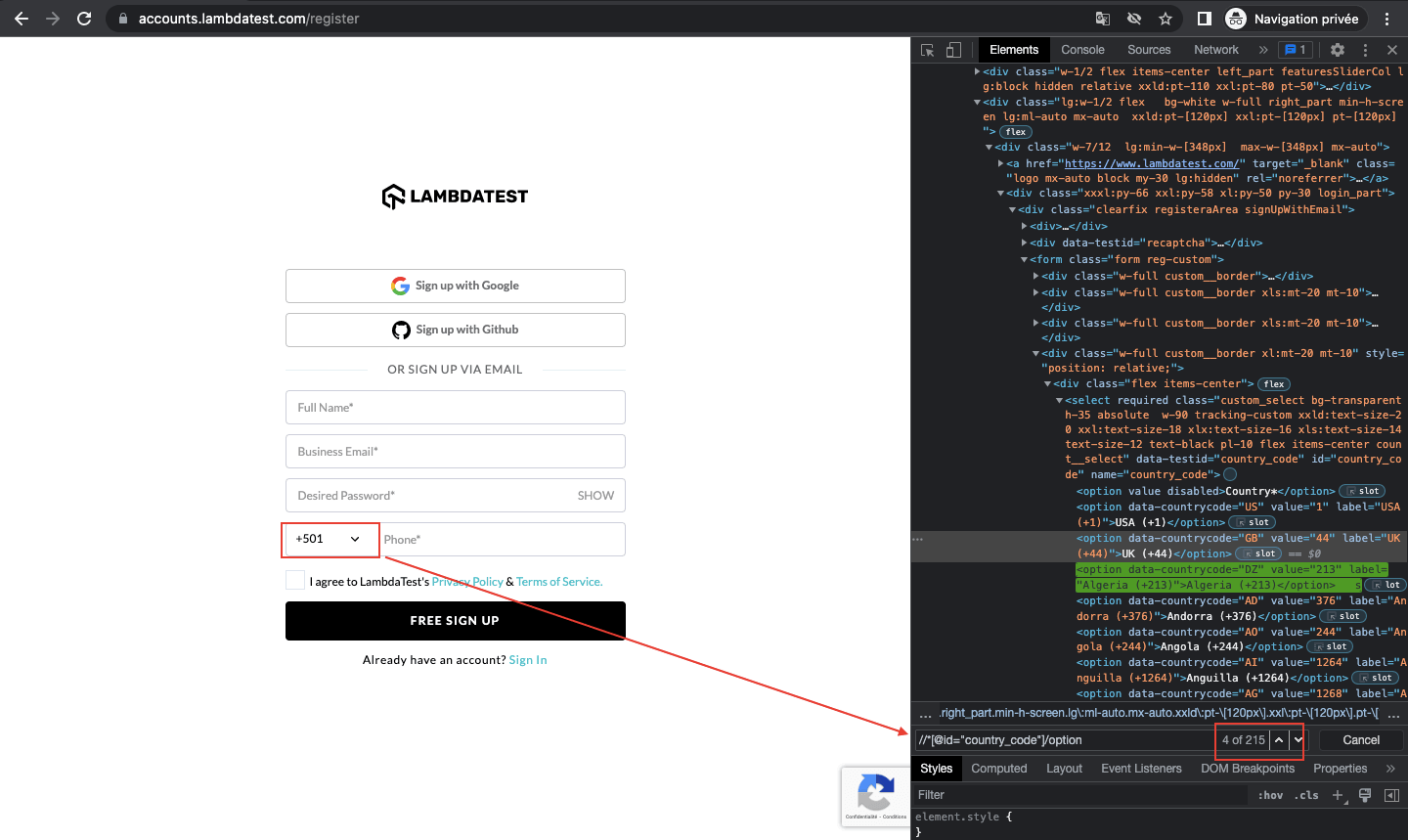
So we will need to use the indexes to find the specific element we want to interact with. Note that in this blog on how to find index of element in list with Python, we use XPath to find our locators. You have the choice to use other methods like CSS Selector etc.
Now let’s prepare our test environment. We will need to install pytest and Selenium.

How to set up a test environment?
In the section of this blog on how to find index of element in list with Python, we will learn how to set up a test environment. However, before that, let’s understand the pytest framework.
What is the pytest framework?
Pytest is a very popular Python test automation framework (mainly used for unit testing). This highly configurable and scalable testing framework comes with a rich set of features to help you write better code for Python tests.
Pytest is often described as a flexible framework with less boilerplate code than other testing frameworks. pytest fixtures provide context for tests by passing parameter names in test cases; its parameterization eliminates duplicate code for testing multiple sets of input and output, and its rewritten assert statements provide detailed output for failure causes.
In this pytest tutorial, learn how to use parameterization in pytest to write concise and maintainable test cases by running the same test code with multiple data sets.
Installing the pytest framework
To install pytest on your machine, you first need to install Pipenv.
But make sure you have Homebrew on your machine because we will use a macOS operating system in this tutorial on how to find index of element in list with Python Selenium.
- Type the following command in your terminal.
brew install pipenv
The pipenv installation should look like this:
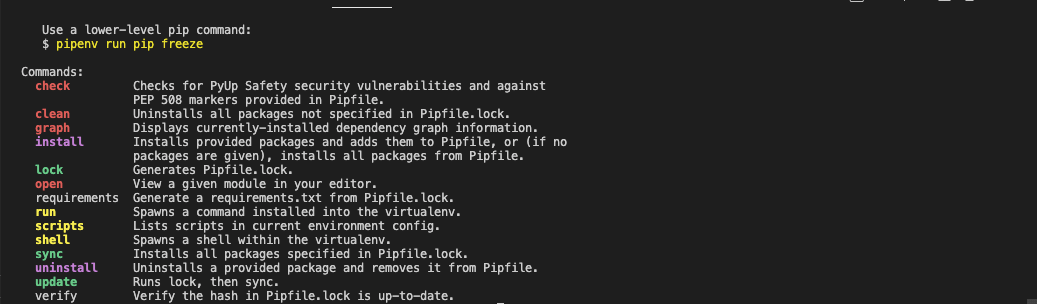
- Once you have installed it, make sure you have pipenv installed on your machine by typing in your terminal:

pipenv
The result should look like this:
There are several other alternatives to Pipenv for package management, which can also be used like pyenv, poetry, virtualenv, autoenv, etc. However, adding them is beyond the scope of this blog on how to find index of element in list with Python Selenium.
- Creation of Pipfile in an empty directory. This file is essential for using Pipenv. It tracks your project’s dependencies if you need to reinstall them.
The python_version parameter is the version of the base interpreter you specified when creating a new pipenv environment.
The packages section is where you can list the packages required for your project. “*” is for installing the latest stable versions of the packages.
The latest stable releases on PyPI are pytest 9.1.1 and Selenium 4.49.0.
- In your terminal, go to the directory and install the latest stable versions of the pytest and Selenium packages with the command:
Pipenv Install
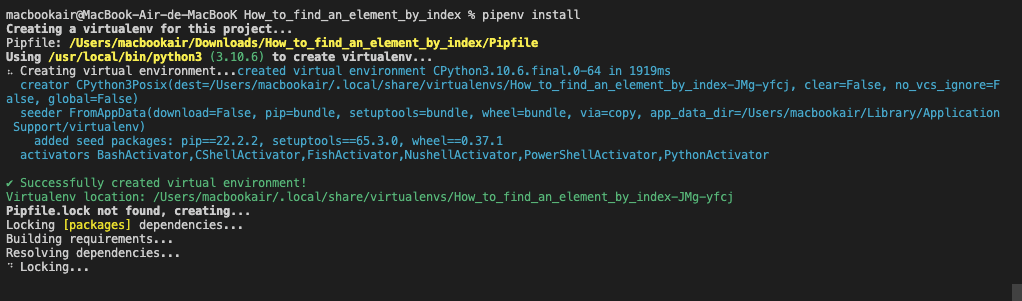
In this blog on how to find index of element in list with Python Selenium, we will use the TestMu AI Selenium Grid with pytest to run our tests. But you could have done this locally by installing the latest version of WebDriver for the browser you want to use. You can also use WebDriverManager.
Here are the download links for the most commonly used browsers.
- Firefox: GeckoDriver
- Chrome: ChromeDriver
- Opera: OperaDriver
- Edge: Microsoft Edge WebDriver
Make sure you have the correct version for your browser; otherwise, it won’t work.
Selenium 4.6 and later ship with Selenium Manager, which downloads and caches the matching driver when none is available, so the manual downloads above are optional.
Now let’s add some code to the demo on how to find index of element in list with Python using Selenium WebDriver from our Selenium controlled browser.

Note: Run your Python automated scripts on 3000+ browser environments. Try TestMu AI Now!
How to find index of element in list with Python Selenium?
In this section of the Python automation testing blog on how to find index of element in list with Python, we will consider the following test scenario to select a country from a drop-down list using Selenium Python:
- Go to the Selenium Playground > Input Form.
- Click on the Country DropDown.
- Select a country (India).
- Save the selected country in a country.txt file.
This is what the structure of our project should look like.
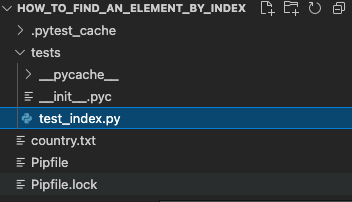
In the blog, we will create a tests folder.
In Python projects, it is conventional to create a “tests” directory under the project’s root directory to hold all the test cases.
We will create a file test_index.py in our “tests” folder, in which we will write our test case.

import pytest
import time
from selenium import webdriver
from selenium.webdriver.common.by import By
@pytest.mark.usefixtures('driver')
class TestIndex():
  def test_index(self, driver):
   driver.get("https://www.testmuai.com/selenium-playground/input-form-demo/")
   driver.find_element(By.NAME, "country").click()
  country_index = 104
   dropdown = driver.find_element(By.NAME, "country")
   option = dropdown.find_element(By.XPATH, "//select[@name='country']/option[{}]".format(country_index))
   option.click()

   with open('country.txt', 'a') as f:
      f.write(" Selected country is : "+ option.text)
      f.write('
')
   time.sleep(3)

Code Walkthrough:
import pytest
The pytest module provides a rich set of tools for constructing and running tests. In this blog on how to find index of element in list with Python Selenium, we have used pytest, but several other Selenium Python testing frameworks can be used, like Unittest, Robot, DocTest, etc.
import time
Python sleep() is a method of the Python time module. So, first, we must import the time module, and then we can use this method:
time.sleep(3)
from selenium import webdriver
This will import the Selenium packages that we will use for our project
from selenium.webdriver.common.by import By
The selenium.webdriver module provides all the WebDriver implementations. The supported WebDriver implementations are Chrome, Firefox, Microsoft Edge, Safari, Internet Explorer, WebKitGTK, WPE WebKit, and Remote.
The By class is used to locate elements within a document.
self.driver.find_element(By.NAME, "country").click()
Automation uses locators to find elements on a page. Selenium locators are simple query strings for finding elements. They return all elements that match their query.
Selenium WebDriver supports many locators: ID, Name, Class Name, CSS Selectors, XPath, Link text, Partial link text, and Tag name.
Here we used Name to find the country field and clicked on the element.
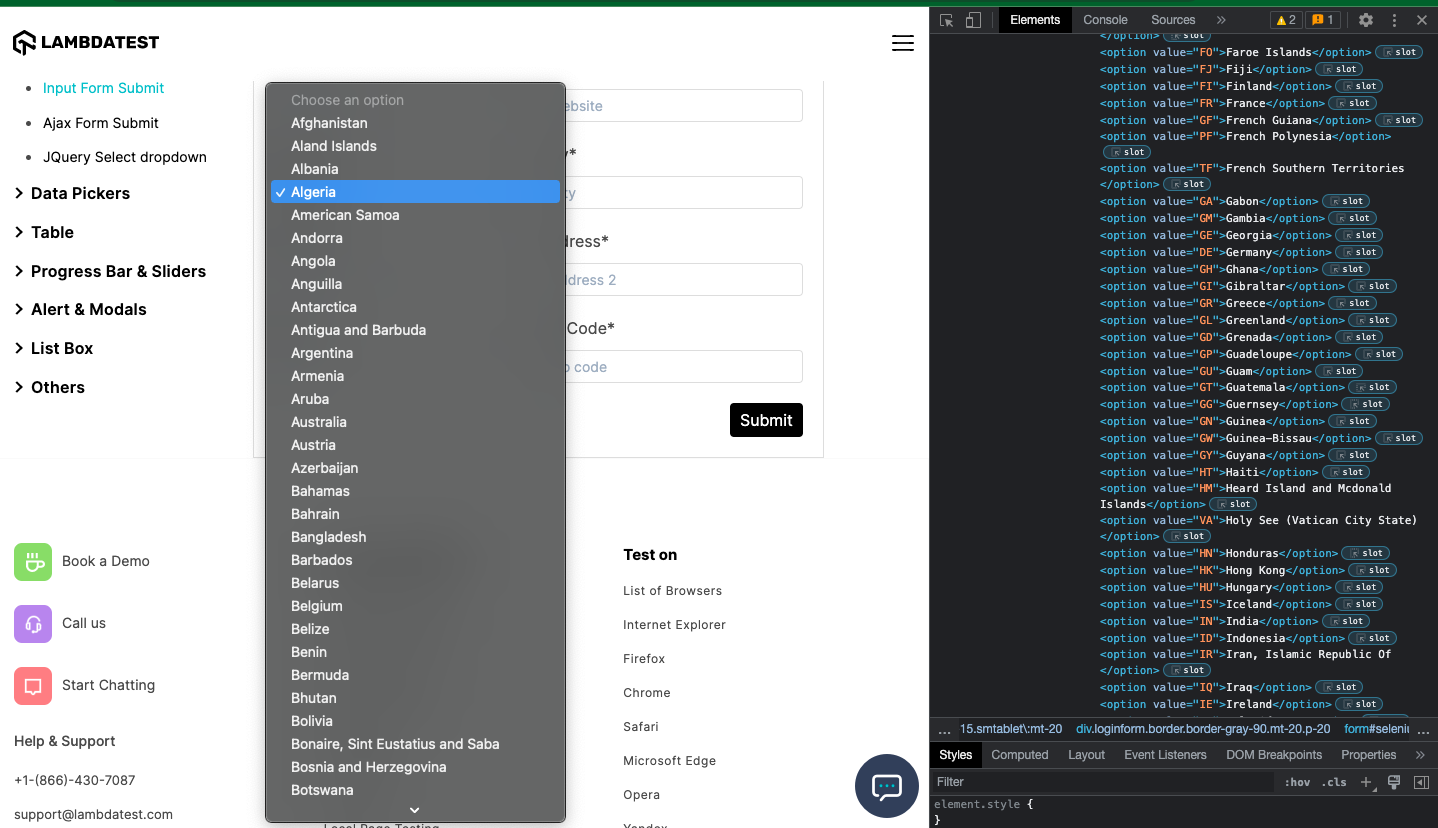
You will notice that the different countries all have the same tagName. So we will have to use the index to choose a specific country.
Indexes can also be useful in cases where the same XPath returns multiple web elements.
The index is defined based on specific nodes in the node set for indexing using Selenium WebDriver. We can also reference the specific node to the index using many indexes enclosed in []. The tag name UI element contains several child elements whose tag name is option.
Element:
//select[@name='country']/option
Now look at the Items tab; you will see that the XPath above returns 251 elements since there are 251 countries in the drop-down list.

Now let’s try to choose India from the list of countries:
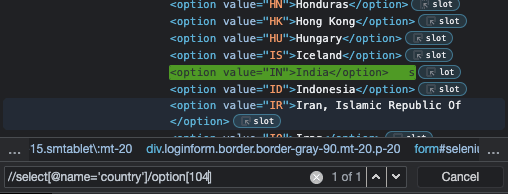
Now that we know the index of the option, we save it in a variable country_index.
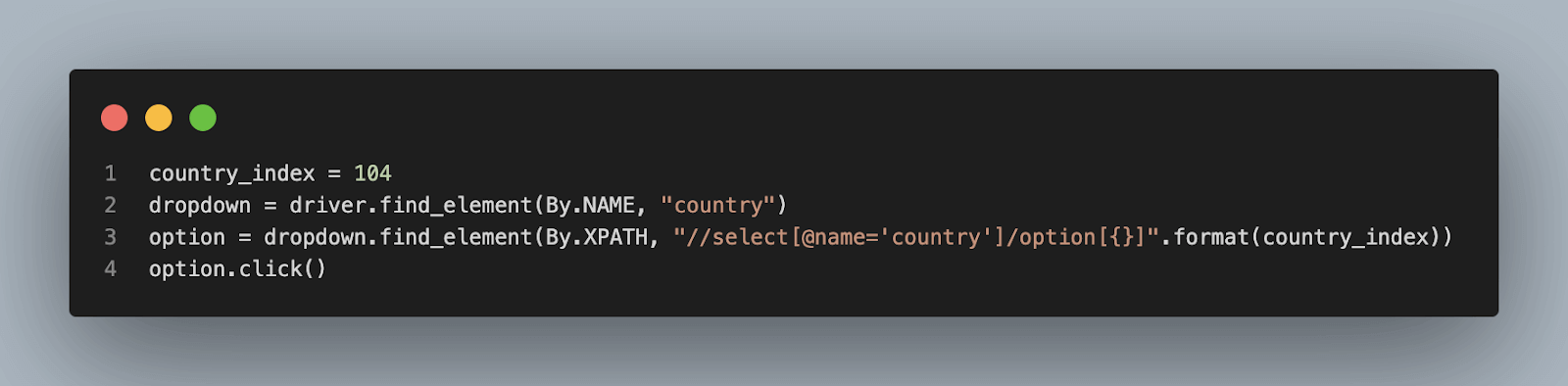
We then use this index to choose the country India.
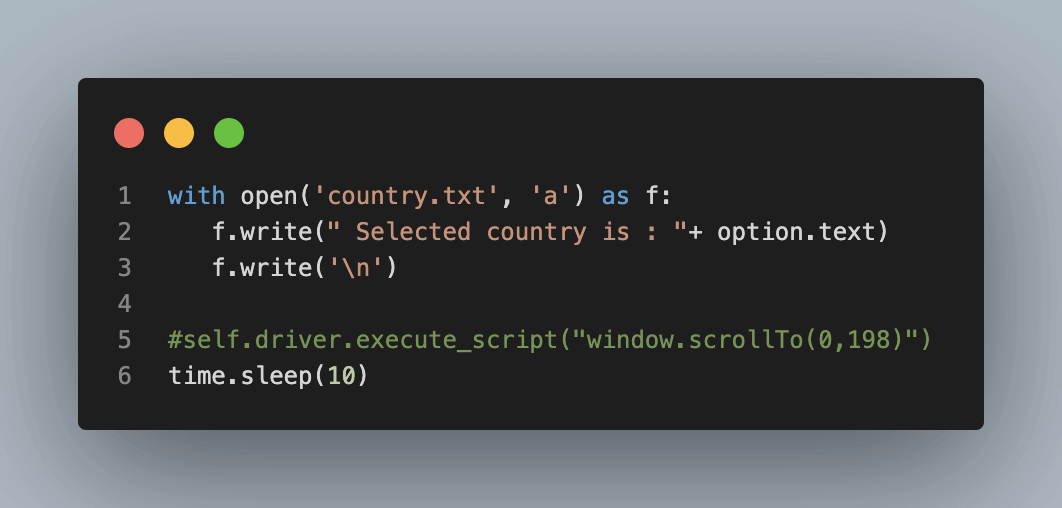
We then saved the chosen country in a country.txt file.
How Do You Find an Element's Index in a Python List of Web Elements?
Call find_elements() to get a standard Python list, read each element's text into a list of strings, and call list.index() on it to get the position of the value you need.
Because find_elements() returns an ordinary list, the list methods from any Python tutorial work on it. Four techniques cover most cases:
- list.index(): names.index("India") returns the position of the first match, counting from 0. The optional start and end arguments limit the search to part of the list.
- ValueError handling: list.index() raises a ValueError when the value is missing, so wrap the call in try and except ValueError to fail the test with a clear message.
- enumerate() filter: a list comprehension over enumerate(names) returns every position that matches a condition, such as all countries that start with A.
- Select.select_by_index(): the Selenium Select class picks a drop-down option by its 0-based index property, so you do not need to write an XPath position.
The XPath position is always the Python index plus 1. On the Input Form demo, India sits at index 103 in the Python list and at option[104] in the XPath.
import pytest
from selenium.webdriver.common.by import By
from selenium.webdriver.support.select import Select

options = driver.find_elements(By.XPATH, "//select[@name='country']/option")
names = [option.text for option in options]

try:
    india_index = names.index("India")
except ValueError:
    pytest.fail("India is not in the country drop-down")

starts_with_a = [i for i, name in enumerate(names) if name.startswith("A")]

Select(driver.find_element(By.NAME, "country")).select_by_index(india_index)
How to find index of element in list with Python Selenium on the cloud Grid?
To use TestMu AI Selenium Grid with pytest to perform Python web automation, you will need a TestMu AI account.
TestMu AI is a continuous quality cloud that lets you perform Python automation testing on a reliable & scalable online Selenium Grid infrastructure across 3000+ real browsers and operating systems online. Furthermore, you can also cut down build times by multiple folds using parallel test execution.

You can also Subscribe to the TestMu AI YouTube Channel and stay updated with the latest tutorials around automated browser testing, Selenium testing, Cypress E2E testing, CI/CD, and more.
Here are steps you can follow:
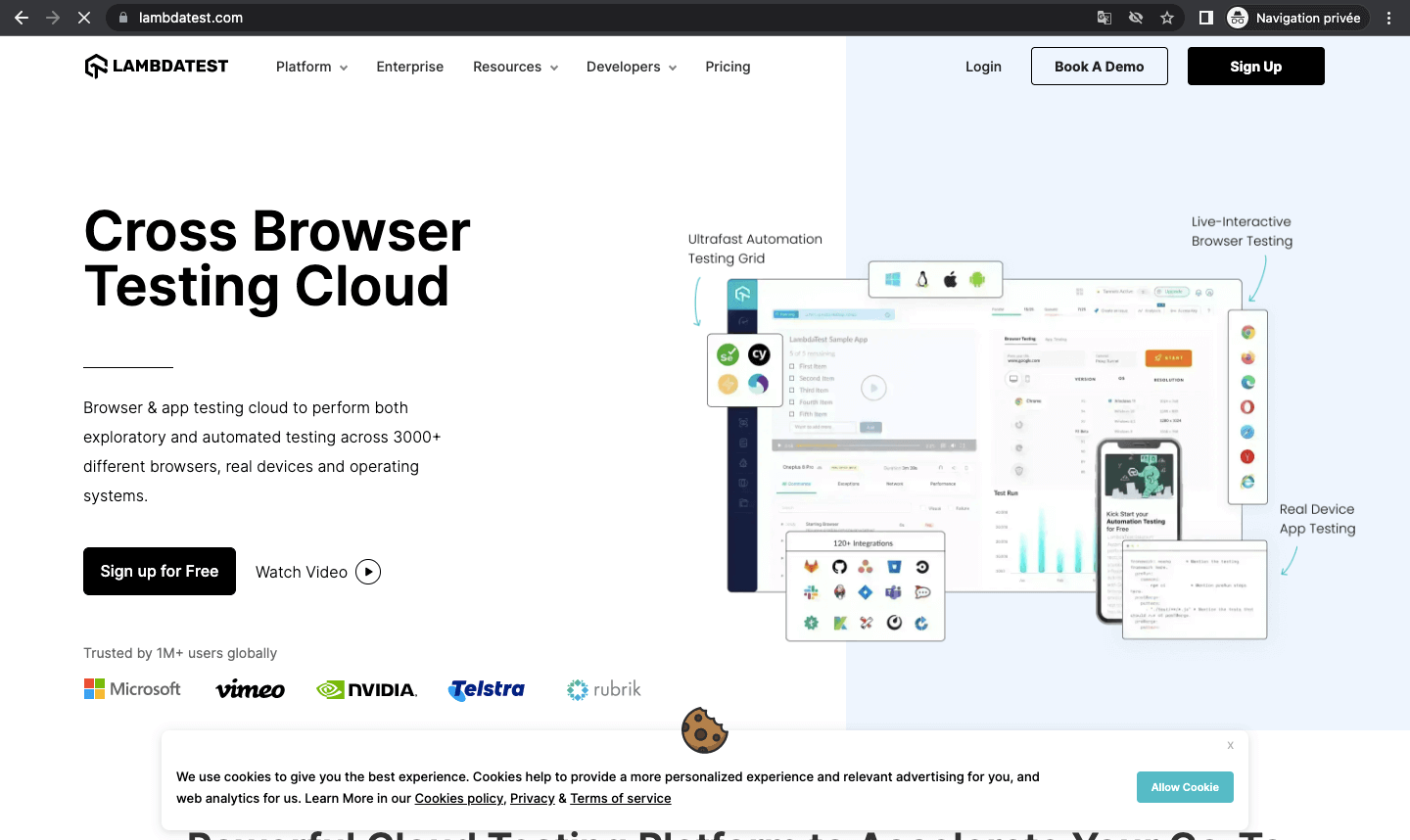
- Navigate to the TestMu AI website and log in if you already have an account, or create one if you don’t have an account yet.
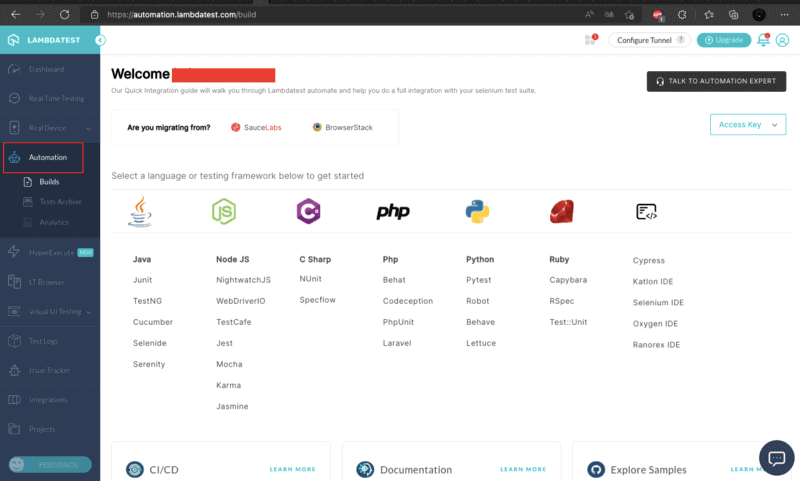
- Once you are logged in, navigate to the automation page by clicking Automation on the left sidebar of your screen.
- To use pytest with TestMu AI Grid, you need TestMu AI credentials (i.e. username and access key). To get the credentials, click the “Access Key” button on the right side of your screen.
Implementation
Now, let’s add a conftest.py file to the root of our project:
from os import environ

import pytest
from selenium import webdriver
from selenium.webdriver.remote.remote_connection import RemoteConnection


@pytest.fixture(scope='function')
def driver(request):
   desired_caps = {}

   browser = {
       "platform": "Windows 10",
       "browserName": "chrome",
       "version": "latest"
   }

   username = "YOUR_USERNAME"
   access_key = "YOUR_ACCESS_KEY"

   desired_caps.update(browser)
   test_name = request.node.name
   build = environ.get('BUILD', "How To Find An Element By Index")
   tunnel_id = environ.get('TUNNEL', False)

   selenium_endpoint = "http://{}:{}@hub.lambdatest.com/wd/hub".format(username, access_key)
   desired_caps['build'] = build
   desired_caps['name'] = test_name
   desired_caps['video'] = True
   desired_caps['visual'] = True
   desired_caps['network'] = True
   desired_caps['console'] = True
   caps = {"LT:Options": desired_caps}

   executor = RemoteConnection(selenium_endpoint)
   browser = webdriver.Remote(
       command_executor=executor,
       desired_capabilities=caps
   )
   yield browser

   def fin():
       # browser.execute_script("lambda-status=".format(str(not request.node.rep_call.failed if "passed" else
       # "failed").lower()))
       if request.node.rep_call.failed:
           browser.execute_script("lambda-status=failed")
       else:
           browser.execute_script("lambda-status=passed")
           browser.quit()

   request.addfinalizer(fin)


@pytest.hookimpl(tryfirst=True, hookwrapper=True)
def pytest_runtest_makereport(item, call):
   # this sets the result as a test attribute for LambdaTest reporting.
   # execute all other hooks to obtain the report object
   outcome = yield
   rep = outcome.get_result()

   # set a report attribute for each phase of a call, which can
   # be "setup", "call", "teardown"
   setattr(item, "rep_" + rep.when, rep)
Current Selenium 4 releases no longer accept the desired_capabilities argument in webdriver.Remote, so the fixture above raises a TypeError on a fresh install. Create an options object such as webdriver.ChromeOptions(), call options.set_capability("LT:Options", desired_caps), and pass options=options to webdriver.Remote instead.
Test execution in the cloud
With the various configurations set up in the conftest.py file, we are ready to run the tests. Run pipenv run python -m pytest, and you should see the tests running in the terminal.
Once the tests have run successfully, log in to TestMu AI Automation Dashboard to check the status of the test execution.
You can see that the value of the selected element is India.
country.txt content is below:
Selected country is : India
Bonus Section
Let’s try to do something much more fun. We’ll find all the countries starting with A and save them in a list_country.txt file. Let’s add a new function for this test case.
def test_list_country(self, driver):
   driver.get("https://www.testmuai.com/selenium-playground/input-form-demo/")
   dropdown = driver.find_element(By.NAME, "country")
   country=dropdown.find_elements(By.XPATH, "//select[@name='country']/option")

   for i in range(2,len(country)):
     country=dropdown.find_elements(By.XPATH, "//select[@name='country']/option")
     country1=dropdown.find_element(By.XPATH, "//select[@name='country']/option[{}]".format(i))
     time.sleep(2)
     with open('list_country.txt', 'a') as f:
       f.write(" Selected country is : "+ country1.text)
       f.write('
')
The contents of your list_country file should look like this: list_country.txt (github.com)
If you’re interested in becoming an automation testing expert and building your skills in Python, one way to get started is by earning a Selenium Python 101 certification. This will give you a strong foundation in using Selenium for testing and automation and can help you build a successful career in this field.

Conclusion
This concludes the tutorial on how to find index of element in list with Python Selenium. When you automate your web tests using Selenium, you may encounter elements in the DOM that have the same attributes. Indexes can help you perform different actions on a specific element.
I hope this has given you a good overview of how to find index of element in list with Python Selenium. If you have any questions or comments, please leave them in the section below.
Author

Jolive Hodehou
Blogs: 7


Jolivé Hodehou is a QA Engineer with 4+ years of experience in software testing and quality assurance across web and integration-driven products. He specializes in black-box testing, Selenium WebDriver, and test design, with hands-on experience validating integrations and ensuring reliable releases. Jolivé has worked as a QA Engineer at Gozem and Lucky Cart, and previously contributed as a Technical Writer (QA/Testing) at TestMu AI, authoring articles focused on testing practices. He holds a Bachelor’s degree in Software Engineering.


Find Index of Element in List With Python FAQs
Did you find this page helpful?
More Related Blogs
TestMu AI forEnterprise
Get access to solutions built on Enterprise
grade security, privacy, & compliance
- Advanced access controls
- Advanced data retention rules
- Advanced Local Testing
- Premium Support options
- Early access to beta features
- Private Slack Channel
- Unlimited Manual Accessibility DevTools Tests