

Next-Gen App & Browser Testing Cloud
Trusted by 2 Mn+ QAs & Devs to accelerate their release cycles


On This Page
- What is JUnit?
- How Does JUnit Work?
- JUnit Architecture
- Benefits of Using JUnit
- Features of JUnit
- Enhanced features of JUnit 5
- Difference Between JUnit 4 and JUnit 5
- What is a JUnit Test?
- Why is JUnit Testing Important?
- What is Unit Testing?
- Importance of Unit Testing
- The Role of JUnit in Unit Testing
- JUnit Annotations
- JUnit Assertions
- Parameterized Tests
- Top Java Unit Testing Frameworks
- Setting up the JUnit Environment
- Automation Testing With JUnit and Selenium
- How to Perform Parallel Testing with JUnit?
- Advanced Use Cases for JUnit Testing
- Best Practices for JUnit Testing
- Conclusion

- Home
- /
- Learning Hub
- /
- JUnit Tutorial: A Beginner to Expert Guide with Enhanced Features
JUnit Tutorial: Learn JUnit 5 from Beginner to Advanced (2025)
Write your first JUnit 5 test in minutes. Covers annotations, assertions, Mockito mocking & Selenium automation with copy-paste code examples.

Saniya Gazala
March 18, 2026
JUnit is a widely used open-source framework in Java, mainly for testing projects in a straightforward manner. Combined with Selenium, it becomes a handy choice for testing websites and web applications. Although Selenium and JUnit can work independently, using them together improves how you structure test cases.
In this JUnit tutorial, you'll learn that in JUnit, annotations help identify and organize test methods. This, along with JUnit's support for different assertions, grouping tests, and easy test maintenance, makes it a popular choice, especially for cross-browser testing. Combining JUnit and Selenium simplifies and makes testing Java-based web projects more effective.
Overview
JUnit is a widely used testing framework for Java applications. It lets developers write, run, and automate tests that verify each piece of code works correctly before it ships.
What Is the Architecture of JUnit 5?
It consists of 3 main modules as follows, each designed to enhance Java test execution and flexibility.
- JUnit Platform: Serves as the foundation for running tests on the JVM, providing interfaces for build tools, test discovery, and integration with TestEngines.
- TestEngine API: Enables developers to create custom TestEngines, allowing third-party testing libraries to run seamlessly within the JUnit ecosystem.
- JUnit Jupiter: Offers programming and extension models for writing JUnit 5 tests, introducing annotations like @TestFactory, @DisplayName, @Nested, and @Tag.
- Advanced Annotations: Supports @ExtendWith, @BeforeEach, @AfterEach, @BeforeAll, @AfterAll, and @Disabled, replacing older JUnit 4 lifecycle annotations.
- Dynamic Tests: Allows runtime creation of tests using @TestFactory, enabling flexible, data-driven testing approaches for more comprehensive test coverage.
- JUnit Vintage: Provides backward compatibility for JUnit 3 and JUnit 4 tests, allowing them to run on JUnit 5 without rewriting code.
- Smooth Migration: Facilitates gradual transition from older JUnit versions to JUnit 5, supporting hybrid projects during upgrades.
- Flexibility & Compatibility: Modular architecture separates execution, test definitions, and legacy support, enhancing flexibility for developers across different environments.
- Integration with Build Tools: Compatible with Maven, Gradle, and popular IDEs, ensuring seamless test discovery, execution, and reporting for Java projects.
- Enhanced Features: Provides improved annotations, dynamic test generation, and powerful testing capabilities compared to previous JUnit versions.
What are the Features of JUnit?
How to Run JUnit Tests With Selenium?
Running tests using JUnit and Selenium allows automation of web application testing in Java. JUnit handles test execution while Selenium drives browser interactions.
- Set Up Project: Create a Java project in your IDE and add Selenium WebDriver and JUnit dependencies in the build configuration file.
- Create Test Class: Define a Java class and annotate it with @TestClass or include @Test annotations for individual test methods.
- Initialize WebDriver: Set up Selenium WebDriver in a @BeforeEach method to launch the browser before running each test.
- Write Test Methods: Use @Test annotations to define test cases, including Selenium commands like driver.get() and driver.findElement().
- Use Assertions: Validate web elements, page titles, or text using JUnit assertions such as assertEquals or assertTrue within test methods.
- Cleanup After Tests: Close or quit the browser in a @AfterEach method to ensure no leftover processes remain after each test execution.
- Run Tests in IDE: Execute tests directly from your IDE by right-clicking the test class or using the built-in JUnit test runner interface.
- Run Tests via Command Line: Use build tools like Maven or Gradle with commands like mvn test or gradle test for automated execution.
- Parallel Test Execution: Configure parallel execution in JUnit 5 or Selenium Grid to run multiple browser tests simultaneously for faster test cycles.
- Generate Reports: Utilize JUnit and Selenium reporting options or integrate with tools like Allure or ExtentReports for detailed test execution reports.
What is JUnit?
JUnit is a robust Java testing framework that simplifies the creation of reliable and efficient automated tests. It excels in testing Java applications through features like support for diverse test cases, strong assertions, and comprehensive reporting.
Rooted in the xUnit family of frameworks, JUnit supports various test types, including unit, functional, and integration tests. While primarily used for unit testing, its flexibility allows it to handle broader testing scenarios, such as functional tests that evaluate overall system behavior and integration tests that assess component interactions.
With its flexibility and rich feature set, JUnit remains a go-to framework for ensuring the reliability and robustness of Java applications across various testing needs.
How Does JUnit Work?
JUnit allows tests to be written in Java and executed on the Java platform. It comes with a built-in reporter that displays the test results.
The main purposes of using JUnit for automation testing are straightforward:
- Ensures that the software behaves as intended, promptly identifying and addressing issues when code doesn't perform as expected.
- Catches errors in the code early on, following the principle of fixing bugs before they become more complicated.
JUnit supports unit tests (individual methods or classes), integration tests (component interactions), and system tests (end-to-end behaviour like web servers). Tests can run simultaneously for efficiency, either from the command line or within IDEs like Eclipse and IntelliJ.
The framework simplifies testing through assertions that verify expected behaviour, test runners that execute and present results, Test suites that group related tests for batch execution, and a built-in reporter that makes analysing outcomes straightforward.
Let’s explore more about JUnit 5 architecture to better understand JUnit in the following JUnit tutorial section.

Note: Run web app testing using the JUnit framework. Try TestMu AI Now!
JUnit Architecture
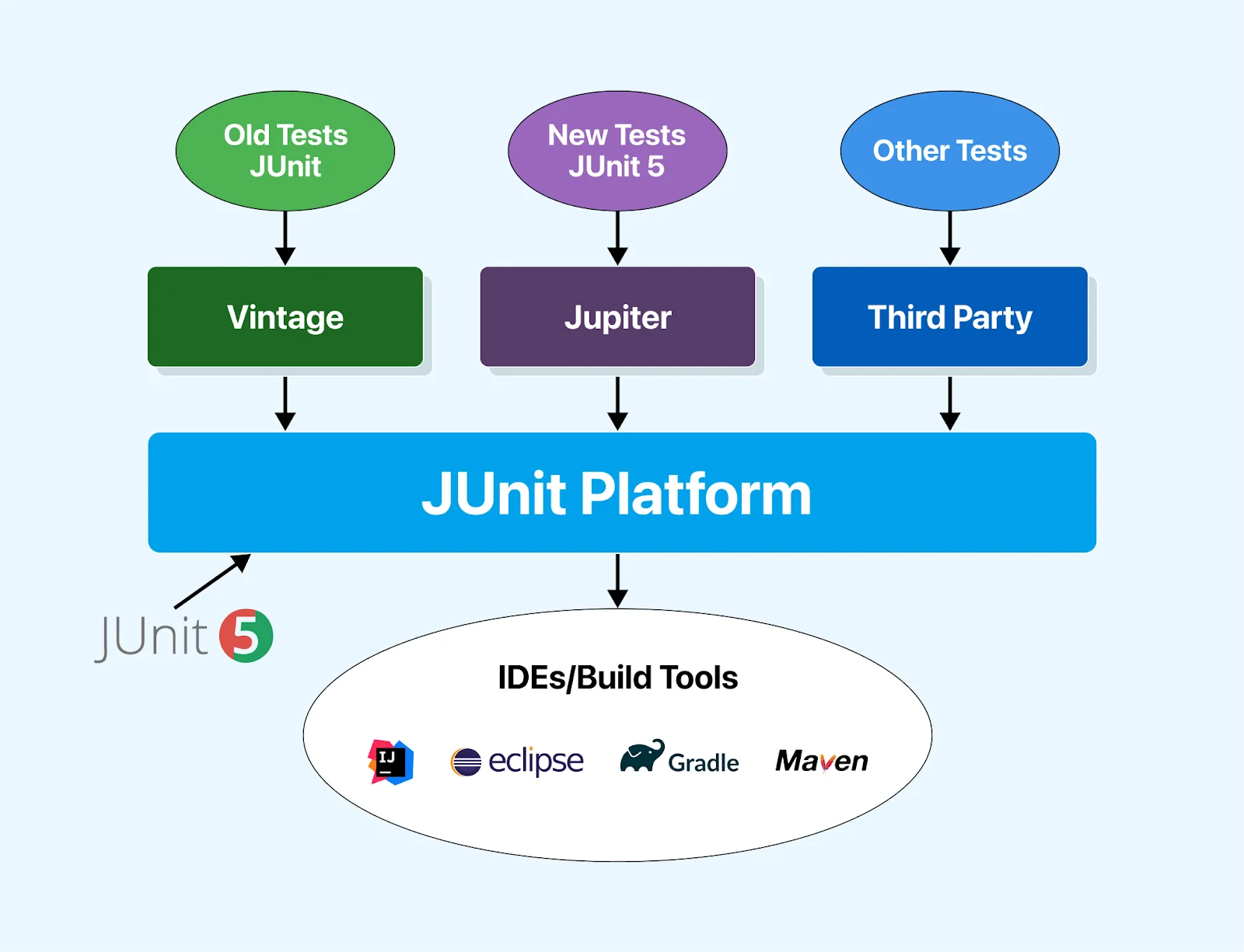
Let's learn the JUnit 5 architecture. JUnit 5 is structured around several modules distributed across three distinct sub-projects, each serving a specific purpose.
JUnit Platform
The JUnit Platform is the backbone for initiating testing frameworks on the Java Virtual Machine (JVM). It establishes a robust interface between JUnit and its users, including various build tools. This interface facilitates seamless integration, enabling clients to discover and execute tests effortlessly.
The platform introduces the TestEngine API, a critical component for developing testing frameworks compatible with the JUnit Platform. Developers can implement custom TestEngines, directly incorporating third-party testing libraries into the JUnit ecosystem.
JUnit Jupiter
The Jupiter module introduces innovative programming and extension models tailored for writing tests in JUnit 5. It brings new annotations that enhance test definition capabilities compared to JUnit 4. Notable annotations include:
- @TestFactory: Marks a method as a test factory for dynamic tests.
- @DisplayName: Specifies a custom display name for a test class or method.
- @Nested: Indicates that the annotated class is a nested, non-static test class.
- @Tag: Allows declaration of tags for filtering tests.
- @ExtendWith: Registers custom extensions.
- @BeforeEach: Specifies that the annotated method runs before each test method (replacing @Before).
- @AfterEach: Specifies that the annotated method runs after each test method (replacing @After).
- @BeforeAll: Designates that the annotated method runs before all test methods in the current class (replacing @BeforeClass).
- @AfterAll: Designates that the annotated method runs after all test methods in the current class (replacing @AfterClass).
- @Disabled: Disables a test class or method (replacing @Ignore).
JUnit Vintage
JUnit Vintage provides compatibility support for running tests built on JUnit 3 and JUnit 4 within the JUnit 5 platform. This ensures smooth migration for projects that rely on earlier JUnit versions.
In summary, JUnit 5's architecture (Platform, Jupiter, and Vintage) provides flexibility, compatibility, and an enhanced feature set for developers testing Java applications.
Now that we have a better understanding of the architecture of JUnit 5 and its components, let's look at the benefits of using JUnit.
Benefits of Using JUnit
Utilizing JUnit offers a range of advantages, with its principal benefit lying in its capacity to facilitate the development of robust and testable code. Additional reasons to consider integrating JUnit into your software development workflow are discussed below.
- Code Organization and Readability: JUnit's structured approach allows developers to to create clear and organized test suites that are easy to navigate and understand.
- Error Identification and Resolution: Systematic test execution with JUnit helps developers catch and fix issues quickly, before they grow into larger problems
- Enhanced Software Quality: Enforcing a comprehensive testing methodology helps ensure each part of the codebase behaves as intended, producing more reliable software.
- Efficiency and Testing Process Improvement: Automating repetitive test cases frees developers to focus on more complex work, leading to an improved testing process, and speeding up the overall development cycle.
Incorporating JUnit promotes code reliability and contributes to code clarity, error resolution, software quality enhancement, and overall process efficiency in software development.
Features of JUnit
JUnit simplifies testing by providing a framework to create, execute, and validate test cases effortlessly. With features like annotations, assertions, and automated test runs, JUnit ensures code reliability and easy debugging. Let's explore these features in detail.
- Test Case Definition: It is a Java open-source framework that facilitates the creation and execution of test cases.
- IDE Integration: It smoothly integrates with popular IDEs like Eclipse and IntelliJ for quick and convenient code execution.
- Annotation Usage: The test methods in JUnit are identified through annotations, simplifying the process for developers.
- Assertion Support: Junit supports assertions as they are provided to check and validate expected results during the testing phase.
- Test Execution: Its test runners execute the defined test cases in the framework.
- Quality Code Assurance: It helps developers produce error-free and high-quality code.
- Code Readability and Speed: It contributes to cleaner code and improves execution speed, enhancing overall efficiency.
- User-Friendly Interface: This framework is straightforward, making it accessible for developers.
- Automation and Feedback: This can automatically run tests and offer feedback on intermediate results.
- Visual Feedback: It provides progress is visually indicated through a color-coded progress bar, turning green for successful tests and red for failures.
- HTML Test Reports: It helps generate HTML reports for JUnit tests, offering clear and structured insights into test results.
- CI/CD Compatibility: It easily integrates with leading CI/CD tools such as Jenkins and TeamCity, facilitating the creation of a robust delivery pipeline.
To explore additional CI/CD tools beyond Jenkins and TeamCity, refer to this guide on the best CI/CD tools. Choose from the list based on your specific requirements and preferences.
Below are the JUnit 5 enhanced functions that have made the JUnit tutorial more robust and versatile, providing developers with advanced features for effective testing and streamlined workflows in this comprehensive JUnit tutorial.
Enhanced features of JUnit 5
JUnit helps developers perform unit testing in Java, ultimately increasing development speed and code quality. Some of the essential features of the JUnit testing framework are listed below.
Exception Handling in JUnit 5
JUnit 5 addresses a significant concern from JUnit 4 related to precise exception and timeout handling, providing developers with more control and clarity in their tests. The introduction of the assertThrows() method is particularly noteworthy for its ability to pinpoint the exact location in code where an exception is expected.
In practical terms, if you have a substantial test with an extensive setup (class instantiation, mock preparation, etc.), you can now specifically test for an exception at a precise point within the code. The assertThrows() method takes advantage of lambda functions, enabling you to isolate the code snippet that should throw the specified exception.
Here is an illustration below for better understanding.
@Test
void shouldThrowException() {
    // ...
    // Verify that parser.parse() throws an IllegalArgumentException
    assertThrows(IllegalArgumentException.class, () -> {
        parser.parse();
    });
}
This approach improves the precision of exception testing, allowing developers to ensure exceptions are thrown exactly where intended.
Additionally, JUnit 5 introduces the capability to test whether a portion of code executes within a specified time frame using the assertTimeout() method. This is valuable when ascertaining that a particular operation is completed within a defined timeout.
Cha@Test
void testTimeout() {
    // ...
    // Ensure that underTest.longRunningOperation() runs in less than 500 milliseconds
    assertTimeout(Duration.ofMillis(500), () -> {
        underTest.longRunningOperation();
    });
}
nge
Improved Test Display Names
This valuable feature enhances the readability and friendliness of test names through the use of the @DisplayName annotation. This feature allows developers to assign more expressive and human-readable names to their tests. In the example provided, the DisplayNameDemo class showcases the use of @DisplayName at both the class and method levels.
@DisplayName("Display name Class Level")
@DisplayNameGeneration(ReplaceCamelCase.class)
class DisplayNameDemo {
    @Test
    void anotherTestCamelCase() {
        // Test logic here
    }
    @DisplayName("Test parameters with nice names")
    @ParameterizedTest(name = "Use the value {0} for test")
    @ValueSource(ints = { -1, -4 })
    void isValidYear(int number) {
        assertTrue(number < 0);
    }
    @Test
    @DisplayName("Test name with Spaces")
    void testNameCanContainSpaces() {
        // Test logic here
    }
}
This feature is particularly beneficial when viewing test results in an Integrated Development Environment (IDE), providing a clear and organized presentation of test cases. Using descriptive names contributes to better documentation and understanding of the tests, making the testing process more accessible and user-friendly for developers.
Group Assertions for Comprehensive Testing
Group assertions prove particularly beneficial when testing multiple properties of a component in Adobe Experience Manager (AEM). This feature streamlines the testing process by consolidating multiple assertions into a single collective check, providing a clearer and more informative overview in case of failures.
Consider the following example:
@Test
void testNodeProperties() {
    // Obtain the properties of the component
    ValueMap valueMap = getValueMapOfResource();
    // Group assertions for component properties
    assertAll("Component Properties Check",
            () -> assertEquals("value1", valueMap.get("prop1", "not_set")),
            () -> assertEquals("value2", valueMap.get("prop2", "not_set")),
            () -> assertEquals("value3", valueMap.get("prop3", "not_set"))
    );
}
In the above scenario of this JUnit tutorial, the assertAll() method allows developers to bundle multiple assertions into a single logical unit, named Component Properties Check in this case. If any individual assertions fail, the test will report one collective failure, providing a consolidated view of all the failed assertions.
This approach simplifies the testing of various component properties, offering a more efficient way to ensure that all aspects are correctly set. With group assertions, you can achieve a more organized and insightful testing process, reducing the effort needed to identify and address issues when testing multiple properties within an AEM component.
Dependency Injection with @ExtendWith
This feature is a valuable addition, @ExtendWith, which prioritizes extension points over features. This enhancement significantly expands the functionalities available in your tests, offering a more versatile and extensible testing framework.
In practical terms, extension points act as gateways to additional functionalities in your tests. These extension points include SlingContextExtension and MockitoExtension, which provide specific capabilities for scenarios like testing with the Apache Sling framework or employing the Mockito mocking framework.
Below is the overview of how the @ExtendWith feature can be applied.
@ExtendWith(SlingContextExtension.class)
@ExtendWith(MockitoExtension.class)
class MyJUnit5Test {
    // Test methods go here
}
In the example above, the @ExtendWith annotation allows developers to incorporate multiple extensions into their test class. These extensions can contribute various functionalities, enabling a more tailored and powerful testing environment.
By leveraging the @ExtendWith feature, JUnit 5 enhances dependency injection capabilities, providing a flexible and extensible foundation for incorporating diverse testing functionalities into your test suites. This contributes to a more modular and adaptable testing approach, aligning with the diverse needs of testing scenarios encountered in real-world application development.
Iterative Testing with @RepeatedTest
Some scenarios often arise where a component contains multiple child components that require individual testing. Traditionally, developers may use repetitive tests or loops to validate each child component. However, JUnit 5 introduces an efficient solution to this challenge through the innovative @RepeatedTest feature.
This improvised list of features in JUnit 5 allows developers to execute the same test multiple times, eliminating the need for manual duplication or intricate loop structures. You can achieve systematic and efficient testing of various components by simply annotating a test method with @RepeatedTest and specifying the desired number of repetitions.
The above are the enhancements made in JUnit 5 to make the testing process smoother and more effective; in the following section of this JUnit tutorial, we will look into the generic features of JUnit irrespective of their versions.
Conditional Tests
This powerful concept of conditional tests provides a valuable tool for executing different tests based on specific environmental conditions. This feature becomes particularly advantageous when adapting your test runs to multiple environments.
Difference Between JUnit 4 and JUnit 5
JUnit 4 and JUnit 5 are two major versions of the popular Java testing framework, each introducing significant changes and improvements. Understanding the differences between JUnit 4 and JUnit 5 is crucial for Java developers aiming to adopt the most suitable testing practices for their projects.
| Features | JUnit 4 | JUnit 5 |
|---|---|---|
| Architecture | Single jar file containing all components. | Composed of three subcomponents: JUnit Platform, JUnit Jupiter, and JUnit Vintage. |
| Required JDK Version | Java 5 or higher | Java 8 or higher. |
| Assertions | org.junit.Assert with assert methods. | org.junit.jupiter.Assertions with enhanced assert methods, including assertThrows() and assertAll(). |
| Assumptions | org.junit.Assume with various methods | org.junit.jupiter.api.Assumptions with a reduced set of methods. |
| Tagging and Filtering | @category annotation | @tag annotation. |
| Test Suites | @RunWith and @Suite annotation | @Suite, @SelectPackages, and @SelectClasses annotations. |
| Non-public Test Methods | It must be public. | It can be package-protected, with no requirement for a public no-args constructor. |
| 3rd Party Integration | Lacks dedicated support for third-party plugins. | The JUnit platform project facilitates third-party integration, defining the TestEngine API for testing frameworks. |
If you wish to learn how JUnit 4 is slightly difference from JUnit 5, follow the video given below and get more information.
If you wish to migrate JUnit 4 to JUnit 5, get complete guidance on how to migrate by referring to this blog on how to execute JUnit 4 with JUnit 5. Teams planning the next upgrade should also explore JUnit 6 migration to stay ahead of framework changes.
What is a JUnit Test?
A JUnit test is a Java unit test that utilizes the JUnit framework to ensure the proper functioning of specific units of source code. These units, typically methods or classes, are scrutinized independently, allowing developers to detect, diagnose, and address issues early in development.
The simplicity and precision of JUnit tests contribute to maintaining the overall integrity and reliability of the application. The structured approach provided by the JUnit framework facilitates test automation, seamless integration into development workflows, and the consistent maintenance of high code quality standards throughout the Software Development Life Cycle (SDLC).
Now that we have learned about JUnit, its features, and JUnit tests, let's explore why JUnit testing matters in the next part.
Why is JUnit Testing Important?
In this section, we will understand why JUnit testing is important and how it helps enhance the automated testing process more effectively.
JUnit testing holds significant importance in Java development, offering a range of advantages for testing Java-based/other projects. Key benefits include:
- Early detection of issues during development, enhancing code reliability.
- Promoting deeper code comprehension, leading to fewer bugs and a more readable codebase.
- Leveraging an open-source framework, it benefits from a broad community, fostering collaboration and knowledge sharing.
- Its compatibility with Test-Driven Development (TDD) makes it a valuable tool for developers aiming to build robust and reliable Java applications.
What is Unit Testing?
Unit testing validates the smallest pieces of code, usually individual functions or methods, by running them in isolation to confirm they behave as expected. It is usually the first test phase and helps prevent small bugs from growing into larger, costlier problems.
Below are key reasons why unit testing matters:
To carry out unit testing, developers use unit testing frameworks to automate this process and validate code accuracy quickly and repeatedly.

The Role of JUnit in Unit Testing
JUnit provides annotations to identify test methods, assertions to verify expected results, and test runners to execute everything automatically, eliminating the need for manual inspection and delivering instant feedback.
To get started, add the JUnit 5 dependencies via Maven or Gradle. JUnit 5 is built for Java 8 and above and supports a wide range of testing styles on the JVM.
If using Maven, include the following dependency in your pom.xml file:
<dependency>
    <groupId>org.junit.jupiter</groupId>
    <artifactId>junit-jupiter-api</artifactId>
    <version>Version number</version> <!-- Use the latest version available -->
    <scope>test</scope>
</dependency>
This ensures that your project has access to the JUnit 5 Jupiter API. Update the version number to the latest release.
JUnit Annotations
JUnit annotations are predefined text elements available in the Java API, assisting the JVM in identifying the intended nature of methods or classes for testing.
In simpler terms, these annotations explicitly indicate methods or classes, attributing specific properties such as testing, disabling tests, ignoring tests, and more. To learn more about JUnit Annotations, follow the video tutorial below!
JUnit 4 Annotations
We will cover JUnit annotations that are well-known to every developer and tester. Below are the JUnit annotations used in JUnit 4.
@BeforeClass: It initializes any object in a running test case. When we instantiate an object in the BeforeClass method, it is only invoked once. The primary function of the @BeforeClass JUnit annotation is to execute some statements before all of the test cases specified in the script.
@BeforeClass
public static void SetUpClass() {
    // Initialization code goes here
    System.out.println("This is @BeforeClass annotation");
}
@Before: This annotation is used whenever we wish to initialize an object during the method's execution. Assuming we have five test cases, the Before method will be called five times before each test method. As a result, it would be invoked every time the test case is run. Test environments are usually set up using this annotation.
@Before
public void SetUp() {
    // Setting up the test environment
    System.out.println("This is @Before annotation");
}
@Test: A test case can be run with @Test annotation when it is attached to the public void method(). It includes the test method for an application that you want to test. It is possible for an automation test script to contain multiple test methods.
@Test
public void Addition() {
    // Test method for addition
}


@Test
public void Multiplication() {
    // Test method for multiplication
}
@After: Whatever we initialized in the @Before annotation method should be released in the @After annotation method. As a result, this annotation is executed after each test method. The primary function of the @After annotation is to delete temporary data. The TearDown() releases resources or cleans up the test environment in @Before.
@After
public void TearDown() {
    // Cleaning up the test environment
    System.out.println("This is @After annotation");
}
@AfterClass: Everything we initialized in the @BeforeClass annotation method should be released in the @AfterClass annotation method. As a result, this annotation is only executed once but only after all tests have been completed. And the TearDownClass() is used to release the resources initialized in @BeforeClass.
@AfterClass
public static void TearDownClass() {
    // Release your resources here
    System.out.println("This is @AfterClass annotation");
}
@Ignore: The @Ignore annotation directs JUnit to skip the execution of the annotated method. This proves useful when a particular code module is unavailable for a specific test case.
The test case is prevented from failing by temporarily placing the concerned code module within the @Ignore annotated method.
In JUnit 4, this annotation provides detailed reporting, helping you keep track of the number of tests that were ignored and the number of tests that ran and failed.
@Ignore
    public void IgnoreMessage()
    {
       String info = "JUnit Annotation Blog" ;
       assertEquals(info,"JUnit Annotation Blog");
       System.out.println("This is @Ignore annotation");
    }
To understand JUnit annotation better, below is the compiled code with output representing all the JUnits annotations in Selenium.
package JUnitAnnotationBlog;

 import static org.junit.Assert.assertEquals;

 import org.junit.After;
 import org.junit.AfterClass;
 import org.junit.Before;
 import org.junit.BeforeClass;
 import org.junit.Ignore;
 import org.junit.Test;

 public class JUnitAnnotations {

     int a=10;
     int b=5;
     Object c;


     @BeforeClass
     public static void SetUpClass()
     {
             //Initialization code goes here
             System.out.println("This is @BeforeClass annotation");
     }


     @Before
     public void SetUp()
     {
             // Setting up the test environment
             System.out.println("This is @Before annotation");
     }


     @Test
     public void Addition()
     {
             c= a+b;
             assertEquals(15,c);
             System.out.println("This is first @Test annotation method= " +c);
     }

     @Test
     public void Multiplication()
     {
             c=a*b;
             assertEquals(50,c);
             System.out.println("This is second @Test annotation method= " +c);
     }


     @After
     public void TearDown()
     {
             // Cleaning up the test environment
             c= null;
             System.out.println("This is @After annotation");
     }


     @AfterClass
     public static void TearDownClass()
     {
             //Release your resources here
             System.out.println("This is @AfterClass annotation");
     }

     @Ignore
     public void IgnoreMessage()
     {
        String info = "JUnit Annotation Blog" ;
        assertEquals(info,"JUnit Annotation Blog");
        System.out.println("This is @Ignore annotation");
     }


 }
Now that you have gained insights into JUnit 4 annotations, let's explore JUnit 5 annotations to understand the changes in functionality and usage.
Junit 5 Annotations
Notably, as of JUnit 5, a significant change is evident – test classes and methods no longer require public visibility.
Let's now navigate through the key JUnit 5 annotations commonly used.
- @Test : This annotation signifies that a method is a test method. It's important to note that this annotation doesn't take any attributes.
import org.junit.jupiter.api.Test;
import static org.junit.jupiter.api.Assertions.assertEquals;


class JUnit5Test {

    @Test
    void TestNewJUnit5() {
        assertEquals(10, 7+7);
    }
}
In this context, it is essential to declare a source responsible for providing arguments for each invocation utilized within the test method.
For instance, consider the following example illustrating a parameterized test utilizing the @ValueSource annotation to specify a String array as the source of arguments.
import org.junit.jupiter.params.ParameterizedTest;
import org.junit.jupiter.params.provider.ValueSource;


import static org.junit.jupiter.api.Assertions.assertTrue;


class JUnit5Test {


    @ParameterizedTest
    @ValueSource(strings = { "Kali", "eali", "dani" })
    void endsWithI(String str) {
        assertTrue(str.endsWith("i"));
    }
}
Each iteration of a repeated test functions similarly to the execution of a standard @Test method. This feature proves especially valuable, notably in UI testing scenarios involving Selenium.
Below is a simpler example of repeating a test using flipping a coin:
import org.junit.jupiter.api.DisplayName;
import org.junit.jupiter.api.RepeatedTest;
import org.junit.jupiter.api.RepetitionInfo;
import org.junit.jupiter.api.TestInfo;


import static org.junit.jupiter.api.Assertions.assertTrue;


class CoinFlipTest {


    @RepeatedTest(5)
    @DisplayName("Coin Flip Test")
    void flipCoin(RepetitionInfo repetitionInfo, TestInfo testInfo) {
        String result = flipACoin();


        System.out.println(testInfo.getDisplayName() + " - Result: "+ result);


        // Ensure the result is either "Heads" or "Tails"
        assertTrue(result.equals("Heads") || result.equals("Tails"));
    }


    private String flipACoin() {
        // Simulate flipping a coin and return the result
        return (Math.random() < 0.5) ? "Heads" : "Tails";
    }
}
In this example, the @RepeatedTest annotation is used to simulate flipping a coin five times. The flipCoin method randomly returns either Heads or Tails. The test asserts that the result is one of these two possibilities. The display name includes information about the current repetition, and the total repetitions are implicit.
import org.junit.jupiter.api.DisplayName;
import org.junit.jupiter.api.Test;
import org.junit.jupiter.api.TestInfo;


@DisplayName("DisplayName TestMu AI")
class JUnit5Test {
    @Test
    @DisplayName("Custom test name")
    void testWithDisplayName() {
    }


    @Test
    @DisplayName("Print test name")
    void printDisplayName(TestInfo testInfo) {
        System.out.println(testInfo.getDisplayName());
    }
}
import org.junit.jupiter.api.*;


class JUnit5Test {


    @BeforeEach
    void setUp(TestInfo testInfo) {
        String callingTest = testInfo.getTestMethod().get().getName();
        System.out.println("Initializing for test: " + callingTest);
    }


    @Test
    void firstTest() {
        System.out.println("Executing first test 1");
    }


    @Test
    void secondTest() {
        System.out.println("Executing second test 2");
    }
}
import org.junit.jupiter.api.*;


class JUnit5Test {


    @Test
    void firstTest() {
        System.out.println("Executing first test");
    }


    @Test
    void secondTest() {
        System.out.println("Executing second test");
    }


    @AfterEach
    void tearDown(TestInfo testInfo) {
        String callingTest = testInfo.getTestMethod().get().getName();
        System.out.println("Tearing down after test: " + callingTest);
    }
}
In this example, the tearDown() method is annotated with @AfterEach and runs after each test method, providing a way to perform cleanup or reset operations specific to each test.
import org.junit.jupiter.api.*;
class JUnit5Test {


    @BeforeAll
    static void setUpAll() {
        System.out.println("Initialization before all tests");
    }
    @Test
    void firstTest() {
        System.out.println("Executing first test");
    }
    @Test
    void secondTest() {
        System.out.println("Executing second test");
    }
}
import org.junit.jupiter.api.*;
class JUnit5Test {
    @Test
    void firstTest() {
        System.out.println("Executing first test");
    }


    @Test
    void secondTest() {
        System.out.println("Executing second test");
    }
    @AfterAll
    static void tearDownAll() {
        System.out.println("Only run once after all tests");
    }
}
In the above example of this JUnit tutorial, the tearDownAll() method is annotated with @AfterAll and runs once after all tests, providing a mechanism to perform cleanup tasks that are common to all test methods.
import org.junit.jupiter.api.Tag;
import org.junit.jupiter.api.Test;
@Tag("smoke")
class JUnit5Test {


    @Test
    @Tag("login")
    void validLoginTest() {
        // Test logic for valid login
    }
    @Test
    @Tag("search")
    void searchTest() {
        // Test logic for search functionality
    }
}
In this example, the JUnit 5 Test class is tagged with smoke, and two test methods (validLoginTest and searchTest) are further tagged with login and search, respectively. This allows for selective execution of tests based on the assigned tags, facilitating the creation of focused test suites.
Chaimport org.junit.jupiter.api.Disabled;
import org.junit.jupiter.api.Test;
@Disabled
class DisabledClassDemo {
    @Test
    void testWillBeSkipped() {
        // Test logic to be skipped
    }
}
nge
In this example, the entire class DisabledClassDemo is annotated with @Disabled, causing all @Test methods within the class to be skipped.
import org.junit.jupiter.api.Disabled;
import org.junit.jupiter.api.Test;
class DisabledTestsDemo {
    @Disabled
    @Test
    void testWillBeSkipped() {
        // Test logic to be skipped
    }
  @Test
    void testWillBeExecuted() {
        // Test logic to be executed
    }
}
In this example, the testWillBeSkipped method is individually annotated with @Disabled, leading to the exclusion of only that specific test, while testWillBeExecuted remains enabled and will be executed.
JUnit Assertions
JUnit assertions allow developers to validate expected outcomes and behaviors within their Java code. These assertions ensure the correctness of the application's functionality during testing. With JUnit Assertions, developers can construct robust test suites, enhancing the reliability and effectiveness of their testing processes.
To learn more about JUnit Assertions, follow the complete video tutorial guide, get valuable insights, and learn when and how to use assertions.
JUnit 4 Assertions
Assertions are a crucial element in Selenium testing , that help verify that the actual outcome of a test matches the expected result.
To achieve this, assertions are inserted after actions within the code, allowing for comparing actual results against expected results using frameworks like JUnit or other test automation tools. If the actual result matches the expected one, the assertion is successful and the test passes. If there is a mismatch, the assertion fails and the test is marked as failed.
JUnit provides a set of built-in assertion methods that make this validation straightforward in Java-based test scripts.
For better understanding, let us look into the JUnit 4 Assertions with examples below.
- assertEquals(): The assertEquals method in JUnit compares expected and actual results in automated testing. If the expected result specified by the tester does not align with the actual outcome of the test script post-execution, an assertion error is triggered. This error prompts the termination of the test script at the line where the mismatch occurred.
The syntax for assertEquals()is as follows:
Assert.assertEquals(String expected, String actual);
Assert.assertEquals(String message, String expected, String actual);
On the other hand, the assertFalse() method allows the provision of a parameter value set to true for a specific condition within a method. This functionality is achieved through the JUnit assertTrue() function, which serves two primary purposes:
- Providing a condition as a parameter for assertion application.
- If a method fails to meet the specified condition, it triggers an AssertionError without a message.
These methods contribute to effective result validation and error handling in automated testing scenarios.
The syntax for assertArrayEquals() is as follows:
Assert.assertArrayEquals(Object[] expected, Object[] actual);
Assert.assertArrayEquals(String message, Object[] expected, Object[] actual);
);
This method proves useful for comparing arrays and ensuring that their content matches the expected values, facilitating robust assertion handling in automated testing scenarios.
The syntax for assertNull() is as follows:
Assert.assertNull(Object obj);
Assert.assertNull(String msg, Object obj);
The syntax for assertNotNull() is as follows:
Assert.assertNotNull(Object obj);
Assert.assertNotNull(String msg, Object obj);
These methods are valuable for effective null value checking and assertion handling in automated testing scenarios.
The syntax for assertSame() is as follows:
Assert.assertSame(Object expected, Object actual);
Assert.assertSame(String message, Object expected, Object actual);
The syntax for assertNotSame() is as follows:
Assert.assertNotSame(Object expected, Object actual);
Assert.assertNotSame(String message, Object expected, Object actual);- A condition is provided as a parameter for applying the assertion. If the method fails to satisfy this condition, an AssertionError is thrown without a specific message.
The syntax for assertTrue() is as follows:
Assert.assertTrue(boolean condition);- Additionally, the assertTrue() function accepts two parameters. The first parameter specifies the assertion error message, and the second parameter defines the condition against which assertTrue() is applied. If the given condition in the method is false, it throws an AssertionError with the provided message.
The syntax for assertTrue() that accepts two parameters is as follows:
Assert.assertTrue(String message, boolean condition);
- A condition is provided as a parameter for applying the assertion. If the method fails to satisfy this condition (i.e., the condition is true), an AssertionError is thrown without a specific message.
The syntax for assertFalse() is as follows:
Assert.assertFalse(boolean condition);
- The assertFalse() function also accepts two parameters. The first parameter specifies the assertion error message, and the second parameter defines the condition against which assertFalse() is applied. If the given condition in the method is not false, it throws an AssertionError with the provided message.
The syntax for assertFalse() that accepts two parameters is as follows:
Assert.assertFalse(String message, boolean condition);These functions are crucial for effective assertion handling in automated testing scenarios, allowing for verification of conditions based on true or false outcomes.
The syntax for fail() is as follows:
Assert.fail();
The fail() method is invoked without any parameters, and when executed, it immediately triggers the test to fail, resulting in an AssertionFailedError. While intentionally making a test fail may seem counterintuitive, this assertion is valuable for certain testing scenarios, especially during development and debugging.
The syntax for assertThat() is as follows:
Assert.assertThat(String message, T actual, Matcher<? super T> matcher);
Assert.assertThat(T actual, Matcher<? super T> matcher);
- The first syntax allows the inclusion of an optional failure message, the actual value being tested, and a Matcher object that defines the expected conditions.
- The second syntax omits the failure message and directly accepts the actual value and the Matcher object.
The assertThat() assertion is powerful and versatile, enabling more expressive and readable tests using Matcher objects defining success conditions.
JUnit 5 Assertions
JUnit 5 has retained many assertion methods from JUnit 4 and introduced several new ones to leverage Java 8 support. In this version, assertions apply to all primitive types, objects, and arrays, whether they consist of primitives or objects.
A notable change is the reordering of parameters in the assertions, placing the output message parameter as the last. Java 8 support allows the output message to be a Supplier, facilitating lazy evaluation.
Let's look closer at the assertions with equivalents in JUnit 4:
- JUnit 5 has maintained existing assertion methods from JUnit 4.
- New methods leverage Java 8 support for enhanced functionality.
- Assertions apply to primitive types, objects, and various types of arrays.
- The order of parameters in assertions has been changed, with the output message now positioned as the last parameter.
- The use of a Supplier for the output message enables lazy evaluation.
These updates in JUnit 5 enhance the flexibility and readability of assertions in test cases. Let us look at some JUnit 5 Asserestion below with examples for better understanding.
- assertIterableEquals() : The assertIterableEquals() method in JUnit 5 verifies that the expected and actual iterables are deeply equal. For equality, both iterables must have identical elements in the same order. It's important to note that the two iterables don't necessarily need to be of the same type to be considered equal.
The syntax for assertIterableEquals() is as follows:
assertIterableEquals(Iterable<?> expected, Iterable<?> actual);
assertIterableEquals(String message, Iterable<?> expected, Iterable<?> actual);
Example
In the provided example, the test method iterableEqualsPositive() demonstrates the assertion using two iterables. The number of elements and their sequence in both iterables are in the same order. Additionally, the iterables are of different types - one being an ArrayList and the other a LinkedList.
@Test
void iterableEqualsPositive() {
Iterable<String> iterat1 = new ArrayList<>(asList("Java", "Junit", "Test"));
Iterable<String> iterat2 = new LinkedList<>(asList("Java", "Junit", "Test"));

assertIterableEquals(iterat1, iterat2);
}
In this example, the assertion passes successfully as the sequence and number of elements in both iterables are identical, fulfilling the criteria for deep equality. This flexibility in handling iterables of different types enhances the utility of assertIterableEquals() in various testing scenarios.
Here is how the algorithm works for each pair of expected and actual lines:
- Check if expected.equals(actual); if true, continue with the next pair.
- If not, treat expected as a regular expression and check using String.matches(String); if true, continue with the next pair.
- If neither of the above conditions is met, check if expected is a fast-forward marker. If yes, apply it to fast-forward actual lines accordingly and repeat the process.
The syntax for assertLinesMatch() is as follows:
assertLinesMatch(List<String> expected, List<String> actual);Example
In the provided example, the assertLinesMatch assertion is demonstrated. The expected list contains a regular expression that matches the elements of the actual list.
@Test
void linesMatchExample() {
List<String> expected = Arrays.asList("apple", "banana", ".*");
List<String> actual = Arrays.asList("apple", "banana", "orange");


assertLinesMatch(expected, actual);
}
In this example, the assertion passes successfully as the regular expression in the expected list matches the corresponding elements in the actual list. The staged matching algorithm provides flexibility, allowing for various comparison scenarios in string lists.
The syntax for assertThrows() in JUnit 5 is as follows:
assertThrows(Class<? extends Throwable> expectedType, Executable executable);Example
In the following example, the assertion is used to test if the length of a null string (arr) throws a NullPointerException.
@Test
void exceptionTestingPositive() {
String arr = null;
Exception exception = assertThrows(NullPointerException.class, () -> arr.length());
assertEquals(null, exception.getMessage());
}
The syntax for assertTimeout() in JUnit 5 is as follows:
assertTimeout(Duration timeout, Executable executable);Example
In the following example, assertTimeout() is set to 2 seconds, indicating that the assertion should be completed within this time frame. The test scenario involves waiting for 1 second and then performing the assertion.
@Test
void assertTimeoutPositive() {
int a = 4;
int b = 5;


assertTimeout(
ofSeconds(2),
() -> {
// code that should complete within 2 seconds
Thread.sleep(1000);
}
);


assertEquals(9, (a + b));
}
The syntax for assertTimeoutPreemptively() in JUnit 5 is as follows:
assertTimeoutPreemptively(Duration timeout, Executable executable);Example
In the provided JUnit 5 test method, assertPreemptiveTimeoutNegative(), the objective is to demonstrate the use of assertTimeoutPreemptively() by intentionally causing a test failure due to a timeout.
@Test
void assertPreemptiveTimeoutNegative() {
int a = 4;
int b= 5;
assertTimeoutPreemptively(
ofSeconds(2),
() -> {
// code that requires less then 2 seconds to execute
Thread.sleep(5000);
assertEquals(9, (a + b));
}
);
}
The crucial difference from assertTimeout() is that assertTimeoutPreemptively() executes the executable in a separate thread and preemptively aborts its execution if the specified timeout is exceeded. In contrast, assertTimeout() allows the executable to continue running even if the timeout is surpassed, potentially affecting the subsequent code.
Parameterized Tests
A parameterized test in JUnit is a test method where the test data is sourced from parameters rather than being hardcoded. This is achieved through special annotations that allow passing a set of values to the test method. When executed, JUnit runs the test for each set of data the method provides.
Parameterized Test in JUnit 4
Here are two practical approaches to using JUnit Parameterized Tests.
- Parameterization using @Parameters annotation: It enables you to pass test data to your Selenium script as a Java collection. If the data changes, all you have to do is modify the collection with the new data.
- Parameterization using Excel: It allows you to import data from an external file into Selenium test automation scripts regardless of the number.
There are also some benefits of adapting to JUnit parameterized tests, some of which are listed below.
- Simplified and Readable Test Code: Using parameters results in cleaner and more readable test code. Instead of hardcoded values, well-named parameters enhance the clarity of the test method.
- Reduced Test Duplication: This allows a single method to serve as the foundation for multiple tests and helps reduce redundancy in test code, as the same method can be reused for different data sets.
- Enhanced Test Coverage: This makes adding new data sets easier, encouraging more comprehensive test coverage. The process is less complex compared to creating entirely new test methods.
Adopting parameterized tests aligns with the separation of concerns, resulting in more maintainable and efficient test suites. This approach simplifies the test code, improving test coverage and reducing duplication.
Parameterized Test in JUnit 5
Parameterized tests in JUnit 5 enable the execution of a single test method multiple times with various arguments, facilitating the testing of methods with different input values or combinations.
- Passing One Argument: This utilizes the @ValueSource annotation with an array of single values for testing a function that checks if a given number is odd. The test is run for each specified value.
@ParameterizedTest
@ValueSource(ints = {3, 9, 77, 191})
void testIfNumbersAreOdd(int number) {
assertTrue(calculator.isOdd(number), "Check: " + number);
}
@ParameterizedTest
@CsvSource({"3,4", "4,14", "15,-2"})
void testMultiplication(int value1, int value2) {
assertEquals(value1 * value2, calculator.multiply(value1, value2));
}
enum Color {
RED, GREEN, BLUE
}
@ParameterizedTest
@EnumSource(Color.class)
void testWithEnum(Color color) {
assertNotNull(color);
}
//    Contents of the .csv file
//    src/test/resources/test-data.csv
//    10, 2, 12
//    14, 3, 17
//    5, 3, 8


@ParameterizedTest
@CsvFileSource(resources = "/your-file-name.csv")
void testWithCsvFileSource(String input1, String input2, String expected) {
int iInput1 = Integer.parseInt(input1);
int iInput2 = Integer.parseInt(input2);
int iExpected = Integer.parseInt(expected);
assertEquals(iExpected, calculator.add(iInput1, iInput2));
}
static Stream<Arguments> generateTestCases() {
return Stream.of(
Arguments.of(101, true),
Arguments.of(27, false),
Arguments.of(34143, true),
Arguments.of(40, false)
);
}
@ParameterizedTest
@MethodSource("generateTestCases")
void testWithMethodSource(int input, boolean expected) {
// the isPalindrome(int number) method checks if the given
// input is palindrome or not
assertEquals(expected, calculator.isPalindrome(input));
}
static class StringArgumentsProvider implements ArgumentsProvider {
String[] fruits = {"Grape", "mango", "Papaya"};

@Override
public Stream<? extends Arguments> provideArguments(ExtensionContext extensionContext) throws Exception {
return Stream.of(fruits).map(Arguments::of);
}
}

@ParameterizedTest
@ArgumentsSource(StringArgumentsProvider.class)
void testWithCustomArgumentsProvider(String fruit) {
assertNotNull(fruit);
}
class ExampleTest {

@BeforeEach
void setup1() {}

@Test
void test1() {}

@Nested
class NestedTest {

@BeforeEach
void setup2() {}


@Test
void test2() {}


@Test
void test3() {}
}
}
Explore further insights into JUnit 5 nested tests by referring to this dedicated guide on nested tests in JUnit 5 . Learn about the challenges and benefits of organizing tests hierarchically for an enhanced understanding of this testing approach .
Top Java Unit Testing Frameworks
We'll explore alternative Java-based unit testing frameworks that complement JUnit for testing dynamic and scalable web applications.
Java has consistently been the preferred language for testing web applications, offering developers the flexibility to deliver high-quality web apps. Below are some noteworthy unit testing frameworks designed for Java automation testing of websites and web applications.
Teams following BDD also rely on JBehave testing, where Given-When-Then scenarios execute natively alongside JUnit tests using Java and Maven.
TestNG
TestNG is a rapid and highly adaptable test automation framework positioned as a next-generation alternative to JUnit. Its widespread adoption among Java developers and testers is attributed to its comprehensive features and capabilities.
Unlike older frameworks, it eliminates numerous limitations, empowering developers with the flexibility to create potent and adaptable tests. This is facilitated through straightforward annotations, grouping, sequencing, and parameterization. These attributes collectively contribute to TestNG being recognized as one of the best test automation frameworks.
Some of the key features of TestNG are as follows.
- Grouping: It categorizes test methods for organized test execution based on criteria like functional areas or priority levels.
- Parallel Execution: Its built-in support for concurrent test execution, optimizing performance with multi-core processors.
- Data-Driven Testing: It reads test data from various sources, enabling efficient test generation and execution with multiple datasets.
- Listener Mechanism: This is a powerful listener mechanism for custom responses to test execution events, facilitating report generation, logging, and environment setup.
- Dependency Management: It specifies dependencies between test methods, ensuring logical execution and maintaining scenario integrity.
Selecting the appropriate automation testing framework can be challenging, especially when deciding between TestNG and JUnit. This JUnit tutorial compares JUnit 5 vs TestNG , which will help you make an informed choice based on your test automation requirements.
Selenide
Selenide is primarily designed for web UI automation rather than unit testing. It is a Java-based framework built on top of Selenium WebDriver, and its main focus is to simplify and enhance the interaction with web browsers for automated testing of web applications.
While Selenide is not specifically designed for unit testing, it is widely used for end-to-end integration and functional testing of web applications. It provides a convenient API for writing expressive and readable tests, automating tasks like navigating web pages, interacting with elements, and validating expected behaviors.
Some of the key features of Selenide are as follows.
- Fluent API for Readable Tests: It offers a fluent API, enabling the creation of readable and concise tests with chained commands for complex actions on web pages.
- Natural Language Assertions: It provides natural language assertions, allowing easy verification of page states by writing assertions in plain English, automatically converted to appropriate Selenium commands.
- Automatic AJAX Handling: It seamlessly detects and manages AJAX requests, simplifying testing for applications relying on asynchronous data loading.
- Stability and Reliability: It is designed for stability, and it handles common testing challenges, such as stale element exceptions and timeouts, ensuring reliable test execution.
Gauge
Gauge is not specifically designed for unit testing. While Gauge primarily focuses on acceptance testing, it is open-source with a modular architecture. Gauge provides robust support for multiple programming languages. Noteworthy is its utilization of markdown as the testing language, ensuring readability and ease of writing. The framework's compatibility with VS Code enhances the development experience, making Gauge an excellent choice for streamlined and efficient acceptance testing practices.
Some of the key features of Gauge are as follows.
- Readability with Markdown: This framework leverages markdown, ensuring test readability compared to traditional programming languages.
- Multi-language Support: It supports JavaScript, Java, C#, Python, and Ruby; Gauge facilitates test creation in multiple programming languages
- Extensibility with Plugins: It boasts a diverse range of plugins, enriching the framework's functionality and adaptability.
- Built-in Parallelization Support: Users of this framework benefit from built-in support for parallelization, enabling the creation of scalable and efficient tests.
Serenity BDD
Serenity BDD is an open-source framework for acceptance and regression testing, renowned for its detailed, informative reports. It supports Java and JavaScript (via SerenityJS) for comprehensive testing.
Key features:
- Built-in Selenium Integration: Seamless web testing with Selenium.
- RestAssured Integration: Effective REST API testing.
- Screenplay Pattern: Maintainable tests with structured approach.
- Parallel Testing: Efficient simultaneous test execution.
Cucumber
Cucumber is a Behavior Driven Development (BDD) framework that allows writing tests in plain English, which are then converted into code. It's versatile across programming languages and widely used in JavaScript and TypeScript projects.
Key features:
- Collaborative Test Writing: Enables non-technical team members to contribute.
- Modular Scripts: Reusable step definitions for maintainable tests.
- CI/CD Integration: Automates testing in development pipelines.
- Parallel Testing: Supports simultaneous test execution.
Geb
Geb is a robust web test automation framework. Its versatility makes it suitable for testing a diverse range of web applications. With Geb, users benefit from various features that simplify the process of writing, executing, and maintaining web tests, contributing to an efficient and flexible testing experience.
Some of the key features of Geb are as follows.
- Intuitive API: It provides an intuitive and straightforward API, simplifying writing web tests.
- Flexibility: Known for its flexibility, this framework excels in testing diverse web applications, including single-page and JavaScript framework-based applications like Angular and React.
- Powerful Features: It empowers users with robust features, including page objects, data-driven testing, and custom assertions, facilitating the creation of complex web tests.
- Groovy Integration: Integrated with Groovy, It allows for creating concise and expressive tests, enhancing the testing experience.
Explore various automation testing frameworks to find the one that suits your project needs. Referring to this guide on the best test automation frameworks provides valuable insights for an informed selection process.
When using JUnit, you can dynamically add dependencies via Maven or the respective dependencies as 'local dependencies' (or External Libraries). In addition, you can use JUnit with both a local Selenium Grid and an online Selenium Grid by using any cloud-based platform like TestMu AI.
In the upcoming section of this JUnit tutorial, we will delve into a step-by-step guide on setting up the JUnit environment.
Setting up the JUnit Environment
We will guide you through the download, installation, and setup of JUnit. If you are new to JUnit testing or implementing it in Java, the initial prerequisite is to install the Java Development Kit (JDK) on your system. Let's start with the necessary steps.
- Install Java
- Setup JUnit Environment
- Setup Environment Variables for JUnit
- Setup CLASSPATH Variable for JUnit
Install Java
To begin, the Java Development Kit (JDK) enables you to develop and execute Java programs. While multiple JDK versions can coexist on a machine, it is advisable to utilize the latest version. Let's explore the process of installing Java on Windows, a crucial step in establishing the JUnit environment for automation testing.
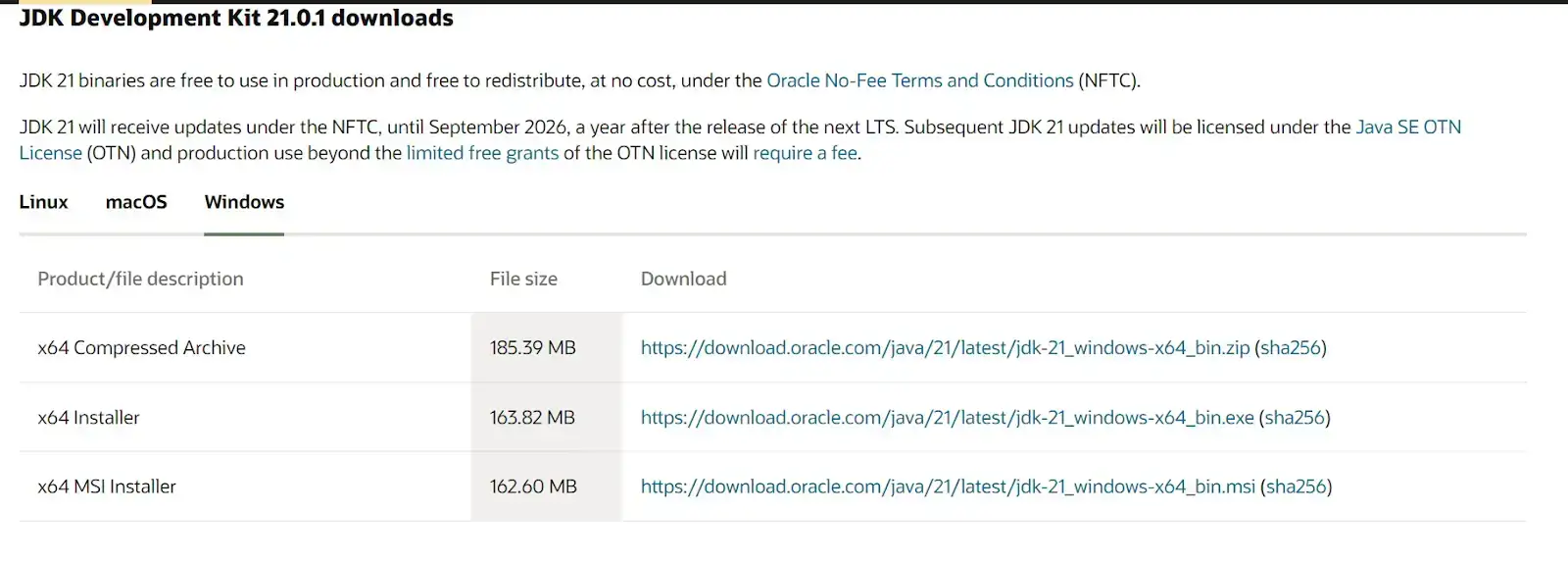
Step 1: Go to the Java SE (Standard Edition) page and click on JDK Download.
Step 2: Double-click the .exe file to install Java on the system.
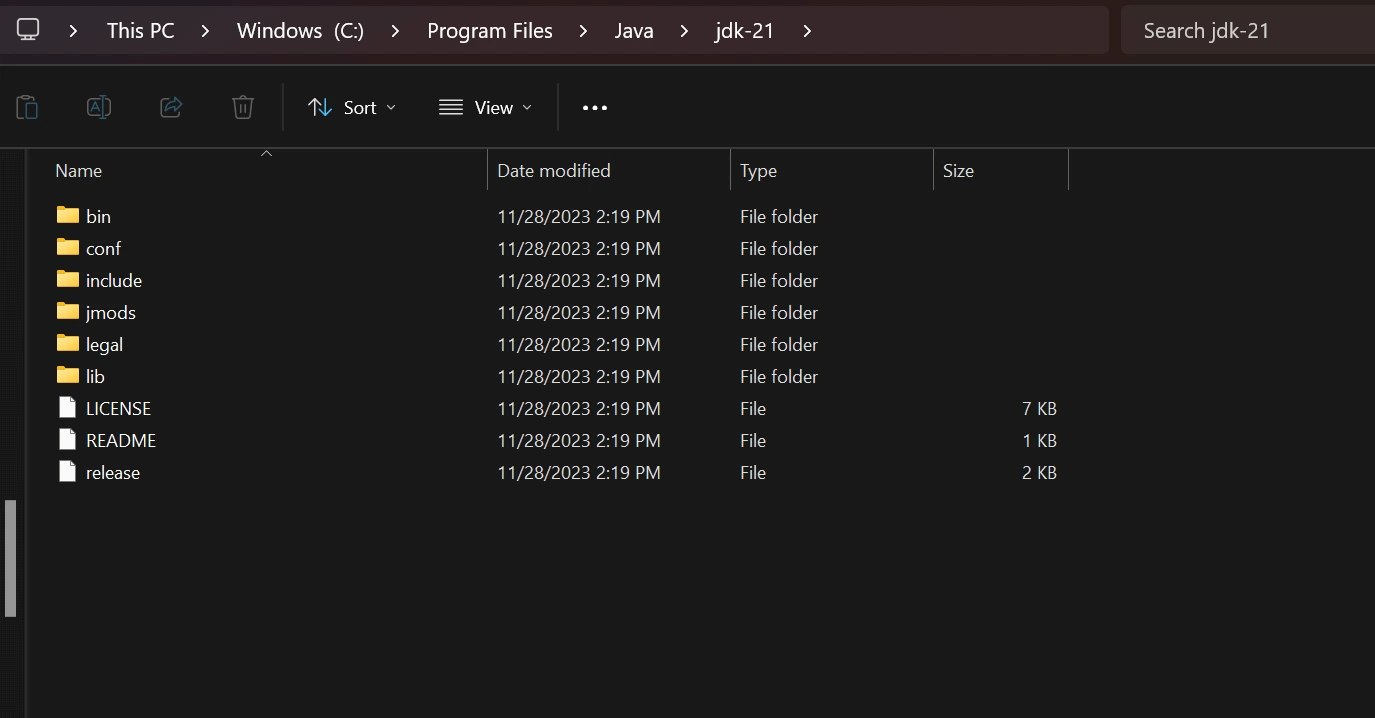
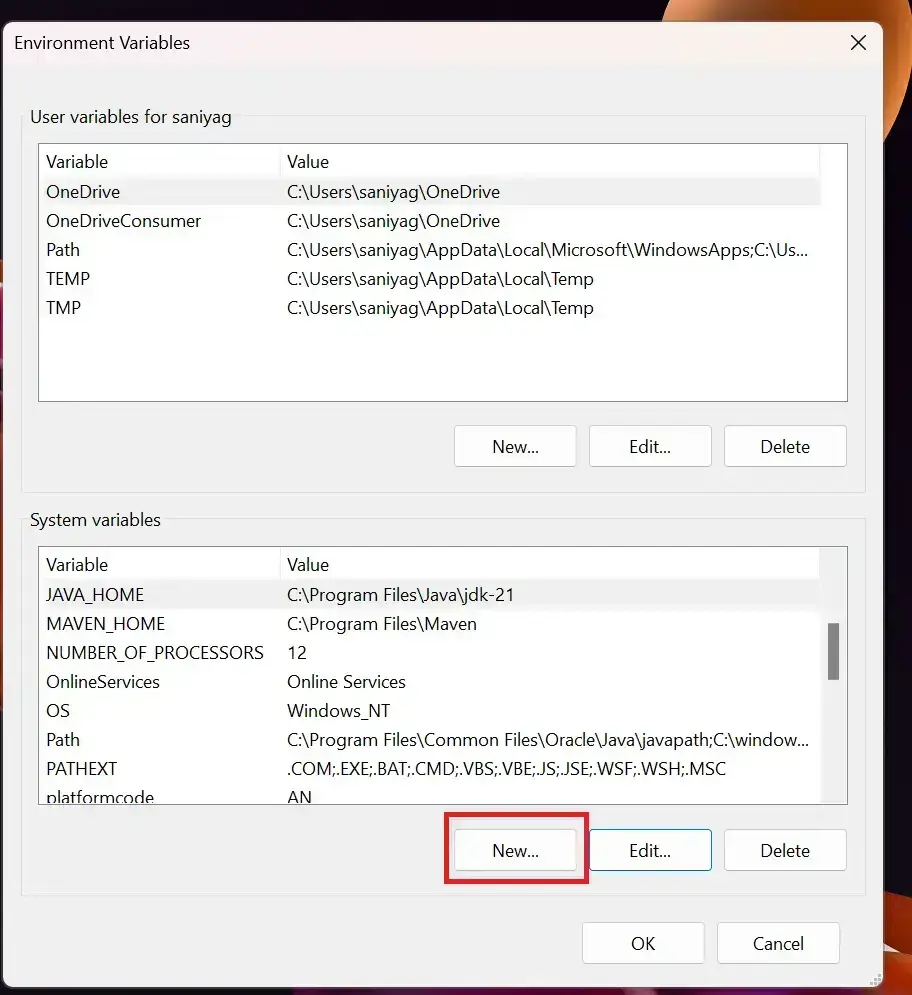
Step 3: Upon installation of Java, add the installation location to the environment variables PATH and CLASSPATH.
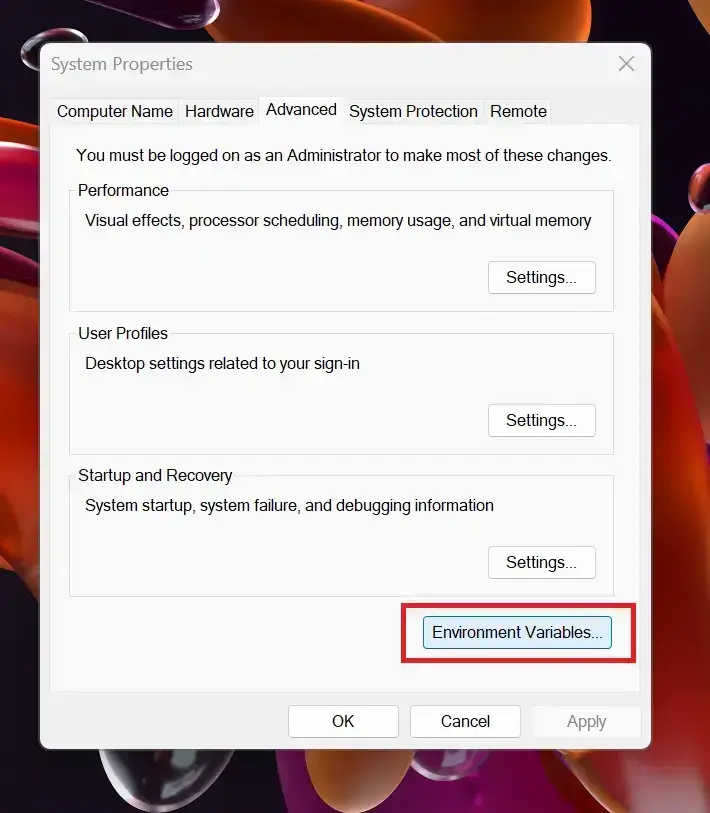
Step 4: Add the location of /bin to the environment variable PATH. To do so, click on New.
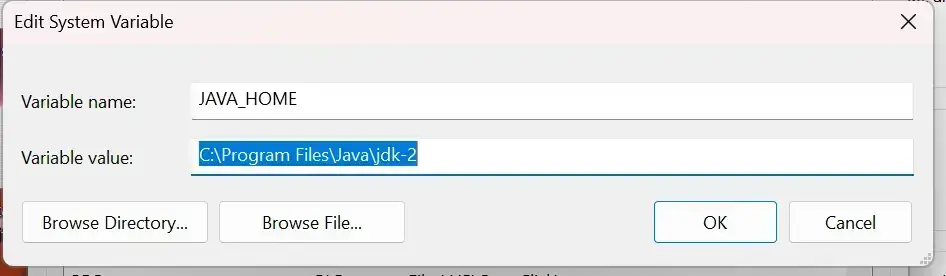
Step 5: Add the Variable name as JAVA_HOME and the Variable value as the location of your /bin file and click OK.
Step 6: To verify the installation of Java on the machine. Run the command java-version to verify the same.

With this, the installation of Java environment setup is complete.
Setup JUnit Environment
To set up the JUnit environment you need to follow the steps mentioned below
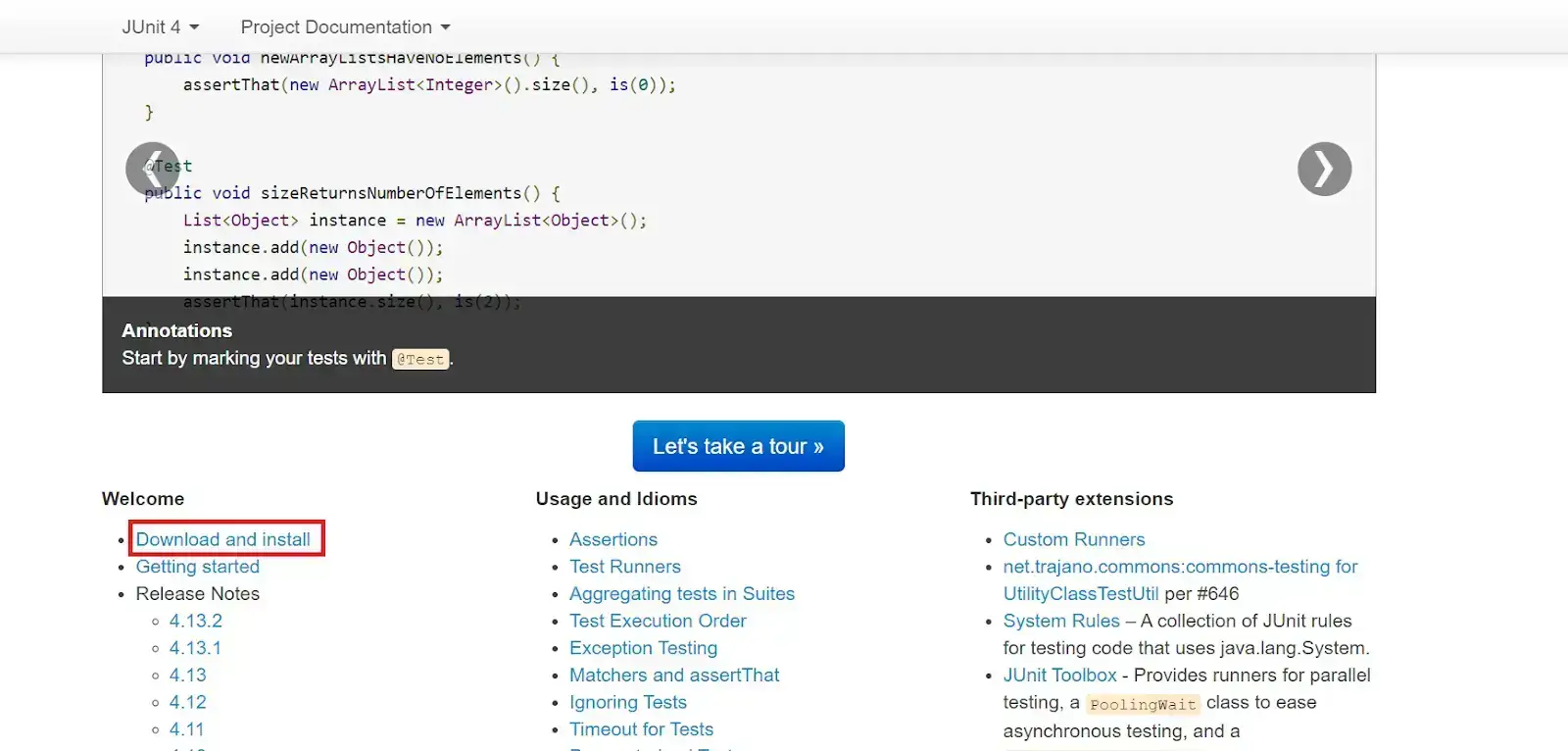
Step 1: Visit the JUnit official site and click on ‘Download and install’.
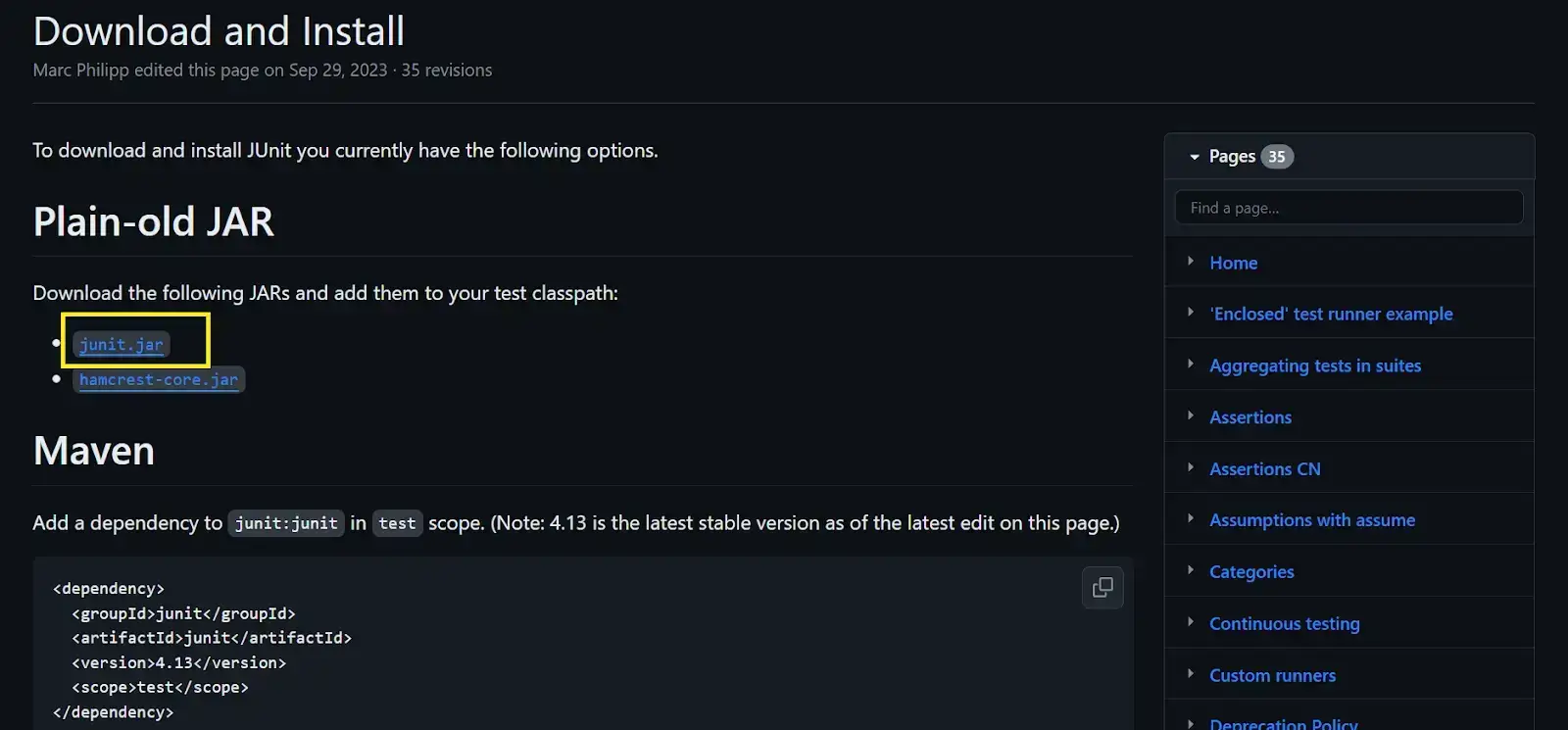
Step 2: Navigate to junit.jar to access the Maven Central repository, where you can download the JUnit jar file.
Step 3: Click on the latest version of JUnit from the list of versions available.
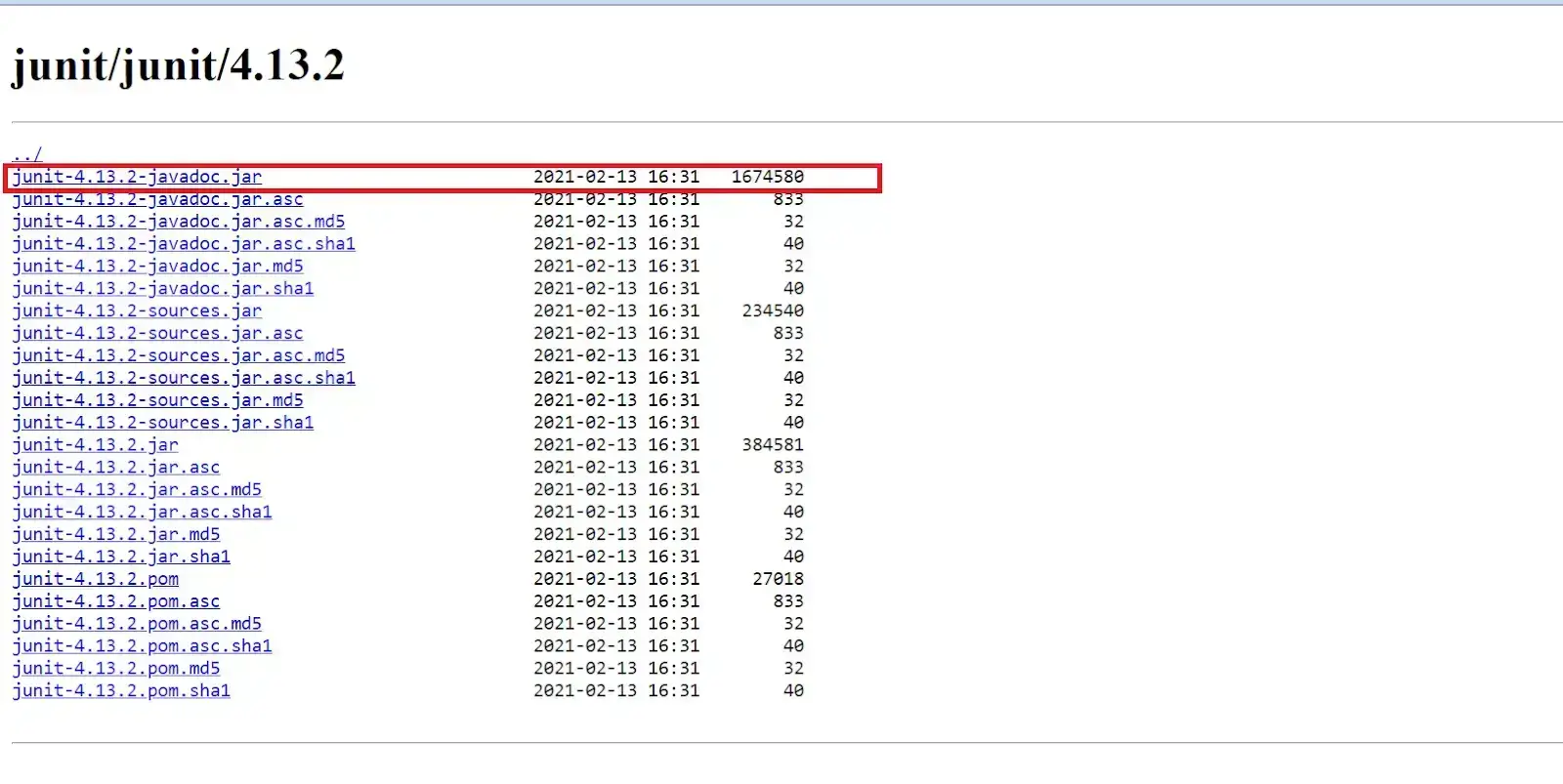
Step 4: The JUnit Jar file gets downloaded to your local machine.
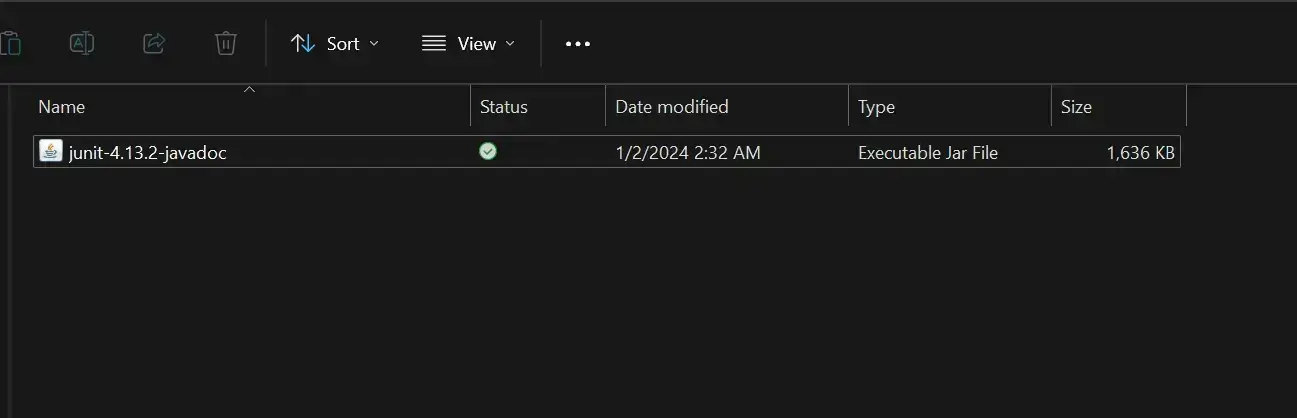
That is all; you have Java and JUnit in your local system. Now, it's time to set up the environment variables for JUnit and CLASSPATH variables for JUnit.
To do so, follow this JUnit tutorial on how to set up the JUnit environment and get a step-by-step guide on how to step up the variables for JUnit. It will also guide you on installing popular IDEs like Eclipse and IntelliJ.
To get more information on how to use Eclipse or IntelliJ IDEA, follow this complete video tutorial on how to install and set up JUnit with IntelliJ IDEA.
Automation Testing With JUnit and Selenium
Selenium with JUnit is ideal for cloud-based web testing due to its cross-browser and multi-language support. To enhance your JUnit, leverage TestMu AI, an AI-native platform for scalable test execution on 3000+ real devices, browsers, and OS combinations.
To begin automation testing with JUnit and Selenium, follow these instructions for smooth test execution.
- Download JUnit Jars.
- Add Jars to your Selenium project.
- Integrate JUnit annotations and methods into your Selenium test scripts.
After downloading these essential libraries and adding Jars files to your Selenium project,follow this comprehensive guide on JUnit automation testing with Selenium.
How to Perform Parallel Testing with JUnit?
Parallel test execution significantly impacts the speed of test execution in Selenium. Serial execution remains effective when dealing with a few browser and OS combinations. However, for a rapid test execution process, especially in the early stages of Quality Assurance testing, leveraging parallel execution becomes crucial.
You can also subscribe to the TestMu AI YouTube Channel and stay updated with the latest tutorials and updates on web application testing, selenium testing, playwright testing, and more.
While local Selenium Grid enables parallel testing with Selenium, they might not be practical for extensive testing across various browsers, operating systems, and device combinations.
In such cases, opting for a cloud-based Selenium Grid like TestMu AI proves highly advantageous. It facilitates faster parallel test execution by harnessing the advantages of the Selenium Grid.
To start with TestMu AI, you must first create an account on TestMu AI. To do so, follow the given instructions below.
Step 1: Create a TestMu AI account.
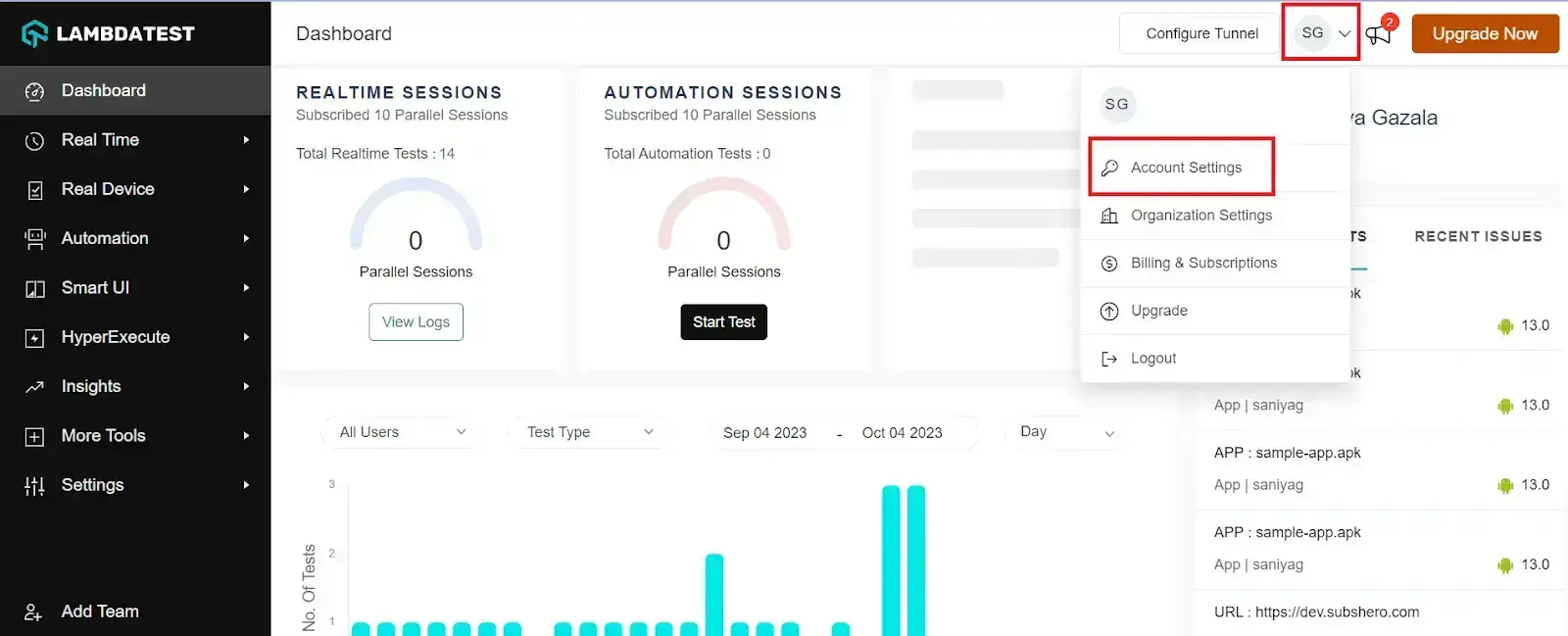
Step 2: Get your Username and Access Key by going to your Profile avatar from the TestMu AI dashboard and selecting Account Settings from the list of options.
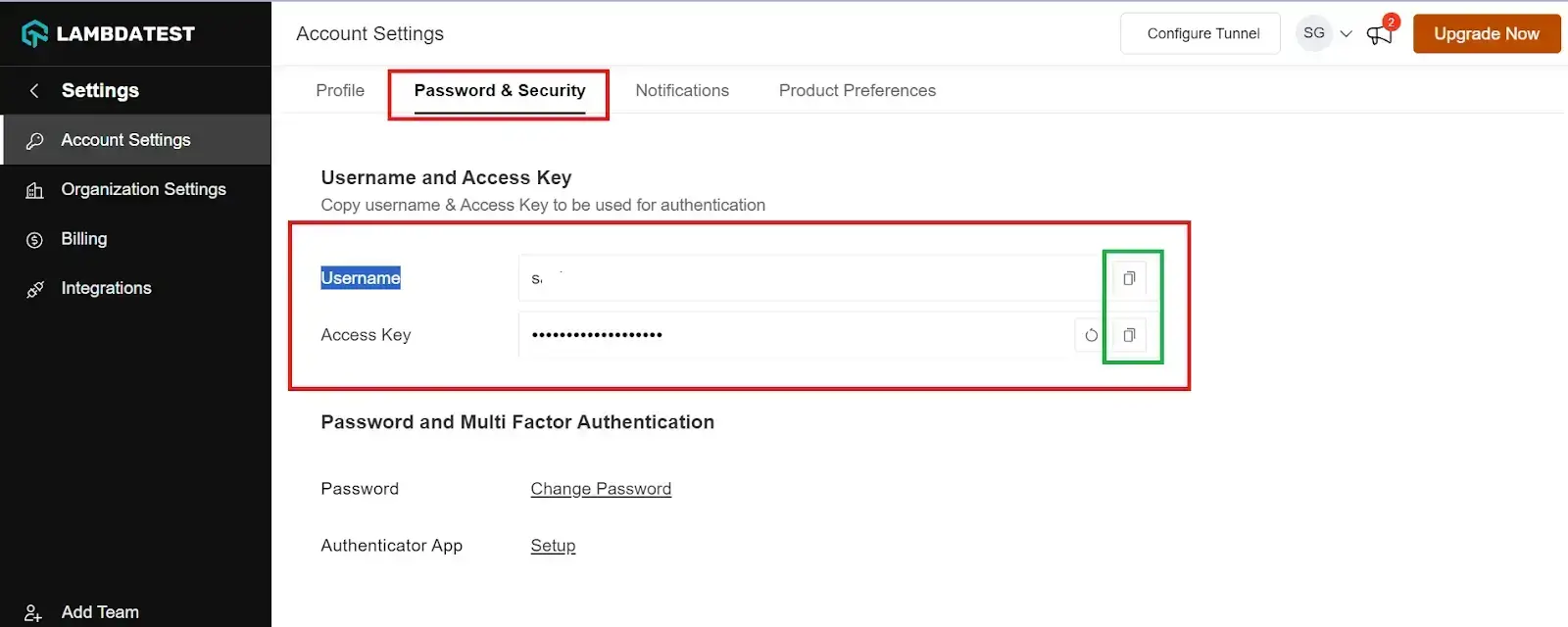
Step 3: Copy your Username and Access Key from the Password & Security tab.
Step 4: Generate Capabilities containing details like your desired browser and its various operating systems and get your configuration details on TestMu AI Capabilities Generator.
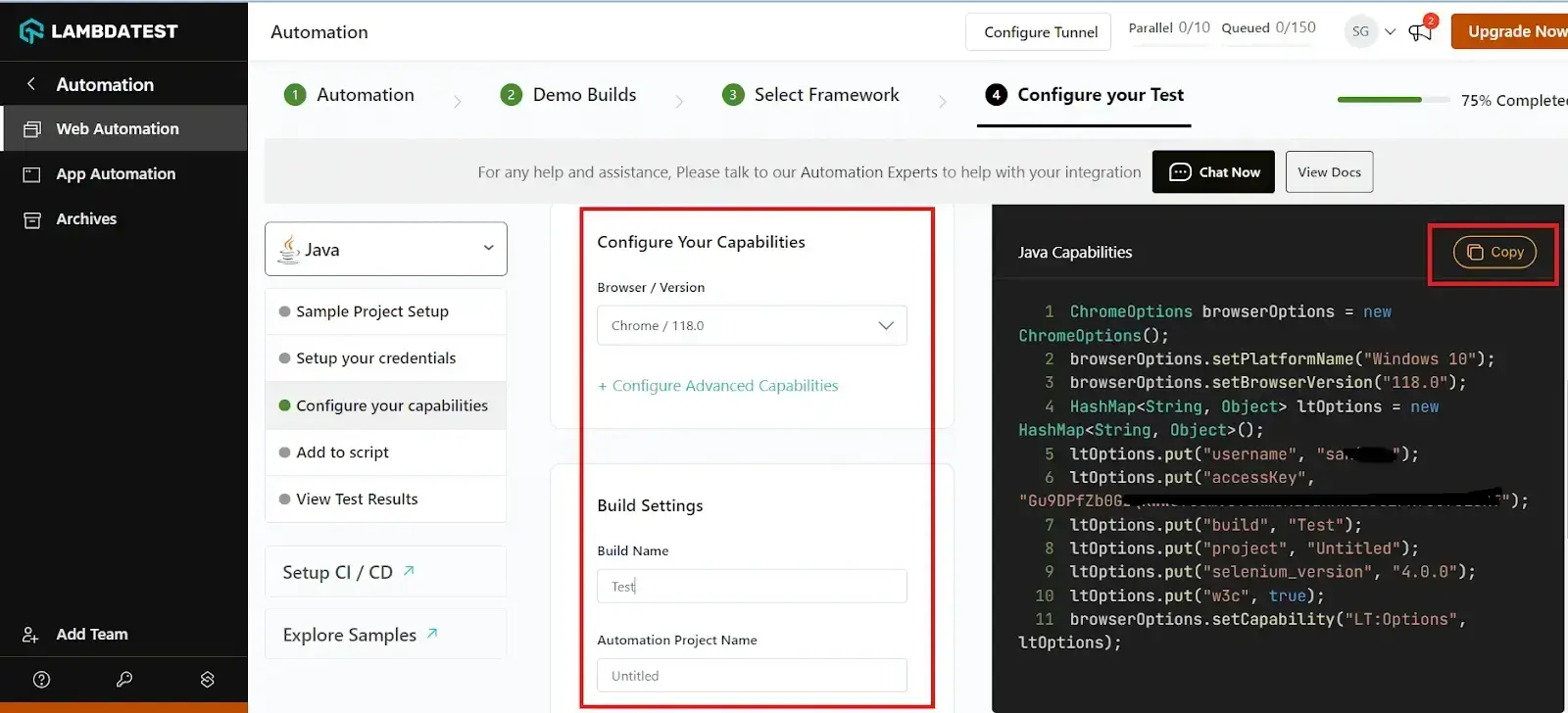
Step 5: Now that you have both the Username, Access key, and capabilities copied, all you need to do is paste it into your test script as shown below.
Now that you have collected all the necessary data, the next step is to integrate the TestMu AI credentials into the testing script. However, before proceeding, it's crucial to outline the test scenario to guide us through the automation on the TestMu AI Selenium Grid for parallel test execution.
Test Scenario:
|
Below is the code demonstration for the test scenario running JUnit 5 tests on a cloud-based Selenium Grid using TestMu AI:
import org.openqa.selenium.By;
import org.junit.jupiter.api.*;
import org.openqa.selenium.WebElement;
import org.openqa.selenium.interactions.Actions;
import org.openqa.selenium.remote.DesiredCapabilities;
import org.openqa.selenium.remote.RemoteWebDriver;
import org.openqa.selenium.support.ui.ExpectedConditions;
import org.openqa.selenium.support.ui.WebDriverWait;
import java.net.MalformedURLException;
import java.net.URL;
import java.util.List;
import java.util.concurrent.TimeUnit;
public class RunningTestsInParallelInGrid {
String username = "YOUR_USERNAME"; //Enter your username
String accesskey = "YOUR_ACCESS_KEY"; //Enter your accesskey
static RemoteWebDriver driver = null;
String gridURL = "@hub.lambdatest.com/wd/hub";
String urlToTest = "https://www.testmuai.com/";
@BeforeAll
public static void start() {
System.out.println("=======Running junit 5 tests in parallel in TestMu AI Grid has started========");
}
@BeforeEach
public void setup() {
System.out.println("Setting up the drivers and browsers");
DesiredCapabilities capabilities = new DesiredCapabilities();
capabilities.setCapability("browserName", "chrome");   //To specify the browser
capabilities.setCapability("version", "70.0");    //To specify the browser version
capabilities.setCapability("platform", "win10");      // To specify the OS
capabilities.setCapability("build", "Running_ParallelJunit5Tests_In_Grid");               //To identify the test
capabilities.setCapability("name", "Parallel_JUnit5Tests");
capabilities.setCapability("network", true);      // To enable network logs
capabilities.setCapability("visual", true);          // To enable step by step screenshot
capabilities.setCapability("video", true);       // To enable video recording
capabilities.setCapability("console", true);         // To capture console logs
try {
driver = new RemoteWebDriver(new URL("https://" + username + ":" + accesskey + gridURL), capabilities);
} catch (MalformedURLException e) {
System.out.println("Invalid grid URL");
} catch (Exception e) {
System.out.println(e.getMessage());
}
}
@Test
@DisplayName("Title_Test")
@Tag("Sanity")
public void launchAndVerifyTitle_Test() {
String methodName = Thread.currentThread()
.getStackTrace()[1]
.getMethodName();
System.out.println("********Execution of "+methodName+" has been started********");
System.out.println("Launching TestMu AI website started..");
driver.get(urlToTest);
driver.manage().window().maximize();
driver.manage().timeouts().pageLoadTimeout(10, TimeUnit.SECONDS);
String actualTitle = driver.getTitle();
System.out.println("The page title is "+actualTitle);
String expectedTitle ="Most Powerful Cross Browser Testing Tool Online | TestMu AI";
System.out.println("Verifying the title of the webpage started");
Assertions.assertEquals(expectedTitle, actualTitle);
System.out.println("The webpage has been launched and the title of the webpage has been veriified successfully");
System.out.println("********Execution of "+methodName+" has ended********");
}
@Test
@DisplayName("Login_Test")
@Tag("Sanity")
public void login_Test() {
String methodName = Thread.currentThread()
.getStackTrace()[1]
.getMethodName();
System.out.println("********Execution of "+methodName+" has been started********");
System.out.println("Launching TestMu AI website started..");
driver.get(urlToTest);
driver.manage().window().maximize();
driver.manage().timeouts().pageLoadTimeout(10, TimeUnit.SECONDS);
WebElement login = driver.findElement(By.xpath("//a[text()='Login']"));
login.click();
WebElement username = driver.findElement(By.xpath("//input[@name="email"]"));
WebElement password = driver.findElement(By.xpath("//input[@name="password"]"));
WebDriverWait wait = new WebDriverWait(driver,20);
wait.until(ExpectedConditions.visibilityOf(username));
username.clear();
username.sendKeys("[email protected]");
password.clear();
password.sendKeys("abc@123");
WebElement loginButton = driver.findElement(By.xpath("//button[text()='Login']"));
loginButton.click();
driver.manage().timeouts().pageLoadTimeout(10, TimeUnit.SECONDS);
String actual = driver.getTitle();
String expected = "Welcome - TestMu AI";
Assertions.assertEquals(expected, actual);
System.out.println("The user has been successfully logged in");
System.out.println("********Execution of "+methodName+" has ended********");
}
@Test
@DisplayName("Logo_Test")
public void logo_Test() {
String methodName = Thread.currentThread()
.getStackTrace()[1]
.getMethodName();
System.out.println("********Execution of "+methodName+" has been started********");
System.out.println("Launching TestMu AI website started..");
driver.get(urlToTest);
driver.manage().window().maximize();
driver.manage().timeouts().pageLoadTimeout(10, TimeUnit.SECONDS);
System.out.println("Verifying of webpage logo started..");
WebElement logo = driver.findElement(By.xpath("//*[@id="header"]/nav/div/div/div[1]/div/a/img"));
boolean is_logo_present = logo.isDisplayed();
if(is_logo_present) {
System.out.println("The logo of TestMu AI is displayed");
}
else {
Assertions.assertFalse(is_logo_present,"Logo is not present");
}
System.out.println("********Execution of "+methodName+" has ended********");
}
@Test
@DisplayName("Blog_Test")
public void blogPage_Test() {
String methodName = Thread.currentThread()
.getStackTrace()[1]
.getMethodName();
System.out.println("********Execution of "+methodName+" has been started********");
System.out.println("Launching TestMu AI website started..");
driver.get(urlToTest);
driver.manage().window().maximize();
driver.manage().timeouts().pageLoadTimeout(10, TimeUnit.SECONDS);
WebElement resources = driver.findElement(By.xpath("//*[text()='Resources ']"));
List<WebElement> options_under_resources = driver.findElements(By.xpath("//*[text()='Resources ']/../ul/a"));
boolean flag = resources.isDisplayed();
if(flag) {
System.out.println("Resources header is visible in the webpage");
Actions action = new Actions(driver);
action.moveToElement(resources).build().perform();
WebDriverWait wait=new WebDriverWait(driver, 20);
wait.until(ExpectedConditions.visibilityOfAllElements(options_under_resources));
for(WebElement element : options_under_resources) {
if(element.getText().equals("Blog")){
System.out.println("Clicking Blog option has started");
element.click();
System.out.println("Clicking Blog option has ended");
driver.manage().timeouts().pageLoadTimeout(20,TimeUnit.SECONDS);
Assertions.assertEquals("TestMu AI Blogs", driver.getTitle());
break;
}
else
Assertions.fail("Blogs option is not available");
}
}
else {
Assertions.fail("Resources header is not visible");
}
System.out.println("********Execution of "+methodName+" has ended********");
}
@Test
@DisplayName("Cerification_Test")
public void certificationPage_Test() {
String methodName = Thread.currentThread()
.getStackTrace()[1]
.getMethodName();
System.out.println("********Execution of "+methodName+" has been started********");
System.out.println("Launching TestMu AI website started..");
driver.get(urlToTest);
driver.manage().window().maximize();
driver.manage().timeouts().pageLoadTimeout(10, TimeUnit.SECONDS);
WebElement resources = driver.findElement(By.xpath("//*[text()='Resources ']"));
List<WebElement> options_under_resources = driver.findElements(By.xpath("//*[text()='Resources ']/../ul/a"));
boolean flag = resources.isDisplayed();
if(flag) {
System.out.println("Resources header is visible in the webpage");
Actions action = new Actions(driver);
action.moveToElement(resources).build().perform();
WebDriverWait wait = new WebDriverWait(driver, 20);
wait.until(ExpectedConditions.visibilityOfAllElements(options_under_resources));
for (int i = 0; i < options_under_resources.size(); i++) {
String value = options_under_resources.get(i).getText();
if (value.equals("Certifications")) {
System.out.println("Clicking Certifications option has started");
action.moveToElement(options_under_resources.get(i)).build().perform();
options_under_resources.get(i).click();
System.out.println("Clicking Certifications option has ended");
driver.manage().timeouts().pageLoadTimeout(20, TimeUnit.SECONDS);
String expectedCertificationPageTitle = "TestMu AI Selenium Certifications - Best Certifications For Automation Testing Professionals";
String actualCertificationPageTitle = driver.getTitle();
Assertions.assertEquals(expectedCertificationPageTitle, actualCertificationPageTitle);
break;
}
}
}
System.out.println("********Execution of "+methodName+" has ended********");
}
@Test
@DisplayName("Support_Test")
public void supportPage_Test() {
String methodName = Thread.currentThread()
.getStackTrace()[1]
.getMethodName();
System.out.println("********Execution of "+methodName+" has been started********");
System.out.println("Launching TestMu AI website started..");
driver.get(urlToTest);
driver.manage().window().maximize();
driver.manage().timeouts().pageLoadTimeout(10, TimeUnit.SECONDS);
WebElement supportHeader = driver.findElement(By.xpath("(//div//*[text()='Support'])[1]"));
boolean flag = supportHeader.isDisplayed();
if(flag) {
System.out.println("support header is visible in the webpage");
supportHeader.click();
}
else {
Assertions.fail("support header is not visible");
}
System.out.println("********Execution of "+methodName+" has ended********");
}
@AfterEach
public void tearDown() {
System.out.println("Quitting the browsers has started");
driver.quit();
System.out.println("Quitting the browsers has ended");
}
@AfterAll
public static void end() {
System.out.println("Tests ended");
}
}
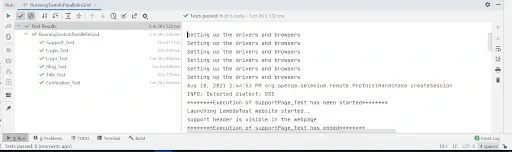
Shown below is the execution snapshot, which indicates that the tests are executing in parallel:
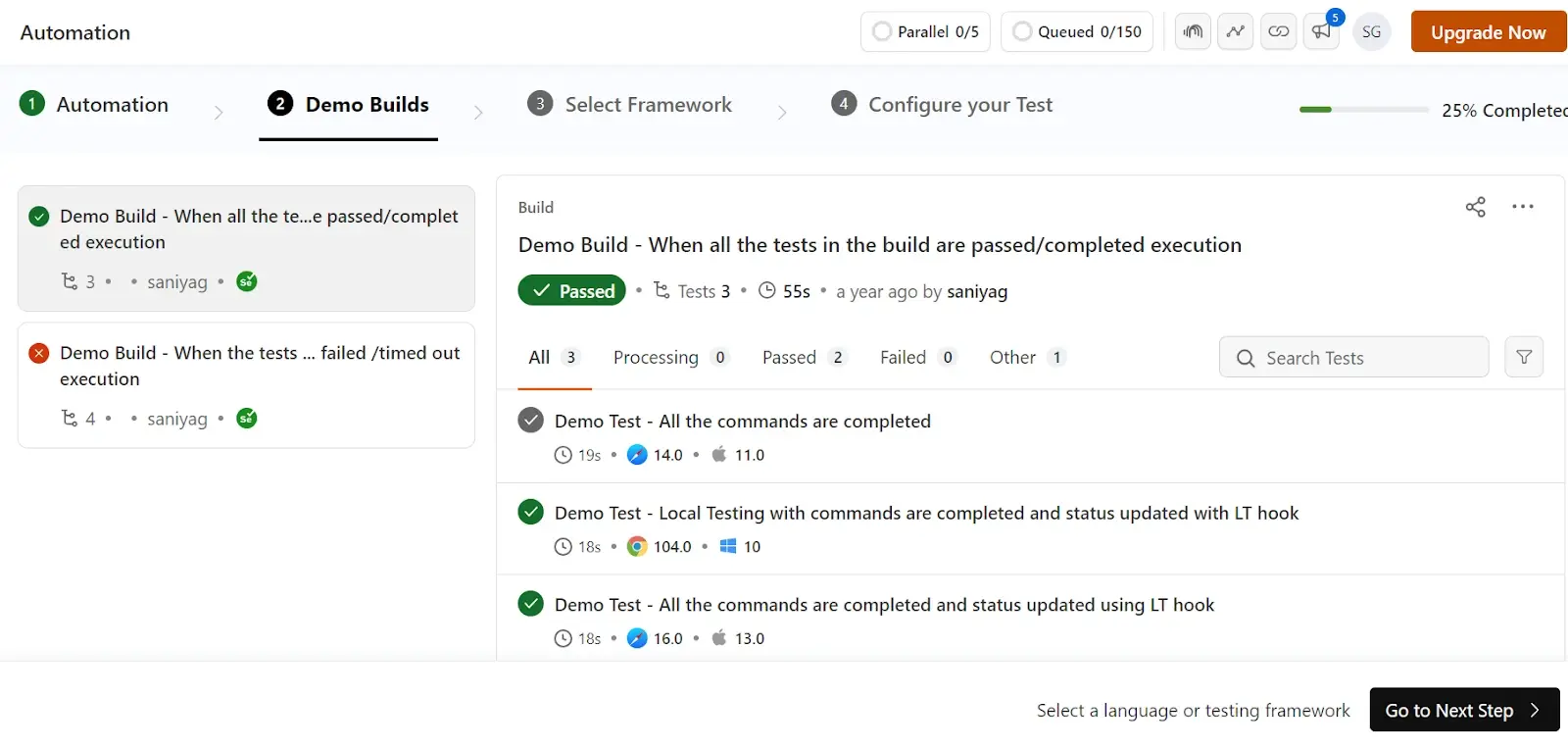
To verify the test execution status, simply go to the TestMu AI automation dashboard. There, you can review the test execution status and even watch a video recording of the test process.
Please refer to our JUnit tutorial on parallel testing with JUnit and Selenium to learn more.

Advanced Use Cases for JUnit Testing
You will learn more about the JUnit testing frameworks by deep diving into common use cases for JUnit.
Running JUnit Tests In Jupiter
The Jupiter sub-project serves as a TestEngine designed for executing Jupiter-based tests on the platform. Additionally, it establishes the TestEngine API, facilitating the development of new testing frameworks compatible with the platform. The Jupiter programming model draws inspiration from JUnit 4's annotations and conventions for structuring test code.
To understand this better we will look at a use case by following the below test scenario.
Test Scenario:
- Launch the TestMu AI website: https://www.testmuai.com.
- Maximize the browser window.
- Validate the presence and correctness of header tabs such as Platform, Enterprise, Resources, Developers, Pricing, Login, Book a Demo, and Get Started Free
- Navigate to the LT Browser page.
- Confirm the displayed content matches the expected LT Browser 2.0 Best Browser For Developers.
- Click the Login button.
- Enter your Username and Password and click the LOGIN button.
- Click on Profile Avatar and select Account Setting.
- Verify the Account Setting text from the page.
- Verify the visibility of the Resources header.
- Check if the displayed options match the expected list, including Blogs, Webinars, Learning Hub, Certifications, Videos, Newsletter, TestMu AI for Community, and Customer Stories.
Below is the code for the above test scenario.
package demo;


import org.junit.jupiter.api.*;
import org.openqa.selenium.By;
import org.openqa.selenium.WebElement;
import org.openqa.selenium.interactions.Actions;
import org.openqa.selenium.remote.DesiredCapabilities;
import org.openqa.selenium.remote.RemoteWebDriver;
import org.openqa.selenium.support.ui.ExpectedConditions;
import org.openqa.selenium.support.ui.WebDriverWait;


import java.net.MalformedURLException;
import java.net.URL;
import java.util.ArrayList;
import java.util.Arrays;
import java.util.List;
import java.util.concurrent.TimeUnit;


@TestMethodOrder(MethodOrderer.OrderAnnotation.class)
public class RunTestsInCloud {


    String username = "YOUR_USERNAME"; //Enter your username
    String accesskey = "YOUR_ACCESSKEY"; //Enter your accesskey


    static RemoteWebDriver driver = null;
    String gridURL = "@hub.lambdatest.com/wd/hub";
    String urlToTest = "https://www.testmuai.com;


    @BeforeAll
    public static void start() {
        System.out.println("=======Starting junit 5 tests in TestMu AI Grid========");
    }


    @BeforeEach
    public void setup() {
        System.out.println("Setting up the drivers and browsers");


ChromeOptions browserOptions = new ChromeOptions();
browserOptions.setPlatformName("Windows 10"); // To specify the OS
browserOptions.setBrowserVersion("121.0"); //To specify the browser version
HashMap<String, Object> ltOptions = new HashMap<String, Object>();
ltOptions.put("username", "YOUR_LT_USERNAME");
ltOptions.put("accessKey", "YOUR_LT_ACCESS_KEY");
ltOptions.put("project", "YOUR_PROJECT");
ltOptions.put("selenium_version", "4.0.0"); //To specify the Selenium version
ltOptions.put("build", "Running_Junit5Tests_In_Grid") //To identify the test
ltOptions.put("name", "JUnit5Tests");
ltOptions.put("console", "true");     // To capture console logs
ltOptions.put("visual", true);  // To enable step by step screenshot
ltOptions.put("network", true); // To enable network logs
ltOptions.put("visual", true); // To enable video recording
ltOptions.put("w3c", true);
browserOptions.setCapability("LT:Options", ltOptions);
        try {
            driver = new RemoteWebDriver(new URL("https://" + username + ":" + accesskey + gridURL), capabilities);
        } catch (MalformedURLException e) {
            System.out.println("Invalid grid URL");
        } catch (Exception e) {
            System.out.println(e.getMessage());
        }
    }
    /*To test the tabs available in the main page like Resources,Documentation,login etc */
    @Test
    @DisplayName("HeaderTabs_Test")
    @Tag("Smoke")
    @Order(1)
    public void headers_Test() {
        String methodName = Thread.currentThread()
                .getStackTrace()[1]
                .getMethodName();
        System.out.println("********Execution of "+methodName+" has been started********");
        System.out.println("Launching TestMu AI website started..");
        driver.get(urlToTest);
        driver.manage().window().maximize();
        driver.manage().timeouts().pageLoadTimeout(10, TimeUnit.SECONDS);


        List<WebElement> elements = driver.findElements(By.xpath("//*[contains(@class,'md:text-right')]/a"));
        List<String> actualList = new ArrayList<>();
        for(WebElement ele :elements){
            actualList.add(ele.getText());
        }


        System.out.println("Actual elements : "+actualList);
        List<String> expectedList = Arrays.asList("Platform","Enterprise","Resources","Developers","Pricing","Login",”Book a Demo”, “Get Started Free);
        System.out.println("Expected elements : "+expectedList);


        boolean boolval = actualList.equals(expectedList);
        System.out.println(boolval);
        Assertions.assertTrue(boolval);
        System.out.println("********Execution of "+methodName+" has ended********");
    }


    @Test
    @DisplayName("LTBrowser_Test")
    @Tag("Smoke")
    @Order(2)
    public void click_LTBrowser_Test() {
        String methodName = Thread.currentThread()
                .getStackTrace()[1]
                .getMethodName();
        System.out.println("********Execution of "+methodName+" has been started********");
        System.out.println("Launching TestMu AI website started..");
        driver.get(urlToTest);
        driver.manage().window().maximize();
        driver.manage().timeouts().pageLoadTimeout(10, TimeUnit.SECONDS);
        driver.findElement(By.xpath("//a[text()='Login']")).click();
        driver.findElement(By.xpath("//input[@name="email"]")).sendKeys("[email protected]");
        driver.findElement(By.xpath("//input[@name="password"]")).sendKeys("Demo@123");
        driver.findElement(By.xpath("//button[text()='Login']")).click();
        driver.manage().timeouts().pageLoadTimeout(20, TimeUnit.SECONDS);


        List <WebElement> options = driver.findElements(By.xpath("//div[contains(@class,'aside__menu__item')]//a"));
        for(WebElement ele : options){
            if(ele.getText().equals("LT Browser")) {
                ele.click();
                break;
            }


        }
        driver.manage().timeouts().implicitlyWait(20,TimeUnit.SECONDS);
        String actualText = driver.findElement(By.xpath("//*[@class='lt__demo__box__title']")).getText();
        String expectedText = "LT Browser 2.0 Best Browser For Developers";
        Assertions.assertEquals(expectedText, actualText);
        System.out.println("The user has been successfully navigated to LT browser page");
        System.out.println("********Execution of "+methodName+" has ended********");
    }


    @Test()
    @DisplayName("editProfile_Test")
    @Order(3)
    public void editProfile_Test() {
        String methodName = Thread.currentThread()
                .getStackTrace()[1]
                .getMethodName();
        System.out.println("********Execution of "+methodName+" has been started********");
        System.out.println("Launching TestMu AI website started..");
        driver.get(urlToTest);
        driver.manage().window().maximize();
        driver.manage().timeouts().pageLoadTimeout(10, TimeUnit.SECONDS);
        driver.findElement(By.xpath("//a[text()='Login']")).click();
        driver.findElement(By.xpath("//input[@name="email"]")).sendKeys("[email protected]");
        driver.findElement(By.xpath("//input[@name="password"]")).sendKeys("Demo@123");
        driver.findElement(By.xpath("//button[text()='Login']")).click();
        driver.manage().timeouts().pageLoadTimeout(20, TimeUnit.SECONDS);


        driver.findElement(By.id("profile__dropdown")).click();


        driver.findElement(By.xpath("//*[@class='profile__dropdown__item']")).click();


        String actualTitle = driver.getTitle();
        Assertions.assertEquals(actualTitle,"Account Settings");
        System.out.println("********Execution of "+methodName+" has ended********");
    }
    @Test
    @DisplayName("ResourcesOption_Test")
    @Order(4)
    public void getListOfOptionsUnderResourcesTab() {
        String methodName = Thread.currentThread()
                .getStackTrace()[1]
                .getMethodName();
        System.out.println("********Execution of "+methodName+" has been started********");
        System.out.println("Launching TestMu AI website started..");
        driver.get(urlToTest);
        driver.manage().window().maximize();
        driver.manage().timeouts().pageLoadTimeout(10, TimeUnit.SECONDS);
        WebElement resources = driver.findElement(By.xpath("//*[text()='Resources ']"));
        List<WebElement> options_under_resources = driver.findElements(By.xpath("//*[text()='Resources ']/../ul/a"));
        boolean flag = resources.isDisplayed();
        if(flag) {
            System.out.println("Resources header is visible in the webpage");
            Actions action = new Actions(driver);
            action.moveToElement(resources).build().perform();
            WebDriverWait wait=new WebDriverWait(driver, 20);
            wait.until(ExpectedConditions.visibilityOfAllElements(options_under_resources));
            List<String> options = new ArrayList<>();
            for(WebElement element : options_under_resources) {
                options.add(element.getText());
            }
            System.out.println(options);
            List<String> list = Arrays.asList("Blog", "Webinars”, Certifications", "Learning Hub", "Certifications", "Videos", "Newsletter", "TestMu AI for Community", "Customer Stories");
            boolean boolval = list.equals(options);
            System.out.println(boolval);
            Assertions.assertTrue(boolval);
        }
        else {
            Assertions.fail("Resources header is not visible");
        }
        System.out.println("********Execution of "+methodName+" has ended********");
    }


    @AfterEach
    public void tearDown() {
        System.out.println("Quitting the browsers has started");
        driver.quit();
        System.out.println("Quitting the browsers has ended");


    }


    @AfterAll
    public static void end() {
        System.out.println("Tests ended");


    }


}
You can view the complete JUnit Jupiter tutorial. Jupiter delves into Jupiter's fundamentals, unit testing capabilities, and how to run JUnit tests in Jupiter.
Running JUnit Selenium Tests using TestNG
Combining JUnit with TestNG in Selenium automation leverages TestNG's advanced features for better test management. TestNG offers more annotations, test grouping, and robust parallel execution compared to JUnit.
Key advantages of TestNG over JUnit:
- Annotations: TestNG provides extensive annotations for flexible test configuration.
- Grouping: Group tests using the 'groups' parameter for selective execution.
- Parallel Execution: Native support for running tests in parallel across threads and classes.
TestNG is preferred for parallel testing in Selenium. Use a cloud-based Selenium Grid like TestMu AI for secure, fast execution.
Test Scenario: Navigate to TodoMVC, enter text, and validate it appears in the list.
| Browser | Version | Platform |
| Chrome | 121.0 | Windows 10 |
| Safari | 17.0 | macOS Big Sur |
| Firefox | 122.0 | Windows 8 |
Sample code:
@Test
public void testParallel() {
    driver.get("https://todomvc.com/examples/react/#/");
    driver.findElement(By.className("new-todo")).sendKeys("TestMu AI Cross Browser Testing");
    int totalElements = driver.findElements(By.xpath("//ul[@class='todo-list']/li")).size();
    Assert.assertEquals(1, totalElements);
}
For a full guide, see our JUnit Selenium TestNG tutorial.
Using JUnit 5 Mockito for Unit Testing
JUnit 5 Mockito integration simplifies unit testing by mocking dependencies. Mockito creates mock objects to isolate the code under test, using annotations like @Mock and methods like mock(). This approach enhances test reliability and speed.
Example: Mock a database service to test query logic without real database calls.
@ExtendWith(MockitoExtension.class)
public class ServiceTest {
    @Mock
    Database databaseMock;

    @Test
    public void testQuery() {
        when(databaseMock.isAvailable()).thenReturn(true);
        Service service = new Service(databaseMock);
        boolean result = service.query("* from t");
        assertTrue(result);
    }
}
For cross-browser testing with JUnit 5 and Mockito, integrate Selenium for end-to-end validation. Learn more in our JUnit 5 Mockito tutorial.
package MockitoDemo.MockitoDemo;
import org.junit.jupiter.api.AfterAll;
import org.junit.jupiter.api.AfterEach;
import org.junit.jupiter.api.Assertions;
import org.junit.jupiter.api.BeforeAll;
import org.junit.jupiter.api.BeforeEach;
import org.junit.jupiter.api.Test;
import org.junit.jupiter.api.parallel.Execution;
import org.junit.jupiter.api.parallel.ExecutionMode;
import org.junit.jupiter.params.ParameterizedTest;
import org.junit.jupiter.params.provider.Arguments;
import org.junit.jupiter.params.provider.MethodSource;
import org.openqa.selenium.By;
import org.openqa.selenium.WebElement;
import org.openqa.selenium.remote.DesiredCapabilities;
import org.openqa.selenium.remote.RemoteWebDriver;
import org.openqa.selenium.support.ui.ExpectedConditions;
import org.openqa.selenium.support.ui.WebDriverWait;
import java.util.stream.Stream;
import java.net.MalformedURLException;
import java.net.URL;
import java.util.concurrent.TimeUnit;
import static org.junit.jupiter.params.provider.Arguments.arguments;


@Execution(ExecutionMode.CONCURRENT)
public class CrossbrowserDemo {
String username = "YOUR_LT_USERNAME";
       String accesskey = "YOUR_LT_ACCESS_KEY";

      static RemoteWebDriver driver = null;
      String gridURL = "@hub.lambdatest.com/wd/hub";
      String urlToTest = "https://www.testmuai.com/";

      @BeforeAll
      public static void start() {
          System.out.println("=======Starting junit 5 tests in TestMu AI  Grid========");
      }

      @BeforeEach
      public void setup(){
          System.out.println("=======Setting up drivers and browser========");
      }

      public void browser_setup(String browser) {
          System.out.println("Setting up the drivers and browsers");
          DesiredCapabilities capabilities = new DesiredCapabilities();

          if(browser.equalsIgnoreCase("Chrome")) {
                ChromeOptions browserOptions = new ChromeOptions();
                browserOptions.setPlatformName("Windows 10");  // To specify the OS
                browserOptions.setBrowserVersion("121.0"); //To specify the browser version
                HashMap<String, Object> ltOptions = new HashMap<String, Object>();
                ltOptions.put("username", "YOUR_LT_USERNAME");
                ltOptions.put("accessKey", "YOUR_LT_ACCESS_KEY");
                ltOptions.put("visual", true);  // To enable step by step screenshot
                ltOptions.put("video", true); // To enable video recording
                ltOptions.put("network", true);  // To enable network logs
                ltOptions.put("build", "JUnit5Tests_Chrome");   //To identify the test
                ltOptions.put("name", "JUnit5Tests_Chrome");
                ltOptions.put("console", "true");  // To capture console logs
                ltOptions.put("selenium_version", "4.0.0");
                ltOptions.put("w3c", true);
                browserOptions.setCapability("LT:Options", ltOptions);
          }
          if(browser.equalsIgnoreCase("Firefox")) {


            FirefoxOptions browserOptions = new FirefoxOptions();
            browserOptions.setPlatformName("Windows 10"); // To specify the OS
            browserOptions.setBrowserVersion("122.0"); //To specify the browser version
            HashMap<String, Object> ltOptions = new HashMap<String, Object>();
            ltOptions.put("username", "YOUR_LT_USERNAME");
            ltOptions.put("accessKey", "YOUR_LT_ACCESS_KEY");
            ltOptions.put("visual", true);  // To enable step by step screenshot
            ltOptions.put("video", true); // To enable video recording
            ltOptions.put("network", true); // To enable network logs
            ltOptions.put("build", "Running_Junit5Tests_In_Grid_Firefox"); //To identify the test
            ltOptions.put("name", "JUnit5Tests_Firefox");
            ltOptions.put("console", "true"); // To capture console logs
            ltOptions.put("w3c", true);
            browserOptions.setCapability("LT:Options", ltOptions);


          }
          if(browser.equalsIgnoreCase("Safari")) {


            SafariOptions browserOptions = new SafariOptions();
            browserOptions.setPlatformName("macOS Big sur"); // To specify the OS
            browserOptions.setBrowserVersion("17.0"); //To specify the browser version
            HashMap<String, Object> ltOptions = new HashMap<String, Object>();
            ltOptions.put("username", "YOUR_LT_USERNAME");
            ltOptions.put("accessKey", "YOUR_LT_ACCESS_KEY");
            ltOptions.put("visual", true); // To enable step by step screenshot
            ltOptions.put("video", true); // To enable video recording
            ltOptions.put("network", true); // To enable network logs
            ltOptions.put("build", "Running_Junit5Tests_In_Grid_Safari"); //To identify the test
            ltOptions.put("name", "JUnit5Tests_Safari");
            ltOptions.put("console", "true"); // To capture console logs
            ltOptions.put("w3c", true);
            browserOptions.setCapability("LT:Options", ltOptions);
          }
          try {
              driver = new RemoteWebDriver(new URL("https://" + username + ":" + accesskey + gridURL), capabilities);
          } catch (MalformedURLException e) {
              System.out.println("Invalid grid URL");
          } catch (Exception e) {
              System.out.println(e.getMessage());
          }

      }

      @ParameterizedTest
      @MethodSource("browser")
      public void launchAndVerifyTitle_Test(String browser) {
          browser_setup(browser);
          String methodName = Thread.currentThread()
                  .getStackTrace()[1]
                  .getMethodName();
          driver.get(urlToTest);
          driver.manage().window().maximize();
          driver.manage().timeouts().pageLoadTimeout(10, TimeUnit.SECONDS);
          String actualTitle = driver.getTitle();
          System.out.println("The page title is "+actualTitle);
          String expectedTitle ="Next-Generation Mobile Apps and Cross Browser Testing Cloud";
          System.out.println("Verifying the title of the webpage started");
          Assertions.assertEquals(expectedTitle, actualTitle);
          System.out.println("The webpage has been launched and the title of the webpage has been veriified successfully");
          System.out.println("********Execution of "+methodName+" has ended********");
      }

      @ParameterizedTest
      @MethodSource("browser")
      public void login_Test(String browser) {
          browser_setup(browser);

          String methodName = Thread.currentThread()
                  .getStackTrace()[1]
                  .getMethodName();
          driver.get(urlToTest);
          driver.manage().window().maximize();
          driver.manage().timeouts().pageLoadTimeout(10, TimeUnit.SECONDS);
          WebElement login = driver.findElement(By.xpath("//a[text()='Login']"));
          login.click();
          WebElement username = driver.findElement(By.xpath("//input[@name='email']"));
          WebElement password = driver.findElement(By.xpath("//input[@name='password']"));
          WebDriverWait wait = new WebDriverWait(driver,20);
          wait.until(ExpectedConditions.visibilityOf(username));
          username.clear();
          username.sendKeys("[email protected]");
          password.clear();
          password.sendKeys("R999@89");
          WebElement loginButton = driver.findElement(By.xpath("//button[text()='Login']"));
          loginButton.click();
          driver.manage().timeouts().pageLoadTimeout(10, TimeUnit.SECONDS);
          String actual = driver.getTitle();
          String expected = "Dashboard";
          Assertions.assertEquals(expected, actual);
          System.out.println("The user has been successfully logged in");
          System.out.println("********Execution of "+methodName+" has ended********");
      }

      @ParameterizedTest
      @MethodSource("browser")
      public void logo_Test(String browser) {
          browser_setup(browser);
          String methodName = Thread.currentThread()
                  .getStackTrace()[1]
                  .getMethodName();
          System.out.println("********Execution of "+methodName+" has been started********");
          System.out.println("Launching TestMu AI website started..");
          driver.get(urlToTest);
          driver.manage().window().maximize();
          driver.manage().timeouts().pageLoadTimeout(10, TimeUnit.SECONDS);
          System.out.println("Verifying of webpage logo started..");

          WebElement logo = driver.findElement(By.xpath("//*[@id="header"]/nav/div/div/div[1]/div/a/img"));
          boolean is_logo_present = logo.isDisplayed();
          if(is_logo_present) {
              System.out.println("The logo of TestMu AI is displayed");
          }
          else {
  Assertions.assertFalse(is_logo_present,"Logo is not present");
          }
          System.out.println("********Execution of "+methodName+" has ended********");
      }

      @AfterEach
      public void tearDown() {
          System.out.println("Quitting the browsers has started");
          driver.quit();
          System.out.println("Quitting the browsers has ended");
      }

      @AfterAll
      public static void end() {
          System.out.println("Tests ended");
      }

      static Stream<Arguments> browser() {
          return Stream.of(
                  arguments("Chrome"),
                  arguments("Firefox"),
               arguments("Safari")
      );
}
}
Explore the JUnit 5 Mockito tutorial for a detailed, step-by-step guide. Dive into the complexities and enhance your understanding of this powerful testing combination.
Using JUnit 5 Extensions
JUnit 5 introduces a powerful extension model that allows for easy integration of custom features and enhanced functionality. Unlike JUnit 4, this model provides built-in extension points for seamless customization, enabling developers to add capabilities by implementing interfaces. Popular extensions include those for mocking, such as Mockito.
Here's an example using the Mockito extension:
public class Database {
    public boolean isAvailable() {
        // TODO implement the access to the database
        return false;
    }
    public int getUniqueId() {
        return 42;
    }
}
public class Service {
        private Database database;
        public Service(Database database) {
            this.database = database;
        }
        public boolean query(String query) {
            return database.isAvailable();
        }
        @Override
        public String toString() {
            return "Using database with id: " + String.valueOf(database.getUniqueId());
        }
}
The test class:
@ExtendWith(MockitoExtension.class)
public class ServiceTest {
        @Mock
        Database databaseMock;

        @Test
        public void testQuery () {
            assertNotNull(databaseMock);
            when(databaseMock.isAvailable())
     .thenReturn(true);
            Service t = new Service(databaseMock);
            boolean check = t.query("* from t");
            assertTrue(check);
        }
}
For more on JUnit 5 extensions, check our detailed guide.
Best Practices for JUnit Testing
Next, we will look into some of the best practices that will help you maintain and improve your JUnit testing experience.
Keep Tests Simple and Focused
- Unit tests should be straightforward and concentrate on testing one specific aspect of the code.
- They should be easy to understand, maintain and provide clear feedback on what is being tested.
Use Descriptive Test Names
- Name tests descriptively using the @DisplayName annotation.
- Descriptive test names make the test suite more readable and help understand the purpose of each test.
Avoid Random Values at Runtime
- Generating random values at runtime is generally not recommended for unit testing.
- While it can reveal edge cases, it may also make tests less reliable and repeatable.
Never Test Implementation Details
- Focus on testing the behavior of a unit or component, not how it is implemented.
- Testing implementation details can lead to brittle tests that are difficult to maintain.
Handle Edge Cases
- Consider edge cases where your code might fail.
- Cover scenarios like null objects, ensuring your code is robust across different scenarios.
Apply the Arrange-Act-Assert (AAA) Pattern
Follow the AAA pattern for structuring tests:
- Arrange: Set up the test data and context.
- Act: Perform the operation being tested.
- Assert Verify that the expected results are obtained.
Adapting to these best practices ensures that your JUnit tests are effective, maintainable, and provide meaningful insights into the behavior of your code.
Conclusion
JUnit remains one of the most reliable frameworks for Java unit testing, and JUnit 5 takes it further with a modular architecture, improved annotations, enhanced assertions, and better support for parameterized and parallel testing.
Whether you're setting up your first test or integrating JUnit with Selenium on a cloud grid like TestMu AI, the fundamentals covered here give you a strong foundation to build on. For deeper dives, explore the linked guides on JUnit Jupiter, Mockito, TestNG integration, and parallel testing.


Frequently asked questions
Did you find this page helpful?
More Related Hubs
TestMu AI forEnterprise
Get access to solutions built on Enterprise
grade security, privacy, & compliance
- Advanced access controls
- Advanced data retention rules
- Advanced Local Testing
- Premium Support options
- Early access to beta features
- Private Slack Channel
- Unlimited Manual Accessibility DevTools Tests