

Power Your Software Testing with AI Agents and Cloud
The Native AI-Agentic Cloud Platform to Supercharge Quality Engineering. Test Intelligently and Ship Faster.


- TestMu AI (Formerly LambdaTest)
- /
- Blog
- /
- JUnit Setup: How To Install and Configure JUnit 5 Environment
JUnit Setup: How To Install and Configure JUnit 5 Environment
A step-by-step JUnit setup guide covering Java installation, environment variable configuration, and adding JUnit 5 to IntelliJ IDEA.
Last Updated on:
This article is a part of our Learning Hub. For more in-depth resources, check out our hub on JUnit Tutorial.
JUnit is a widely used unit testing framework. When combined with Selenium, it enhances the web application testing process. JUnit utilizes annotations to identify test methods and supports various assertions, test suites, and test maintenance.
JUnit setup involves installing Java, configuring environment variables, and adding the JUnit 5 framework to your build tool or IDE.
This chapter walks you through each step: from downloading the JDK to writing and running your first unit test in IntelliJ IDEA, with optional cloud execution on TestMu AI.
Overview
To set up a JUnit 5 testing environment, configure your system's Java runtime and manage your project dependencies. You can then write and run tests locally using the IntelliJ IDEA development environment or scale execution across multiple browsers using the TestMu AI cloud platform.
How To Install and Setup JUnit?
- Java runtime execution: The Java Development Kit (JDK) must be installed, with the JAVA_HOME environment variable configured, to enable coding and running Java programs.
- Dependency management: Maven or Gradle can be used to declare JUnit 5 JARs as dependencies in your pom.xml or build.gradle file, which automatically manages the testing framework.
- System path configuration: The JUNIT_HOME environment variable should be set to the JUnit installation path, allowing your system to locate the testing framework JAR files.
How To Use JUnit With IntelliJ IDEA?
- Local test development: IntelliJ IDEA allows you to create Maven or Gradle projects, select the appropriate Java SDK version, and write tests using @Test annotations and assertions.
- Parallel test execution: The junit-platform.properties file can be configured with class-level or method-level parallel execution settings to speed up test suite runs.
- Cloud scaling: TestMu AI executes your JUnit tests on a cloud grid with access to 3,000+ browser/OS combinations, scaling your testing without local infrastructure.
What Is JUnit?
JUnit is a popular open-source framework for automating unit testing in Java. It follows the principle of testing first and coding second, meaning you write tests before implementing the code they validate.
Here are the core reasons JUnit is widely adopted for unit testing in Java projects:
- Improves Code Quality: Makes code more readable, stable, and error-free by catching regressions early.
- Early Bug Detection: Identifies bugs during development rather than in production, increasing application stability.
- Annotations and Assertions: Provides @Test, @BeforeEach, and assertion methods to define and verify test expectations clearly.
- Automated Execution: Tests run automatically and report pass or fail, integrating with build tools and CI pipelines.
Watch the video below for a quick walkthrough of setting up JUnit and running your first test.


Note: Run web app testing using the JUnit framework across 3,000+ browser and OS combinations on TestMu AI. Try TestMu AI free!
JUnit 5 Architecture
JUnit 5 is composed of three sub-projects, each with a distinct role in the testing pipeline.

- JUnit Platform: The foundational layer for test discovery and execution across IDEs and build tools via the TestEngine API.
- JUnit Jupiter: The new API and engine for writing and running JUnit 5 tests, introducing enhanced annotations, assertions, and extension points.
- JUnit Vintage: A backward-compatibility engine that lets JUnit 3 and 4 tests run within the JUnit 5 platform without modification.
For a deeper look at each module and the extension model, see Chapter 2: JUnit 5 Features and Extensions.

How To Install and Setup JUnit?
The following steps walk you through downloading JUnit 5 and configuring your Windows environment. Start with the prerequisites:
Installing Java
Installing the Java Development Kit (JDK) is essential to setup JUnit for automation testing. This JDK enables you to code and run Java programs. It is recommended that you install the latest version.
Below are the steps to guide you on installing Java on Windows.
- Go to the Java SE (Standard Edition) page and click JDK Download.
- Accept the license agreement to download the JDK executable file.
- Double-click on the installer executable to begin the installation process. After installation, the JDK will be located in Program Files > Java > JDK-22 (or a similar directory, depending on your installed version).
- Upon installation of Java, you must append the installation location to the environment variables PATH and CLASSPATH.
- Search for Environment Variables in your system and select Edit the system environment variables.
- Click the Advanced tab in the System Properties window, then click the Environment Variables… button.
- Under System Variables, click New.
- Under the Variable name, enter JAVA_HOME, and for the Variable value, enter the path where your JDK is stored. Click the OK button to save the entries.
- The last step is to verify if the installation of Java on the machine was successful. To do so, run the command
java -versionto verify it.
You have successfully setup Java on your machine by following the steps above. Next, let’s proceed to setup the JUnit environment variable.
Setting JUnit Environment Variable
With Java installed, the next step is to download JUnit 5 and add the environment variables your system needs to locate the framework.
Follow these steps to download the JUnit 5 and Hamcrest JARs:
- Go to the JUnit 5 releases page on Maven Central or the JUnit official website.
- Download the latest version of JUnit 5. You will typically need these JAR files:
- junit-jupiter-api
- junit-jupiter-engine
- junit-platform-launcher
- In the Maven Central Repository, select the latest version and click on junit.jar to download it. Alternatively, use this direct download link and save the JAR to C:JUnit.
- Download the Hamcrest (v2.2) JAR from the Maven repository and place it in the same C:JUnit folder. The legacy Hamcrest core jar is obsolete; use the single combined jar instead.
With both JARs saved to C:JUnit, set the JUNIT_HOME environment variable so your system can locate the framework:
- Search for Environment Variables on Windows.
- In the System Properties window, click on Environment Variables…
- Under the System Variables section, click New.
- Enter JUNIT_HOME for the Variable name and the path where JUnit is stored for the Variable value.
- Click OK to save the new environment variable.
With those environment variables in place, you are ready to configure JUnit inside IntelliJ IDEA.
How To Use JUnit With IntelliJ IDEA?
With JUnit installed and your environment variables configured, the next step is to set up IntelliJ IDEA so you can write and run your tests from within the IDE.
IntelliJ IDEA is a popular cross-platform Integrated Development Environment (IDE) developed by JetBrains. It supports Java, Kotlin, Scala, Groovy, and various other languages through plugins, including PHP, Python, Ruby, and JavaScript.
IntelliJ IDEA is suitable for various development needs and is available in an Apache-licensed Community Edition and a proprietary Commercial Edition.
Setting IntelliJ IDEA Environment
IntelliJ IDEA simplifies writing, executing, and managing JUnit tests through built-in project scaffolding and dependency management. Follow the steps below to configure your project.
To get started, follow these steps for the setup of JUnit in IntelliJ:
- Create a new Maven project in IntelliJ and select the project SDK.
- Name your project JUnit Demo.
- If multiple Java SDK versions are installed on your system, you can choose the desired Java SDK for your project.
- Right-click on your project and select Open Module Settings.
- Under Project Settings, click on Project.
- Select the Java SDK version “22” in the Project SDK dropdown.
- Click OK to apply the changes.
- Once the project structure is ready, you can create a new package in \src\test\java.
- You can name the package com.test.junitdemo.
- Right-click on the newly created package (e.g., com.test.junitdemo) and select New > Java Class to create a new Java class.
Alternatively, If you’re using Maven or Gradle, add JUnit dependencies to your pom.xml or build.gradle file respectively.
For Maven:
<dependencies>
    <dependency>
        <groupId>org.junit.jupiter</groupId>
        <artifactId>junit-jupiter-api</artifactId>
        <version>5.14.4</version> <!-- Use the latest version -->
        <scope>test</scope>
    </dependency>
    <dependency>
        <groupId>org.junit.jupiter</groupId>
        <artifactId>junit-jupiter-engine</artifactId>
        <version>5.14.4</version> <!-- Use the latest version -->
        <scope>test</scope>
    </dependency>
</dependencies>
For Gradle:
dependencies {
    testImplementation 'org.junit.jupiter:junit-jupiter-api:5.14.4' // Use the latest version
    testRuntimeOnly 'org.junit.jupiter:junit-jupiter-engine:5.14.4' // Use the latest version
}
Note: If not using a build tool, download the JUnit JAR files and add them to your project’s classpath.
Creating Your First JUnit Test
After completing the setup of JUnit, it is time to create your first test. Writing a basic code will help you understand how JUnit works and validate that your setup is correct.
The below class has a method that converts Fahrenheit to Celsius.
package com.example.junit;


public class Class1 {


    public double conversion(double temparature, String unit){
        if(unit.equals("F")){
            return (temparature-32)*(5.0/9.0);
        }else{
            return (temparature *(9.0/5.0))+32;
        }
    }
}
Now, let us write the simple JUnit test class to test the conversion() in Class 1.
package com.example.junit;


import org.junit.Test;


import static junit.framework.Assert.assertEquals;


public class JunitTestClass1 {


    @Test
    public void testconversion(){
        //Given
        Class1 classunderTest=new Class1();
        //When
        double temparature=80.0d;
        String unit="";
        double result = classunderTest.conversion(temparature, unit);
        //Then
        //assertions
        assertEquals(176.00d,result,0.0);
    }
}
The JUnit annotation @Test tells JUnit that the public void method it is attached to can be run as a test case.
We split the JUnit test class into three parts: Given, When, and Then.
- Given: you can create and initialize a new class instance under test.
- When: you can setup the variables that need to be passed when calling the method under test. If the method returns a value, it must be captured in a variable for assertion.
- Then: you can assert that the actual value matches the expected value using the assertEquals(expected, actual, delta) method.
These three parameters work as follows:
- expected is the value specified for comparison.
- actual is the value returned by the method being tested.
- delta is the margin of error for the comparison for validating floating-point values.
To learn more about JUnit assertions, watch the video below.

Now that you have written and understood your first JUnit test, let's look at how to add JUnit to IntelliJ as an external library if you prefer not to use a build tool.
Setting JUnit in IntelliJ IDEA
There are two ways to setup JUnit on IntelliJ IDEA:
- Adding local dependencies (to add JUnit, Hamcrest, and other relevant dependencies)You can specify the paths to local dependencies (e.g., JUnit and Hamcrest) in the pom.xml file. If you have used pom.xml in Eclipse, you can use the same file in IntelliJ IDEA without any modifications.
Here is an example snippet from pom.xml showing how to include local dependencies:
<dependencies>
    [...]
    <dependency>
        <groupId>hamcrest</groupId>
        <artifactId>hamcrest</artifactId>
        <version>2.2</version>
        <scope>system</scope>
        <systemPath>C:JUnithamcrest-2.2.jar</systemPath>
    </dependency>
    <dependency>
        <groupId>junit</groupId>
        <artifactId>junit</artifactId>
        <version>4.13.1</version>
        <scope>system</scope>
        <systemPath>C:JUnitjunit.jar</systemPath>
    </dependency>
    [...]
</dependencies>
Double-click on any JUnit import statement to verify that the local dependencies are correctly included (e.g., import org.junit.AfterClass;). This will confirm if the local dependencies are fulfilled as specified in the pom.xml.
- Installing JUnit jar in IntelliJ as External JarIf you prefer not to use pom.xml, add local dependencies through the IntelliJ IDEA GUI. Dependencies are libraries on which the module depends, such as JUnit and Hamcrest.
Dependencies can be added at three levels in IntelliJ IDEA:
- Global: Available for many projects
- Module: Available for a specific module
- Project: Available for all modules within a project
To install JUnit and Hamcrest JAR files as external libraries at the ‘Project Level’:
- Right-click on the project or go to File > Project Structure in the menu and select Open Module Settings.
- In the Project Settings window, select Libraries. Click the + button and choose Java.
- Navigate to the path containing the JUnit and Hamcrest JAR files. Select these files and click OK.
- The JAR files will be added as External Libraries to the project.
- To verify the successful addition of External Libraries, double-click on any JUnit import statement (e.g., import org.junit.AfterClass;). You will see that it refers to the JUnit JAR included as an External Library in the project.
With the above steps, you have completed the setup of JUnit in IntelliJ. Now, let’s learn how to execute your JUnit tests within the IntelliJ platform.
Executing JUnit Tests in IntelliJ IDEA
To run JUnit tests in IntelliJ IDEA, follow the below steps:
- Right-click on the project and select Run ‘All Tests.’
- You can also run JUnit tests by right-clicking a particular test (e.g., JUnitDemo) and clicking Run ‘TestName’ (e.g., Run JUnitDemoClass).
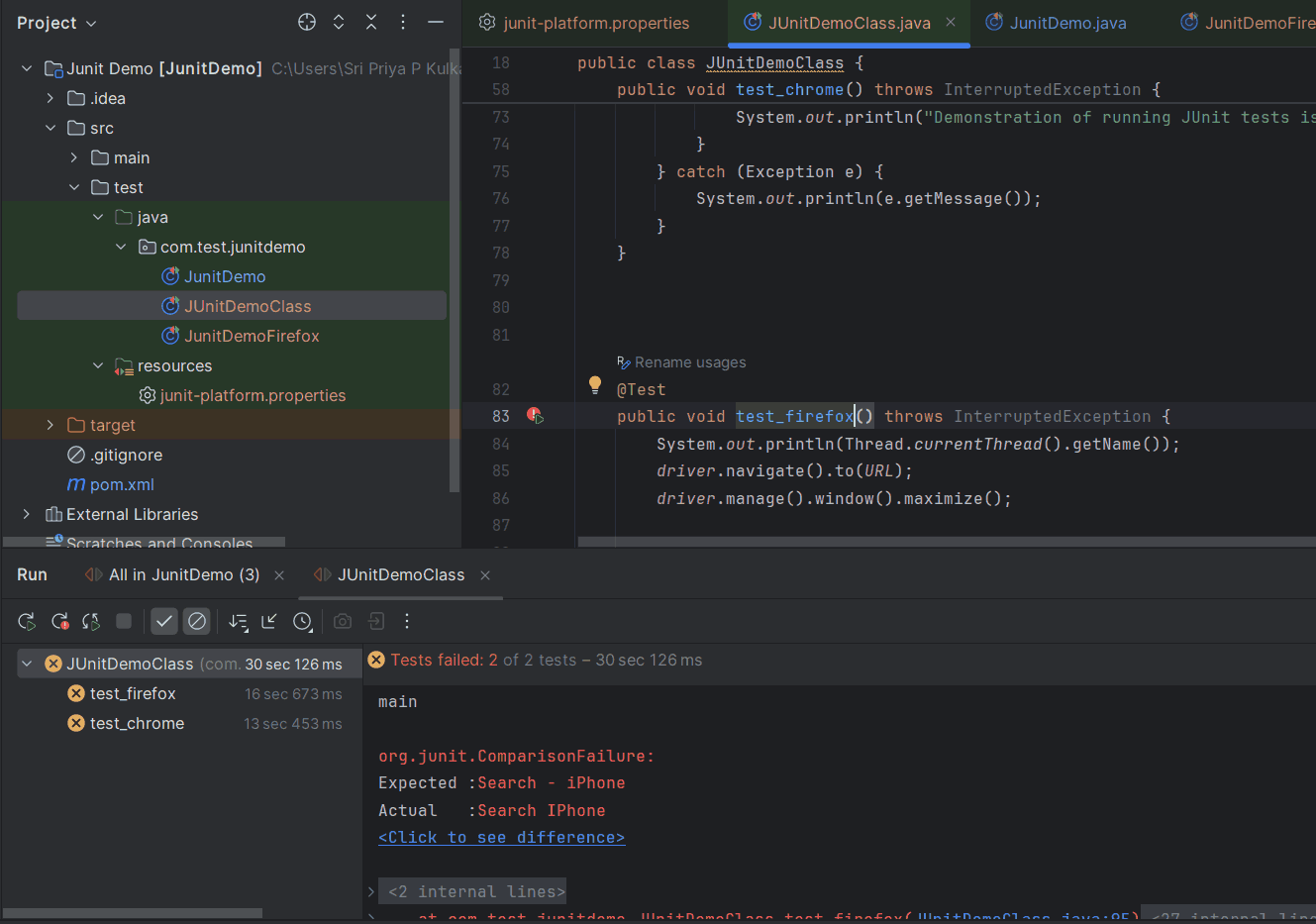
JUnit 5 supports parallel execution of tests, which speeds up the execution of the test suite when there are a large number of tests.
There are two ways to achieve parallel execution in JUnit 5: at the class and method levels. Below, you can see how to configure parallel execution for both approaches.
- Class level: To achieve parallel execution at the class level, you must set the properties below in the junit-platform.properties file.
- Method Level: To run specific test methods in parallel within the same class, apply the @Execution annotation at the method level.
Running JUnit Tests on TestMu AI Cloud
To run JUnit tests in parallel on TestMu AI's cloud grid, enable parallel execution in your Maven configuration and configure the execution strategy in junit-platform.properties.
<properties>
    <junit.jupiter.execution.parallel.enabled>true</junit.jupiter.execution.parallel.enabled>
</properties>
junit.jupiter.execution.parallel.config.strategy=fixed
junit.jupiter.execution.parallel.config.fixed.parallelism=4
import org.junit.jupiter.api.Test;
import org.junit.jupiter.api.parallel.Execution;
import org.junit.jupiter.api.parallel.ExecutionMode;
class ParallelMethodTest {
    @Test
    @Execution(ExecutionMode.CONCURRENT)
    void test1() {
        // test logic
    }
}
- Open the browser and navigate to TestMu AI eCommerce Playground.
- Maximize the browser window.
- Locate the search input field and enter “iPhone.”
- Click on the search button.
- Verify that the page title is “Search iphone.”
The following class implements those five steps as a JUnit test running on TestMu AI's cloud grid. It sets up a RemoteWebDriver session, navigates to the eCommerce Playground, performs the search, and asserts the page title, exactly as described above.
package com.test.junitdemo;

import org.junit.After;
import org.junit.Assert;
import org.junit.Before;
import org.junit.Test;
import org.junit.jupiter.api.parallel.Execution;
import org.openqa.selenium.By;
import org.openqa.selenium.chrome.ChromeOptions;
import org.openqa.selenium.remote.RemoteWebDriver;
import java.net.MalformedURLException;
import java.net.URL;
import java.util.HashMap;
import static org.junit.jupiter.api.parallel.ExecutionMode.CONCURRENT;

@Execution(CONCURRENT)
public class JUnitDemoClass {

    public String username = "your_username";
    public String accesskey = "your_access_key";
    public static RemoteWebDriver driver;
    public String gridURL = "@hub.testmuai.com/wd/hub";
    static String URL = "https://ecommerce-playground.lambdatest.io/";

    @Before
    public void setup() throws MalformedURLException {
        ChromeOptions browserOptions = new ChromeOptions();
        browserOptions.setPlatformName("Windows 11");
        browserOptions.setBrowserVersion("126.0");
        HashMap<String, Object> ltOptions = new HashMap<String, Object>();
        ltOptions.put("username", username);
        ltOptions.put("accessKey", accesskey);
        ltOptions.put("project", "JUnit Test");
        ltOptions.put("w3c", true);
        browserOptions.setCapability("LT:Options", ltOptions);
        try {
            driver = new RemoteWebDriver(new URL("https://" + username + ":" + accesskey + gridURL), browserOptions);
        } catch (Exception e) {
            System.out.println(e.getMessage());
        }
    }

    @Test
    public void searchTest() throws InterruptedException {
        driver.navigate().to(URL);
        driver.manage().window().maximize();
        try {
            driver.findElement(By.xpath("(//input[@placeholder='Search For Products'])[1]")).sendKeys("iPhone");
            driver.findElement(By.xpath("//button[normalize-space()='Search']")).click();
            String actualTitle = driver.getTitle();
            Assert.assertEquals("Search - iPhone", actualTitle);
        } catch (Exception e) {
            System.out.println(e.getMessage());
        }
    }

    @After
    public void tearDown() {
        driver.quit();
    }
}
Conclusion
Setting up JUnit gives your Java project a reliable foundation for automated unit and integration testing.
You now have Java and JUnit 5 installed, environment variables configured, IntelliJ IDEA set up with the correct dependencies, and a working test class that validates logic locally and on the cloud.
To scale beyond your local machine, run your JUnit tests on TestMu AI's cloud test automation platform, which gives you access to 3,000+ browser and OS combinations without maintaining local infrastructure.
The TestMu AI Selenium documentation walks you through connecting your JUnit test suite to the cloud grid in minutes.
Continue your JUnit learning with the full JUnit tutorial series, where the next articles cover JUnit annotations, assertions, test suites, and CI/CD integration.

Note: AI assistance was used in researching and drafting this article. Sri Priya, Community Contributor at TestMu AI with expertise in Automation Testing and Test-Driven Development (TDD), verified every statistic, link, and product claim against primary sources before publication, following our editorial process and AI use policy.
Author

Sri Priya
Blogs: 6


Sri Priya P Kulkarni is an ISTQB Foundation Level certified software development engineer in test (SDET) at American Express in Bengaluru. Her primary focus is software quality and making sure that software is bug free, with a strong background in testing tools, API testing, Linux OS, and UI and backend automation testing using Selenium, Playwright, and Java. As a contributor to TestMu AI (formerly LambdaTest), she shares her knowledge and writes about the latest technology stacks.
Reviewer

Saurabh Prakash
Reviewer
Saurabh Prakash is an Engineering Manager at TestMu AI (formerly LambdaTest), where he leads engineering on agentic AI development and scalable system architecture for the quality engineering platform. He has also contributed to Test at Scale, the company's open-source test intelligence platform. He brings over 9 years of experience across Node.js, Java, Spring, MVC, data structures, algorithms, and scalable system design, with earlier roles as SDE 2 at Zomato, Senior Software Engineer at LogicHub, and Software Development Engineer at Directi. Saurabh holds a B.Tech in Computer Science and Engineering from Delhi Technological University.


JUnit Environment Setup FAQs
Did you find this page helpful?
More Related Blogs
TestMu AI forEnterprise
Get access to solutions built on Enterprise
grade security, privacy, & compliance
- Advanced access controls
- Advanced data retention rules
- Advanced Local Testing
- Premium Support options
- Early access to beta features
- Private Slack Channel
- Unlimited Manual Accessibility DevTools Tests