

Power Your Software Testing with AI Agents and Cloud
The Native AI-Agentic Cloud Platform to Supercharge Quality Engineering. Test Intelligently and Ship Faster.


- TestMu AI (Formerly LambdaTest)
- /
- Blog
- /
- How to Update iOS Devices
How to Update iOS Devices
Apple often releases updates to keep their devices up-to-date and safe. Therefore, it’s essential to update iOS devices (iPhones and iPads) to get new features, better security, and improved performance.
Last Updated on:
Update iOS devices from Settings, General, and Software Update after backing up to iCloud, freeing at least 5GB of storage, and charging to 50 percent. Apple pushes the update over Wi-Fi without a computer or iTunes, and the current major release is iOS 26. This guide covers backup and storage prerequisites, manual and automatic update steps, whether to update right away, and which devices support iOS 26.
Key Takeaways
- Backing up an iOS device to iCloud through Settings, your name, iCloud, iCloud Backup, and Back Up Now keeps the data safe if an update fails partway through.
- An iOS update needs at least 5GB of free space, which Settings, General, and iPhone Storage reports, so clear unused apps, photos, or large files before starting.
- Charging an iOS device to at least 50 percent and staying on stable Wi-Fi prevents an interrupted download and avoids mobile data charges.
- Settings, General, and Software Update is the manual update path, where Update Now or Update Tonight downloads the release and Install Now restarts the device to finish.
- Automatic Updates under Settings, General, and Software Update downloads and installs iOS releases on its own once iOS Updates is toggled on in both sections.
- iOS 26 is the current major release and installs only on an iPhone with an A13 Bionic chip or newer, starting at the iPhone 11.
- Apple renamed its annual release to match the calendar year in 2025, skipping iOS 19 through 25, and dropped the iPhone XR, XS, and XS Max from feature updates.
- Waiting a week or two after a major iOS release gives Apple time to ship a follow-up patch for the early bugs users report.
Prerequisites to Follow for Updating iOS Devices
Before you actually start updating your iOS device, you should always make sure it’s fully ready for a smooth upgrade experience.
- Before updating, make sure all of your data is securely stored in the cloud. Navigate to Settings > [Your Name] > iCloud > iCloud Backup > Back Up Now.
- To check if you have adequate storage for the update, navigate to Settings > General > iPhone Storage. The majority of upgrades require at least 5GB of free space.
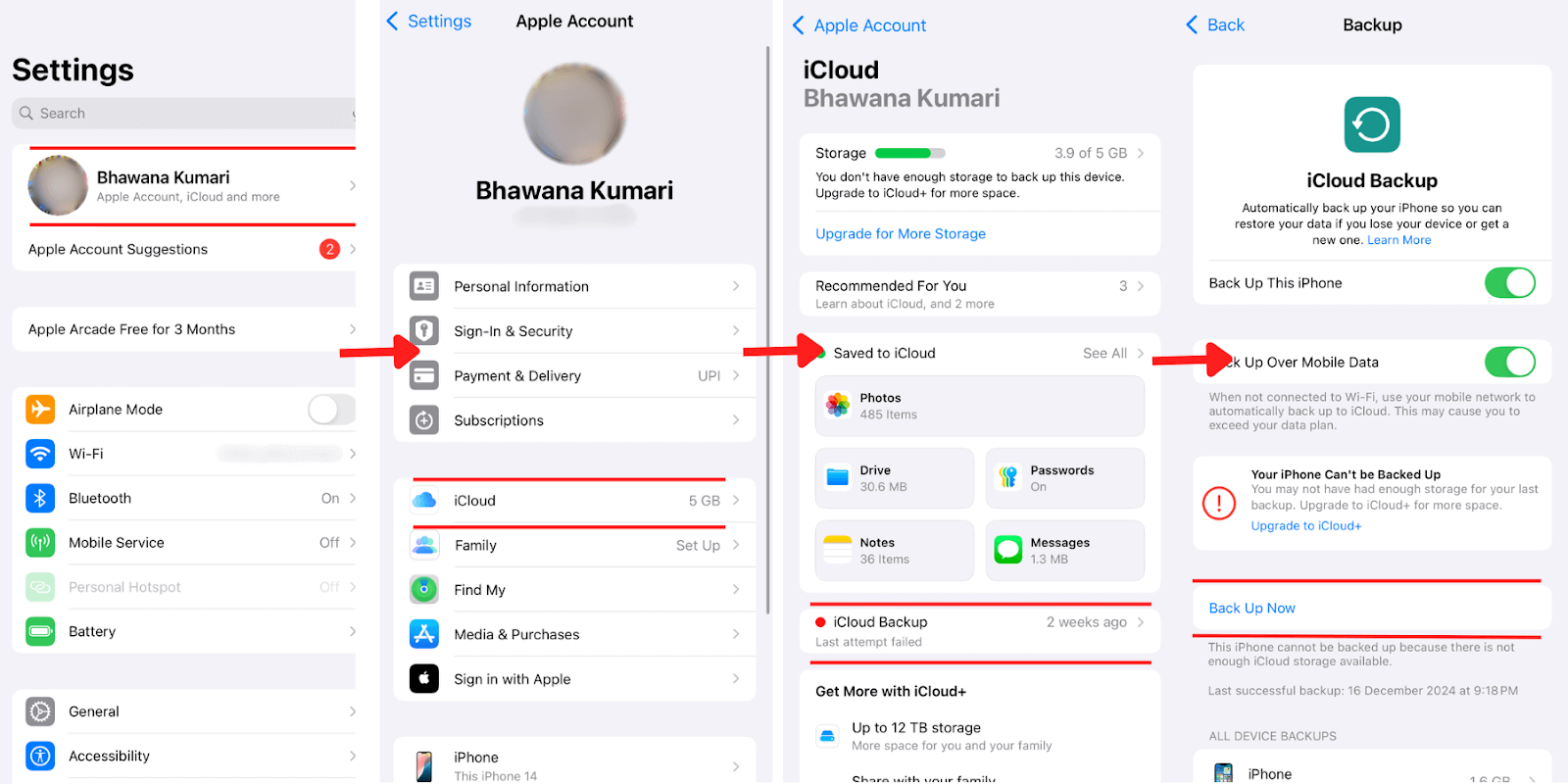
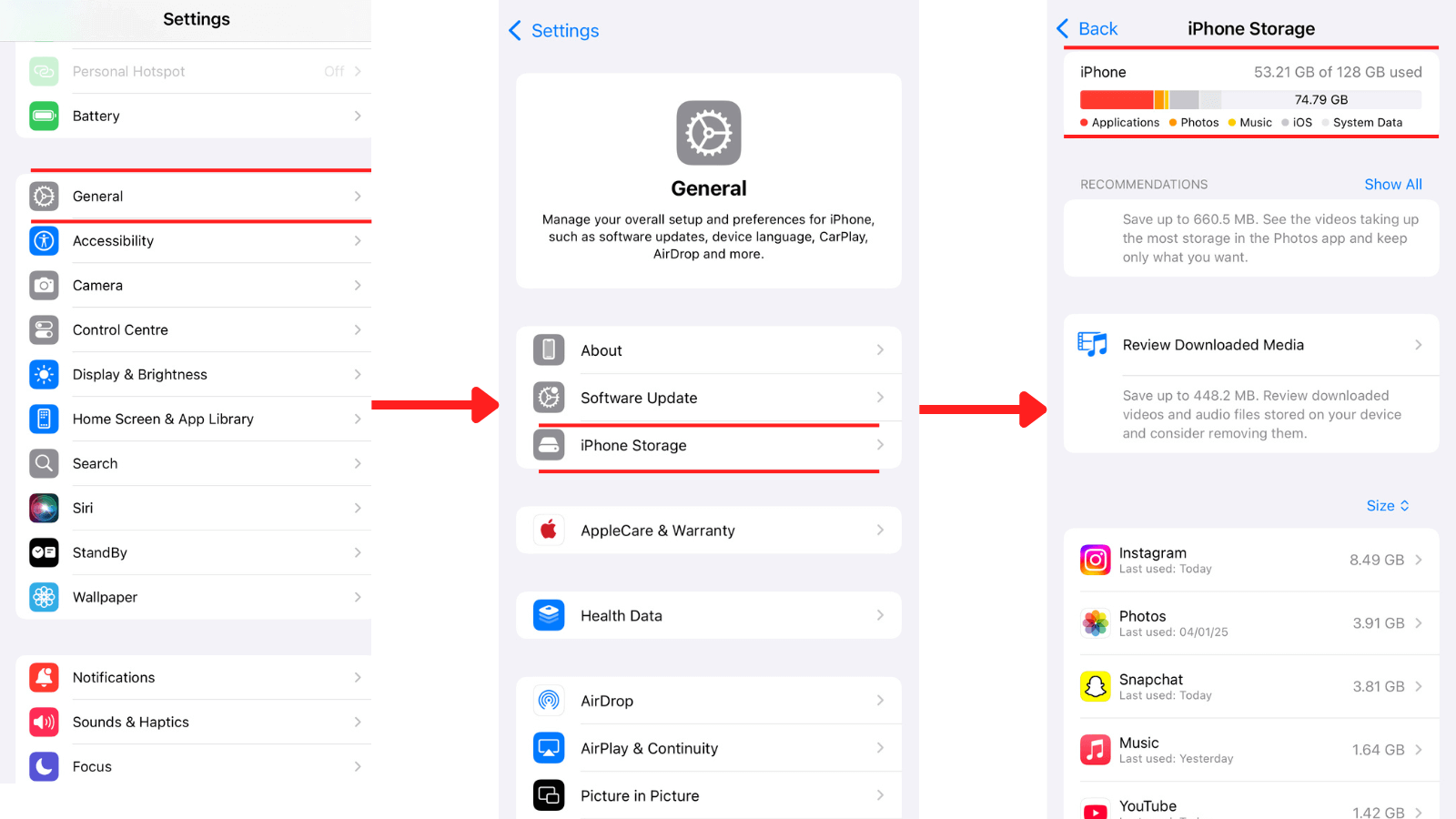
If necessary, remove unnecessary programs, pictures, or large files. Always charge your device. It should have at least 50% battery to avoid interruptions during the update. Clearing the cache is a fast way to free space too; see clear cache in Safari on iPhone for the exact steps.
- Updates can be large, so ensure you’re connected to a stable Wi-Fi network to download the update quickly and avoid data charges.

Note: Test your mobile apps on real iOS device versions. Try TestMu AI Today!
Steps to Update iOS Devices
Here are steps to update iOS devices such as iPhones and iPads:
- Navigate to Settings > General > Software Update to check if there is any update available or not.
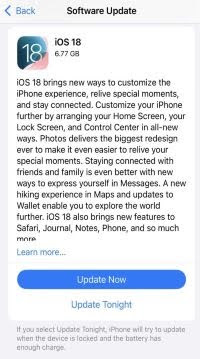
- Tap Update Now or Update Tonight, depending on your choice. If a popup comes up, enter your passcode and wait for the download to complete. The time required depends on the update size and your Internet speed.
- Once the download is complete, tap on Install Now. Your iPhone or iPad will restart and begin the installation. Do not power off your device during this process.
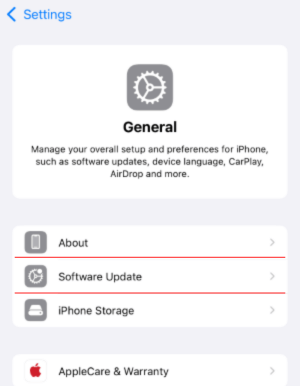
After the update, navigate to Settings > General > About and confirm whether your device is running on the latest iOS version.
Steps to Update iOS Devices Automatically
You can keep your iPhone and iPad updated without putting in any manual effort by setting automatic updates.
Here’s how to set up automatic updates:
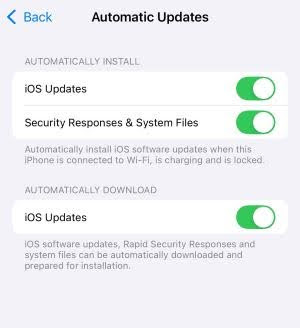
- Settings > General > Software Update > Automatic Updates to enable automatic updates on your iPhone or iPad.
- In the AUTOMATICALLY INSTALL section, toggle on iOS Updates and in the same way, in the AUTOMATICALLY DOWNLOAD section, toggle on iOS Updates.
Should I Update iOS or Not?
Usually, updating your iOS device is recommended as it gives you access to the latest features and bug fixes and prevents security loopholes. Apple often releases updates to fix bugs and improve functionality.
However, always ensure that your smartphone is compatible with the latest version of iOS before updating, and read reviews to avoid any possible performance issues, particularly with legacy iOS models affected by iOS version fragmentation.
Keep in mind that major updates can sometimes cause app crashes or unexpected bugs. Waiting a week or two after the release allows Apple to address any early glitches its users report.
If you wish to download and install the latest software updates on your iOS device, it will get updated with new features and security enhancements. However, it’s important to know whether the latest iOS version is compatible with your iPhone or iPad to help you decide whether to upgrade to the latest version.
The current major release of iOS is iOS 26. The next section covers which iOS devices support it.
Which Devices Support iOS 18.2?
Apple maintains a broad compatibility list for its iOS updates, but older devices may not always support the latest version.
Here's a quick compatibility overview for the current iOS release, which requires an iPhone with an A13 Bionic chip or newer:
iPhones:
- iPhone 15 Pro Max, 15 Pro, 15, 15 Plus
- iPhone 14 Pro Max, 14 Pro, 14, 14 Plus
- iPhone 13 Series
- iPhone 12 Series
- iPhone SE (2nd and 3rd generation)
- iPhone 11 Series
iPads:
- iPad Pro (all generations)
- iPad Air (3rd generation and later)
- iPad (7th generation and later)
- iPad Mini (5th generation and later)
Developers can test apps on iPhones spanning this list to confirm nothing breaks on the oldest supported models.

Why Did iOS Jump From Version 18 to iOS 26?
Apple renamed its annual release to match the calendar year starting in 2025, skipping the numbers 19 through 25 entirely. The update that would once have shipped as iOS 19 was released as iOS 26 instead, and iPadOS, macOS, watchOS, and tvOS moved to the same year-based scheme at the same time.
The renumbering came with a real compatibility cut, not just a cosmetic one:
- A13 Bionic chip required: iOS 26 only installs on an iPhone with an A13 Bionic processor or newer, starting at the iPhone 11.
- iPhone XR, XS, and XS Max dropped: these three A12-chip models from 2018 no longer receive feature updates, only security patches.
If Settings, General, Software Update reports no update available on a working Wi-Fi connection, an unsupported chip is the most likely reason, not a fault in the app or the network. Check Settings, General, About for your exact model before following the update steps above.
Teams that need to confirm an app still works after this change can test iOS apps on multiple devices, and many also try setting up an iOS simulator for testing to check device combinations they do not own.
Conclusion
Updating iOS is straightforward and very user-friendly. However, you should always prepare your device before updating and check its compatibility. Although updating iOS is always a good idea, consider your device’s age and performance before updating to the newest version. Keeping your iOS devices updated will allow you to take advantage of all that Apple has to offer.
The same habits, backing up first, confirming free storage, and updating on a stable connection, apply across platforms, including when you want to update Windows on a laptop.
Author

Sai Krishna
Blogs: 24

Sai Krishna is Director of Engineering at TestMu AI (formerly LambdaTest), where he leads agentic AI for quality engineering, building AI agents that autonomously drive mobile and conversational test automation. His current focus is Agent Testing and Model Context Protocol (MCP) support for mobile. He is a core contributor and member of the Appium open-source project and the creator of AppiumTestDistribution and appium-device-farm. With over 14 years of experience including more than 9 years at Thoughtworks as a Principal Consultant, he holds a BSc in Electronics and speaks regularly at TestMu and Appium Conf on Appium, mobile automation, and agentic AI in testing.
Reviewer

Shubham Soni
Reviewer
Shubham Soni is a Senior Member of Technical Staff at TestMu AI (formerly LambdaTest), building the Real Device Cloud and real-time testing infrastructure. He optimized the WebRTC services that power live testing to sub-100ms latency with adaptive bitrate streaming, led a frontend migration from Angular to React that cut page load time from 5-6 seconds to 1-1.5 seconds, and contributes to the official Device SDK. He led a team of four to build an accessibility testing product covering manual and automated testing and mentored a team of six on a real-time testing product. He brings over eight years of experience and earlier scaled a cloud code platform to 200K+ monthly users. Shubham holds a B.Tech in Computer Science.


Update iOS FAQs
Did you find this page helpful?
More Related Blogs
TestMu AI forEnterprise
Get access to solutions built on Enterprise
grade security, privacy, & compliance
- Advanced access controls
- Advanced data retention rules
- Advanced Local Testing
- Premium Support options
- Early access to beta features
- Private Slack Channel
- Unlimited Manual Accessibility DevTools Tests