

Power Your Software Testing with AI Agents and Cloud
The Native AI-Agentic Cloud Platform to Supercharge Quality Engineering. Test Intelligently and Ship Faster.


- TestMu AI (Formerly LambdaTest)
- /
- Blog
- /
- Microsoft Edge Cookies: Everything You Need to Know
Microsoft Edge Cookies: Everything You Need to Know
Learn how Microsoft Edge cookies work and how to manage, delete, or block them for a better and more secure browsing experience.
Last Updated on:
Microsoft Edge cookies are small text files that websites store on your device to remember your login status, preferences, and browsing activity. Edge separates them into first-party and third-party cookies, and you control both from Settings under Cookies and site permissions. This guide covers what these cookies do, why managing them matters, the types Edge stores, how to view, block, or delete them, and how Edge's AI agents use them.
Overview
Microsoft Edge cookies are small files that save website preferences and login states to improve your browsing experience. You can manage, block, or delete these cookies directly through Edge's "Cookies and site permissions" settings, or test their behavior across different devices using TestMu AI.
- First-party cookies: Microsoft Edge stores these site-created files to remember your login status, language settings, and personalized preferences for future visits.
- Third-party cookies: These files originate from external domains and are used by advertisers to track your browsing behavior and deliver targeted ads.
- Cookie management: Microsoft Edge allows you to view, block, or delete cookies by navigating to Settings, then selecting Cookies and site permissions, and clicking Manage cookies.
- TestMu AI: This AI-native cloud testing platform allows teams to test cookie behavior and user experience across a remote lab of different browsers, devices, and operating systems.
Types of Cookies in Microsoft Edge
Microsoft Edge stores two main types of cookies:
- First-party cookies: These are created by the website you are currently visiting. They ensure the website functions correctly and remember your preferences or login status.
- Third-party cookies: These originate from domains other than the one you’re visiting. They are typically used by advertisers or analytics providers to track your activity across websites.
You can allow, block, or remove both types based on your privacy preferences.
Modern browsers also enforce the SameSite cookie attribute, which decides whether a cookie is sent along with requests that originate from another site.

Note: Test your cookies on real browsers and operating systems. Try TestMu AI Now!
How to Manage Microsoft Edge Cookies?
Microsoft Edge allows users to control cookie behavior through its built-in settings.
Here’s how to manage cookies:
- Open Microsoft Edge and click the three-dot menu in the upper-right corner.
- Click Settings.
- Click the Cookies and site permissions section, and then Manage cookies.
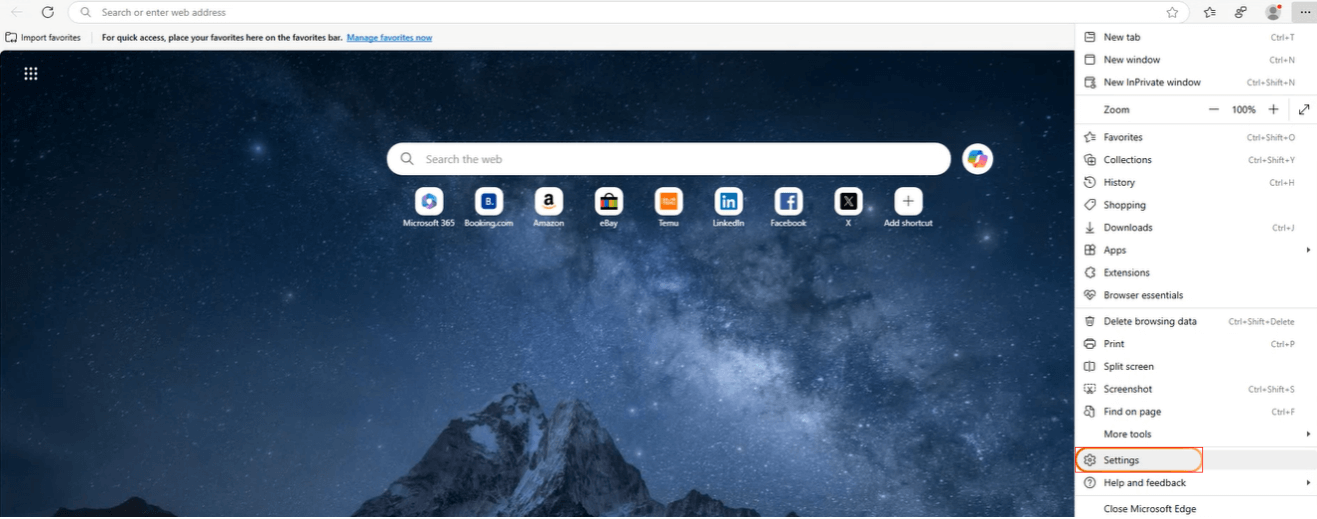
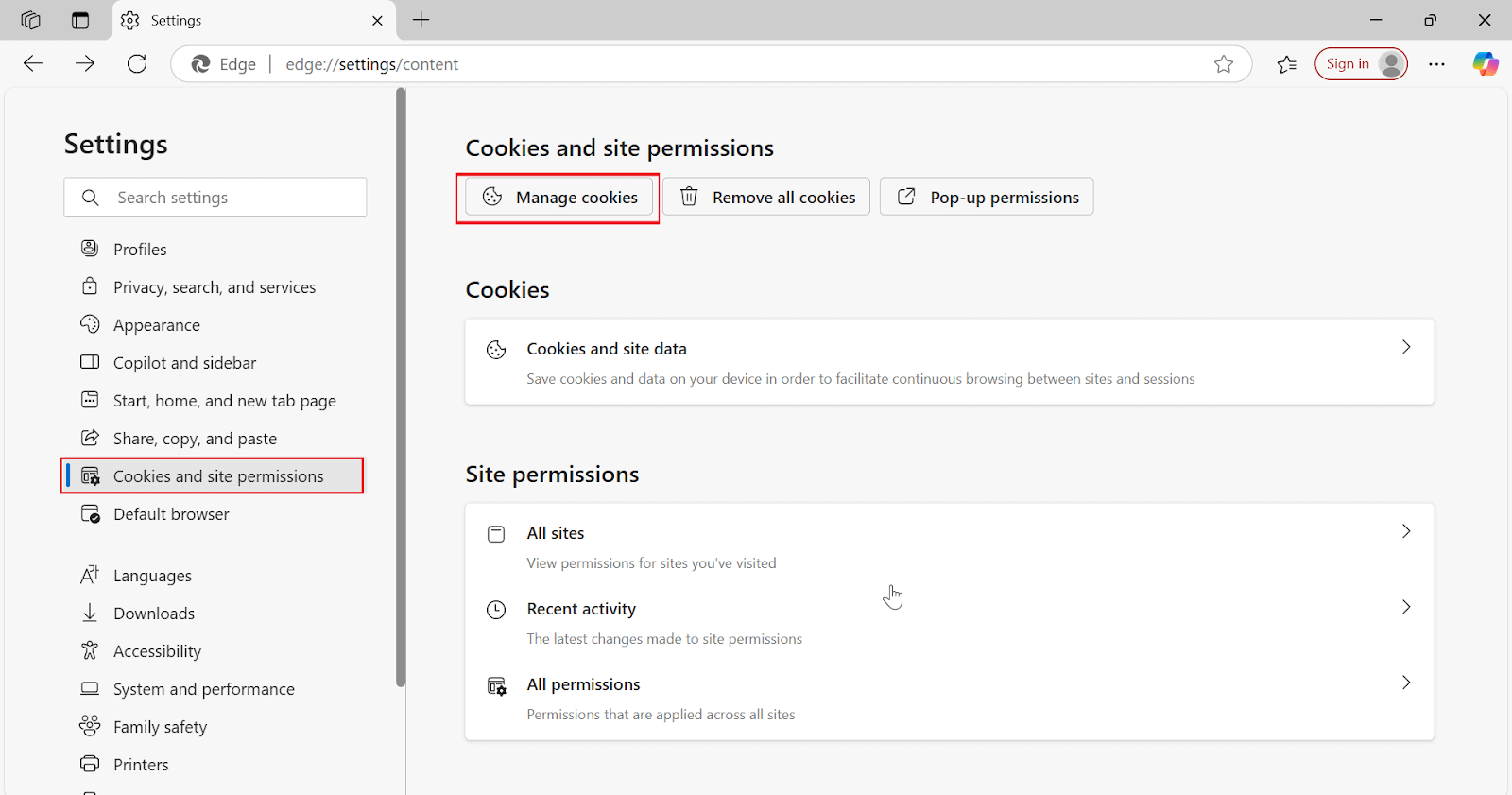
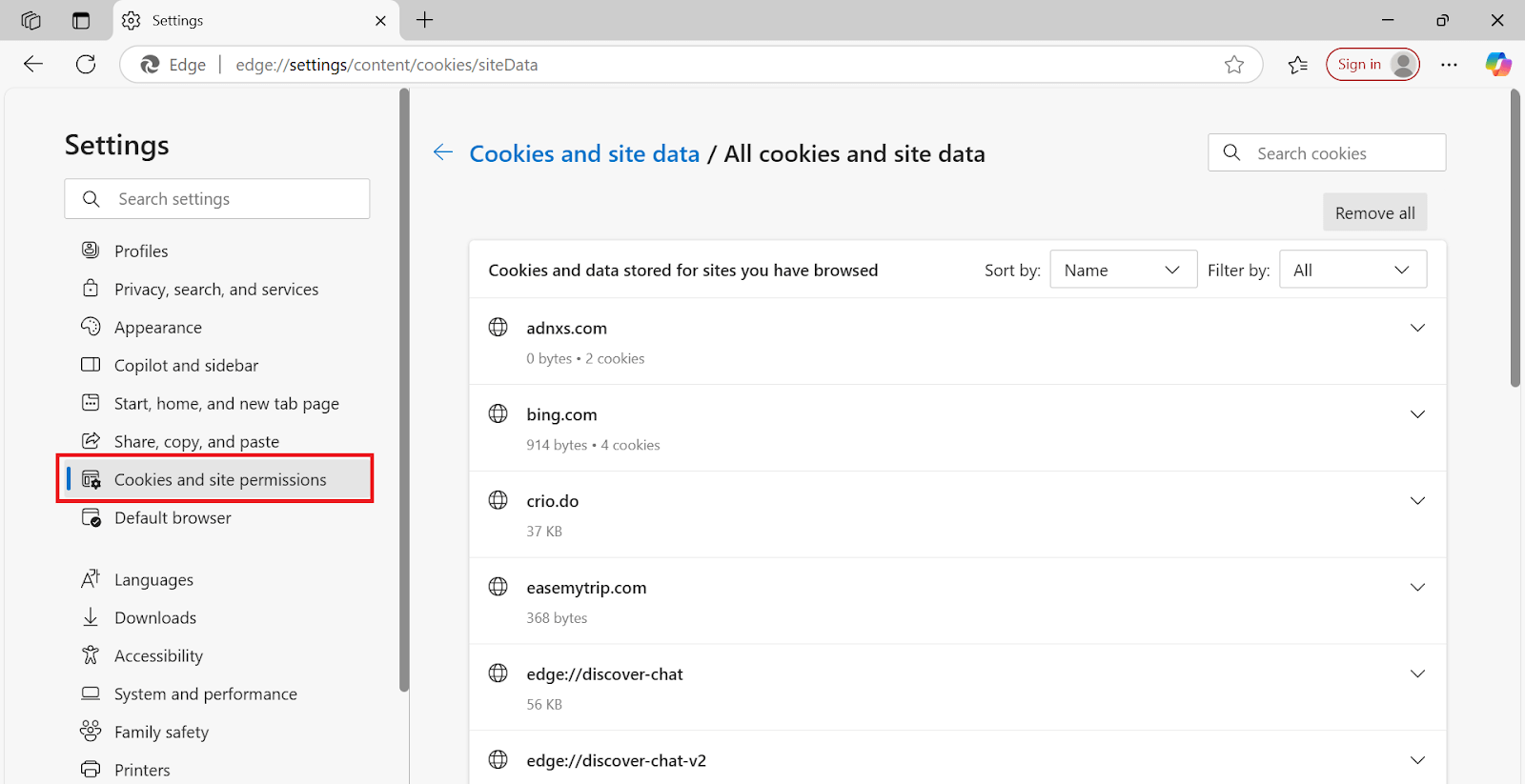
It will take you to the screen below. From here, you can view, sort, search, and manage cookies and site data stored by individual websites. You can also remove all cookies at once or delete them site by site for better privacy control.
Also, it is important to test cookies, as they significantly impact user experience by influencing how user preferences, login sessions and data are maintained and retrieved. You can test cookies using AI-native cloud testing platforms like TestMu AI. It enables teams to test cookie behavior on a remote test lab of different browsers, devices, and operating systems.
If you would rather stop cookies from being set at all, you can disable cookies from the same settings menu. For a complete reset that also clears cached files and browsing records, you can clear history in Microsoft Edge alongside your cookies.

Conclusion
Microsoft Edge cookies play an important role in enhancing your online experience, but they also affect your privacy. Whether you want to allow all cookies, block third-party cookies, or remove stored data, Edge provides a user-friendly interface to manage them. Checking your cookie settings regularly can help keep your browsing both smooth and secure.
Conclusion
Author

Bhavya Hada
Blogs: 29


Bhavya Hada is a Community Contributor at TestMu AI with over three years of experience in software testing and quality assurance. She has authored 20+ articles on software testing, test automation, QA, and other tech topics. She holds certifications in Automation Testing, KaneAI, Selenium, Appium, Playwright, and Cypress. At TestMu AI, Bhavya leads marketing initiatives around AI-driven test automation and develops technical content across blogs, social media, newsletters, and community forums. On LinkedIn, she is followed by 4,000+ QA engineers, testers, and tech professionals.


Microsoft Edge Cookies FAQs
Did you find this page helpful?
More Related Blogs
TestMu AI forEnterprise
Get access to solutions built on Enterprise
grade security, privacy, & compliance
- Advanced access controls
- Advanced data retention rules
- Advanced Local Testing
- Premium Support options
- Early access to beta features
- Private Slack Channel
- Unlimited Manual Accessibility DevTools Tests