

Power Your Software Testing with AI Agents and Cloud
The Native AI-Agentic Cloud Platform to Supercharge Quality Engineering. Test Intelligently and Ship Faster.


- TestMu AI (Formerly LambdaTest)
- /
- Blog
- /
- How to Download Apps on iPhone: Step-by-Step Guide
How to Download Apps on iPhone: Step-by-Step Guide
Learn how to download apps on iPhone using simple methods, fix common issues, and manage your apps with ease.
Last Updated on:
Downloading apps on an iPhone is easy and simple, but knowing the different ways to do it can make the process even smoother. If you’re new to iPhone or an old user, this guide will help you navigate the various methods for downloading apps on your iPhone, troubleshoot common issues, and provide helpful tips for managing your apps effectively.
Key Takeaways
- The App Store is the primary way to download apps on an iPhone: search for the app, tap Get or the price, then authenticate with Face ID, Touch ID, or an Apple ID password.
- An Apple ID is required before any App Store download, and iCloud syncs downloaded apps and their data across every Apple device signed in to the same account.
- Safari, Siri, and TestFlight are alternatives to browsing the App Store directly: app links in Safari redirect to the store, Siri installs by voice command, and TestFlight installs pre-release beta builds by invitation.
- Wi-Fi is the recommended connection for iPhone app downloads because cellular data is slower and adds data charges, and free space should be checked in the iPhone Storage screen under Settings before installing.
- Apple's 2026 App Store transparency report credits machine learning checks in App Review with blocking over 2.2 billion dollars in fraudulent transactions and close to 195 million fraudulent ratings and reviews in one year.
- App Store screening still misses apps that turn malicious after approval: Apple's 2026 report shows nearly 59,000 apps removed for deceptive changes made after review, so check the developer name before tapping Get.
- When an iPhone app will not install, reopen the App Store, reboot the device, confirm the Apple ID is signed in with valid payment details, and check that the Wi-Fi or cellular connection is stable.
- TestMu AI is a cloud platform where developers test iOS apps across 10,000+ real devices, confirming an app behaves the same whether it arrives from the App Store or a beta distribution.
Things You Need Before Downloading Apps
Before knowing the steps to download apps on iPhone, let’s cover the basics to ensure you have everything in place.
Apple ID and iCloud Account Setup
An Apple ID is required for downloading apps, as it allows access to the App Store and syncs your purchases across all Apple devices.
- Importance of Apple ID: Without an Apple ID, you won’t be able to download or purchase apps. If you don’t have one yet, you can create it from Settings > Sign in to your iPhone.
- Setting Up iCloud: iCloud is essential for syncing your apps and data across devices. Ensure iCloud is enabled by going to Settings > [Your Name] > iCloud.
Internet Connection Requirements
You’ll need a stable internet connection for app downloads, and while cellular data works, Wi-Fi is generally faster and more reliable.
- Wi-Fi vs. Cellular Data: If you’re using cellular data, be mindful of your data usage. Wi-Fi is recommended to avoid extra charges and ensure faster downloads.
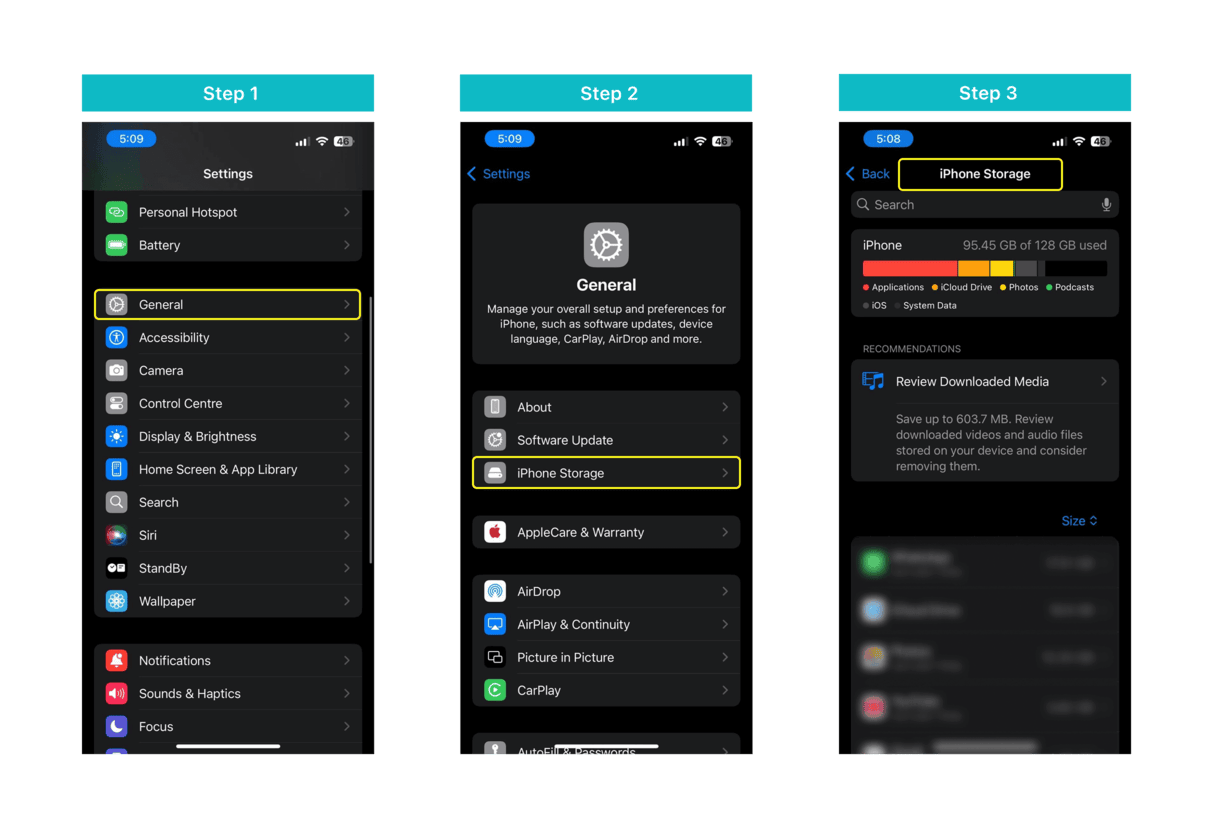
Available Storage Space
Before downloading, check if you have enough storage space.
- How to Check Storage: Go to Settings > General > iPhone Storage. You may need to free up some space by deleting unnecessary apps or files if storage is low.
How to Download Apps on iPhone Using Different Methods
There are a few different methods to download apps on your iPhone. Let’s explore them in detail.
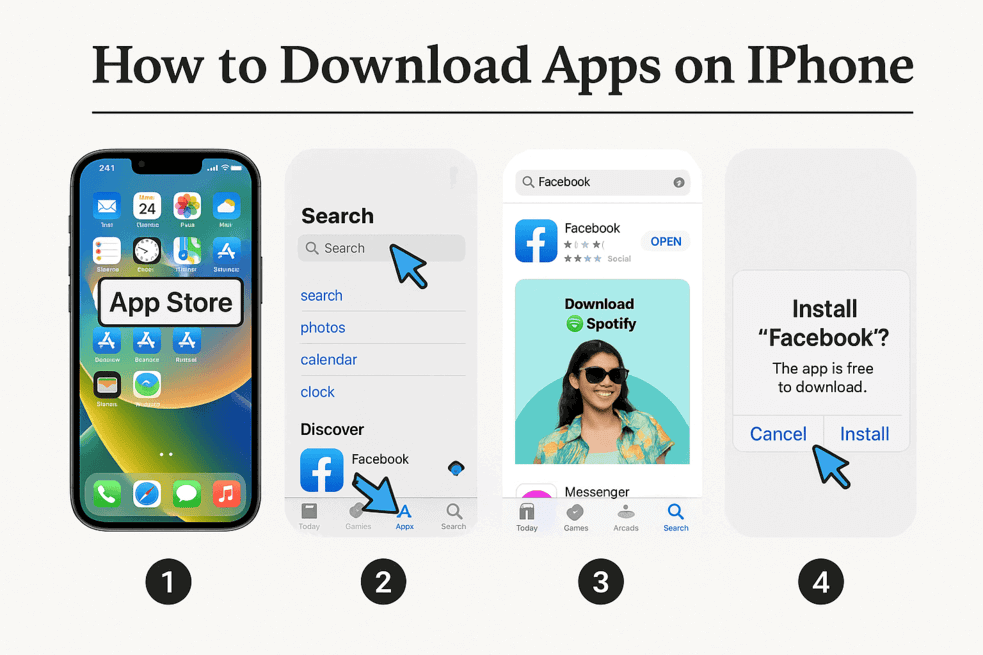
1. Using the App Store
The App Store is your primary source for downloading apps.
- Accessing the App Store: Open the App Store from your home screen or App Library.
- Searching for Apps: Use the search bar at the top of the App Store to find apps by name, category, or keyword.
- Installing and Updating Apps: Tap the Get or Download button to install an app. You may need to authenticate with your Apple ID, Face ID, or Touch ID.
- Using the “Purchased” Tab: If you’ve previously purchased or downloaded an app, you can find it under the Purchased tab in your account settings for redownloading.
2. Using Safari to Download Apps
Sometimes, you may encounter links to apps outside the App Store, often on websites or in emails.
- How to Open an App’s Web Page: Click the app link in Safari, and it will redirect you to the App Store to download the app.
- What to Do If Links Don’t Open: If an app link does not open the App Store, check if the link is correct, and ensure the app is available in your region.
3. Using Third-Party App Sources
Apart from the App Store, there are methods for getting apps from beta or enterprise sources.
- Using TestFlight: Apple’s TestFlight is used to distribute beta apps. If you have an invitation to beta test, download TestFlight from the App Store, then use the invitation link to install the app.
- Enterprise or Ad-Hoc Distribution: Developers can distribute apps via enterprise certificates or ad-hoc distribution for internal use. These apps are typically not available on the App Store but can be installed manually through profiles.
4. Downloading Apps with Siri
If you prefer hands-free control, Siri can help.
- Voice Command Download: Simply say, “Hey Siri, download [App Name] from the App Store,” and Siri will open the App Store for you.
While downloading apps on your iPhone is an easy and straightforward process, managing and testing apps across different devices and browsers is crucial for quality assurance, especially for developers. This is where TestMu AI can help.
TestMu AI is a cloud-based platform that allows you to test your iOS apps across a wide range of real devices and browsers. With its powerful cross-browser testing and real-device cloud, TestMu AI helps developers and testers ensure that their apps function seamlessly across 3000+ browsers and 10,000+ real devices. Whether it’s testing apps on the App Store or beta distributions, TestMu AI ensures compatibility and smooth performance across different environments, just like the methods discussed in this guide.

How Does Apple's AI Screen Apps Before You Download Them?
Every app submitted to the App Store passes through machine learning checks before a human reviewer sees it, and Apple's 2026 App Store transparency report credits those checks with blocking over 2.2 billion dollars in fraudulent transactions in a single year.
Here is what that screening actually catches, and where it still falls short.
- Machine learning triage: Apple's App Review runs automated checks on binaries, metadata, and developer history before a human reviewer opens the submission, flagging patterns tied to known fraud and malware.
- Review and rating fraud: the same AI systems screen ratings and reviews, and Apple's 2026 report credits them with blocking close to 195 million fraudulent ratings and reviews from ever appearing next to an app's download button.
- Post-approval monitoring: machine learning tools compare a new app update against the version that was originally approved and flag risky behavior changes, since a scan at submission time cannot see what an app does after it ships.
- The gap that remains: the same report shows nearly 59,000 apps were still removed for deceptive changes made after approval, so screening catches known patterns but not every app that turns malicious later, which is why the developer name and review history still matter before you tap Get.
Troubleshooting Common Issues When Downloading Apps
While downloading apps is typically straightforward, you may encounter some issues. Here’s how to fix them.
App Store Not Responding or Crashing
- How to Fix: Close the App Store and reopen it. If it’s still not working, check for iOS updates at Settings > General > Software Update.
Unable to Download or Install Apps
If the app isn’t downloading:
- Reboot your device and try again.
- Check Your Apple ID: Ensure your Apple ID is signed in correctly and linked to a valid payment method, even if the app is free.
- Check Network Settings: Ensure that your Wi-Fi or cellular connection is stable.
Payment Issues with Apple ID
If you’re having trouble with payment:
- Verify Your Apple ID Information: Ensure your payment information is up to date in Settings > [Your Name] > Payment & Shipping.
Best Practices for Managing Apps on iPhone
Once apps are downloaded, you’ll want to manage them efficiently.
Organizing and Categorizing Apps
- Folders: Organize apps into folders for better accessibility.
- Widgets: Use widgets for quicker access to frequently used apps.
Updating Apps Automatically and Manually
- Auto-Updates: Go to Settings > Apps > App Store, and toggle App Updates to On for automatic updates.
- Manual Updates: Open the App Store, go to Profile, and tap Update All to update apps manually.
Deleting Unwanted Apps
To delete apps:
- How to Delete: Long-press the app icon and select Remove App, then Delete App.
Conclusion
Downloading apps on your iPhone is a quick and easy process, whether you’re using the App Store, Safari, or other methods. By following these steps, troubleshooting tips, and best practices, you can easily manage and download apps, ensuring your device is always up to date with the latest apps.
For users looking to go beyond standard app downloads, this guide on how to install IPA files on an iPhone shows how to load apps directly onto your device.
Author

Shubham Soni
Blogs: 10

Shubham Soni is a Senior Member of Technical Staff at TestMu AI (formerly LambdaTest), building the Real Device Cloud and real-time testing infrastructure. He optimized the WebRTC services that power live testing to sub-100ms latency with adaptive bitrate streaming, led a frontend migration from Angular to React that cut page load time from 5-6 seconds to 1-1.5 seconds, and contributes to the official Device SDK. He led a team of four to build an accessibility testing product covering manual and automated testing and mentored a team of six on a real-time testing product. He brings over eight years of experience and earlier scaled a cloud code platform to 200K+ monthly users. Shubham holds a B.Tech in Computer Science.
Reviewer

Shivam Singh
Reviewer
Shivam Singh is a Lead Member of Technical Staff at TestMu AI (formerly LambdaTest), architecting the Real Device Cloud that runs automated app and web tests on real Android and iOS devices. He designed the architecture for real-device app and web automation and wrote the microservices from scratch in Golang, including the XCUITest and Espresso execution layers for iOS and Android. His platform reached peak parallel concurrency of 150+ for app automation while handling roughly 500,000 tests a month, and he leads the team that keeps the automation grid running. He brings over eight years of engineering experience and holds a B.Tech in Computer Science.


Frequently asked questions
Did you find this page helpful?
More Related Blogs
TestMu AI forEnterprise
Get access to solutions built on Enterprise
grade security, privacy, & compliance
- Advanced access controls
- Advanced data retention rules
- Advanced Local Testing
- Premium Support options
- Early access to beta features
- Private Slack Channel
- Unlimited Manual Accessibility DevTools Tests