

Power Your Software Testing with AI Agents and Cloud
The Native AI-Agentic Cloud Platform to Supercharge Quality Engineering. Test Intelligently and Ship Faster.


- TestMu AI (Formerly LambdaTest)
- /
- Blog
- /
- How to Get Microsoft Edge Updates
How to Get Microsoft Edge Updates
Learn how to get Microsoft Edge updates, fix common issues, check version info, and understand the Edge Update Service in this comprehensive guide.
Last Updated on:
Microsoft Edge, like other modern browsers, receives regular updates to fix bugs, patch security vulnerabilities, and enhance overall functionality. Running a Microsoft Edge update ensures you’re using the most secure and efficient version available.
If you’re not sure whether your Edge browser is up to date or how to perform an Edge update manually or automatically, this guide will walk you through the entire process, step by step.
TL;DR
- Both the Settings route to About Microsoft Edge and the edge://settings/help shortcut trigger an immediate update check.
- Restarting Microsoft Edge is what applies a downloaded update, and a three-dot menu indicator flags when one is pending.
- The Microsoft Edge Update Service downloads and stages new versions quietly in the background, with no installer to run manually.
- Stable and Beta ship every two weeks, Dev weekly, and Canary daily, with Stable accelerating at version 152 in August 2026.
- Group Policy, WSUS, and Microsoft Intune let administrators pin versions, defer updates, and stage approved Edge builds across managed fleets.
- TestMu AI runs Edge and OS combinations in parallel on its test automation cloud, so teams keep pace with faster releases.
Steps to Perform Microsoft Edge Update Manually
Sometimes, it’s good to take control and check for updates yourself.
Here’s how you can perform an Edge update manually:
- Open Microsoft Edge on your desktop or laptop. Make sure you’re connected to the Internet.
- Click the three-dot menu (⋯) in the top-right corner of the browser window.
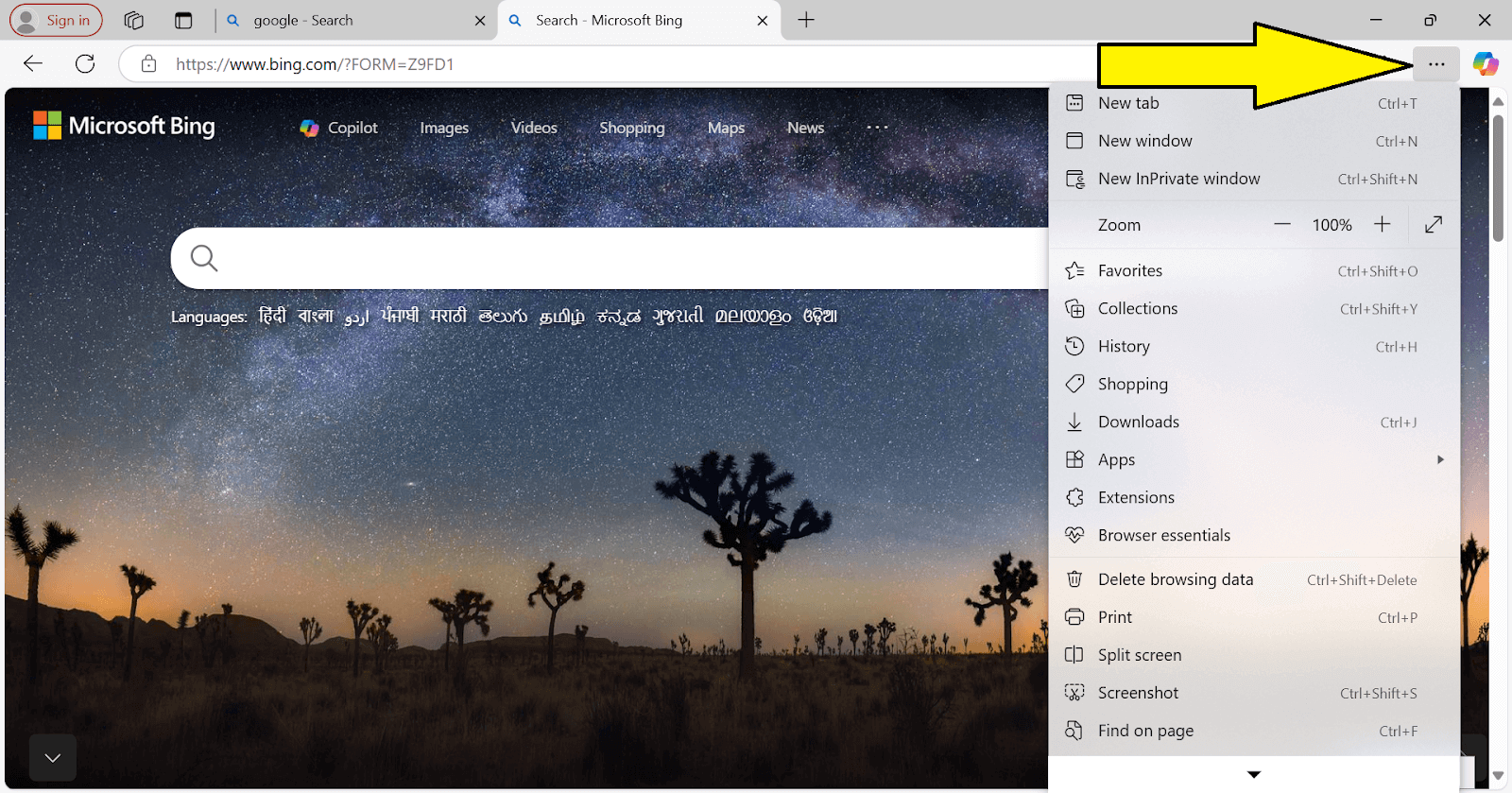
- From the drop-down, select Settings options.
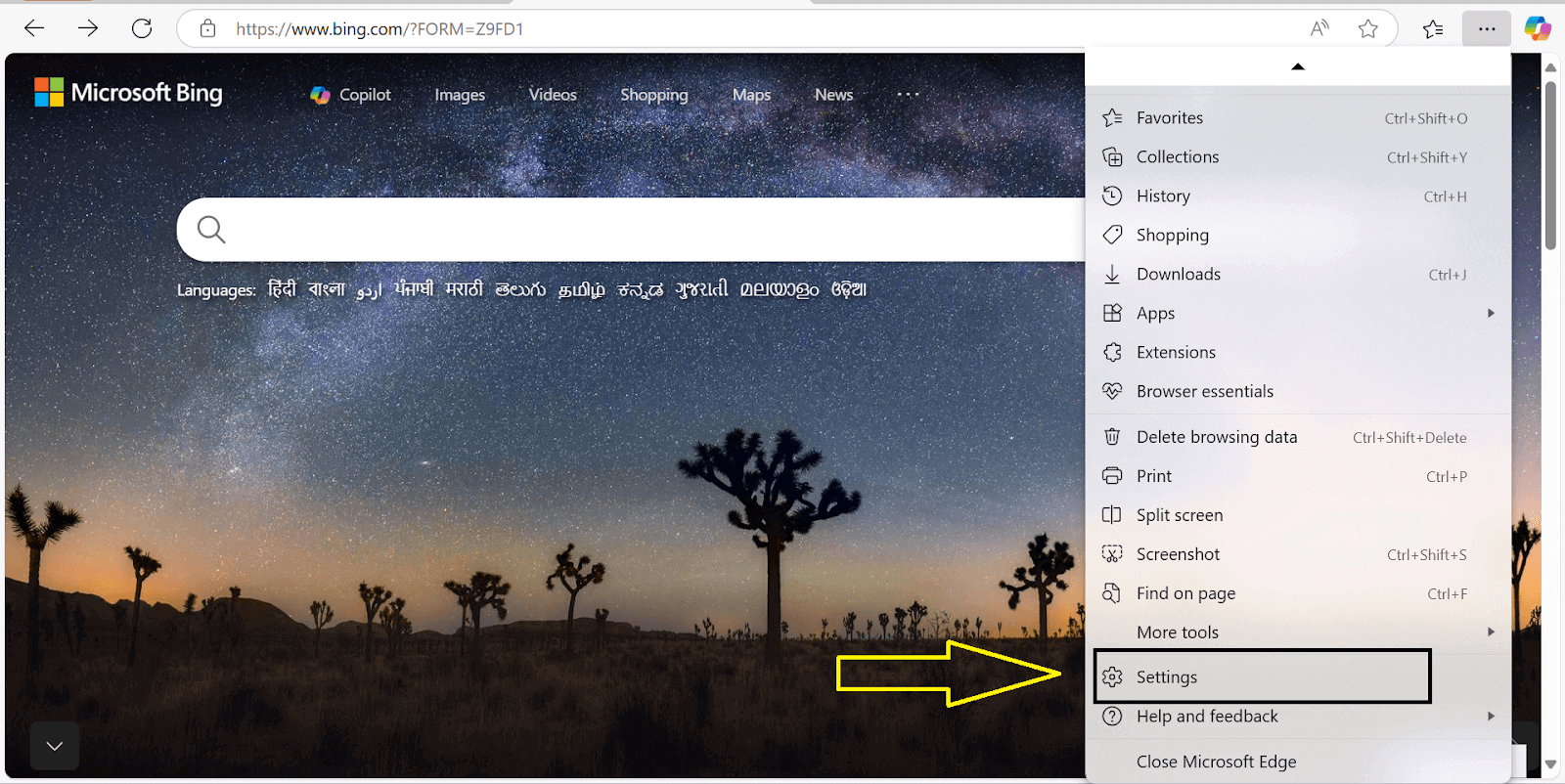
- On the left panel, scroll down and click on About Microsoft Edge.
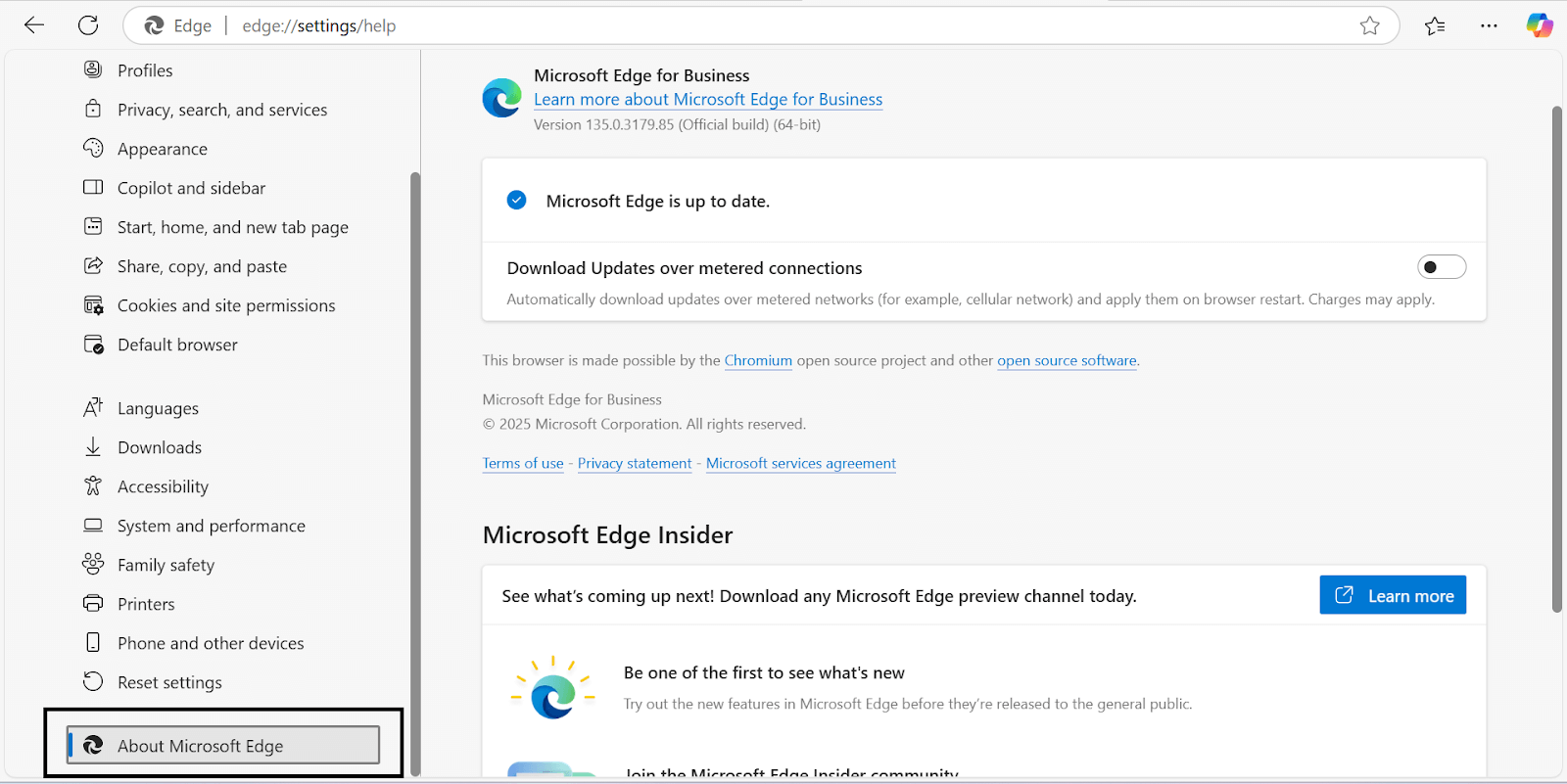
- Edge will automatically check for updates. If an update is available, it will download and install it automatically.
- Once the update has been installed, restart the browser to apply the changes.

How to Force a Microsoft Edge Update (Manual Method)
If you do not want to click through the menus, you can force Edge to check for and download any pending update instantly. Type the following address into the Edge address bar and press Enter:
edge://settings/helpThis is the same About Microsoft Edge page reached through the menu, but opening it directly forces the browser to run an update check immediately. Any available update begins downloading on the spot, and once it finishes you simply restart Edge to apply it. This trick is the quickest way to pull a new version without waiting for the background updater to run on its own schedule.
How Automatic Microsoft Edge Updates Work
In most cases you do not have to do anything at all. Microsoft Edge updates silently in the background through the Microsoft Edge Update Service, which periodically checks Microsoft's servers, downloads new versions, and stages them without interrupting your browsing.
Automatic updates are enabled by default. The key points to understand are:
- Edge downloads and stages the update quietly while you work, so there is no installer to run manually.
- A staged update only takes effect after you restart the browser. Edge nudges you with a small "update available" indicator on the three-dot menu when a restart is pending.
- You can confirm the applied version any time at edge://settings/help, which shows either your current version or the message "Microsoft Edge is up to date."
Understanding Microsoft Edge Release Channels
Microsoft ships Edge through four release channels, each aimed at a different audience and update cadence, plus an Extended Stable option for managed enterprise environments. The channel you run determines how often you receive updates and how stable those builds are.
| Channel | Who it is for | Update frequency |
|---|---|---|
| Stable | Everyday consumers and businesses | Every two weeks (since version 152, August 2026) |
| Extended Stable | Managed enterprise environments that need longer to validate builds | Every eight weeks (every fourth Stable release) |
| Beta | Early adopters and IT teams validating upcoming releases | Every two weeks, previewing the next Stable build |
| Dev | Developers wanting near-final features early | Weekly |
| Canary | Enthusiasts and testers who want the bleeding edge | Daily, least stable |
If you want stability, stay on Stable. If you build or test websites and want to catch rendering changes before they reach users, the Beta and Dev channels let you preview them safely alongside your main browser.
The New Microsoft Edge 2-Week Release Cycle
Microsoft has accelerated how quickly Stable-channel updates reach users. Since version 152 in late August 2026, major Edge versions arrive every two weeks instead of every four, delivering security fixes and new features on a faster schedule.
For most users this is invisible because updates still install in the background. For teams that test web apps, it means the Edge rendering engine you support can change twice as often, so it is worth building a regular habit of validating your site against the current Stable build. Running those checks across many Edge and OS combinations in parallel on TestMu AI's test automation cloud keeps you ahead of a faster release train without maintaining a rack of local machines.
Managing Edge Updates for Enterprise (Edge for Business)
In managed environments, IT administrators rarely rely on individual users clicking "update." Instead, Microsoft Edge for Business centralizes update control so that rollouts are predictable and testable before they hit every machine.
- Microsoft Edge Update Service (edgeupdate): the underlying Windows service that performs the actual download and install; admins can configure its behavior rather than disabling it outright.
- Group Policy: administrative templates let IT pin a target version, set an update channel, defer updates, or schedule automatic update checks across the fleet.
- WSUS and management tools: Windows Server Update Services and endpoint managers such as Microsoft Intune distribute approved Edge builds internally, so updates are staged and validated before broad deployment.
This control matters most alongside the faster release cycle: enterprises can pilot a new version on a subset of devices, confirm their internal web apps still work, and only then roll it out widely.
Conclusion
An updated browser ensures better performance, enhanced security, and a smoother browsing experience. Whether you force an update from edge://settings/help, rely on automatic background updates, or manage rollouts across a fleet with Group Policy, keeping Microsoft Edge current is essential. With Stable updates moving to a two-week cadence from version 152, that habit matters more than ever.
If you want to go deeper, learn what Microsoft Edge is and how it evolved, compare it in Edge vs Chrome, and see how teams validate sites across browsers in this guide to cross browser testing.
Author

Vishal kumar Sahu
Blogs: 8


Vishal Kumar Sahu is a Marketing Executive with over two years of experience in the software testing and QA domain. He holds a TestMu AI Certification in Automation Testing and has hands-on expertise in Selenium, Cypress, and Appium, with a focus on both web and mobile automation. Vishal has authored several technical blogs and specializes in writing about testing tools, best practices, and automation strategies. He blends technical knowledge with content strategy to support product education and engage the QA community through SEO-driven resources.
Reviewer

Harshit Paul
Reviewer
Harshit Paul is Director of Product Marketing at TestMu AI (formerly LambdaTest), with over 8 years of experience in product and growth marketing for developer and QA tools, leading the Agentic AI in Quality Engineering space. He has authored 80+ technical articles for TestMu AI on software testing and automation, and hosted webinars on Selenium, automation testing, browser compatibility, DevOps, and continuous testing. He has led go-to-market and technical marketing initiatives across software testing products, contributing to SEO, content strategy, and developer marketing. He began his career as a certified Salesforce developer at Wipro Technologies, where he worked for 2 years before moving into marketing. Harshit holds a degree in computer programming from Vivekananda Institute of Professional Studies.


Microsoft Edge Update FAQs
Did you find this page helpful?
More Related Blogs
TestMu AI forEnterprise
Get access to solutions built on Enterprise
grade security, privacy, & compliance
- Advanced access controls
- Advanced data retention rules
- Advanced Local Testing
- Premium Support options
- Early access to beta features
- Private Slack Channel
- Unlimited Manual Accessibility DevTools Tests