

Power Your Software Testing with AI Agents and Cloud
The Native AI-Agentic Cloud Platform to Supercharge Quality Engineering. Test Intelligently and Ship Faster.


- TestMu AI (Formerly LambdaTest)
- /
- Blog
- /
- How to Update Windows: Step-by-Step Process
How to Update Windows: Step-by-Step Process
Update Windows 11 or 10 in a few clicks: the manual steps, how automatic updates work, and what Windows 10 end of support means for you.
Last Updated on:
Windows updates deliver security patches, bug fixes and new features from Microsoft. Windows 11 downloads and installs them automatically, but you can check for and install updates yourself at any time from Settings.
Windows 10 is different. Microsoft ended support on October 14, 2025, so a Windows 10 PC keeps getting security updates only if it is enrolled in the Extended Security Updates (ESU) program.
TL;DR
- To update Windows 11, open Start > Settings > Windows Update, select Check for updates, then Download & install.
- To update Windows 10, open Start > Settings > Update & Security > Windows Update and install what it finds.
- Windows 11 downloads and installs updates automatically; you can pause them for a while and set active hours to control restarts.
- Windows 10 support ended on October 14, 2025, and consumer ESU security updates run until October 12, 2027.
- ESU enrollment is free if you sync PC settings with Windows Backup, or costs 1,000 Microsoft Rewards points or $30.
Steps to Update Windows Manually
Follow these steps to update Windows manually:
- Select the Start menu, then Settings (or press Win + I).
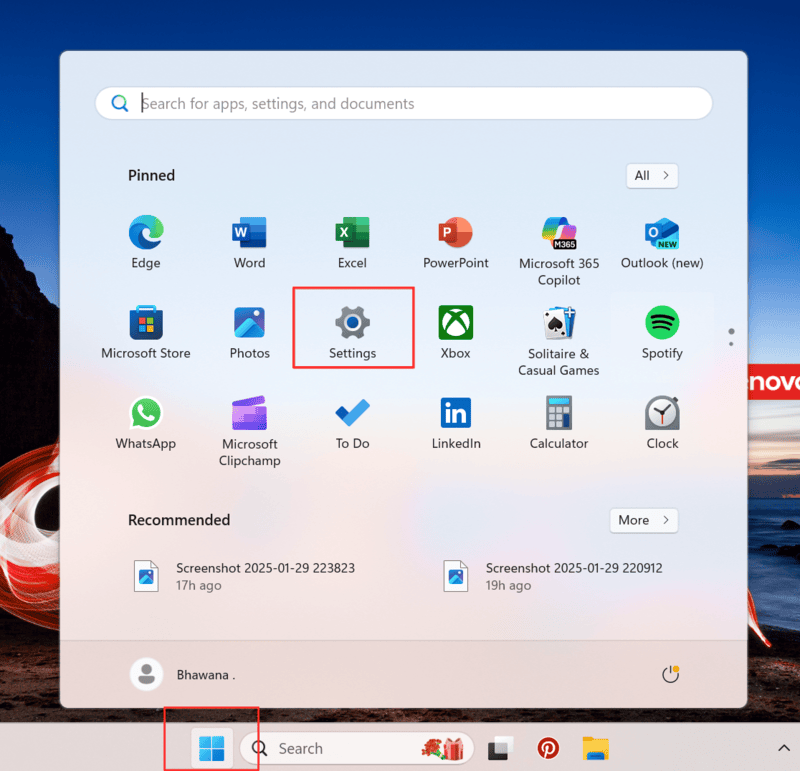
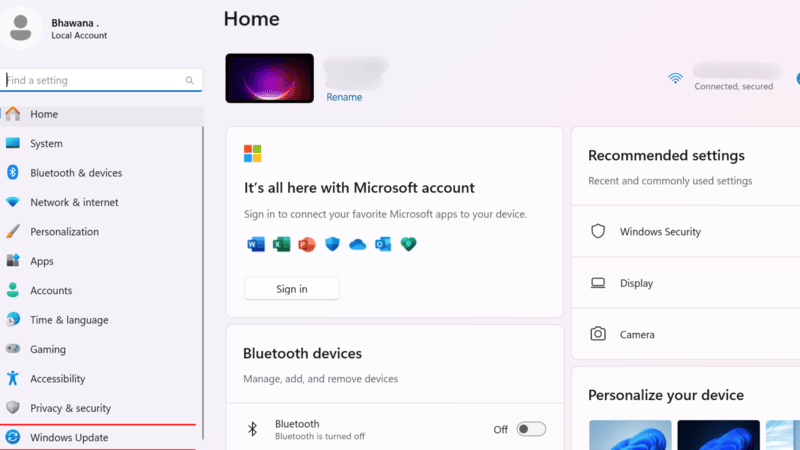
- In Settings, select Windows Update.
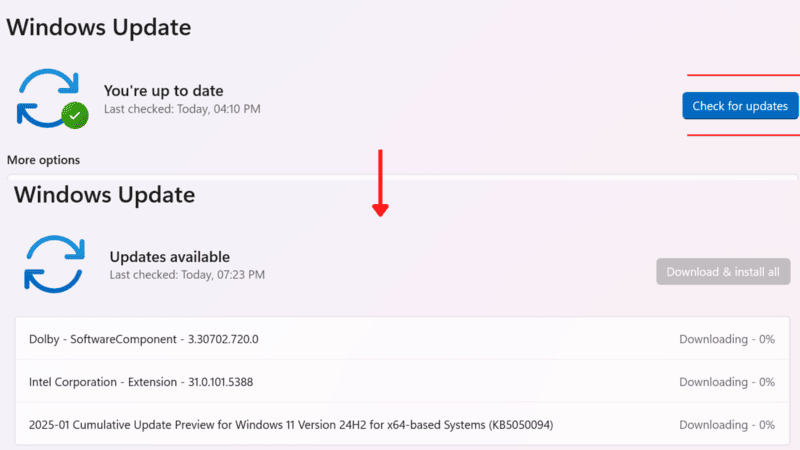
- Select Check for updates. Windows scans for available updates, and if there are none you’ll see “You’re up to date.”
- If updates are available, select Download & install (Download & install all when several are waiting).
- When installation finishes, Windows asks you to restart. Select Restart now, or schedule the restart for later.

How Do You Update Windows 10?
The steps on Windows 10 are similar, but Windows Update sits under a different menu:
- Select Start, then Settings (or press Win + I).
- Select Update & Security, then Windows Update.
- Select Check for updates, then Download & install for any updates it finds.
- Restart your PC when Windows asks you to.
Windows 10 reached end of support on October 14, 2025. After that date, Windows 10 PCs no longer receive feature updates, security updates or technical support from Microsoft.
To keep getting security updates, enroll in the Windows 10 Extended Security Updates program, which runs until October 12, 2027. It needs Windows 10 version 22H2, and enrollment is free if you sync your PC settings with Windows Backup; otherwise it costs 1,000 Microsoft Rewards points or a one-time $30. If your PC meets the Windows 11 requirements, the upgrade itself is free and appears on the Windows Update page.

Note: Check how your website renders on Windows 10 and Windows 11 browsers without switching machines. Try TestMu AI Today!
Steps to Update Windows Automatically
Windows 11 automatically downloads and installs updates to keep your device secure, so for most people there is nothing to switch on. To make sure it is working:
- Open Start > Settings > Windows Update and check that updates are not paused. If they are, select Resume updates.
- Under Advanced options, set Active hours so automatic restarts only happen when you are not using the PC.
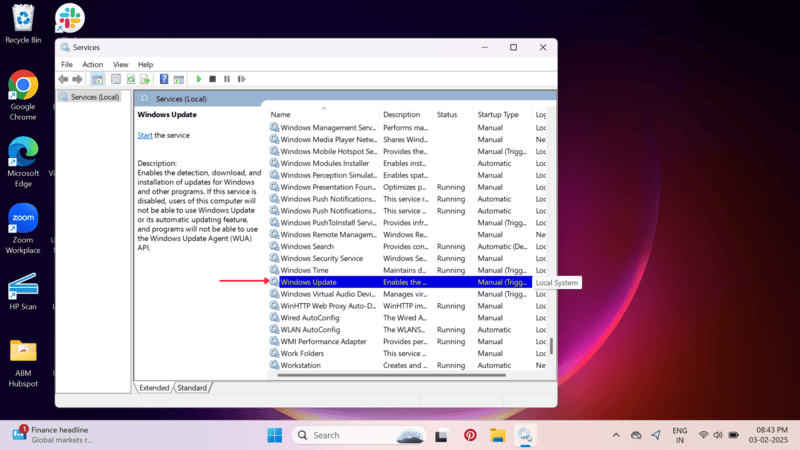
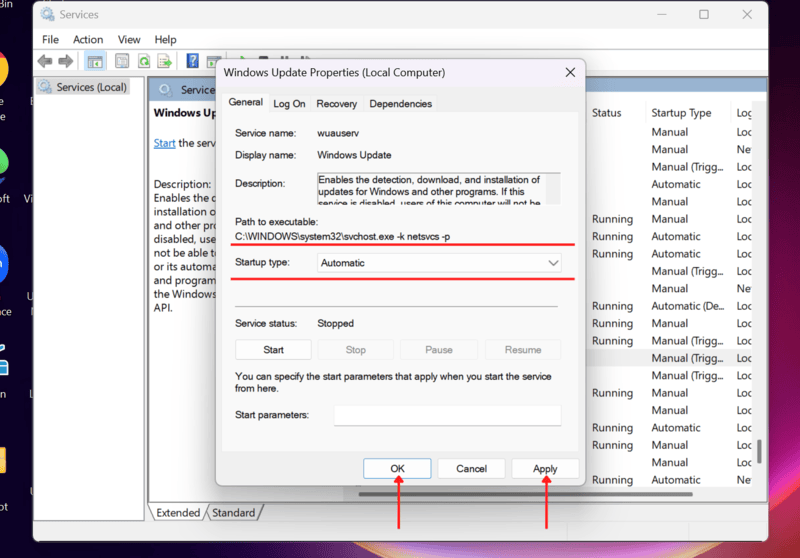
If updates never seem to download, check that the Windows Update service has not been disabled:
- In the search bar, type Services and open it.
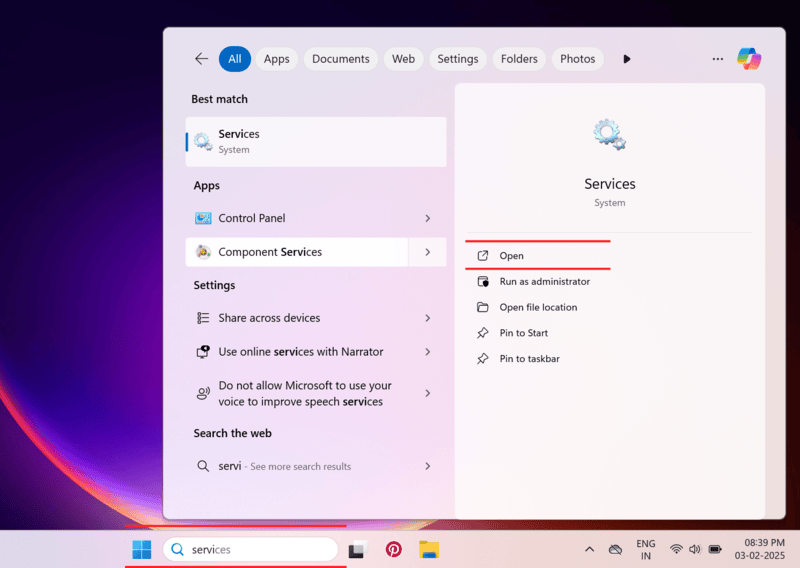
- Scroll down and double-click Windows Update.
- Under General, check Startup type. It must not be Disabled; set it to Automatic, then select Apply and OK.
Why Should You Update Windows?
Updating Windows helps keep your OS secure, run smoothly, maintain overall OS health, protect against threats, and improve performance.
Below are some key reasons why updating is important:
- Get Upgraded Security: Updates install security patches that close the holes malware, viruses and other attacks rely on.
- Bug Fixes: Updates address system bugs that may cause crashes, slowdowns, or software incompatibilities.
- Improved Performance: Updates often include performance fixes, so an out-of-date system can run slower than it should.
- Find New Features: Microsoft regularly introduces features and enhancements that often improve the user experience.
- Better Software Compatibility: Keeping Windows current helps newer apps and drivers install and run without problems. If a site still misbehaves after an update, clearing cookies in Windows is a quick next step.

Conclusion
Keep Windows updated to stay secure and stable. On Windows 11, leave automatic updates on and check Settings > Windows Update now and then; on Windows 10, enroll in ESU or plan your move to Windows 11 before October 12, 2027. On a Chromebook, the process is different; see how to update ChromeOS.
If you build websites, the Windows version your visitors run matters too. The real-time browser testing guide shows how to open your site on Windows 10 and Windows 11 browsers in the cloud.
Author

Bhawana
Blogs: 75


Bhawana is a Community Evangelist at TestMu AI with over 3 years of experience creating technically accurate, strategy-driven content in software testing. She has authored 50+ blogs on test automation, cross-browser testing, mobile testing, and real device testing. She also serves as Product Marketing Manager for Kane CLI, the command-line tool that runs browser automation from the terminal using natural-language flows in a real Chrome browser. Bhawana is certified in KaneAI, Selenium, Appium, Playwright, and Cypress, reflecting her hands-on knowledge of modern automation practices. On LinkedIn, she is followed by 6000+ QA engineers, testers, AI automation testers, and tech leaders.
Reviewer

Navin Chandra
Reviewer
Navin Chandra is a Member of Technical Staff at TestMu AI (formerly LambdaTest), building the open-source automation that powers its Selenium and Appium cloud grid. A committer to both Selenium and Appium, he implemented WebDriver BiDi support in Selenium for real-time browser events and bidirectional control and is developing Apple's iOS RemoteXPC protocol in Appium to enable low-level wireless communication with iOS system services. He contributes to Selenium across multiple language bindings as a member of the Selenium GitHub organization. He has served as a Google Summer of Code mentee and mentor at openSUSE and an LFX mentee at CNCF's KubeArmor, and is a SUSE Certified Deployment Specialist. Navin holds a B.Tech in Computer Science.


Windows Update FAQs
Did you find this page helpful?
More Related Blogs
TestMu AI forEnterprise
Get access to solutions built on Enterprise
grade security, privacy, & compliance
- Advanced access controls
- Advanced data retention rules
- Advanced Local Testing
- Premium Support options
- Early access to beta features
- Private Slack Channel
- Unlimited Manual Accessibility DevTools Tests