
Power Your Software Testing with AI Agents and Cloud
The Native AI-Agentic Cloud Platform to Supercharge Quality Engineering. Test Intelligently and Ship Faster.

- TestMu AI (Formerly LambdaTest)
- /
- Blog
- /
- How to Perform Salesforce Selenium Testing in 2026
How to Perform Salesforce Selenium Testing in 2026
Salesforce Selenium testing in 2026: stable locators, Shadow DOM, MFA, and local plus cloud execution on TestMu AI. Working Java code included.
Last Updated on:
Every time Salesforce ships a seasonal release, something breaks in your test suite. A CSS class gets renamed. A Lightning component renders differently. A locator that worked perfectly last quarter now points to nothing. Somewhere on your team, a QA engineer spends three days manually re-clicking the same regression checklist that should have been automated months ago.
That is the reality of testing Salesforce in 2026. The platform updates itself three times a year, and automation testing cannot keep pace without the right strategy.
Salesforce Selenium testing is how high-performing QA teams break that cycle. But dynamic element IDs, asynchronous Lightning rendering, loading overlays, and Shadow DOM in Lightning Web Components make Salesforce a harder automation target than any standard web application.
TestMu AI (formerly LambdaTest), the world's first full-stack Agentic Quality Engineering Platform, is built for exactly this. KaneAI, its agentic end-to-end testing platform, takes a Salesforce scenario described in plain English, works out the steps it needs, runs them against your live org, adapts them when Lightning shifts, and exports production-ready Selenium code without you writing a single locator.
Overview
What Is Salesforce Selenium Testing?
It is the use of Selenium WebDriver to automate browser-level checks against a Salesforce Lightning org. Since the platform pushes three mandatory releases a year while teams keep shipping custom Apex, flows, and components, manual regression simply cannot stay current, and automated browser testing fills that gap.
Why Is Salesforce Tougher to Automate with Selenium Than a Standard Web App?
Lightning Experience adds obstacles that ordinary web pages never present. Each one has a proven fix, but together they make Salesforce a demanding automation target:
- Runtime element IDs - Lightning regenerates IDs on every load and release, so locators built on them break almost instantly; stable semantic attributes like name and aria-label are the reliable alternative.
- Asynchronous rendering - Components load through JavaScript and AJAX at varying times, so tests that act too early hit stale or missing elements unless explicit waits are used.
- Loading overlays - A spinner can sit over a Save button that looks clickable, causing intercepted-click failures that standard waits do not catch.
- Shadow DOM in LWC - Lightning Web Components wrap markup in shadow roots that ordinary CSS and XPath cannot pierce, requiring Selenium 4 shadow-root handling.
How Do You Create and Run Salesforce Selenium Tests Locally?
A lead-creation flow is a representative scenario because it touches a dynamic button ID, asynchronous form fields, an overlay-blocked Save, and an async success toast all at once. To run such tests on your machine, you generally need Java 17 or later, Maven, and Chrome, with sandbox credentials stored as environment variables and WebDriverManager handling driver setup. Local runs let you debug locators and Lightning-specific behavior against a real org before wiring everything into a pipeline.
Where Do Cloud-Based Platforms Add Value to Salesforce Testing?
Local execution runs into MFA prompts, expiring sessions, dynamic-DOM flakiness, and limited scale, which makes unattended runs hard to sustain. Moving to a test automation cloud such as TestMu AI pairs scalable execution infrastructure with intelligent automation, including the KaneAI agent that turns plain-English descriptions into tests, while smoothing out authentication, session consistency, and cross-browser coverage.
Is Selenium Good for Salesforce Testing?
Selenium is a solid choice when your team has automation engineers and wants full control of the framework. It drives Lightning Experience in any major browser, costs nothing to license, and plugs into every CI pipeline. What it does not do is read Salesforce metadata or heal broken locators, so the stability of the suite rests entirely on your locator and wait strategy.
Which Selenium Version Do You Need for Salesforce Lightning Testing?
Use Selenium 4.x, and 4.18.1 or later is a safe baseline. The native getShadowRoot method that crosses Lightning Web Component shadow boundaries only exists in Selenium 4, so a Selenium 3 project cannot reach inside an LWC without JavaScript workarounds that Salesforce broke when it moved to native shadow DOM in Spring 24.
Is Selenium Free for Salesforce Testing?
Selenium is open source and carries no licence fee, so the framework itself is free for Salesforce testing. The real cost sits elsewhere: engineer time to build Salesforce-specific components, repair locators after each seasonal release, and run browsers at scale, which is why teams comparing total cost of ownership often find a commercial platform cheaper over a full year.
What Is Salesforce Selenium Testing?
Salesforce Selenium testing is the use of Selenium WebDriver to automate browser-based validation of your Salesforce Lightning org across its frequent platform releases.
As Salesforce ships three mandatory platform releases every year, and your team pushes custom Apex, flows, and Lightning components in between, manual regression testing can no longer keep pace.
| 150,000+ | 3x/year | 84% |
|---|---|---|
| Companies run on Salesforce in 2025 ibirdsservices.com, Jan 2026 | mandatory Salesforce platform releases Salesforce release calendar | of companies still rely on manual testing Synebo, Oct 2025 |
According to Synebo's 2025 Salesforce testing guide, 84 percent of companies still rely on manual testing despite Salesforce updating its platform three times per year.
The Capgemini World Quality Report found that only 15 to 20 percent of regression testing is actually automated, making it the most underserved test type for the scenario most in need of it.
Salesforce Selenium testing closes that gap by turning a 30-hour manual regression cycle into a repeatable automated suite.
Selenium is one layer of that suite, and it sits inside a wider quality strategy. Salesforce testing sets out how sandbox setup, Apex unit tests, UAT, and browser automation fit together across a release cycle.

Note: Automate your Salesforce testing workflow and achieve faster, reliable, and scalable test automation. Book a KaneAI Demo.
Salesforce Selenium Testing vs Apex Testing: Understanding the Two Layers
Salesforce has two testing layers: Apex validates server-side logic such as triggers and SOQL, while Selenium validates what users see and do in the browser.
Before writing any test code, you need to understand which layer each tool owns.
Salesforce testing tools typically span multiple layers of the testing stack, including unit testing tools for Apex validation, Selenium-based tools for UI automation, and cloud platforms that support scalable end-to-end execution across Salesforce environments.
What Apex Testing Covers and Why It Is Non-Negotiable
Apex testing validates server-side Salesforce logic, including triggers, classes, batch jobs, and governor limit compliance. Salesforce enforces a minimum of 75 percent Apex code coverage before any Apex can be deployed to production. This threshold is checked at the infrastructure level, and a single failing test class can block your entire deployment pipeline.
Note: Deployment blocker: Salesforce refuses to deploy Apex to production if org-wide code coverage falls below 75 percent. Target 85 percent or above to maintain a safe buffer.
What Selenium Testing Covers and When to Use It
Selenium WebDriver covers everything the Apex framework cannot reach: the browser. It validates Lightning page rendering, form interactions, navigation flows, toast confirmations, and cross-browser consistency.
Salesforce test automation with Selenium is recommended for its multi-browser support, CI/CD compatibility with Jenkins and Maven, and its ability to validate complete end-to-end user journeys across multiple Salesforce objects.
| Layer | Tool | Tests What | Enforced By |
|---|---|---|---|
| Server logic | Apex @isTest | Triggers, classes, SOQL, DML, governor limits | Salesforce platform. Required at deployment. |
| Browser and UI | Selenium | Lightning pages, forms, LWC components, navigation | Your QA process. Strongly recommended. |
| Cross-browser | Selenium Grid | Rendering across Chrome, Firefox, Edge, Safari | Your QA process. |
| API integration | REST + Apex | Data flows between Salesforce and external systems | Your QA process. |
Why Automating Salesforce with Selenium Is Harder Than Standard Web Testing?
Salesforce Lightning Experience introduces challenges that do not exist in standard web applications: dynamic content without fixed IDs, dynamic tables, iFrame navigation, and Shadow DOM. Each has a working solution, and all four are covered below with runnable Java code.
Dynamic Element IDs: Why Standard Locators Fail Immediately
Salesforce Lightning generates element IDs at runtime using patterns like 940:1376;a. These IDs change on every page load and across every Salesforce release. As a result, any Selenium locator built on these dynamic IDs fails within the same session, making it one of the primary causes of test instability in Salesforce automation frameworks.
This becomes especially problematic after seasonal Salesforce releases, where even previously working test suites can break without any changes in the application logic.
- The problem -
By.idlocators that rely on auto-generated Lightning IDs are unstable and break on every page refresh. These failures cannot be resolved using explicit waits or retry logic because the underlying identifiers are not consistent. - The solution - Instead of relying on dynamic IDs, testers should use stable semantic attributes that Salesforce deliberately exposes for automation and accessibility. These include:
- name
- aria-label
- title
- data-id
- placeholder
These attributes are designed to remain consistent across sessions and Salesforce releases, making them far more reliable for building Selenium test automation frameworks.
Among these, aria-label is particularly important because it is part of Salesforce's accessibility layer and is less likely to change compared to dynamically generated DOM attributes.
It provides a stable and meaningful way to identify UI elements in Lightning applications, and it also improves accessibility by assigning a readable name to elements that do not have visible labels, such as icon-only buttons or input fields without captions.
Asynchronous Rendering: Why Tests Click Elements That Are Not Ready
Lightning Experience loads components via JavaScript and AJAX calls. Elements appear at different times after the page URL loads, which means a test that reaches for an element immediately after navigation will find it missing or in an intermediate state. This produces failures such as StaleElementReferenceException and NoSuchElementException, which are often misdiagnosed as locator problems.
One of the most common ways to handle this issue is by properly implementing explicit waits using ExpectedConditions in Selenium, which allows the test to wait until the element is present, visible, or clickable before interacting with it. The failure this prevents is NoSuchElementException in Selenium, and the same ExpectedConditions calls are what resolve it.
- The problem - Salesforce Lightning does not load synchronously. Elements render at different times after the URL changes.
- The solution - Replace all
Thread.sleepcalls with Selenium WebDriverWait plusExpectedConditions. Set the global implicit wait to 5 seconds maximum.
Loading Overlay: Why Save Buttons Throw ElementClickInterceptedException
When you click Save on a Salesforce Lightning form, a spinner overlay renders on top of the page. Selenium detects the Save button as present and clickable underneath the overlay, attempts the click, and receives an ElementClickInterceptedException. Standard elementToBeClickable does not detect that an overlay is covering the target.
- The problem - The Lightning loading overlay sits above clickable elements. Standard waits do not detect it and throw
ElementClickInterceptedException. - The solution - Use
FluentWaitwithElementClickInterceptedExceptionignored. Poll the overlay CSS selector before returning the target element. This kind of failure is common in UI automation when overlays interfere with user actions, and having a strong understanding of how to handle ElementClickInterceptedException in Selenium is important.
Shadow DOM: Why CSS and XPath Cannot Find LWC Elements
Lightning Web Components encapsulate their markup inside shadow roots. Standard CSS selectors and XPath expressions cannot cross shadow boundaries. Since Salesforce moved to native shadow DOM in the Spring 24 release, older polyfill-based workarounds no longer work, and teams that built locators relying on the synthetic shadow leak saw tests break without any code change on their side.
- The problem - Standard CSS and XPath cannot reach inside LWC shadow roots. The Spring 24 native shadow DOM change broke older JavaScript workarounds.
- The solution - Use Selenium 4's
getShadowRootmethod for single shadow boundaries. Use JavaScript executor for nested shadow roots.
How To Create a Lead in Salesforce Lightning With Selenium?
To create a Lead in Salesforce Lightning, log into a sandbox, open the Leads list, click New, fill the name and company fields, click Save past the loading overlay, then check the success toast.
Creating a Lead in Salesforce Lightning is one of the most common real-world scenarios used to validate Selenium automation frameworks. It reflects how users interact with dynamic CRM interfaces that rely heavily on asynchronous loading and JavaScript-driven components.
This scenario exercises every major Salesforce Selenium testing challenge simultaneously. The New button uses a dynamic ID. The form inputs render asynchronously. The Save button is blocked by a loading overlay. The success toast appears asynchronously after submission. Automate this correctly, and you have the patterns for any Salesforce flow.
| Field | Value |
|---|---|
| Scenario Name | Create a New Lead in Salesforce Lightning Experience |
| Precondition | Logged into a Salesforce Developer Sandbox. Test user has Leads access. MFA is disabled on the test account. |
| Step 1 | Navigate to the Leads list view using the direct URL |
| Step 2 | Click the New button using a stable title attribute locator |
| Step 3 | Fill First Name, Last Name, and Company using name attribute locators |
| Step 4 | Click Save using FluentWait to handle the loading overlay |
| Step 5 | Assert the success toast message contains 'was created.' |
| Expected Result | Toast confirms Lead creation. Browser redirects to the new Lead detail page. |
How to Run Salesforce Selenium Tests Locally?
Run Salesforce Selenium tests locally with Java, Maven, and Chrome, plus sandbox credentials and WebDriverManager, so you can debug locators and Lightning behavior before adding CI/CD.
Running tests locally lets you quickly debug locator issues, handle Lightning-specific UI behavior, and verify that your test flows work against a real Salesforce org in a controlled environment before integrating them into a CI/CD pipeline.
To run tests locally, you typically need Java 17 or later, Maven, and Google Chrome installed, with Salesforce sandbox credentials stored as environment variables and Selenium WebDriverManager for handling browser driver setup automatically.
Project Setup: pom.xml Dependencies
You need three Maven dependencies to run Salesforce Selenium tests smoothly.
- Selenium WebDriver 4.18.1 - Required for native Shadow DOM support.
- WebDriverManager 5.7.0 - Handles automatic browser driver setup, so you don't need to download drivers manually.
- TestNG 7.9.0 - Used for structuring tests, assertions, and reporting.
Make sure you use Selenium 4.x specifically, because methods like getShadowRoot() are not available in older versions.
// pom.xml
<dependencies>
  <dependency>
    <groupId>org.seleniumhq.selenium</groupId>
    <artifactId>selenium-java</artifactId>
    <version>4.18.1</version>
  </dependency>
  <dependency>
    <groupId>io.github.bonigarcia</groupId>
    <artifactId>webdrivermanager</artifactId>
    <version>5.7.0</version>
  </dependency>
  <dependency>
    <groupId>org.testng</groupId>
    <artifactId>testng</artifactId>
    <version>7.9.0</version>
    <scope>test</scope>
  </dependency>
</dependencies>
Page Object Model: LoginPage and LeadsPage
The Page Object Model (POM) separates locators from test logic. When Salesforce updates a UI element in a seasonal release, you change one file in your page objects directory, not every test method that uses that element.
The LoginPage uses stable IDs because the Salesforce login page is the only place in Lightning where IDs are not auto-generated.
LoginPage.java
// Java: LoginPage.java
package pages;

import org.openqa.selenium.*;
import org.openqa.selenium.support.ui.*;
import java.time.Duration;

public class LoginPage {
    private final WebDriver driver;
    private final WebDriverWait wait;

    // Login page IDs are stable -- the ONLY safe place for By.id in Lightning
    private final By usernameField = By.id("username");
    private final By passwordField = By.id("password");
    private final By loginButton   = By.id("Login");

    public LoginPage(WebDriver driver) {
        this.driver = driver;
        this.wait   = new WebDriverWait(driver, Duration.ofSeconds(20));
    }

    public void login(String url, String user, String pass) {
        driver.get(url);
        wait.until(ExpectedConditions.visibilityOfElementLocated(usernameField))
            .sendKeys(user);
        driver.findElement(passwordField).sendKeys(pass);
        driver.findElement(loginButton).click();
    }
}
LeadsPage.java
// Java: LeadsPage.java
package pages;

import org.openqa.selenium.*;
import org.openqa.selenium.support.ui.*;
import java.time.Duration;
import java.util.List;

public class LeadsPage {
    private final WebDriver driver;
    private final WebDriverWait wait;

    // Stable locators using title and name attributes.
    // These survive Spring, Summer, and Winter releases.
    // Never use auto-generated IDs like id="940:1376;a".
    private final By newButton  = By.cssSelector("a[title='New']");
    private final By firstName  = By.cssSelector("input[name='firstName']");
    private final By lastName   = By.cssSelector("input[name='lastName']");
    private final By company    = By.cssSelector("input[name='Company']");
    private final By saveButton = By.cssSelector("button[name='SaveEdit']");
    private final By toastMsg   = By.cssSelector(".toastMessage");
    private final By spinner    = By.cssSelector(".loadingSpinner,.slds-spinner_container");

    public LeadsPage(WebDriver driver) {
        this.driver = driver;
        this.wait   = new WebDriverWait(driver, Duration.ofSeconds(30));
    }

    public void navigateToLeads() {
        // Direct URL navigation -- faster and more stable than the App Launcher.
        String base = driver.getCurrentUrl().split("/lightning")[0];
        driver.get(base + "/lightning/o/Lead/list");
    }

    public void clickNew() {
        wait.until(ExpectedConditions.elementToBeClickable(newButton)).click();
    }

    public void fillForm(String fn, String ln, String co) {
        wait.until(ExpectedConditions.visibilityOfElementLocated(firstName)).sendKeys(fn);
        driver.findElement(lastName).sendKeys(ln);
        driver.findElement(company).sendKeys(co);
    }

    public String saveAndGetToast() {
        // FluentWait handles the Lightning overlay that blocks the Save click.
        Wait<WebDriver> fw = new FluentWait<>(driver)
            .withTimeout(java.time.Duration.ofSeconds(60))
            .pollingEvery(java.time.Duration.ofSeconds(2))
            .ignoring(ElementClickInterceptedException.class)
            .ignoring(NoSuchElementException.class);

        fw.until(d -> {
            List<WebElement> overlays = d.findElements(spinner);
            if (!overlays.isEmpty() && overlays.get(0).isDisplayed()) return null;
            return d.findElement(saveButton);
        }).click();

        // Toast is async -- WebDriverWait is mandatory, not optional.
        return wait.until(
            ExpectedConditions.visibilityOfElementLocated(toastMsg)).getText();
    }
}
CreateLeadTest.java — Local ChromeDriver
// Java: CreateLeadTest.java -- LOCAL
package tests;

import io.github.bonigarcia.wdm.WebDriverManager;
import org.openqa.selenium.*;
import org.openqa.selenium.chrome.*;
import org.testng.Assert;
import org.testng.annotations.*;
import pages.*;
import java.time.Duration;

public class CreateLeadTest {
    private WebDriver driver;

    private static final String SF_URL  = System.getenv("SF_SANDBOX_URL");
    private static final String SF_USER = System.getenv("SF_USERNAME");
    private static final String SF_PASS = System.getenv("SF_PASSWORD");

    @BeforeClass
    public void setUp() {
        WebDriverManager.chromedriver().setup();
        ChromeOptions opts = new ChromeOptions();
        opts.addArguments("--incognito");           // Prevents Lightning session restore
        opts.addArguments("--disable-notifications");
        opts.addArguments("--window-size=1920,1080");
        driver = new ChromeDriver(opts);
        driver.manage().timeouts().implicitlyWait(Duration.ofSeconds(5));
    }

    @Test
    public void testCreateLead() {
        new LoginPage(driver).login(SF_URL, SF_USER, SF_PASS);
        LeadsPage leads = new LeadsPage(driver);
        leads.navigateToLeads();
        leads.clickNew();
        leads.fillForm("Jane", "Smith", "Acme Corp");
        String toast = leads.saveAndGetToast();
        Assert.assertTrue(toast.contains("was created"),
            "Expected success toast. Got: " + toast);
    }

    @AfterClass
    public void tearDown() { if (driver != null) driver.quit(); }
}
Run the Local Test
# Shell: run locally

# macOS / Linux
export SF_SANDBOX_URL="https://yourorg--qa.sandbox.my.salesforce.com"
export SF_USERNAME="selenium.qa@yourorg.qa"
export SF_PASSWORD="yourpassword"

# Windows
set SF_SANDBOX_URL=https://yourorg--qa.sandbox.my.salesforce.com
set SF_USERNAME=selenium.qa@yourorg.qa
set SF_PASSWORD=yourpassword

mvn test -Dtest=CreateLeadTest
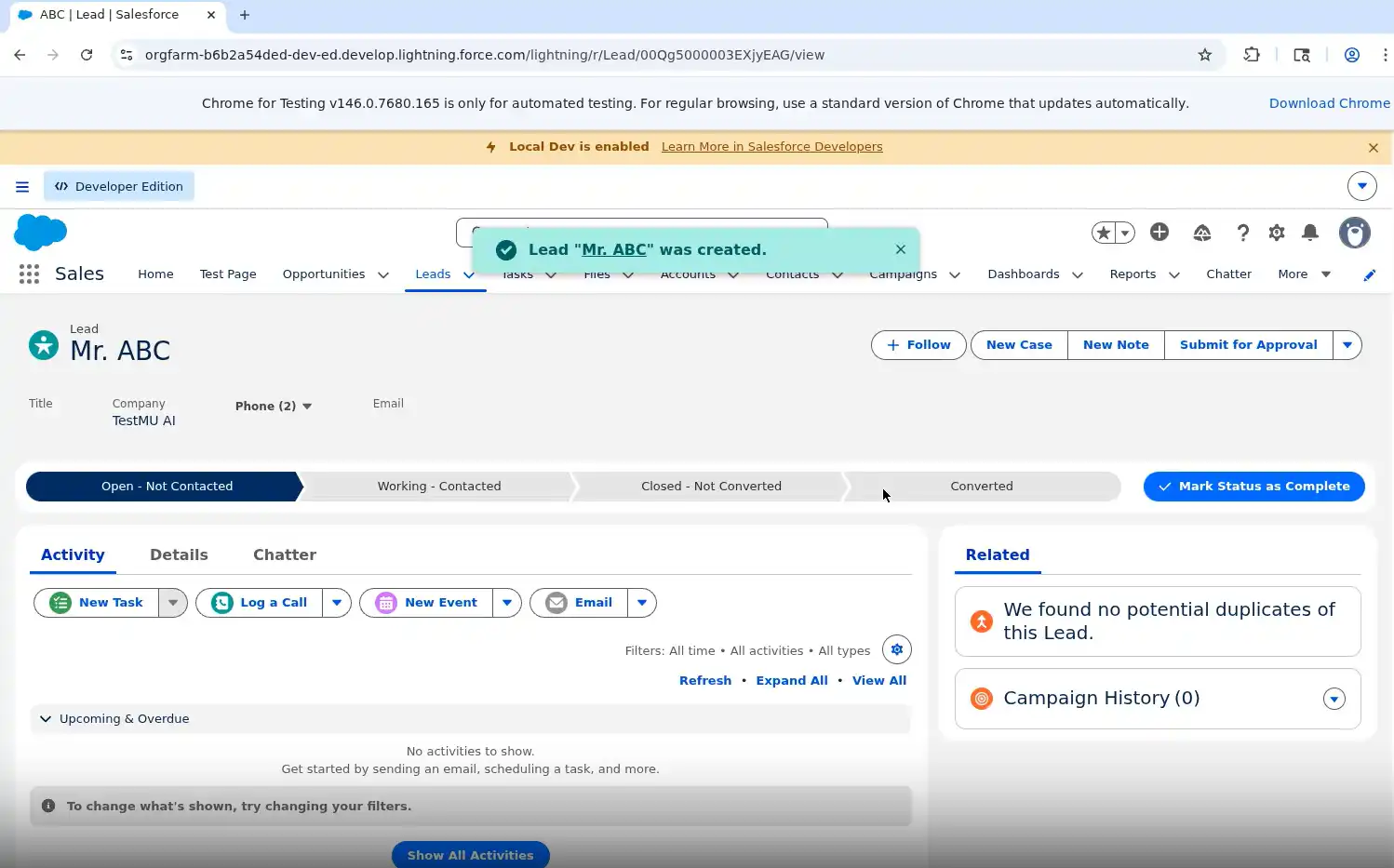
Result:
Common Challenges When Running Salesforce Selenium Tests Locally
While running Salesforce Selenium tests locally is useful for debugging and validation, testers often face several real-world challenges that make local execution unstable and time-consuming.
- Multi-Factor Authentication (MFA) Challenges - Salesforce enforces MFA for security, requiring manual OTP or authenticator approval during test execution. This interrupts the automation testing flow and makes fully unattended Selenium test execution difficult in local environments.
- Environment Instability & Session Handling - Salesforce sessions can expire quickly, and repeated logins during test execution often lead to inconsistent states or unexpected redirects. Combined with Lightning’s dynamic DOM rendering, this increases flakiness in local execution.
- Dynamic DOM & Element Synchronization Issues - Salesforce Lightning components render dynamically, making element identification and synchronization challenging. Selenium scripts may fail due to stale elements, delayed rendering, or changing locators.
- Timing Issues & Selenium Waits - Debugging timing issues locally becomes difficult when dealing with asynchronous components, overlays, and delayed rendering of elements. Testers often end up using Selenium waits excessively , which slow execution and still do not guarantee stability.
- Scalability Limitations in Test Automation - These challenges highlight why local execution alone is not sufficient for scalable Salesforce test automation, especially when aiming for stable, reliable, and unattended execution.
Why Cloud-Based Platforms Improve Salesforce Testing?
Cloud platforms improve Salesforce testing by removing local bottlenecks—handling MFA, session consistency, and cross-browser execution at scale—while adding AI-driven automation like KaneAI.
To overcome these limitations, many teams move from local execution to cloud-based testing platforms like TestMu AI. Unlike traditional cloud grids, TestMu AI (formerly LambdaTest) is a full-stack AI-agentic quality engineering platform that combines scalable execution infrastructure with intelligent automation capabilities.
Modern Salesforce test automation tools are increasingly shifting toward cloud-based architectures to support scalable execution, reduce local environment dependencies, and improve cross-browser reliability across Salesforce applications.
The platform ships KaneAI as an agentic end-to-end testing platform rather than a script generator. As an AI testing agent it decides the steps a Salesforce scenario needs, authors them from natural language, executes them against a live org, and adapts them as the UI moves, which removes most of the manual scripting and setup work.
TestMu AI helps eliminate local execution bottlenecks by providing stable, scalable, and intelligent test environments that handle authentication challenges, session consistency, and cross-browser execution seamlessly.
How to Generate Salesforce Tests Using KaneAI
KaneAI is an agentic end-to-end testing platform: describe a Salesforce scenario in plain English and it plans the steps, runs them in a live browser, heals them as the org changes, and generates ready-to-use Selenium, Playwright, or Cypress code.
It is purpose-built for flows like Salesforce lead creation, executing each plain-English step in a real browser before exporting the corresponding production-ready test code.
The exported test already includes a framework-ready structure and smart waits and is immediately compatible with the TestMu AI automation cloud grid.
The same approach carries straight into Service Cloud support workflows. Salesforce case management automation spans case creation, email-to-case, web-to-case, assignment rules, and status changes, each of which KaneAI drives from plain-English steps.
The quote-generation layer raises the difficulty again. Salesforce CPQ testing has to hold pricing rules, discount governance, bundle configuration, and the downstream billing handoff together in one run.
Three Methods for Using TestMu AI with Salesforce Selenium Testing
Each method suits a different team situation. Teams with existing Selenium code can use:
Before any of these approaches stabilize in practice, the underlying UAT environment needs to mirror production with masked data, integrations, and clear entry and exit criteria so business validation runs on the same surface QA is automating against.
- Method 1 - Teams building from scratch or with non-technical testers can use.
- Method 2 - Developer teams using Agent Skills can use
- Method 3 - Teams looking to accelerate test creation without manually writing boilerplate automation code.
Method 1: Add LT:Options to Existing Tests
This approach allows you to integrate TestMu AI capabilities into your existing Selenium test scripts without major code changes.
By adding the LT:Options configuration inside the browser capabilities, you can enable features such as cloud execution, browser selection, platform configuration, build tracking, network logs, video recording, and debugging support for your Salesforce test automation.
- Step 1 - Replace your local
WebDriverinstantiation (e.g.,ChromeDriver) withRemoteWebDriverpointing to the TestMu AI Selenium Grid URL. - Step 2 - Add the
LT:Optionsblock to your desired capabilities, specifying the necessary configuration for your test execution. - Step 3 - Run your test as usual. The test will execute on the TestMu AI cloud, and you can monitor the execution in real-time through the TestMu AI dashboard.
To get your desired capabilities configured correctly, you can use the TestMu AI Automation Capabilities Generator, which provides an intuitive interface to select your browser, platform, and additional options. Once you generate the capabilities, simply copy and paste the code snippet into your test setup.
Method 2: KaneAI Natural Language Generation
Describe the scenario in plain English. KaneAI runs it in a live browser and exports Selenium Java, Playwright, or Cypress code that you plug directly into your existing Maven project.
Choosing a framework to standardize on is a separate decision from choosing an authoring method. Salesforce test automation frameworks puts Selenium, Playwright, Provar, and AI-native tooling side by side with working code for each.
With KaneAI, there is no setup required. You don't need to configure WebDriver, manage dependencies, or manually handle Salesforce login flows. You simply describe what you want to test, and KaneAI takes care of execution.
One of the major pain points in Salesforce Selenium testing is handling MFA authentication, where manual OTP entry or verification interrupts the automation flow. KaneAI eliminates this issue by intelligently managing authentication steps during execution, reducing test failures caused by login interruptions.
KaneAI includes auto-healing capabilities, meaning when Salesforce UI elements change due to seasonal releases, the test automatically adapts locators instead of breaking. This significantly reduces maintenance overhead and improves long-term test stability.
KaneAI Step-by-Step for the Create Lead Scenario
A complete Lead creation test in KaneAI feels intuitive and human-like, with each step closely matching how a tester would describe the flow in a real Salesforce demo.
The walkthrough below is based on an actual KaneAI session running against a real Salesforce org with MFA enabled and full Lightning component support.
- Connect your Salesforce org - Log in to TestMu AI and connect KaneAI to your Salesforce sandbox or production org. If your org sits behind a firewall, the TestMu AI Tunnel automatically establishes a secure connection.
- Write your test the way you would explain it to someone - Enter the instructions into KaneAI exactly as written:
The entire setup completes in under two minutes, and once finished, KaneAI is authenticated and ready to execute tests directly against your live environment.
The same approach can be applied to virtually any Salesforce workflow your team needs to test. Whether it's lead creation, contact updates, approval workflows, or custom business processes, KaneAI can execute the entire flow from a simple natural language prompt.
To get started, follow the support documentation on Why do we need KaneAI?

Method 3: Selenium Agent Skill
By leveraging TestMu AI agent-skills, developers can standardize how tests are generated across different AI development environments. Cloning the TestMu AI selenium-skill into tools like Claude Code, Cursor, or Copilot provides reusable automation patterns that accelerate test creation.
Selenium Skills acts as the implementation layer that connects AI-generated tests to real execution on the TestMu AI infrastructure, enabling the generation of POM-structured, production-grade Selenium tests that target the TestMu AI grid.
The Selenium Agent Skill supports six programming languages. To get started, follow this support documentation on running Selenium tests using Agent Skills.
Stable Locator Strategies for Salesforce Lightning UI
Stable locators are the key skill in Salesforce Selenium testing: avoid auto-generated Lightning IDs and build them top-down from stable attributes like name, aria-label, and data-id.
Auto-generated Lightning IDs lead to brittle tests that break across sessions and seasonal releases, so always build locators using a top-down stability approach.
Locator Priority (Most to Least Stable)
Use Salesforce-provided stable attributes first, then fall back gradually:
| Priority | Strategy | Example | Survives Releases |
|---|---|---|---|
| 1 Best | data-id | data-id="force-page-global-header" | Yes |
| 2 | aria-label | aria-label="Search this list" | Yes |
| 3 | name attribute | input[name='lastName'] | Yes |
| 4 | title attribute | a[title='New'] | Yes |
| 5 | placeholder | input[placeholder='Search Salesforce'] | Yes |
| 6 | XPath by text | //button[text()='Save'] | Usually |
| 7 | XPath contains() | //span[contains(@class,'truncate')] | Sometimes |
| Avoid | SLDS class names | .slds-button--brand | No. Change between releases. |
| Never | Auto-generated ID | id="940:1376;a" | No. Changes every page load. |
Selenium Wait Strategy for Salesforce Lightning Experience
Most Salesforce test failures come from incorrect wait handling. A proper wait strategy improves stability and reduces flakiness significantly.
The Four Wait Types and When to Use Each in Salesforce
Each wait type has a specific role in Salesforce Selenium testing. Using the wrong type for a given scenario is the leading cause of flaky tests. The table below maps each wait type to the Salesforce scenarios it is designed to handle.
| Wait Type | Salesforce Scenario | Implementation Note |
|---|---|---|
| Implicit Wait | Global setup for basic navigation between Lightning pages | Set at 5 seconds maximum. The SF Developer Blog confirms the Selenium click() call already waits for navigation to complete, so a low implicit wait is sufficient. |
WebDriverWait | Waiting for form inputs, buttons, and toast messages to appear | Your primary strategy. Use ExpectedConditions.elementToBeClickable for buttons and visibilityOfElementLocated for inputs and toasts. |
FluentWait | Handling the Lightning loading overlay that blocks Save clicks | Configure to ignore ElementClickInterceptedException. Poll every 2 seconds for up to 60 seconds. Check overlay visibility before returning the target element. |
Thread.sleep | Two narrow scenarios in Salesforce Lightning testing | After a JavaScript click() call only (1 second), or when Selenium outruns the browser renderer (2 seconds maximum). Never use it as a substitute for a proper wait condition. |
Although sleep methods like Thread.sleep() may appear simple, it pauses execution for a fixed duration regardless of whether the element is ready, which increases execution time and still leads to flaky behavior in dynamic Salesforce Lightning pages.
Modern Selenium synchronization strategies evolved beyond static delays by introducing implicit, explicit, and FluentWait mechanisms that respond to actual browser conditions instead of arbitrary timeouts.
Getting the balance right between implicit and explicit waits in Selenium is what keeps a Lightning suite fast without making it flaky, since a high implicit wait silently slows every single lookup.
FluentWait Implementation for the Lightning Loading Overlay
Salesforce Lightning often blocks interactions with loading spinners, causing click failures. FluentWait helps handle this by waiting until overlays disappear before interacting with elements.
Use FluentWait when Save or action buttons are intercepted by Lightning spinners. It polls until the overlay disappears and ensures safe element interaction before clicking. Since Lightning components render asynchronously, combining FluentWait with properly configured implicit and explicit waits is essential for reducing flaky Selenium behavior and improving test stability.
How to Handle Shadow DOM in Salesforce Lightning Web Components?
Handle Shadow DOM by crossing boundaries with Selenium 4's getShadowRoot for single LWC roots and a JavaScript executor for nested ones, since standard CSS and XPath can't reach inside.
Shadow DOM is listed as a challenge in every major Salesforce Selenium testing process. Since Salesforce moved to native shadow DOM in the Spring 24 release, the old document.querySelectorAll workarounds that relied on the synthetic polyfill no longer function.
The two methods below are current as of Spring 25.
Method 1: Selenium 4 getShadowRoot for Single Shadow Boundaries
Selenium 4 introduced native getShadowRoot() support, which crosses one shadow boundary without any JavaScript. This is the cleanest approach and should be your first choice for any single-level LWC shadow root. This is the approach to use before falling back to the JavaScript executor.
// Java: getShadowRoot
// Java: cross one shadow boundary using Selenium 4 native API.
// No JavaScript required. The cleanest approach for single LWC shadow roots.

WebElement lwcHost    = driver.findElement(By.cssSelector("c-my-form"));
SearchContext shadow   = lwcHost.getShadowRoot();
WebElement inputField  = shadow.findElement(By.cssSelector("input[name='email']"));
inputField.sendKeys("test@example.com");
Method 2: JavaScript Executor for Nested Shadow Roots
When your LWC structure nests one component inside another (LWC inside LWC), you need to chain getShadowRoot calls per level, which becomes verbose. The JavaScript executor approach lets you chain multiple shadow root traversals in one call, making it more concise for deeply nested component trees.
// Java: JavaScript Executor for nested shadow DOM
// Java: JavaScript executor for nested shadow roots (LWC inside LWC).

JavascriptExecutor js = (JavascriptExecutor) driver;

// Two nested shadow roots in one call
WebElement deep = (WebElement) js.executeScript(
    "return document.querySelector('c-parent').shadowRoot.querySelector('c-child').shadowRoot.querySelector('input[type=text]');");

// Reusable helper -- put this in a BasePage class
public WebElement fromShadow(String host, String target) {
    return (WebElement) ((JavascriptExecutor) driver).executeScript(
        "return document.querySelector(arguments[0]).shadowRoot.querySelector(arguments[1]);",
        host, target);
}
How to Handle MFA in Salesforce Test Automation?
Handle MFA by exempting a dedicated automation service account from multi-factor authentication through a Permission Set, so Selenium can complete the login flow without OTP prompts.
Multi-Factor Authentication is the most common reason Salesforce Selenium test setups fail before the first test runs. If your org enforces MFA and your automation service account is not configured correctly, Selenium cannot complete the login flow, and every test fails at the authentication step.
The three options below cover every scenario in order of preference.
Option 1: MFA Exemption via Permission Set (Recommended Approach)
This is the cleanest solution and is officially supported by Salesforce. It exempts a dedicated automation service account from MFA without affecting any other users in the org.
- Go to Setup, then Permission Sets in your Salesforce sandbox
- Create a new Permission Set named Automation Service Account
- Enable Waive Multi-Factor Authentication for Exempt Users under System Permissions
- Assign this Permission Set to your
selenium.qaservice account only - Verify by logging in as the service account without being prompted for MFA
Salesforce officially recommends this exemption approach for automation users running Selenium and similar testing frameworks. After configuration, verify the setup by logging in with the service account and confirming that no MFA prompt appears during authentication.
Option 2: Trusted IP Range for Fixed CI Runner IPs
If your CI pipeline runs from a fixed IP address, such as a self-hosted Jenkins server, you can add that IP to Salesforce's trusted network access list. Logins from trusted IPs do not trigger MFA. This method does not work with GitHub-hosted runners, which rotate IP addresses on every run.
- Setup path - Go to Setup, then Network Access in your Salesforce sandbox
- Add the IP - Enter the static IP address or range of your CI runner
- GitHub Actions - Use Option 1 instead. GitHub-hosted runners use dynamic IPs that rotate between runs, making whitelist-based MFA bypass unreliable
Refer to the official documentation for configuring trusted IP ranges on Salesforce Network Access.
Option 3: TOTP Code Automation (Use Only When Options 1 and 2 Are Unavailable)
If your organization does not allow MFA exemptions and your CI infrastructure uses dynamic IP addresses, you can automate Salesforce MFA by generating the current TOTP code programmatically during login. Salesforce officially supports third-party authenticator apps that generate standard RFC 6238 TOTP codes, making this approach compatible with Selenium-based automation workflows.
# Java: TOTP MFA automation
# Java: generate current TOTP code at runtime (aerogear-otp-java)

import pyotp, os

totp     = pyotp.TOTP(os.getenv('SF_MFA_SECRET'))  # base32 secret from Authenticator
mfa_code = totp.now()                               # valid for 30 seconds

driver.find_element(By.CSS_SELECTOR, "input[id*='totp']").send_keys(mfa_code)
driver.find_element(By.CSS_SELECTOR, "button[type='submit']").click()
Store the MFA secret securely in a secrets manager rather than hardcoding it in source code or environment files.
CI/CD Integration for Salesforce Selenium Tests
Running Salesforce Selenium tests on every pull request ensures that every UI change is validated early in the development lifecycle. CI/CD integration helps teams detect failures in Lightning pages, locators, and flows before they reach production.
GitHub Actions for Selenium Execution
GitHub Actions is commonly used to automate Salesforce Selenium test execution as part of the build pipeline. On every push or pull request, tests are triggered automatically, executed on a cloud Selenium grid, and results are published back into the repository for immediate visibility.
With increasing adoption of CI/CD pipelines and Selenium AI in automation workflows, teams are shifting toward more intelligent and automated validation layers within their build pipelines.
This ensures that:
- Automated test triggers - Execute Selenium tests on every push or pull request without manual intervention
- Cloud-based execution - Runs tests on scalable Selenium infrastructure for consistent results across environments
- Early failure detection - Identifies UI, locator, and flow issues before code is merged
- PR visibility - Publishes test results directly inside pull requests for fast feedback
TestMu AI GitHub App Integration for CI Validation
TestMu AI provides a GitHub App that integrates Selenium testing directly into pull request workflows. Instead of manually triggering pipelines, testers or developers can simply comment on a PR to initiate validation.
This shift enables concepts like Vibe Testing with Selenium, where test intent is validated dynamically based on application behavior and context rather than rigid scripted execution.
Once triggered, KaneAI-TestMu AI's AI app testing agent automatically:
- PR-triggered execution - Initiates full test cycles through a simple pull request. Just drop a comment,
@KaneAI Validate this PR, and KaneAI takes it from there. - Change analysis - Evaluates code diffs and identifies impacted Salesforce flows and components
- Test generation and reuse - Creates or maps relevant test scenarios from existing test coverage
- Parallel cloud execution - Runs tests across multiple browsers and environments simultaneously
- In-PR reporting - Posts results, failure insights, and recommendations directly in GitHub
To get started with TestMu AI GitHub integration into your AI testing workflow, follow this support documentation on TestMu AI GitHub App Integration.
TestMu AI Tunnel for Private and Local Applications
TestMu AI GitHub Action Tunnel enables Selenium execution against applications that are not publicly accessible.
- Local and private testing support - Runs tests against localhost, staging, or internal Salesforce environments
- Secure connectivity - Establishes an encrypted tunnel access without exposing applications publicly
- No network changes required - Eliminates the need for IP allowlisting or firewall modifications
- CI-ready execution - Integrates seamlessly with GitHub Actions and other CI pipelines
Salesforce Selenium Testing Best Practices Checklist
The checklist below consolidates every practice covered in this guide into a scannable reference. Use it to audit an existing Salesforce Selenium test suite or as a validation checklist before publishing a new test to your pipeline.
It serves as a quick validation of key Selenium best practices to ensure stability, maintainability, and release resilience across Salesforce automation projects.
- Locator Strategy - Poor locator choices are the main reason Salesforce Selenium tests break after seasonal releases. Always prefer stable attributes like name, aria-label, title, and data-id; avoid SLDS classes that change across releases; never use auto-generated IDs; and prefer CSS selectors over XPath for better speed and maintainability.
- Wait Strategy - Most Salesforce test failures are caused by incorrect wait handling. Use
WebDriverWaitfor all dynamic Lightning elements,FluentWaitfor overlays and intercepted clicks, keep implicit waits minimal, and avoidThread.sleepexcept for rare synchronization scenarios. - Shadow DOM - Salesforce Lightning uses Shadow DOM for LWC components, so always use Selenium 4
getShadowRootfor single-level access, JavaScript execution for nested shadow structures, and avoid deprecated selector-based workarounds removed in Spring '24. - Project Architecture - A strong Page Object Model structure, environment-based configuration, incognito execution, and dedicated sandbox usage ensure your test suite remains stable, scalable, and easy to maintain across Salesforce seasonal releases.
- TestMu AI Cloud Grid - Enable video, visual, and network logs for every run, always set explicit test status reporting, use the capabilities generator instead of manual setup, and leverage KaneAI for fast test creation without writing Selenium code.
- Apex Testing - Maintain at least 85% coverage for safe deployments, always include bulk data tests to validate governor limits, use
Test.startTestandTest.stopTestcorrectly, and avoidseeAllDataby generating isolated test data. - Seasonal Release Maintenance - Use preview sandboxes before every Salesforce release, review Lightning UI and component changes in release notes, and allocate a short maintenance sprint after each release to fix locators and stabilize automation.
Conclusion
Salesforce Selenium testing is no longer just about writing automation scripts; it is about building a reliable validation strategy that can withstand constant platform updates, dynamic UI behavior, and enterprise-scale deployment cycles. From locator stability and wait strategies to Shadow DOM handling and MFA challenges, every layer of Salesforce automation requires deliberate design choices to maintain test reliability.
As teams shift toward continuous delivery, integrating Selenium tests into CI/CD pipelines becomes essential for early defect detection and faster release cycles. GitHub Actions enables this automation layer, ensuring that every change is validated as part of the development workflow. Extending this further, TestMu AI enhances the process by introducing secure tunneling for private environments and AI-driven test execution through KaneAI, which can analyze pull requests and trigger full test cycles with a simple command.
Together, these approaches transform Salesforce testing from a manual, reactive process into an intelligent, automated, and scalable quality assurance system. Organizations that adopt this model gain faster feedback loops, reduced maintenance overhead, and higher confidence in every Salesforce release.
Sources and References
- SalesforceDevops.net: Salesforce Test Automation Landscape 2025 Report (October 2025)
- ibirdsservices.com: How Many Companies Use Salesforce in 2025 (January 2026)
- Synebo's 2025 Salesforce testing guide
- Capgemini World Quality Report
- Salesforce Developer Blog: Stable Selenium Tests for Salesforce Lightning UI
- Selenium WebDriver Waits Documentation
- Selenium Locators Documentation
- Selenium Shadow DOM Finders Documentation
- TestMu AI GitHub App Integration
- TestMu AI GitHub Action Tunnel
- Salesforce Network Access
- third-party authenticator apps
- exemption approach
- TestMu AI agent-skills
- Why do we need KaneAI?
- selenium-skill
Author

Saniya Gazala
Blogs: 44


Saniya Gazala is a Product Marketing Manager and Community Evangelist at TestMu AI with 2+ years of experience in software QA, manual testing, and automation adoption. She holds a B.Tech in Computer Science Engineering. At TestMu AI, she leads content strategy, community growth, and test automation initiatives, having managed a 5-member team and contributed to certification programs using Selenium, Cypress, Playwright, Appium, and KaneAI. Saniya has authored 15+ articles on QA and holds certifications in Automation Testing, Six Sigma Yellow Belt, Microsoft Power BI, and multiple automation tools. She also crafted hands-on problem statements for Appium and Espresso. Her work blends detailed execution with a strategic focus on impact, learning, and long-term community value.
Reviewer

Srinivasan Sekar
Reviewer
Srinivasan Sekar is Director of Engineering at TestMu AI, where he leads engineering and open-source initiatives behind the Selenium and Appium automation grid and owns TestMu AI's MCP Server. A committer to Appium and a contributor to Selenium, WebdriverIO, Taiko, and AppiumTestDistribution, he brings over 15 years of experience in quality engineering and open-source technologies. He is the author of the Apress book 'The MCP Standard: A Developer's Guide to Building Universal AI Tools with the Model Context Protocol,' a Certified Kubernetes and Cloud Native Associate, and an international conference speaker. Before TestMu AI he spent over eight years at Thoughtworks as a Principal Consultant and Quality Architect. Srinivasan holds a B.Tech in Information Technology from Anna University.
On This Page
- What Is Salesforce Selenium Testing?
- Selenium vs Apex
- Create a Lead in Salesforce Lightning
- Run Selenium Salesforce Tests
- Common Challenges in Local Execution
- Why Use Cloud Testing for Salesforce Selenium Tests
- Automate Leads Creation with KaneAI
- Stable Locators
- Wait Strategy
- Shadow DOM in LWC
- Handle MFA
- CI/CD Integration for Salesforce Selenium Tests
- Best Practices
- Conclusion
Frequently asked questions
Did you find this page helpful?
More Related Blogs

TestMu AI forEnterprise
Get access to solutions built on Enterprise
grade security, privacy, & compliance
- Advanced access controls
- Advanced data retention rules
- Advanced Local Testing
- Premium Support options
- Early access to beta features
- Private Slack Channel
- Unlimited Manual Accessibility DevTools Tests