

Power Your Software Testing with AI Agents and Cloud
The Native AI-Agentic Cloud Platform to Supercharge Quality Engineering. Test Intelligently and Ship Faster.


- TestMu AI (Formerly LambdaTest)
- /
- Blog
- /
- How To Minimize Browsers In Selenium WebDriver Using JUnit
How To Minimize Browsers In Selenium WebDriver Using JUnit
This blog shows how to minimize browser windows in Selenium WebDriver using JUnit and demonstrate the same on the TestMu AI platform.
Last Updated on:
Selenium WebDriver minimizes a browser window with the driver.manage().window().minimize() method, added in Selenium 4. Earlier versions had no direct method and could only fake it with setPosition(), which moves the window off-screen instead of hiding it. This guide covers the minimize() method, the setPosition() workaround, keyboard-shortcut automation with Java's Robot class, minimizing multiple windows in this Selenium JUnit tutorial, and how AI test agents handle minimized windows.
Key Takeaways
- Selenium 4 added a native driver.manage().window().minimize() method that sends a browser window to the taskbar.
- Selenium 3 has no direct minimize method and can only fake it with setPosition(), which moves the window off-screen without hiding it.
- Java's Robot class can simulate the Windows+D keyboard shortcut to minimize a browser window through native system input events.
- Minimizing multiple browser windows across Chrome, Firefox, and Microsoft Edge can run through separate JUnit test methods in one test class.
- Headless Chrome and Firefox never open a visible window, so calling minimize() has no visible effect and little practical use in most CI pipelines.
- AI test agents that depend on screenshots or vision models need a rendered window, on-screen or headless, so a minimized window blocks their capture.
How to minimize browsers in Selenium WebDriver using JUnit?
Until Selenium 3, we had some limitations while handling the browsers; i.e., we were only able to maximize the window and not able to minimize directly. Though it allowed using setPosition() to minimize the browser window, it was of no use as you couldn’t maximize whenever you wanted.
However, with Selenium4, you have a minimize() method that reduces browser windows to a taskbar icon, just like a user normally does. Like the “SwitchTo().window(id)” method, the minimize window is also accessible with the window.minimize() method in Selenium WebDriver 4.
Selenium 4 brings out the immense potential offered by the Selenium framework. Selenium 4 is built to work better with technology stacks native to the browser, including modern JavaScript frameworks. If you want to know more about Selenium 4, you can further deep-dive into our blog on what is new in Selenium 4.
Also, you can follow the TestMu AI YouTube Channel and stay updated with the latest tutorials around Selenium testing, Cypress testing, CI/CD, and more.
Also read – What is Selenium?
Also read: WebDriver Tutorial
In order to minimize the browser window in our Selenium automation script, we can use the below-mentioned command.
driver.manage().window().minimize();
For using the minimize function, we just need the corresponding Selenium WebDriver package. In our use case, it is RemoteWebDriver since we are running the cases on an online Selenium Grid.
New to the framework? Start with this Selenium WebDriver tutorial before continuing.

Now that we have seen the syntax for minimizing the browser let’s deep dive into how we can use the same in our Selenium automation framework. We would do the same by demonstrating through a Minimize Browser Window example.
Check here to know more about- What is Selenium?
We will make use of the TestMu AI cloud Selenium Grid to automate our test cases.
TestMu AI is a cloud-based cross browser testing tool that provides a solution to every obstacle you face while performing automation testing using your local machine. Selenium testing tools like TestMu AI offer a Selenium Grid consisting of 3000+ virtual browsers for you to perform Selenium automation testing effortlessly.
In the next section of this Selenium JUnit tutorial on how to minimize browsers in Selenium WebDriver, we will demonstrate how you could easily perform automation testing by making use of the cloud Selenium Grid.

How to minimize browser window in Selenium WebDriver
Log into the Selenium Playground offered by TestMu AI by launching the browser, followed by minimizing it and then getting the Page Title.
We will cover the below-mentioned steps in our test case:
- Launch the web browser.
- Open https://www.testmuai.com/selenium-playground/.
- Minimize browser.
- Get the web page title and print the same.
Below is the test class file and the pom.xml, which will be needed to install all the necessary dependencies.
package LambdaTest;

import org.junit.AfterClass;
import org.junit.BeforeClass;
import org.junit.Test;
import org.openqa.selenium.remote.DesiredCapabilities;
import org.openqa.selenium.remote.RemoteWebDriver;

import java.net.MalformedURLException;
import java.net.URL;

class MinimizeBrowserWindow {
   public String username = "YOUR USERNAME";
   public String accesskey = "YOUR ACCESSKEY";
   public static RemoteWebDriver driver = null;
   public String gridURL = "@hub.lambdatest.com/wd/hub";

   @BeforeClass
   public void setUp() throws Exception {
       DesiredCapabilities capabilities = new DesiredCapabilities();
       capabilities.setCapability("browserName", "chrome");
       capabilities.setCapability("version", "95.0");
       capabilities.setCapability("platform", "win10"); // If this cap isn't specified, it will just get the any available one
       capabilities.setCapability("build", "MinimizeBrowserWindow");
       capabilities.setCapability("name", "MinimizeBrowserWindowUsingSelenium");
       try {
           driver = new RemoteWebDriver(new URL("https://" + username + ":" + accesskey + gridURL), capabilities);
       } catch (MalformedURLException e) {
           System.out.println("Invalid grid URL");
       } catch (Exception e) {
           System.out.println(e.getMessage());
       }

   }

   @Test
   public void minimizeBrowserWindow() {
       try {
           System.out.println("Logging into Selenium Playground");
           driver.get("http://labs.lambdatest.com/selenium-playground/");
           driver.manage().window().minimize();
           System.out.println("Minimized the browser window");
           String title=driver.getTitle();
           System.out.println("The title of web page is:"+title);
       } catch (Exception e) {

       }

   }


   @AfterClass
   public void closeBrowser() {
       driver.close();
       System.out.println("Closing the browser");

   }

}
Below pom.xml will be needed for installing all the necessary dependencies.
<?xml version="1.0" encoding="UTF-8"?>
<project xmlns="http://maven.apache.org/POM/4.0.0"
        xmlns:xsi="http://www.w3.org/2001/XMLSchema-instance"
        xsi:schemaLocation="http://maven.apache.org/POM/4.0.0 http://maven.apache.org/xsd/maven-4.0.0.xsd">
   <modelVersion>4.0.0</modelVersion>

   <groupId>org.example</groupId>
   <artifactId>LambdaTest</artifactId>
   <version>1.0-SNAPSHOT</version>
   <dependencies>
       <dependency>
           <groupId>org.seleniumhq.selenium</groupId>
           <artifactId>selenium-api</artifactId>
           <version>4.0.0-alpha-7</version>
       </dependency>
       <dependency>
           <groupId>org.seleniumhq.selenium</groupId>
           <artifactId>selenium-remote-driver</artifactId>
           <version>4.0.0-alpha-7</version>
       </dependency>
       <dependency>
           <groupId>junit</groupId>
           <artifactId>junit</artifactId>
           <version>4.10</version>
       </dependency>
   </dependencies>

   <properties>
       <maven.compiler.source>8</maven.compiler.source>
       <maven.compiler.target>8</maven.compiler.target>
   </properties>

</project>
Code Walkthrough
In this section of this Selenium JUnit tutorial on how to minimize browsers in Selenium WebDriverNow, let’s try to understand the test case using the TestNG Reporter Log, which we automated.
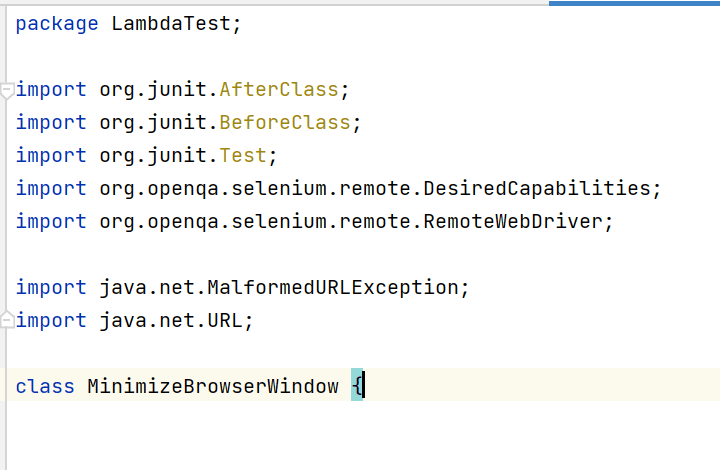
- Import Dependencies: Here, we have imported all the necessary classes of JUnit, Desired Capabilities, and RemoteWebDriver to set the respective browser capabilities and run the test cases on the grid. If you need multiple data-driven runs, see parameterized tests in JUnit.
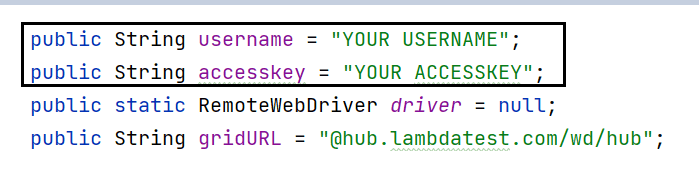
- Global Variables: As we have used a Selenium Grid Cloud like LamdaTest to perform our test execution, we are using the below-shown variables.
Here, you can populate the values for your corresponding username and access key, which can be collected by logging into your LamdaTest Profile Section. You can copy the Username and the Access Token to be used in the code. However, the grid URL will remain the same, as shown below.
- @BeforeClass(Setup Method): Here, we have used the TestMu AI Desired Capabilities Generator and have set the necessary capabilities of browser name, version, platform, etc., for our Selenium Remote WebDriver. In case you are new to JUnit annotations, do check out Annotations in JUnit blog that deep dives into the important annotations in JUnit.
- @Test(minimizeBrowserWindow): Here, we are simply logging into Selenium Playground, and then we are minimizing the browser using the driver.manage.window.minimize() command.
Also read: Selenium Grid Setup Tutorial: Basics & Examples For Parallel Testing

After minimizing the browser window, we get the title of the web page and print the same.
Also read – How To Run JUnit Selenium Tests using TestNG
Console Output
Once you run the test case, your console output will look like below.
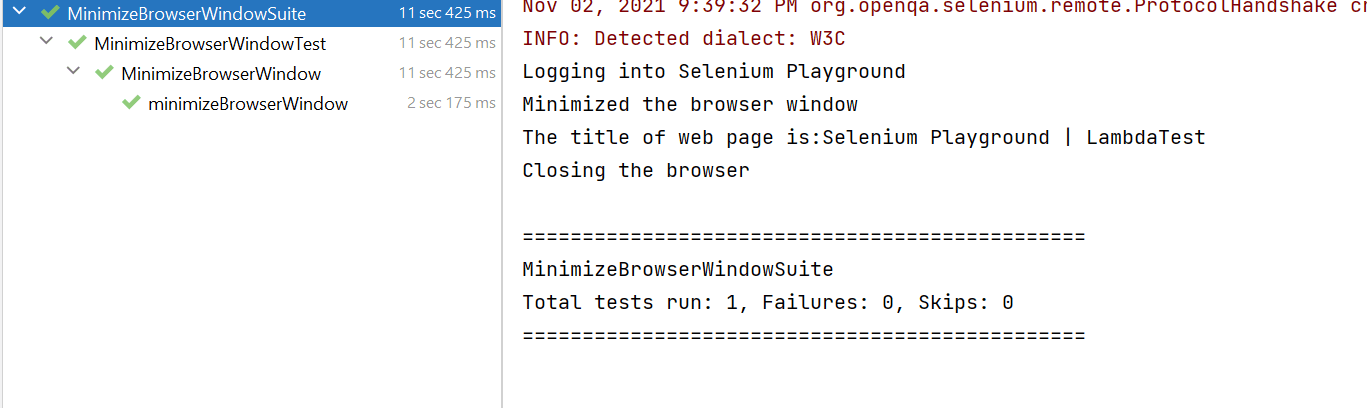
So as you can see, the test case runs seamlessly even when you minimize the actual browser window. Isn’t it cool?
Start your free testing on remote browser today.

Austin Siewert
Co-Founder, Steadfast Systems
Discovered @TestMu AI yesterday. Best browser testing tool I've found for my use case. Great pricing model for the limited testing I do 👏
2M+ Devs and QAs rely on TestMu AI
Deliver immersive digital experiences with Next-Generation Mobile Apps and Cross Browser Testing Cloud

This JUnit certification establishes testing standards for those who wish to advance their careers in Selenium automation testing with JUnit.
Here’s a short glimpse of the JUnit certification from TestMu AI:
How to minimize browsers in Selenium WebDriver using JUnit by setting its position?
In the above example of this Selenium JUnit tutorial, we saw how to minimize browsers in Selenium WebDriver using the minimize() function, which is one of the most widely used methods to do the same. However, wouldn’t it be interesting to explore a few more alternatives to do it? Let’s check them.
Also read: Selenium JUnit tutorial
In order to minimize the browser window, we can also use the below command.
driver.manage().window().setPosition(new Point(int x,int y));
Here, x and y refer to the respective x and y coordinates of the window position. Since the window position and dimensions differ from one machine to another, we will use a generic method of finding out the corresponding x & y coordinates relevant to the browser window. In the end, we will use them for setting the minimized position.
The below test case demonstrates the same use case that was demonstrated earlier. The only change is the usage of setPosition method to minimize the corresponding browser window.
package LambdaTest;

import org.openqa.selenium.Dimension;
import org.openqa.selenium.Point;
import org.openqa.selenium.remote.DesiredCapabilities;
import org.openqa.selenium.remote.RemoteWebDriver;
import org.junit.AfterClass;
import org.junit.BeforeClass;
import org.junit.Test;

import java.net.MalformedURLException;
import java.net.URL;

class MinimizeBrowserWindowUsingPosition {

   public String username = "YOUR USERNAME";
   public String accesskey = "YOUR ACCESSKEY";
   public static RemoteWebDriver driver = null;
   public String gridURL = "@hub.lambdatest.com/wd/hub";

   @BeforeClass
   public void setUp() throws Exception {
       DesiredCapabilities capabilities = new DesiredCapabilities();
       capabilities.setCapability("browserName", "chrome");
       capabilities.setCapability("version", "95.0");
       capabilities.setCapability("platform", "win10"); // If this cap isn't specified, it will just get the any available one
       capabilities.setCapability("build", "MinimizeBrowserWindowBySettingPosition");
       capabilities.setCapability("name", "MinimizeBrowserWindowBySettingPositionUsingSelenium");
       try {
           driver = new RemoteWebDriver(new URL("https://" + username + ":" + accesskey + gridURL), capabilities);
       } catch (MalformedURLException e) {
           System.out.println("Invalid grid URL");
       } catch (Exception e) {
           System.out.println(e.getMessage());
       }

   }

   @Test
   public void minimizeBrowserWindowBySettingPosition() {
       try {
           System.out.println("Logging into Selenium Playground");
           driver.get("http://labs.lambdatest.com/selenium-playground/");
           Point p = driver.manage().window().getPosition();
           System.out.println("The Position of the window is:"+p);
           Dimension d = driver.manage().window().getSize();
           System.out.println("The Size of the window is:"+d);
           driver.manage().window().setPosition(new Point((d.getHeight()-p.getX()), (d.getWidth()-p.getY())));
           System.out.println("The New X Coordinate After Minimizing Is:"+(d.getHeight()-p.getX()));
           System.out.println("The New Y Coordinate After Minimizing Is:"+(d.getWidth()-p.getY()));
           System.out.println("Minimized the browser window by setting its position");
           String title=driver.getTitle();
           System.out.println("The title of web page is:"+title);
       } catch (Exception e) {

       }

   }


   @AfterClass
   public void closeBrowser() {
       driver.close();
       System.out.println("Closing the browser");
   }
}
Code Walkthrough
Window position means the distance of the window from the left side(X Coordinates) of the screen and topside(Y Coordinates) of the screen.
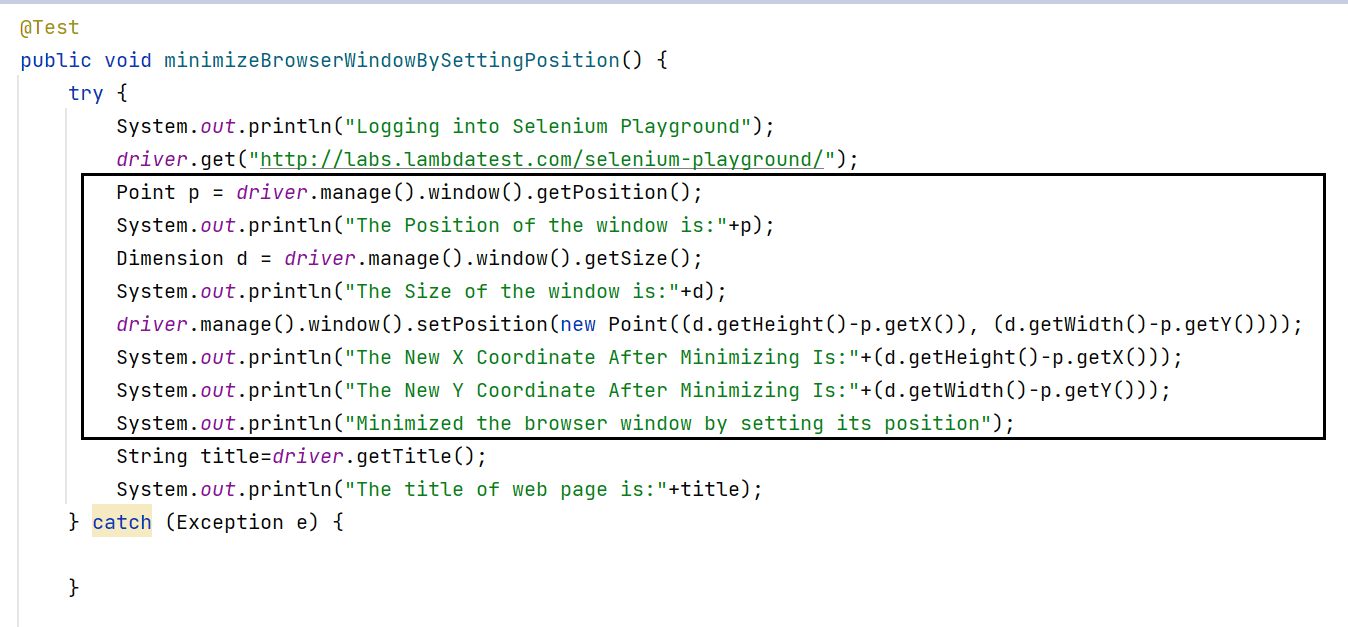
We are first determining the Position of the window followed by the Dimension. Later, by using the setPosition method, we set the corresponding x and y coordinates of the window as shown below, which will minimize the window.
driver.manage().window().setPosition(new Point((d.getHeight()-p.getX()), (d.getWidth()-p.getY())));
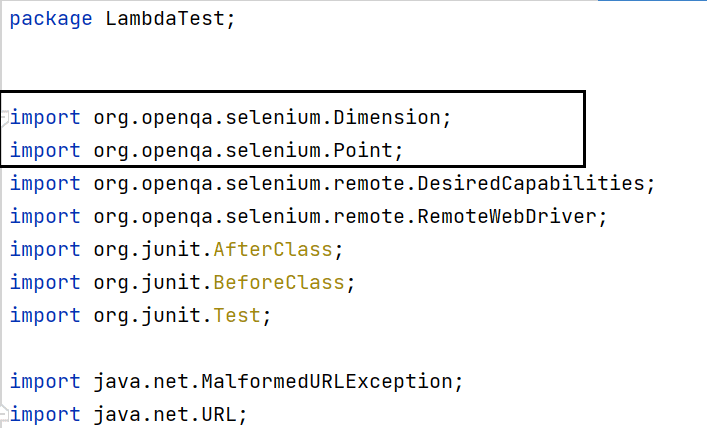
The below-highlighted package imports are necessary to use the Dimension and Point methods.
Console Output
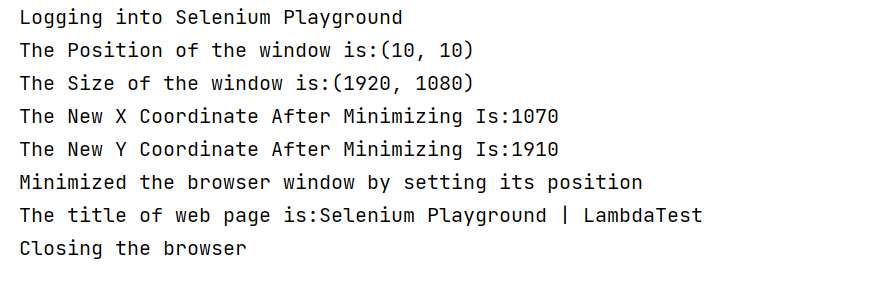
Once you run the test case, your console output will look like below.
How to minimize browsers in Selenium WebDriver using keyboard shortcuts?
In the above two sections of this Selenium JUnit tutorial, we looked at how to minimize browsers in Selenium WebDriver using the driver.manage.window() commands.
However, when it comes to minimizing the windows manually, we always fall back on keyboard shortcuts. The most widely used keyboard shortcut for doing the same is Windows + D.
Let’s see how we can replicate the keyboard shortcuts using our Selenium automation script. In this use case of replicating the keyboard shortcuts, we will make use of the Robot Class. Robot Class in Selenium generates native system input events for test automation and other applications where you need control over the mouse and keyboard. The major benefit of Robot Class is that it helps to handle keyboard actions in Selenium WebDriver.
However, one thing important to note is that the below use case of minimizing the browser using keyboard shortcuts holds only for a Windows Machine.
The below test case demonstrates the same use case for how to minimize browsers in Selenium WebDriver and getting the web page title with minimized browser window using the keyboard shortcut.
package LambdaTest;

import org.openqa.selenium.remote.DesiredCapabilities;
import org.openqa.selenium.remote.RemoteWebDriver;
import org.junit.AfterClass;
import org.junit.BeforeClass;
import org.junit.Test;

import java.awt.*;
import java.awt.event.KeyEvent;
import java.net.MalformedURLException;
import java.net.URL;

class MinimizeBrowserWindowUsingRobotClass {


   public String username = "YOUR USERNAME";
   public String accesskey = "YOUR ACCESSKEY";
   public static RemoteWebDriver driver = null;
   public String gridURL = "@hub.lambdatest.com/wd/hub";

   @BeforeClass
   public void setUp() throws Exception {
       DesiredCapabilities capabilities = new DesiredCapabilities();
       capabilities.setCapability("browserName", "chrome");
       capabilities.setCapability("version", "95.0");
       capabilities.setCapability("platform", "win10"); // If this cap isn't specified, it will just get the any available one
       capabilities.setCapability("build", "MinimizeBrowserWindow");
       capabilities.setCapability("name", "MinimizeBrowserWindowUsingRobotClass");
       try {
           driver = new RemoteWebDriver(new URL("https://" + username + ":" + accesskey + gridURL), capabilities);
       } catch (MalformedURLException e) {
           System.out.println("Invalid grid URL");
       } catch (Exception e) {
           System.out.println(e.getMessage());
       }

   }

   @Test
   public void minimizeBrowserWindowUsingRobotClass() {
       try {
           System.out.println("Logging into Selenium Playground");
           driver.get("http://labs.lambdatest.com/selenium-playground/");
           Robot robot = new Robot();
           robot.keyPress(KeyEvent.VK_WINDOWS);
           robot.keyPress(KeyEvent.VK_D);
           System.out.println("Minimizing the window");
           robot.keyRelease(KeyEvent.VK_WINDOWS);
           robot.keyRelease(KeyEvent.VK_D);
           System.out.println("Minimized the browser window");
           String title=driver.getTitle();
           System.out.println("The title of web page is:"+title);
       } catch (Exception e) {

       }

   }


   @AfterClass
   public void closeBrowser() {
       driver.close();
       System.out.println("Closing the browser");

   }

}
Code Walkthrough
To emulate the keyboard shortcut(Windows + D), we have used Robot Class. Here, we have made use of keyPress and keyRelease functions of Robot Class.
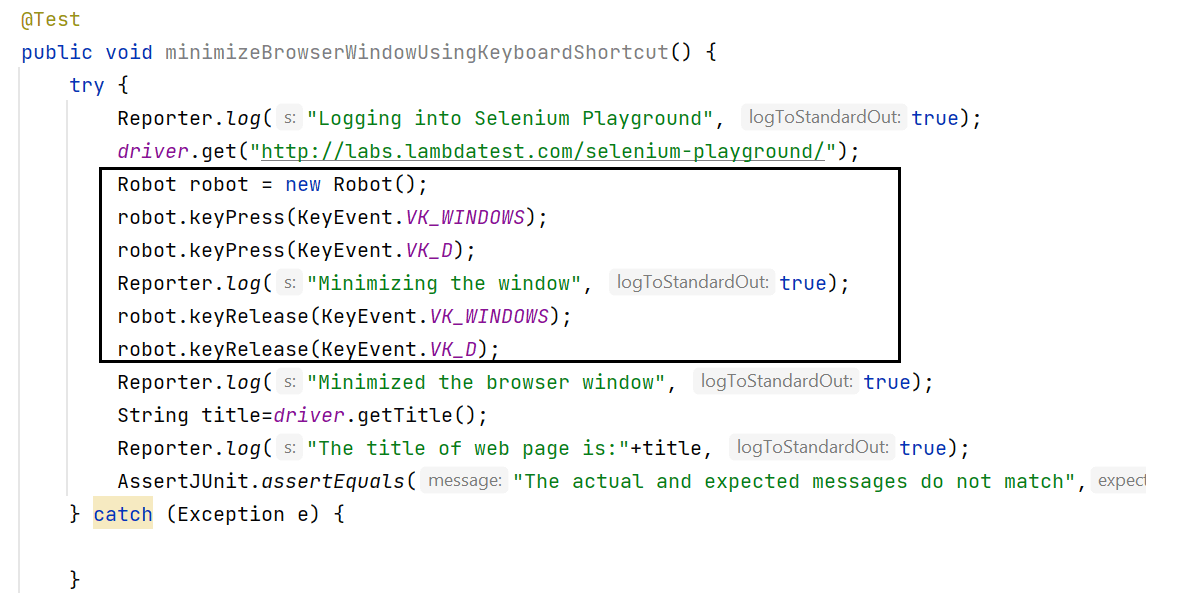
keyPress(int keycode): This method is used to press a given key. The parameter keycode is an integer value for the key pressed. For example, to press a key for alphabet A, the value that has to pass is KeyEvent.VK_A i.e., keyPress(KeyEvent.VK_A).
keyRelease(int keycode): This method releases the given key. The keycode parameter is the integer value for the pressed key. For example, to release the already pressed key for alphabet A, the value that has to pass is KeyEvent.VK_A i.e., keyPress(KeyEvent.VK_A).
Here, KeyEvent is a low-level event. In Java AWT, low-level events are events that indicate direct communication from the user like a keypress, key release, etc.
In order to use the above-specified methods, you will need the below package imports.

As a result, by using the Robot class and its keyPress and KeyRelease methods, we would easily emulate the keyboard actions of pressing Windows+D buttons together and releasing them once the browser window gets minimized.
How to minimize multiple browser windows in Selenium WebDriver using JUnit?
In the above sections of this Selenium JUnit tutorial, we saw how to minimize browsers in Selenium WebDriver using different ways like using the minimize method, setPosition method, and the keyboard actions in Selenium WebDriver.
We would be demonstrating the same usecase in this section as well. However, we cover it through three different test methods in this example and perform it in three different browsers. Also, here is the list of all browsers on TestMu AI automation testing platform that can be leveraged to run online JUnit tests
package LambdaTest;

import org.openqa.selenium.remote.DesiredCapabilities;
import org.openqa.selenium.remote.RemoteWebDriver;
import org.junit.AfterClass;
import org.junit.BeforeClass;
import org.junit.Test;

import java.net.MalformedURLException;
import java.net.URL;

class MinimizeMultipleBrowserWindow {


   public String username = "YOUR USERNAME";
   public String accesskey = "YOUR ACCESSKEY";
   public String gridURL = "@hub.lambdatest.com/wd/hub";

   @Test
   public void minimizeWindowInChromeBrowser() {
       try {
           RemoteWebDriver driver = null;
           DesiredCapabilities capabilities = new DesiredCapabilities();
           capabilities.setCapability("browserName", "Chrome");
           capabilities.setCapability("version", "latest");
           capabilities.setCapability("platform", "win10"); // If this cap isn't specified, it will just get the any available one
           capabilities.setCapability("build", "MinimizeChromeBrowserWindow");
           capabilities.setCapability("name", "MinimizeChromeBrowserWindowUsingChromeBrowser");
           try {
               driver = new RemoteWebDriver(new URL("https://" + username + ":" + accesskey + gridURL), capabilities);
           } catch (MalformedURLException e) {
               System.out.println("Invalid grid URL");
           } catch (Exception e) {
               System.out.println(e.getMessage());
           }
           System.out.println("Logging into Selenium Playground");
           driver.get("http://labs.lambdatest.com/selenium-playground/");
           driver.manage().window().minimize();
           System.out.println("Minimized the browser window");
           String title=driver.getTitle();
           System.out.println("The title of web page is:"+title);
           driver.close();
           System.out.println("Closing the browser");
       } catch (Exception e) {

       }

   }

   @Test
   public void minimizeWindowInFirefoxBrowser() {
       try {
           RemoteWebDriver driver = null;
           DesiredCapabilities capabilities = new DesiredCapabilities();
           capabilities.setCapability("browserName", "Firefox");
           capabilities.setCapability("version", "94.0");
           capabilities.setCapability("platform", "win10"); // If this cap isn't specified, it will just get the any available one
           capabilities.setCapability("build", "MinimizeFirefoxBrowserWindow");
           capabilities.setCapability("name", "MinimizeFirefoxBrowserWindowUsingFireFoxBrowser");
           try {
               driver = new RemoteWebDriver(new URL("https://" + username + ":" + accesskey + gridURL), capabilities);
           } catch (MalformedURLException e) {
               System.out.println("Invalid grid URL");
           } catch (Exception e) {
               System.out.println(e.getMessage());
           }
           System.out.println("Logging into Selenium Playground");
           driver.get("http://labs.lambdatest.com/selenium-playground/");
           driver.manage().window().minimize();
           System.out.println("Minimized the browser window");
           String title=driver.getTitle();
           System.out.println("The title of web page is:"+title);
           driver.close();
           System.out.println("Closing the browser");
       } catch (Exception e) {

       }

   }

   @Test
   public void minimizeWindowInMicrosoftEdgeBrowser() {
       try {
           RemoteWebDriver driver = null;
           DesiredCapabilities capabilities = new DesiredCapabilities();
           capabilities.setCapability("browserName", "MicrosoftEdge");
           capabilities.setCapability("version", "95.0");
           capabilities.setCapability("platform", "win10"); // If this cap isn't specified, it will just get the any available one
           capabilities.setCapability("build", "MinimizeEdgeBrowserWindow");
           capabilities.setCapability("name", "MinimizeEdgeBrowserWindowUsingEdgeBrowser");
           try {
               driver = new RemoteWebDriver(new URL("https://" + username + ":" + accesskey + gridURL), capabilities);
           } catch (MalformedURLException e) {
               System.out.println("Invalid grid URL");
           } catch (Exception e) {
               System.out.println(e.getMessage());
           }
           System.out.println("Logging into Selenium Playground");
           driver.get("http://labs.lambdatest.com/selenium-playground/");
           driver.manage().window().minimize();
           System.out.println("Minimized the browser window");
           String title=driver.getTitle();
           System.out.println("The title of web page is:"+title);
           driver.close();
           System.out.println("Closing the browser");
       } catch (Exception e) {

       }

   }


}
Code Walkthrough
In this test case, we cover the minimized window functionality in three different browsers, i.e., Chrome, Firefox, and Microsoft Edge. Here, we are using the TestMu AI grid to set up the corresponding browser name and versions.
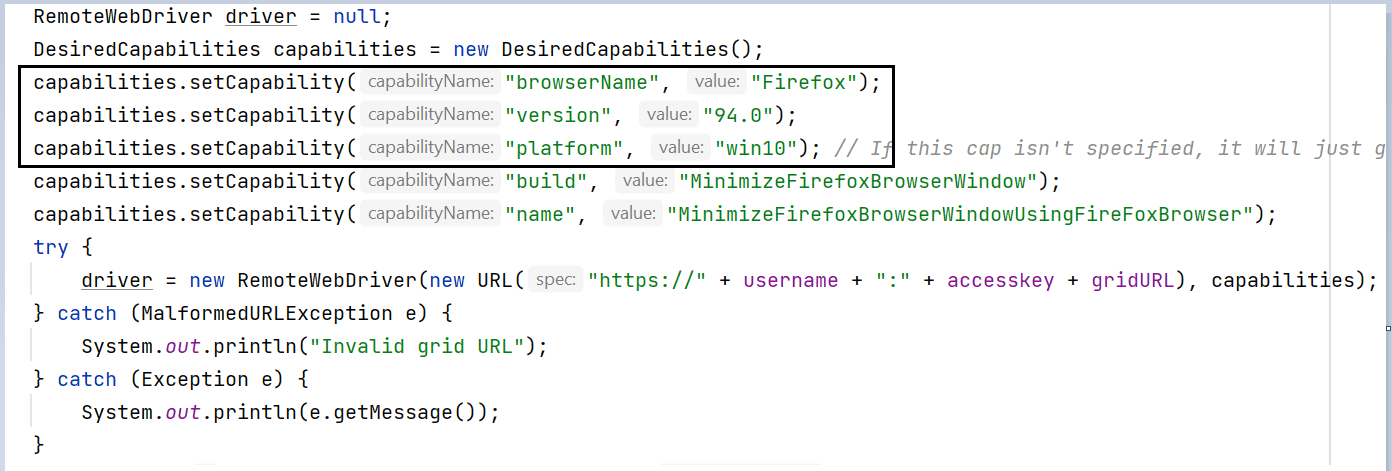
Once the corresponding browsers are launched, we log into Selenium Playground, minimize the corresponding windows, and get the web page title.
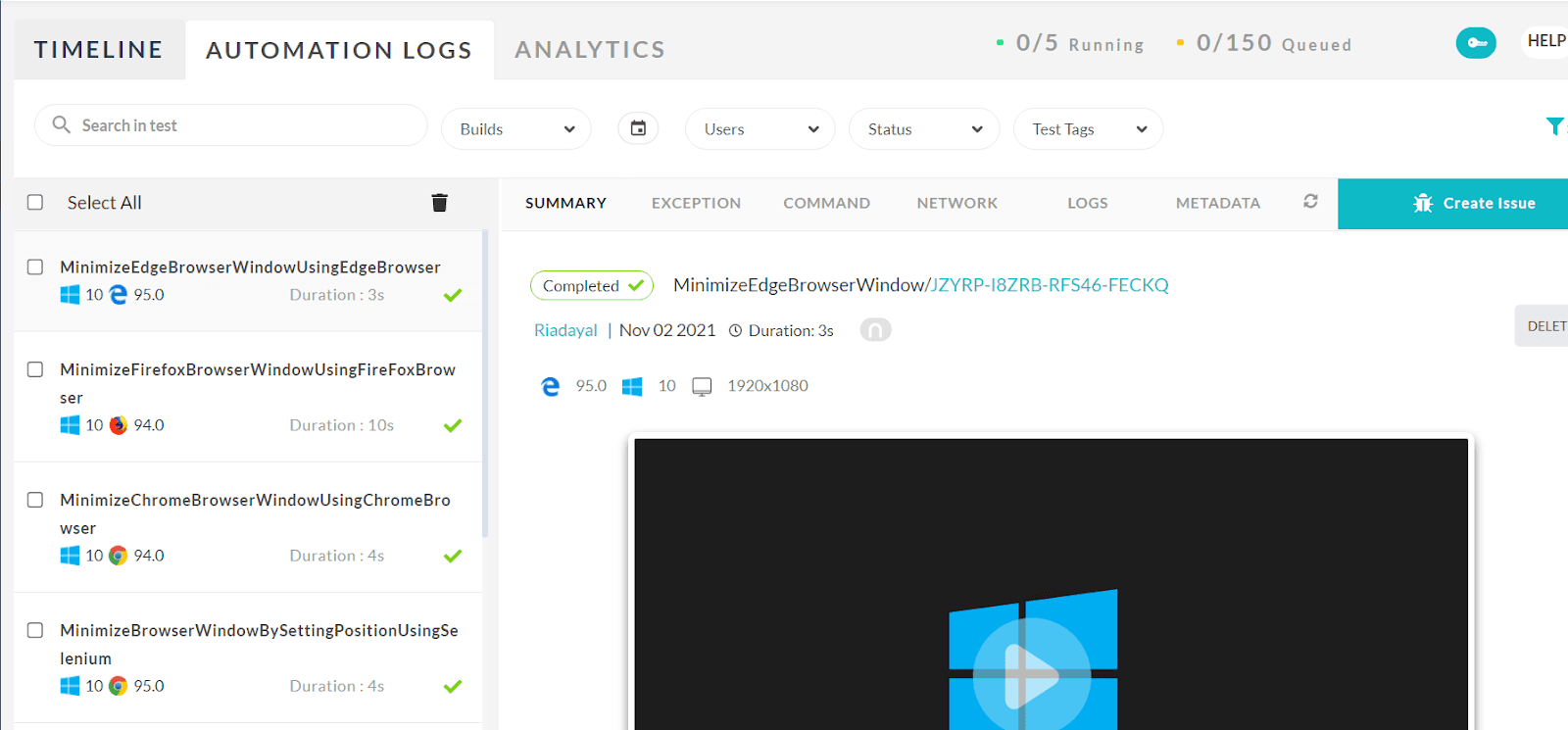
As a result, by using the TestMu AI grid, we covered the same test case in 3 different browser flavors. We then ran the three different test cases simultaneously by making use of parallel testing with JUnit 5 and Selenium.
Life is easier, isn’t it?
This Selenium JUnit testing tutorial for beginners and professionals will help you perform parallel test execution with JUnit and Selenium on TestMu AI cloud-based Selenium Grid.

Once the tests are completed, you can view the test results, logs, and the test recording as well at your TestMu AI Automation Dashboard.
Note: Now you can perform online cross browser testing on Brave Browsers to make sure your websites and web apps are compatible with all versions.
How Do AI Test Agents Handle Minimized Browser Windows?
AI test agents that read screenshots or use vision models cannot see a minimized window, since the OS stops rendering it, so most agent pipelines run headless instead of calling minimize().
- Blank screenshots: A tool built on Java's Robot class, the same class this tutorial uses for keyboard shortcuts, captures screen pixels, not the DOM, so it returns a blank or stale image once the window is minimized.
- Headless replaces minimize(): Headless Chrome and Firefox never open a visible window at all, so an agent gets the same no-window-on-screen result without ever calling minimize() or risking a blank capture.
- Vision-based agents need rendered pixels: Agentic frameworks that click elements by reading the screen, rather than the DOM, depend on a rendered frame, whether headless or on-screen; a minimized native window provides neither.
- CI pipelines already skip it: Most CI and agent runners already execute inside a headless or virtual display, so driver.manage().window().minimize() has little practical use there and stays mainly a tool for local, human-supervised debugging.
Teams testing agentic browser features should verify screenshot-based and vision-based flows in headless mode rather than relying on minimize() alone.
Conclusion
In this Selenium JUnit tutorial, we learned how to minimize browsers in Selenium WebDriver while performing Selenium automation testing using driver.manage.window.minimize(). We also learned about its alternatives of setting the window position or pressing the keyboard keys using the Robot class in Selenium. In the end, we also implemented the same scenario across multiple browser windows of different flavors and ran them in parallel.
I hope you enjoyed reading this article and learned the different ways of minimizing the browser window.
Happy Testing!!
Austin Siewert
Co-Founder, Steadfast Systems
Discovered @TestMu AI yesterday. Best browser testing tool I've found for my use case. Great pricing model for the limited testing I do 👏
2M+ Devs and QAs rely on TestMu AI
Deliver immersive digital experiences with Next-Generation Mobile Apps and Cross Browser Testing Cloud
Author

Ria Dayal
Blogs: 8


Ria Dayal is a Principal QA Engineer at Informatica with over 10 years of experience in software testing, automation, and Agile delivery. She is skilled in Selenium, Java, REST Assured, Cucumber, Postman, and Jenkins, with additional expertise in shell scripting, Docker, and log monitoring. She has also worked with Deloitte and Infosys on automation and manual testing projects. Ria holds certifications in AWS Fundamentals, Salesforce Administration, and Generative AI.


Minimize Browsers in Selenium WebDriver FAQs
Did you find this page helpful?
More Related Blogs
TestMu AI forEnterprise
Get access to solutions built on Enterprise
grade security, privacy, & compliance
- Advanced access controls
- Advanced data retention rules
- Advanced Local Testing
- Premium Support options
- Early access to beta features
- Private Slack Channel
- Unlimited Manual Accessibility DevTools Tests