
Assure your AI deployment - across enterprise and real world
We assure that your AI works as intended. Safely and securely.

Run a KaneAI Test Case With Quick Run
Quick Run executes a saved KaneAI test case on chosen configurations and creates one Test Run in Test Manager. Plus mobile web capture and authoring resolution.
Published on:
You have just saved a KaneAI test case and want to see it pass on Windows Chrome and macOS Chrome before the sprint review. Building a full test run by hand is a lot of setup for one check.
Quick Run executes a single saved KaneAI test case on the configurations you choose, straight from its Test Summary page. It creates a Test Run, so Test Manager tracks the result beside every other run. Manual Interaction now captures actions in mobile browsers as well, and Desktop Web authoring sessions take a resolution setting.
What Is Quick Run in KaneAI?
Quick Run starts a saved test case from Test Summary without setting up a test run manually. Each Quick Run creates one Test Run, with one test instance per selected configuration. Selecting Windows Chrome and macOS Chrome gives you one run holding two instances of the same case.
TestMu AI is rolling Quick Run out gradually, so it may not appear for your organization yet.
The test case must be saved first, and you need at least one compatible saved configuration: the object defining the browser, operating system, resolution, or device a run executes on. A New Experience desktop web test needs a Chrome configuration. A Classic test needs its code generation finished first.
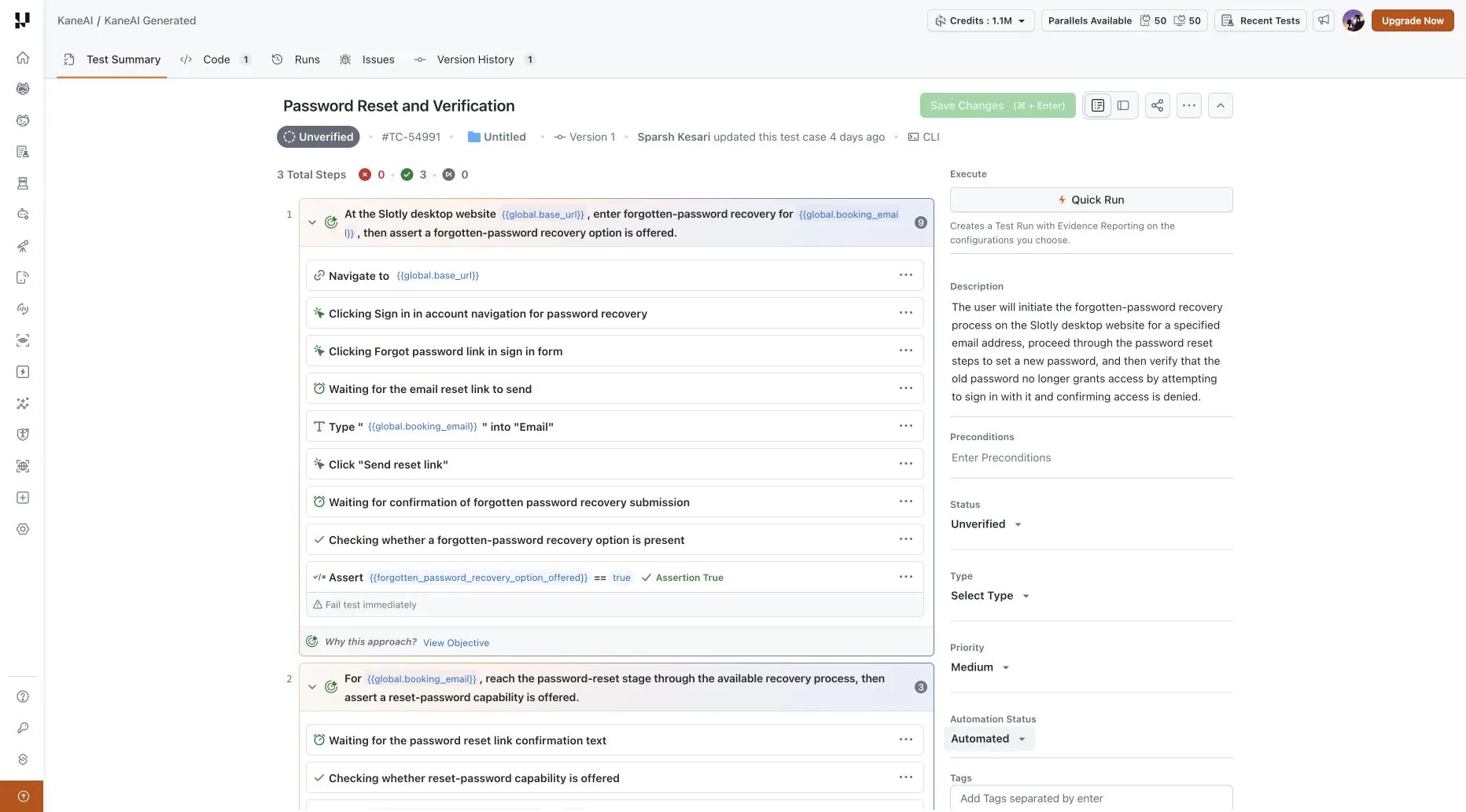
Because the run lands in test management software as a normal Test Run, it carries the same tracking as any other execution. Results sit on the test case's Runs tab and in the project's Test Runs list, which is where you look for it a week later.
How Do You Start a Quick Run?
The flow is a drawer: select configurations, review the settings, start the run.
- In Test Manager, open your project and the saved KaneAI test case. On Test Summary, click Quick Run under Execute.
- On Select configurations, use the search box or the OS, Browsers, and Resolution filters, tick one or more compatible configurations, and click Continue.
- On Review and start, check the run name, instance count, selected configurations, and Run Mode, then click Start quick run.
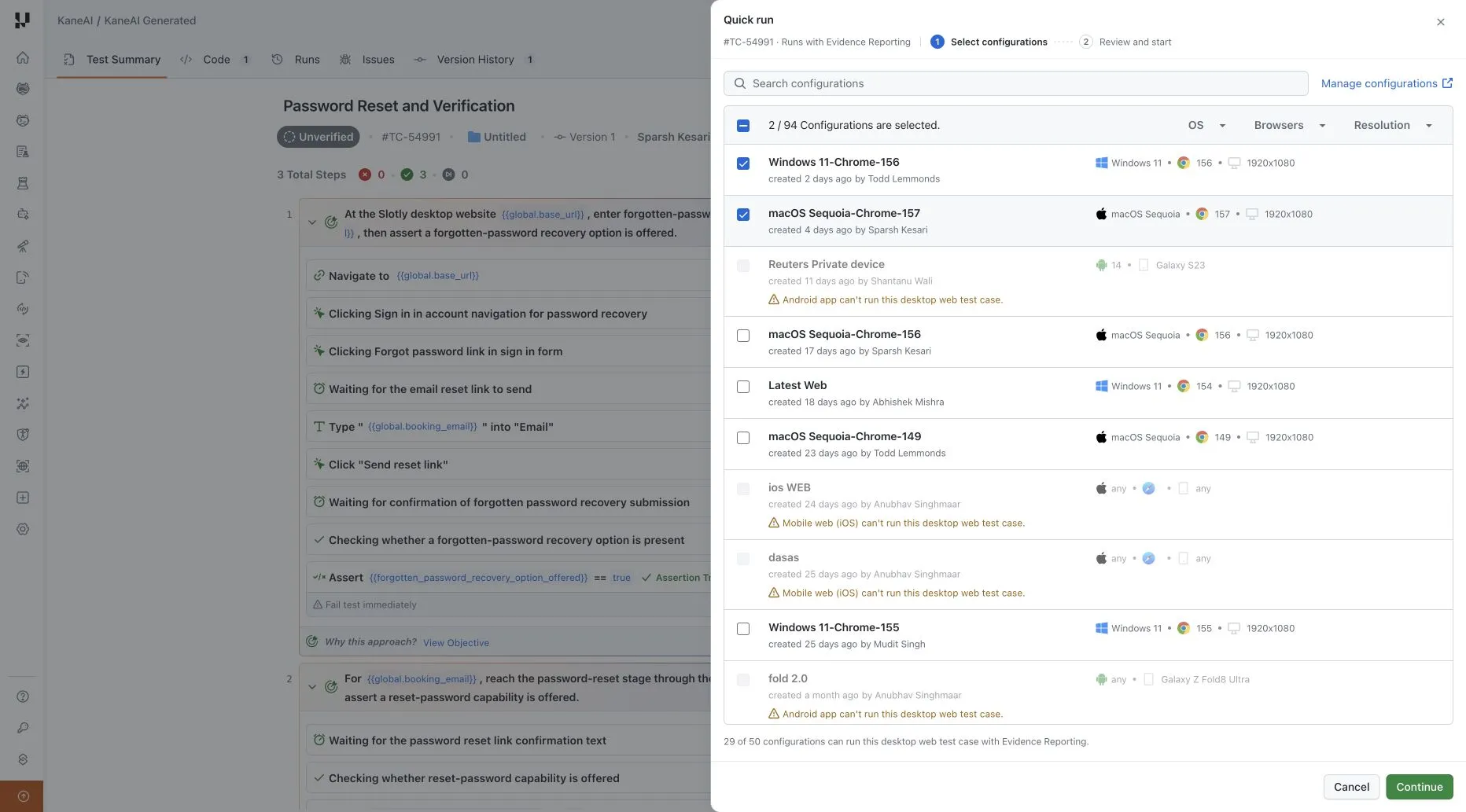
The drawer's subtitle names the test case and the reporting mode, so you know which report you are getting before selecting anything. Configurations that cannot run the case show the reason on their own row rather than failing later with no explanation.
The default run name includes the test case number and your local date and time, as in TC-54991 | Quick run | 9 Nov 2026, 15:48, and you can edit it before you start.
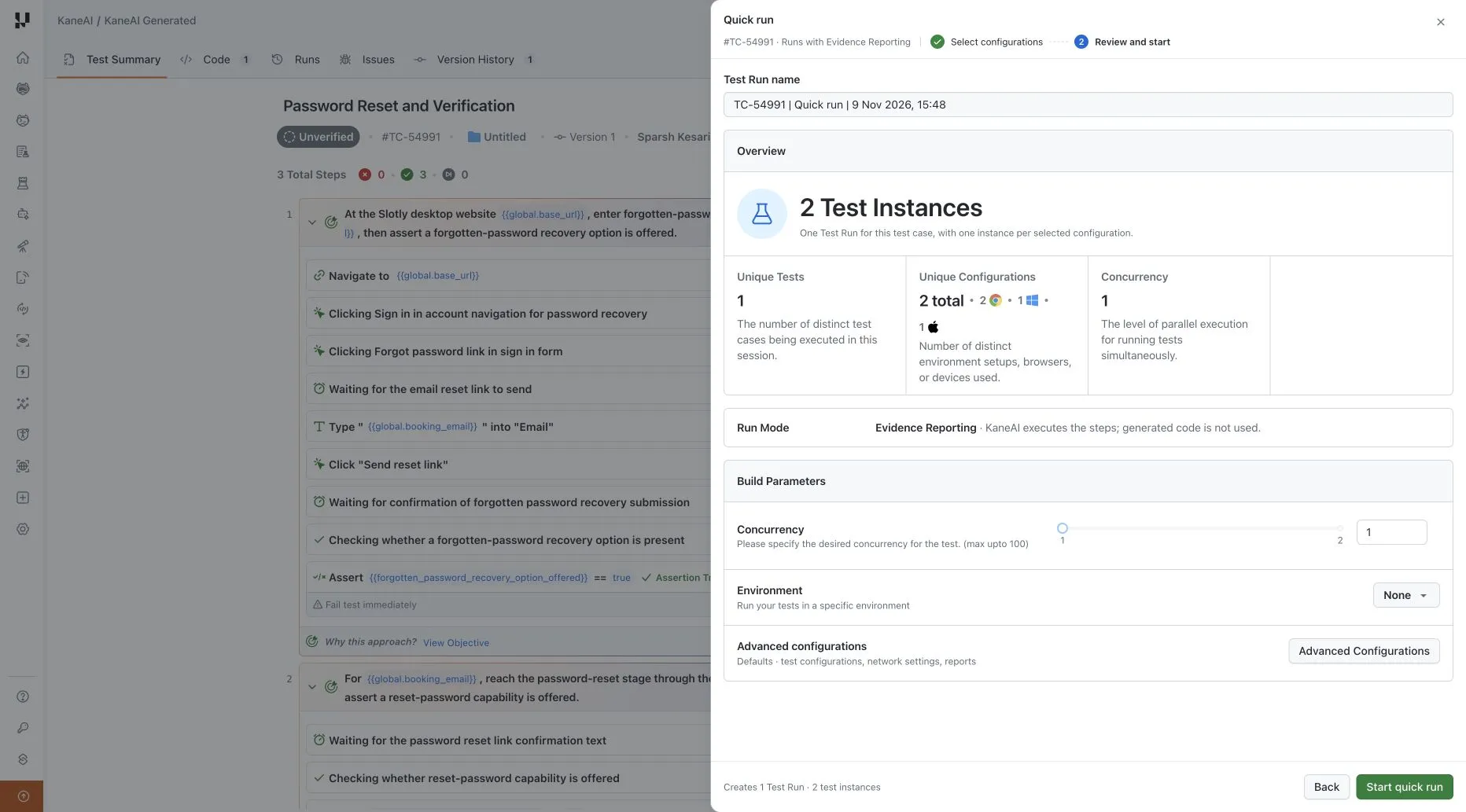
- Concurrency - how many instances execute simultaneously, as a whole number from 1 up to your selected instance count, capped at 100.
- Environment - select one when the run needs environment-specific variables.
- Advanced Configurations - a separate section whose settings apply to every supported instance in the run and persist when you return to review.
For Evidence Reporting, those sections are Test configuration, Network settings, and Reports, holding self-maintenance, auto-approve changes, timezone, tunnel, geolocation, and report delivery. Classic runs expose their own execution settings instead, including console and network logs and retries. The platform and the configurations you picked decide which options appear.
Starting the run creates the Test Run and opens its Test Instances view. Once an Evidence run finishes, reopening it lands on the Evidence Report, and Test Instances is how you get back to individual results.

Note: Author a test in natural language and run it across 3,000+ browser and OS combinations on TestMu AI. Start free with TestMu AI
Which Configurations Can Run a Test Case?
Browser support and platform match govern selection, and the drawer shows both before you start the run.
- Desktop browser support is Chrome-only - Edge, Firefox, and Safari configurations cannot run a desktop web test case with Evidence Reporting. They appear disabled in the selector with a message explaining the restriction.
- Configurations must match the test case platform - desktop web, Android mobile web, iOS mobile web, Android app, and iOS app each need their own. A message such as Android app can't run this desktop web test case means you need a desktop web configuration.
When nothing eligible appears, Manage configurations opens the catalogue so you can add or edit one without leaving the flow. Select at least one eligible configuration to continue.
The two rules fail in similar-looking ways: a greyed-out Safari row and a greyed-out Android app row are different problems with different fixes. The test case guide covers how a case is structured.

What Changed for Manual Interaction on Mobile Web?
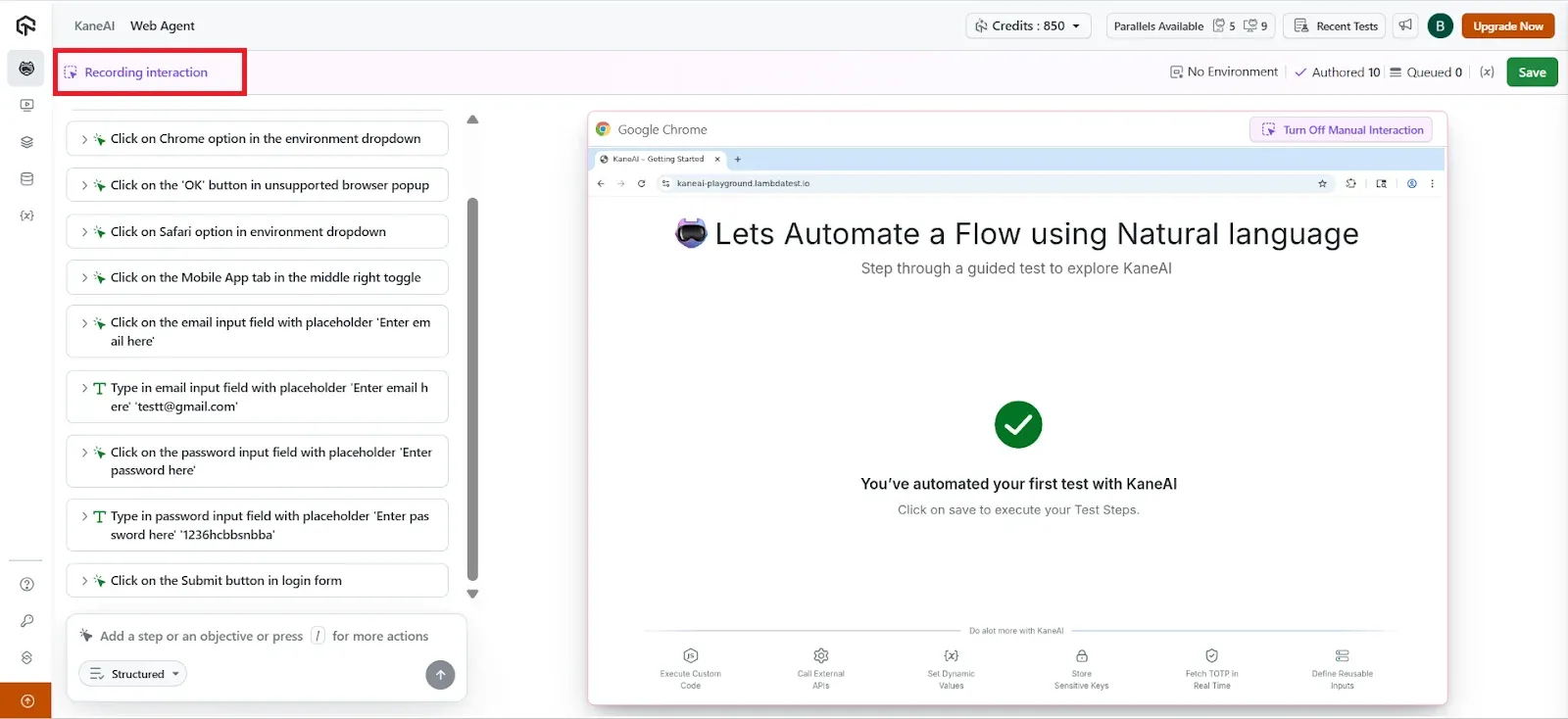
Manual Interaction now captures actions in mobile browsers alongside desktop browsers and native mobile apps. Instead of describing a tap or a scroll in words, you perform it and the agent records it as a structured step.
| Platform | Capture support |
|---|---|
| Web browser on desktop | Supported |
| Mobile app on Android | Supported |
| Mobile app on iOS | Supported |
| Mobile browser | Supported, with drag and drop and click and drag not supported |
There is nothing to switch on. Capture is always active while the session is in the Authoring Steps state, and captured steps append to the end of the list because the cursor sits at the bottom there. To interact without creating steps, use Pause, which moves the session to the Paused state and shows a Step recording paused indicator.
Manual Interaction records no assertions, if-else logic, modules, variables, parameters, secrets, or dataset-driven values, because none of them is a UI action. You write those as natural language instructions, or add them through slash commands such as /api, /js, and /db, which keep working regardless of capture. You write the API work in Bulk API Import and response assertions the same way.
You can edit only the locator name on a captured step, and only while the session is Paused. Action type, element behavior and interaction flow stay as recorded, so delete a wrong step and record it again, or rewrite it as an instruction. The Manual Interaction documentation covers the rest.
Conclusion
Open a saved New Experience case, click Quick Run, and select two Chrome configurations rather than one. The second instance costs no extra setup and shows whether the case holds on both.
Before the next desktop web case, set the authoring resolution to the size your users run, since that decides which elements exist to record against. KaneAI keeps authoring, execution, and the run in one workspace. The Quick Run documentation has the step reference.
Author

Bhavya Hada
Blogs: 30


Bhavya Hada is a Community Contributor at TestMu AI with over three years of experience in software testing and quality assurance. She has authored 20+ articles on software testing, test automation, QA, and other tech topics. She holds certifications in Automation Testing, KaneAI, Selenium, Appium, Playwright, and Cypress. At TestMu AI, Bhavya leads marketing initiatives around AI-driven test automation and develops technical content across blogs, social media, newsletters, and community forums. On LinkedIn, she is followed by 4,000+ QA engineers, testers, and tech professionals.
Reviewer

Shantanu Wali
Reviewer
Shantanu Wali is Vice President of Product Management at TestMu AI, where he owns several product lines across the testing platform, including the Real Device Cloud and the Digital Experience Testing Cloud. He has also contributed significantly to the development and scaling of KaneAI, TestMu AI's flagship GenAI-native testing agent that uses natural language to make software testing faster and more reliable in this AI era. He brings 7+ years of experience across software development and product management, starting as a backend developer at Infosys building solutions for Fortune 500 clients. Shantanu holds an MBA from IIM Calcutta and a B.Tech in Mechanical Engineering.


Quick Run FAQs
Did you find this page helpful?
More Related Blogs

TestMu AI forEnterprise
Get access to solutions built on Enterprise
grade security, privacy, & compliance
- Advanced access controls
- Advanced data retention rules
- Advanced Local Testing
- Premium Support options
- Early access to beta features
- Private Slack Channel
- Unlimited Manual Accessibility DevTools Tests