

Power Your Software Testing with AI Agents and Cloud
The Native AI-Agentic Cloud Platform to Supercharge Quality Engineering. Test Intelligently and Ship Faster.


- TestMu AI (Formerly LambdaTest)
- /
- Blog
- /
- Link Linear Issues With Test Manager
Link Linear Issues With Test Manager
Link Linear issues to test cases, runs, instances and steps in TestMu AI Test Manager. Details are fetched live from Linear, so status is never stale.
Published on:
A test fails, the tester files the bug in Linear, and the connection between the two lives in someone's memory or a pasted link in a comment. Weeks later the release review asks which failures are still open, and answering it means opening both tools and reconciling them by hand.
Test Manager now links Linear issues directly to test artifacts. The issue's current details travel with the test case, test run, or step, so a failing test traces back to the work item behind it without leaving Test Manager.
What Can You Link a Linear Issue To?
Linking works at four levels, which matters because a failure is rarely about a whole test case. The step that broke is usually the thing the bug describes.
- Test case - the issue follows the case itself, wherever it is run.
- Test run - the issue belongs to one execution of a set of cases.
- Test run instance - the issue attaches to one case inside one run, which is where most triage lands.
- Individual step - the issue points at the exact step that failed.
The relationship is many-to-many in both directions. One Linear issue can be linked to any number of test cases, runs, and instances, and one test artifact can carry any number of Linear issues. Linking the same issue to the same artifact twice does not create a duplicate, so repeated linking during a triage session is safe.
How Do You Link a Linear Issue?
Connect Linear to your account first. Until it is connected, Linear cannot be selected as a source, and the Link Issue dialog shows the connection state of each tracker so you can see why. The setup steps are in the documentation on Linear app integration.
- Open the Issues tab inside a test case or a test run and click Link Issue.
- Select Linear as the source.
- Enter the Linear issue ID or paste its URL, then click Link Issue.
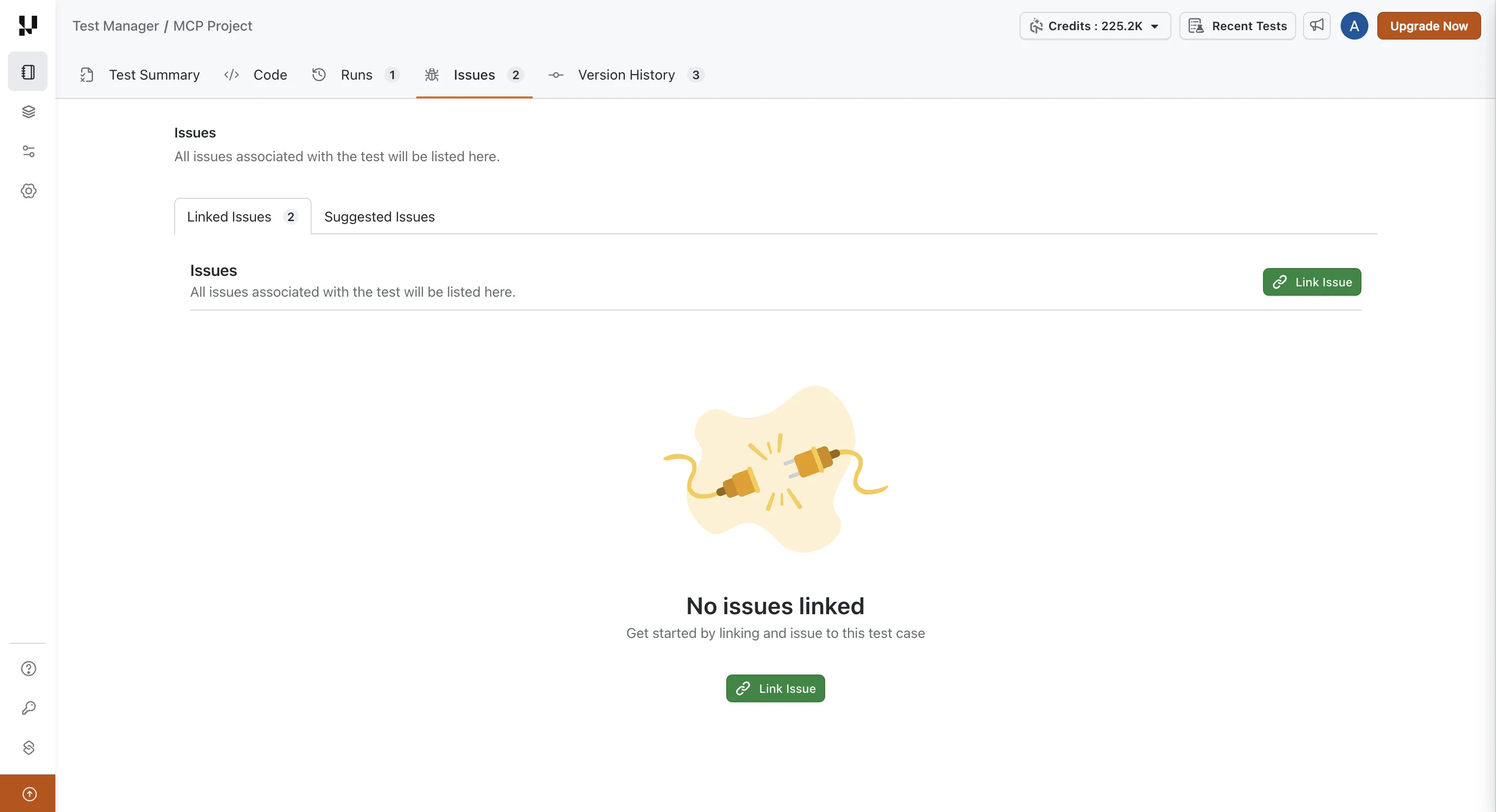
One boundary governs what you can find: searching and linking are limited to the Linear projects selected during setup. Issues from any other project are not returned, so an issue that will not appear is usually a scope question rather than a search problem.

Note: Test Manager connects requirements, test cases, runs, and defects in one traceability view across 120+ integrations. Start free with TestMu AI
What Does a Linked Issue Show?
A linked issue lists its title, identifier, issue type, status, priority, creation date, and creator, and clicking it opens the issue directly in Linear.
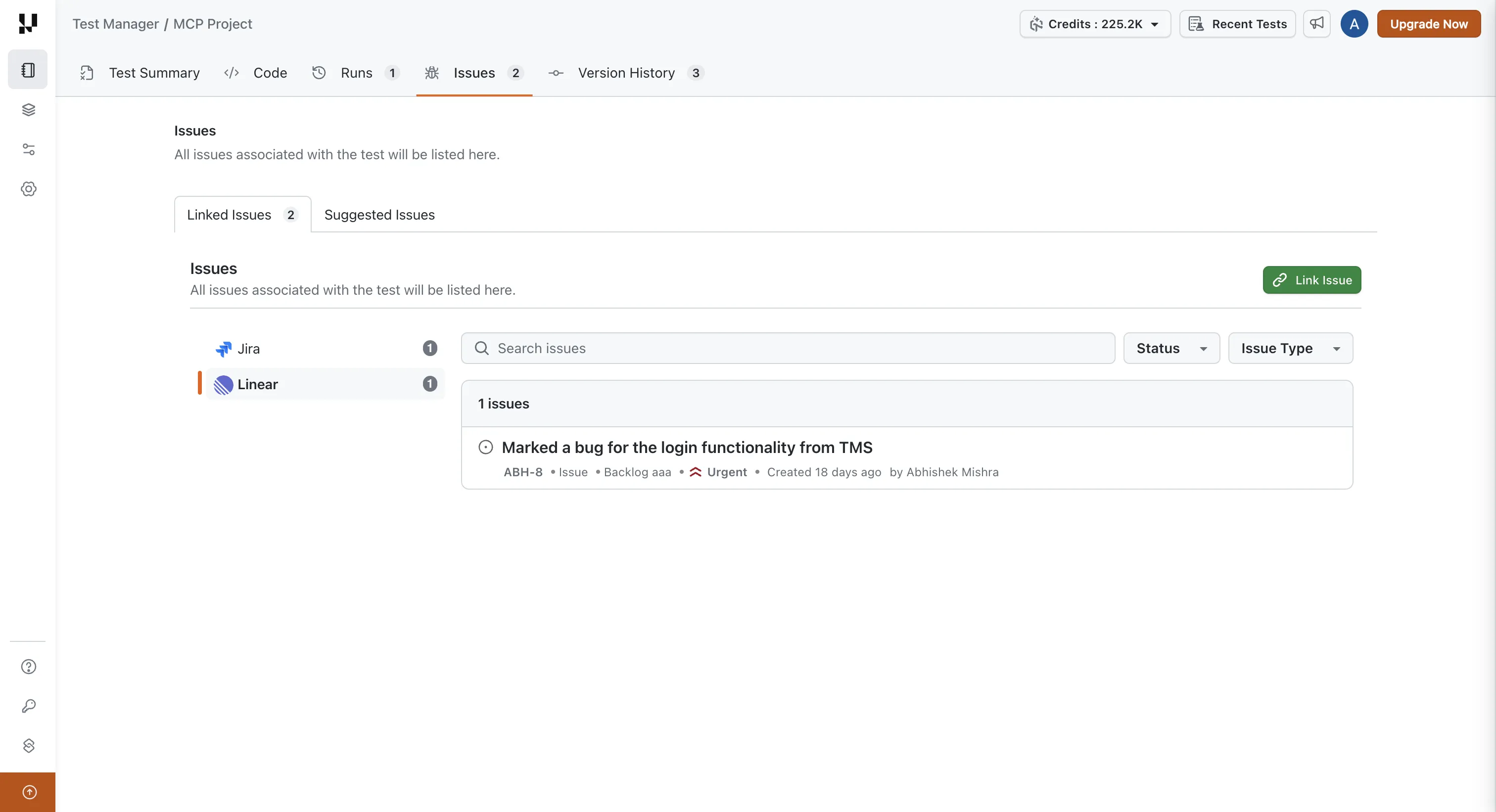
The detail that changes how much you can trust the view: Test Manager does not store any of these fields. They are fetched from Linear every time you open the test case, test run, or instance, so the status beside a failing test is the status in Linear at that moment, not a copy taken when someone linked it. Stale defect status is the usual reason a traceability report has to be re-checked by hand, and this removes that step.
Linked issues are grouped by tracker, so Linear issues sit under Linear alongside any Jira or Azure DevOps issues on the same test artifact. A search box and Status and Issue Type filters narrow a long list, which matters on a run that accumulated issues across several triage passes. For the wider practice this supports, the guide to defect management covers how defect records and test evidence fit together.
What Happens When Linear Changes?
Because the details are fetched rather than stored, the useful question is what you see when Linear cannot answer. Each situation has a defined behaviour.
| Situation | What happens |
|---|---|
| Linear is not connected to your account | Linear cannot be selected in the Link Issue dialog until you connect it |
| The issue belongs to a project you did not select during setup | It is not returned in results and cannot be linked |
| Linear is temporarily unreachable | The issue is shown with the details last retrieved, along with a notice that they could not be refreshed. The next view retries |
| The issue is archived in Linear | The issue is identified as archived and can still be linked |
| The issue has been deleted in Linear | The issue is reported as unavailable and can be unlinked |
| Linear is disconnected from your account | Linked Linear issues are no longer shown. They become visible again if you reconnect the same Linear workspace and projects |
The disconnect row is the one worth noting before an integration change. Links are not destroyed when the connection drops, they stop being displayed, and reconnecting the same workspace and the same projects brings them back.

How Does Unlinking Work?
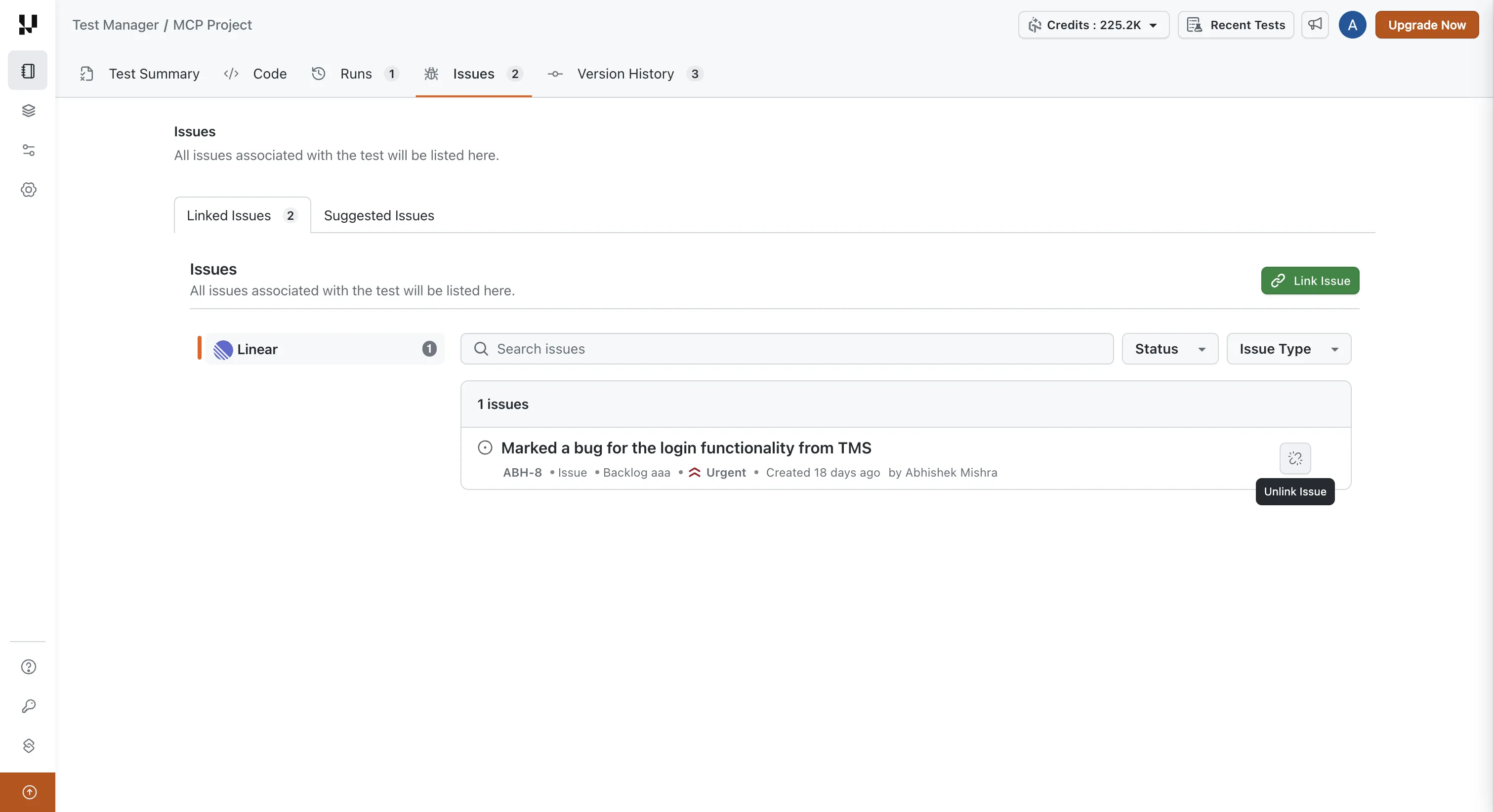
The unlink button sits on the right side of each linked issue. Unlinking removes the association in Test Manager only, and the issue itself stays in Linear, so clearing a wrong link during triage carries no risk to the tracker.
That separation is what makes linking cheap to use. An issue linked to the wrong instance can be removed and relinked to the right one without touching the Linear record, and a tester who links generously during a run is not creating cleanup work for whoever writes the release report. The structure of the artifacts being linked is covered in the test case guide.
Conclusion
Connect Linear, then link at the instance or step level on your next failing run rather than at the case level, because that is where the issue and the evidence actually correspond. The full reference is in the documentation on link Linear issues with Test Manager.
Linear joins Jira and Azure DevOps as a tracker you can trace from inside Test Manager, which keeps requirements, cases, runs, and defects in one workspace. If you also log new bugs to Linear from a run, the earlier walkthrough on bug tracking with the Linear app covers that side of the integration.
Author

Bhavya Hada
Blogs: 29


Bhavya Hada is a Community Contributor at TestMu AI with over three years of experience in software testing and quality assurance. She has authored 20+ articles on software testing, test automation, QA, and other tech topics. She holds certifications in Automation Testing, KaneAI, Selenium, Appium, Playwright, and Cypress. At TestMu AI, Bhavya leads marketing initiatives around AI-driven test automation and develops technical content across blogs, social media, newsletters, and community forums. On LinkedIn, she is followed by 4,000+ QA engineers, testers, and tech professionals.
Reviewer

Abhishek Mishra
Reviewer
Abhishek Mishra is a Technical Product Manager at TestMu AI, where he owns Test Manager, the test management product. He has over 8 years of experience in product management and market analysis. His expertise spans across AI-native software testing, product strategy, and analytics. Previously, Abhishek served as the Product Lead at IndiaClan and co-founded Gartley618 Technologies, where he led innovative projects in quantitative trading and blockchain. He holds a B.Tech degree.


Linear Issue Linking FAQs
Did you find this page helpful?
More Related Blogs
TestMu AI forEnterprise
Get access to solutions built on Enterprise
grade security, privacy, & compliance
- Advanced access controls
- Advanced data retention rules
- Advanced Local Testing
- Premium Support options
- Early access to beta features
- Private Slack Channel
- Unlimited Manual Accessibility DevTools Tests