Advanced Settings in KaneAI Test Case
KaneAI allows you to edit the advanced settings of an existing test case directly from the Test Summary page. This gives you the flexibility to update configurations like network settings, timezone, Chrome options, and custom headers after a test has already been authored, without having to recreate it from scratch.
This feature is supported across all platforms: Desktop Web, Mobile App, and Mobile Web.
Overview
When you edit advanced settings for a test case, you have two options:
- Apply Settings: Saves the updated settings and generates a new version of the test case with regenerated code. Use this when the setting changes do not affect the test steps themselves.
- Edit Test Steps: Saves the updated settings and opens the playground so you can make relevant changes to your test steps. Use this when the updated settings may require modifications to the test flow.
Platform-Specific Advanced Settings
The available settings vary depending on the platform of your test case. Refer to the relevant section below for the complete list of configurable options.
Desktop Web
| Setting | Control Type | Description |
|---|---|---|
| Network Configuration | Dropdown (Tunnel / Inactive) | Select tunnel or proxy for accessing applications behind firewalls |
| Timezone | Dropdown | Set the timezone where your tests will run |
| Chrome Options | Toggle + multi-input | Add up to 10 Chrome browser command-line flags |
| Custom Headers | Toggle + multi-input | Add up to 10 custom HTTP headers to inject in your test case |
| Environment | Dropdown | Select the variable environment the test is authored against. See Select an Environment for an Authoring Session |
Android App
Top-level settings:
| Setting | Control Type | Description |
|---|---|---|
| Network Configuration | Dropdown (Tunnel / Inactive) | Select tunnel or proxy for accessing apps behind firewalls |
| Auto-login through Google | Toggle + credentials | Start session pre-authenticated with a Google account |
| GPS Location | Toggle + lat/long input | Mock GPS coordinates on real device |
Session settings:
| Setting | Control Type | Description |
|---|---|---|
| Auto-Grant Permissions | Toggle | Auto-grant all Android Manifest permissions |
| Enable Keyboard | Toggle | Use specialized Unicode-enabled keyboard |
| Ignore Unimportant Views | Toggle | Ignore views marked unimportant for accessibility |
| Disable UI Idle Wait | Toggle | Skip idle wait before commands (Flutter, React Native) |
| Enable Secure Screenshot Mocking | Toggle | Mock secure screenshots (Salesforce use case) |
| Disable Screenshot Block | Toggle | Disable secure screenshot blocking |
| Biometric Authentication | Toggle | Enable Fingerprint / Touch ID workflows (Android 11+) |
| Image Injection | Toggle | Enable image capture, QR code, barcode scanning |
| Video Injection | Toggle | Inject video feed for live detection / face recognition |
| Device Orientation | Dropdown (Auto) | Set device orientation for session |
| Capture Network Logs | Toggle | Capture network logs for network assertions |
| Network Throttling | Dropdown | Select throttling profile |
| Timezone | Dropdown | Set timezone for test session |
| Language | Dropdown | Set language for test session |
For more details on mobile app capabilities like biometric authentication, image injection, and video injection, see Advanced Mobile Features.
iOS App
Top-level settings:
| Setting | Control Type | Description |
|---|---|---|
| Network Configuration | Dropdown (Tunnel / Inactive) | Select tunnel or proxy |
| GPS Location | Toggle + lat/long input | Mock GPS coordinates on real device |
Session settings:
| Setting | Control Type | Description |
|---|---|---|
| Upload File | Toggle | Enable file uploads to the application |
| Auto-Accept Alerts | Toggle | Auto-accept system/app-level alerts |
| Auto-Dismiss Alerts | Toggle | Auto-dismiss system/app-level alerts |
| Biometric Authentication | Toggle | Enable Fingerprint / Touch ID |
| Image Injection | Toggle | Image capture, QR code, barcode scanning |
| Video Injection | Toggle | Inject recorded video feed |
| Device Orientation | Dropdown (Auto) | Set orientation |
| Capture Network Logs | Toggle | Capture network logs |
| Network Throttling | Dropdown | Select throttling profile |
| Timezone | Dropdown | Set timezone |
| Language | Dropdown | Set language |
Android Web
Android Web test cases share most settings with Android App, with the following differences:
- Custom Headers is available (Toggle + multi-input, add up to 10 custom HTTP headers)
- Biometric Authentication, Image Injection, and Video Injection are not available
iOS Web
iOS Web test cases share most settings with iOS App, with the following differences:
- Custom Headers is available (Toggle + multi-input, add up to 10 custom HTTP headers)
- Biometric Authentication, Image Injection, and Video Injection are not available
How to Edit Advanced Settings
Step 1: Open the Test Summary Page
Navigate to your test case in KaneAI and open the Test Summary tab.
Step 2: Open the Edit Test Steps Dialog
Click on Edit Test Steps to open the advanced settings panel. You will see the current configuration for your test case.
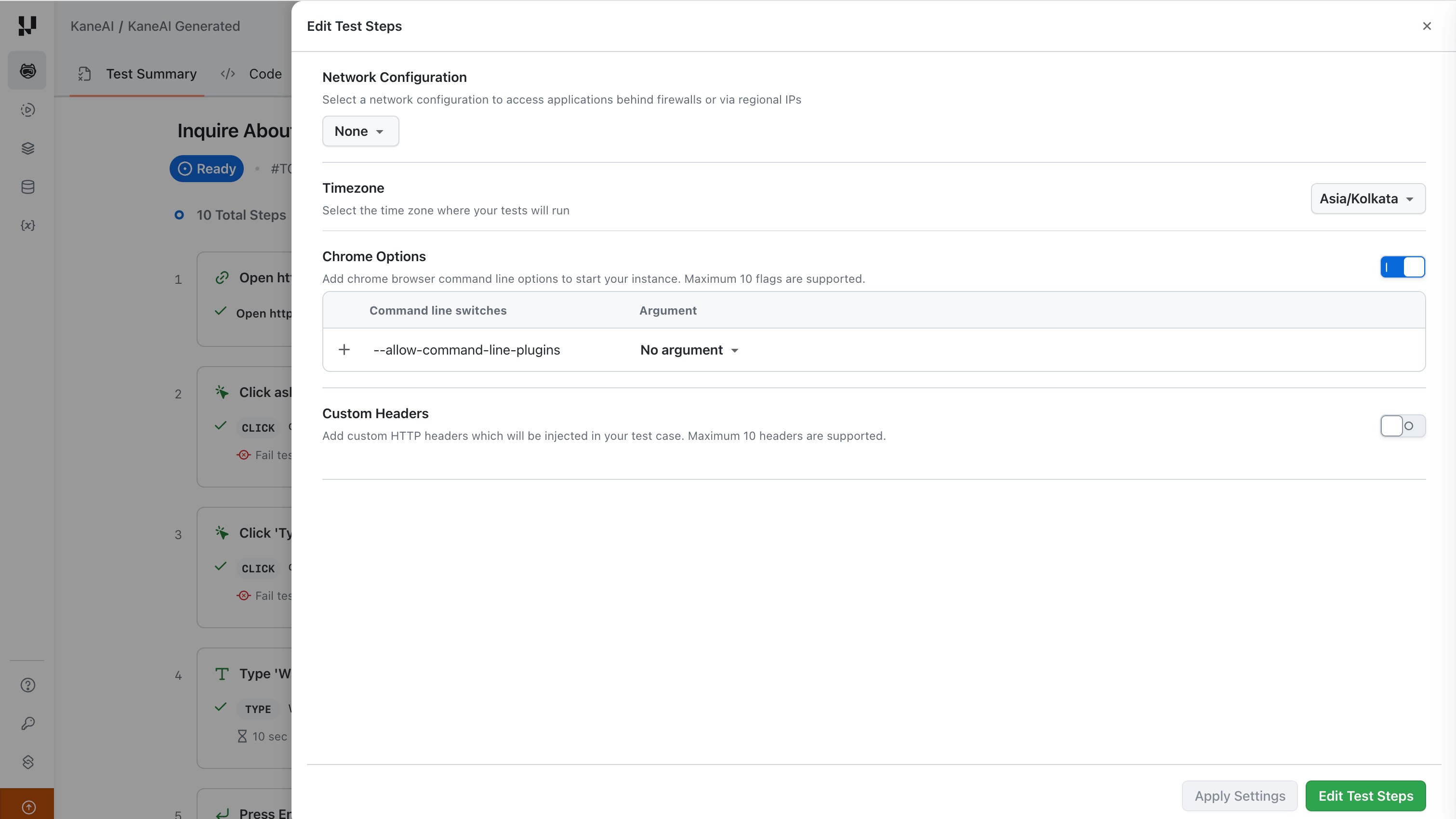
Step 3: Modify the Settings
Update the settings as needed. For example, you can:
- Change the Network Configuration from
NonetoGeolocationand select a region. - Update the Timezone to a different zone.
- Toggle Chrome Options on or off and add command-line switches.
- Enable Custom Headers and add HTTP headers for your test.
- Change the Environment the test is authored against.
Settings that have been modified will display an Edited badge next to them.
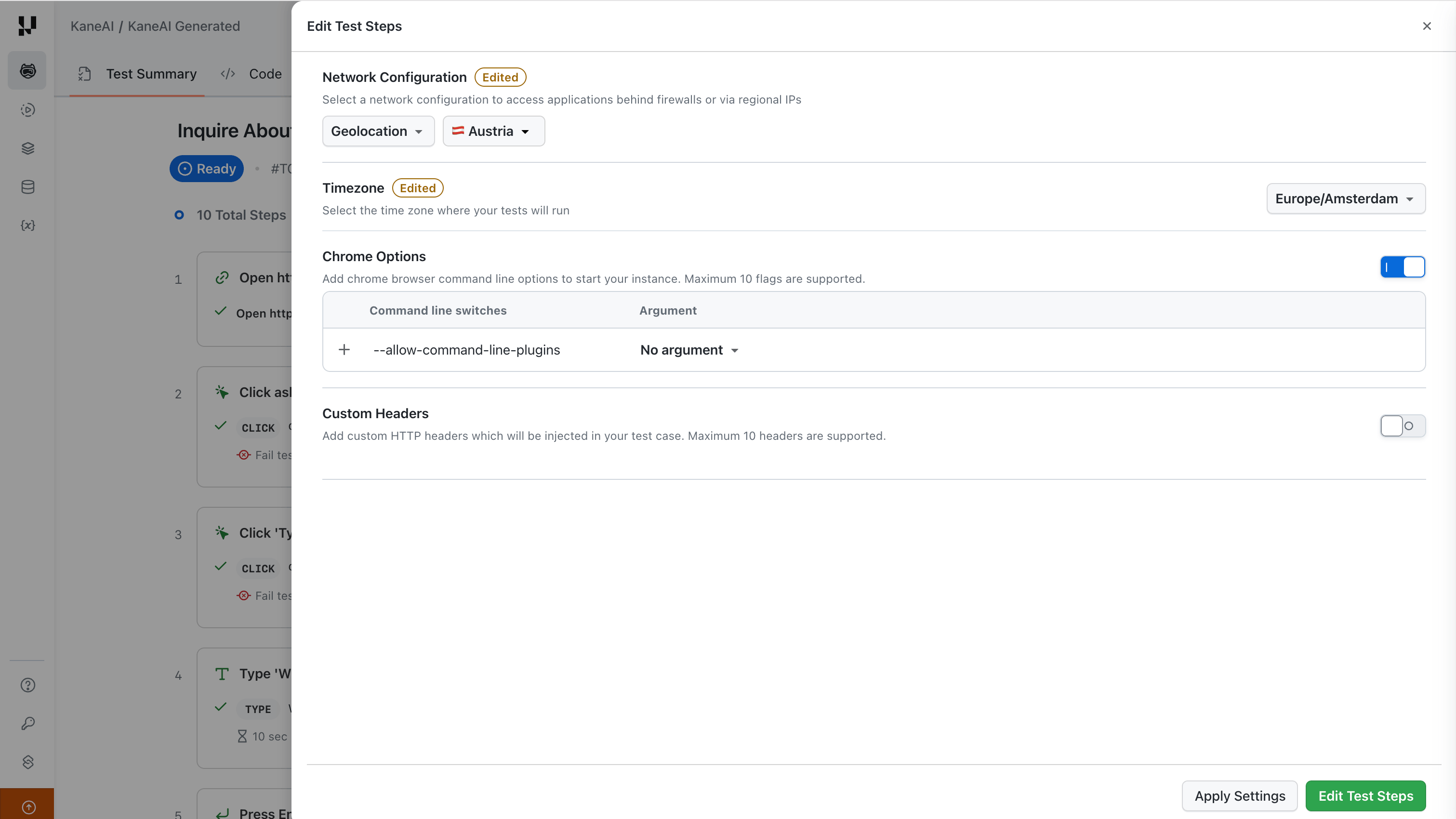
Step 4: Save Your Changes
Choose one of the two actions at the bottom of the dialog:
- Apply Settings: Saves the settings and generates a new version with updated code. The test case remains on the Test Summary page.
- Edit Test Steps: Saves the settings and opens the playground so you can adjust the test steps to reflect the new configuration. The session opens in the Paused state with the cursor at the bottom-most step, so step editing is available right away. See Authoring Session.
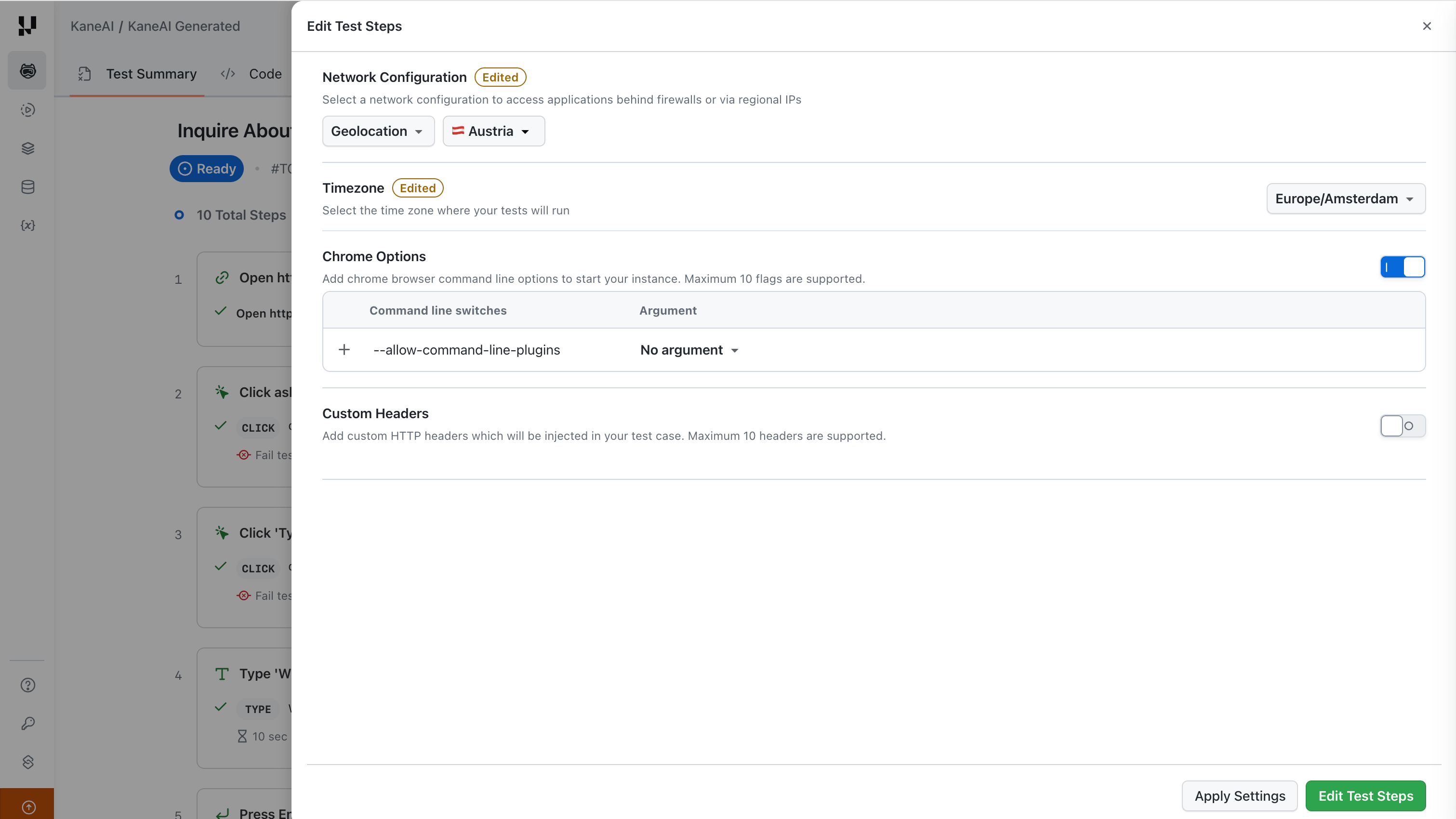
Version History
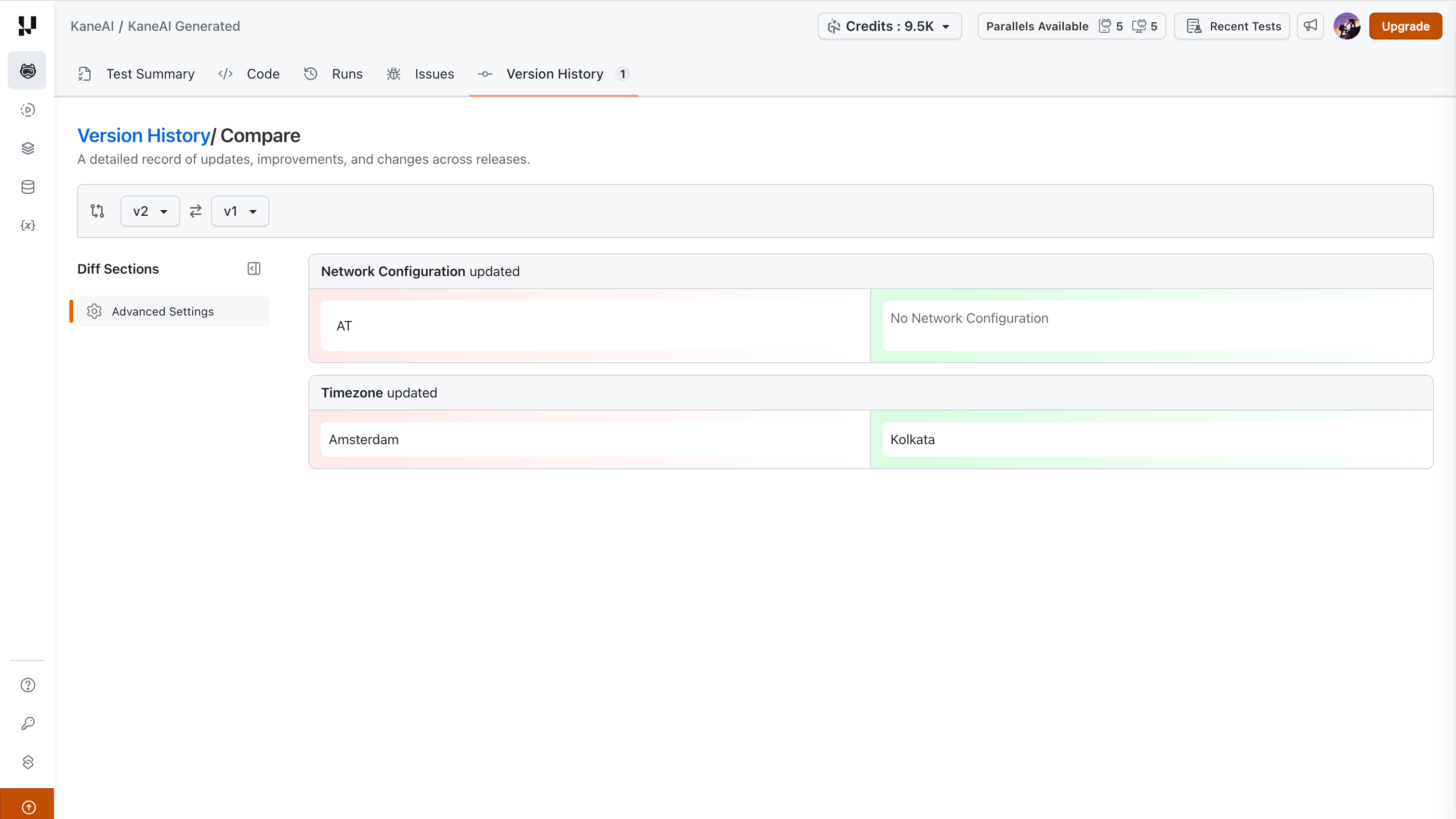
Every time you apply updated settings, a new version of the test case is created. You can view and compare changes between versions from the Version History tab.
The version comparison view shows a diff of what changed, for example, updated network configuration or timezone values, so you can track exactly what was modified in each version. A change of environment is shown by the environment's name.
Limitations
- Advanced settings only: Only advanced settings (network configuration, timezone, Chrome options, custom headers, environment, and mobile session settings) can be edited from the test summary page. To change test steps, OS, browser, or device configurations, you need to open the playground.
- New version generated on every apply: Applying updated settings always creates a new version of the test case with regenerated code. There is no way to update settings in-place without generating a new version.
- Version history diff for pre-rollout versions: If you compare a version created after this feature was rolled out with a version created before it, the diff will have no advanced settings changes to display since the older version never tracked them. Similarly, if you open a pre-rollout version and click on advanced settings, only the latest settings are shown as the original settings were not recorded for that version.


 Chat with Us