Run a KaneAI Test Case with Quick Run
Quick Run executes a single saved KaneAI test case on the configurations you choose. It creates a Test Run in Test Manager so you can track execution and review the results alongside your other runs.
Quick Run is being rolled out gradually and may not yet be available for your organization.
Overview
Each Quick Run creates one Test Run, with one test instance per selected configuration. For example, selecting Windows Chrome and macOS Chrome creates one run with two instances of the same test case.
The test case's authoring experience determines how it runs:
| Authoring experience | Quick Run behavior |
|---|---|
| New Experience | Uses Evidence Reporting. KaneAI executes the test steps; generated code is not used or required. |
| Classic | Executes the test case's generated automation code and produces the Classic report. Usable generated code is required. |
Quick Run uses the mode for that experience. New Experience Quick Run does not offer a switch to Classic Reporting.
Before you begin
- Save the KaneAI test case you want to run.
- Have at least one compatible saved configuration. A configuration defines the browser, operating system, resolution, or device used for execution.
- For a New Experience desktop web test, use Chrome configurations. Firefox, Edge, and Safari cannot run with Evidence Reporting.
- For a Classic test, finish code generation before execution.
Start a Quick Run
1. Open the test case
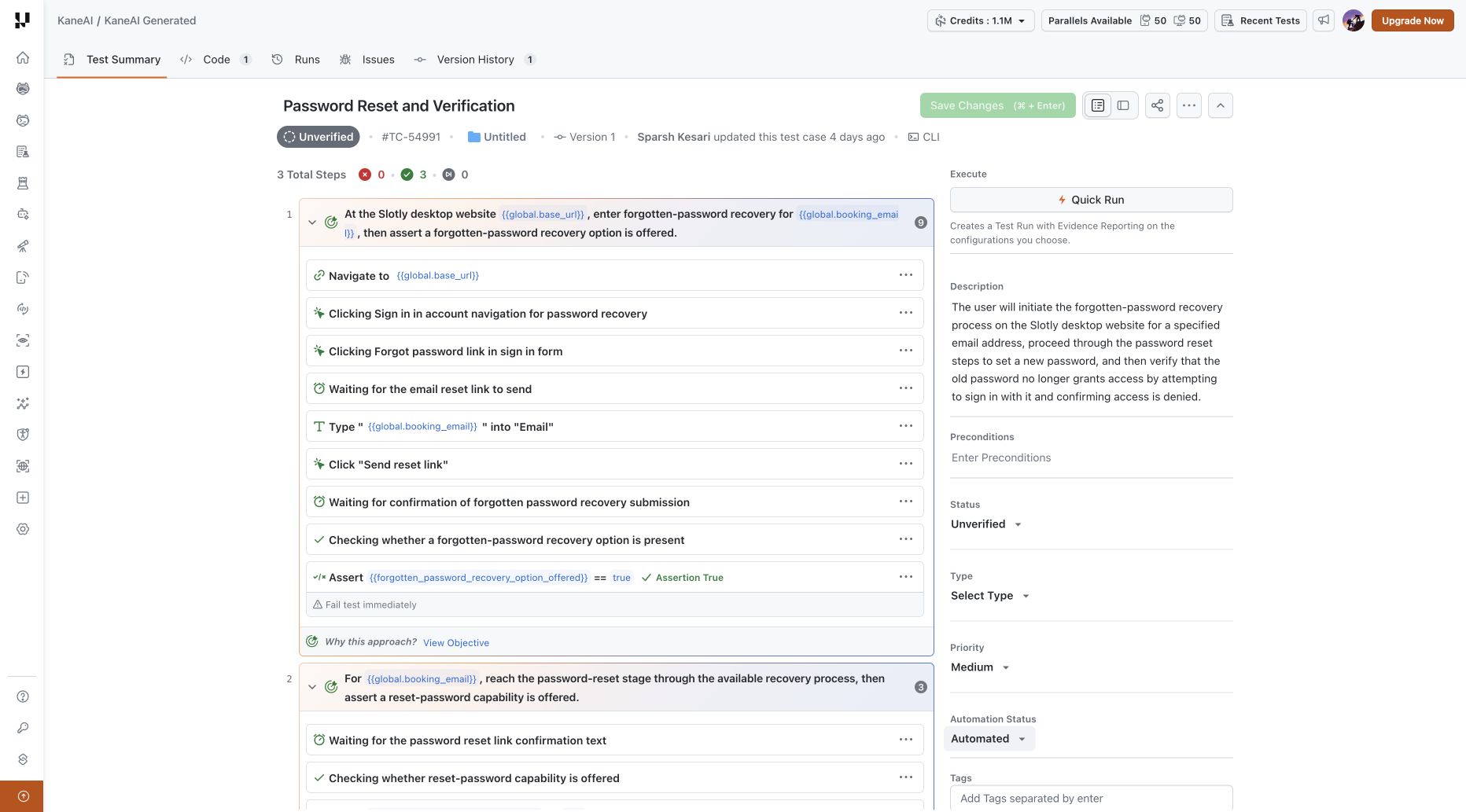
In Test Manager, open your project and the saved KaneAI test case. On Test Summary, click Quick Run under Execute.
2. Select configurations
The Quick run drawer opens on Select configurations. Its subtitle identifies the test case and reporting mode.
- Use Search configurations or filters such as OS, Browsers, and Resolution to find the environments you need.
- Select one or more compatible configurations. Each row shows the configuration name and environment details.
- Click Continue.
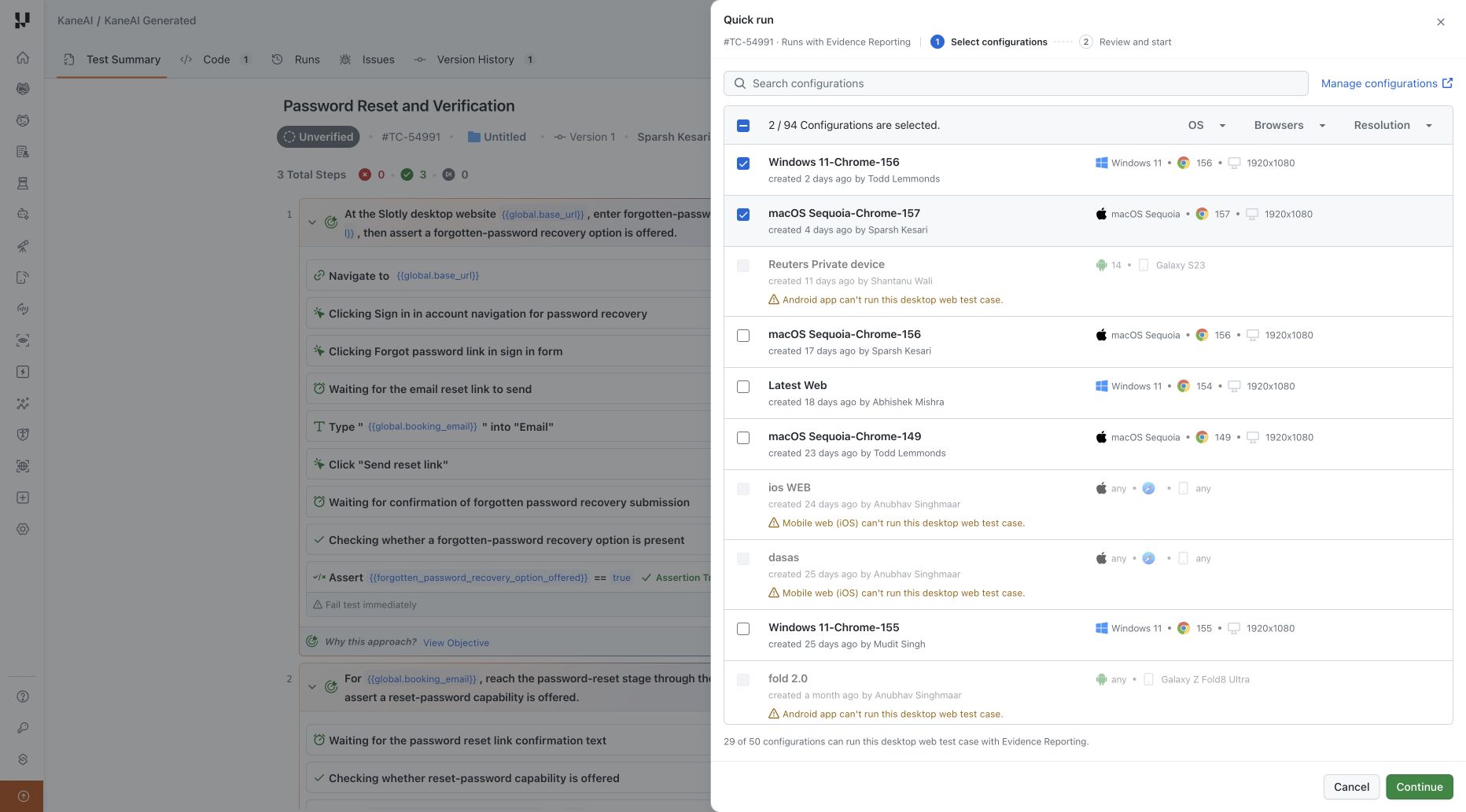
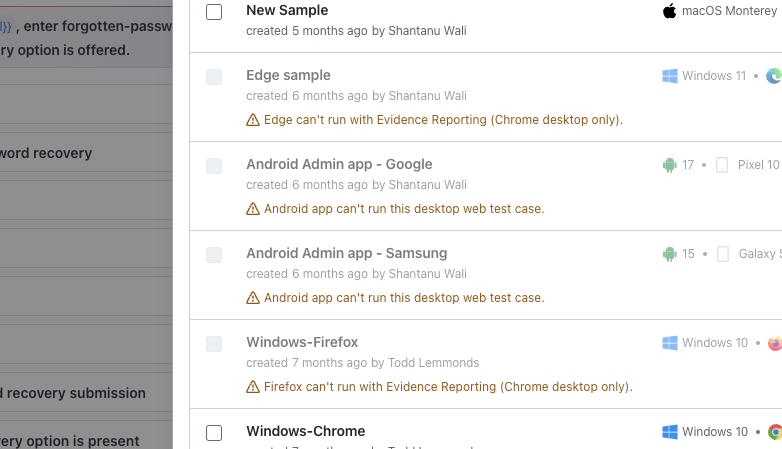
Unavailable configurations show why they cannot run the test. The configuration must match the test case's platform: desktop web, Android mobile web, iOS mobile web, Android app, or iOS app. For example, an Android app configuration cannot run a desktop web test case.
Use Manage configurations to open the existing configuration catalogue if you need to add or edit a configuration. Select at least one eligible configuration before continuing.
3. Review the run settings
On Review and start, check the Test Run name, instance count, selected configurations, and Run Mode. The default name includes the test case number and your local date and time, for example TC-54991 | Quick run | 9 Nov 2026, 15:44. You can edit the name before starting.
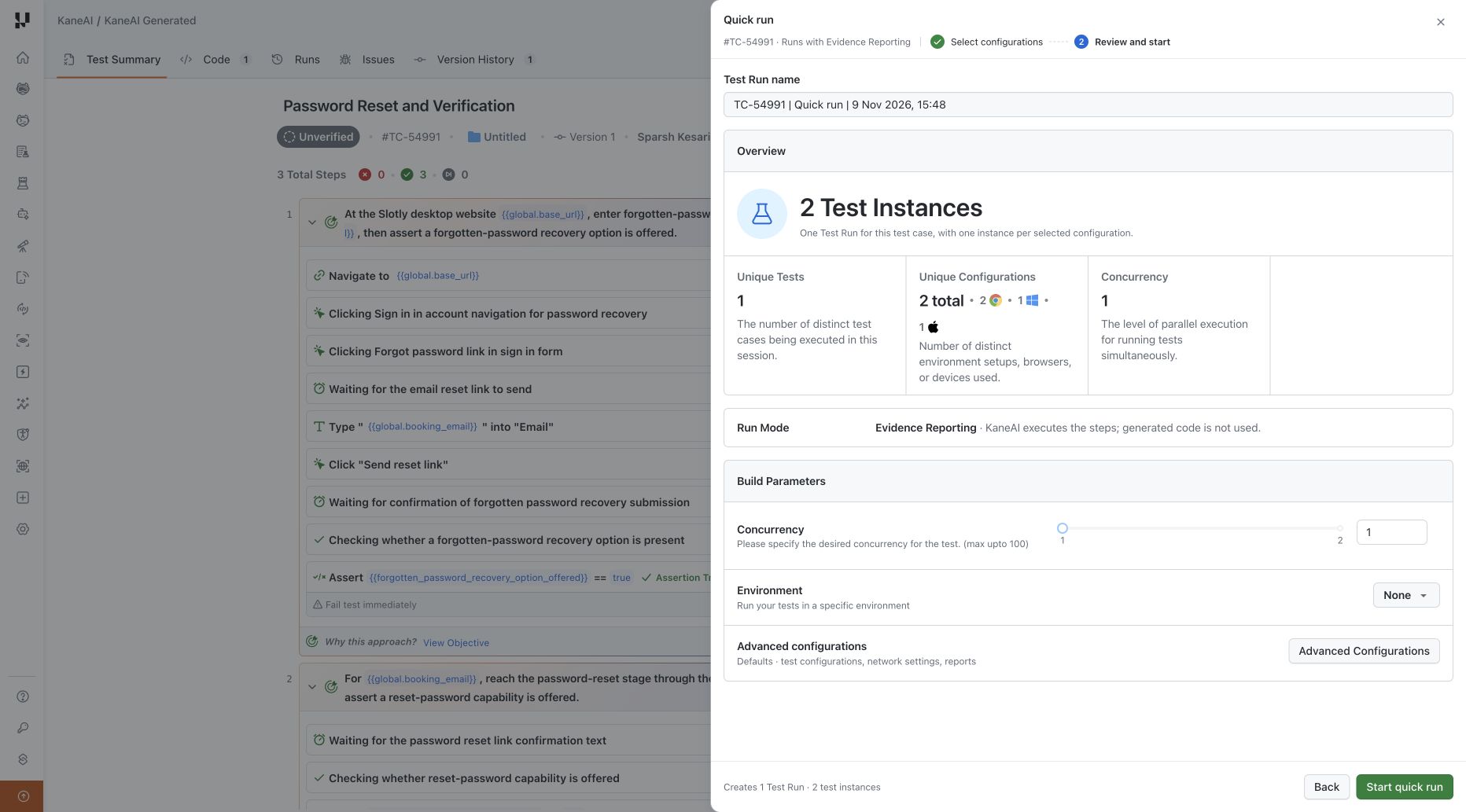
Under Build Parameters:
- Set Concurrency, the number of instances to execute simultaneously. Choose a whole number from 1 up to the selected instance count, with a maximum of 100.
- Select an Environment if the run needs environment-specific variables.
- Open Advanced Configurations to adjust the settings available for the run's reporting mode.
Use Back to change your configuration selection.
4. Adjust advanced configurations (optional)
Advanced Configurations opens a separate section in the drawer. Settings apply to every supported instance in the run and are kept when you return to review.
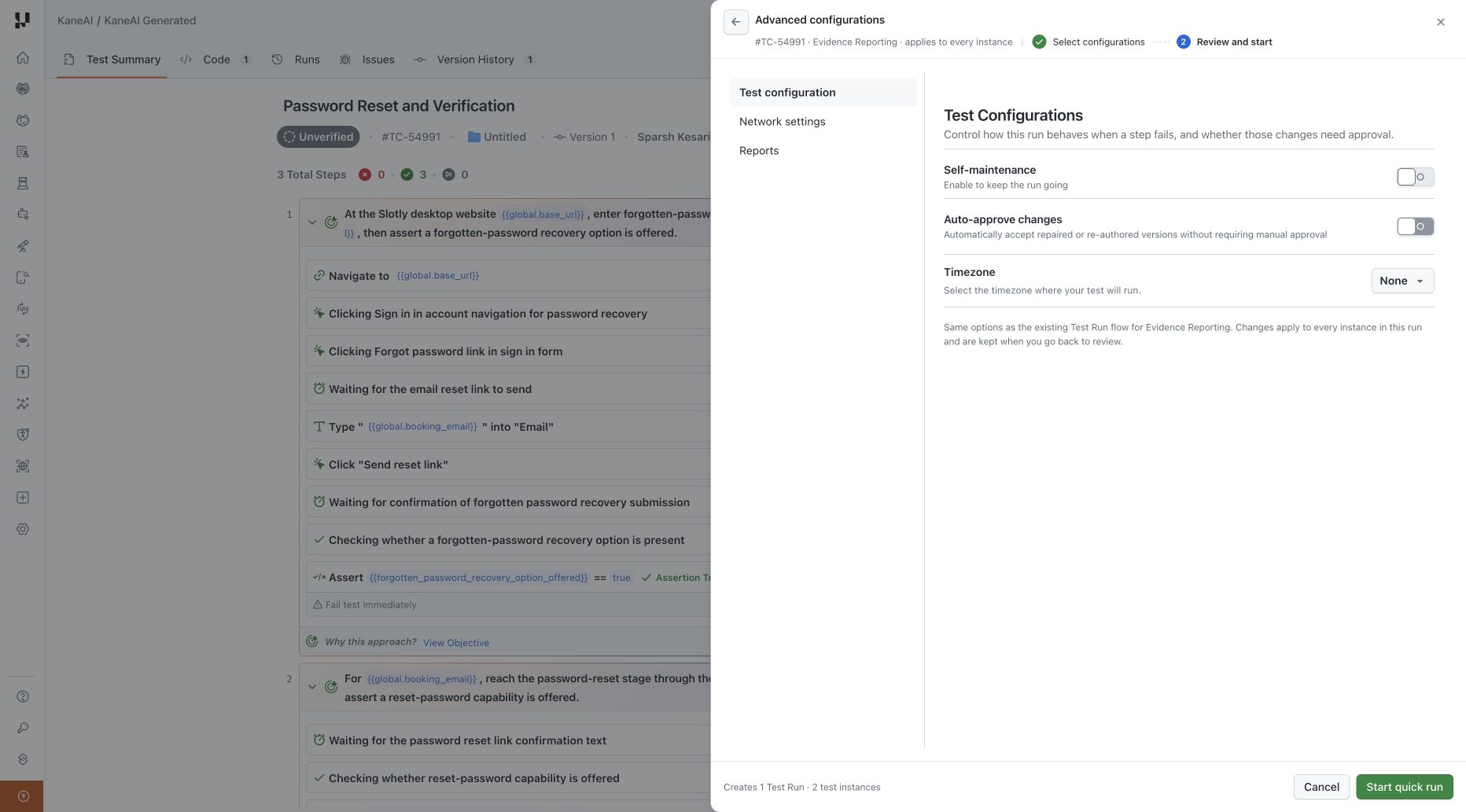
For Evidence Reporting, the sections are Test configuration, Network settings, and Reports. They include settings such as Self-maintenance, Auto-approve changes, Timezone, Tunnel, Geolocation, and report delivery. Available options depend on the test platform and selected configurations.
Classic runs use their corresponding execution settings, including console and network logs and retries. For details on both modes, see Advanced Configurations.
Use the back arrow to return to Review and start.
5. Start the run
Click Start quick run. Test Manager creates the Test Run, starts execution, and opens its Test Instances view.
Once an Evidence run finishes, reopening it takes you to the Evidence Report. Select Test Instances to inspect the individual results.
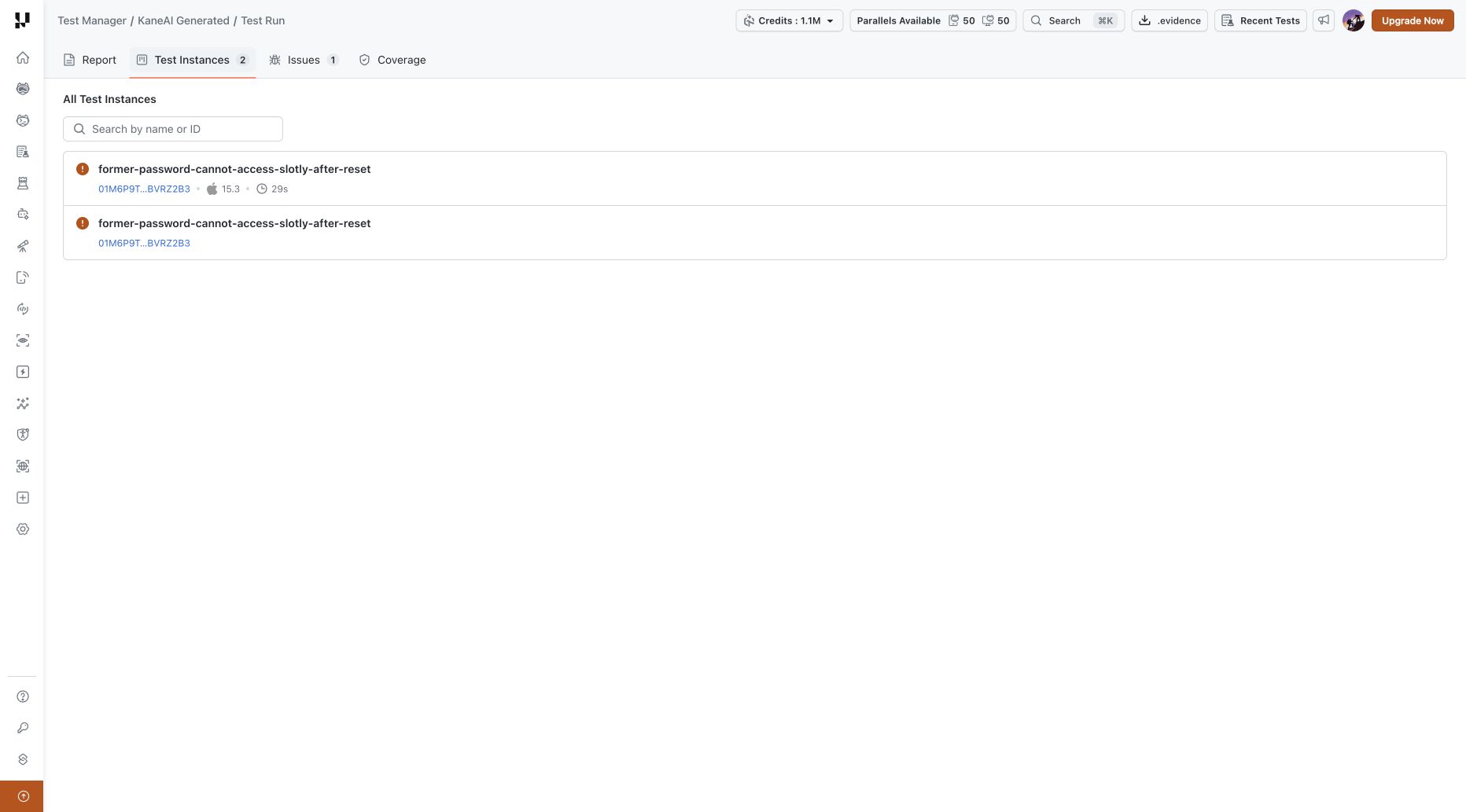
Review the run status and each instance's configuration and execution result. Open an instance to inspect its results. New Experience runs provide an Evidence Report; Classic runs provide the Classic report.
To find the run later, open the test case's Runs tab or the project's Test Runs list.
Evidence Reporting limitations
- Desktop browser support is Chrome-only. Edge, Firefox, and Safari configurations cannot run a desktop web test case with Evidence Reporting. These configurations are disabled in the selector, with a message explaining the restriction.
- Configurations must match the test case's platform. An Android app, iOS app, or mobile browser configuration cannot run a desktop web test case. A message such as Android app can't run this desktop web test case. means you need to select a desktop web configuration.
Common issues
| Issue | What to do |
|---|---|
| A configuration is unavailable | Read the reason on its row. Choose a matching platform and, for New Experience desktop web, a Chrome configuration. |
| You cannot continue from configuration selection | Select at least one eligible configuration. Use Manage configurations if you need another environment. |
| A Classic test has no usable generated code | Open Code, finish generation or retry a failed export, then start execution. New Experience Evidence execution does not require an export. |
Related resources
- Code Generation
- Test Run Execution
- Test Run Instance View
- Test Run Configurations
- Scheduled Test Runs
Have any feedback or request? Reach out to us via support@testmuai.com and we would be happy to hear from you.

 Chat with Us