

Next-Gen App & Browser Testing Cloud
Trusted by 2 Mn+ QAs & Devs to accelerate their release cycles


On This Page

Debugging Local Mobile Pages on Android Phone Using Chrome Developer Tools
Unlock the secrets of debugging mobile browser in Chrome with expert techniques and optimize your web development workflow for mobile devices.

Arnab Roy Chowdhury
December 27, 2025
While developing a mobile web application, device or browser issue are very common. Mobile emulator plugins or built in emulators in browsers can be used to deal with them, but often bugs are faced by developers that occur in actual devices, not in emulators. The best way to deal with them is to debug the application directly in the device. Remote debugging is a feature that allows you to debug the application in your mobile the same way as done in desktop. Let’s take a deep dive towards how to execute the process.

What Will You Need
The requirements are very simple and the system can be configured easily without purchasing any extra software or hardware. For your PC you will need
- Chrome version 32 or above installed and properly working.
- If you are using Windows, USB drivers are required.
- A USB cable to connect your Android device with the desktop or laptop.
For the Android device, the following things are required.
- Latest version of Google Chrome.
- Android version 4 or above.
- USB debugging enabled in the developer options for Android.
The last requirement is a bit tricky. We will cover it in the following section.
How to Enable USB Debugging in Android
If you are using Android 4.0 and 4.1,
- Go to Settings
- Navigate to Developer Options and enable it
- Once Developer Option is enabled, you will be able to see the USB Debugging checkbox.
- Scroll to the checkbox and check it
- A pop-up notification will appear informing that you are now a developer.
The process is a bit complicated in Kitkat or other higher versions.
- Navigate to settings and go to About Phone option
- A new window will open. Scroll to the bottom and you will be able to see the Build Number.
- Tap it 7 times. In the lower section of the page you will get a pop-up that you are now a developer.
- After going back, you will be able to access the Developer Options menu.
- The rest is same, check USB debugging, and you are done.
Setup Localhost on your Desktop
If your website is in Angular or any other framework, hosting it locally will not a problem. Recent versions of Angular use NPM for code building and once executed, it automatically configures a proxy server and hosts the application on your local machine which can be browsed via http://localhost:8080.
If you are developing a normal website without any advanced JS framework, you will need to create a proxy server on your workstation. This can be done by using WAMPServer, which comes with the latest versions of PHP, Apache and MySQL. Once installed, WampServer will create a directory under which, project folders can be created. The sites can be directly previewed at localhost once development is completed.

Connect Both Devices
Make sure that the Android device, as well as your workstation, are connected to the same Wi-Fi network. Even if you don’t have a Wi-Fi network, you can use USB tethering to connect both the devices.
Find Your Workstation Details
You can view your locally hosted website on your Android using either your computer’s IP address or hostname. To find your IP address
- Go to the control panel
- Search for “adapter” and click on it
- Go to “view network connections”
- Select Active Network and navigate to “view status”
- Click on “details” and you will be able to view the IP Address next to IPv4 address.
There is also an easier alternative
- Click the “Start” button and go to run
- Type “cmd” and press enter
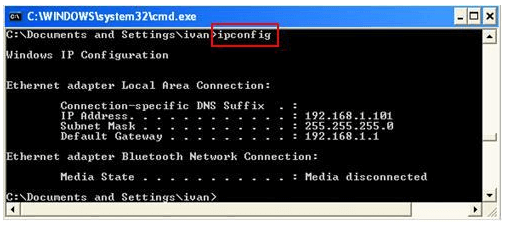
- The command prompt screen will appear. Type ipconfig and press enter
- You will get your IP address prompted on the black screen along with default gateway and subnet mask.
There is however, one drawback of using IP address. Every time you change the network, it gets changed and you have to search for it again. A better alternative is to use the Hostname. It can be found easily by
- Clicking on “Start“ button
- Right click on “My Computer” and go to properties
- In the Computer Name tab, you will find the Hostname for your workstation.
Viewing Locally Hosted Websites in Android
The final step is easy. Open Google Chrome on your mobile and type the IP Address or the hostname on the address bar of the browser. You will be able to view the content of the localhost on your mobile browser. Navigate to the site which you hosted on your workstation and you will be able to view the contents and test it on a mobile device.
Testing Locally Hosted Pages on TestMu AI
While doing the above process is not very difficult, it is still a little cumbersome and is prone to errors. A easier way is to test on TestMu AI cross browser compatibility testing platform. At TestMu AI you get instant on-demand access to android mobile browsers where you can run and debug your pages. In addition these browsers comes with integrated chrome developer tools that can be launched by a click of a button. You can connect you system with TestMu AI cloud platform via simple SSH protocol based tunnel application and test your locally or privately hosted webpages on TestMu AI app.
TestMu AI is free to signup and use. So do tryout TestMu AI first before you try above method :P.
Viewing a locally hosted website in Android device is very beneficial in the current age of digital transformation. People are using mobile devices for browsing and surfing webpages. Often developers and testers test mobile view of website using browser emulators. The results of which are often inaccurate. Real time issues on Android devices are not observed often on emulators. For perfect User Experience testing, it is always helpful to test your application on an Android device before it is deployed into production.

Note: Try LT Debug Chrome Extension for debugging websites!
100+ Free Online Tools From TestMu AI!
TestMu AI has come up with an index of 100+ free online tools for developers and testers. From HTML, XML, and JSON formatters to robust data generators, and hash calculators. TestMu AI’s free online tools are built to help engineering teams accelerate and be more productive with their daily activities.
Code Tidy
- JSON Prettify
- JSON Minify
- HTML Prettify
- HTML Minify
- JavaScript Minify
- CSS Minify
- CSS Prettify
- XML Minify
- XML Prettify
Data Format
- IDN Encode
- IDN Decode
- XML to JSON Converter
- JSON to XML Converter
- BCD to Decimal
- HEX to Decimal
- Decimal to BCD
- UTF8 Decode
- UTF8 Encode
- HEX to RGB Converter
- RGB to HEX Converter
- HTML to Markdown Converter
- Markdown to HTML Converter
- Decimal to Gray Code Converter
- Gray Code to Decimal
- URL Decode
- URL Encode
- Base64 Encode
- Base64 Decode
- Text to HTML Entities Converter
- HTML Entities to Text Converter
Random Data
- Random JSON Generator
- Random XML Generator
- Random CSV Generator
- Random YAML Generator
- Placeholder Image Generator
- Random Binary Generator
- Random Character Generator
- Random Color Generator
- Random Date Generator
- Random Decimal Fraction Generator
- Random Decimal Generator
- Random GUID Generator
- Random HEX Generator
- Random Octal Generator
- Random IP Generator
- Random MAC Generator
- Random Number Generator
- Random Paragraph Generator
- Random Password Generator
- Random Time Generator
- Random UUID Generator
- Random Sentence Generator
- Random String Generator
- Random Word Generator
- Random Data from RegEXP
- Test Data Generator
- Lorem Ipsum Generator
- Credit Card Number Generator
- QR Code Generator
- Random Byte Generator
Security Tools
- Hash Calculator
- Hash MAC Generator
- CRC32 Hash Calculator
- CRC32B Hash Calculator
- Ripe MD 128 Hash Calculator
- Ripe MD 160 Hash Calculator
- Ripe MD 256 Hash Calculator
- Ripe MD 320 Hash Calculator
- MD2 Hash Calculator
- MD4 Hash Calculator
- Adler32 Hash Calculator
- Gost Hash Calculator
- Whirlpool Hash Calculator
- MD5 Hash Calculator
- SHA1 Hash Calculator
- SHA256 Hash Calculator
- SHA384 Hash Calculator
- SHA512 Hash Calculator
Utils
- Find and Replace String
- HTML Escape
- HTML Unescape
- Difference Checker
- Shuffle Letters
- Shuffle Text Lines
- Sorting List
- Split Your String
- Text Lowercase
- Text Uppercase
- Text Repeater
- Text Rotator
- Character Count
- Word Count
- Lines Count
- Sentence Count
- URL Parse
- JSON Escape
- JSON Unescape
- Extract Text from HTML
- Extract Text from JSON
- Extract Text from XML
- Strip HTML
- JSON Validator


Did you find this page helpful?
More Related Hubs
TestMu AI forEnterprise
Get access to solutions built on Enterprise
grade security, privacy, & compliance
- Advanced access controls
- Advanced data retention rules
- Advanced Local Testing
- Premium Support options
- Early access to beta features
- Private Slack Channel
- Unlimited Manual Accessibility DevTools Tests