

Power Your Software Testing with AI Agents and Cloud
The Native AI-Agentic Cloud Platform to Supercharge Quality Engineering. Test Intelligently and Ship Faster.


- TestMu AI (Formerly LambdaTest)
- /
- Blog
- /
- How to Check Proxy Settings on Windows and Mac
How to Check Proxy Settings on Windows and Mac
Learn how to check proxy settings on Windows, Mac and Chrome, plus the commands that show which proxy your CLI tools and AI agents use.
Last Updated on:
To check proxy settings, open Settings, Network & internet, Proxy on Windows, or System Settings, Network, Details, Proxies on a Mac. Each screen shows whether the device routes traffic through a proxy server, with its address and port, or loads its rules from a PAC script. This guide covers proxy servers, proxy settings, why they matter, the Windows, Mac and browser checks, and how AI agents and CLI tools read proxies.
TL;DR
- Proxy settings hold the address and port of the server a device routes its web traffic through.
- On Windows 10 and 11, proxy settings sit under Settings, Network and internet, Proxy.
- On macOS Ventura and later, they sit under System Settings, Network, Details, Proxies.
- Chrome uses the operating system proxy rather than keeping its own, on both Windows and macOS.
- An enabled setup script option means the device loads its proxy configuration from a URL.
- Command-line tools read the HTTPS_PROXY environment variable, not the system proxy screen.
What is a Proxy Server?
A proxy server is an intermediary between a machine and the ISP(Internet Service Provider) that forwards requests and responses. When you want to access a website or online service, your computer doesn’t talk directly to the web; instead, it communicates with the proxy server, which then passes your request along to the internet and returns the responses to your computer.
What is Proxy Settings?
Proxy settings refer to the setup that guides the communication process between your device and the proxy server. It’s like a set of rules that tell your computer how to interact with the proxy server. This configuration determines the path your online requests and responses should take and allows you to customize your internet experience for things like privacy security or bypassing certain restrictions. The versatility of proxies makes them useful not only for maintaining privacy and security but also for specific tasks. For example, if you need to use a proxy with requests in Python, detailed guides are available to assist you.
Proxy settings include the following:
- Proxy Server Address: This is the IP address or hostname of the proxy server that the device should connect to. It identifies where the proxy server is located on the network.
- Proxy Port: The device’s port number should connect to the proxy server. It’s important because it defines the specific communication channel to reach the proxy server.

Why Proxy Settings Matter?
Proxy settings matter for several reasons, and their significance varies depending on individual and organizational needs. The following are some reasons why proxy settings are important:
- Anonymity and Privacy: Imagine you’re online, and you don’t want websites to know where you’re browsing from. Proxy servers can help with that. They act like a shield, hiding your location and identity by making it seem like your requests are coming from somewhere else. This gives you online privacy.
- Content Filtering: It is also referred to as web content filtering. It is the process of controlling and managing the type of online content that users can access on a network or device. Organizations like schools, businesses, and government networks use proxy servers to manage what websites you can or can’t visit. It simply blocks access to anything they consider unsuitable.
- Security: Proxy servers can inspect and monitor incoming and outgoing internet traffic. They look for anything suspicious, like viruses or malware, and keep your online space safer.
- Load Balancing: It distributes network traffic across multiple proxy servers to ensure efficient use of resources, improve performance, and enhance redundancy. This is particularly important when the users are dealing with heavy internet traffic.
Configuring Proxy Settings
Configuring proxy settings allows users to change their internet experience by providing the keys to unlock a personalized and secure online journey. Whether it’s safeguarding privacy, optimizing network performance, or ensuring compliance, it can surf the Internet more privately, securely, or with restrictions, depending on your needs.
How to Check Proxy Settings on Windows?
There are two general methods to check your proxy settings on a Windows computer: one through the Settings application and the other through the Control Panel.
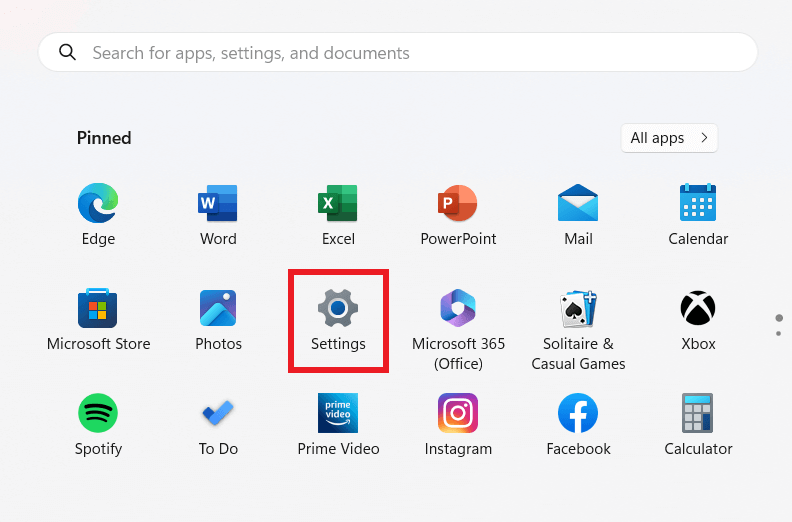
Method 1: Using the Settings ApplicationStep 1: Click on the Start button, and then choose Settings. You can also right-click on This PC and select Properties to access Settings.
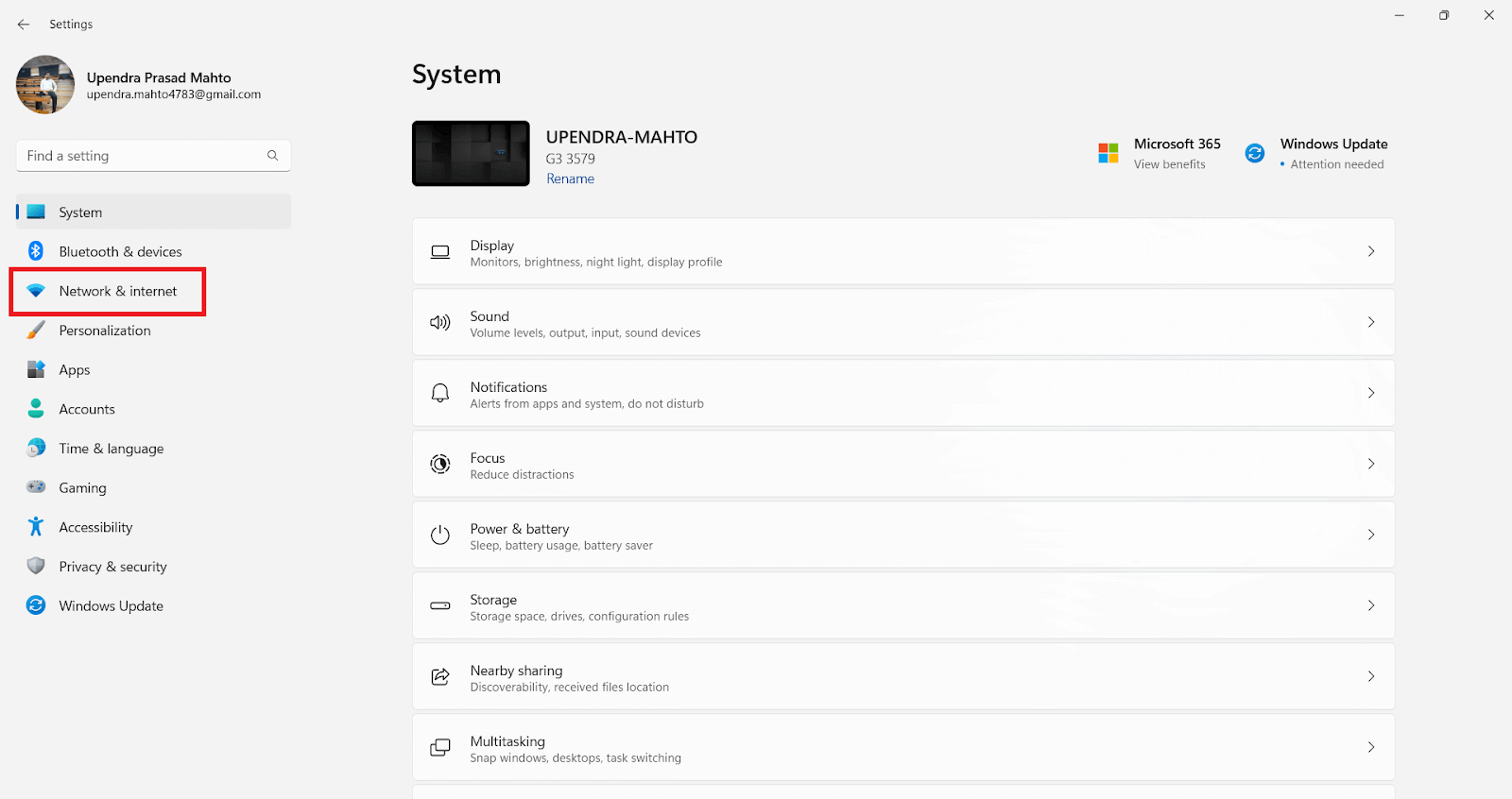
Step 2: On the left-hand side, select “Network & internet.”
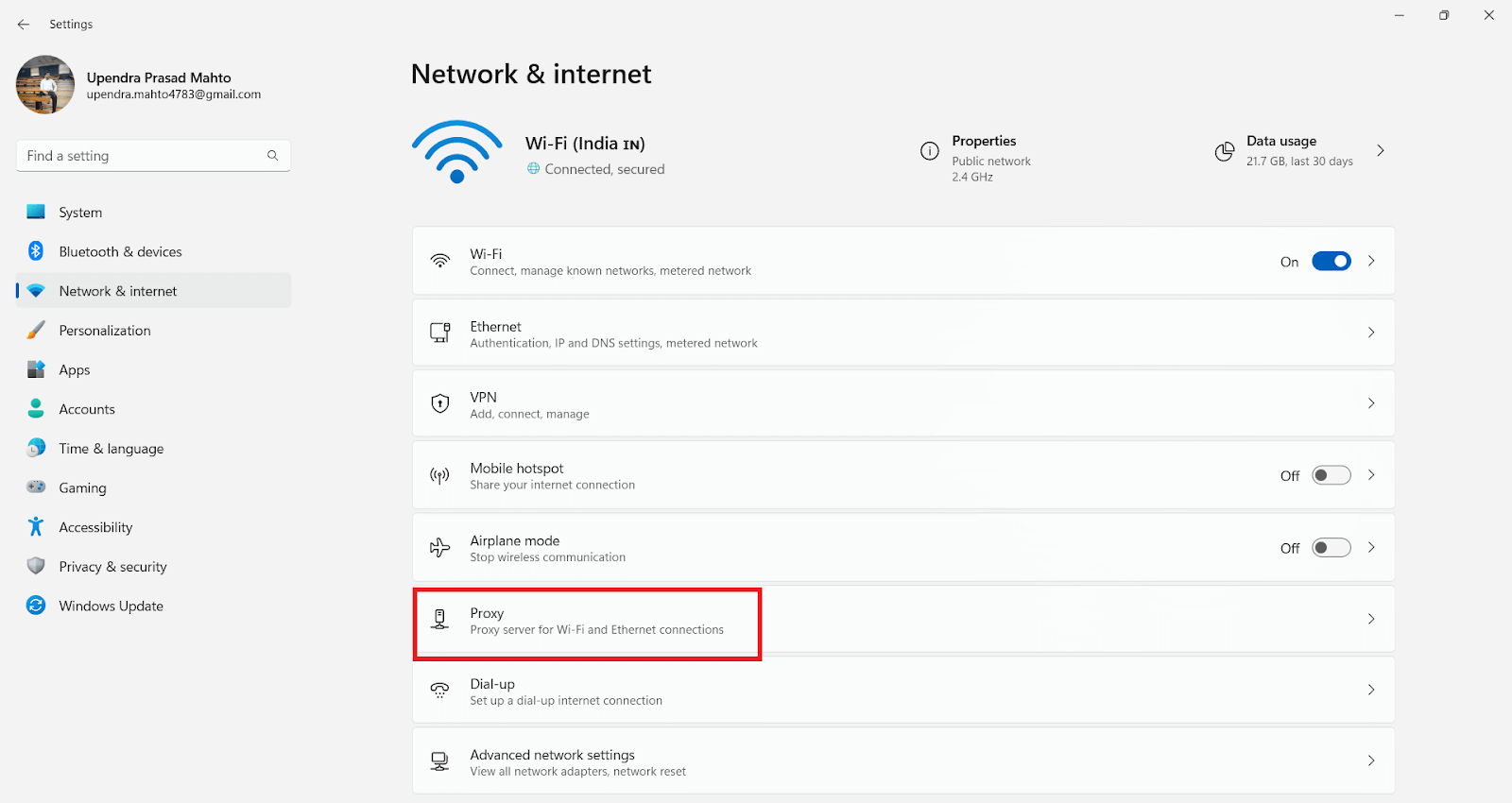
Step 3: Click on “Proxy.”
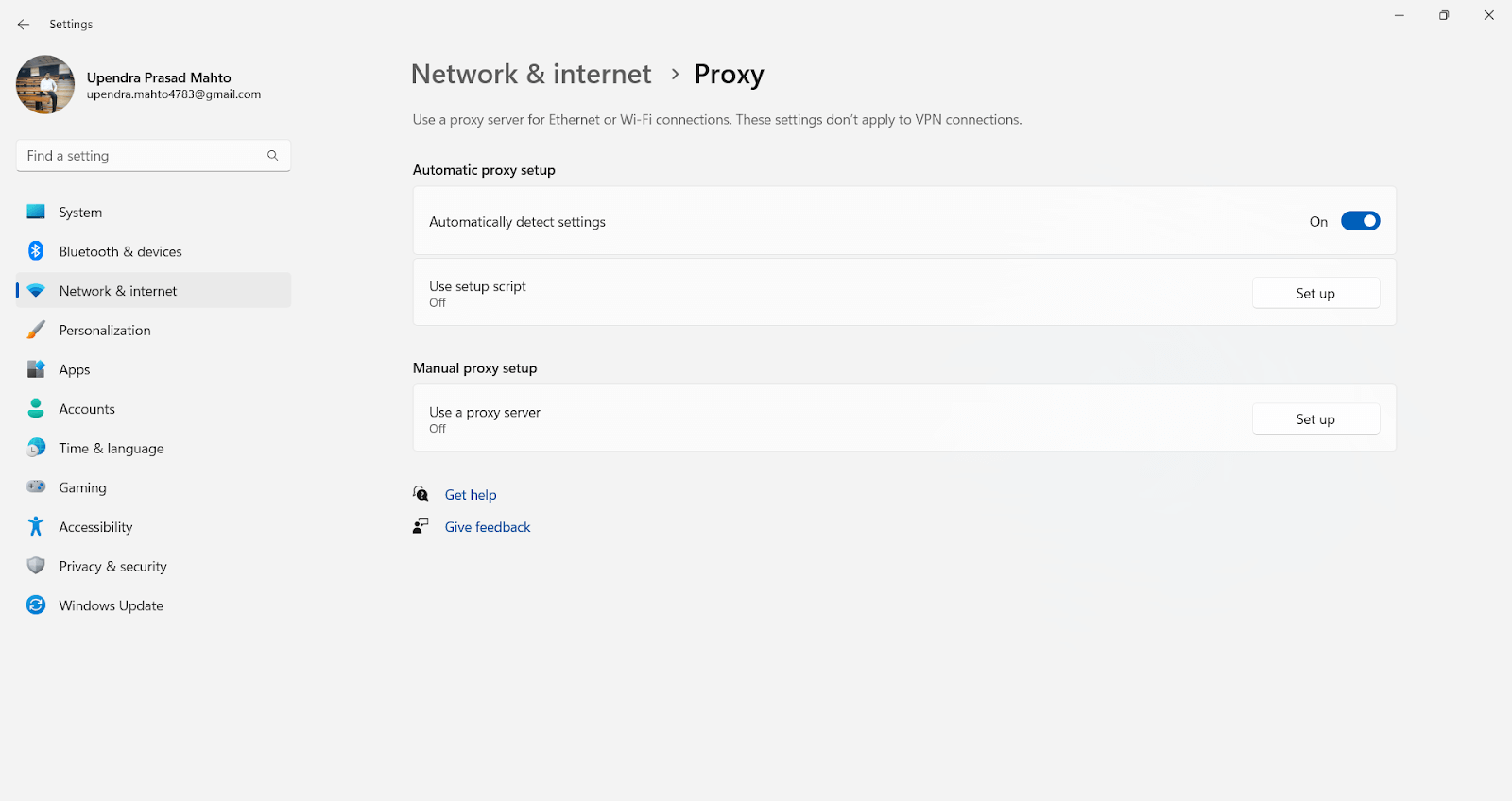
Now, you’ll find various options for configuring your proxy settings based on your requirements.
Setting up local testing connections by using configuration details.
If the “Use setup script” option is enabled, you have set up a PAC proxy on your system. You can find the path to the PAC file in the “Script address” section.
Note: If you want to use the PAC file to establish a local test connection, make sure that the PAC file is stored on your computer and that the path is absolute.
If the “Manual proxy setup” option is enabled, things are pretty simple. You can easily find the proxy host and port in the “Address” and “Port” sections.
Method 2: Using Control Panel
- Step 1: Open the Control Panel.
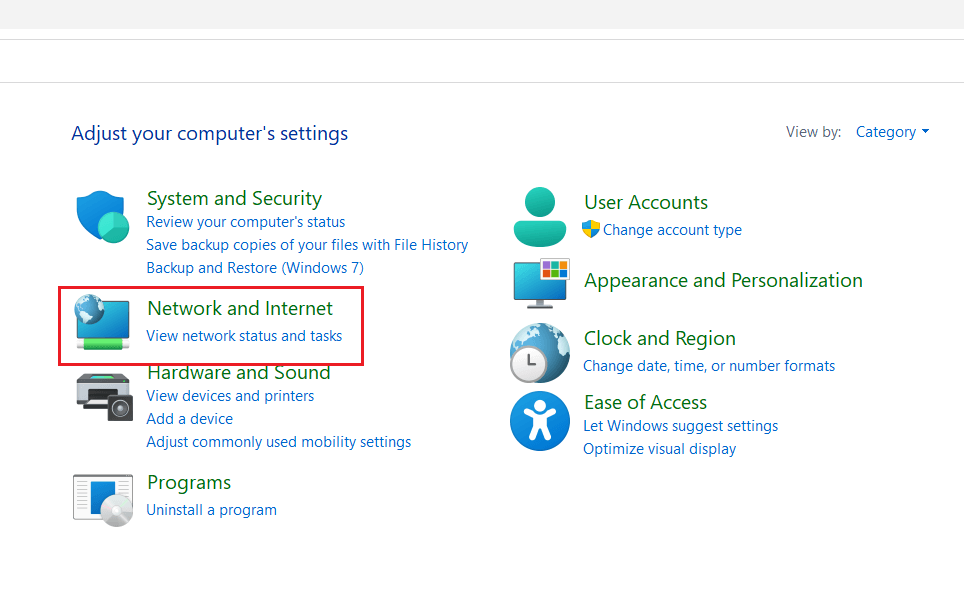
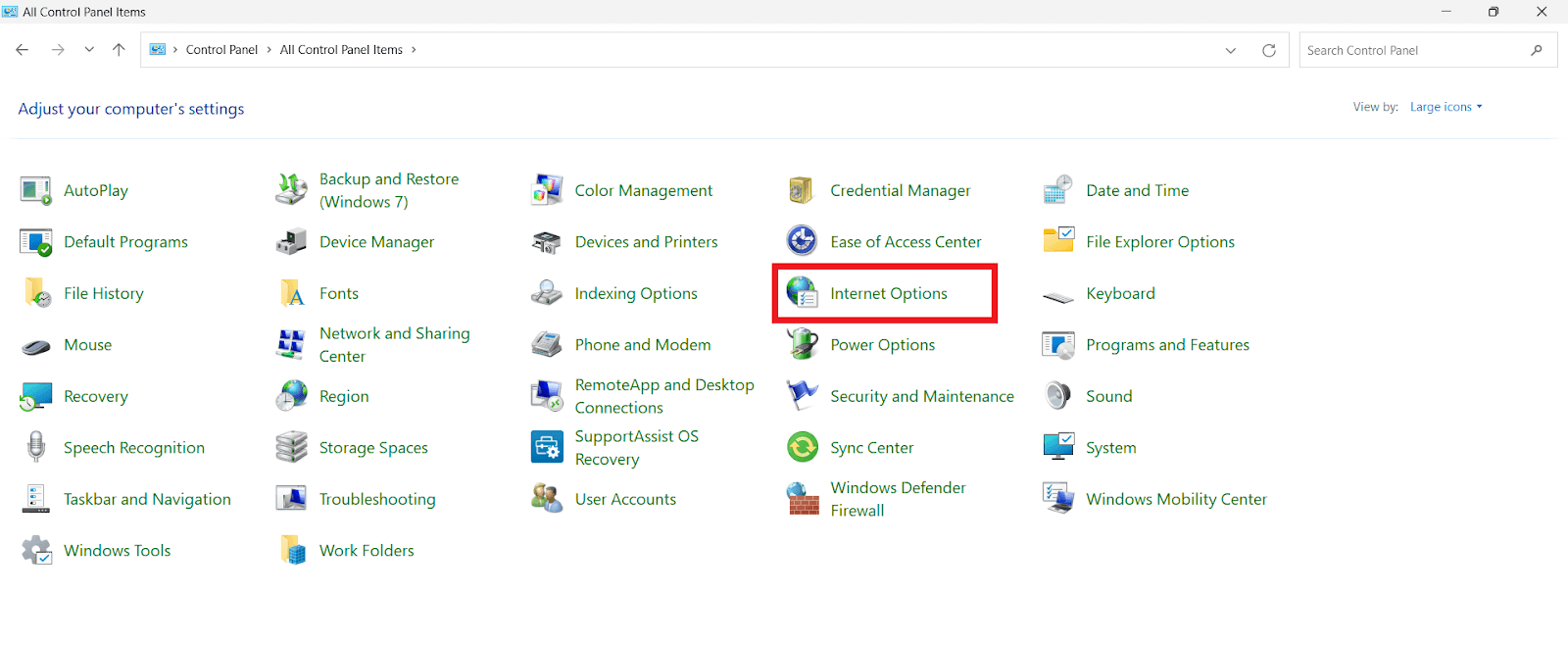
- Step 2: Depending on how the Control Panel window appears, either select “Network & Internet” and then choose “Internet Options” or directly select “Internet Options.”
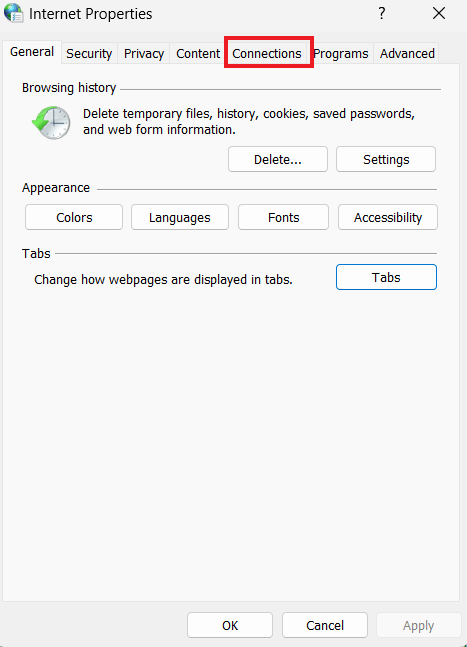
Step 3: Click on “Connections,” then select “LAN Settings.”
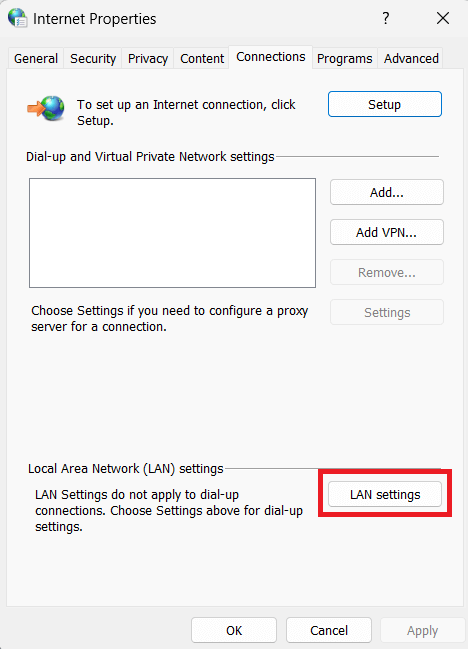
Now, you’ll find all the settings for setting up a proxy in Windows. It’s typically divided into two configurations: Automatic configuration or Proxy Server setup.
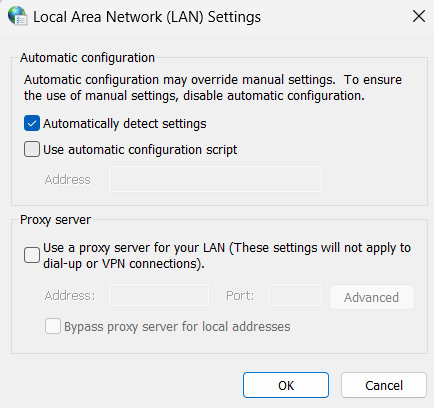
Setting up local testing connections by using configuration details.
If the "Use automatic configuration script" option is checked, you have set up a PAC proxy on your system. You can find the path to the PAC file in the "Address" field below it.
Note: If you want to use the PAC file to establish a local test connection, make sure that the PAC file is stored on your computer and that the path is absolute.
If the "Use a proxy server for your LAN" option is checked, things are pretty simple. You can easily find the proxy host and port in the "Address" and "Port" fields.
How to Check Proxy Settings on Mac?
Checking the proxy settings on Mac computers is a straightforward process. With just a few simple steps, you can see which proxy server your Mac uses and change it to improve the performance, security, and privacy of your network.
- Step 1: Open the Apple menu and select System Settings (named System Preferences before macOS Ventura).
- Step 2: Select the Network Tab
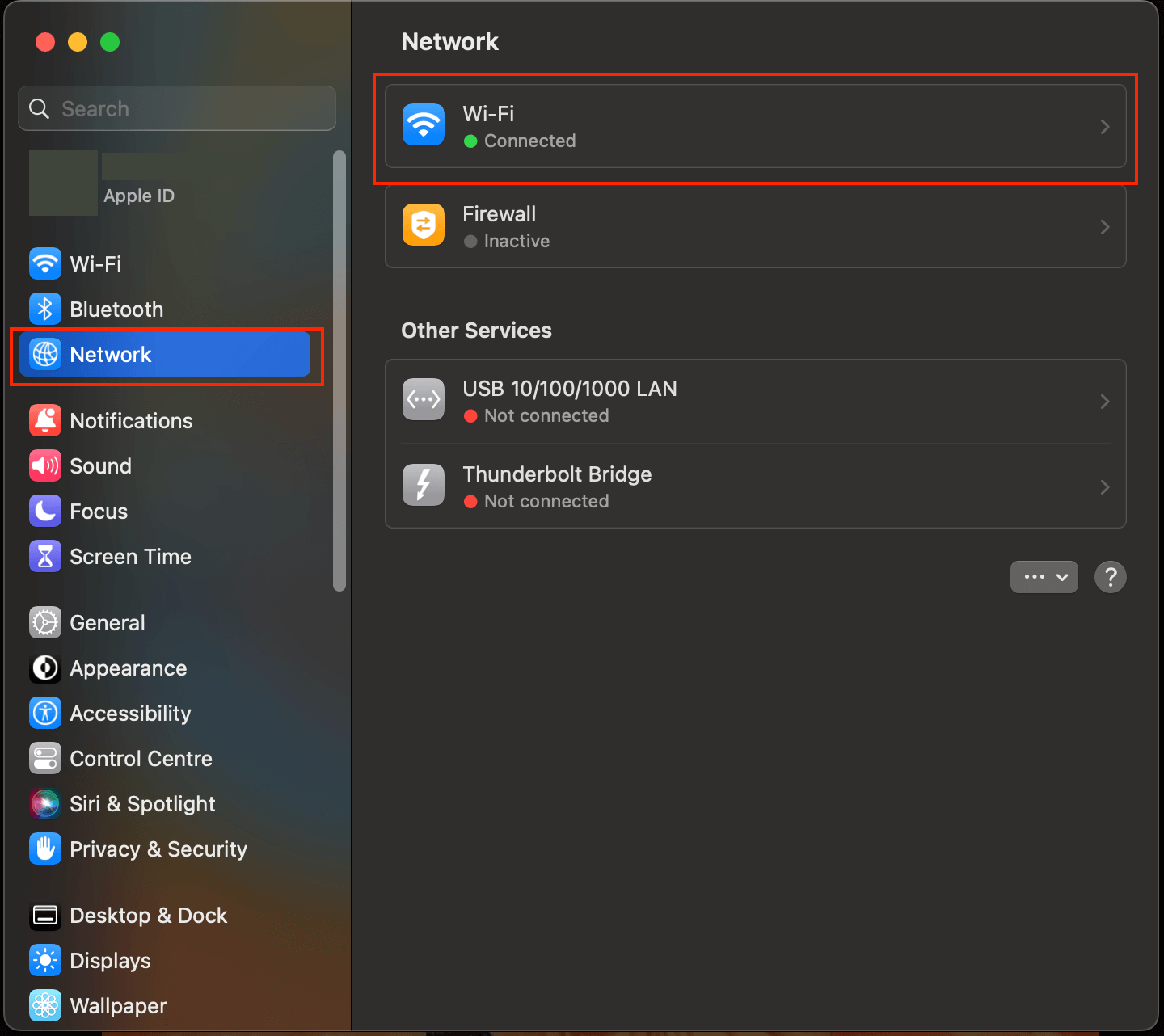
Step 3: Select Details.
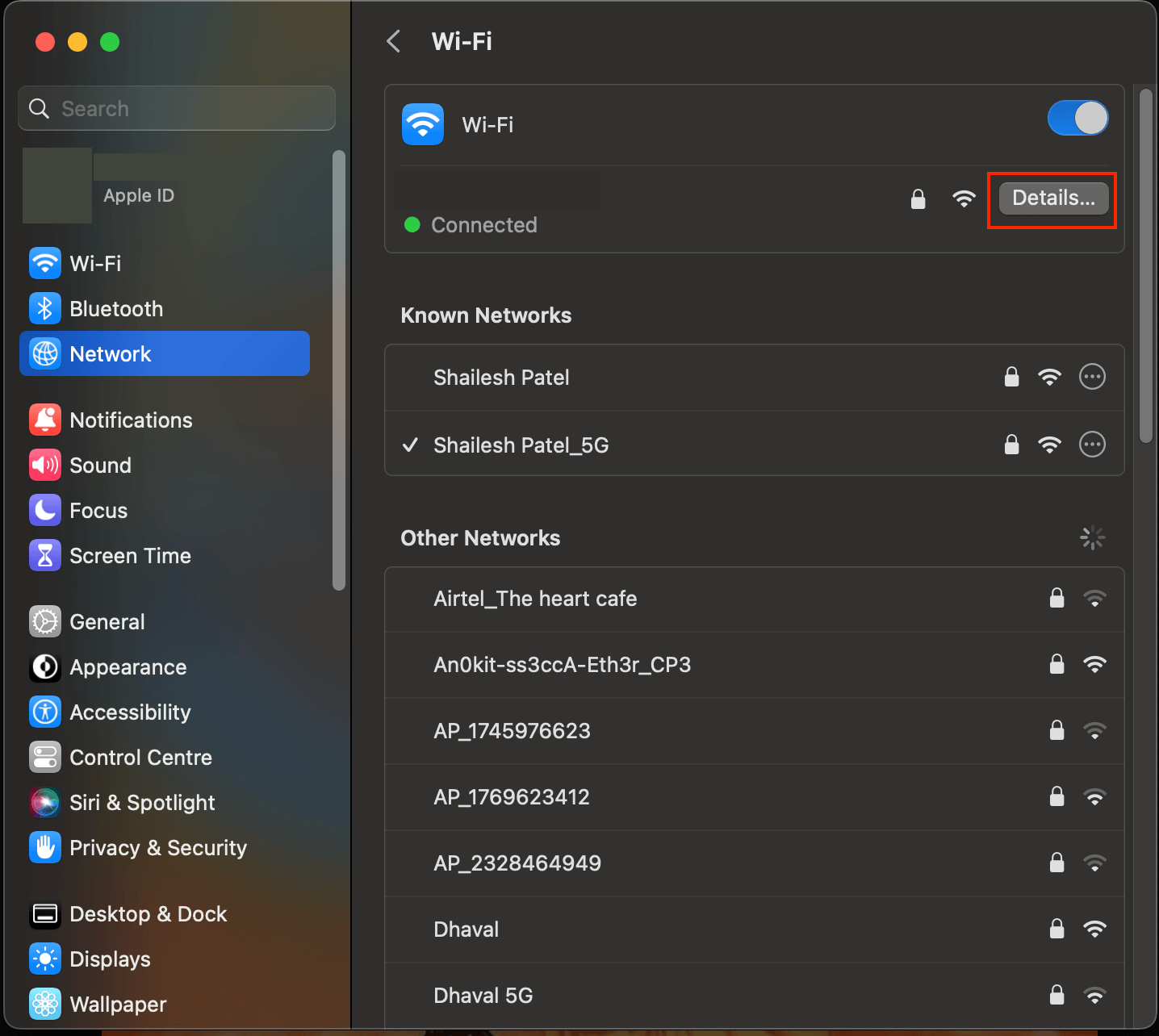
Step 4: Then, Select Proxies.
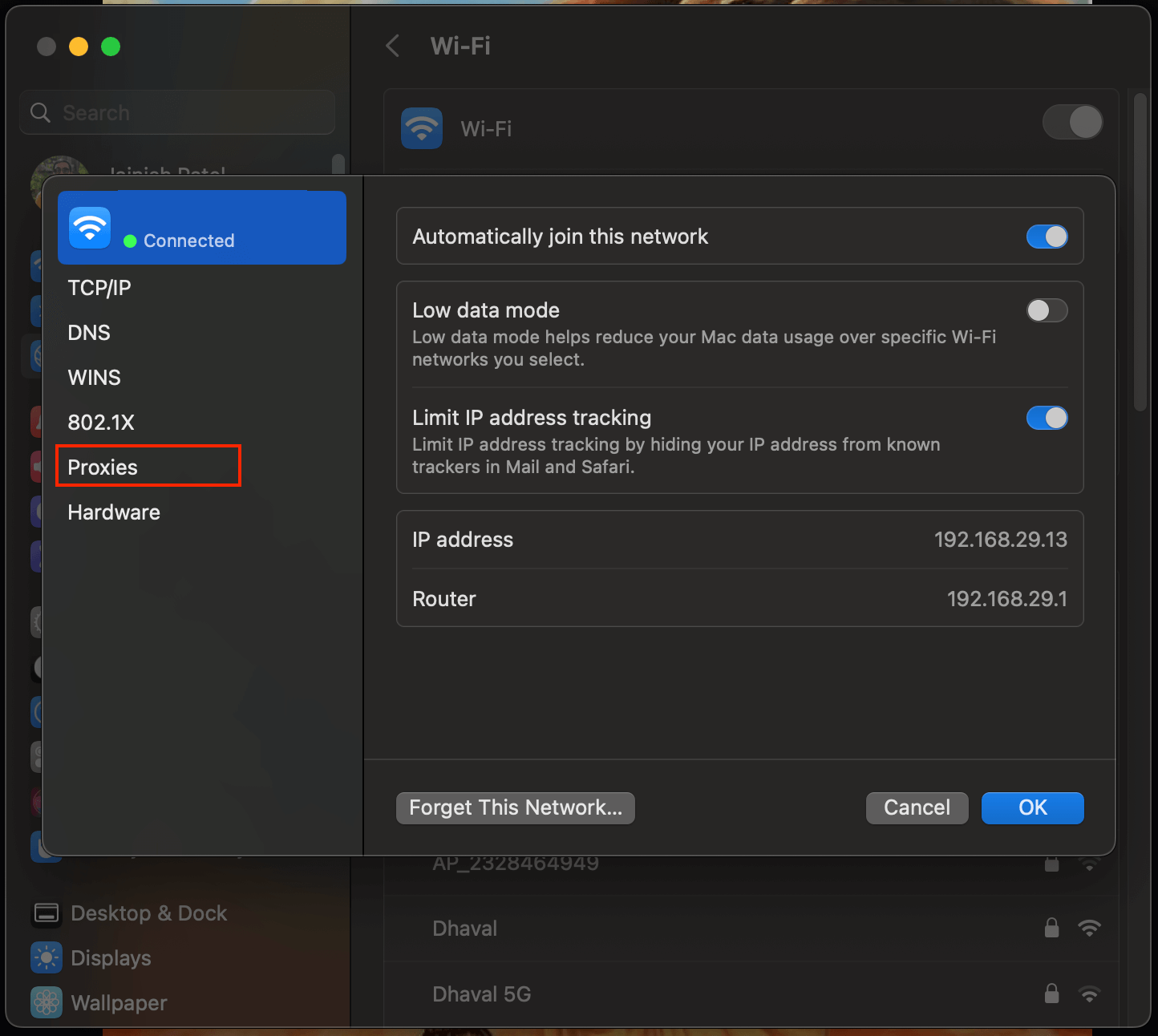
Now, you’ll find all the settings related to setting up a proxy in macOS.
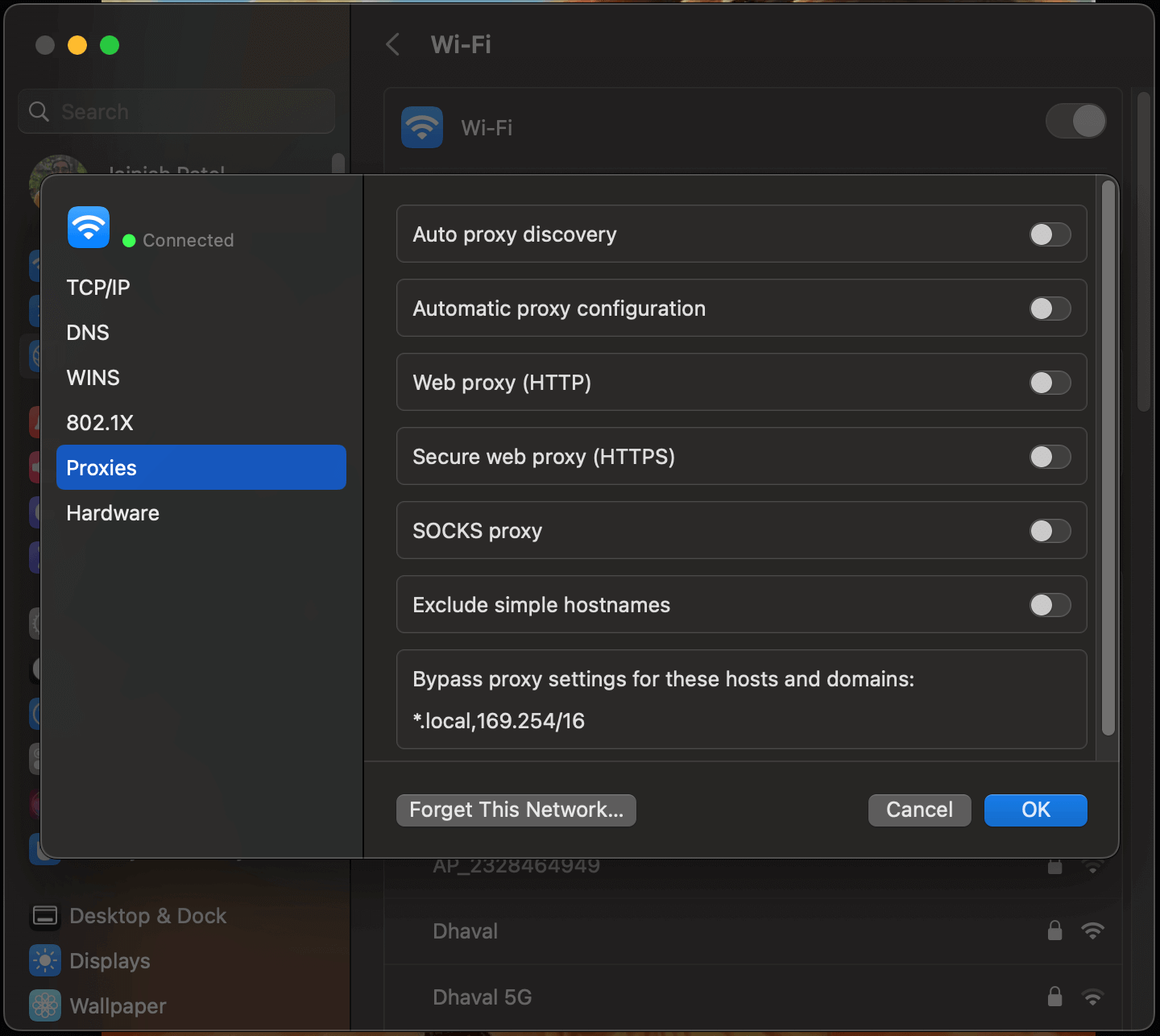
You have two options here. If you don’t want to set up yourself, select “Auto Proxy Discovery” and leave the configuration to your computer.
If you want more control, you can also make the settings manually. In this case, you must specify the proxy type and enter both the port and the address (remember that the port is the smaller number). If the proxy server requires authentication, you must enter the necessary credentials, especially if it is password-protected.
How to Check Proxy Settings Through a Web Browser?
Checking your proxy settings through a web browser is a simple process. To check your proxy settings directly from the browser, follow the below steps. We are using Google Chrome as an example.
Step 1: Open Web Browser (Ex- Chrome)
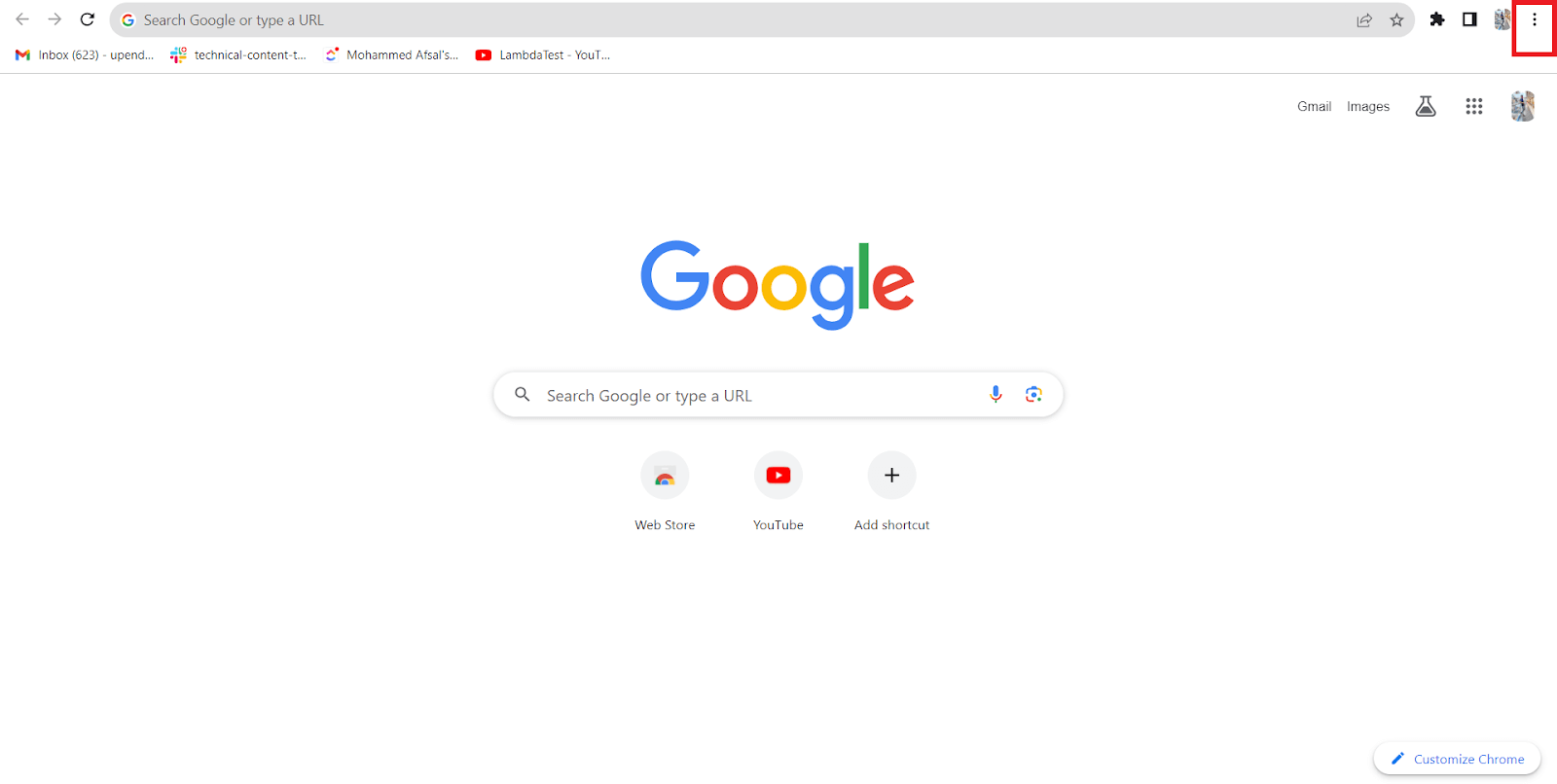
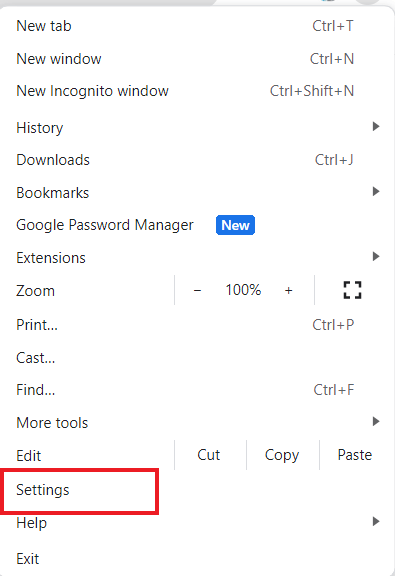
Step 2: Click the Chrome menu (three vertical dots) and then click Settings.
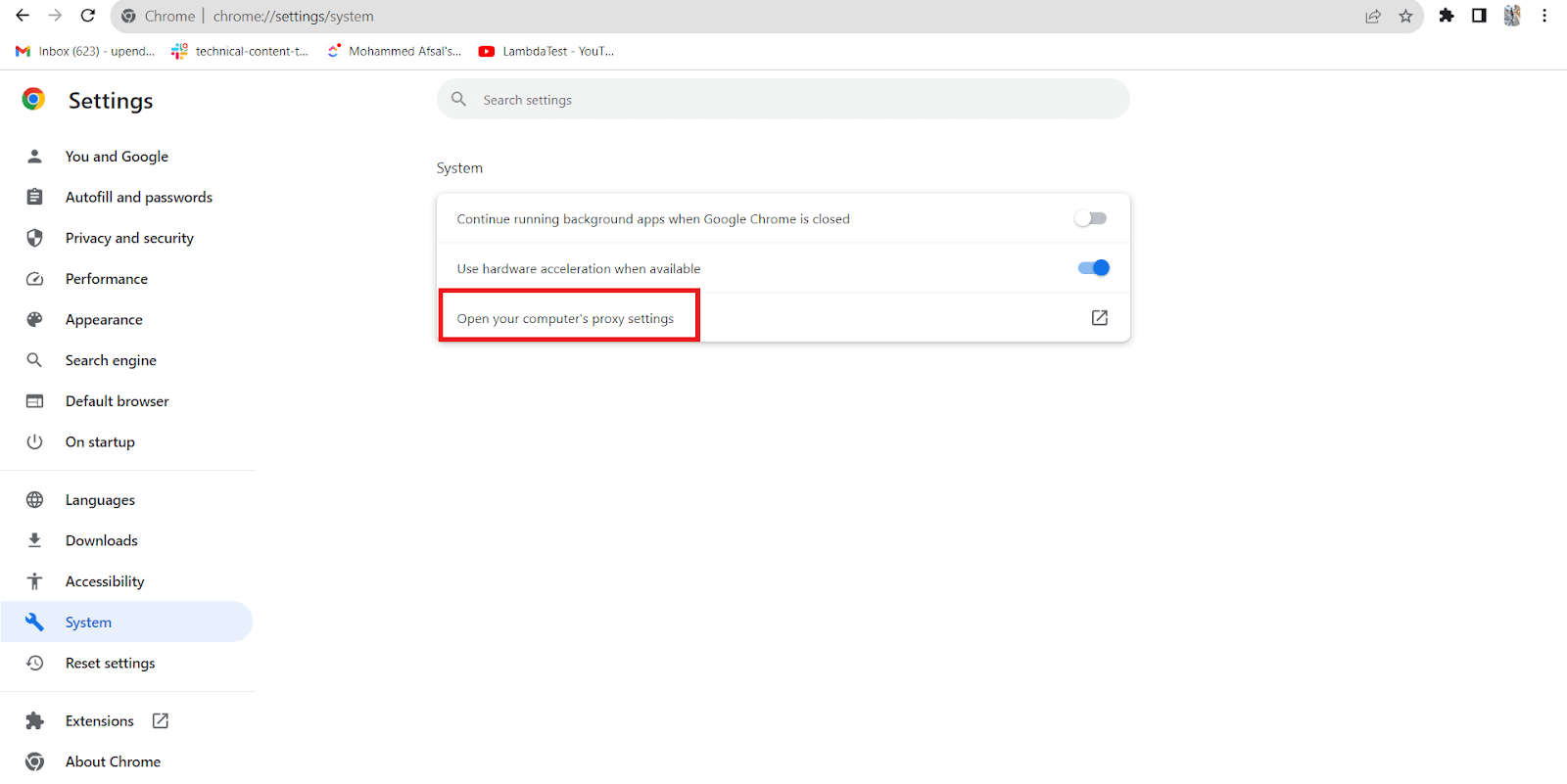
Step 3: Select System and then click on the option “Open your computer’s proxy settings”
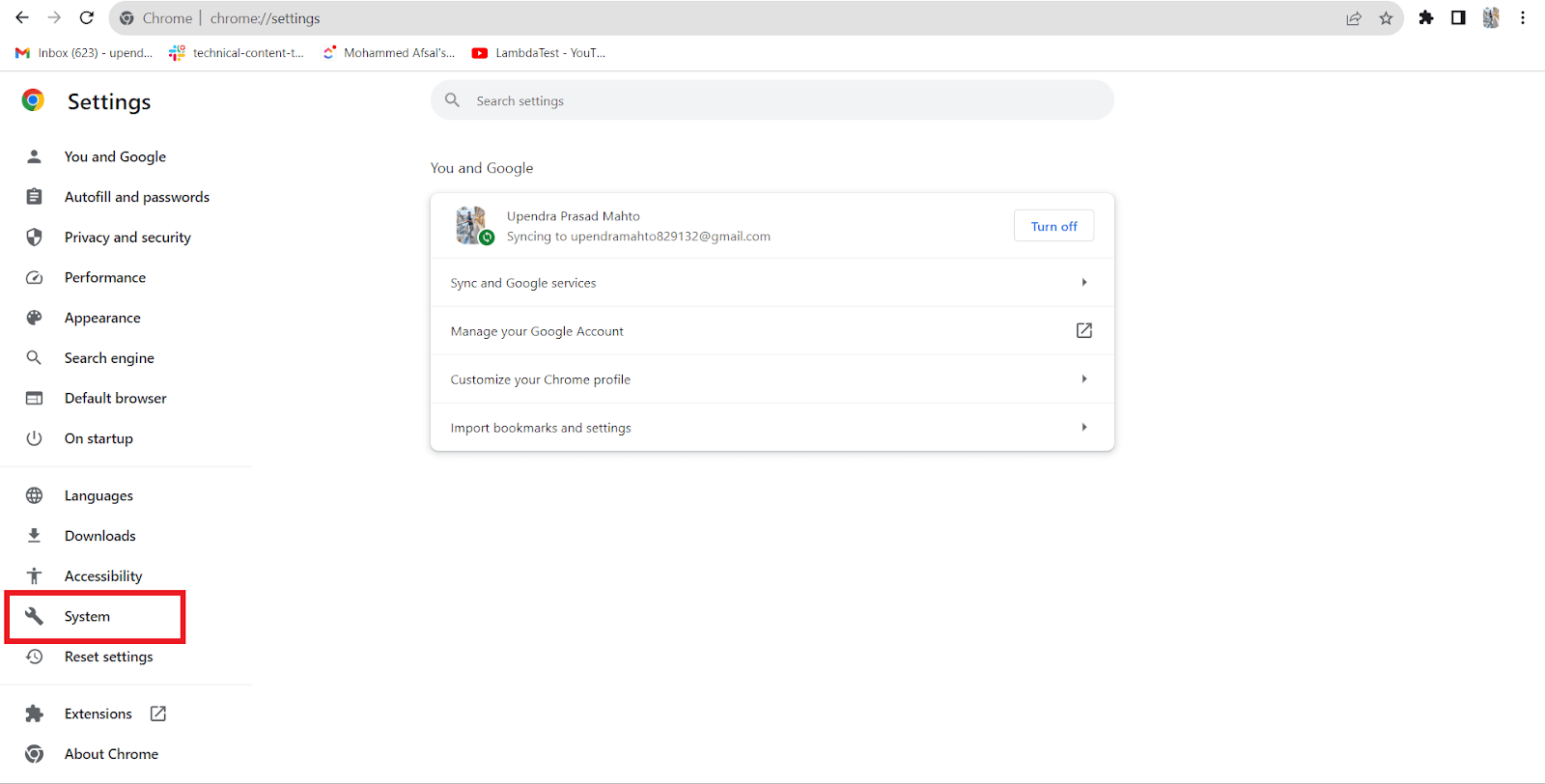
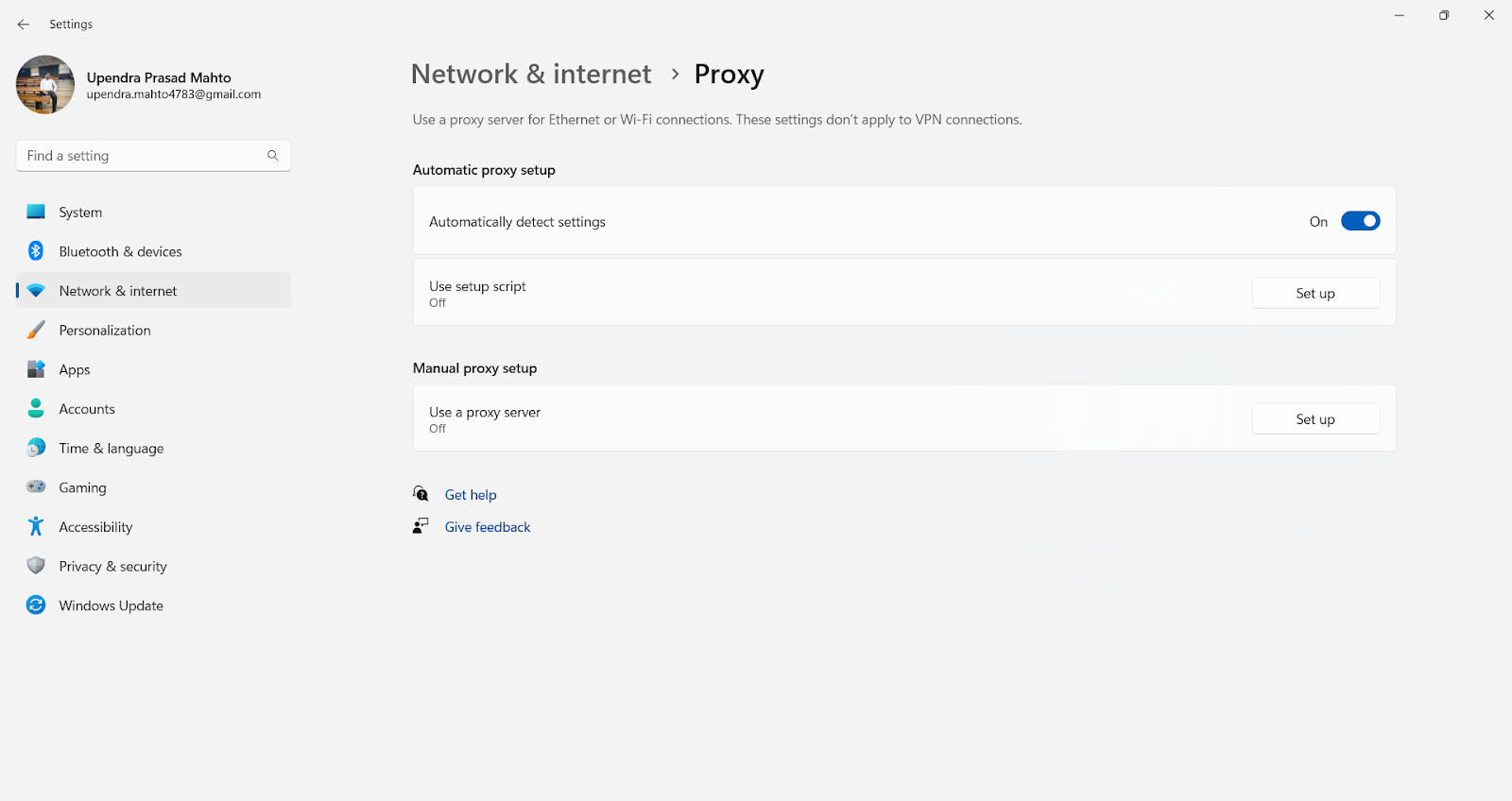
A new window is opened where you’ll find various options for configuring your proxy settings based on your requirements.
How Do You Check Proxy Settings for AI Agents and CLI Tools?
AI coding agents, test runners and CLI tools often skip the proxy set in Windows Settings or macOS System Settings and read the HTTPS_PROXY, HTTP_PROXY and NO_PROXY environment variables instead. Check these places when a tool fails behind a corporate proxy while the browser works:
- Environment variables: Run env | grep -i proxy on macOS or Linux, or Get-ChildItem Env:*proxy* in PowerShell, to list the proxy variables the current shell passes to every tool it starts.
- WinHTTP proxy: Run netsh winhttp show proxy on Windows. Windows services and some background tools use the WinHTTP proxy, which is separate from the per-user proxy in Settings, and the command prints "Direct access (no proxy server)" when none is set.
- macOS system proxy: Run scutil --proxy to print the proxy configuration of the active network service, the same values the Proxies screen shows.
- AI coding agents: Claude Code reads HTTPS_PROXY, HTTP_PROXY and NO_PROXY, does not support SOCKS proxies, and shows the active proxy URL in its /status view, according to its network configuration docs.
- Browser agents and test runners: The Playwright MCP server takes a --proxy-server flag, a Playwright proxy goes in the proxy launch option, and a Selenium proxy goes in the browser capabilities. Each one can differ from the system proxy.
- Local testing tunnels: Behind a corporate proxy, tunnel clients used for local website testing need the proxy host and port from the Windows or Mac steps above.
Conclusion
Checking proxy settings in Windows is essential for ensuring online security, privacy, and access control. It allows users to configure their Internet connection according to their specific needs, whether to improve privacy, bypass restrictions, or optimize network performance.
This article provides insights into the fundamental methods for how to check proxy settings. Firstly, we talked about how to check proxy settings on Windows and macOS. Then, we discussed how to check proxy settings through a web browser, offering a comprehensive guide for users seeking a seamless online experience. If you are sourcing IPs for testing or scraping, see a residential proxy alternative.
Author

Upendra Prasad Mahto
Blogs: 9


Upendra Prasad Mahto is a community contributor with 2+ years of experience across software engineering, test automation content, and technical writing. He specializes in creating content around test automation tools such as Selenium and Appium, along with topics in software quality and emerging AI technologies. Formerly a Technical Content Writer at TestMu AI, Upendra focuses on translating practical testing workflows and automation concepts for developers and QA professionals. He holds a B.Tech in Electronics and Communication Engineering and certifications in Generative AI and Product Analytics.
Reviewer

Aman Chopra
Reviewer
Aman Chopra is a DevOps Engineer and Community Contributor with over 7 years of experience in cloud technologies, software development, and software testing. Currently working at TestMu AI, Aman specializes in optimizing Azure cloud infrastructure, enhancing API accessibility, and integrating cloud platforms like AWS and GCP. With expertise in Git, Docker, Kubernetes, and CI/CD practices, Aman has contributed to various open-source projects and authored guides on cloud computing, containers, and CI/CD. He holds a B.Tech in Computer Science.


Proxy Settings FAQs
Did you find this page helpful?
More Related Blogs
TestMu AI forEnterprise
Get access to solutions built on Enterprise
grade security, privacy, & compliance
- Advanced access controls
- Advanced data retention rules
- Advanced Local Testing
- Premium Support options
- Early access to beta features
- Private Slack Channel
- Unlimited Manual Accessibility DevTools Tests