

Power Your Software Testing with AI Agents and Cloud
The Native AI-Agentic Cloud Platform to Supercharge Quality Engineering. Test Intelligently and Ship Faster.


- TestMu AI (Formerly LambdaTest)
- /
- Blog
- /
- How to Test Dark Mode Across Browsers
How to Test Dark Mode Across Browsers
Learn how to test dark mode across browsers: what breaks in each engine, and how to run real-session, automated, and AI-driven prefers-color-scheme checks.
Last Updated on:
Walk past our bay in the office and the lights are usually off. A lot of us, me included, work in dark mode all day because it is easier on the eyes, and we are not the exception: in an Android Authority poll of over 2,500 readers, 81.9% said they use dark mode wherever it is available.
So your website has to look right in it, not just tolerate it. A dark theme can look perfect in Chrome, then open on an iPhone with invisible input fields and a logo that vanished into the background, because dark mode renders differently in every browser engine.
This guide covers how to test dark mode across browsers, from what actually breaks between engines to checking it in a live session, in automation, and with AI.
Overview
What is dark mode testing?
Dark mode testing verifies a website stays readable and correctly styled when the OS or browser is set to a dark color scheme, catching bugs that surface only once prefers-color-scheme goes dark.
What breaks in dark mode across browsers?
Native form controls, white-background logos, hard-coded SVG fills, light-tuned shadows, and forced-colors all render differently across Chromium, WebKit (Safari), and Gecko (Firefox).
How do you test it across browsers?
Toggle dark mode in a live mobile session or force prefers-color-scheme: dark in Playwright or Selenium, then run across Chrome, Safari, Firefox, and Edge so engine bugs surface.
How do you test Safari dark mode without a Mac?
Chromium emulation cannot render WebKit. TestMu AI live testing runs an iOS simulator that renders real Safari, so you toggle Dark Mode and catch WebKit-specific issues without owning a device.
What Is Dark Mode Testing, and Why Does It Break Across Browsers?
Dark mode testing is the practice of checking how your website looks and behaves when the user's operating system or browser is set to a dark color scheme. The browser exposes that preference through the prefers-color-scheme media feature, and your CSS responds with a darker palette.
The problem is that a dark stylesheet is not applied identically everywhere. Chromium, WebKit (Safari), and Gecko (Firefox) each render native form controls, system colors, scrollbars, and images in their own way once dark mode is active.
That is the same engine gap behind broader cross browser compatibility problems.
So a theme that reads perfectly in Chrome on Windows can surface unreadable inputs in Safari, or a hard-coded shadow that disappears on a dark background in Firefox. If you already style with CSS media queries, dark mode testing is how you confirm your dark rules hold up across every engine your users are on.

Note: Set a live browser session to dark mode and load your site across engines in minutes, no local setup and no second machine.Start testing free with TestMu AI
What Breaks in Dark Mode From One Browser to the Next?
Most dark mode bugs are not about the color palette itself. They come from elements that ignore your theme, or that the browser restyles on its own. These are the failure modes worth checking on every engine.
| What to check | What breaks | Where it bites most | How to fix it |
|---|---|---|---|
| prefers-color-scheme support | Older or embedded browsers ignore the query and fall back to the light theme. | Legacy WebViews and in-app browsers. | Keep a solid light default and treat dark as progressive enhancement. |
| Native form controls | Inputs, checkboxes, and selects keep a light background, so the text drops to low contrast. | Safari and iOS. | Set color-scheme on the root element so native controls adapt. |
| Images and logos | Transparent or white-background assets blend into the dark canvas and vanish. | All engines. | Swap the asset behind a prefers-color-scheme query, or add a light backplate. |
| SVG and icon fonts | Icons with hard-coded fills stay dark on a dark background. | All engines. | Use fill: currentColor so icons follow the text colour. |
| Shadows and borders | Light-tuned shadows and subtle borders disappear, flattening the layout. | Firefox and Safari. | Raise shadow and border contrast in the dark theme specifically. |
| forced-colors mode | Windows High Contrast replaces your palette with a system set, breaking custom UI. | Chrome and Edge on Windows. | Test High Contrast separately and use system colour keywords. |
| What to check | What breaks | Where it bites most | How to fix |
|---|---|---|---|
| prefers-color-scheme support | Older or embedded browsers ignore the query and fall back to your light theme | Legacy WebViews, in-app browsers | Keep a solid light default and treat dark as progressive enhancement |
| Native form controls | Inputs, checkboxes, and selects keep a light background, so text becomes low-contrast | Safari, iOS | Set color-scheme: dark (or light dark) on the :root element |
| Images and logos | Transparent or white-background assets blend into the dark canvas and disappear | All engines | Swap assets with a prefers-color-scheme query or add a light backplate |
| SVG and icon fonts | Icons with hard-coded fills stay dark on dark instead of inheriting currentColor | All engines | Use fill: currentColor so icons follow the text color |
| Shadows and borders | Light-tuned box-shadows and subtle borders vanish, flattening the layout | Firefox, Safari | Increase shadow and border contrast in the dark theme |
| forced-colors mode | Windows High Contrast overrides your palette with a system set, breaking custom UI | Chrome, Edge on Windows | Test High Contrast separately and use system color keywords |
The last row is the one teams miss most. Dark mode and forced-colors are separate features: a site can pass a dark theme review and still break under Windows High Contrast, which actively replaces your colors rather than just signaling a dark preference.
Contrast is the thread running through all of it. Once the background flips dark, text and icons that were fine on white can drop below readable levels, which is why a dark theme pass pairs naturally with checking accessible color contrast.
How Do You Test Dark Mode in a Live Session?
The fastest hands-on check is a mobile session with dark mode switched on. TestMu AI has a Dark Mode toggle on both its virtual mobile sessions and its real devices, so you flip the theme in the cloud without changing any system settings.
On the virtual side, the iOS simulator renders in real WebKit, so Safari-specific dark styling shows up accurately without owning any hardware.
In a live testing session, the Dark Mode toggle sits in the session Settings:
- Start a live mobile session. Pick a mobile browser on a virtual device, such as Chrome on an Android emulator or Safari on an iOS simulator, and load your URL.
- Turn on Dark Mode. Open Settings in the session controls and toggle Dark Mode on, then reload the page so it takes full effect.
- Walk each surface. Check inputs, dropdowns, images, icons, shadows, and modals against the failure list above.
- Repeat across engines. Cover Chrome, Safari, and the other browsers your audience uses, so a theme that holds in one engine cannot fail silently in another.
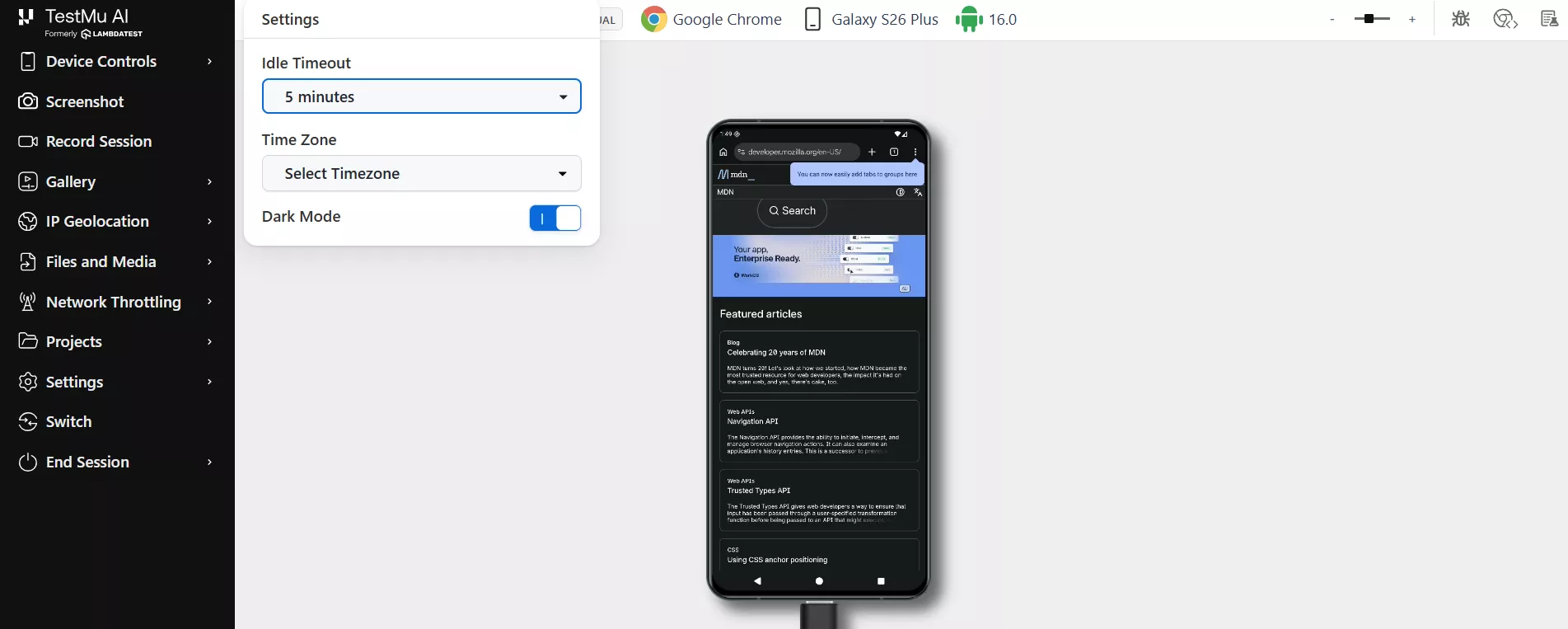
The same Dark Mode toggle is on the real device cloud too, from Device Control on real iOS and Android devices, so dark mode folds into a physical-hardware pass whenever your release process calls for one.
On desktop there is no in-session toggle, so dark mode follows the operating system appearance and is quickest to force through automation, which is covered next. For the manual toggle, see the docs on enabling dark mode on real devices.

How Do You Automate Dark Mode Tests Across Browsers?
Once you know the theme is right, automation keeps it right on every build. Both Playwright and Selenium can force a dark color scheme, so you never depend on the machine's actual system setting.
In Playwright, set the color scheme on the browser context and run it against the TestMu AI cloud grid:
const { chromium } = require('playwright');

const capabilities = {
  browserName: 'Chrome',
  browserVersion: 'latest',
  'LT:Options': {
    platform: 'Windows 11',
    build: 'Dark Mode Cross Browser Test',
    name: 'prefers-color-scheme: dark',
    user: process.env.LT_USERNAME,
    accessKey: process.env.LT_ACCESS_KEY,
  },
};

(async () => {
  const browser = await chromium.connect(
    `wss://cdp.lambdatest.com/playwright?capabilities=${encodeURIComponent(JSON.stringify(capabilities))}`
  );
  // Force dark mode for the whole context
  const context = await browser.newContext({ colorScheme: 'dark' });
  const page = await context.newPage();
  await page.goto('https://www.testmuai.com/selenium-playground/');
  await page.screenshot({ path: 'dark-mode.png' });
  await browser.close();
})();
In Selenium, force the preference through the Chrome DevTools Protocol before you navigate:
# Chromium engines: emulate prefers-color-scheme via CDP
driver.execute_cdp_cmd('Emulation.setEmulatedMedia', {
    'features': [{'name': 'prefers-color-scheme', 'value': 'dark'}]
})
driver.get('https://www.testmuai.com/selenium-playground/')
One honest limit: this CDP emulation only covers Chromium browsers. For real Safari (WebKit) and Firefox (Gecko) dark mode, run the suite on real browsers through the automation cloud, which spans 3,000+ browser and OS combinations so the same test executes on the engines emulation cannot fake.
If your page branches its own behavior on the theme, read the preference directly in JavaScript with matchMedia, which is also handy for swapping assets or logging what users actually get:
// Detect the user's dark mode preference in JavaScript
const prefersDark = window.matchMedia('(prefers-color-scheme: dark)').matches;

// React to changes while the page is open
window.matchMedia('(prefers-color-scheme: dark)')
  .addEventListener('change', (event) => {
    console.log('dark mode is now', event.matches);
  });
Once the theme renders correctly, lock it in with visual regression testing: capture the light and dark version of each page and diff them, so a later style change cannot break the dark theme without the diff catching it.
Can You Test Dark Mode With AI?
Writing a selector-based assertion for a dark theme is fiddly, because you are checking computed colors rather than text. This is where an AI-native approach helps.
With Kane AI by TestMu AI, you describe the check in plain language, such as "toggle dark mode and assert the background turns dark," and it drives the session and validates the result for you. The intent stays readable even when the underlying palette changes.
That keeps a dark mode test resilient: you are asserting the behavior a user cares about, not a brittle hex value that a design refresh will break next quarter.
Dark Mode Cross-Browser Testing Checklist
Run this before you ship a dark theme, on every engine your audience uses.
- prefers-color-scheme is honored, with a sensible fallback where it is unsupported.
- Native inputs, checkboxes, and dropdowns stay readable, checked on Safari and iOS.
- Transparent and white-background images and logos remain visible on the dark canvas.
- SVG and icon-font glyphs inherit currentColor instead of a hard-coded fill.
- Shadows, borders, and dividers are still visible against dark surfaces.
- Text and icon contrast meets accessibility targets once the background flips.
- forced-colors and Windows High Contrast are tested separately from dark mode.
- Any in-page dark mode toggle persists across reloads and matches the system setting.
Ship Dark Mode Where Your Users Actually See It
Dark mode is a real user setting, and the bugs it creates only appear once you flip the switch on the exact browser and OS your audience uses. A theme that passes in Chrome tells you nothing about Safari, iOS, or Windows High Contrast.
Check it in a live session first, lock it in with automation across engines, and let AI keep the assertions readable as the design evolves. TestMu AI cross browser testing puts Chrome, Safari, Firefox, and Edge in one place, so a single dark mode pass reaches every engine your audience runs. See the docs on real-time browser testing to run your first dark mode pass across real browsers.

Author

Naima Nasrullah
Blogs: 17

Naima Nasrullah is a Community Contributor at TestMu AI, holding certifications in Appium, Kane AI, Playwright, Cypress and Automation Testing. She writes practical, hands-on content that helps QA engineers and developers build reliable test automation frameworks across web and mobile platforms. Drawing on her expertise in automation testing, Naima breaks down complex tools and workflows into clear, actionable guidance that readers can apply directly to their own projects and testing pipelines.
Reviewer

Rahul Mishra
Reviewer
Rahul Mishra is a Lead Member of Technical Staff at TestMu AI (formerly LambdaTest), leading frontend engineering and accessibility testing across the quality engineering platform. He mentors frontend engineers, runs code reviews and sprint planning, optimizes React.js rendering performance, and makes product features accessible to users with disabilities through WCAG and ADA-compliant accessibility audits. He brings 10+ years of experience across React.js, VueJS, TypeScript, Swift, Objective-C, and AWS, with earlier work as a Technical Lead at VectoScalar Technologies. Rahul holds a B.E. in Information Technology.


Dark Mode Testing FAQs
Did you find this page helpful?
More Related Blogs
TestMu AI forEnterprise
Get access to solutions built on Enterprise
grade security, privacy, & compliance
- Advanced access controls
- Advanced data retention rules
- Advanced Local Testing
- Premium Support options
- Early access to beta features
- Private Slack Channel
- Unlimited Manual Accessibility DevTools Tests