

Power Your Software Testing with AI Agents and Cloud
The Native AI-Agentic Cloud Platform to Supercharge Quality Engineering. Test Intelligently and Ship Faster.


- TestMu AI (Formerly LambdaTest)
- /
- Blog
- /
- Claude Code Browser: How to Let Claude Test Your Web App
Claude Code Browser: How to Let Claude Test Your Web App
Set up a Claude Code browser: the desktop Browser pane, Claude in Chrome, Playwright MCP, Chrome DevTools MCP, CLIs, and cloud Chrome, with measured outputs.
Published on:
Anthropic's Claude Code can rewrite a signup form, run the unit tests, and report the job finished without ever loading the page. A submit button hidden by a CSS change, an error thrown on page load, or a redirect loop all slip past that check, because nothing in a terminal renders HTML.
A Claude Code browser setup closes that gap by giving Claude Code a browser it can drive and read, and in October 2026 you have several ways to do it. Running Claude Code itself in a browser tab is a different feature, Claude Code on the web at claude.ai/code, which has its own section near the end.
TL;DR
Claude Code can see and test a web app once it has a browser, and in Claude Code Desktop that browser is the built-in Browser pane. In the CLI or VS Code, connect the Claude in Chrome extension or an MCP server such as Playwright MCP. For CI runs or parallel sessions, add a cloud browser.
- Checking your own app: The Browser pane in Claude Code Desktop opens with Ctrl+Shift+B or Cmd+Shift+B, starts your dev server, and auto-verifies each edit with screenshots and DOM checks. Needs Claude Code Desktop: yes. Uses your browser's saved logins: no.
- Working in signed-in sites: The Claude in Chrome extension lets Claude Code drive your own Chrome or Edge with your login state, started with claude --chrome or @browser in VS Code. Runs in WSL: no. Needs a direct Anthropic plan: yes.
- Driving flows in Firefox or WebKit: Microsoft's Playwright MCP server 0.0.83 registers 25 tools, returns the Playwright code for each action, and runs Chrome, Firefox, WebKit, or Edge through its --browser option. Works with API-key sign-in: yes.
- Debugging a slow or broken page: Google's Chrome DevTools MCP server 1.10.1 registers 30 tools, including Lighthouse audits, performance traces, and network inspection. Usage statistics on by default: yes.
- A pass or fail verdict in CI: Kane CLI by TestMu AI runs a plain-English objective in local Chrome and exits 0 on pass and 1 on fail. Returns an exit code a CI step can use: yes.
- Parallel or recorded runs: TestMu AI Browser Cloud runs checks on cloud-hosted Chrome through an SDK and records video, console, and network logs for each session. Reaches localhost: yes, through the built-in tunnel.
- Running Claude Code in a browser: Claude Code on the web, at claude.ai/code, runs Claude Code itself in Anthropic-hosted cloud sessions on Pro, Max, and Team plans. Includes a browser for testing your app: no.
For this guide I ran Playwright MCP, Chrome DevTools MCP, and Playwright CLI through the same Selenium Playground task, installed the Kane CLI and Browser Cloud skills, and checked a local page from a TestMu AI Browser Cloud session. The Browser pane and Claude in Chrome sections follow Anthropic's documentation; I did not run either for these measurements.
Claude Code Browser Options
Claude Code has a built-in browser only in Claude Code Desktop, where it is called the Browser pane. The Claude Code CLI and VS Code extension get browser automation through a tool, and each tool hands Claude a different view of the page: screenshots, an accessibility tree, DevTools data, or a pass or fail result.
- Browser pane - a tabbed browser inside Claude Code Desktop that previews your dev server and checks Claude's edits on its own.
- Claude in Chrome - Anthropic's extension that lets the CLI and the VS Code extension drive your own Chrome or Edge, signed in as you.
- Browser MCP servers - Microsoft's Playwright MCP, Google's Chrome DevTools MCP, and similar servers that you register with
claude mcp add. - Browser CLIs - command-line tools such as Playwright CLI and Kane CLI that Claude Code runs through its Bash tool.
- Cloud browsers - remote Chrome sessions, such as TestMu AI Browser Cloud, that reach your localhost through a tunnel.
The npm registry download count for @playwright/mcp was 29,303,739 for September 2026.
That package runs Playwright MCP, and its count includes CI installs and repeat npx fetches, so read it as reach rather than as a head count of developers. If you are still deciding how Claude Code fits your workflow, the Claude Code overview covers sessions, permissions, and extensions before any browser is involved.
Use the Built-in Browser Pane in Claude Code Desktop
Claude Code Desktop has a Browser pane, a tabbed browser that opens inside the session window. Anthropic's Claude Code Desktop documentation says it opens with Ctrl+Shift+B on Windows or Cmd+Shift+B on macOS, or from the Browser button in the session title bar.
Its main job is your own app. Claude starts the dev server, opens it in the pane, and auto-verifies after every edit by taking screenshots, inspecting the DOM, clicking elements, and filling forms. Anthropic's docs list auto-verify as on by default.
- Dev server config - Claude writes the start command to
.claude/launch.json. EditruntimeExecutable,runtimeArgs, andportwhen your app runs onyarn devor a custom port, and add"autoVerify": falseto stop the checks after every edit. - Clean profile - the pane uses its own browser profile with none of your saved logins or history. Sign in once inside the pane, and the Keep cookies option in its menu holds that session across restarts.
- Site approvals - the first action on an external site raises an Allow once, Always allow, or Deny card, and each subdomain needs its own approval. Local dev servers and project files need none.
- Element picking - Cmd+Shift+S on macOS selects an element in the pane, which gives Claude an exact target instead of a description.
When a task could run several ways, Desktop picks the most precise tool first: a connector, then Bash, then Claude in Chrome, then the iOS Simulator pane, with computer use last. The same docs say computer use caps browsers at view-only, which steers Claude back to a dedicated browser tool.
The Browser pane belongs to the desktop app. In the CLI or the VS Code extension, the first-party route is Claude in Chrome.
Drive Your Own Chrome With Claude in Chrome
Claude in Chrome is the Anthropic browser extension that connects Claude Code to the Chrome or Edge browser you already use. According to Anthropic's Chrome integration docs, Claude opens new tabs in a visible window, shares your login state, and pauses for you at a login page or CAPTCHA.
Anthropic's docs walk through the setup in this order:
- Install the Claude in Chrome extension from the Chrome Web Store, version 1.0.36 or later, in Chrome, Edge, or another Chromium browser such as Brave or Arc.
- Sign in to Claude Code with
/login. An API key or a token fromclaude setup-tokenkeeps Chrome integration off, even with the flag. - Start a session with
claude --chrome, then run/chromeand confirm the panel shows Status: Enabled and Extension: Installed. - In the VS Code extension, type
@browserin the prompt box to connect that session.
The Enabled by default option in /chrome saves you the flag, but the docs warn that it raises context usage because the browser tools and their instructions stay loaded. If context is tight, connect per session instead.
Check these limits before you plan a workflow around it:
- WSL - Chrome integration is not supported inside Windows Subsystem for Linux.
- Plans and providers - it needs a direct Anthropic plan (Pro, Max, Team, or Enterprise) and is not available through Amazon Bedrock, Google Cloud's Agent Platform, or Microsoft Foundry.
- Browsers - the docs name Chrome, Edge, Brave, Arc, Vivaldi, and Opera. Firefox and Safari are not on the list.
- First connection - restart Chrome after you enable the integration for the first time, because Chrome reads the native messaging host file that Claude Code installs only at startup.
- Idle connections - the extension's service worker can go idle in long sessions. Run
/chromeand pick Reconnect extension when browser tools stop answering. - Blocking dialogs - a JavaScript alert or confirm dialog stops browser commands until you dismiss it by hand.
Add a Browser MCP Server to Claude Code
Browser MCP servers are local processes that Claude Code starts and talks to, so they work where Claude in Chrome does not, such as API-key sessions or a Bedrock setup. I registered Playwright MCP and Chrome DevTools MCP with the default local scope, which keeps them in your own Claude Code config for the current project, then ran the health check:
claude mcp add playwright -- npx @playwright/mcp@latest
claude mcp add chrome-devtools -- npx -y chrome-devtools-mcp@latest
claude mcp list
On Claude Code 2.1.295, the current release in October 2026, claude mcp list printed:
Checking MCP server health…

playwright: npx @playwright/mcp@latest - ✔ Connected
chrome-devtools: npx -y chrome-devtools-mcp@latest - ✔ Connected
That ran on native Windows 11, and plain npx connected without a cmd /c wrapper. To share servers with your team, add --scope project, which writes them to a .mcp.json file at the project root. After that, claude mcp list shows them as pending approval until each person runs claude in that folder and approves them.
To see what each server returns to Claude, I wrote a small MCP client and ran one task through both servers and through Playwright CLI. The task opens the Simple Form Demo on the Selenium Playground, types a message, clicks Get Checked Value, and confirms the message appears. The reply sizes come from the servers and the CLI themselves, so the Claude Code version does not change them.
| Measure (characters returned) | Playwright MCP 0.0.83 | Chrome DevTools MCP 1.10.1 | Playwright CLI 0.1.22 |
|---|---|---|---|
| Tools registered | 25 tools, 20,286 characters of definitions | 30 tools, 26,388 characters of definitions | None, Claude runs shell commands |
| Opening the page | 341, snapshot saved to a file | 227, after a 34-character list_pages call for the page ID | 387, snapshot saved to a file |
| Full page snapshot | 26,694 | 22,316 | 26,695 |
| Typing, then clicking | 136, then 454, each with the Playwright code it ran | 35, then 35, a short confirmation each | 137, then 457, each with the Playwright code it ran |
| Confirming the message | 750 with browser_find | 69 with evaluate_script, or 22,413 with a second snapshot | 751 with find |
| Message shown after the click | Yes | Yes | Yes |
Snapshot sizes varied by less than one percent between my runs. The measurements changed how I set these servers up:
- Per-call cost - Playwright MCP now writes page snapshots to
.playwright-mcpfiles after a navigation or click and replies with a file path, as Playwright CLI does, so the two returned nearly identical replies call for call. - Full snapshots - a whole-page snapshot was the largest reply on every route. Ask Claude to search the page or read one element instead of re-snapshotting to confirm a result.
Per Claude Code's MCP documentation, Claude Code warns when one MCP tool output passes 10,000 tokens, caps it at 25,000 tokens by default, and lets you raise that with MAX_MCP_OUTPUT_TOKENS.
The tool-definition sizes in the table matter less than they look. The same documentation says tool search is on by default and defers MCP tool definitions until Claude needs them, so only tool names and server instructions load at session start. Setting ENABLE_TOOL_SEARCH=false, or pointing ANTHROPIC_BASE_URL at a non-first-party gateway, loads every definition up front.
These options decide how each server behaves:
- --browser - the Playwright MCP README lists chrome, firefox, webkit, and msedge, which makes it the route here that reaches non-Chromium engines on your machine.
- --headless - Playwright MCP runs headed by default, so add the flag for CI or a remote shell; the headless browser testing guide covers when a headless run is enough.
- --isolated - keeps the profile in memory. Without it, Playwright MCP stores logins in a persistent profile per workspace, and one profile serves one browser instance at a time.
- DevTools tools - Chrome DevTools MCP ships lighthouse_audit, performance_start_trace, performance_analyze_insight, and list_network_requests by default, which fits diagnosing performance and network problems better than clicking through a flow.
For the full tool reference and agent workflows, see the Playwright MCP server guide. If neither server fits, the Playwright MCP alternatives roundup covers Selenium MCP and mobile options.
Claude Code plugins can also bundle an MCP server with skills and hooks into one install, which suits a team that wants the same browser setup on every machine. The Claude Code plugins guide covers building and installing one.
Run Browser CLIs From Claude Code
Claude Code can drive a browser without any MCP server: it runs a CLI through its Bash tool and reads the output. The Playwright MCP README points coding agents to this route, saying CLI invocations avoid loading large tool schemas and verbose accessibility trees into the model context. The MCP vs CLI comparison covers that trade-off beyond browsers.
Playwright CLI for Driving the Page
Playwright CLI ships as @playwright/cli and runs through npx with no global install. These are the exact commands I ran against the Simple Form Demo:
npx @playwright/cli open https://www.testmuai.com/selenium-playground/simple-form-demo/
npx @playwright/cli fill e54 "Hello from Claude Code"
npx @playwright/cli click e55
npx @playwright/cli find "Hello from Claude Code"
npx @playwright/cli close
The open command saves the page snapshot to a .playwright-cli folder and prints its path, and that file is where the e54 and e55 element refs come from. Each action also prints the Playwright code it ran, so a session doubles as a test draft. These two lines came back from the fill and click commands:
await page.getByRole('textbox', { name: 'Please enter your Message' }).fill('Hello from Claude Code');
await page.getByRole('button', { name: 'Get Checked Value' }).click();
The find step confirmed the message twice, as the textbox value and in the Your Message paragraph, without loading the whole page tree. The CLI's help output also points to a bundled SKILL.md that teaches an agent the command set, and the AI browser testing CLI comparison shows how it compares with agent-browser and other control tools.
Kane CLI for a Pass or Fail Verdict
Playwright CLI moves the browser, but it does not decide whether the result is correct. Kane CLI by TestMu AI takes a plain-English objective, runs it in local Chrome, and exits 0 on pass, 1 on fail, 2 on a setup error, and 3 on timeout.
That turns a browser check into something Claude Code and a CI step can both act on. Disclosure: I am a product manager for Kane CLI at TestMu AI.
- Agent mode - with the Kane CLI skill installed, Claude Code builds a
kane-cli run --agent --headlesscommand after it changes a feature. It parses the NDJSON events, then continues, fixes the bug, or hands the failure to you. - CI mode -
--agentswitches output to NDJSON and--headlessruns Chrome without a window, so the same objective runs in GitHub Actions, GitLab CI, or Jenkins.
The skill installs for Claude Code, Codex CLI, and Gemini CLI with one command, npx @testmuai/kane-cli-skill. I ran it against a throwaway home folder, and it reported version 0.1.2 installed to all three agents.
After the install, the skill answers to /kane-cli in Claude Code, or to any request that needs a browser. The Claude Code and Kane CLI walkthrough shows the write-then-verify loop on a working app.
Let Claude Code write Playwright tests that actually pass.

Run Claude Code Browser Checks on Cloud Chrome
The Browser pane, Claude in Chrome, MCP servers, and CLIs all drive a browser on your own machine. A cloud browser helps when the check runs in CI, when several sessions need to run at once, or when a teammate needs a recording of what the agent saw.
TestMu AI Browser Cloud provides real Chrome sessions on demand through the @testmuai/browser-cloud SDK, with a built-in tunnel to localhost and staging, persistent session state, and video, console, and network logs for each session. It works with the Playwright, Puppeteer, and Selenium adapters you already use.
To have Claude Code write the integration itself, install the Browser Cloud agent skill from the Browser Cloud skills docs. I added --agent claude-code, -y, and --copy to the documented command, and it placed the skill in the project's .claude/skills/browser-cloud folder:
npx skills add https://github.com/LambdaTest/browser-cloud-skills --skill browser-cloud --agent claude-code -y --copyThis is the script I ran, saved as localhost-check.mjs, to check a page served from localhost:3100 on my machine from a cloud Chrome session. It reads LT_USERNAME and LT_ACCESS_KEY from the environment. Part 1 of the file creates the session with the tunnel:
import { Browser } from '@testmuai/browser-cloud';
const client = new Browser(); // reads LT_USERNAME and LT_ACCESS_KEY
const session = await client.sessions.create({
  adapter: 'playwright',
  tunnel: true, // no tunnelName, so the SDK starts and names the tunnel
});
const { browser, page } = await client.playwright.connect(session);
Part 2 drives the page and cleans up:
try {
  await page.goto('http://localhost:3100/');
  await page.fill('#workspace', 'claude-browser-demo');
  await page.click('#create');
  console.log('Status:', await page.textContent('#status'));
  await page.screenshot({ path: 'localhost-check.png' });
} finally {
  await browser.close();
  await client.sessions.release(session.id);
  await client.tunnel.stop();
}
The script printed Status: Workspace "claude-browser-demo" created, and the screenshot below is the cloud browser's view of my local page:
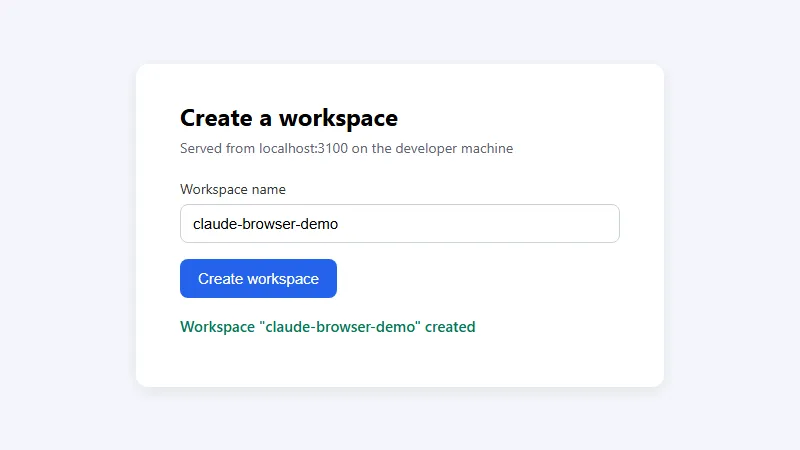
The session record from the TestMu AI automation API confirmed the route: tunnel set to true, a tunnel named browser-cloud_Managed_ followed by a timestamp, and links to the session's video, console log, and network log.
One detail cost me a failed run. If you pass tunnelName, SDK 1.0.1 expects a tunnel with that name to be running already, and it starts its own managed tunnel only when the name is left out. An earlier attempt of mine passed a name, and the connection failed with "either tunnel is not running or disconnected".
To run a named tunnel yourself, the Browser Cloud tunnel docs cover client.tunnel.start() and client.tunnel.stop(). For the wider case of cloud browsers for agents, see the guide to browser infrastructure for AI agents.

Note: Run your next Claude Code browser check on TestMu AI Browser Cloud: real Chrome sessions that reach localhost through the built-in tunnel and record video, console, and network logs for every session. Try TestMu AI free!
How to Choose a Claude Code Browser Route
Pick by the job first, then drop any route your setup rules out.
- Checking your own app while you build - the Browser pane in Claude Code Desktop, which starts the dev server and auto-verifies each edit. In the CLI or VS Code, Playwright MCP lets Claude run the same check when you ask for it.
- Working inside apps you are signed into - Claude in Chrome, which works in your real browser profile with its saved logins.
- Debugging a slow or broken page - Chrome DevTools MCP, for performance traces, Lighthouse audits, network requests, and console messages.
- Testing Firefox or WebKit - Playwright MCP with
--browser firefoxor--browser webkit, since Claude in Chrome covers Chromium browsers only. - Safari and older browser versions - a cloud grid. TestMu AI Automation Cloud runs Playwright and Selenium across 3,000+ browser and OS combinations.
- Gating a pull request - Kane CLI with
--agent --headless, whose exit code a CI step can fail on. - API keys, Bedrock, Agent Platform, or Foundry - MCP servers, CLIs, or a cloud browser, because Claude in Chrome needs a direct Anthropic plan and a
/loginsign-in. - Working in WSL - an MCP server or CLI in headless mode, because Chrome integration does not support WSL.
- Parallel runs, recordings, or private staging - TestMu AI Browser Cloud, with one session per task and the tunnel for URLs that are not public.
Prompts That Make Claude Code Check the Browser
A browser route only helps when Claude uses it before it reports a change as done, so name the route and the check in the prompt. These prompts are examples to adapt; I did not run them through a Claude Code session for this article.
- Browser pane - "Start the dev server, open the signup page in the Browser pane, submit the form empty, and fix any missing error message before you finish."
- Claude in Chrome - Anthropic's Chrome integration docs suggest prompts such as "I just updated the login form validation. Can you open localhost:3000, try submitting the form with invalid data, and check if the error messages appear correctly?"
- Playwright MCP - "Use the Playwright MCP server to open http://localhost:3000/checkout, add one item to the cart, and report the cart total and any console errors."
- Chrome DevTools MCP - "Use Chrome DevTools MCP to record a performance trace of http://localhost:3000/ and list the slowest requests."
- Kane CLI - "Use kane-cli to check that a new user can sign up on http://localhost:3000 and tell me the exit code."
To make the check a habit, add a line to the project's CLAUDE.md file, which Claude Code reads at the start of each session. For example: "After changing UI code, open the page in the browser and confirm the changed flow works before you report the task as done."
Can You Run Claude Code in a Browser?
Yes. Claude Code on the web, at claude.ai/code, runs Claude Code itself in cloud environments that Anthropic hosts, which is a different feature from giving Claude Code a browser. Anthropic's cloud environment documentation lists cloud sessions for Pro, Max, and Team plans and for Enterprise users with premium or Chat + Claude Code seats.
A cloud session is not a browser for your app. The same page lists the installed tools: Node.js with chromedriver, but no browser. A browser check there needs a setup script that installs one, and the environment's network access level has to allow that download.
Anthropic's cloud session guide lists the ways in and out:
- Browser - open claude.ai/code and start a session on a GitHub repository.
- Terminal -
claude --cloudwith a task description starts a cloud session for the current repository. - Back to local -
claude --teleportpulls a cloud session and its branch into your terminal, where your local browser routes work again. - Remote Control -
claude --remote-controllets you steer a local CLI session from claude.ai or the Claude app, so the session keeps your local browser routes.
Security Settings to Review Before Claude Browses
A browser-driving agent acts with whatever access the browser has. Review these settings before you approve sites in bulk.
- Site permissions - Claude in Chrome inherits per-site permissions from the extension settings, while the Browser pane asks per site and remembers Always allow on your device until you revoke it.
- Safety classifiers - in the Browser pane, classifiers review clicks and typing on external pages in every permission mode, and Claude will not buy items, create accounts, or bypass CAPTCHAs without your input.
- Organization controls - administrators can block Claude's tools on external pages with
browserExternalPageTools, block external browsing withdisableBrowserExternalNavigation, or deny theclaude-in-chromeserver throughdeniedMcpServers. - GIF recordings - a recording from Claude in Chrome captures everything visible, including account details on signed-in pages, so review it before you share it outside your team.
- MCP server data - the Chrome DevTools MCP README warns that the server exposes browser content to the MCP client. It also says Google collects usage statistics by default and that performance tools may send trace URLs to the CrUX API. Pass
--no-usage-statisticsand--no-performance-cruxto turn those off. - Persistent profiles - Playwright MCP keeps logins in a per-workspace profile unless you pass
--isolated, so a session can inherit yesterday's sign-in.
Conclusion
Pick your Claude Code browser route by where you run Claude Code: the Browser pane in Desktop, Claude in Chrome for signed-in work from the CLI, or claude mcp add with Playwright MCP everywhere else. Ask Claude to open your dev server and confirm one user flow before it reports a change as done.
When those checks need to run in CI, in parallel, or with a recording a reviewer can open, move them to TestMu AI Browser Cloud. The Browser Cloud SDK setup guide covers credentials and the first session.
Author

Anubhav Singhmaar
Blogs: 42

Anubhav Singhmaar is an AI Product Manager at TestMu AI driving Kane CLI, the command-line tool that brings browser automation to the terminal, turning natural-language flows into runs in a real Chrome browser that return pass or fail with shareable proof. He owns the roadmap and prioritization and works with engineering to ship developer-facing features. Before TestMu AI, he spent over four years at Sprinklr owning enterprise voice AI across APAC and EMEA. A mechanical engineer turned product manager, he grounds guidance in real QA workflows.
Reviewer

Samyak Goyal
Reviewer
Samyak Goyal is a Senior Member of Technical Staff at TestMu AI engineering Kane CLI, the command-line tool that runs browser automation from the terminal, where a flow described in natural language executes in a real Chrome browser and returns pass or fail with shareable proof. He is a backend engineer with 4+ years of experience, previously an SDE at Innovaccer, where he built APIs, introduced Kafka, and cut deployment from weeks to hours. Samyak also builds multi-agent systems, skill-orchestration frameworks, and a personal copilot that indexes 200+ microservice repositories.


Claude Code Browser FAQs
Did you find this page helpful?
More Related Blogs
TestMu AI forEnterprise
Get access to solutions built on Enterprise
grade security, privacy, & compliance
- Advanced access controls
- Advanced data retention rules
- Advanced Local Testing
- Premium Support options
- Early access to beta features
- Private Slack Channel
- Unlimited Manual Accessibility DevTools Tests