
Browser Infrastructure for AI Agents with Browser Cloud
Give Your AI Agents Real Cloud Browsers with Session Persistence, a Localhost Tunnel, and Session Replay.

How to Run Gemini Computer Use on a Real Cloud Browser
Run Gemini Computer Use on a cloud browser: the agent loop, coordinate scaling, safety confirmations and a Node.js executor on TestMu AI Browser Cloud.
Published on:
Answer: Gemini Computer Use is a Gemini API tool that allows a model to operate a browser, mobile or desktop interface from screenshots. The model will return actions such as 'click' or 'type'. Your code will execute those actions and return a new screenshot.
In production, you'd run the agent on TestMu AI Browser Cloud (isolated real Chrome sessions with a built-in tunnel and full session replay).
TL;DR
Gemini Computer Use is the computer_use tool of the Gemini API: the model reads a screenshot and returns UI actions such as click or type on a 0-999 grid, and your code runs each action and sends back a new screenshot. In production, that executor drives a cloud browser through Playwright.
How Does the Gemini Computer Use API Work?
- First request: Your executor code sends Gemini the task text, a base64 PNG screenshot and the computer_use tool with the environment set to browser, wrapped in one user_input step of the Interactions API.
- function_call steps: Gemini answers with one or more actions, each with a name such as click, its arguments and an id. The x and y values arrive on a 0-999 grid, so your executor scales them to the browser's real width and height.
- function_result steps: Your executor returns one result per Gemini call with the current URL and a new screenshot, then passes previous_interaction_id to get the next actions.
- require_confirmation: When Gemini flags an action such as a payment or an account sign-up, your executor asks a human and adds safety_acknowledgement only after approval.
- Browser included: No. Gemini Computer Use returns actions only, so your own Playwright code opens and drives the browser, either locally or in a cloud browser.
- Prompt injection detection: Opt-in. Set enable_prompt_injection_detection: true in the computer_use tool so Gemini checks each screenshot for hidden adversarial instructions and blocks execution when it finds them.
Which Gemini Computer Use Models Are Available?
- gemini-4-hydrogen: The model every code sample in Google's computer use docs calls, described by Google as fast and efficient for everyday coding, computer use and agentic UI workflows.
- gemini-4-carbon: Google's most capable reasoning model with computer use support, aimed at complex reasoning and agentic UI workflows.
- gemini-4-argon: The efficient Gemini 4 reasoning model, with faster responses and lower token spend per turn than gemini-4-carbon.
- gemini-3.5-flash-lite: The low-latency, cost-effective Gemini computer use model in Google's November 2026 Model versions list.
- gemini-3.8-flash: Now listed by Google as a previous-generation Flash model that still supports computer use.
Google's Model versions documentation changes between releases, so check it before you set GEMINI_MODEL.
Where Should the Browser Run?
- Local Playwright: Fine for a first Gemini Computer Use experiment. A local browser reaches localhost on your own network, but its only replay is whatever you record yourself.
- TestMu AI Browser Cloud: Each session is an isolated real Chrome instance with a built-in tunnel to staging and localhost (tunnel: true) and a replay of video, console and network logs.
What Is Gemini Computer Use?
Gemini Computer Use is a capability within the Gemini API that enables a model to operate a user interface by looking at screenshots and suggesting actions. As per the Google docs as of November 2026, it's a tool to "build browser, mobile, and desktop control agents" with a separate environment value and action set for each (browser, mobile and desktop). It runs on the Interactions API, and the docs' code samples use gemini-4-hydrogen (Gemini API docs).
That is wider than the original release. Google introduced the Gemini 2.5 Computer Use model on October 7, 2025, tuned mainly for web browsers (Google blog).
Google's docs also tell you to prompt the end user before any action the model flags with require_confirmation, and the code below does that.
This guide covers the browser environment. Gemini Computer Use does not include a browser: your client code, typically Playwright, executes every action. That is where a cloud browser comes in.
For the general theory of screen-driven agents, see our explainer on computer use agents.
How Does the Gemini Computer Use Loop Work?
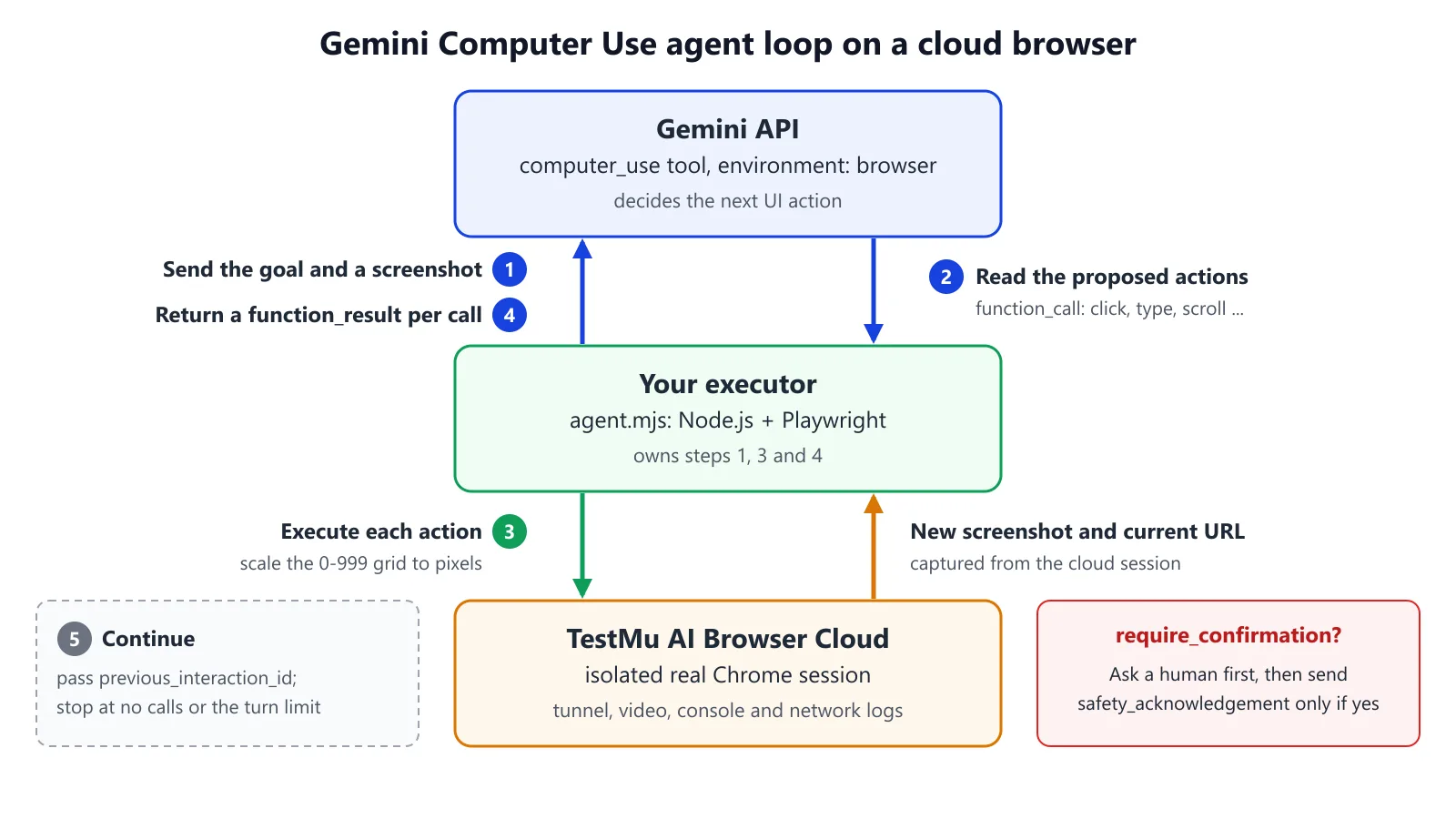
The Gemini Computer Use loop has five steps, and your code owns three of them:
- Send the goal and a screenshot. The first request will contain a text item with the task and an image item with a base64 PNG screenshot. It will also contain the
computer_usetool withenvironment: "browser". Google's request example also includes the opt-inenable_prompt_injection_detection: true, which will check each screenshot for any hidden adversarial instructions and will block execution if any are found. - Read the proposed actions. The steps in the response's
stepslist arefunction_callsteps, each with aname(e.g.,click),arguments, and anid. One turn can contain multiple calls. - Execute each action in the browser. That's your code.
- Return a result for every call. Each result is a
function_resultwith the call'snameandcall_id, a text item holding JSON with the currenturl, and a new PNG screenshot. - Continue by passing the
previous_interaction_id. Stop when the model makes no further function calls (i.e., when it returns nothing) or when your turn limit is reached.
Coordinates come in on a normalised 0-999 grid so the executor has to scale them to real pixels (x / 1000 * width). Google's examples are all on a 1440x900 screen.
Why Run Gemini Computer Use on a Cloud Browser Rather Than Locally?
A local Playwright browser is perfectly fine for a first Gemini experiment. Three things change when a Gemini agent actually runs:
- Clean, fixed-size screenshots. Gemini makes its decision on the pixels, so every run requires a fresh browser at the size that the executor scales to (1440x900 in this case) with no cookies, banners or pop-ups from the previous task remaining.
- A replay of what the model saw. If Gemini has misclicked, you need the video and the logs from that session to find the screenshot that caused it to go off the rails.
- Go into the private apps. Gemini agents that are acting on staging or internal tools require a tunnel rather than a public IP.
Google's reference implementation (google-gemini/computer-use-preview) has two environments as of Nov 2026: playwright (runs the browser locally) and browserbase (connects to a hosted Browserbase browser - GitHub).
TestMu AI Browser Cloud is the product for this. Each test gets you an isolated real Chrome browser in the cloud, a built-in tunnel to staging and localhost, and a full session replay. It plugs into the same Playwright executor via its Playwright adapter (as per the diagram below), and TestMu AI has a Gemini + Browser Cloud cookbook up on GitHub.
If you're looking at the various hosted browser options, we've got a side-by-side Browserbase vs TestMu Browser Cloud comparison covering the pricing, session limits, stealth and SDKs.
| Local Playwright | TestMu AI Browser Cloud | Browserbase | |
|---|---|---|---|
| Where Chrome runs | Your machine or container | TestMu AI's cloud (isolated real Chrome per session) | Browserbase's cloud |
| Setup with Gemini Computer Use | Built into Google's reference repo | TestMu AI's Gemini + Browser Cloud cookbook on GitHub, or the Node.js executor below through the Playwright adapter | Built into Google's reference repo via BROWSERBASE_API_KEY and BROWSERBASE_PROJECT_ID |
| Reach staging or localhost | Yes, on your network | Built-in TestMu AI Tunnel (tunnel: true) | No localhost tunnel documented; IP allowlisting is documented |
| Replay after a run | Whatever you record yourself | Video replay, console logs, network logs and agent commands on one timeline in the dashboard | Logs, live view, session replay and recording downloads |
Browserbase setup facts are from Google's reference repository (read 12th November 2026). Browserbase tunnel and replay facts are from our own comparison (read Browserbase docs 5th November 2026). TestMu AI facts are from the Browser Cloud product page and docs.

Note: Can you build a browser agent on Gemini? Install the Browser Cloud SDK via npm i @testmuai/browser-cloud and point the agent below at your own task.
How Do You Connect Gemini Computer Use to Browser Cloud?
You'll need Node.js 18 or later (the Browser Cloud Playwright adapter requires it), a Gemini API key, and TestMu AI credentials. Install the two SDKs:
npm i @testmuai/browser-cloud @google/genaiThen set four environment variables from your secrets manager or your CI secrets (never in code or in URLs): LT_USERNAME and LT_ACCESS_KEY (your TestMu AI credentials), GEMINI_API_KEY and GEMINI_MODEL (a model that's on the Google docs list as being one that supports Computer Use).
The script below creates a Browser Cloud session with the Playwright adapter, runs the Gemini Computer Use loop, asks a human for approval before any action that Gemini flags, and then always releases the session. The task and start URL are both command-line parameters, so no test data is hardcoded.
Gemini Interactions API Computer Use Example (JavaScript)
// agent.mjs: Gemini Computer Use + TestMu AI Browser Cloud (Node.js 18+)
// Usage: node agent.mjs "<task>" "<start-url>"
import { GoogleGenAI } from '@google/genai';
import { Browser } from '@testmuai/browser-cloud';
import readline from 'node:readline/promises';

const [task, startUrl] = process.argv.slice(2);
if (!task || !startUrl) throw new Error('Usage: node agent.mjs "<task>" "<start-url>"');

const WIDTH = 1440, HEIGHT = 900;               // screen size used in Google's examples
const MODEL = process.env.GEMINI_MODEL;          // e.g. gemini-4-hydrogen; see the docs' model list
if (!MODEL) throw new Error('Set GEMINI_MODEL to a model that supports Computer Use');
const MAX_TURNS = Number(process.env.MAX_TURNS ?? 20);
const TOOLS = [{ type: 'computer_use', environment: 'browser', enable_prompt_injection_detection: true }];

const ai = new GoogleGenAI();                    // as in Google's JS examples; set GEMINI_API_KEY in the env
const client = new Browser();

const session = await client.sessions.create({
  adapter: 'playwright',
  dimensions: { width: WIDTH, height: HEIGHT },
  lambdatestOptions: {
    build: 'gemini-computer-use',
    name: task.slice(0, 60),
    'LT:Options': {
      username: process.env.LT_USERNAME,
      accessKey: process.env.LT_ACCESS_KEY,
    },
  },
});
const { browser, page } = await client.playwright.connect(session)
  .catch(async (err) => { await client.sessions.release(session.id); throw err; });  // release on a failed connect
console.log('Session dashboard:', session.sessionViewerUrl);

const px = (v, size) => Math.round((v / 1000) * size);   // 0-999 grid -> pixels
const screenshot = async () => (await page.screenshot({ type: 'png' })).toString('base64');

async function execute(name, a) {
  switch (name) {
    case 'click':        await page.mouse.click(px(a.x, WIDTH), px(a.y, HEIGHT)); break;
    case 'double_click': await page.mouse.dblclick(px(a.x, WIDTH), px(a.y, HEIGHT)); break;
    case 'triple_click': await page.mouse.click(px(a.x, WIDTH), px(a.y, HEIGHT), { clickCount: 3 }); break;
    case 'right_click':  await page.mouse.click(px(a.x, WIDTH), px(a.y, HEIGHT), { button: 'right' }); break;
    case 'middle_click': await page.mouse.click(px(a.x, WIDTH), px(a.y, HEIGHT), { button: 'middle' }); break;
    case 'move':         await page.mouse.move(px(a.x, WIDTH), px(a.y, HEIGHT)); break;
    case 'mouse_down':   await page.mouse.move(px(a.x, WIDTH), px(a.y, HEIGHT)); await page.mouse.down(); break;
    case 'mouse_up':     await page.mouse.move(px(a.x, WIDTH), px(a.y, HEIGHT)); await page.mouse.up(); break;
    case 'drag_and_drop':
      await page.mouse.move(px(a.start_x, WIDTH), px(a.start_y, HEIGHT));
      await page.mouse.down();
      await page.mouse.move(px(a.end_x, WIDTH), px(a.end_y, HEIGHT));
      await page.mouse.up();
      break;
    case 'type':
      await page.keyboard.type(a.text);
      if (a.press_enter) await page.keyboard.press('Enter');
      break;
    case 'press_key':    await page.keyboard.press(a.key); break;
    case 'hotkey':       await page.keyboard.press(a.keys.join('+')); break;
    case 'key_down':     await page.keyboard.down(a.key); break;
    case 'key_up':       await page.keyboard.up(a.key); break;
    case 'scroll': {
      const d = a.magnitude_in_pixels ?? 300;
      await page.mouse.move(px(a.x, WIDTH), px(a.y, HEIGHT));
      await page.mouse.wheel(
        a.direction === 'left' ? -d : a.direction === 'right' ? d : 0,
        a.direction === 'up' ? -d : a.direction === 'down' ? d : 0,
      );
      break;
    }
    case 'navigate':     await page.goto(a.url); break;
    case 'go_back':      await page.goBack(); break;
    case 'go_forward':   await page.goForward(); break;
    case 'wait':         await page.waitForTimeout((a.seconds ?? 1) * 1000); break;
    case 'take_screenshot': break;                // the screenshot is attached below anyway
    default: return { error: `Action not implemented in this executor: ${name}` };
  }
  return {};
}

async function confirm(explanation) {
  if (!process.stdin.isTTY) return false;         // no human present (e.g. CI): decline
  const rl = readline.createInterface({ input: process.stdin, output: process.stdout });
  const answer = await rl.question(`Gemini asks for confirmation: ${explanation}\nAllow? (y/N) `);
  rl.close();
  return answer.trim().toLowerCase() === 'y';
}

try {
  await page.setViewportSize({ width: WIDTH, height: HEIGHT });
  await page.goto(startUrl);
  let interaction = await ai.interactions.create({
    model: MODEL,
    tools: TOOLS,
    input: [{
      type: 'user_input',
      content: [
        { type: 'text', text: task },
        { type: 'image', data: await screenshot(), mime_type: 'image/png' },
      ],
    }],
  });

  for (let turn = 0; turn < MAX_TURNS; turn++) {
    const calls = (interaction.steps || []).filter((s) => s.type === 'function_call');
    if (calls.length === 0) break;                // the model has finished

    const results = [];
    for (const call of calls) {
      const args = call.arguments ?? {};
      let ack = {};
      if (args.safety_decision?.decision === 'require_confirmation') {
        if (!(await confirm(args.safety_decision.explanation))) {
          console.log('Action declined by the user. Stopping.');
          process.exitCode = 1;
          break;
        }
        ack = { safety_acknowledgement: true };
      }
      let outcome;
      try { outcome = await execute(call.name, args); }
      catch (err) { outcome = { error: String(err.message ?? err) }; }
      // let the page settle before the screenshot, as Google's sample does
      await page.waitForLoadState('load', { timeout: 5000 }).catch(() => {});
      await page.waitForTimeout(1000);
      results.push({
        type: 'function_result',
        name: call.name,
        call_id: call.id,
        result: [
          { type: 'text', text: JSON.stringify({ url: page.url(), ...outcome, ...ack }) },
          { type: 'image', data: await screenshot(), mime_type: 'image/png' },
        ],
      });
    }
    if (process.exitCode === 1) break;

    interaction = await ai.interactions.create({
      model: MODEL,
      tools: TOOLS,
      previous_interaction_id: interaction.id,
      input: results,
    });
  }

  for (const step of (interaction.steps || []).filter((s) => s.type === 'model_output')) {
    for (const block of step.content ?? []) if (block.type === 'text') console.log(block.text);
  }
} finally {
  await browser.close();
  await client.sessions.release(session.id);
}
Run it with your own task and URL, e.g., node agent.mjs "Find the pricing page and report the cheapest paid plan" "$TARGET_URL".
Three notes on the code:
- Key names.
press_key,hotkey,key_down, andkey_upall just pass Gemini's key strings straight through to Playwright. If your logs are showing you unsupported keys, then you'll need a small name map. Any action that this executor doesn't implement will be reported back as an error in the result text rather than cause the loop to crash. - Safety confirmations are not optional. If a call has
safety_decisionset torequire_confirmation, then according to Google's docs, you need to prompt the end user and only setsafety_acknowledgementin thefunction_resultif they confirm. The script will ask in the terminal, will decline if there's no human present, and will only then add the acknowledgment. Google's docs also reference its Prohibited Use Policy and the Gemini API Additional Terms of Service. - Session settings. Browser Cloud sessions default to a 5-minute timeout (
timeout: 300000ms). Increase it for long-running tasks. Addtunnel: trueto get to staging or localhost via the TestMu AI Tunnel. See the session config options and the Launch Your First Session guide.
How Do You Debug a Gemini Computer Use Run?
The vast majority of failed computer use runs are due to one bad screenshot read: a cookie banner covering the button, a page that hadn't quite finished loading or a click that was scaled to the wrong pixel. Debugging is all about seeing precisely what the model saw.
The SCOPE checklist for Gemini Computer Use runs:
- Screenshot size matches the dimensions (1440 x 900 in this case). If it's a different size, then every click is going to be off.
- Confirmation path is tested. Run a task that causes
require_confirmationto be triggered and verify the agent stops when you decline. Keepenable_prompt_injection_detectionon for any pages you don't control. - Observability is on. Open
session.sessionViewerUrlto view the session's dashboard page and then replay the video, console and network logs on the Web Automation Dashboard (debugging docs). - Page load waits are dealt with. If a click occurs on a half-loaded page, then either add a wait before the screenshot or have the model call
wait. - End conditions are set. Use a turn limit (
MAX_TURNS), a session timeout and a clear 'done' state in the task text.
Browser Cloud records video, console logs, network logs and agent commands all on one timeline for every session. We'll explain how we built session recording into Browser Cloud.
For a quick visual walkthrough of this concept, watch the video below from TestMu AI.

Subscribe to the TestMu AI YouTube channel for more tutorials on testing and automation.
What Happens If You Port a Gemini Executor Over to OpenAI or Claude?
All three follow the same screenshot -> action -> screenshot loop, and all three hand execution over to your code. The differences are in three things that matter when you're porting an executor: the coordinate system, how the tool is declared, and where the confirmation signal is coming from. As of 12th November 2026, from each vendor's computer use docs:
| Gemini | OpenAI | Claude | |
|---|---|---|---|
| API and tool | Interactions API, { type: "computer_use", environment: "browser" } (also mobile, desktop) | Responses API, { type: "computer" } | Claude API, { type: "computer_toolset_20260801" } (earlier: computer_20251124) |
| Coordinates | Normalised 0-999 grid; scale to pixels yourself | Pixel x and y (for example x: 405, y: 157); map them back to the screen's coordinate space if you scale the screenshot | "Coordinates are in screenshot pixels"; scale back up if you downscale |
| Actions per turn | One or more function_call steps | An ordered actions array in each computer_call | One tool_use block per action; run in order, stop at the first failure |
| Confirmation signal | Model returns safety_decision with require_confirmation; you reply with safety_acknowledgement | Docs tell you to confirm consequential actions; SDK drivers expose confirmation hooks | No API field; you implement human confirmation; classifiers flag likely prompt injections in screenshots |
Sources:
The practical difference for a cloud browser is the coordinate step. A Gemini executor has to scale all coordinates from the 0-999 grid, whereas the OpenAI and Claude executors just use pixels directly as long as the screenshot isn't resized.
The browser session itself is the same. It's the same Browser Cloud session and the same Playwright page behind any of the three loops.
What Should You Check Before Shipping a Gemini Browser Agent?
Before a Gemini browser agent acts for real users, check:
- Scope: the agent is only able to get to the sites that the task requires. Use a dedicated test account, never a personal one.
- Human in the loop for anything that is flagged as
require_confirmation(i.e., payments, account creation, legal terms, etc.). - Replays are kept for every production run so you can audit exactly what the agent did.
- Regression runs: same task, same page state, same end result. Replay the failures before you go blaming the model.
- Cost and time constraints: turn limits and session timeouts are set in line with the task at hand.
Conclusion
Gemini Computer Use gives you the decisions. You still need a reliable place to carry them out. Keep the loop small: screenshot in, actions out, a result for every call, a human for anything that gets flagged.
Then you move execution from the laptop to isolated cloud sessions that you can replay. That final step turns a demo into an agent that you can run, debug and trust.
Try it on your own task
Note: Sign up for Browser Cloud, run agent.mjs against a page you own, and watch the replay in the dashboard.
Giving an AI agent a browser? TestMu AI's Browser Cloud runs each task in a real, isolated Chrome session in the cloud, so the browser stays off your laptop.
Author

Samyak Goyal
Blogs: 35

Samyak Goyal is a Senior Member of Technical Staff at TestMu AI engineering Kane CLI, the command-line tool that runs browser automation from the terminal, where a flow described in natural language executes in a real Chrome browser and returns pass or fail with shareable proof. He is a backend engineer with 4+ years of experience, previously an SDE at Innovaccer, where he built APIs, introduced Kafka, and cut deployment from weeks to hours. Samyak also builds multi-agent systems, skill-orchestration frameworks, and a personal copilot that indexes 200+ microservice repositories.
Reviewer

Mayank Bhola
Reviewer
Mayank Bhola is Co-Founder and Head of Products at TestMu AI, where he leads the entire product portfolio across KaneAI, Kane CLI, HyperExecute, SmartUI, the Real Device Cloud, Accessibility, and other software testing product lines. As an early Lead Architect he designed and built the company's flagship Tunnel technology from scratch, created the React-based automation platform, and architected the data-intensive pipelines and FAAS services that scale it. He brings more than 10 years of experience in software development and product engineering, with earlier roles as Head of Technology at Juggernaut Books and Senior Software Engineer at PressPlay TV and Zomato. Mayank holds a B.Tech in Computer Engineering from JIIT Noida.


Gemini Computer Use FAQs
Did you find this page helpful?
More Related Blogs

TestMu AI forEnterprise
Get access to solutions built on Enterprise
grade security, privacy, & compliance
- Advanced access controls
- Advanced data retention rules
- Advanced Local Testing
- Premium Support options
- Early access to beta features
- Private Slack Channel
- Unlimited Manual Accessibility DevTools Tests