
Browser Infrastructure for AI Agents with Browser Cloud
Give Your AI Agents Real Cloud Browsers with Session Persistence, a Localhost Tunnel, and Session Replay.

How to Run OpenAI Computer Use on a Real Cloud Browser
OpenAI Computer Use, step by step: send the computer tool request, run each action in Playwright on a cloud browser, return screenshots and stop safely.
Published on:
OpenAI's Computer Use allows a model to operate a browser via screenshots. You put { type: "computer" } in your Responses API request, and the model returns a computer_call containing an ordered list of actions.
Your code then runs those actions, and you send back a screenshot. Running that browser in the cloud gives you isolation, a live view and a replay.
OpenAI's computer tool doesn't do any clicking itself. It tells your code where to click, what to type and when to scroll, and your code does the work in the browser you control. That browser can be a local Chromium, a Docker container or a hosted cloud browser.
This guide uses Node.js, Playwright, and TestMu AI Browser Cloud so all the actions happen in an isolated, real Chrome session that you can watch as it runs.
This page is about the Developer API. If you were looking for ChatGPT Agent or Operator (the consumer products), then see the section below, which explains the difference between the two.
If you're still in the market for a hosted browser for your agents, start with our Browserbase vs TestMu Browser Cloud comparison. If you've already built the same loop for Gemini, then the Gemini Computer Use on a cloud browser guide has the comparison in one table.
TL;DR
To run OpenAI Computer Use on a real cloud browser, open one TestMu AI Browser Cloud session, connect Playwright to it, and send your task to the Responses API with the computer tool. Run each action in the returned computer_call through Playwright, send back a full-size screenshot, and repeat until no computer_call comes back.
The OpenAI Computer Use API Loop
- computer_call: Each OpenAI Computer Use agent turn returns a computer_call with a call_id and an ordered actions array. Your code runs every action in order, then sends a computer_call_output with the same call_id and a fresh screenshot.
- Mouse actions: The OpenAI computer tool can request click, double_click, scroll, drag and move. Each maps to a Playwright page.mouse call on the same pixel coordinates as the screenshot the model saw.
- Keyboard and control actions: The OpenAI computer tool can also request type and keypress, which map to page.keyboard, plus wait, a fixed 2,000 ms pause in OpenAI's recipe, and screenshot.
- previous_response_id: Continuing an OpenAI response keeps the conversation, but OpenAI's guide says it does not restore the browser session, login state or runtime variables. Restores browser state: No, so keep one session open for the whole task.
Which Model Should You Use for OpenAI Computer Use?
- gpt-6.2-sol: The model in every computer tool example in OpenAI's Computer Use guide as of November 2026. Used in OpenAI's computer tool examples: Yes, so start there when you build on the computer tool.
- GPT-6 Astra: For GPT-6 Astra, OpenAI recommends code execution, where the model writes a Playwright script, and keeps the computer tool as a supported alternative. Computer tool supported: Yes.
- computer-use-preview: The preview model shut down on July 23, 2026, and OpenAI's deprecations page lists gpt-5.6-terra as its replacement. Still available: No. Integrations built on it need a new model and the computer tool type.
- OpenAI CUA: CUA, short for OpenAI's Computer-Using Agent, is the model that powered Operator, which became ChatGPT agent in July 2025. Developers reach the same idea through the computer tool in the Responses API.
Can OpenAI Computer Use Run on a Cloud Browser?
- TestMu AI Browser Cloud: Yes. Each TestMu AI Browser Cloud session is an isolated, real Chrome instance with a live view, video, console and network logs, and a built-in tunnel for localhost. Runs on your laptop: No.
- Claude Computer Use on Browser Cloud: The Claude Computer Use API guide runs Anthropic's toolset loop on a TestMu AI Browser Cloud session, with its own action-to-Playwright mapping.
- Testing the agent: The Computer Use agents guide explains how screen-driven agents work and how to test one before it ships.
What Is OpenAI Computer Use?
OpenAI Computer Use is a Responses API tool that enables a model to drive a GUI from screenshots by returning the mouse and keyboard actions that your app then performs and verifies.
Four facts matter before you write code (all as of November 2026, from OpenAI's own docs):
- The tool type is 'computer'. You turn it on by including
{type: "computer"}in the tools array of a Responses API request. The OpenAI Computer Use guide makes use ofgpt-6.2-solin its computer tool examples. - It's not OpenAI's only option. The same guide states that for GPT-6 Astra, it recommends code execution and that the computer tool remains an alternative. The section below compares the two.
- The old preview model is dead. The deprecations page on OpenAI's site has
computer-use-previewwith a sunset date of 23rd July 2026 andgpt-5.6-terraas the replacement. Any code written for the preview model will need to be updated. - You run the browser. The guide recommends an isolated browser or VM with an allow list of sites and actions and treats everything on the screen as untrusted input.
Is OpenAI Computer Use the Same as ChatGPT Agent or Operator?
No, they're related, but you use them in different ways. Operator was launched by OpenAI in January 2025 as an agent that does web things for you, built on what they called their Computer-Using Agent (CUA).
The July 17th 2025 update on that page states that Operator is now fully integrated into ChatGPT as the ChatGPT agent. Those are products you use within ChatGPT.
The computer tool in the Responses API is the developer version of the same concept: you send the task over, the model returns the actions, and then your own code runs those actions in a browser or VM that you control. All of the following is about that API.
Computer Tool or Code Execution: Which Should You Use?
OpenAI's Computer Use Guide gives two methods by which a model can interact with an interface and specifies which one it would prefer for each model family (as of November 2026).
| Computer tool | Code execution | |
|---|---|---|
| What the model returns | A computer_call with an ordered list of mouse and keyboard actions | A function call carrying a script (the guide's browser example is JavaScript that uses Playwright) |
| Model in OpenAI's examples | gpt-6.2-sol | gpt-6-astra |
| OpenAI's recommendation | Supported as an alternative for GPT-6 Astra | Recommended for GPT-6 Astra |
| Who runs it | Your handler runs each action, then returns a screenshot | Your application runs the script in an isolated environment and returns the result with the original call_id |
| Where the browser runs | A browser or VM you control | A browser or desktop runtime you provide |
This guide uses the computer tool as it's a one-to-one mapping of browser actions and is the path the retired preview model took. If you go down the code execution route, you must keep two things separate.
The browser can still be a Browser Cloud session, as the Playwright adapter for Browser Cloud returns standard Playwright browser/context/page objects. The code the model produces, however, will be running in your own runtime, so you must also sandbox that runtime. Browser Cloud hosts the browser; it doesn't host your script runner.
How Does the OpenAI Computer Use Loop Work?
The loop has four moves, and it repeats until the model stops asking for actions:
- Send the task. Call
client.responses.create()with your model,tools: [{ type: "computer" }], and the task as the input. - Read the computer_call. The response output contains an item of type
computer_callwith acall_idand an orderedactionsarray. A status of "completed" means the model has finished writing the call, not that anything has actually run. - Do the actions in order. The first call may consist of nothing more than a screenshot action. The subsequent calls will contain the clicks, typing, scrolling, etc.
- Return a screenshot. Send a
computer_call_outputitem with the samecall_idand an output of typecomputer_screenshot,image_urlset to a PNG data URL, anddetail: "original". The prior response ID should be the ID of the preceding response.
When there's no computer_call, read response.output_text for the final answer or for a request for assistance.
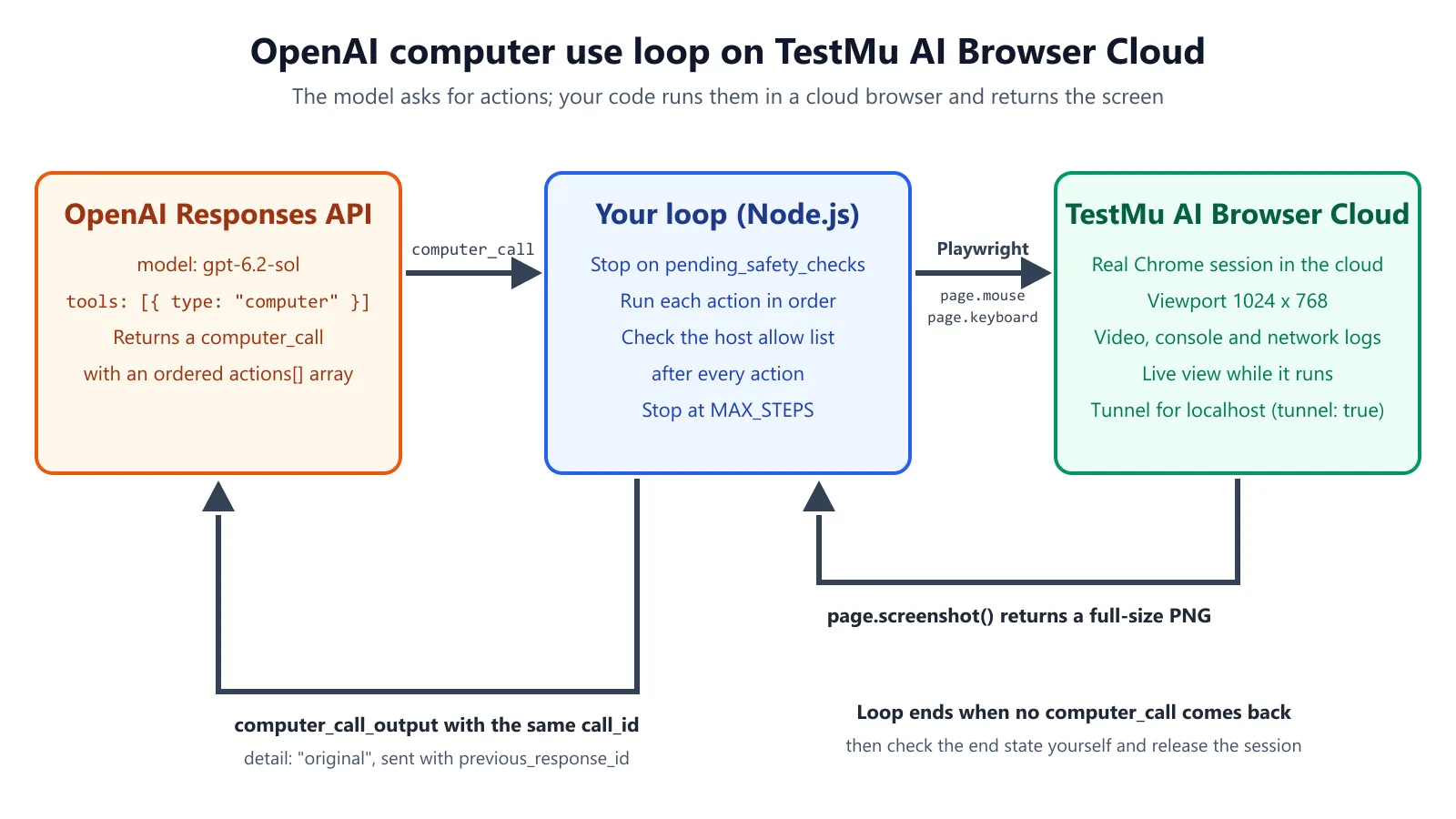
One thing that trips people up is that according to OpenAI's guide, if you use a previous_response_id to continue a response, you do NOT get the browser session, login state or runtime variables restored. The model will, of course, remember the conversation; it's the browser that has to remember the page. That's a very good reason to keep one browser session open for the duration of the task.
What Actions Does the Computer Tool Send, and How Do They Map to Playwright?
OpenAI's Computer Use integration recipes list nine action types and the fields that each one has. Here's how each one maps to a Playwright mouse and keyboard call:
| Action | Fields | Playwright call |
|---|---|---|
| click | x, y, button (left, right, wheel; back and forward are not supported by the recipe), optional keys | page.mouse.click(x, y, { button }) with wheel mapped to middle |
| double_click | x, y, optional keys | page.mouse.dblclick(x, y) |
| scroll | x, y, scroll_x, scroll_y, optional keys | page.mouse.move(x, y) then page.mouse.wheel(scroll_x, scroll_y) |
| type | text | page.keyboard.type(text) |
| keypress | keys (array) | map each key, join with +, then page.keyboard.press(...) |
| drag | path (points), optional keys | mouse.move to the first point, mouse.down(), move through the path, mouse.up() |
| move | x, y, optional keys | page.mouse.move(x, y) |
| wait | none | the recipe's handler waits a fixed 2,000 ms |
| screenshot | none | nothing; you capture the screen after the batch |
Key names need to be normalized. The recipes are a mapping from model-emitted names to Playwright names (e.g. ENTER -> Enter, ESC -> Escape, CTRL -> Control, CMD -> Meta, ARROWUP -> ArrowUp).
The coordinates are pixels in the screenshot you sent. If you're downsizing screenshots, then the guide says you need to map the model's coordinates back into the browser coordinate space before you click. The simplest solution is just to never downsize at all: keep the browser viewport and the screenshot the same size.
Why Run OpenAI Computer Use on a Cloud Browser Rather Than Locally?
A local browser is perfectly fine for a first experiment. It gets a lot more complicated when the agent is running unattended (in CI), or running many times in parallel.
| Option | Setup | Isolation | Replay and logs | Localhost and private apps | Parallel runs |
|---|---|---|---|---|---|
| Local Playwright Chromium | npm i playwright | None: the agent drives a browser on your laptop | Only what you record yourself | Direct | Limited by one machine |
| Your own Docker container or VM | Build and maintain an image | Good, if you lock it down | Only what you build | Needs network setup | You scale the containers |
| TestMu AI Browser Cloud | npm i @testmuai/browser-cloud | Each session is an isolated, real Chrome instance | Live session viewer, plus video, console and network logs in the dashboard | Built-in localhost tunnel (tunnel: true) | Parallel sessions on demand (plan-dependent) |
OpenAI's guide also lists hosted environments (Browserbase, Browser Use, Daytona and E2B as of Nov 2026) and makes note of the fact that a hosted environment could be billed separately from model usage. TestMu AI isn't on that list. The steps below make use of just the Browser Cloud SDK and OpenAI's documented API fields.
For a quick visual walkthrough of this concept, watch the video below from TestMu AI.
Subscribe to the TestMu AI YouTube channel for more tutorials on testing and automation.
How Do You Connect OpenAI Computer Use to Browser Cloud?
You need Node.js 22 or later, an OpenAI API key with access to a 'computer-use' model, and TestMu AI credentials. All secrets must be in environment variables (set from your secrets manager or CI) and absolutely never in code or in URLs.
npm install openai @testmuai/browser-cloud

# OPENAI_API_KEY, LT_USERNAME and LT_ACCESS_KEY come from your secrets manager or CI.
export OPENAI_MODEL="gpt-6.2-sol"            # the model OpenAI's computer-tool examples use (Nov 2026)
export ALLOWED_HOSTS="staging.example.com"   # hosts the agent may visit, comma-separated
The script takes the start URL and the task as arguments, opens up one Browser Cloud session and then runs the loop with a step cap and a host allow list. Session options (adapter, dimensions, timeout) are as per the Browser Cloud session config docs. The credentials block ('LT:Options': { username, accessKey }) and the connect/release calls are as per the Browser Cloud Quickstart.
// openai-computer-use.mjs
// Usage: node openai-computer-use.mjs <startUrl> "<task>" "<text expected on the final page>"
import OpenAI from 'openai';
import { Browser } from '@testmuai/browser-cloud';

const [startUrl, task, expectedText] = process.argv.slice(2);
if (!startUrl || !task || !expectedText) {
 throw new Error('Usage: node openai-computer-use.mjs <startUrl> "<task>" "<expected text>"');
}

const MODEL = process.env.OPENAI_MODEL;
const MAX_STEPS = Number(process.env.MAX_STEPS ?? 20);
const ALLOWED_HOSTS = (process.env.ALLOWED_HOSTS ?? '').split(',').map((h) => h.trim()).filter(Boolean);
const VIEWPORT = { width: 1024, height: 768 }; // screenshot size = coordinate space, no rescaling

const KEY_MAP = {
 ENTER: 'Enter', RETURN: 'Enter', ESC: 'Escape', ESCAPE: 'Escape', TAB: 'Tab', SPACE: 'Space',
 BACKSPACE: 'Backspace', DELETE: 'Delete', DEL: 'Delete', HOME: 'Home', END: 'End',
 PAGEUP: 'PageUp', PAGEDOWN: 'PageDown', SHIFT: 'Shift', CTRL: 'Control', CONTROL: 'Control',
 ALT: 'Alt', OPTION: 'Alt', META: 'Meta', CMD: 'Meta', COMMAND: 'Meta',
 ARROWUP: 'ArrowUp', UP: 'ArrowUp', ARROWDOWN: 'ArrowDown', DOWN: 'ArrowDown',
 ARROWLEFT: 'ArrowLeft', LEFT: 'ArrowLeft', ARROWRIGHT: 'ArrowRight', RIGHT: 'ArrowRight',
};
const normalizeKey = (k) => KEY_MAP[String(k).toUpperCase()] ?? k;

// Same mapping as OpenAI's Playwright recipe: wheel -> middle; back/forward not supported.
const BUTTONS = { left: 'left', right: 'right', wheel: 'middle' };
function normalizeButton(button = 'left') {
 const mapped = BUTTONS[button];
 if (!mapped) throw new Error(`Unsupported mouse button: ${button}`);
 return mapped;
}

function assertAllowed(page) {
 const host = new URL(page.url()).hostname;
 if (!ALLOWED_HOSTS.includes(host)) throw new Error(`Blocked: agent reached ${host}`);
}

async function withKeys(page, keys, fn) {
 const held = (keys ?? []).map(normalizeKey);
 for (const k of held) await page.keyboard.down(k);
 try { await fn(); } finally { for (const k of held.reverse()) await page.keyboard.up(k); }
}

async function runAction(page, a) {
 switch (a.type) {
   case 'click':
     return withKeys(page, a.keys, () =>
       page.mouse.click(a.x, a.y, { button: normalizeButton(a.button) }));
   case 'double_click':
     return withKeys(page, a.keys, () => page.mouse.dblclick(a.x, a.y));
   case 'scroll':
     return withKeys(page, a.keys, async () => {
       await page.mouse.move(a.x, a.y);
       await page.mouse.wheel(a.scroll_x ?? 0, a.scroll_y ?? 0);
     });
   case 'type':
     return page.keyboard.type(a.text);
   case 'keypress':
     return page.keyboard.press(a.keys.map(normalizeKey).join('+'));
   case 'move':
     return withKeys(page, a.keys, () => page.mouse.move(a.x, a.y));
   case 'drag': {
     const pts = a.path.map((p) => (Array.isArray(p) ? { x: p[0], y: p[1] } : p));
     return withKeys(page, a.keys, async () => {
       await page.mouse.move(pts[0].x, pts[0].y);
       await page.mouse.down();
       for (const p of pts.slice(1)) await page.mouse.move(p.x, p.y);
       await page.mouse.up();
     });
   }
   case 'wait':
     return page.waitForTimeout(2000);
   case 'screenshot':
     return; // captured after the batch
   default:
     throw new Error(`Unsupported action: ${a.type}`);
 }
}

const openai = new OpenAI(); // reads OPENAI_API_KEY from the environment
const client = new Browser();

const session = await client.sessions.create({
 adapter: 'playwright',
 dimensions: VIEWPORT,
 timeout: 600000, // 10 minutes; the default is 5
 lambdatestOptions: {
   build: 'OpenAI computer use',
   name: 'computer-use task',
   'LT:Options': {
     username: process.env.LT_USERNAME,
     accessKey: process.env.LT_ACCESS_KEY,
   },
 },
});
console.log('Watch live:', session.sessionViewerUrl);

const { browser, page } = await client.playwright.connect(session);

try {
 await page.setViewportSize(VIEWPORT);
 await page.goto(startUrl);
 assertAllowed(page);

 let response = await openai.responses.create({
   model: MODEL,
   tools: [{ type: 'computer' }],
   input: task,
 });

 for (let step = 0; step < MAX_STEPS; step++) {
   const calls = response.output.filter((item) => item.type === 'computer_call');
   if (calls.length === 0) break; // the model has stopped asking for actions

   const outputs = [];
   for (const call of calls) {
     // OpenAI's recipe stops when a call has pending safety checks; so does this example.
     if (call.pending_safety_checks?.length) {
       throw new Error('Computer action requires human approval; stopping the run');
     }
     for (const action of call.actions) {
       await runAction(page, action);
       assertAllowed(page);
     }
     const png = await page.screenshot({ type: 'png' });
     outputs.push({
       type: 'computer_call_output',
       call_id: call.call_id,
       output: {
         type: 'computer_screenshot',
         image_url: `data:image/png;base64,${png.toString('base64')}`,
         detail: 'original',
       },
     });
   }

   response = await openai.responses.create({
     model: MODEL,
     tools: [{ type: 'computer' }],
     previous_response_id: response.id,
     input: outputs,
   });
 }

 if (response.output.some((item) => item.type === 'computer_call')) {
   throw new Error(`Step cap of ${MAX_STEPS} reached with actions still pending`);
 }

 console.log(response.output_text);

 // Evidence: just check the end state for yourself rather than trusting the model's answer.
 await page.getByText(expectedText).first().waitFor({ state: 'visible', timeout: 5000 });
 console.log('End state verified:', expectedText);
} finally {
 await browser.close();
 await client.sessions.release(session.id);
}
Run it against a site you own or are allowed to automate:
node openai-computer-use.mjs "https://staging.example.com/catalog" \
 "Open the Filters panel, set the price filter to under 50 and report how many products remain." \
 "Price: under 50"
Pointed at the Selenium Playground's simple form demo instead, the same script prints the session links, the model's answer and the passing end-state check:
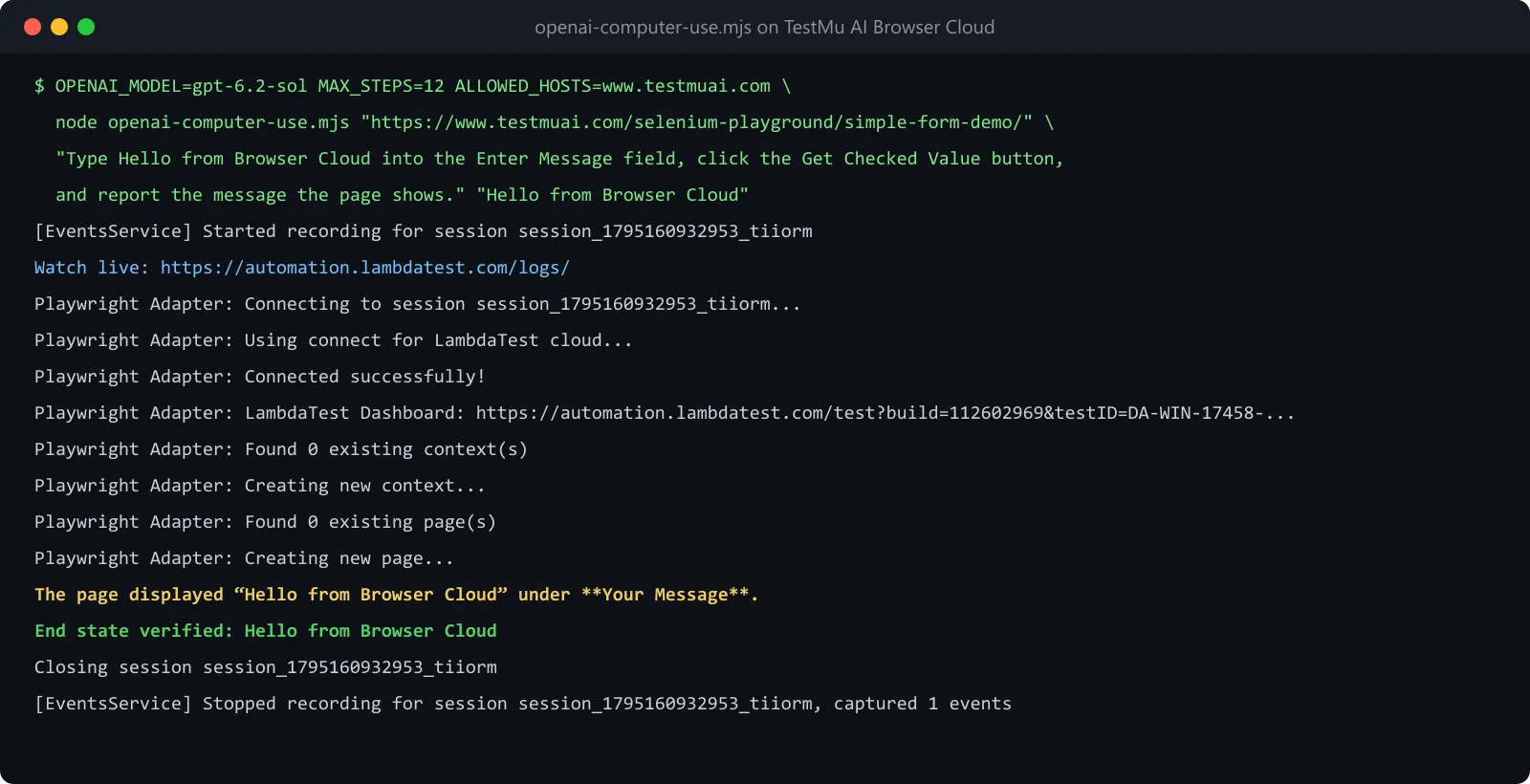
Five of the choices in the script are intentional. Any error that gets thrown will cause the run to terminate with a non-zero exit code, so the CI will never interpret a stopped run as a pass.
- One session for the entire task. As
previous_response_iddoesn't restore browser state, the session will remain open until the loop completes, andrelease()will run in the finally block so a crash won't leave a session running until its timeout. - Fixed 1024x768 viewport. That corresponds to the browser sample in OpenAI's Computer Use guide (the integration recipes use 1280x720; either is fine if you never resize). The screenshot is never resized, so the model's coordinates will land where it expects.
- A hard stop on safety checks and on the step cap. OpenAI's Ruby recipe raises an error if a
computer_callhas non-emptypending_safety_checksand its live run "stops if the model requests a safety check". This sample is the same and doesn't acknowledge the checks at all, so you'll have to do a manual review prior to rerunning. ReachingMAX_STEPSwith actions still pending also throws. - Its own end state check. After the loop, Playwright is going to wait for the expected text on the page. The model's final message is not the verdict.
- The host is checked after every action. Page content can contain instructions for the model. If a click takes the agent to a host that you haven't listed, then the run will terminate.

Try it on your own app
Note: Fire up your first Browser Cloud session with TestMu AI and then run the script above against a staging URL. Add tunnel: true to the session options to get to localhost or a private staging URL.
How Do You Debug an OpenAI Computer Use Run?
The vast majority of failed runs fall into one of four categories. Watch the live view from session.sessionViewerUrl as you're testing the run, then use the Browser Cloud debugging tools (video replay, console logs and network logs) to go back and examine the run.
| Symptom | Likely cause | Fix |
|---|---|---|
| Clicks land a little off target | Screenshot was resized, or viewport and screenshot sizes differ | Keep one fixed viewport; map coordinates back if you must downscale |
| The model keeps asking for screenshots | The page has not finished loading, or a modal blocks it | Check the replay; add an explicit wait in your task wording or dismiss known banners first |
| A key press throws Unknown key | Model key name not mapped to a Playwright name | Extend KEY_MAP (for example ENTER -> Enter) |
| The run ends with a login screen | A new browser was started mid-task, or cookies expired | Keep one session per task; use Browser Cloud session persistence for logged-in flows |
When a run looks right, but the answer is wrong, then don't trust output_text alone. The OpenAI guide is clear on this point: you need to check the actual outcome rather than the model's final message. That's why the script ends with its own Playwright check of the page.
What Should You Check Before Shipping an OpenAI Computer Use Integration?
Use the SCOPE checklist before the system integration runs anywhere unattended:
- S - Sandbox. The browser runs in an isolated session, not on a developer's laptop or on a machine that has saved credentials.
- C - Cap it with a step limit (
MAX_STEPS) that will fail the run quite loudly, a session timeout, and a spend limit. OpenAI's guide mentions that requests can incur token and image input charges and that screenshots count as image input. - O - Observe. Every run has a live view and a replay you can open later, with console and network logs.
- P - Permit. An allowlist of hosts plus human approval for consequential actions. OpenAI's guide lists purchases, sending data, and destructive changes, and also counts typing sensitive data into a form as sending data. The example stops on any
pending_safety_checks; there's no approval step, so don't add an auto-ack. - E - Evidence. Assert the end state with your own code (i.e., the sample's final
waitFor) and keep the replay link with the result so a reviewer can see what the agent actually did.
Also note that setting store: false doesn't eradicate all forms of data retention (according to the OpenAI guide). Always check your data agreements before you go around sending screenshots of internal apps.
Conclusion
OpenAI Computer Use is a loop that you own: the model suggests an action, your code carries it out and returns a screenshot, and it continues until the model decides to stop. Running that browser in a dedicated cloud session keeps the agent completely off your machine and gives you a live view as well as a replay for every run.
Start with a single task, a single session and a very short allow list. Once you're happy with the replays, you can start to expand the scope.
Giving an AI agent a browser? TestMu AI's Browser Cloud runs each task in a real, isolated Chrome session in the cloud, so the browser stays off your laptop.
Author
Shantanu Wali
Blogs: 13

Shantanu Wali is Vice President of Product Management at TestMu AI, where he owns several product lines across the testing platform, including the Real Device Cloud and the Digital Experience Testing Cloud. He has also contributed significantly to the development and scaling of KaneAI, TestMu AI's flagship GenAI-native testing agent that uses natural language to make software testing faster and more reliable in this AI era. He brings 7+ years of experience across software development and product management, starting as a backend developer at Infosys building solutions for Fortune 500 clients. Shantanu holds an MBA from IIM Calcutta and a B.Tech in Mechanical Engineering.
Reviewer

Mayank Bhola
Reviewer
Mayank Bhola is Co-Founder and Head of Products at TestMu AI, where he leads the entire product portfolio across KaneAI, Kane CLI, HyperExecute, SmartUI, the Real Device Cloud, Accessibility, and other software testing product lines. As an early Lead Architect he designed and built the company's flagship Tunnel technology from scratch, created the React-based automation platform, and architected the data-intensive pipelines and FAAS services that scale it. He brings more than 10 years of experience in software development and product engineering, with earlier roles as Head of Technology at Juggernaut Books and Senior Software Engineer at PressPlay TV and Zomato. Mayank holds a B.Tech in Computer Engineering from JIIT Noida.


OpenAI Computer Use FAQs
Did you find this page helpful?
More Related Blogs


TestMu AI forEnterprise
Get access to solutions built on Enterprise
grade security, privacy, & compliance
- Advanced access controls
- Advanced data retention rules
- Advanced Local Testing
- Premium Support options
- Early access to beta features
- Private Slack Channel
- Unlimited Manual Accessibility DevTools Tests