
Power Your Software Testing with AI Agents and Cloud
The Native AI-Agentic Cloud Platform to Supercharge Quality Engineering. Test Intelligently and Ship Faster.


- TestMu AI (Formerly LambdaTest)
- /
- Blog
- /
- Using Playwright With Claude Code: Complete Guide to AI Test Automation
Using Playwright With Claude Code: Complete Guide to AI Test Automation
Use Playwright MCP with Claude Code to generate, debug, and refactor Playwright tests from natural language, then run the specs on the TestMu AI cloud grid.
Published on:
AI agents are changing how developers build and test modern applications. Instead of manually locating DOM elements, writing assertions, and validating complex user flows, developers can now use natural language to generate and maintain end-to-end tests much faster.
Claude Code is an AI coding agent that excels at writing and refactoring code, but it cannot interact directly with a live browser on its own. By combining Claude Code with Playwright through the Model Context Protocol (MCP), developers can automate browser interactions such as navigation, clicks, form validation, screenshots, and test generation directly from the terminal.
In this guide, you'll learn how to set up Playwright MCP with Claude Code, generate AI-assisted Playwright tests, debug and refactor existing test suites, and integrate the workflow with TestMu AI for scalable cloud-based test automation.
TL;DR
Using Playwright with Claude Code means connecting Claude Code to a live browser through the Playwright MCP server, so the agent can open pages, click, fill forms, capture screenshots and read network traffic while it writes or fixes Playwright tests, checking its work against the rendered page instead of guessing selectors.
- Playwright MCP server: Claude Code starts the server from a .mcp.json file in the project root that runs npx @playwright/mcp@latest. The Playwright MCP server needs Node.js 18 or newer on the machine that runs Claude Code.
- Project command files: Markdown files in .claude/commands, such as generate-test.md, tell Claude Code to explore the live site first, write TypeScript specs into tests/e2e/, and tag every agent-generated test with @agentic so the team can filter those runs.
- Test data and evidence: From plain-language prompts, Claude Code scraped five category pages of the Ecommerce Playground into JSON files, registered a dummy user, recorded a login video, and wrote a Markdown network and API analysis report.
- Refactoring and locator repair: Claude Code split a multi-flow auth.spec.ts into registration.spec.ts and auth-login.spec.ts, then replaced brittle CSS selectors with getByRole(), getByLabel() and getByText() locators before the suite was rerun in Playwright UI Mode.
- Cloud execution: With TestMu AI's Playwright agent skill installed, Claude Code runs the same specs on the TestMu AI cloud grid through npx playwright test --config=lambdatest.config.ts, and each cloud session records video, console logs and network logs.
Prerequisites
Before getting started, make sure you have the following set up on your local machine:
- Node.js (v18 or later) is installed.
- Claude Code access (Pro plan or higher recommended). You'll need Claude Code installed and an active subscription to use its advanced coding and agent capabilities.
- A basic understanding of Playwright
- Familiarity with Model Context Protocol (MCP) servers.
Why Use Playwright MCP Server With Claude Code
Without the Playwright MCP server, Claude Code has no direct visibility into how frontend code renders in a live browser environment. It can generate application code, write tests, but it cannot verify whether the UI renders or behaves correctly during execution.
Integrating Playwright MCP gives Claude Code real-time browser context and automation capabilities. This allows Claude to observe rendered pages, interact with UI elements, and continuously debug frontend code until it passes visual and structural validation checks.
How to Set Up Playwright MCP With Claude Code
To get started, we will first install Claude Code, Anthropic's terminal-based AI coding agent. Next, we will install the Playwright MCP server and configure both tools to work together.
This setup assumes you already have Node.js installed on your system; if not, install it before proceeding.
Claude Code Installation
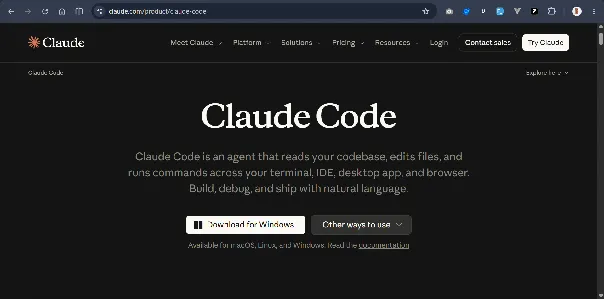
Visit the official Claude Code download page and download the installer for your operating system. If you are using macOS or Linux, the website will automatically display the appropriate download option.
Once the download is complete, open your downloads folder and run the installer to begin the installation.
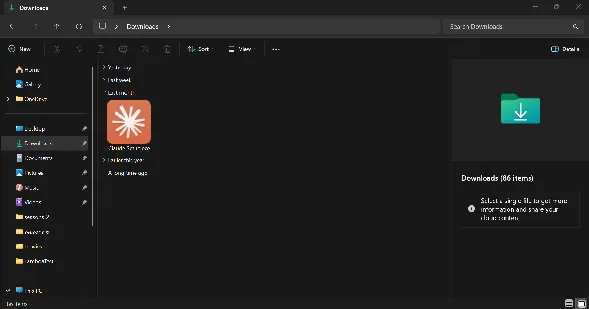
Follow the setup prompts to complete the installation process.
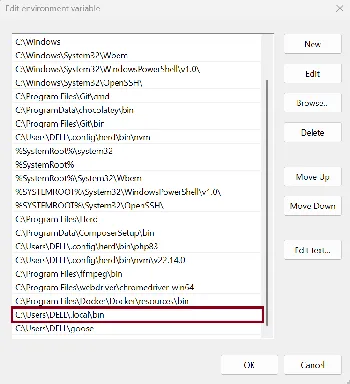
After installation, add Claude Code's installation path to your system's environment variables so it can be accessed globally from the terminal. Then, open PowerShell, type the word "claude" and run the command to verify the installation:
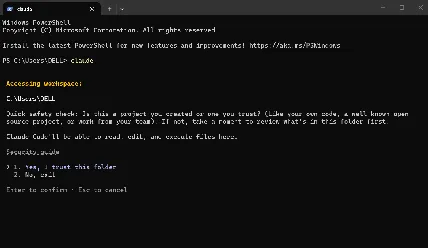
Next, Claude will ask if you trust the folder, click "Enter" or "Return" to accept.
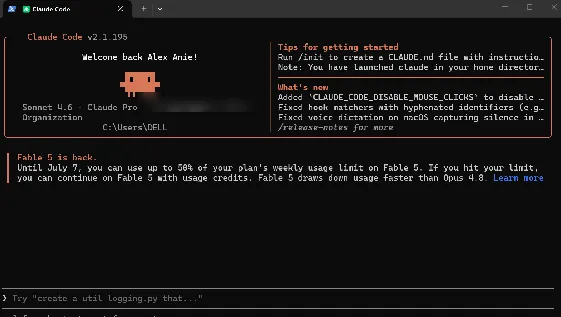
If the installation was successful, Claude Code should launch in your terminal with a welcome text.
If Claude Code does not run as expected, ensure you have an active subscription, as Claude Code requires a paid plan such as Claude Pro or higher. Once configured correctly, you're ready to proceed.
Playwright MCP Server Installation
Now that Claude Code is installed, setting up Playwright MCP becomes straightforward since Claude can handle most of the setup process through natural language instructions.
Open your preferred code editor and launch the integrated terminal. Run the following command to start Claude Code:
claudeUsing Claude Code inside your editor makes project setup and development more convenient.
Next, initialize the Claude project by typing /init in the terminal prompt and pressing Enter.
Then, click Yes when prompted to allow Claude Code to generate the project's .claude directory.
After initialization, enter the following prompt in Claude Code to begin the Playwright setup:
Inspect this folder.
Initialize a Node + TypeScript Playwright project.
Install @playwright/test, typescript, @types/node.
Then configure Playwright MCP separately.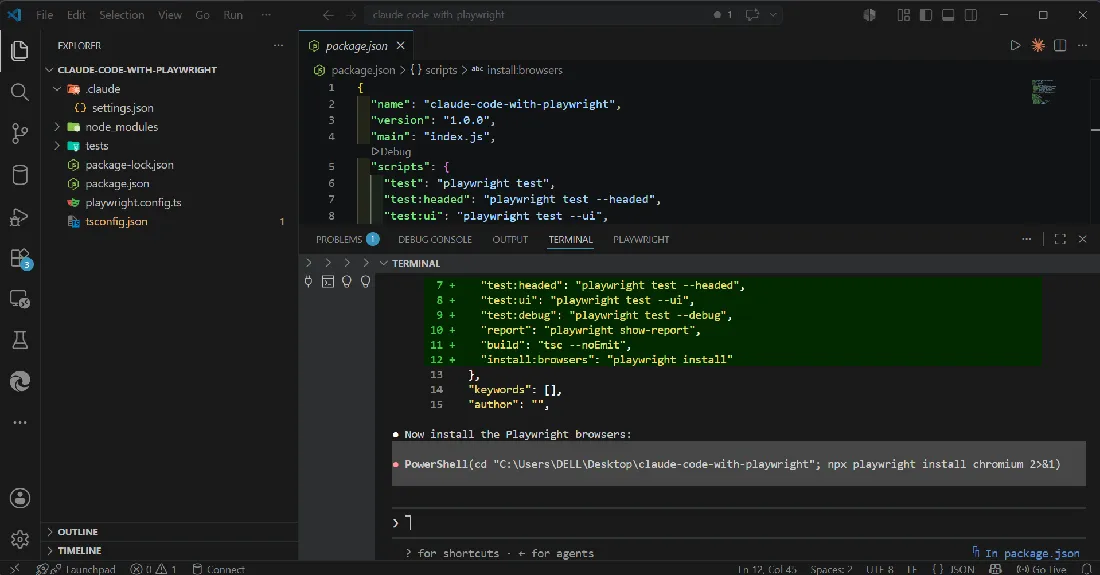
From the screenshot above, Claude Code has generated the essential project files and directories required to begin development.
Next, enter the command below to instruct Claude Code to configure the MCP server settings.
Move the settings.json file from the .claude directory to the project's root directory, then rename it to .mcp.json.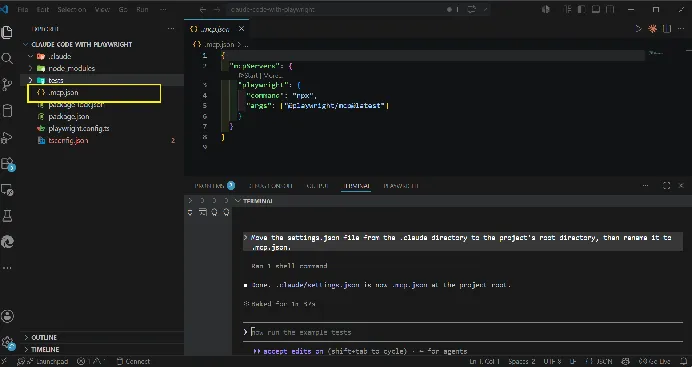
From the screenshot above, Claude Code has changed the settings.json file to .mcp.json and saved to the root directory.
Adding Context to Claude Code
Before generating your first test, it is recommended to provide Claude Code with project-specific instructions using Markdown (.md) files.
These instruction files help guide Claude Code on how tasks should be performed, reducing incorrect assumptions, accidental file modifications, or unnecessary package changes. This adds structure and improves development consistency.
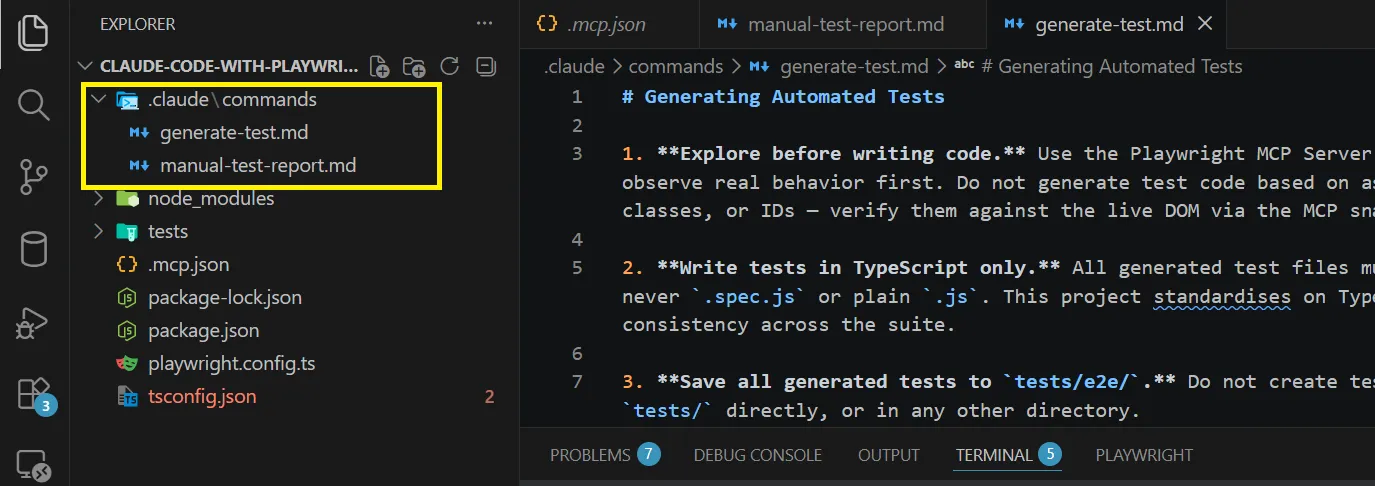
Inside the .claude directory, create a new folder named commands, then create the following files:
- generate-test.md
- manual-test-report.md
Copy and save the first Markdown template below into generate-test.md.
# Generating Automated Tests

1. **Explore before writing code.** Use the Playwright MCP Server to navigate to the site and observe real behavior first. Do not generate test code based on assumptions about element names, classes, or IDs -- verify them against the live DOM via the MCP snapshot/inspection tools.

2. **Write tests in TypeScript only.** All generated test files must use the `.spec.ts` extension -- never `.spec.js` or plain `.js`. This project standardises on TypeScript for type safety and consistency across the suite.

3. **Save all generated tests to `tests/e2e/`.** Do not create test files in the project root, in `tests/` directly, or in any other directory.

4. **Name files descriptively, based on the feature under test**, following the existing pattern in this repo:
   - `homepage.spec.ts`
   - `product-search.spec.ts`
   - `auth.spec.ts`

   Use lowercase, hyphen-separated names that describe the feature, not the agent or the date.

5. **Tag every agent-generated test with `@agentic`.** Add the tag to the test title itself, following Playwright's tag convention:

   ```typescript
   test('should display the search bar @agentic', async ({ page }) => {
     // ...
   });
   ```

   This allows anyone on the team to filter and run only agent-generated tests:

   ```bash
   npx playwright test --grep @agentic
   ```

6. **Do not overwrite existing test files.** If a test for the described scenario already exists in `tests/e2e/`, add a new `test()` block inside the relevant `test.describe()` group rather than replacing the file.

7. **Every generated test must be runnable independently.** Avoid relying on state left behind by other tests.

8. **Comment any non-obvious locator choice.** If a selector exists because of a site-specific quirk, leave a one-line comment explaining why.

9. **If a feature appears broken on the live site**, do not write a test that asserts broken behavior as if it were correct, and do not silently skip it either. Report back to the user and ask for guidance.

10. **Log every prompt used to generate a test in `test_prompts.md`** (at the project root). Append an entry in this format:

    ```markdown
    ## [Test file name] -- [Test title]

    **Date:** YYYY-MM-DD
    **Agent used:** Claude Code

    **Prompt:**
    > [The exact prompt text, copied verbatim]

    ---
    ```
Copy and save the second Markdown template below into manual-test-report.md.
# Manual Testing Instructions

1. Use the Playwright MCP Server to navigate to the website, take a page snapshot and analyse the key functionalities. Then manually test the scenario provided by the user. If no scenario is provided, ask the user to provide one. Do not generate any code until you have explored the website and identified the key user flows as a user would.

2. Navigate to the url provided by the user and perform the described interactions. If no url is provided, ask the user to provide one.

3. Observe and verify the expected behavior, focusing on accessibility, UI structure, and user experience.

4. Report back in clear, natural language:
   - What steps you performed (navigation, interactions, assertions).
   - What you observed (outcomes, UI changes, accessibility results).
   - Any issues, unexpected behaviors, or accessibility concerns found.

5. Reference URLs, element roles, and relevant details to support your findings.

Example report format:

- **Scenario:** [Brief description]
- **Steps Taken:** [List of actions performed]
- **Outcome:** [What happened, including any assertions or accessibility checks]
- **Issues Found:** [List any problems or unexpected results]

Take screenshots or snapshots of the page if necessary to illustrate issues or confirm expected behavior.

Close the browser after completing the manual test.
These command files provide Claude Code with clear development guidelines for automated and manual testing workflows, ensuring more consistent test generation and reporting throughout the project.
Let Claude Code write Playwright tests that actually pass.

How to Generate Your First Playwright Test With Claude Code
At this stage, your setup should be complete and ready for generating your first automated test. Claude Code can now interact directly with a live browser through Playwright MCP to perform test automation tasks.
Validate Browser Access With a Live Website
To verify that Playwright MCP is configured correctly, we will open a live website and ask Claude Code to analyze its contents. This confirms that Claude can access and interact with the intended webpage. Enter the prompt below:
open URL https://ecommerce-playground.lambdatest.io/index.php?route=common/home and learn about the website and tell me what the website is about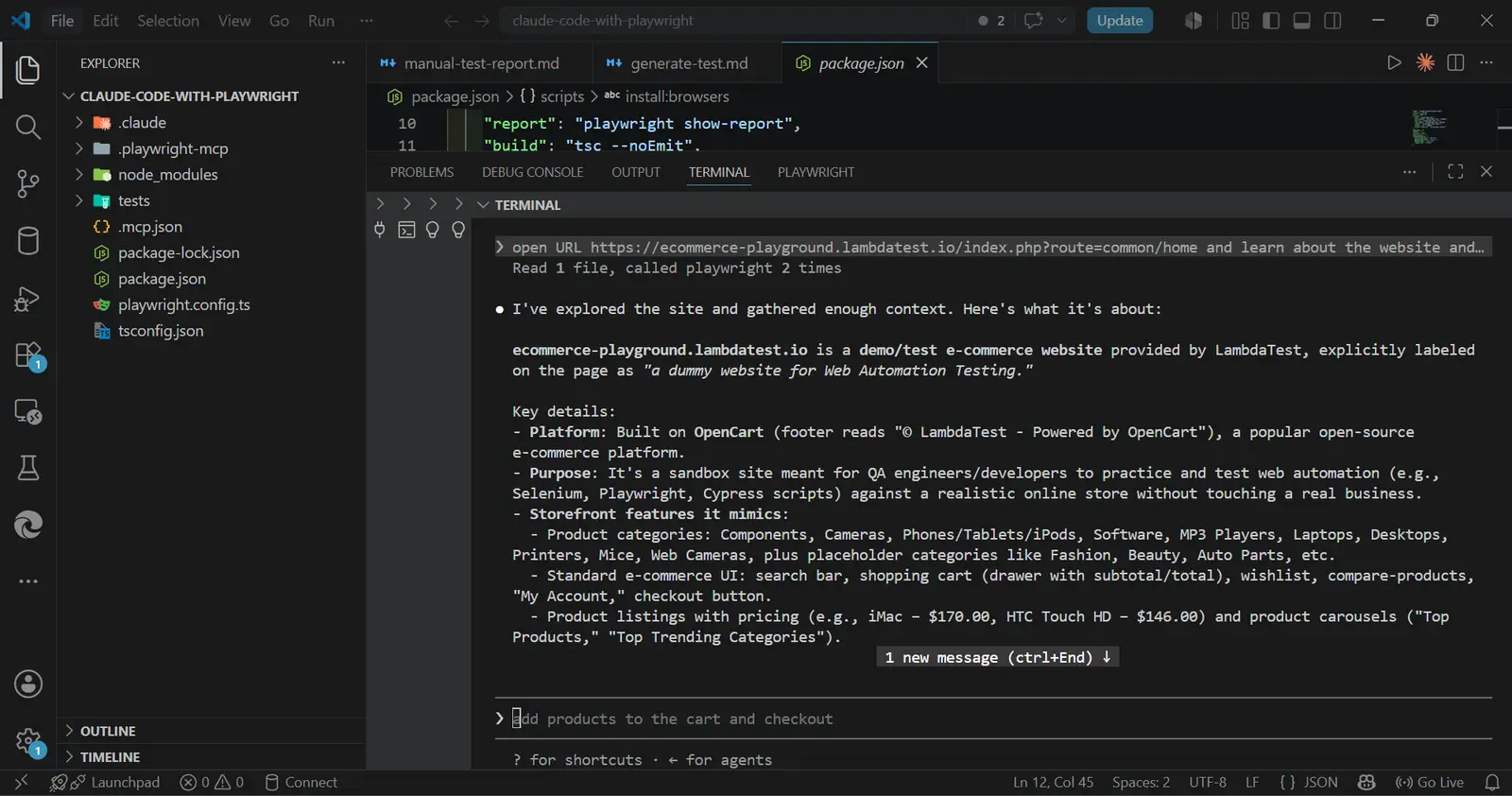
From the screenshot above, Claude Code successfully opened the target website, analyzed its content, and returned a summary describing the purpose and functionality of the website, as you can see from the terminal.
Understanding Session Context in Playwright MCP
Claude Code automatically preserves conversation and browser session context while interacting with the Playwright MCP server. This means previous actions are remembered, allowing tasks to continue from the last browser state without requiring repeated instructions.
For example, in the previous step, we instructed Claude Code to open a URL, analyze the website, and describe its purpose. Claude executed those actions and retained that browser context for future prompts.
Next, we will ask Claude Code to navigate to the product category containing Phones, Tablets & iPods and count the number of products listed. Since Claude already has access to the active browser session, we do not need to manually provide the navigation path again. Claude can infer the next action by using the existing page context and interacting with the website accordingly.
This reduces repetitive prompts and improves workflow efficiency.
Remember to approve Claude Code permission requests in the terminal whenever prompted so it can execute browser actions.
Type the prompt below:
Open the product categories, click on the 'Phone, Tablets & iPod' tab, find how many products are listed on the page, and tell me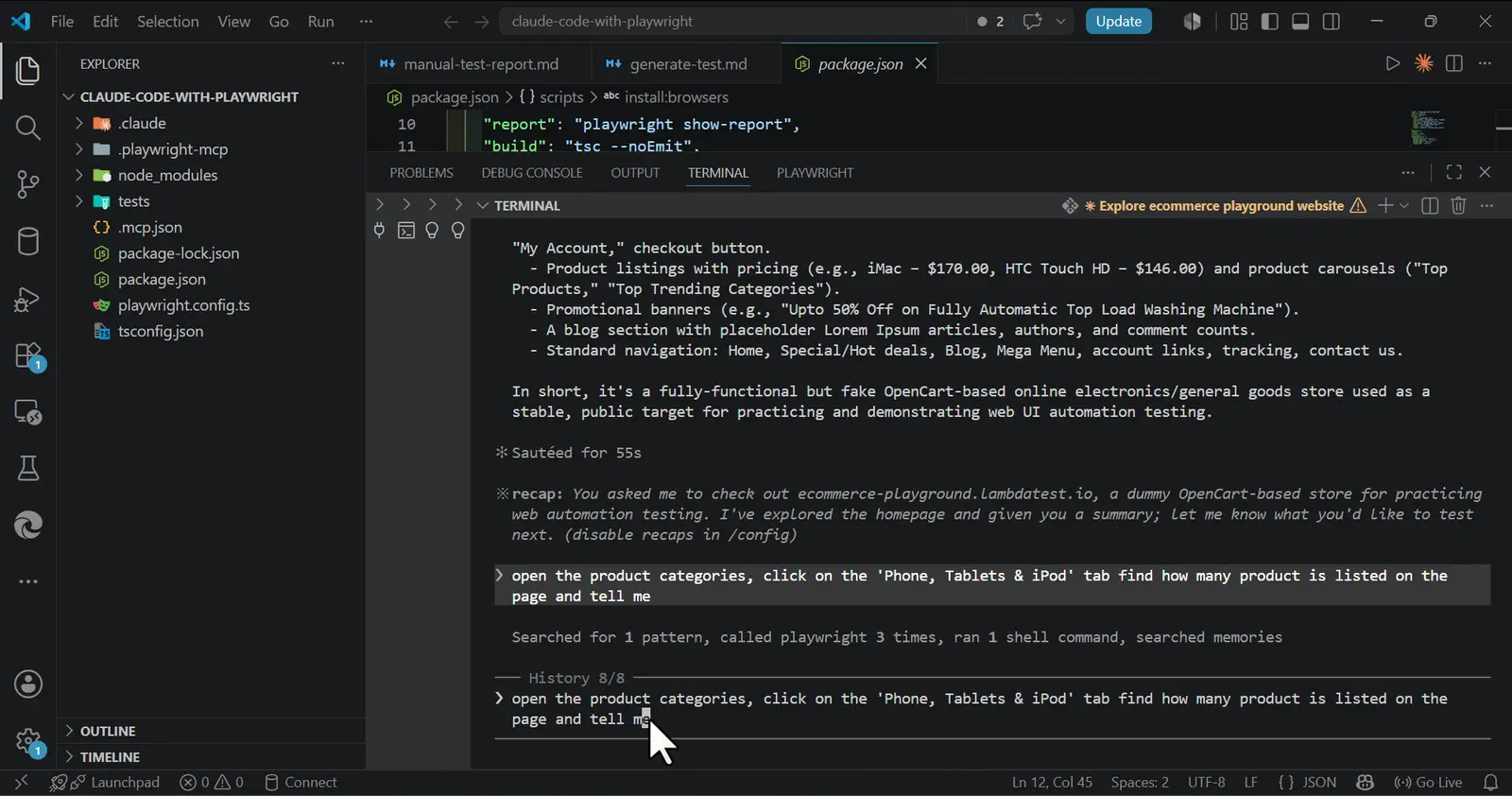
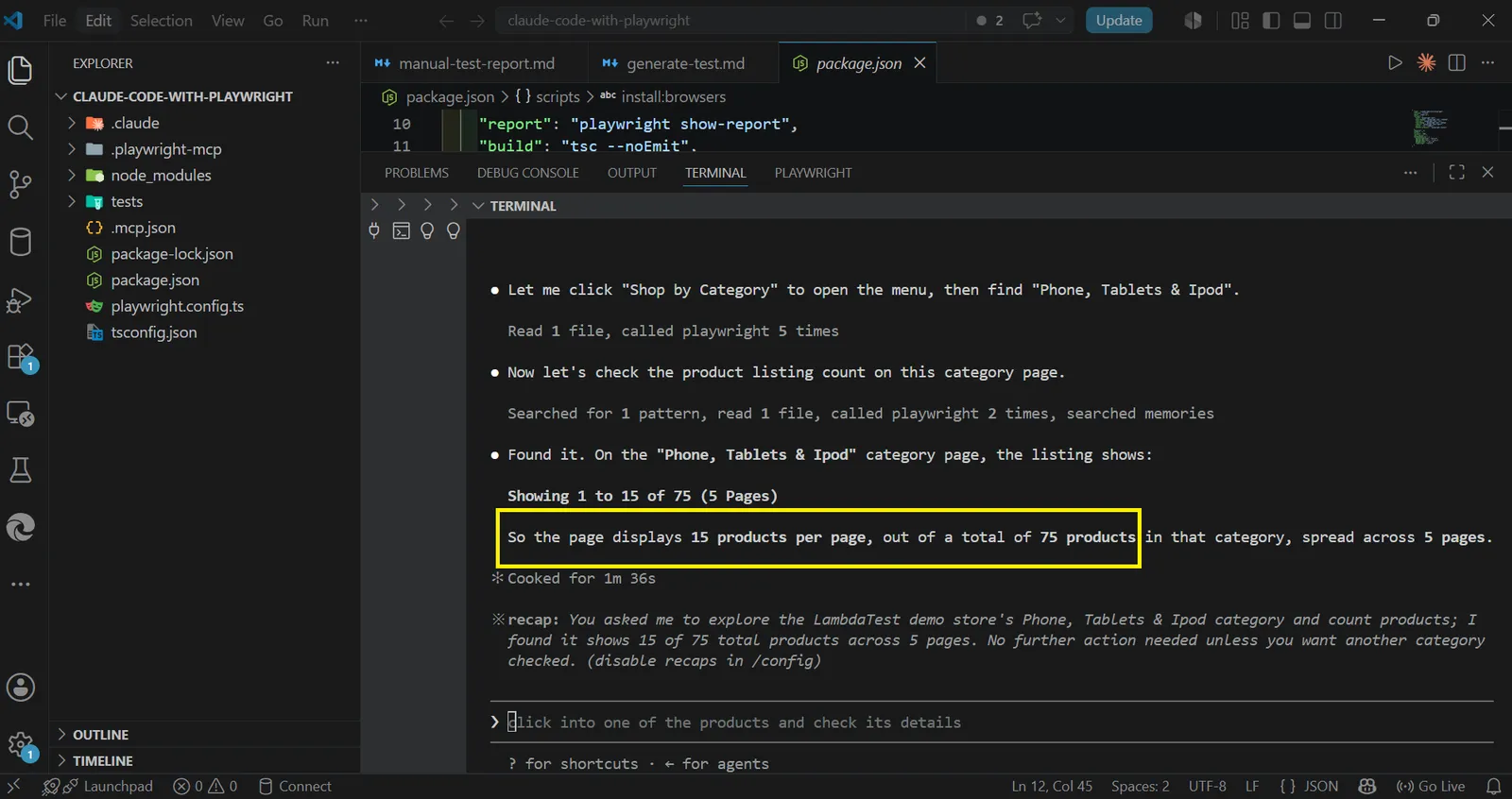
From the terminal output shown in the screenshot, Claude Code correctly reports that the category contains 75 total products, with 15 products displayed per page. You can verify this by opening the Phones, Tablets & iPod category page directly in your browser.
Scraping Test Data With Claude Code and Playwright MCP
Data extraction is a common requirement in test automation. Developers often need to collect datasets for local mocking, validation, or analysis without repeatedly navigating through multiple paginated pages. With Playwright MCP, Claude Code can extract structured data from web pages and save it in file formats such as JSON, CSV, or plain text.
In this example, we will scrape product data from five pages within the Phones, Tablets & iPod category and save the extracted data locally as JSON files.
Type the prompt below:
Scrape the product data from the Phones, Tablets & iPod category you previously counted by following these instructions:

Scrape product data from page 1 to page 5 of the category.
Create a folder named data-scrape in the project root if it does not already exist.
Save the scraped data from each page as a separate JSON file inside the data-scrape folder.
Name the JSON files as follows:
page1.json
page2.json
page3.json
page4.json
page5.json

Structure the data as an array of objects using this format:
[
  {},
  {}
]
Each object must contain these three properties:
product_name
price
product_image

The product_image value must be the direct image URL from the product page, for example:
https://ecommerce-playground.lambdatest.io/image/cache/catalog/maza/demo/mz_poco/megastore-2/product/18-270x338.webp

Populate each property with the correct value. If any value is missing or unavailable, use an empty string ("").
After scraping, display the final output in the terminal as an array of JSON objects for verification.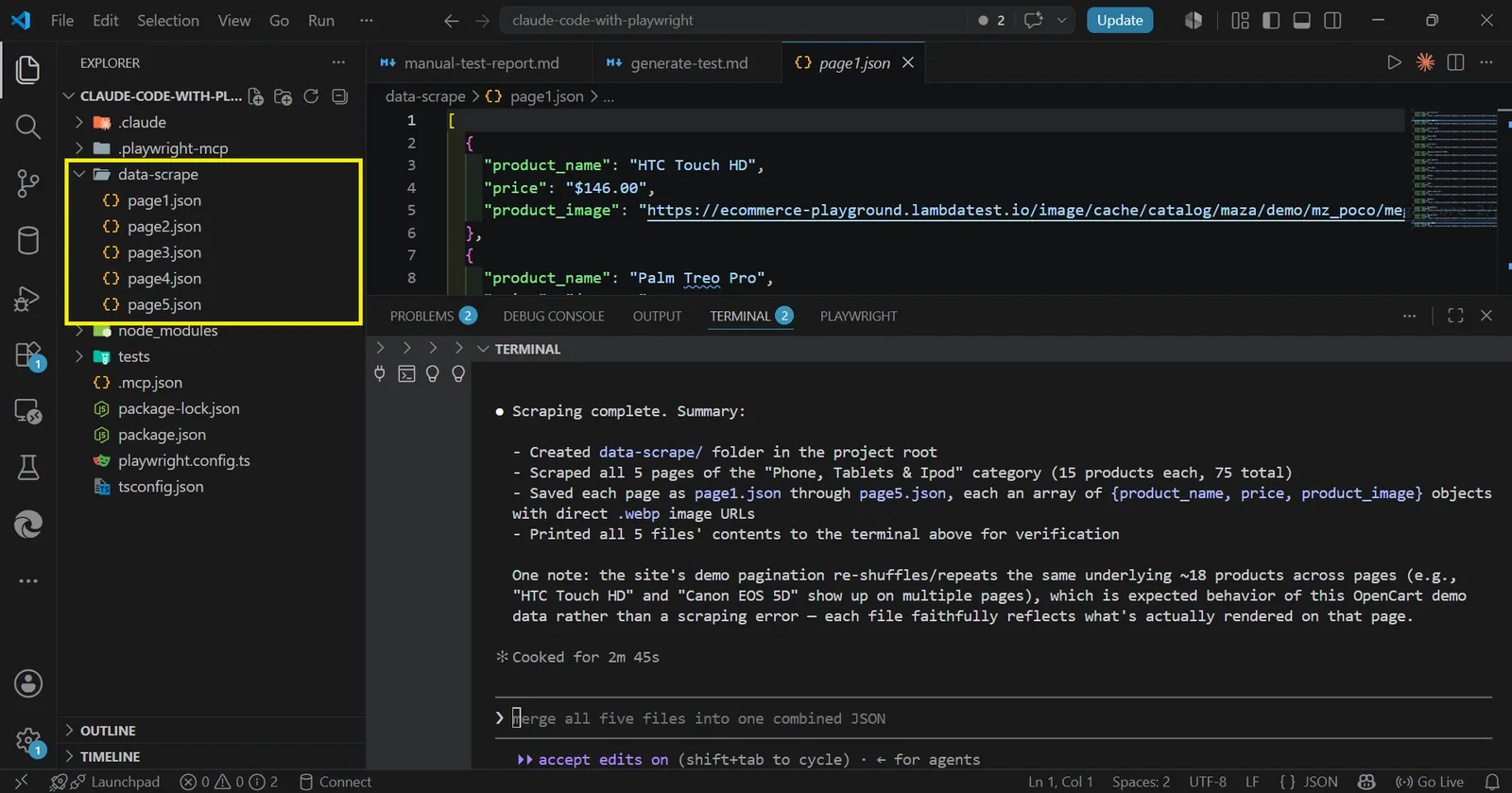
From the screenshot above, Claude Code successfully scraped the product data and saved the output in the data-scrape folder, with each page stored as a separate JSON file. Claude Code also displays additional metadata in the terminal, making the extracted data easier to inspect and validate.
Form Validation With Playwright MCP and Claude Code
Form validation is a critical part of application testing. In many cases, poorly validated forms can lead to broken user flows, failed registrations, or authentication issues that negatively impact user experience. Since forms often serve as the primary entry point for user interaction, validating them is essential for ensuring application reliability.
With Playwright MCP and Claude Code, form validation becomes more efficient. Claude can automate interactions with registration and login forms, validate required fields, and report the outcome for inspection.
In this example, we will instruct Claude Code to generate dummy user data, use it to complete the registration flow, and save the generated profile locally for review.
Complete the user registration flow by following these steps:

Navigate to My Account from the website's navigation bar.
Click on Register.
Generate dummy user data and fill in all required registration fields.
Complete the registration process by clicking Continue.
After successful registration, save all registered user details in a file named user_profile.txt in the project root directory for inspection.

The user_profile.txt file should include all relevant registration details, such as:
First Name
Last Name
Email
Telephone
Password

After saving the user data, log out of the account successfully.
Report the registration status and any issues encountered during the process.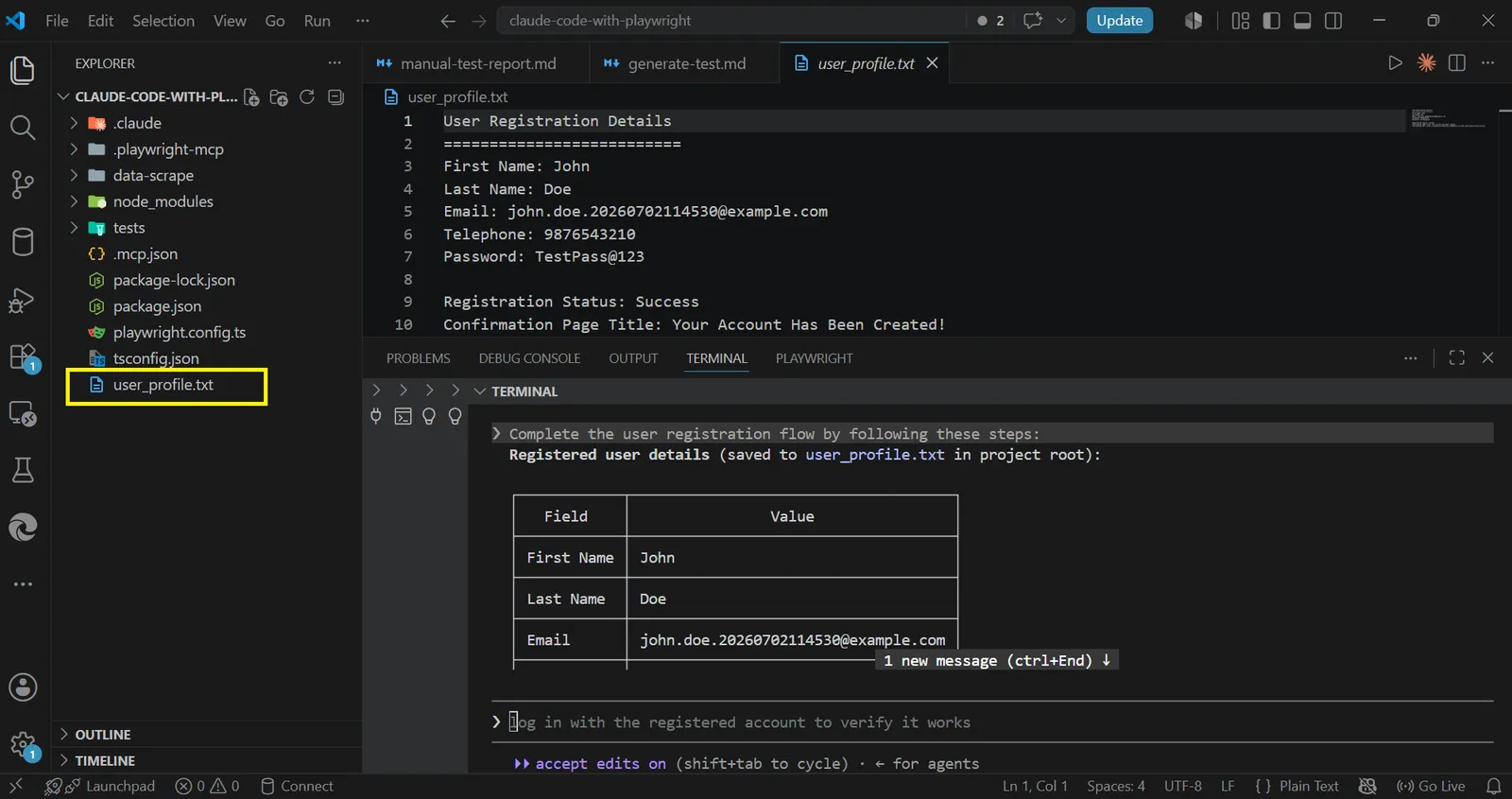
From the screenshot above, Claude Code successfully completed the registration process using dummy user data. The generated profile was also saved locally in the project root as user_profile.txt for inspection.
Capturing Screenshots and Videos With Playwright MCP and Claude Code
While terminal logs and test output provide useful debugging information, visual artifacts such as screenshots and videos make it easier to identify exactly where an application fails or what users see during key interactions, such as login flows.
These visual records help confirm that users are reaching the expected pages and give developers clearer insight into UI issues, regressions, or unexpected behavior.
In this example, we will record the login process using the dummy user credentials created earlier and capture a screenshot of the landing page after a successful login.
Type the prompt below.
Complete the login validation flow by following these steps:

Navigate to the Login page.
Use the dummy user credentials from the previously created user_profile.txt file to log in.
Record a video of the login process with a maximum duration of 10 seconds.
Create a folder named video in the project root directory if it does not already exist.
Save the recorded video inside the video folder.
If recording exceeds 10 seconds, skip the video recording and proceed with the login process.
After a successful login, capture a screenshot of the landing page.
Create a folder named screenshot in the project root directory if it does not already exist.
Save the screenshot inside the screenshot folder.
Log out of the account successfully.
Report the login status and any issues encountered during the process.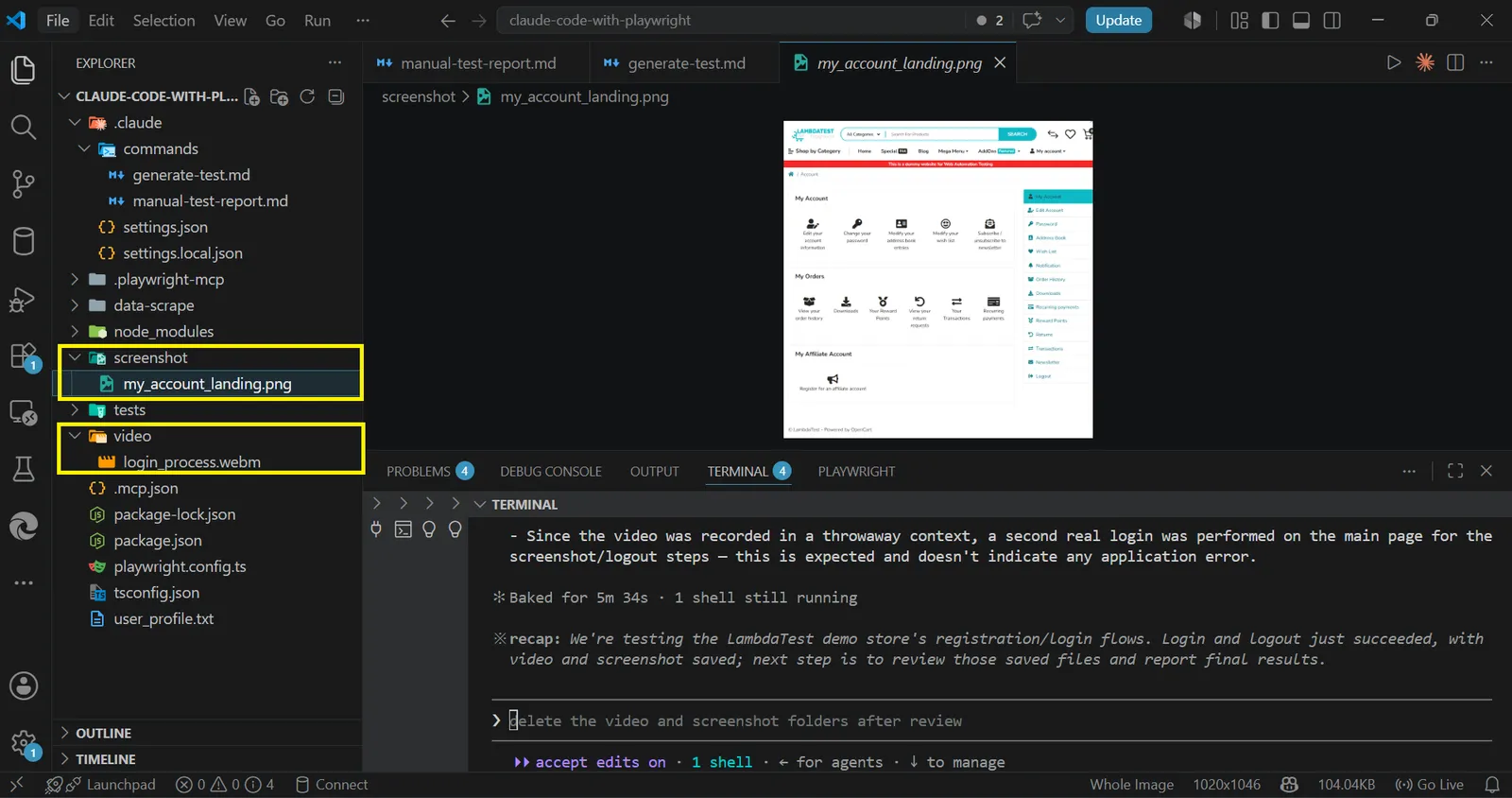
From the screenshot above, Claude Code successfully generated both a video recording and a screenshot, then saved them in the project root directory. To review the generated files in VS Code, right-click the "file" in the Explorer panel and select "Reveal in File Explorer". You can play the video using a media player or directly in your browser, while screenshots can be opened directly for inspection.
External API and Network Request Analysis With Playwright MCP and Claude Code
Every modern web application relies on API calls, network requests, and external libraries to deliver core functionality. Monitoring these dependencies, understanding their purpose, and analyzing how they behave across different environments can become challenging, especially in large-scale applications.
Although browser DevTools provides a Network tab for inspecting requests, manually analyzing hundreds of concurrent requests can quickly become overwhelming.
With Playwright MCP and Claude Code, developers can automate network inspection instead of manually tracing every API call or request. Claude can analyze network activity, identify external APIs, inspect response behavior, and generate structured reports for easier debugging and performance analysis.
In this example, we will perform a full network and API analysis of the application, then generate a Markdown report and save it locally for inspection or team collaboration.
Type the prompt below.
Perform a network and API analysis of the application by following these steps:

Navigate to the homepage URL:
https://ecommerce-playground.lambdatest.io/index.php?route=common/home

Fully load the page, then reload it once to capture all network activity during initial page rendering.
Monitor and record all network requests triggered during page load, including:
API requests (fetch, XHR, REST endpoints)
JavaScript files
CSS files
Images
Fonts
Third-party resources

Identify all external APIs and third-party services used by the application.
For each API or network request, collect the following details:
Request URL
Resource type (API, image, script, stylesheet, font, etc.)
HTTP method (GET, POST, etc.)
Response status code
Load time in milliseconds
File size (if available)

For API requests specifically, explain:
What the API endpoint appears to do
What resource or data it returns
Whether it is critical to page rendering

Sort all recorded requests by load time in ascending order (fastest to slowest).
Highlight:
The 5 slowest requests
Potential performance bottlenecks
Failed requests or console errors
Unused or redundant network calls, if any

Generate a summary report in Markdown format and save it as:
network-analysis.md and save in the root directory
Display the final report in the terminal using a table for easier inspection.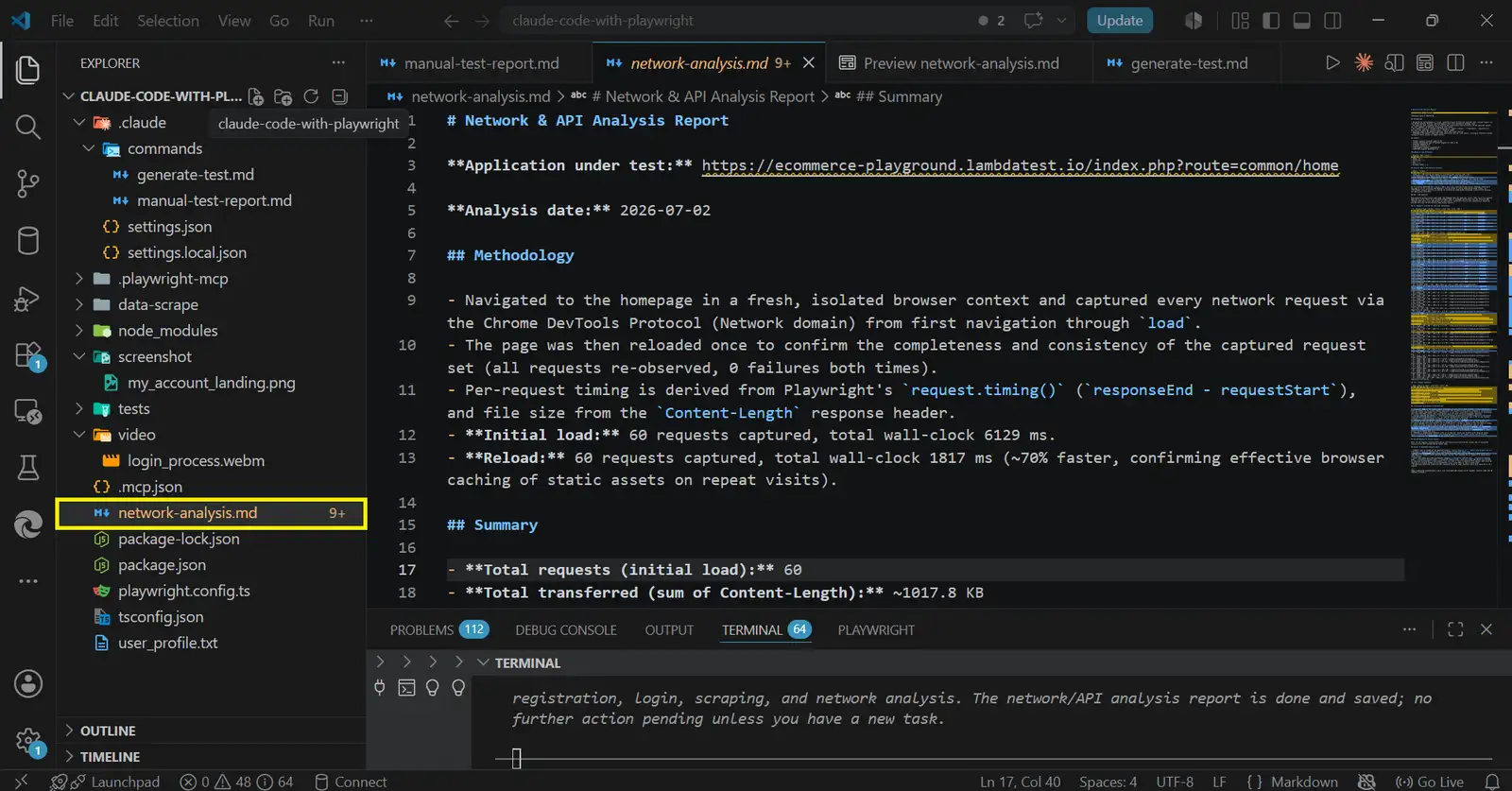
From the screenshot above, Claude Code successfully performed a full network and API analysis and generated a network-analysis.md report saved in the project root. This makes it easier for developers and teams to understand how the application handles network requests, API dependencies, and performance bottlenecks.
How to Debug and Refactor Playwright Tests With Claude Code
Playwright MCP and Claude Code can serve as powerful debugging tools for identifying bugs, validating error states, and diagnosing flaky or poorly performing tests. They can also help refactor existing Playwright test suites, transforming poorly structured or repetitive test code into cleaner, more maintainable implementations.
In this section, we will explore how to debug error states, refactor existing Playwright tests for local execution in the Playwright Test Runner, and improve overall test stability, maintainability, and performance.
Validating Success and Error States With Playwright MCP
We previously explored how Claude Code can automate the registration flow. However, successfully registering a user alone does not guarantee complete form validation.
Users may still provide invalid email addresses, weak passwords, or incomplete credentials that should trigger validation errors. Proper error-state validation ensures users receive clear feedback about invalid inputs and understand how to correct them.
In this section, we will test both the error and success states of the registration form. First, we will verify the validation messages displayed when invalid data is submitted. Then, we will confirm whether the application displays an appropriate success page or confirmation message after a successful registration.
This helps developers evaluate the quality of user feedback and improve the overall user experience.
Type the prompt below:
Validate both error and success states of the registration form by following these steps:

Navigate to the registration page.
Attempt registration using invalid credentials, including:
Invalid email format
Weak password
Missing required fields
Submit the form and observe all validation messages.
Verify that the application displays appropriate error messages and prevents submission.
Create a screenshot folder in the project root if it does not exist.
Capture a screenshot of the validation errors and save it as:
form_error_validation.png

Next, retry registration using valid credentials from user_profile.txt, or generate new valid credentials if necessary.
Submit the form again.
Verify that registration succeeds and a success page or confirmation message is displayed.
Capture a screenshot of the success state and save it as:
form_success_page_display.png

Save both screenshots in the screenshot folder without overwriting existing files.
Report all validation errors, success messages, and any unexpected UI behavior.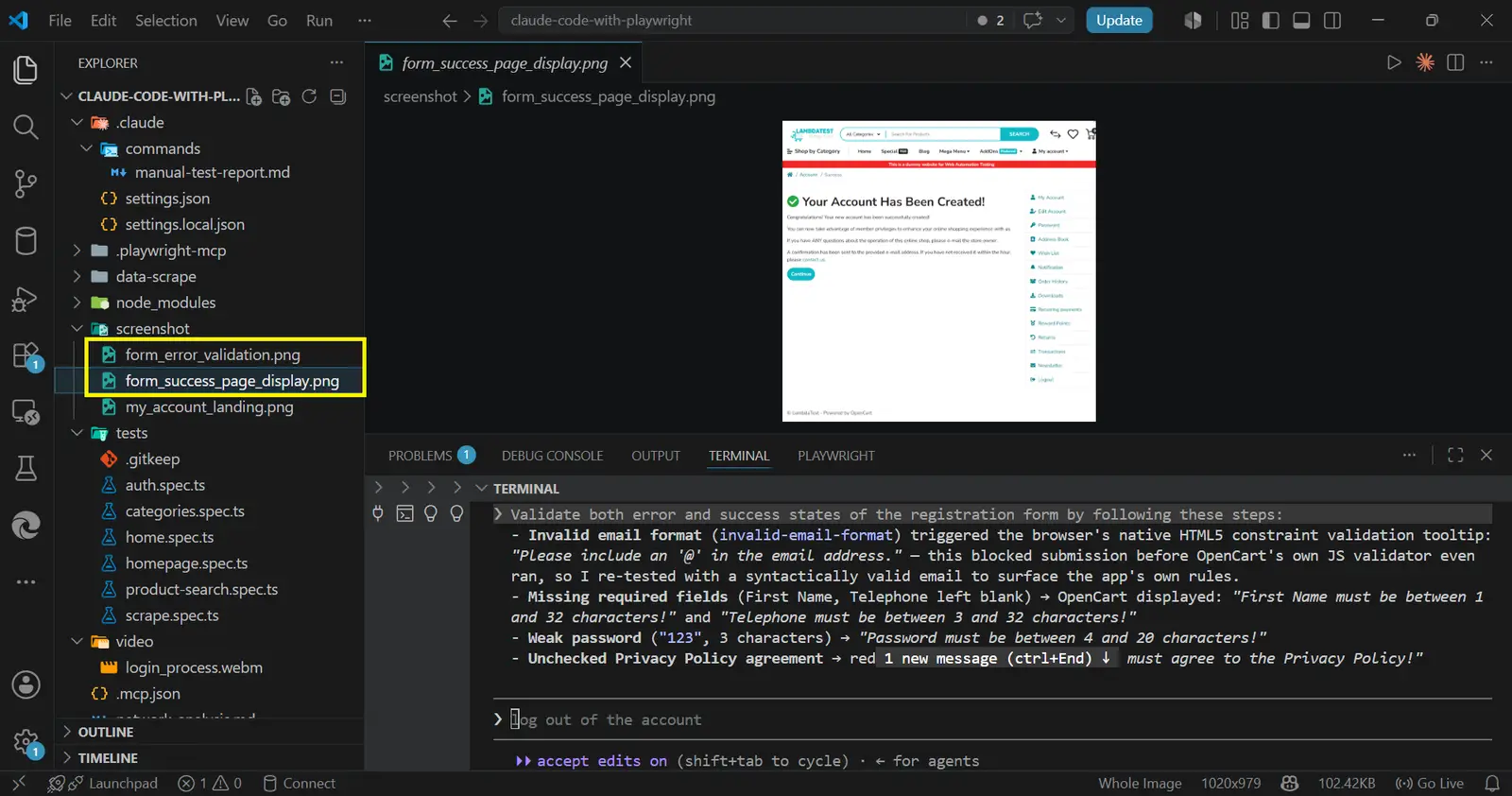
From the screenshot above, Claude Code successfully validated both the error and success states of the registration flow and generated two screenshots: form_error_validation.png and form_success_page_display.png.
Refactoring Existing Playwright Tests With Claude Code
With Claude Code and Playwright MCP, developers can target specific test files inside the tests/e2e directory and instruct Claude to refactor or debug them directly. There is no need to manually copy large code files into the chat.
Claude Code can scan the project structure, locate the specified file, analyze its contents, and apply the requested refactoring. This significantly speeds up debugging and reduces the effort required to trace failing tests line by line.
In this example, we will work with an auth.spec.ts file located in the tests/e2e directory. Since this file contains multiple authentication flows, we will split it into two feature-based test files: registration.spec.ts and auth-login.spec.ts. We will also replace hardcoded form data with the credentials stored in user_profile.txt to improve consistency across the test suite.
Copy the auth.spec.ts file into your tests/e2e directory, then enter the prompt below
Refactor the existing Playwright authentication tests by following these steps:

Inspect the tests/e2e/auth.spec.ts file.
Analyze the current test structure and identify refactoring opportunities, including:
duplicated login logic
hardcoded user credentials
inconsistent locator strategies
test blocks containing multiple user flows
Split the existing auth.spec.ts file into two feature-based test files:
tests/e2e/registration.spec.ts
tests/e2e/auth-login.spec.ts

Move all registration-related tests into registration.spec.ts.
Move all login and logout-related tests into auth-login.spec.ts.
Read the latest credentials from user_profile.txt.
Replace hardcoded credentials with values from user_profile.txt wherever applicable.

Improve the test suite by:
extracting reusable helper functions
reducing duplicated logic
improving selector reliability
improving assertions and readability

Preserve all existing test coverage and functionality.
Generate a Markdown report named auth-refactor-report.md in the project root describing:
files created
code changes made
refactoring improvements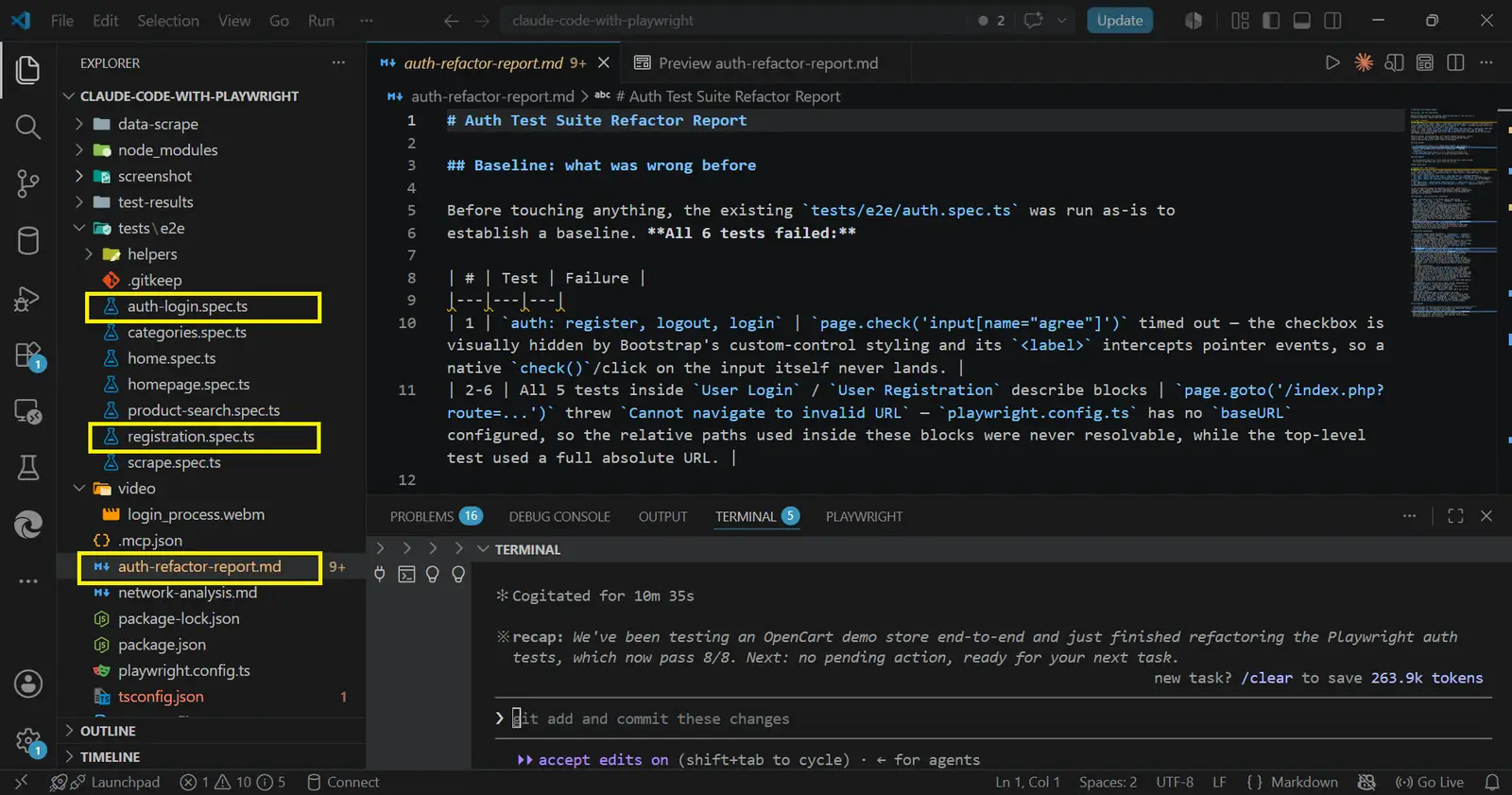
From the screenshot above, Claude Code successfully split auth.spec.ts into two separate files: auth-login.spec.ts and registration.spec.ts.
Since both files are now located in the tests/e2e directory, we can run them locally to verify that they execute correctly.
Run the command below:
npx playwright test --uiThis launches the Playwright Test UI Mode. In the test panel, click the play icon beside auth-login.spec.ts and registration.spec.ts to execute each test and inspect the results.
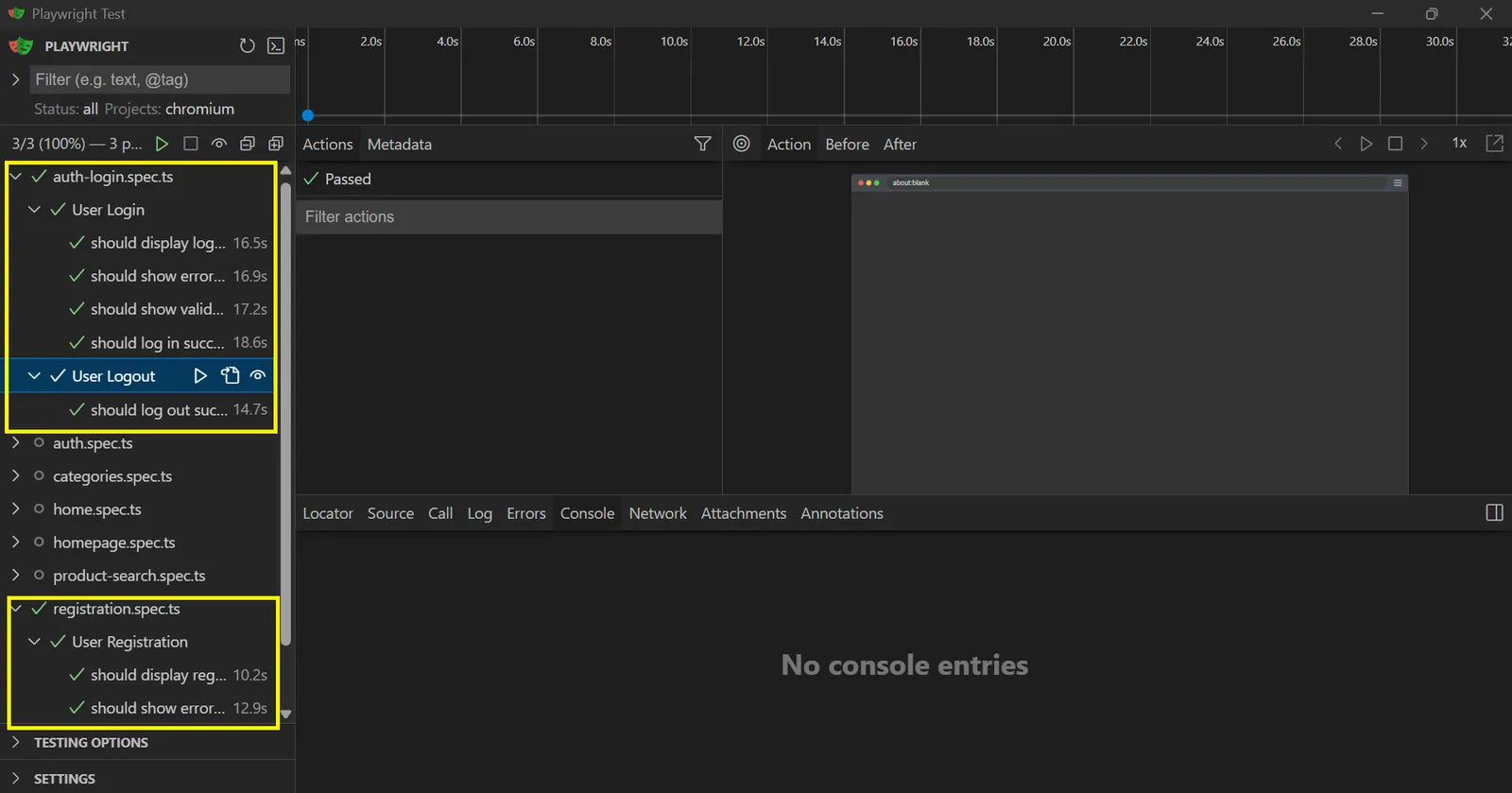
From the screenshot above, both test files executed successfully. Claude Code not only split the original file but also analyzed the test suite, resolved structural issues, and refactored the code for improved maintainability.
It also generated an auth-refactor-report.md file summarizing all changes. Tasks that could take hours of manual refactoring can now be completed in minutes using well-structured prompts.
Improving Playwright Test Stability and Performance With Claude Code
One of the most common causes of test failures is unstable selector matching. When locators are poorly structured or rely on fragile DOM patterns, Playwright may fail to consistently target the intended elements.
Flaky tests can also result from poorly written test logic, such as unnecessary loops, excessive timers, asynchronous race conditions, or duplicated code blocks. These issues can increase execution time, trigger timeout errors, or cause tests to fail unpredictably.
In this example, we will ask Claude Code to scan the entire tests/e2e directory and analyze all test files except auth-login.spec.ts and registration.spec.ts, since those files have already been refactored and validated.
Claude Code will inspect the locator strategies used across the test suite, identify brittle selectors, detect duplicated logic, and improve overall test reliability and code quality. This eliminates the need to manually inspect each test file one by one.
Type the prompt below.
Analyze and improve locator stability across the Playwright test suite by following these steps:

Inspect all test files inside tests/e2e.
Ignore the following files because they have already been refactored and validated:
auth.spec.ts
auth-login.spec.ts
registration.spec.ts

Analyze the remaining test files for unstable or brittle locator patterns, including:
CSS selectors tied to layout classes
overly generic locators
weak text-based assertions
selectors vulnerable to DOM structure changes
Identify locators that may cause unreliable test execution or future maintenance issues.

Refactor unstable locators using more resilient Playwright locator strategies where possible, such as:
getByRole()
getByLabel()
getByText()
semantic locators
accessibility-based selectors
Preserve existing test behavior and assertions.
Add comments explaining important locator improvements.

Generate a report named locator-stability-report.md in the project root describing:
files analyzed
fragile locators found
locator improvements applied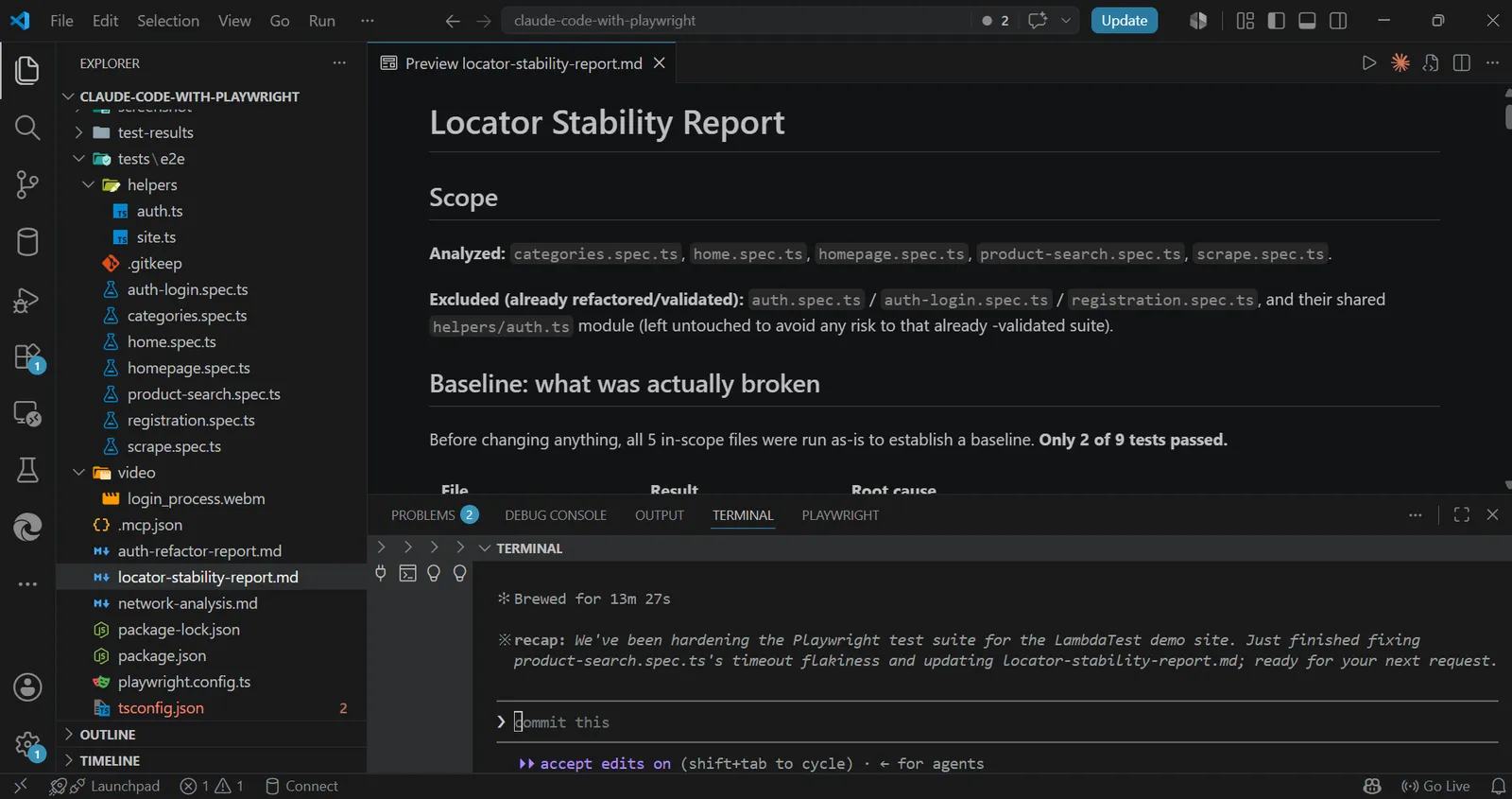
From the screenshot above, Claude Code successfully scanned the test suite and improved selector implementation, code readability, and test reliability. It also generated a locator-stability-report.md file summarizing all applied changes for further review.
You can rerun the suite using the command below to validate the improvements.
npx playwright test --ui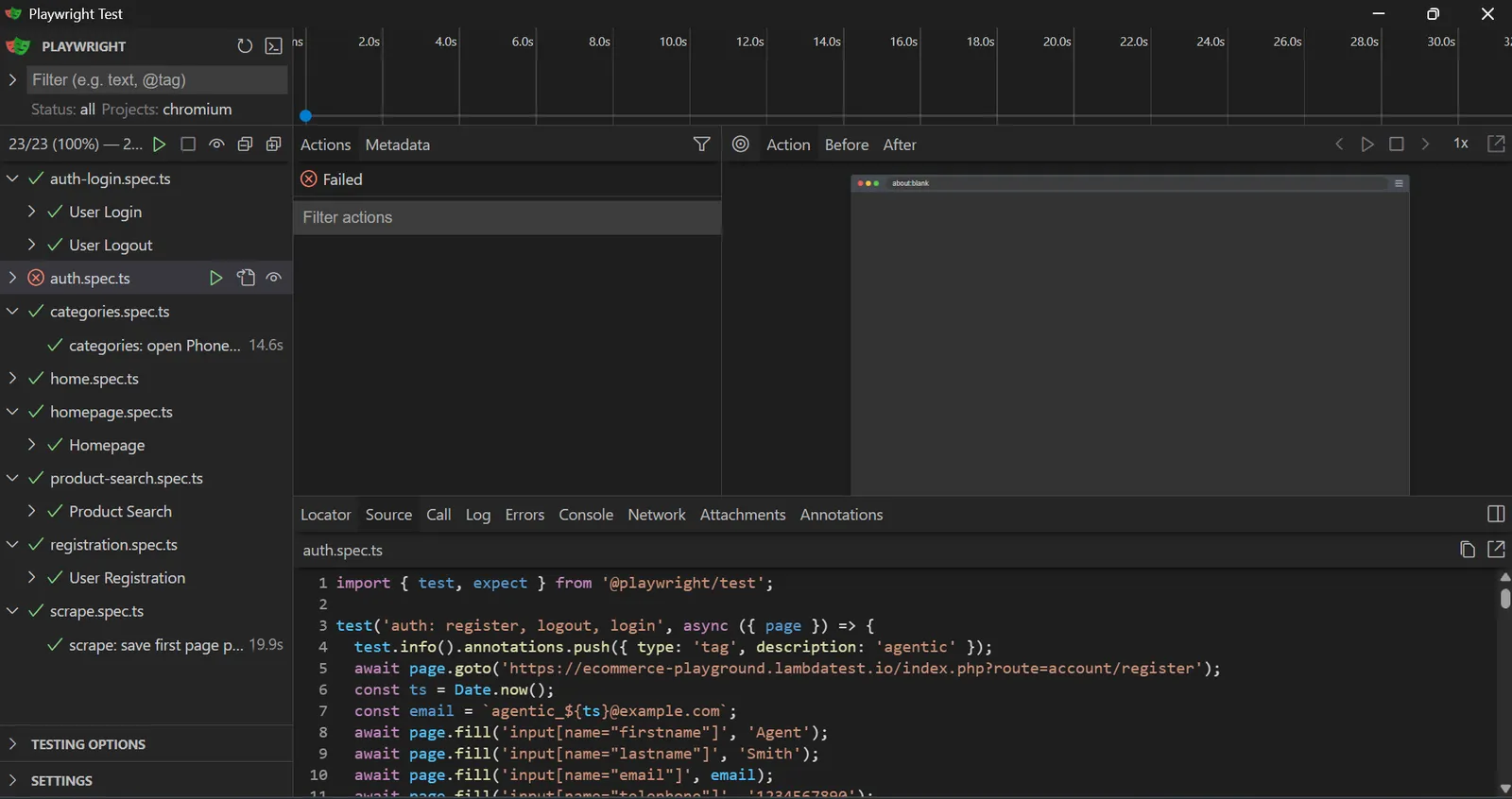
From the Playwright UI Mode test runner. All refactored tests passed as expected.
How Agent Skills Ensure Consistent Playwright Tests in Claude Code
At this stage, we have used Claude Code and Playwright MCP to generate, debug, and refactor multiple Playwright test suites locally. While local execution is useful during development, teams often need a more scalable solution for running tests across multiple browsers, operating systems, and environments.
This is where TestMu AI Agent Skills and KaneAI become valuable. After generating test files such as auth-login.spec.ts and product-search.spec.ts, the same Playwright tests can be executed on TestMu's cloud infrastructure using natural language prompts, similar to how prompts are used with Claude Code.
This removes the need for local browser setup and makes cloud execution significantly easier.
To get started, install the TestMu AI Agent Skill from the official repository: TestMu AI Agent Skills Repository.
Follow the setup instructions, or provide the repository path to Claude Code and ask it to integrate the required Agent Skill files into your existing project. This installs the necessary configuration and scripts required for agent-driven cloud testing. Next, create a TestMu account and configure your cloud credentials and browser capabilities.
Once setup is complete, you can use the Claude Code prompt window to describe any Playwright test in natural language and instruct Claude to execute it on the TestMu AI cloud using:
npx playwright test --config=lambdatest.config.tsRunning tests in the cloud provides several advantages:
- Cross-browser validation
- Parallel execution
- Centralized test reporting
- Screenshots, videos, logs, and debugging artifacts
This ensures AI-generated Playwright tests remain reliable across different environments and production-like browser configurations.
In this example, we create and execute a new carousel validation test on the TestMu AI cloud. Copy and paste the prompt below into Claude Code.
Create and execute a Playwright test for homepage carousel validation by following these steps:

Create a new Playwright test file named:
tests/e2e/carousel.spec.ts

Inside the test file, write a test that performs the following actions on the homepage:
Navigate to:
https://ecommerce-playground.lambdatest.io/
Wait for the homepage carousel/slider to fully load.
Verify that the homepage carousel is visible.
Locate the carousel navigation controls (Next and Previous buttons).
Click the Next button and confirm the carousel advances to the next slide.
Click the Previous button and confirm the carousel returns to the previous slide.

After validating the carousel interactions:
Create a folder named screenshots in the project root directory if it does not already exist.
Capture a screenshot of the homepage after the carousel interaction.
Save the screenshot inside the screenshots folder using a descriptive filename such as:
homepage-carousel.png

Ensure the test uses stable Playwright locators and includes proper assertions for all interactions.
Save the completed test file.

Automatically execute the test as an individual cloud test on TestMu AI using the LambdaTest Playwright configuration:
npx playwright test --config=lambdatest.config.ts tests/e2e/carousel.spec.ts

Report the final execution status, including:
Test pass/fail result
Any errors encountered
Screenshot save location
TestMu AI cloud session details (if available)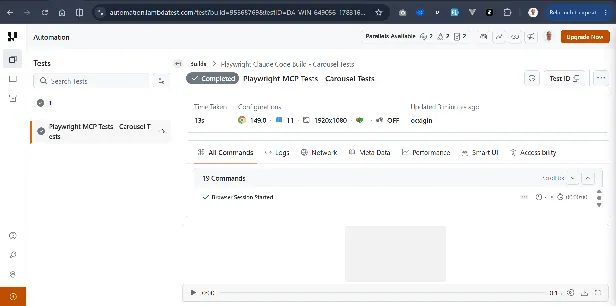
From the screenshot above, Claude Code successfully created and executed the test as instructed, generated a homepage screenshot, and saved it locally. The newly created carousel.spec.ts test was automatically executed on the TestMu AI cloud grid without requiring manual setup or command execution. This makes it easier to author Playwright tests using natural language and run them directly in the cloud.

Note: The carousel session above ran on TestMu AI's Automation Cloud, which runs existing Playwright tests across 3,000+ browser and OS combinations in parallel and records network logs, console logs, video, and screenshots for every session. Try TestMu AI free!
Best Practices for Playwright Claude Code Workflows
Using Claude Code with Playwright MCP can dramatically improve test automation workflows, but getting reliable results depends heavily on how you structure your project and prompts. Below are some best practices to ensure better consistency, maintainability, and debugging.
Always Provide Project Context
Claude Code performs best when it understands your project structure, coding standards, and testing workflow. Use instruction files such as generate-test.md, manual-test-report.md, or a CLAUDE.md file to define clear rules for how tests should be generated, where files should be saved, and naming conventions to follow. This reduces incorrect assumptions and keeps generated code consistent.
Use Feature-Based Test Organization
Avoid placing all tests inside a single large spec file. Split tests into feature-based files such as auth-login.spec.ts, registration.spec.ts, or product-search.spec.ts. Smaller test files are easier to debug, refactor, and maintain over time.
Prefer Stable Locators Over Fragile Selectors
Avoid relying heavily on CSS classes or deeply nested selectors, as frontend changes can easily break them. Prefer Playwright's semantic locators such as getByRole(), getByLabel(), and getByText() whenever possible. Stable locators reduce flaky tests and improve long-term reliability.
Let Claude Explore Before Generating Tests
Before asking Claude Code to generate test scripts, allow it to inspect the application through Playwright MCP. Letting Claude navigate the website first provides better DOM context and helps it identify accurate selectors and user flows instead of making assumptions.
Reuse Test Data Across Workflows
Store reusable test data such as user credentials, scraped datasets, or configuration values in local files like user_profile.txt or JSON files. Reusing structured data improves consistency across registration, login, scraping, and regression tests.
Keep Prompts Explicit and Task-Focused
Well-structured prompts produce better results. Instead of broad instructions like "fix this test," specify exactly what Claude should inspect, ignore, refactor, or generate. Clear prompts reduce unnecessary file modifications and improve output quality.
Validate Generated Tests Locally
AI-generated tests should always be verified locally before merging into production workflows. Use the Playwright Test UI mode with: npx playwright test --ui
This allows you to inspect execution flow, failures, screenshots, traces, and network activity.
Use Claude for Refactoring, Not Just Generation
Claude Code is useful beyond writing new tests. It can refactor large spec files, improve selectors, detect duplicated logic, optimize waits, and generate debugging reports. Treat it as both a coding assistant and a test-maintenance tool.
By combining structured prompts, feature-based test architecture, and Playwright MCP browser context, teams can build faster, more reliable AI-assisted test automation workflows while reducing maintenance overhead.
Conclusion
Playwright MCP combined with Claude Code introduces a more agent-driven approach to modern test automation. Instead of relying only on static code generation, Claude Code can interact with the browser, inspect the live DOM, monitor network activity, validate form behavior, and even refactor existing Playwright test suites based on real application state.
Throughout this guide, we explored practical workflows such as generating tests from live websites, scraping structured test data, validating form success and error states, capturing screenshots and videos, analyzing API requests, and improving locator stability for more reliable test execution. These workflows show how AI-assisted testing can reduce repetitive manual effort while improving test quality.
To get the best results, always provide clear instructions, maintain project-specific context using markdown guide files, prefer stable semantic locators over brittle CSS selectors, and validate generated tests locally using the Playwright UI runner before shipping.
Claude Code does not replace test engineers or developers; it enhances their workflow. When combined with Playwright MCP, it becomes a powerful development companion for building faster, debugging smarter, and maintaining scalable end-to-end test suites.
Citations
- Playwright Documentation
Official documentation for Playwright, covering browser automation, test runner setup, assertions, UI mode, locators, and debugging workflows.
Playwright docs - Playwright MCP Server Repository
Primary reference for Playwright MCP server setup, configuration, and MCP-based browser interaction with AI agents.
Playwright MCP on GitHub - Claude Code Official Documentation
Used as the primary reference for Claude Code installation, terminal usage, project initialization, and agent workflow setup.
Claude Code product page - LambdaTest Ecommerce Playground
Live demo application used throughout this tutorial for browser automation, scraping, form validation, API inspection, and Playwright test generation.
Ecommerce Playground
Author

Alex Anie
Blogs: 17


Alex Anie is a Community Contributor and Frontend Developer with 4 years of experience in crafting high-quality technical content. He specializes in frontend technologies like HTML, CSS, JavaScript, React.js, Vue.js, and Next.js, along with skills in TailwindCSS, Git/GitHub, and web testing. At TestMu AI, he has authored 20+ articles covering CSS, automation testing, cross-browser testing, Cypress, and software testing. Alex also publishes technical blogs on platforms like Hashnode, Dev.to, and Medium.
Reviewer

Himanshu Sheth
Reviewer
Himanshu Sheth is the Director of Marketing (Technical Content) at TestMu AI, with over 8 years of hands-on experience in Selenium, Cypress, and other test automation frameworks. He has authored more than 130 technical blogs for TestMu AI, covering software testing, automation strategy, and CI/CD. At TestMu AI, he leads the technical content efforts across blogs, YouTube, and social media, while closely collaborating with contributors to enhance content quality and product feedback loops. He has done his graduation with a B.E. in Computer Engineering from Mumbai University. Before TestMu AI, Himanshu led engineering teams in embedded software domains at companies like Samsung Research, Motorola, and NXP Semiconductors. He is a core member of DZone and has been a speaker at several unconferences focused on technical writing and software quality.


Playwright MCP and Claude Code FAQs
Did you find this page helpful?
More Related Blogs

TestMu AI forEnterprise
Get access to solutions built on Enterprise
grade security, privacy, & compliance
- Advanced access controls
- Advanced data retention rules
- Advanced Local Testing
- Premium Support options
- Early access to beta features
- Private Slack Channel
- Unlimited Manual Accessibility DevTools Tests