
Browser Infrastructure for AI Agents with Browser Cloud
Give Your AI Agents Real Cloud Browsers with Session Persistence, a Localhost Tunnel, and Session Replay.

Claude Computer Use API: Build the Toolset Loop in Node.js
Claude computer use API guide: pick the right tool version, run the computer_toolset_20260801 loop in Node.js on a real cloud Chrome, and estimate cost.
Published on:
Claude computer use is Anthropic's client-side toolset, which allows Claude to operate a screen via screenshots, clicks and keystrokes as your code executes each action. To do it on the API, you simply have to match the tool version to your model, dispatch each tool_use block by toolset_name and member name, adhere to the batch rules, and then run the executor in an isolated browser.
This guide is for developers using the Claude API. Using your own Mac or PC via the Claude apps is a separate consumer feature and is not covered in this guide.
TL;DR
Claude computer use is a client toolset in the Claude API: one computer_toolset_20260801 entry gives Claude 17 member tools, Claude returns each screen action as a tool_use block, and your code performs it and sends back a screenshot. Nothing in the Anthropic computer use API touches the screen itself.
How to Use Claude Computer Use on the API
- toolset_name dispatch: Each Claude computer use action arrives as a tool_use block whose name is the member, such as left_click, plus "toolset_name": "computer". Every tool_result your code returns must echo that toolset_name.
- Batch rules: Claude can send several computer use actions in one turn. Your executor runs them in order, stops at the first failure, and answers every later block with Anthropic's exact halt text.
- Playwright executor: page.screenshot, page.mouse and page.keyboard cover all 17 Claude computer use member tools, which makes Claude browser automation on a cloud Chrome session a short build in Node.js.
Which Claude Models Support Computer Use?
- Claude Opus 5.5, Sonnet 5.5 and Haiku 5.5: These models use computer_toolset_20260801. Beta header required: No. On the Claude API, sending them the older computer_20251124 tool returns a 400 error.
- Claude Fable 5.2 and Mythos 5.2: These models also use computer_toolset_20260801 with no beta header. On Amazon Bedrock, all five toolset models also accept computer_20251124 with its beta header.
- computer_20251124: The earlier Claude computer use tool, for models such as Claude Opus 5 and Sonnet 5. Beta header required: Yes (computer-use-2025-11-24).
- computer_20250124: The oldest Claude computer use tool, for older models such as Claude Haiku 4.5 and Sonnet 4.5, which Anthropic lists as deprecated. Beta header required: Yes (computer-use-2025-01-24).
Where Should the Executor Run?
- Dedicated VM or container: Anthropic recommends running Claude computer use in a dedicated VM or container with an internet allowlist, keeping your data separate from the model and requiring human approval for consequential actions.
- TestMu AI Browser Cloud: Each session is an isolated real Chrome instance in the cloud with video, console logs and a built-in tunnel (tunnel: true), so during computer use Claude clicks inside a remote browser instead of on your desktop. Runs on your local desktop: No.
What Is Claude Computer Use on the API?
Claude computer use is part of the Anthropic-defined client toolset. Claude looks at a screenshot, decides what it wants to do (e.g., a click at a particular coordinate), and returns that as a tool_use block. Your app then performs that action, takes a new screenshot, and sends it back.
Nothing actually runs on the screen at all from Anthropic's point of view. It's all your app.
The current entry is a single line in tools: { "type": "computer_toolset_20260801" }. It declares 17 member tools: screenshot, zoom, left_click, right_click, middle_click, double_click, triple_click, left_click_drag, mouse_move, left_mouse_down, left_mouse_up, cursor_position, scroll, type, key, hold_key and wait. Zoom is enabled by default.
Which Computer Use Tool Version Does Your Claude Model Need?
The tool version will vary depending on the model and platform, so check the model against Anthropic's computer use availability table prior to writing code. As of 15th November 2026:
| Tool version | Beta header | Models |
|---|---|---|
computer_toolset_20260801 | None | Claude Fable 5.2, Claude Mythos 5.2, Claude Opus 5.5, Claude Sonnet 5.5 and Claude Haiku 5.5 |
computer_20251124 | computer-use-2025-11-24 | Claude Fable 5.1, Claude Mythos 5.1, Claude Fable 5, Claude Mythos 5, Claude Opus 5, Claude Sonnet 5, Claude Opus 4.8, Claude Opus 4.7, Claude Opus 4.6, Claude Sonnet 4.6 and Claude Opus 4.5 |
computer_20250124 | computer-use-2025-01-24 | Older models such as Claude Haiku 4.5 and Sonnet 4.5 (deprecated); some others are retired except on certain clouds |
Two things can trip people up. Anthropic lists their models by exact name for each version, so you do need to check your exact model and platform rather than just the generation.
Their docs state that the five toolset models listed above (Claude Fable 5.2, Mythos 5.2, Opus 5.5, Sonnet 5.5 and Haiku 5.5) will return a 400 error if they don't accept a tool version, with the example given being computer_20251124 on the Claude API. The migration section explicitly names Claude Opus 5.5 as a model that won't accept it. On Amazon Bedrock, the Anthropic page notes that those same five models will also accept computer_20251124 with the beta header.
Should You Use the Computer Use Toolset or the Browser Use Tool?
Anthropic also ships a browser use tool, browser_toolset_20260801, built for webpages. Pick based on what your executor can provide.
| Entry | computer_toolset_20260801 | browser_toolset_20260801 |
|---|---|---|
| What Claude sees | Screenshots and pixel coordinates | Accessibility tree, element references such as ref_2, plus screenshots |
| Members | 17 | 31 declared, 27 enabled by default; tabs via new_tab, list_tabs, switch_tab, close_tab |
| What your executor must build | Screenshot, mouse and keyboard handlers | Navigation, page reading, element references, forms and tabs |
| Scope | Any screen, including a browser you drive with Playwright | Webpages only |
The computer use toolset is the quicker route for a browser agent that you're already running with Playwright (a Playwright page gives you screenshots, page.mouse and page.keyboard, which is exactly what the 17 members need). Use the browser use tool when you need element-level actions rather than the shorter build time.
Where the browser actually runs is a separate issue. If you're looking at agent browser hosts in terms of pricing, concurrency, stealth and localhost access, then have a look at Browserbase vs TestMu Browser Cloud.
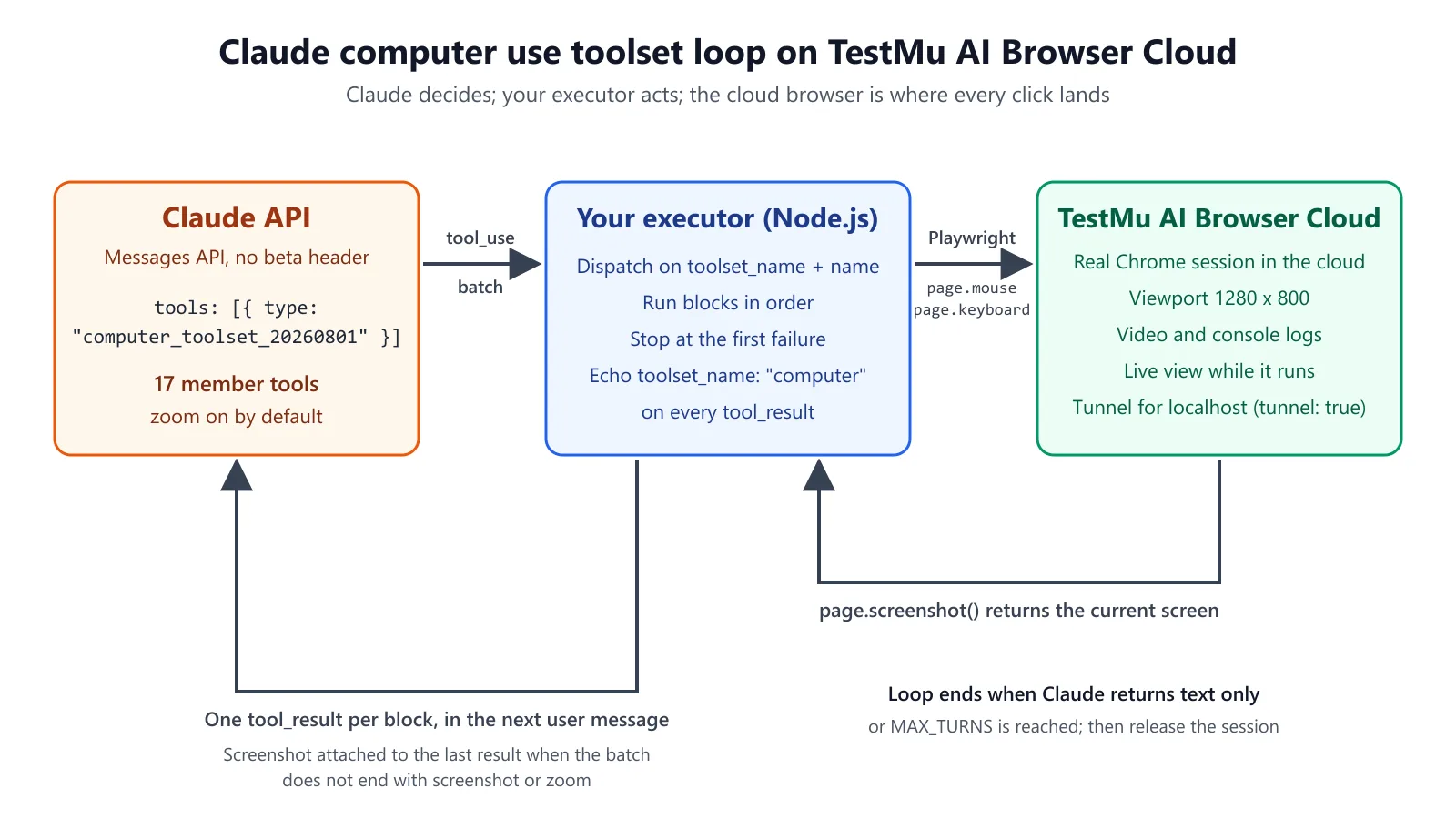
How Does the Computer Use Toolset Loop Work?
The toolset changes how a loop dispatches and answers actions. These rules come from Anthropic's toolset documentation:
- Dispatch on toolset_name and name. Each computer action is a
tool_useblock with"toolset_name": "computer"and the name being the member (e.g.,left_click). There is no action field at all; the input is just the parameters of that member. - Handle one block at a time. A single response can contain multiple
tool_useblocks (i.e., a batch). Run them in sequence. - Stop at the first failure. Return
is_error: truefor the failed block and answer every subsequent block in that turn with the exact textNot executed: an earlier computer action in this turn failed. - Echo toolset_name on every result. Each
tool_resultfor a member call must have"toolset_name": "computer", and any result that doesn't have that is rejected. Results may contain only text and image content. - Return images for screenshot and zoom; OK for the rest.
- Attach a screenshot to the last result if the batch doesn't finish with one. The docs state that it does a round-trip save as opposed to just waiting for Claude to ask.
- Honor repeat on key (1 to 100), and you'll have to resize the images yourself. The API will reject the oversized screenshots rather than scale them down.
How Much Does a Claude Computer Use Run Cost?
You can estimate a run's input tokens from three documented rules before you spend anything:
- Toolset overhead: declaring
computer_toolset_20260801with its default members adds around 4,500 input tokens per request (4,590 on Claude Sonnet 5, 4,520 on the other supported models). Turning off zoom removes around 410. - Screenshots: each screenshot is approximately 1,000-1,800 input tokens. For Opus 4.7 and later, Anthropic calculates visual tokens as ⌈width ÷ 28⌉ × ⌈height ÷ 28⌉, so a 1280 x 800 screenshot is 46 x 29 = 1,334 visual tokens.
- Turns: each turn re-sends the conversation (including the screenshots you keep in context).
Estimation method: input tokens per turn is approx 4,500 + (screenshots kept in context x tokens per screenshot) + text history. With three 1280x800 screenshots in context, the image/toolset portion is approx 4,500 + 3 x 1,334 = 8,502 tokens per turn. That's before the text history. Take that figure and multiply it by your expected number of turns, and then cross-check it against the actual figure in the usage field of each response or against the token count endpoint that Anthropic provides. These are estimates based on the stated rules, not actuals from a run.
Where Should the Computer Use Executor Run?
Anthropic's documentation on this is very straightforward: "Computer use has unique risks distinct from standard API features." Their recommended approach is to run it in a dedicated VM or container, have an internet allowlist, and keep your data separate from the model.
Any actions that could be consequential should be subject to human approval. They also point out that prompt injection can occur via web pages and images.
A cloud browser checks a number of the boxes already. TestMu AI Browser Cloud provides each agent session with a real Chrome instance in the cloud, so Claude is effectively clicking within a remote browser rather than on your desktop, your files, and your personal browser.
Browser Cloud can also capture video, network logs, console output, and step-by-step command replay, and has an inbuilt tunnel that will reach localhost or a staging app if you set tunnel: true.
Browser Cloud gives the agent a browser and a record of what transpired. It in no way removes the need for you to do your own evaluation of the agent's behavior. Keep your evals.
For a quick visual walkthrough of this concept, watch the video below from TestMu AI.
Subscribe to the TestMu AI YouTube channel for more tutorials on testing and automation.

Try it on a real cloud browser
Note: TestMu AI free access gives you 100 minutes with 2 parallel sessions (valid for life). That's more than enough to run the script below loads of times, so start free with Browser Cloud.
How Do You Run the Claude Computer Use Loop on Browser Cloud in Node.js?
The script opens a Browser Cloud session, connects Playwright, and then enters the toolset loop (which it will remain in until either Claude stops making computer calls or we hit a turn limit). The session code is as per the Browser Cloud quickstart guide and the loop is as per the toolset rules above from Anthropic.
Step 1: Install the packages. The Browser Cloud Playwright adapter requires Node.js 18 or later.
npm i @testmuai/browser-cloud @anthropic-ai/sdk dotenvStep 2: Create a .env file with your own values (after each =) and add .env to .gitignore.
# TestMu AI username and access key (Account Settings)
LT_USERNAME=
LT_ACCESS_KEY=

# Anthropic API key
ANTHROPIC_API_KEY=

# Optional overrides
CLAUDE_MODEL=claude-sonnet-5-5
MAX_TURNS=25
Step 3: Save the script as claude-computer-use.mjs
// claude-computer-use.mjs
// Usage: node claude-computer-use.mjs "<task>" <start-url>
import 'dotenv/config';
import Anthropic from '@anthropic-ai/sdk';
import { Browser } from '@testmuai/browser-cloud';

const [task, startUrl] = process.argv.slice(2);
if (!task || !startUrl) {
 console.error('Usage: node claude-computer-use.mjs "<task>" <start-url>');
 process.exit(1);
}

const MODEL = process.env.CLAUDE_MODEL ?? 'claude-sonnet-5-5';
const MAX_TURNS = Number(process.env.MAX_TURNS ?? 25);
const VIEWPORT = { width: 1280, height: 800 }; // Anthropic suggests 1280x800 for web apps

const anthropic = new Anthropic({ apiKey: process.env.ANTHROPIC_API_KEY });
const client = new Browser();

// Executor options (not defined by Anthropic): 1 scroll unit = 100px; common and xdotool-style key names mapped to Playwright.
const KEYS = {
 ctrl: 'Control', control: 'Control', alt: 'Alt', shift: 'Shift', cmd: 'Meta', super: 'Meta',
 super_l: 'Meta', meta: 'Meta', return: 'Enter', enter: 'Enter', kp_enter: 'Enter',
 esc: 'Escape', escape: 'Escape', tab: 'Tab', backspace: 'Backspace', delete: 'Delete',
 space: 'Space', up: 'ArrowUp', down: 'ArrowDown', left: 'ArrowLeft', right: 'ArrowRight',
 pageup: 'PageUp', page_up: 'PageUp', pagedown: 'PageDown', page_down: 'PageDown',
 home: 'Home', end: 'End',
};

const toKeys = (combo = '') => combo.split('+').filter(Boolean).map((k) => KEYS[k.toLowerCase()] ?? k);

let mouse = { x: 0, y: 0 };

async function screenshot(page, clip) {
 // zoom returns a native size crop of the region (not up-scaled).
 const png = await page.screenshot({ type: 'png', ...(clip ? { clip } : {}) });
 return [{ type: 'image', source: { type: 'base64', media_type: 'image/png', data: png.toString('base64') } }];
}

async function withModifiers(page, text, action) {
 const mods = toKeys(text);
 for (const m of mods) await page.keyboard.down(m);
 try { await action(); } finally { for (const m of mods.reverse()) await page.keyboard.up(m); }
}

async function runAction(page, name, input) {
 const [x, y] = input.coordinate ?? [mouse.x, mouse.y];
 if (input.coordinate) mouse = { x, y };
 switch (name) {
   case 'screenshot': return screenshot(page);
   case 'zoom': {
     const [x0, y0, x1, y1] = input.region;
     return screenshot(page, { x: x0, y: y0, width: x1 - x0, height: y1 - y0 });
   }
   case 'mouse_move': await page.mouse.move(x, y); return 'OK';
   case 'left_click':
   case 'right_click':
   case 'middle_click': {
     const button = name.split('_')[0];
     await withModifiers(page, input.text, () => page.mouse.click(x, y, { button }));
     return 'OK';
   }
   case 'double_click': await withModifiers(page, input.text, () => page.mouse.dblclick(x, y)); return 'OK';
   case 'triple_click': await withModifiers(page, input.text, () => page.mouse.click(x, y, { clickCount: 3 })); return 'OK';
   case 'left_click_drag': {
     const [sx, sy] = input.start_coordinate;
     await withModifiers(page, input.text, async () => {
       await page.mouse.move(sx, sy);
       await page.mouse.down();
       await page.mouse.move(x, y, { steps: 10 });
       await page.mouse.up();
     });
     return 'OK';
   }
   case 'left_mouse_down': await page.mouse.down(); return 'OK';
   case 'left_mouse_up': await page.mouse.up(); return 'OK';
   case 'cursor_position': return `X=${mouse.x}, Y=${mouse.y}`;
   case 'scroll': {
     const px = (input.scroll_amount ?? 3) * 100;
     const [dx, dy] = { up: [0, -px], down: [0, px], left: [-px, 0], right: [px, 0] }[input.scroll_direction];
     if (input.coordinate) await page.mouse.move(x, y);
     await withModifiers(page, input.text, () => page.mouse.wheel(dx, dy));
     return 'OK';
   }
   case 'type': await page.keyboard.type(input.text); return 'OK';
   case 'key':
     for (let i = 0; i < (input.repeat ?? 1); i++) await page.keyboard.press(toKeys(input.text).join('+'));
     return 'OK';
   case 'hold_key': {
     const keys = toKeys(input.text);
     for (const k of keys) await page.keyboard.down(k);
     await page.waitForTimeout(input.duration * 1000);
     for (const k of keys.reverse()) await page.keyboard.up(k);
     return 'OK';
   }
   case 'wait': await page.waitForTimeout(input.duration * 1000); return 'OK';
   default: throw new Error(`Unsupported computer action: ${name}`);
 }
}

const result = (id, content, isError = false) =>
 ({ type: 'tool_result', tool_use_id: id, toolset_name: 'computer', content, ...(isError ? { is_error: true } : {}) });

const session = await client.sessions.create({
 adapter: 'playwright',
 dimensions: VIEWPORT,
 timeout: 10 * 60 * 1000, // sessions default to 5 minutes; allow longer agent runs
 lambdatestOptions: {
   build: 'Claude computer use',
   name: task.slice(0, 80),
   'LT:Options': {
     username: process.env.LT_USERNAME,
     accessKey: process.env.LT_ACCESS_KEY,
     video: true,
     console: true,
   },
 },
});

console.log('Live view:', session.sessionViewerUrl);

const { browser, page } = await client.playwright.connect(session);

try {
 await page.setViewportSize(VIEWPORT); // the Playwright adapter opens at 1280x720 otherwise
 await page.goto(startUrl);
 const messages = [{ role: 'user', content: task }];

 for (let turn = 0; turn < MAX_TURNS; turn++) {
   const response = await anthropic.messages.create({
     model: MODEL,
     max_tokens: 2048,
     system: 'You control one Chrome tab. Ask the user before submitting payments, deleting data or sending messages.',
     tools: [{ type: 'computer_toolset_20260801' }],
     messages,
   });

   messages.push({ role: 'assistant', content: response.content });

   if (response.stop_reason === 'max_tokens') {
     console.error('Stopped: max_tokens reached, so the last action may be incomplete.');
     break;
   }

   const calls = response.content.filter((b) => b.type === 'tool_use' && b.toolset_name === 'computer');
   if (calls.length === 0) {
     console.log(response.content.filter((b) => b.type === 'text').map((b) => b.text).join('\n'));
     break;
   }

   const results = [];
   let failed = false;
   for (const call of calls) {
     if (failed) {
       results.push(result(call.id, 'Not executed: an earlier computer action in this turn failed.', true));
       continue;
     }
     try {
       results.push(result(call.id, await runAction(page, call.name, call.input)));
     } catch (err) {
       failed = true;
       results.push(result(call.id, `Action failed: ${err.message}`, true));
     }
   }

   // If the batch doesn't end with a screenshot or a zoom, then attach the current screen to the last result.
   const last = results[results.length - 1];
   const lastName = calls[calls.length - 1].name;
   if (!failed && lastName !== 'screenshot' && lastName !== 'zoom') {
     last.content = [{ type: 'text', text: String(last.content) }, ...(await screenshot(page))];
   }

   // Keep the history append-only: on the toolset models, removing an earlier screenshot invalidates later thinking blocks.
   messages.push({ role: 'user', content: results });
 }
} finally {
 await browser.close();
 await client.sessions.release(session.id);
}
Step 4: Run it with the task and the start URL as parameters:
node claude-computer-use.mjs "Find the pricing page and report the cheapest paid plan" https://example.comThe script will print a live view link at the start so you can watch every click.
How Do Claude Computer Actions Map Into Playwright?
Claude returns the coordinates in the pixel space of the screenshots that you send. If you're using a 1280x800 session and taking a Playwright viewport screenshot, then those pixels are directly equivalent to Playwright's page.mouse coordinates (which are CSS pixels relative to the viewport). Check the size of your first screenshot.
If it's not the same as your viewport, then you'll need to scale Claude coordinates by that ratio before you click.
| Claude action | Input | Playwright call |
|---|---|---|
| screenshot / zoom | none / region | page.screenshot(), with clip for zoom |
| left_click, right_click, middle_click | coordinate, optional modifier text | page.mouse.click(x, y, { button }) |
| double_click / triple_click | coordinate | page.mouse.dblclick / click with clickCount: 3 |
| left_click_drag | start_coordinate, coordinate | mouse.move, down, move, up |
| scroll | scroll_direction, scroll_amount | page.mouse.wheel(dx, dy) |
| type / key | text; repeat for key | page.keyboard.type / page.keyboard.press('Control+a') |
| hold_key, wait | duration in seconds (max 300) | keyboard.down/up around page.waitForTimeout |
Any names that aren't in the script's map are simply passed through as-is. If Playwright rejects one, then the block returns is_error and Claude can then have a go at another key.
How Do You Debug a Claude Computer Use Run on Browser Cloud?
Browser Cloud's debugging documentation describes these tools:
- Live view:
session.sessionViewerUrlstreams the browser as Claude works. - Session dashboard:
session.debugUrlwill open the session in the Web Automation Dashboard (complete with live video, replay, console logs, network requests and screenshots). - Video recording: enabled by
video: truein 'LT:Options' inside lambdatestOptions as in the script. - Console logs: enabled by
console: truein the same block. - Findable runs: the build and name values are used to group the sessions on the dashboard.
When a click lands in the wrong place, check Claude coordinates against the coordinates in your transcript and the screenshot it was given. The screenshot is almost always the problem in that it's the wrong viewport size.
Anthropic's best practices article (May 13, 2026) also advises logging the full transcript and having a human verify prior to any irreversible actions.
To get to a staging or localhost app, you simply add tunnel: true (it's in the session config reference along with the other network, stealth and timeout settings).
What Changes When You Go From computer_20251124 to the Toolset?
A computer_20251124 integration is still working on the models listed for that version. Anthropic would advise you to upgrade it prior to moving onto a model that doesn't accept it (e.g., Claude Opus 5.5 on the Claude API). The main changes from Anthropic's migration section:
- Get rid of the beta header and just use the standard Messages API rather than the beta namespace.
- Replace the tools entry with
{ "type": "computer_toolset_20260801" }; the toolset rejects name, display_width_px, display_height_px, display_number and enable_zoom. - Decide on zoom (it's on by default in the toolset). If your executor doesn't support it, then add
"configs": {"zoom": {"enabled": false}}. - Loop over each block and dispatch on name with toolset_name rather than on
input.action. - Run the blocks in order and use the halt text after the first failure.
- Echo
toolset_name: "computer"on every result. - Honor
repeaton key, take the screenshots and resize them yourself.
The browser cloud session code is the same across versions. The same session pattern is used to host the loops of the other vendors (as the Gemini Computer Use guide shows), and the computer use agent goes into detail about how you can test any screen-driven agent prior to shipping it.
The Claude Computer Use Cloud Run Checklist
Run these seven checks before a Claude computer use agent touches anything that matters:
- Version matches model: your model and platform are listed for that tool version in Anthropic's availability table.
- Viewport fixed: session dimensions set (1280 by 800 in this instance) and the first screenshot size confirmed.
- Batch rules implemented: one block at a time, stop text on first failure, toolset_name on every result.
- Turn and token limits: MAX_TURNS set, stop_reason checked, and a cost estimate generated via the above method.
- Context kept append-only: no screenshot pruning on the toolset models; full traces stored outside the prompt.
- Consequential actions gated: both the system prompt and your code will require a human in the case of any payments, deletions or sends.
- Evidence on:
video: trueandconsole: trueset, sessionViewerUrl logged for each run.
Conclusion
Claude computer use is a loop: you run your code with the tool version matched to the model, you dispatch each block by toolset_name and member name, you follow the batch rules, and you estimate the tokens prior to scaling. Running the executor on Browser Cloud means every click is in a real cloud Chrome with video, logs and a live view rather than on your workstation.
Giving an AI agent a browser? TestMu AI's Browser Cloud runs each task in a real, isolated Chrome session in the cloud, so the browser stays off your laptop.
Author

Samyak Goyal
Blogs: 35

Samyak Goyal is a Senior Member of Technical Staff at TestMu AI engineering Kane CLI, the command-line tool that runs browser automation from the terminal, where a flow described in natural language executes in a real Chrome browser and returns pass or fail with shareable proof. He is a backend engineer with 4+ years of experience, previously an SDE at Innovaccer, where he built APIs, introduced Kafka, and cut deployment from weeks to hours. Samyak also builds multi-agent systems, skill-orchestration frameworks, and a personal copilot that indexes 200+ microservice repositories.
Reviewer

Mayank Bhola
Reviewer
Mayank Bhola is Co-Founder and Head of Products at TestMu AI, where he leads the entire product portfolio across KaneAI, Kane CLI, HyperExecute, SmartUI, the Real Device Cloud, Accessibility, and other software testing product lines. As an early Lead Architect he designed and built the company's flagship Tunnel technology from scratch, created the React-based automation platform, and architected the data-intensive pipelines and FAAS services that scale it. He brings more than 10 years of experience in software development and product engineering, with earlier roles as Head of Technology at Juggernaut Books and Senior Software Engineer at PressPlay TV and Zomato. Mayank holds a B.Tech in Computer Engineering from JIIT Noida.


Claude Computer Use FAQs
Did you find this page helpful?
More Related Blogs



TestMu AI forEnterprise
Get access to solutions built on Enterprise
grade security, privacy, & compliance
- Advanced access controls
- Advanced data retention rules
- Advanced Local Testing
- Premium Support options
- Early access to beta features
- Private Slack Channel
- Unlimited Manual Accessibility DevTools Tests