

Power Your Software Testing with AI Agents and Cloud
The Native AI-Agentic Cloud Platform to Supercharge Quality Engineering. Test Intelligently and Ship Faster.


- TestMu AI (Formerly LambdaTest)
- /
- Learning Hub
- /
- A Complete Guide To Cross Browser Testing With Cypress
A Complete Guide To Cross Browser Testing With Cypress
This tutorial on cross browser testing with Cypress explains different ways to perform cross browser testing to ensure seamless user experience across multiple browsers.
Last Updated on:
On This Page
- Different ways to do Cross Browser Testing with Cypress
- Cross Browser Testing using Cypress Test Runner
- Cross Browser Testing using Cypress Test File
- Cross Browser Testing using Cypress CLI
- Cross Browser Testing using package.json
- Cross Browser Testing on the Cloud Platform
- Cross Browser Testing using GitHub Actions
- Cross Browser Testing with Docker on GitHub Actions
- Customizing Browser Launch Arguments
- Running WebKit (Safari) Tests
- CI Strategies for Cross-Browser Testing
Cross browser testing with Cypress means running the same Cypress specs on every browser Cypress supports, so a feature that passes in Chrome is proven to work in Firefox, Edge, and Electron too.
Browsers disagree because their engines do. Chrome and Edge render with Blink, Firefox with Gecko, and Safari with WebKit, and each ships CSS and JavaScript features on its own schedule, so cross browser testing is what catches the differences.
Every engine carries real traffic. StatCounter browser market share data put Chrome at 69.39% of worldwide browser usage in August 2026, followed by Safari (15.83%), Edge (5.36%), Firefox (2.98%), Samsung Internet (2.01%), and Opera (1.94%), so Chrome belongs at the center of a test strategy without the rest being optional.
Cypress covers most of that spread. It runs Chromium-family browsers and Firefox out of the box, with experimental support for WebKit, and adds automatic waiting that removes a common source of flaky tests.
Running locally means every browser you test must be installed on your machine, apart from the bundled Electron. A cloud grid removes that constraint, which the cloud section below covers.
This tutorial walks through each way to run Cypress across browsers, from the Test Runner to CI and Docker, so you can pick the one that fits your workflow.
Quick Summary
Quick answers to the questions teams ask most before setting up Cypress across browsers.
Which Browsers Does Cypress Support?
- Chromium family: Chrome, Microsoft Edge, Electron, and Brave (added via config).
- Firefox: supported out of the box.
- WebKit: experimental support for Safari's engine, enabled with the playwright-webkit package.
How Can You Run Cross Browser Tests in Cypress?
You can switch browsers from the Cypress Test Runner, pass a browser option inside a test, use the --browser flag in the Cypress CLI, define scripts in package.json, or run them in CI with GitHub Actions and Docker.
How Do You Scale Cypress Cross Browser Testing?
Running the full browser matrix on your own CI machines is slow to set up and maintain. TestMu AI's HyperExecute test orchestration cloud runs your Cypress specs across many browser and OS combinations in parallel, so you get broad coverage without maintaining browsers locally.

Want to go further with Cypress? Our Cypress interview questions cover the concepts behind these commands.
Different ways to do Cross Browser Testing with Cypress
Cross browser testing matters because different web browsers may interpret HTML, CSS, and JavaScript code differently, resulting in variations in appearance, behavior, and functionality.
By performing cross browser testing with Cypress, testers can identify any issues or inconsistencies before the website or application is released to the public, ensuring a seamless user experience across all platforms.
There are several ways to perform cross browser testing with Cypress. Below are the most common ones:
- Using Cypress test runner
- Using Cypress test file
- Using browser configuration in Cypress CLI
- Using cloud platform
- Using CI/CD
- Using Docker on CI/CD
You can pick any approach for performing cross browser testing with Cypress that suits your project and team requirements. Let’s explore each of these approaches in greater detail to determine which would be the best fit for your needs.
Supported Browsers in Cypress
Before choosing an approach, it helps to know which browsers Cypress can actually run. Cypress supports Chromium-family browsers and Firefox out of the box, with experimental support for WebKit.
| Browser | Engine / Family | Support in Cypress |
|---|---|---|
| Google Chrome | Chromium | Supported |
| Microsoft Edge | Chromium | Supported |
| Electron | Chromium (bundled) | Supported (default) |
| Brave | Chromium | Supported (added via config) |
| Mozilla Firefox | Firefox | Supported |
| WebKit (Safari engine) | WebKit | Experimental (needs playwright-webkit) |
| Safari (native), Internet Explorer | - | Not supported |
Cross Browser Testing using Cypress Test Runner
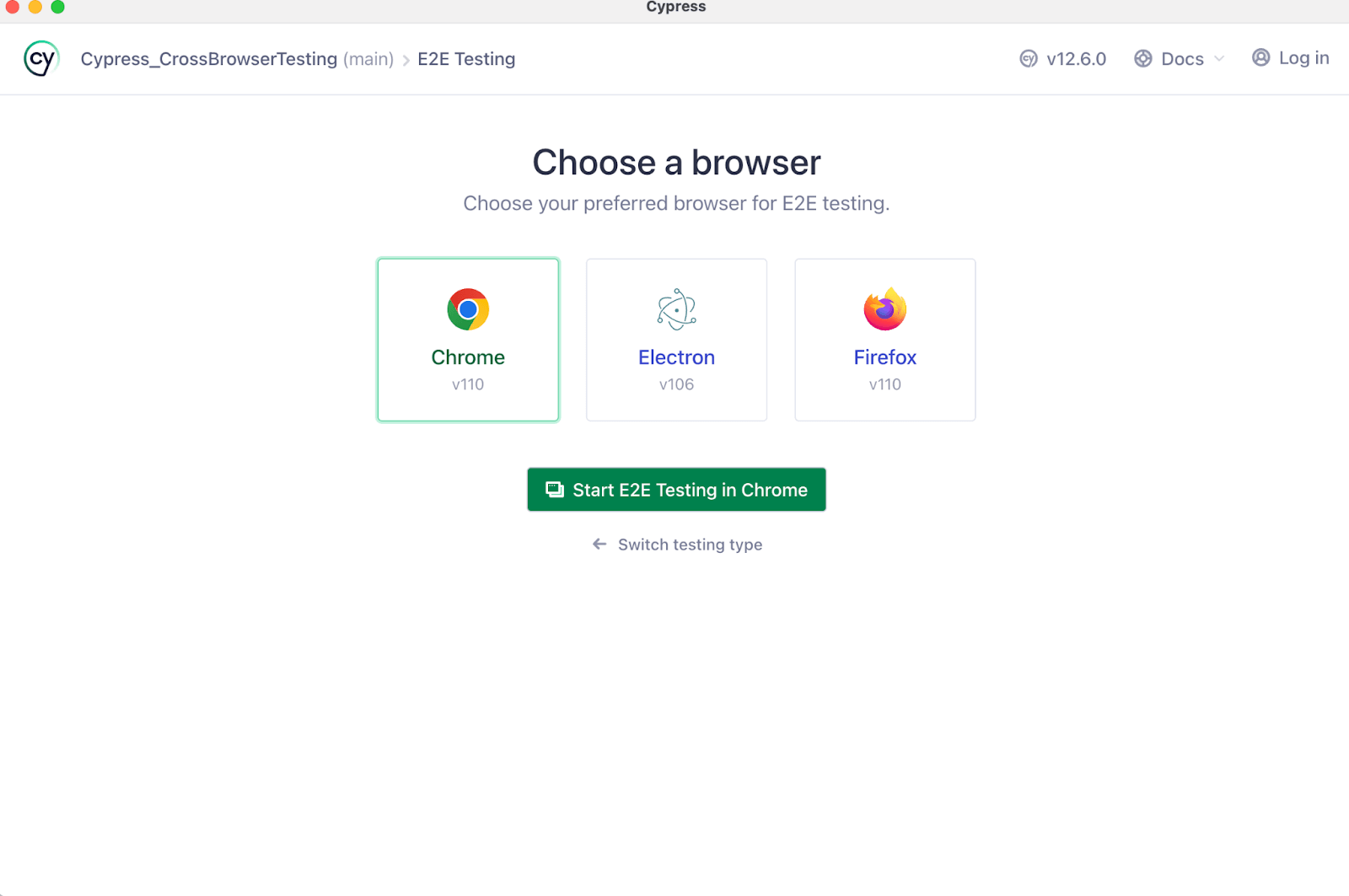
Cypress provides the ability to run tests in different browsers directly from the Cypress Test Runner using Cypress's built-in browser launchers for Chrome, Firefox, and Electron. You can choose different browsers from the Cypress test runner screen and perform testing on multiple browsers.
This can be useful if you want to quickly test your application in different environments without switching between different terminal windows or scripts.
The only requirement of running it (on browsers like Chrome and Firefox) is that these browsers should be present on your local device (except Electron, which comes built-in with Cypress). This hurdle can be overcome by opting for a Cypress testing cloud like TestMu AI. We will cover the same in more detail in subsequent sections of this cross browser testing with Cypress tutorial.
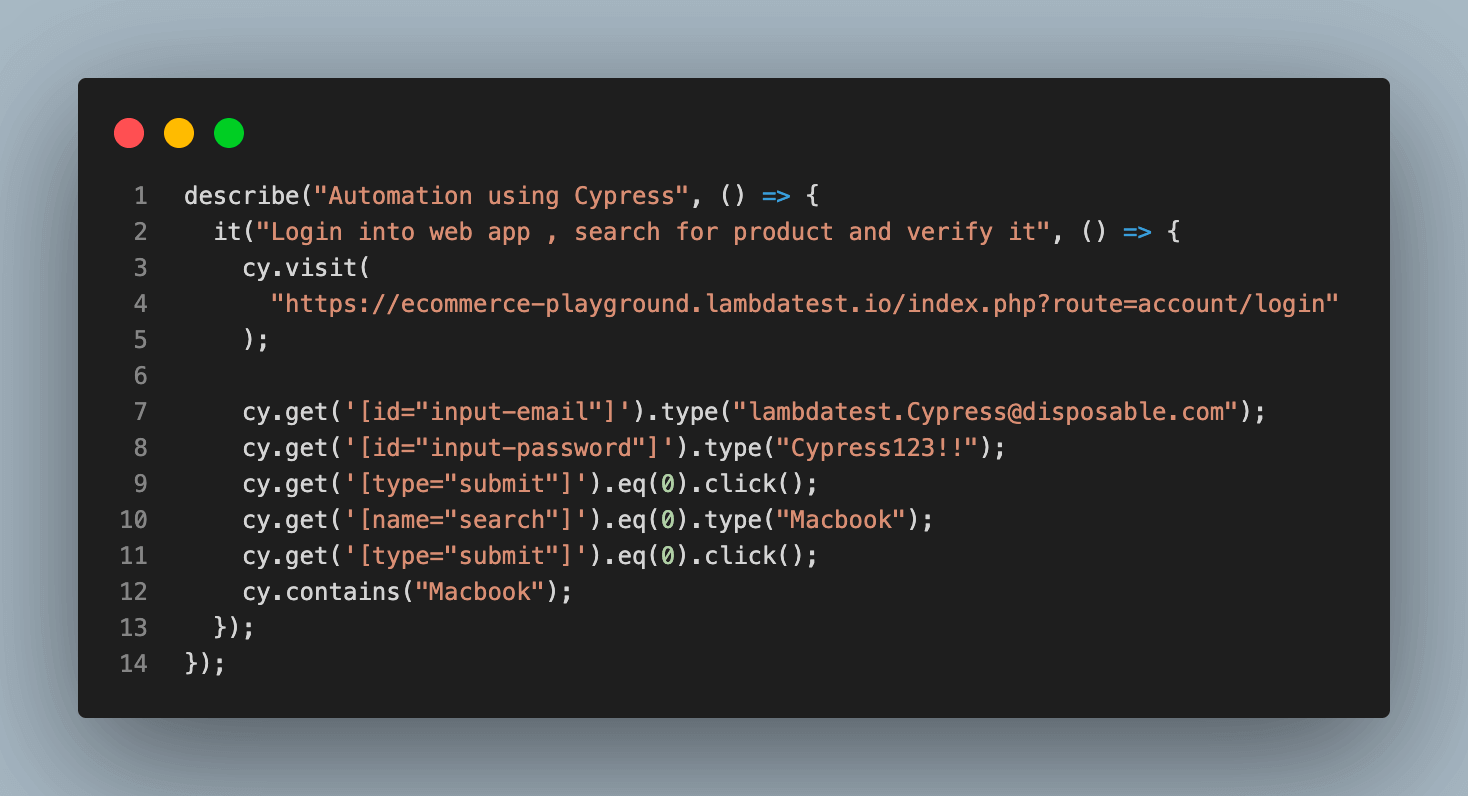
Here's how you can perform Cypress testing in different browsers from the Cypress Test Runner. Let's understand with an example.
Test Scenario:
- Open URL. eCommerce Playground login page
- Log in to the application.
- Search the product.
- Verify the searched product.
Run it:
Execution:
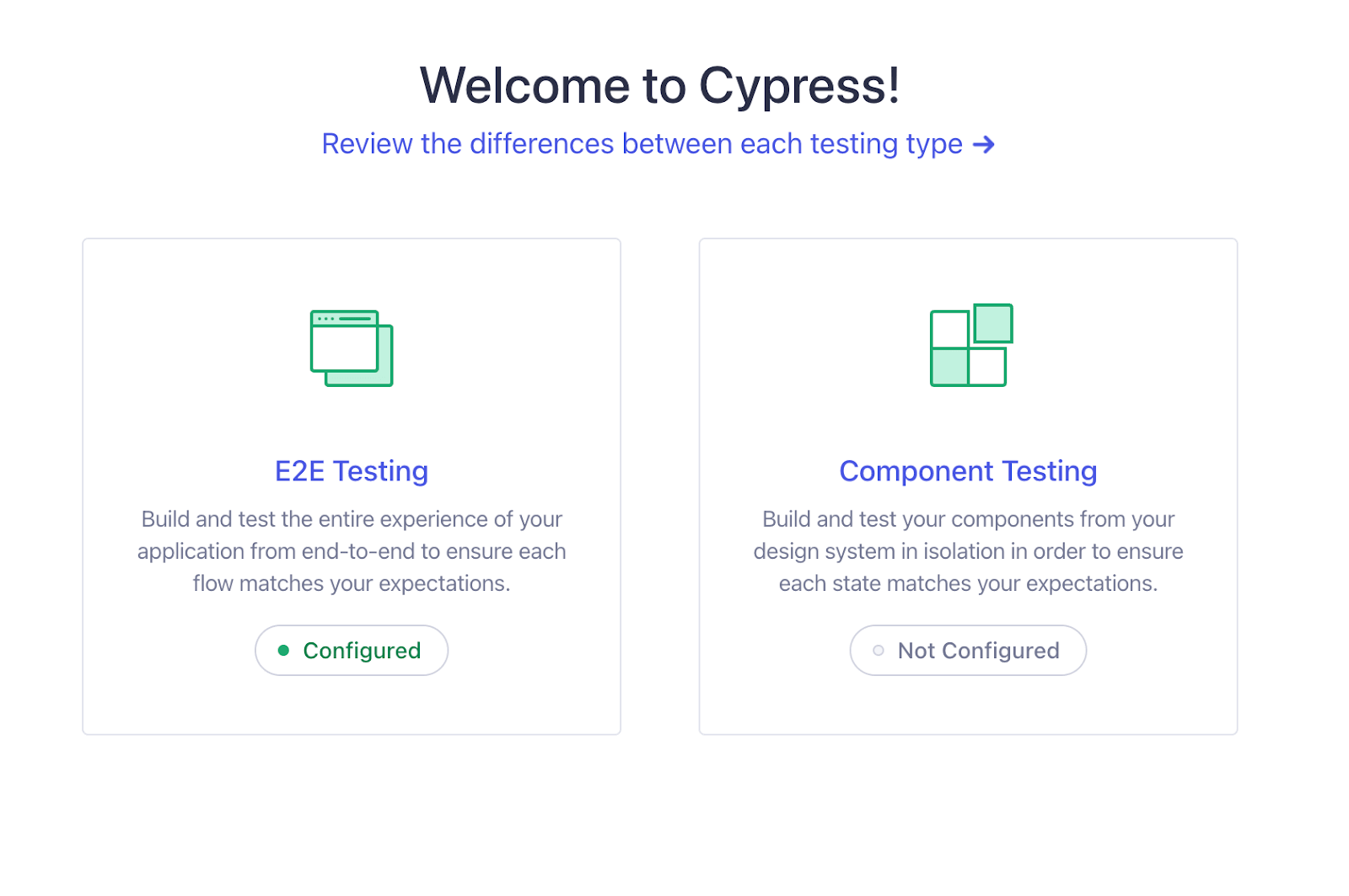
- Open Cypress by entering the command: npx cypress open in the terminal.
- Select the type of testing.
- Choose the browser of your choice after selecting the testing type.

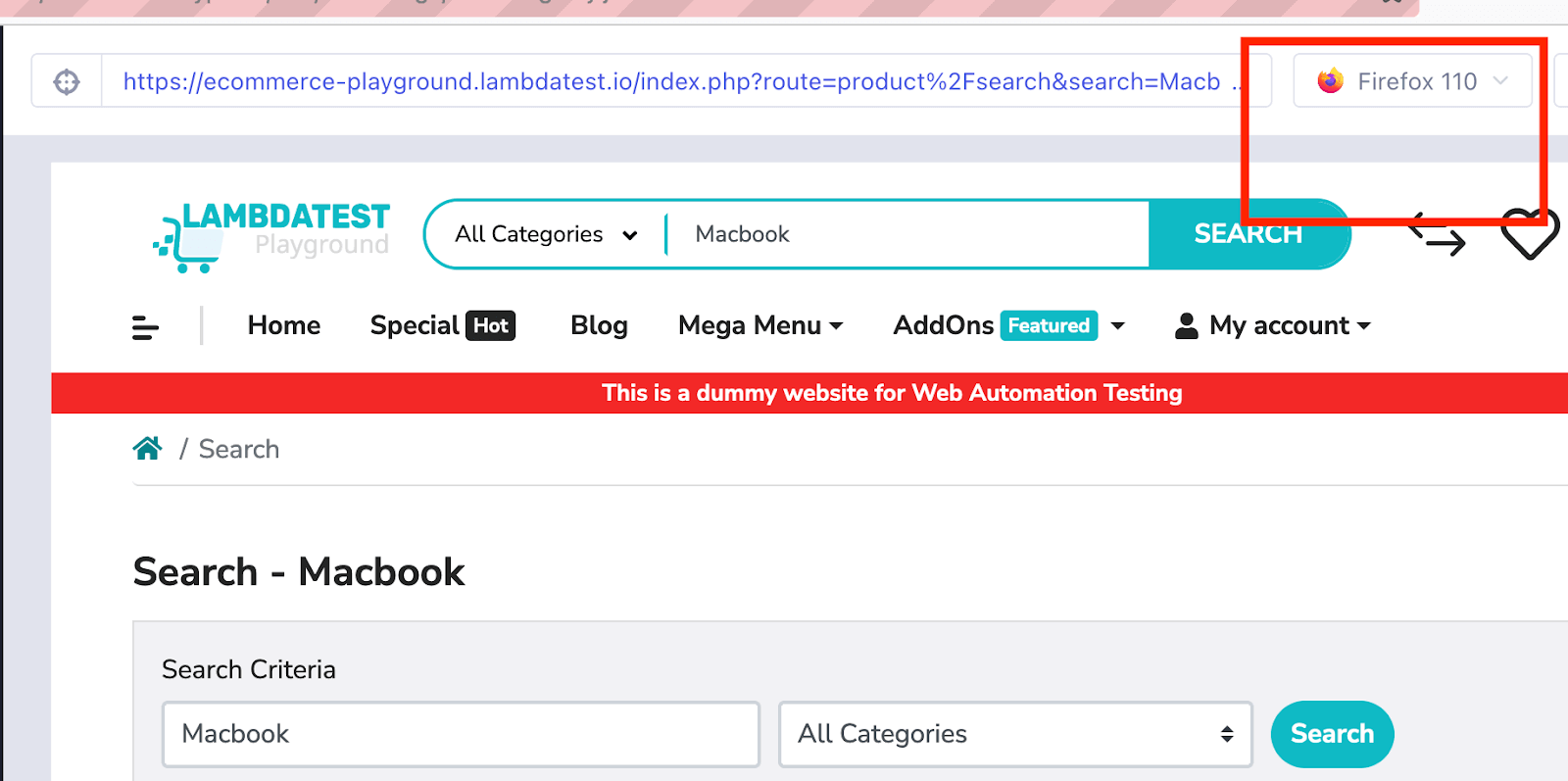
You can also change the browser from the Spec Runner screen, like shown below. When run locally, Cypress only shows the supported browsers installed on your machine.
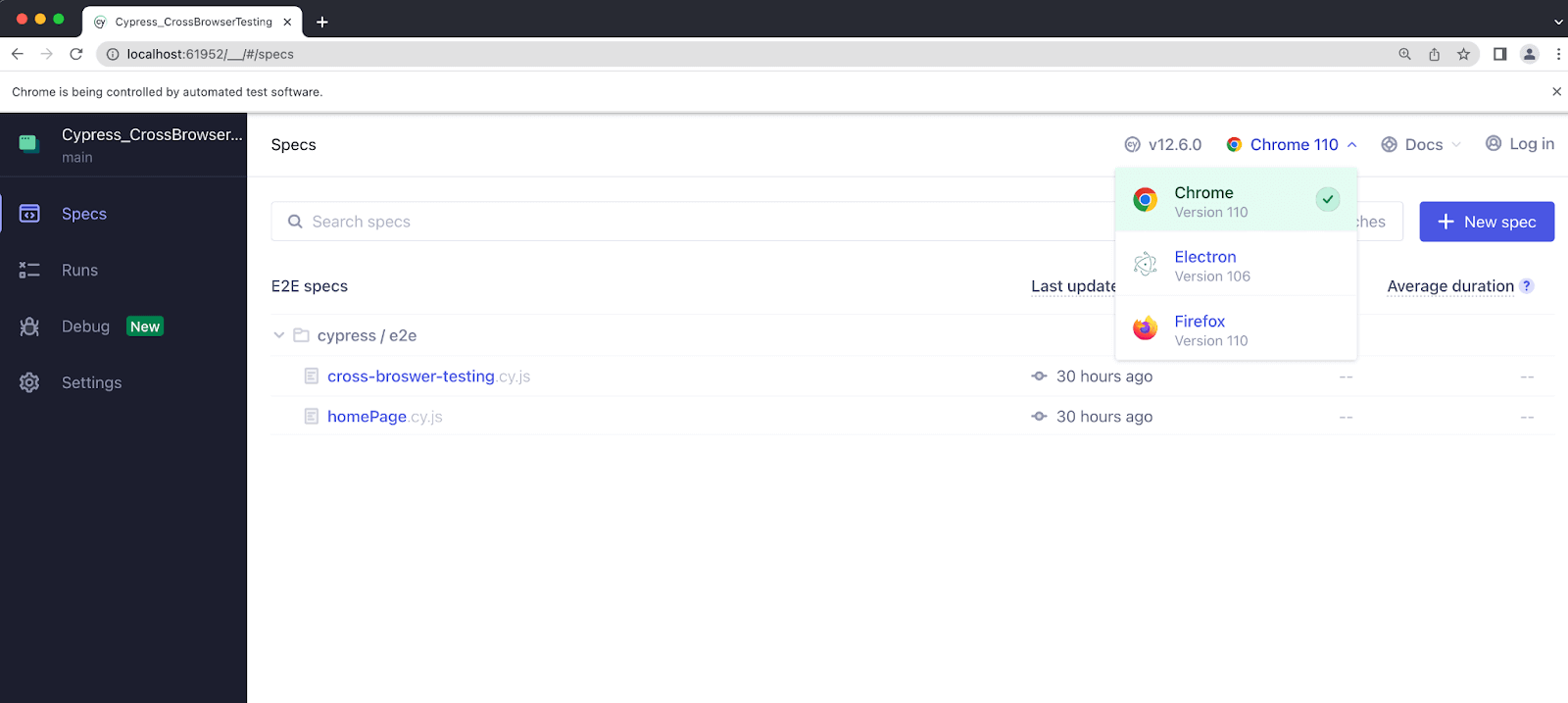
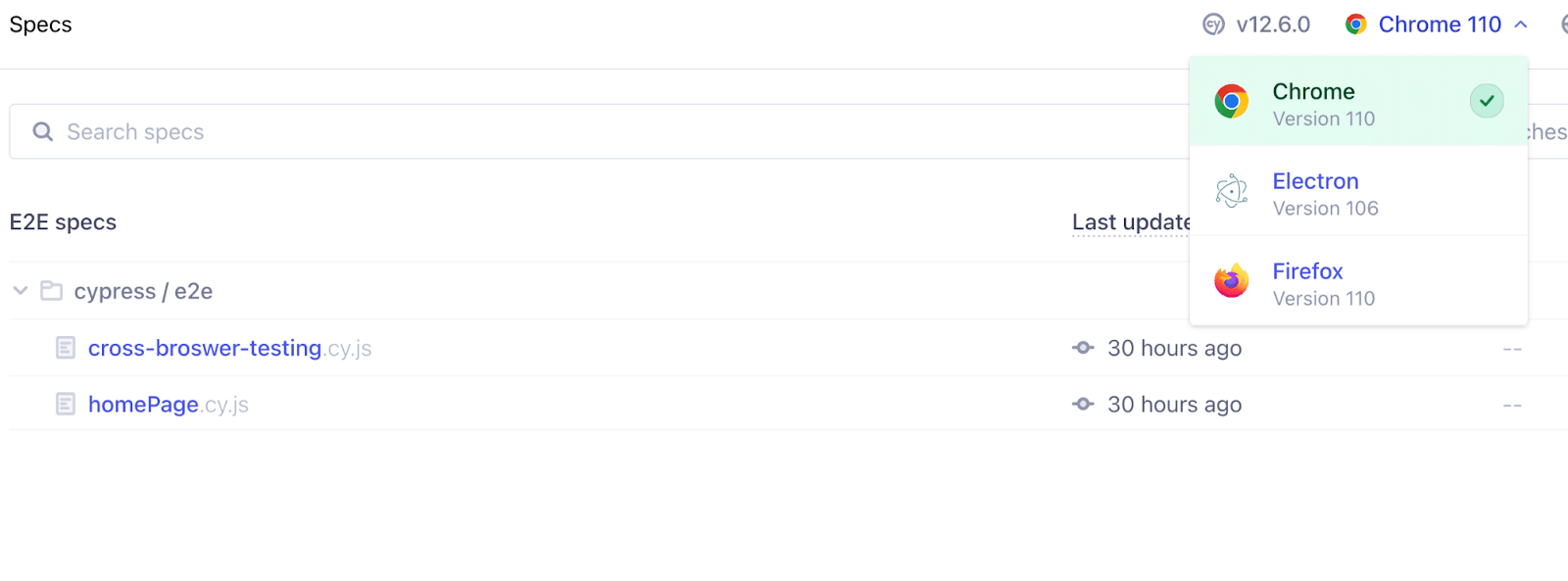
You can switch the browser by using the drop-down near the top-right corner. After selecting the browser, choose the spec file used in the last section. The respective test will automatically execute in the chosen browser.
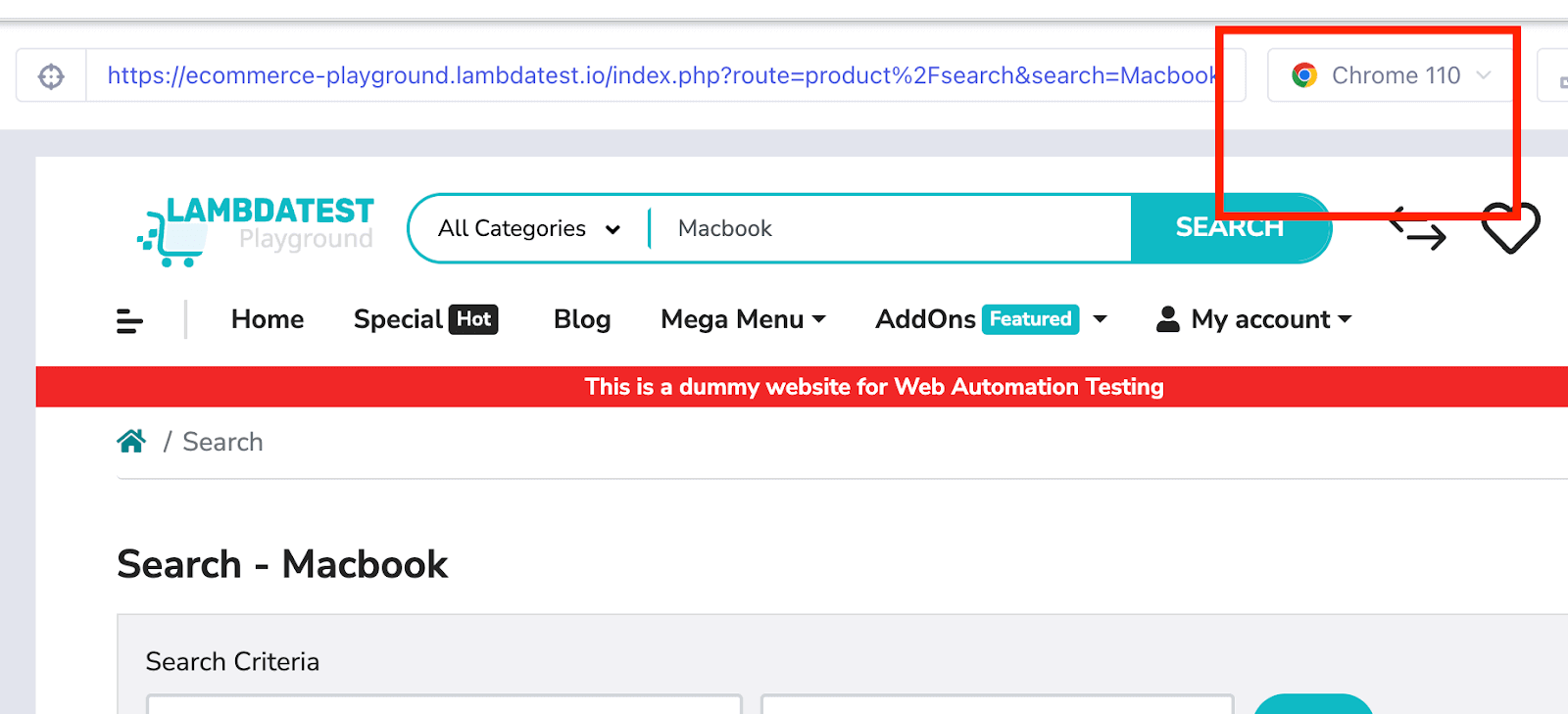
Here is the execution snapshot when the test is run on Chrome browser:
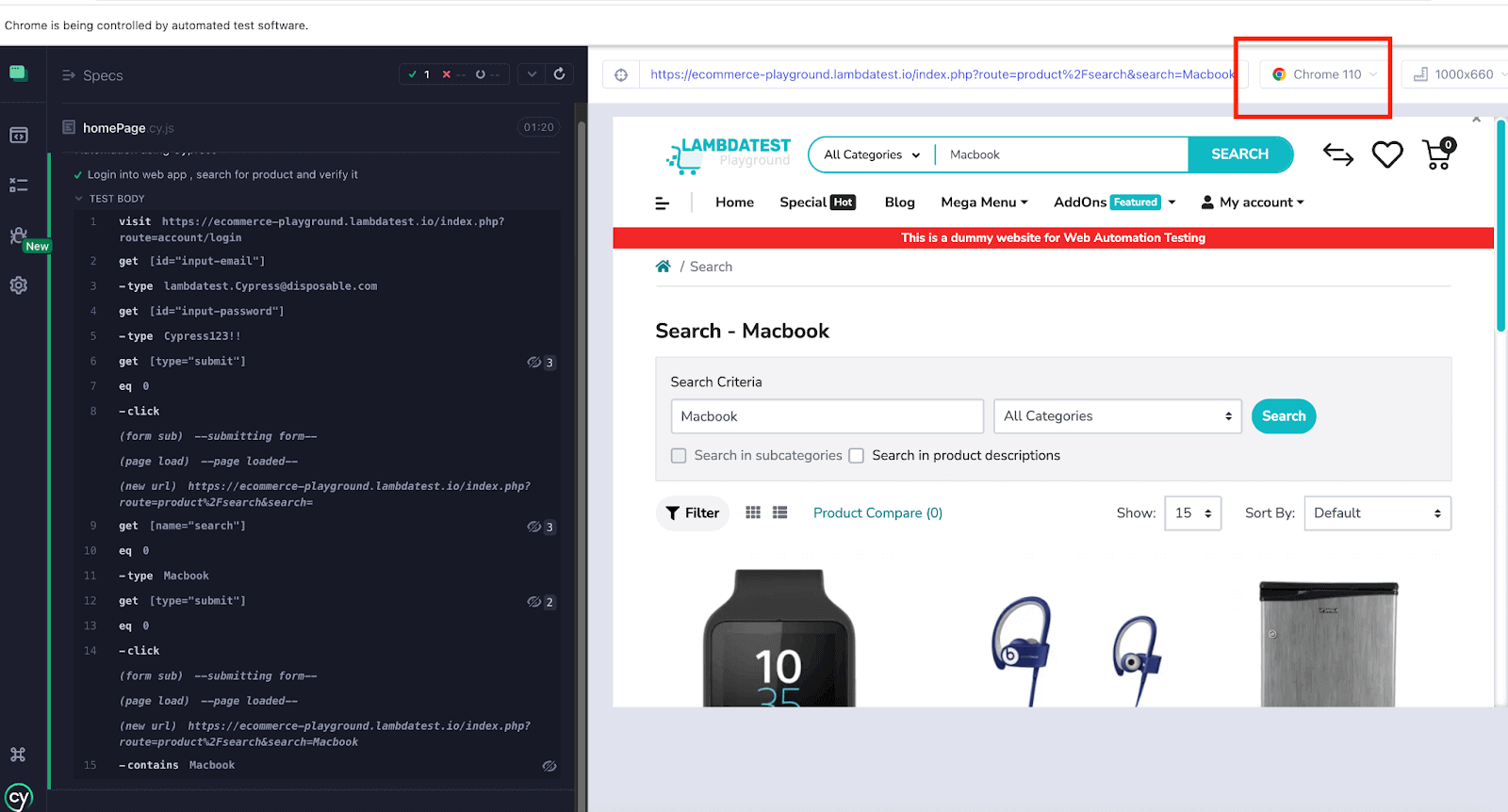
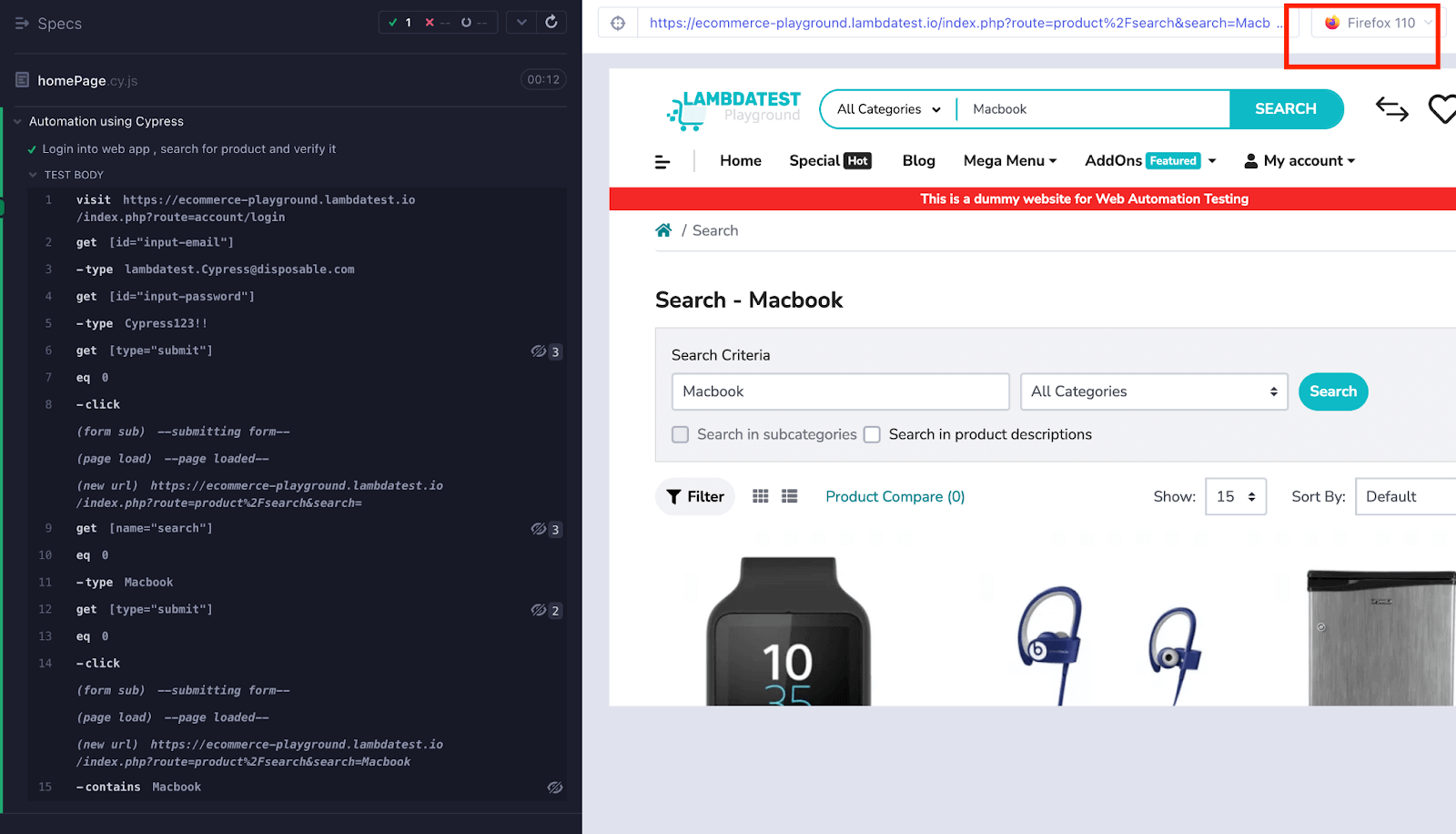
Here, the chosen browser is Firefox:
When to use it?
This approach is useful when you want to run a Cypress test in non-headless (headed) mode and want to visually verify the execution of your tests on a web page. This mode opens a browser window during the test execution, allowing you to observe the test steps as they occur on the page.
Perform cross browser testing with Cypress at scale. Try TestMu AI Now!
Cross Browser Testing using Cypress Test File
You can also perform cross browser testing with Cypress using your existing Cypress tests. To do this, you need to modify the browser configuration for your test by passing an option object as a parameter in its block. Within this object, you can specify which browser you want to test on, such as Chrome, Firefox, or Electron.
To execute the test on a particular browser, you just need to update the test specification file accordingly.
Syntax:
it("test case name", { browser: "chrome" }, () => {})
For example, if you want to perform cross browser testing with Cypress on the Chrome browser, then you need to change the test spec file as browser:chrome, and it will run the test case only on the Chrome browser.
Let’s try to understand in detail with the below example:
Test Scenario:
- Write three tests to Open the URL. the TestMu AI home page
- For the first test case, pass the browser as Chrome.
- For the second test case, pass the browser as Firefox.
- For the third test case, pass the browser as Electron.
Implementation:
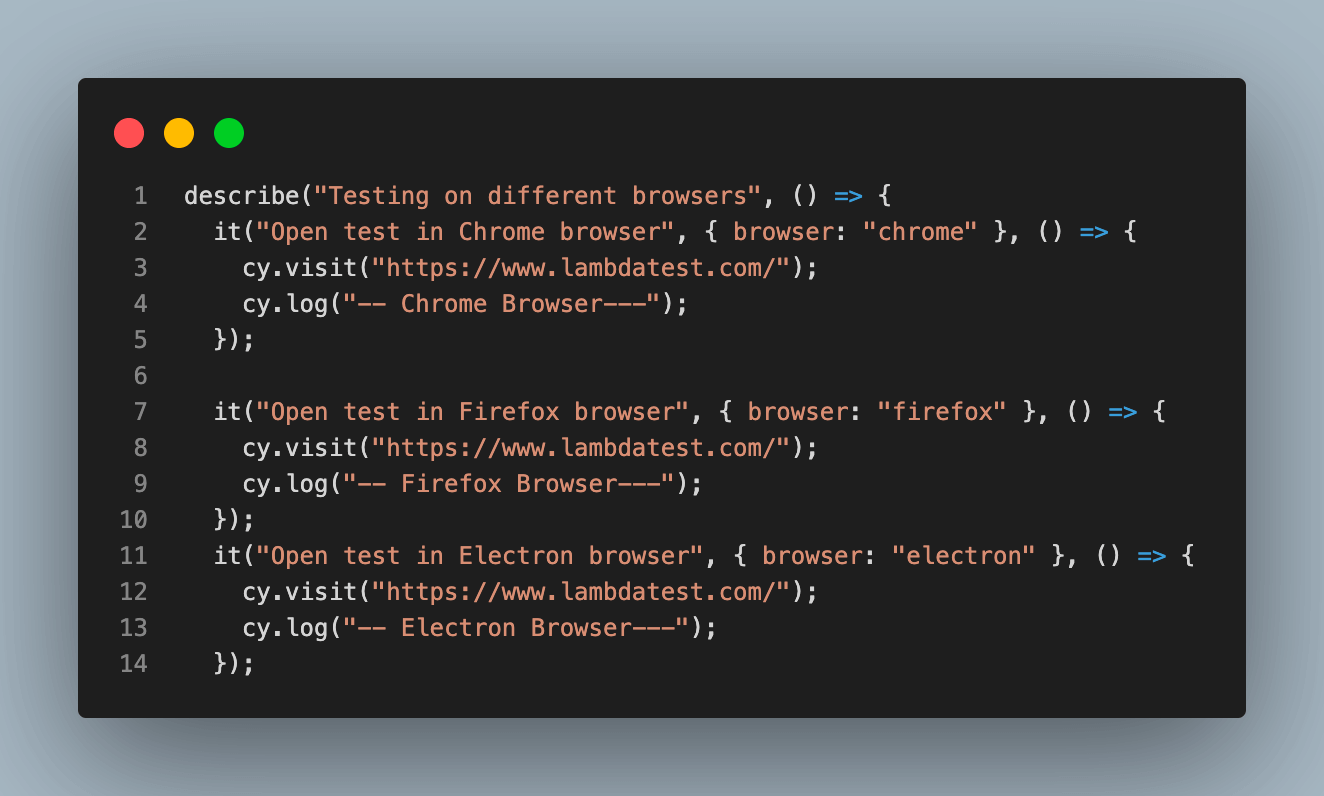
Code Walkthrough:
To run the test case on any browser, you need to specify the name of the browser. You have to pass the browser config as an option object in your test case (just like shown below). To run the test in the Chrome browser, we have passed the browser as Chrome.
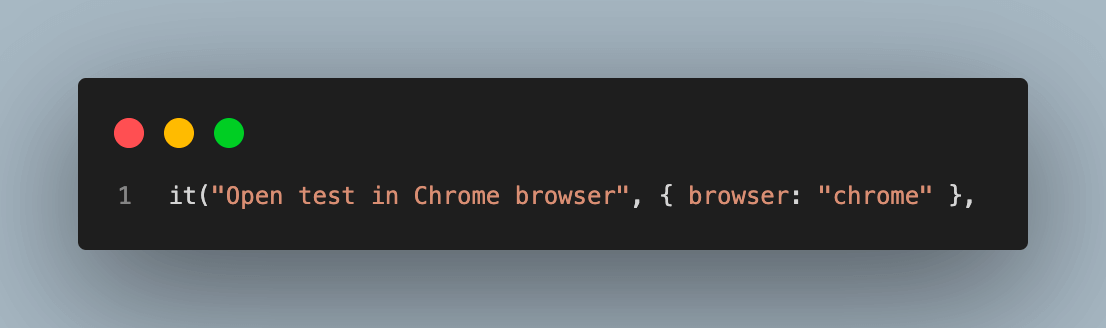
And in the remaining 2 test cases, the browser name is changed. So, now if we run the test case, the first test case would be executed only on Chrome, and the other two would be skipped, and similarly, it will work for Firefox and Electron also.
Depending on the selection of the browser, it will execute the test case on that browser and skip the other test cases for which the browser configured is not the same.
Execution:
By selecting the Chrome browser, test case 2 and test case 3 would be skipped, and only the first test case would be executed.
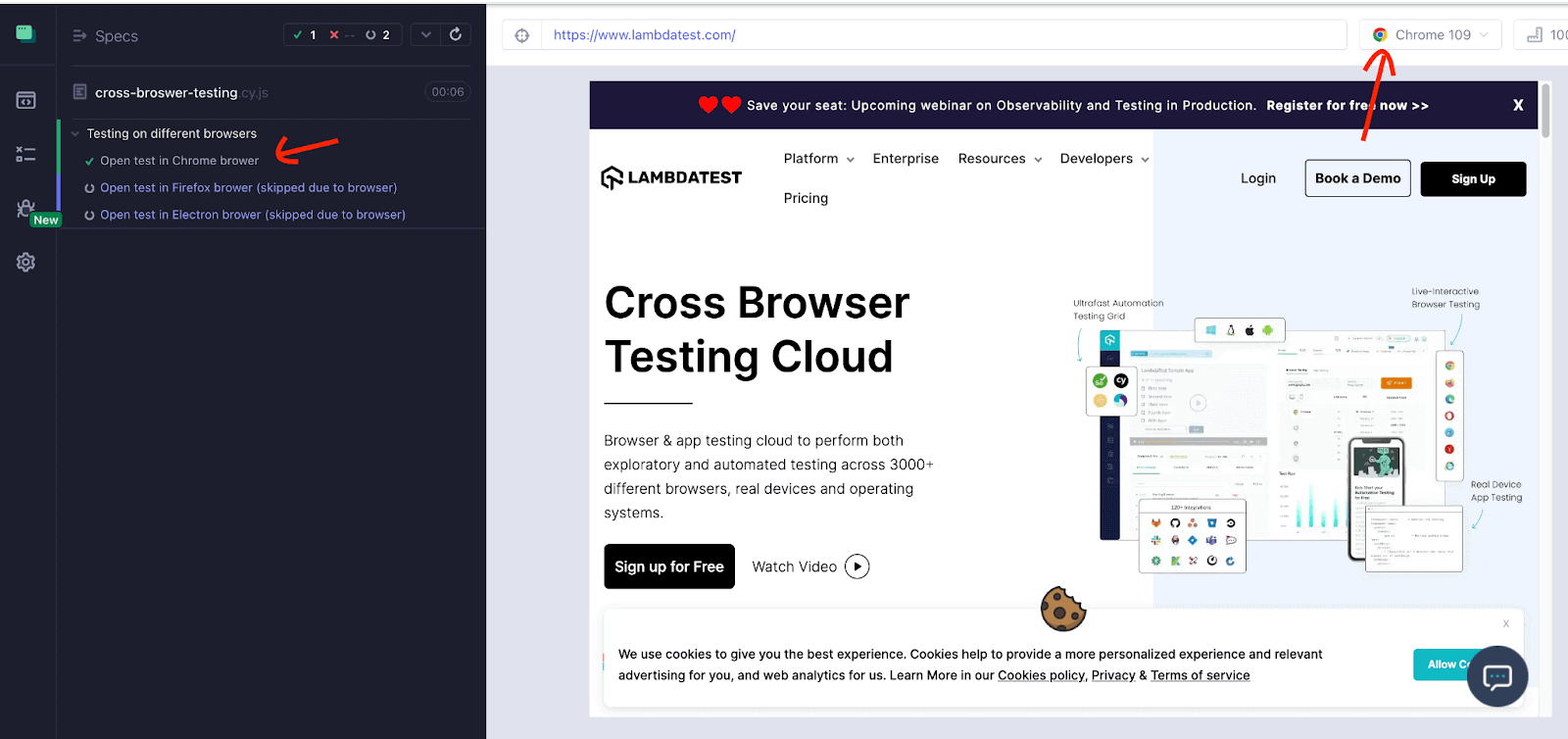
Now, we choose the Firefox browser to run the test case. So, the second test case is executed on Firefox, and the rest of the 2 test cases get skipped.
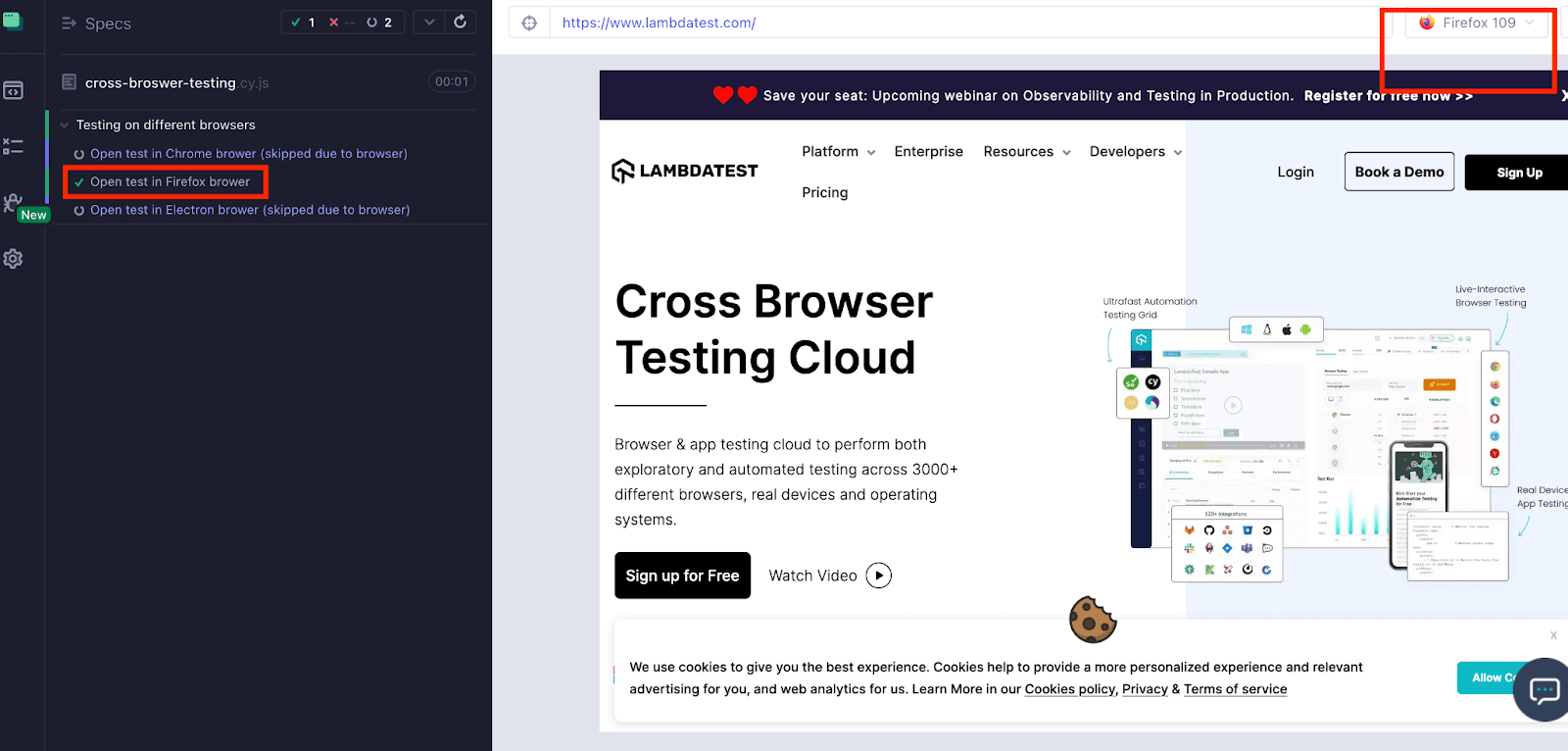
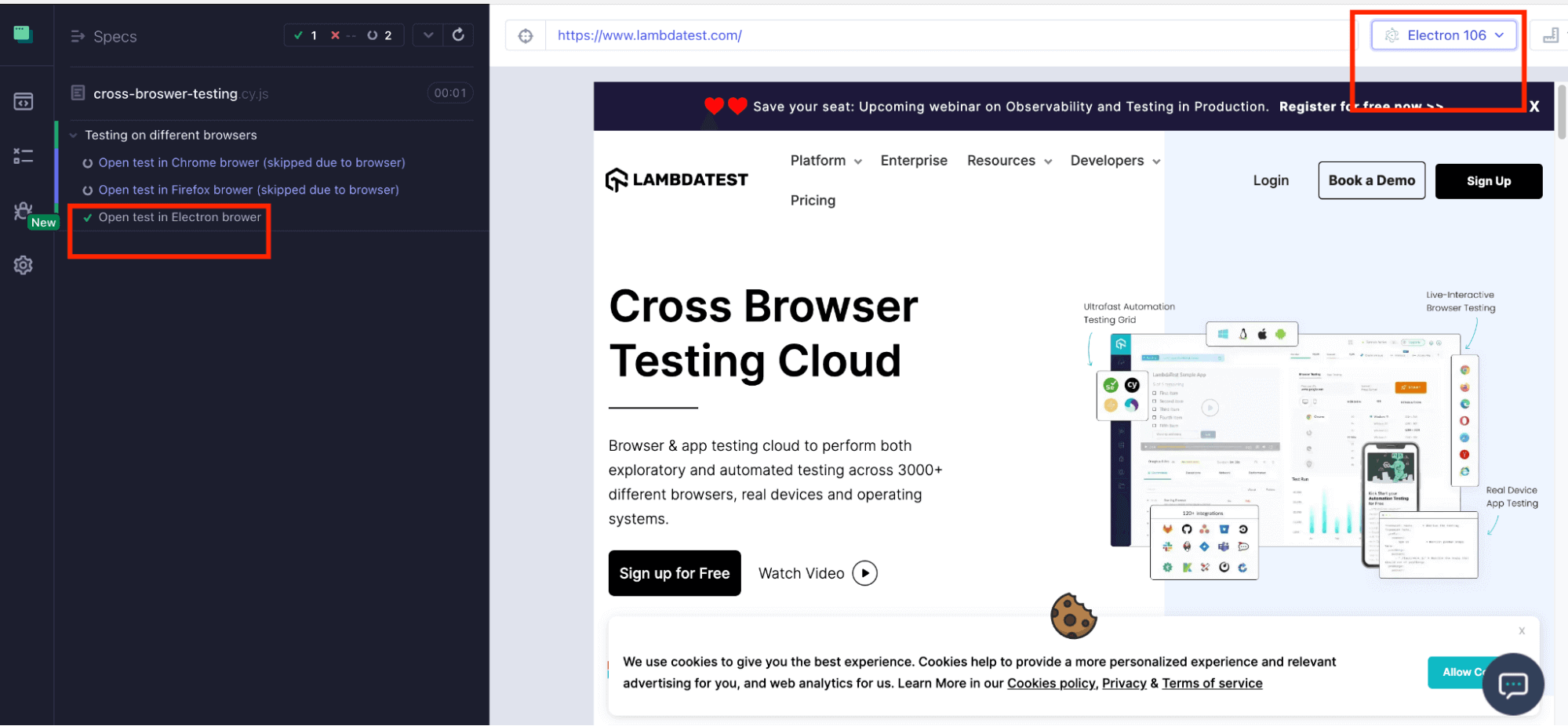
On selection of the Electron browser, the third test case got executed on electron, and the rest of the 2 test cases got skipped just like shown below:
If you have a conditional case where you want to run your test case on only one browser, then you can pass it as an argument in your test case.
When to use it?
The browser option allows you to execute your test cases on multiple web browsers, enabling you to run specific tests on particular browsers without having to define the browser globally for all test cases. This approach gives you the flexibility to run different test cases on different browsers without affecting the rest of your testing suite.
However, to use this feature, you must have the desired browsers already installed on your local machine.
Cross Browser Testing using Cypress CLI
Cypress CLI is a command line interface tool used to execute your Cypress test easily and efficiently. One of the key features of Cypress CLI is the ability to perform cross browser testing with Cypress by specifying the browser name using the "--browser" option. Simply pass the name of the supported browser on which you want your test case to run.
This allows you to execute your tests on different browsers, ensuring that your web application functions correctly and consistently across multiple platforms. By utilizing Cypress CLI for testing, you can streamline your testing process and ensure that your web application delivers a seamless user experience across all popular browsers.
If you want to run your test case on the specified browser in headless mode, the syntax is as follows:
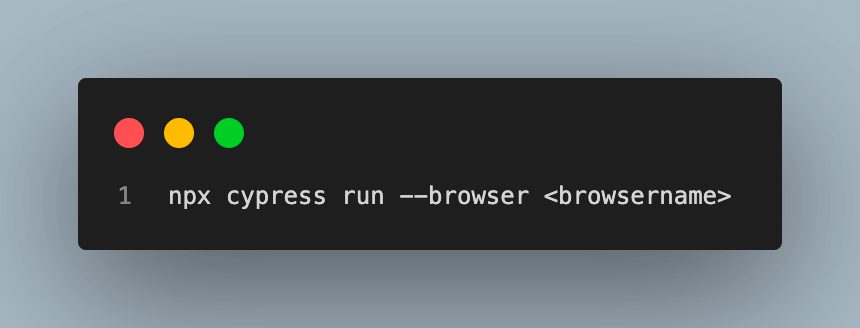
Shown below is the syntax for running your test case on the specified browser in headed mode.
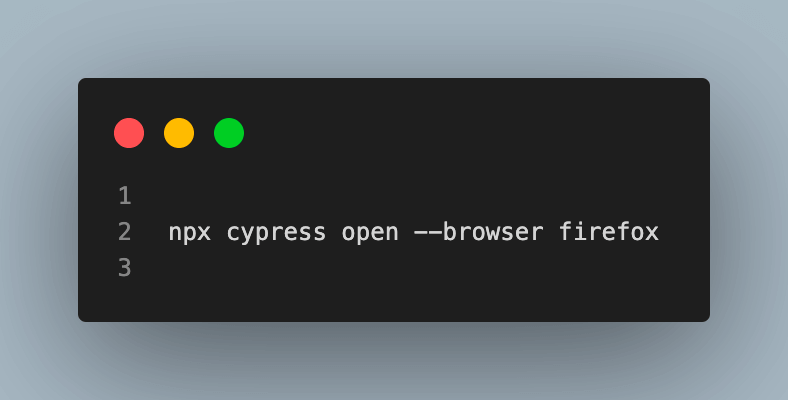
Cypress runs in Electron by default in both headed and headless mode, so pass --browser whenever you want a different browser. Adding --headed only makes the browser window visible; it does not change which browser is used.
Here's how you can perform cross browser testing with Cypress on different browsers using Cypress CLI:
Test Scenario:
- Open URL. eCommerce Playground login page
- Log in to the application.
- Search the product.
- Verify the searched product.
Implementation:
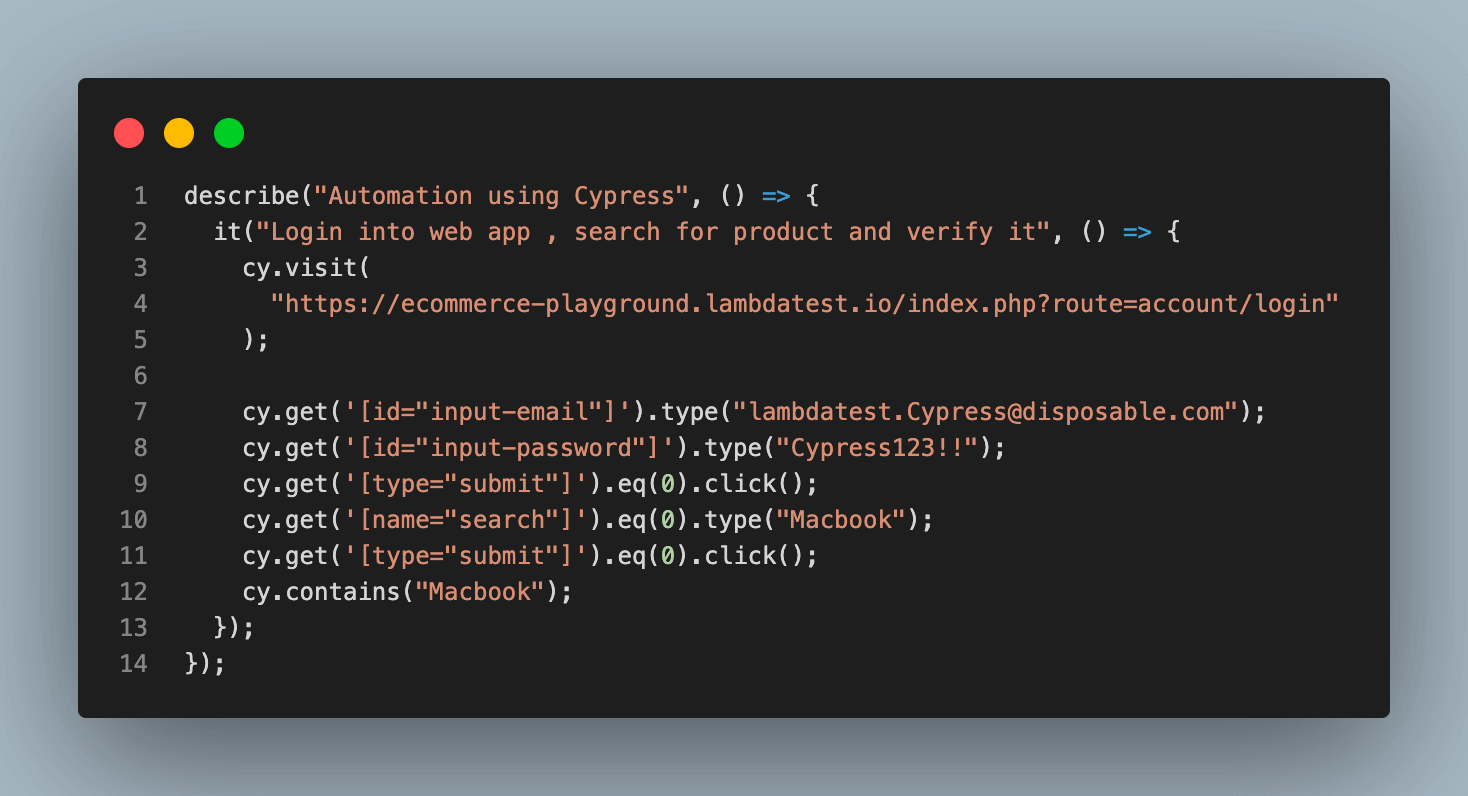
Cypress cross browser testing repo
Implementation:
Run the test case on the Firefox browser in headless mode.

Code Walkthrough:
When you include the --browser argument in the npx cypress run command, that means you are telling Cypress to run the tests in a specific browser. By default, Cypress runs tests on the Electron browser (meaning that the browser window is not displayed during the test run).
For the above code, Cypress will run tests on the Firefox browser.
Execution:
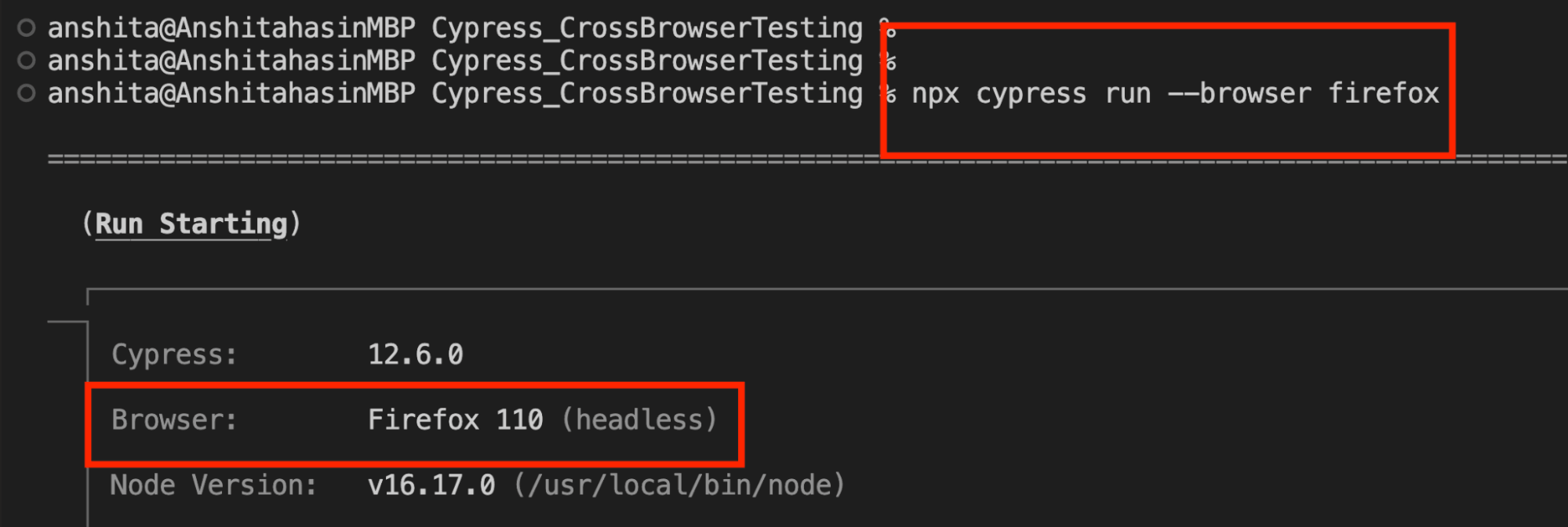
When to use it?
The --browser option enables you to execute your test cases on various web browsers while running them in headless or non-headless modes. By using this option, you can specify the browser in which you want to run your test cases without manually selecting it.
However, to use this feature, you must have the desired browsers already installed on your local machine.

Cross Browser Testing using package.json
The package.json file is a popular way to manage dependencies and scripts for a Node.js application. In addition to managing dependencies, you can use the scripts section of the package.json file to define custom scripts that you can run using the npm run command.
This is useful when you want to automate your testing process and run tests as part of your CI/CD pipeline. This allows you to centralize your test configuration and avoid hard-coding values in multiple places
Instead of changing the browser name each time you execute the tests from the Cypress CLI, you can create a single script in package.json and use it both in your CI/CD pipeline and from the Cypress CLI.
Let’s understand in detail, with an example, how we can define the script in package.json:
Test Scenario:
- Open URL. eCommerce Playground login page
- Log in to the application.
- Search the product.
- Verify the searched product.
- Run the test case on the Chrome browser using a script from package.json.
Implementation:
Cypress cross browser testing repo
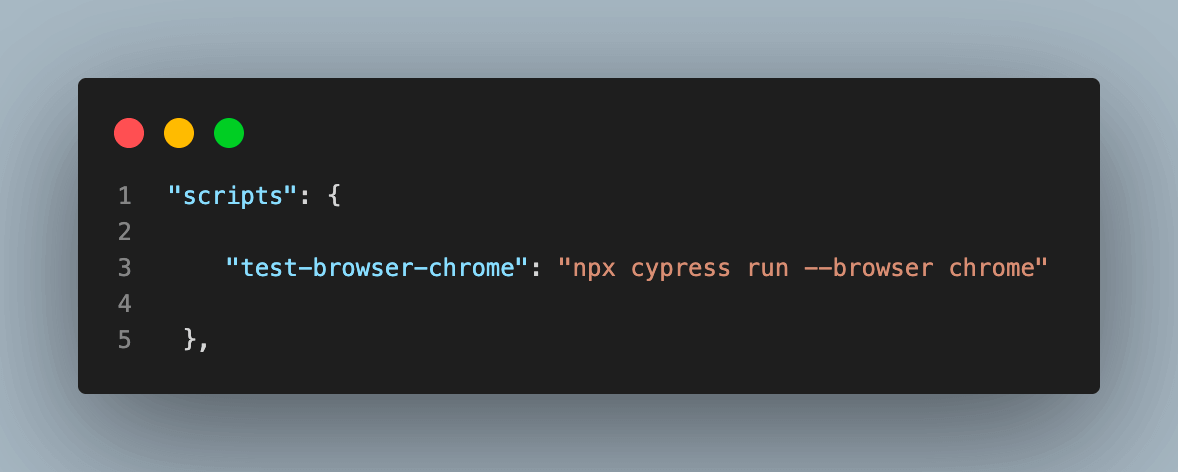
File: package.json
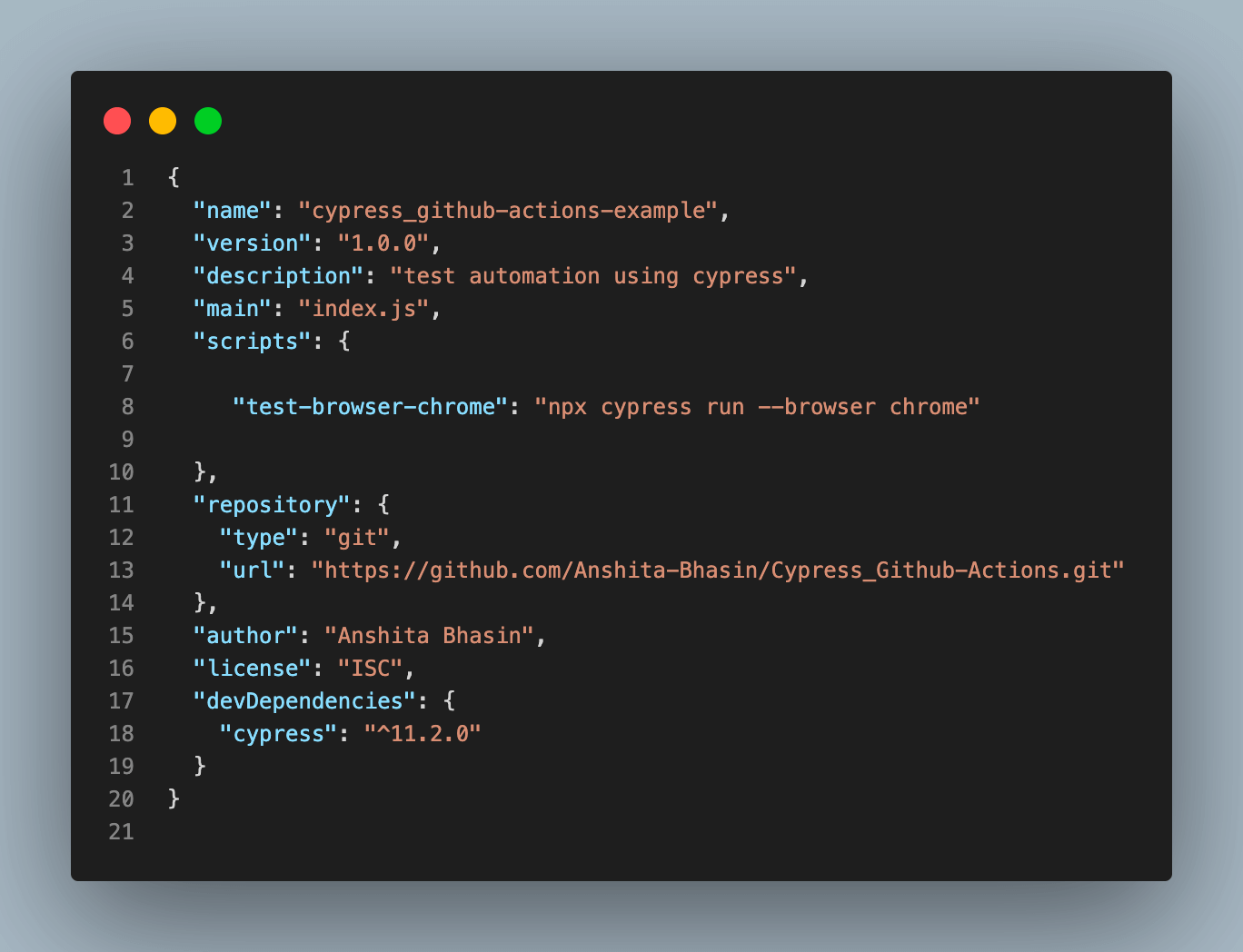
Code Walkthrough:
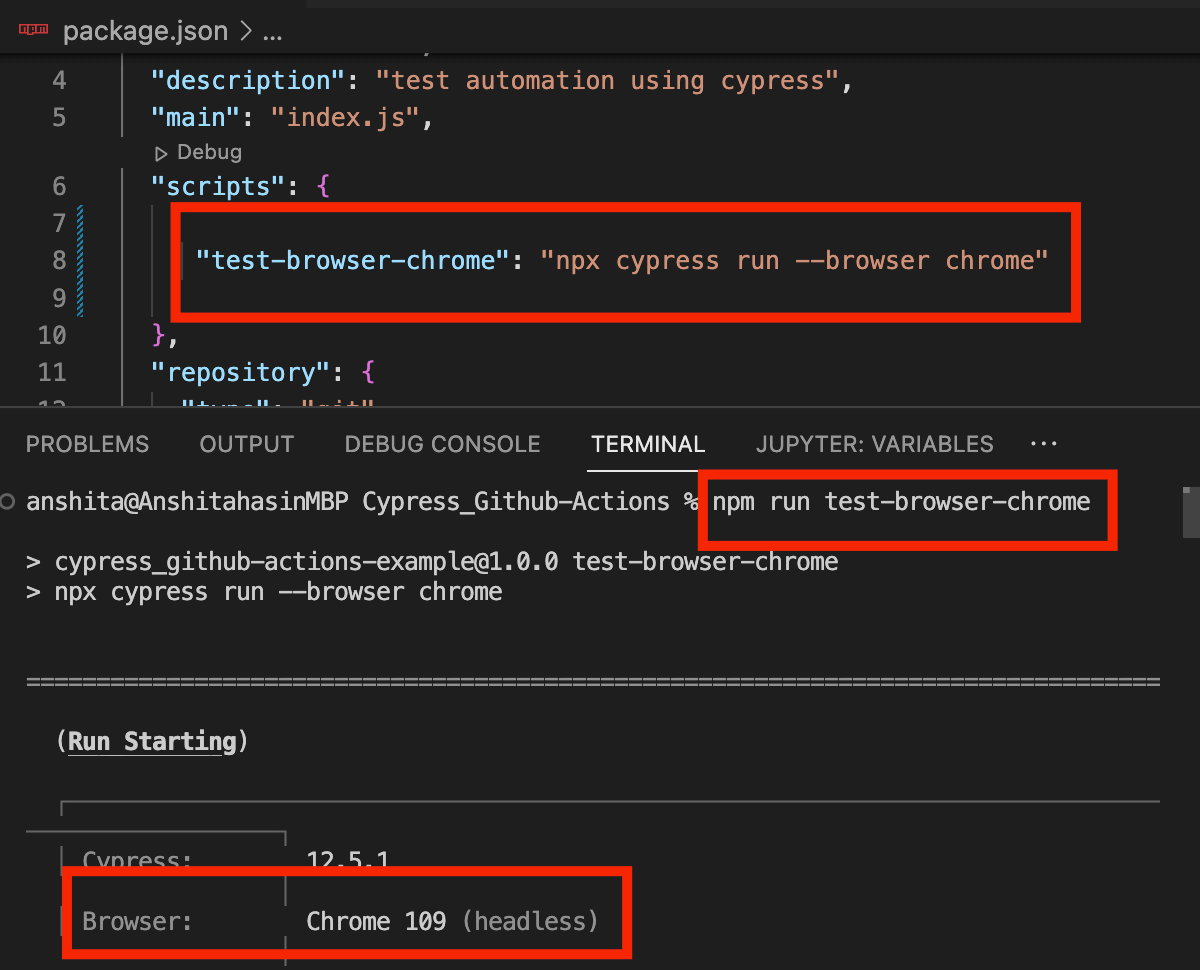
We created a new script to run my test case only on Chrome browser.
"scripts": {
"test-browser-chrome": "npx cypress run --browser chrome"
}
Script name is test-browser-chrome and the value is npx cypress run --browser chrome, which means the browser should be Chrome while running Cypress in headless mode. ( npx cypress run is used to launch the Cypress test in headless mode). So, in order to run the script using Cypress CLI, we need to pass the script name and it will run the test case only in Chrome mode.
Execution:
Run the script using command npm run test-browser-chrome. The test case should be executed on Chrome browser this time.
When to use it?
This approach is helpful when you want to execute the tests from the Cypress CLI. Using this approach, you can create a single script in package.json and use it both in your CI/CD pipeline and from the Cypress CLI. It saves time and effort, as you no longer have to manually modify the browser name each time you run tests.
Additionally, it promotes standardization for your testing environments, allowing for easier collaboration among team members. Overall, using a single script in the package.json file can greatly enhance the efficiency and effectiveness of your testing process.
Cross Browser Testing on the Cloud Platform
With the help of a cloud platform, performing Cypress UI automation on various browsers and their different versions becomes effortless. This grants you the liberty to switch between browser versions for testing purposes, without being confined to the version installed on your personal computer.
Digital experience testing platforms like TestMu AI provide integration with Cypress automation tool. With TestMu AI, you can perform Cypress testing at scale over an online browser farm of 3,000+ browser and OS combinations. You can also perform Cypress parallel testing and cut down your test execution time by multiple folds.
The ability to perform cross browser testing with Cypress on different browsers through the cloud gives you the confidence that your tests will perform as expected on multiple browsers.
One of the key benefits of performing cross browser testing with Cypress on a cloud platform is the ability to scale your testing efforts. You can easily spin up multiple Virtual Machines (VMs) with different browser versions, allowing you to run parallel tests and increase your testing efficiency. This saves your time and helps you get results faster.
Here is a step-by-step process to perform Cypress end-to-end testing on different browsers using the TestMu AI cloud platform.
Test Scenario:
- Open URL. eCommerce Playground login page
- Log in to the application.
- Search the product.
Implementation:
Cypress cross browser testing repo
To run the Cypress UI testing on the TestMu AI platform, we need to do the configuration using 3 steps.
Step 1: Install TestMu AI CLI
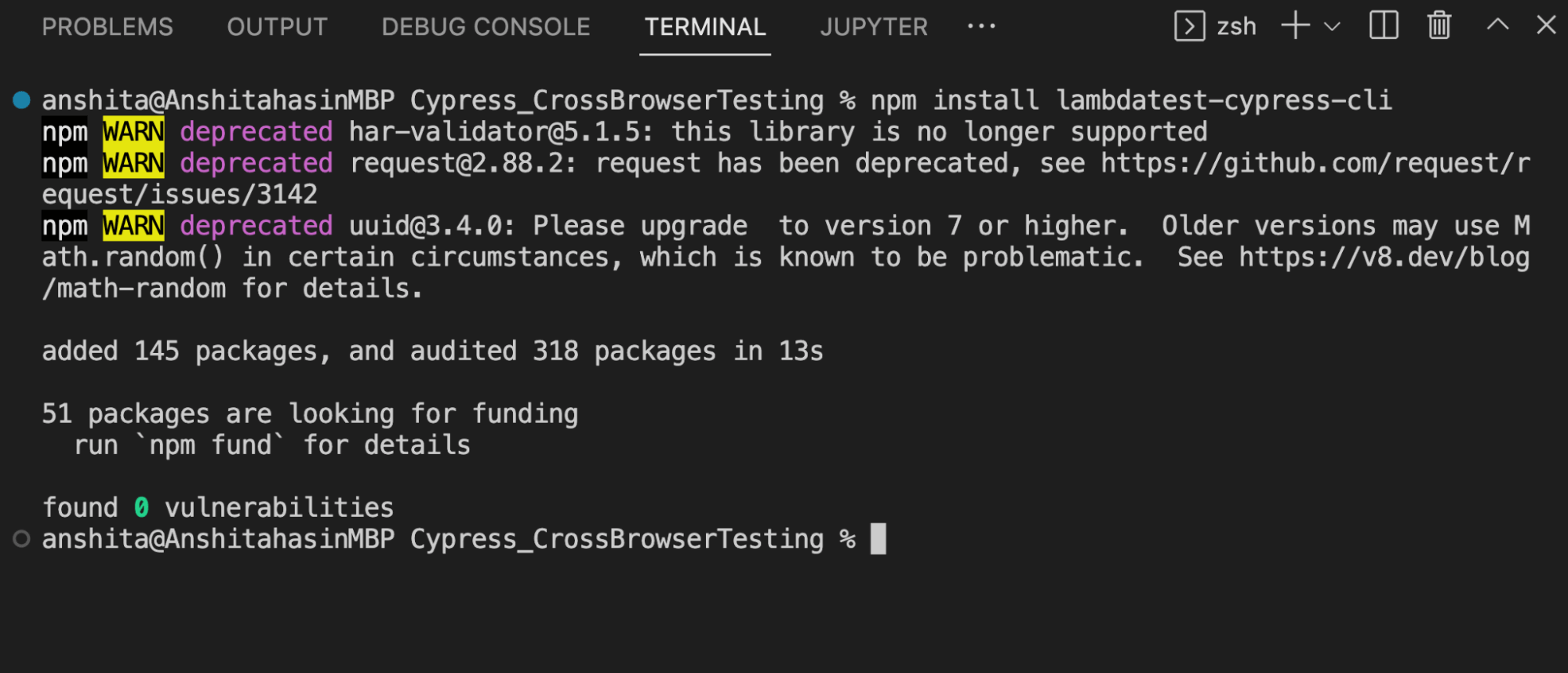
Install TestMu AI CLI using npm, use the below command:
npm install lambdatest-cypress-cli
Step 2: Set up the config.
Once the TestMu AI CLI is installed, now we need to set up the configuration using the below command:
lambdatest-cypress init
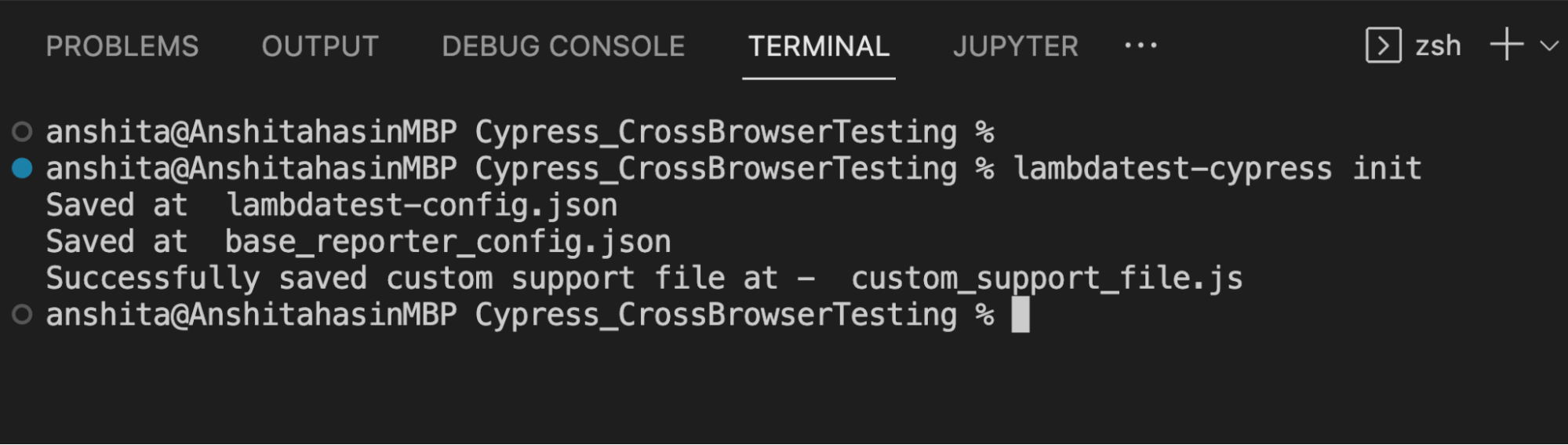
After running the command, there will be a file created in your project named “lambdatest-config.json”. We need to set up the configuration in order to perform cross browser testing with Cypress on different browsers using TestMu AI
- auth: We need to set up the TestMu AI credentials, which will be used in lambdatest-config.json to run my test case on the cloud platform
- browsers: Need to specify the browser and OS version on which we want our test case to run
- run_setting: Need to set up the config in run_settings. Set up the config name, which would differ based on different Cypress Versions, and set up the spec file
For Cypress (version 10 & above), you can add the below code to set up. If you are using an older version of Cypress and want to migrate to Cypress 10, you can refer to this blog on Cypress 10 migration.
lambdatest-config.json:
{
"lambdatest_auth": {
"username": "<username>",
"access_key": "<accesskey>"
},  "browsers": [
{
"browser": "Chrome",
"platform": "Windows 10",
"versions": [
"latest-1"
]
},
{
"browser": "Firefox",
"platform": "Windows 10",
"versions": [
"latest-1"
]
}
],
"run_settings": {
"cypress_config_file": "cypress.config.js",
"build_name": "Cypress cross browser testing on TestMu AI",
"parallels": 1,
"specs": "./cypress/e2e/homePage.cy.js",
"ignore_files": "",
"network": false,
"headless": false,
"npm_dependencies": {
"cypress": "<the Cypress version in your package.json>"
}
},
"tunnel_settings": {
"tunnel": false,
"tunnel_name": null
}
}
Step 3: Execute Test Case
Once the config is done, you can now perform cross browser testing with Cypress on the TestMu AI cloud platform.
Just need to run the below command to run it on TestMu AI.
lambdatest-cypress run
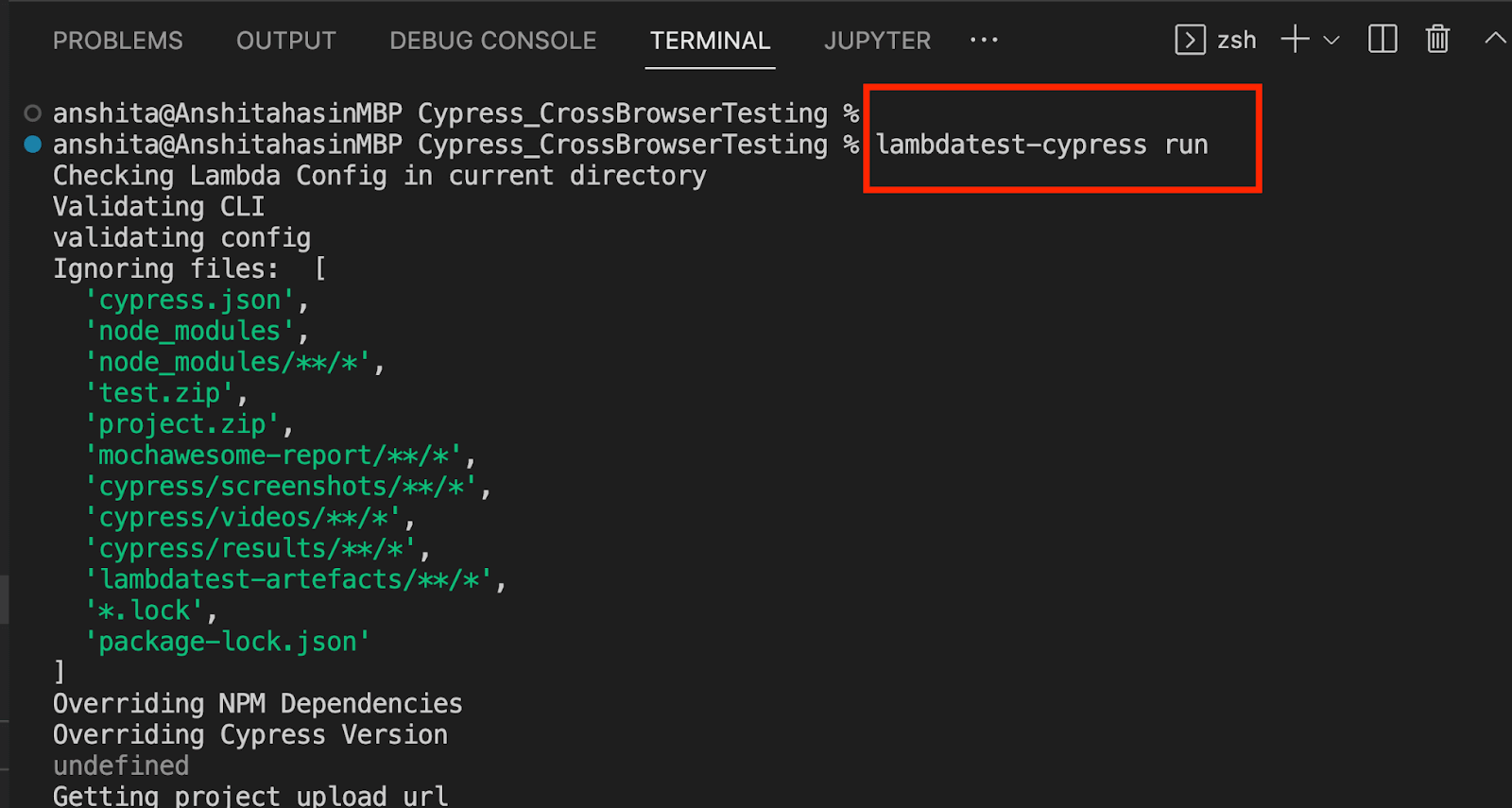

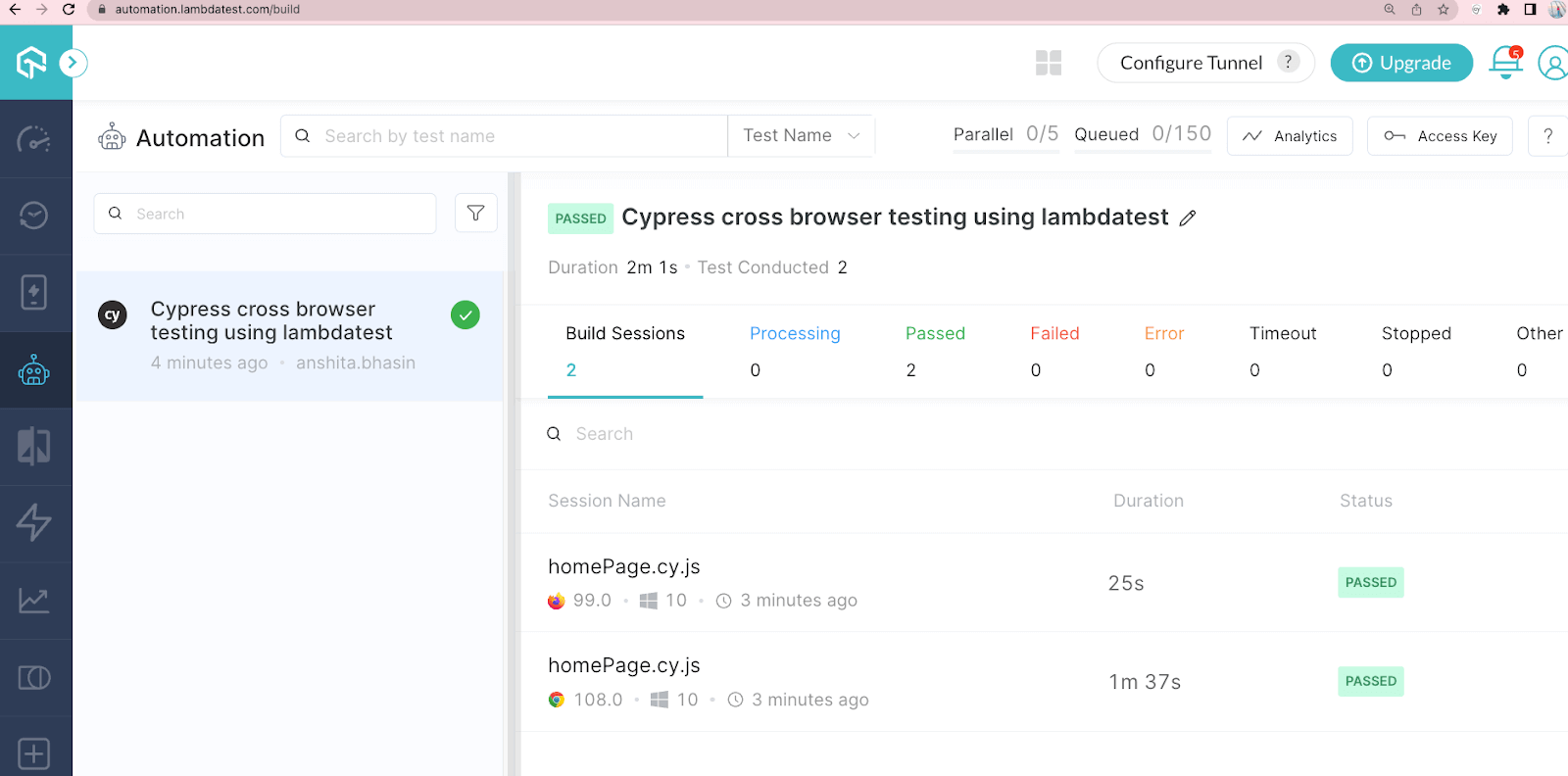
Once the command has been executed and the test cases have been completed without any issues, we will be able to examine the Cypress test run on the TestMu AI cloud platform, similar to the example depicted in the screenshot below.
Navigate to the logs section to view the detailed logs:
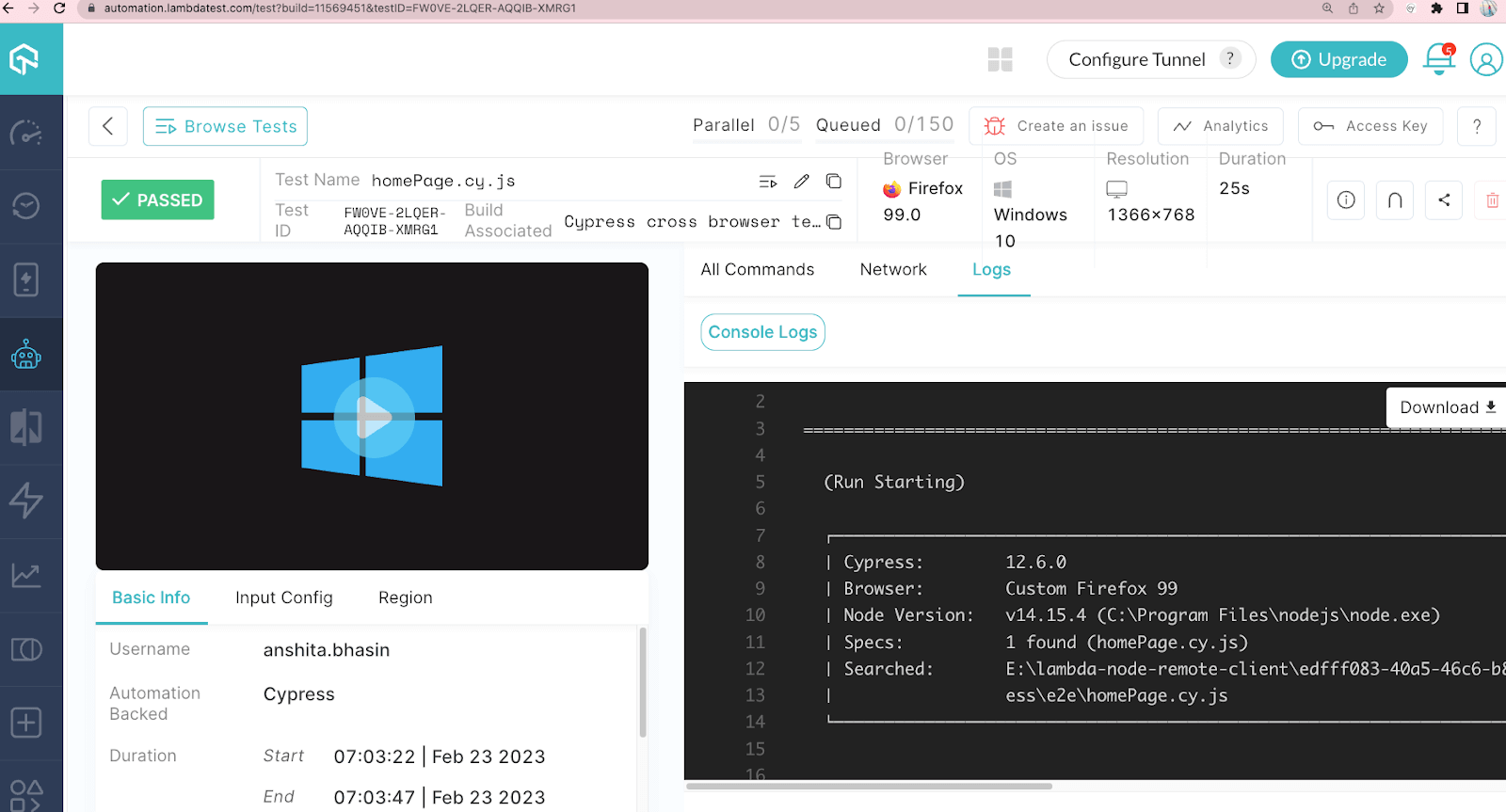
By following the above steps, you can perform cross browser testing with Cypress effortlessly on a variety of browsers and their different versions on cloud platforms. The ability to test on different browsers through the cloud gives you the confidence that your tests will perform as expected on multiple browsers.
When to use it?
You can use the cloud platform when you want to test your web application across different OS and different browser versions at scale without having the need to download them locally.
For example, if you need to test your application on Chrome and Windows, but you are using a macOS machine, you cannot test it locally. In this scenario, a cloud platform can be utilized to conduct testing on various operating systems and browsers of different versions, providing a practical solution to test in a diverse range of environments, including running the tests in CI pipeline, and more.
Cross Browser Testing using GitHub Actions
GitHub Actions is an automated system for continuous integration and delivery (CI/CD) that streamlines the process of building, testing, and deploying your software. With this platform, you can set up workflows to automatically build and test your code with every pull request, or smoothly deploy successful pull requests to your production environment.
Running tests in Cypress with GitHub Actions can be used to automate your cross browser testing process and run your tests every time you push code changes to your repository.
You can perform cross browser testing with Cypress on different browsers using GitHub Actions by either creating a script in package.json and passing it in the *.yml file or by directly passing the command to run the Cypress test in the *.yml file, where you can specify the browser name.
Here's an example of the first approach, using a script in package.json:
In the package.json, create a script that runs the Cypress tests on a specific browser:
"scripts": {
"test:chrome": "npx cypress run --browser chrome",
 "test:firefox": "npx cypress run --browser firefox",
 "test:edge": "npx cypress run --browser edge"
}
In your .github/workflows directory, create a file (example: browser_test_using_script.yml) and specify the name of the workflow and the trigger for the workflow (e.g. on push/pull to a specific branch). Then, define a job that runs the script from package.json.
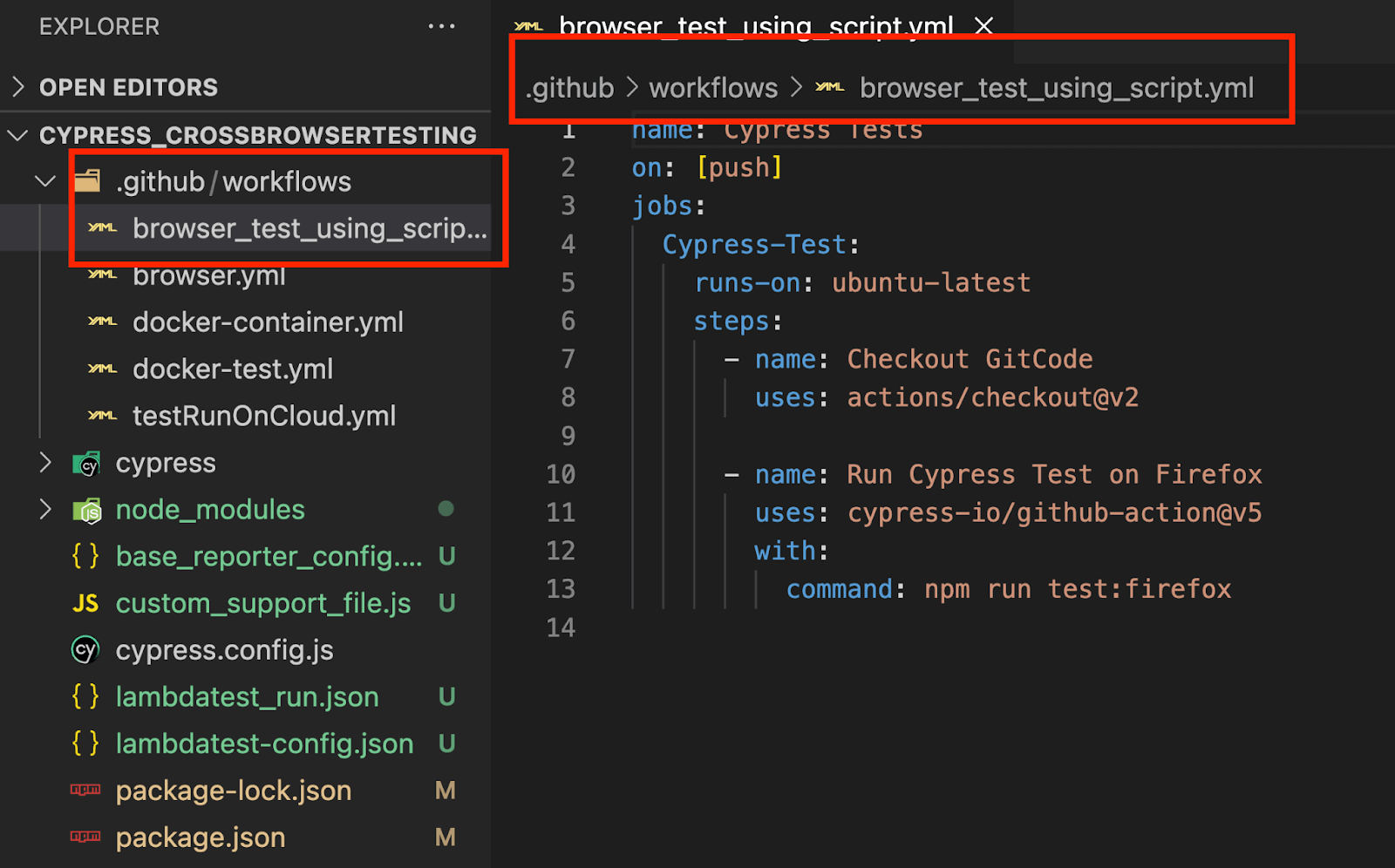
Implementation:
name: Cypress Tests
on: [push]
jobs:
 Cypress-Test:
   runs-on: ubuntu-latest
   steps:
     - name: Checkout GitCode
       uses: actions/checkout@v5
     - name: Run Cypress Test on Firefox
       uses: cypress-io/github-action@v7
       with:
         command: npm run test:firefox
Code Walkthrough:
This is a GitHub Actions workflow that runs Cypress tests on the Firefox browser. The workflow has a single job called "Cypress-Test" that runs on an Ubuntu machine. The job consists of two steps:
Checkout: The first step uses the actions/checkout@v5 action to checkout the code from the Git repository.
steps:
     - name: Checkout GitCode
       uses: actions/checkout@v5
Cypress Test: The second step runs the Cypress tests on Firefox using the cypress-io/github-action@v7 action and the command npm run test:firefox. The command passed npm run test:firefox run script created in package.json (as shown above).
- name: Run Cypress Test on Firefox
       uses: cypress-io/github-action@v7
       with:
         command: npm run test:firefox
This workflow is triggered on push events.
on: [push]Every time you push changes to your repository, this workflow will run and validate your changes by running the Cypress tests.
Execution:
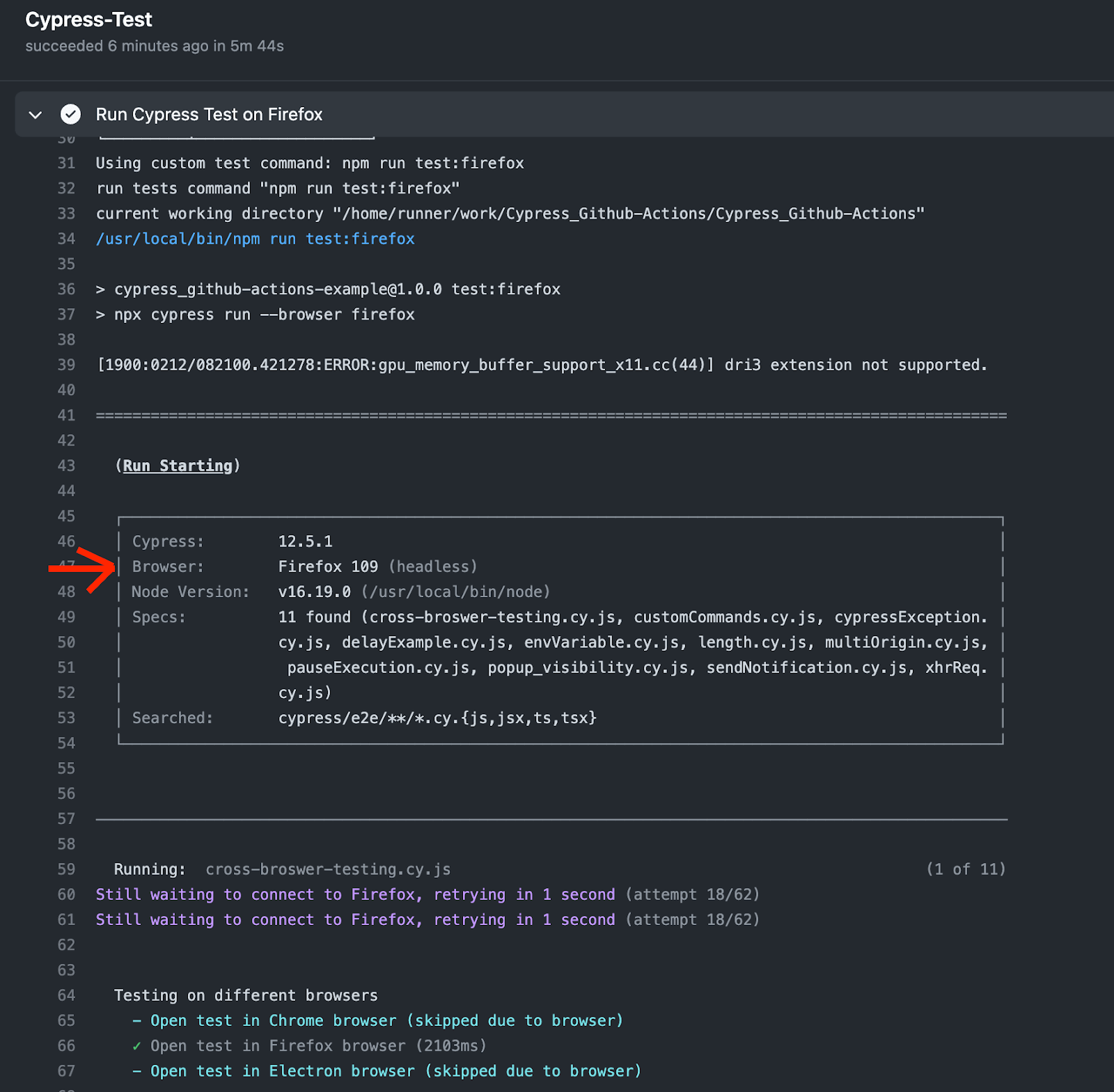
Here's an example of passing the browser name directly in .yml file:
You can also pass the browser name directly in your workflow file, such as browser.yml, when you use the Cypress official GitHub Actions.
Implementation:
name: Cypress Test on Firefox
on: [push]
jobs:
 cypress-run:
   runs-on: ubuntu-latest

   name: E2E Test on Firefox
   steps:
     - uses: actions/checkout@v5
     - uses: cypress-io/github-action@v7
       with:
         browser: firefox
Code Walkthrough:
The workflow has a single job called "cypress-run" that runs on the latest Ubuntu runner. The job consists of two steps:
Checkout
The first step uses the actions/checkout@v5 action to checkout the code from the repository.
Cypress Test
The second step uses the cypress-io/github-action@v7 action to run the Cypress tests. This step specifies that the tests should run on the Firefox browser using the "browser: firefox" parameter.
This workflow allows you to automatically run Cypress tests on Firefox every time code is pushed to the repository, ensuring that your application's functionality is consistently tested and working as expected.
Execution:
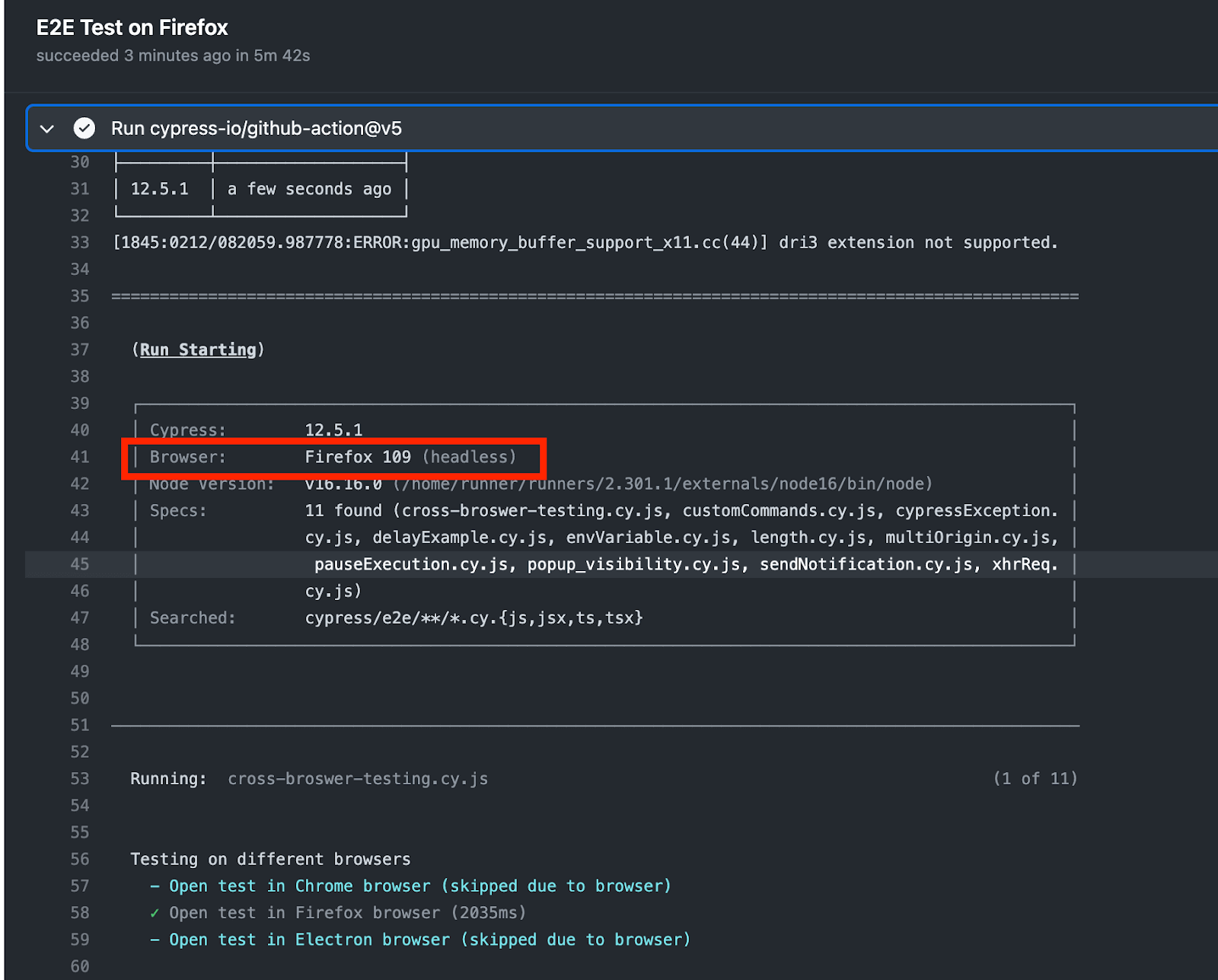
This is how you can perform cross browser testing with Cypress on different browsers using GitHub Actions. You just need to change the browser name in the workflow file and Cypress test would be executed on the specified browser.
When to use it?
One efficient way to perform cross browser testing is to automate the entire process and modify the settings on-the-fly during runtime. By running tests on CI/CD platforms such as GitHub Actions, you can test various combinations of operating systems and browsers seamlessly. This approach is particularly useful for large-scale projects with tests running in the CI pipeline, enabling you to conduct efficient cross browser testing.
You can easily set up automated testing of your application and ensure that your tests are run consistently across different environments.
Cross Browser Testing with Docker on GitHub Actions
Docker images are pre-configured software packages that come equipped with all the necessary dependencies and settings to run an application or service in a containerized environment. By using Docker images, you can easily run tests on your CI/CD pipeline (Github Actions) for various browsers.
To test your application within Docker containers, you can use a Docker image for each browser. This approach allows us to assess the behavior of the application across multiple browser platforms. Instead of installing and configuring each browser on your local machine, you can effortlessly pull the appropriate Docker images and run your tests within them on GitHub Actions.
This method simplifies the process of creating a consistent and dependable testing environment for web applications, particularly when testing across multiple browsers and platforms.
Here's an example workflow that demonstrates how you can perform cross browser testing with Cypress within a custom Docker container using GitHub Actions.
Test Scenario:
- Open URL.eCommerce Playground login page
- Log in to the application.
- Search the product.
- Verify the searched product.
- Run Cypress test on Chrome browser using docker image on CI/CD pipeline (GitHub Actions.
Implementation:
Test Case
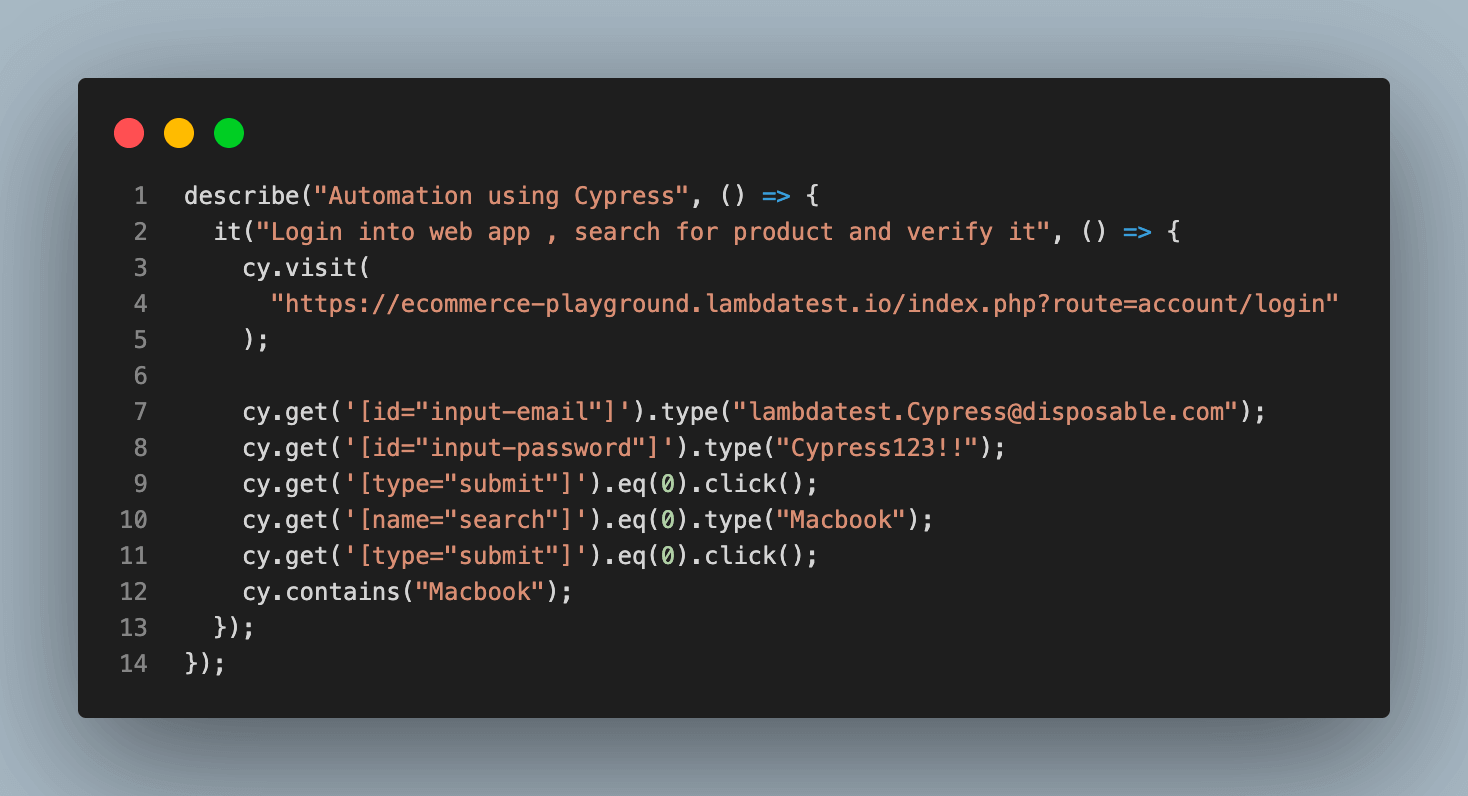
Workflow: .Yml File
name: Cypress Test in custom container
on: [push]
jobs:
 cypress-test:
   runs-on: ubuntu-latest
   name: Cypress Tests on docker container
   # Cypress Docker image with Chrome, Firefox and Edge pre-installed
   container: cypress/browsers:node-24.21.0-chrome-153.0.8010.36-1-ff-156.0-edge-153.0.4234.32-1
   steps:
     - uses: actions/checkout@v5
     - uses: cypress-io/github-action@v7
       with:
browser: chromeCode Walkthrough:
This is a GitHub Actions workflow that runs Cypress tests on Chrome browser using docker container.
container: cypress/browsers:node-24.21.0-chrome-153.0.8010.36-1-ff-156.0-edge-153.0.4234.32-1container key specifies the custom Docker container that should be used to run the tests, in this case it is cypress/browsers, pinned to a tag that names the exact Node, Chrome, Firefox, and Edge versions it ships. Pinning the tag keeps CI runs reproducible.
The workflow has a single job called "cypress-test" that runs on an Ubuntu latest.
Checkout: The first step uses the actions/checkout@v5 action to checkout the code from the Git repository.
steps:
     - uses: actions/checkout@v5
Cypress Test: The second step uses the cypress-io/github-action@v7 action to run the Cypress tests on Chrome browser
- uses: cypress-io/github-action@v7
       with:
         browser: chrome
Execution:
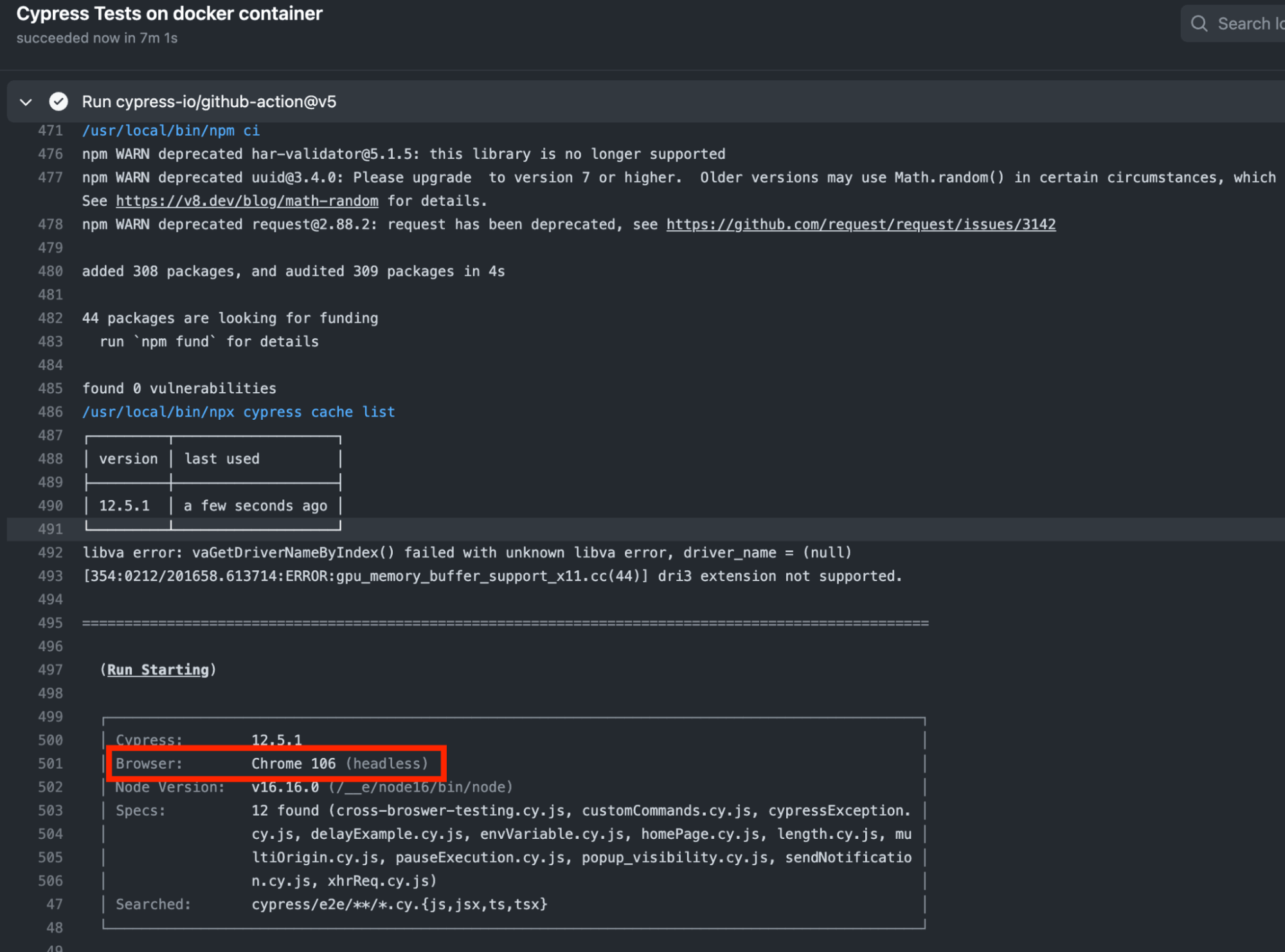
When to use it?
running Selenium tests in Docker in GitHub Actions for performing cross browser testing with Cypress can help streamline the testing process, improve test coverage, and increase confidence in the quality of your application.It also ensures that your tests produce reliable results and reduce the risk of environmental issues affecting the outcome.
If you're interested in elevating your Cypress automation abilities, consider enrolling in the Cypress 101 certification course. This program is tailored for developers and testers who possess a fundamental comprehension of Cypress and desire to expand their expertise and proficiencies in Cypress test automation.
Customizing Browser Launch with before:browser:launch
Cypress lets you change how a browser starts by hooking the before:browser:launch plugin event in your Cypress config. Inside it, you can push extra command-line arguments onto launchOptions.args to start the browser maximized, disable GPU acceleration, or load a custom extension.
// cypress.config.js
const { defineConfig } = require("cypress");

module.exports = defineConfig({
  e2e: {
    setupNodeEvents(on, config) {
      on("before:browser:launch", (browser = {}, launchOptions) => {
        if (browser.family === "chromium" && browser.name !== "electron") {
          launchOptions.args.push("--start-fullscreen");
          launchOptions.args.push("--disable-gpu");
        }
        if (browser.family === "firefox") {
          launchOptions.args.push("-width", "1920");
          launchOptions.args.push("-height", "1080");
        }
        return launchOptions;
      });
    },
  },
});
The browser argument tells you which browser is launching (its name, family, and channel), so you can apply arguments per browser. Inside a test you can also use Cypress.isBrowser() to run browser-specific logic or skip a test on browsers that do not support a feature.
How to Run WebKit (Safari) Tests in Cypress
Cypress has experimental support for WebKit, the engine behind Safari. It is off by default and is not the same as testing on a real Safari browser, but it lets you catch WebKit-specific rendering issues. Setting it up takes three steps.
- Install the WebKit engine as a dev dependency: npm install playwright-webkit --save-dev
- Enable it in your Cypress config with experimentalWebKitSupport: true.
- Run the suite against WebKit: npx cypress run --browser webkit
// cypress.config.js
const { defineConfig } = require("cypress");

module.exports = defineConfig({
  experimentalWebKitSupport: true,
  e2e: {
    // your e2e config
  },
});
Because the support is experimental, several features are limited on WebKit: cy.origin() is not supported, Test Replay is unavailable, cy.intercept() cannot force network errors, and video recording has issues with experimentalSingleTabRunMode. For Safari coverage on real devices, run your suite across a cloud grid instead of the local WebKit engine.
CI Strategies for Cross-Browser Testing
Running every browser on every commit slows the pipeline. The approach the Cypress team recommends is to test the fast path frequently and the full matrix on a schedule.
- Run a fast subset on every PR, usually on Chrome or Electron, so developers get quick feedback.
- Run the full cross-browser suite (Firefox, Edge, WebKit) on a nightly or pre-merge schedule rather than on every commit.
- Limit secondary browsers to critical paths, executing only the happy-path or critical test files against them instead of the whole suite.
- Parallelize per browser, since you do not have to run every browser at the same parallelization level.
To run the full matrix without installing and maintaining browsers on your CI machines, execute your Cypress suite on TestMu AI's test automation cloud, which runs Cypress across many browser and OS combinations in parallel.
Conclusion
Pick the method by where the test runs. The Test Runner suits debugging, the --browser flag suits quick local checks, and package.json scripts keep CI commands consistent.
Keep Chrome or Electron on every pull request, and move Firefox, Edge, and WebKit to a scheduled full run so the pipeline stays fast.
Cypress cannot drive real Safari, and local browsers limit which versions you can check, so run the wider matrix on a cloud grid when coverage matters more than convenience.
Author

Anshita Bhasin
Blogs: 6


Anshita Bhasin is a Senior QA Automation Engineer with over 9 years of experience in the software industry. Throughout her career, She has gained expertise in a variety of tools and technologies, including Rest Assured, Selenium, and Cypress. Currently, She is working at a PropTech company in Dubai. In addition to her technical expertise, she is also passionate about sharing her insights and experiences with others in the form of tutorials and workshops to help guide those just starting out in their careers or seeking advice on their professional paths. You can also follow her on Twitter.
Reviewer

Sri Harsha
Reviewer
Sri Harsha is Engineering Manager of the Open Source Program Office at TestMu AI (formerly LambdaTest), where he leads open-source engineering behind the Selenium and Appium automation grid and builds agentic AI systems for quality engineering. He is a member of the Selenium Technical Leadership Committee and a committer to WebdriverIO and Appium, and was recognized with the LambdaTest Delta Award 2023 for Best Contributor in open-source testing. He brings over 10 years of experience in software testing and automation, with earlier roles at EPAM Systems and ZenQ. Sri Harsha holds a B.Tech in Computer Science from Jawaharlal Nehru Technological University.


Cypress Cross Browser Testing FAQs
Did you find this page helpful?
More Related Learning Hubs
TestMu AI forEnterprise
Get access to solutions built on Enterprise
grade security, privacy, & compliance
- Advanced access controls
- Advanced data retention rules
- Advanced Local Testing
- Premium Support options
- Early access to beta features
- Private Slack Channel
- Unlimited Manual Accessibility DevTools Tests