
Author End-to-End Tests in Natural Language with KaneAI
Plan, Author, and Evolve E2E Tests for Web and Mobile Apps in Natural Language.

Stripe Test Cards: Which Number to Use for Every Checkout Outcome
Stripe test cards for every outcome: success by brand, declines with codes, 3D Secure, fraud, disputes and refunds, plus fixes when a card won't work.
Stripe test cards are the card numbers that Stripe makes available in their sandboxes. Each one gives a predetermined result: 4242424242424242 will succeed, 4000000000000002 will decline, 4000000000003220 will trigger a 3D Secure challenge.
They only work with test API keys (pk_test_, sk_test_). You can pair any future expiry date with any three-digit CVC.
Most-used Stripe test cards (sandbox only)
| Card number | Result |
|---|---|
| 4242424242424242 | Visa, succeeds |
| 4000000000000002 | Declined, generic_decline |
| 4000000000009995 | Declined, insufficient_funds |
| 4000000000003220 | 3D Secure 2 challenge, then succeeds |
| 4000008400001629 | 3D Secure required, then declined |
The vast majority of checkout bugs don't manifest themselves on the 'happy path'. They appear when a card is declined and the form just wipes itself clean. They appear when a 3D Secure modal comes up, and the order is still created.
They appear when a refund fails three minutes after it had looked perfectly fine. Stripe test cards allow you to deliberately trigger each of those scenarios. This guide lists the numbers by outcome, explains the sandbox rules that allow them to work and shows you how to turn them into repeatable checks.
TL;DR
Stripe test cards are card numbers Stripe publishes for its sandboxes, each scripted to return one outcome, such as success, a decline code or a 3D Secure challenge. Use 4242424242424242 for a successful Visa payment, 4000000000000002 for a generic decline and 4000000000003220 for a 3D Secure challenge, with any future expiry date and any CVC.
Stripe Test Card Numbers for Each Checkout Outcome
- Successful payment: The Stripe test card 4242424242424242 is a Visa that returns a successful authorization in a Stripe sandbox. For Mastercard, also run the 2-series card 2223003122003222, which card validation that only accepts a leading 5 rejects.
- Generic decline: The Stripe test card 4000000000000002 returns the error code
card_declinedwith the decline codegeneric_decline. The test passes when a message names the reason, no order is created and the cart is kept for a retry. - Insufficient funds: The Stripe test card 4000000000009995 returns
card_declinedwith the decline codeinsufficient_funds, so the checkout message should name missing funds rather than show a generic "card declined". - 3D Secure challenge: The Stripe test card 4000000000003220 requires 3D Secure 2 authentication, and the payment succeeds after you authorize it on Stripe's mock authentication page in the sandbox. 3D Secure required: Yes.
- Authenticated, then declined: The Stripe test card 4000008400001629 passes 3D Secure authentication and is then declined with
card_declined, the path that can show a "payment successful" banner by mistake. 3D Secure required: Yes. - Refund failure: The Stripe test card 4000000000005126 starts a refund as succeeded and fails it a few minutes later with a
refund.failedevent, so the back office must show that final status.
Stripe Sandbox and Test Mode Rules
- Test API keys only: Stripe test credit card numbers work only with sandbox keys that start with
pk_test_,sk_test_orrk_test_. Stripe prohibits testing in live mode with real card details. Works with live keys: No. - Stripe test mode: Stripe now calls test mode the legacy test mode sandbox; it shares some settings with live mode. An account can add up to five general sandboxes with isolated settings, and both accept the same Stripe test credit card list.
- KaneAI: KaneAI by TestMu AI runs decline, 3D Secure and retry checks from plain-English steps, with the card number as a parameter and one dataset row per card, so every card reports its own result. Code required: No.
What Are Stripe Test Cards?
Stripe test cards are fake card numbers that behave like real cards inside a Stripe sandbox. Stripe calls a sandbox "an isolated test environment" in which card networks don't process payments.
Every Stripe account can create one. You get test API keys there: publishable keys start with pk_test_, secret keys with sk_test_ and restricted keys with rk_test_.
Three rules apply to every card in this guide:
- Expiry: any future date, e.g., 12/34.
- CVC: any three digits, or four for American Express.
- Mode: test keys only. Live mode keys start with
pk_live_,sk_live_andrk_live_and test card numbers won't work in that environment.
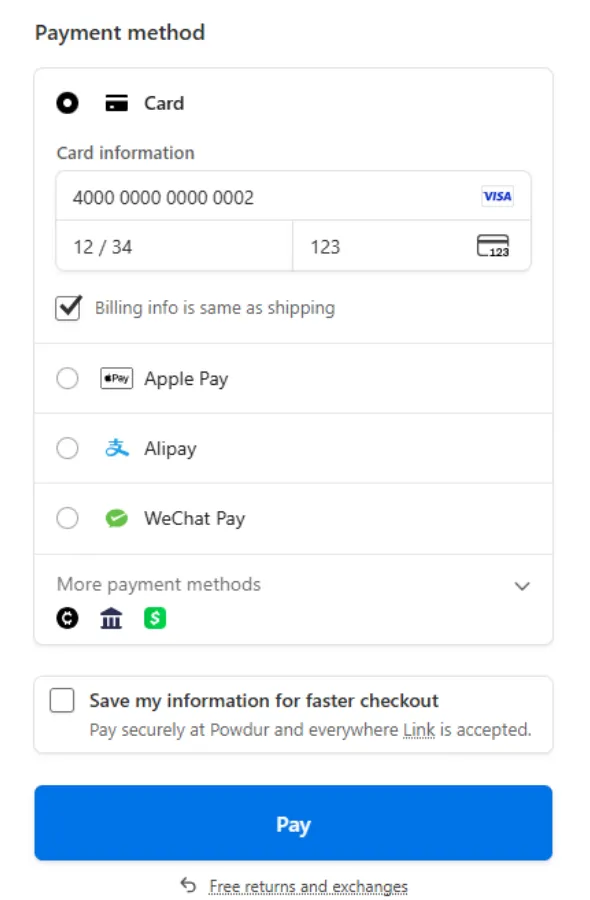
Stripe's testing docs are very direct on the other side of that too: "Don't use real card details." Testing in live mode with real payment details breaches the Stripe Services Agreement.
Payment cases are one slice of a full ecommerce testing plan. Cart, tax, shipping and order emails need their own checks. The cards below cover the payment step.
For a quick visual walkthrough of this concept, watch the video below from TestMu AI.

Subscribe to the TestMu AI YouTube channel for more tutorials on testing and automation.
Which Stripe Test Card Numbers Will Result in a Payment Succeeding?
These Stripe cards will return a successful authorization in the Stripe sandbox only. They're Stripe's numbers (not actual card numbers). Use more than one brand, as the checkout code will often treat the various brands differently (Amex is 15 digits and has a 4-digit CVC; some of the Diners cards are 14 digits).
| Brand (Stripe sandbox only) | Stripe test card number | CVC |
|---|---|---|
| Visa | 4242424242424242 | Any 3 digits |
| Visa (debit) | 4000056655665556 | Any 3 digits |
| Mastercard | 5555555555554444 | Any 3 digits |
| Mastercard (2-series) | 2223003122003222 | Any 3 digits |
| Mastercard (debit) | 5200828282828210 | Any 3 digits |
| Mastercard (prepaid) | 5105105105105100 | Any 3 digits |
| American Express | 378282246310005 or 371449635398431 | Any 4 digits |
| Discover | 6011111111111117 or 6011000990139424 | Any 3 digits |
| Diners Club (14-digit) | 36227206271667 | Any 3 digits |
| JCB | 3566002020360505 | Any 3 digits |
| UnionPay | 6200000000000005 | Any 3 digits |
The 2 series Mastercard is worth a look in its own right. It starts with a 2 rather than a 5 like all the other Mastercards in the table and will therefore be caught by card validation that only accepts Mastercards starting with 5.

Note: Can you test a checkout without writing any scripts? KaneAI from TestMu AI will run those card scenarios from plain English steps and tell you which ones fail. Try KaneAI free.
Which Stripe Test Cards Cause a Decline?
Decline cards are more important than success cards. All of your error messages, your retry logic and your "cart still there" behavior will be on this path. Each of the cards below returns a specific error code, and five of them also return a decline code which your UI can map to a message.
| Decline scenario | Card number | Error code | Decline code |
|---|---|---|---|
| Generic decline | 4000000000000002 | card_declined | generic_decline |
| Insufficient funds | 4000000000009995 | card_declined | insufficient_funds |
| Lost card | 4000000000009987 | card_declined | lost_card |
| Stolen card | 4000000000009979 | card_declined | stolen_card |
| Expired card | 4000000000000069 | expired_card | n/a |
| Incorrect CVC | 4000000000000127 | incorrect_cvc | n/a |
| Processing error | 4000000000000119 | processing_error | n/a |
| Incorrect number | 4242424242424241 | incorrect_number | n/a |
| Velocity limit exceeded | 4000000000006975 | card_declined | card_velocity_exceeded |
| Attach succeeds, charges fail | 4000000000000341 | n/a | n/a |
For each decline, check three things in the browser:
- There's a clear message appearing in the card field area which is in fact the reason for the decline (an 'insufficient funds' message is not the same as 'card declined').
- No order, invoice or confirmation email is generated.
- The cart and shipping details are all there so they can try another card.
The last card in the table (4000000000000341) is the one that's relevant to subscriptions and saved cards. Saving the card does work, so a test that just stops at 'card saved' will pass. The first actual charge then fails.
How Do You Test 3D Secure With the Stripe Test Cards?
Stripe's 3D Secure test cards determine whether a challenge is presented and what happens as a result. In the sandbox, Stripe will show you a mock authentication page. Authorize is the one that simulates a successful authentication.
Failure simulates a failed one. On the web, Stripe.js will by default show that page in a pop-up modal. You can also choose to redirect or use your own iframe.
| Card number | 3D Secure behavior |
|---|---|
| 4000000000003220 | 3DS2 required; payment succeeds after authentication |
| 4000002760003184 | Requires authentication on every transaction |
| 4000002500003155 | Requires authentication for off-session payments unless the card was set up for future use |
| 4000008400001629 | 3DS required; declined with card_declined after authentication |
| 4000008260003178 | Declined with insufficient_funds after authentication |
| 4000000000003055 | 3DS supported but not required |
| 4000000032200000 | Frictionless flow (no challenge shown) |
| 378282246310005 | 3DS not supported; payment proceeds without authentication |
A complete 3DS check runs at least three paths:
- Pass: 4000000000003220, authorize, order is confirmed upon completion.
- Fail: 4000002760003184, click Failure, confirm that no order exists and the shopper can retry. Using a different card from the pass path will avoid the card-level state from the first test.
- Authenticated but declined: 4000008400001629, authorize, confirm the decline message is displayed. This is the route most teams take (i.e., the one they skip), and it's the one where you end up with a "payment successful" banner appearing by mistake.
One trap: 3D Secure redirects won't occur for payments created directly in the Stripe Dashboard. Test 3DS through your actual checkout rather than by creating the payment manually.
Which Cards Test Fraud Blocks, Disputes and Refunds?
Some outcomes occur after the checkout page has closed. Those are handled by your webhooks and back office so they get their own cards.
Radar fraud checks
| Card number | Radar result |
|---|---|
| 4100000000000019 | Risk level "highest"; Radar always blocks it |
| 4000000000004954 | Highest risk; Radar might block it depending on your settings |
| 4000000000000101 | CVC check fails (only if you send a CVC) |
| 4000000000000036 | Postal code check fails (only if you send a postal code) |
Disputes and refunds
| Card number | Dispute or refund result |
|---|---|
| 4061219946393810 | Fraudulent dispute (asynchronous); Stripe recommends it for most dispute tests |
| 4000000000002685 | Dispute: product not received |
| 4000000000001976 | Inquiry |
| 4000000000005423 | Early fraud warning |
| 4000000000007726 | Refund starts pending, then succeeds |
| 4000000000005126 | Refund starts succeeded, then fails after a few minutes |
The refund failure card 4000000000005126 hits a common back-office bug. The refund status goes from succeeded to failed, and Stripe sends refund.failed. If your order system is only listening for the first status, then it will show a refund that the customer never actually received.
To win or lose a test dispute, Stripe uses evidence values. Submit winning_evidence to close a dispute as won, or losing_evidence to close it as lost.
Stripe Sandboxes vs Legacy Test Mode: What's the Difference?
Older guides refer to it as 'test mode'. Stripe now refers to that as the legacy test mode sandbox and recommends the general sandboxes for new integrations.
They both accept the same test card numbers, so the cards listed above will work in either. It's the settings and access that are different.
| Feature | Legacy test mode | Sandboxes |
|---|---|---|
| How many | One | Up to five (legacy one not counted) |
| Settings | Shared with live mode; some changes can affect live | Isolated per sandbox, copied from live at creation |
| Access | Same roles as live mode | Can be private or testing-only |
| Can be deleted | No | Yes |
| Test card numbers | Same list | Same list |
For QA, the real win is isolation. Give CI its own sandbox so its automated runs don't pollute the sandbox that your manual testers use with all their junk customers and payments.
Why Is My Stripe Test Card Not Working?
When a Stripe test card gives the wrong result, the cause is usually one of these:
| Symptom | Likely cause | Fix |
|---|---|---|
| Every test card is declined | Live keys in the checkout | Use pk_test_ / sk_test_ keys; test cards only work in sandboxes |
| Incorrect CVC card (4000000000000127) succeeds | No CVC was sent | Stripe skips the CVC check if you omit it; enter a CVC |
| Postal code card (4000000000000036) succeeds | No postal code was sent | Radar skips the check if the field is empty |
| A card gives a different result on the second run | Card-level state from an earlier test | Use a different test card for each independent scenario |
| No 3DS modal appears | Payment created in the Dashboard, or the card is frictionless | Pay through your checkout with 4000000000003220 |
| Store test mode on, payment still fails | Platform test mode and Stripe test mode mixed up | Shopify's Test payment gateway uses 1, 2 and 3 as card numbers. Shopify Payments test mode has its own list, which shares some numbers with Stripe's. A store using a Stripe app needs Stripe's sandbox keys |
The final row is a very common one in Shopify community threads. Every platform has its own test switch and its own card list. For Shopify's own flow, see our Shopify test order guide.
Should You Use Card Numbers or Test Payment Methods?
Card numbers are for the browser. Test payment methods are for server-side code.
Stripe would not recommend putting card numbers in your API calls or your server code at all (even in the sandbox) as that code may not be PCI compliant when you go live. Use IDs like pm_card_visa.
| Where you test | What to use | Example |
|---|---|---|
| Checkout UI (Stripe Elements, Checkout) | Card numbers typed into the form | 4000000000000002 |
| Server-side integration tests | Test PaymentMethods | pm_card_visa, pm_card_threeDSecure2Required |
| Webhook handlers | Stripe CLI triggers | stripe trigger payment_intent.payment_failed |
For webhook handlers, the Stripe CLI forwards sandbox events to your machine and can fire single events on demand:
# Forward sandbox events to a local webhook endpoint
stripe listen --all-snapshot --forward-to localhost:4242/webhook

# In a second terminal, fire individual events at your handler
stripe trigger payment_intent.succeeded
stripe trigger payment_intent.payment_failed
The --all-snapshot flag in that command comes from Stripe's current testing docs, which state it requires Stripe CLI v1.51.0 or later.
How Do You Automate the Stripe Test Card Checks?
Typing the card numbers in by hand works once. It doesn't work on every release across ten cards and three browsers. Automation requires two things: a guard that keeps the suite off the live keys and a checkout test that will loop over the card matrix.
Step 1: Fail fast if the keys aren't test keys. Run this prior to the checkout suite in CI. Exits non-zero if the key is missing or isn't a sandbox key, so a misconfigured pipeline will halt before it ever touches a real account.
#!/usr/bin/env bash
# guard-stripe-test-keys.sh: stop the run unless sandbox keys are configured
set -euo pipefail

: "${STRIPE_PUBLISHABLE_KEY:?STRIPE_PUBLISHABLE_KEY is not set}"
: "${STRIPE_SECRET_KEY:?STRIPE_SECRET_KEY is not set}"

case "$STRIPE_PUBLISHABLE_KEY" in
  pk_test_*) ;;
  *) echo "Publishable key is not a test key (expected pk_test_)"; exit 1 ;;
esac

case "$STRIPE_SECRET_KEY" in
  sk_test_*|rk_test_*) ;;
  *) echo "Secret key is not a test key (expected sk_test_ or rk_test_)"; exit 1 ;;
esac

echo "Stripe sandbox keys confirmed."
The prefixes come from Stripe's API keys docs. Keep both keys in your CI secret store, never in the repository.
Step 2: Write one KaneAI test per outcome group, with the card as a parameter. KaneAI will take the step you've written in plain English and turn it into a browser test. The Stripe Elements card fields are inside Stripe-hosted iframes, and iframe support is listed in KaneAI's release notes.
There's no TestMu doc that specifically covers Stripe's card iframes, so you'll want to run the card step once on your own checkout to verify that KaneAI actually gets to the Stripe field prior to building out the dataset.
Insert the card number as a parameter rather than a hard-coded value. In a step type /, select the Parameter option and click Create Parameter. KaneAI will reference it as ${card_number}.
The decline test is as follows:
open the store's staging checkout with one item in the cart
enter ${card_number} in the card number field
enter "12/34" in the expiry field
enter "123" in the CVC field
click Pay
assert an error message is shown near the card field
assert the order confirmation page is not shown
assert the cart still contains one item
While you're authoring the test, you'll be using row 1 of the Default Dataset, so set row 1 to 4000000000000002. Then add the other decline cards (4000000000009995, 4000000000000069, 4000000000000127) as rows in a dataset in Test Manager and select that dataset for the run.
KaneAI's datasets docs state that a test instance is created for each row, so each card will have its own result. An empty cell will run empty and will not fall back to the seed value.
Keep one test per outcome group. A success card must not pass the "an error message is shown" assertion, so success, decline and 3D Secure all need their own test and their own dataset.
| KaneAI test | Dataset rows (cards) | What to assert |
|---|---|---|
| Stripe success | 4242424242424242, 378282246310005, 2223003122003222 | Confirmation page shows; one order with the right amount and last four |
| Stripe decline | 4000000000000002, 4000000000009995, 4000000000000069, 4000000000000127 | Error near the card field; no order; cart kept |
| Stripe 3D Secure pass | 4000000000003220 | Mock authentication page appears; after authorizing, one order |
| Stripe 3D Secure fail | 4000002760003184 | After clicking Failure, no order; card form is usable again |
| Stripe 3D Secure authenticated-declined | 4000008400001629 | Decline message after authorizing; no order |
Step 3: Check the network response, not just the screen. A friendly error message can be masking a wrong result from the backend. KaneAI's Assert Network Logs command allows you to pick the request that your checkout makes to your own payment endpoint and assert on the status code and response body keys.
The API & network assertions docs page makes it clear that network log assertions are currently only supported on desktop web authoring, so mobile checkout runs will need to rely on UI assertions.
If your team works from the terminal, then you're in the same decline-then-retry scenario as the Kane CLI use case (test declined card recovery and the retry).
The Four-Outcome Stripe Card Matrix
Use this as the minimum release checklist for a Stripe checkout. Each row is one KaneAI test with its own dataset. Each dataset row uses its own card, and no card is reused across the rows so an earlier run doesn't impact the result.
| Outcome | Cards | Pass criteria |
|---|---|---|
| 1. Success | 4242424242424242, plus 378282246310005 (Amex) and 2223003122003222 (2-series) | Exactly one order; amount and card last four correct |
| 2. Decline | 4000000000000002, 4000000000009995, 4000000000000069, 4000000000000127 (with CVC) | Reason-specific message; no order; cart kept |
| 3. Challenge | 4000000000003220 (authorize), 4000002760003184 (click Failure), 4000008400001629 | Order only after successful auth; retry works after failure |
| 4. After the fact | 4000000000005126 (refund fails), 4061219946393810 (dispute) | Back office shows the final status from the webhook, not the first one |
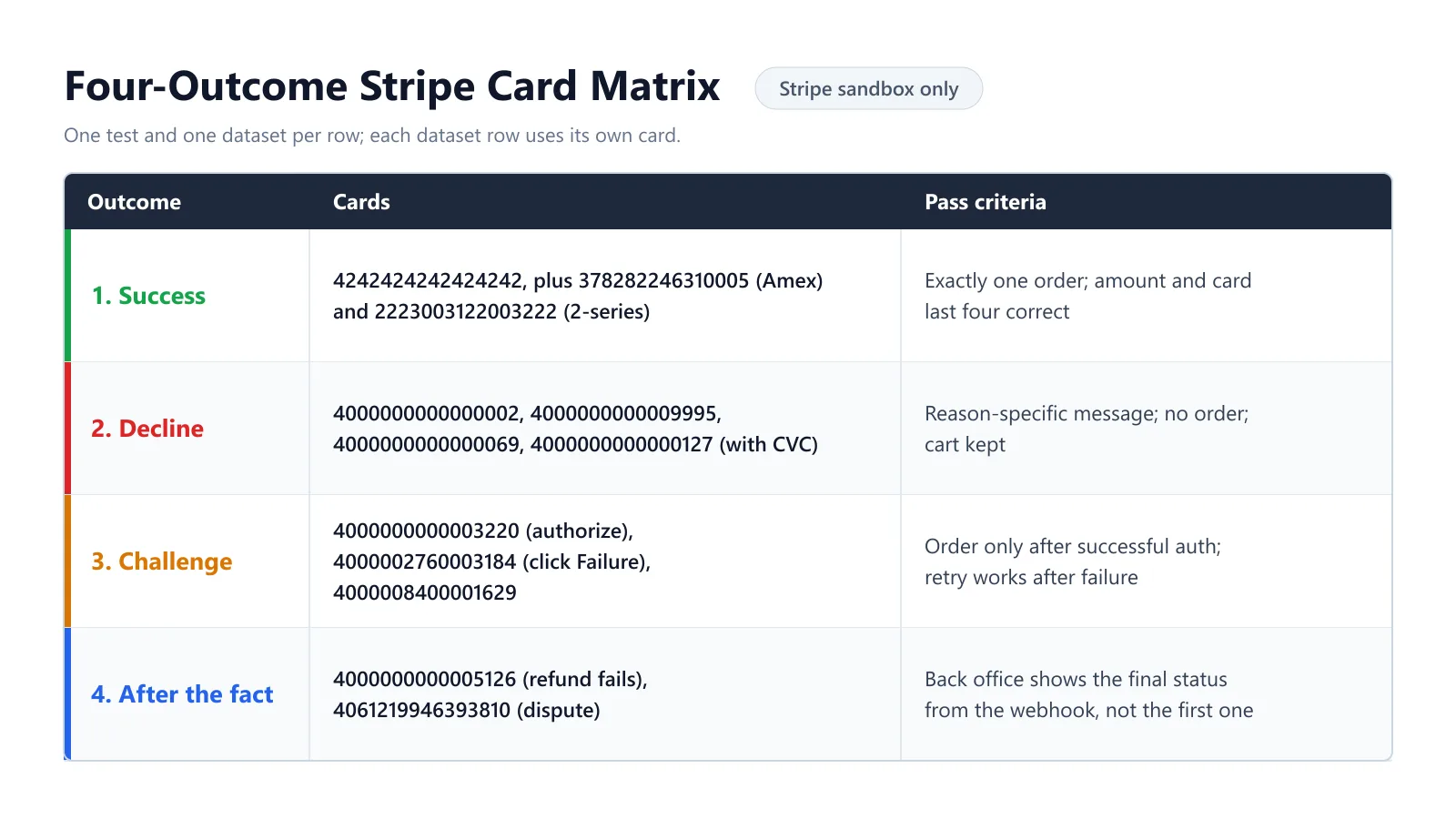
If you're short on time, just run row 2 first. The happy path tests don't touch on decline handling at all so that's the row most likely to be hiding a bug that nobody's ever seen.

How Do Stripe Test Cards Stack Up Against the Test Cards From Other Gateways?
Each gateway publishes its own numbers, and a Stripe number won't trigger any scripted outcomes on another provider. Our checkout and payment gateway testing guide has a very brief cross-gateway reference. For running the same decline and 3DS cases across a number of gateways without any code at all, see how to test payment gateways without code.
Watch: Natural-Language Payment Tests
These TestMu AI videos demonstrate the same approach on a different gateway and the basic authoring steps in plain English.

Conclusion
Stripe test cards are free and well documented. Teams still end up shipping broken declines because they only test 4242. Start with the four-outcome matrix.
Use a fresh card for each case, protect your pipeline from live keys and assert on both the backend response and what's on screen. When the matrix runs on every release, you'll find your declined card bugs in staging rather than in support tickets.
Run your Stripe card matrix on every release. KaneAI allows QA teams to write their decline, 3DS and retry checks in plain English and run them across browsers. Start free with KaneAI.
Testing web or mobile apps without writing code? KaneAI by TestMu AI turns plain-English instructions into tests.
Was this helpful?
Authors

Harshit Paul
Author · 102 posts
Harshit Paul is Director of Product Marketing at TestMu AI, with over 8 years of experience in product and growth marketing for developer and QA tools, leading the Agentic AI in Quality Engineering space. He has authored 80+ technical articles for TestMu AI on software testing and automation, and hosted webinars on Selenium, automation testing, browser compatibility, DevOps, and continuous testing. He has led go-to-market and technical marketing initiatives across software testing products, contributing to SEO, content strategy, and developer marketing. He began his career as a certified Salesforce developer at Wipro Technologies, where he worked for 2 years before moving into marketing. Harshit holds a degree in computer programming from Vivekananda Institute of Professional Studies.


Srinivasan Sekar
Reviewer
Srinivasan Sekar is Director of Engineering at TestMu AI, where he leads engineering and open-source initiatives behind the Selenium and Appium automation grid and owns TestMu AI's MCP Server. A committer to Appium and a contributor to Selenium, WebdriverIO, Taiko, and AppiumTestDistribution, he brings over 15 years of experience in quality engineering and open-source technologies. He is the author of the Apress book 'The MCP Standard: A Developer's Guide to Building Universal AI Tools with the Model Context Protocol,' a Certified Kubernetes and Cloud Native Associate, and an international conference speaker. Before TestMu AI he spent over eight years at Thoughtworks as a Principal Consultant and Quality Architect. Srinivasan holds a B.Tech in Information Technology from Anna University.
Stripe Test Cards FAQs

TestMu AI forEnterprise
Get access to solutions built on Enterprise
grade security, privacy, & compliance
- Advanced access controls
- Advanced data retention rules
- Advanced Local Testing
- Premium Support options
- Early access to beta features
- Private Slack Channel
- Unlimited Manual Accessibility DevTools Tests