
Author End-to-End Tests in Natural Language with KaneAI
Plan, Author, and Evolve E2E Tests for Web and Mobile Apps in Natural Language.

How to Place a Shopify Test Order (and Automate It)
Place a Shopify test order with the Test payment gateway or Shopify Payments test mode, check the five things that matter, and rerun it on every change.
Published on:
A Shopify test order is a checkout you do with a simulated payment to verify that payments, order records, inventory, taxes, shipping and emails all work prior to any real customers buying. You'll need to use the Test payment gateway or Shopify Payments test mode, check the 5 outcomes, delete the test orders, and then re-run the same order after every payment, theme or app change.
TL;DR
Shopify test order is an order placed through your own storefront and checkout with a simulated payment, so no real money moves. It exists to prove that payment, order records, inventory, taxes, shipping and email work before customers buy, and again whenever you change payment settings, the theme or an app.
How to Do a Test Order on Shopify
- Shopify bogus gateway: Shopify's Test payment gateway, which its 2020 developer changelog called the Bogus Gateway, simulates card payments with no real charge. Works on development stores: Yes. Activate it in Settings > Payments after you deactivate every other credit card provider.
- Shopify test card: On the Test payment gateway, card number 1 approves, 2 declines and 3 simulates a gateway failure, with "Test payment gateway" as the name on card, any 3-digit CVV and any future expiry date.
- Shopify Payments test mode: Stores on Shopify Payments enable test mode under Settings > Payments > Manage and pay with test numbers such as Visa 4242424242424242. Requires a paid plan: Yes. Shopify advises against turning it on in a production store.
Shopify Test Mode on a Live Store
- Shopify test mode: Live orders allowed while active: No. Customers can't place live orders while a payment provider is in test mode, so run each Shopify test payment on a development or staging store, or in a quiet window, and switch test mode off when you finish.
- Shopify test orders: Deletable: Yes, for orders paid with the Test payment gateway or Shopify Payments test mode. Orders from any other gateway, even one in test mode, can only be archived from Orders > More actions > Archive.
Automating Shopify Test Orders
- KaneAI: KaneAI by TestMu AI turns the checkout steps into a plain-English test, with card numbers and store URLs in variables. Code required: No. Test Manager then runs it on HyperExecute on demand or on a schedule, against a development or staging store with the Test payment gateway active.
What Is a Shopify Test Order?
A Shopify test order is an order placed via your actual storefront and checkout with the payment step being simulated. According to Shopify's own help center, a test order covers order processing, inventory, shipping, email notifications and taxes. They recommend that you place one when setting up your store and again if you're ever going to change your payment settings.
A Shopify test order is that one little high-value piece of ecommerce testing. It's the only test that actually proves the money path works end to end with your actual store setup, your actual apps, your actual taxes and your actual shipping rules.
Two rules apply before you start:
- You need a paid plan in order to test a payment gateway. Shopify will only allow you to test a payment gateway once you've opted for a paid plan.
- Live orders stop when test mode is on. Shopify states that you can't take live orders whilst your payment providers are in test mode, so you'll need to find a quiet window and switch test mode off as soon as you're done.
Which Shopify Test Order Method Should You Use?
Shopify supports three ways of placing a test order. Pick the one that best suits what you need to prove.
| Factor | Test payment gateway | Shopify Payments test mode | Real transaction + refund |
|---|---|---|---|
| What it proves | Checkout, order creation, inventory, emails | Your Shopify Payments setup, including decline handling | The real provider charges and refunds correctly |
| Money moved | None | None | Real charge, then refund |
| Fees | None | None | Provider fees may apply and some are not refunded |
| Works on development stores | Yes | Allowed (dev stores may use a provider in test mode) | No: dev stores cannot test with real transactions |
| Subscriptions | Not compatible | Use this method | Live order, normal behavior |
| Shopify POS | Not compatible (use a cash payment) | Not covered (card readers) | Live order, normal behavior |
| Test orders deletable afterwards | Yes | Yes | No (archive instead) |
| Best for | Stores not on Shopify Payments, quick flow checks | Stores on Shopify Payments | Final launch check of a third-party provider |
Shopify's developer changelog also confirms that since 14th September 2020, development stores can only test orders using 'Shopify's test payment provider (Bogus Gateway)' or a payment provider in test mode. The test payment gateway is now the label used in the Shopify Help Center for that provider.

Turn this checklist into an auto-running test.
Note: With KaneAI from TestMu AI, you write your test in plain English once and then schedule it to run against your dev or staging store after every theme or app change. Start free with KaneAI.
How Do You Place a Test Order With the Test Payment Gateway?
The Test payment gateway (still widely called the Bogus Gateway) simulates a transaction without any real payment. Shopify's steps:
- In the Shopify admin, go to Settings > Payments.
- Deactivate any active credit card provider first:
- Third-party provider: Manage > Deactivate, then confirm.
- Shopify Payments: Manage > Manage payment methods, then switch to a third-party provider at the bottom and confirm.
- Click 'See all other providers' (if Shopify Payments is available in your country) or 'Choose a provider'.
- Select the Test payment gateway, activate it, and click Save.
- Open your store, add a product to the cart, and head to checkout. Use an email address that ends in @example.com (Shopify recommends this for test orders).
- At payment, enter the test details as set out below.
| Field | Test value | Result |
|---|---|---|
| Name on card | Test payment gateway | - |
| Card number | 1 | Approved transaction |
| Card number | 2 | Declined transaction |
| Card number | 3 | Gateway failure |
| CVV | Any 3 digits, for example 111 | - |
| Expiry | Any future date | - |
Two traps will catch people out. Test purchases have to be worth more than the equivalent of $1 USD, and every order created whilst the Test payment gateway is live is a test order.
How Do You Place a Test Order With Shopify Payments Test Mode?
If you're running on Shopify Payments, then test that setup directly rather than switching providers. Shopify Payments test mode can only be enabled after the Shopify Payments setup has been completed.
- Go to Settings > Payments.
- In the Shopify Payments section, click Manage.
- In the Test mode section, select 'Enable test mode' and click Save.
- Check out as a customer with a name of at least two words, any future expiry date, and a security code of 4 digits for American Express or 3 digits for all other cards.
| Card or scenario | Card number | Result |
|---|---|---|
| Visa | 4242424242424242 | Successful payment |
| Mastercard | 5555555555554444 | Successful payment |
| American Express | 378282246310005 | Successful payment |
| Generic decline | 4000000000000002 | Card declined |
| Insufficient funds | 4000000000009995 | Declined, insufficient funds |
| Expired card | 4000000000000069 | Declined, expired card |
| Incorrect CVC | 4000000000000127 | Declined, incorrect CVC |
| Processing error | 4000000000000119 | Processing error |
| Chargeback | 4000000000000259 | Disputed transaction |
| Invalid expiry month | 13 | Failure |
Watch the Express buttons. Shopify will warn you that Express options (Apple Pay, Google Pay, etc.) can still go through with real cards whilst test mode is active, so make sure the test mode banner is present on the resulting order. Test mode doesn't cover Shopify POS card readers, Shop Pay Installments or PayPal Wallet. To test Shop Pay, you'll need to add a test card to Shop Pay and prefix the card's nickname with test_card.
What Should You Check Following a Shopify Test Order?
Place the order, and that's half the job. Do a PRICE check after every test order (five outcomes, each with a clear pass/fail).
- P - Payment result. The approved card resulted in a paid order; the declined card resulted in a clear error and no paid order.
- R - Receipt email. The order confirmation email has been delivered to your inbox with the correct items and totals. If it hasn't, then the Shopify Payments testing guide suggests you check the order confirmation template (revert to default if you've customized it), your email settings and spam, and then place another test order.
- I - Inventory. Stock for the purchased variant has been reduced by the quantity ordered.
- C - Charges. Subtotal, discount, shipping rate, and tax all match what you'd expect for the test address. Do bear in mind that duties and import tax transaction fees are also applicable to test checkouts.
- E - Entry in admin. The order is in Orders with the test mode banner, the correct customer, and the correct fulfillment status.
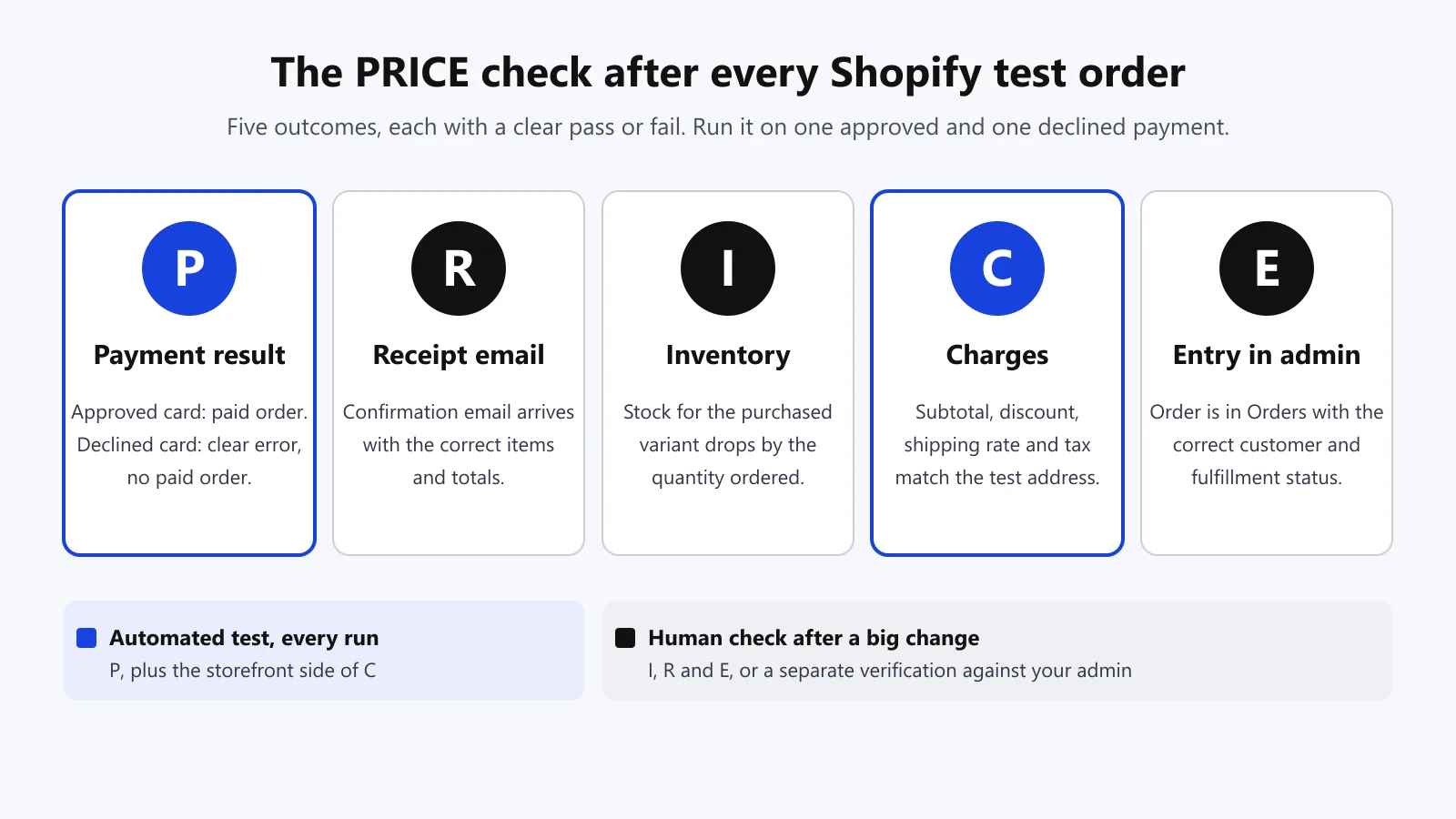
Run the PRICE check on at least one approved and one declined payment. The declined path is the one that manual testers tend to skip most often (the checkout has to keep the cart and show a clear error). For decline scenarios (insufficient funds, expired card) outside of Shopify, see how to test payment gateways without code.
Why Isn't the Test Payment Gateway / Test Mode Appearing?
These are the most common problems merchants raise in the Shopify Community:
- The Test payment gateway is missing at checkout. Another credit card provider is normally still active. Deactivate all other credit card providers in Settings > Payments and then re-activate the Test payment gateway.
- There's no Test mode section in Shopify Payments. Test mode only shows up once Shopify Payments setup is complete. Shopify's own testing guide notes that Shopify Payments requires a paid plan and 2-step authentication. You can either finish the setup or use the Test payment gateway.
- Manual payment methods have no test mode. Shopify's 'Processing a test order' page states that manual payment methods (e.g., Cash on Delivery, bank transfer) don't have test mode, and you have to actually place an order to test them.
- An app shipped the order. Deactivate any fulfillment service or app that auto-fulfills orders prior to testing. Don't fulfill test orders at all, as you'll be billed for the shipping labels that you buy and Shopify states that only some labels can be voided and credited back (provided the carrier hasn't scanned them).
What Do You Do With the Test Orders Afterward?
Clean up so test data never pollutes real numbers. These rules come from Shopify's "Processing a test order" page:
- Delete orders paid via the Test payment gateway or Shopify Payments test mode. Only those two can be deleted; orders from any other gateway cannot (even if they were in test mode).
- Archive anything you can't delete: Orders > More actions > Archive.
- Refund the real-gateway test orders as soon as possible. If Shopify Payments is available in your country, then third-party transaction fees that were charged will not be refunded.
- Switch test mode off or re-enable your live provider. Test orders and simulated transactions don't appear in payouts or reports, so an ignored test mode will show up as missing revenue rather than as an error.
How Do You Re-Run a Shopify Test Order on Every Change?
A manual test order proves the checkout worked once. Themes, apps, discount rules, and tax settings all change every week, and each change can break the money path. The way to deal with this is to turn the test order into a test that runs itself on the right store.
Run the paying test only on a dev or staging store. Test card values only work when the Test payment gateway (or test mode) is active, and as Shopify says, you can't have live orders in a store whilst a payment provider is in test mode. Their Shopify Payments guide is very clear on this point - don't turn on test mode in a production store.
So you'll want to do the full test order against a dev store or a duplicate staging store with the Test payment gateway on and then stop at the payment step - just assert that the payment form loads; don't submit it.
With KaneAI, a QA lead or store operator writes the test order the way they would explain it to a colleague. KaneAI's docs show the flow: click Create a Web Test, write steps in plain English, click Finish Test, then save the test to a project and folder.
Keep test data out of the steps. KaneAI variables are referenced via {{ in a step (e.g., Enter {{username}} in user input field), and environment variables are referenced via {{environment.X}} so one test can be pointed at dev, staging or production.
You select the environment when you run or schedule the test. The test will run in any environment that has defined all the variables that it uses. Secrets (e.g., a storefront password) are created from the Convert as popover's Secret tab and are only resolved at execution time.
New Shopify stores are created in private mode (behind a storefront password) until you go live. The storefront password is held in Online Store > Preferences. Dev and staging stores will typically remain in private mode, so the test order has to be entered with the password first.
Go to {{environment.store_url}}
Enter the storefront password and click "Enter"
Go to {{environment.store_url}}/products/{{test_product_handle}}
Click "Add to cart" and open the cart
Click "Check out"
Enter {{test_email}} as the email and fill the shipping address with {{test_address}}
Choose the first shipping method
Enter {{test_card_name}} as the name on card and {{approved_card}} as the card number
Enter {{test_cvv}} as the security code and {{future_expiry}} as the expiry date
Click "Pay now"
assert {{order_confirmed_text}} is visible on the page
On the second step, type the password once during authoring, select it, and use Convert as > Secret so it is never stored in raw text. Set {{order_confirmed_text}} to the exact heading your own thank-you page shows, and {{test_card_name}}, {{approved_card}} and {{test_cvv}} to the Test payment gateway details.
Then add a second test that uses {{declined_card}} and asserts the exact error text your checkout shows for a declined card; copy it from your own declined test order. KaneAI's assertion examples quote the visible text and split combined checks into separate assertions. Card fields sit in Shopify's secure checkout, so watch the recording of the first run to confirm every field was filled before you schedule it.
Steps 3 to 5 of that test, run with Kane CLI by TestMu AI against Shopify's public Dawn theme demo store with the store URL and product handle passed as variables, pass in 7 steps. The run stops at checkout, where the Test payment gateway's own testing instructions (1 approves, 2 declines, 3 is a gateway failure) sit above the card fields, and nothing is submitted.
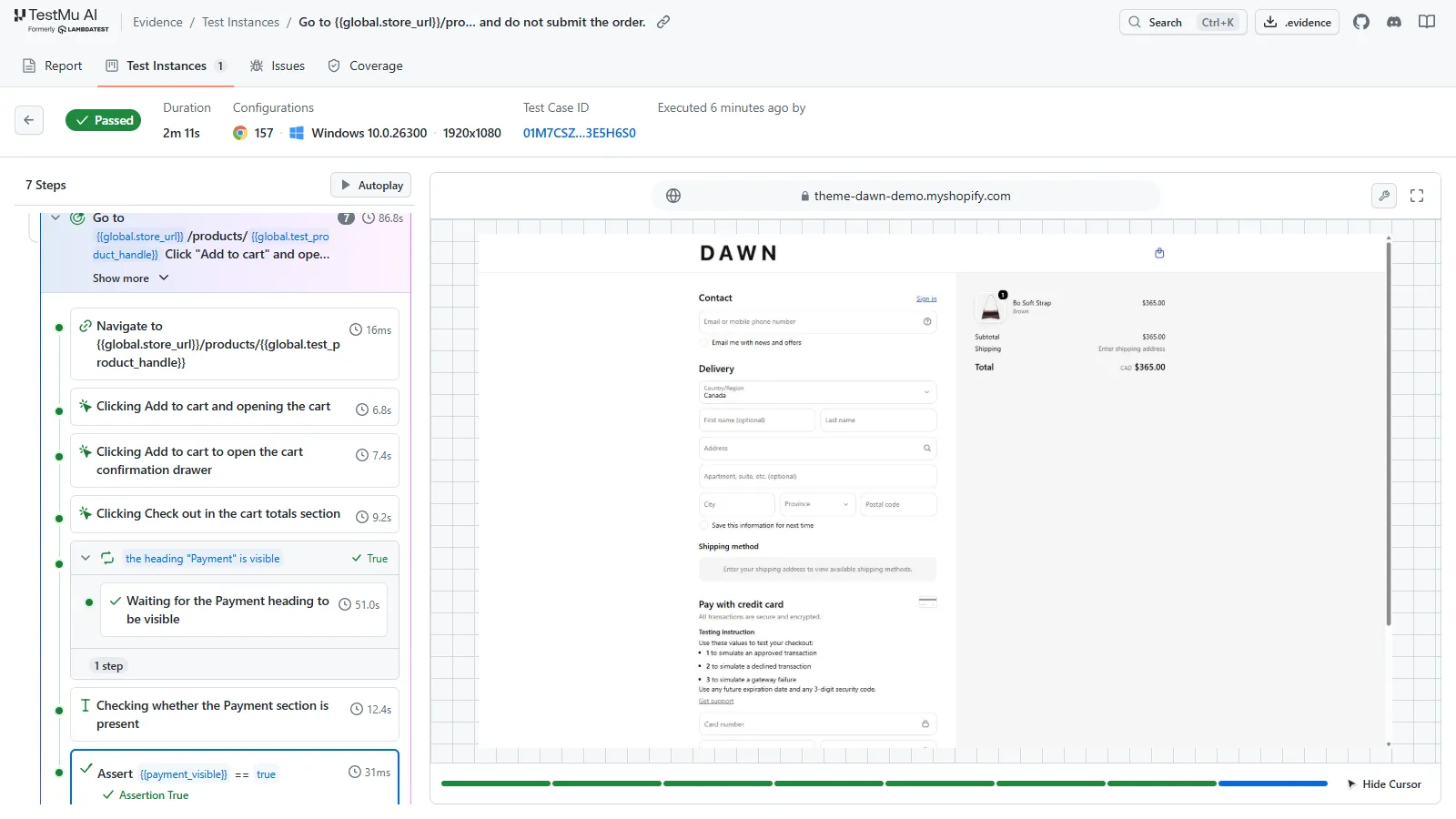
Aimed at "the first product shown on the home page" instead, the same run fails: that product is sold out, so Add to cart is disabled. Pinning {{test_product_handle}} to an in-stock product keeps a stock change from failing a checkout test.
Keep bot challenges away from test runs. Bot protection on Shopify is only available on Shopify Plus. It runs as scheduled events (up to 60 minutes), each of which will present a reCAPTCHA or hCaptcha challenge, and the option 'Don't allow bots to auto-complete checkouts' is selected by default. The settings are: no IP allowlist, no test key. KaneAI's FAQ is very clear on this: CAPTCHAs are designed to stop automation and "no tool can solve them reliably".
Don't schedule bot protection events on your test store, don't run any tests whilst a production event is live, and if the 'don't allow bots to auto-complete' option is blocking your test store runs, then turn that off in the test store. KaneAI's other advice (whitelist TestMu AI's cloud IPs or use a test key on your test store) only applies to a challenge layer that you're running yourself in front of the store, for example, Cloudflare Turnstile.
To repeat it automatically, you'd add both tests to a test run in Test Manager and schedule the test run on HyperExecute. Choose Run on HyperExecute, then Schedule Test Run rather than Run Instances Now and select the staging environment. The run will use whatever browser, OS and resolution configuration you've saved, so you'll need to have a configuration for each browser that your customers use.
Keep the PRICE check split between the two layers. The automated test will verify P and the storefront side of C on every run. I, R, and E still need a human look after a big change or a separate verification against your admin.
For broader store coverage (discount codes, variants, sold out states and cart drawers), see how to test Shopify stores without code. TestMu AI's Shopify testing platform will run these tests across browsers and real mobile devices.
For a quick visual walkthrough of this concept, watch the video below from TestMu AI.
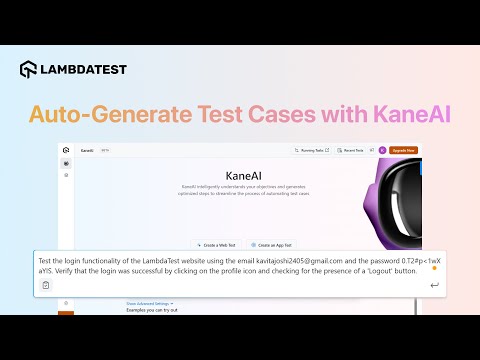
Subscribe to the TestMu AI YouTube channel for more tutorials on testing and automation.

Conclusion
Start on a development store: place one approved and one declined order, run the PRICE check on both, and delete them before you touch the theme or an app again.
Stop placing test orders by hand. Write your Shopify test order once in plain English with KaneAI and schedule it on your staging store after every change.
Testing web or mobile apps without writing code? KaneAI by TestMu AI turns plain-English instructions into tests.
Author

Harshit Paul
Blogs: 97


Harshit Paul is Director of Product Marketing at TestMu AI, with over 8 years of experience in product and growth marketing for developer and QA tools, leading the Agentic AI in Quality Engineering space. He has authored 80+ technical articles for TestMu AI on software testing and automation, and hosted webinars on Selenium, automation testing, browser compatibility, DevOps, and continuous testing. He has led go-to-market and technical marketing initiatives across software testing products, contributing to SEO, content strategy, and developer marketing. He began his career as a certified Salesforce developer at Wipro Technologies, where he worked for 2 years before moving into marketing. Harshit holds a degree in computer programming from Vivekananda Institute of Professional Studies.
Reviewer

Srinivasan Sekar
Reviewer
Srinivasan Sekar is Director of Engineering at TestMu AI, where he leads engineering and open-source initiatives behind the Selenium and Appium automation grid and owns TestMu AI's MCP Server. A committer to Appium and a contributor to Selenium, WebdriverIO, Taiko, and AppiumTestDistribution, he brings over 15 years of experience in quality engineering and open-source technologies. He is the author of the Apress book 'The MCP Standard: A Developer's Guide to Building Universal AI Tools with the Model Context Protocol,' a Certified Kubernetes and Cloud Native Associate, and an international conference speaker. Before TestMu AI he spent over eight years at Thoughtworks as a Principal Consultant and Quality Architect. Srinivasan holds a B.Tech in Information Technology from Anna University.


Shopify Test Order FAQs
Did you find this page helpful?
More Related Blogs

TestMu AI forEnterprise
Get access to solutions built on Enterprise
grade security, privacy, & compliance
- Advanced access controls
- Advanced data retention rules
- Advanced Local Testing
- Premium Support options
- Early access to beta features
- Private Slack Channel
- Unlimited Manual Accessibility DevTools Tests