
Catch Visual UI Bugs with SmartUI Visual Testing
Catch Layout, CSS, and Rendering Bugs across Browsers and Real Devices. Visual AI Filters Out Pixel Noise.

How to Compare Two PDFs for Differences (Text and Visual)
Part of: Visual Testing Tool
Compare two PDFs for differences in Acrobat, with free command-line tools or with automated visual checks in CI. Commands, a table and a checklist.
Published on:
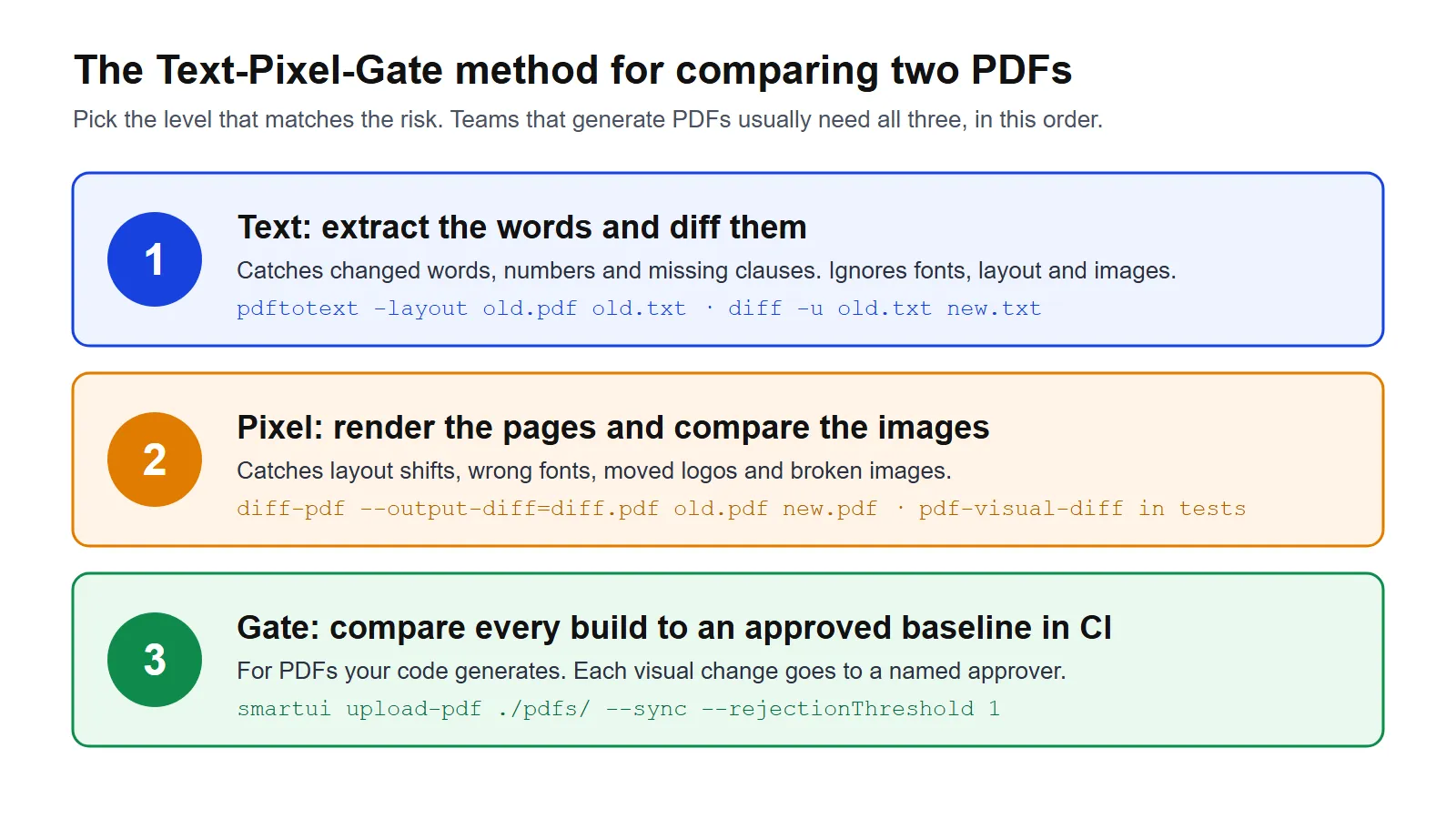
To compare two PDFs, use the Text-Pixel-Gate method. Text: extract the text from both files and diff it to catch any changed words and numbers. Pixel: render both files and diff the pages to catch any changes to layout, font and image. Gate: for the PDFs your code generates, you'd compare every build against an approved baseline in CI.
Need a one-off check right now? Acrobat Pro has a Compare Files (paid). You can do a compare locally for free using pdftotext + diff (text) and diff-pdf (visual). Both are below. Just don't upload your contracts, your invoices or any personal data to an online compare site.
Two PDFs can be exactly the same in appearance and yet have different content (e.g. a different invoice total in white text, a different font), or can look different in appearance and yet contain the same text (e.g. a logo has been moved). That's why "compare two PDFs" has three legitimate answers and why so many comparison failures arise from choosing the wrong one.
This covers all three: a GUI method for doing one-off reviews, free command-line methods which you can script, a library you can call from your test code and an automated baseline method for teams whose product generates PDFs on every release.
TL;DR
To compare two PDFs, diff the extracted text to catch changed words and numbers, then diff the rendered pages to catch layout, font and image changes. For PDFs that your code generates, check every new build against an approved baseline in CI so that each visual change gets a reviewer.
Free and Built-In Ways to Compare PDF Files
- pdftotext + diff: pdftotext extracts the text layer of each PDF and diff compares it line by line, so the pair flags an edited clause or a changed invoice total. Free: yes. Sees fonts or layout: no. Works on scanned PDFs: no.
- diff-pdf: diff-pdf renders both PDFs and compares the pages visually, exiting 0 when they match and 1 when they differ. Free: yes, under GPL-2.0. Interface: command line, with --output-diff for a highlighted PDF.
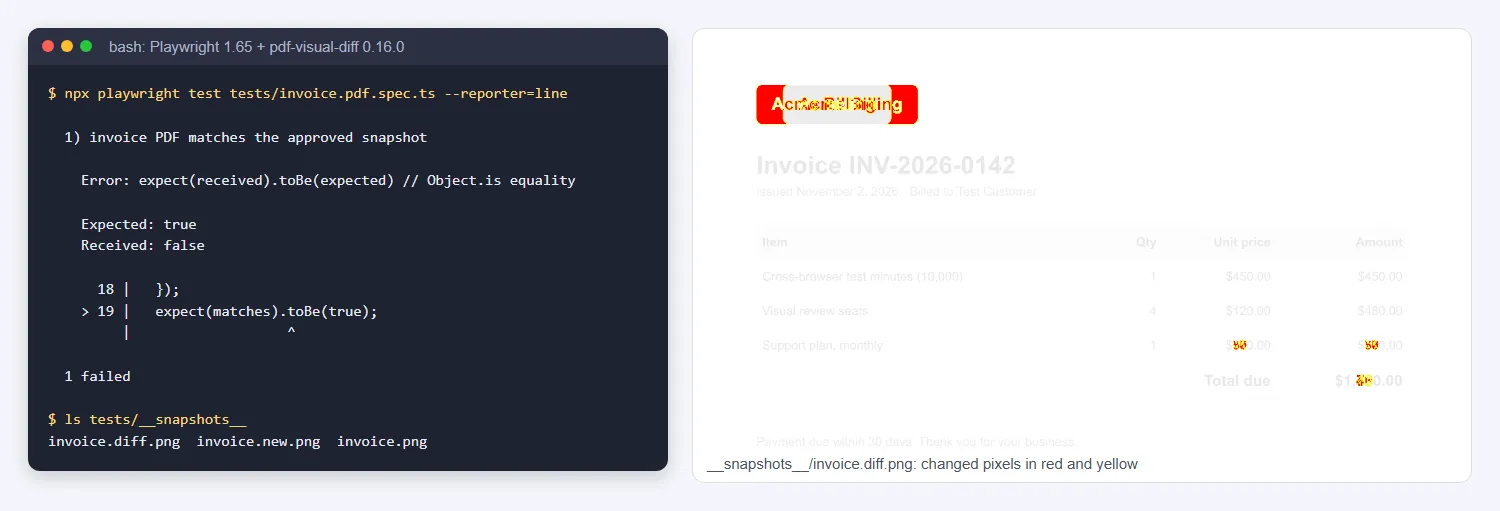
- pdf-visual-diff: The pdf-visual-diff npm package compares a PDF with a committed snapshot image through its comparePdfToSnapshot function inside Playwright, Jest or Mocha tests. Free: yes. Returns: true or false.
- Acrobat Pro Compare Files: The Acrobat Pro Compare Files tool opens a results document with a summary of changes and a side-by-side view of two PDF versions. Free: no, it needs paid Acrobat Pro. Automated: no, each comparison is manual.
How to Compare PDF Documents Your Code Generates
- Approved baseline: A generated PDF is compared with the last approved version, not with the previous build, so an unreviewed change never becomes the reference that later builds are measured against.
- PDF baseline gate: TestMu AI's SmartUI takes generated PDFs through smartui upload-pdf, compares every page with the approved baseline and sends each visual change to a named approver before it becomes the new baseline.
- False differences: Generation dates, invoice IDs, missing fonts and mismatched render resolutions make identical PDFs look different, so test PDFs need fixed data, embedded fonts and masks on the regions that change on every run.
- Sensitive files: Free online PDF compare sites send each file to a third party, so contracts, invoices and personal data belong on a local tool that a security team has approved.
What Does It Mean to Compare Two PDFs?
Comparing two PDFs means checking whether a newer version differs from an older one, at one of three levels:
- Text comparison. Extract the words from each file and diff them line by line. This will pick up edited clauses, changed numbers and missing paragraphs. It ignores fonts, colors, spacing and images.
- Visual comparison. Render each page to an image and then compare the pixels. That's how you catch layout shifts, wrong fonts, broken images and overlapping text. It's the same concept as visual regression testing for web pages, just applied to document pages.
- Structural comparison. Compare the metadata, form fields, bookmarks and tags. That's important for accessibility and for form files in particular and requires dedicated validators rather than a simple diff tool.
Use the Text-Pixel-Gate method to choose:
- Text - if the business risk is wrong content (contracts, prices, legal copy), then diff the text.
- Pixel - if the risk is incorrect presentation (branded statements, invoices, reports), then diff the rendered pages.
- Gate - if you're generating PDFs via your code, run the comparison automatically on every change against an approved baseline.
The vast majority of teams that are producing PDFs need all three (in that order).
For a quick visual walkthrough of this concept, watch the video below from TestMu AI.
Subscribe to the TestMu AI YouTube channel for more tutorials on testing and automation.
How Do You Compare Two PDFs in Adobe Acrobat?
Acrobat Pro has a built-in compare tool. Per Adobe's Compare files guide:
- Open both versions of the PDF in Acrobat.
- From the All Tools pane, select Compare files.
- Use Change File to select a different version, or use the swap arrows to swap the old and new.
- Optionally tick 'Compare text only' to ignore graphic differences.
- Select Compare. Acrobat will open the results in a new document.
The first page of the result is a summary of the total changes. The Side-by-Side view will show you each changed band. The Filter menu will turn on the annotation, formatting and background differences (these are all off by default).
Acrobat is the right tool for a one-off legal or editorial review. It's the wrong tool if you're looking to compare hundreds of generated files as you're going through the process, as every comparison is a manual one.
How Do You Compare Two PDFs for Free via the Command Line?
Two open-source tools cover the text and the visual cases. Both run on Linux, Mac and Windows.
Text Diff with pdftotext
pdftotext comes with poppler-utils. It has a -layout option, which will do its best to preserve the existing physical layout, and the output goes to standard output (pdftotext man page).
#!/usr/bin/env bash
# Usage: ./pdf-text-diff.sh old.pdf new.pdf
set -euo pipefail
OLD_PDF="$1"
NEW_PDF="$2"
pdftotext -layout "$OLD_PDF" old.txt
pdftotext -layout "$NEW_PDF" new.txt
# diff exits 0 when the text matches and 1 when it differs
diff -u old.txt new.txt > text.diff && echo "Text identical" || echo "Text differs: see text.diff"
To compare only a range, you simply add -f (first page) and -l (last page), e.g. pdftotext -layout -f 2 -l 4 "$NEW_PDF" new.txt
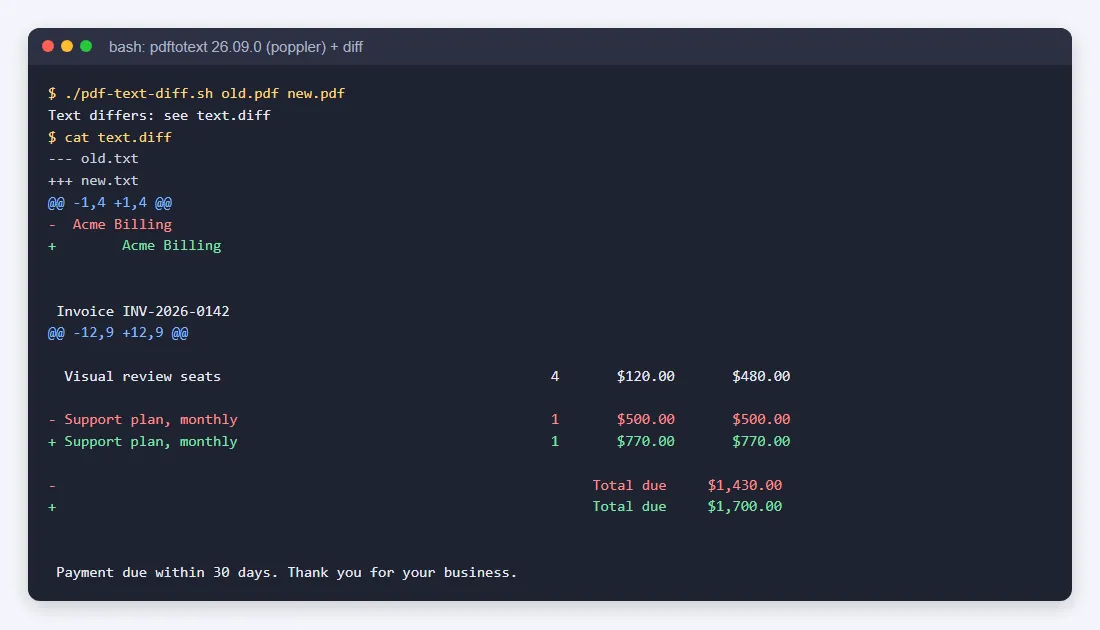
Limits: text extraction is very much dependent on how the PDF was put together. If it's a scanned PDF, there's no textual content layer at all. Multi-column layouts can also end up in a different order between versions even if absolutely nothing has changed.
Visual Diff with diff-pdf
diff-pdf is a GPL-2.0 tool for visually comparing two PDFs. By default, its only output is an exit code: 0 if the files look the same, 1 if they're different. It's therefore a very clean pass/fail in a script.
# Install (pick one). The README lists no apt package for Debian/Ubuntu,
# only build the dependencies, so use one of these or build from source.
brew install diff-pdf          # macOS
sudo dnf install diff-pdf      # Fedora / CentOS 8
choco install diff-pdf         # Windows

# Pass/fail only
diff-pdf old.pdf new.pdf && echo "Pages match" || echo "Pages differ"

# Write a PDF that highlights every difference
diff-pdf --output-diff=diff.pdf old.pdf new.pdf

# Open both files side by side in a viewer
diff-pdf --view old.pdf new.pdf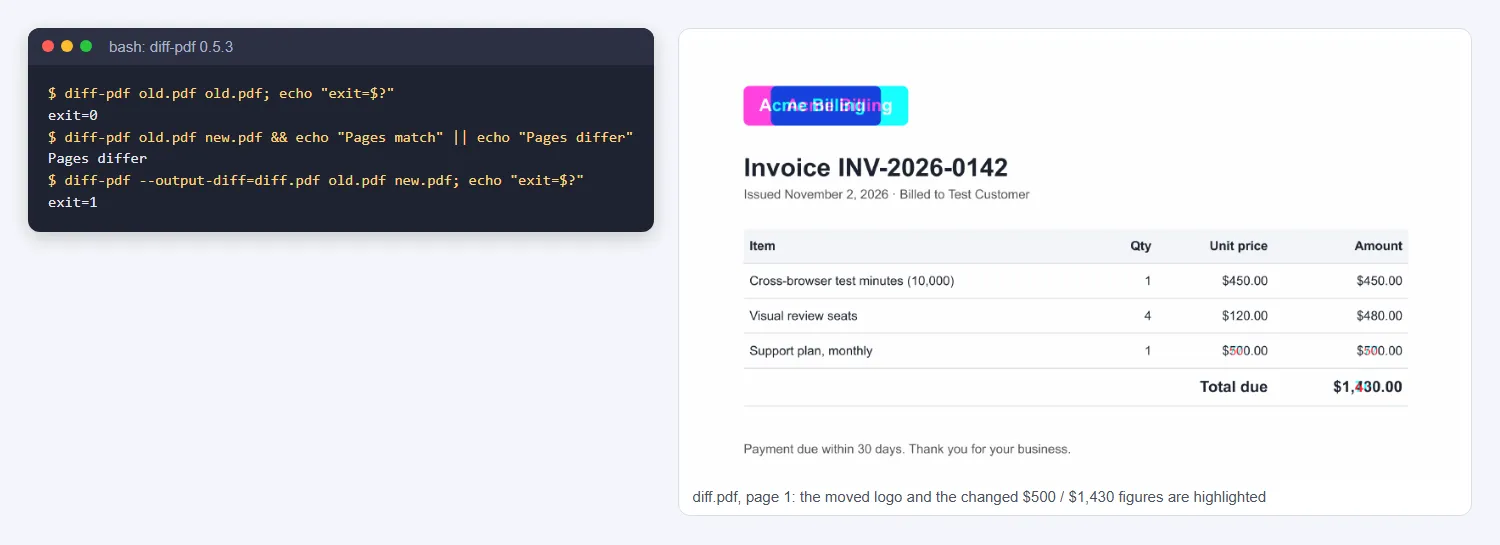
Run diff-pdf --help for the full list of options on your version. One caveat before you go and make it a CI dependency: the README states the repo is provided as is and is not actively developed, so pin the version you install.
In Test Code with pdf-visual-diff
If your PDFs are coming out of an app that you've already got tested with Playwright, Jest or Mocha, then you should be comparing them in the test itself rather than in a separate script. pdf-visual-diff exports a single function comparePdfToSnapshot which takes a PDF path or Buffer, a directory for its __snapshots__ folder and a snapshot name and resolves to true or false. On the first run (i.e., when there's no snapshot yet) it will save the rendered PDF as the snapshot and return true.
npm install -D pdf-visual-diff// invoice.pdf.spec.ts (Playwright Test)
import { test, expect } from '@playwright/test';
import { comparePdfToSnapshot } from 'pdf-visual-diff';
// Test data passed in as parameters, not hard-coded in the generator
const invoice = { customer: 'Test Customer', items: 3 };
test('invoice PDF matches the approved snapshot', async () => {
const pdfPath = await generateInvoicePdf(invoice); // your app's PDF generator
const matches = await comparePdfToSnapshot(pdfPath, __dirname, 'invoice', {
tolerance: 0.01, // 0-1, default 0
});
expect(matches).toBe(true);
});tolerance ranges from 0 to 1, and a maskRegions option masks parts of a page that change between runs, such as a generation date. Rendering in Node relies on canvas, so make sure your CI image can install it. Commit the __snapshots__ folder so every run compares against the same approved image.

Running this on the generated PDFs with every release?
Note: SmartUI by TestMu AI has approved baselines, routes every visual change to a named approver and compares every page of every new PDF build. See the PDF upload docs.
Which PDF Comparison Method Should You Use?
| Method | What it compares | Best for | Automation | Cost and caveats |
|---|---|---|---|---|
| Adobe Acrobat Pro, Compare files | Text and graphics, with a "Compare text only" option | One-off legal or editorial review | Manual | Paid Acrobat Pro |
| Free online PDF compare sites (for example iLovePDF, Aspose, ComparePDF) | Text, and on some sites formatting or visual differences | Quick checks on non-sensitive files | Manual | Free tiers; your files go to a third party |
| pdftotext + diff | Extracted text | Content changes in scripts | Scriptable | Free, open source |
| diff-pdf | Rendered pages | Pass/fail visual check of one file pair | Scriptable, exit code 0/1 | Free, GPL-2.0; provided as-is |
| pdf-visual-diff (npm) | Rendered pages against a committed snapshot | PDF checks inside Playwright, Jest or Mocha tests | In test code, returns true/false | Free npm package |
| SmartUI PDF comparison | Rendered pages against an approved baseline, with approval workflow and thresholds | Teams that generate many PDF templates per release | CLI, API and Java SDK uploads | Free tier: 2,000 lifetime screenshots, then $199/mo for 15,000 a month, billed annually |
Rule of thumb: never upload your contracts, your invoices or anything else with personal data onto a free online compare site. Stick to a local tool or one that has been approved by your security team.
How Do You Automate PDF Comparison in CI?
When your code is generating PDFs, you should be comparing the new build against an approved baseline rather than the previous build. SmartUI does this for PDFs (as per their post on the PDF comparison feature) by converting the PDF pages into images, indicating the differing areas and allowing you to set a pixel or percentage difference threshold.
Step 1: Create a PDF project. As per the SmartUI PDF comparison docs, go to the SmartUI Projects page, click New Project, set the platform type to PDF, name the project, assign your approvers and click Submit. Then copy the project token.
Step 2: Install the CLI and set your credentials. As per Upload PDFs via CLI, install @lambdatest/smartui-cli and set LT_USERNAME, LT_ACCESS_KEY and PROJECT_TOKEN. In CI, read all three from your secret store; don't read them from the repository.
Step 3: Upload the baseline once. Generate the PDFs from your approved release and mark that build as the baseline.
smartui upload-pdf ./pdfs/ --buildName "baseline-$(git rev-parse --short HEAD)" --markBaselineStep 4: Upload every new build. A GitHub Actions job for pull requests:
name: pdf-visual-check
on: [pull_request]
jobs:
  compare-pdfs:
    runs-on: ubuntu-latest
    env:
      LT_USERNAME: ${{ secrets.LT_USERNAME }}
      LT_ACCESS_KEY: ${{ secrets.LT_ACCESS_KEY }}
      PROJECT_TOKEN: ${{ secrets.SMARTUI_PDF_PROJECT_TOKEN }}
    steps:
      - uses: actions/checkout@v4
      - uses: actions/setup-node@v4
        with:
          node-version: 20
      - run: npm install -g @lambdatest/smartui-cli
      # Replace with the command that renders your PDFs into ./pdfs
      - run: npm run generate:pdfs
      - uses: actions/upload-artifact@v4
        with:
          name: pdfs
          path: pdfs/
      - run: >
          smartui upload-pdf ./pdfs/
          --buildName "pr-${{ github.event.pull_request.number }}"
          --approvalThreshold 0
          --rejectionThreshold 1
          --sync
--sync is the way to wait for the result in a pipeline (waits for the PDFs to be compared and returns the status and mismatch for each page so the job log will show precisely which pages have changed). --rejectionThreshold 1 (CLI 4.1.82 or later) will automatically reject any PDF with a mismatch of 1% or more, and --approvalThreshold 0 will automatically approve any PDF with zero mismatch. --config will set the per-PDF thresholds instead. Don't gate on --fetch-results for PDF projects, as the docs note it will currently report Total PDFs: 0 even if pages have been rejected.
Step 5: Review and approve. Intentional template changes are approved in the SmartUI dashboard, and the approved build becomes the new baseline. That approval step is something a two-file diff simply can't provide you with (a record of who approved each visual change).
Do we need the job itself to fail on a golden file? The SmartUI docs don't specify the CLI exit code for a rejected page, so if you want a hard red build, then add a second job using diff-pdf. diff-pdf has no Ubuntu package, so run it in a Fedora container (dnf will install it there).
  golden-invoice:
    needs: compare-pdfs
    runs-on: ubuntu-latest
    container: fedora:latest
    steps:
      - uses: actions/checkout@v4
      - uses: actions/download-artifact@v4
        with:
          name: pdfs
          path: pdfs/
      - run: dnf install -y diff-pdf
      # Exit code 1 (pages differ) fails the job
      - run: diff-pdf --output-diff=invoice-diff.pdf golden/invoice.pdf pdfs/invoice.pdf
On macOS runners, we can just do brew install diff-pdf.
Why Would Two Visually Identical PDFs Be Any Different?
False differences are the primary reason teams give up on PDF diffs. Check out these causes before you ever trust a red result.
- Dynamic values. Generation dates, invoice reference numbers and QR codes will all be different on each run. Generate your test PDFs from fixed test data that you pass in as parameters rather than from live data.
- Fonts. A missing font on the CI machine will silently fall back to another. Embed the fonts in the PDF or ensure the same fonts are installed on every runner.
- Render resolution. If you render pages at different DPIs, you'll see pixel noise. Keep the resolution fixed. Generic image tools such as ImageMagick have a
-fuzzoption which treats colors within a certain distance of each other as the same. - Text order. Text extraction can reorder multi-column content. If the visual diff is clean whereas the text diff is noisy, then go with the visual diff and fix the extraction.
For things that are always going to be different (e.g., a timestamp in a header), you want to mask those rather than raising the threshold for the entire page. SmartUI's ROI settings can mask or select regions of a PDF page via bounding boxes (see the feature post), and pdf-visual-diff has maskRegions in the test code for exactly the same purpose.
What Does a PDF Diff Not Catch?
A diff will tell you two files are different. It will not tell you which one is correct.
A visual diff will pass a PDF with the wrong total provided the baseline also had the wrong total. It says absolutely nothing about tagged structure for screen readers.
For content assertions (does the total equal the sum of the line items?) and accessibility checks, see our PDF testing guide. For a side-by-side of PDFBox, pdfplumber, veraPDF and the various other validators, see our roundup of PDF testing tools.
PDF Diff Readiness Checklist
Run through this before you trust any PDF comparison:
- I know whether I'm looking at text, pixels or both.
- Test PDFs are generated from fixed test data rather than live data.
- Fonts are embedded or installed in exactly the same way on every machine.
- Both files are rendered at the same resolution.
- Known dynamic regions (dates, IDs, QR codes, etc.) are either excluded or fixed.
- Sensitive PDFs must never be sent to an unapproved online tool.
- Generated PDFs are compared against the approved baseline rather than just the previous build.
- Every intentional change has a named approver.
Watch: Visual Regression Testing on the Cloud with SmartUI
This walkthrough (May 2022) shows the SmartUI baseline vs. new comparison for web screenshots, side by side and in slider mode. It illustrates the concept of a visual review as part of a baseline gate. It does not show PDF projects.

Conclusion
To do a good comparison of two PDFs, you need to pick your level first: text for content, pixels for presentation and an automated gate for anything your code produces. Acrobat and the free command-line tools are sufficient for one-off comparisons. For PDFs that are part of every release, you'll want to compare against an approved baseline so that every visual change has a human to review it.
If you're generating invoices, statements or reports in your product, then set up a SmartUI PDF project and compare every page of every build against your approved baseline. See the SmartUI PDF comparison docs or give SmartUI a go for free.
Did your last release break the UI? TestMu AI's SmartUI catches visual regressions by comparing every screen to its baseline.
Author

Sushobhit Dua
Blogs: 9

Sushobhit Dua is an Engineering Manager at TestMu AI, leading SmartUI, the visual regression and visual testing product. He manages the team that builds and ships SmartUI and maintains and cuts releases of the open-source SmartUI CLI. He works primarily in Core Java, Spring Boot, and Gradle, and is an AMCAT Certified Software Engineer. He brings over 10 years of software engineering experience, with earlier work as a Software Engineer at ecare Technology Labs. Sushobhit owns the SmartUI roadmap and the engineering decisions behind it.
Reviewer

Parth Mistry
Reviewer
Parth Mistry is a Member of Technical Staff at TestMu AI, building SmartUI, the visual regression testing product. He developed and owns the SmartUI CLI, a modular TypeScript tool built on Playwright for multi-browser automation, and built the Storybook CLI for visual regression of UI components. He maintains cross-language SDKs in Python, Java, Ruby, C#, and Node.js, and engineered a Node-based visual rendering service on Kafka, Redis, MySQL, and S3. His migration of that service to an event-driven, KEDA-autoscaled architecture improved execution speed by 60% and cut annual infrastructure cost by $9,600. He also built the end-to-end SmartUI integration with KaneAI. Parth is a Google Summer of Code 2024 contributor and an alumnus of IIT Jodhpur.


Compare Two PDFs FAQs
Did you find this page helpful?
More Related Blogs


TestMu AI forEnterprise
Get access to solutions built on Enterprise
grade security, privacy, & compliance
- Advanced access controls
- Advanced data retention rules
- Advanced Local Testing
- Premium Support options
- Early access to beta features
- Private Slack Channel
- Unlimited Manual Accessibility DevTools Tests