
Power Your Software Testing with AI Agents and Cloud
The Native AI-Agentic Cloud Platform to Supercharge Quality Engineering. Test Intelligently and Ship Faster.


- TestMu AI (Formerly LambdaTest)
- /
- Blog
- /
- How to Audit a Login-Gated or SSO-Protected App for Accessibility
How to Audit a Login-Gated or SSO-Protected App for Accessibility
Audit a login-gated or SSO-protected app for accessibility with TestMu AI's Accessibility MCP Server. Reach the authenticated screens a URL scan never sees.
Published on:
Audit a login-gated or SSO-protected app by signing in yourself, then scanning that live session with TestMu AI, through a tunnel, a scheduled audit using saved login credentials, or a scan hook inside an E2E test that authenticates first. WCAG 2.2 added Accessible Authentication criteria at 3.3.8 and 3.3.9 for exactly the login flows a plain URL scan never reaches.
The TestMu AI Accessibility MCP Server was built to reach past that wall. This guide is about one job: auditing a login-gated or SSO-protected app for accessibility from the editor you already work in, by measuring the authenticated session itself instead of the public shell in front of it. For the fundamentals behind these checks, the types of accessibility testing and the manual layer automation cannot reach, start with our accessibility testing guide.
Why Does an Accessibility Scanner Only See Your Login Page?
Because an automated scan reads the response an anonymous request receives. A URL-only scanner sends an unauthenticated request, and a gated app answers with the login form or a redirect to its single sign-on provider, so that is the page the scan evaluates. Single sign-on makes it sharper: the request bounces to an identity provider on a different domain, and a scanner that follows the redirect ends up auditing the provider's domain instead of yours.
To show what that produces, I pointed an axe-core 4.12.1 scan, the open-source engine behind TestMu AI's accessibility analysis, at the ecommerce Playground login page, a public demo store built for automation testing. It returned three rule failures across 21 elements, every one of them on the sign-in screen itself:
axe-core 4.12.1  -  3 rule failures, 21 elements affected

[serious] color-contrast   18   WCAG 1.4.3         Text must meet the minimum contrast ratio
[serious] link-name         2   WCAG 2.4.4, 4.1.2  Links must have discernible text
[serious] target-size       1   WCAG 2.2 2.5.8     Touch targets must be at least 24 by 24 CSS pixels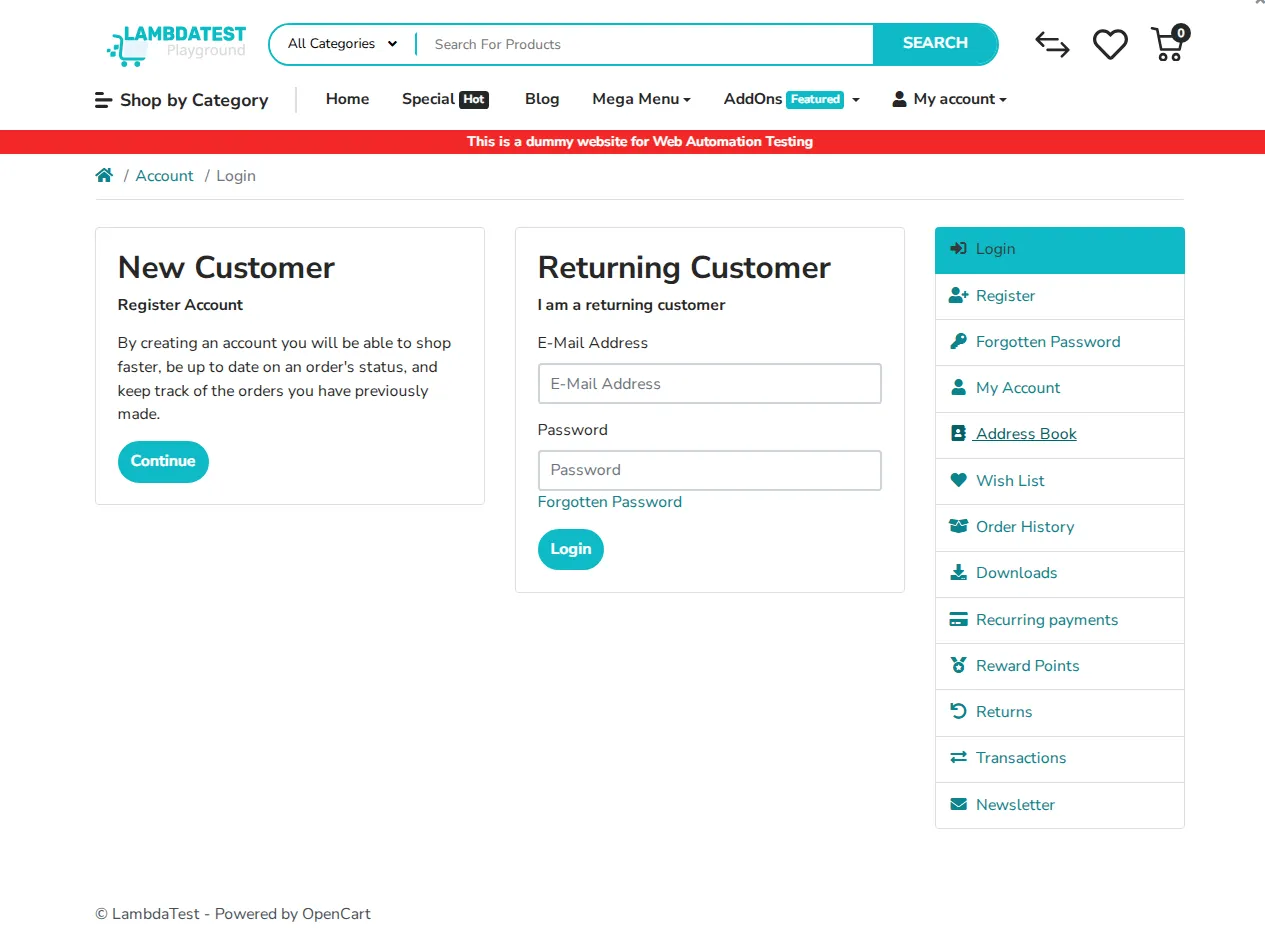
The report is real, and every finding is on the login screen, including a WCAG 2.2 Target Size failure that only exists because criterion 2.5.8 was added in the current version of the standard. What the scan never saw is the account area the sign-in unlocks: the My Account dashboard, order history, address book, and payment screens listed in that same page's own navigation. The any-URL WCAG 2.2 audit is the right tool for a public page, and it is honest about where it stops, which is exactly at this login wall.

Note: Every finding above came from a real scan of a login page, and it is all a URL scan of a gated app can reach. Point TestMu AI at the authenticated session behind the login and audit the screens the scan never sees. Start free with TestMu AI.
Where Does WCAG Risk Hide in an Authenticated App?
In the flows you can only reach after signing in. Forms, data tables, modals, and multi-step wizards concentrate in the account area, and those are the components that fail WCAG most often: unlabeled fields, focus that gets trapped or hidden, and controls that only respond to a mouse. A home page can pass while the dashboard, the settings form, and the checkout behind the login fail.
WCAG 2.2, the current version of the guidelines, added success criteria that land directly on authenticated experiences. Four of them decide whether a login and the screens behind it pass:
| WCAG 2.2 success criterion | Level | What it checks on authenticated flows |
|---|---|---|
| 3.3.8 Accessible Authentication (Minimum) | AA | The login step does not force a cognitive test such as memorizing a password or solving a puzzle, unless an accessible alternative exists. |
| 3.3.9 Accessible Authentication (Enhanced) | AAA | The stricter rule, which removes the object-recognition and personal-content exceptions that 3.3.8 still allows. |
| 3.3.7 Redundant Entry | A | Information a user already entered earlier in the same process is not demanded again, which hits multi-step account and checkout flows. |
| 2.4.11 Focus Not Obscured (Minimum) | AA | The focused element is not entirely hidden behind sticky headers or overlays, a common failure in dense dashboard layouts. |
Three of those four only bite after the login form, on the multi-step flows a public scan never reaches. Set the target level before you audit: Level AA is the conformance target most accessibility regulations converge on, and the differences between WCAG A, AA, and AAA map each level to the obligation it satisfies. For the exact screens in scope, a set of login and registration page test cases gives you the paths worth auditing first.
Whether these screens pass carries legal weight. The US Department of Justice's ADA Title II rule adopts WCAG 2.1 Level AA as the technical standard for state and local government web content. A clean scan of a public home page is not evidence that the app behind the login conforms, because the scan never reached the app.
How Do You Audit a Login-Gated or SSO App From Your IDE?
You audit the app after you are signed in, once the authenticated screens actually render. TestMu AI's Accessibility MCP Server and its accessibility platform give you three ways to do that, and which one fits depends on whether the app runs locally, on staging, or inside an existing test suite:
| Method | How you authenticate | Best for |
|---|---|---|
| analyzeAppViaTunnel (MCP, from your editor) | Run the app locally and sign in yourself, through SSO and MFA if needed, then expose the running session over a TestMu AI tunnel. | Auditing an authenticated flow you are actively building, in natural language without leaving the editor. |
| Test Scheduling with saved login | Store login credentials, or point a tunnel at a staging environment, then scan on a set cadence. | Recurring, monitored audits of gated pages so regressions surface as the app changes. |
| lambda-accessibility-scan in your E2E test | Your existing Selenium, Playwright, or Cypress test logs in, then triggers the scan mid-session. | Teams who already run authenticated end-to-end tests and want an accessibility check in the same run. |
The MCP route is the fastest from a developer's chair. The Accessibility MCP Server exposes an analyzeAppViaTunnel tool that audits a locally running app already connected through a TestMu AI tunnel, so you start your app, sign in once, and ask the assistant to check the authenticated screen for accessibility failures. Because you complete the sign-in yourself, the tunnel carries your real session, and the audit runs against the page a logged-in user actually sees.
For coverage that does not depend on someone remembering to run a scan, Test Scheduling audits gated pages on a schedule. It accepts saved login credentials or a tunnel to a private or staging environment, discovers URLs by sitemap, CSV, or crawler, and re-audits them daily, weekly, or monthly, alerting you when a new violation appears. That turns a one-time check of the account area into continuous monitoring.
If your team already maintains authenticated end-to-end tests, the third method reuses them. Add the lambda-accessibility-scan hook after your test has logged in and reached a stable screen, and the same run that verifies the feature audits it against the 39 WCAG-aligned checkpoints that TestMu AI's accessibility testing platform covers on web. One authentication flow then serves both the functional test and the accessibility scan.
How Do You Get Past SSO, MFA, and CAPTCHA When Auditing?
You complete the sign-in the same way a user does, then audit the session that results. That order matters, because single sign-on redirect chains, multi-factor prompts, and CAPTCHA are exactly what break a scanner that tries to log in from a stored username and password. When you, or an existing authenticated test, finish the sign-in and the audit runs against the live session, the identity provider, the second factor, and the CAPTCHA are already behind you.
- Single sign-on redirect chains send a URL scanner to the identity provider's domain instead of your app; signing in first keeps the audit on your own authenticated pages, and the saved login profiles that let you capture pages behind a login apply the same way here.
- Multi-factor prompts and one-time codes cannot be replayed from static credentials, but a person, or a test that already handles the second factor, can clear them once before the tunnel audit runs.
- CAPTCHA is both an obstacle to automation and, as the WebAIM survey found, a top barrier for disabled users, so WCAG 2.2's 3.3.8 Accessible Authentication criterion treats it as a defect to fix rather than a gate to script around.
One caveat keeps the method honest. Auditing the live session covers the authenticated screens, but the login step itself still needs a manual check against 3.3.8: password-manager support, no code that must be recalled from memory, and an accessible alternative to any cognitive test.
What Can an Automated Audit Catch, and What Still Needs a Human?
Automated scanning of an authenticated app catches the machine-detectable failures, the automatable part of WCAG. Contrast, missing labels, undersized targets, and broken name-role-value on custom widgets are caught reliably. Whether a screen reader announces a modal sensibly, whether focus returns correctly after a dialog closes, and whether a multi-step flow is understandable are not.
- Keyboard and focus order through the account area need a manual pass; tab through every authenticated flow and confirm focus is visible and never trapped, which a keyboard scan flags only in part.
- Screen reader announcements on dynamic content need a real screen reader; live regions, validation errors, and modal dialogs have to be heard to confirm they are announced at the right moment.
- Contrast on stateful UI can slip past a single snapshot because dashboards render data-driven colors; the free color contrast checker confirms a specific pair against the WCAG threshold.
- Cognitive load across multi-step flows is a judgment call a scan cannot make, such as whether Redundant Entry is genuinely avoided and whether error recovery is clear.
An automated audit of the authenticated session is the fast, repeatable layer, and it is the layer a public-URL scan cannot provide at all. Pair it with a keyboard and screen reader pass on the same flows, following a web accessibility guide for the manual checks, and the account area finally gets the coverage the home page has had all along.
Getting Started
Start with one authenticated screen. Run your app locally, sign in through your normal flow, and ask the Accessibility MCP Server to audit the screen you land on; reading the Serious findings first is the whole loop, and every other flow is that loop repeated.
- Connect the Accessibility MCP Server to your editor and approve the OAuth prompt, following the Accessibility MCP Server documentation for your client.
- Sign in to your app locally, including any SSO or MFA step, and expose the running session over a TestMu AI tunnel.
- Audit the authenticated screen against WCAG 2.2 AA and sort the findings by severity, mapping each one to the criterion it breaks.
- Move the check off your machine with saved-login Test Scheduling, or wire it into your pipeline for accessibility testing in CI/CD so the account area is re-audited as it changes.
Auditing the authenticated session is the move that closes the gap. Run it from the MCP Server in your editor for the flow you are building, then put it on a saved-login schedule so the account area is measured against WCAG 2.2 as often as your home page is.
Note: Rahul Mishra, Lead Member of Technical Staff at TestMu AI with expertise in accessibility testing and WCAG compliance, reviewed, fact-checked, and approved this article, which was researched and drafted with AI assistance. Technically reviewed for WCAG 2.2 and accessible-authentication accuracy by Shubham Soni. Sources cited are primary references from the W3C Web Accessibility Initiative, WebAIM, and the U.S. Department of Justice. Our editorial process and AI use policy describes how every claim is verified before publication.
Author

Rahul Mishra
Blogs: 17

Rahul Mishra is a Lead Member of Technical Staff at TestMu AI, leading frontend engineering and accessibility testing across the quality engineering platform. He mentors frontend engineers, runs code reviews and sprint planning, optimizes React.js rendering performance, and makes product features accessible to users with disabilities through WCAG and ADA-compliant accessibility audits. He brings 10+ years of experience across React.js, VueJS, TypeScript, Swift, Objective-C, and AWS, with earlier work as a Technical Lead at VectoScalar Technologies. Rahul holds a B.E. in Information Technology.
Reviewer

Shubham Soni
Reviewer
Shubham Soni is a Senior Member of Technical Staff at TestMu AI, building the Real Device Cloud and real-time testing infrastructure. He optimized the WebRTC services that power live testing to sub-100ms latency with adaptive bitrate streaming, led a frontend migration from Angular to React that cut page load time from 5-6 seconds to 1-1.5 seconds, and contributes to the official Device SDK. He led a team of four to build an accessibility testing product covering manual and automated testing and mentored a team of six on a real-time testing product. He brings over eight years of experience and earlier scaled a cloud code platform to 200K+ monthly users. Shubham holds a B.Tech in Computer Science.


Login-Gated App Accessibility FAQs
Did you find this page helpful?
More Related Blogs

TestMu AI forEnterprise
Get access to solutions built on Enterprise
grade security, privacy, & compliance
- Advanced access controls
- Advanced data retention rules
- Advanced Local Testing
- Premium Support options
- Early access to beta features
- Private Slack Channel
- Unlimited Manual Accessibility DevTools Tests