

Power Your Software Testing with AI Agents and Cloud
The Native AI-Agentic Cloud Platform to Supercharge Quality Engineering. Test Intelligently and Ship Faster.


- TestMu AI (Formerly LambdaTest)
- /
- Blog
- /
- Mobile Accessibility: Checklist and How to Test?
Mobile Accessibility: Checklist and How to Test?
Learn what is mobile accessibility and how to test it with a practical checklist, ensuring your application is usable for everyone.
Last Updated on:
Mobile accessibility means building an app so that people with visual, auditory, motor, or cognitive impairments can use it without extra help.
The World Health Organization reports that at least 2.2 billion people worldwide have some form of vision impairment, and an inaccessible app excludes a large share of them.
This guide covers why mobile accessibility matters, how to test it, and the checklist to run before release.
Key Takeaways
- Mobile accessibility means building an app so that people with visual, auditory, motor, or cognitive impairments can use it without extra help.
- The World Health Organization reports that at least 2.2 billion people worldwide have some form of vision impairment.
- Testing mobile accessibility needs both manual checks with built-in tools like VoiceOver and TalkBack and automated scans for issues such as missing alt text.
- A cloud-based device testing platform removes the burden of buying and maintaining every device and operating system combination needed for accessibility testing.
- Usability or beta testing with real users who have impairments catches navigation problems that a technical tester's checklist can miss.
- Mobile accessibility testing should cover visual, hearing, cognitive, and motor impairments together, not just one category.
What Is Mobile Accessibility?
Mobile accessibility involves building mobile applications so that they are usable by everyone, including those with impairments. Applications built with this approach are known as “inclusive applications” because they ensure no one is excluded.
Today, accessibility is not just an add-on but a fundamental part of the development process. It should be a standard consideration in every development or planning phase. This is crucial as impairments and disabilities are common, with the WHO reporting that 16% of people worldwide identify as disabled.
Why Is Mobile Accessibility Important?
Mobile accessibility is crucial for ensuring that all users, including those with disabilities, can effectively interact with mobile applications. By prioritizing accessibility, businesses can expand their reach, improve user experience, and comply with global accessibility standards.
Here is why ensuring mobile accessibility should be a priority:
- Right to the Internet: Having a consistent experience without bias to enjoy the freedom of expression is called the “right to the Internet”. It is illegal in many countries, including the United States, to refrain someone from this right by providing an app that is not accessible.
- Legal implications: Lawsuits filed for inaccessible applications by end-users are increasing yearly. According to Digital Accessibility Lawsuits, courts increasingly take proactive action to settle these cases and require the app to be made accessible. If your mobile app is inaccessible, it can suffer the same fate.
- Moral and ethical responsibility: For developers and testers working behind the application, it is their moral and ethical responsibility to make an application that does not restrict a certain section of society from functioning under any conditions.
- Boost for business: Restricting so many people from using your app is a missed opportunity for sure. The more people that use the app, the more user data is collected and the more revenue is generated, which is good for business.

How to Test Accessibility for Mobile Applications?
The checklist is a reminder for the testers to remember the elements they need to take care of while conducting mobile accessibility testing. Once that is noted down and kept as a reference, we can execute the testing.
- Choose a method: The first step is to choose a method of testing. Accessibility for mobile applications requires both manual and automated testing due to the finer details involved in the process. For manual testing, the tester can choose tasks like inverting the color of the application or verifying if the reader can read the text.
- Start testing with in-built tools: While there are large numbers of people with disabilities, a very small portion of them have major disabilities that require additional help, like a hardware device. Therefore, operating system providers provide in-built software that can assist most people. A tester should always start with these tools as this is the most convenient way to deal with accessibility issues for an end-user, and they prefer it as well.
- Select a cloud-based platform for testing: Accessibility is a sensitive issue that requires careful testing on all types of devices. Leaving a device out of the testing matrix becomes a huge risk in this scenario. However, the problem comes when we look at the list of devices including all the combinations of different specifications.
- Perform usability or beta testing: Once testing concludes, they need to move on to the next phase – verifying their testing by preferably non-technical folks. This is called usability testing (for a closed group selected by the team) or beta testing (for an open group who themselves volunteer).
- Generate reports and share them with stakeholders: Finally, to make sure that the test plan and the final test results are in sync, testers create a report that marks the end of testing accessibility for mobile applications. The report should contain the accessibility areas covered and how those were handled during testing. The statistics and graph representation should be presented for quick and easy analysis for non-technical stakeholders with a success percentage defined for each of them.
Automated accessibility tests focus mostly on the design and user interface part that can be programmatically scripted. For instance, checking alt text on image elements.
In-built tools depend on the operating system in use. For instance, Apple provides VoiceOver to read out the contents and handle gestures to navigate through the mobile app. Android, on the other hand, provides a complete suite of Accessibility elements that can be enabled in the settings.
You can refer to this blog to learn more about the different accessibility testing tools available.
Walking down the path of procuring them can be a burden for the organization and a hectic task for the testing team as they all will require regular maintenance. A better way to approach accessibility for mobile applications is to use a cloud-based provider that can manage all the overheads leaving just the testing part for the testers.
This type of testing has several advantages among which the primary one is that it explores several issues that may miss the pre-defined template used by a technical tester. For instance, how a user will navigate through an application can only be answered by observing a real user’s actions. In this case, the people should all have some impairment for a fair observation.
Accessibility testing is essential for both mobile and web applications to ensure they are accessible to everyone, including those with disabilities. Also, it is crucial to test accessibility over various browsers, devices, and operating systems to ensure comprehensive test coverage.
To achieve this, developers and testers use cloud-based testing platforms such as TestMu AI that provide a robust solution for testing accessibility across various browsers and operating systems. TestMu AI is an AI-driven testing platform that lets developers and QA engineers perform accessibility testing across real environments on the cloud.
TestMu AI enables users to run manual tests with the Accessibility DevTools Chrome Extension and screen readers.
2M+ Devs and QAs Rely on TestMu AI for Web & App Testing Across 3000 Real Devices
 Sign up with google
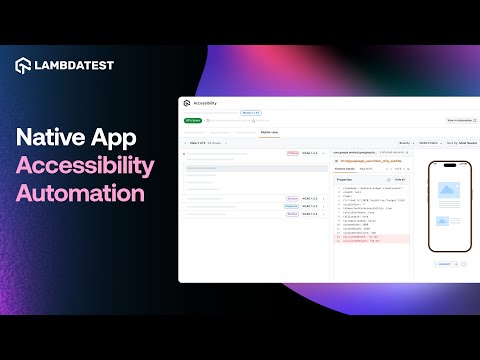
Developers and testers can also automate accessibility testing on TestMu AI using popular frameworks like Selenium and Cypress. To begin with automated accessibility testing on TestMu AI, check out the guide on Accessibility Automation.
Also, our Accessibility Testing Suite was launched in April 2025 and recognized as Product of the Day, securing the top spot on Product Hunt.
How Do AI Tools Help Test Mobile Accessibility Now?
AI-powered scanners can now suggest a fix for a flagged accessibility issue, generate a draft alt-text for an image, and predict which screens in a build are most likely to fail a WCAG check.
- Draft alt-text generation: A vision model reads an image inside the app and writes a draft alt-text string a developer can review and edit, instead of leaving the field blank.
- Earlier design-stage checks: Some AI plugins inside design tools flag a low-contrast color pair or a small tap target before a screen ever reaches a developer, catching the issue before it is built.
- Fix suggestions, not just flags: Newer scanners pair each violation with a proposed code change, such as increasing a touch target to meet the WCAG Target Size criterion, so a developer can accept or reject it directly.
- Predictive triage: A model trained on past scan results can flag which screens in a build are most likely to fail a WCAG check, so a tester with limited time checks those screens first.
- A real limitation: An AI-suggested fix or alt-text draft still needs a human reviewer. The model cannot confirm whether the fix works for someone actually using a screen reader or a switch device.
Checklist for Mobile Accessibility Testing
Before stepping on to testing the mobile application, you must understand all the pillars of accessibility for mobile applications around which you can build the test cases.
As a tester, always include the following in the accessibility testing cycles.
- Visual impairments: At least 2.2 billion people worldwide have some form of vision impairment, according to the WHO. These impairments prohibit a user from seeing the application normally and raise difficulty in taking action on it. As a developer and tester, visual impairments top the priority while making our application accessible to the public as it is the most common disability today.
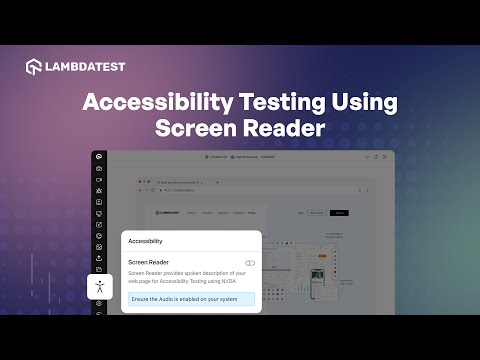
If a user is unable to see the mobile application, the part a developer needs to focus on is screen readers that can read out everything.
- Hearing impairments: 1.5 billion people suffer from hearing disabilities today – WHO This means problems in hearing the sound in normal range partially or completely. This number is expected to increase by more than 60% by 2050. Hence, if we keep features for hearing disabilities today in our application, it will be useful for the user and business for many years to come.
- Cognitive impairments: A cognitive impairment is associated with the inability of the user to concentrate, memorize something for long, or process the data at normal speeds.
- Verify images exist alongside text as textual elements are hard to read for dyslexic audiences.
- Verify the use of autocomplete on the elements like search fields to help those who have memory-related
- Verify that the elements are distinguishable from each other.
- Verify that the textual elements are easily readable, font size is comfortable, and there is enough space between each word and each sentence.
- Motor disabilities: A motor disability is said to be when the user faces problems in the movement of muscles or controlling their actions beyond a point. Since any user can face a motor disability at any point, developers and testers should always incorporate solutions to it.
- Assistive technology compatibility: An assistive technology is a physical hardware device that attaches to a mobile via Bluetooth or cable and assists the user in operating the application. It can also be a pre-installed software or from a third party. A popular example of an assistive technology is a screen reader that reads out the text from the screen for people with motor and visual disability.
- Presence of feedback system: A feedback system is a medium through which the end-user can portray their thoughts, suggestions, and problems to the developers and testers. It can be a short form at the end of the page or a quick survey to learn more about your audience.
Subscribe to the TestMu AI YouTube Channel for more such tutorials.
So, for visual impairments, auditory features should exist and work for all elements. Testers should also focus on graphic elements like images. The images should contain “alt-text” so that it can be read out and provide a reference of the image to the user.
To get started with screen readers, check out this blog on screen reader accessibility testing.
For someone who cannot hear the auditory elements of the applications clearly, the best way is to convert them to textual elements. While most of the elements are textual or image-based, only video elements will pose a problem for such an audience. To tackle this, make sure the transcript is available for the video and the media player used for playback contains caption functionality (auto-generated).
For people with both visual and auditory issues, assistive technologies are required, preferably in the form of physical devices.
To test cognitive impairments on mobile applications, a few of the things a tester can keep on their checklist are:
Testing accessibility for mobile applications for motor disabilities requires a tester to check the support of assistive technologies such as screen readers. They will also need to verify whether the mobile app contains elements that are not possible to handle with assistive technologies (such as transitions) and check if they are limited in number. These elements should also have a backup choice (such as selecting from the menu) for users facing motor problems.
The only way to test accessibility for mobile applications using assistive technologies like screen readers is by buying and using these hardware.
The feedback system on a mobile application can be tested using functional testing. It is an important part of the application, and therefore, it should work as expected, especially the part that delivers the feedback to the developer.
This checklist is an integral part of the testing accessibility for the mobile application phase. Testers can keep it handy to ensure the application covers all the impairments and is accessible to its audience.

Note: Test accessibility using screen readers. Try TestMu AI Today!
Best Practices for Testing Mobile Accessibility
To ensure that the process of testing accessibility for mobile applications a tester is following and the tasks they are executing are in their most optimal nature, they need to follow a few best practices.
- Include accessibility in the test plan: The implementation of accessibility for mobile applications starts with a test plan. It defines all the requirements, strategies, design, and anything that a tester will do during the cycle. The inclusion of accessibility in the test plan will ensure that all the elements of the testing will take shape with accessibility at its core.
- Include accessibility in the design: A test and development plan generally considers only the testing and development strategies. While focusing only on the test plan, we can miss the accessibility implementation because a lot depends on how the website is designed by UI/UX designers, especially when considering visually impaired people.
- Use accessibility tools: Accessibility metrics need to have precise values. For instance, the contrast for visual impairment has to be between a particular ratio. Similarly, the auditory devices have to provide sound between fixed decibel ratio values depending on the scenario.
- Do not focus on a single accessibility: Accessibility is a large umbrella term. It constitutes a lot of impairments, and there is no low or high priority among them, even though some might suggest so through the statistics.
Including designers in the process helps shape the application according to accessibility from the first development stage, making a tester’s job much easier.
All of this is hard to measure manually. Accessibility tools are designed to support accessibility testing with features supporting high accuracy and precision in various testing paradigms.
Focusing on single accessibility and leaving out others is a question of the morals and ethics of the testing and development team. Even if it is done partially, it is a good practice to give certain attention to all types of accessibility issues.
In sensitive areas of testing like accessibility for mobile applications, testers must look beyond business revenues and create an application that looks past the normal perception of boundaries with inclusive templates.
Conclusion
1 in 6 people suffer from at least one accessibility issue. This makes it a serious concern for people behind planning, developing, and testing the application so that it serves its purpose to anyone no matter what issues they face.
The first step in building such an application is to gather all the knowledge about the accessibility issues and how they are tackled. Once this is clear, accessibility testing for mobile applications will be easy to perform. All a tester now needs is good planning, good tools, and good people for initial testing and feedback. When all these elements are acquired by the testing team, they are ready to fulfill their moral, ethical, and professional responsibilities to the world.
Author

Harish Rajora
Blogs: 102


Harish Rajora is a Software Developer 2 at Oracle India with over 6 years of hands-on experience in Python and cross-platform application development across Windows, macOS, and Linux. He has authored 800 + technical articles published across reputed platforms. He has also worked on several large-scale projects, including GenAI applications, and contributed to core engineering teams responsible for designing and implementing features used by millions. Harish has worked extensively with Django, shell scripting, and has led DevOps initiatives, building CI/CD pipelines using Jenkins, AWS, GitLab, and GitHub. He has completed his post-graduation with an M.Tech in Software Engineering from the Indian Institute of Information Technology (IIIT) Allahabad. Over the years, he has emphasized the importance of planning, documentation, ER diagrams, and system design to write clean, scalable, and maintainable code beyond just implementation.


Mobile Accessibility FAQs
Did you find this page helpful?
More Related Blogs
TestMu AI forEnterprise
Get access to solutions built on Enterprise
grade security, privacy, & compliance
- Advanced access controls
- Advanced data retention rules
- Advanced Local Testing
- Premium Support options
- Early access to beta features
- Private Slack Channel
- Unlimited Manual Accessibility DevTools Tests