

Power Your Software Testing with AI Agents and Cloud
The Native AI-Agentic Cloud Platform to Supercharge Quality Engineering. Test Intelligently and Ship Faster.


- TestMu AI (Formerly LambdaTest)
- /
- Blog
- /
- How to allow pop-ups on Safari?
How to Allow Pop-Ups on Safari
Learn how to allow pop-ups on Safari for Mac and iPhone with simple steps. Enable pop-ups for specific sites or all websites easily.
Last Updated on:
To allow pop-ups on Safari, open Safari Settings on a Mac, click Websites, select Pop-up Windows and choose Allow for each trusted site. Safari blocks pop-ups by default, and iPhone and iPad use a single Block Pop-ups switch in Settings, Apps, Safari that applies to every website. This guide covers the Mac steps to allow and disable pop-ups, the iPhone and iPad steps, and what to do if pop-ups keep appearing.
Key Takeaways
- Safari on a Mac sets pop-up permissions per website under Settings, Websites, Pop-up Windows.
- Each website in the Safari Pop-up Windows list can be set to Block and Notify, Block or Allow.
- The When visiting other websites menu in Safari on a Mac sets the default pop-up rule for every site missing from the list.
- Safari on iPhone and iPad has one Block Pop-ups switch in Settings, Apps, Safari, and that switch covers every website.
- Allowing pop-ups only for trusted websites keeps the Safari pop-up blocker active on every other site.
- Apple advises checking Safari extensions and the Mac Applications folder when pop-ups keep appearing after blocking is turned on.
Steps to Allow Pop-Ups on Safari for Mac
If you are wondering how to allow pop-ups on Safari on your MacBook, iMac, or Mac mini, below are the simple steps that you can follow:
- Launch Safari on your MacBook, iMac, or Mac mini.
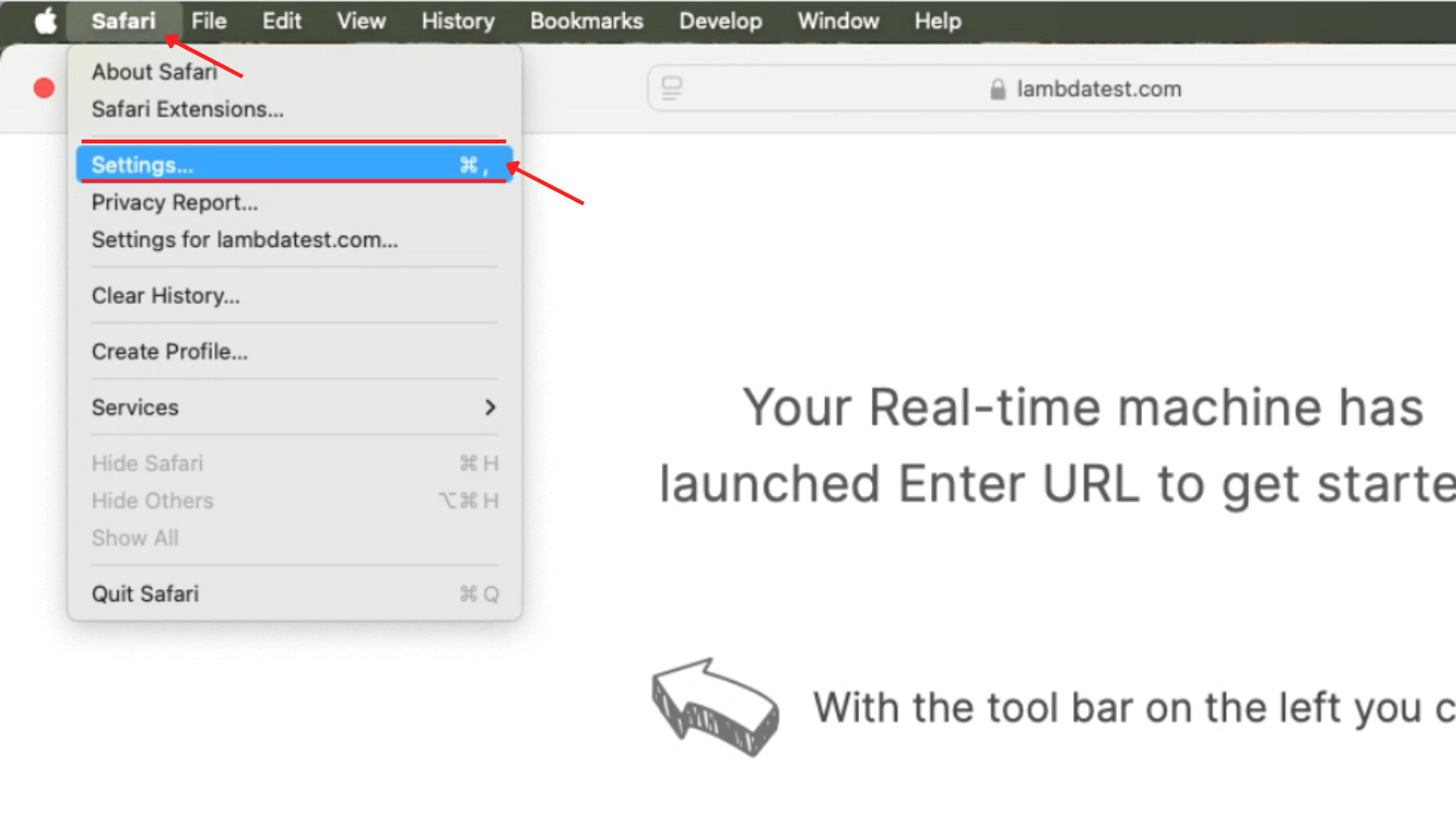
- Click on Safari in the top menu bar and select Settings (or Preferences on older macOS versions) from the dropdown menu.
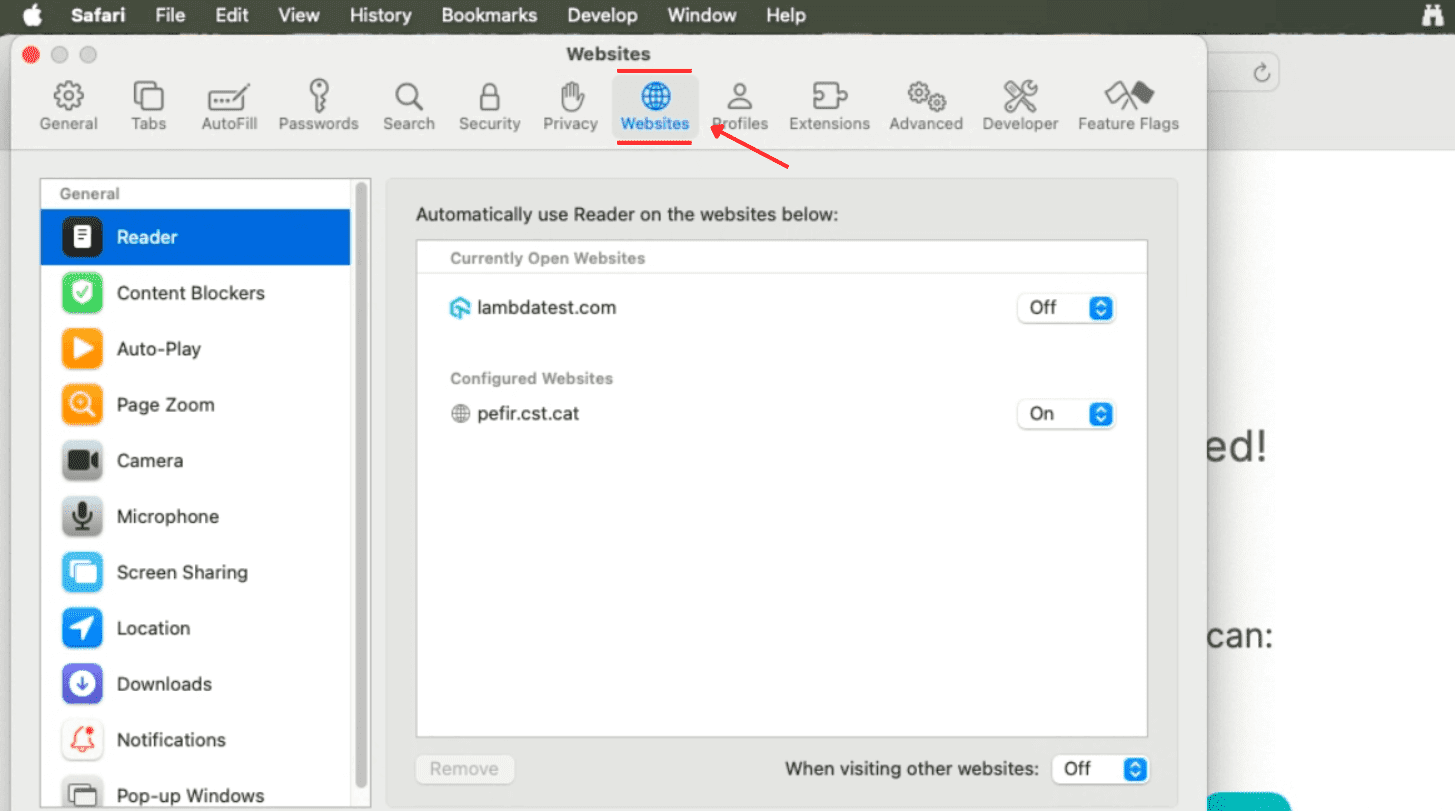
- In the Settings window, navigate to the Websites tab at the top.
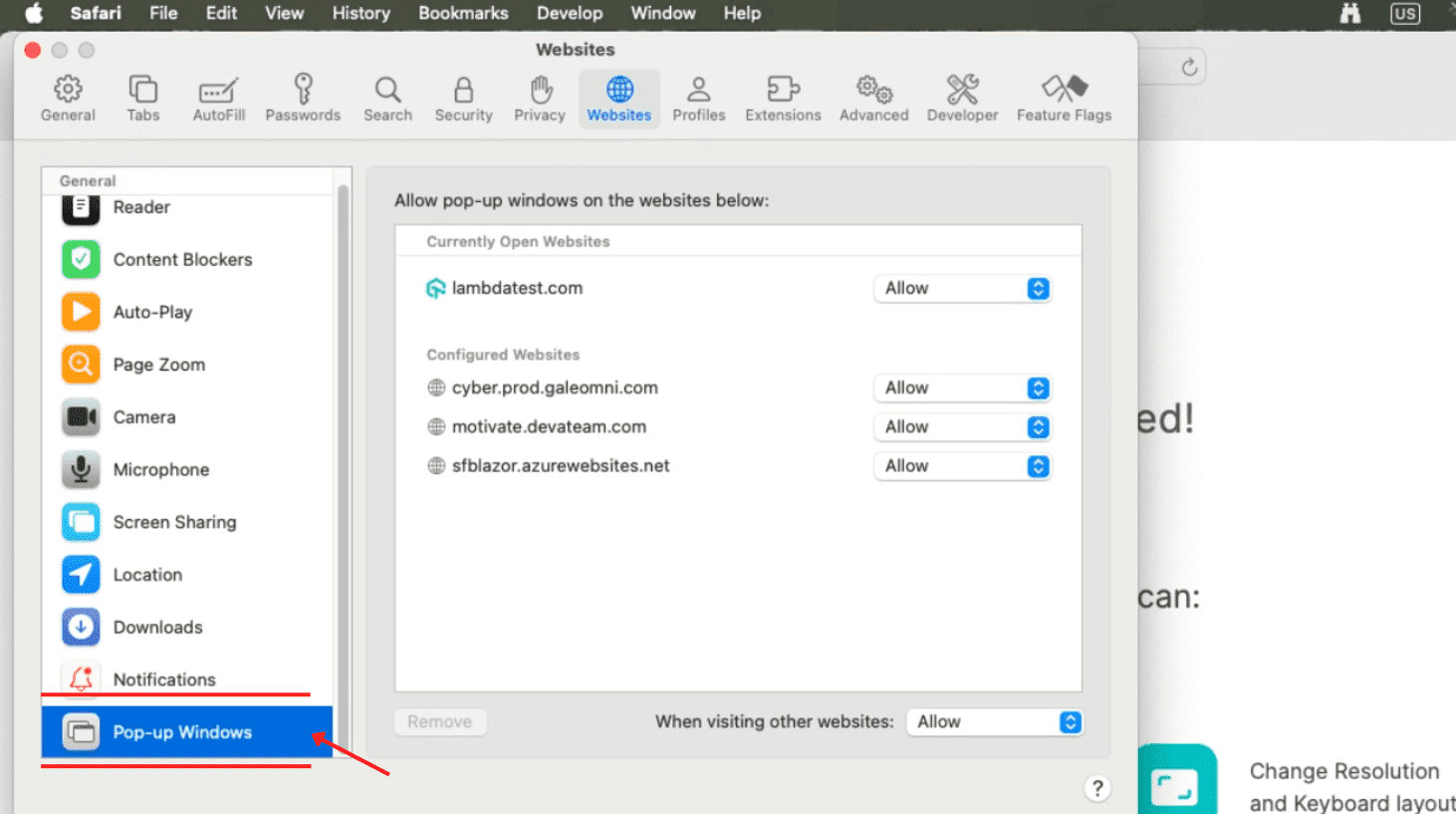
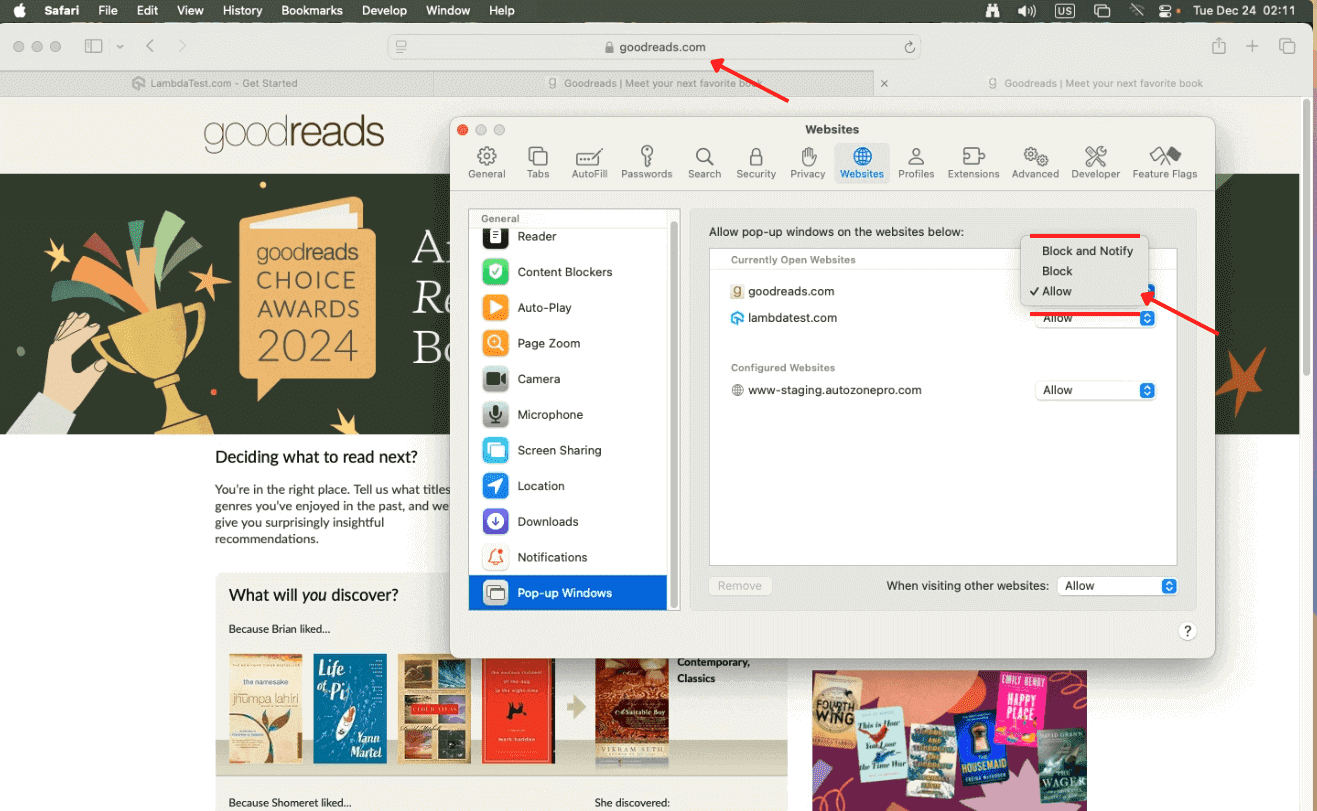
- From the left-hand sidebar, scroll down and select Pop-up Windows. A list of websites you have visited or currently have open in Safari will appear, showing their current pop-up preferences.
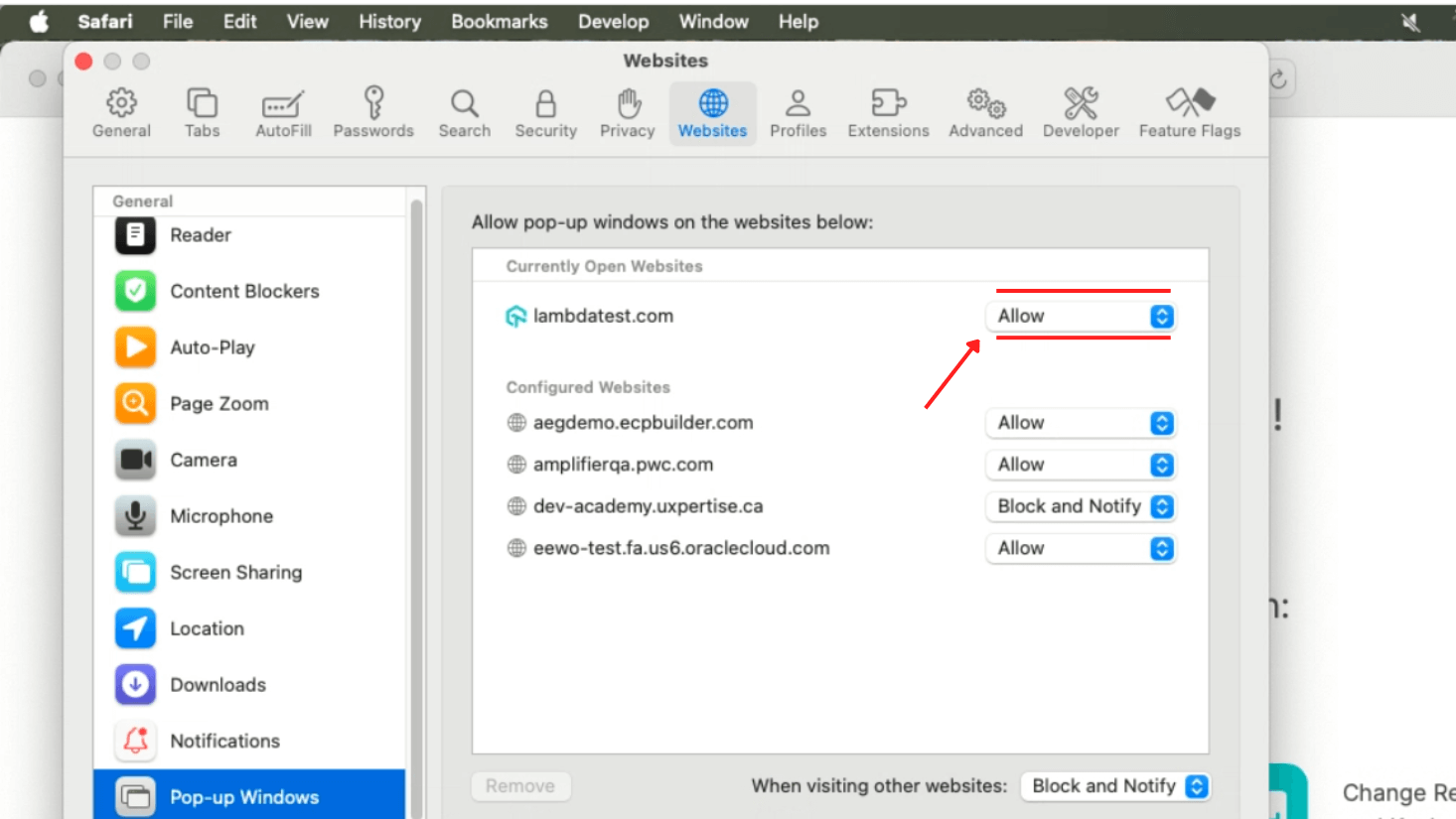
- Next to each website, use the dropdown menu to choose one of the following options:
- Block and Notify: Block pop-ups but notify you when they are blocked.
- Block: Blocks all pop-ups for the website.
- Allow: Enables all pop-ups for the selected website.
- For websites not listed, you can visit the site directly and adjust its settings from the dropdown menu in the Pop-up Windows section.
Select Allow only for websites you trust and want to enable pop-ups for.
Steps to Disable Pop-Ups on Safari for Mac
If you’ve allowed pop-ups on Safari but now want to block them again, below are the simple steps:
- Navigate to the Pop-up Windows section in Safari’s Settings (as explained earlier).
- In the Pop-up Windows settings, locate the list of websites displayed and use the dropdown menu next to each site to select Block and Notify or Block to disable pop-ups for individual websites.
- To block all pop-ups by default for websites not listed, adjust the setting at the bottom of the window by selecting Block for the option “When visiting other websites.”
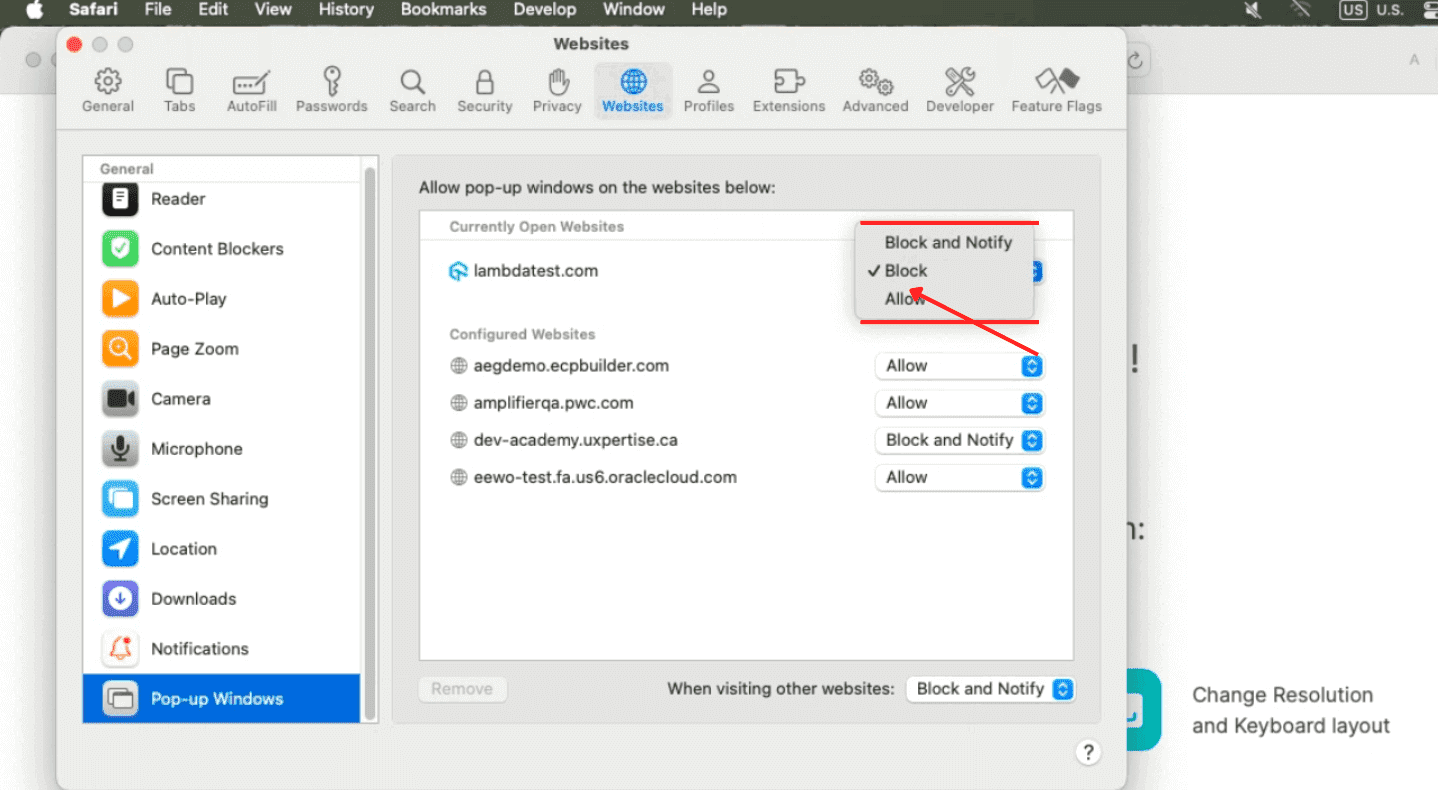
These changes will reinstate Safari’s pop-up blocker, keeping your browsing experience secure and interruption-free.
Steps to Allow or Block Pop-Ups on Safari for iPhone and iPad
If you’re trying to figure out how to allow pop-ups on Safari while browsing on your iPhone or iPad, below are the simple steps that you can follow:
To Allow Pop-Ups:
- Open the Settings app on your iPhone or iPad.
- Scroll down the Settings menu, tap Apps, then tap Safari to access its settings. On iOS 17 and earlier, Safari sits directly in the Settings list.
- In the General section, find the Block Pop-ups option.
- Toggle the switch off to allow pop-ups. This setting will enable pop-ups on all websites you visit.
- If you want to block pop-ups, toggle the switch ON instead. This will prevent pop-ups from appearing on any website.
To Block Pop-Ups:
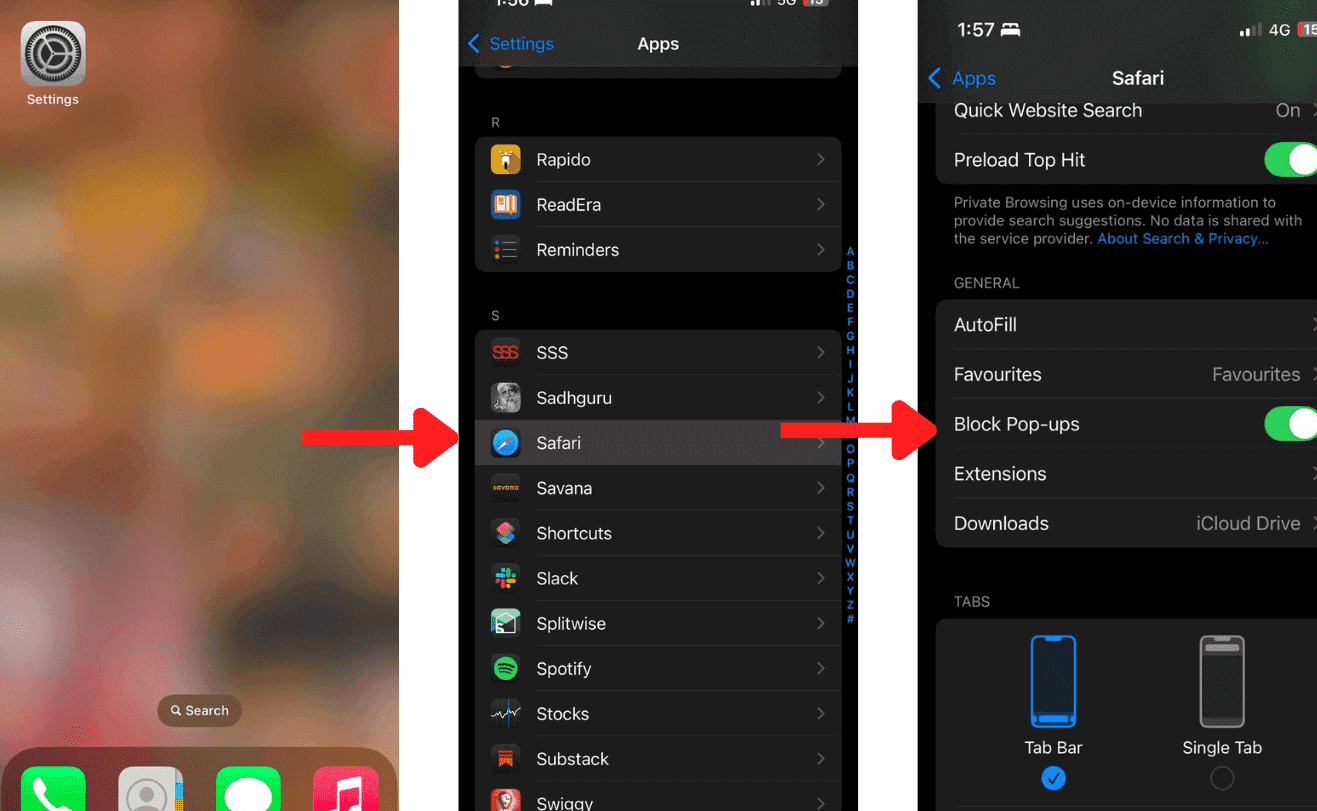
This setting will allow or block pop-ups on all websites you visit in Safari on your iPhone and iPad.

What Should You Do If Pop-Ups Keep Appearing in Safari?
If pop-ups keep appearing after you turn on blocking, close them without clicking inside, then remove unwanted Safari extensions and apps and update macOS. Apple's pop-up support guide lists these steps:
- Suspicious pop-ups: Close the tab or window instead of clicking a button, link or close control inside a pop-up you do not trust.
- Shift-key launch: If Safari reopens the same pop-up windows at launch, quit Safari, then hold the Shift key while opening Safari so the old windows do not return.
- Safari extensions: Open Safari Settings, click the Extensions tab and turn off or uninstall any extension you do not need.
- Applications folder: Check the Applications folder in Finder for software you did not install, and remove it.
- macOS update and restart: Update macOS and restart the Mac. macOS includes built-in tools that remove known malware.
- Fraudulent Website Warning: Turn the setting on in the Security tab of Safari Settings on a Mac, or under Settings, Apps, Safari on iPhone and iPad, so Safari warns you before a suspected fraudulent website loads.
If a trusted site needs a pop-up, such as a sign-in or payment window, allow pop-ups for that one site in Pop-up Windows on a Mac instead of turning blocking off for every site.
Conclusion
Enabling pop-ups on Safari is important for some websites and online tools. If you are wondering how to allow pop-ups on Safari, the steps outlined earlier make it easy to configure this on both Mac and iOS devices. Safari lets you choose whether to allow pop-ups for all websites or only trusted ones, giving you complete control over your browsing experience.
While pop-ups can be helpful, always ensure that you’re enabling them on trusted websites only to avoid security risks.
Chrome, Edge and Firefox also block pop-ups by default, but their menus differ from Safari's. You can manage pop-ups on Chrome, allow pop-ups in Edge or allow pop-ups in Mozilla Firefox from each browser's own settings.
Author

Bhavya Hada
Blogs: 29


Bhavya Hada is a Community Contributor at TestMu AI with over three years of experience in software testing and quality assurance. She has authored 20+ articles on software testing, test automation, QA, and other tech topics. She holds certifications in Automation Testing, KaneAI, Selenium, Appium, Playwright, and Cypress. At TestMu AI, Bhavya leads marketing initiatives around AI-driven test automation and develops technical content across blogs, social media, newsletters, and community forums. On LinkedIn, she is followed by 4,000+ QA engineers, testers, and tech professionals.
Reviewer

Anurag Sharma
Reviewer
Anurag Sharma is Senior Vice President of Engineering at TestMu AI (formerly LambdaTest), leading platform and product engineering across the testing cloud. He improved the streaming technologies behind live and screenshot testing, built the components that run the automation and manual test grids, and created an SSH-based Tunnel over a TCP proxy to test locally hosted and firewall-protected websites. He also built a microservice that scales virtual machines across bare-metal servers on demand using server health stats and weighted round robin. He brings over 12 years of experience across Golang, Node.js, Python, Java, Redis, Kafka, and MySQL, with earlier work engineering decision-support systems for Indian Railways.


Safari Pop-Up FAQs
Did you find this page helpful?
More Related Blogs
TestMu AI forEnterprise
Get access to solutions built on Enterprise
grade security, privacy, & compliance
- Advanced access controls
- Advanced data retention rules
- Advanced Local Testing
- Premium Support options
- Early access to beta features
- Private Slack Channel
- Unlimited Manual Accessibility DevTools Tests