

Power Your Software Testing with AI Agents and Cloud
The Native AI-Agentic Cloud Platform to Supercharge Quality Engineering. Test Intelligently and Ship Faster.


- TestMu AI (Formerly LambdaTest)
- /
- Blog
- /
- How to Allow Pop-ups in Mozilla Firefox
How to Allow Pop-ups in Mozilla Firefox
Learn how to allow pop-ups in Mozilla Firefox on Windows and macOS with step-by-step instructions.
Last Updated on:
Firefox controls pop-ups with one Permissions setting: unchecking Block pop-up windows in Settings under Privacy & Security lets every site open pop-ups, while leaving it checked and adding a URL through the Exceptions dialog opens pop-ups for only that site. This differs from ad blocking, which Firefox handles through separate add-ons like uBlock Origin rather than the built-in permission itself.
Steps to Allow Pop-ups in Mozilla Firefox
In order to provide an uninterrupted browsing experience, pop-ups are frequently prevented by default in Mozilla Firefox. However, in some cases, enabling them is required.
Let’s look at how to allow pop-ups in Mozilla Firefox on Windows and macOS:
Allow Pop-ups in Mozilla Firefox on Windows
Follow these steps to enable popups in Mozilla on Windows:
- Open Mozilla Firefox on your Windows operating system.
- Click on the menu button (three horizontal lines) on the top-right corner. Then, select Settings from the dropdown menu.
- Go to Privacy & Security, and then navigate to the Permissions section.
- Look for the checkbox labeled Block pop-up windows. Uncheck this box to allow popups globally, or click on Exceptions… to manage specific websites.
- In the Exceptions dialog box, enter the URL of the website for which you want to enable popups. Click Allow and then Save Changes.
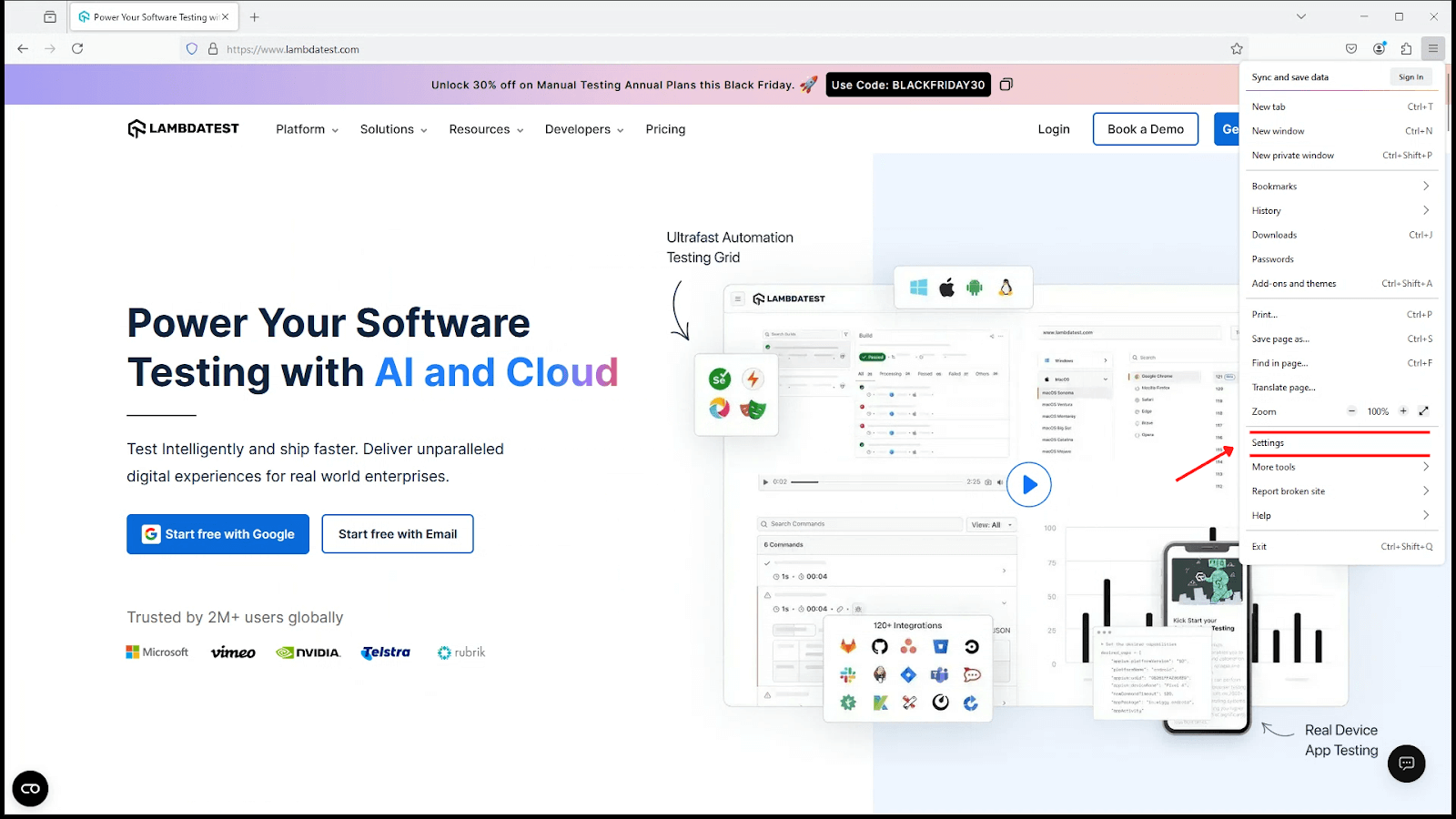
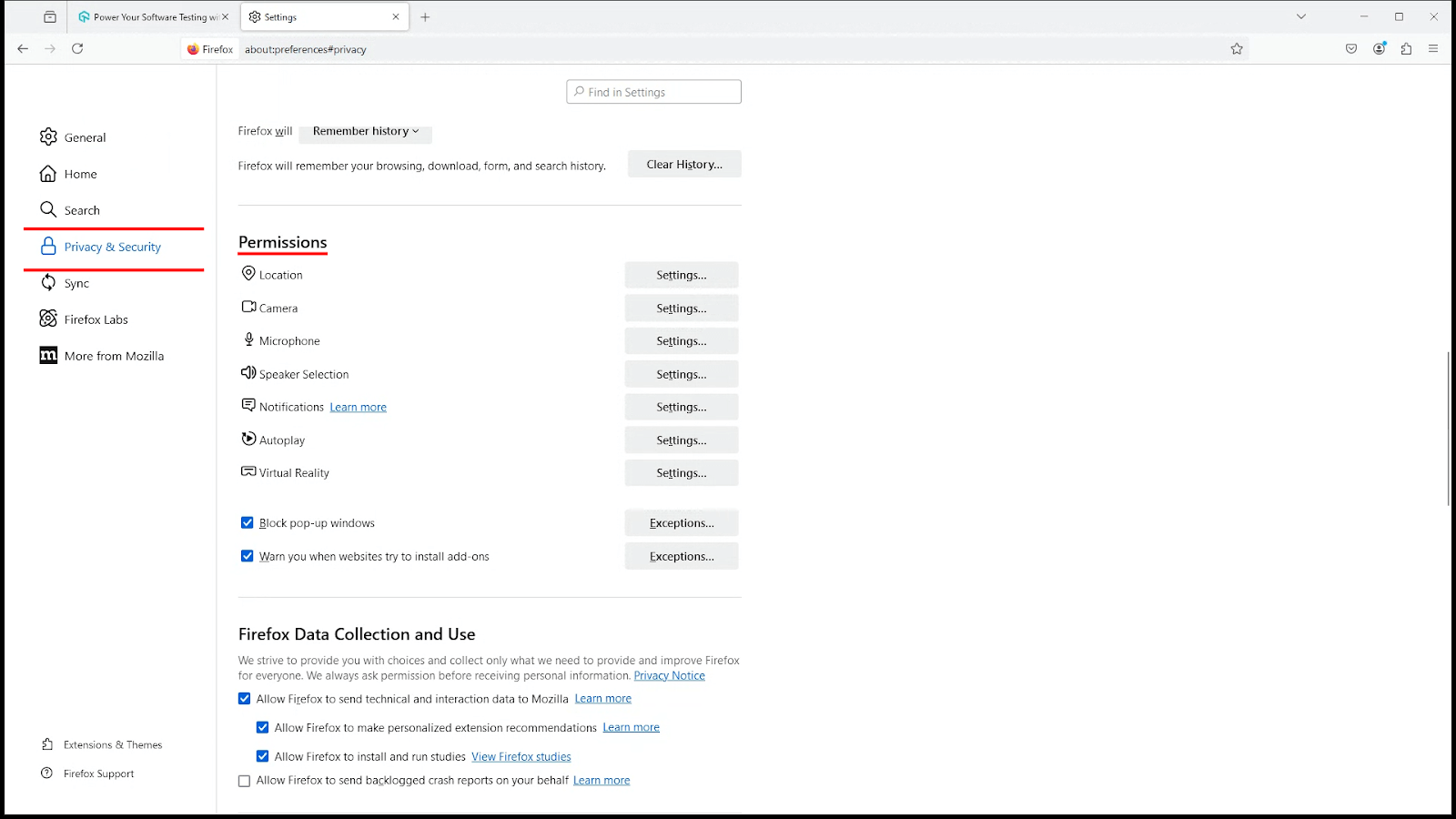
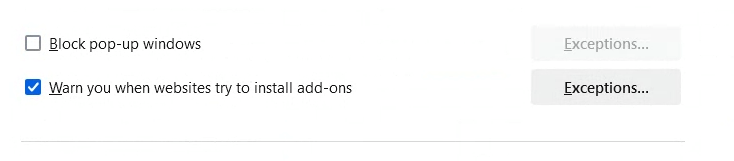
This will enable popups for the selected websites while keeping other popups blocked.

Note: Test your websites across real Firefox browsers. Try TestMu AI Today!
Allow Pop-ups in Mozilla Firefox on macOS
If you are using a macOS, the steps are similar but tailored for macOS users:
- Launch Mozilla Firefox on your macOS.
- Go to Privacy & Security and navigate to the Permissions section.
- Uncheck Block pop-up windows to allow popups universally. To allow pop-ups for specific sites, click Exceptions…
- Enter the URL of the website you trust and want to allow pop-ups for. Then, click Allow and Save Changes.
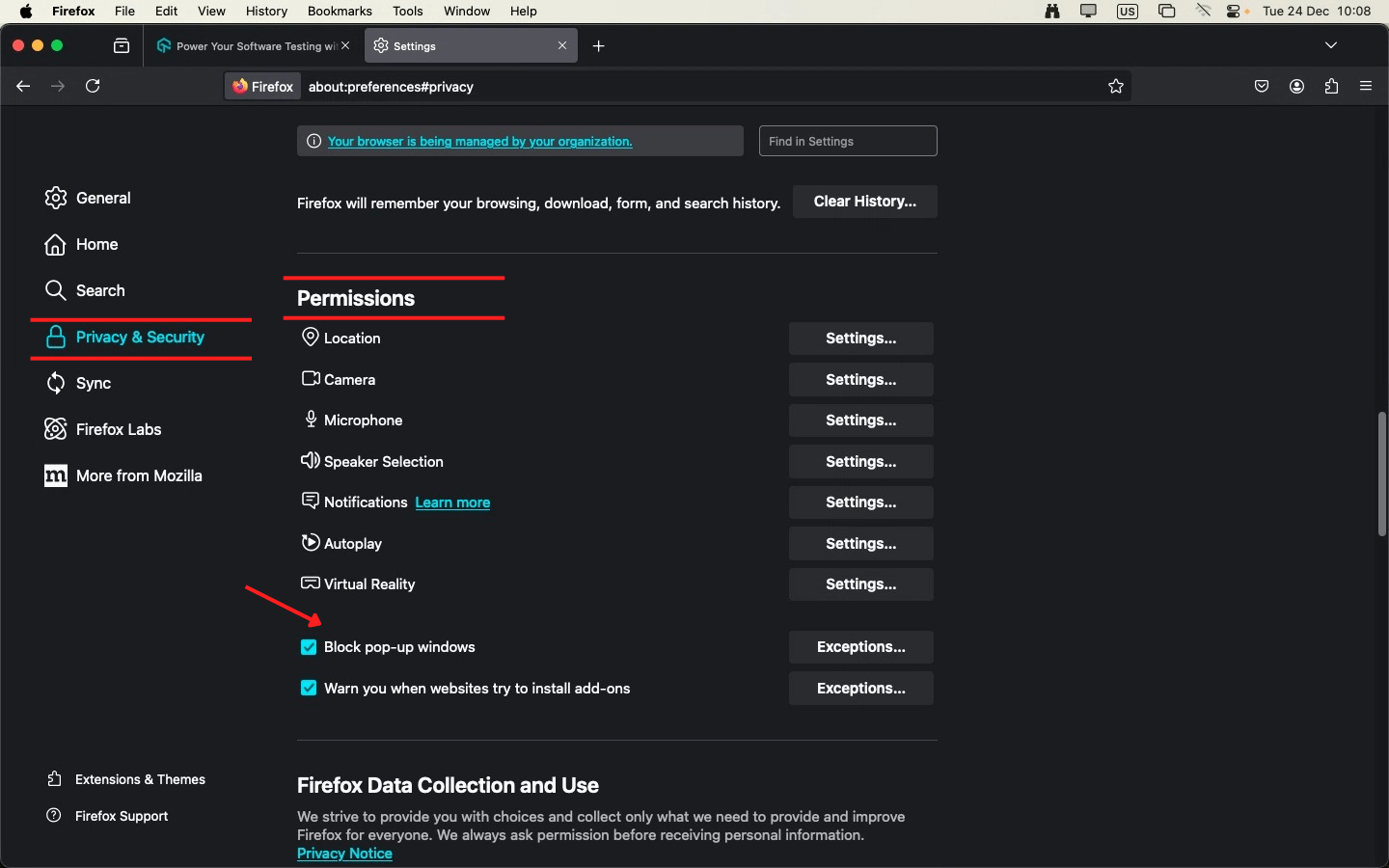
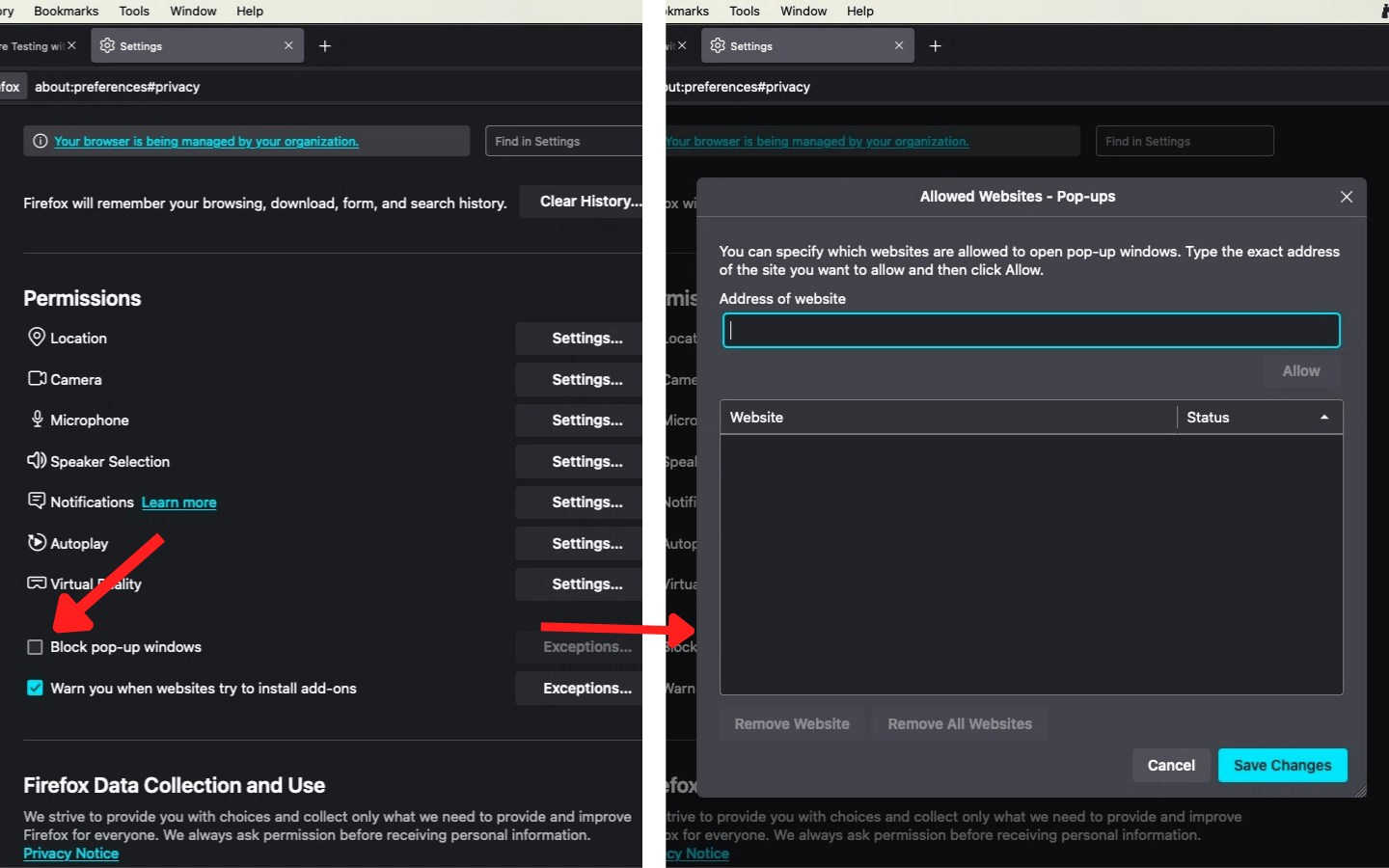
Steps to Block Pop-ups in Mozilla Firefox
Blocking pop-ups in Mozilla Firefox on Windows and macOS is simple and involves the same steps.
Here are the following steps to block pop-ups in Mozilla Firefox:
- Go to the Settings and click on Privacy & Security.
- Scroll down to the Permissions section.
- Ensure the Block pop-up windows checkbox is ticked.
- Click Exceptions… next to Block pop-up windows, then add or remove websites to customize pop-up permissions.


Why Do AI Browser Agents Still Trip Firefox's Pop-up Blocker?
An AI browser agent can still trip Firefox's pop-up blocker after you allow pop-ups for a site, because the block checks how the click happened, not the site permission you just set.
Firefox only treats a click as a genuine user gesture when the browser itself fires the event. MDN documents this directly: pop-up windows must open in direct response to user input, with a separate gesture required for each call. A click fired through the DOM click method carries an isTrusted value of false, the same flag Firefox checks before it lets a script open a new window.
This is why agentic testing setups behave differently from each other. Selenium's element click and Playwright's locator click dispatch input at the browser level, so Firefox treats the resulting click as trusted and lets the pop-up open. An AI agent driven by a JavaScript-only click, a pattern common in lightweight MCP-based browser automation such as Playwright's own MCP server, produces an untrusted click instead, and Firefox blocks the pop-up even with Block pop-up windows left unchecked.
The fix sits in the automation layer, not in Settings. Route the click through the automation tool's native click action, the kind Playwright MCP uses when an AI agent asks it to click an element, instead of a page-level JavaScript click. Or open the destination as a direct navigation instead of a scripted window.open call.
Conclusion
Managing pop-ups effectively in Mozilla Firefox is crucial for enhancing your browsing experience. Whether you need to allow pop-ups for specific trusted websites or block intrusive ones, Mozilla Firefox offers intuitive controls to suit your preferences.
Following the steps above, you can easily allow or block pop-ups on Windows and macOS, ensuring the right balance between functionality and security.
Author

Bhawana
Blogs: 75


Bhawana is a Community Evangelist at TestMu AI with over 3 years of experience creating technically accurate, strategy-driven content in software testing. She has authored 50+ blogs on test automation, cross-browser testing, mobile testing, and real device testing. She also serves as Product Marketing Manager for Kane CLI, the command-line tool that runs browser automation from the terminal using natural-language flows in a real Chrome browser. Bhawana is certified in KaneAI, Selenium, Appium, Playwright, and Cypress, reflecting her hands-on knowledge of modern automation practices. On LinkedIn, she is followed by 6000+ QA engineers, testers, AI automation testers, and tech leaders.


Frequently asked questions
Did you find this page helpful?
More Related Blogs
TestMu AI forEnterprise
Get access to solutions built on Enterprise
grade security, privacy, & compliance
- Advanced access controls
- Advanced data retention rules
- Advanced Local Testing
- Premium Support options
- Early access to beta features
- Private Slack Channel
- Unlimited Manual Accessibility DevTools Tests