

Power Your Software Testing with AI Agents and Cloud
The Native AI-Agentic Cloud Platform to Supercharge Quality Engineering. Test Intelligently and Ship Faster.


- TestMu AI (Formerly LambdaTest)
- /
- Blog
- /
- How to Perform React Native Testing
How to Perform React Native Testing
Learn about the React Native framework & how to perform React Native testing on Android & iOS apps using manual and automation testing approaches.
Last Updated on:
React Native powers high-traffic apps including Facebook, Instagram, Shopify, and Microsoft Office. Shipping a single JavaScript codebase to both Android and iOS speeds up development, but it also means a regression on either platform reaches every user.
This tutorial walks through end-to-end React Native testing on real Android and iOS devices using Appium 2.x with TestNG and Java, then runs the same suite in parallel on the TestMu AI real device cloud. By the end, you have a working Page Object Model project, a testng.xml that runs both platforms in parallel, and dashboard build artifacts you can show your team.
TestMu AI – The New LambdaTest is built for the AI era of software testing.
Key Takeaways
To perform React Native testing, validate your cross-platform mobile app across multiple layers, using Jest for fast unit testing of pure logic and Appium for comprehensive end-to-end testing on real Android and iOS devices to catch platform-specific bugs before release.
- Because a single regression in shared JavaScript code reaches Android and iOS users simultaneously, cross-platform validation is a release-gating requirement rather than an optional step.
- Best for unit testing: Jest runs tests in milliseconds on Node without a device, making it the default tool for validating pure logic, reducers, and hooks in React Native apps.
- Best for component testing: React Native Testing Library renders components in a headless environment to assert on UI output and user interactions by querying elements the way users see them.
- Best for gray-box E2E testing: Detox provides React Native-specific end-to-end testing with built-in synchronization, running JavaScript-only test suites on simulators and emulators.
- Best for black-box E2E testing: Appium drives both Android and iOS real devices in a single test suite using multiple language bindings, making it ideal for cross-platform real-device validation.
- Best for cloud-based execution: The TestMu AI real device cloud runs Android and iOS tests in parallel across more than 10,000 real devices, replacing the need for local device labs.
- This guide provides a complete Appium, TestNG, and Java project using the Page Object Model to run parallel cross-platform tests and generate CI-ready dashboard artifacts.
What Is React Native Framework?
React Native is an open-source JavaScript framework from Meta for building cross-platform mobile apps. It ships a single JavaScript codebase to iOS and Android, rendering native views (UIView, ViewGroup) instead of a WebView, with an escape hatch into Swift, Objective-C, Java, or Kotlin when needed.
With 126k stars on the React Native GitHub repository, it is one of the most active open-source projects in the mobile ecosystem. That reach is also why testing matters: a single regression in shared JavaScript code hits every Android and iOS user at once.
Types of React Native Testing
React Native testing maps onto the standard testing pyramid, but the cross-platform nature adds one extra concern: every layer needs to validate both Android and iOS behavior, not just JavaScript correctness.
- Unit Testing: Validates individual functions, reducers, and utilities in isolation. Jest ships with React Native by default and runs tests in milliseconds. Best for pure logic and state transformations.
- Component Testing: Renders a React Native component in a headless environment and asserts on the output. React Native Testing Library queries elements the way users see them (by text, by role) instead of by implementation details.
- Snapshot Testing: Captures a serialized component tree and fails the test when the tree changes. Useful for catching unintended UI shifts, but the official React Native docs warn that snapshots can be a trap when they grow large or when teams update them without reviewing the diff.
- Integration Testing: Tests several real units together (component plus its hook plus a Redux slice, for example) without mocking everything. Catches contract issues unit tests miss.
- End-to-End (E2E) Testing on Real Devices: Drives the actual app on a real Android or iOS device. This is where Appium fits in. E2E tests catch the bugs that only appear with real touch input, real geolocation, real keyboards, and real push notifications.
For a deeper look at the component layer, see our guide to React testing libraries. The rest of this article focuses on the E2E layer, where the differences between Android and iOS bite hardest.
Appium vs Jest vs RNTL vs Detox
Most React Native teams ship a mix of these tools rather than picking one. The decision is which tool owns which layer.
| Tool | Test Layer | Runs On | Best For |
|---|---|---|---|
| Jest | Unit | Node (no device) | Pure functions, reducers, hooks logic. Default with React Native. |
| React Native Testing Library | Component | Node (no device) | Asserting UI output and user interactions at the component level. |
| Detox | E2E (gray-box) | Simulator / emulator | React Native specific E2E with synchronization built in. JavaScript only. |
| Appium | E2E (black-box) | Real Android and iOS devices | Cross-platform real-device testing with Java, Python, JavaScript, or C# bindings. Works on any app, not just React Native. |
When to choose Appium for React Native:
- You need to validate the build on a wide matrix of real Android and iOS devices, not just one simulator.
- Your QA team already runs Appium parallel testing for native apps and wants one suite covering both.
- You want a vendor-neutral framework that also works on native iOS and Android apps, hybrid apps, and mobile web, instead of a React-Native-only tool.
- You need to scale to hundreds of devices in a CI pipeline, which is where a cloud grid like the TestMu AI real device cloud comes in.
If your needs are JavaScript-only and you do not require physical devices, start with Jest plus React Native Testing Library and reach for Detox or Appium when those layers stop catching the bugs you care about. The rest of this guide builds out the Appium-on-real-devices flow.
Prerequisites for React Native Testing
To follow along, install Java 11 or later, Appium Server 2.5+ (Appium 3.x is also supported and uses the same WebDriver protocol), Appium Java Client 9.x, TestNG as the runner, and Maven as the build tool. The cloud target is the TestMu AI mobile grid, which removes the need to maintain a local device farm.
- Install Node.js 18+ (Appium ships as an npm package), then run
npm install -g appium. - Install the platform drivers:
appium driver install uiautomator2for Android andappium driver install xcuitestfor iOS. - Download Appium Inspector as a separate desktop app to inspect element locators on running sessions.
- Add TestNG and the Appium Java Client to your Maven
pom.xml(covered in the implementation section below).
appium server
Note: The legacy Appium Desktop GUI is deprecated. Use the Appium server CLI plus a separate Appium Inspector install instead.

Note: Run React Native tests on 10,000+ real Android and iOS devices in parallel. Try TestMu AI free
Performing React Native Testing on Real Devices
This section walks through a working Appium + TestNG project that runs the same React Native app against real Android and iOS devices on the TestMu AI cloud. The full source is on GitHub; this section explains the moving parts.
The demo apps are the Proverbial sample app (a React Native build that exercises text fields, notifications, toasts, geolocation, and an in-app browser):
TestMu AI is an AI-native test execution platform that runs manual and automated tests across 10,000+ real Android and iOS devices. The Appium grid sits behind the same WebDriver hub, so the only client-side change is the desired-capabilities block. See the real-device app testing docs for a full setup walkthrough.
Test Scenario
The suite covers seven user flows that touch React Native's most common cross-platform pain points: native rendering, OS-level notifications, toast messages, geolocation, navigation, and an embedded WebView.
- Open the app and check that the welcome message "Hello! Welcome to lambdatest Sample App called Proverbial" renders correctly.
- Tap the TEXT button and assert that "Proverbial" appears.
- Tap the NOTIFICATION button, assert the OS notification appears, then dismiss it.
- Tap the TOAST button and assert that "Toast should be visible" appears at the bottom of the screen.
- Tap GEOLOCATION, confirm navigation to the geolocation page, then navigate back.
- Tap SPEED TEST, assert the banner is displayed, then navigate back.
- Open the Browser menu, type "TestMu AI" into the URL field, tap FIND, and assert that the page loads.
Page Object Model Setup
The project uses Maven for builds and TestNG for the runner. Add the Appium Java Client, TestNG, and Lombok to pom.xml:
<dependencies>
    <!-- https://mvnrepository.com/artifact/org.testng/testng -->
    <dependency>
        <groupId>org.testng</groupId>
        <artifactId>testng</artifactId>
        <version>${testng-version}</version>
        <scope>test</scope>
    </dependency>
    <!-- https://mvnrepository.com/artifact/io.Appium/java-client -->
    <dependency>
        <groupId>io.Appium</groupId>
        <artifactId>java-client</artifactId>
        <version>${Appium-java-client-version}</version>
    </dependency>
    <!-- https://mvnrepository.com/artifact/org.projectlombok/lombok -->
    <dependency>
        <groupId>org.projectlombok</groupId>
        <artifactId>lombok</artifactId>
        <version>${lombok-version}</version>
        <scope>provided</scope>
    </dependency>
</dependencies>
Versions of the dependencies are set in a separate properties block. It is done for maintainability, so if we need to update the versions, we can do it easily without searching throughout the pom.xml file.
<properties>
    <testng-version>9.2.2</testng-version>
    <Appium-java-client-version>7.9.0</Appium-java-client-version>
    <lombok-version>1.18.32</lombok-version>
</properties>
In the Page Object Model (POM), a class is created for every web page, and it contains all the related elements (such as buttons, text fields, etc.) of that page, as well as the relevant action methods (such as clicking a button, entering text, etc.). This separation of concerns helps keep the page objects separate from the test code, improving maintainability and readability.
We will be create four different classes for all four different pages, namely, HomePage, GeoLocationPage, SpeedTestPage, and BrowserPage where specific locators of their respective pages will be stored, and we would be calling these locators in the tests to check the application.
Below, we will create Android and iOS classes for each action point mentioned in the test scenario above. First, let’s locate the elements for the required components on Android and iOS, enabling us to execute the tests.
HomePage class for Android
public class HomePage {

   AndroidDriverManager driverManager;
   WebDriverWait wait;

   public HomePage (final AndroidDriverManager driverManager) {
       this.driverManager = driverManager;
       wait = new WebDriverWait (driverManager.getDriver (), Duration.ofSeconds (20));
   }

   public WebElement textBtn () {
       return driverManager.getDriver ()
           .findElement (AppiumBy.id ("Text"));
   }

   public String getText () {
       return driverManager.getDriver ()
           .findElement (AppiumBy.id ("Textbox"))
           .getText ();
   }

   public WebElement notificationBtn () {
       return driverManager.getDriver ()
           .findElement (AppiumBy.id ("notification"));
   }

   public WebElement notificationBar () {
       return driverManager.getDriver ()
           .findElement (AppiumBy.id ("action_bar"));
   }

   public WebElement toastBtn () {
       return driverManager.getDriver ()
           .findElement (AppiumBy.id ("toast"));
   }

   public String toastMessage () {
       return wait.until (ExpectedConditions.presenceOfElementLocated (AppiumBy.xpath ("//android.widget.Toast[1]")))
           .getText ();
   }

   public WebElement geoLocationBtn () {
       return driverManager.getDriver ()
           .findElement (AppiumBy.id ("geoLocation"));
   }

   public WebElement speedTestBtn () {
       return driverManager.getDriver ()
           .findElement (AppiumBy.id ("speedTest"));
   }

   public WebElement browserMenu () {
       return driverManager.getDriver ()
           .findElement (AppiumBy.accessibilityId ("Browser"));
   }

   public void openMenu () {
       driverManager.getDriver ().findElement (AppiumBy.accessibilityId ("drawer open")).click ();
   }

   public void clickPushNotificationMenu () {
       driverManager.getDriver ().findElement (AppiumBy.id ("pushNotification")).click ();
   }

}
HomePage class for iOS
public class HomePage {

   private final IOSDriverManager iosDriverManager;
   private final WebDriverWait wait;

   public HomePage (final IOSDriverManager iosDriverManager) {
       this.iosDriverManager = iosDriverManager;
       this.wait = new WebDriverWait (iosDriverManager.getDriver (), Duration.ofSeconds (20));
   }

   public WebElement textBtn () {
       return this.iosDriverManager.getDriver ()
           .findElement (AppiumBy.accessibilityId ("Text"));
   }

   public String getText () {
       return this.iosDriverManager.getDriver ()
           .findElement (AppiumBy.accessibilityId ("Textbox"))
           .getText ();
   }

   public WebElement notificationBtn () {
       return this.iosDriverManager.getDriver ()
           .findElement (AppiumBy.accessibilityId ("notification"));
   }

   public WebElement notificationBar () {
       return this.wait.until (
           ExpectedConditions.presenceOfElementLocated (AppiumBy.accessibilityId ("NotificationShortLookView")));
   }

   public WebElement toastBtn () {
       return this.iosDriverManager.getDriver ()
           .findElement (AppiumBy.accessibilityId ("toast"));
   }

   public String toastMessage () {
       return this.wait.until (ExpectedConditions.presenceOfElementLocated (
               AppiumBy.xpath ("//*[contains(@label, 'Toast should be visible')]")))
           .getText ();
   }

   public WebElement geoLocationBtn () {
       return this.iosDriverManager.getDriver ()
           .findElement (AppiumBy.accessibilityId ("geoLocation"));
   }

   public WebElement speedTestBtn () {
       return this.iosDriverManager.getDriver ()
           .findElement (AppiumBy.accessibilityId ("speedTest"));
   }

   public WebElement browserMenu () {
       return this.iosDriverManager.getDriver ()
           .findElement (AppiumBy.accessibilityId ("Browser"));
   }

}
From the code, it is clear that all the elements on the HomePage on Android were located using the ID locator strategy in most cases. In contrast, accessibilityId was used for the browser menu. On iOS, accessibilityId was used to locate all the elements.
Here, we will identify the Android and iOS mobile applications WebElements on the GeoLocationPage.
GeoLocationPage class for Android
public class GeoLocationPage {

   private final AndroidDriverManager driverManager;
   private final WebDriverWait wait;

   public GeoLocationPage (final AndroidDriverManager driverManager) {
       this.driverManager = driverManager;
       this.wait = new WebDriverWait (driverManager.getDriver (), Duration.ofSeconds (30));
   }

   public WebElement content () {
       return this.wait.until (ExpectedConditions.presenceOfElementLocated (AppiumBy.id ("android:id/content")));
   }

   public void navigateToHomePage () {
       this.driverManager.getDriver ()
           .navigate ()
           .back ();
   }

}
GeoLocationPage class for iOS
public class GeoLocationPage {

   private final IOSDriverManager iosDriverManager;
   private final WebDriverWait wait;

   public GeoLocationPage (final IOSDriverManager iosDriverManager) {
       this.iosDriverManager = iosDriverManager;
       this.wait = new WebDriverWait (iosDriverManager.getDriver (), Duration.ofSeconds (30));
   }

   public WebElement banner () {
       return this.wait.until (ExpectedConditions.presenceOfElementLocated (AppiumBy.accessibilityId ("banner")));
   }

   public WebElement backBtn () {
       return this.iosDriverManager.getDriver ()
           .findElement (AppiumBy.accessibilityId ("Back"));
   }

   public void navigateToHomePage () {
       clickOn (backBtn ());
   }

}
Similar to the approach on the HomePage, a locator for checking the content was found using the Id locator strategy for Android. For iOS, accessibilityId was used to locate the banner.
It’s important to note the navigateToHomePage() method, which was created to take the user back to the HomePage once the required actions are completed for the tests on Android. For iOS, a back button is available in the app, so it was located using accessibilityId, and a click was performed to navigate to the HomePage.
Here, we will identify the WebElements on the SpeedTestPage for Android and iOS.
SpeedTestPage class for Android
public class SpeedTestPage {

   private final AndroidDriverManager driverManager;

   public SpeedTestPage (final AndroidDriverManager driverManager) {
       this.driverManager = driverManager;
   }

   public WebElement headerText () {
       return this.driverManager.getDriver ()
           .findElement (AppiumBy.accessibilityId ("Speedtest"));
   }

   public void navigateToHomePage () {
       this.driverManager.getDriver ()
           .navigate ()
           .back ();
   }

}
SpeedTestPage class for iOS
public class SpeedTestPage {

   private final IOSDriverManager iosDriverManager;

   public SpeedTestPage (final IOSDriverManager iosDriverManager) {
       this.iosDriverManager = iosDriverManager;
   }

   public String headerText () {
       return this.iosDriverManager.getDriver ()
           .findElement (AppiumBy.iOSClassChain ("**/XCUIElementTypeImage[`label == "Speedtest"`]"))
           .getText ();
   }

   public void navigateToHomePage () {
       this.iosDriverManager.getDriver ()
           .navigate ()
           .back ();
   }
}
The code for the SpeedTestPage for Android is self-explanatory. The iOSClassChainlocator strategy was used to locate the Speedtest label for locating elements on iOS.
Here, we will identify the WebElements on the BrowserPage for Android and iOS mobile applications.
BrowserPage class for Android
public class BrowserPage {


   private AndroidDriverManager driverManager;


   public BrowserPage (final AndroidDriverManager driverManager) {
       this.driverManager = driverManager;
   }


   public WebElement searchBox () {
       return driverManager.getDriver ()
           .findElement (AppiumBy.id ("url"));
   }


   public void searchFor (String url) {
       searchBox ().sendKeys (url);
       clickOn (findBtn ());
       waitForsomeTime ();
   }


   public WebElement findBtn () {
       return driverManager.getDriver ()
           .findElement (AppiumBy.id ("find"));
   }


   public void navigateToHomePage () {
       driverManager.getDriver ()
           .navigate ()
           .back ();
   }


}
The WebElements for searchBox() and findBtn() on the BrowsePage on the Android app were located using the id locator. The searchFor() method is created to search for and navigate to the URL.
BrowserPage class for iOS
public class BrowserPage {


   private final IOSDriverManager iosDriverManager;


   public BrowserPage (final IOSDriverManager iosDriverManager) {
       this.iosDriverManager = iosDriverManager;
   }


   public WebElement searchBox () {
       return this.iosDriverManager.getDriver ()
           .findElement (AppiumBy.accessibilityId ("url"));
   }


   public void searchFor (String url) {
       searchBox ().sendKeys (url);
       clickOn (findBtn ());
       waitForsomeTime ();
   }


   public WebElement findBtn () {
       return this.iosDriverManager.getDriver ()
           .findElement (AppiumBy.accessibilityId ("Find"));
   }


   public void navigateToHomePage () {
       this.iosDriverManager.getDriver ()
           .navigate ()
           .back ();
   }


}
As we did for the Android app, the same thing is repeated in the iOS app class; the searchBox() and findBtn() buttons are located using the accessibilityId locator. The searchFor() method is created to navigate to a URL from the BrowserPage.
Driver Configuration
Let's define the BaseTest classes that can be extended in the actual tests to avoid repeating the same configuration. Two separate BaseTest classes are created to instantiate the Android and iOS drivers.
public class BaseTest {

   protected AndroidDriverManager androidDriverManager;

   @Parameters({"buildName", "testName", "app", "platformName", "platformVersion", "deviceName"})
   @BeforeClass
   public void setupTest(final String buildName, final String testName, @Optional("app") final String app, final String platformName, final String platformVersion,
                         final String deviceName) {

       this.androidDriverManager = AndroidDriverManager.builder()
               .buildName(buildName)
               .testName(testName)
               .app(app)
               .platformName(platformName)
               .platformVersion(platformVersion)
               .deviceName(deviceName)
               .build()
               .createAndroidDriver();
   }

   @AfterClass
   public void tearDown() {
       this.androidDriverManager.quitDriver();
   }
}
public class BaseTest {

   protected IOSDriverManager iosDriverManager;

   @Parameters({"buildName", "testName", "app", "platformName", "platformVersion", "deviceName"})
   @BeforeClass
   public void setupTest(final String buildName, final String testName, @Optional("app") final String app, final String platformName, final String platformVersion,
                         final String deviceName) {

       this.iosDriverManager = IOSDriverManager.builder()
               .buildName(buildName)
               .testName(testName)
               .app(app)
               .platformName(platformName)
               .platformVersion(platformVersion)
               .deviceName(deviceName)
               .build()
               .createIOSDriver();
   }

   @AfterClass
   public void tearDown() {
       this.iosDriverManager.quitDriver();
   }

}
As you can see, buildName, testName, app, platformName, version, and device are all captured as a part of @Parameters TestNG annotation, which will be set using the testng.xml file.
Next, the builder design pattern is used to build the instance for driverManager and pass the respective values accordingly so we can run tests on the desired configurations.
Let’s dive deep into the test automation strategy we defined earlier and start writing the tests.
Two packages were created for Android and iOS tests. Similarly, two packages are created for Android and iOS pages, as locators differ for both mobile applications.
With the page object classes and their respective locators set, we can now use those page classes to write tests and verify the scenarios discussed earlier as part of the test strategy.
In addition to automation testing on real devices, developers also use React Testing Libraries for unit and component-level testing to validate UI rendering before integrating mobile automation tests.
Android Tests
public class AndroidTests extends BaseTest {

   private HomePage homePage;
   private BrowserPage browserPage;
   private GeoLocationPage geoLocationPage;
   private SpeedTestPage speedTestPage;

   @BeforeClass
   public void setupTest() {
       this.homePage = new HomePage(this.androidDriverManager);
       this.browserPage = new BrowserPage(this.androidDriverManager);
       this.geoLocationPage = new GeoLocationPage(this.androidDriverManager);
       this.speedTestPage = new SpeedTestPage(this.androidDriverManager);

   }
}
iOS Tests
public class IOSTests extends BaseTest {

   private HomePage      homePage;
   private GeoLocationPage geoLocationPage;
   private BrowserPage     browserPage;
   private SpeedTestPage   speedTestPage;

   @BeforeClass
   public void setupTest () {
       this.homePage = new HomePage (this.iosDriverManager);
       this.geoLocationPage = new GeoLocationPage (this.iosDriverManager);
       this.browserPage = new BrowserPage (this.iosDriverManager);
       this.speedTestPage = new SpeedTestPage (this.iosDriverManager);
   }
}
Code Walkthrough
Open the App and check the welcome message – "Hello! Welcome to lambdatest Sample App called Proverbial" is displayed correctly. Tap the TEXT button and check that "Proverbial" is displayed.
Now tap the NOTIFICATION button to check that the notification is on top. Also, check that the notification appears correctly and tap to close it. Tap the TOAST button to check that the toast message is displayed at the bottom of the screen and verify its text “Toast should be visible”.
After that, tap the GEOLOCATION button to check that the app navigates successfully to the geolocation page. Once navigation to the geolocation page is successful, navigate back to the home page.
Then, tap the SPEED TEST button to verify the displayed banner by verifying the app navigates to the speed test page. After verification, navigate back to the home page.
The assertTrue() in Java is used in the Android tests to check if the SPEEDTEST header is displayed. It is because no locator was found that returned the text to be asserted. On the other hand, in iOS, a locator was available to locate the header text; hence, the assertEquals() method is used to verify the header text.
Tap the Browser menu at the bottom of the screen. Once the app navigates to the browser page, enter the text "TestMu AI" and click the Find button to check if the website loads.
In this, both Android and iOS tests use the clickOn() function to tap on the browser menu element on the home page. Additionally, they use the searchFor() function on the browser page object to search for https://testmuai.com.

Test Execution
The first and most important step is to set up the drivers so they can be used to run the test. Here, two separate classes, AndroidDriverManager and IOSDriverManager, have been created to manage the Android and iOS drivers, respectively.
Username, Access Key, and Grid URL are defined as constant(static final) values as these will not change anytime throughout the tests. You can get your Username and Access Key from your TestMu AI Account Settings > Password & Security.
The desired capabilities are dynamic values set in the getLambdaTestOptions() method, which changes according to Android and iOS automation testing requirements. With the breaking changes in Appium 2.0, the UiAutomator2Options class is used for Android capabilities, and the XCUITestOptions class is used for iOS capabilities.
You can generate the desired capabilities from the TestMu AI Automation Capabilities Generator.
To generate an app_url for your test script, go to the TestMu AI App Automation dashboard and click the Upload App icon.
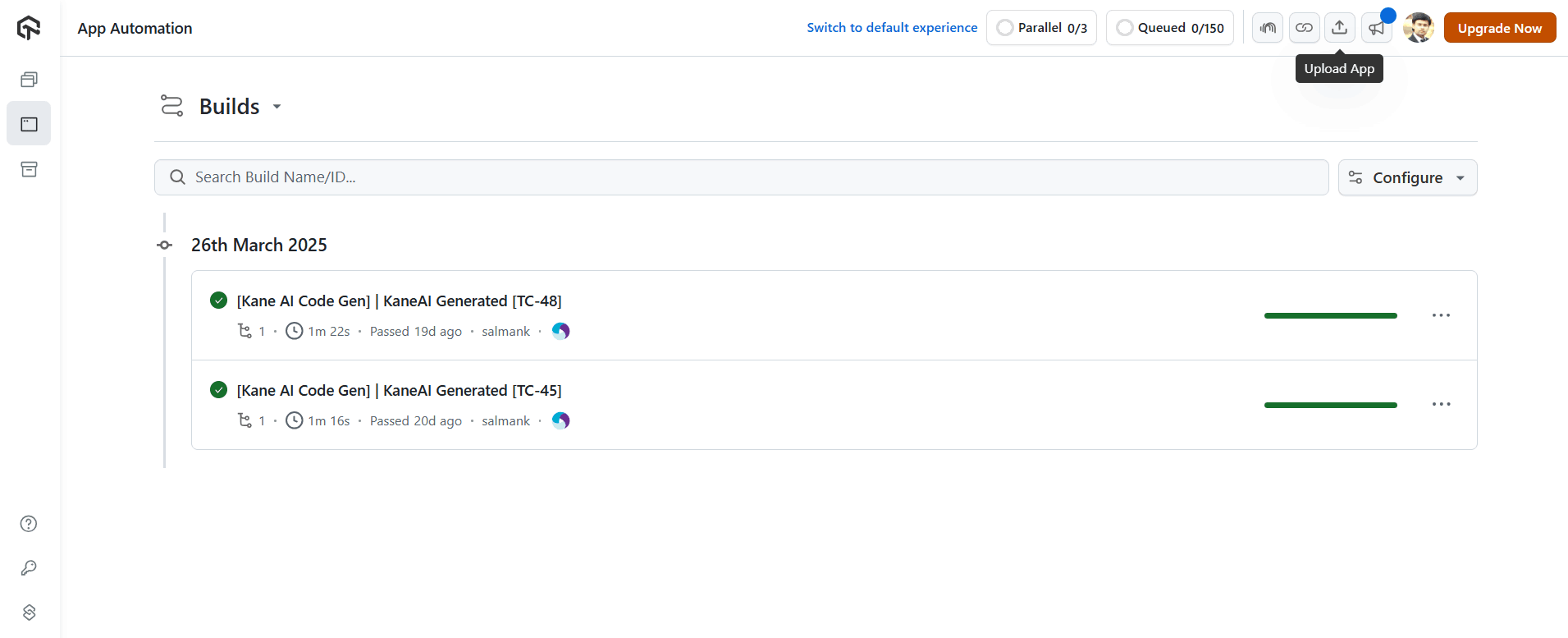
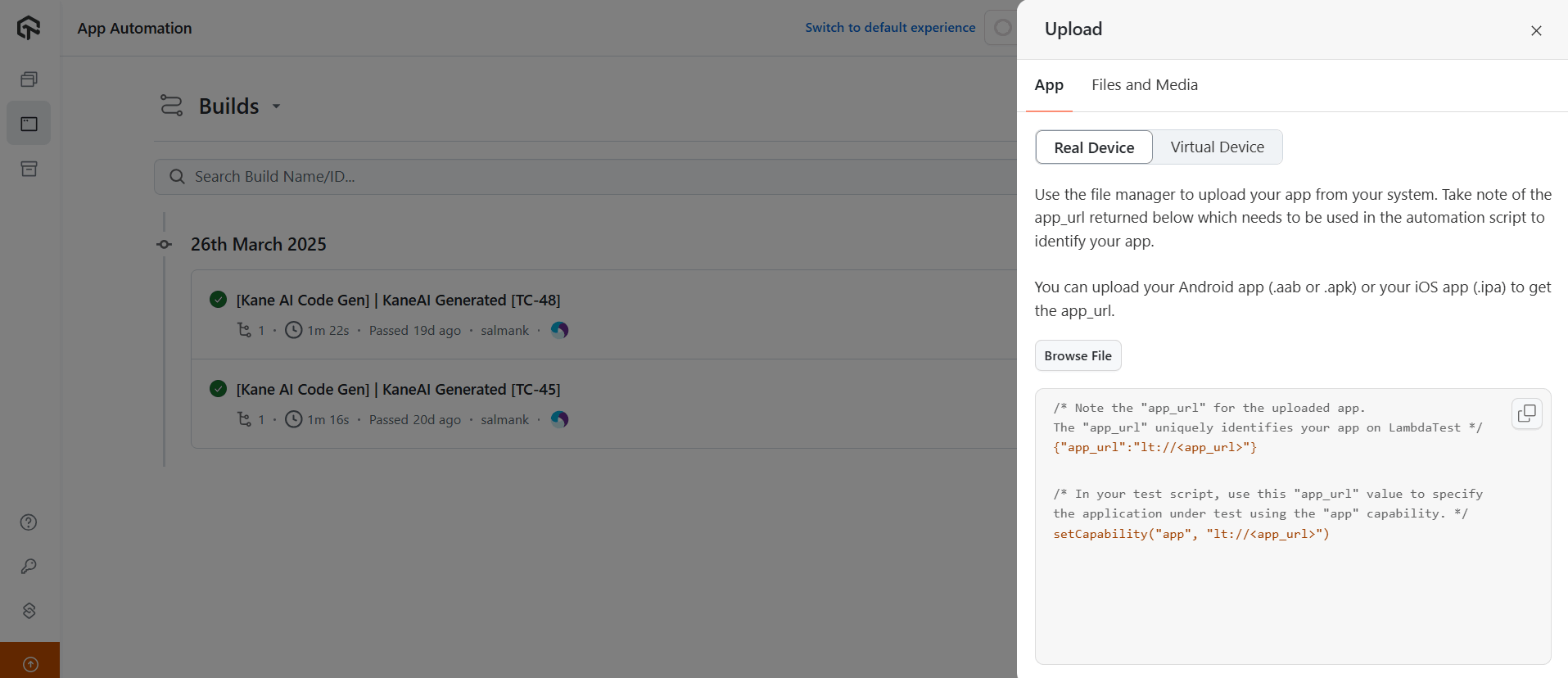
Upload your .apk or .ipa file to the TestMu AI platform to generate an app_url. The app_url is unique each time you upload. Click Real Device under the App tab and browse to the file.
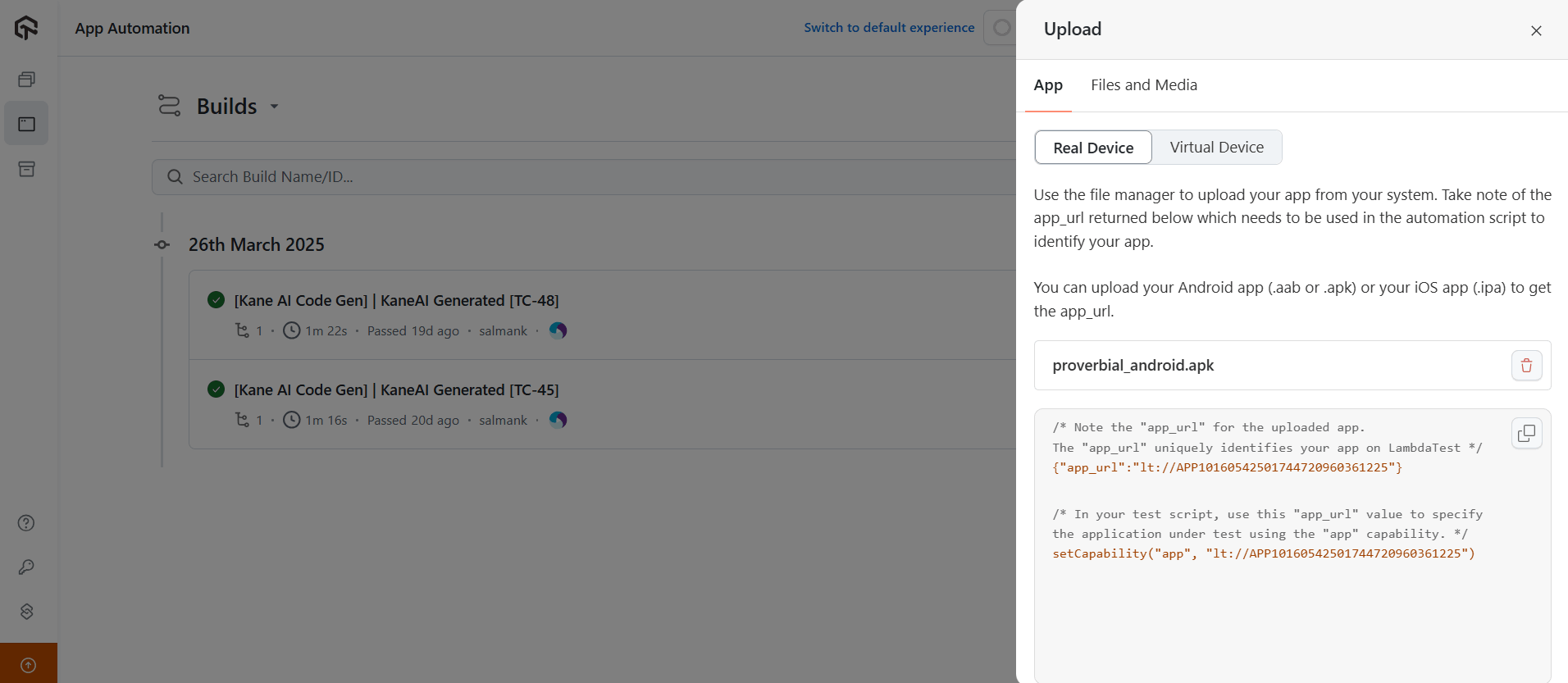
Once the file is uploaded, you get the unique app_url and capabilities to copy into your test script where you have defined the TestMu AI capabilities.
With the Username, Access Key, and app_url from TestMu AI in hand, paste these details into your test script.
Configuration (FileName – AndroidDriverManager)
@Builder
public class AndroidDriverManager {

   private static final ThreadLocal<AndroidDriver> DRIVER = new ThreadLocal<>();

   private String buildName;
   private String testName;
   private String platformName;
   private String platformVersion;
   private String deviceName;
   private String app;
   private static final String LT_USERNAME = System.getenv("LT_USERNAME");
   private static final String LT_ACCESS_KEY = System.getenv("LT_ACCESS_KEY");
   private static final String GRID_URL = "@mobile-hub.lambdatest.com/wd/hub";


   @SneakyThrows
   public AndroidDriverManager createAndroidDriver() {
       DRIVER.set(new AndroidDriver(new URL(format("https://{0}:{1}{2}", LT_USERNAME, LT_ACCESS_KEY, GRID_URL)),
               uiAutomator2Options()));
       setupDriverTimeouts();
       return this;
   }


   public AndroidDriver getDriver() {
       return DRIVER.get();
   }

   public void quitDriver() {
       if (null != DRIVER.get()) {
           getDriver().quit();
           DRIVER.remove();
       }
   }

   private void setupDriverTimeouts() {
       getDriver().manage()
               .timeouts()
               .implicitlyWait(Duration.ofSeconds(30));
   }


   private UiAutomator2Options uiAutomator2Options() {
       final UiAutomator2Options uiAutomator2Options = new UiAutomator2Options();
       uiAutomator2Options
               .setAutoGrantPermissions(true)
               .withBrowserName("Chrome")
               .setCapability("lt:Options", getLambdaTestOptions());

       return uiAutomator2Options;
   }


   private HashMap<String, Object> getLambdaTestOptions() {
       final HashMap<String, Object> ltOptions = new HashMap<>();
       ltOptions.put("w3c", true);
       ltOptions.put("platformName", this.platformName);
       ltOptions.put("platformVersion", this.platformVersion);
       ltOptions.put("deviceName", this.deviceName);
       ltOptions.put("app", this.app);
       ltOptions.put("build", this.buildName);
       ltOptions.put("name", this.testName);
       ltOptions.put("autoGrantPermissions", true);
       ltOptions.put("isRealMobile", true);
       ltOptions.put("visual", true);
       ltOptions.put("console", true);
       ltOptions.put("devicelog", true);
       ltOptions.put("plugin", "java-testNG");
       return ltOptions;
   }
Configuration (FileName – IOSDriverManager)
@Builder
public class IOSDriverManager {
   private static final ThreadLocal<IOSDriver> DRIVER = new ThreadLocal<>();
   private String buildName;
   private String testName;
   private String platformName;
   private String platformVersion;
   private String deviceName;
   private String app;
   private static final String LT_USERNAME = System.getenv("LT_USERNAME");
   private static final String LT_ACCESS_KEY = System.getenv("LT_ACCESS_KEY");
   private static final String GRID_URL = "@mobile-hub.lambdatest.com/wd/hub";


   @SneakyThrows
   public IOSDriverManager createIOSDriver() {
       DRIVER.set(new IOSDriver(new URL(format("https://{0}:{1}{2}", LT_USERNAME, LT_ACCESS_KEY, GRID_URL)),
               xcuiTestOptions()));
       setupDriverTimeouts();
       return this;
   }


   private XCUITestOptions xcuiTestOptions() {
       final XCUITestOptions xcuiTestOptions = new XCUITestOptions();
       xcuiTestOptions
               .setAutoAcceptAlerts(true)
               .setAutoDismissAlerts(true)
               .withBrowserName("chrome")
               .setCapability("lt:Options", getLambdaTestOptions());

       return xcuiTestOptions;
   }

   public IOSDriver getDriver() {
       return DRIVER.get();
   }


   public void quitDriver() {
       if (null != DRIVER.get()) {
           getDriver().quit();
           DRIVER.remove();
       }
   }

   private void setupDriverTimeouts() {
       getDriver().manage()
               .timeouts()
               .implicitlyWait(Duration.ofSeconds(30));
   }

   private HashMap<String, Object> getLambdaTestOptions() {
       final HashMap<String, Object> ltOptions = new HashMap<>();
       ltOptions.put("w3c", true);
       ltOptions.put("platformName", this.platformName);
       ltOptions.put("platformVersion", this.platformVersion);
       ltOptions.put("deviceName", this.deviceName);
       ltOptions.put("app", this.app);
       ltOptions.put("build", this.buildName);
       ltOptions.put("name", this.testName);
       ltOptions.put("autoAcceptAlerts", true);
       ltOptions.put("autoDismissAlerts", true);
       ltOptions.put("isRealMobile", true);
       ltOptions.put("visual", true);
       ltOptions.put("console", true);
       ltOptions.put("devicelog", true);
       ltOptions.put("plugin", "java-testNG");
       return ltOptions;
   }


}

The ThreadLocal class sets the drivers in the above code because it is thread-safe and works well when tests run in parallel. Using ThreadLocal ensures that two threads cannot see each other’s ThreadLocal variables, even if they set different values on the same ThreadLocal object.
An important note is that Lombok’s @Builder annotation is used in this class. This annotation allows us to build and obtain the desired capabilities details at runtime without passing the respective parameters in the method signature.
Note: Appium Server does not need to run locally when tests target the TestMu AI cloud grid.
Test Execution and Results
Configuration parameters like platform name, platform version, device name, app, build name, and test name are set using the testng.xml file. These tests run on real Android and iOS devices on the TestMu AI platform.
The TestNG suite enables parallel execution by setting parallel="tests" and thread-count="2", which runs Android and iOS suites simultaneously rather than sequentially. For larger matrices, scale this with the Appium parallel testing pattern.
<?xml version="1.0" encoding="UTF-8"?>
<!DOCTYPE suite SYSTEM "http://testng.org/testng-1.0.dtd">
<suite name="LambdaTest Mobile automation test suite" parallel="tests" thread-count="2" >
   <test name="Proverbial app - Android Mobile Automation">
       <parameter name="buildName" value="Android Build"/>
       <parameter name="testName" value="Proverbial app tests"/>
       <parameter name="app" value="lt://APP1016026231710500086926825"/>
       <parameter name="platformName" value="ANDROID"/>
       <parameter name="platformVersion" value="13"/>
       <parameter name="deviceName" value="Galaxy S23"/>
       <classes>
           <class name="io.github.mfaisalkhatri.mobileautomation.tests.android.AndroidTests">
               <methods>
                   <include name="textTests"/>
                   <include name="notificationTest"/>
                   <include name="toastMessageTest"/>
                   <include name="geoLocationTest"/>
                   <include name="speedTestPageTest"/>
                   <include name="browserTest"/>
               </methods>
           </class>
       </classes>
   </test> <!-- Test -->
   <test name="Proverbial app - iOS Mobile Automation">
       <parameter name="buildName" value="IOS Build"/>
       <parameter name="testName" value="Proverbial app tests"/>
       <parameter name="app" value="lt://APP1016026231710499882750475"/>
       <parameter name="platformName" value="IOS"/>
       <parameter name="platformVersion" value="16"/>
       <parameter name="deviceName" value="iPhone 14 Pro"/>
       <classes>
           <class name="io.github.mfaisalkhatri.mobileautomation.tests.ios.IOSTests">
               <methods>
                   <include name="textTests"/>
                   <include name="notificationTest"/>
                   <include name="toastMessageTest"/>
                   <include name="geoLocationTest"/>
                   <include name="speedTestPageTest"/>
                   <include name="browserTest"/>
               </methods>
           </class>
       </classes>
   </test> <!-- Test -->
</suite> <!-- Suite -->
Trigger the following command on the terminal to run the tests using Maven:
mvn clean install -DLT_USERNAME=<LambdaTest username> -DLT_ACCESS_KEY=<LambdaTest Access Key>
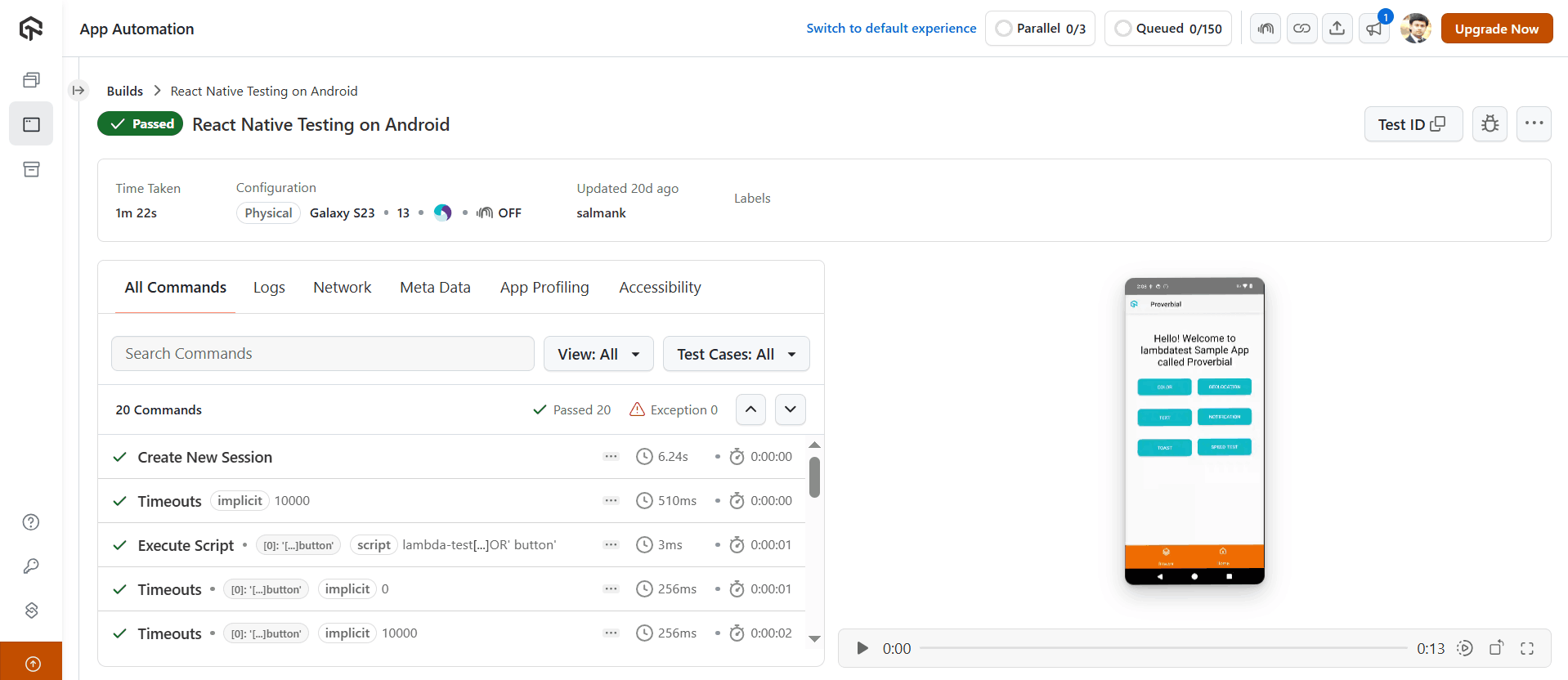
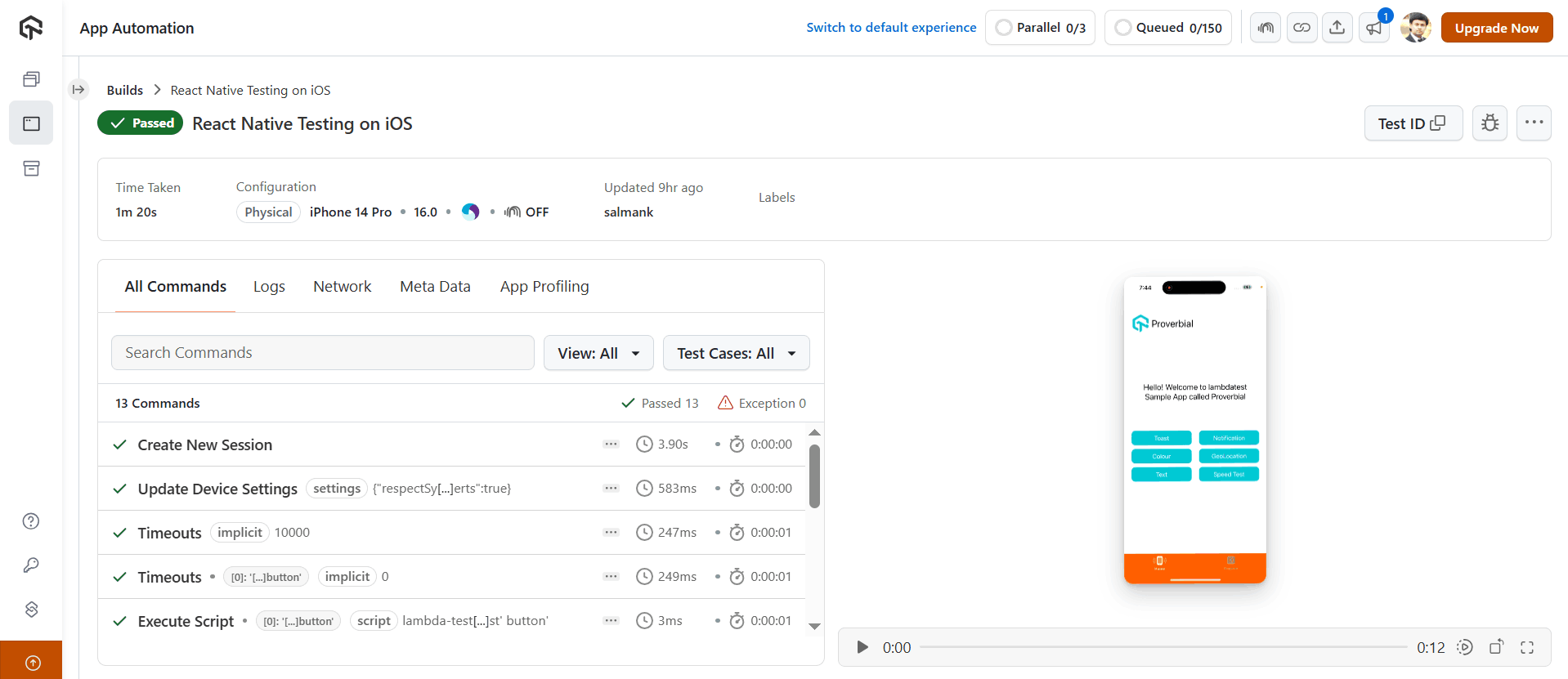
Once the tests run, the TestMu AI App Automation dashboard surfaces video recordings, screenshots, console logs, and device logs for each session, scoped per build.
Android build dashboard:
iOS build dashboard:
Conclusion
Start by cloning the react-native-app-tests repo, plug your TestMu AI LT_USERNAME and LT_ACCESS_KEY into the environment, upload the Proverbial .apk and .ipa to App Automation, and run mvn clean install. The same Page Object Model and TestNG suite scales to your real React Native app by swapping the locators in HomePage and BrowserPage.
For broader cross-platform context, see how the same patterns apply in React Native best practices, or compare cross-platform frameworks in our Flutter vs React Native guide. If your suite needs to drive individual fields, see React Native TextInput: Complete Guide With Testing for testID conventions, Appium locators, and Detox syntax specific to text fields. To explore the cloud platform, visit the mobile app testing page or read the real-device app testing docs.
Note: This article was researched and drafted with AI assistance, then reviewed, fact-checked, and published by Faisal Khatri, Community Contributor at TestMu AI, whose listed expertise includes App Testing and WebdriverIO Appium. Every statistic, link, and product claim was verified against primary sources. Read our editorial process and AI use policy for details.
Author

Faisal Khatri
Blogs: 40


Mohammad Faisal Khatri is a Software Testing Professional with 17+ years of experience in manual exploratory and automation testing. He currently works as a Senior Testing Specialist at Kafaat Business Solutions and has previously worked with Thoughtworks, HCL Technologies, and CrossAsyst Infotech. He is skilled in tools like Selenium WebDriver, Rest Assured, SuperTest, Playwright, WebDriverIO, Appium, Postman, Docker, Jenkins, GitHub Actions, TestNG, and MySQL. Faisal has led QA teams of 5+ members, managing delivery across onshore and offshore models. He holds a B.Com degree and is ISTQB Foundation Level certified. A passionate content creator, he has authored 100+ blogs on Medium, 40+ on TestMu AI, and built a community of 25K+ followers on LinkedIn. His GitHub repository “Awesome Learning” has earned 1K+ stars.
Reviewer

Siddhant Sinha
Reviewer
Siddhant Sinha is a Lead Member of Technical Staff at TestMu AI architecting Kane CLI, the command-line tool for browser automation from the terminal, where natural-language flows run in a real Chrome browser and return pass or fail with shareable proof. He has spent over three years at TestMu AI (formerly LambdaTest) building scalable platforms that run tests at scale on real Android and iOS devices. His expertise covers platform architecture, large-scale distributed systems, and CLI design, shaped by earlier cloud-native engineering at Semut.io, including building Elasticsearch as a service.
Testing React Native Apps FAQs
Did you find this page helpful?
More Related Blogs
TestMu AI forEnterprise
Get access to solutions built on Enterprise
grade security, privacy, & compliance
- Advanced access controls
- Advanced data retention rules
- Advanced Local Testing
- Premium Support options
- Early access to beta features
- Private Slack Channel
- Unlimited Manual Accessibility DevTools Tests