
Power Your Software Testing with AI Agents and Cloud
The Native AI-Agentic Cloud Platform to Supercharge Quality Engineering. Test Intelligently and Ship Faster.


- TestMu AI (Formerly LambdaTest)
- /
- Blog
- /
- Automation Testing with Selenium JavaScript [Tutorial]
Automation Testing with Selenium JavaScript [Tutorial]
Learn Selenium automation testing with JavaScript: core concepts, best practices, and running your first script on a cloud-based Selenium Grid.
Last Updated on:
Automation testing is an integral part of software development. When it comes to web applications, it is essential to test the user interface to ensure that a flawless experience is delivered to the end-users. This is where Selenium test automation is instrumental to verify the product across different combinations of browsers & operating systems. Selenium supports a wide range of programming languages which also includes JavaScript. To see how Selenium compares with other options, explore the full range of automation testing tools.
In this Selenium Javascript tutorial, we take a deep dive into how Selenium Webdriver with Javascript can be used for automated browser testing of web products. By the end of this Selenium Javascript Tutorial, you would be in a comfortable position to perform JavaScript automation testing.
If you're new to Selenium and wondering what it is then we recommend checking out our guide - What is Selenium? If you are preparing for an interview you can learn more through Automation Testing Interview Questions.
Overview
To perform automation testing with Selenium JavaScript, developers should combine Selenium WebDriver with Node.js to automate browser interactions. This setup allows teams to write reliable, cross-browser test scripts using familiar JavaScript syntax, which can be executed locally or scaled on cloud-based grids.
How to Set Up Selenium with JavaScript?
- npm: Developers can install the required Selenium WebDriver and browser driver packages by running the command npm install selenium-webdriver chromedriver geckodriver -save-dev.
- WebDriver: Create a dedicated driver instance for Chrome, Firefox, or Edge using the command new Builder().forBrowser('chrome').build() to start automating browser interactions.
- Folder structure: Maintain clean automation suites by organizing your test scripts, configuration files, and helper functions into separate, dedicated directories.
- Test runners: Run your JavaScript test scripts directly using Node.js or integrate them with popular test runners like Mocha or Jest for structured execution.
How to Automate Browser Actions with Selenium?
- driver.get(): Launch the browser and load specific web pages by calling driver.get('https://example.com') within your Selenium JavaScript test scripts.
- driver.findElement(): Find specific HTML elements on a web page by utilizing locator strategies such as By.id('id') or By.css('selector') in your scripts.
- Element actions: Simulate real user behavior on web applications by using the .click(), .sendKeys(), and .submit() methods to interact with elements.
- Screenshots: Capture element-level or full-page screenshots using the .takeScreenshot() method to visually diagnose and debug test failures during test execution.
Best Practices for Selenium JavaScript Automation
- Async/Await: Manage asynchronous operations in JavaScript test scripts reliably to avoid timing issues and prevent flaky test results during execution.
- Page Object Model: Apply the Page Object Model design pattern to separate page-specific logic from test logic, ensuring cleaner and more maintainable code.
- Explicit waits: Synchronize your test scripts with dynamic web elements by using driver.wait() or ExpectedConditions to prevent premature test failures.
- Logging: Implement robust error handling and capture detailed logs during test execution to simplify debugging and improve reporting of test results.
- TestMu AI: Scale your Selenium JavaScript tests across 3,000+ browser/OS combinations using a secure, cloud-based Selenium Grid to ensure cross-browser compatibility.

Why Selenium Automation Testing Using JavaScript?
Before we get to the crux of the Selenium Javascript tutorial, it is essential to understand why the combination of Selenium Webdriver and Javascript is suited for automation testing? Let's answer this important question:
Using JavaScript for automation testing, particularly with tools like Selenium, enhances web application testing efficiency. This approach enables streamlined testing processes for tasks such as form submissions, navigations, and login processes across various browsers and platforms.
A number of tools and frameworks are available in the market to perform automation testing. Out of these, Selenium continues to be, hands down, the first choice of QA engineers over the past decade or so.
Few of the key features of Selenium web automation are listed below:
- Open-Source and portable
- Supports multiple browsers like Google Chrome, Firefox, Safari, Opera, Internet Explorer, etc.
- Supports multiple languages like Java, JavaScript, Ruby, Python, etc.
- Works on different OS like Windows, Linux, etc.
- Easy to integrate with CI/CD tools like Jenkins, Circle CI, GitLab CI, and more
- Easy to integrate with popular testing frameworks
Over & above, parallel testing in Selenium expedites the entire automation testing process by providing a platform through which the same tests can be run across different environments. You can check out our Selenium learning hub to gather more insights into Selenium web automation.
Now let's look at why Selenium Webdriver with Javascript! Well, JavaScript is one of the widely used programming languages as per the Stack Overflow 2020 annual survey.
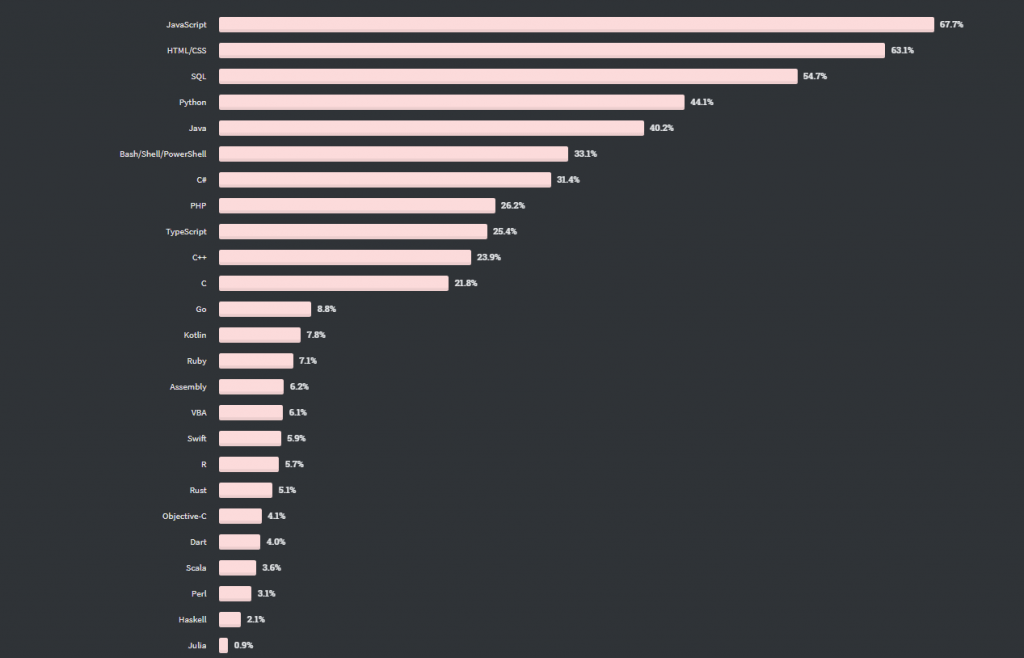
Since JavaScript is extensively used for web development, utilizing it with Selenium web automation makes perfect sense! Since most of the developers are familiar with JavaScript, it becomes easy for them to write automation tests in JavaScript and get quick feedback.
With that said, let's proceed to the next section in this Selenium Javascript tutorial where we focus on the setup and installation process.
Run Selenium, Cypress, and Appium tests on TestMu AI to scale with the demand of your website and web apps.
Getting started with Selenium automation testing using JavaScript
As mentioned earlier, the Selenium framework supports multiple languages (and frameworks) for realizing cross browser compatibility tests. Here is how you can get started with JavaScript with Selenium WebDriver:
Prerequisites for Selenium Webdriver with Javascript
Before you start using JavaScript for Selenium automation testing, you need to ensure that your system is installed with the following pre-requisites:
- NodeJS and NPM
Verify if NodeJS and NPM are already installed in your system by running the commands node -v and npm -v on the terminal:
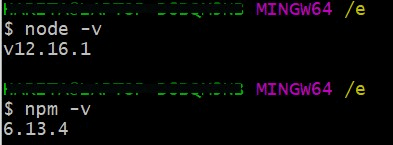
If Node JS (or Node.js) is not present on your machine, you can install the latest LTS version from https://nodejs.org/en/. NPM will be installed along with Node.js. So no need for separate installation.
- IDE of your choice
For implementation, we will be using Visual Studio Code as IDE. However, you can choose an IDE of your choice.
Project Setup for Selenium Webdriver with Javascript
With the required dependencies installed, let's move on to the project setup in this section of the Selenium Javascript Tutorial.
Here are the step-by-step instructions for creating a project to use JavaScript with Selenium WebDriver:
Step 1: Create a project folder in the desired location in your system. Open the folder in your IDE.
Step 2: Initialize the project in this folder. Open the IDE terminal and navigate to the project location. Run the following command
npm init -y
Here, -y stands for "yes". This option is used to skip the questions asked related to project details.
You will notice that a package.json file is automatically created. The file contains details about the project configuration.
Step 3: Now, install the project dependencies. We need to install Selenium WebDriver and browser drivers.
Run the following command on the terminal to install browser drivers for Chrome and Firefox.
npm install --save selenium-webdriver chromedriver geckodriver
Once you run the command, you'll notice that a "node_modules" folder is created in the project root. The folder contains all the dependencies. Also, package.json will be updated with these dependencies.
{
  "name": "Selenium_JavaScript",
  "version": "1.0.0",
  "description": "",
  "main": "index.js",
  "scripts": {
    "test": "echo "Error: no test specified" && exit 1"
  },
  "keywords": [],
  "author": "",
  "license": "ISC",
  "dependencies": {
    "chromedriver": "^90.0.0",
    "geckodriver": "^1.22.3",
    "selenium-webdriver": "^4.0.0-beta.3"
  }
}
With this, the setup for Selenium Webdriver JavaScript is complete. It's time to dirty our hands with code in the next section of the Selenium JavaScript Tutorial.
Read - WebdriverIO vs Selenium: Key Differences

Austin Siewert
Co-Founder, Steadfast Systems
Discovered @TestMu AI yesterday. Best browser testing tool I've found for my use case. Great pricing model for the limited testing I do 👏
2M+ Devs and QAs rely on TestMu AI
Deliver immersive digital experiences with Next-Generation Mobile Apps and Cross Browser Testing Cloud

You can take this certification as proof of expertise in the field of test automation with JavaScript to empower yourself and boost your career.
Here's a short glimpse of the Selenium JavaScript 101 certification from TestMu AI:
Demonstration: Selenium Automation with JavaScript
In this section of the Selenium JavaScript tutorial, we run a Selenium automation test with JavaScript. Here is the test scenario:
- Launch the browser
- Go to www.google.com
- Searches a string value
- Verifies the result page title
- Close the browser
Implementation:
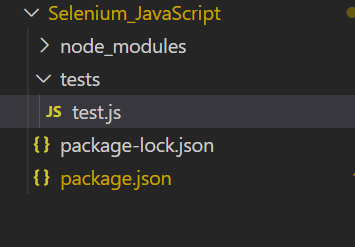
Step 1: Create a folder named "tests" in the project root. Inside this folder, we create our first test file named "test.js".
Shown below is the folder structure:
Step 2: Inside test.js, pull all the required functions from node_modules.
const {By,Key,Builder} = require("selenium-webdriver");
require("chromedriver");
Step 3: Create a function example(), which will be containing your test script. Feel free to provide any function name of your choice.
async function example(){

}
Step 4: Inside the function, let us write our test script using Selenium and JavaScript.
async function example(){

       var searchString = "Automation testing with Selenium and JavaScript";

       //To wait for browser to build and launch properly
       let driver = await new Builder().forBrowser("chrome").build();

        //To fetch http://google.com from the browser with our code.
        await driver.get("http://google.com");

        //To send a search query by passing the value in searchString.
        await driver.findElement(By.name("q")).sendKeys(searchString,Key.RETURN);

        //Verify the page title and print it
        var title = await driver.getTitle();
        console.log('Title is:',title);

        //It is always a safe practice to quit the browser after execution
        await driver.quit();

}
Step 5: Now simply add the function call. Here is how the overall implementation looks like:
const {By,Key,Builder} = require("selenium-webdriver");
require("chromedriver");

async function example(){

       var searchString = "Automation testing with Selenium";

       //To wait for browser to build and launch properly
       let driver = await new Builder().forBrowser("chrome").build();

        //To fetch http://google.com from the browser with our code.
        await driver.get("http://google.com");

        //To send a search query by passing the value in searchString.
        await driver.findElement(By.name("q")).sendKeys(searchString,Key.RETURN);

        //Verify the page title and print it
        var title = await driver.getTitle();
        console.log('Title is:',title);

        //It is always a safe practice to quit the browser after execution
        await driver.quit();

}

example()
Step 6: Time for some action…let's run the code by giving the following command on the terminal:
node test.js
An instance of Chrome browser is instantiated and the necessary Selenium WebDriver actions are performed on the WebElements.
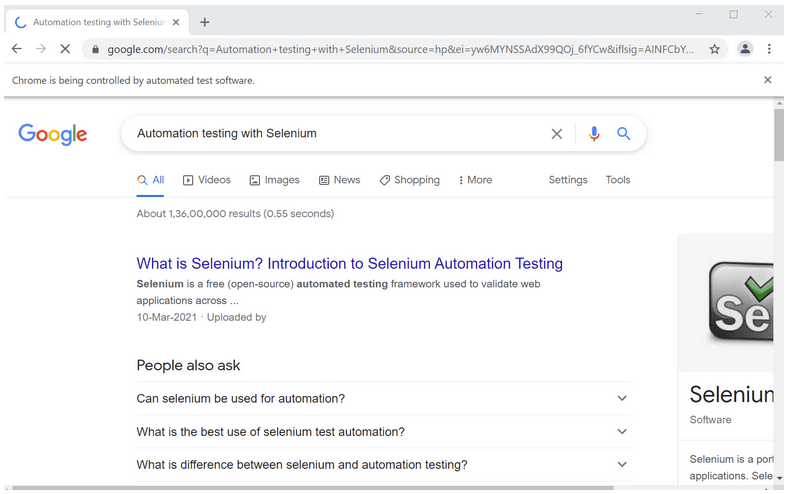
The logs can be verified in the terminal:

Congratulations! You have successfully written and executed your first test case using Selenium Webdriver and JavaScript.

Best Practices for Selenium with JavaScript
In the previous section of the Selenium WebDriver tutorial, we demonstrated the creation of automation script with Selenium and JavaScript. However, the situation will differ when you have to write Selenium automation scripts for large projects. It is essential to follow the best practices in Selenium automation when designing test automation scripts.
As QA engineers, we should come up with strategies that enable us to effectively and efficiently write test scripts, manage them, and speed up the overall execution. Here are some of the the best practices used for Selenium WebDriver with JavaScript:
Using Page Object Model (POM)
Page Object Model (POM) is a design pattern popularly used in Selenium web automation. Here we will be creating an object repository for storing all web elements. A Page Class is created for each web page. Every Page class contains details of the particular page Web elements and Page Methods that perform tasks on those web elements.
Here are the major advantage of Page Object Model for Selenium web automation:
- Reduced maintenance
- Minimal Code Duplication
- Increased Readability and Reliability of scripts
Leveraging JavaScript Automation Frameworks
Another strategy that is gaining tremendous popularity is leveraging an automation testing framework. A framework offers multiple benefits when it comes to script maintenance, third-party tool integration, reporting, etc. A variety of JavaScript-based testing frameworks are available for automation testers. Some of the popular JavaScript based test frameworks are Nightwatch.js, Protractor, WedriverIO, Cypress.io, etc.
Read - Selenium WebdriverIO Tutorial
Parallel Testing
Parallel testing in Selenium lets you run multiple tests simultaneously in different environments. This directly translates to increased execution speed, reduced overall execution time, and early detection of bugs. Selenium Grid supports parallel testing.
Read - Parallel Testing with Onine Selenium Grid
Implementing CI/CD Pipeline
CI/CD as a practice is gaining huge attention on the backdrop of software development backed by Agile and DevOps. Building a CI/CD pipeline for Selenium web automation has the following benefits:
- Quicker execution leading to early bug detection.
- Consistent results
- Room for parallel testing capabilities
- Offers greater scalability
- Program automatic triggers etc.
A wide range of CI/CD tools is available from which you can choose the one matching your requirement. A few of the popular options are Jenkins, Bamboo, GitLab, etc.
Read - Comparison Of Top CI/CD Tools
Visual Testing
Since we are dealing with testing the UI of the web app, it is vital to test the visual aspects of the app as well. In Visual testing, we will compare a web page with a base or reference screenshots were taken before to expose the significant visual differences. TestMu AI provides a visual regression testing tool that lets you perform visual UI testing with ease.
Test Coverage using Cross browser testing
To stay ahead in the competitive market and gain user preference it is vital to make sure that your application is working as expected across different versions of browsers, platforms, and devices. This is exactly where test coverage and cross-browser testing comes into the picture.
Here are the major benefits of adopting cloud based cross browser testing:
- Low investment cost in comparison to setting & scaling up an in-house infrastructure
- Provides access to hundreds of browser and platform combinations
- Extends supports to old and outdated browser versions and OS devices
- No set-up or installation, or maintenance needs to be done locally
- Better security, reliability, and scalability
TestMu AI is a trusted cross browser testing platform that provides you access to 3000+ browsers and operating systems online. The Selenium automation tests are executed on a secure cloud-based Selenium Grid allows you to execute automated tests on a remote Selenium Grid. Do check why you should test websites on different browsers remotely.
Clone Selenium Skill and run your test on the first prompt.

How to run automation scripts with JavaScript on cloud-based Selenium Grid
In the earlier section of the Selenium JavaScript tutorial, we performed Selenium automation using JavaScript on a local grid. Now that you are aware about the shortcomings of the local Selenium Grid, it's time to look at how to run JavaScript tests with Selenium Grid on a cloud-based Selenium Grid.
TestMu AI is a popular cloud-based cross browser testing platform trusted by startups as well as large enterprises. TestMu AI provides you access to thousands of browsers for mobile and web testing to help you gain the maximum test coverage during the process of Selenium web automation.
Porting existing implementations of JavaScript with Selenium WebDriver such that it runs on a cloud-based Selenium Grid requires minimal code changes. Let's look at how to run the Selenium automation test with JavaScript on TestMu AI:
Step 1: Let's get started by creating a free account on the TestMu AI platform. Once you log in, fetch your unique username and access key from the profile section of the website.
Step 2: Make the following configuration changes into your existing code.
- Provide username and access key
const USERNAME = 'YOUR_USERNAME'; //replace with your username
const KEY = 'YOUR_KEY'; //replace with your accesskey
const GRID_HOST = 'hub.lambdatest.com/wd/hub';
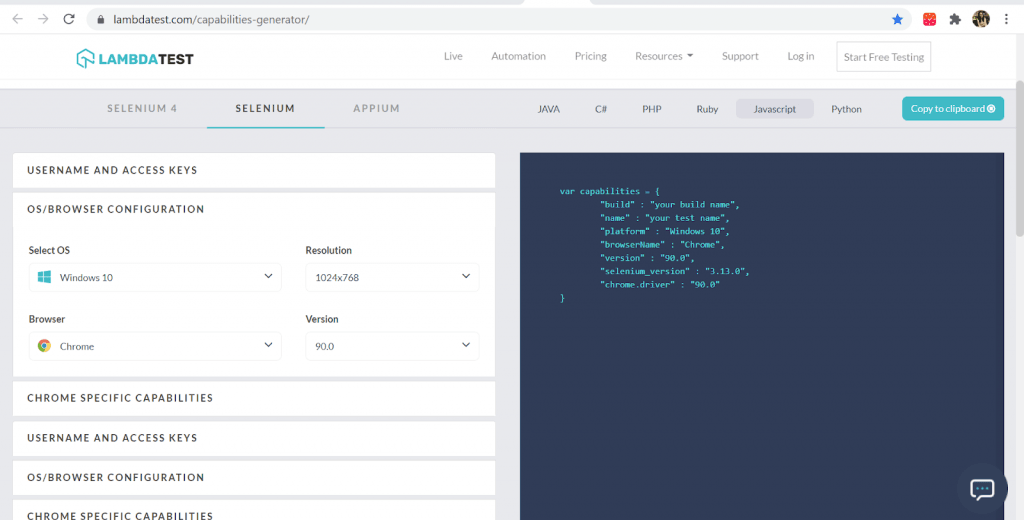
Select the desired browser version and OS configuration. You may also provide the build name. Provide this object inside the test function.
async function example(){

var capabilities = {
        "build" : "JavaScript and Selenium Testing",
        "name" : "Google search",
        "platform" : "Windows 10",
        "browserName" : "Chrome",
        "version" : "90.0",
        "selenium_version" : "3.13.0",
        "chrome.driver" : "90.0"
    }
     //…
}
const gridUrl = 'https://' + USERNAME + ':' + KEY + '@' + GRID_HOST;
let driver = await new Builder()
    .usingServer(gridUrl)
    .withCapabilities(capabilities)
    .build();
Here is the final implementation of Selenium automation with JavaScript that will be run on TestMu AI's cloud-based Selenium Grid:
const USERNAME = 'YOUR_USERNAME'; //replace with your username
const KEY = 'YOUR_KEY'; //replace with your accesskey

const {Builder,Key,By} = require("selenium-webdriver");
// require("chromedriver");
const GRID_HOST = 'hub.lambdatest.com/wd/hub';

async function example(){

    var capabilities = {
        "build" : "JavaScript and Selenium Testing",
        "name" : "Google search",
        "platform" : "Windows 10",
        "browserName" : "Chrome",
        "version" : "90.0",
        "selenium_version" : "3.13.0",
        "chrome.driver" : "90.0"
    }
    const gridUrl = 'https://' + USERNAME + ':' + KEY + '@' + GRID_HOST;


      //To wait for browser to build and launch properly
      let driver = await new Builder()
      .usingServer(gridUrl)
      .withCapabilities(capabilities)
      .build();

       var searchString = "Automation testing with Selenium";

        //To fetch http://google.com from the browser with our code.
        await driver.get("http://google.com");

        //To send a search query by passing the value in searchString.
        await driver.findElement(By.name("q")).sendKeys(searchString,Key.RETURN);

        //Verify the page title and print it
        var title = await driver.getTitle();
        console.log('Title is:',title);

        //It is always a safe practice to quit the browser after execution
        await driver.quit();

}
example()
Step 3: Finally, it's time to run the test on the TestMu AI Grid. Trigger the following command on the terminal to run the JavaScript Automation test with Selenium Webdriver:
node test.js
Shown below is the execution snapshot from the TestMu AI automation dashboard which indicates that the test execution was successful.
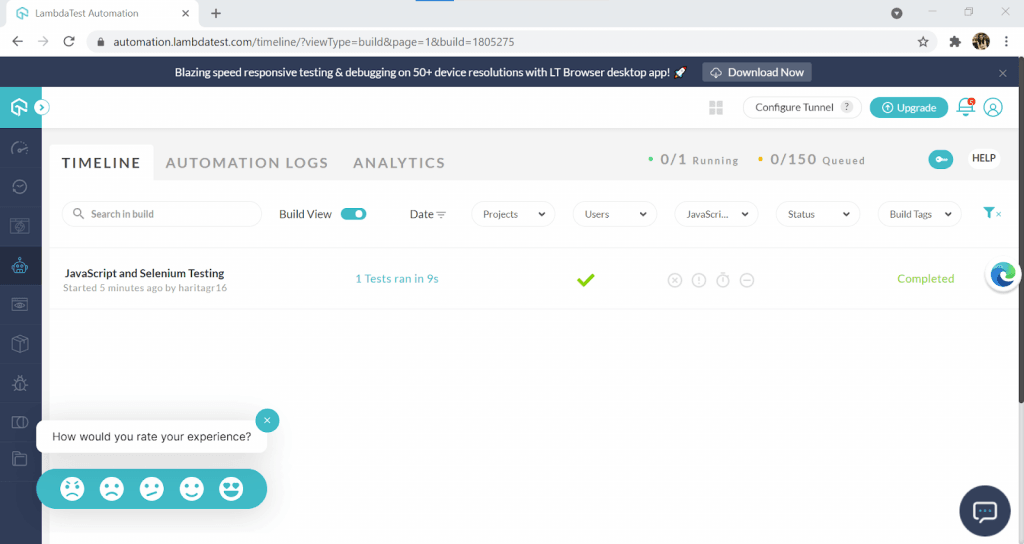
Navigate to Automation Logs to view the test report containing video and logs.
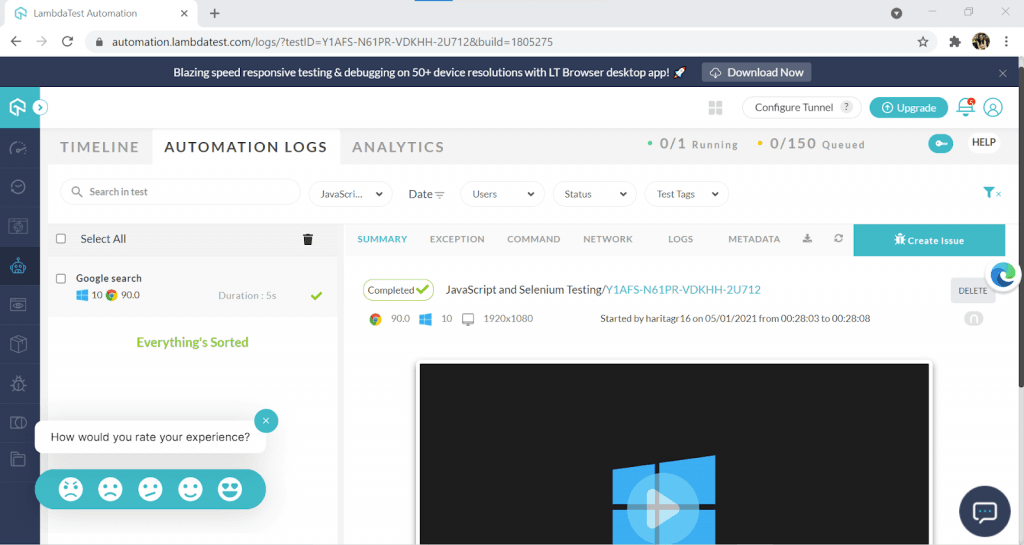
In this final section of the Selenium JavaScript tutorial, we ran the JavaScript automation test with Selenium WebDriver on a scalable and reliable cloud-based Selenium Grid by TestMu AI.
Read More - Start Automation Testing with Selenium across 3000+ browsers & web apps.
This JavaScript Selenium testing tutorial for beginners and professionals will help you learn how to execute Selenium WebDriver tests on TestMu AI cloud-based Selenium Grid and perform automated cross-browser testing on different browsers and operating systems.

It's a Wrap!

JavaScript is one of the most preferred languages when it comes to Selenium automation testing. In this Selenium JavaScript tutorial, we deep-dived into the basic aspects of Selenium WebDriver automation with JavaScript. We also explored the Selenium automation best practices that will help you create scalable automation tests with JavaScript and Selenium WebDriver.
For better scalability, reliability, and performance; it is recommended to run Selenium WebDriver JavaScript tests on a cloud-based Selenium Grid from TestMu AI. With that setup, you can make the most out of the automation tests created using Selenium and JavaScript. In the next series of this Selenium JavaScript tutorial, we would deep dive into the other vital aspects of Selenium automation testing with JavaScript.
Happy Testing!

Author

Harita Ravindranath
Blogs: 17


Harita Ravindranath is a Full Stack Developer and Project Manager at Tokhimo Inc., with 7 years of experience in the tech industry. She has completed her graduation in B-tech in Electronics and Communication Engineering. She has 5+ years of hands on expertise in JavaScript based technologies like React.js, Next.js, TypeScript, Node.js, and Express.js, and has led 4 full stack projects from scratch. Harita also brings over 2 years of experience in Quality Engineering, including manual and automation testing using Selenium and Cypress, test strategy creation, and Agile/Scrum based development. With 4+ years in project leadership, she is skilled in managing CI/CD pipelines, cloud platforms, and ensuring high quality releases. Harita has authored 30+ technical blogs on web development and automation testing, and has worked on end to end testing for a major banking application covering UI, API, mobile, visual, and cross browser testing. She believes in building clean, efficient, and maintainable solutions by avoiding over engineering.
On This Page
- Why Selenium Automation Testing Using JavaScript?
- Getting started with Selenium automation testing using JavaScript
- Prerequisites for Selenium Webdriver with Javascript
- Demonstration: Selenium Automation with JavaScript
- Best Practices for Selenium with JavaScript
- How to run automation scripts with JavaScript on cloud-based Selenium Grid
Selenium JavaScript FAQs
Did you find this page helpful?
More Related Blogs

TestMu AI forEnterprise
Get access to solutions built on Enterprise
grade security, privacy, & compliance
- Advanced access controls
- Advanced data retention rules
- Advanced Local Testing
- Premium Support options
- Early access to beta features
- Private Slack Channel
- Unlimited Manual Accessibility DevTools Tests