

Power Your Software Testing with AI Agents and Cloud
The Native AI-Agentic Cloud Platform to Supercharge Quality Engineering. Test Intelligently and Ship Faster.


- TestMu AI (Formerly LambdaTest)
- /
- Blog
- /
- Playwright Android Testing
Playwright Android Testing: Emulators and Real Devices
Playwright Android testing guide: mobile emulation, the experimental _android API, and how to run Playwright tests on real Android devices and emulators in CI.
Last Updated on:
Android testing is often associated with Appium and native mobile frameworks, but Playwright offers another approach for testing mobile web experiences.
Playwright Android testing points your existing browser automation at mobile Chrome, emulated or on real hardware, to catch responsive, user-flow, and rendering bugs before your users do.
Overview
Use Playwright to automate Android mobile web testing in Chrome and WebView, and run your scripts on TestMu AI real devices to catch GPU and OEM-specific rendering bugs. Playwright is best for fast responsive-layout checks, while TestMu AI provides hardware accuracy across physical handsets.
Is Playwright Enough for Android Testing
- Best for native app testing: Appium - Automates native screens, system permission dialogs, and OS-level gestures that Playwright cannot access, running side-by-side with your web tests.
What Are the Ways to Test Android With Playwright
- Best for responsive layout checks: Playwright mobile emulation - Runs desktop Chromium with a mobile viewport and touch settings to quickly catch layout and breakpoint bugs in CI.
- Best for local smoke checks: Experimental _android API - Drives Chrome or WebView on a single locally connected Android device or emulator, though its experimental status makes it impractical for CI.
- Best for hardware and OEM accuracy: TestMu AI real devices - Executes Playwright scripts on physical handsets over CDP to catch GPU rendering, touch latency, and OEM-specific browser issues without maintaining a local device lab.
What Is Playwright Android Testing
Playwright Android testing uses the Playwright framework to validate web behavior in mobile Chrome, either emulated or on a real Android device. It covers Chrome and WebView only, not native apps.
That scope decides everything else, and it sets Android apart from standard Playwright testing on the desktop. There are exactly three approaches on Android:
- Mobile emulation: Run desktop Chromium with a phone-sized viewport and a mobile user agent. Fast, free, and suited to responsive-layout checks.
- Experimental Android API: Drive Chrome or a WebView on a locally connected device or emulator through Playwright's _android entry point.
- Real device execution: Run your script against Chrome on a physical Android handset, locally over adb or in a real device cloud.
Testing native screens, system permission dialogs, or non-browser flows in an installed app is a job for Android automation testing, not Playwright.
Does Playwright Support Mobile and Android Testing
Yes, for mobile web. Playwright supports Android two ways: device emulation through its device registry, and an experimental on-device API for Chrome and WebView. It cannot automate native apps.
Conflating these two paths is the most common mistake teams make. They are built for different jobs:
- Device emulation (default): The Playwright emulation API applies a device registry in one line, the official path for mobile web testing.
- Android automation (experimental): The Playwright Android API drives Chrome or WebView on a real device. Its docs flag it experimental, coverage incomplete.
The takeaway: emulation is production grade for responsive bugs; the on-device _android path is best treated as a smoke-test tool. For stable runs on real hardware at scale, point a script at a cloud grid.

Note: Run your existing Playwright scripts on real Android devices, no adb or local setup. Start testing free or book a demo for a guided walkthrough.
Can Playwright Automate Native Android Apps
No. Playwright is a browser automation framework, so it reaches only web content: Chrome for Android pages and WebView contexts. Native screens, dialogs, and gestures need Appium or Espresso instead.
State this boundary plainly so you do not burn a sprint discovering it. Four operations Playwright on Android cannot perform:
- Tap native UI components rendered by Android (not HTML elements).
- Handle native permission dialogs, the camera app, or OS-level system UI.
- Install and drive an .apk or .aab as an end-to-end native flow.
- Validate native gestures, biometrics, or push-notification handling.
With that line drawn, the framework choice is mechanical. Match each application layer to the right tool:
- Pure web app or mobile site: Playwright on Chrome for Android.
- Hybrid app, testing the WebView screens: Playwright against the WebView context.
- Native app, or native screens in a hybrid app: Appium, which drives native UI through Espresso or UI Automator.
- Both web and native flows: Run Playwright and Appium side by side, each on the layer it handles best.
Testing those WebView screens is its own workflow, and Playwright WebView testing shows how to attach to the WebView and drive it with normal locators.
You do not need two device strategies here: the same TestMu AI real device cloud runs both frameworks, so your Appium and Playwright suites execute on the same Android handsets.
How Do You Emulate an Android Device in Playwright
Spread a device descriptor from the Playwright devices registry into your config. Each preset sets viewport, userAgent, deviceScaleFactor, isMobile, and hasTouch, so the page acts as mobile Chrome.
A two-project config covers two common Android profiles in one run:
import { defineConfig, devices } from '@playwright/test';

export default defineConfig({
  projects: [
    {
      name: 'Pixel 5 - Chrome',
      use: { ...devices['Pixel 5'] },
    },
    {
      name: 'Galaxy S9+ - Chrome',
      use: { ...devices['Galaxy S9+'] },
    },
  ],
});
The test itself stays framework-standard. It loads an ecommerce demo, then taps the mobile menu to confirm the touch-enabled viewport behaves like a real phone:
import { test, expect } from '@playwright/test';

test('mobile menu is reachable on Android viewport', async ({ page }) => {
  await page.goto('https://ecommerce-playground.lambdatest.io/');
  await expect(page).toHaveTitle(/Your Store/);
  // hasTouch + isMobile are set by the Pixel 5 descriptor,
  // so tap() is the correct interaction, not click()
  await page.tap('button.navbar-toggler, [data-toggle="collapse"]');
});
Emulation catches broken responsive breakpoints, hidden tap targets, viewport overflow, and wrong mobile user-agent branching.
What it misses: real GPU rendering, OEM browser quirks (Samsung Internet behaves differently from stock Chrome), touch latency, and memory limits on low-end hardware. Treat emulation as the cheapest layer, not the final word.
I learned that the hard way: an emulation-only suite stayed green while a Samsung Internet rendering bug shipped to users.
What Is Playwright's Experimental Android (_android) API
The _android entry point connects Playwright to Chrome or a WebView on a locally attached Android device or emulator. The official docs mark it experimental, so it suits quick local smoke checks only.
Four prerequisites are stated in the Playwright Android documentation:
- An Android device or AVD emulator with Chrome 87 or newer.
- The adb daemon running and authorized (raw USB operation is not supported).
- Enable command line on non-rooted devices turned on in chrome://flags.
- The device kept awake, since screenshots fail on a sleeping screen.
const { _android: android } = require('playwright');

(async () => {
  const [device] = await android.devices();
  console.log('Model:', device.model(), 'Serial:', device.serial());
  await device.shell('am force-stop com.android.chrome');

  const context = await device.launchBrowser();
  const page = await context.newPage();
  await page.goto('https://ecommerce-playground.lambdatest.io/');
  console.log(await page.title());

  await context.close();
  await device.close();
})();
Useful methods include android.devices() to detect hardware, device.launchBrowser() for a Chrome context, and android.launchServer() to expose a device for remote connections.
The honest assessment: this path is fine for a quick local check, but its experimental status and one-device-per-machine setup make it impractical for CI. That is why teams move execution to a cloud grid.
How Do You Run Playwright Tests on Real Android Devices
You have two routes to a real Android device: attach a physical phone locally over adb, or connect to a cloud device over the Chrome DevTools Protocol with no local hardware or setup.
The local route reuses the experimental _android API from the previous section on an attached phone. It suits one device on your desk, not CI.
Cloud execution runs on TestMu AI (formerly LambdaTest), a platform that executes your existing Playwright scripts on real Android devices over CDP, with no device lab to maintain.
For a real-device Playwright run, the platform gives you:
- Real devices at scale: Run on 10,000+ real Android devices across many models and OS versions, not emulators.
- True rendering fidelity: Reproduce GPU rendering, OEM browser quirks, and Samsung Internet behavior emulation cannot.
- Native touch and gestures: Validate tap, scroll, and multi-touch on actual hardware with real touch latency.
- Real-world conditions: Test under 2G to 5G network profiles and geolocation across 170+ countries.
- No script rewrite: Your Playwright code connects over CDP unchanged, with no adb or local setup.
- Full debug artifacts: Every session captures video, network logs, console output, and screenshots automatically.
See the real device cloud for the supported device list and capabilities, and the Playwright Android documentation for setup details.
To implement it, create a free account, then copy your username and access key into the LT_USERNAME and LT_ACCESS_KEY variables the script reads.
const { chromium } = require('playwright-core');

const capabilities = {
  'LT:Options': {
    platformName: 'android',
    deviceName: 'Galaxy S22 5G',
    platformVersion: '12',
    isRealMobile: true,
    build: '[RD] Playwright - iOS C#',
    name: '[RD] Playwright - iOS C#',
    user: process.env.LT_USERNAME,
    accessKey: process.env.LT_ACCESS_KEY,
  },
};

(async () => {
  const cdpUrl =
    'wss://cdp.lambdatest.com/playwright?capabilities=' +
    encodeURIComponent(JSON.stringify(capabilities));
})();
While writing this guide, I connected this exact script to the TestMu AI CDP endpoint and hit a constraint worth knowing first.
The platform supports Playwright up to v1.59.0 for Android. A newer local Playwright (v1.60.0) is rejected at the handshake: "Playwright version 1.60.0 not supported for android platform."
Pin a supported client such as playwright-core@1.59.0 before you connect.
Once connected, every run streams to the automation dashboard with video, network logs, and console output, the artifacts shown below.
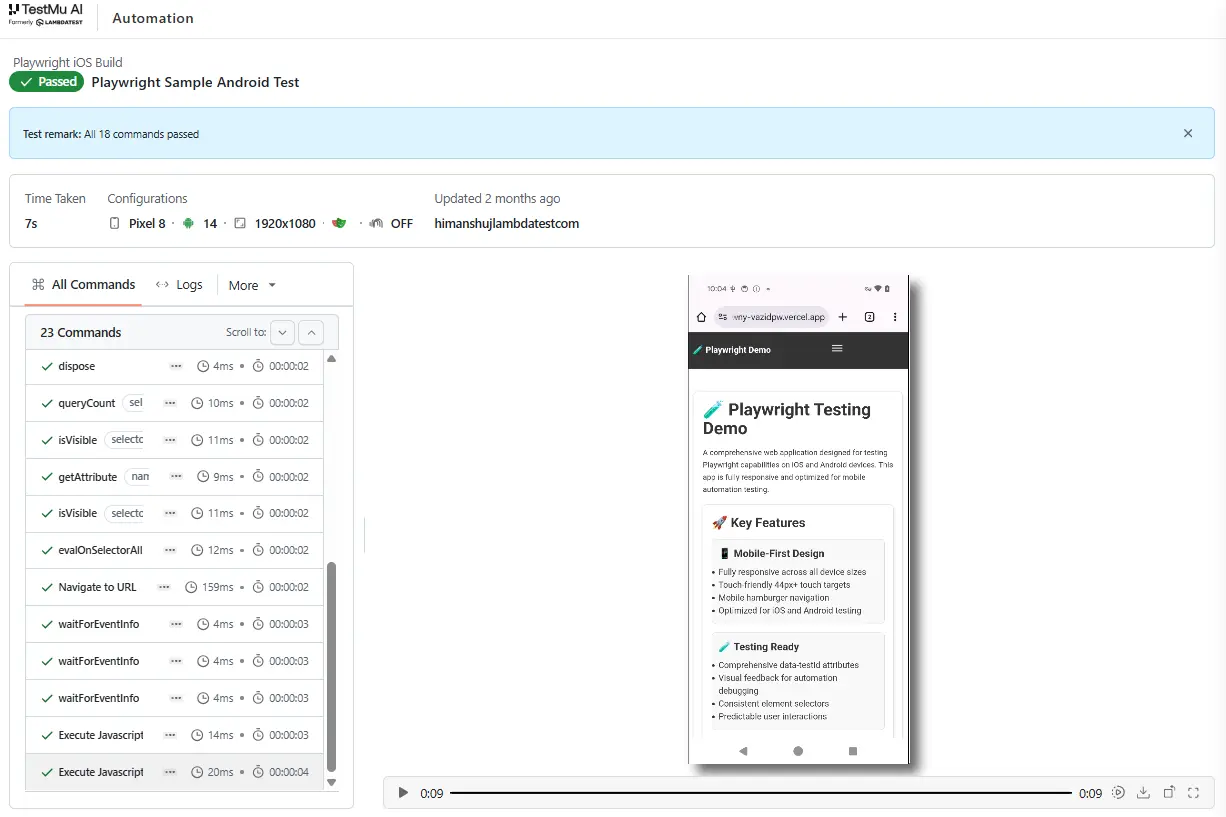
The same connection that runs one device scales to the full Android matrix in CI, turning one script into release-grade coverage on every commit.

Emulation vs Real Devices: Which Should You Use
Use emulation for responsive checks on every commit, and real devices before release. Emulation validates layout cheaply; real devices catch GPU rendering, OEM quirks, touch, and performance issues.
This decision table maps a scenario to the right Playwright Android approach:
| Scenario | Best Approach | Why |
|---|---|---|
| Responsive layout check on every commit | Device emulation | Runs in seconds in CI with no device cost; catches broken breakpoints early. |
| Quick local check on one attached phone | Experimental _android API | Drives on-device Chrome without a cloud, accepting its experimental limits. |
| Pre-release regression across OEMs | Real device cloud | Reproduces GPU rendering and OEM browser quirks emulation cannot. |
| Parallel runs across many devices in CI | Real device cloud plus HyperExecute | Scales one suite across handsets with up to 70% faster orchestration. |
| Native screens, gestures, or system dialogs | Appium (not Playwright) | Playwright reaches web and WebView content only. |
What Are the Best Practices for Playwright Android Testing
Treat mobile as a Playwright project, gate every commit with fast emulation, then validate release candidates on real Android hardware. Pin a supported version and keep native flows in Appium.
Each practice below comes from the framework constraints covered above, applied to a real suite:
- Define mobile as a project, not a flag: Keep Android viewports in a projects entry, so mobile runs stay explicit in CI.
- Use emulation for breadth, real devices for truth: Gate every commit with fast emulated runs, then validate release candidates on real hardware.
- Pin a supported Playwright version: Real device grids gate on version; pinning (up to v1.59.0 on TestMu AI) avoids connection-time failures.
- Prefer web-first assertions and tap(): Lean on auto-waiting and use tap() over click() when hasTouch is set, matching real mobile interaction.
- Test real network conditions: Run key journeys under throttled 3G or 4G profiles, since mobile users rarely have desktop bandwidth.
- Keep native flows in Appium: Do not stretch Playwright past WebView; route native steps to Appium to keep tests reliable.
For headless execution tradeoffs on mobile Chrome, see the guide on Playwright headless testing.
Conclusion
Start by adding one Android emulation project to your existing Playwright config and running it in CI this week. It is a five-minute change that catches responsive bugs immediately.
When you are ready for hardware accuracy, point the same script at a real Galaxy or Pixel using the CDP config above, and keep Appium in your toolkit for native screens. For the iPhone side of the same suite, see Playwright iOS testing.
To run Playwright on real Android phones without a device lab, create a free account and scale across 10,000+ real devices on TestMu AI. Your users test on real hardware daily; yours should too.
Author

Salman Khan
Blogs: 138


Salman is a Test Automation Evangelist and Community Contributor at TestMu AI, with over 6 years of hands-on experience in software testing and automation. He has completed his Master of Technology in Computer Science and Engineering, demonstrating strong technical expertise in software development, testing, AI agents and LLMs. He is certified in KaneAI, Automation Testing, Selenium, Cypress, Playwright, and Appium, with deep experience in CI/CD pipelines, cross-browser testing, AI in testing, and mobile automation. Salman works closely with engineering teams to convert complex testing concepts into actionable, developer-first content. Salman has authored 120+ technical tutorials, guides, and documentation on test automation, web development, and related domains, making him a strong voice in the QA and testing community.


Frequently asked questions
Did you find this page helpful?
More Related Blogs
TestMu AI forEnterprise
Get access to solutions built on Enterprise
grade security, privacy, & compliance
- Advanced access controls
- Advanced data retention rules
- Advanced Local Testing
- Premium Support options
- Early access to beta features
- Private Slack Channel
- Unlimited Manual Accessibility DevTools Tests