

Power Your Software Testing with AI Agents and Cloud
The Native AI-Agentic Cloud Platform to Supercharge Quality Engineering. Test Intelligently and Ship Faster.


- TestMu AI (Formerly LambdaTest)
- /
- Blog
- /
- Playwright iOS Testing
Playwright iOS Testing: A Practical Guide to Safari and Real Devices
Playwright iOS testing guide: emulate iPhone Safari with WebKit, understand the WebKit vs real Safari gap, and run Playwright tests on real iOS devices in CI.
Last Updated on:
Most teams run their Playwright tests on Chrome and Firefox, ship, and never think about Safari, until an iPhone user reports a bug that reproduces nowhere else.
Safari is 24.07% of the worldwide mobile browser market, per StatCounter. Playwright iOS testing closes that gap, driving mobile Safari with the scripts you already have, emulated on WebKit or on a real iPhone.
Overview
To perform Playwright iOS testing, use local WebKit emulation to quickly check responsive layouts, and connect your scripts to TestMu AI to run automated tests on real physical iPhones for accurate Safari rendering, touch gestures, and cookie behavior validation.
- Best for local layout checks: WebKit Emulation loads an iPhone descriptor into a local WebKit browser context to quickly test responsive breakpoints, viewport overflow, and mobile user-agent branching.
- Best for real-device accuracy: TestMu AI executes your Playwright scripts on physical iPhones to validate actual iOS Safari rendering, GPU behavior, native touch gestures, and cookie handling.
- Best for native iOS UI: XCUITest automates native iOS screens, Face ID, Apple Pay, and system dialogs that are outside the scope of Playwright web and WebView testing.
What Is Playwright iOS Testing
Playwright iOS testing means driving mobile Safari with your existing Playwright scripts, either emulated on WebKit or on a real iPhone. It exercises web and WebView flows, but not native app screens.
Here is the mental model to start from: on iOS, there is effectively one browser. Apple requires Chrome, Firefox, and Edge to all run on its WebKit engine, so whatever renders in Safari is what every iOS user sees.
That is why Playwright fits iOS web so well, since it already drives a WebKit build, and why you only ever target one engine. Two limits shape everything that follows, and both are worth understanding before you write any config:
- Safari is WebKit, and only WebKit: You test one engine, but it is Apple's, and it behaves differently from your desktop Chromium.
- No on-device iOS driver: Playwright attaches to a local Android phone, but Apple offers no equivalent, so real iPhones need a cloud.
Anything genuinely native, Face ID, permission prompts, the app's own screens, is out of scope here; that is XCUITest territory. If you have done Playwright Android testing, the pattern is familiar, but that missing on-device driver is what makes iOS different.
Emulation, Simulator, or Real Device: The iOS Testing Surfaces
iOS web testing happens on three surfaces: Playwright's WebKit emulation, Apple's Xcode Simulator, and real devices. Playwright automates the first and the last, but not the Mac-only Simulator.
The three are easy to conflate, so it helps to compare them side by side and see which ones Playwright can actually drive.
| Surface | What runs | Playwright drives it? | Needs a Mac? |
|---|---|---|---|
| WebKit emulation | Bundled WebKit with an iPhone viewport, on your desktop. | Yes | No |
| Xcode Simulator | Apple's iOS Simulator running Simulator Safari. | No | Yes |
| Real device | Safari on a physical iPhone or iPad. | Yes, via cloud | No, via cloud |
In practice that leaves you two options. The Simulator is a manual, Mac-only tool that Playwright cannot launch, so most teams skip it and choose between emulating locally and running on real devices in the cloud.

Note: Run your existing Playwright scripts on real iPhones and iPads with Safari, no Mac or device lab required. Start testing free or book a demo for a guided walkthrough.
Why Playwright's WebKit Is Not iOS Safari
Playwright ships its own WebKit build that follows upstream WebKit, but it is not the Safari Apple builds for iOS. Running on your desktop, it misses iOS rendering, GPU behavior, and Safari quirks.
This is the gap that lets an all-green emulation suite still ship a Safari bug to production. Playwright's own browsers documentation is candid about it, describing the bundled WebKit as a patched automation build rather than the Safari Apple ships.
| Dimension | Playwright WebKit (emulation) | Real iOS Safari |
|---|---|---|
| Engine build | Automation-patched WebKit on your desktop OS. | The exact Safari build Apple ships with each iOS version. |
| Rendering and GPU | Desktop graphics stack; no iOS Metal rendering. | Real device GPU, catching paint and compositing bugs. |
| Viewport quirks | Approximates size, but misses dynamic toolbar and safe-area behavior. | Real address-bar collapse, safe-area insets, and svh/lvh units. |
| Scrolling and touch | Synthetic touch events without real momentum. | Native momentum scrolling and true touch latency. |
| Privacy and cookies | No Intelligent Tracking Prevention behavior. | Real ITP cookie and storage handling that can break auth flows. |
In practice the split is clear: emulation confirms your layout holds at a phone width, while real Safari confirms the feature actually works for the users on it.
So here is a rule worth adopting. Never let an emulation-only pass gate a release. Let it fail fast on layout, then validate any flow that depends on cookies or storage, logins and checkouts especially, on real Safari before you ship.
How to Emulate an iPhone in Playwright
Load an iPhone descriptor from Playwright's device registry and pass it into a new WebKit browser context. It sets the viewport, user agent, and touch flags, so the page renders as mobile Safari.
The registry ships current hardware, from iPhone 13 through iPhone 16, plus iPads. In C#, that descriptor drives a WebKit context, and a quick check confirms the touch-enabled viewport behaves like a phone:
using System.Text.RegularExpressions;
using Microsoft.Playwright;

using var playwright = await Playwright.CreateAsync();
await using var browser = await playwright.Webkit.LaunchAsync();

// The iPhone descriptor sets Viewport, UserAgent, IsMobile, HasTouch
// and the WebKit engine, so the page behaves as mobile Safari
var context = await browser.NewContextAsync(playwright.Devices["iPhone 15"]);
var page = await context.NewPageAsync();

// Point this at your app under test
await page.GotoAsync("https://your-app.example.com/");
await Assertions.Expect(page).ToHaveTitleAsync(new Regex("My App"));

// HasTouch and IsMobile are set, so use TapAsync, not ClickAsync
await page.TapAsync("[data-testid='menu-toggle']");
To run it, add the package, install the WebKit browser Playwright drives, then execute the project:
dotnet add package Microsoft.Playwright
dotnet build
pwsh bin/Debug/net8.0/playwright.ps1 install webkit
dotnet run
Structured as an NUnit or MSTest fixture instead of a top-level script, the same code runs under dotnet test.
Emulation catches broken responsive breakpoints, hidden tap targets, viewport overflow, and wrong mobile user-agent branching, all before code leaves your machine.
What it will not catch is everything that makes iOS Safari its own browser, which is exactly the gap the previous section walked through. So lean on emulation early and often, just do not mistake a passing run for real-device coverage.
The Mac Problem: Running Playwright on Real iOS Safari
Testing iOS locally has always meant owning a Mac, and the Safari version is locked to whatever iOS the device runs. A real device cloud removes both constraints from a single endpoint.
Three constraints make real iOS coverage harder than Android, and a device cloud addresses each:
- Safari ships with iOS: You cannot install an old Safari to reproduce a bug; you need hardware on that iOS version.
- The Simulator needs macOS: Local Safari automation assumes a Mac, which most CI runners are not.
- No local driver: Playwright cannot attach to a USB iPhone, so execution moves to a hosted endpoint.
That cloud, in our case, is TestMu AI's real device cloud, which executes your stock Playwright scripts against real iOS Safari over a hosted endpoint. What it provides:
- Real devices at scale: Run on 10,000+ real Android and iOS devices across many iPhone and iPad models and versions.
- True Safari fidelity: Reproduce iOS Safari rendering, GPU behavior, and ITP quirks that WebKit emulation cannot.
- Native touch and gestures: Validate tap, scroll, and momentum on real hardware with true touch latency.
- Real-world conditions: Test under 2G to 5G network profiles and geolocation across 170+ countries.
- No script rewrite: Your Playwright code connects over a WebSocket endpoint unchanged, with no local setup.
- Full debug artifacts: Every session captures video, network logs, console output, and screenshots automatically.

The Playwright iOS device documentation lists the supported devices and versions.
Create a free account, then copy your username and access key into the LT_USERNAME and LT_ACCESS_KEY variables the script reads.
Because the platform was formerly LambdaTest, the endpoint, the LT:Options block, and the credentials keep the legacy lambdatest name. Note the client is Webkit, not Chromium, since iOS runs Safari:
using System.Text.Json;
using System.Web;
using Microsoft.Playwright;

var capabilities = new Dictionary<string, object>
{
    ["LT:Options"] = new Dictionary<string, object>
    {
        ["platformName"] = "ios",
        ["deviceName"] = "iPhone 15",
        ["platformVersion"] = "17",
        ["isRealMobile"] = true,
        ["build"] = "Playwright iOS Blog Demo",
        ["name"] = "Open app under test on real iOS Safari",
        ["user"] = Environment.GetEnvironmentVariable("LT_USERNAME"),
        ["accessKey"] = Environment.GetEnvironmentVariable("LT_ACCESS_KEY"),
        ["network"] = true,
        ["video"] = true,
        ["console"] = true,
    },
};

var caps = HttpUtility.UrlEncode(JsonSerializer.Serialize(capabilities));
var cdpUrl = "wss://cdp.lambdatest.com/playwright?capabilities=" + caps;

using var playwright = await Playwright.CreateAsync();
await using var browser = await playwright.Webkit.ConnectAsync(cdpUrl);
var page = await browser.NewPageAsync();
// Point this at your app under test
await page.GotoAsync("https://your-app.example.com/");
Console.WriteLine("Title: " + await page.TitleAsync());

await page.CloseAsync();
await browser.CloseAsync();
Running this on a real iPhone is where I hit a constraint the docs understate: the grid pins the client version hard. My Playwright client was on 1.60.0, and the connection was rejected at the handshake with a 400.
browserType.connect: WebSocket error: 400 Bad Request
{"status":400,"value":{"message":
  "Playwright version 1.60.0 not supported for ios platform."}}
The docs cap the C#, Java, and Python clients at v1.53.2, and v1.53.2 was the version that connected in my testing; newer builds were refused. Pin Microsoft.Playwright to a supported release and verify it for your account before wiring it into CI.
With Microsoft.Playwright pinned to a supported version, that same script loaded a live page in Safari on the real iPhone, captured below.
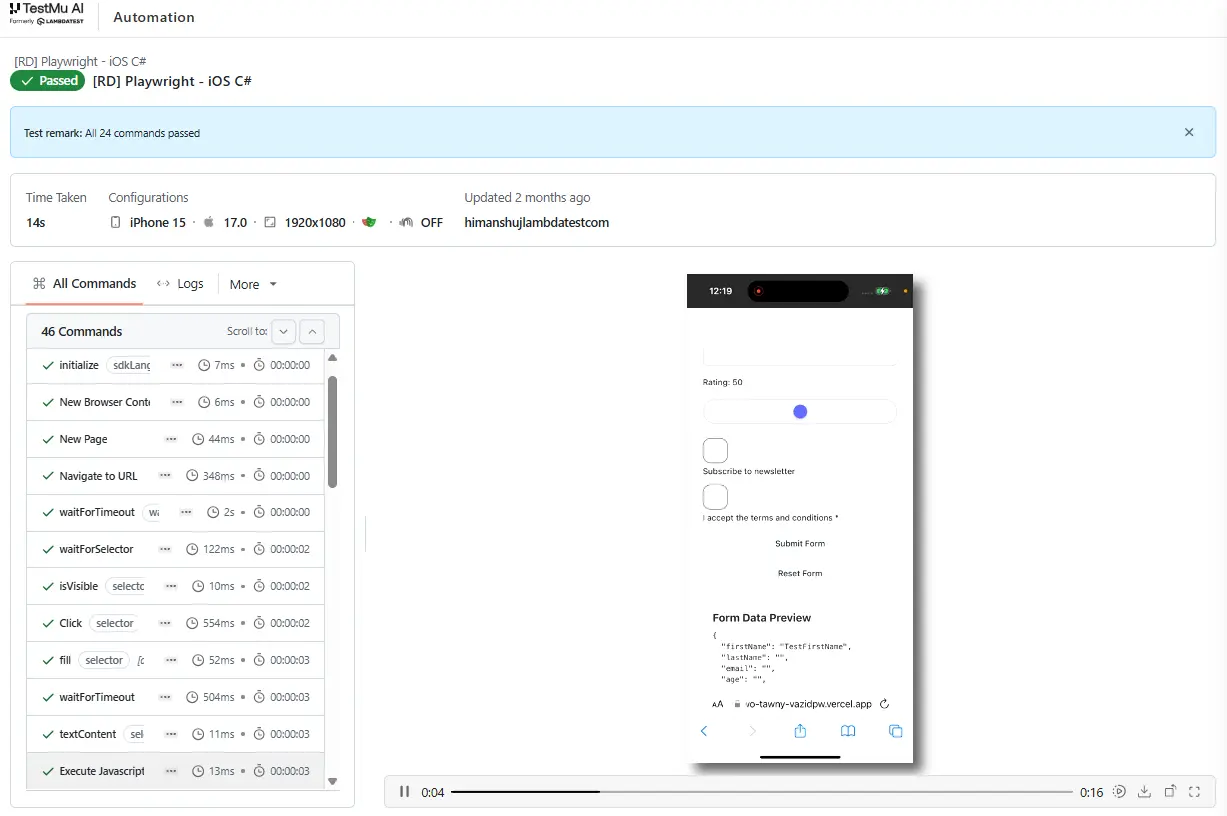
From there it scales cleanly: the same pinned setup fans out across the full iPhone and iPad matrix in CI, with no device lab to maintain.
Playwright vs XCUITest: Dividing iOS Coverage
Playwright reaches Safari and WebView content, while XCUITest reaches the native iOS UI. They are complementary, not competing: one owns the web layer, the other native screens and gestures.
The choice comes down to which layer a test touches, and it splits cleanly:
| Layer | Playwright | XCUITest |
|---|---|---|
| Safari web pages | Yes, its core target. | No, native UI only. |
| WKWebView content | Yes, via the WebView context. | Limited, no web locators. |
| Native UIKit / SwiftUI | No. | Yes, its core target. |
| Face ID, Apple Pay, system dialogs | No. | Yes. |
| Cross-language and CI web tests | Yes, JS, Python, Java, C#. | Swift and Xcode bound. |
In practice most teams run both, and because the same TestMu AI real device cloud executes each, the web and native suites run on the same iPhones.
See Playwright WebView testing for the hybrid layer, and how to automate an iOS app using Appium for native screens.
Best Practices for Playwright iOS Testing
Treat iOS as a Playwright project, gate every commit with WebKit emulation, then validate release candidates on real iOS Safari. Pin a supported version and keep native flows in XCUITest or Appium.
None of these are abstract. Each one comes straight out of the constraints above, applied to a suite you actually ship:
- Model iOS as a Playwright project: Keep iPhone viewports in a projects entry, so Safari runs stay explicit in CI.
- Emulate for breadth, use real devices for truth: Gate commits with emulation, then validate release candidates on real Safari.
- Pin a version the grid accepts: The docs cap the C# client at v1.53.2; verify per account, since only 1.53.2 connected in my test.
- Prefer web-first assertions and tap(): Use tap() over click() when hasTouch is set, matching Safari touch.
- Throttle the network: Run key journeys under 3G or 4G profiles, since mobile users rarely match desktop bandwidth.
- Route native flows to XCUITest: Do not push Playwright past WebView; keep native iOS steps in a native framework.
Conclusion
The fastest place to start is also the cheapest: add one iPhone emulation project to your Playwright config and run it in CI this week. Within five minutes you will be catching responsive Safari bugs that were reaching production unnoticed.
When you need real Safari, point the same script at an iPhone using the Webkit.ConnectAsync config above, pin a supported version, and keep XCUITest for native screens.
To run Playwright on real iPhones without a Mac, create a free account and scale across 10,000+ real devices on TestMu AI, following the Playwright iOS device documentation.
A quarter of your mobile users are on Safari; your tests should be too.
Author

Salman Khan
Blogs: 138


Salman is a Test Automation Evangelist and Community Contributor at TestMu AI, with over 6 years of hands-on experience in software testing and automation. He has completed his Master of Technology in Computer Science and Engineering, demonstrating strong technical expertise in software development, testing, AI agents and LLMs. He is certified in KaneAI, Automation Testing, Selenium, Cypress, Playwright, and Appium, with deep experience in CI/CD pipelines, cross-browser testing, AI in testing, and mobile automation. Salman works closely with engineering teams to convert complex testing concepts into actionable, developer-first content. Salman has authored 120+ technical tutorials, guides, and documentation on test automation, web development, and related domains, making him a strong voice in the QA and testing community.
Reviewer

Sirajuddin Khan
Reviewer
Sirajuddin Khan is Vice President of Product Management at TestMu AI (formerly LambdaTest), where he drives the company's agentic AI product strategy, building a suite of autonomous agents that includes Agentic Browsers and Agentic Visual Testing and shifting the unit of work from test execution to autonomous outcomes. One of the company's earliest product leaders, he has owned the roadmap for the high-performance execution cloud and grew the cross-browser testing products from early adoption to market leadership. He brings over a decade of experience across SaaS, B2B, and eCommerce, with earlier product roles at Wydr and ShopClues, where his catalog and search work cut delivery SLAs and lifted seller activity. Sirajuddin holds an MBA in Information Technology from Sikkim Manipal University and a B.Tech in Computer Science Engineering from Maharshi Dayanand University.


Frequently asked questions
Did you find this page helpful?
More Related Blogs
TestMu AI forEnterprise
Get access to solutions built on Enterprise
grade security, privacy, & compliance
- Advanced access controls
- Advanced data retention rules
- Advanced Local Testing
- Premium Support options
- Early access to beta features
- Private Slack Channel
- Unlimited Manual Accessibility DevTools Tests