

Power Your Software Testing with AI Agents and Cloud
The Native AI-Agentic Cloud Platform to Supercharge Quality Engineering. Test Intelligently and Ship Faster.


- TestMu AI (Formerly LambdaTest)
- /
- Blog
- /
- Playwright WebView Testing
Playwright WebView Testing: Android, Electron, WebView2
Playwright automates WebView content on Android, Electron and Edge WebView2, but never native UI. See each API, its limits, and WebView tests on real devices.
Last Updated on:
Playwright WebView testing allows you to automate hybrid applications where web interfaces run inside native application containers.
It requires validating an environment where HTML, JavaScript, browser engines, native processes, and application-level workflows interact together.
Overview
Can Playwright Automate WebViews?
Yes, Playwright automates the web content inside WebViews. It attaches to an Android System WebView through the experimental _android API, drives an Electron app's Chromium renderer, and connects to a Microsoft Edge WebView2 control over CDP, returning a standard Page in each case. Playwright cannot reach native UI or system permission dialogs.
What Do You Need to Test a WebView With Playwright?
Each target surface has its own requirements:
- Android WebViews: Playwright attaches to an Android System WebView on a device or emulator running Chrome 87 or newer, with the adb daemon running and authorized. Local setup required: Yes.
- Electron WebViews: Playwright launches an Electron app from its entry file and drives the renderer window, on supported versions v12.2.0+, v13.4.0+, and v14+. Local setup required: Yes.
- Microsoft Edge WebView2: Playwright attaches to a WebView2 control in a Windows app with chromium.connectOverCDP(), the one WebView route that is not an experimental API. Local setup required: Yes.
- iOS WKWebView: Playwright has no first-class API to attach to a WKWebView inside a shipped iOS app, so that layer belongs to Appium. Supported by Playwright: No.
- TestMu AI real device cloud: TestMu AI runs the same _android script over a CDP connection on 100+ real Android devices using the isPwMobileWebviewTest capability. Local setup required: No.
Can Playwright Test WebViews
Yes, but only the web content inside the WebView. Playwright attaches to an Android System WebView and the Chromium renderer of an Electron app, then returns a normal Page. It cannot drive native UI.
A WebView is an embedded browser component that renders HTML inside a native or desktop app. Android exposes the System WebView, iOS uses WKWebView, and an Electron window is Chromium itself.
Because Playwright automates browsers, it reaches any Chromium surface and stops where the native layer begins. Drawing that line up front saves a wasted sprint.
Here is what Playwright can and cannot do with WebViews:
- Attaches to an Android WebView via the experimental _android API and returns a Page.
- Drives the Chromium renderer window of an Electron app through the experimental _electron API.
- Attaches to a Microsoft Edge WebView2 control in a Windows app over CDP, using a stable API rather than an experimental one.
- Uses the full locator, auto-wait, and assertion model inside the WebView.
- Cannot tap native components, system permission dialogs, or OS-level UI outside the WebView.
- Cannot attach to an iOS WKWebView inside a shipped native app, since _android is Android only.
Each surface has its own entry point, and only one of them is a stable API:
| WebView surface | Playwright entry point | Experimental? | Reaches native UI? |
|---|---|---|---|
| Android System WebView | _android, then device.webView() and webView.page() | Yes | No |
| Electron renderer | _electron.launch(), then firstWindow() | Yes | No |
| Microsoft Edge WebView2 | chromium.connectOverCDP() on a remote debugging port | No | No |
| iOS WKWebView | None; use Appium for a WKWebView inside a shipped app | Not supported | No |
Consider a hybrid checkout screen. Playwright handles the coupon field inside the WebView, while the native login step belongs to Appium, the same boundary that governs Playwright Android testing.
New to the component itself? See what is a WebView and how to test it.
What Is Playwright's Experimental Android Support
The _android entry point connects Playwright to Chrome or a System WebView on a locally attached Android device over CDP. The docs mark it experimental, so treat it as a local smoke-check tool.
The Playwright Android API lists Chrome 87 or newer on the device as a prerequisite, alongside an ADB daemon that is running and authenticated with the device.
Two classes split the work. AndroidDevice obtains a WebView, and the AndroidWebView class turns it into a Page:
- device.webView(selector) - an AndroidDevice method that waits for a WebView matching a pkg or socketName, with a 30 second default timeout.
- device.webViews() - an AndroidDevice method that returns an array of every open WebView, useful when an app hosts several.
- webView.page() - the AndroidWebView method that returns a standard Playwright Page, the object every assertion runs against.
- webView.pkg() and webView.pid() - AndroidWebView accessors, called as methods rather than read as properties.
This is the only built-in way to reach an in-app WebView. Its experimental status, plus the local adb and device-flag setup each machine needs, is what pushes WebView checks that gate a release onto a cloud grid instead.
What Do You Need Before Writing a WebView Test
You need Node.js, the Playwright package, an Android device or emulator with adb authorized, and one on-device Chrome flag. The official docs list four conditions before _android can attach to a WebView.
Confirm each item below before writing the test, since a missing flag fails silently at connection time:
- An Android device or AVD emulator running Chrome 87 or newer.
- The adb daemon running and the device authorized, since raw USB is not supported.
- The Enable command line on non-rooted devices flag turned on in chrome://flags.
- The screen kept awake, since screenshots and rendering checks fail on a sleeping display.
Install the framework and confirm the device is visible to adb before anything else:
# Install Playwright (the _android API ships in playwright-core)
npm init -y
npm install playwright

# Confirm the device or emulator is attached and authorized
adb devices
# List of devices attached
# emulator-5554   device
If adb devices shows unauthorized, accept the debugging prompt on the device. If it shows nothing, fix the connection before writing any test, and keep the screen awake, since a sleeping display produces blank screenshots rather than an explicit error.

Note: Run your Playwright WebView scripts on real Android devices, no adb or emulator to maintain. Start testing free or book a demo for a guided walkthrough.
How to Test an Android WebView with Playwright
Connect with the _android API, select the WebView by its host package, get a Page from it, then drive it with ordinary locators and assertions. The WebView shell app is the simplest first target.
The example below attaches to the Android System WebView shell, loads a page, and asserts its title. The package org.chromium.webview_shell ships on most emulators, making it a reliable first target:
const { _android: android } = require('playwright');
const { expect } = require('expect');

(async () => {
  // 1. Grab the first attached device or emulator
  const [device] = await android.devices();
  console.log('Model:', device.model(), 'Serial:', device.serial());

  // 2. Launch the WebView shell so a WebView exists to attach to
  await device.shell('am start org.chromium.webview_shell/.WebViewBrowserActivity');

  // 3. Wait for the WebView belonging to that package
  const webview = await device.webView({ pkg: 'org.chromium.webview_shell' });

  // 4. Get a regular Playwright Page from the WebView
  const page = await webview.page();
  await page.goto('https://ecommerce-playground.lambdatest.io/');

  // 5. From here it is standard Playwright
  await expect(page).toHaveTitle(/Your Store/);

  // Use click(), not tap(): the context behind webView.page() has no
  // hasTouch option, so tap() throws "The page does not support tap."
  await page.click('button.navbar-toggler, [data-toggle="collapse"]');

  await device.close();
})();
For your own app, swap the pkg for your package id and skip the shell launch, since the app already hosts the WebView. Inspect the open WebViews and handle one closing mid-test like this:
// Inspect every WebView the app currently exposes
const views = device.webViews();
for (const view of views) {
  // pkg() and pid() are methods on AndroidWebView, not plain properties
  console.log('pkg:', view.pkg(), 'pid:', view.pid());
}

// React when a WebView closes mid-test, for example on screen navigation
const target = await device.webView({ pkg: 'com.yourcompany.app' });
target.on('close', () => console.log('WebView closed, stop using its page'));
Once webView.page() hands you a Page, the WebView is just a browser tab. Web-first assertions, network interception, and tracing all behave exactly as they do on the desktop.
How to Test Electron and Desktop WebViews in Playwright
Launch the app with the _electron API and take its first window as a Page. The Electron renderer is Chromium, so the window is a WebView you drive directly. Playwright marks Electron support experimental, the same tier as _android.
The official Playwright API docs list the supported Electron versions as v12.2.0+, v13.4.0+, and v14+, so the v13.0 to v13.3 range is the one gap to watch. The launch flow points at your app entry file and returns a Page for the main window:
const { test, expect, _electron: electron } = require('@playwright/test');

test('electron renderer WebView loads the dashboard', async () => {
  // Launch the packaged or source Electron app
  const electronApp = await electron.launch({ args: ['main.js'] });

  // The first window is the Chromium renderer, a Page you can drive
  const window = await electronApp.firstWindow();
  await expect(window).toHaveTitle(/Dashboard/);
  await window.getByRole('button', { name: 'Sync' }).click();

  await electronApp.close();
});
A nested webview tag is where this path stops. Its guest content runs in a separate Electron WebContents, and frameLocator() only enters iframe and frame elements, so pointing it at a webview tag throws rather than resolving:
// This does NOT work: frameLocator only enters <iframe>/<frame>
// const embedded = window.frameLocator('webview');
// Error: Selector "webview" resolved to <webview>, <iframe> was expected

// Drive content that lives in a <webview> tag by testing that page
// directly in a browser context, and keep the Electron test on the
// renderer's own UI:
await window.getByRole('button', { name: 'Sync' }).click();
await expect(window.getByText('Sync complete')).toBeVisible();
Knowing that limit up front saves the afternoon usually spent debugging a locator that never resolves. Assert the renderer's own UI in the Electron test, and cover the embedded site as a normal web test.
How to Test Microsoft Edge WebView2 Apps With Playwright
Playwright attaches to a WebView2 control with chromium.connectOverCDP(). Start the Windows app with a remote debugging port passed through the WEBVIEW2_ADDITIONAL_BROWSER_ARGUMENTS environment variable, connect to that port, then take the first context and its first page. This route uses a stable API rather than an experimental one.
This is the surface most WebView guides skip, and it covers the Chromium control that Windows desktop apps embed through Microsoft Edge.
The Playwright WebView2 guide sets WEBVIEW2_ADDITIONAL_BROWSER_ARGUMENTS to start the WebView2 process with the Chrome DevTools Protocol enabled, and uses WEBVIEW2_USER_DATA_FOLDER to give each test instance its own user data directory. Both belong on the process you spawn:
const { test, expect, chromium } = require('@playwright/test');
const { spawn } = require('child_process');

test('WebView2 shell renders the settings pane', async () => {
  // WebView2 reads both variables at launch, so pass them to the child process
  const app = spawn('MyApp.exe', {
    env: {
      ...process.env,
      WEBVIEW2_ADDITIONAL_BROWSER_ARGUMENTS: '--remote-debugging-port=9222',
      // Without a per-worker folder, parallel tests share one profile
      WEBVIEW2_USER_DATA_FOLDER: '.wv2-profiles/worker-1',
    },
  });

  const browser = await chromium.connectOverCDP('http://localhost:9222');
  const context = browser.contexts()[0];
  const page = context.pages()[0];

  await expect(page.getByRole('heading', { name: 'Settings' })).toBeVisible();

  await browser.close();
  app.kill();
});
Two details decide whether this stays reliable. Give every parallel worker its own WEBVIEW2_USER_DATA_FOLDER, because the control defaults every instance to the same user data directory and parallel runs then interfere with each other. And scope expectations the way you would on Android, since the CDP connection reaches the web content only and the native Win32 chrome around the control stays outside the test.
All three local routes share one limit. The Android device, the Electron build, or the Windows app has to sit on the machine running the test, which caps coverage at whatever hardware is on the desk.
How to Scale Playwright WebView Tests With TestMu AI (Formerly LambdaTest)
Cloud platforms such as TestMu AI (formerly LambdaTest) remove that constraint. Its real device cloud spans 10,000+ real Android and iOS devices across every framework it supports, and Playwright connects to real Android hardware over CDP, so the WebView under test is the one your users actually have.

For WebView runs specifically, the platform exposes a dedicated capability flag and full session artifacts. A real-device WebView run gives you:
- Playwright on Android runs across 100+ real Android devices, each carrying its own bundled System WebView build rather than one emulator image.
- Real GPU rendering and OEM WebView quirks that an emulator cannot reproduce.
- Network profiles from 2G through 5G, plus offline, and geolocation across 170+ countries.
- No script rewrite, since your Playwright code connects over CDP with no adb or local setup.
- Session video, network logs, and console output captured automatically on every run.
The capability that turns a normal connection into a WebView run is isPwMobileWebviewTest. Set it with the Android real-device options, then connect over CDP:
// A WebView session is an Android session, so connect with _android,
// not chromium.connect() - the latter gives you Chrome for Android instead.
const { _android: android } = require('playwright');

const capabilities = {
  'LT:Options': {
    platformName: 'android',
    deviceName: 'Galaxy S22 5G',
    platformVersion: '12',
    isRealMobile: true,
    isPwMobileWebviewTest: true, // mandatory capability to enable WebView testing
    build: 'Playwright Android Webview Build',
    name: 'Playwright android Webview test',
    user: process.env.LT_USERNAME,
    accessKey: process.env.LT_ACCESS_KEY,
  },
};

(async () => {
  const cdpUrl =
    'wss://cdp.lambdatest.com/playwright?capabilities=' +
    encodeURIComponent(JSON.stringify(capabilities));

  // Returns an AndroidDevice, the same object the local _android flow gives you
  const device = await android.connect(cdpUrl);

  // Launch the WebView shell so a WebView exists to attach to
  await device.shell('am force-stop org.chromium.webview_shell');
  await device.shell('am start org.chromium.webview_shell/.WebViewBrowserActivity');

  const webview = await device.webView({ pkg: 'org.chromium.webview_shell' });
  const page = await webview.page();

  console.log('WebView title:', await page.title());

  await device.close();
})();
Set your credentials in the LT_USERNAME and LT_ACCESS_KEY environment variables, then run the script. Full setup lives in the Playwright WebView test documentation.
The same connection that runs one WebView scales to the full Android matrix in CI, turning a single script into release-grade coverage on every commit.
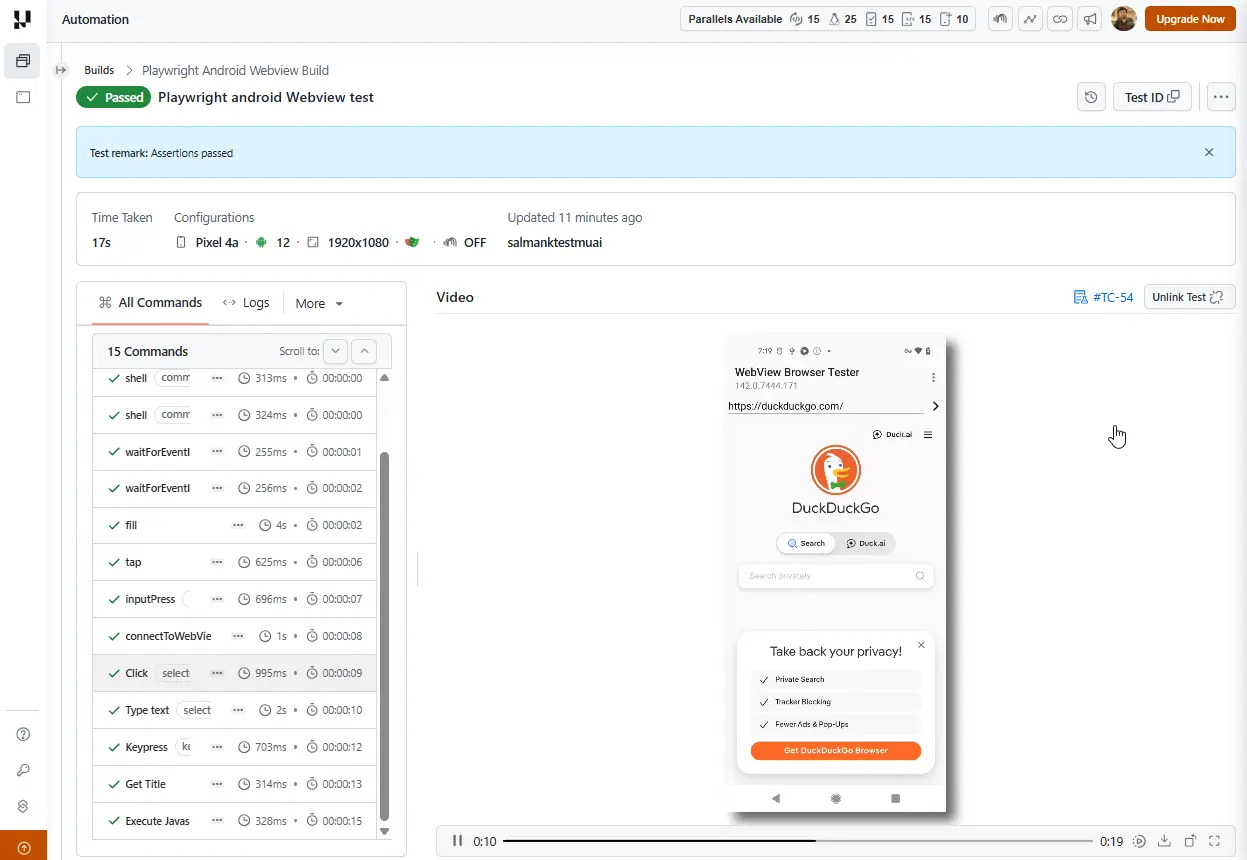
To view your test results, head over to the TestMu AI Web Automation dashboard. The run below finished in 17 seconds on a Pixel 4a running Android 12, and its command list shows the WebView path explicitly: two shell calls to launch the shell app, then connectToWebView, then ordinary Click, Type text, and Get Title steps running inside the WebView.
Common Challenges (+Solutions) for Playwright WebView Testing
Most WebView failures trace to context detection, version mismatches, native steps Playwright cannot reach, or flaky timing. Each has a concrete fix once you know the framework boundary.
These are the issues teams hit most, and how to resolve them:
- No WebView found usually means the pkg does not match or none is open yet. List device.webViews() and launch the screen first.
- An outdated System WebView refuses to attach below the Chrome 87 floor. Update it on the device, or pin a newer device in the cloud.
- When a native step blocks the WebView, grant permissions ahead with adb, or drive that step in Appium and hand off.
- Missing Electron content usually sits inside a webview tag, which Playwright cannot enter. Assert the renderer UI here and test that content separately.
- Flaky local runs trace back to the experimental path and a sleeping screen. Keep the display awake, and move CI to real devices.
Best Practices for Playwright WebView Testing
Scope tests to the web layer, keep the experimental path for smoke checks, validate on real WebView builds, and pair Playwright with Appium for native steps. The boundary drives each choice.
Apply these when you build a real WebView suite:
- Assert only the web layer, meaning content, forms, and flows inside the WebView, never native UI.
- Keep _android as a smoke tool for a quick local check, not as the suite that gates releases.
- Validate against the WebView builds your users actually run, since devices ship different bundled versions.
- Lean on web-first assertions for auto-waiting, and use click() rather than tap(), since the context behind webView.page() is created without the hasTouch option.
- Isolate the native handoff by scripting any preceding native step separately in Appium, so the WebView test stays deterministic.
- Run the suite on real devices in CI to get parallelism and rendering fidelity together.
Conclusion
Start by attaching the _android example to your app's WebView package this week and asserting one in-WebView flow. It proves the boundary on your own app in minutes.
When you move to CI, point the same script at a real device by adding isPwMobileWebviewTest to your capabilities, and keep Appium ready for the native steps Playwright cannot reach. The Playwright Android documentation covers the surrounding capability set.
If you are still deciding where a WebView belongs in your architecture, the breakdown of web vs hybrid vs native apps maps the tradeoffs before you commit to a test strategy.
Run Playwright WebView tests on real Android devices without a device lab: create a free TestMu AI account and scale across 10,000+ real devices. Your users hit these WebViews on real hardware; yours should too.
Author

Salman Khan
Blogs: 138


Salman is a Test Automation Evangelist and Community Contributor at TestMu AI, with over 6 years of hands-on experience in software testing and automation. He has completed his Master of Technology in Computer Science and Engineering, demonstrating strong technical expertise in software development, testing, AI agents and LLMs. He is certified in KaneAI, Automation Testing, Selenium, Cypress, Playwright, and Appium, with deep experience in CI/CD pipelines, cross-browser testing, AI in testing, and mobile automation. Salman works closely with engineering teams to convert complex testing concepts into actionable, developer-first content. Salman has authored 120+ technical tutorials, guides, and documentation on test automation, web development, and related domains, making him a strong voice in the QA and testing community.
Reviewer

Srinivasan Sekar
Reviewer
Srinivasan Sekar is Director of Engineering at TestMu AI (formerly LambdaTest), where he leads engineering and open-source initiatives behind the Selenium and Appium automation grid and owns TestMu AI's MCP Server. A committer to Appium and a contributor to Selenium, WebdriverIO, Taiko, and AppiumTestDistribution, he brings over 15 years of experience in quality engineering and open-source technologies. He is the author of the Apress book 'The MCP Standard: A Developer's Guide to Building Universal AI Tools with the Model Context Protocol,' a Certified Kubernetes and Cloud Native Associate, and an international conference speaker. Before TestMu AI he spent over eight years at Thoughtworks as a Principal Consultant and Quality Architect. Srinivasan holds a B.Tech in Information Technology from Anna University.


Playwright WebView Testing FAQs
Did you find this page helpful?
More Related Blogs
TestMu AI forEnterprise
Get access to solutions built on Enterprise
grade security, privacy, & compliance
- Advanced access controls
- Advanced data retention rules
- Advanced Local Testing
- Premium Support options
- Early access to beta features
- Private Slack Channel
- Unlimited Manual Accessibility DevTools Tests